Icon

🇬🇧 How to Create and Publish a News Post

Learn how to configure, target, and submit a multilingual news post for moderation.

By Megalopole SRL

This guide explains how to write, target, and schedule a news post. Its goal is to help you communicate announcements effectively with the board gaming community while complying with publication and moderation requirements.

This process is intended for publishers and distributors with a professional account on Board Game Station who want to share updates, product launches, or company news.

Accessing the News Creation Form

To publish content, you must first switch to your professional profile.
1
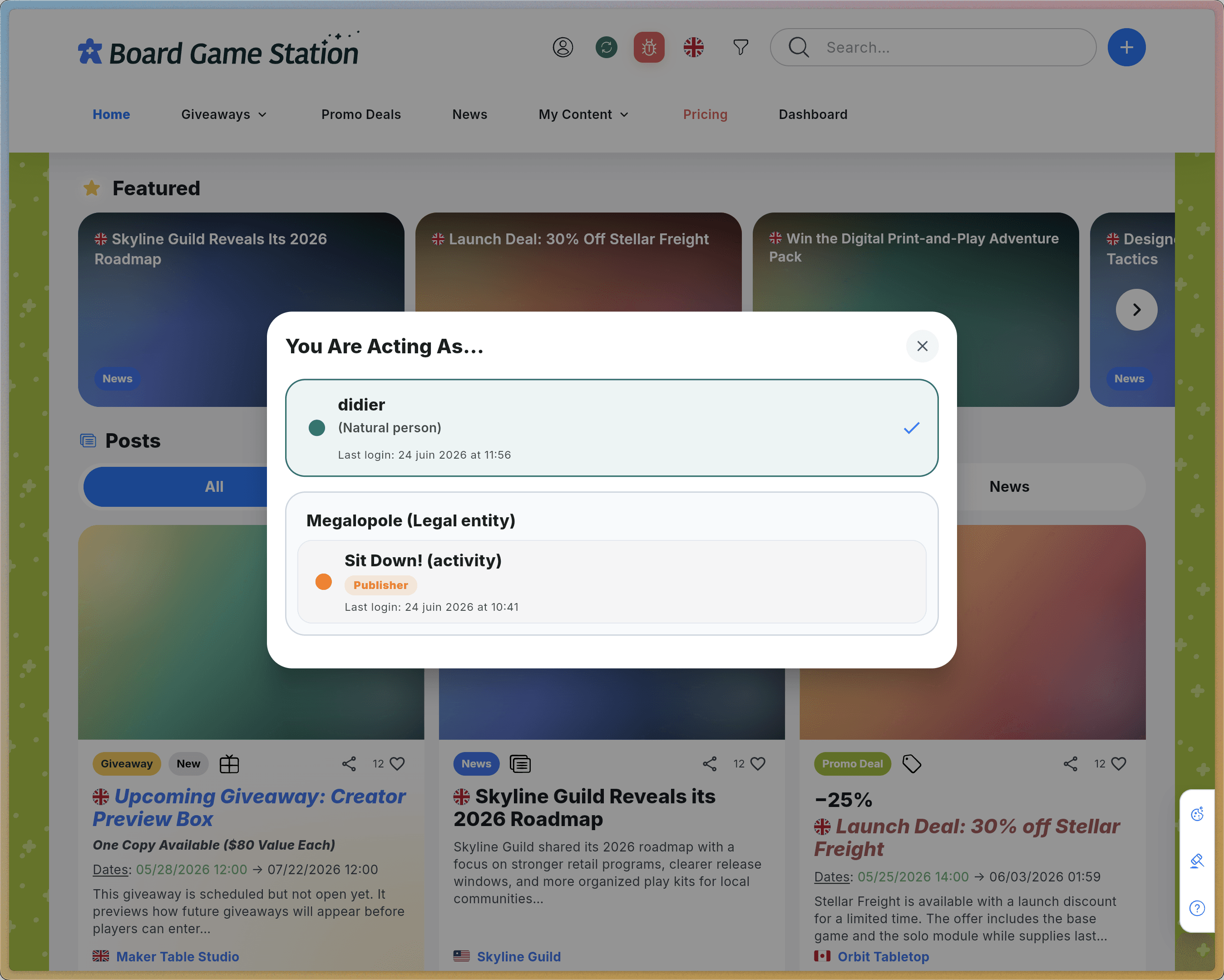
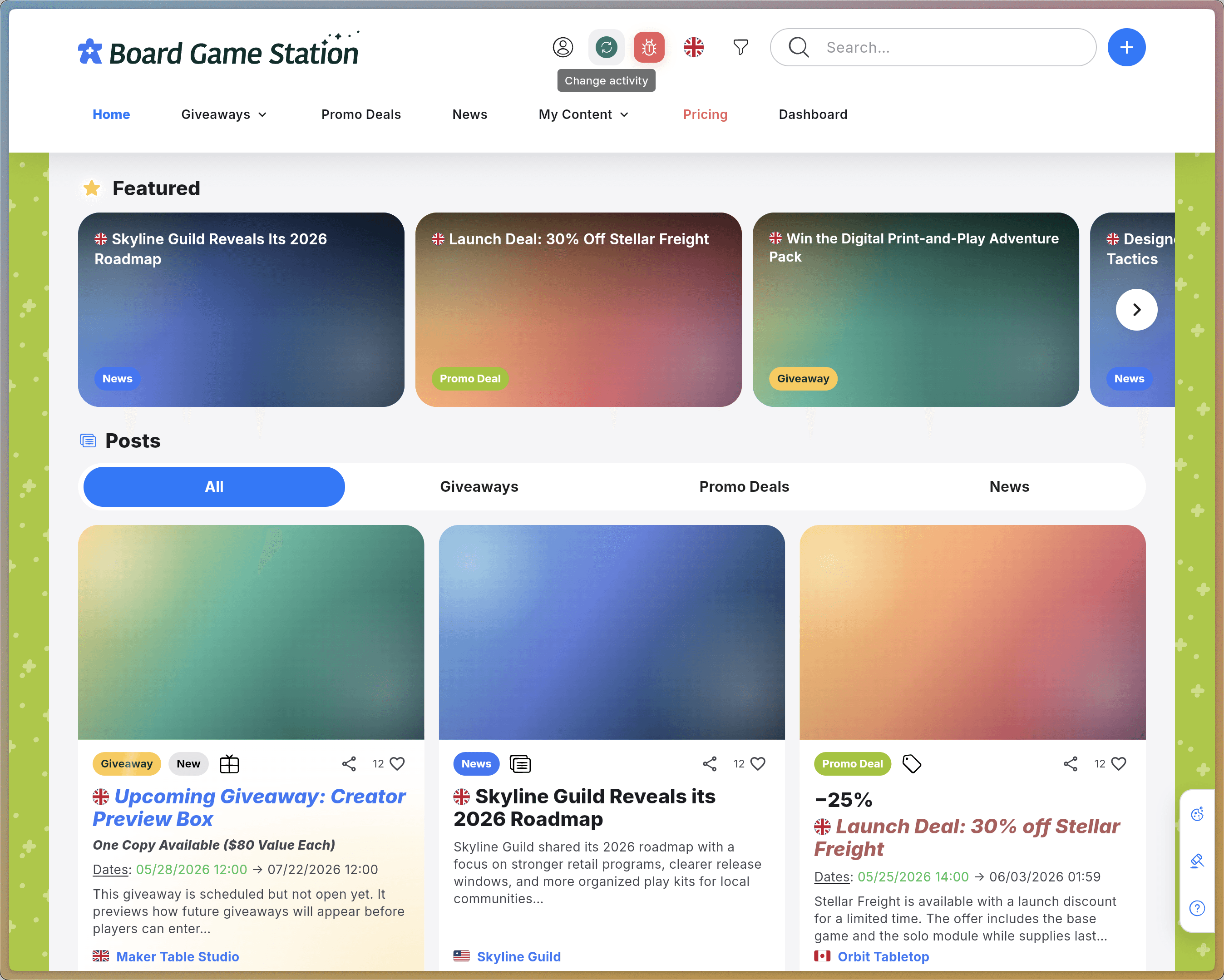
Open the menu by clicking Switch Activity.
Step #1: Open the menu by clicking Switch Activity.
2
Select the professional profile you want to publish from (Sit Down! in this example).
Step #2: Select the professional profile you want to publish from (Sit Down! in this example).
3
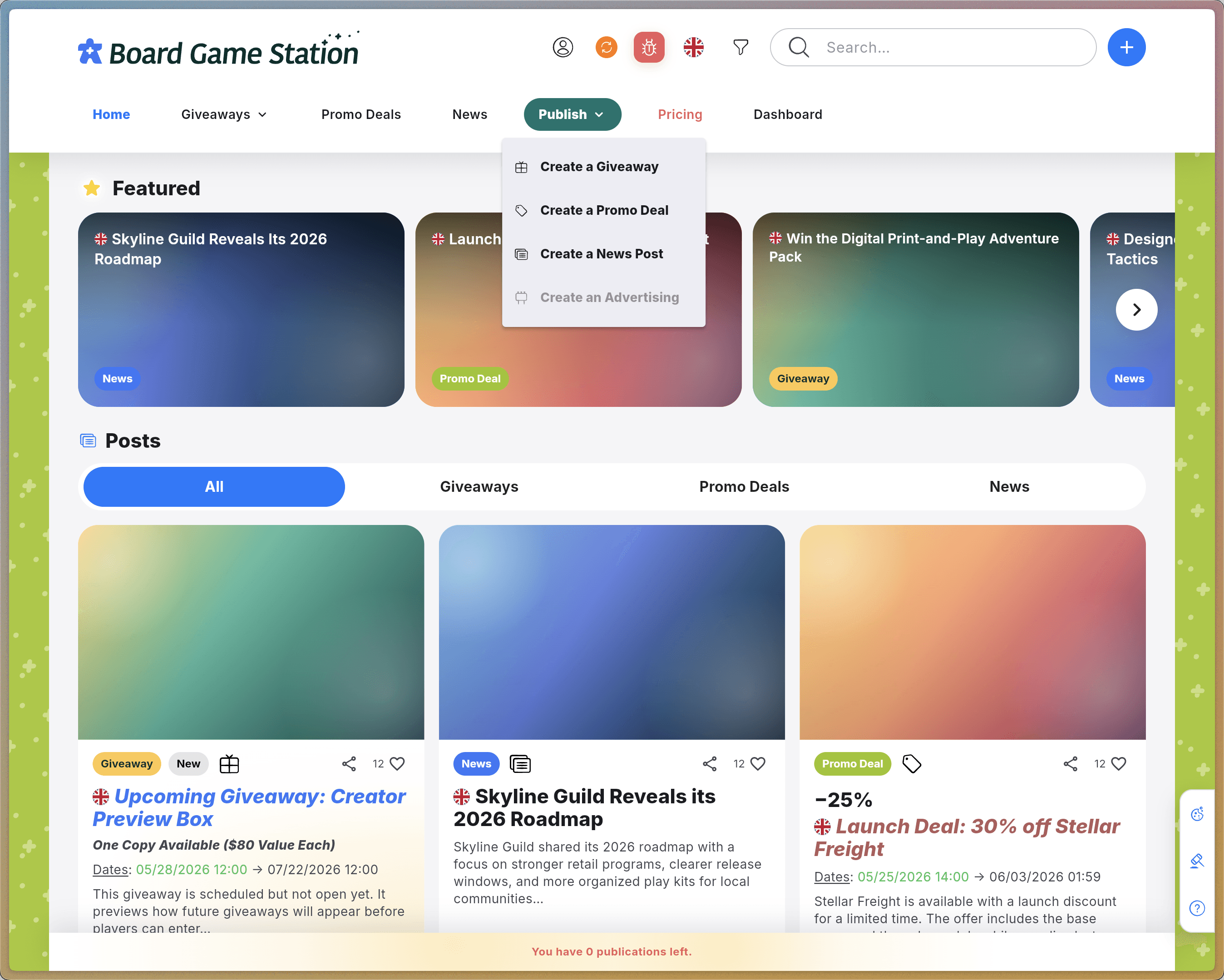
The Publish menu will then appear. Click Create a News Post to open the editor.
Step #3: The Publish menu will then appear. Click Create a News Post to open the editor.

Configuring Your Post

4
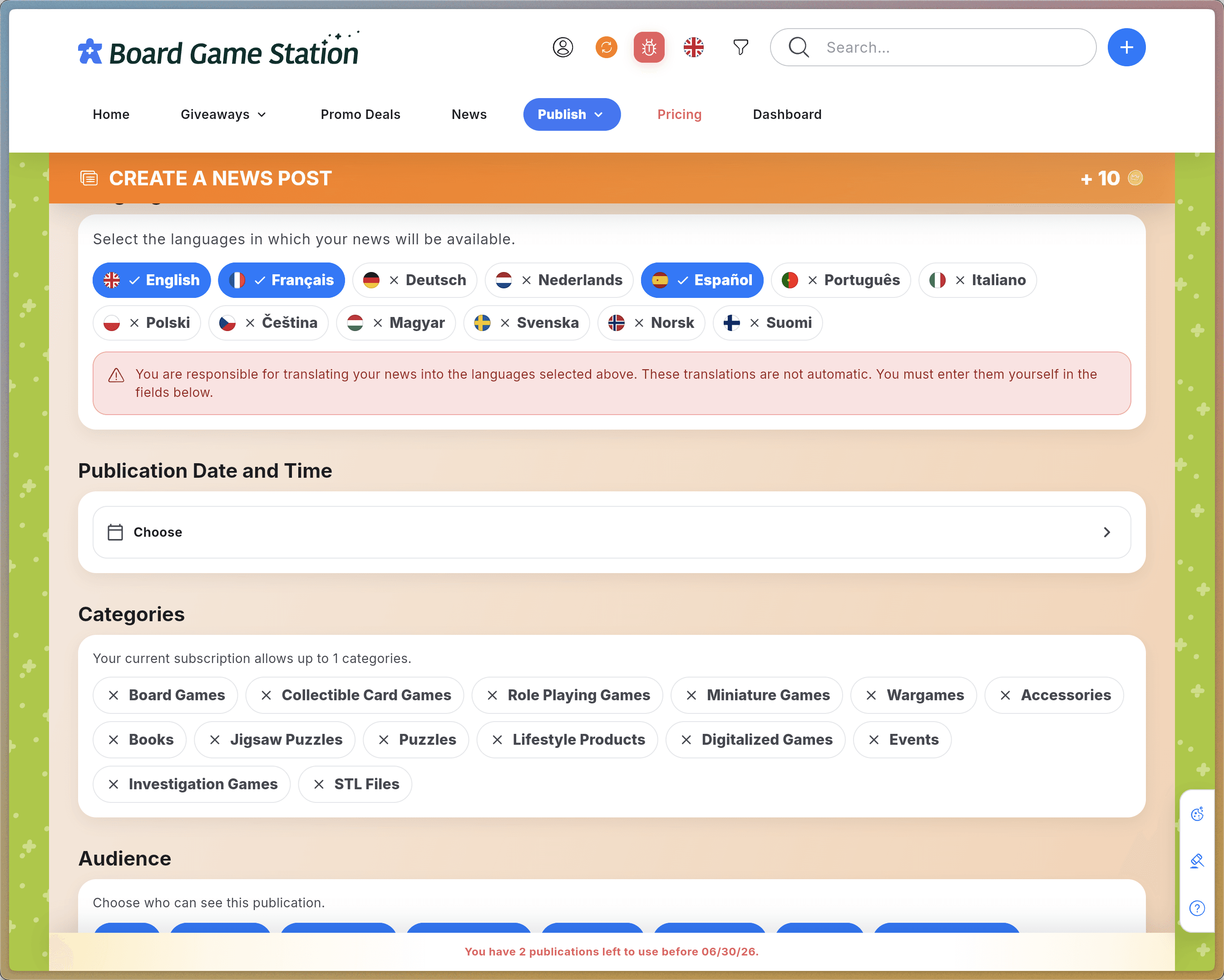
Select the languages in which your post will be available.
Step #4: Select the languages in which your post will be available.
5
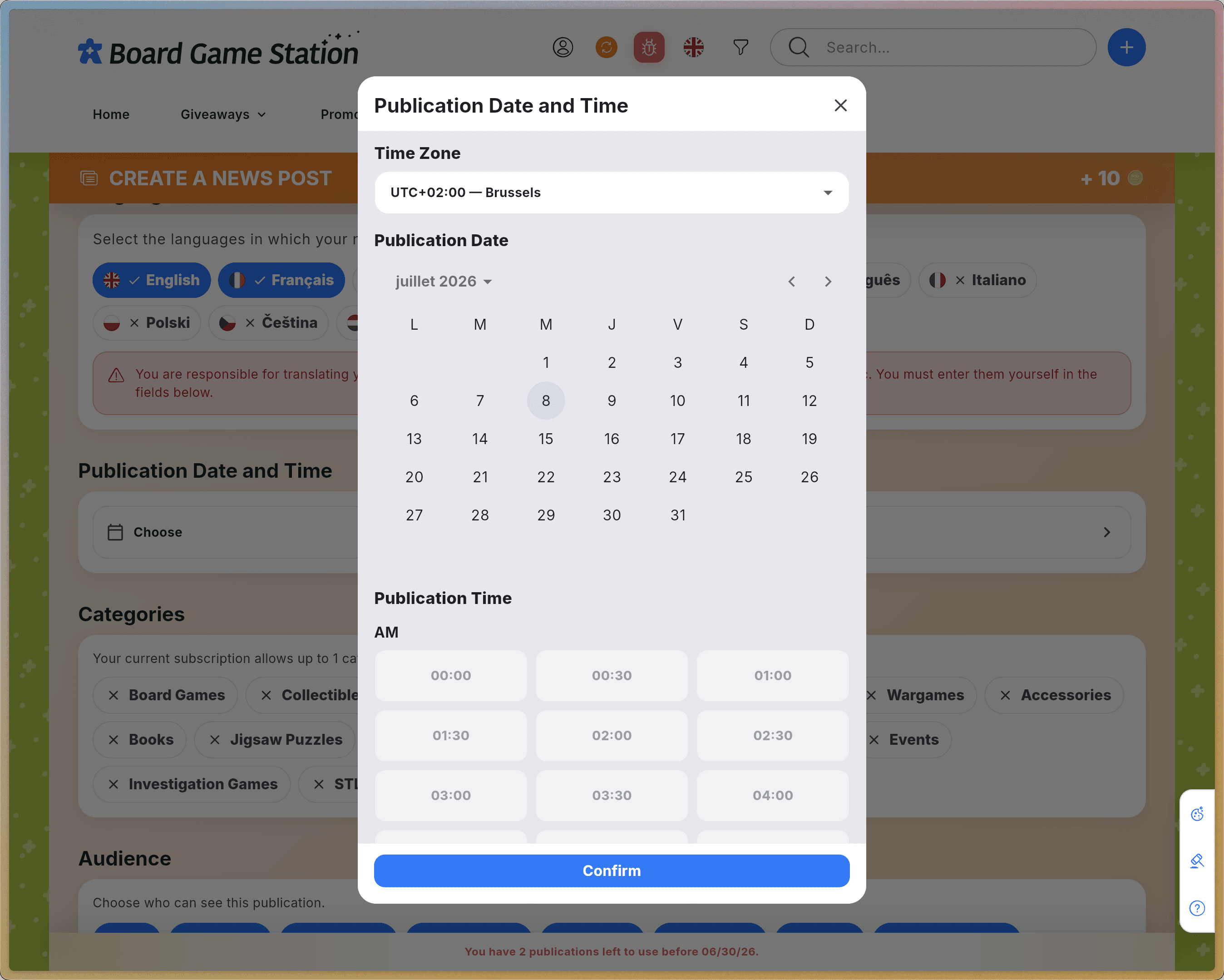
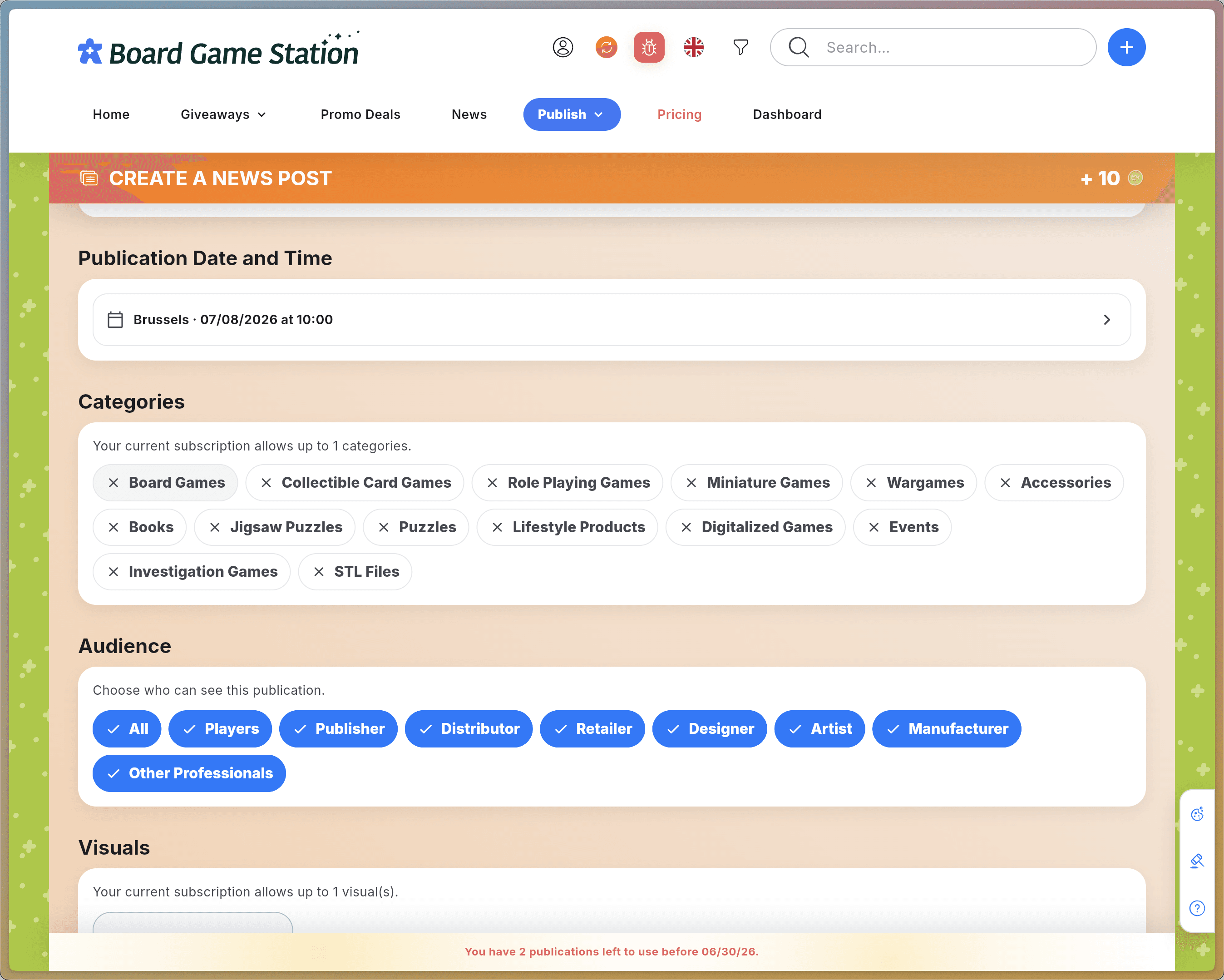
Open Publication Date and Time. Choose your time zone, then select a publication date and time. Confirm your selection.
Step #5: Open Publication Date and Time. Choose your time zone, then select a publication date and time. Confirm your selection.

Categories, Audience & Visuals

Choose the appropriate topic and determine who will be able to view your news post.
6
Select the category or categories that apply to your publication. Note: The number of categories you can select depends on your subscription plan.
Step #6: Select the category or categories that apply to your publication. Note: The number of categories you can select depends on your subscription plan.
7
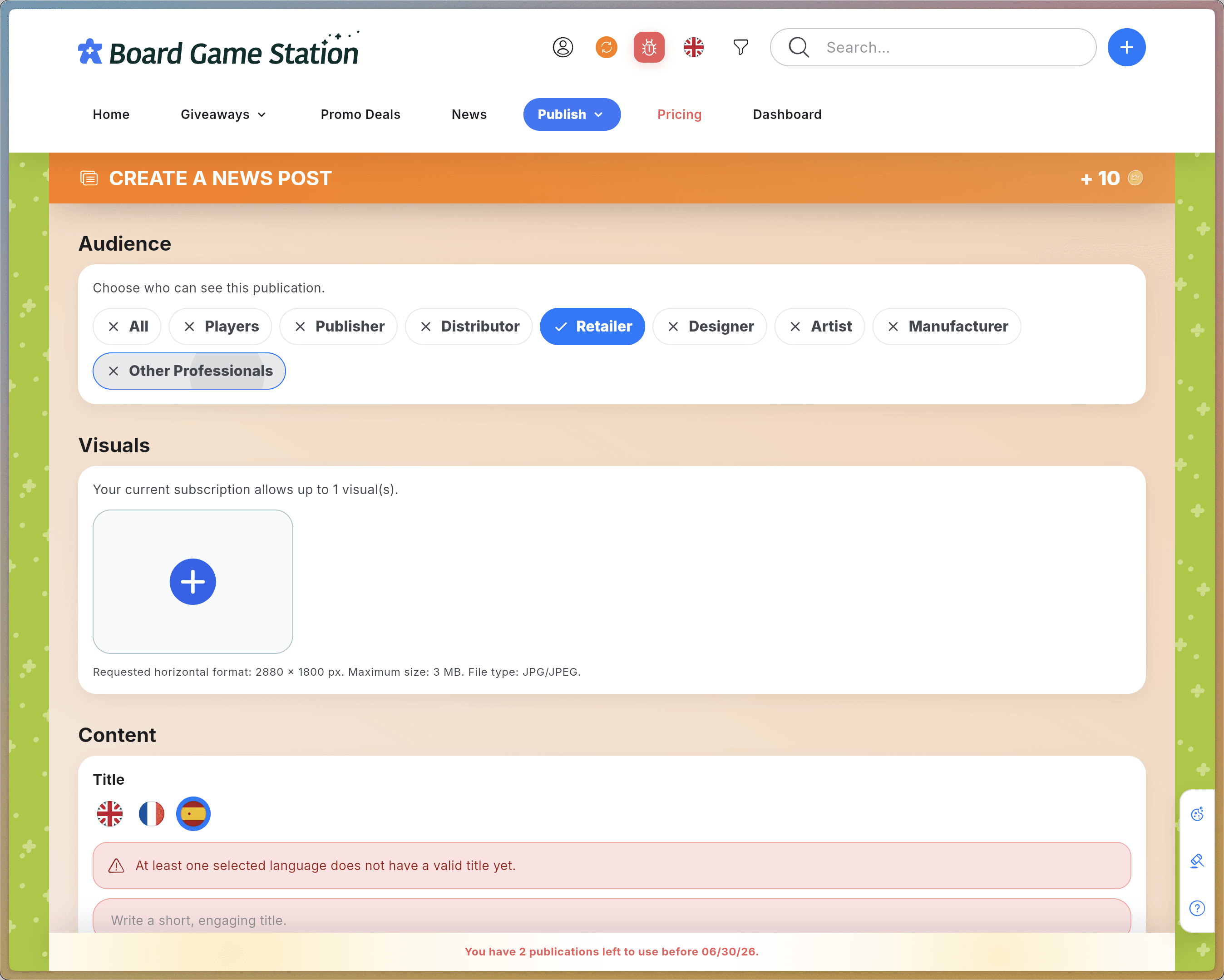
Select or deselect audience groups according to the intended target for this post, then add your visuals. Note: The number of images you can include in your description depends on your subscription plan.
Step #7: Select or deselect audience groups according to the intended target for this post, then add your visuals. Note: The number of images you can include in your description depends on your subscription plan.

Writing Multilingual Content

In the Content section, click the flag corresponding to the first language you want to edit. The remaining content fields will then expect text in that same language.
8
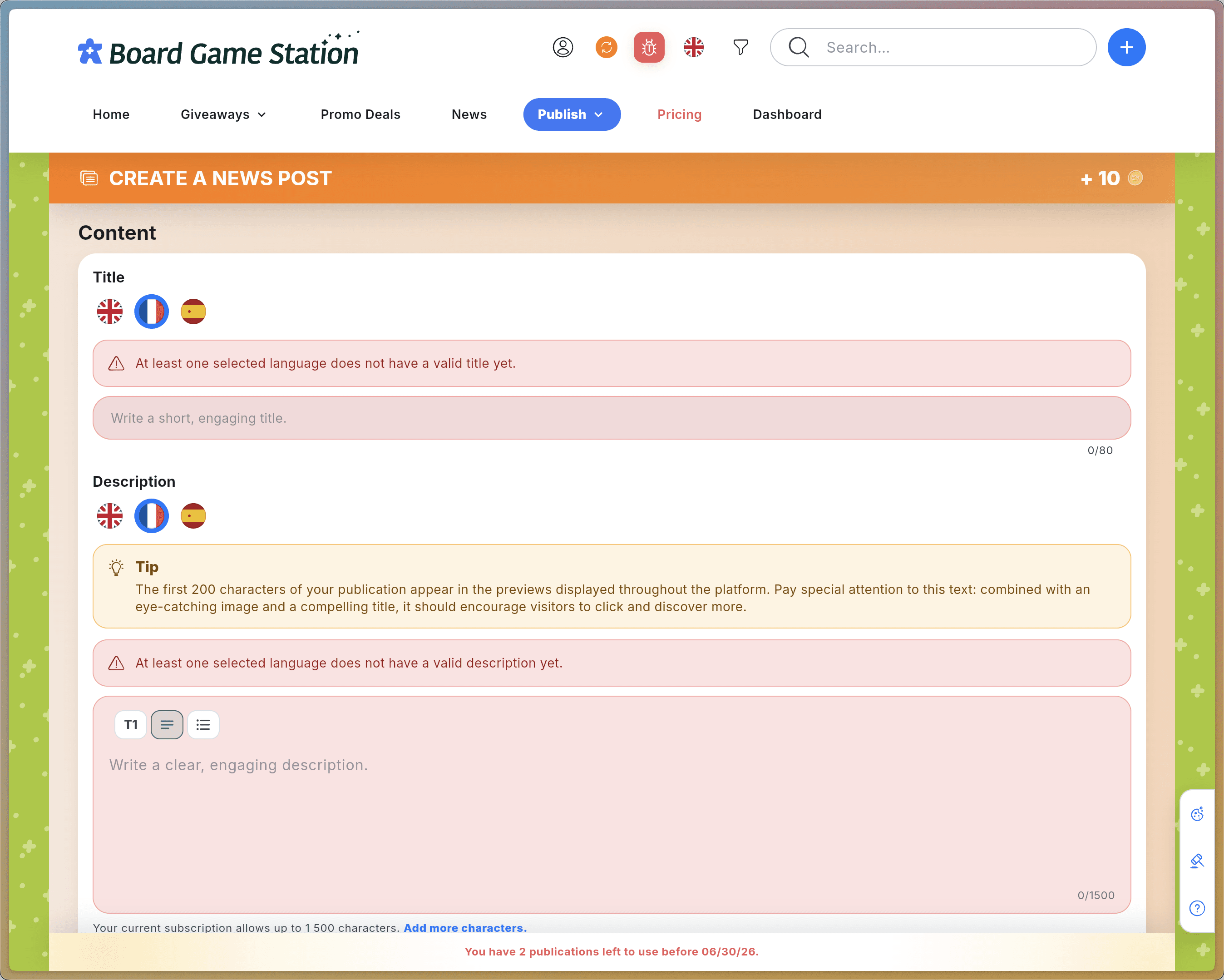
Enter your post Title in the appropriate field (French in this example).
Step #8: Enter your post Title in the appropriate field (French in this example).
9
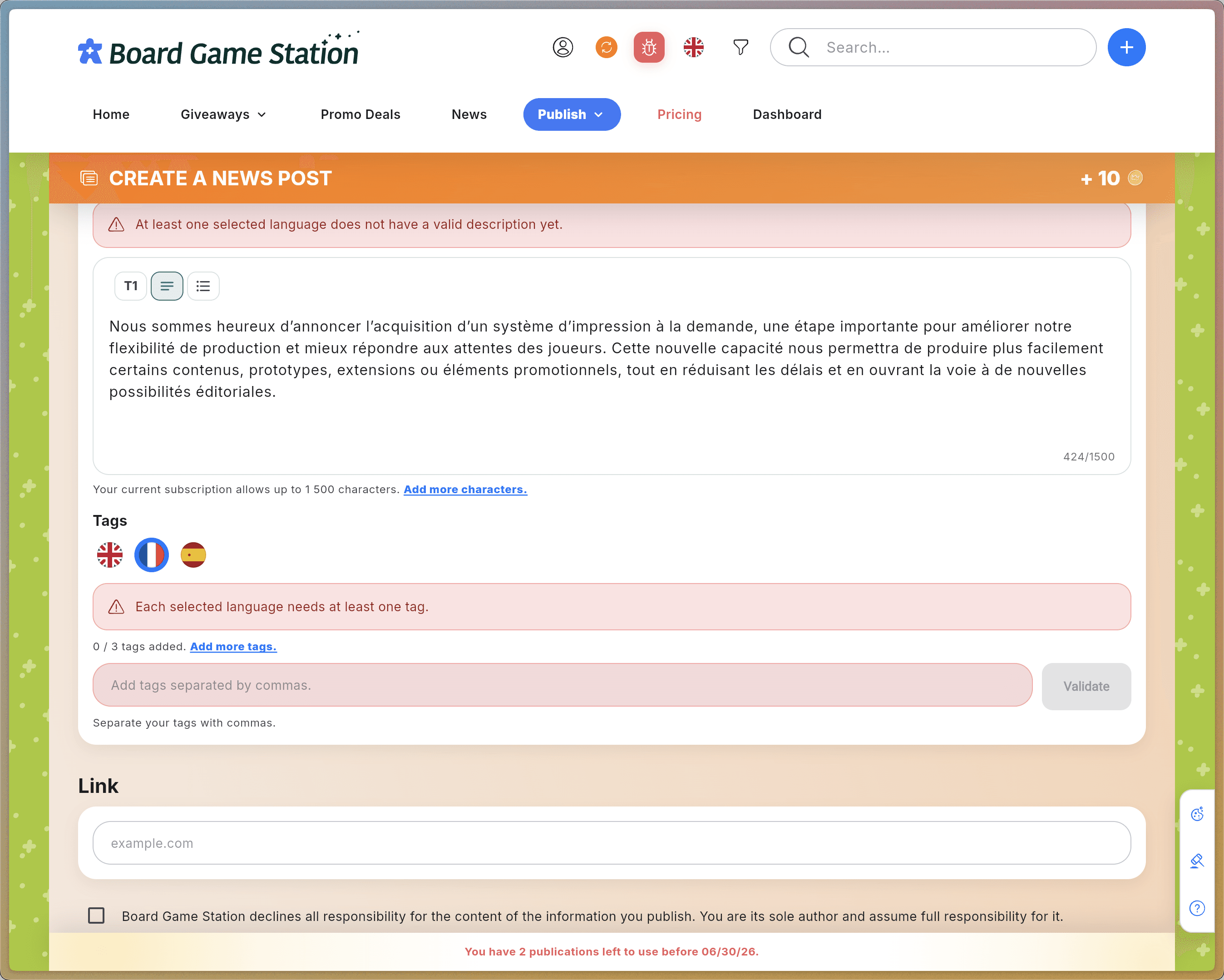
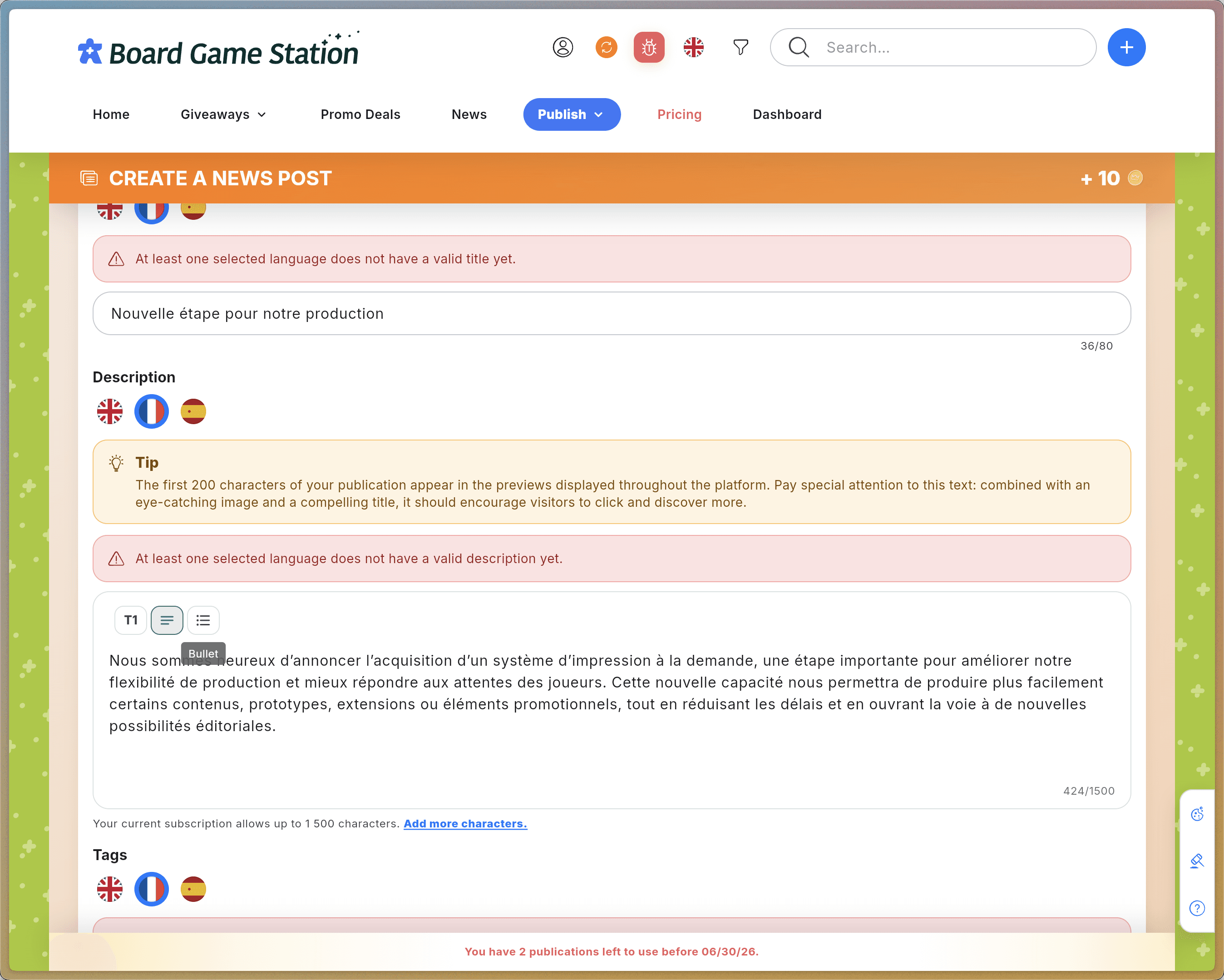
Write your Description. Use the formatting tools to add headings or bullet lists. Note: The maximum number of characters allowed in your description depends on your subscription plan.
Step #9: Write your Description. Use the formatting tools to add headings or bullet lists. Note: The maximum number of characters allowed in your description depends on your subscription plan.
10
In the Keywords field, enter your Tags, separating them with commas, then click Confirm. Note: The number of tags you can add depends on your subscription plan.
Step #10: In the Keywords field, enter your Tags, separating them with commas, then click Confirm. Note: The number of tags you can add depends on your subscription plan.

Repeat these steps for each additional language.

Links & Responsibility
11
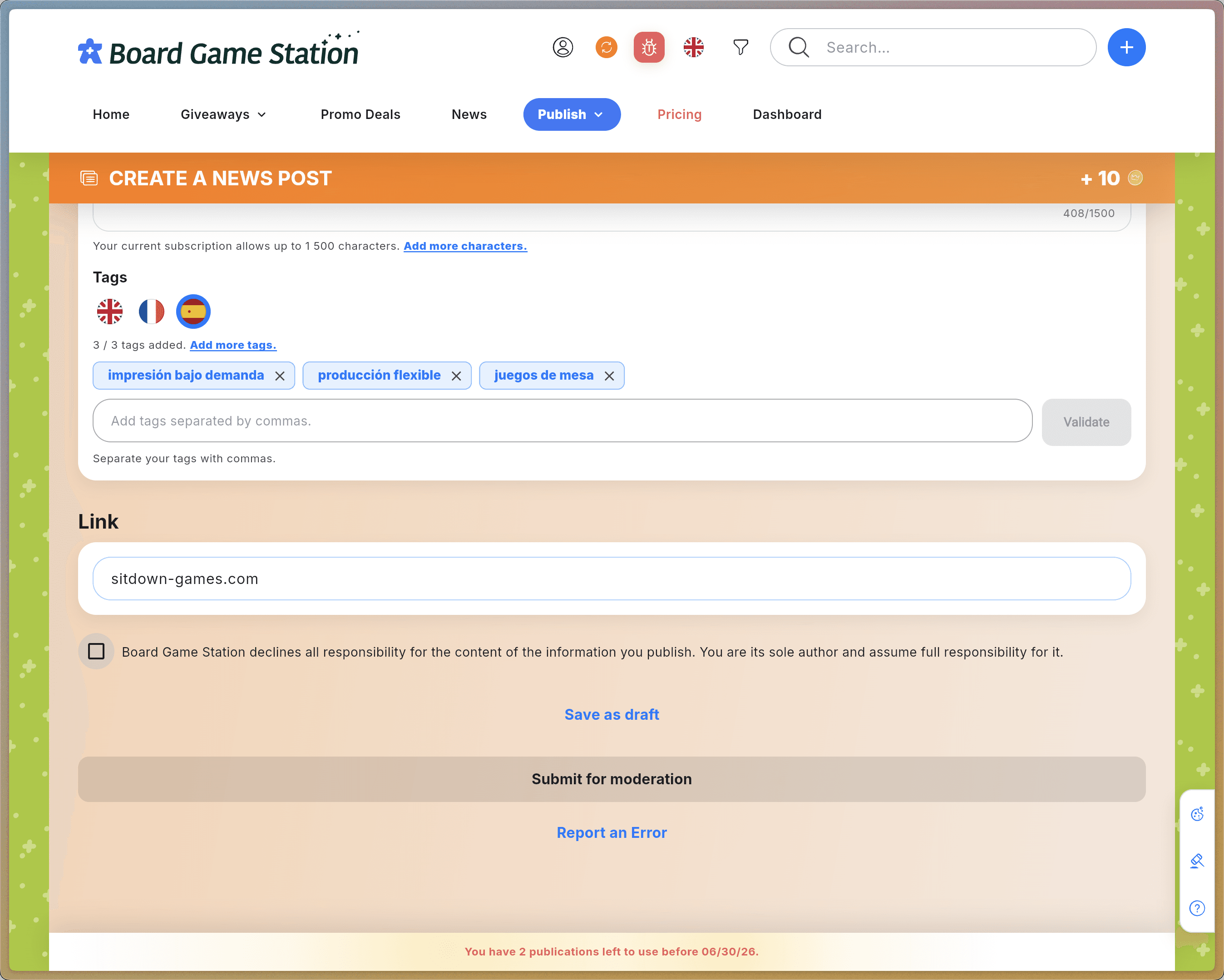
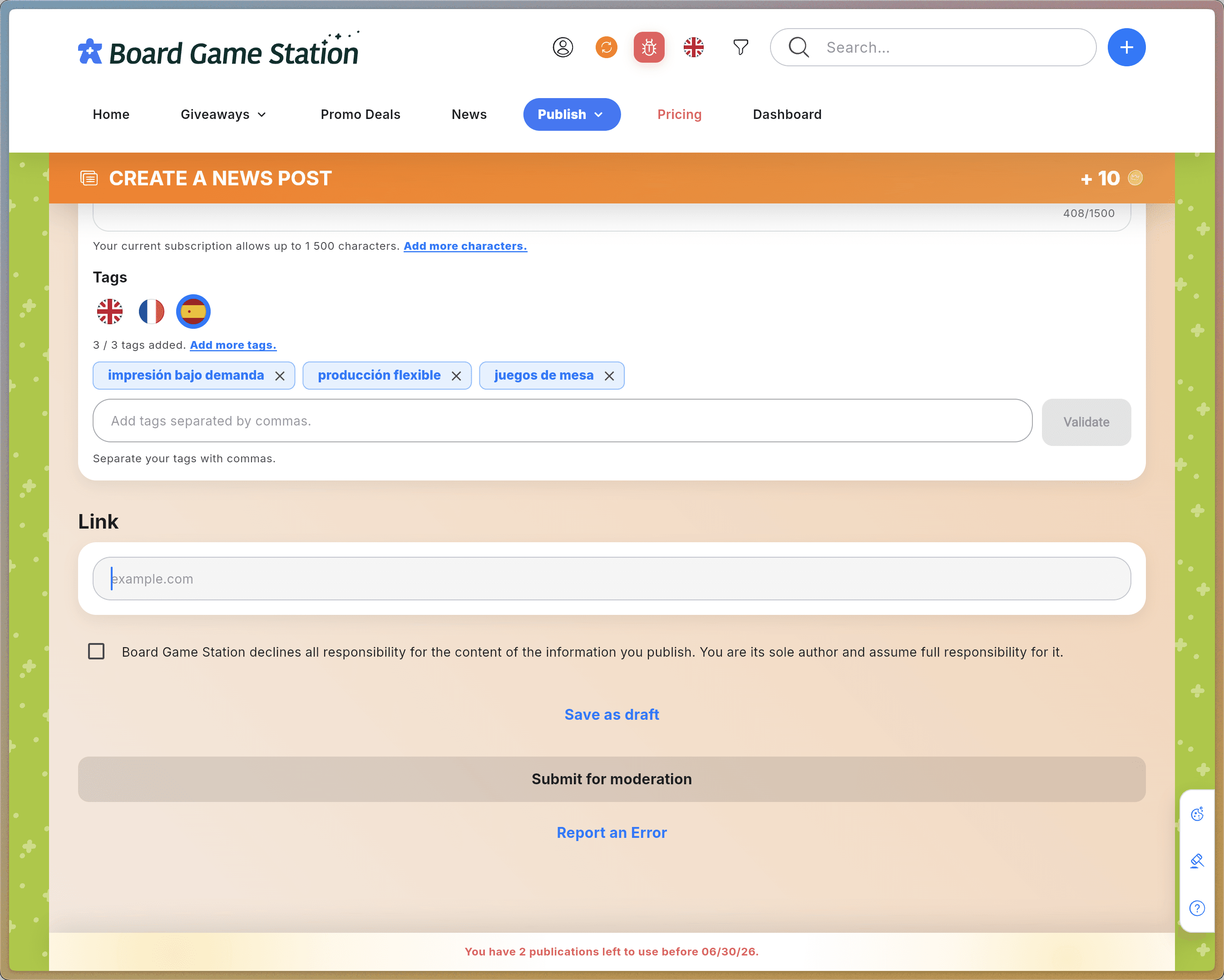
Enter your destination URL in the Link field at the bottom of the page. It should direct users to a page containing additional information about your announcement.
Step #11: Enter your destination URL in the Link field at the bottom of the page. It should direct users to a page containing additional information about your announcement.
12
Check the box confirming that you assume legal responsibility for the content you are publishing.
Step #12: Check the box confirming that you assume legal responsibility for the content you are publishing.

Then click Submit for Moderation.

FAQ

Q: Does the system automatically translate my news posts into the selected languages?

A: No. Board Game Station does not automatically translate your content. You must manually provide the title, description, and tags for each language you select.

Q: Why do I need to schedule my publication several days in advance?

A: A minimum lead time of three days is required to give the moderation team enough time to review your content before it goes live.

Q: Can I limit the visibility of my publication to a specific audience, such as retailers?

A: Yes. The Audience section allows you to deselect certain groups so that your publication is visible only to specific audiences, such as retailers or professional players.

Q: Why am I limited in the number of categories, tags, or images I can add?

A: Limits on categories, tags, description length, and images are determined by your subscription plan on the platform.