
🇬🇧 Publishing Content as a Professional
Learn how to switch to your organization’s profile and publish giveaways, promotions, and news on Board Game Station.
This guide explains how to switch to a professional profile in order to publish content on Board Game Station. Its purpose is to allow you to officially share news, giveaways, and promotions on behalf of your organization.
This guide is intended for board game publishers and industry professionals registered on the platform. It is useful whenever you want to publish official announcements or promotional offers on behalf of your organization (company, association, etc.).
Signing In
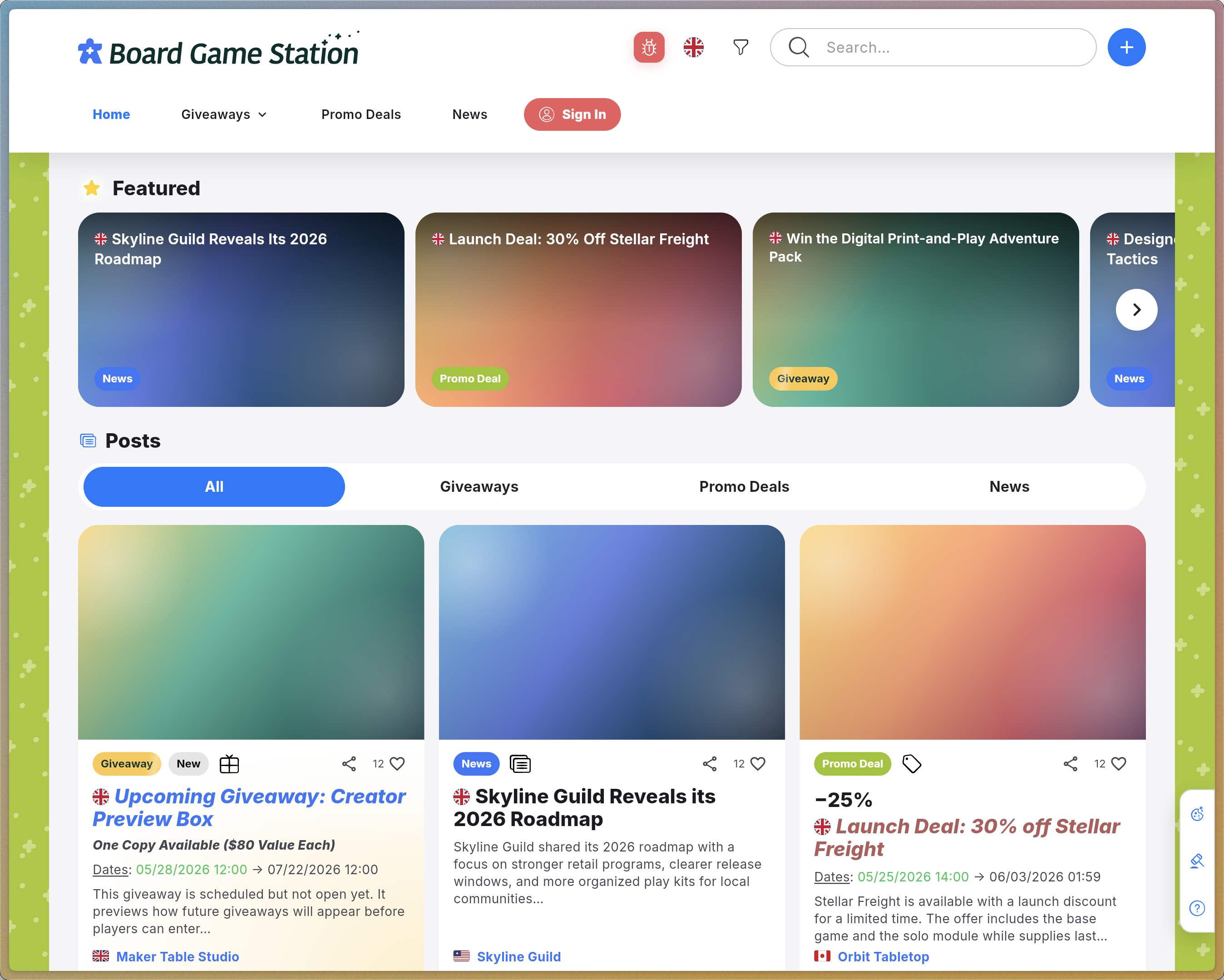
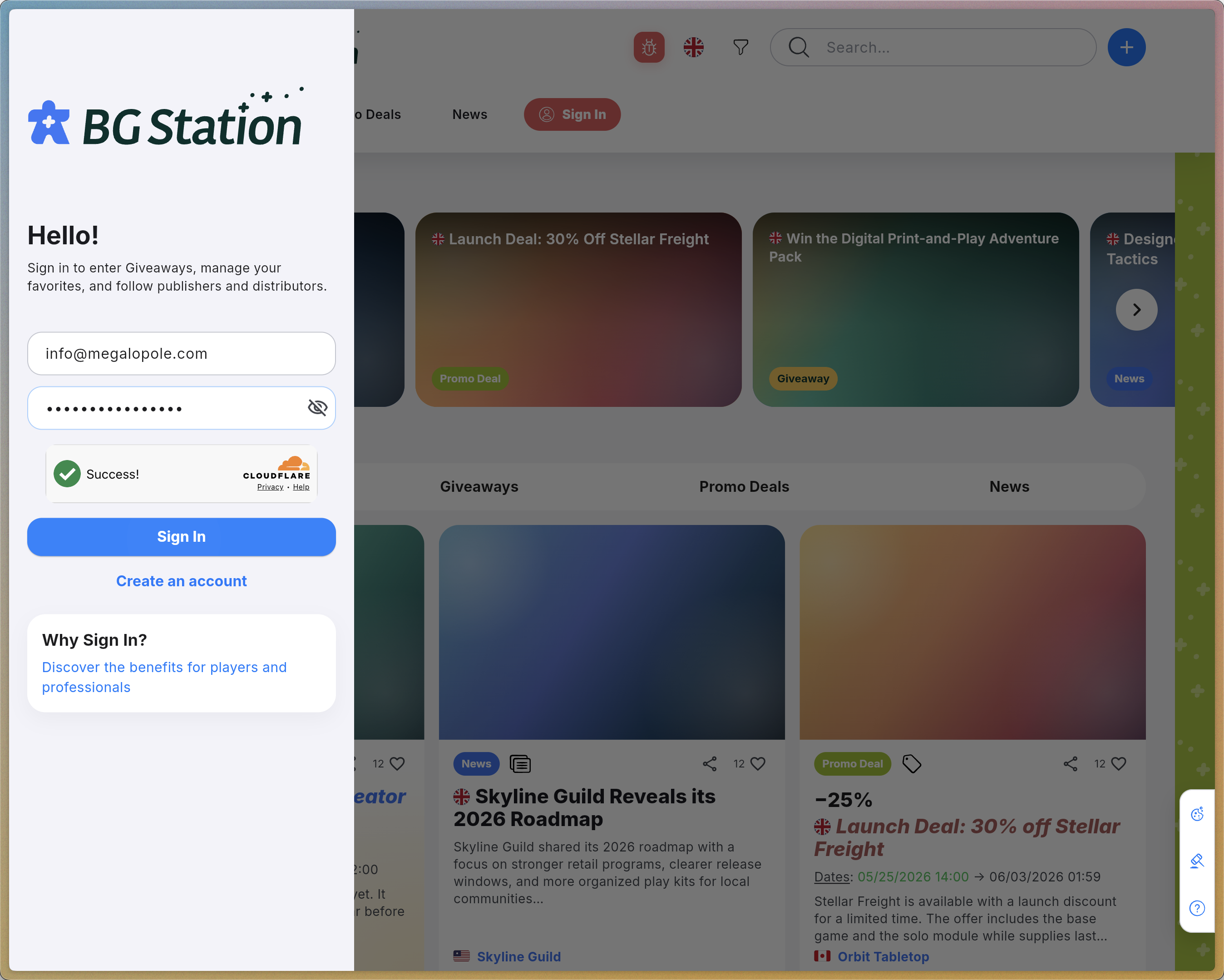
By default, you are signed in as an individual user rather than as a professional account.
Switching to a Professional Profile
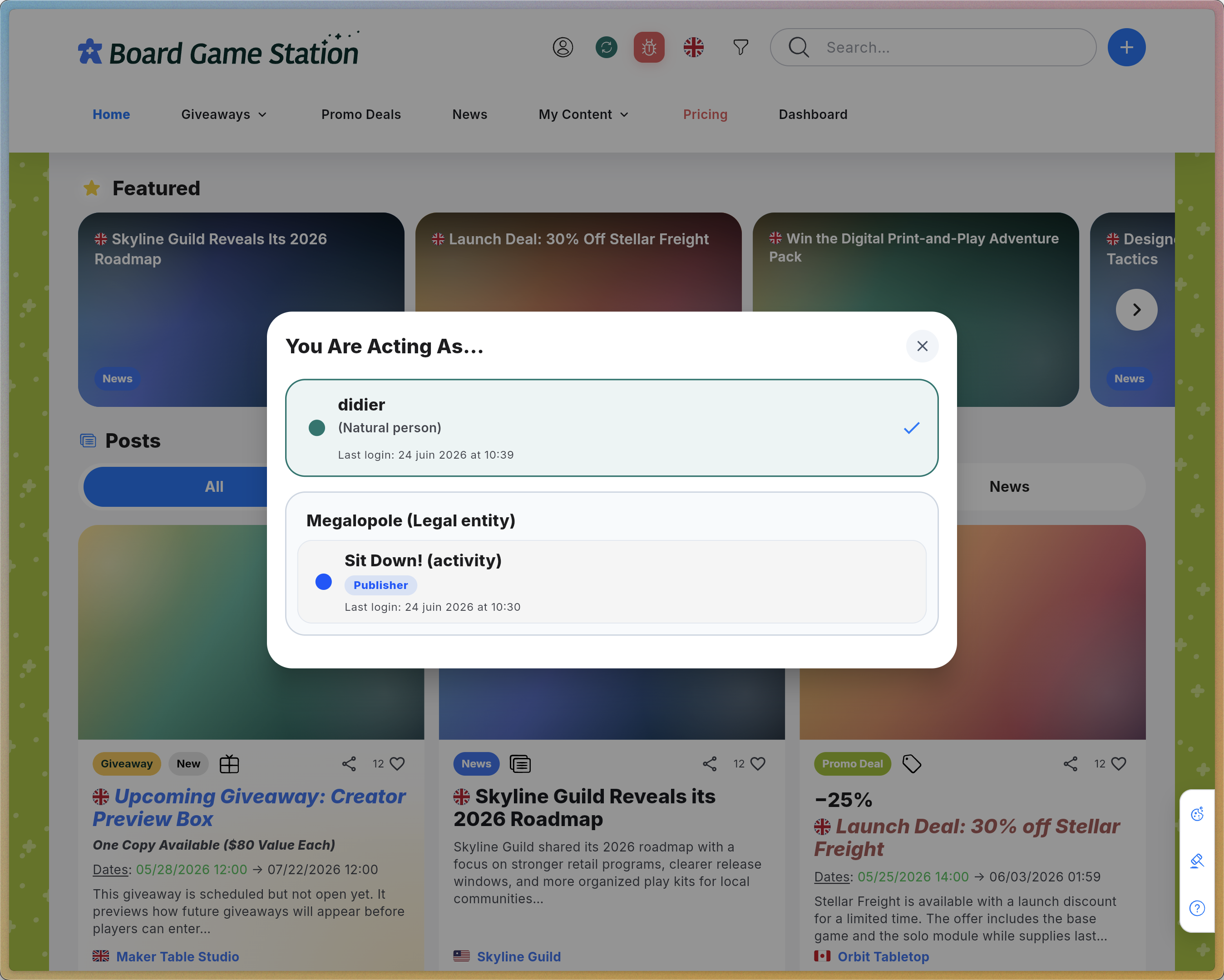
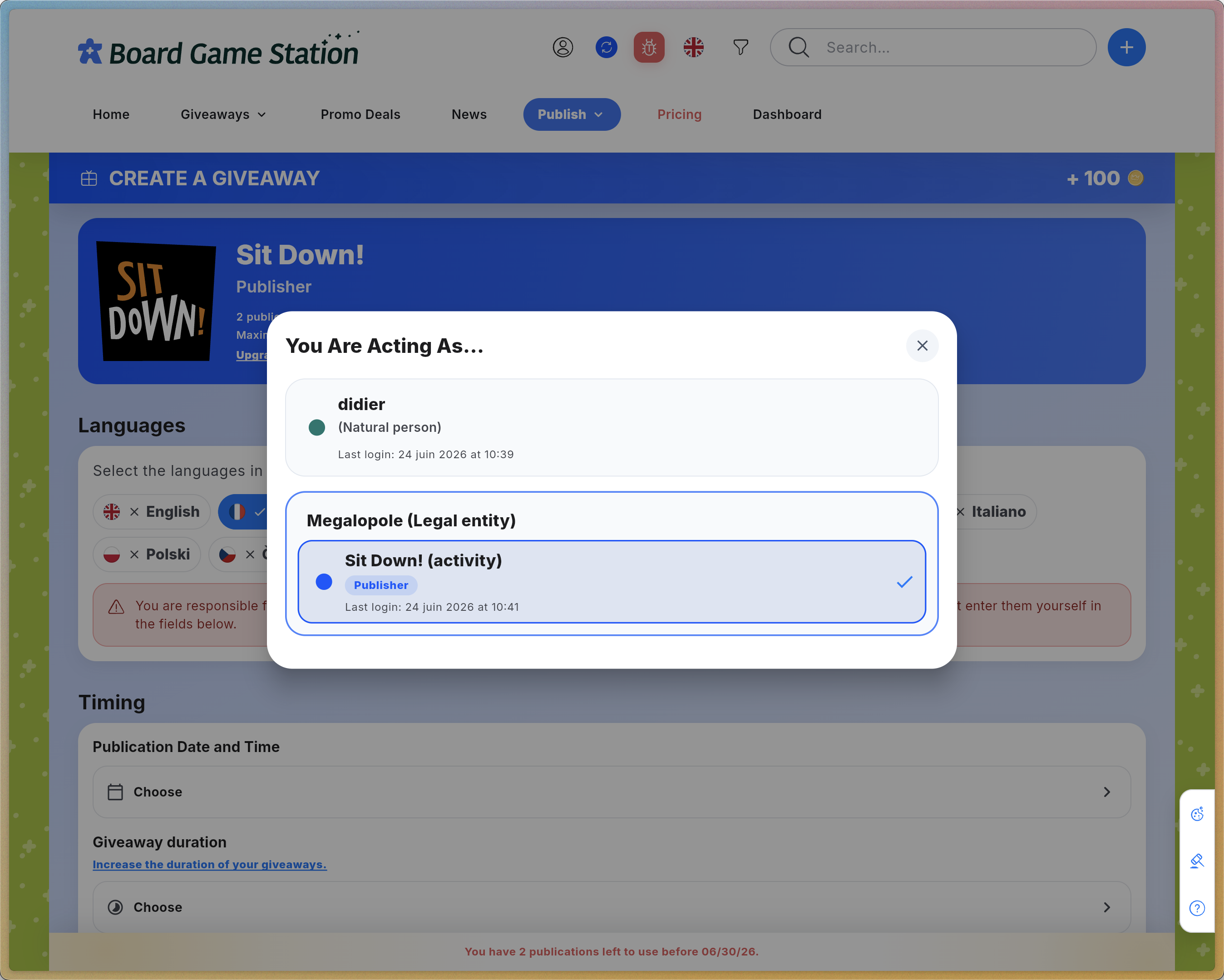
To publish on behalf of your organization, you must select one of your activities.
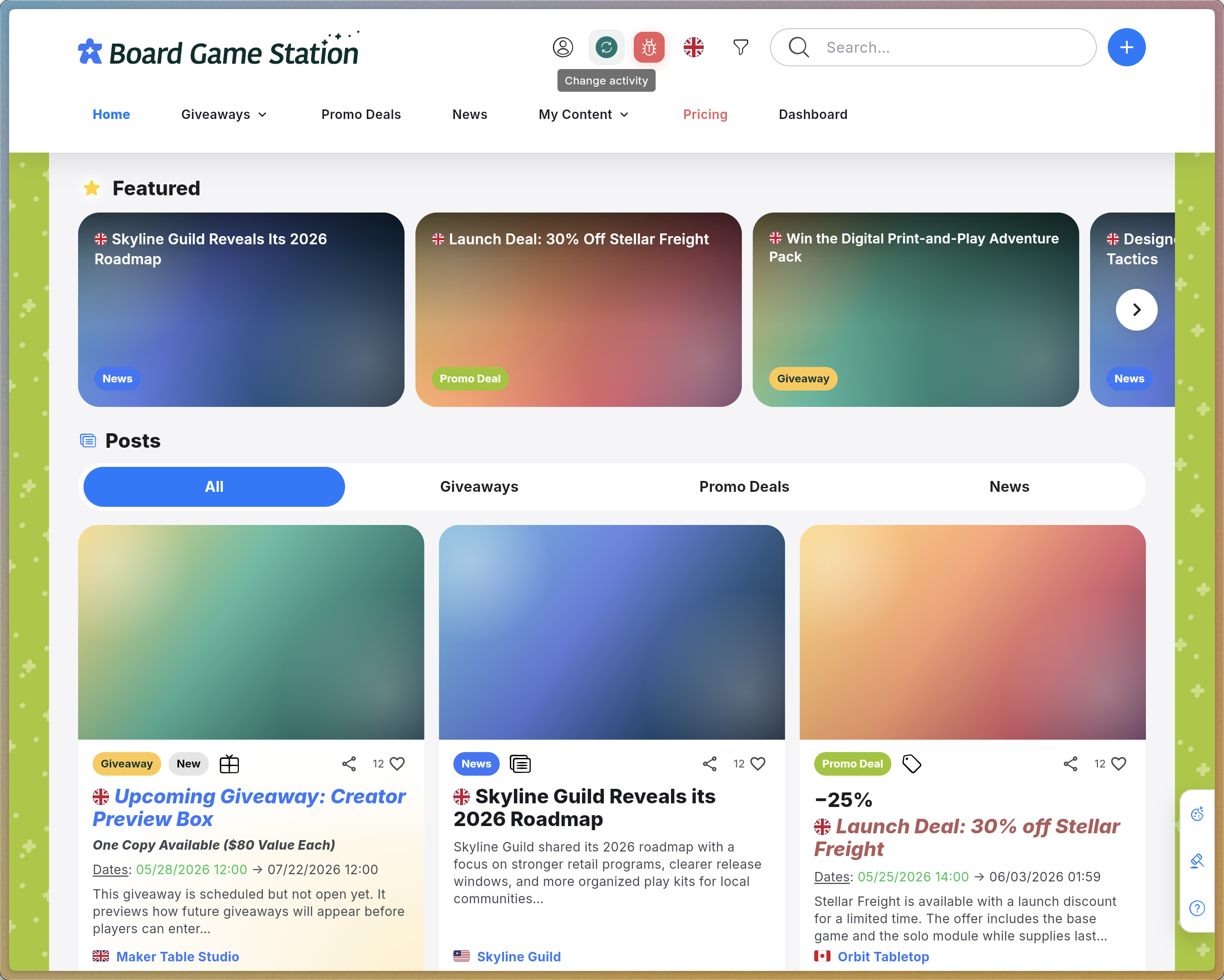
Customizing Your Activity Color (Optional)
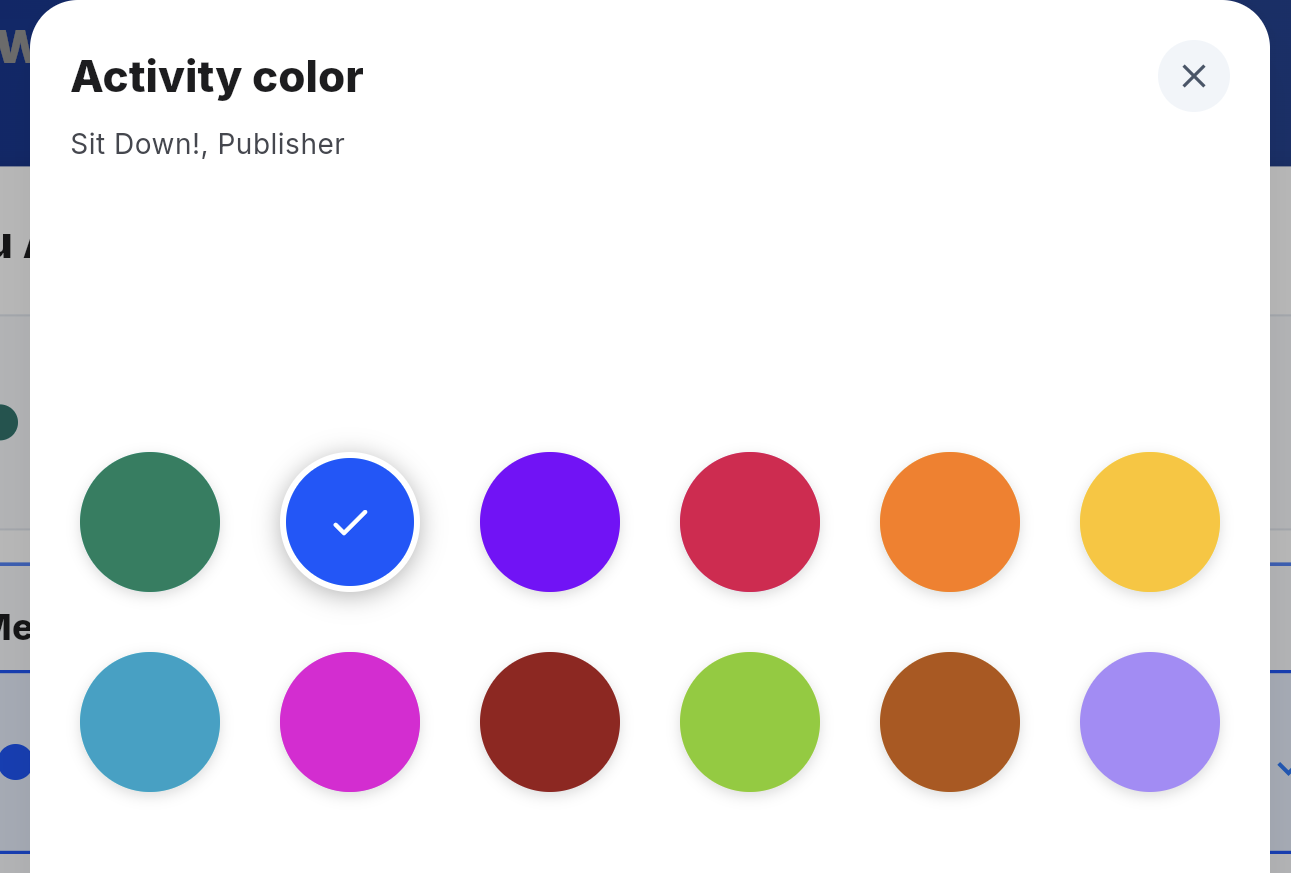
To help you visually identify which activity you are currently working under, you can customize the interface color associated with it.
Creating a Post
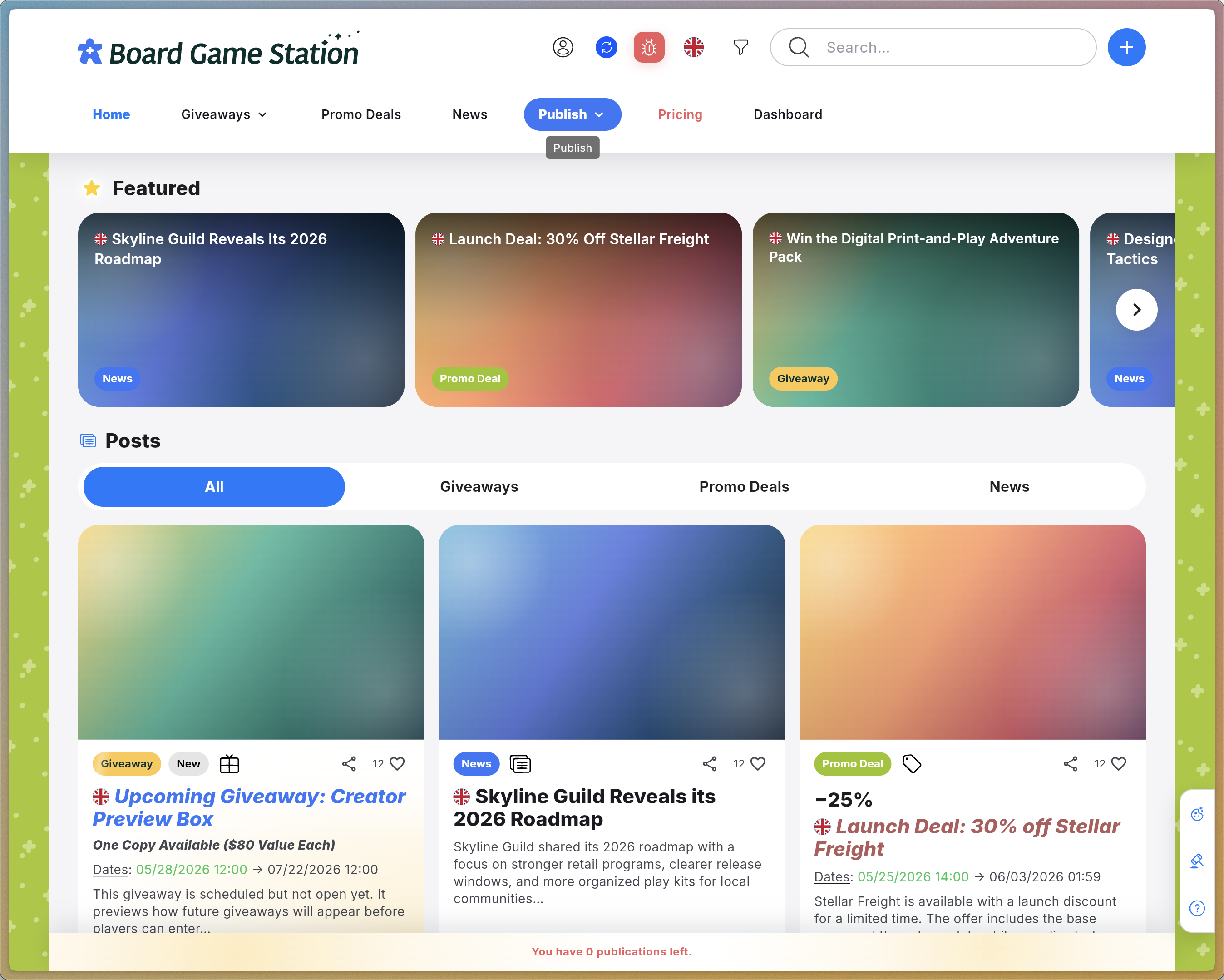
Now that you are acting as a professional, you can publish content.
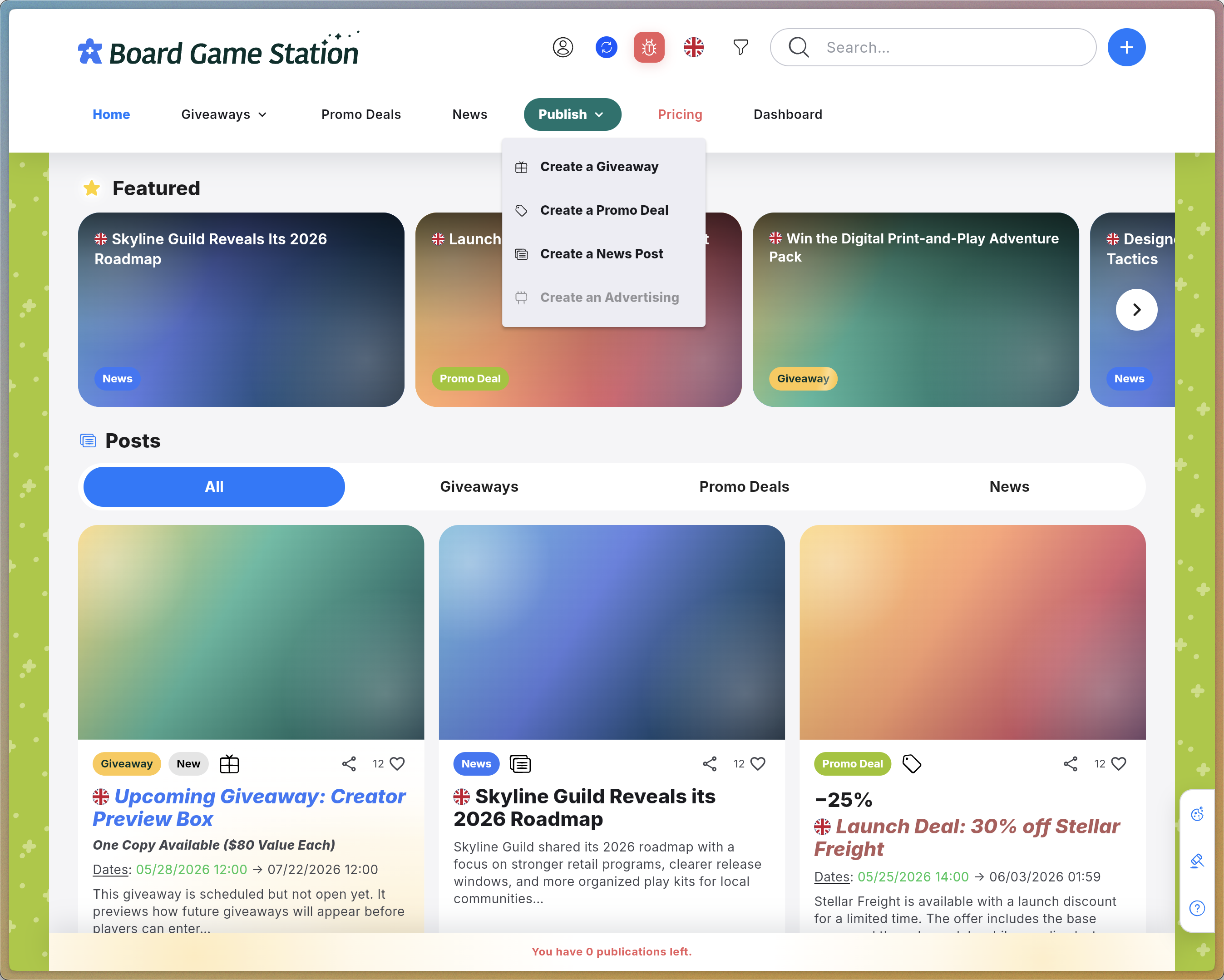
Post Type | Description |
|---|---|
Create a Giveaway | Organize a giveaway and offer prizes to the community. |
Create a Promo Deal | Share a promotional offer related to your products. |
Create a News Post | Publish news, updates, or official announcements about your organization. |
FAQ
Q: Why can’t I select my organization’s name in the Edit Profile menu?
A: The organization’s name itself is not clickable. You must select one of the specific activities associated with that organization in order to represent it.
Q: How can I tell if I’m connected to a professional profile?
A: When you are using a professional activity profile, a checkmark appears next to its name in the Switch Activity menu. In addition, the Publish button becomes visible in the main navigation bar.