Icon

🇬🇧 Setting Up Your Language Preferences & Content Filters

Learn how to sign in and customize your language preferences and content filters to personalize your feed.

By Megalopole SRL

This guide explains how to sign in and customize your user experience. You’ll learn how to set your preferred languages for both the interface and the content you see, as well as how to configure filters so that only the posts that interest you appear in your feed. This tutorial is intended for all users.

1. Signing In to Your Account
1
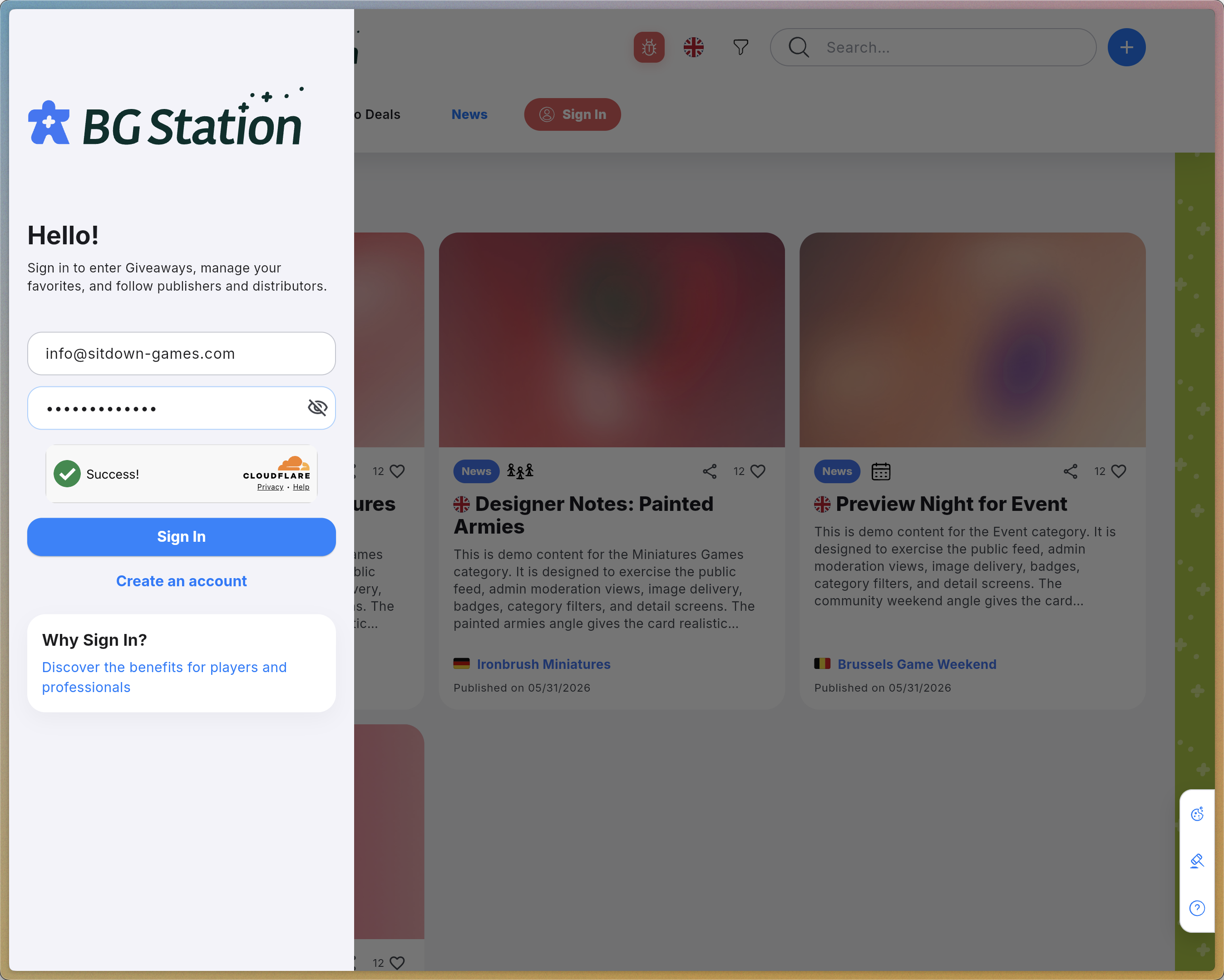
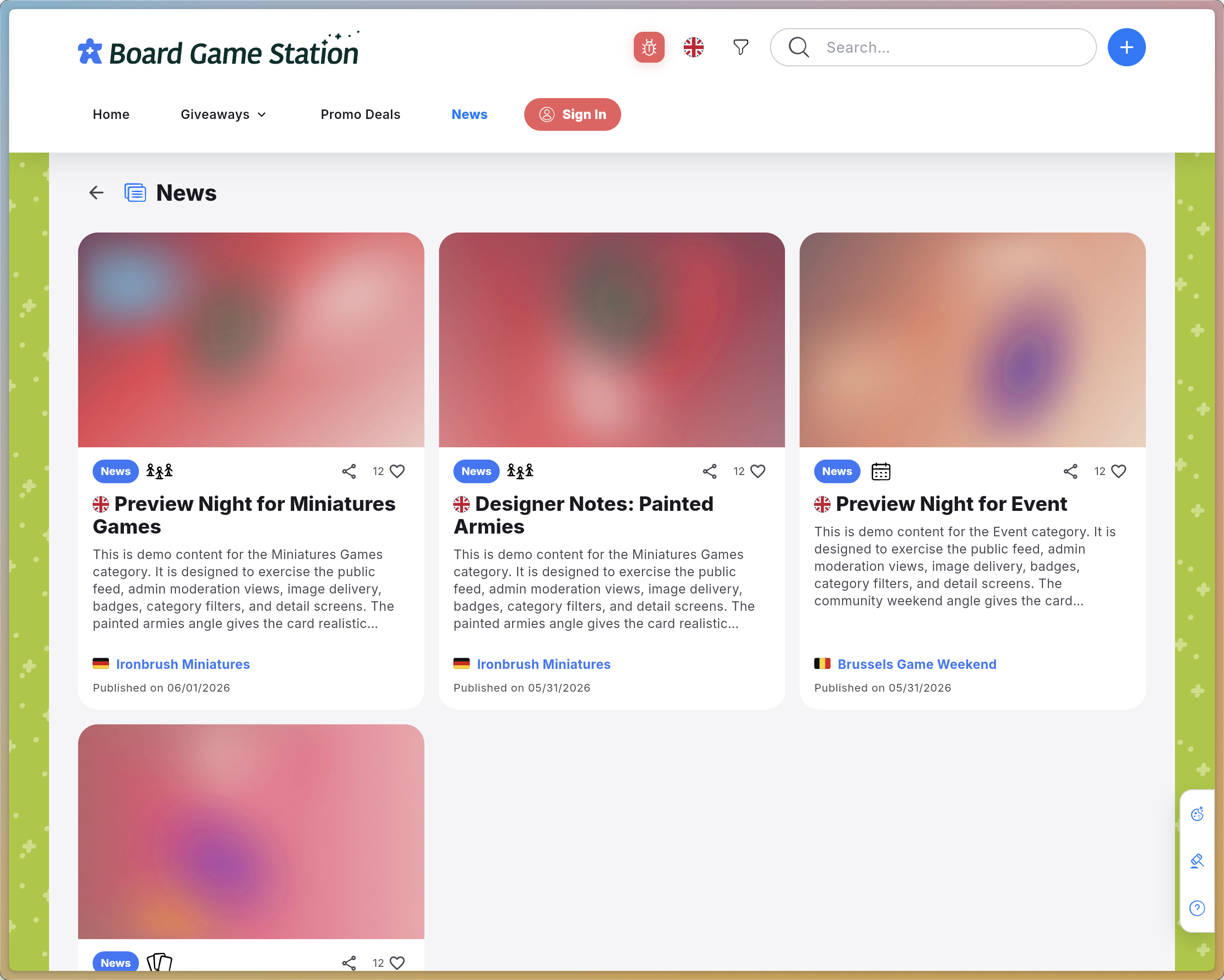
Click Sign In in the main menu.
Step #1: Click Sign In in the main menu.
2
Enter your email address and password, then click Sign In to complete the login process.
Step #2: Enter your email address and password, then click Sign In to complete the login process.

2. Setting Up Your Language Preferences

It’s important to define the languages you understand so that relevant content can be displayed. You can add multiple languages and arrange them in order of preference.
3
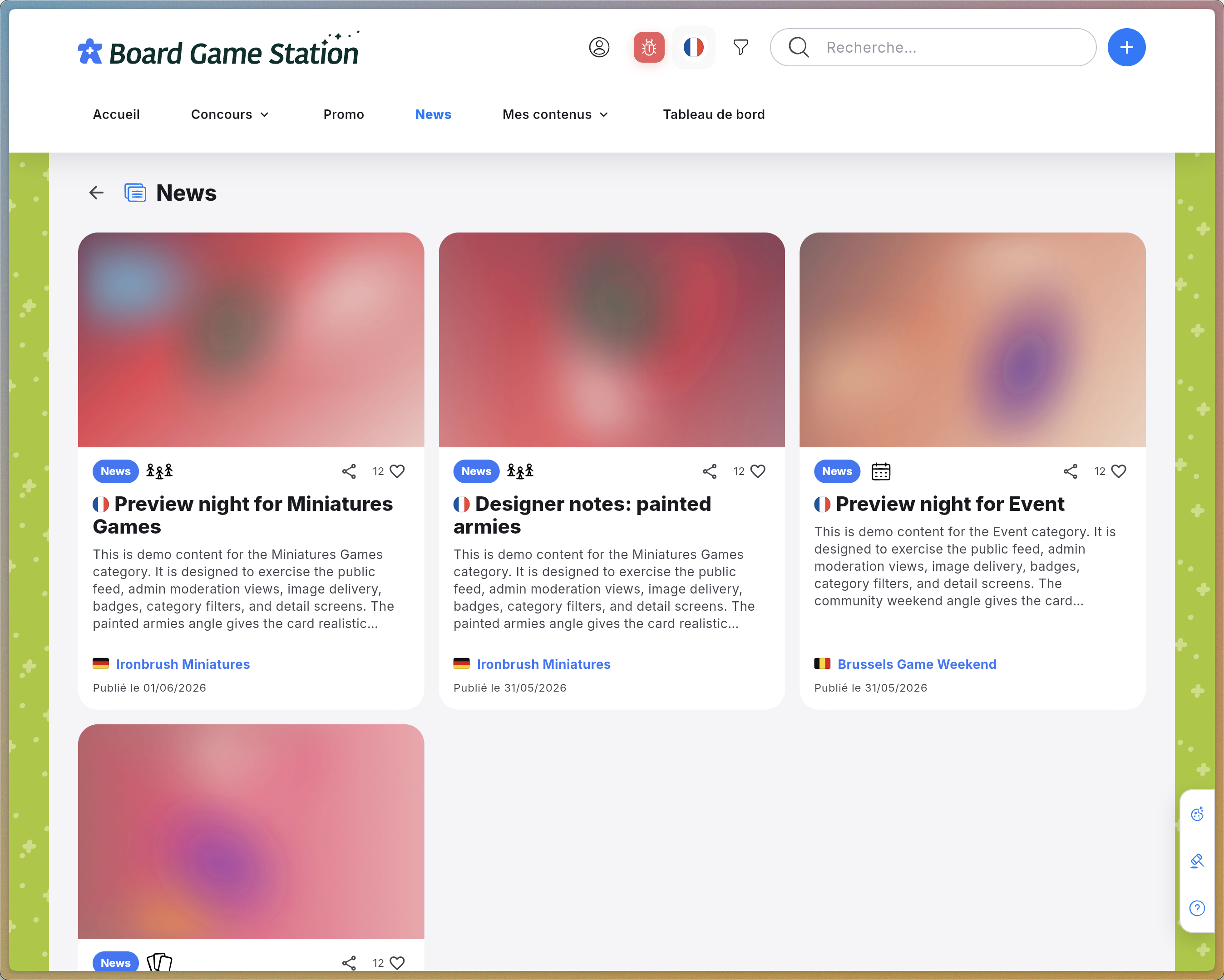
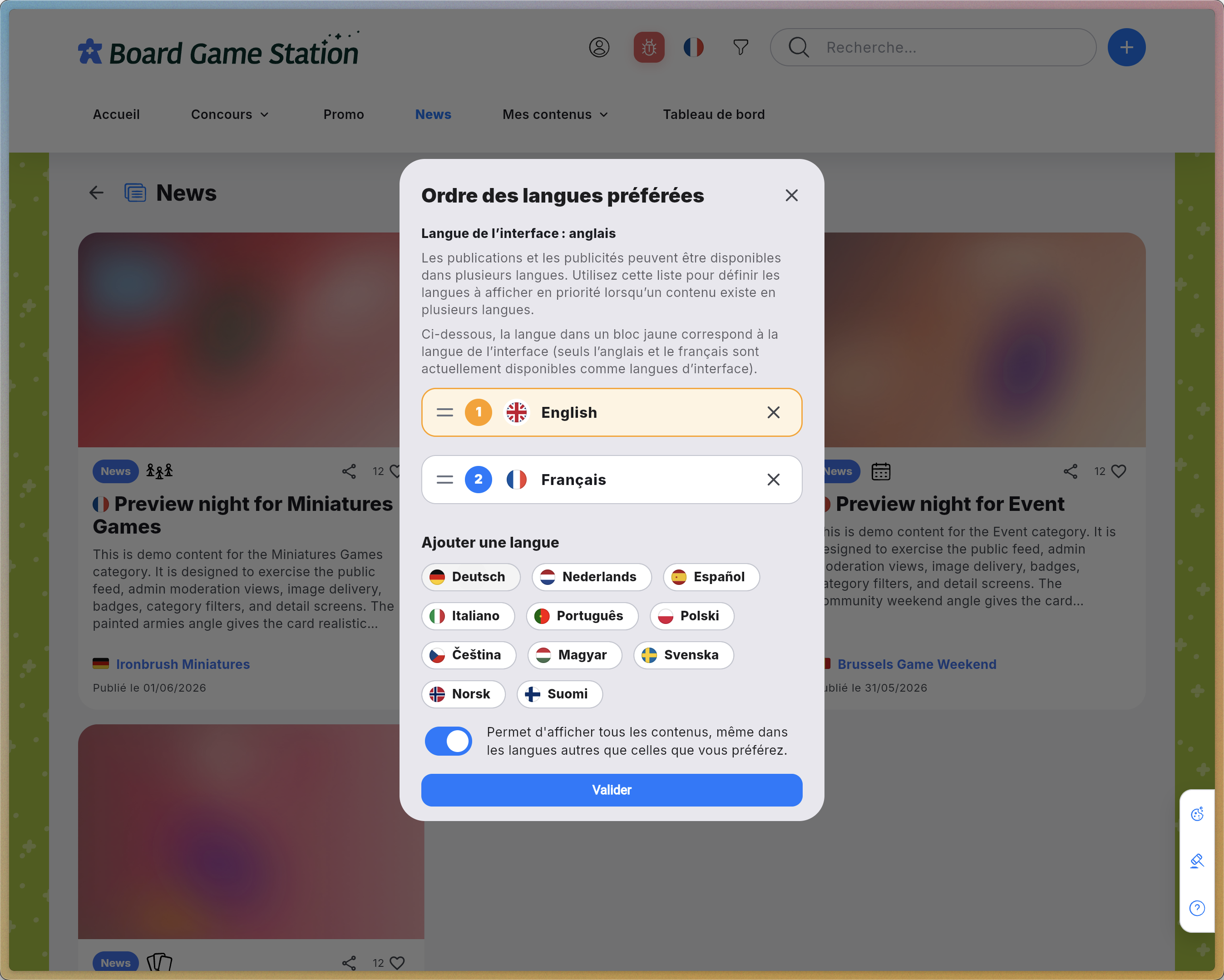
Click Content Language Preferences at the top of the interface.
Step #3: Click Content Language Preferences at the top of the interface.
4
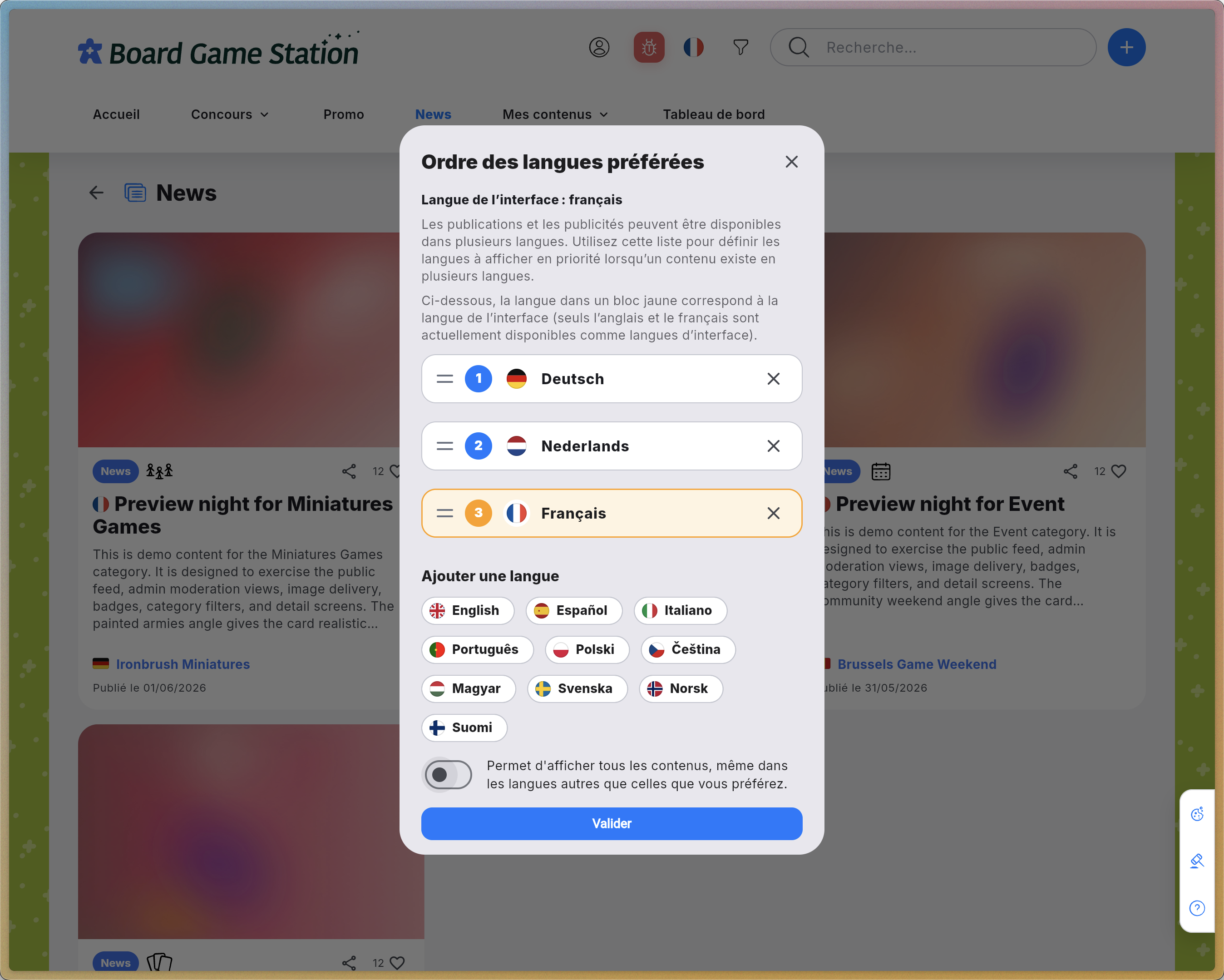
Select your preferred languages and arrange them by priority.
Step #4: Select your preferred languages and arrange them by priority.
5
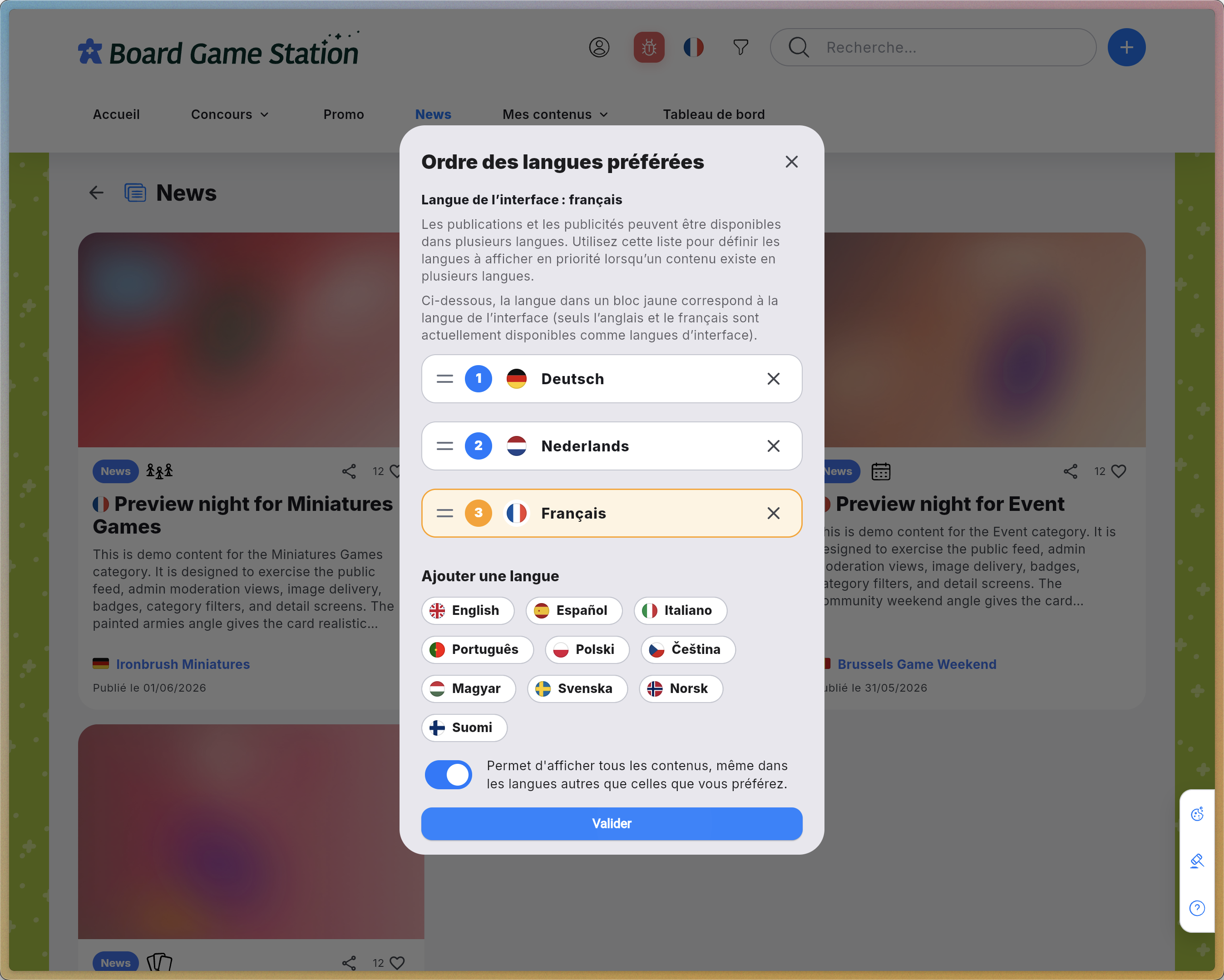
Enable the option to display content in all languages if you use your browser’s automatic translation feature and want to see every post regardless of its original language.
Step #5: Enable the option to display content in all languages if you use your browser’s automatic translation feature and want to see every post regardless of its original language.
6
Click Save to apply your settings.
Step #6: Click Save to apply your settings.

3. Configuring Your Content Filters

Customize your news feed by excluding topics and sources that do not interest you.
7
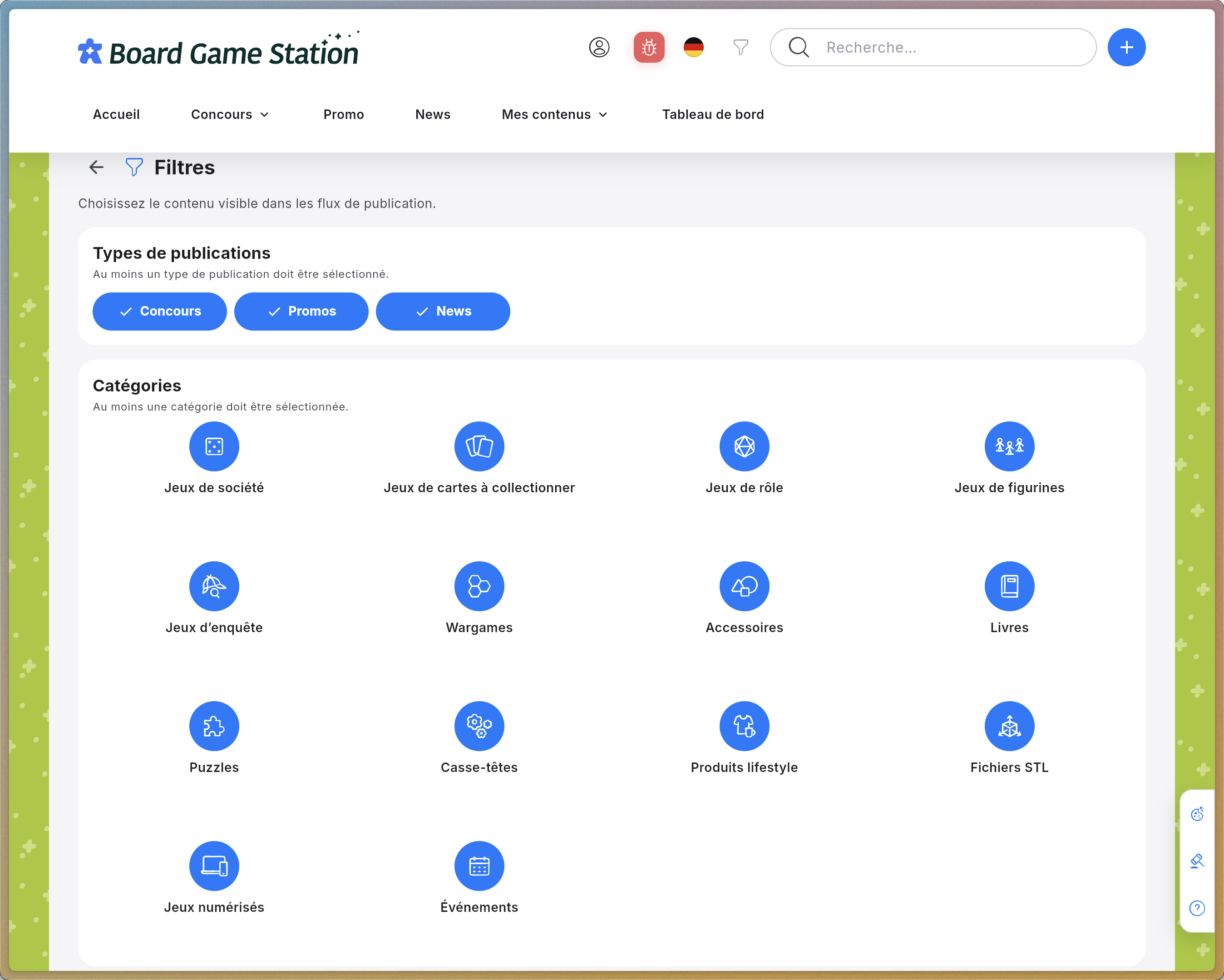
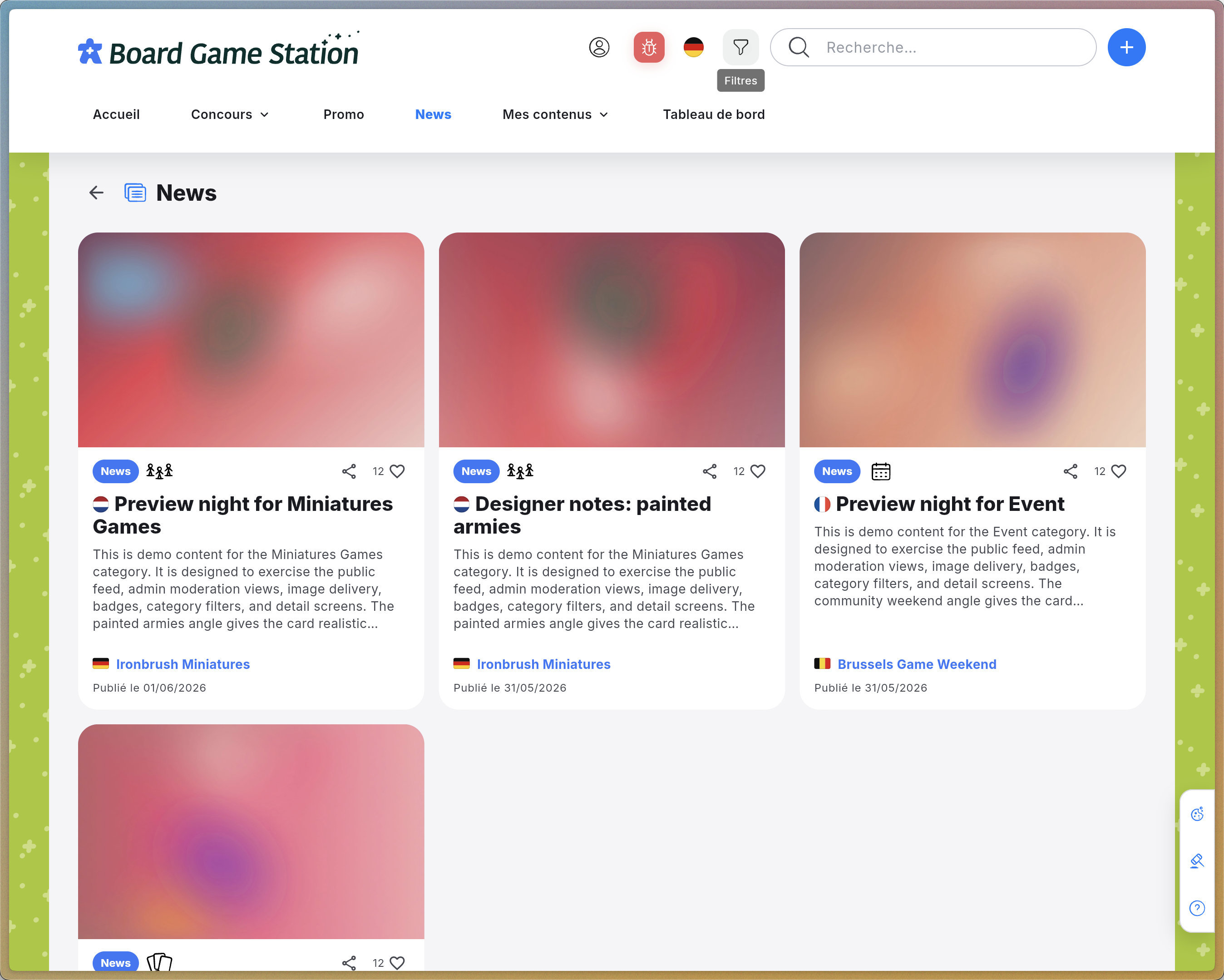
Open the Filters menu to refine your content feed.
Step #7: Open the Filters menu to refine your content feed.
8
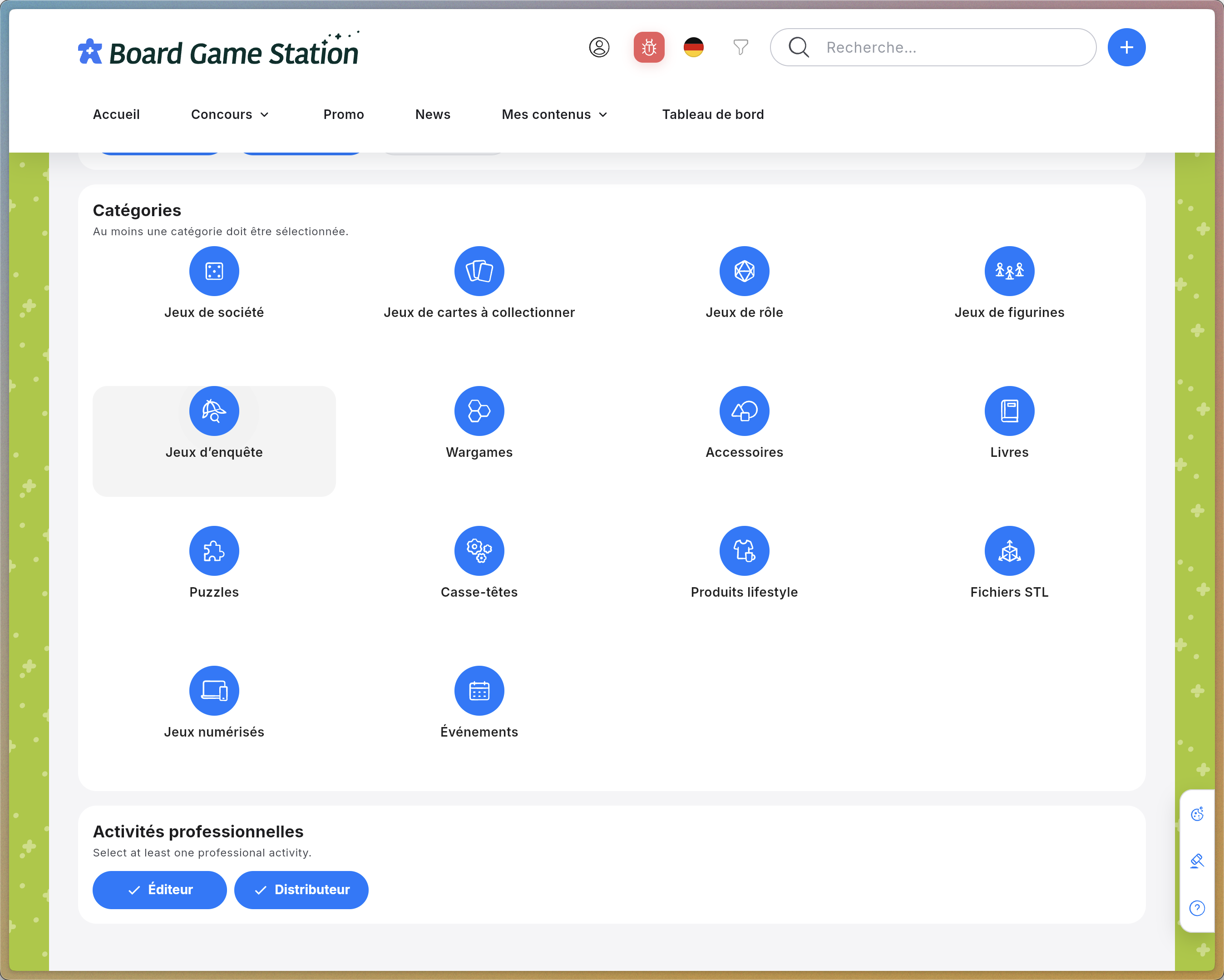
Deselect any Post Types you are not interested in.
Step #8: Deselect any Post Types you are not interested in.
9
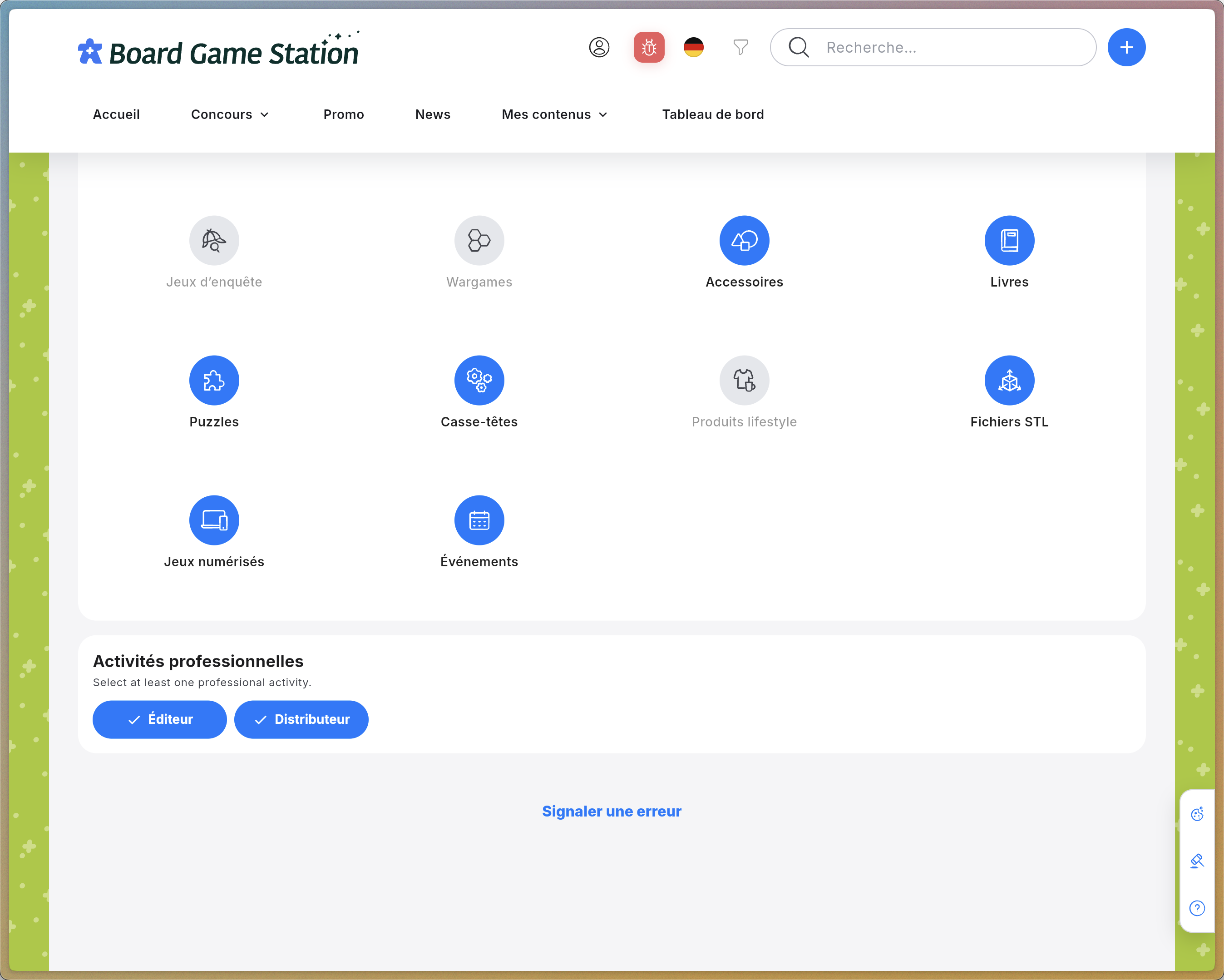
Deselect any Product Categories you do not want to see.
Step #9: Deselect any Product Categories you do not want to see.
10
Deselect any Professional Activities that are not relevant to you.
Step #10: Deselect any Professional Activities that are not relevant to you.

FAQ

Q: How is the interface language determined?

A: The platform interface is available in English and French. The system will use whichever of these two languages appears first in your priority list (indicated by a yellow border). If neither English nor French is included in your list, English will be used by default.

Q: Why would I want to display posts in languages I don’t understand?

A: If you use your web browser’s built-in automatic translation feature, it can be very helpful to display all posts regardless of their original language and let your browser handle the translation for you.

🇬🇧 Setting Up Your Language Preferences & Content Filters