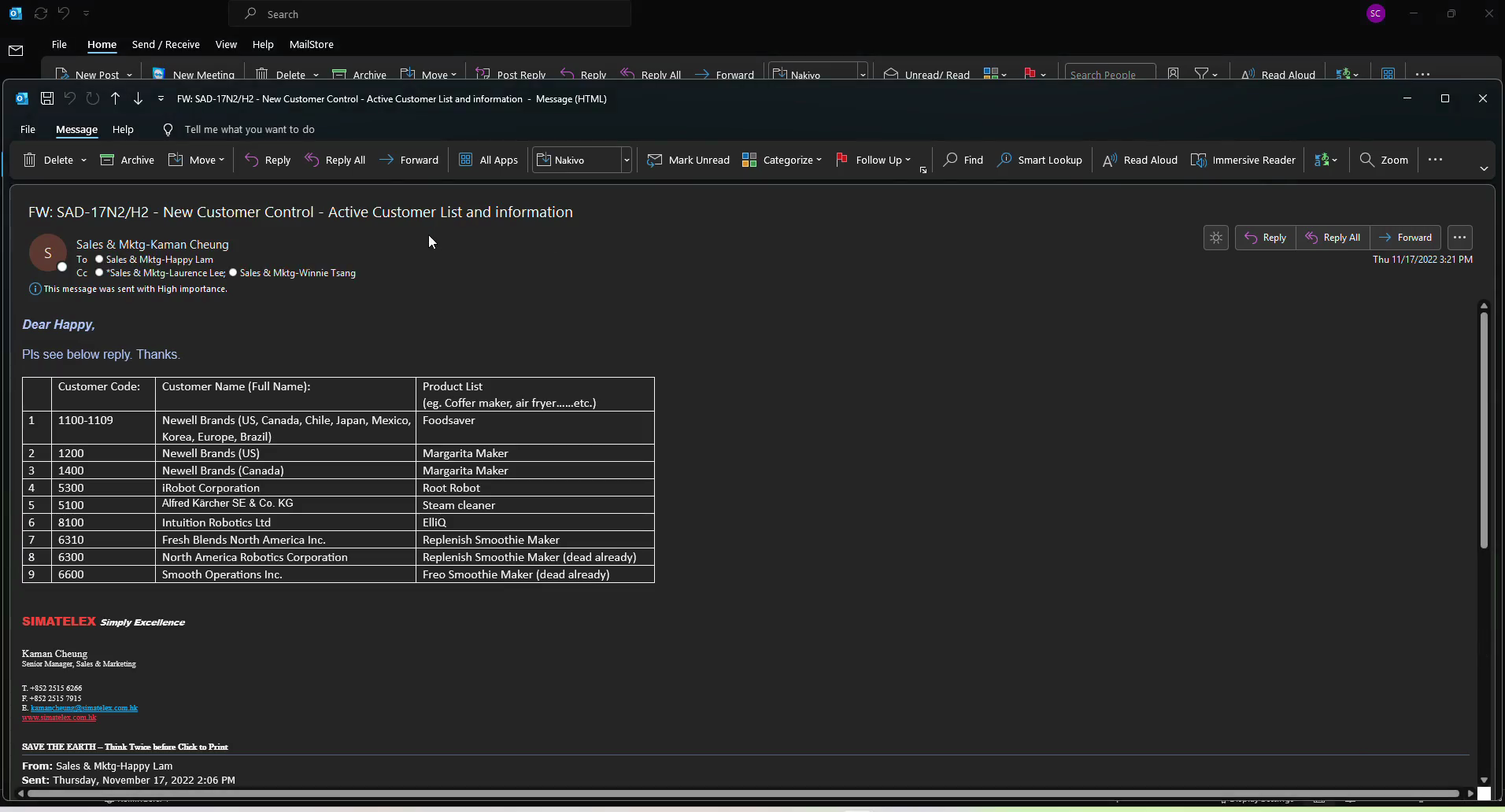
Access Public Folders 2010 in Outlook
Learn how to navigate Microsoft Outlook's Public Folders to access archived communications and specific departmental records.
By RYAN CHEUNG
This guide provides step-by-step instructions on navigating deeply nested Public Folders in Microsoft Outlook. Completing this task allows you to quickly locate specific departmental records, agreements, and stored emails.
This guide is intended for team members and administrators who rely on shared Outlook Public Folders to access archived communications and company records.
1
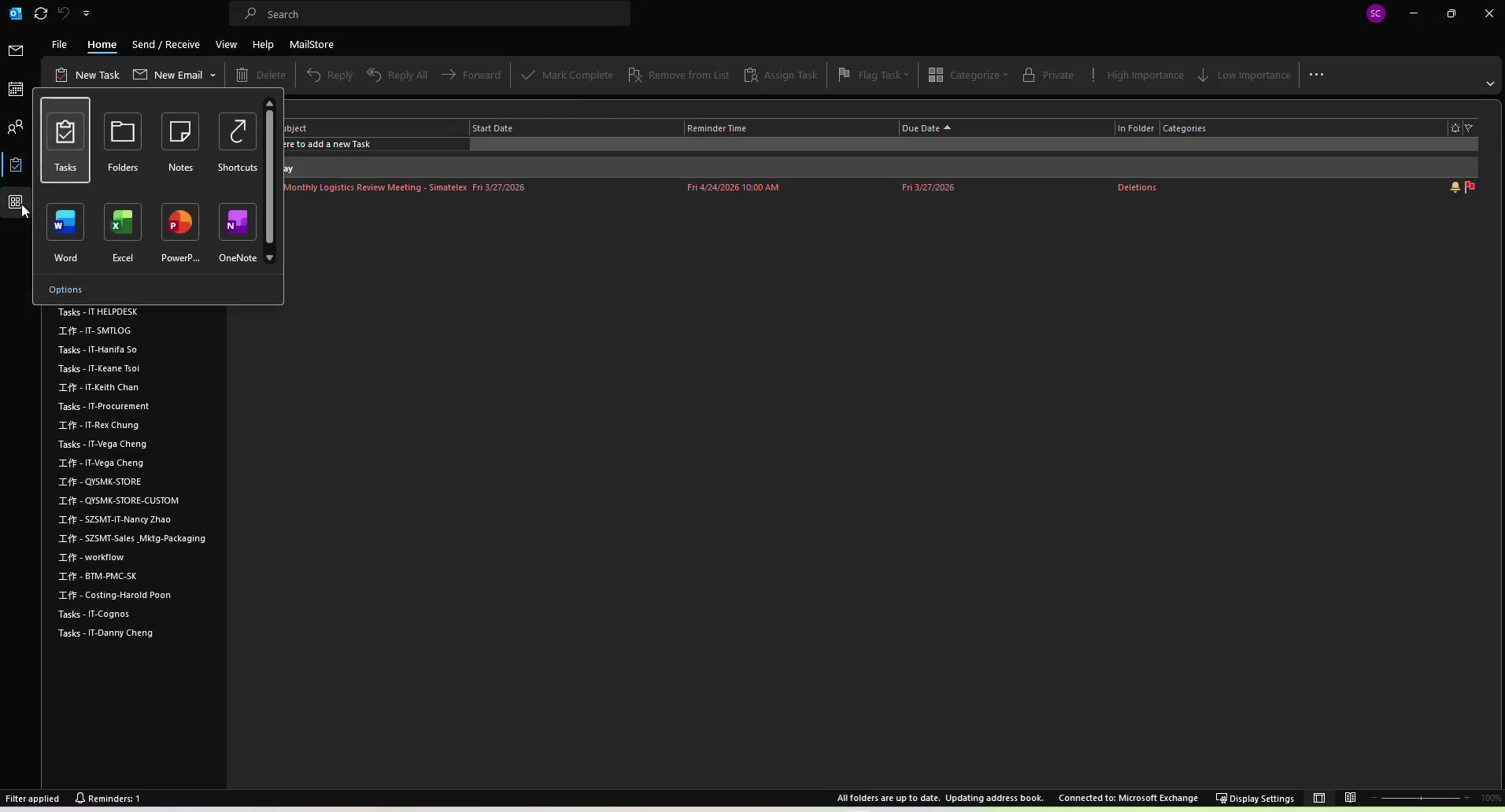
Click the Mail icon in the left-hand navigation bar.
2
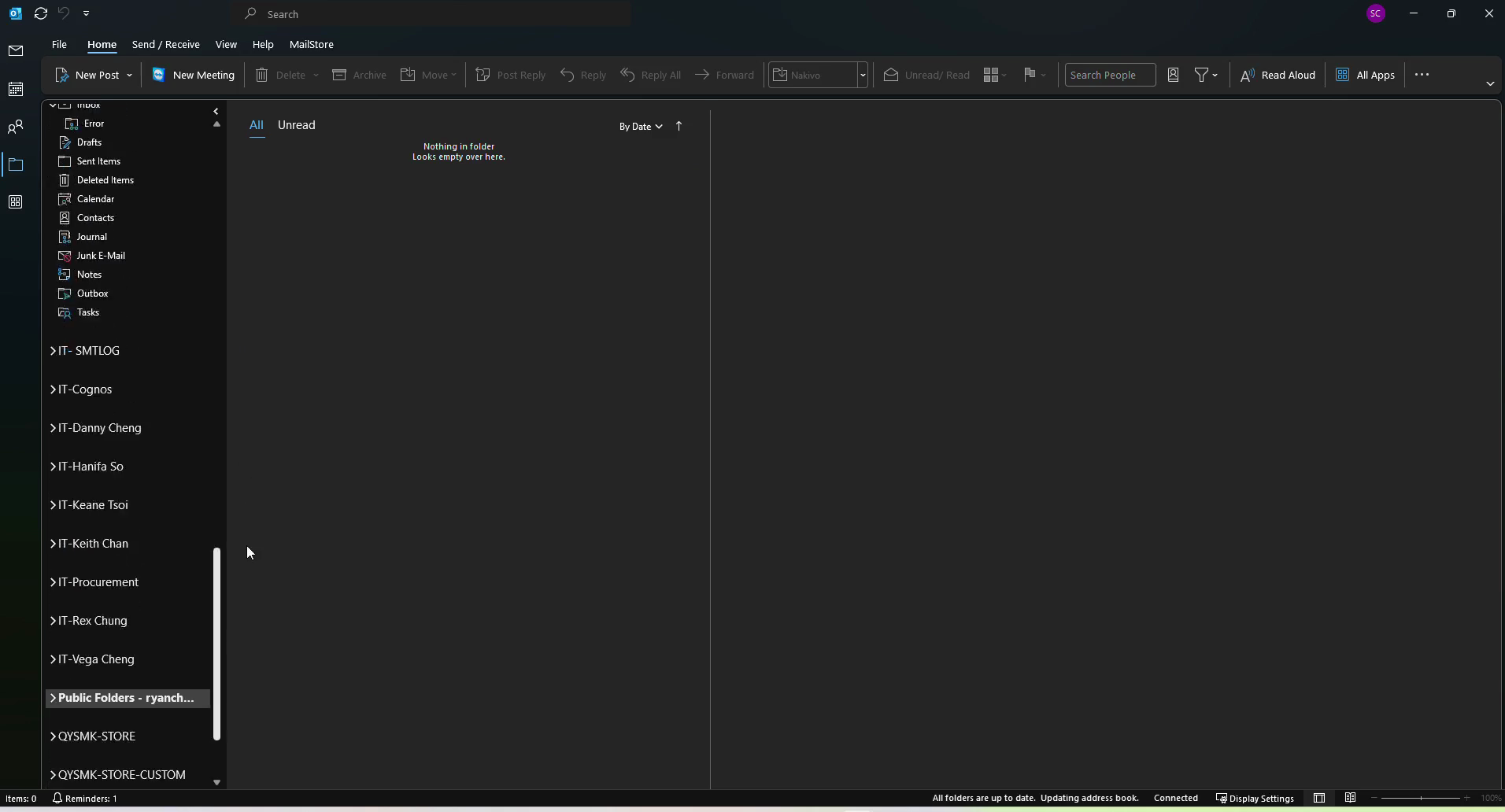
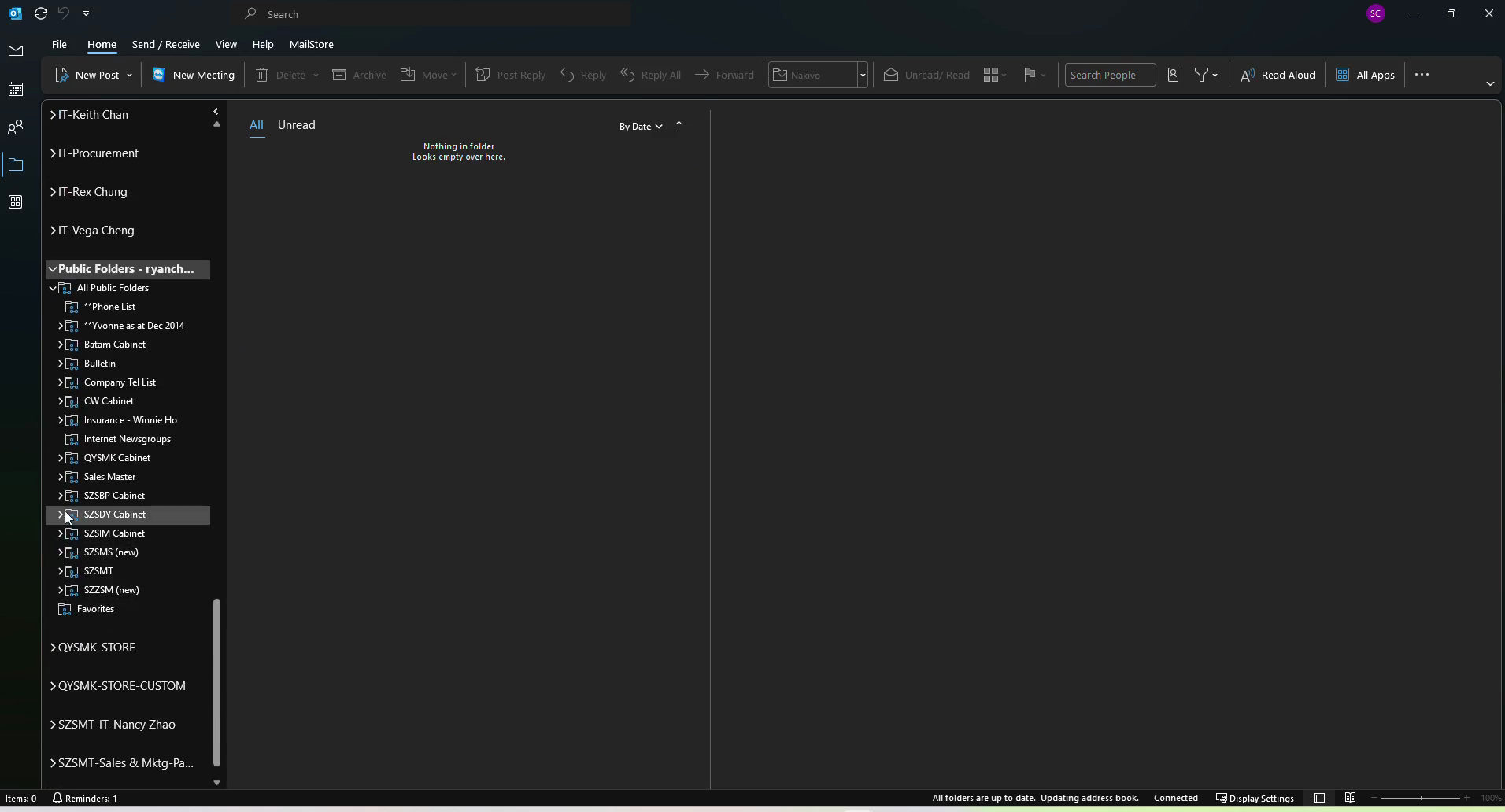
In the folder pane, locate and click Public Folders.
3
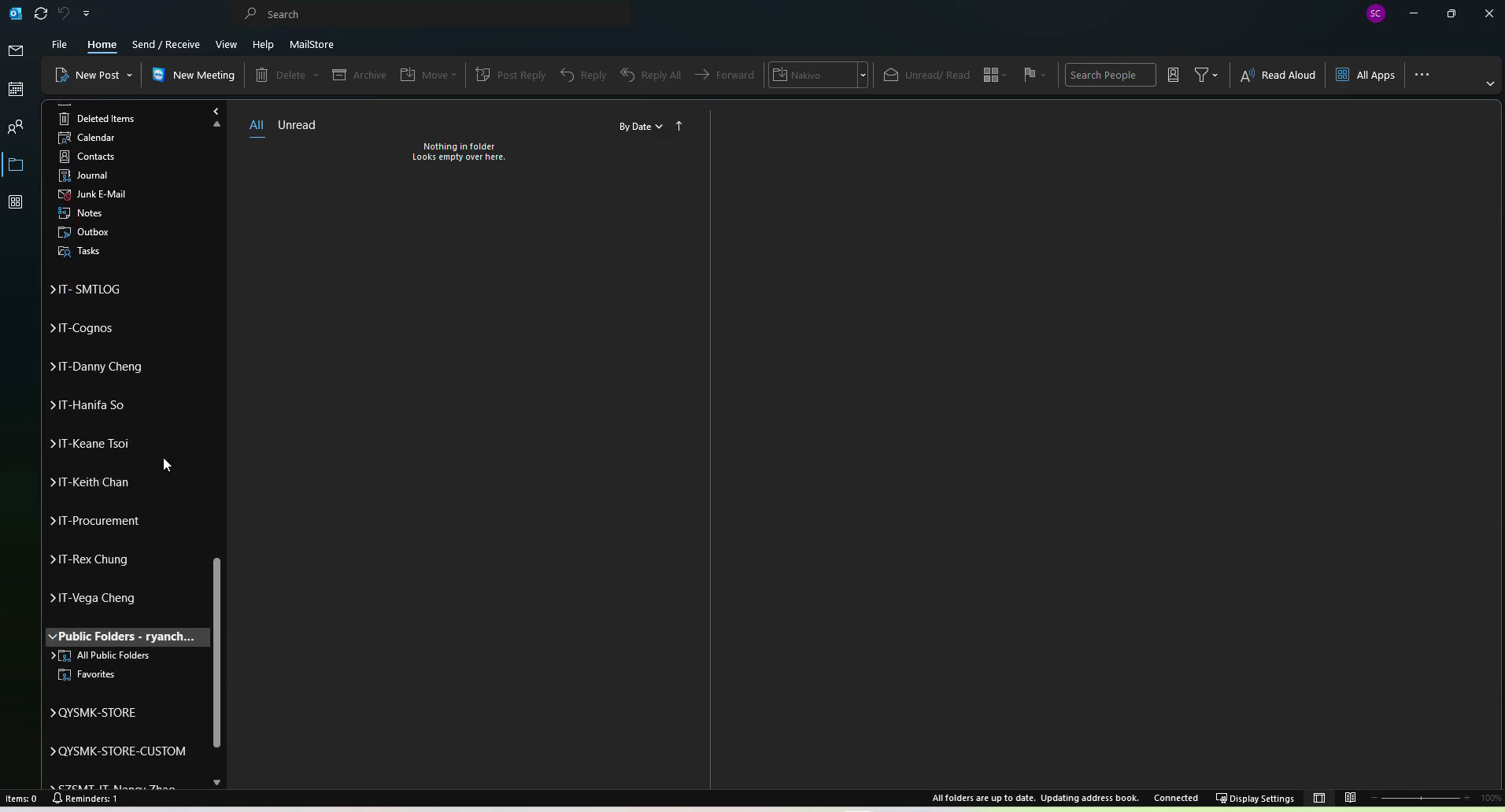
Expand the directory by clicking All Public Folders.
4
Click the folder you want to open.
5
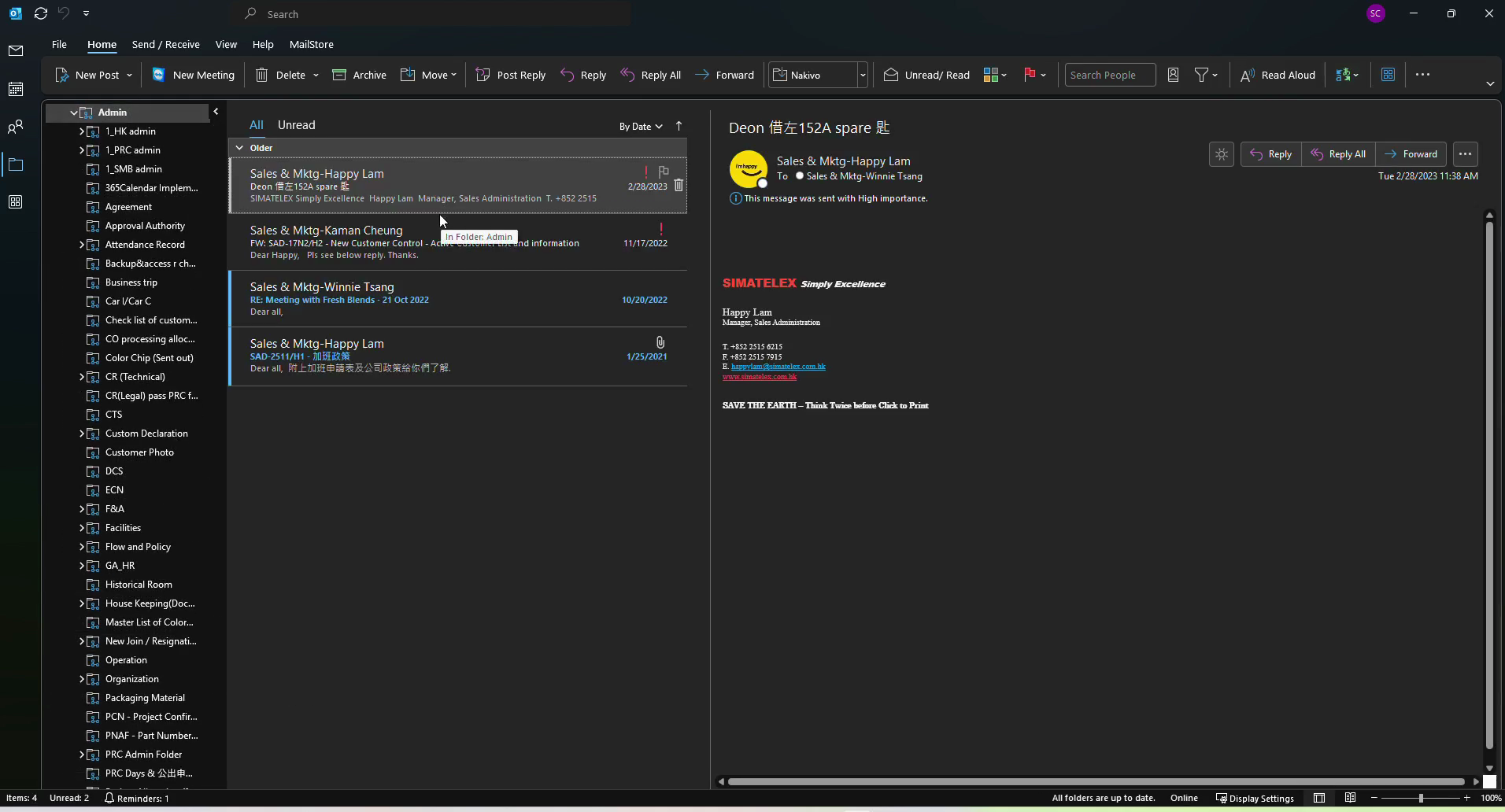
Double-click the target email in the message list to open it.
6
Review the information and tables presented in the email body.