Accessing a Secure SharePoint Link via Email Verification
Learn how to authenticate and access a secure Microsoft SharePoint link by requesting and entering an email verification code.
By Thomas Proudfoot
This guide demonstrates how to authenticate your identity to access a secure Microsoft SharePoint link. Completing these steps ensures you can safely view and collaborate on documents shared with you by an external partner.
This process applies to external guests or partners who have received an email invitation to view a secure file or folder. You will use this workflow immediately after clicking the shared link in your inbox.
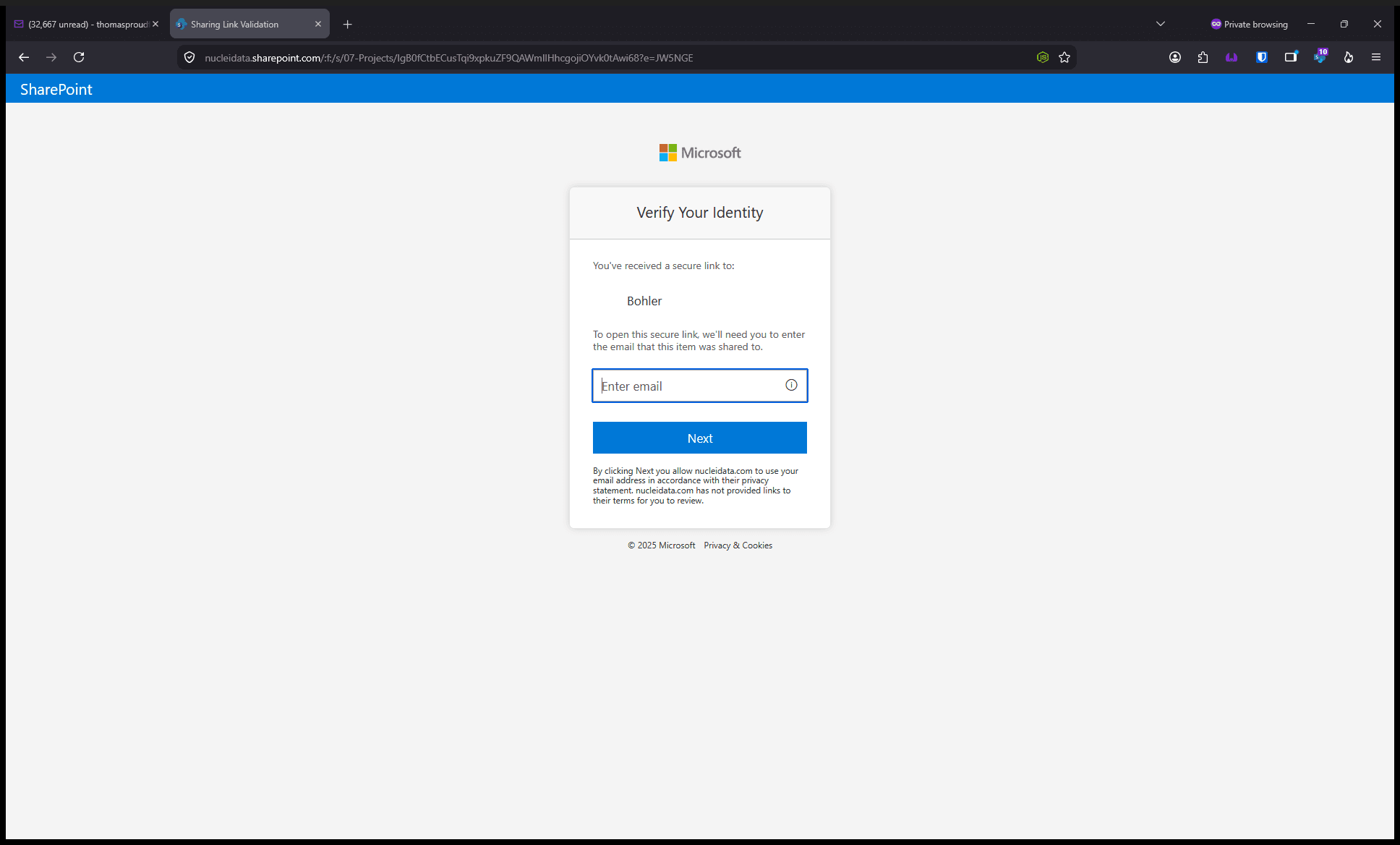
When you click a secure link in an email invitation, you will be taken to a Microsoft verification page to confirm your identity.
1
Enter your email address into the input field.
2
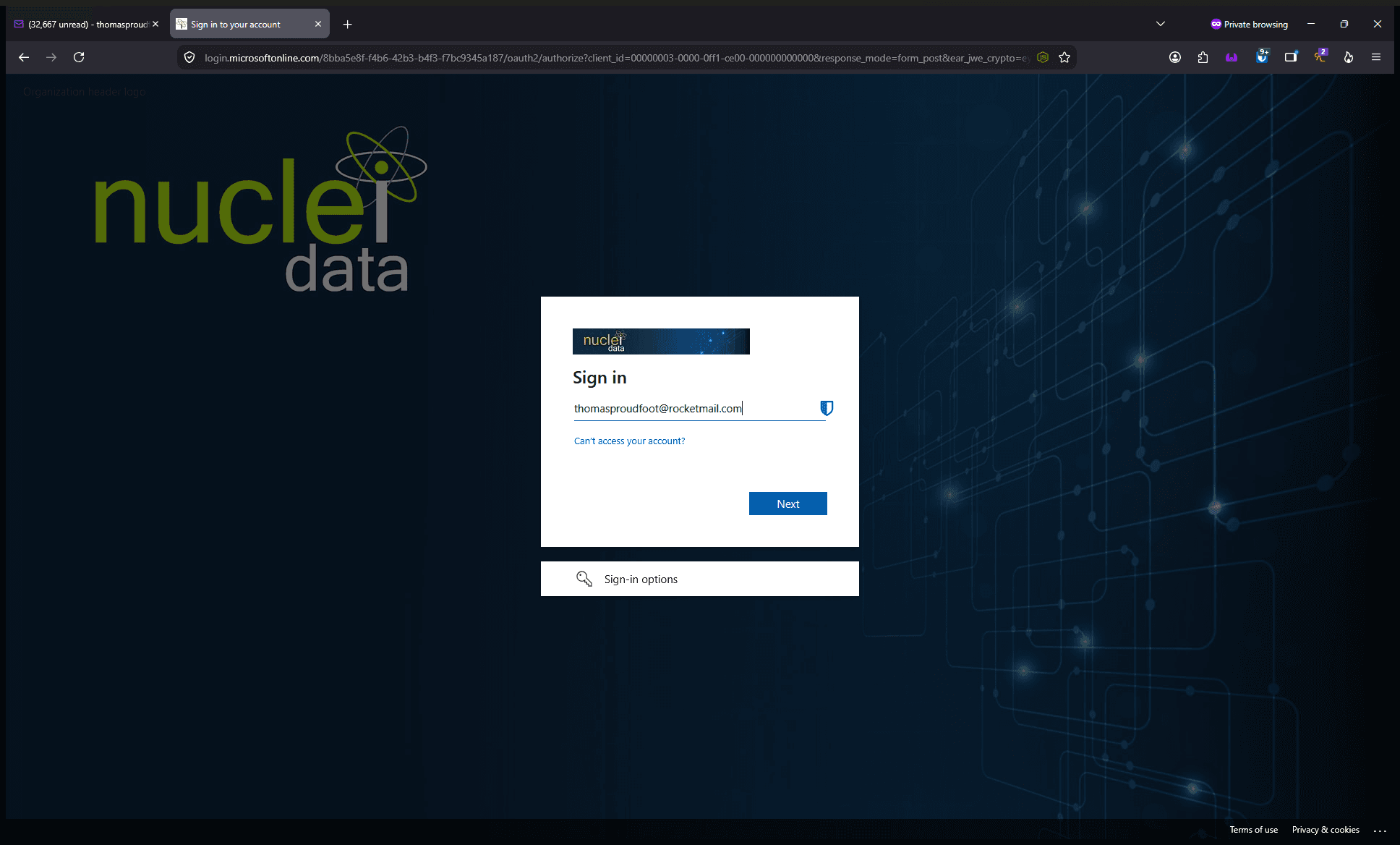
Click Next to proceed.
3
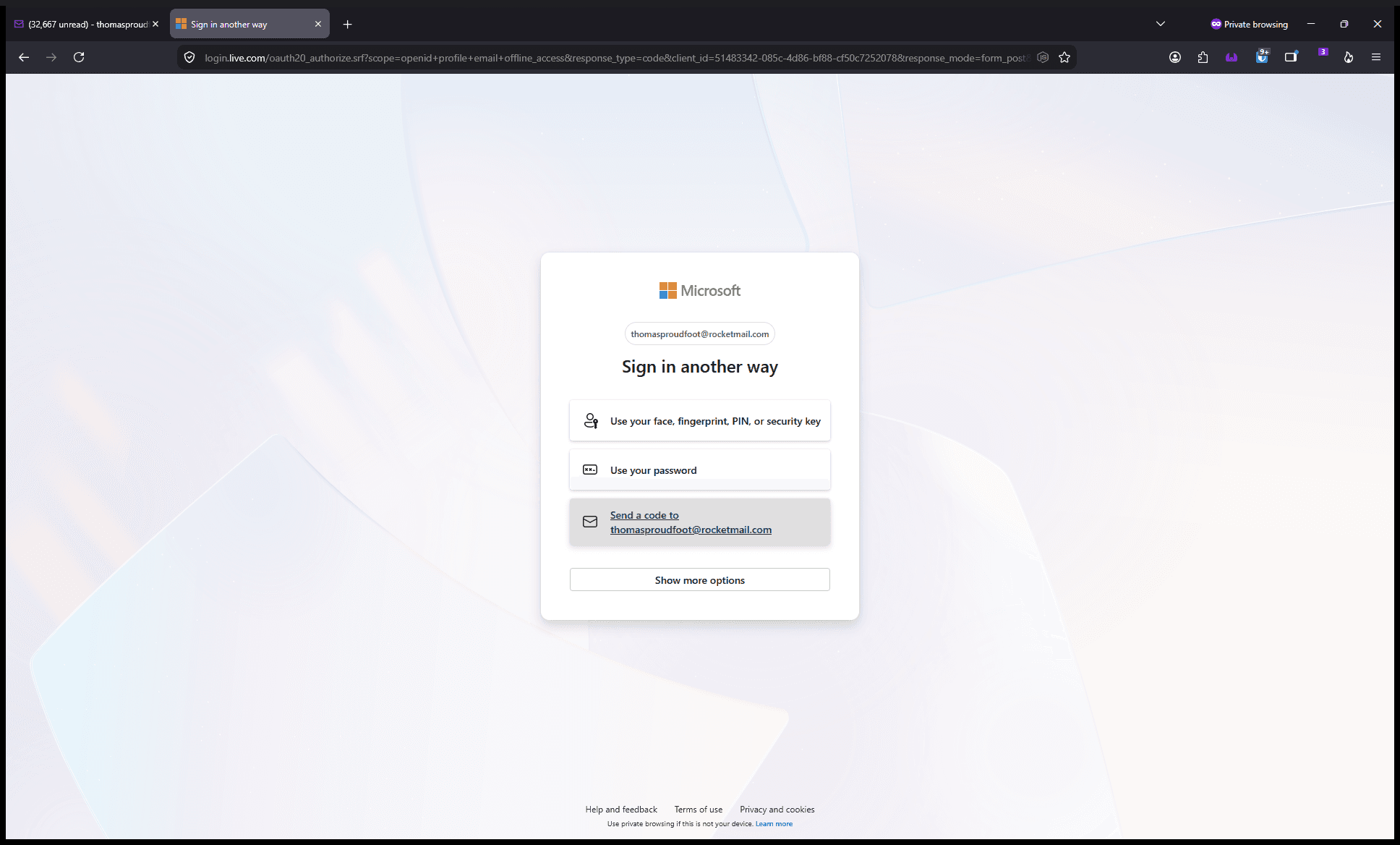
Select your email address to prompt the system to send a verification code to your inbox.
Open a new tab or window and navigate to your email inbox. Locate the message containing your verification code, then return to the authentication page.
4
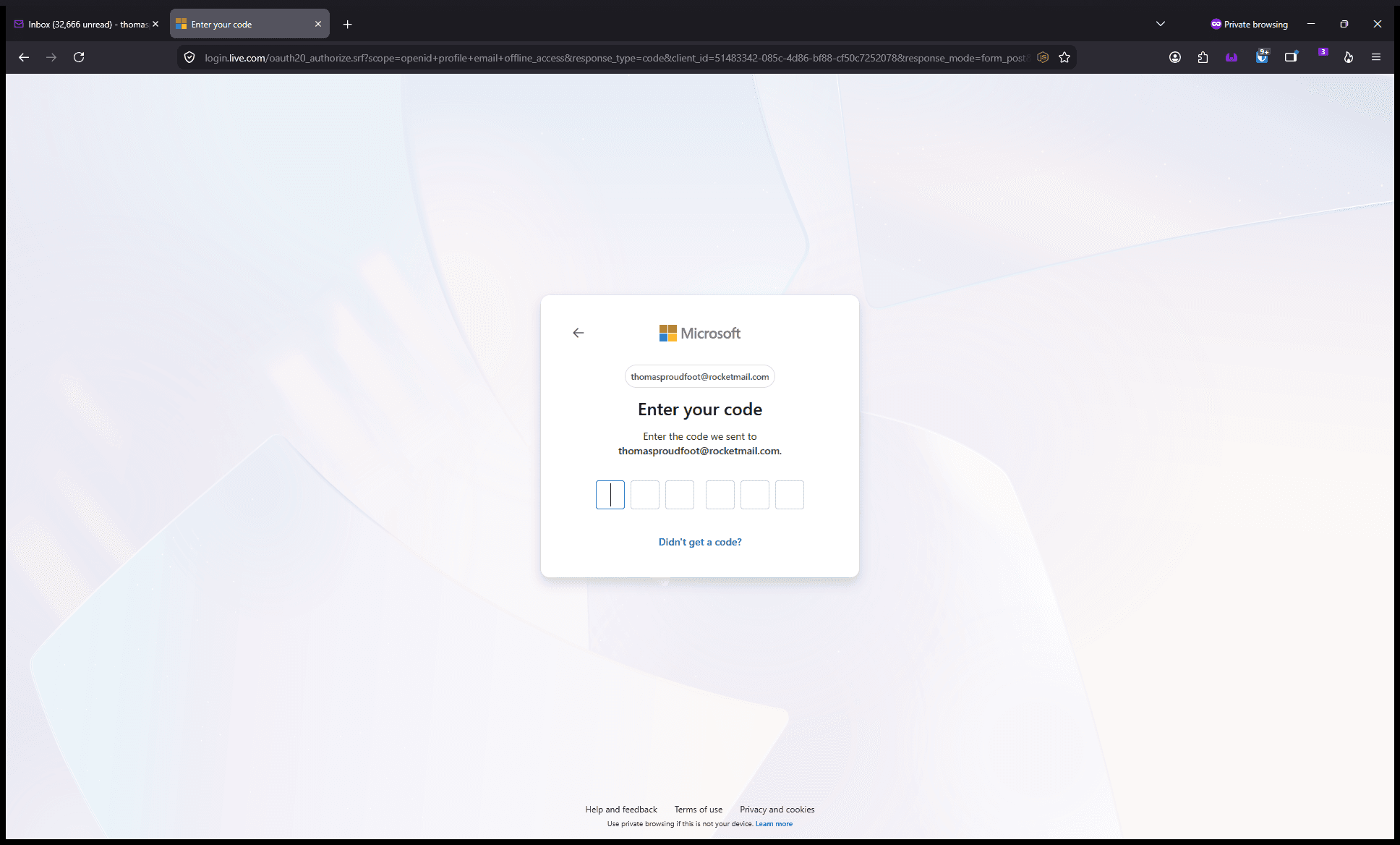
Enter the security code into the provided boxes.
5
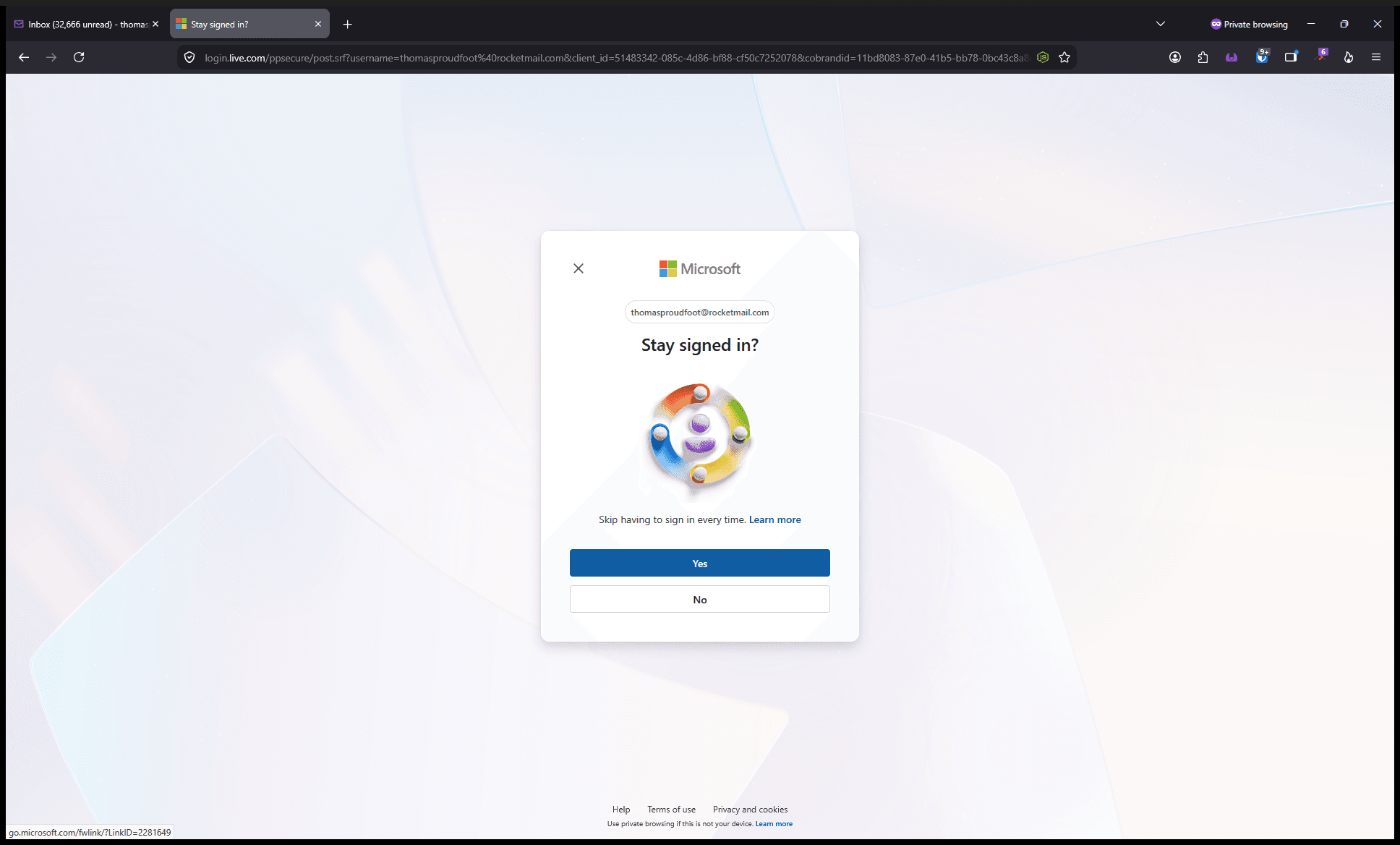
Click Yes if you want to stay signed in for future access, or select No to be signed out automatically when you close the browser.