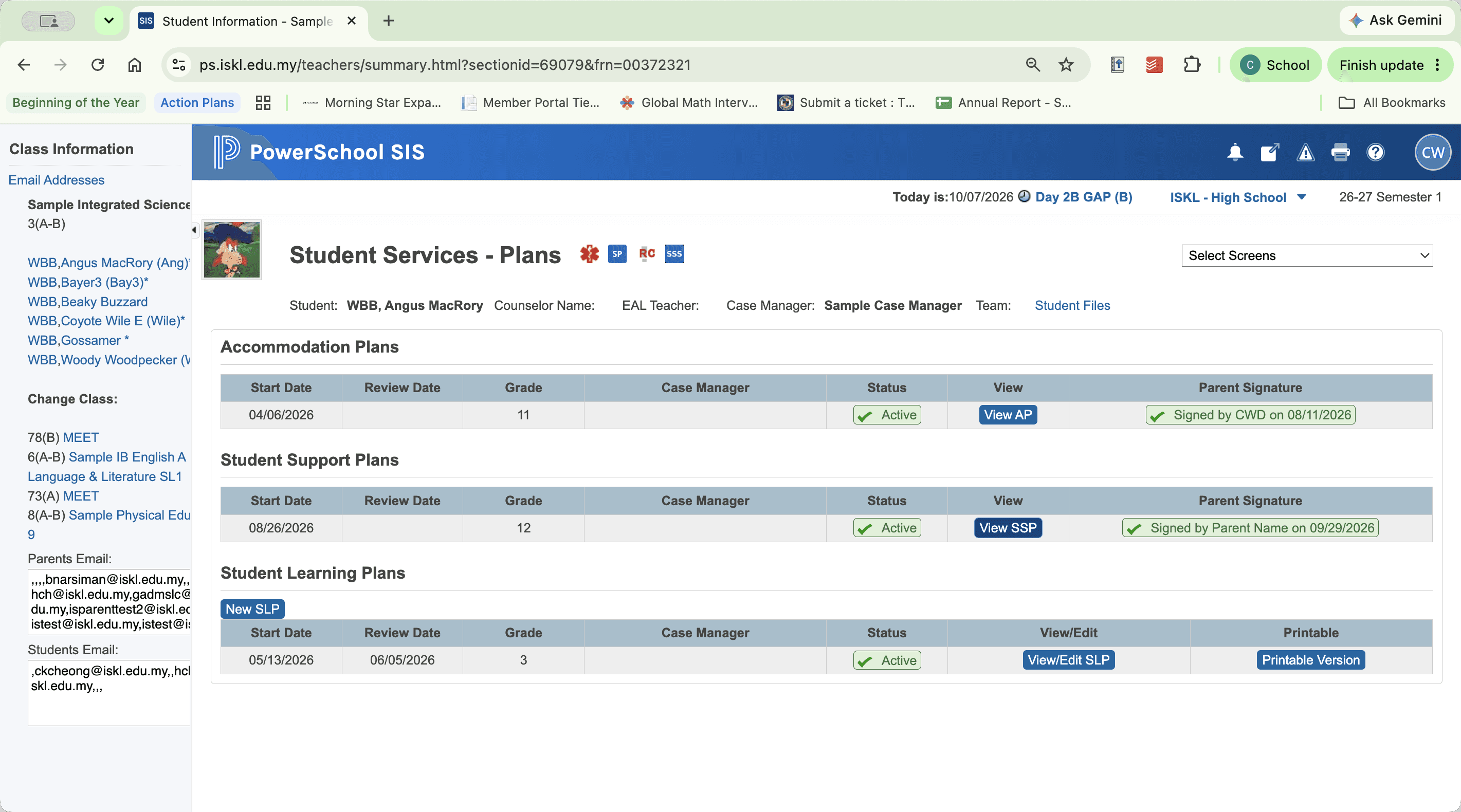
Access Student Support Plans in PowerTeacher
Learn how to navigate PowerTeacher to locate and review active Student Support Plans (SSPs) for students in your classes.
By Cindy Warner-Dobrowski
Purpose
This guide details how to navigate to and review student plans in the PowerSchool SIS PowerTeacher portal.
Locate and Open Student Services Plans
Log in to the PowerTeacher portal (https://ps.iskl.edu.my/teachers/home.html).
1
Click the student information or roster icon for your class in the PowerTeacher portal.
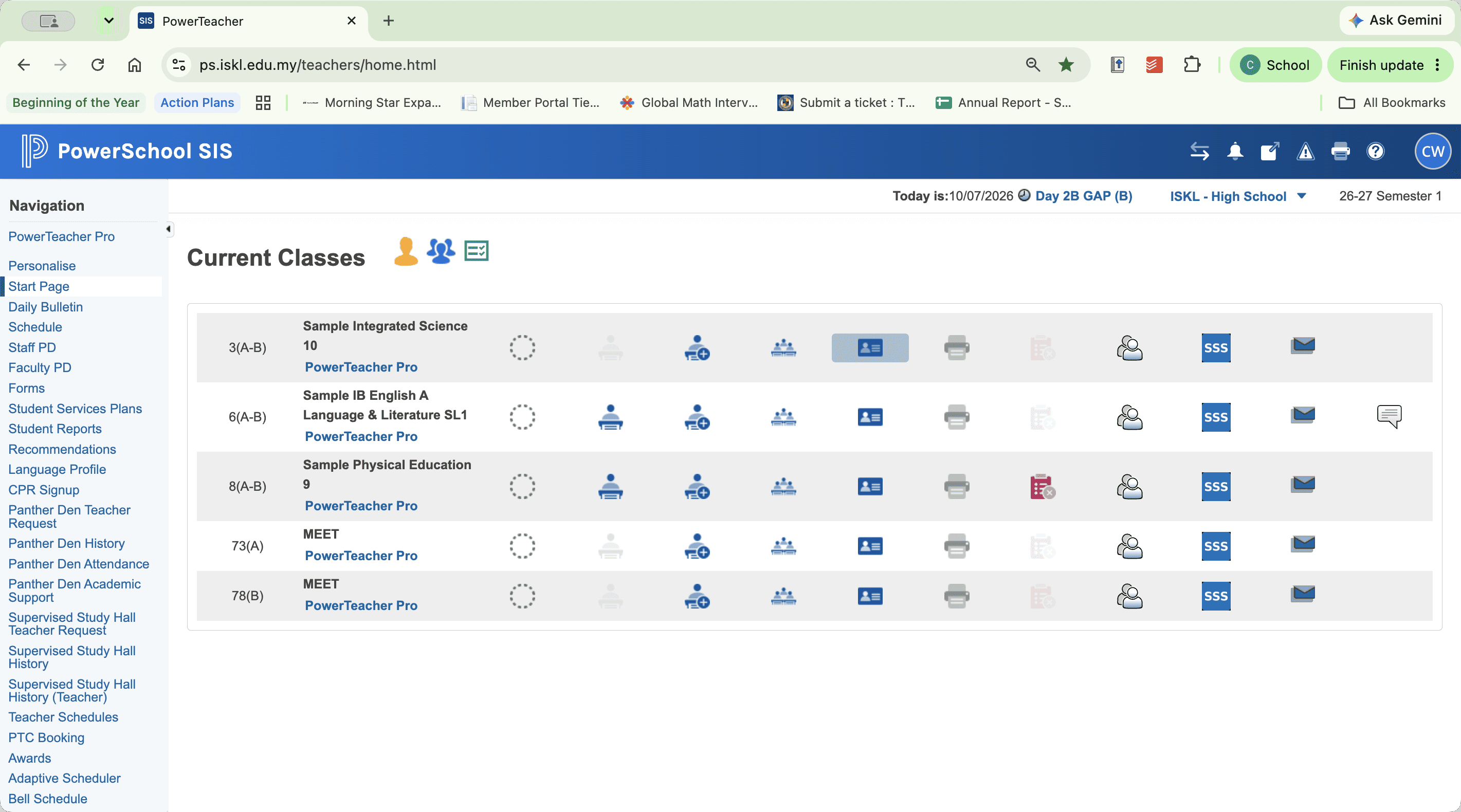
Opening the roster populates the student list in the side panel.
2
Click the student's name in the side panel to open their student record.
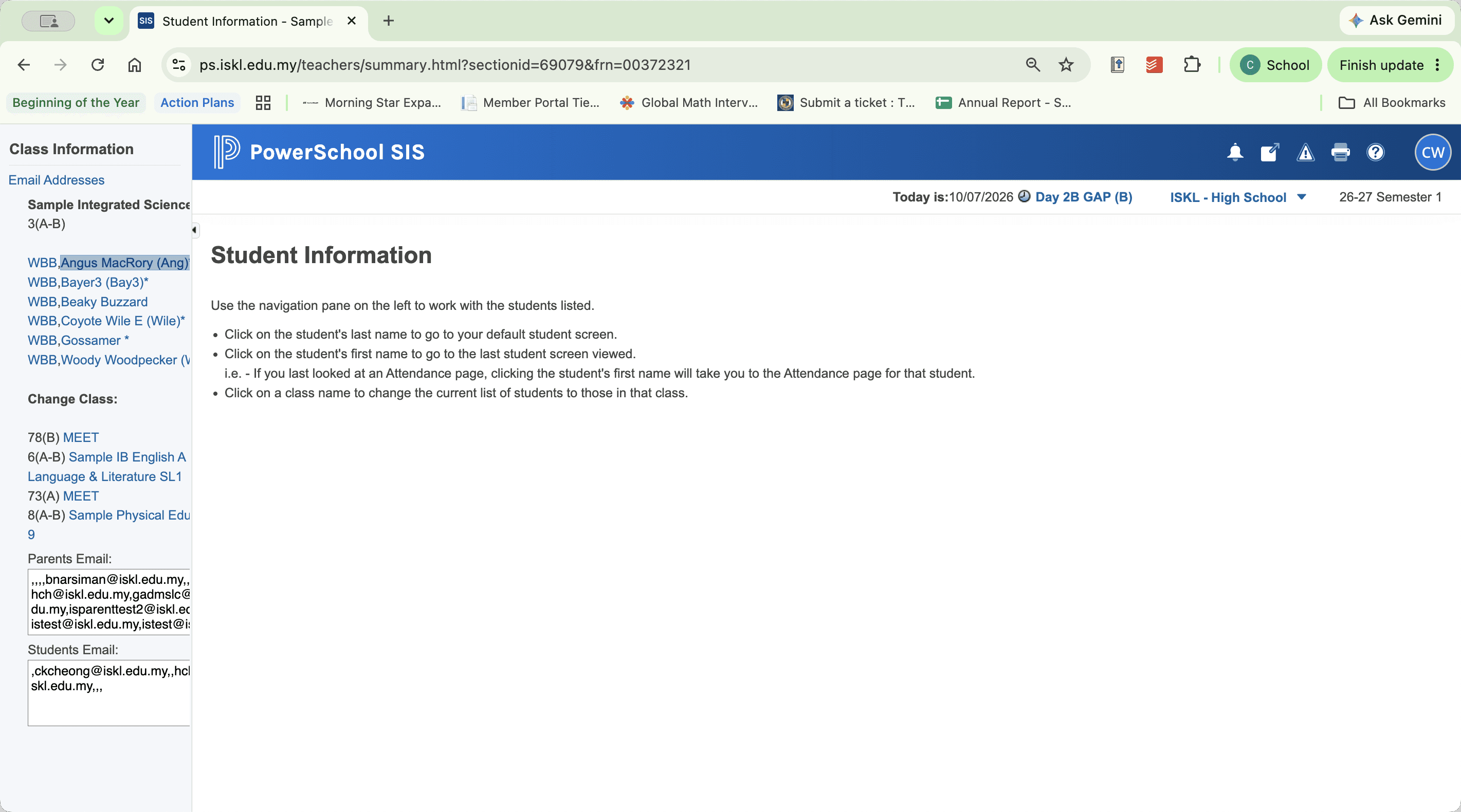
3
Click the Select Screens dropdown menu.
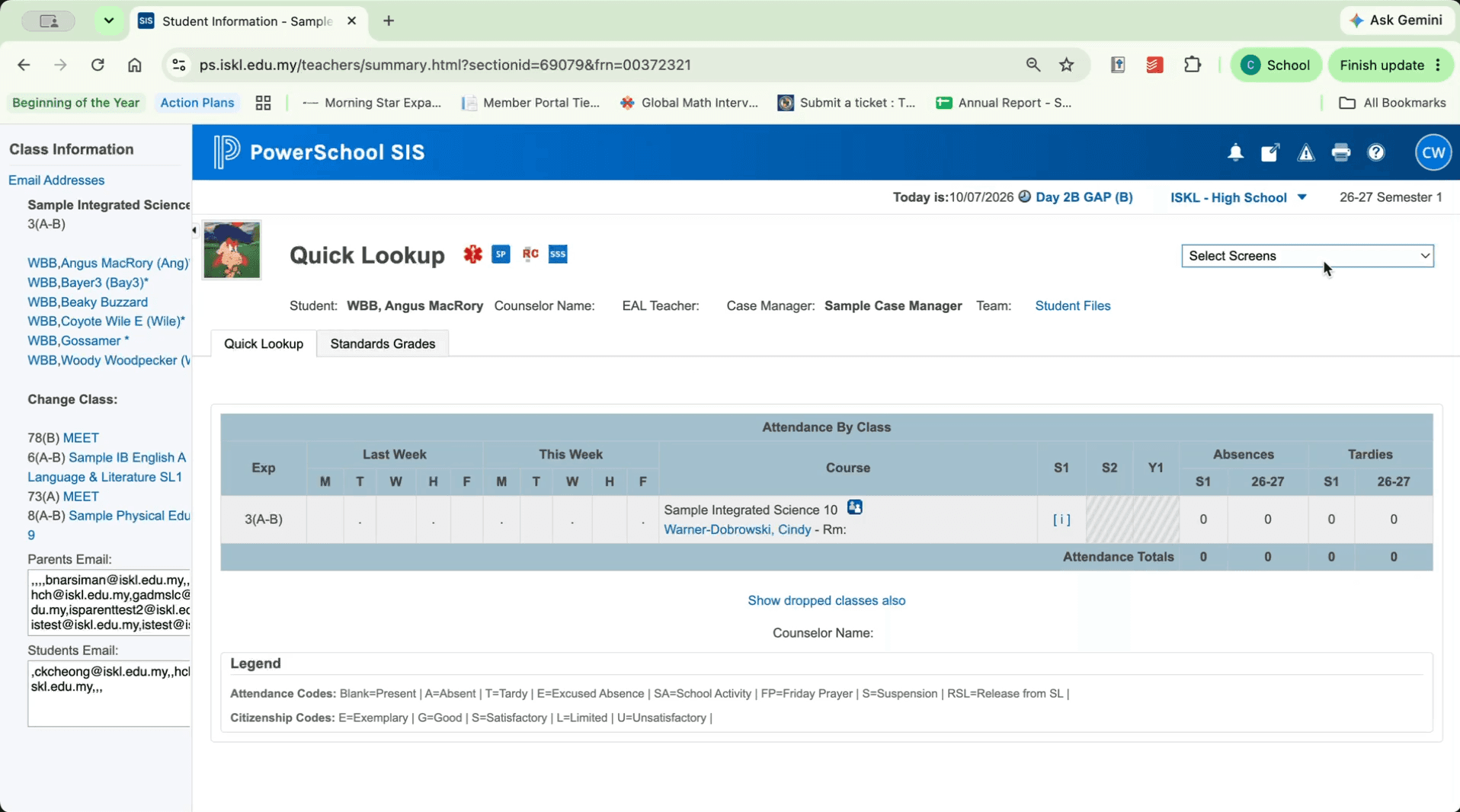
4
Select Student Services-Plans from the menu.
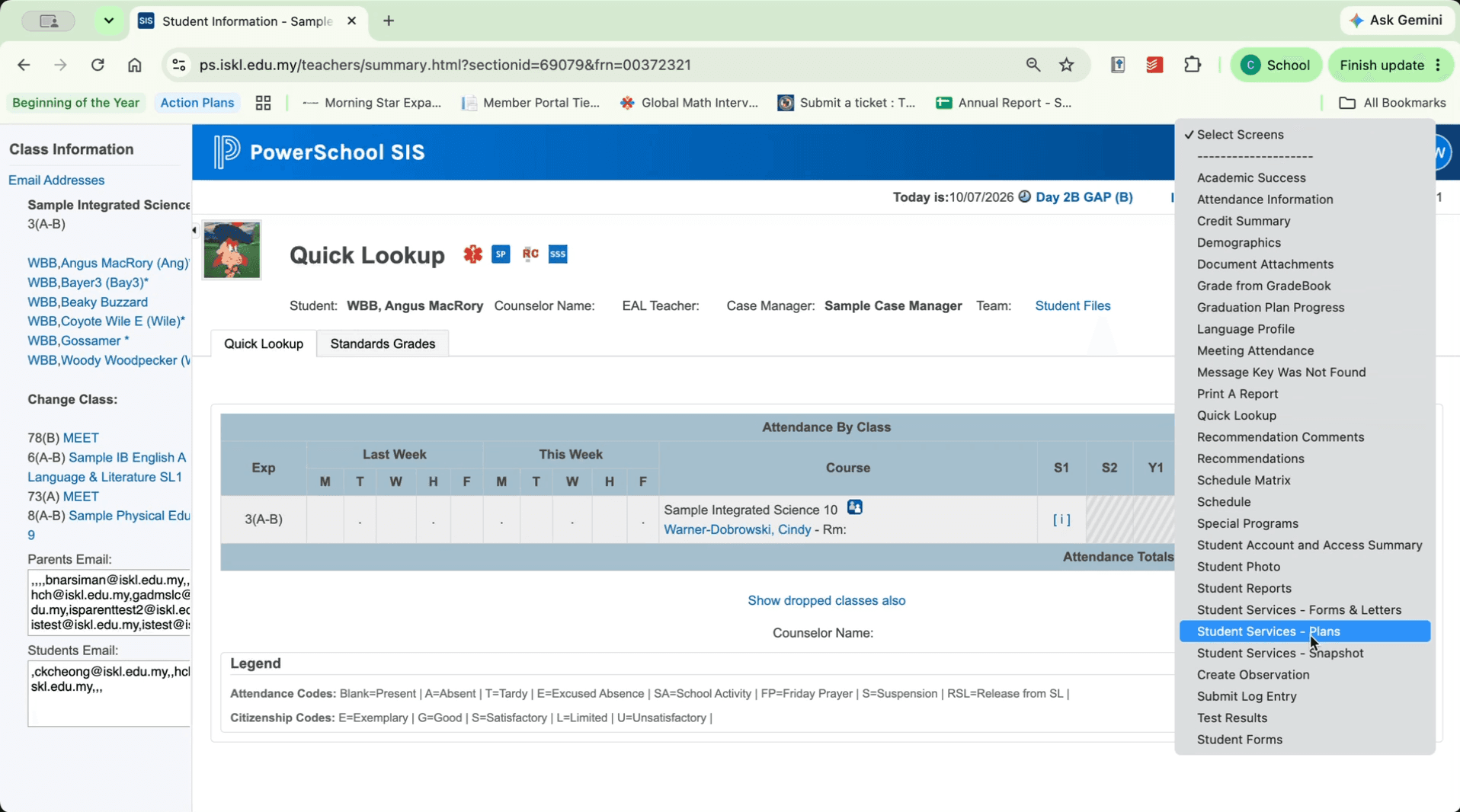
Selecting this screen displays all created support plans associated with the student's record.
5
Click View to open the student's support plan.