Icon

Add Devices and Locations to a Workspace

Learn how to set up a new workspace, define geographic location boundaries using map polygons, and add device sensors to your network.

By Robert Jones

This guide demonstrates how to set up a new workspace, define a physical location using map polygons, and add device sensors to that location. Completing this process ensures your field assets are accurately mapped and ready for monitoring.

This workflow is primarily used by network administrators and deployment engineers when onboarding new sites or expanding the sensor network. It should be performed whenever a new physical location requires device installation and tracking.

Create a Workspace
1
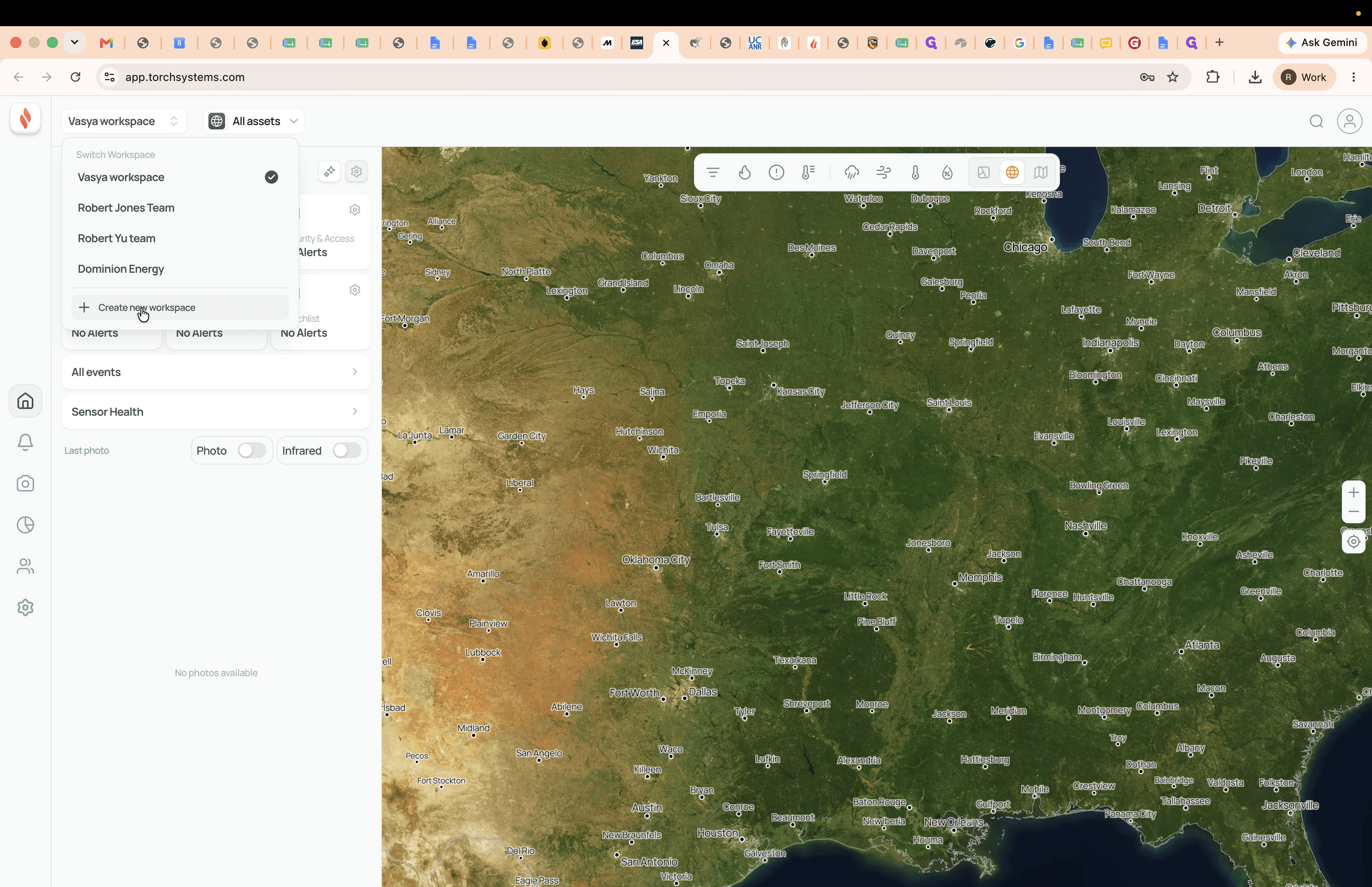
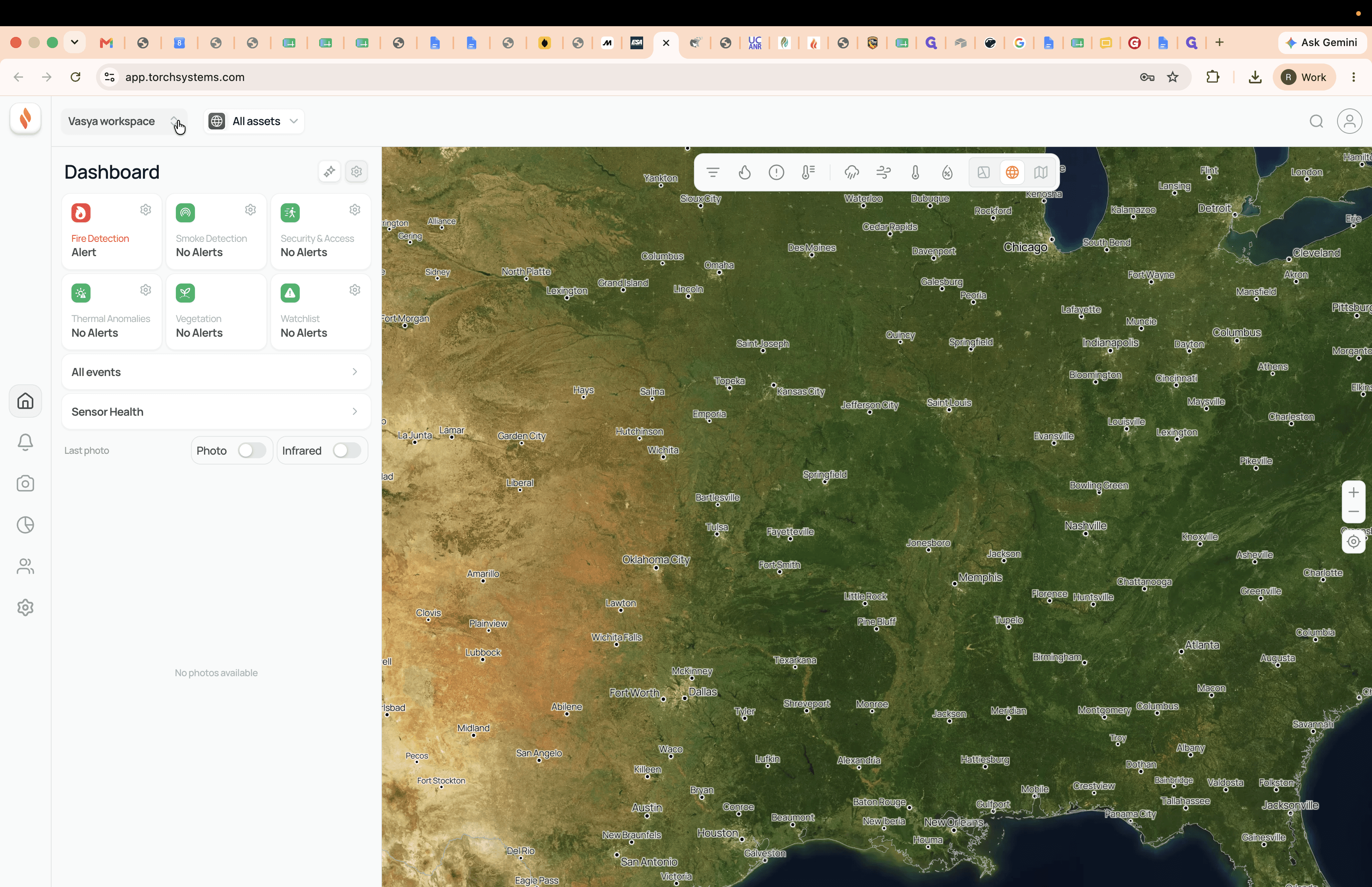
Click the workspace dropdown menu in the top-left area of the dashboard.
Step #1: Click the workspace dropdown menu in the top-left area of the dashboard.
2
Select Create new workspace from the menu options.
Step #2: Select Create new workspace from the menu options.
3
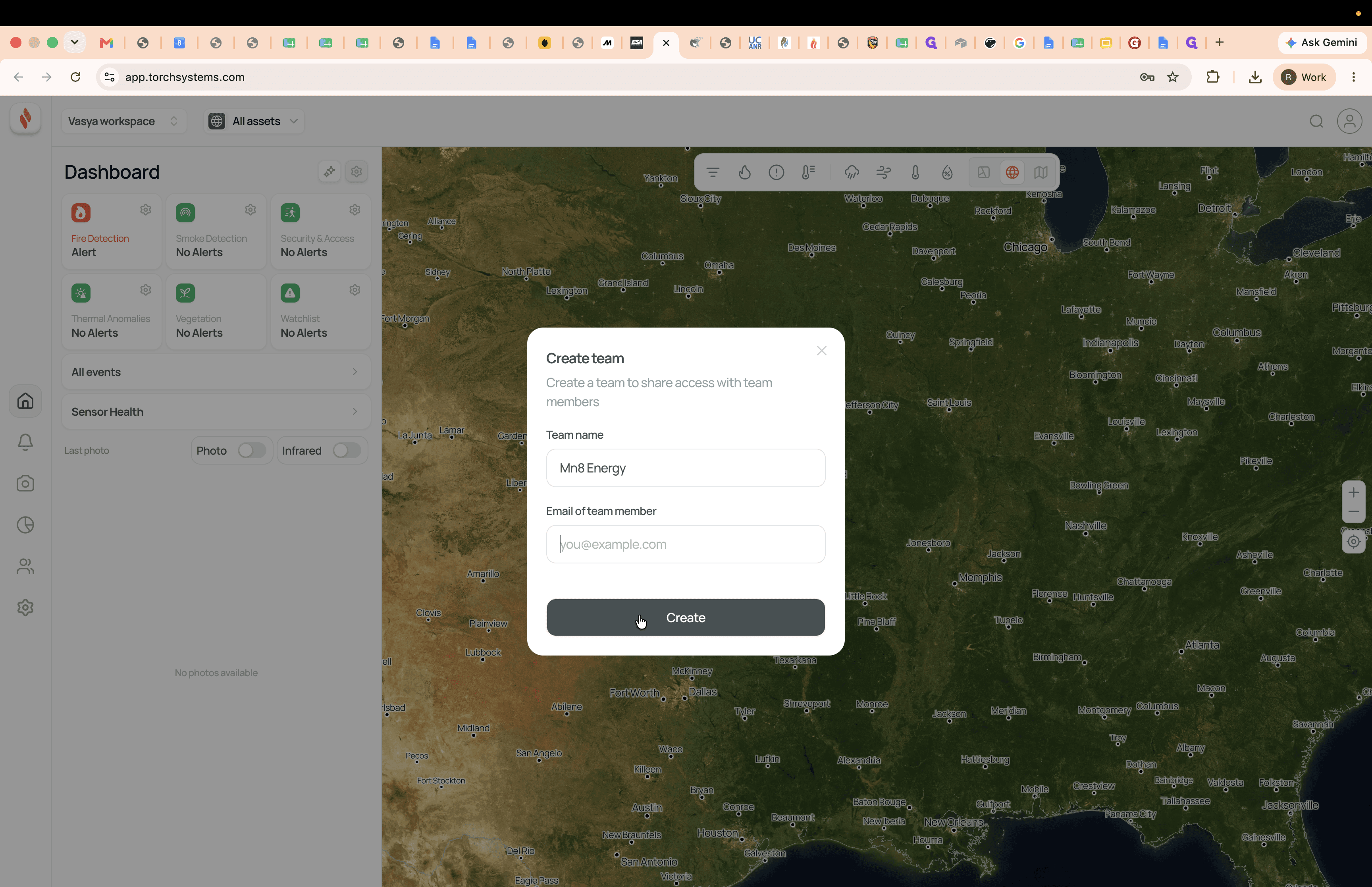
Enter the name for your new workspace in the text field.
4
Click Create to initialize the workspace.
Step #4: Click Create to initialize the workspace.

Add a New Location

5
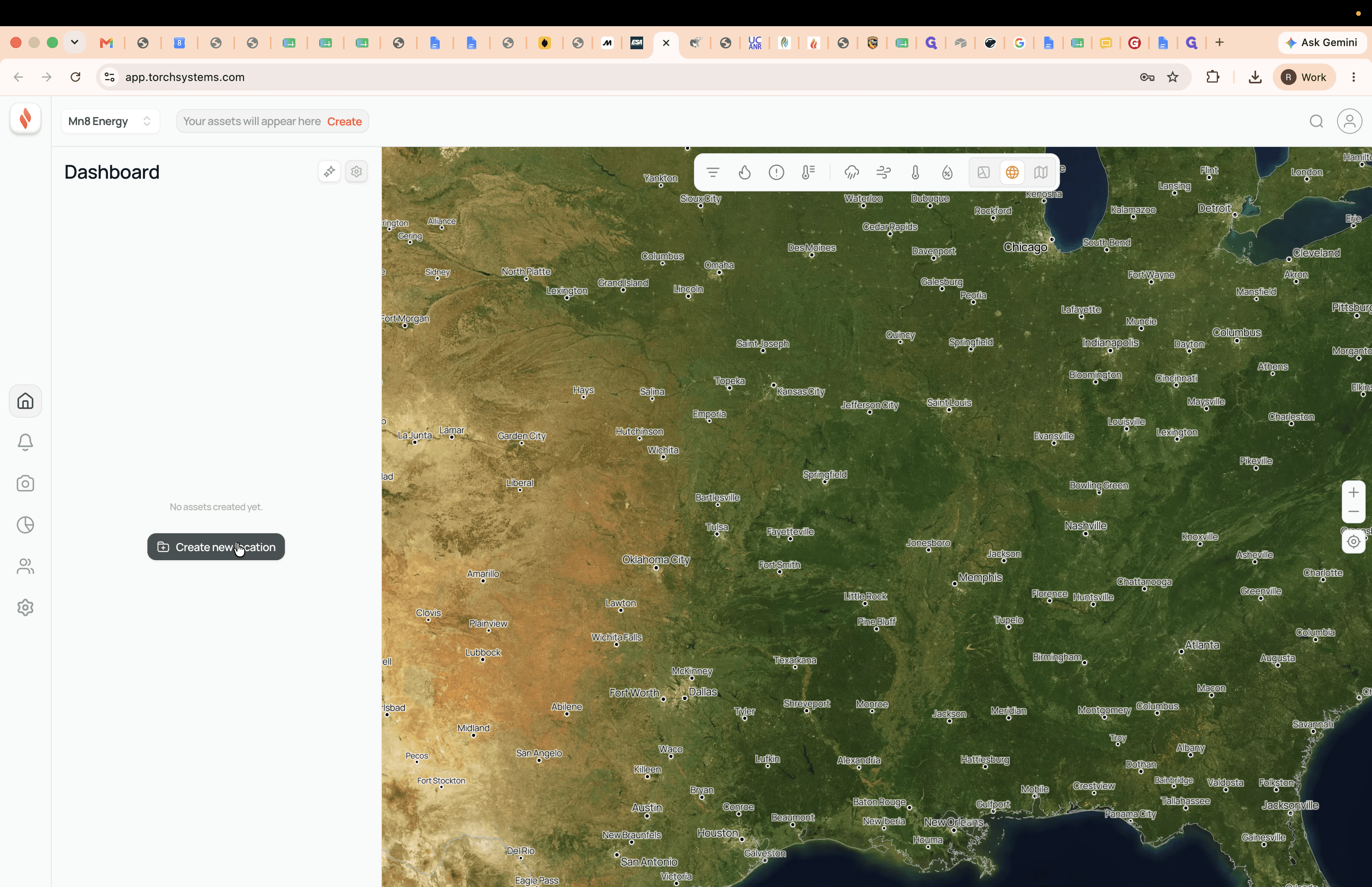
Click Create new location on the main dashboard.
Step #5: Click Create new location on the main dashboard.
6
Enter a name for the site in the location name field.
7
Click Create to proceed to the map boundary setup.
Step #7: Click Create to proceed to the map boundary setup.

Define the Asset Polygon

8
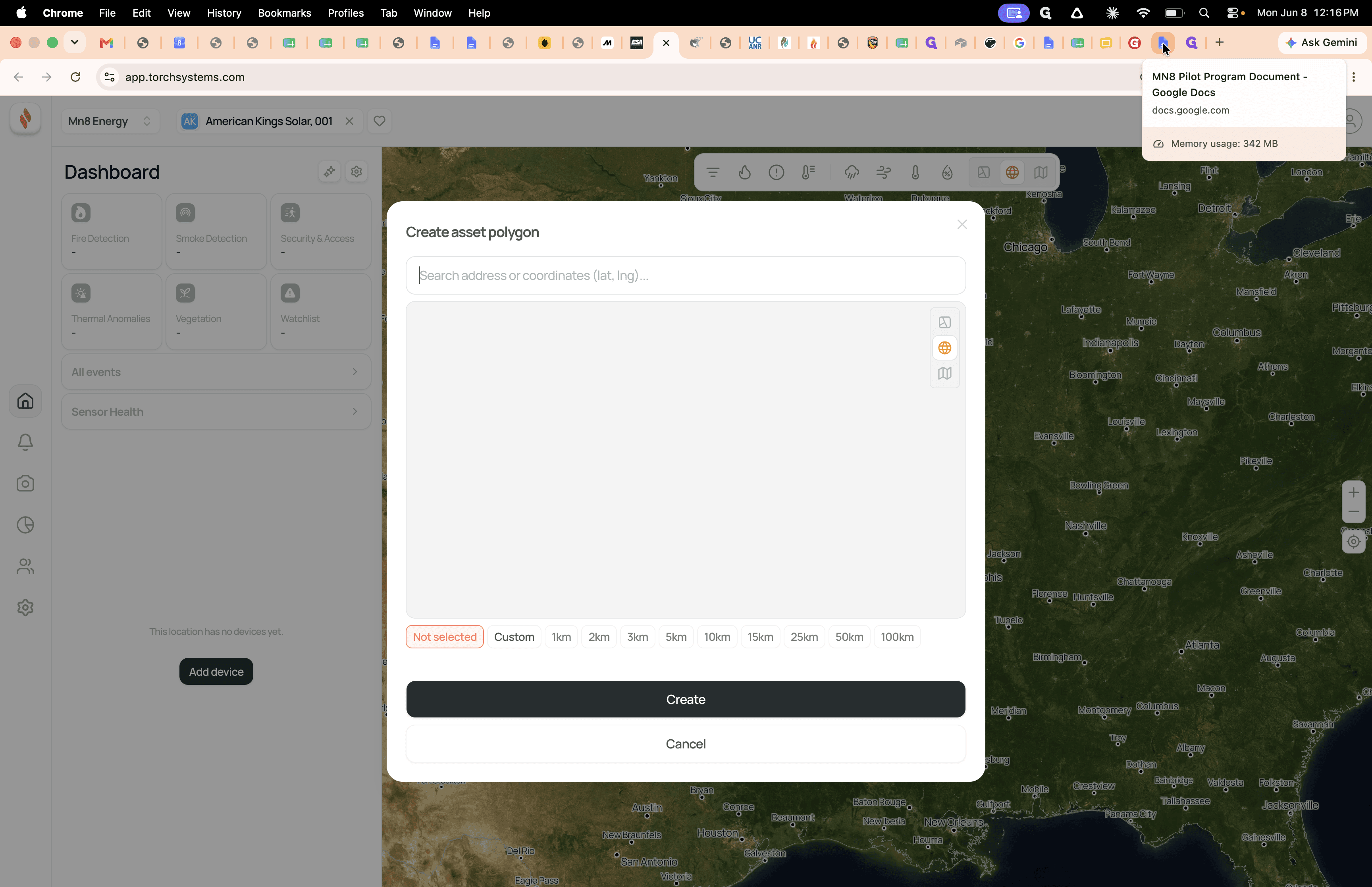
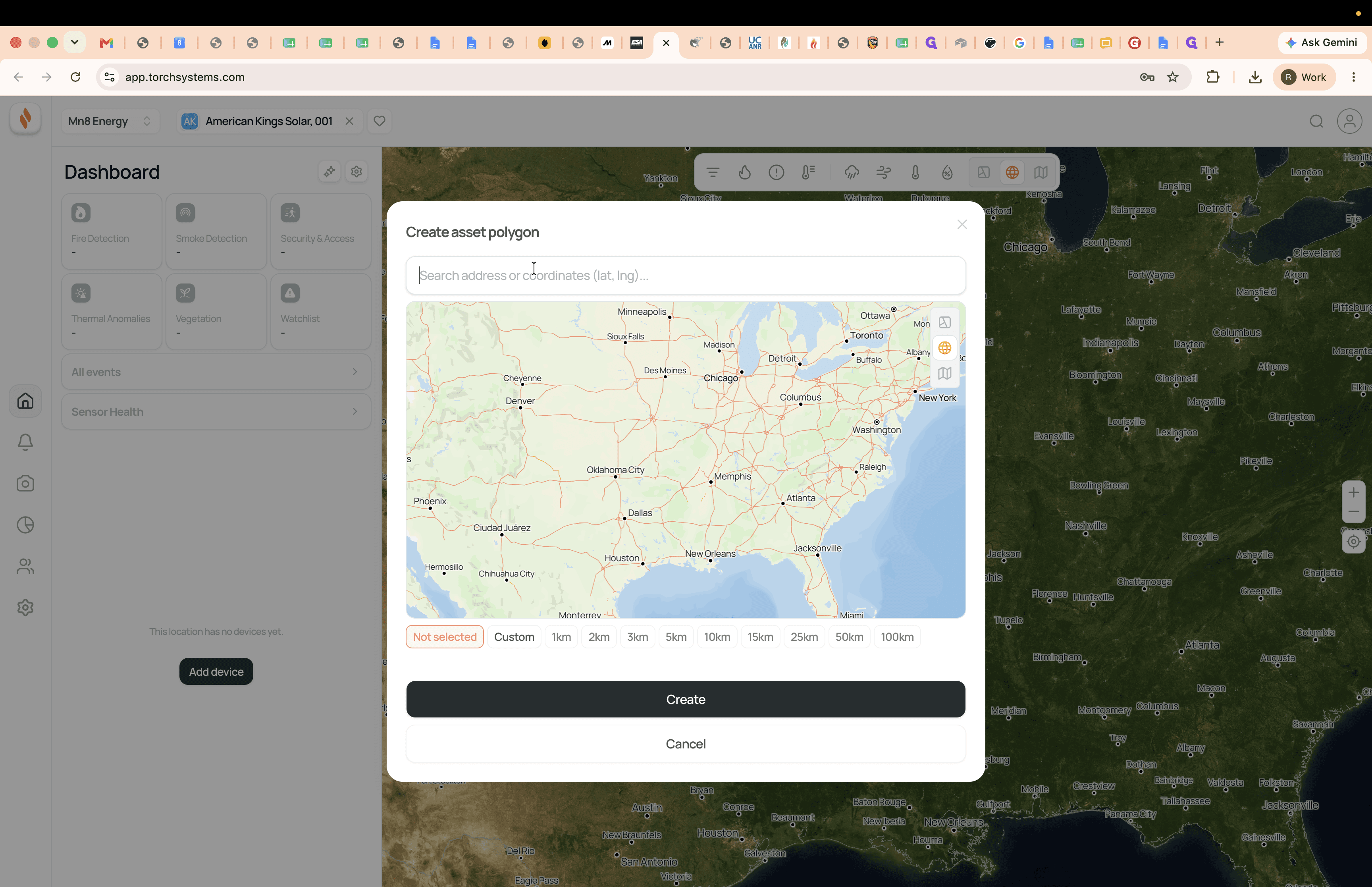
In the modal window, click the Search address or coordinates input field above the map.
Step #8: In the modal window, click the Search address or coordinates input field above the map.
9
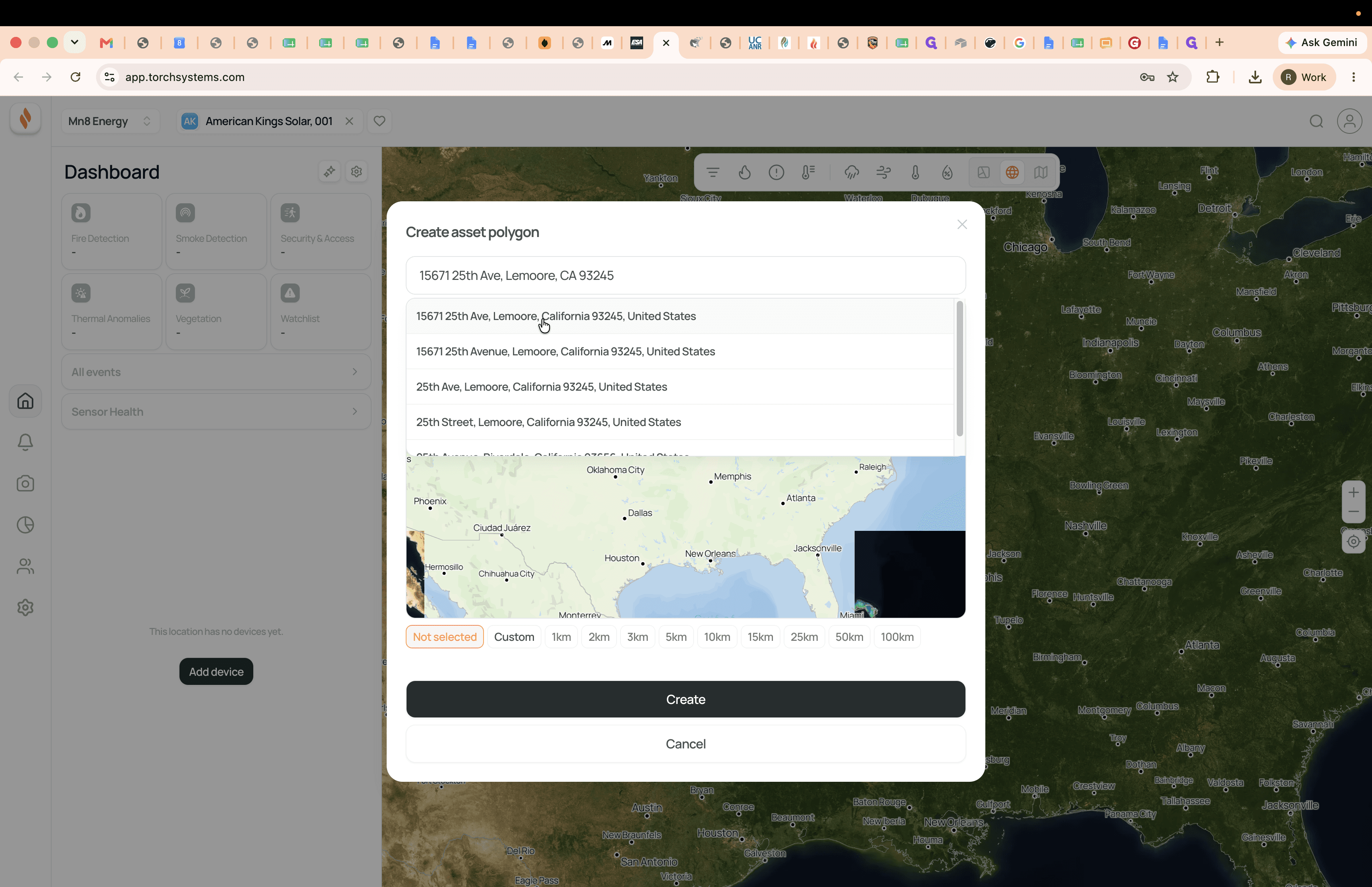
Type or paste the exact physical address of the facility.
10
Select the matching address from the dropdown results.
Step #10: Select the matching address from the dropdown results.

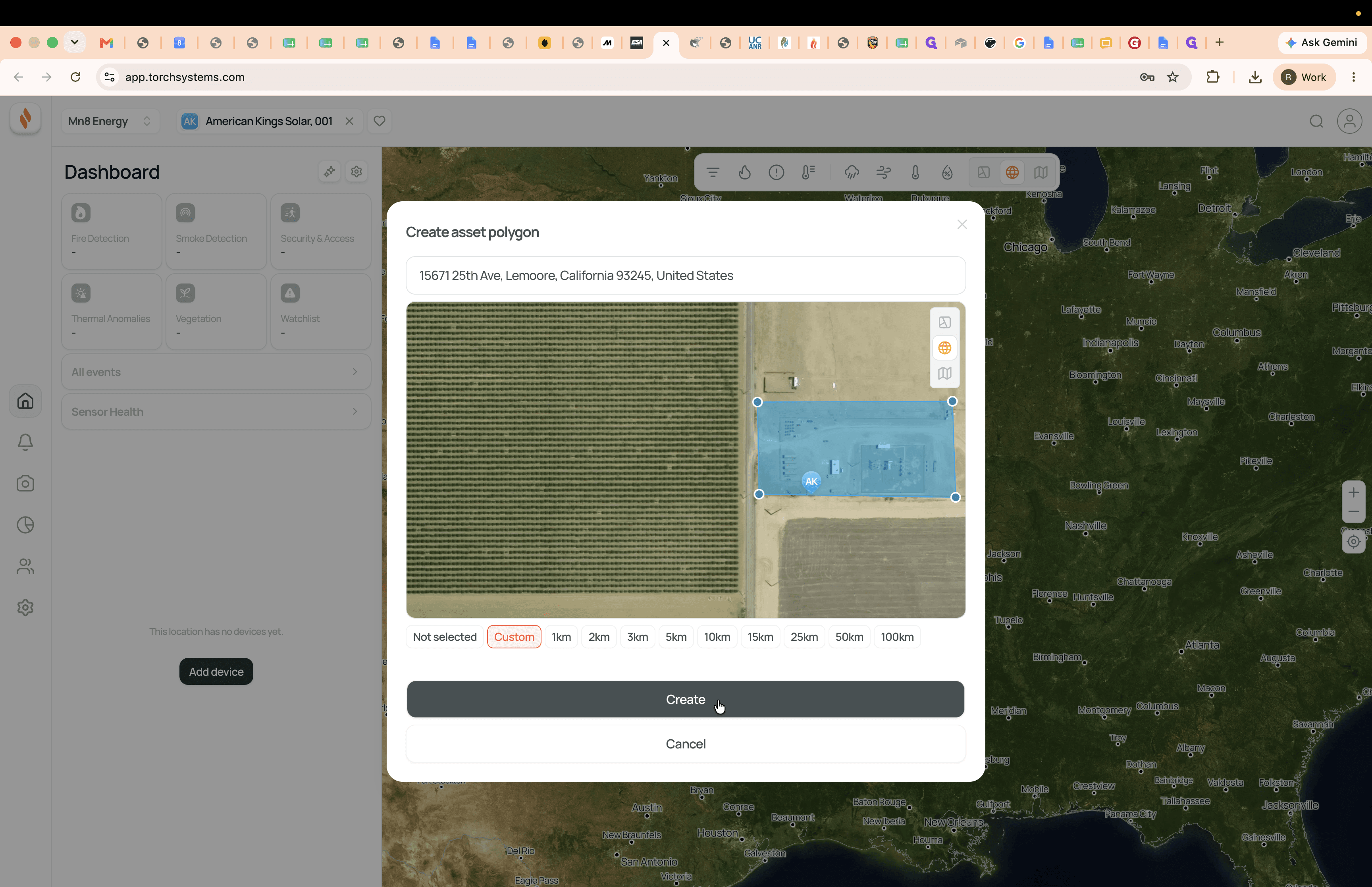
Before finalizing the location, you must define its boundary on the map. You have a few options for sizing the asset polygon:

Sizing Method

Description

Preset 1km Radius

Automatically generates a uniform 1-kilometer circular perimeter around the central address.

Other Preset Radii

Expands the automated circular boundary up to 100km for larger regional assets.

Custom Polygon

Allows you to manually click and drag boundary nodes to perfectly outline irregular facility perimeters.

11
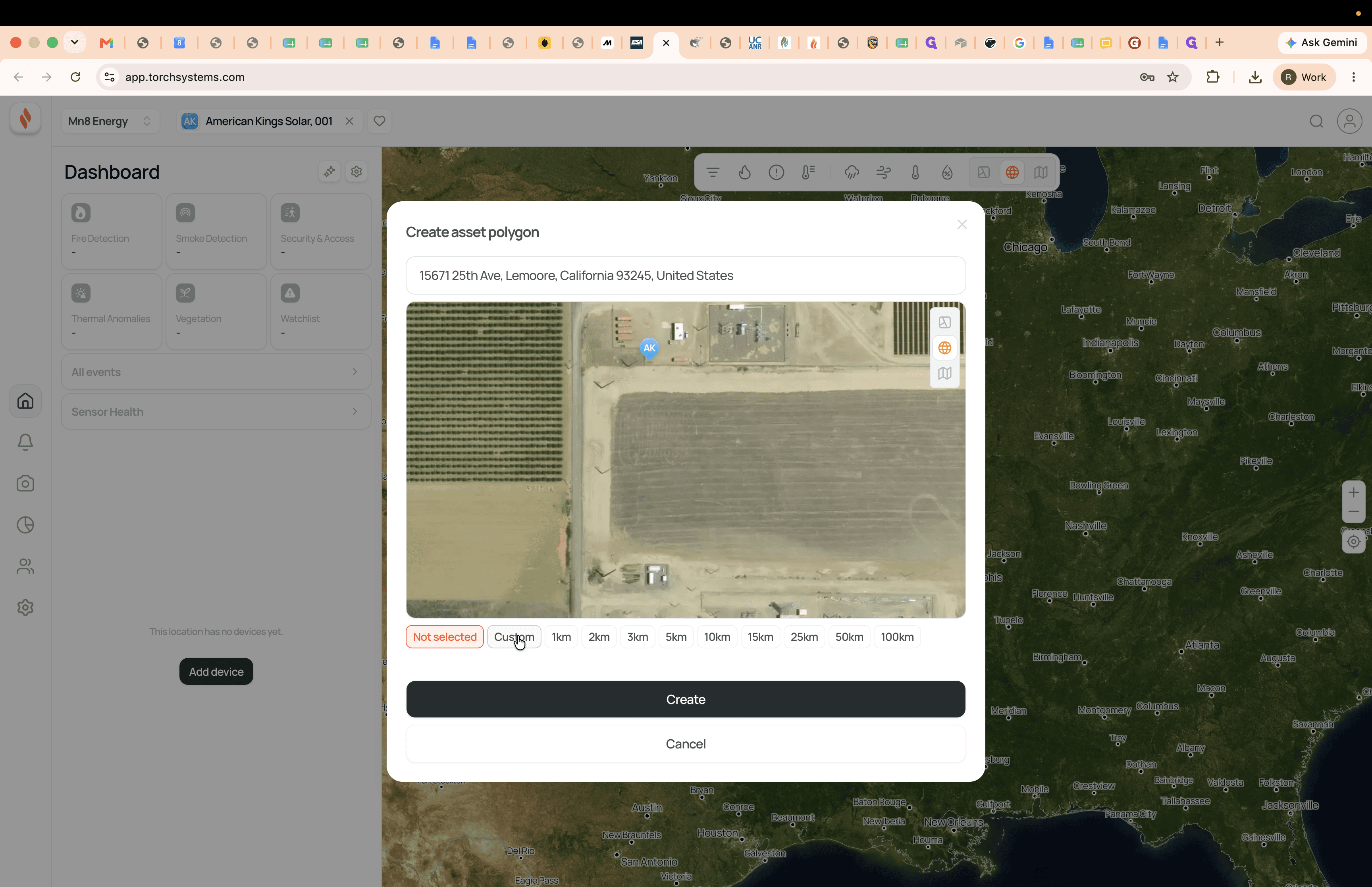
Click Custom to manually define the geographic area.
Step #11: Click Custom to manually define the geographic area.
12
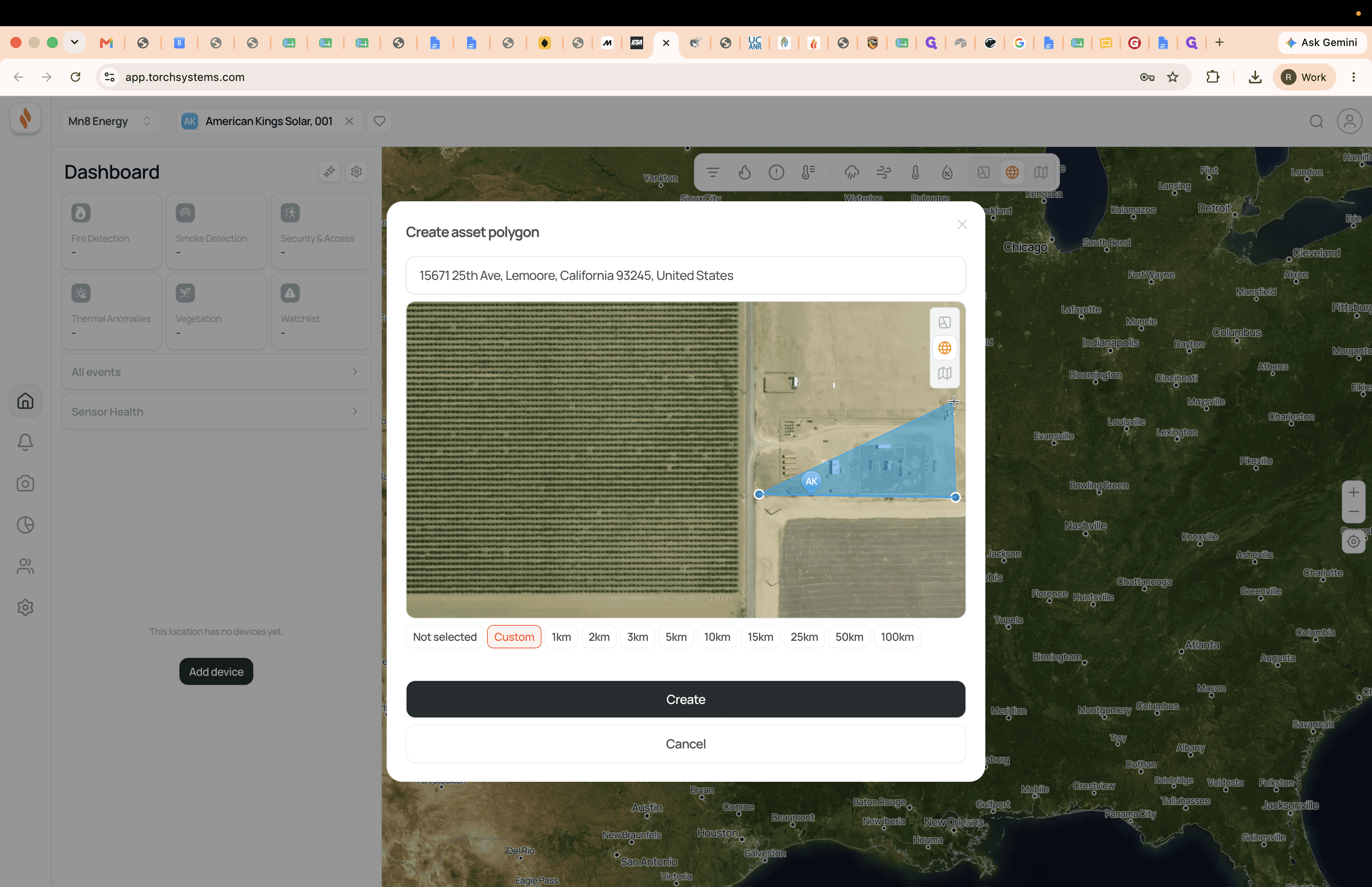
Click and drag the blue boundary nodes on the satellite map to cover the exact property footprint.
Step #12: Click and drag the blue boundary nodes on the satellite map to cover the exact property footprint.
13
Click Create to save the polygon and finalize the location.
Step #13: Click Create to save the polygon and finalize the location.

Add a Device

14
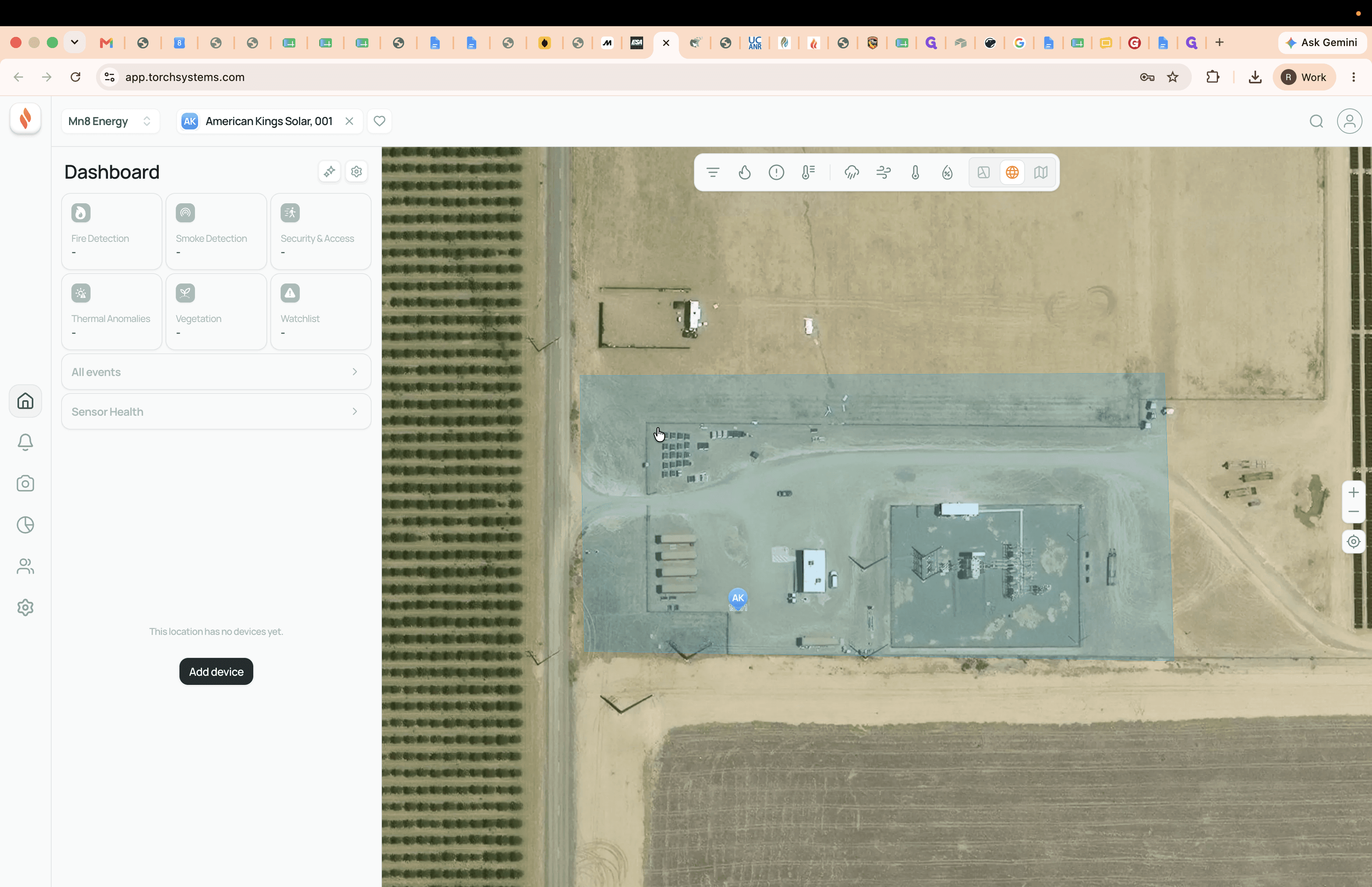
Double-click the newly created location polygon on the map to select it.
Step #14: Double-click the newly created location polygon on the map to select it.
15
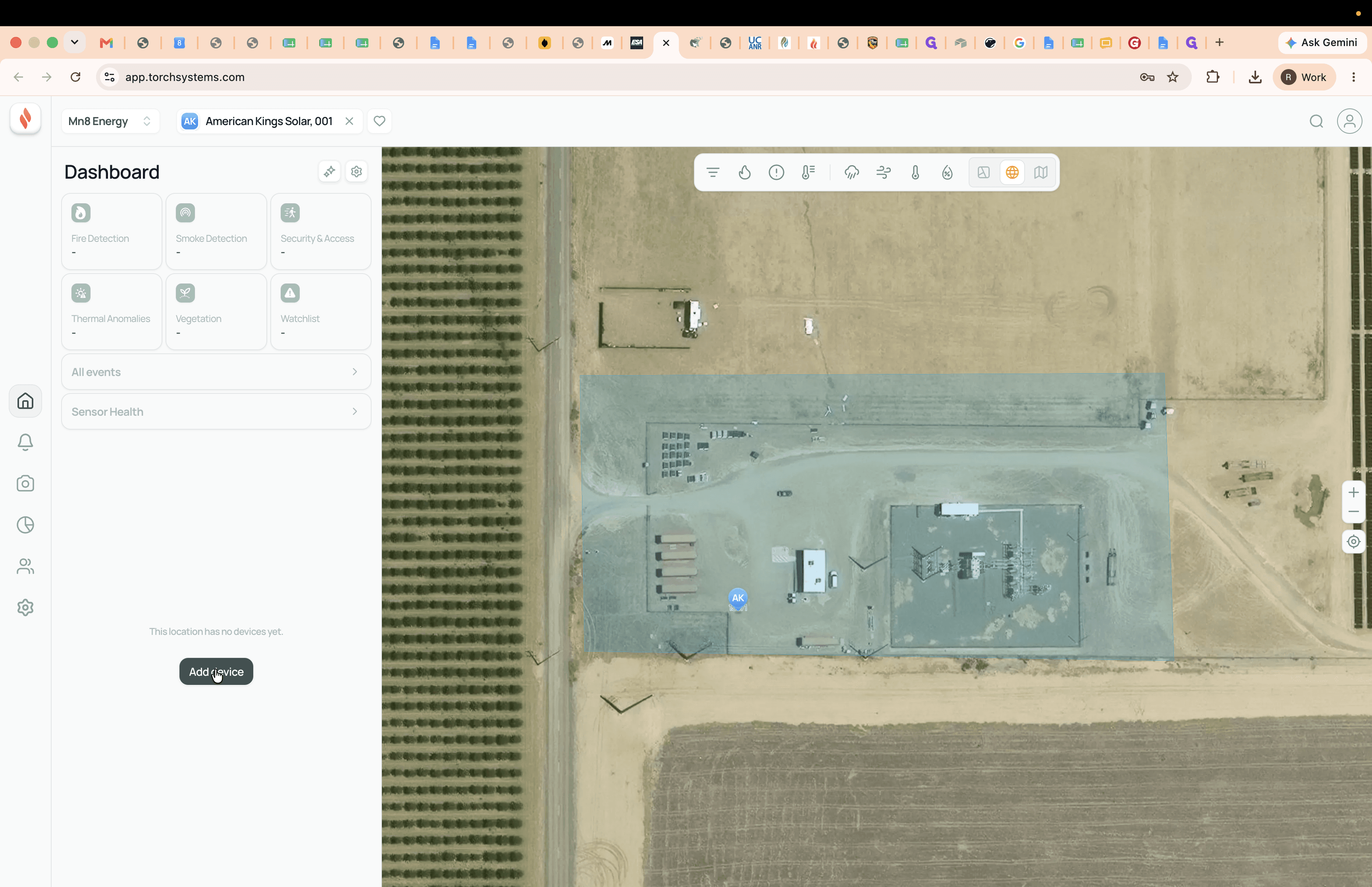
Click Add device in the side dashboard panel.
Step #15: Click Add device in the side dashboard panel.
16
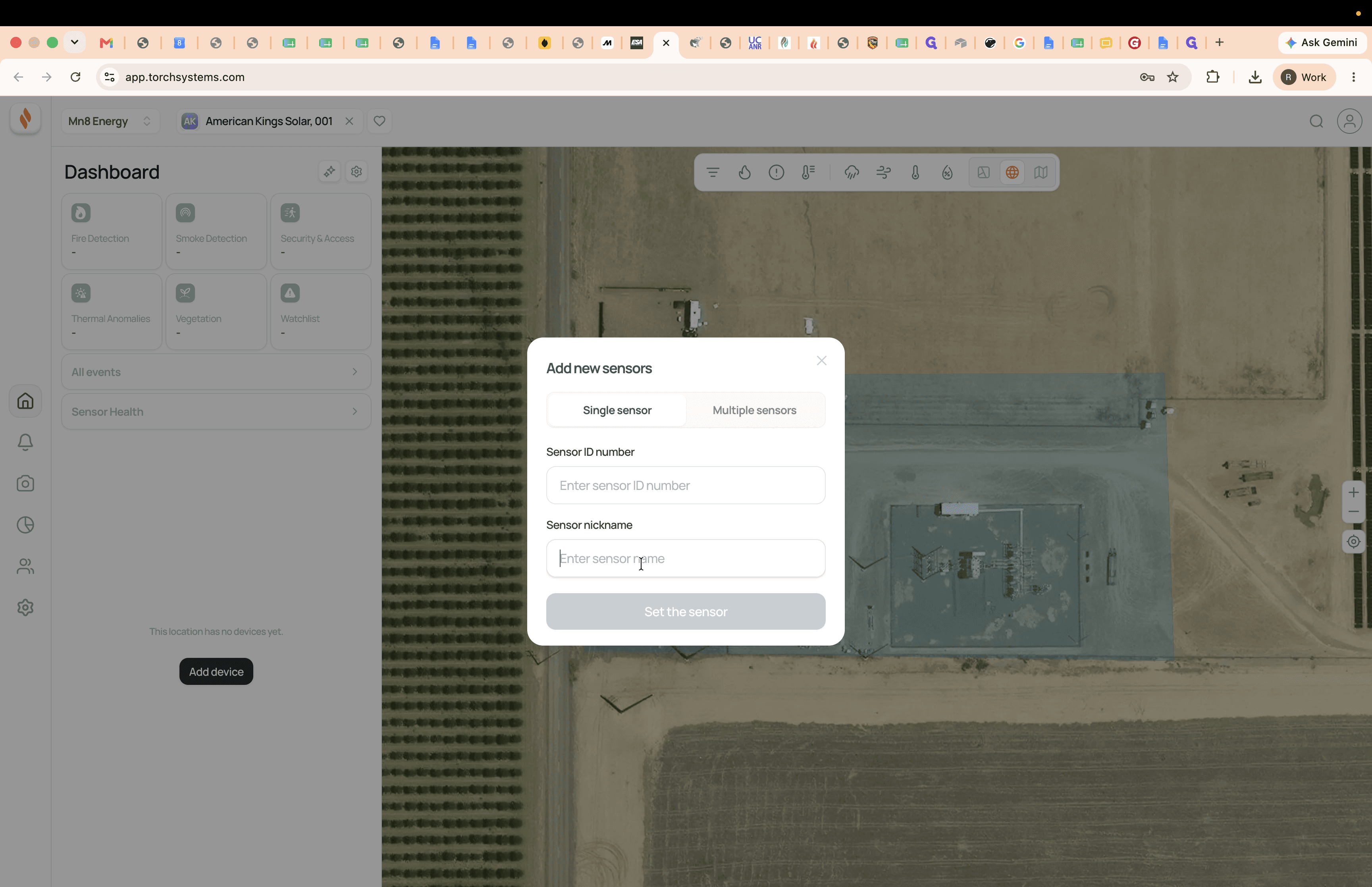
Click the Sensor nickname field and enter a recognizable name for the device.
Step #16: Click the Sensor nickname field and enter a recognizable name for the device.
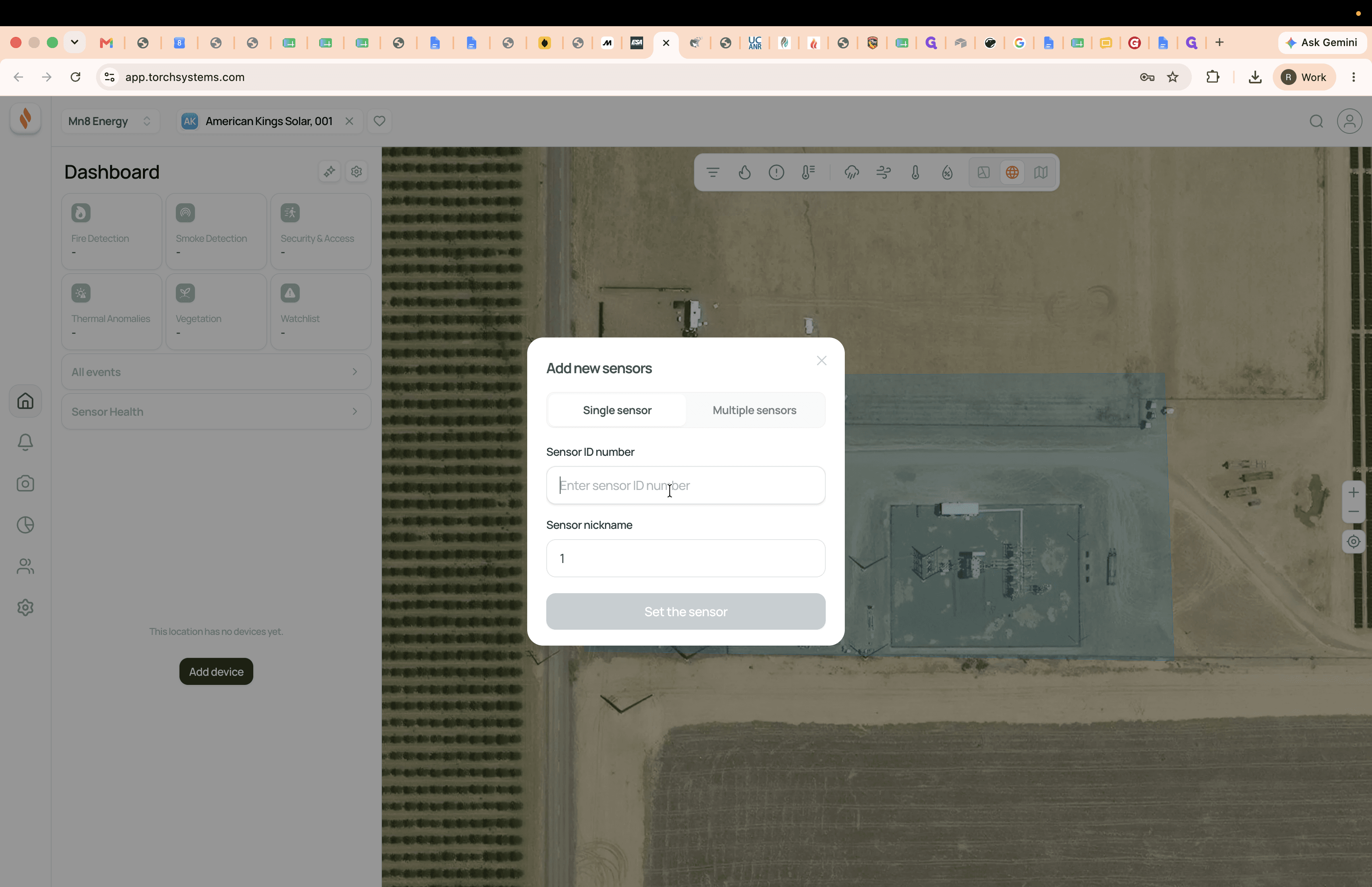
17
Click the Sensor ID number field and enter the exact device ID.
Step #17: Click the Sensor ID number field and enter the exact device ID.
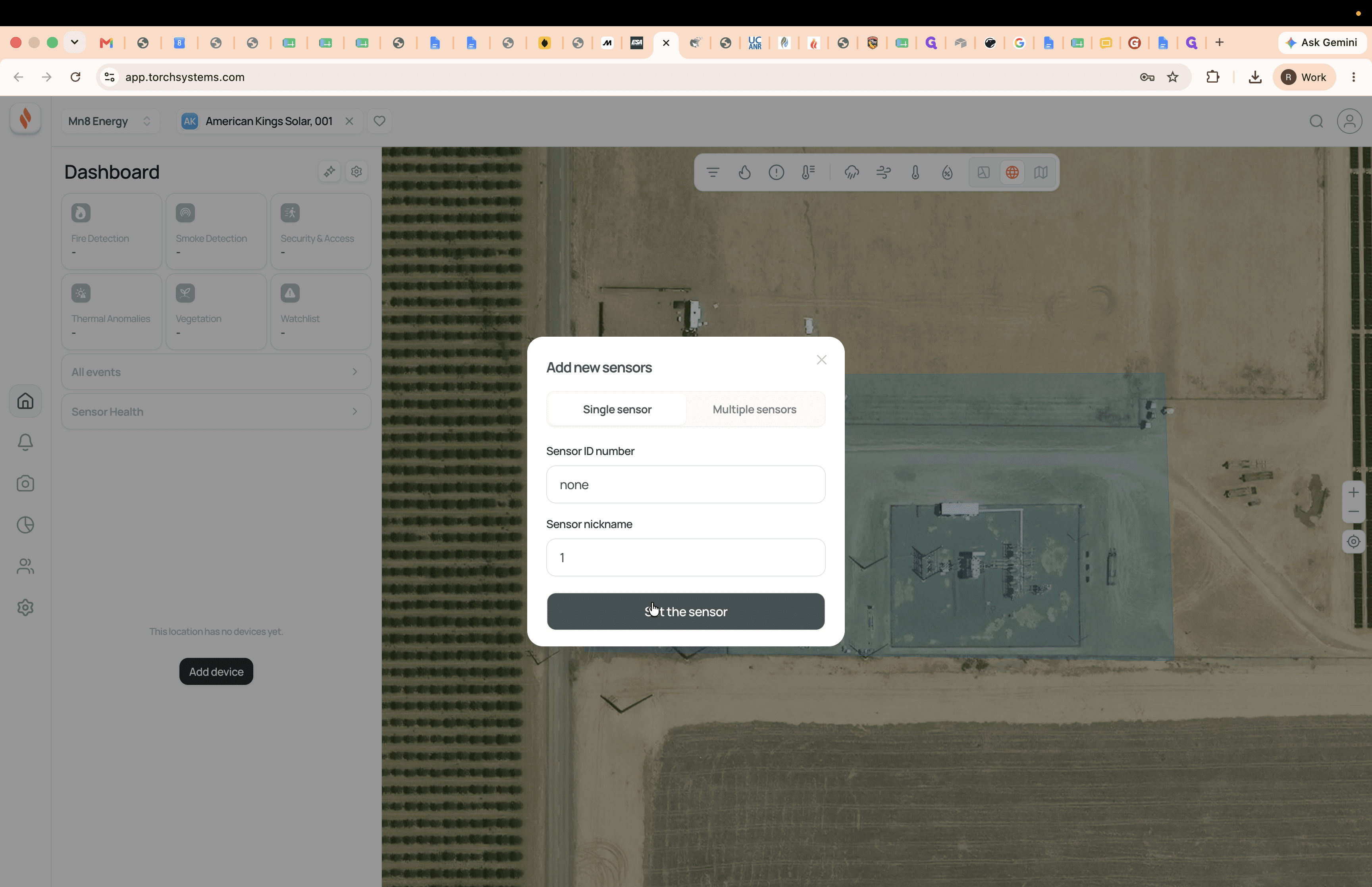
18
Click Set the sensor to complete the setup.
Step #18: Click Set the sensor to complete the setup.

Q: Why am I getting an "Invalid device ID format" error when adding a sensor?

A: This error occurs if you enter a placeholder value (like "none") or an incorrectly formatted string into the Sensor ID field. You must provide the exact, valid device ID format required by the system to successfully register the sensor.

Term

Definition

Workspace

A dedicated organizational environment for managing specific teams, locations, and network assets.

Asset Polygon

A defined geographical boundary on the map that represents the physical footprint of a specific location or facility.

Sensor ID

A unique, specifically formatted alphanumeric identifier required to register and track a physical device on the network.