How to Add EAL WIDA Screening Notes in OpenApply
Learn how to add a note to record EAL WIDA screening results and your recommendations, and attach a PDF of the results to a student's profile in OpenApply.
By Cindy Warner-Dobrowski
Record Screening Results
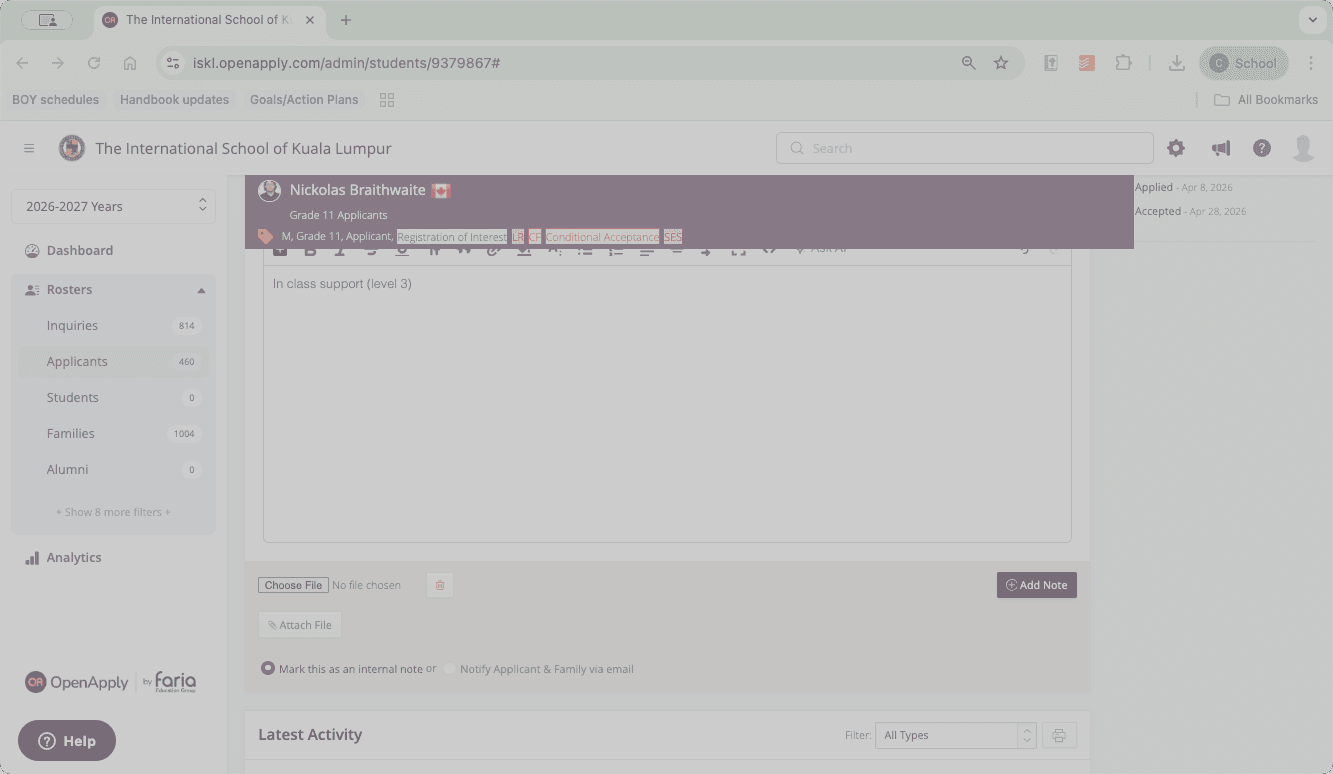
Navigate to the relevant student's profile within OpenApply to begin. Scroll down to find the "Notes" tab.
1
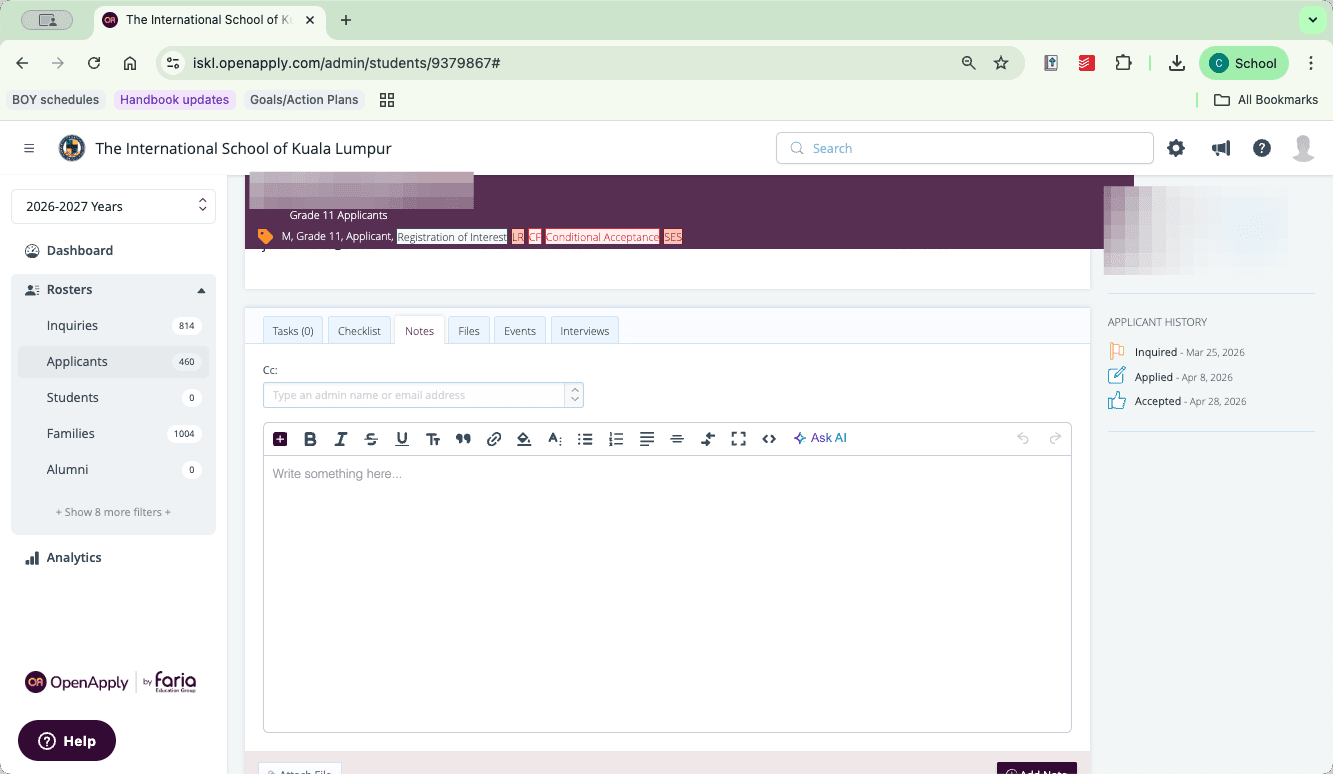
Click the Notes tab located in the student's applicant dashboard.
2
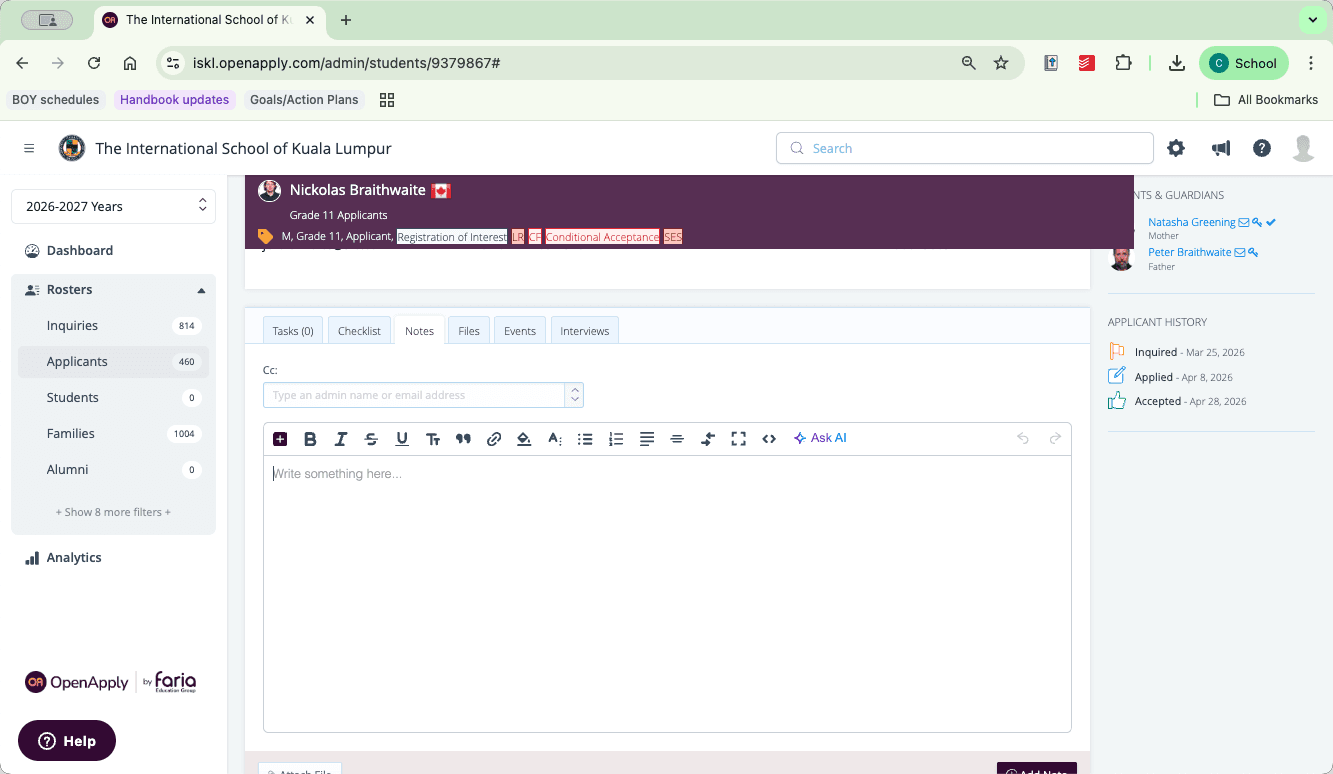
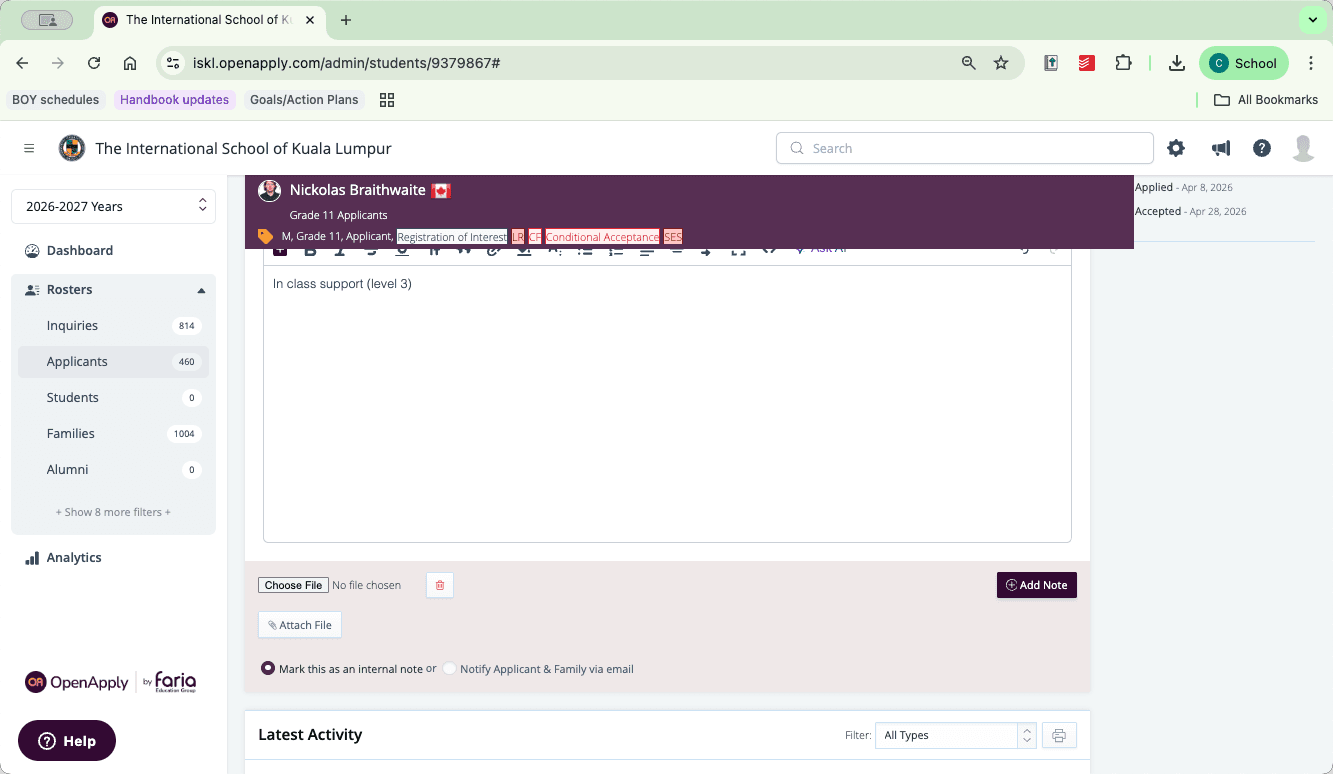
Click inside the rich-text editor enter the student's screening results and your EAL placement recommendations (e.g. In-class support (Level 1)).
Attach the Screening Document
Next, you will attach the PDF file containing the assessment data.
3
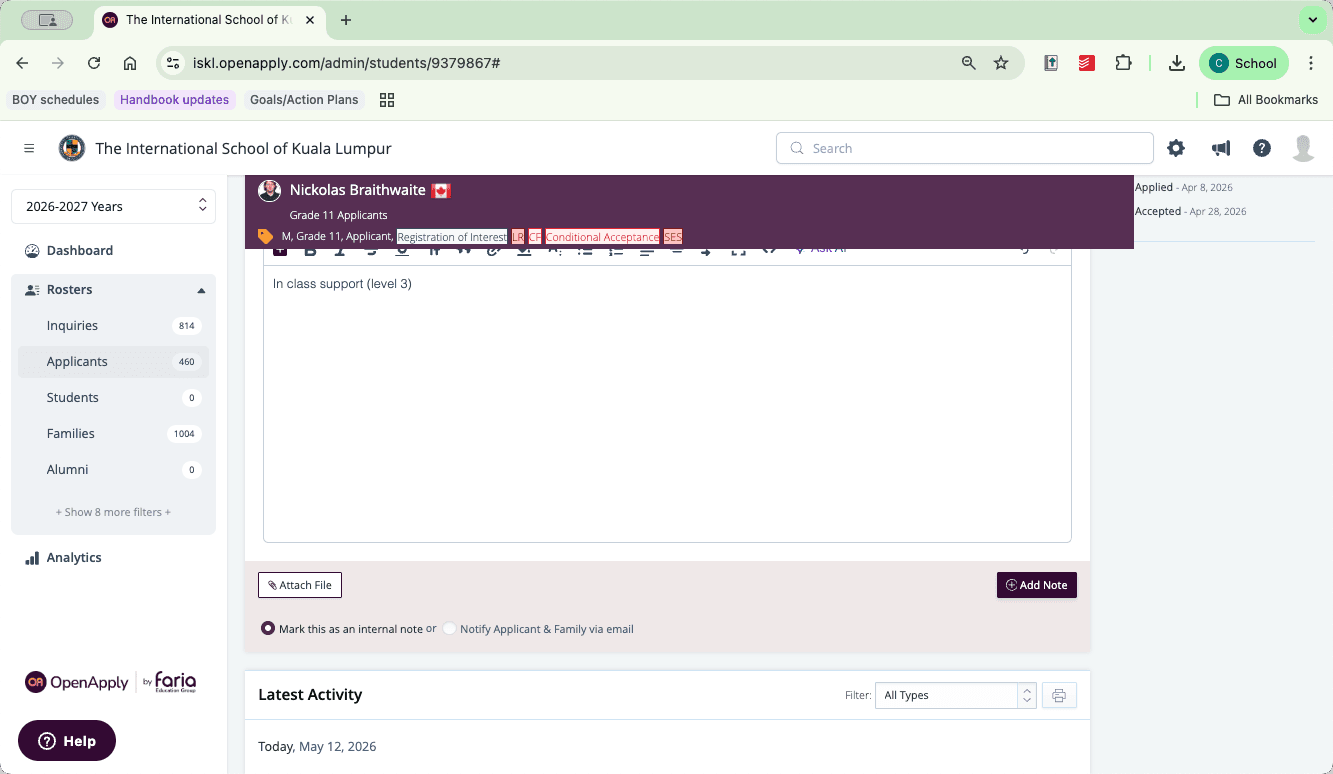
Scroll down slightly below the text box and click Attach File.
4
Click Choose File to open your computer's file browser. Browse your files and select the correct WIDA screening document by clicking "Open".
Save the Note
5
Click Add Note to officially save your text input and file attachment to the student's profile.