
How to Add Follow-Up Tasks in Guestbook 2.0
Learn how to add, manage, and complete follow-up tasks for your leads in Guestbook 2.0 to keep your pipeline organized.
This guide shows how to add and manage follow-up tasks for leads in Guestbook 2.0. By completing this workflow, you can ensure clear next steps are scheduled and tracked for prospective clients.
This process is designed for sales representatives, account managers, and project owners managing their opportunity pipeline. Use this workflow whenever you need to schedule calls, send follow-up emails, or advance a lead to the next stage.
Adding a New Task
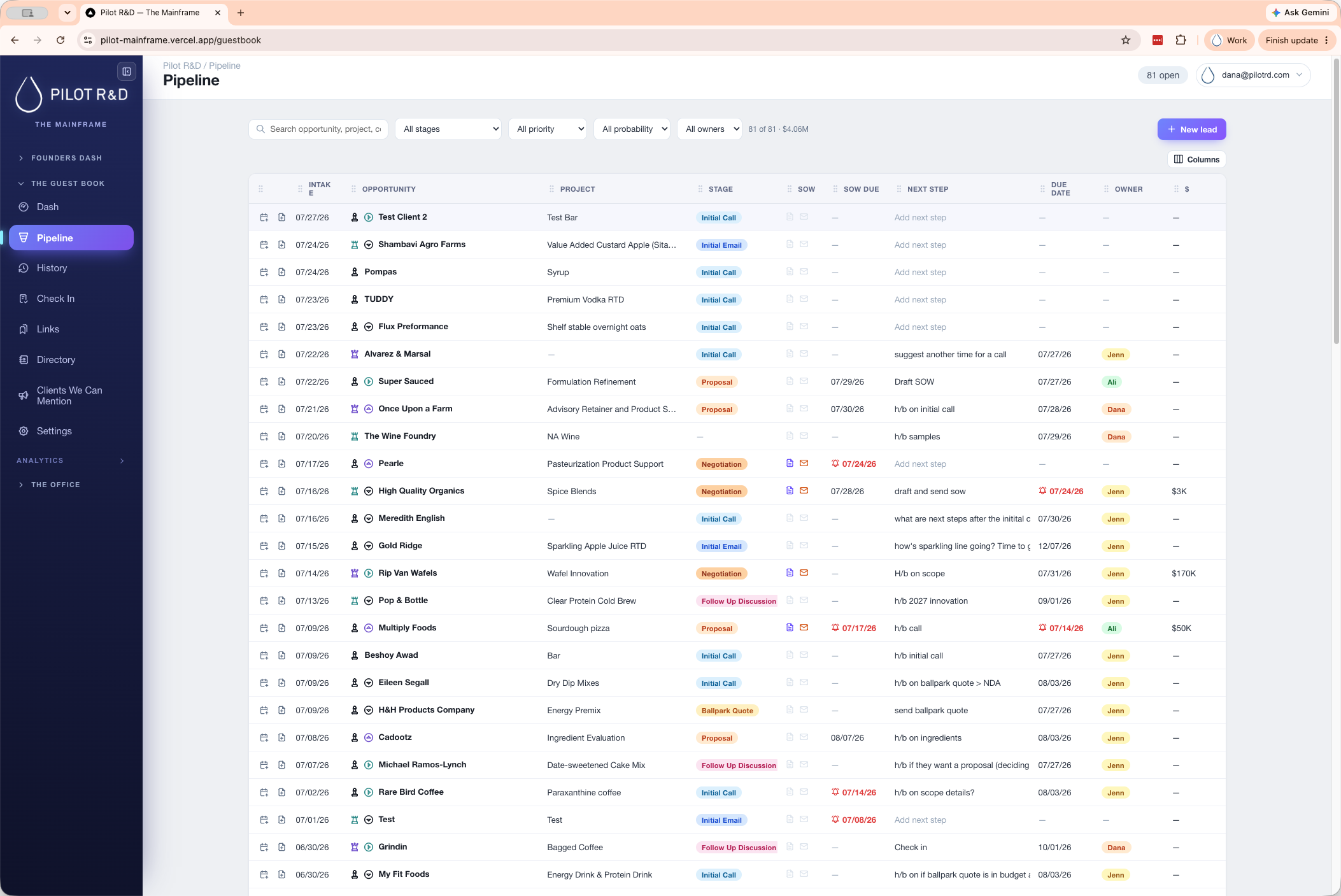
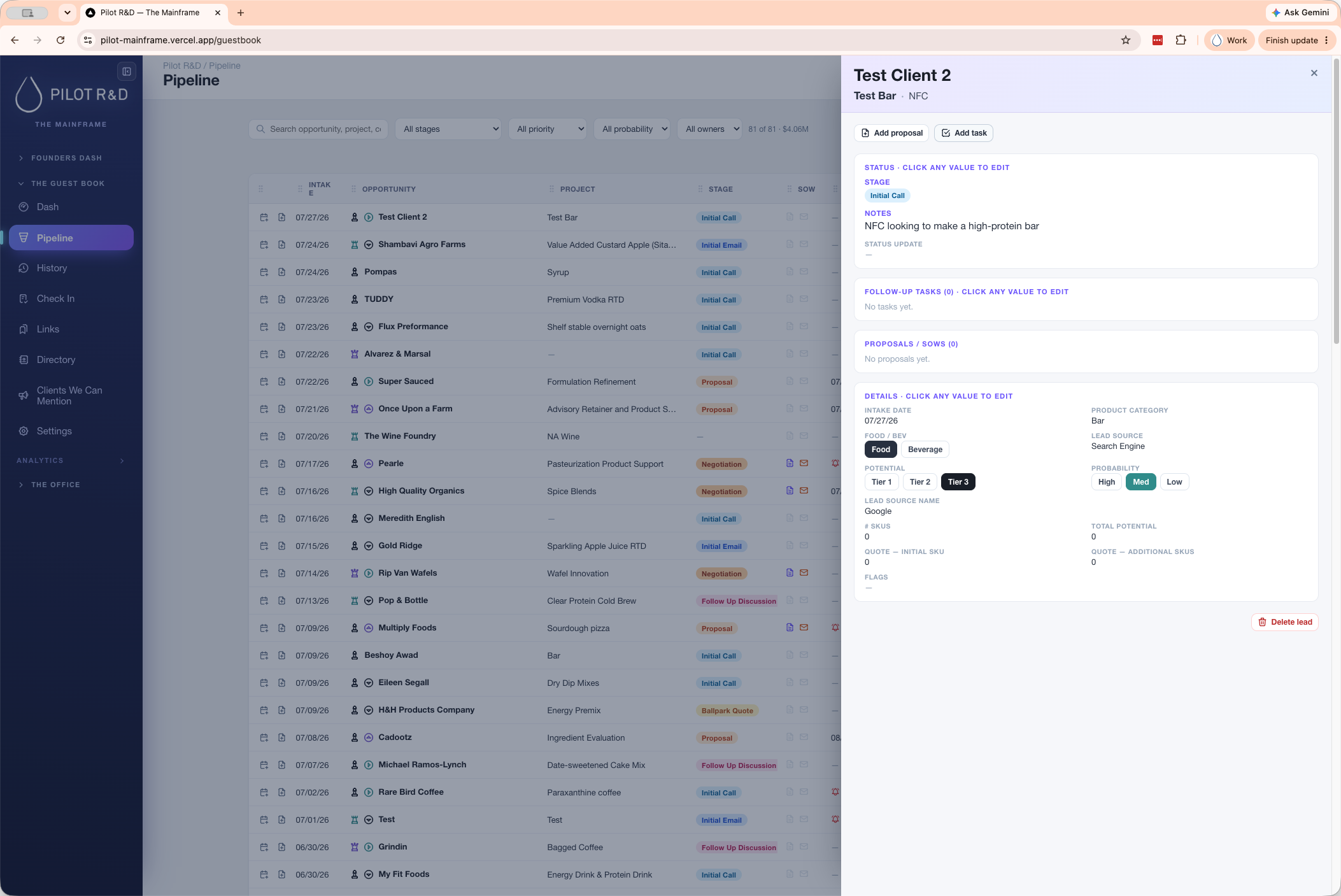
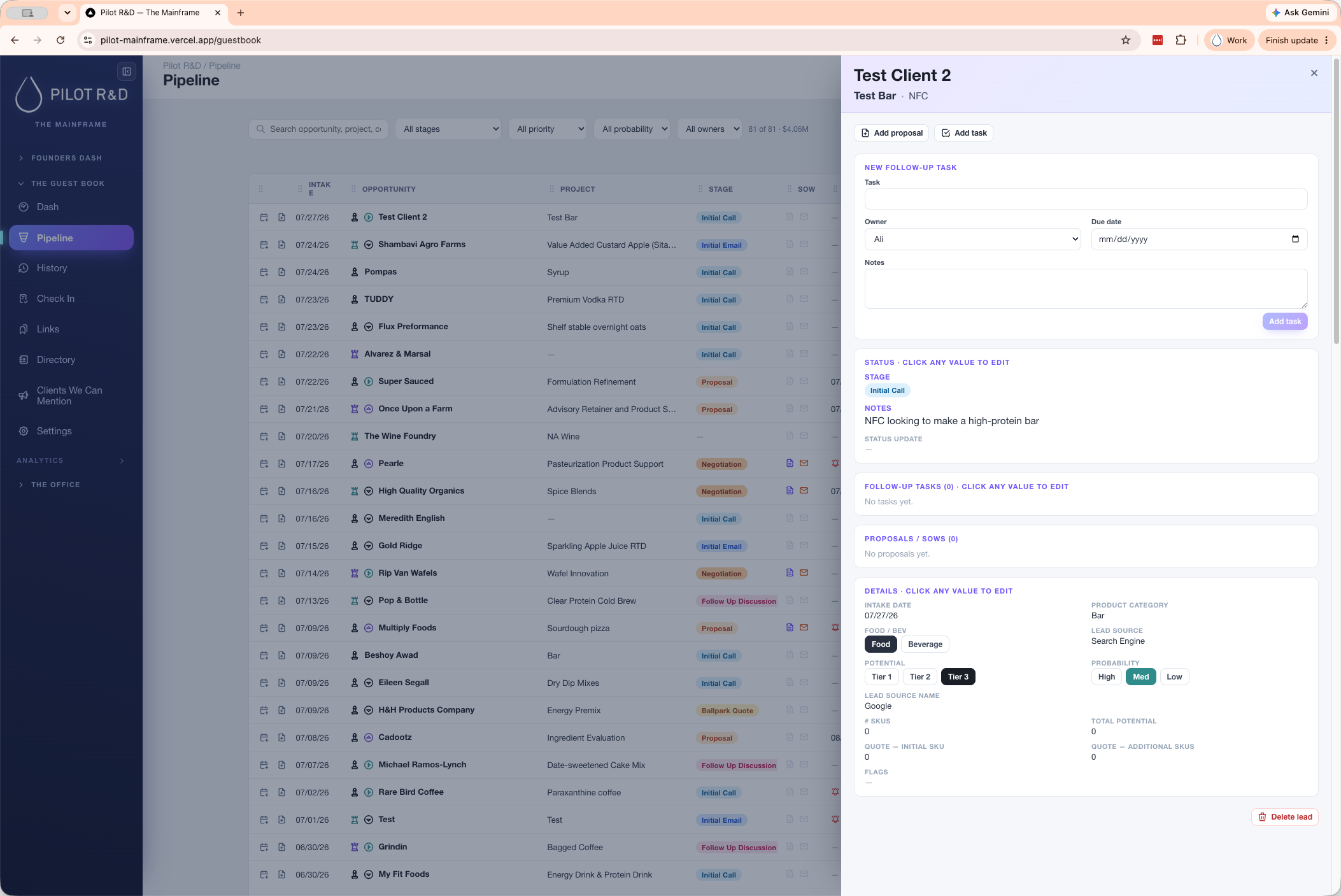
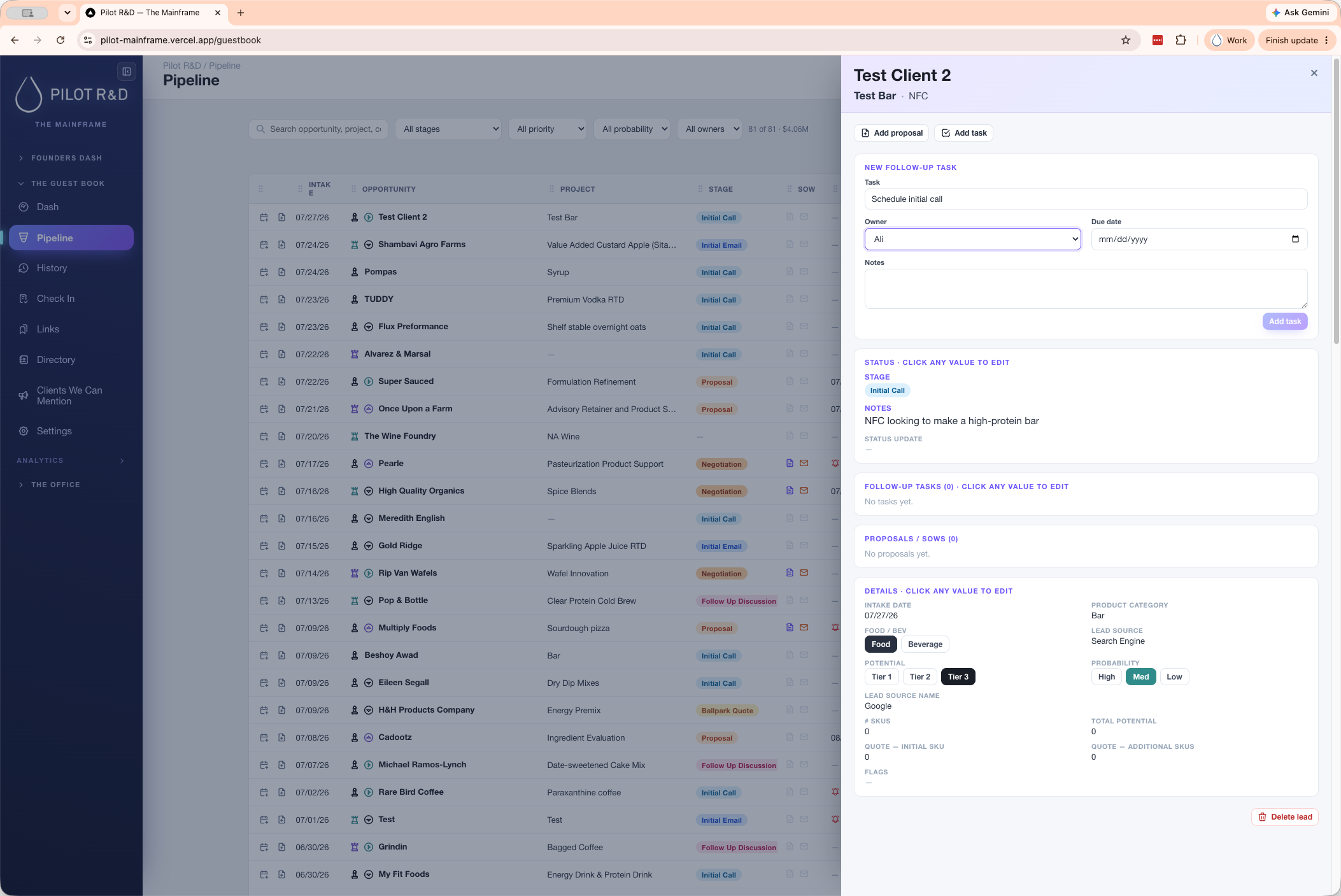
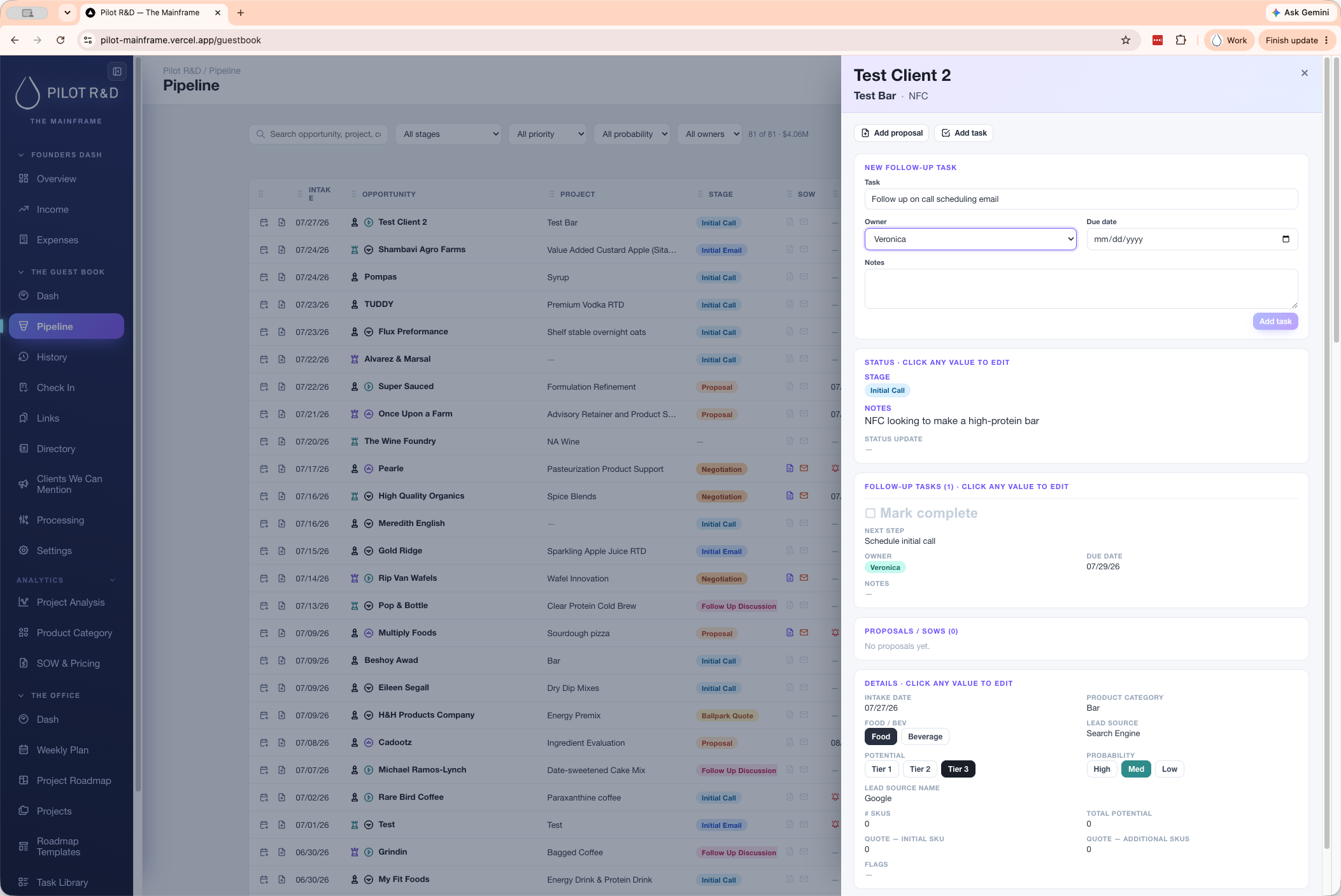
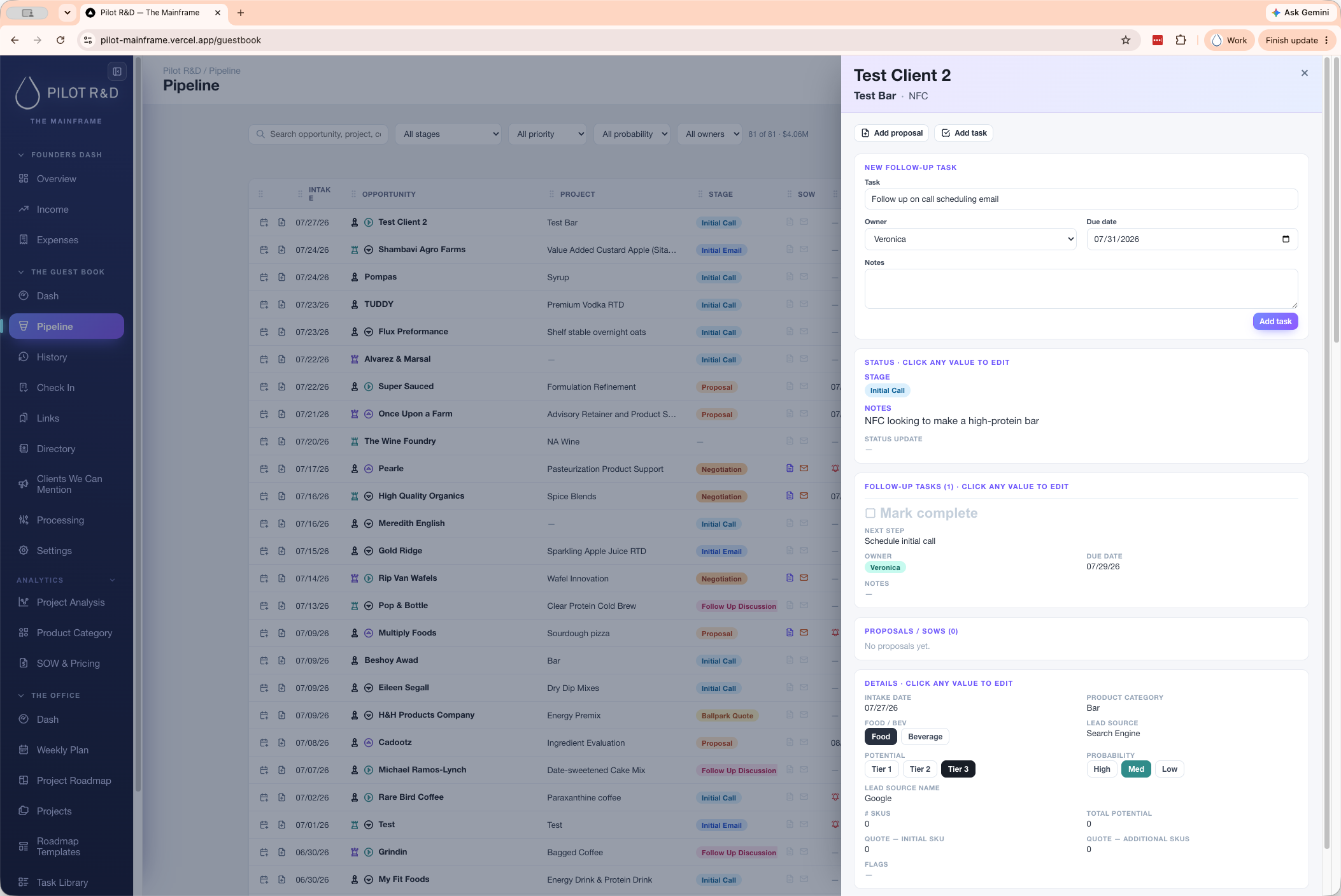
There are two ways to add a task to a lead: click the shortcut icon directly in the pipeline, or open the lead's detail panel.
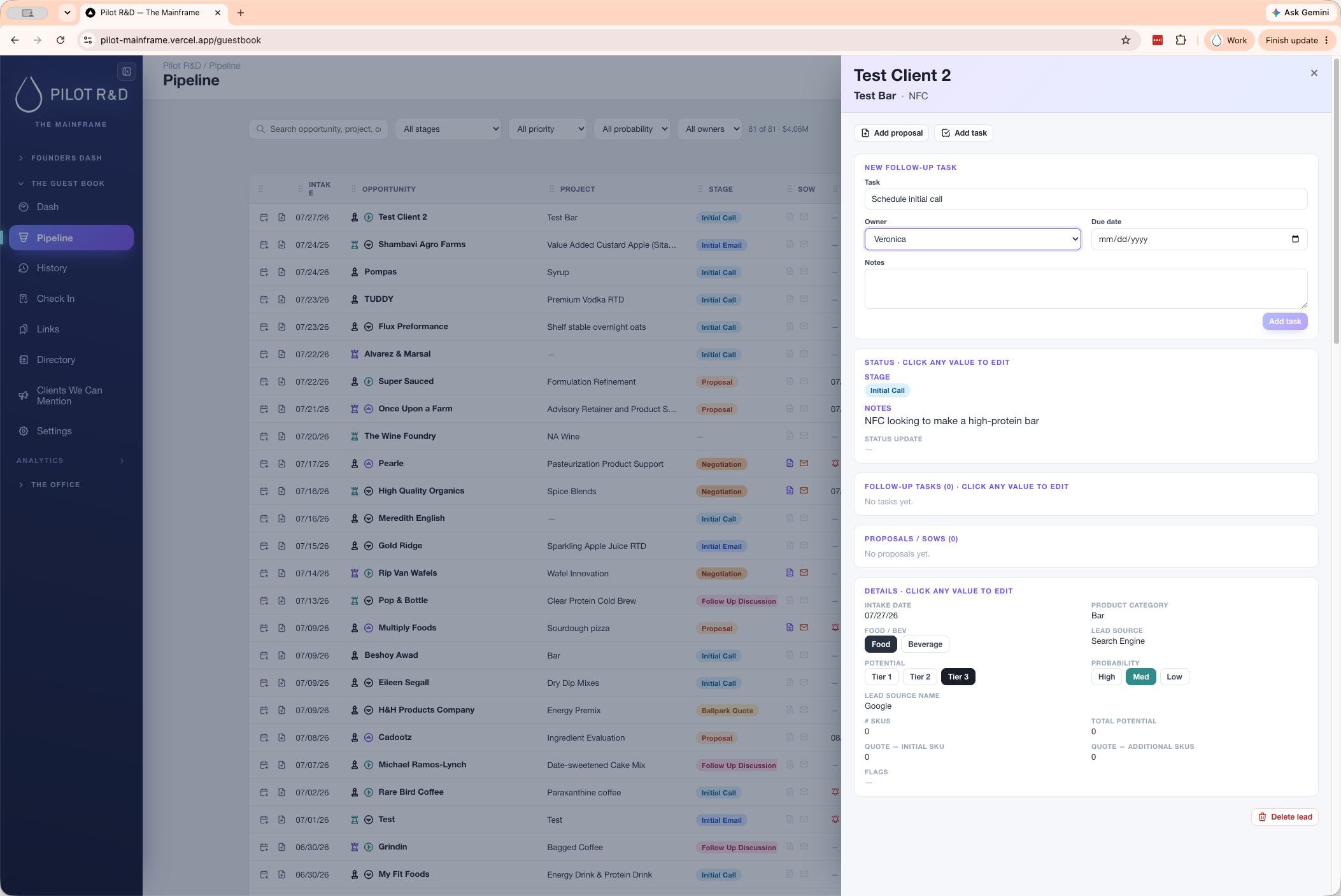
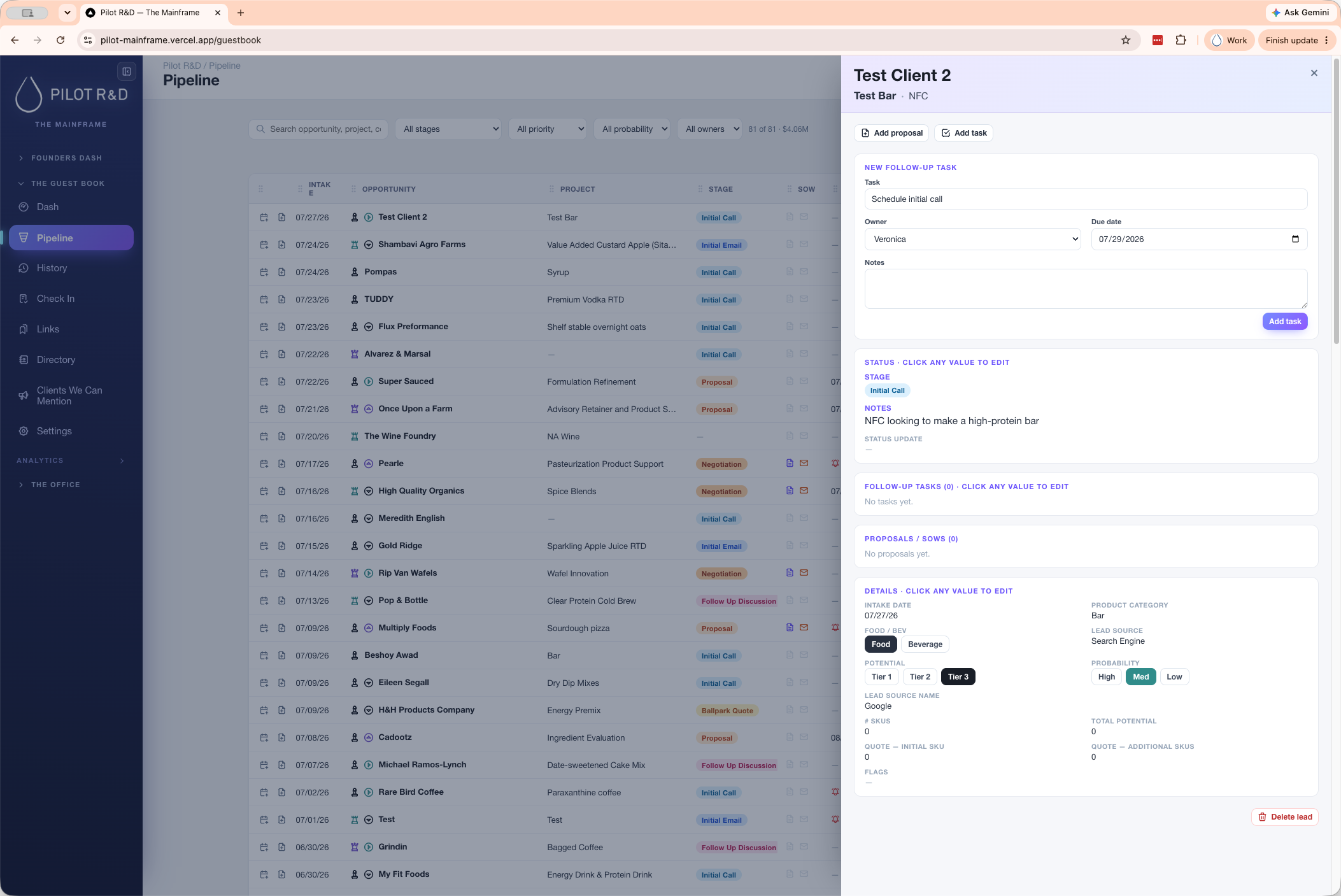
Managing Active Tasks
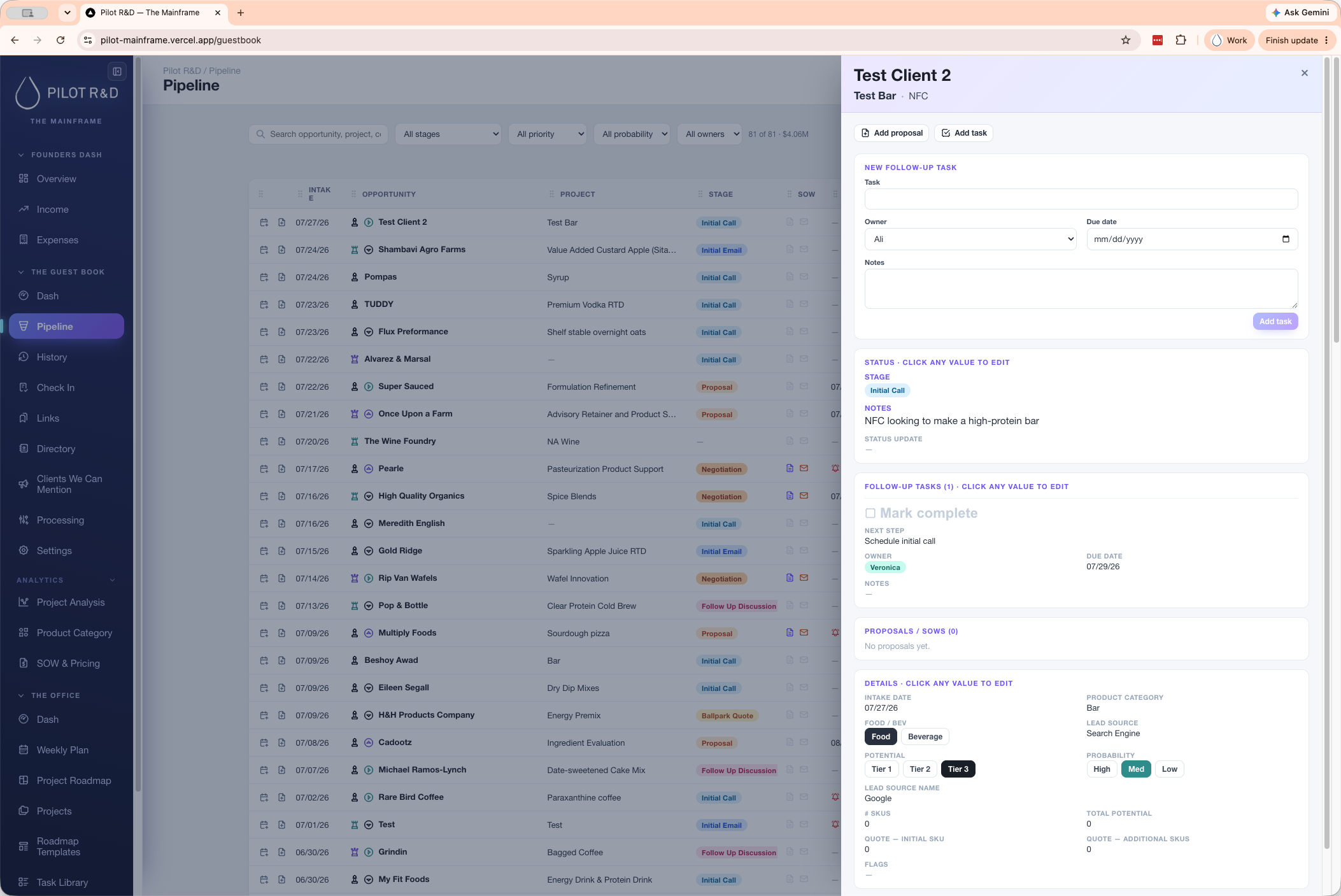
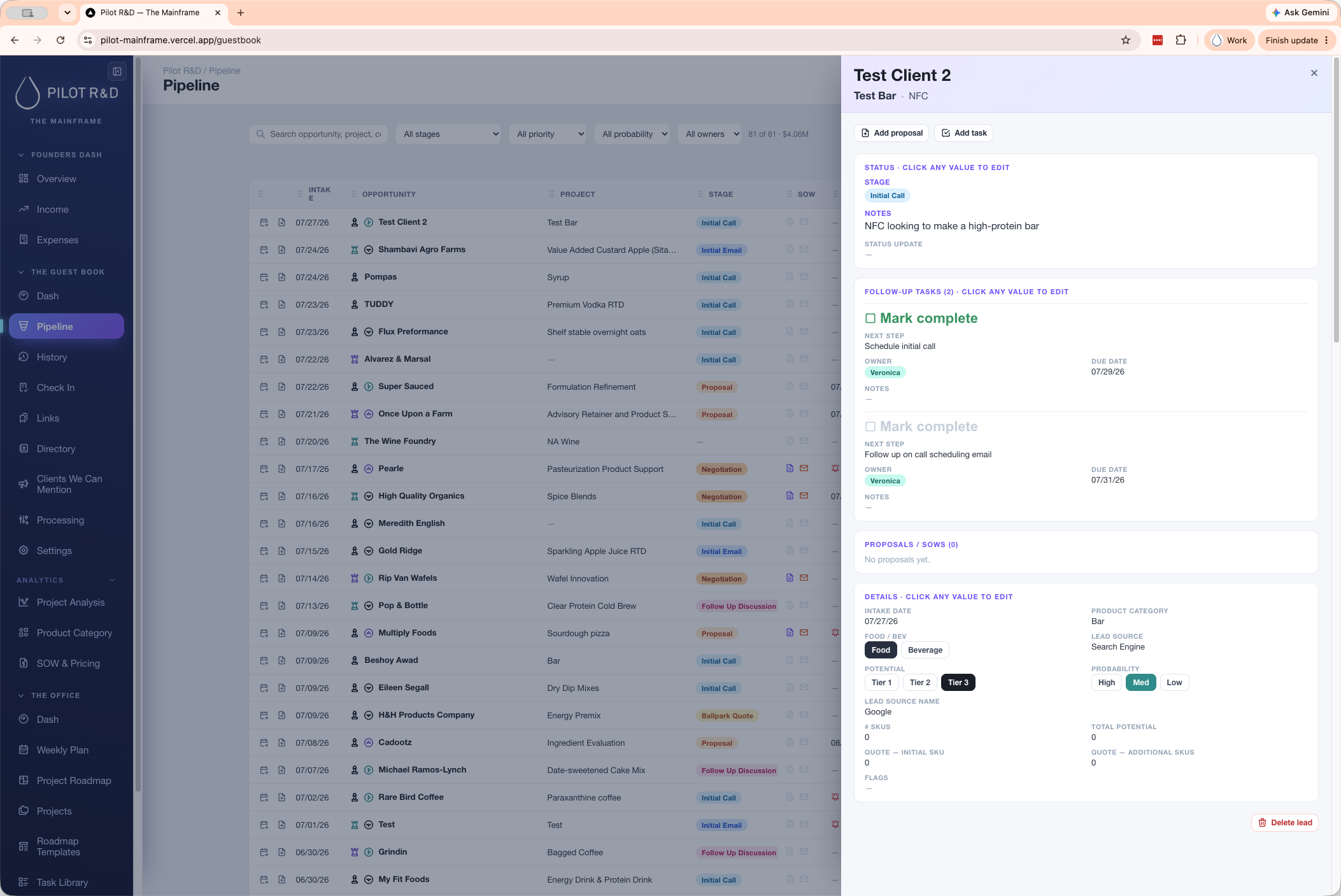
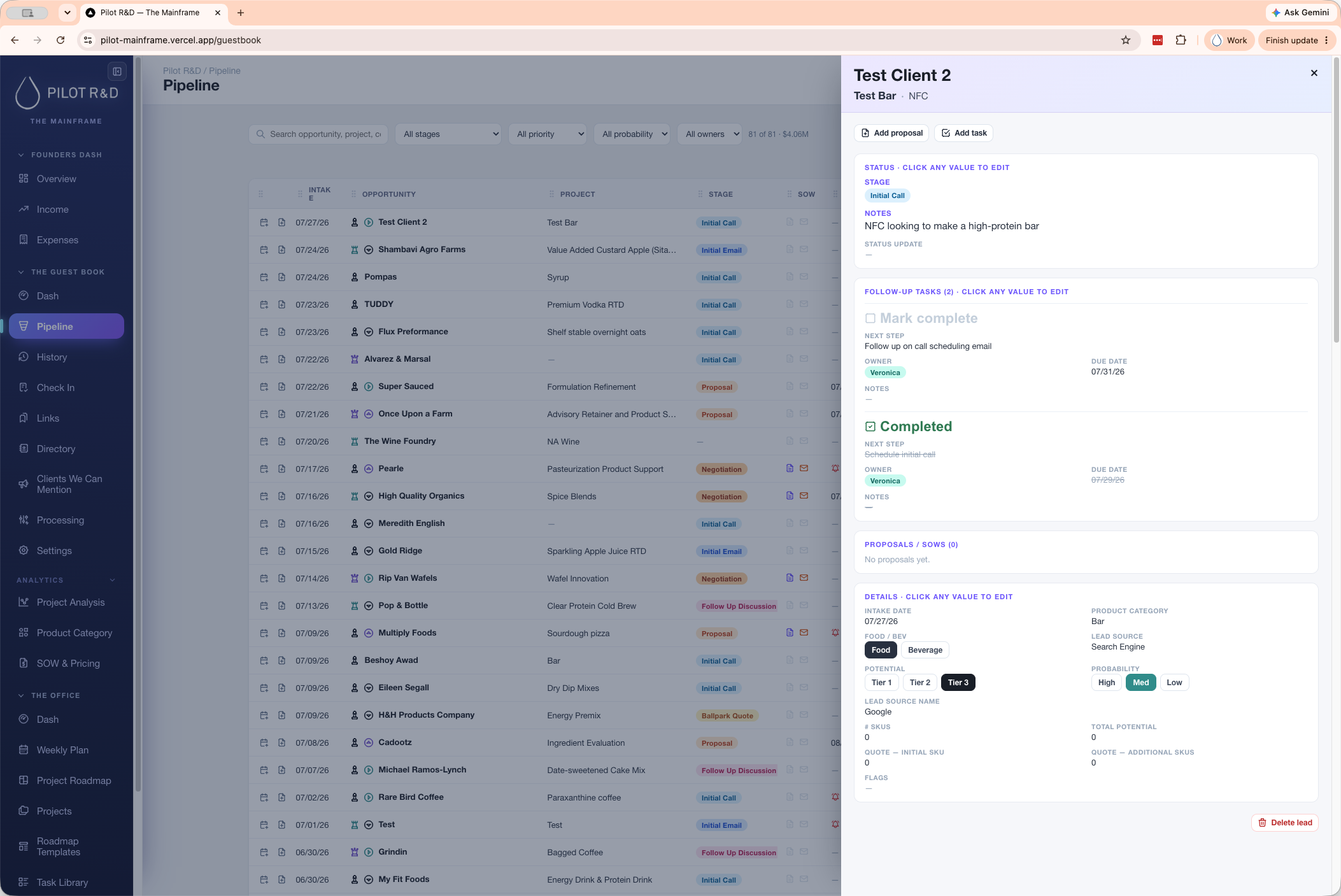
All open tasks appear in the lead detail panel. When a task is completed, it drops to the bottom of the list, and the next pending task becomes active.
Q: How do I know which task is next?
A: Open the lead's detail panel. Open tasks are listed in order, and the next pending task automatically populates at the top of the client's record once previous tasks are completed.
Q: What happens when I mark a task as complete?
A: A completed task drops to the bottom of the task list, and the system updates the lead's top line to display the next pending task.
Term | Definition |
|---|---|
Pipeline | A visual dashboard used to track and manage client opportunities through different stages of a sales or project lifecycle. |
Lead | A prospective client or opportunity being tracked and managed within the CRM system. |