
How to Add and Implement a Product Recommendation
Learn how to create a new product recommendation for an ISA top-up, configure lump sum contributions, and apply fee models in a service case.
By Elliott Potter
In this guide, you will learn how to add a simple product recommendation—such as a £20,000 ISA top-up—within a client service case, then accept and implement the proposal with a standard fee model.
1. Create a New Recommendation
First, locate the service case for your client.
1
Navigate to Advice from the left-hand menu.
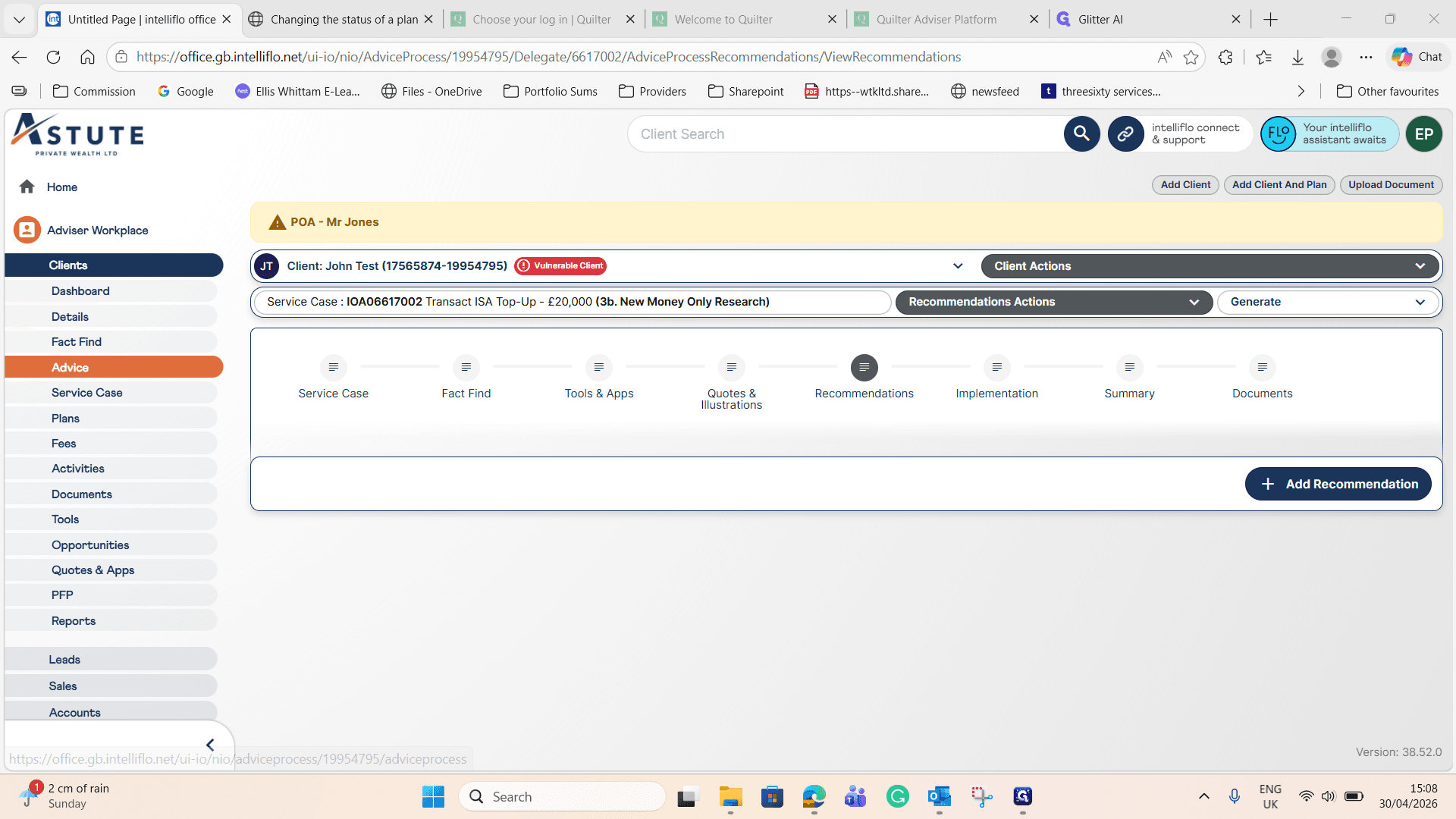
2
Click Advice on the specific service case you are working on.
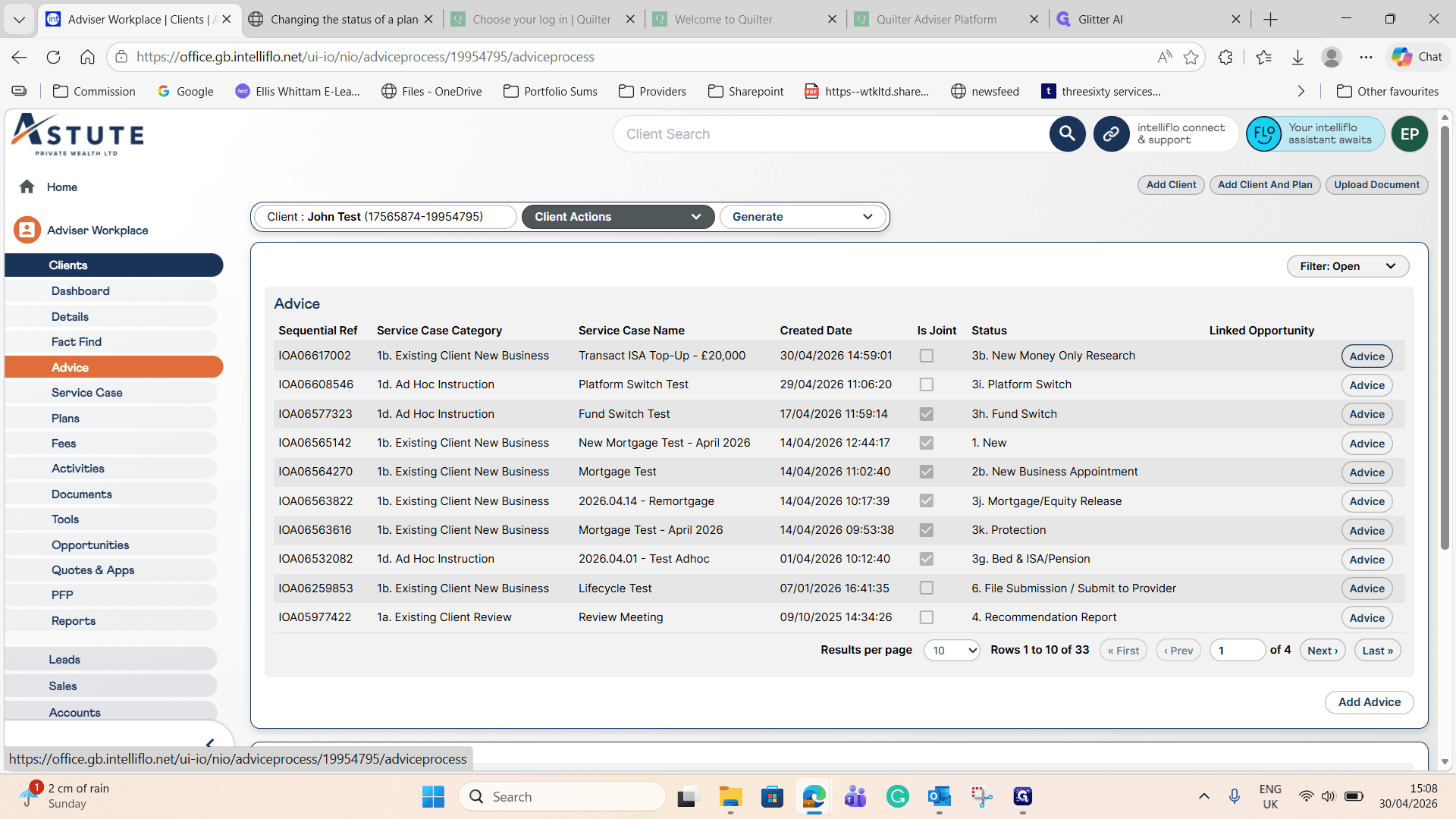
3
Navigate to the Recommendations tab.
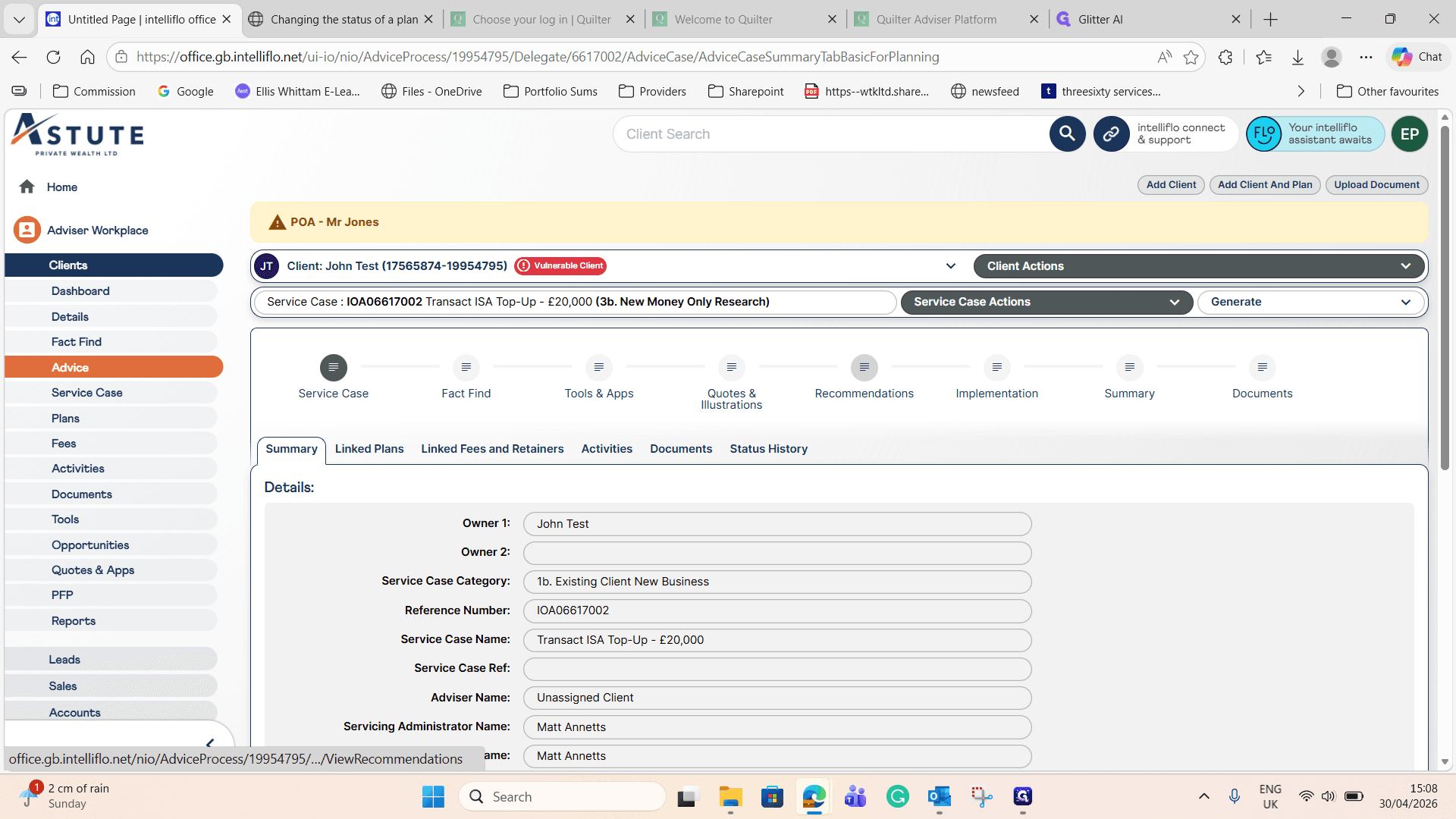
4
Click + Add Recommendation to open the creation modal.
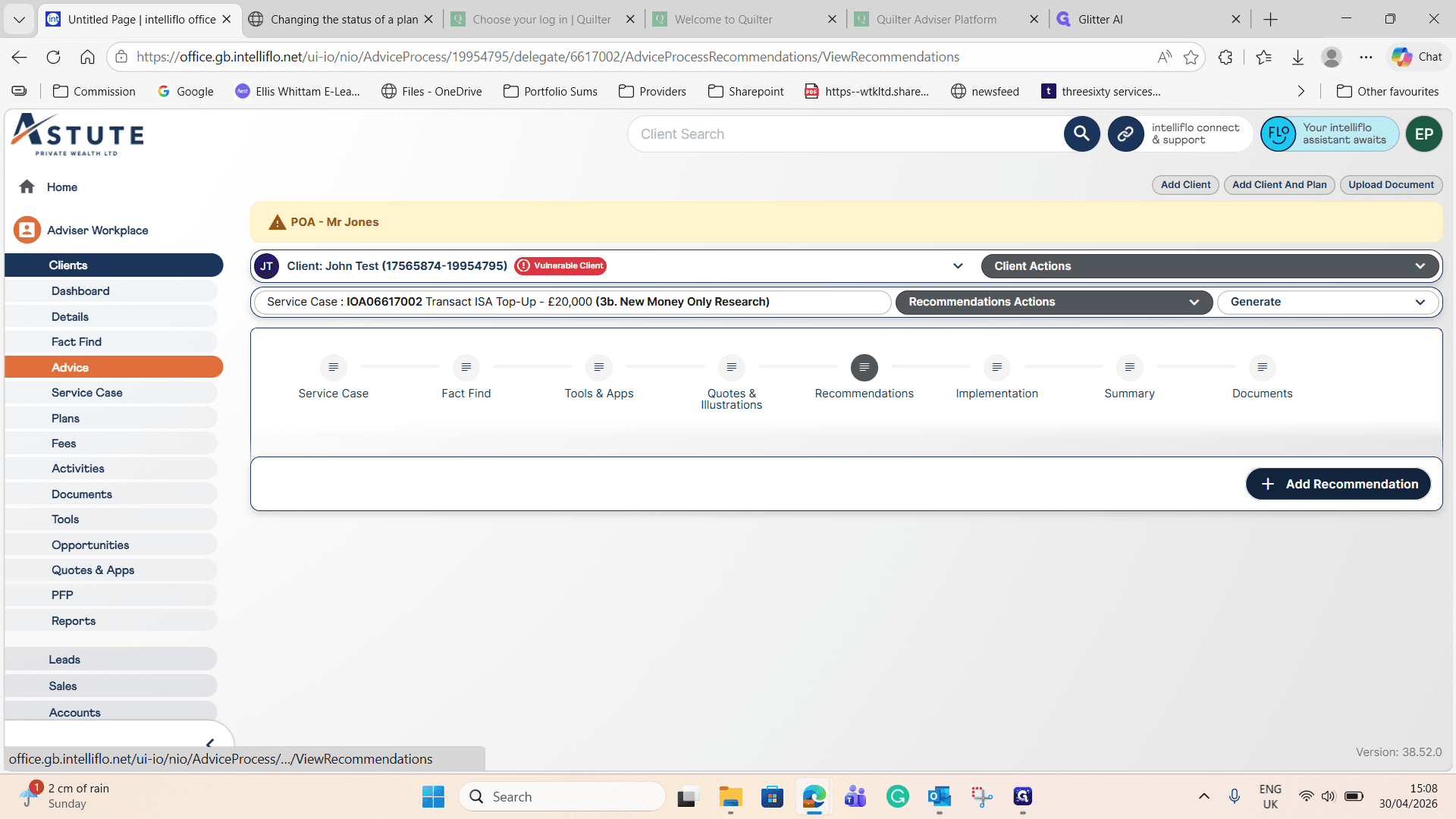
5
Enter an appropriate name for the recommendation, such as
£ 20,000 New Money - Transact.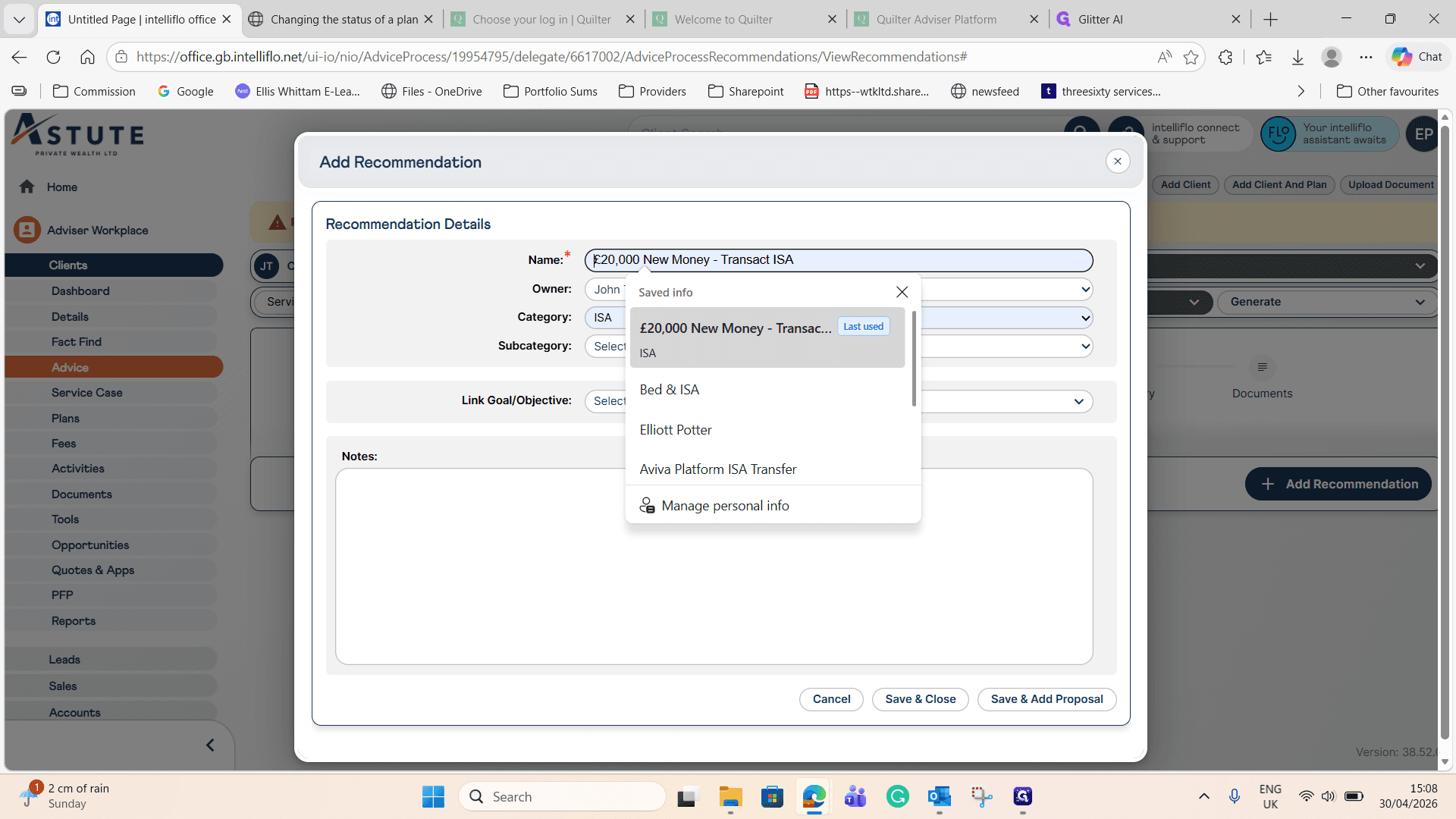
6
Select ISA from the Category dropdown menu.
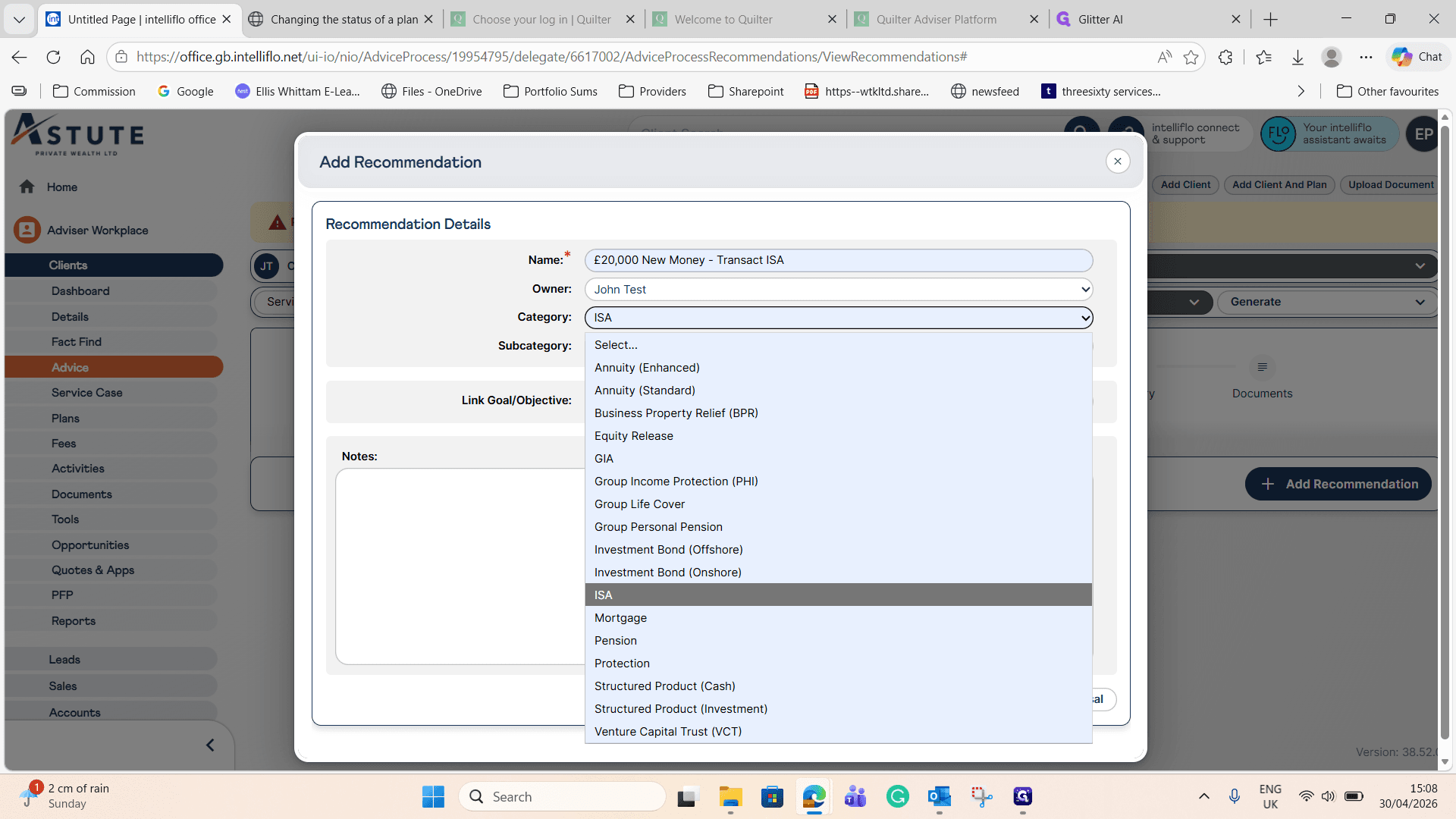
7
Select New Product from the Subcategory dropdown menu.
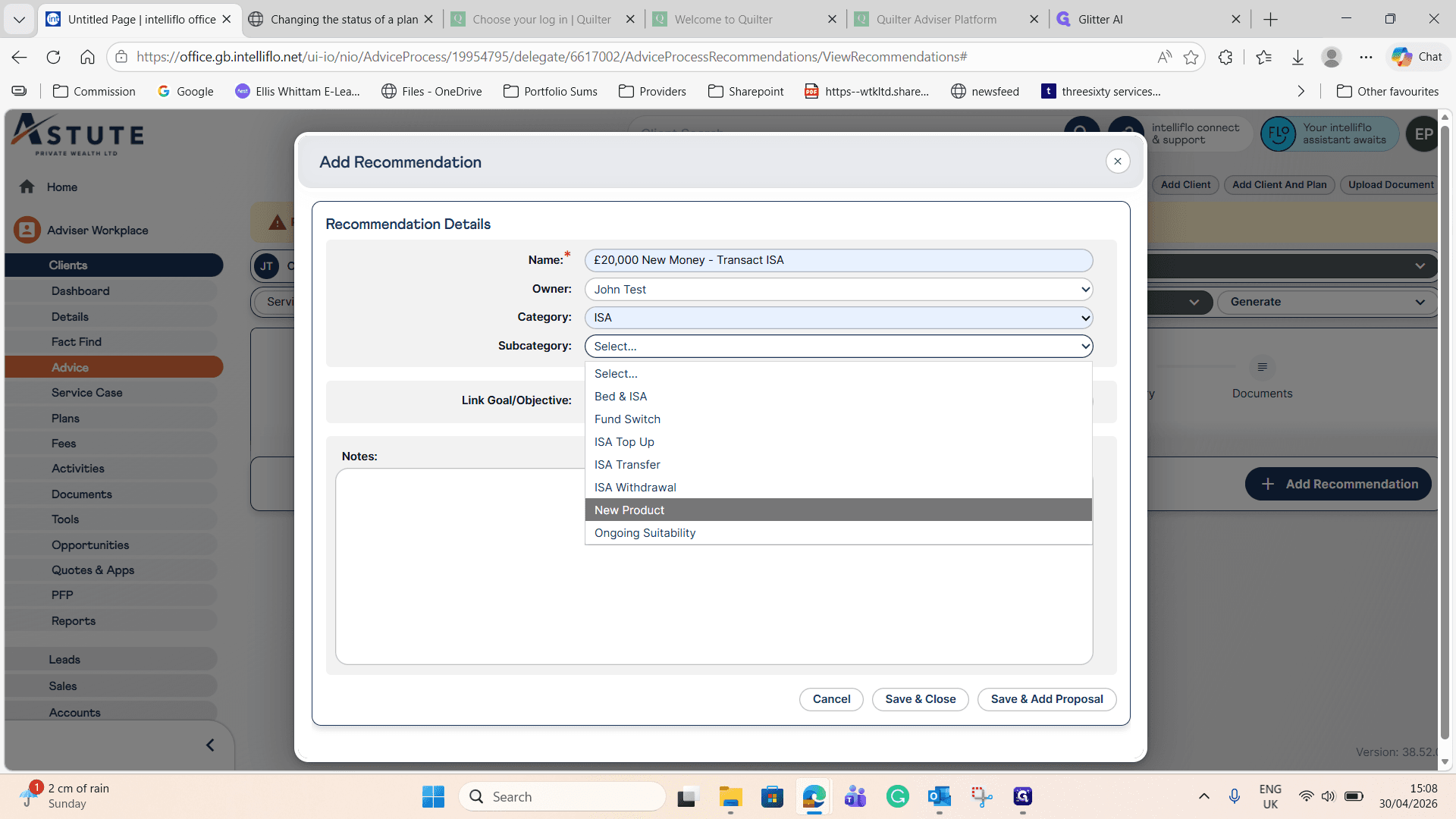
8
Click Save & Add Proposal to proceed to the product details.
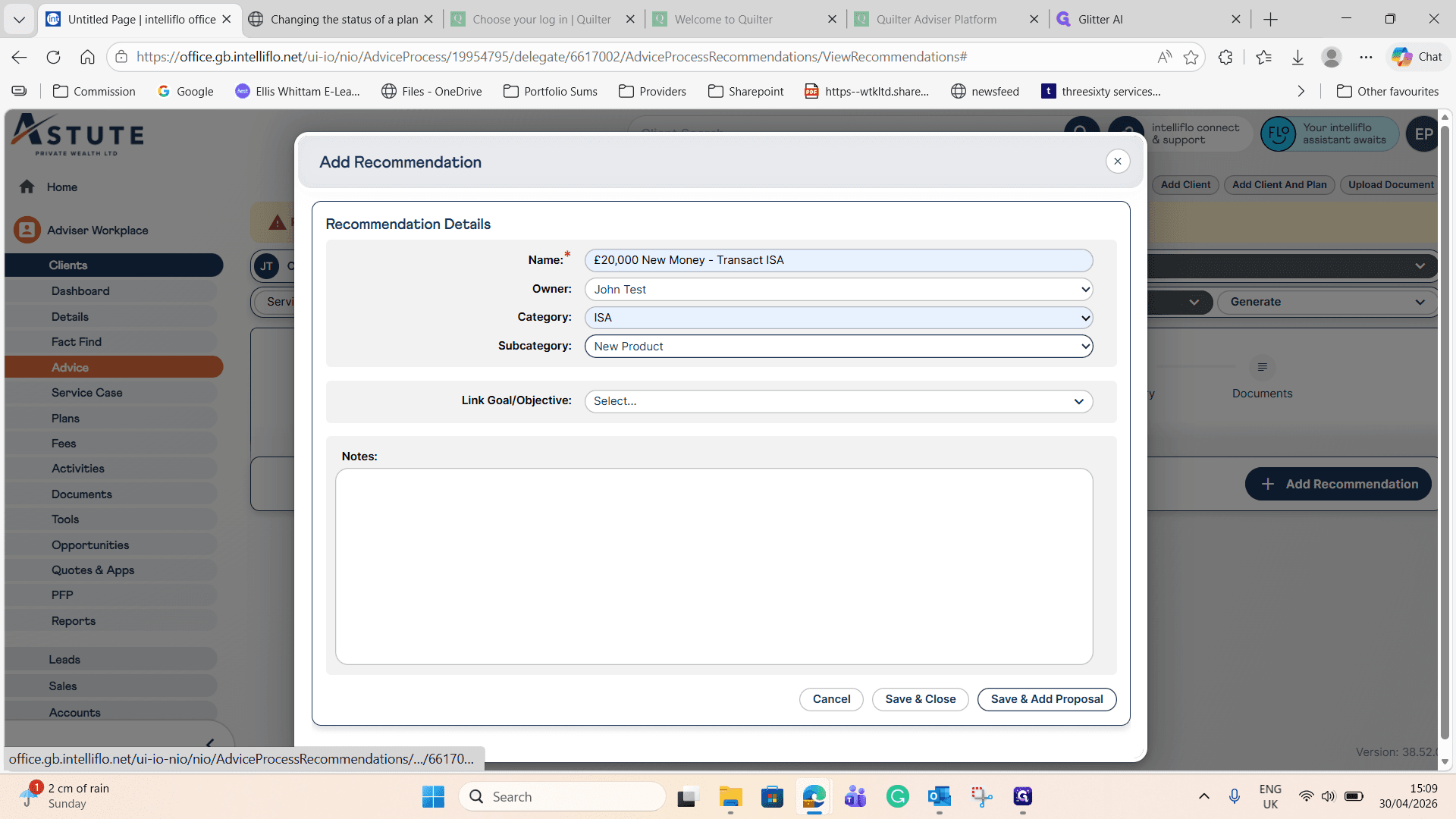
2. Configure the Proposal Details
Next, define the provider, product type, and contribution amount for the ISA.
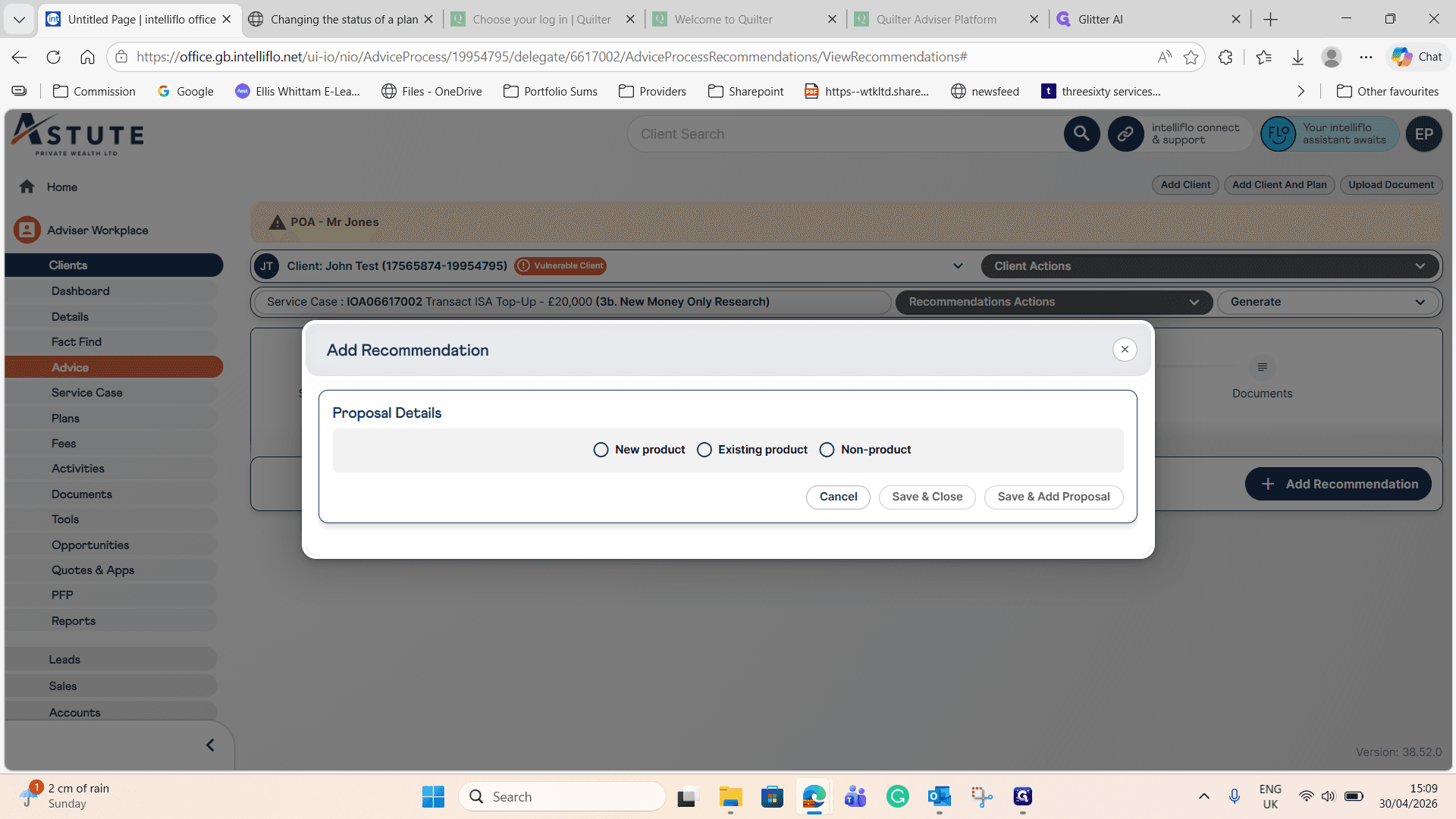
9
Select the New product radio button.
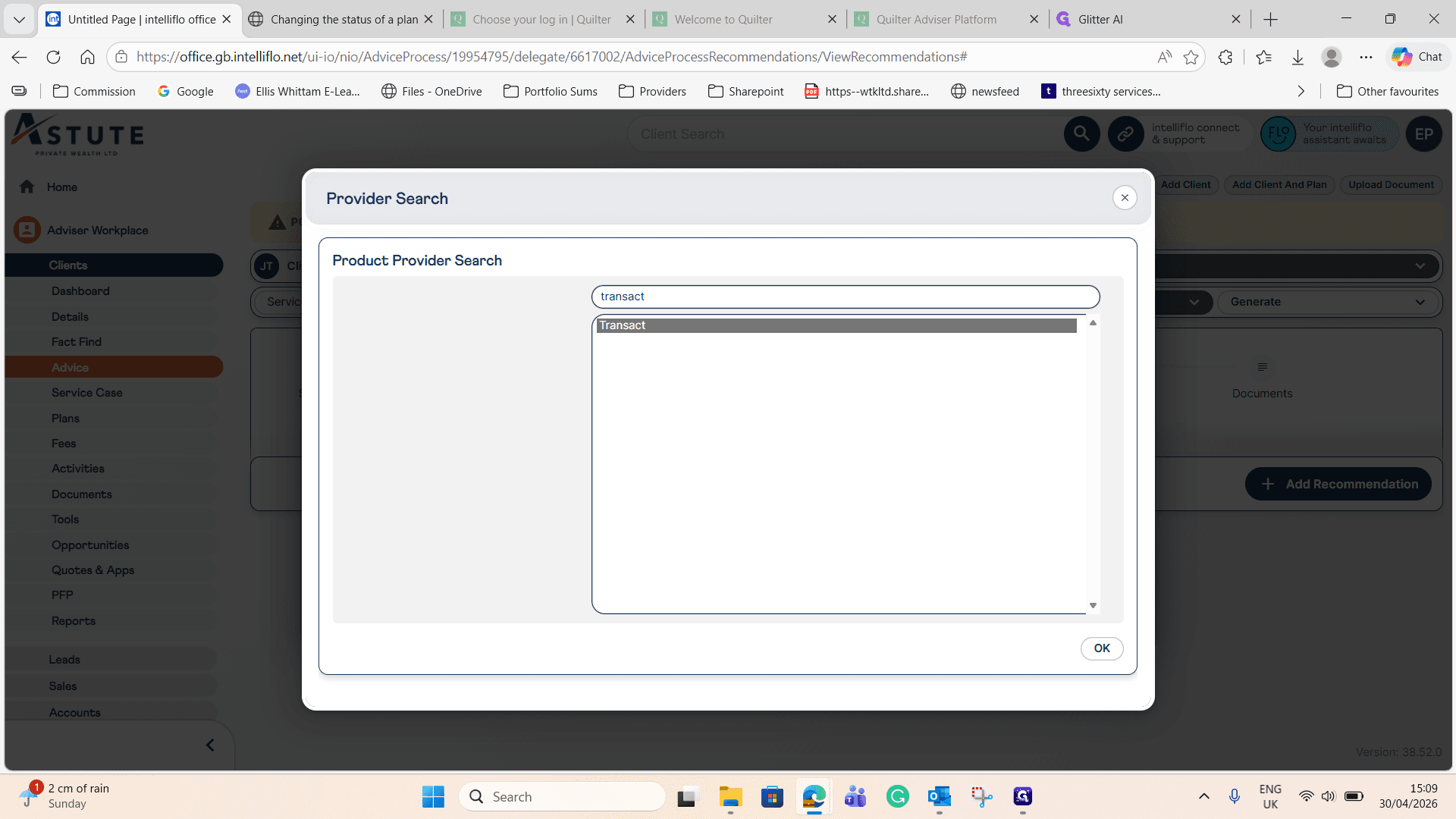
10
Search for and select your product provider, such as Transact.
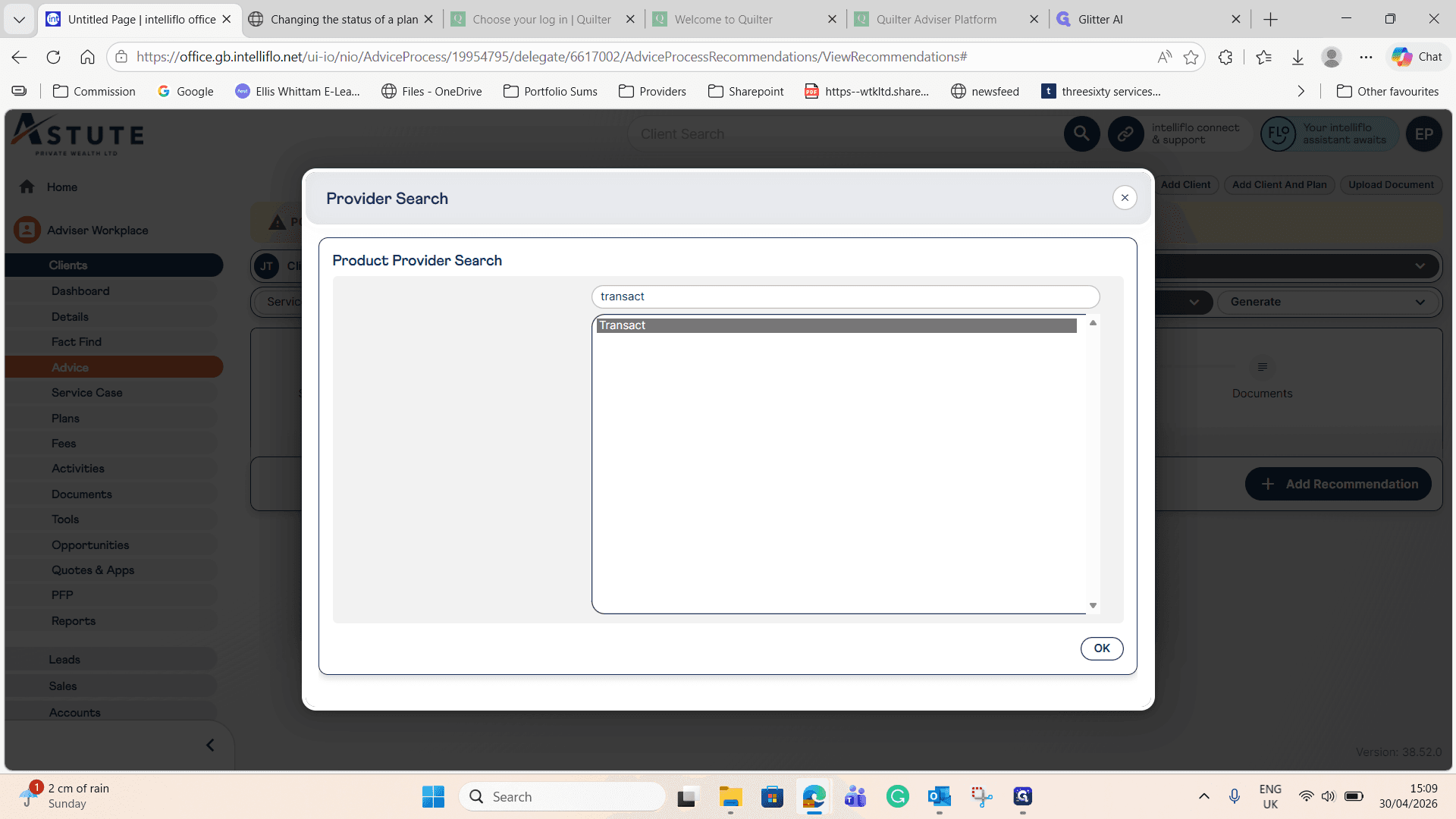
11
Click OK to confirm the provider.
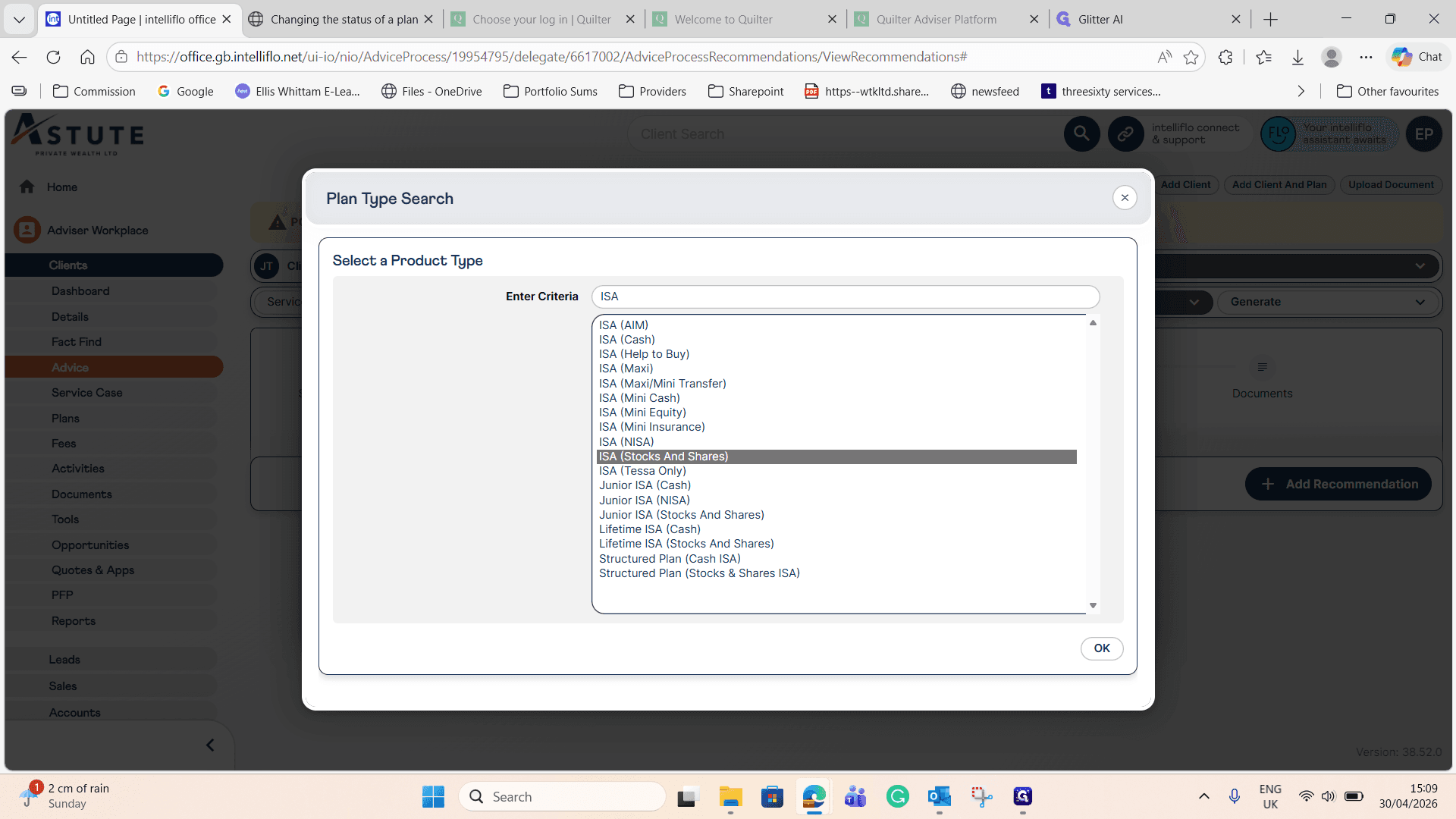
12
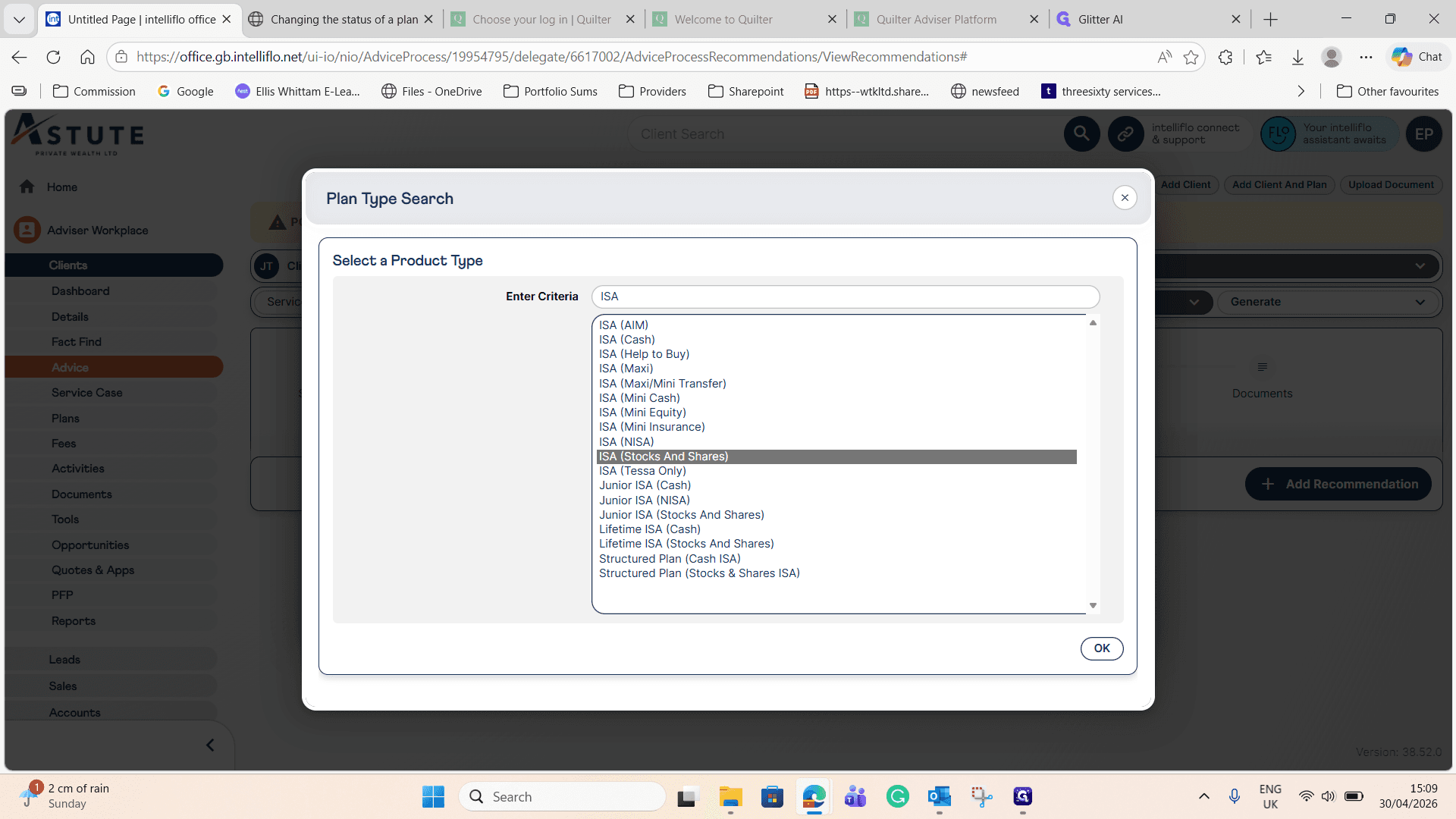
Search for and select your plan type, such as ISA (Stocks And Shares).
13
Click OK.
Now, input the contribution numbers.
14
In the Contributions/Premiums section, select Lump Sum as the contribution type.
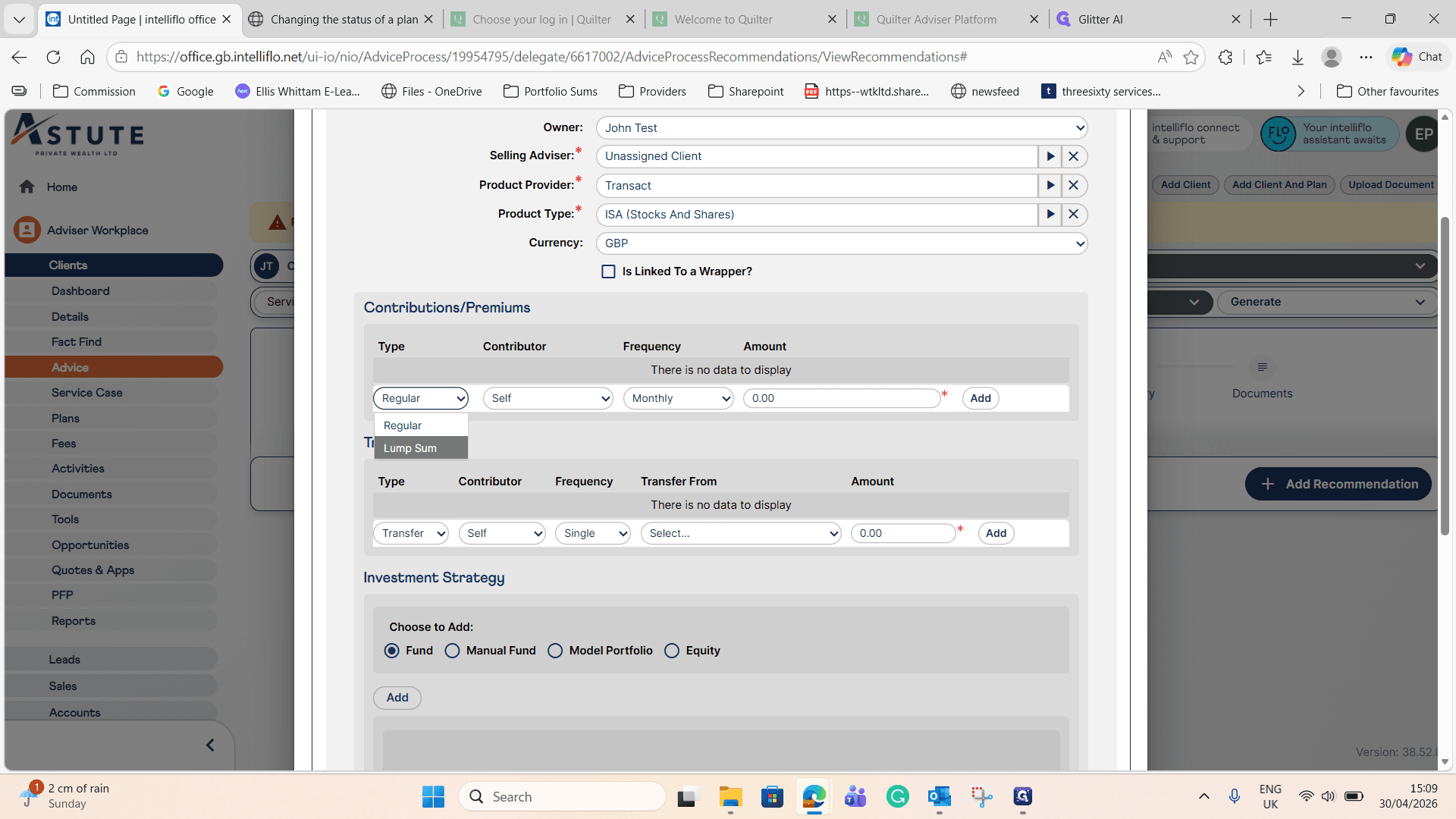
15
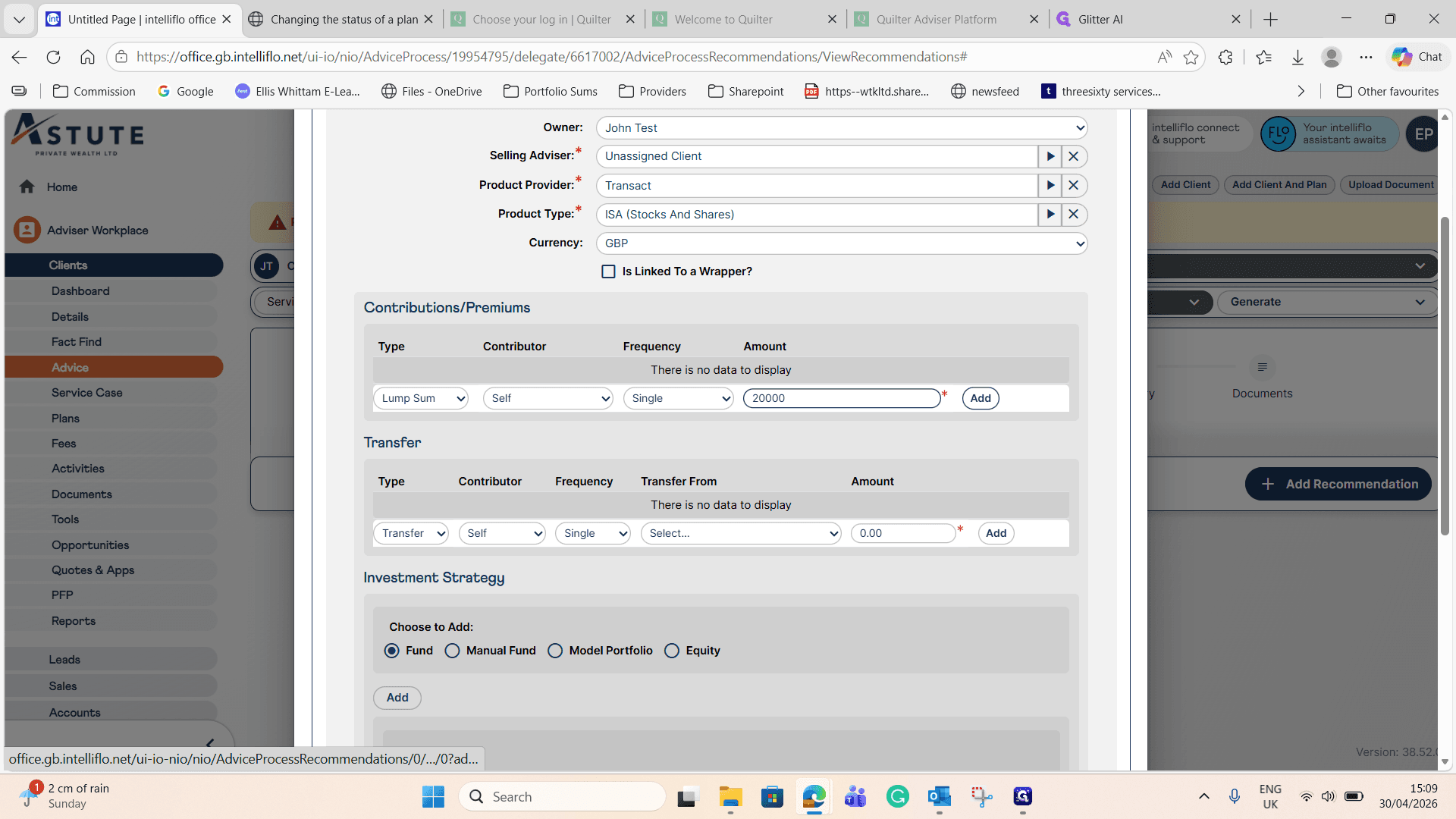
Enter the contribution amount, e.g.,
20000.16
Click Add to log the contribution.
17
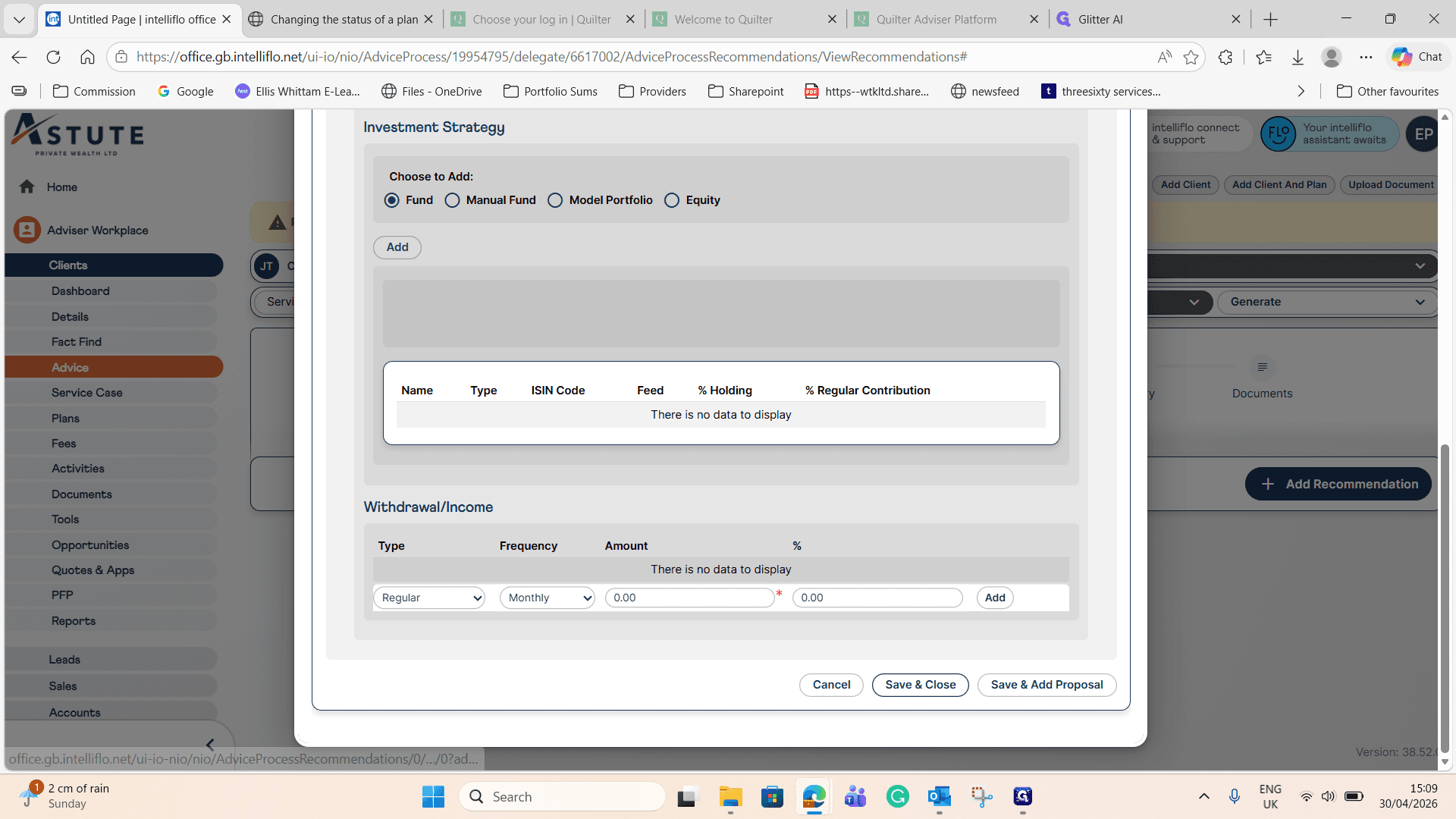
Click Save & Close to finalize the proposal.
3. Accept and Implement the Recommendation
Once the proposal is written and the report is ready, you must accept it before configuring the fee models for implementation.
18
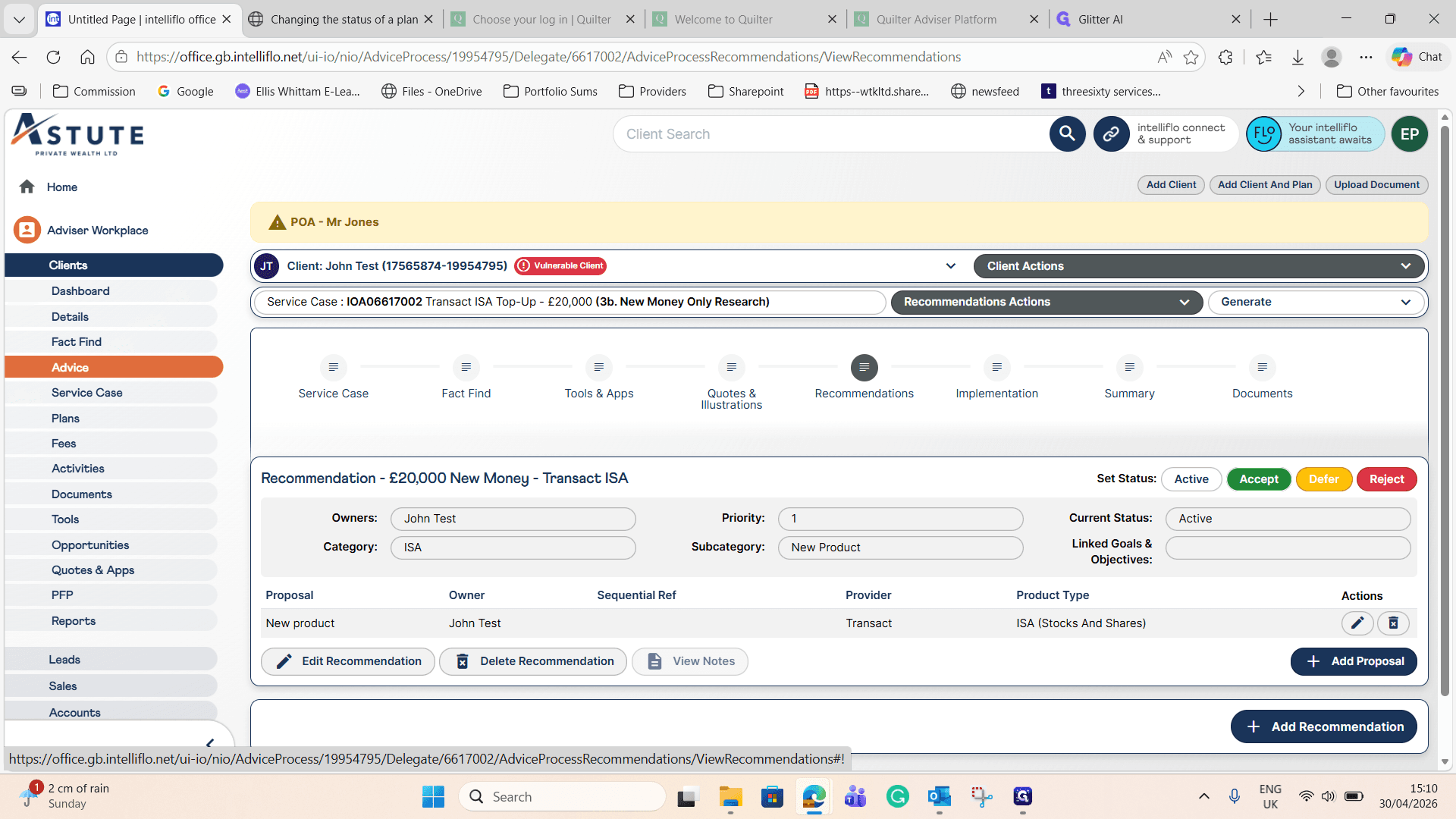
Click Accept on the new recommendation.
19
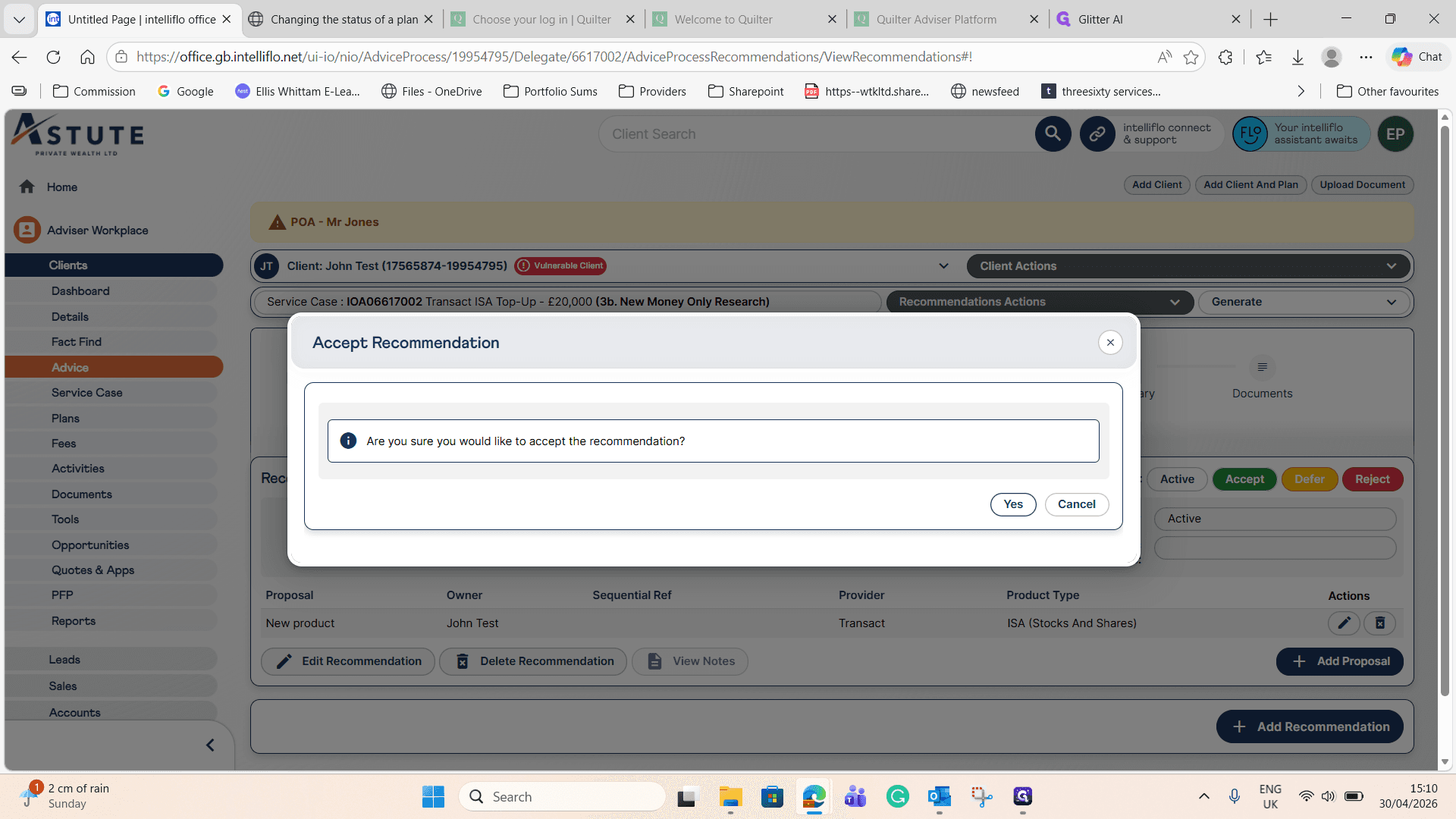
Click Yes to confirm the acceptance.
20
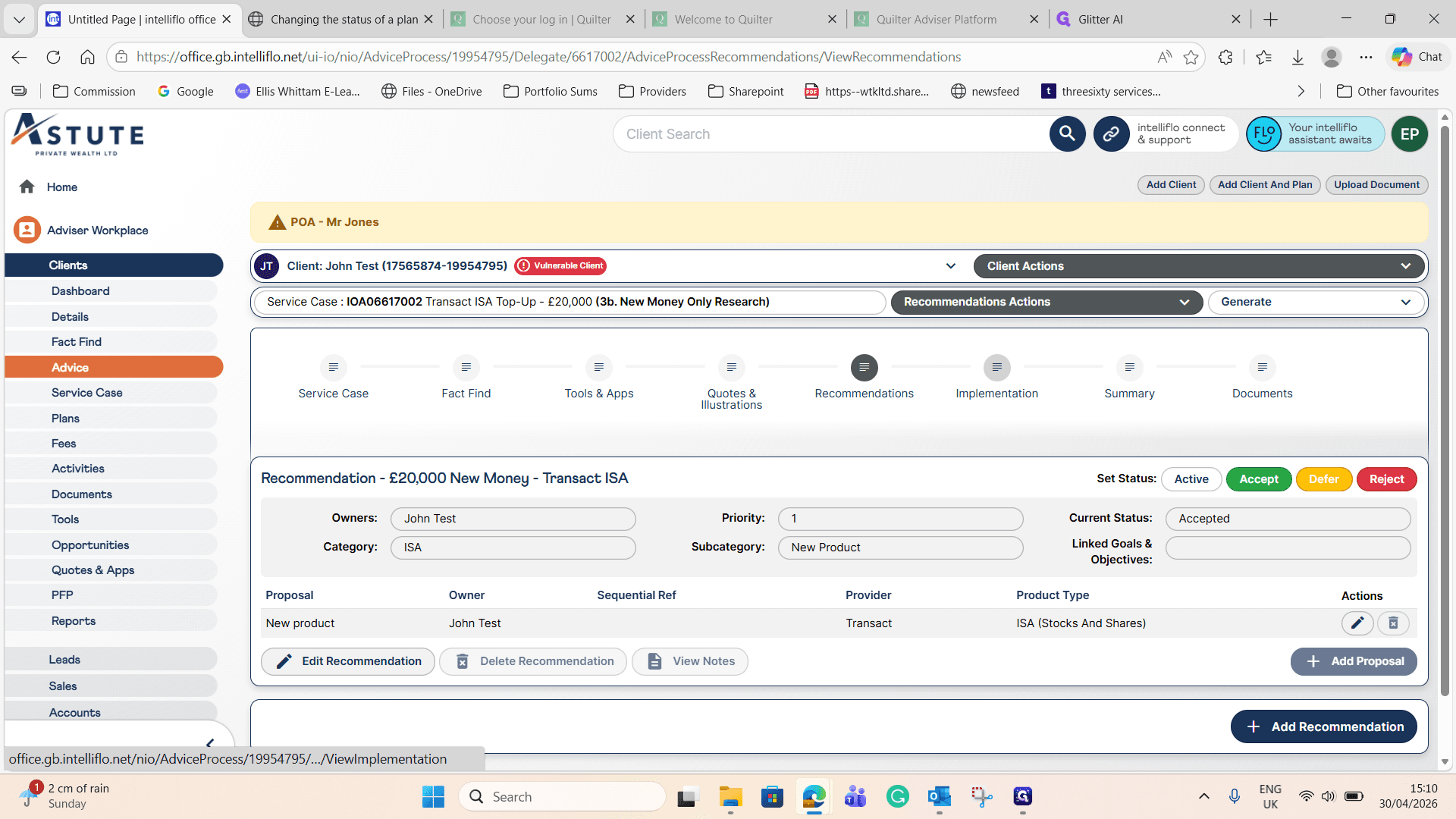
Click the Next arrow to proceed to the implementation stage.
21
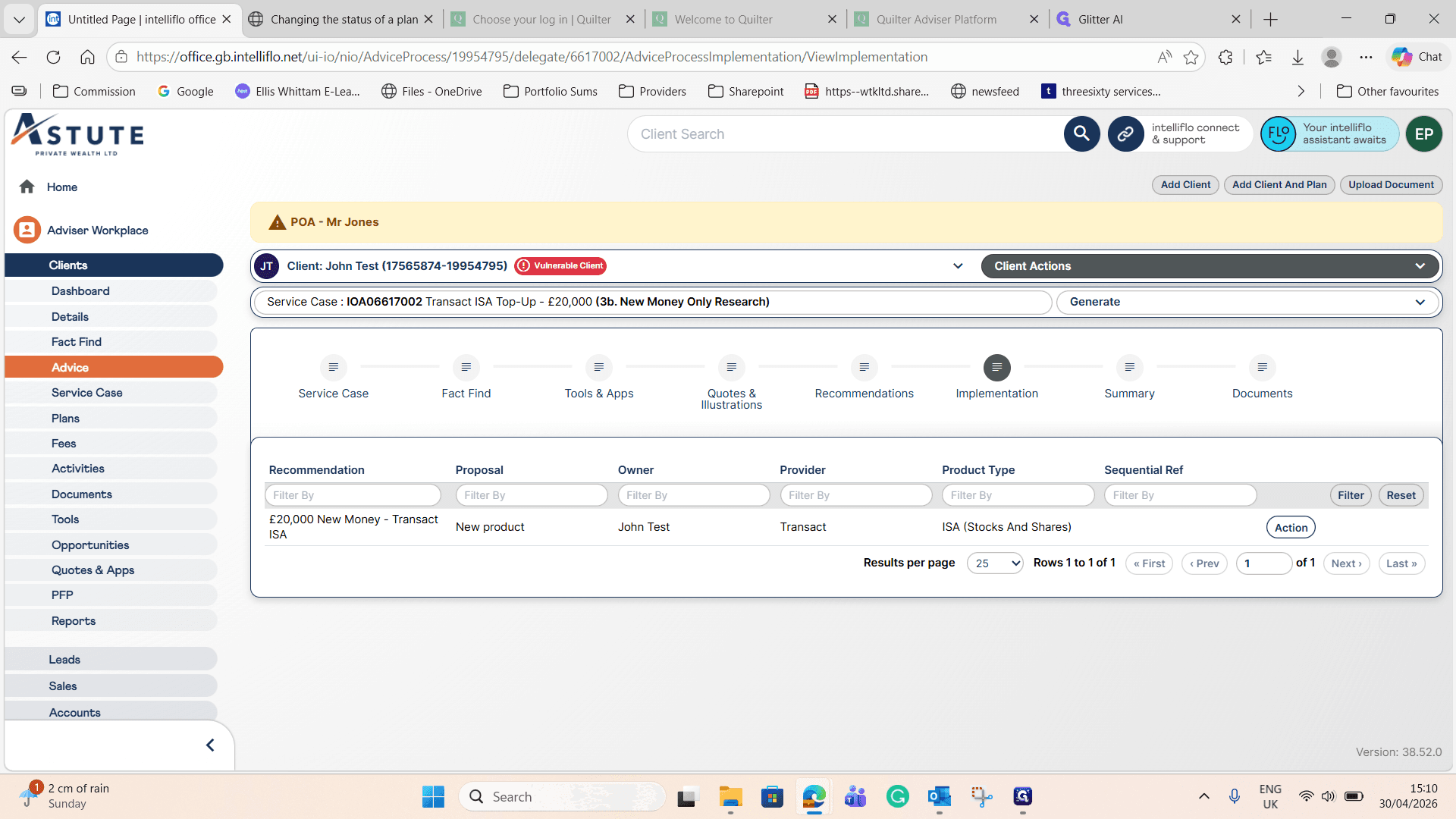
On the action line for the recommendation, click Action.
22
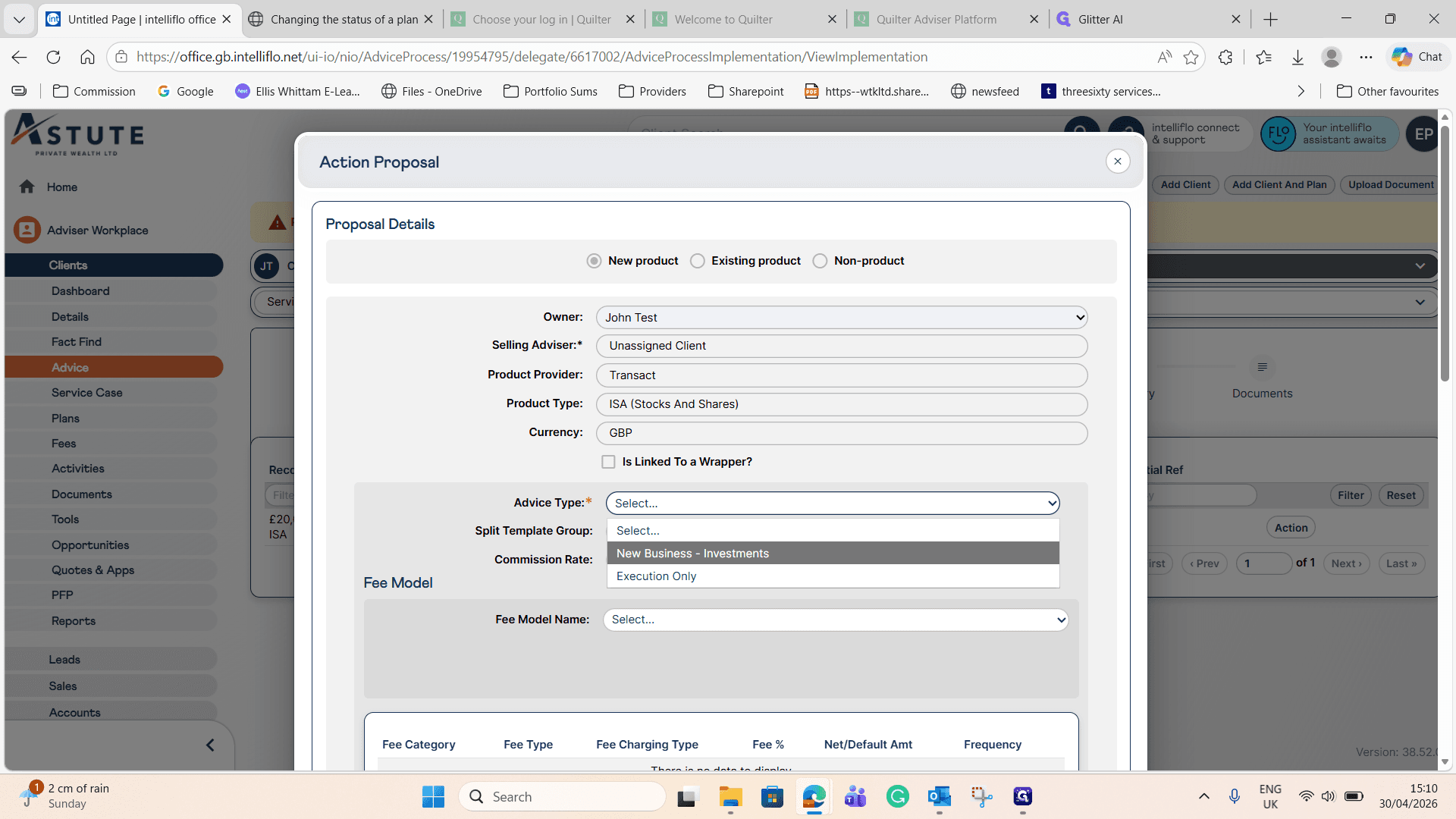
Set the Advice Type to New Business - Investments.
23
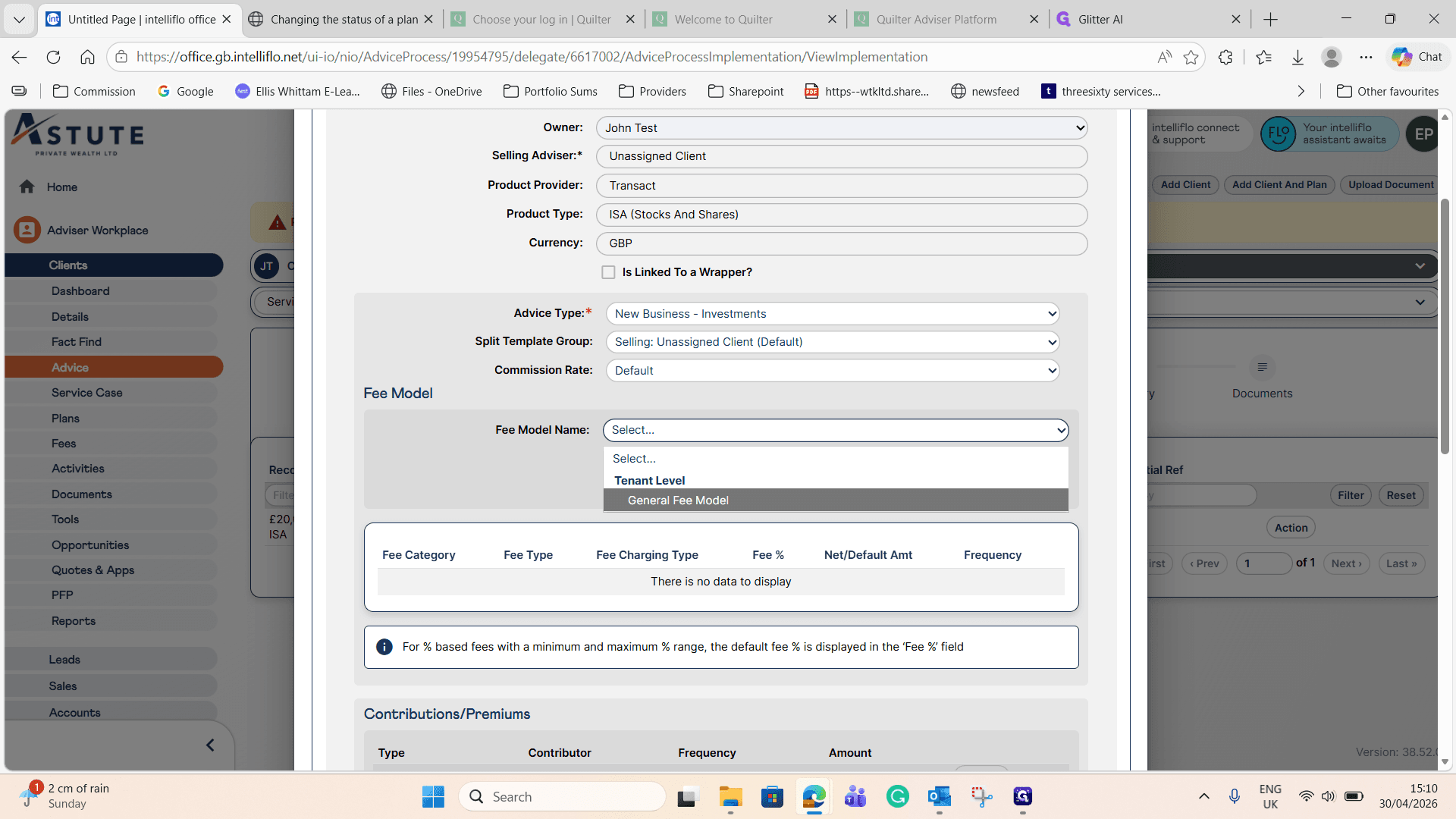
Select the General Fee Model from the dropdown.
24
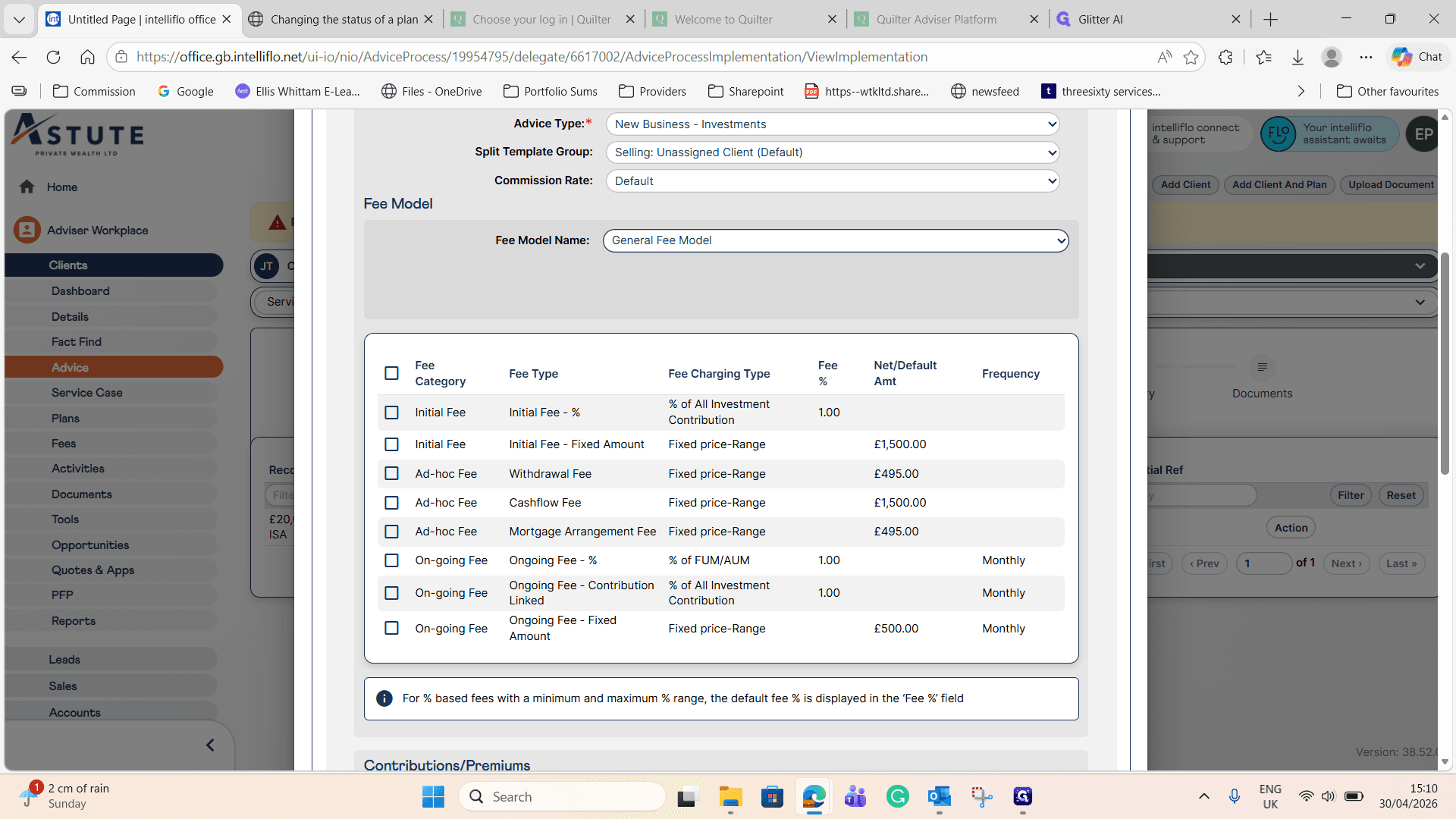
Check the box for your initial fee (e.g., 1%).
25
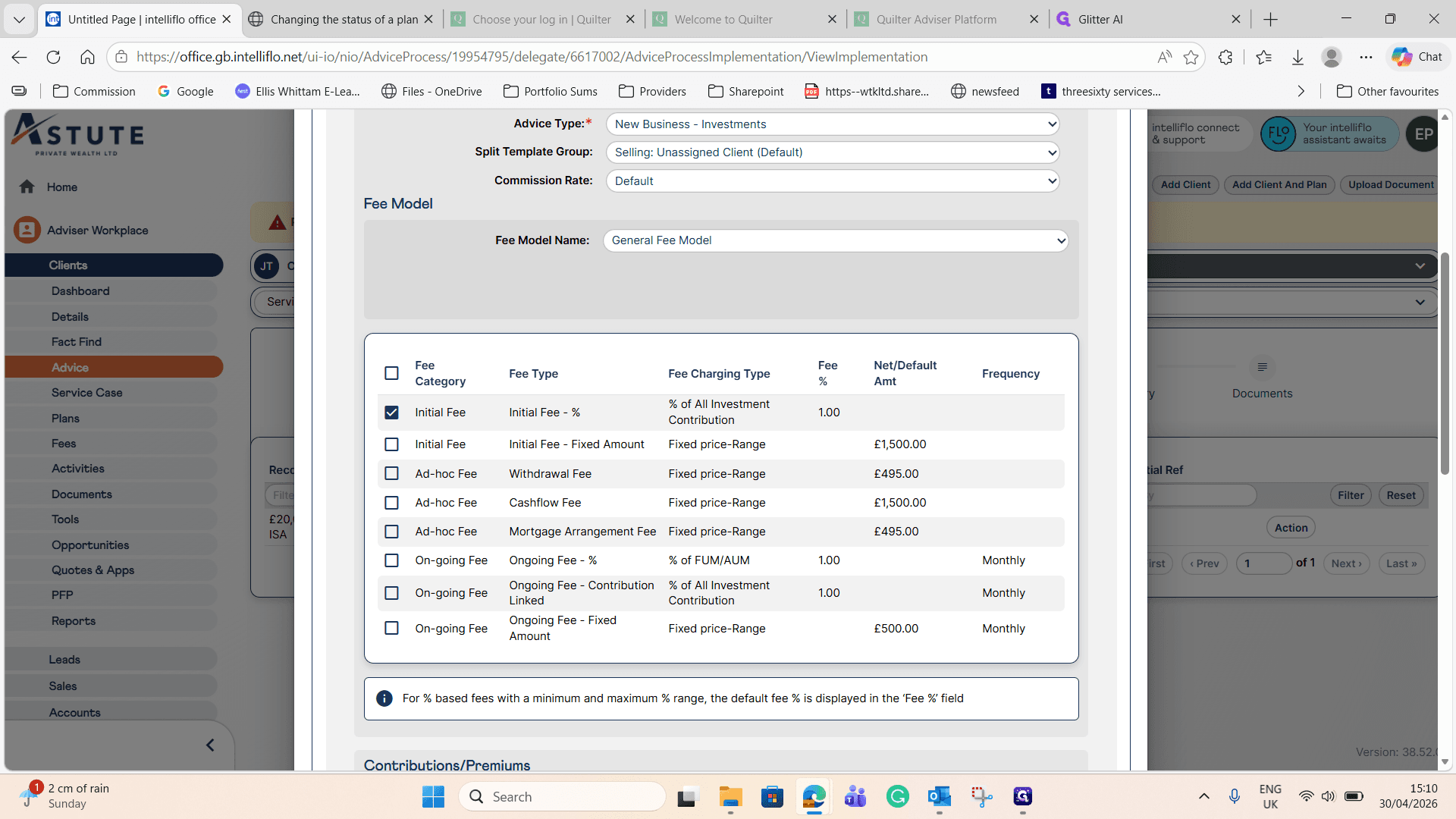
Check the box for your ongoing fee (e.g., 1%).
26
Scroll down and click Update to save the fee configuration.
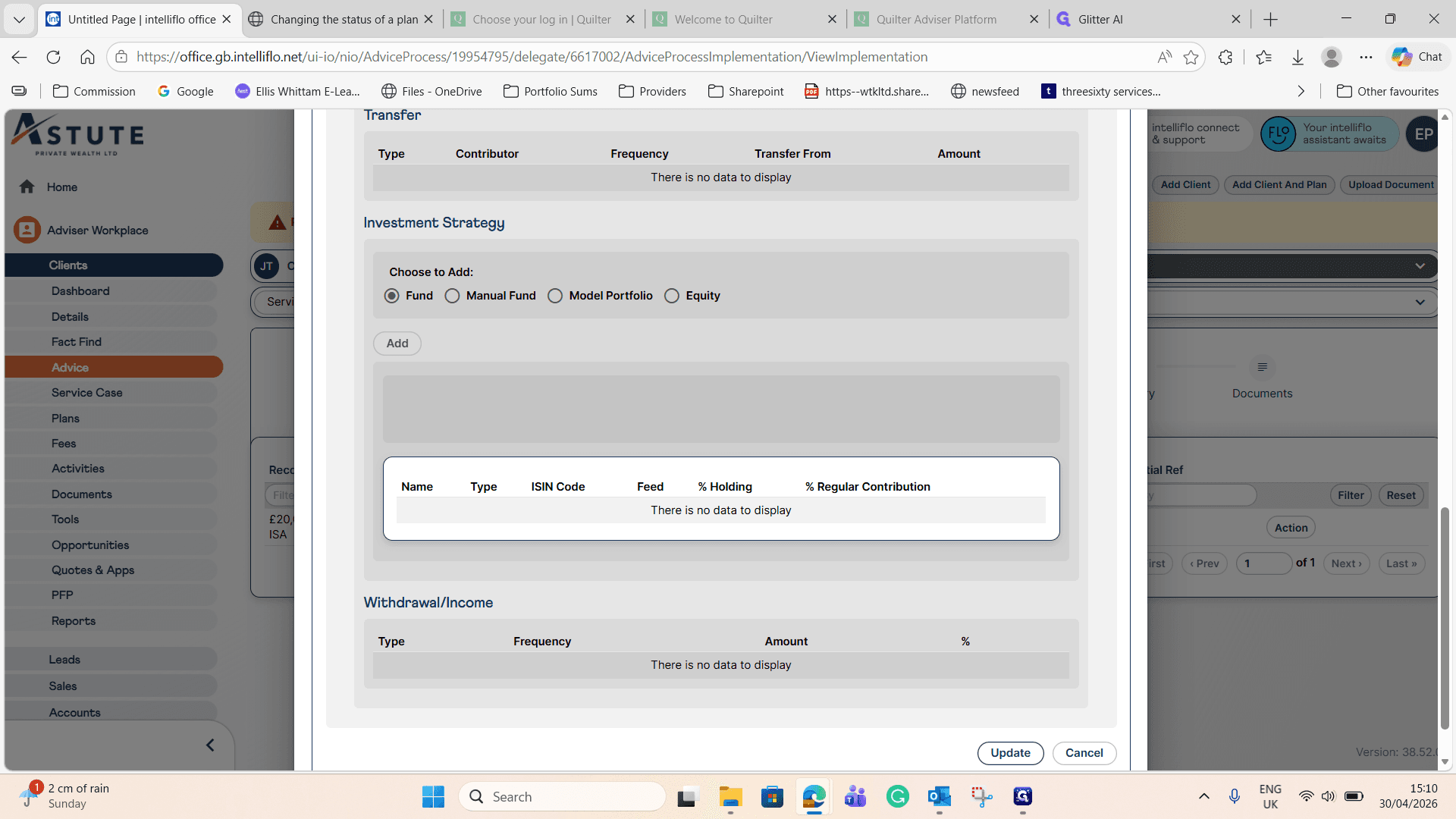
Your recommendation and fees are now fully implemented on the service case.