Icon

How to Add a New Client Record

Learn how to use the 8-step Add Client wizard to create a new client record, including basic details, address, contact info, and compliance preferences.

By Elliott Potter

This guide walks you through the comprehensive eight-step wizard for adding a new client. Completing this process ensures all essential client data—from basic identification to marketing compliance—is securely and accurately recorded in the system.

This procedure is typically performed by financial advisors, paraplanners, and client support administrators during the initial client onboarding phase.

Phase 1: Basic Details
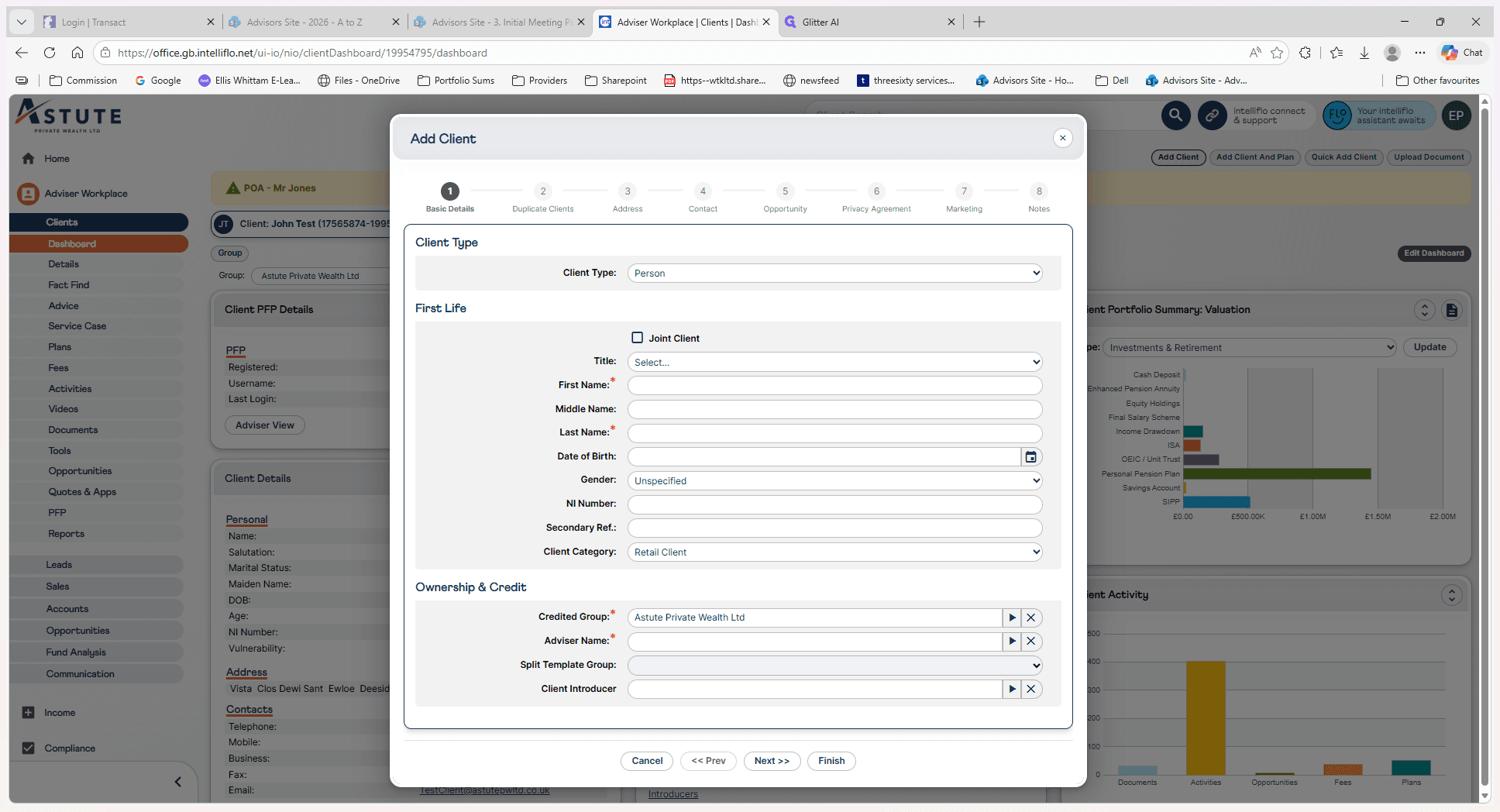
1
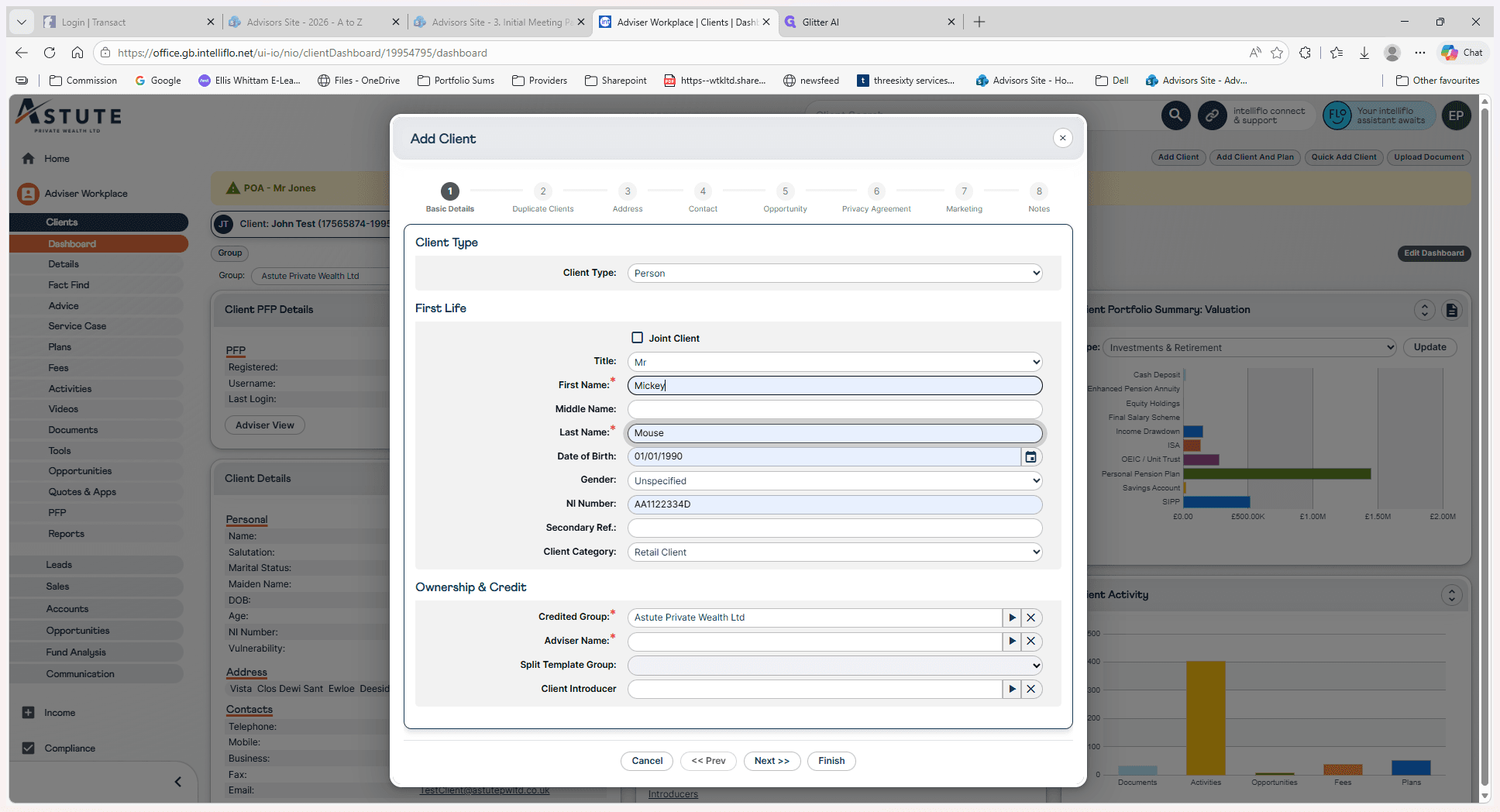
Check the Joint Client box if you are onboarding a couple.
Step #1: Check the Joint Client box if you are onboarding a couple.
2
Enter the client's First Name and other required personal details.
Step #2: Enter the client's First Name and other required personal details.
3
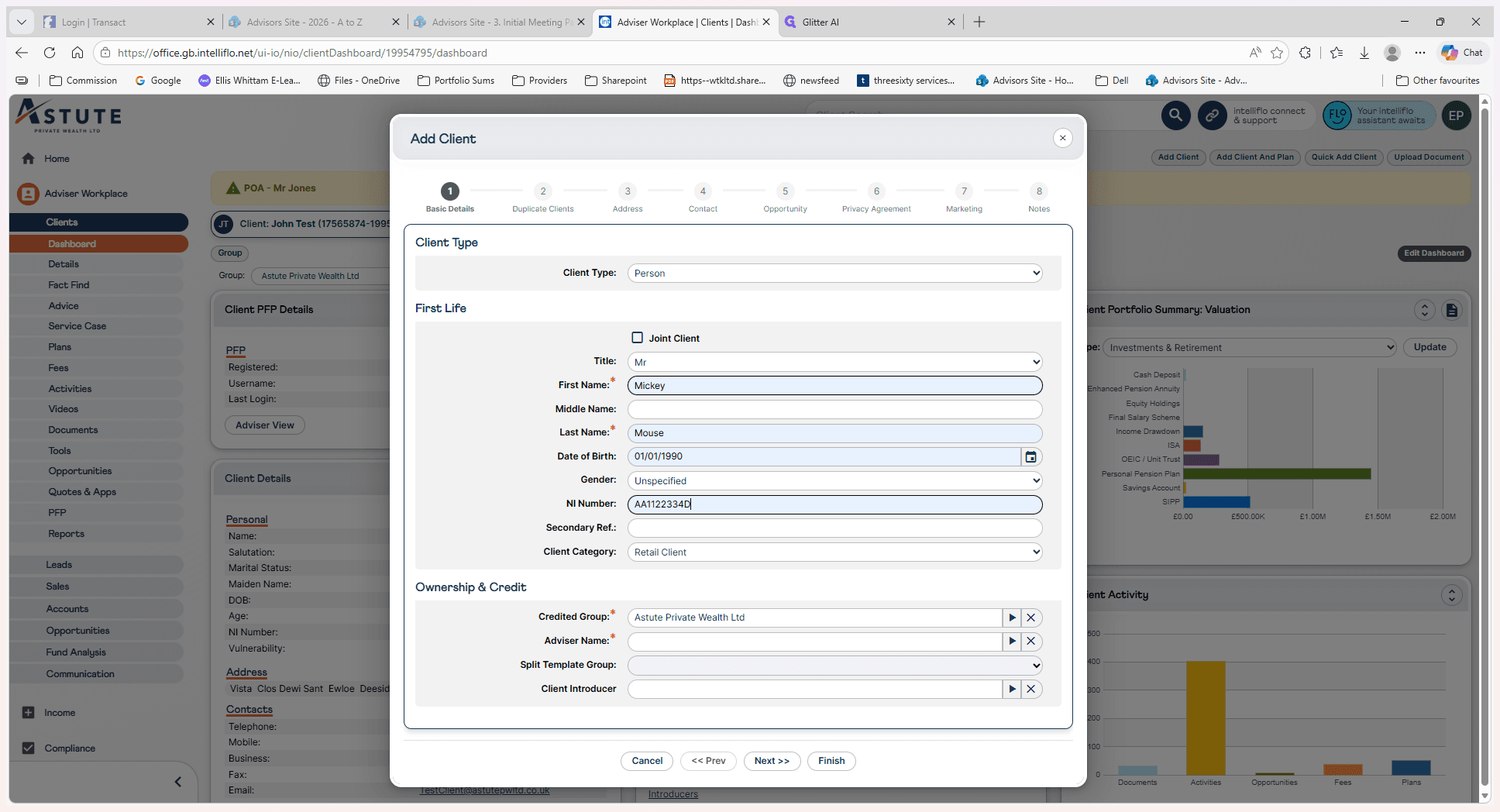
Type in the client's National Insurance (NI) Number.
Step #3: Type in the client's National Insurance (NI) Number.
4
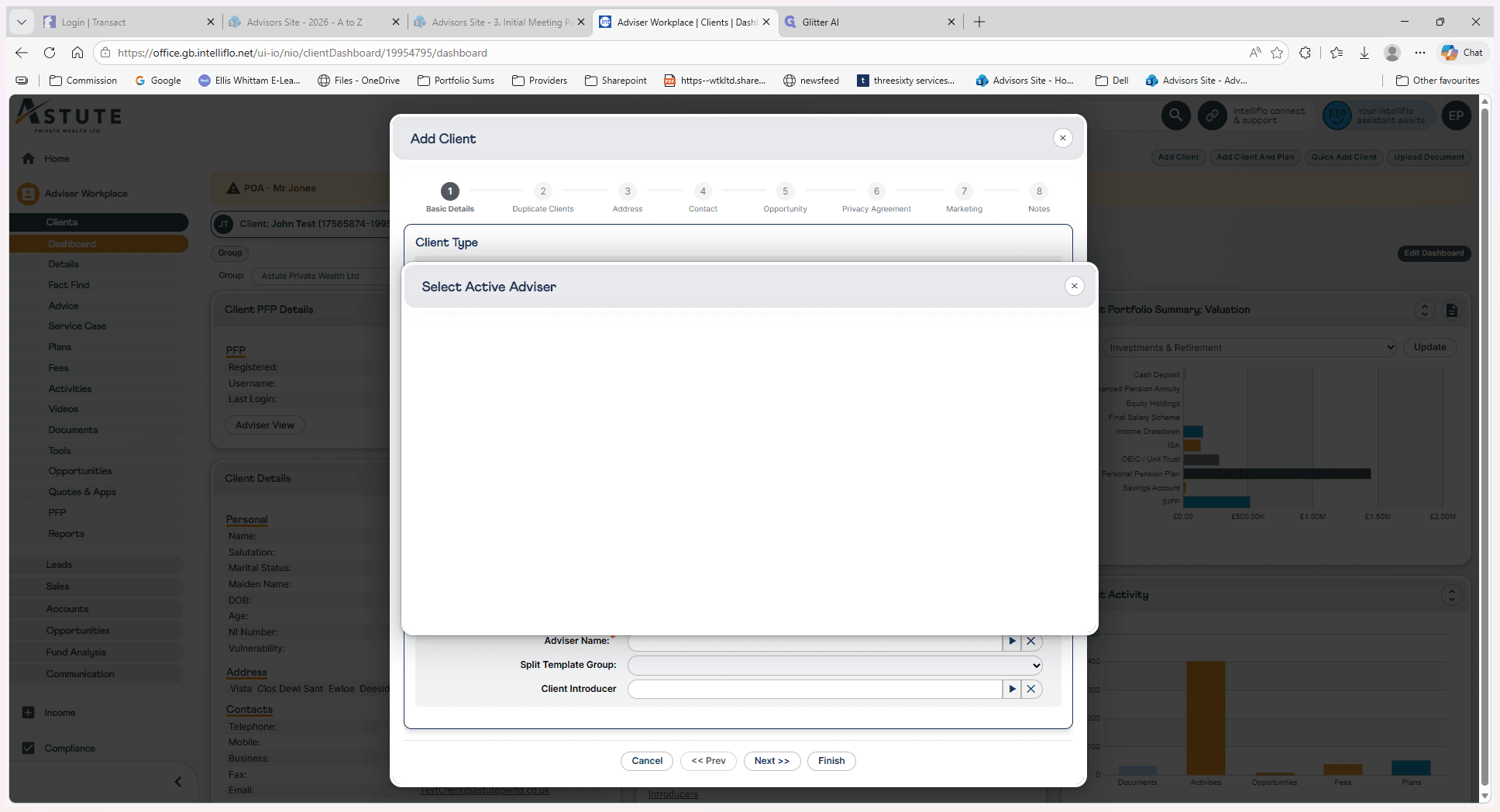
Select the Active Adviser responsible for the client's account.
Step #4: Select the Active Adviser responsible for the client's account.
5
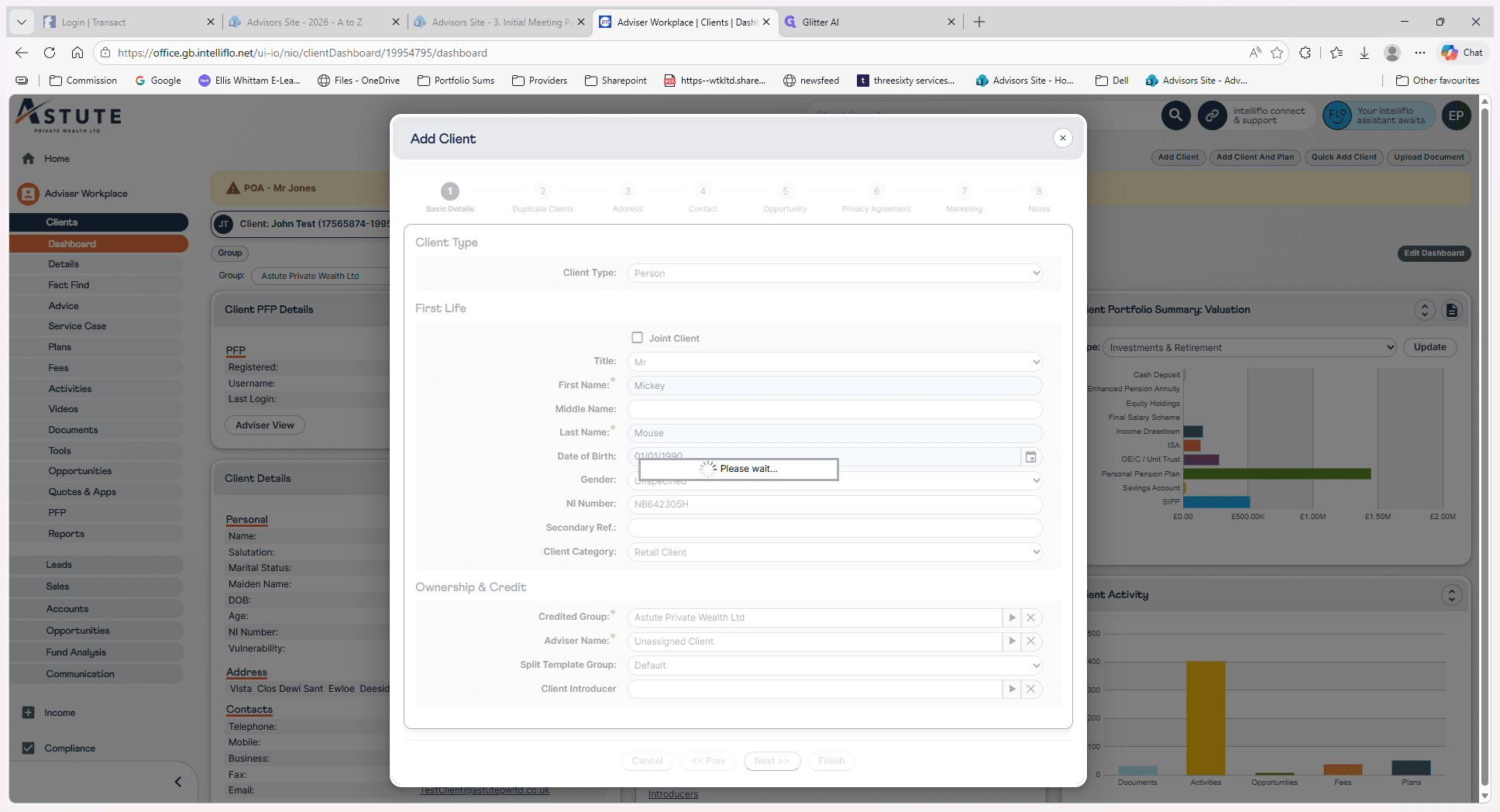
Click Next >> to proceed to the Address section.
Step #5: Click Next >> to proceed to the Address section.

Phase 2: Address Details

6
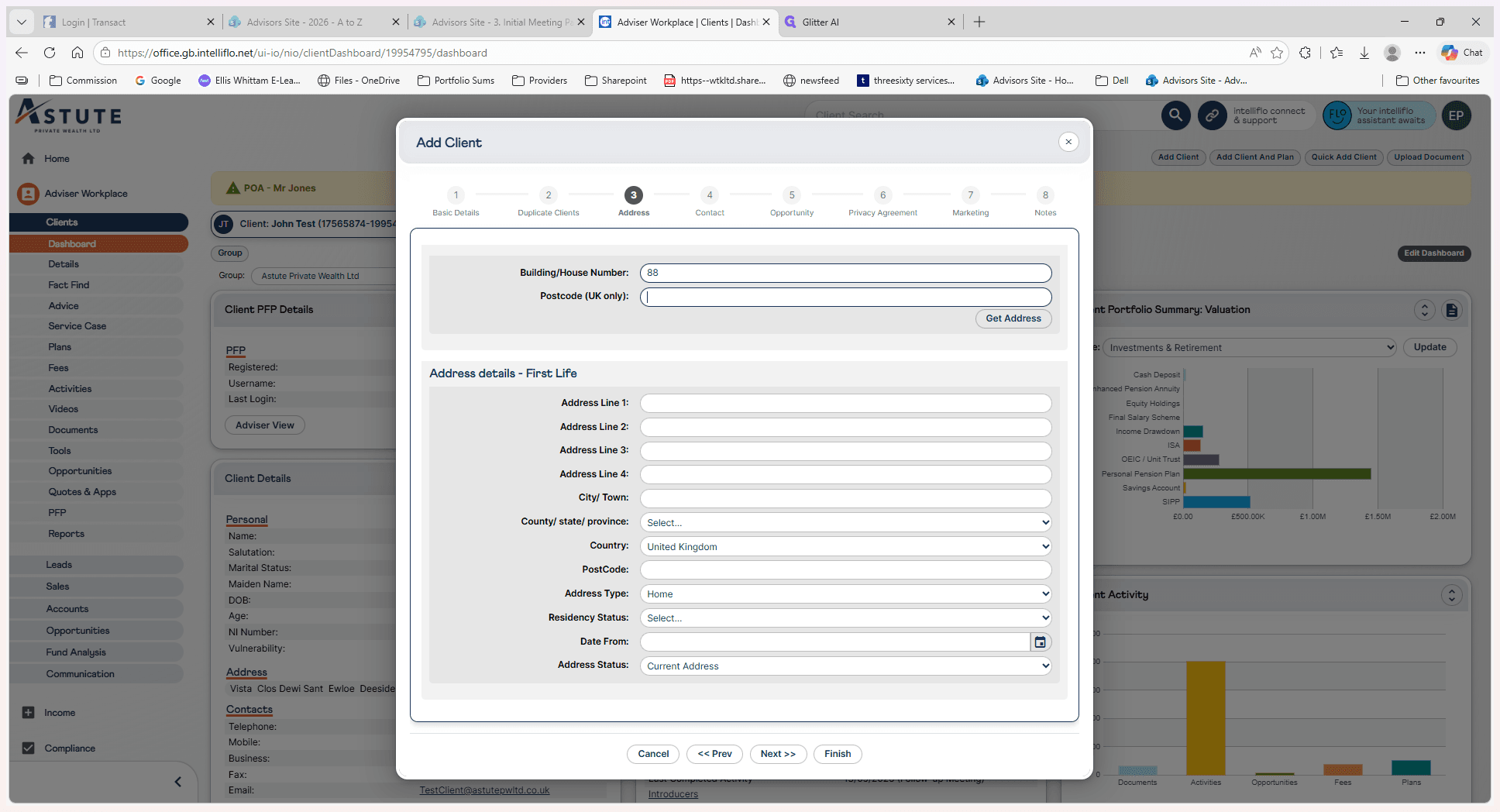
Enter the client's postcode and click Get Address to automatically populate the address fields.
Step #6: Enter the client's postcode and click Get Address to automatically populate the address fields.
7
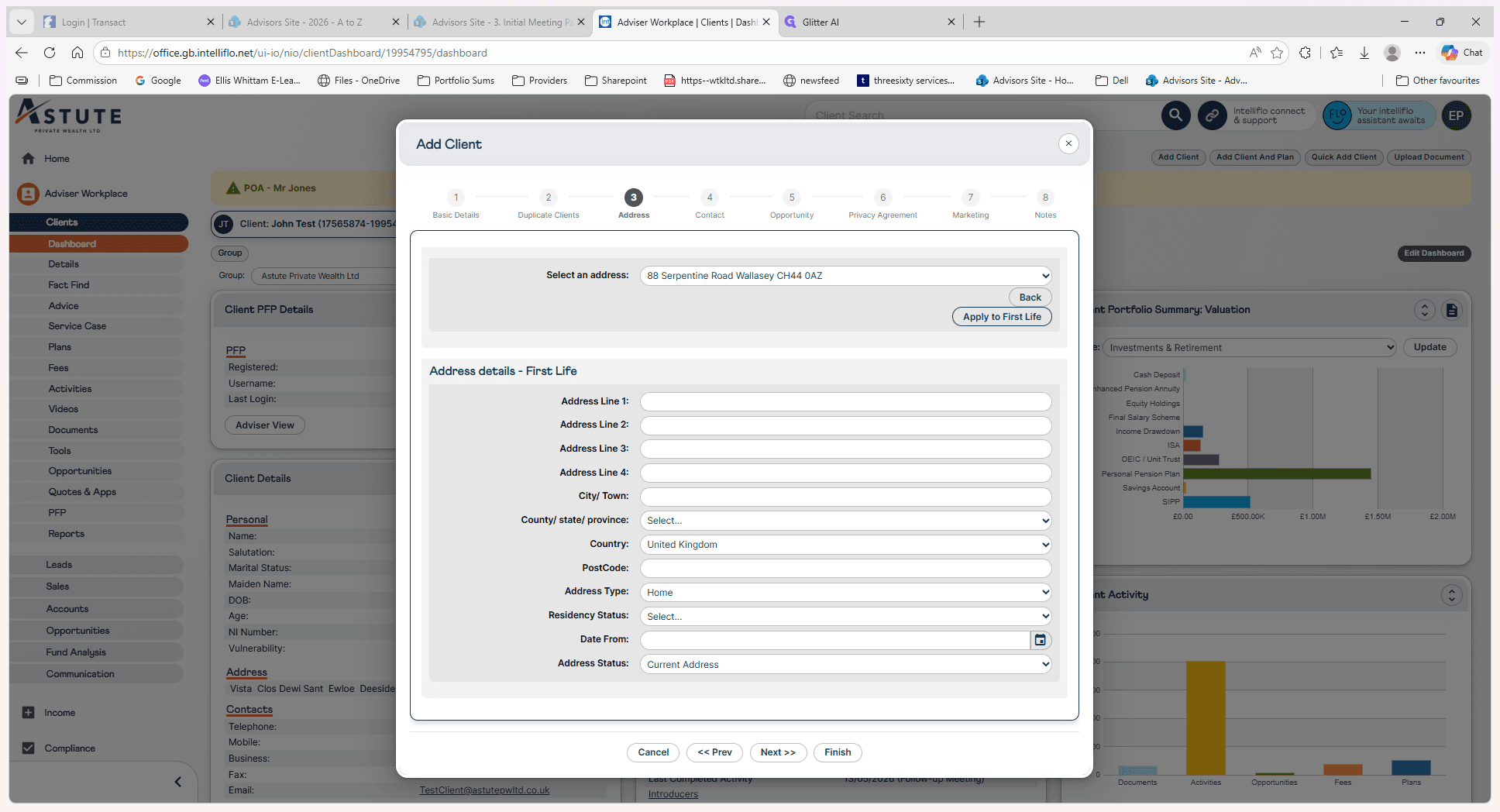
Click Apply to First Life to confirm the residential address.
Step #7: Click Apply to First Life to confirm the residential address.
8
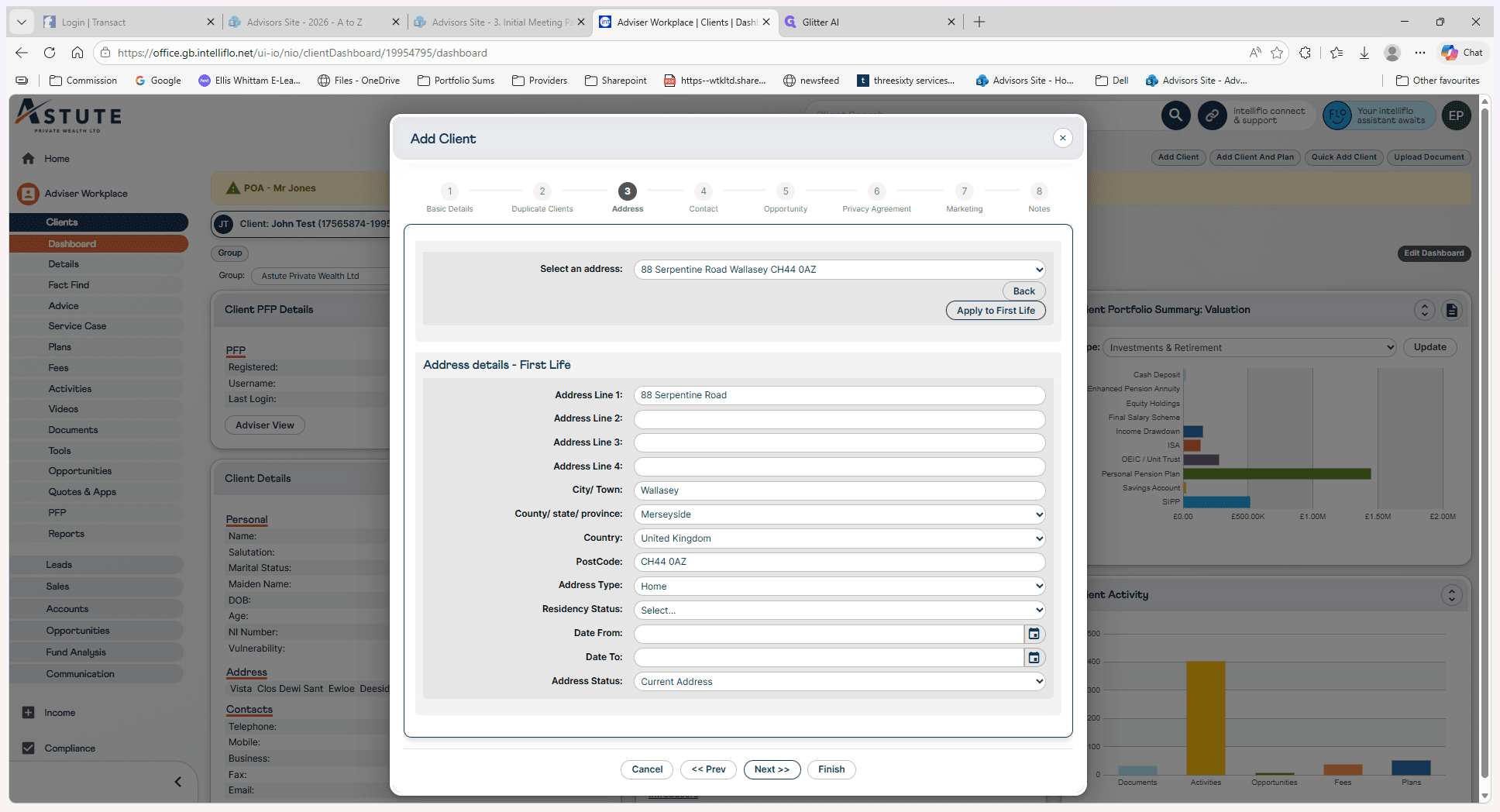
Click Next >> to continue.
Step #8: Click Next >> to continue.

Phase 3: Contact & Campaign

9
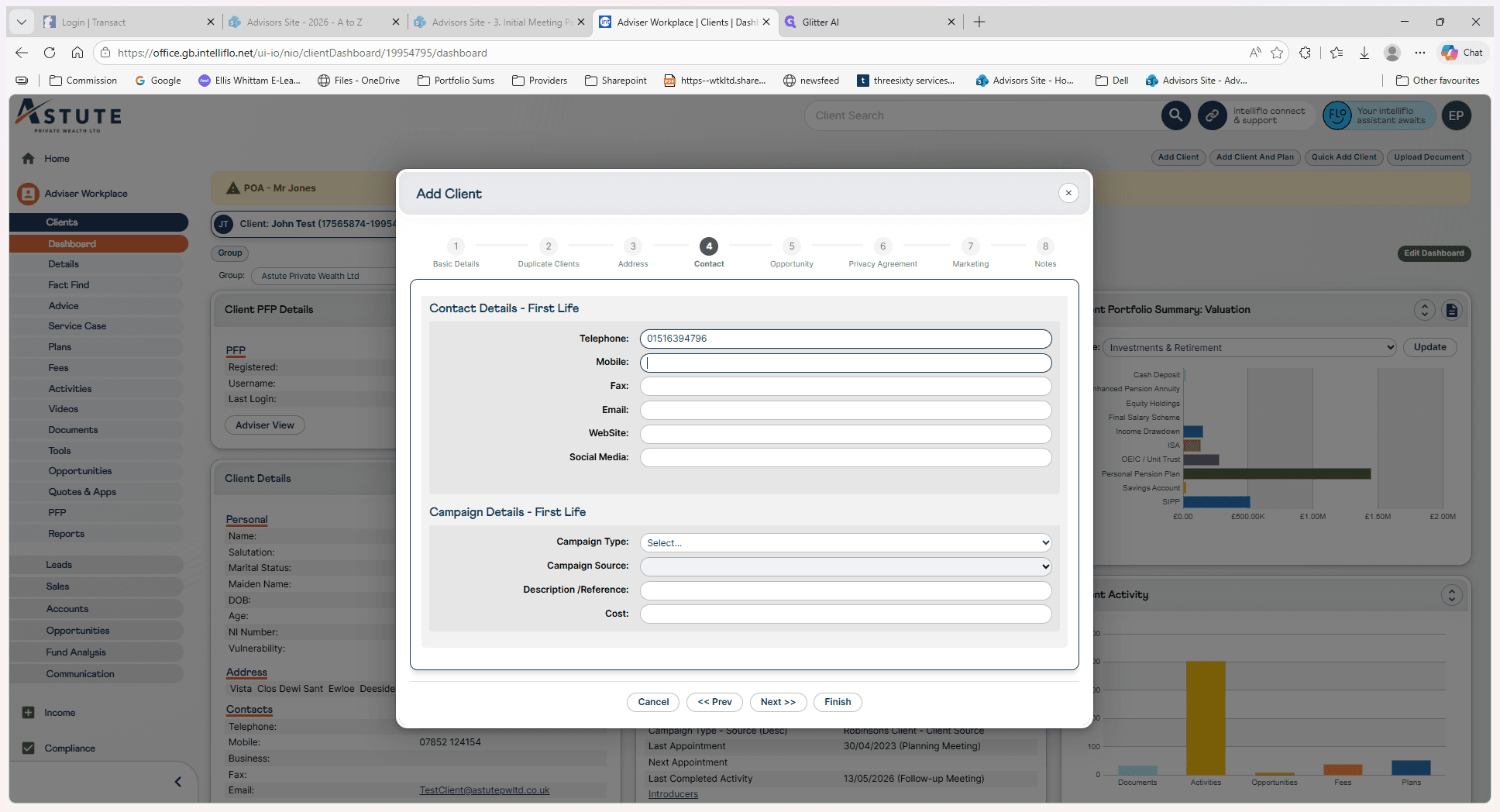
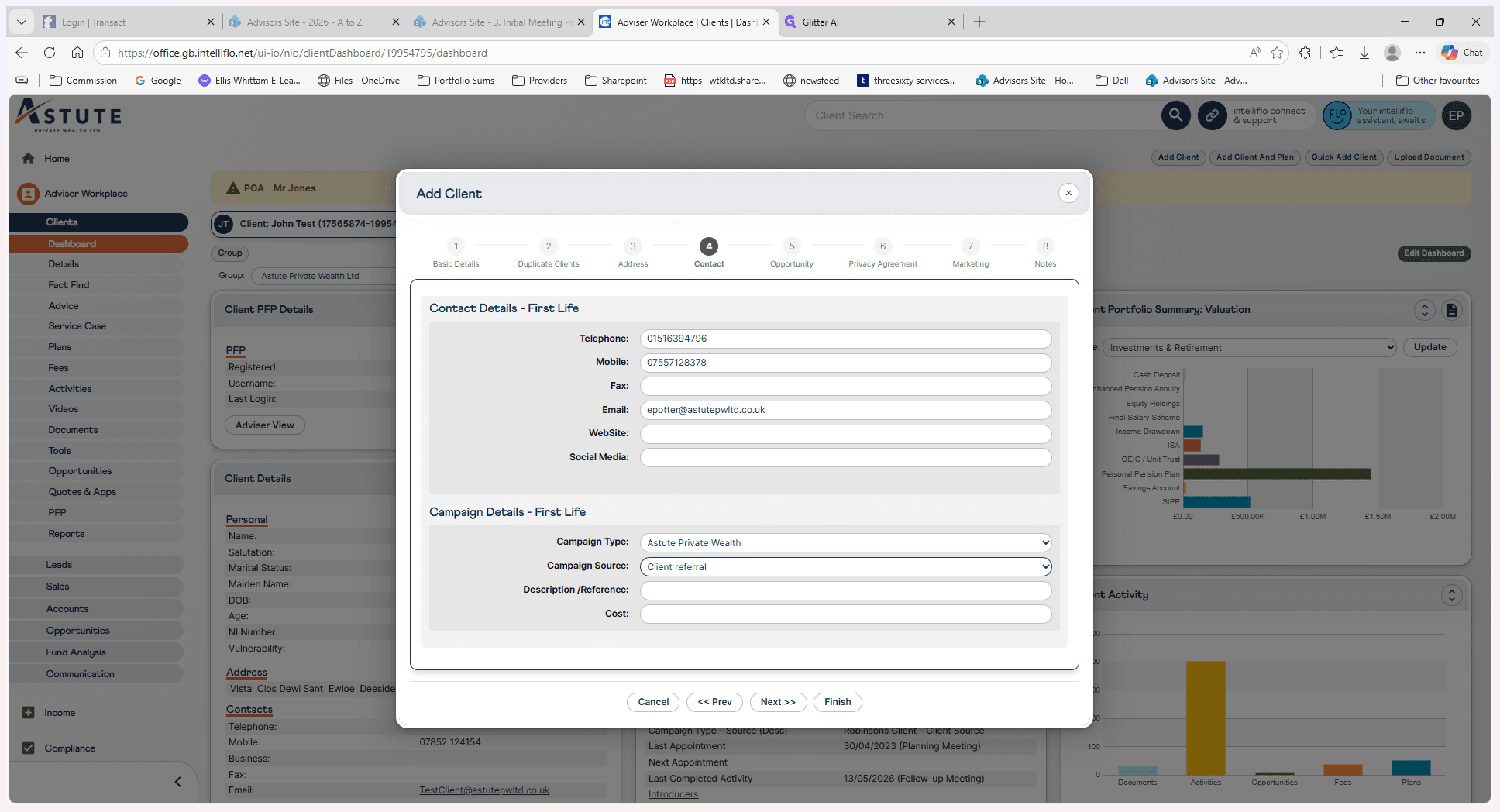
Fill out the client's contact information, including their Telephone, Mobile, and Email addresses.
Step #9: Fill out the client's contact information, including their Telephone, Mobile, and Email addresses.
10
In the Campaign section, select the Campaign Type and Campaign Source (e.g., Client referral) from the dropdown menus.
Step #10: In the Campaign section, select the Campaign Type and Campaign Source (e.g., Client referral) from the dropdown menus.

Phase 4: Opportunity Configuration

11
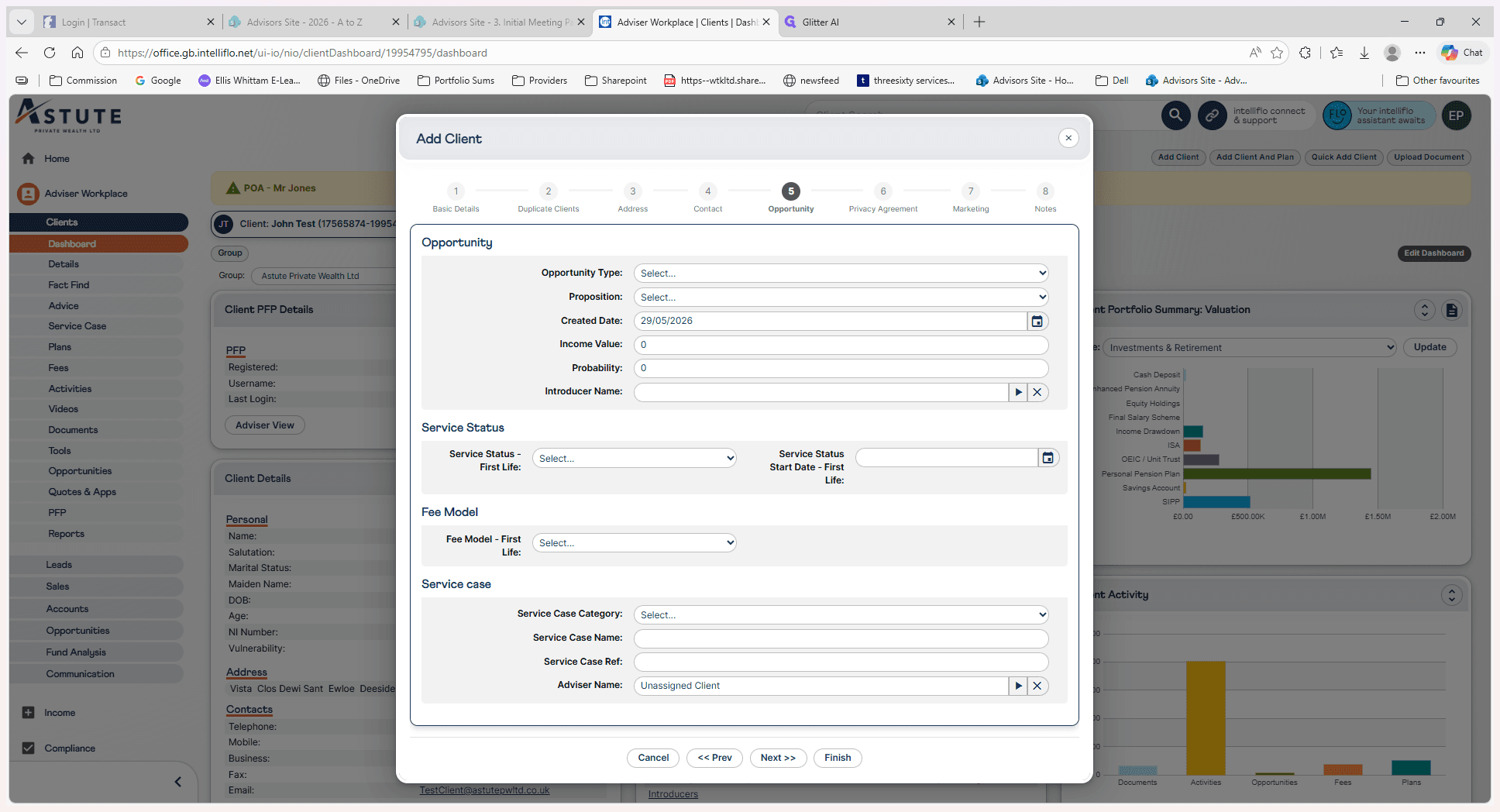
Navigate to the Opportunity step to input details regarding the service status, fee model, and service case information.
Step #11: Navigate to the Opportunity step to input details regarding the service status, fee model, and service case information.
12
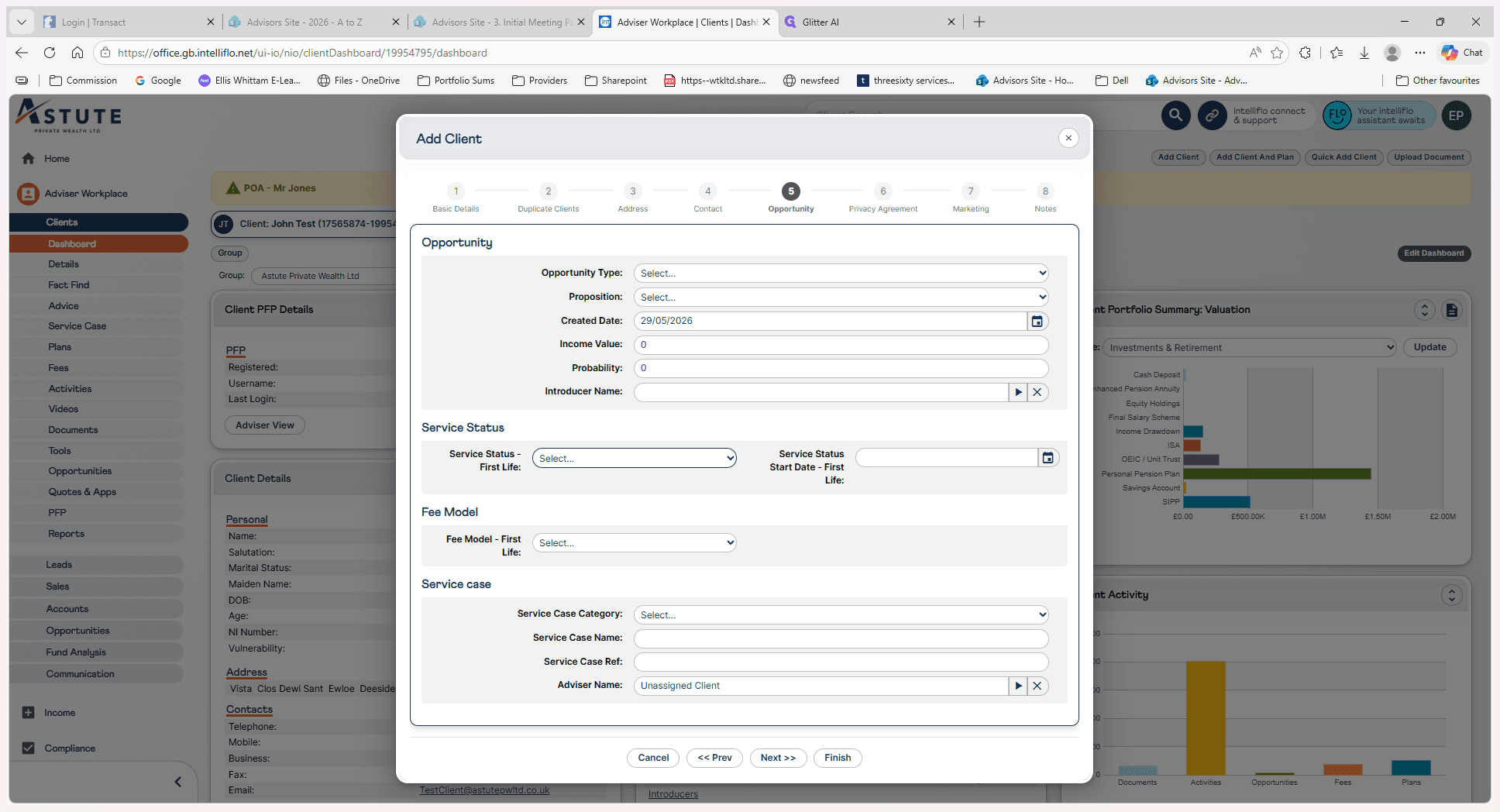
Click Select to choose the appropriate opportunity type.
Step #12: Click Select to choose the appropriate opportunity type.

Phase 5: Privacy & Marketing

13
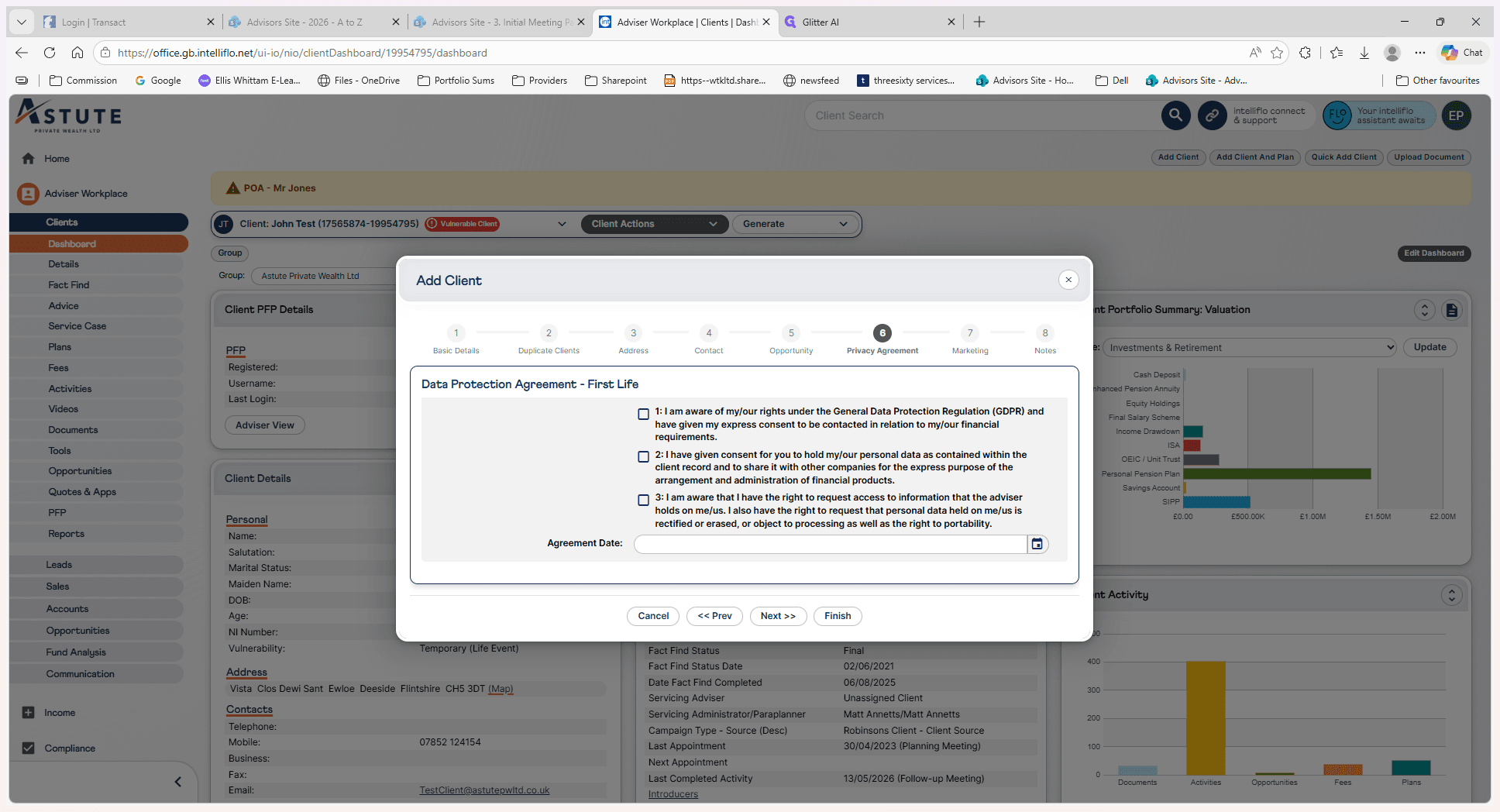
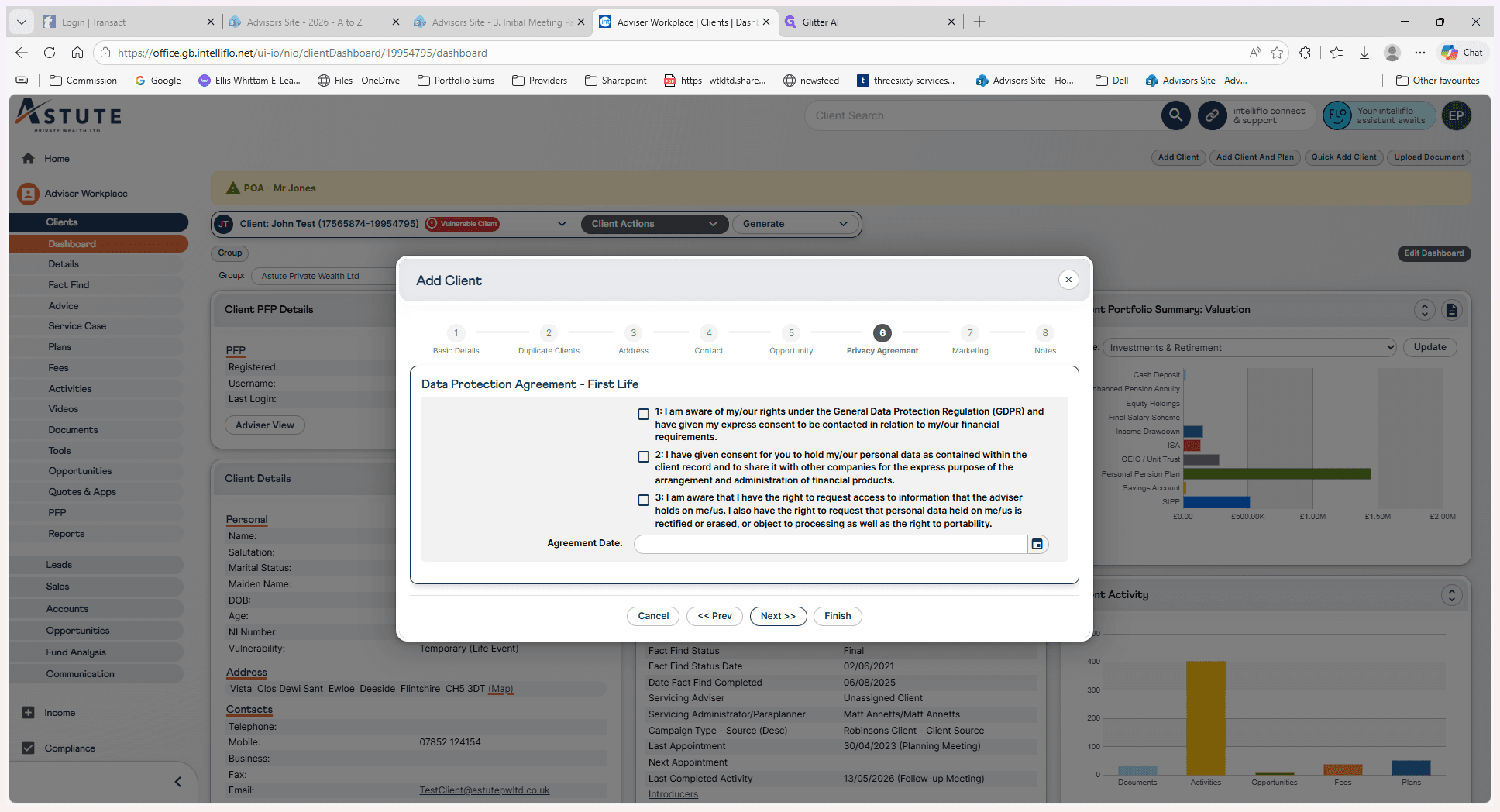
Check the required GDPR consent boxes and complete the agreement date field under the Privacy Agreement step.
Step #13: Check the required GDPR consent boxes and complete the agreement date field under the Privacy Agreement step.
14
Click Next >> to proceed to the Marketing screen.
Step #14: Click Next >> to proceed to the Marketing screen.
15
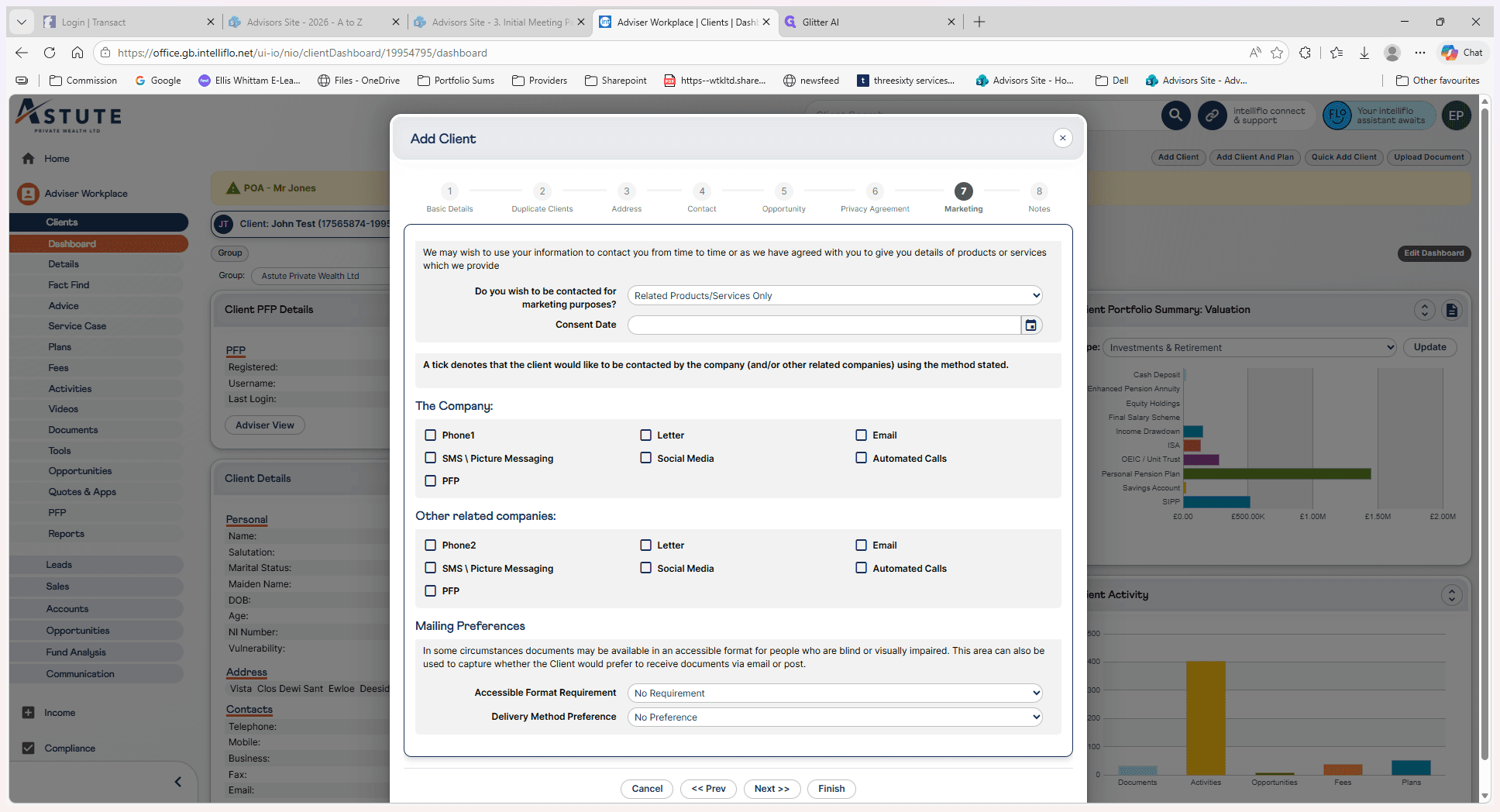
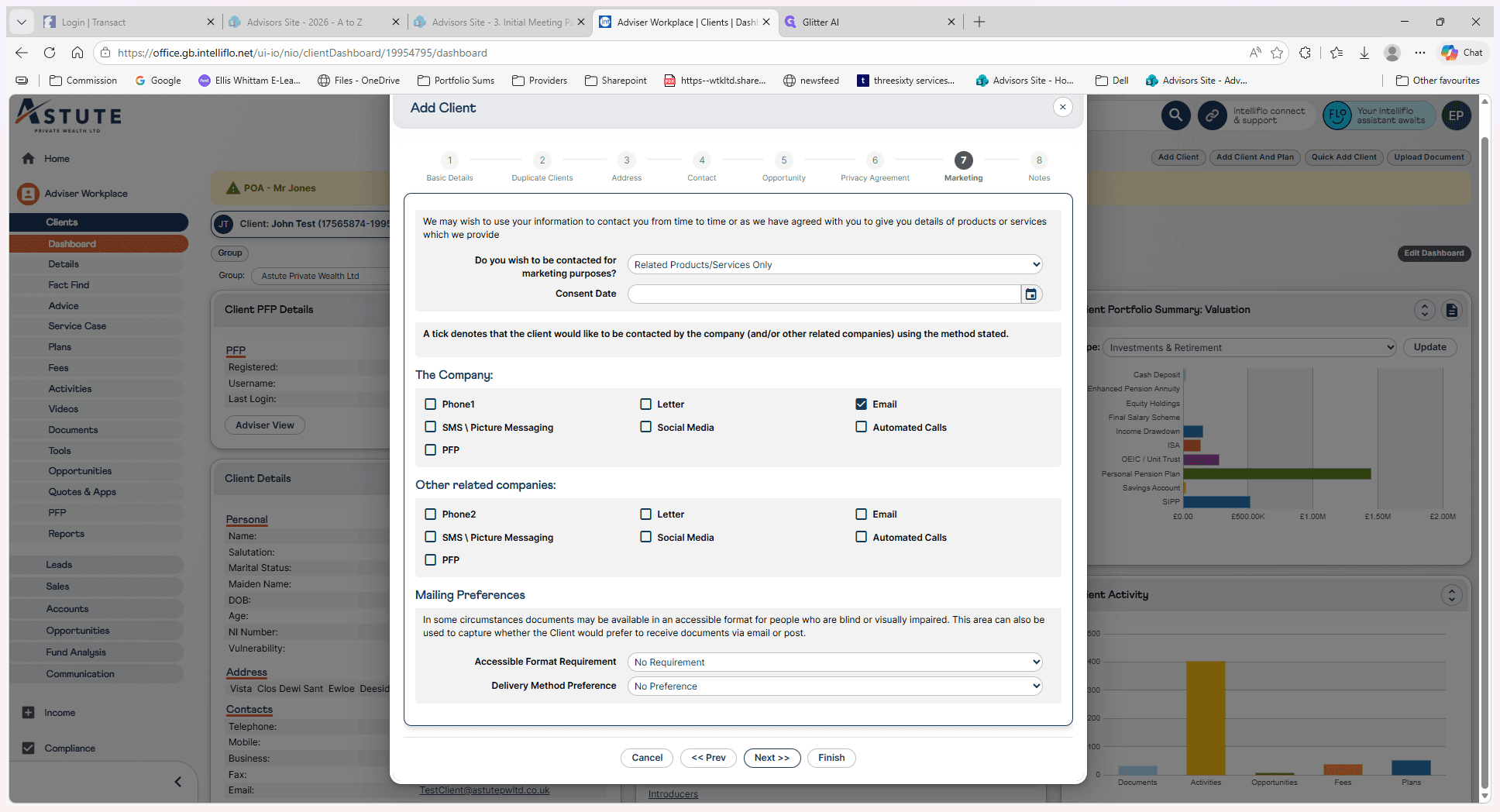
Configure the client's contact consent settings and mailing preferences.
Step #15: Configure the client's contact consent settings and mailing preferences.
16
Click >> to move to the final notes step.
Step #16: Click >> to move to the final notes step.

Phase 6: Finalization

17
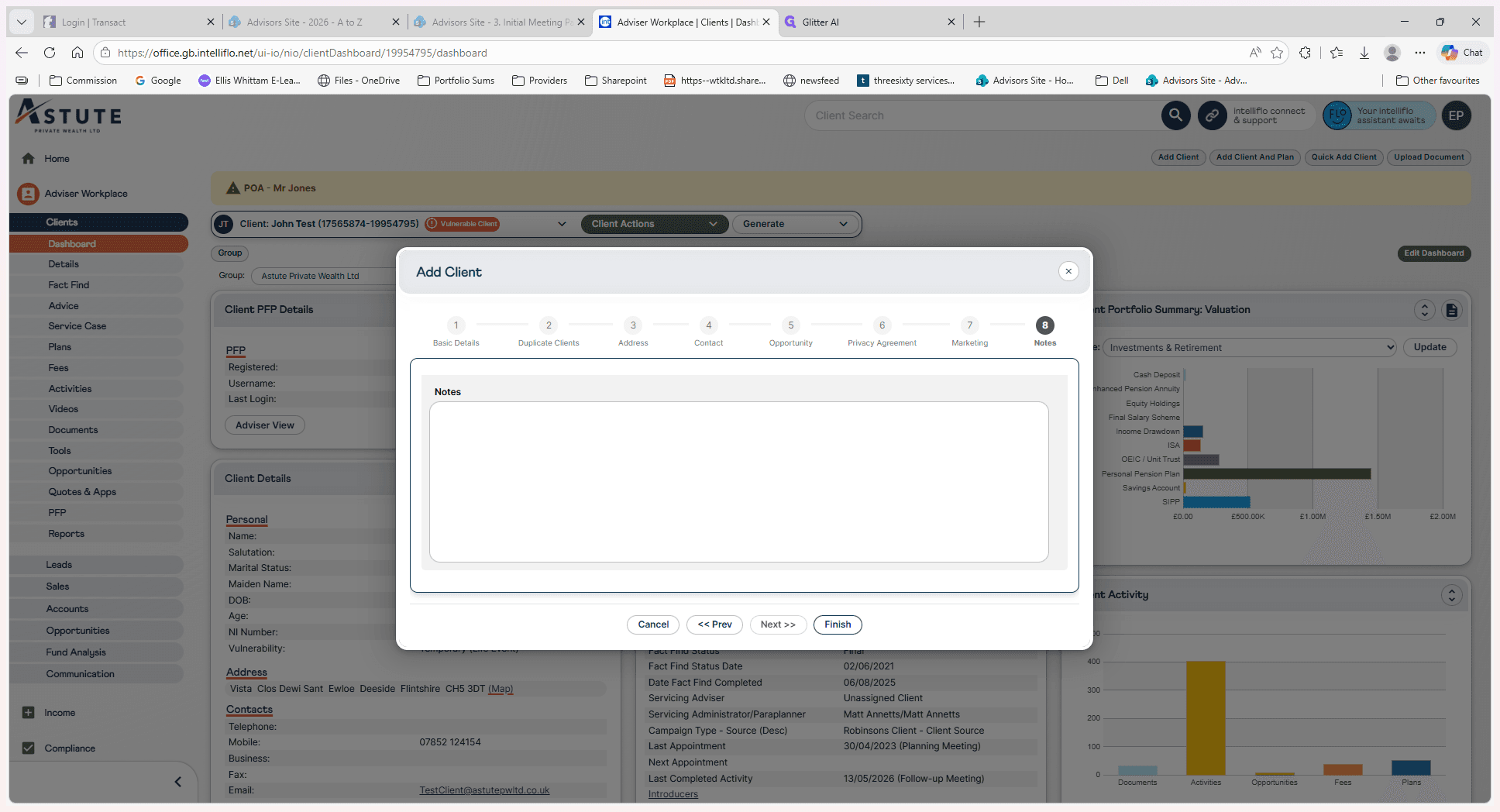
Add any final information in the Notes field and click Finish to save the new client record.
Step #17: Add any final information in the Notes field and click Finish to save the new client record.

Q: Can I add a couple at the same time?

A: Yes. Check the "Joint Client" box during the first step of the wizard to onboard both individuals simultaneously.

Q: Do I need to manually type the client's full address?

A: No, you can use the "Get Address" feature by entering the client's postcode to automatically populate the residential address fields.

Q: What if the client is referred by another existing client?

A: In the Contact and Campaign step, you can track this by selecting "Client referral" from the Campaign Source dropdown menu.

Term

Definition

First Life

The primary individual in a client record, often used in contrast to a secondary joint client (Second Life).

National Insurance (NI) Number

A unique identifier used in the UK for social security and tax purposes.

Active Adviser

The specific financial advisor assigned to manage and take responsibility for the client's account.

GDPR

General Data Protection Regulation, a legal framework setting guidelines for the collection and processing of personal information.