Icon

How to Manually Add a New Employee

Learn how to manually create a new staff profile in the Sentient platform to ensure proper compliance and workflow enrollment.

By Simon Hoyle

This guide explains how to manually create a new employee profile in the Sentient platform to ensure they receive their welcome emails and are accurately enrolled in compliance workflows.

This process is intended for HR administrators and managers who need to onboard staff manually before an automated HR management system (like HiBob) API feed is fully established.

Access the Staff Directory
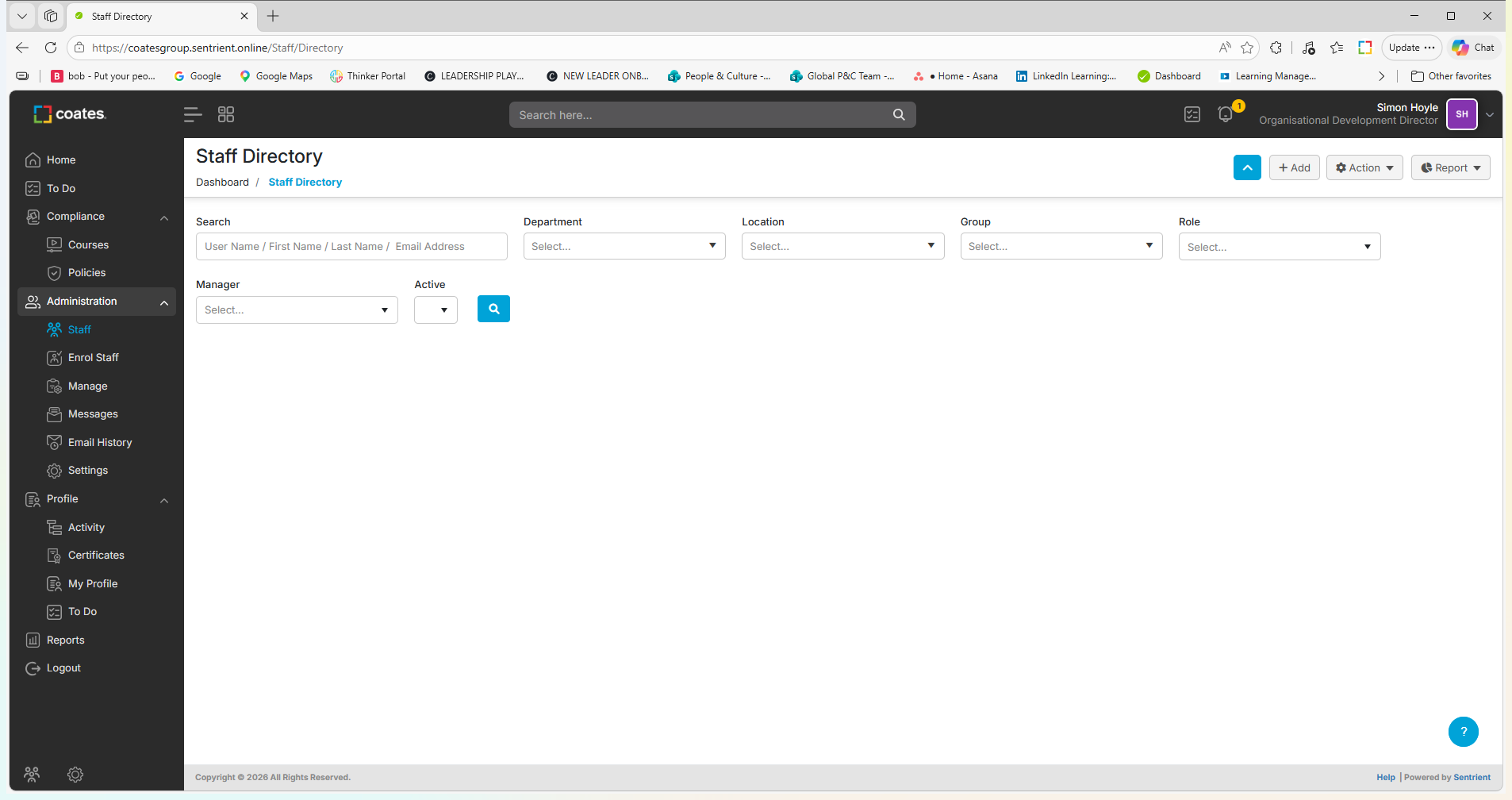
1
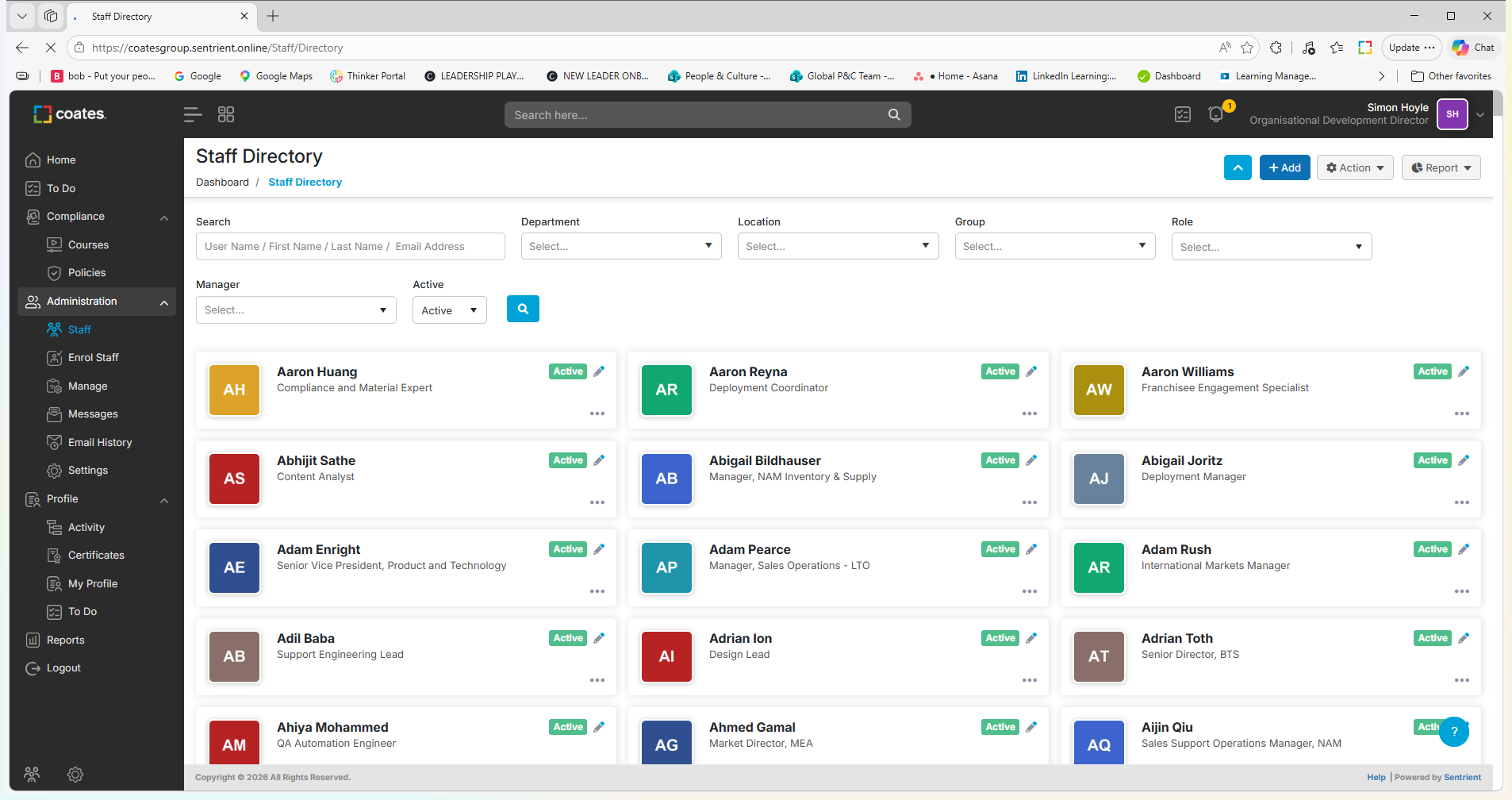
Under the Administration menu, click Staff.
Step #1: Under the Administration menu, click Staff.
2
Click + Add in the top right to create a new staff member profile.
Step #2: Click + Add in the top right to create a new staff member profile.

Enter Essential Details

3
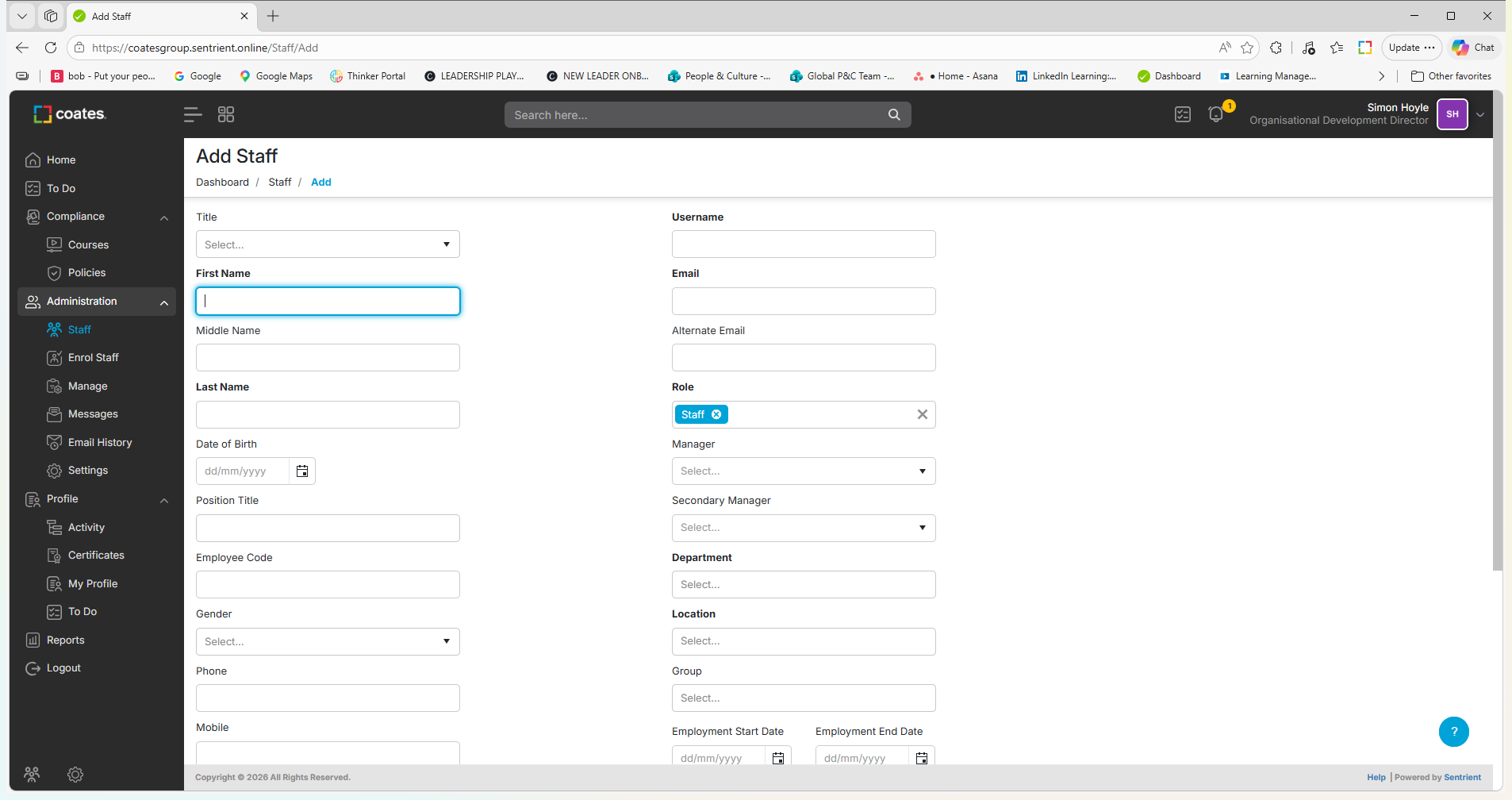
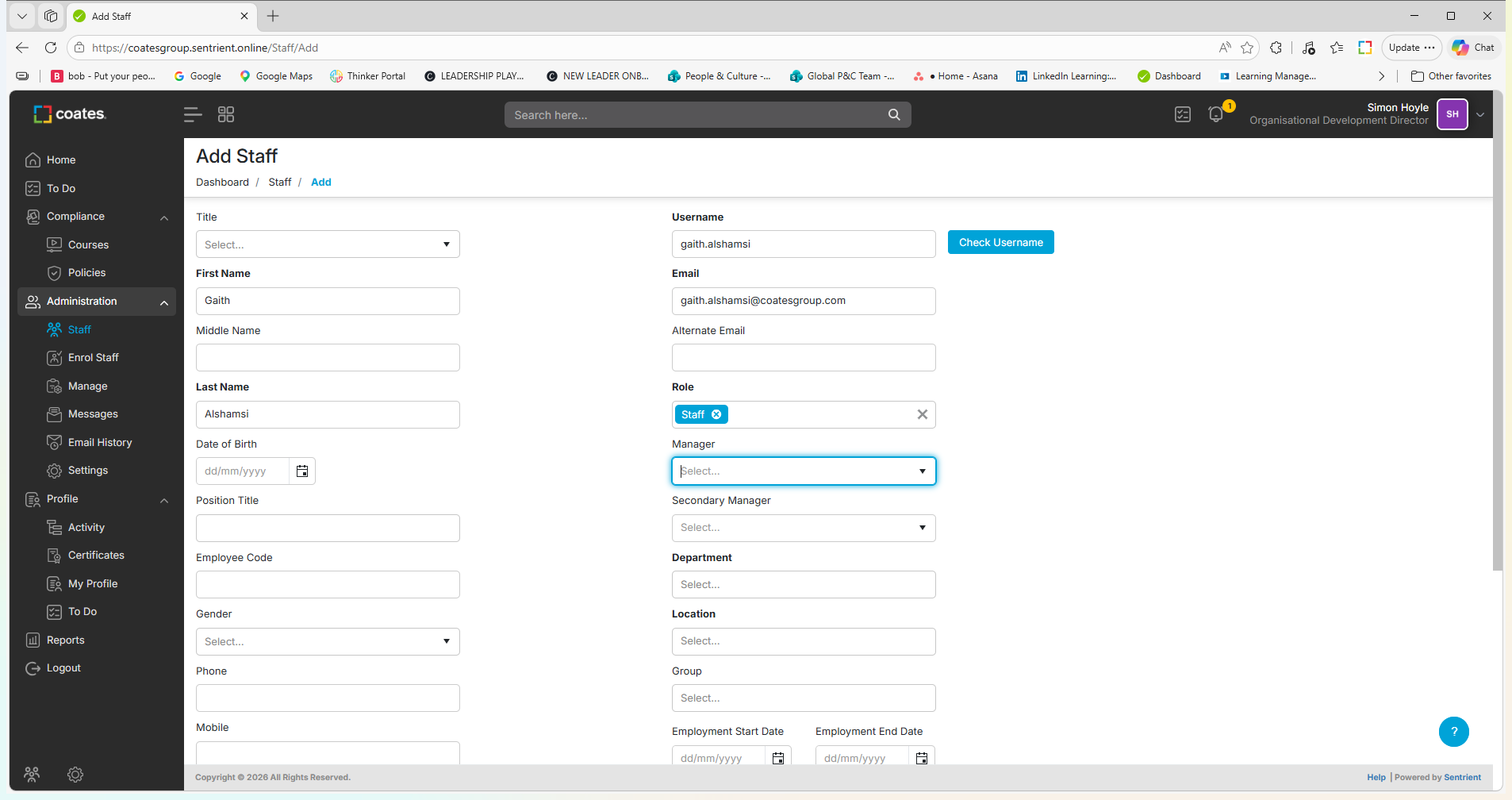
Enter the employee's First Name and Last Name into the provided fields.
Step #3: Enter the employee's First Name and Last Name into the provided fields.
4
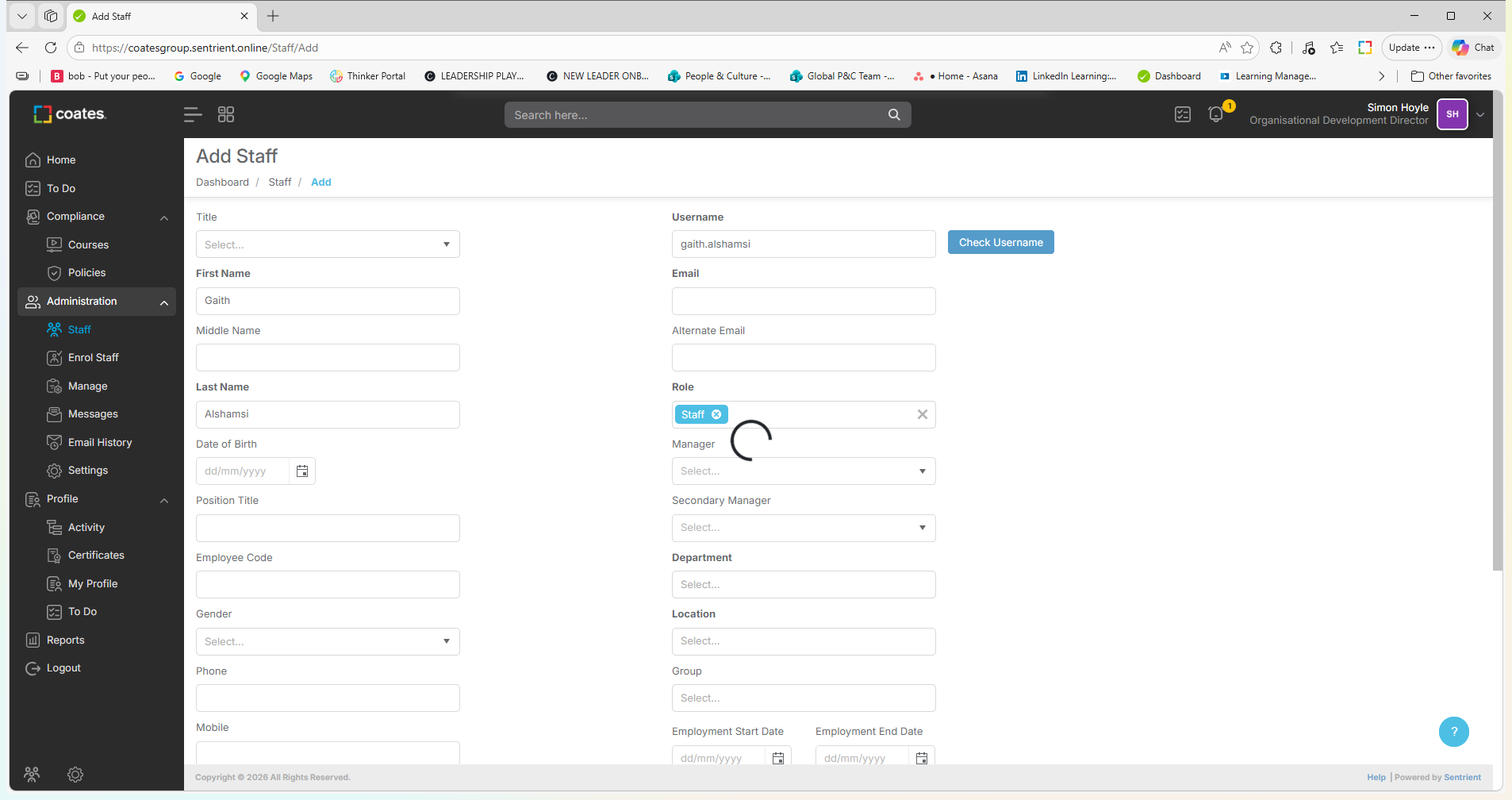
The system automatically generates a username based on the entered name. Click Check Username to verify that it is not already taken by another employee.
Step #4: The system automatically generates a username based on the entered name. Click Check Username to verify that it is not already taken by another employee.
5
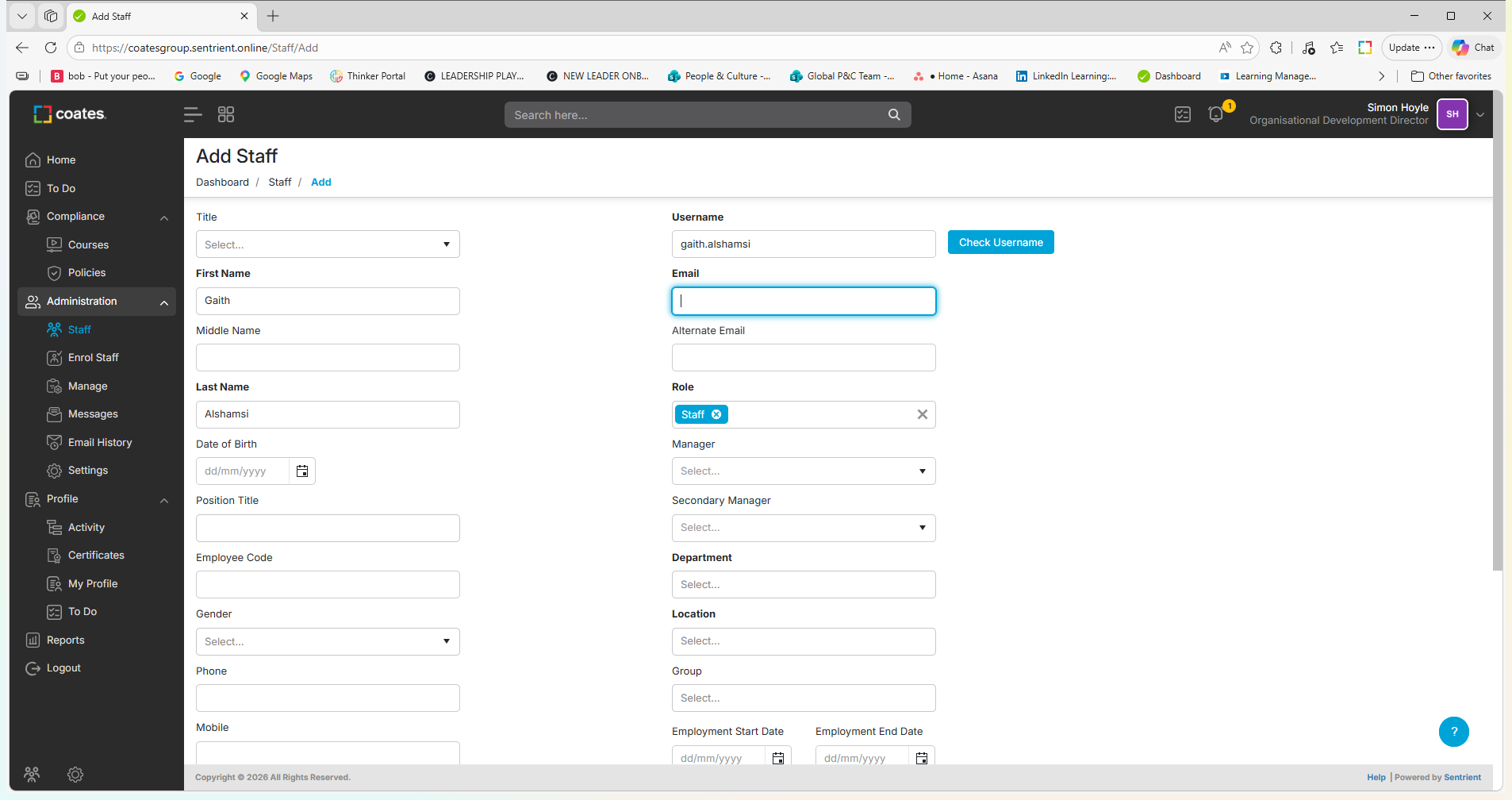
Enter the employee's Email address.
Step #5: Enter the employee's Email address.

Configure Organizational Details

6
Search for and select the employee's Manager.
Step #6: Search for and select the employee's Manager.
7
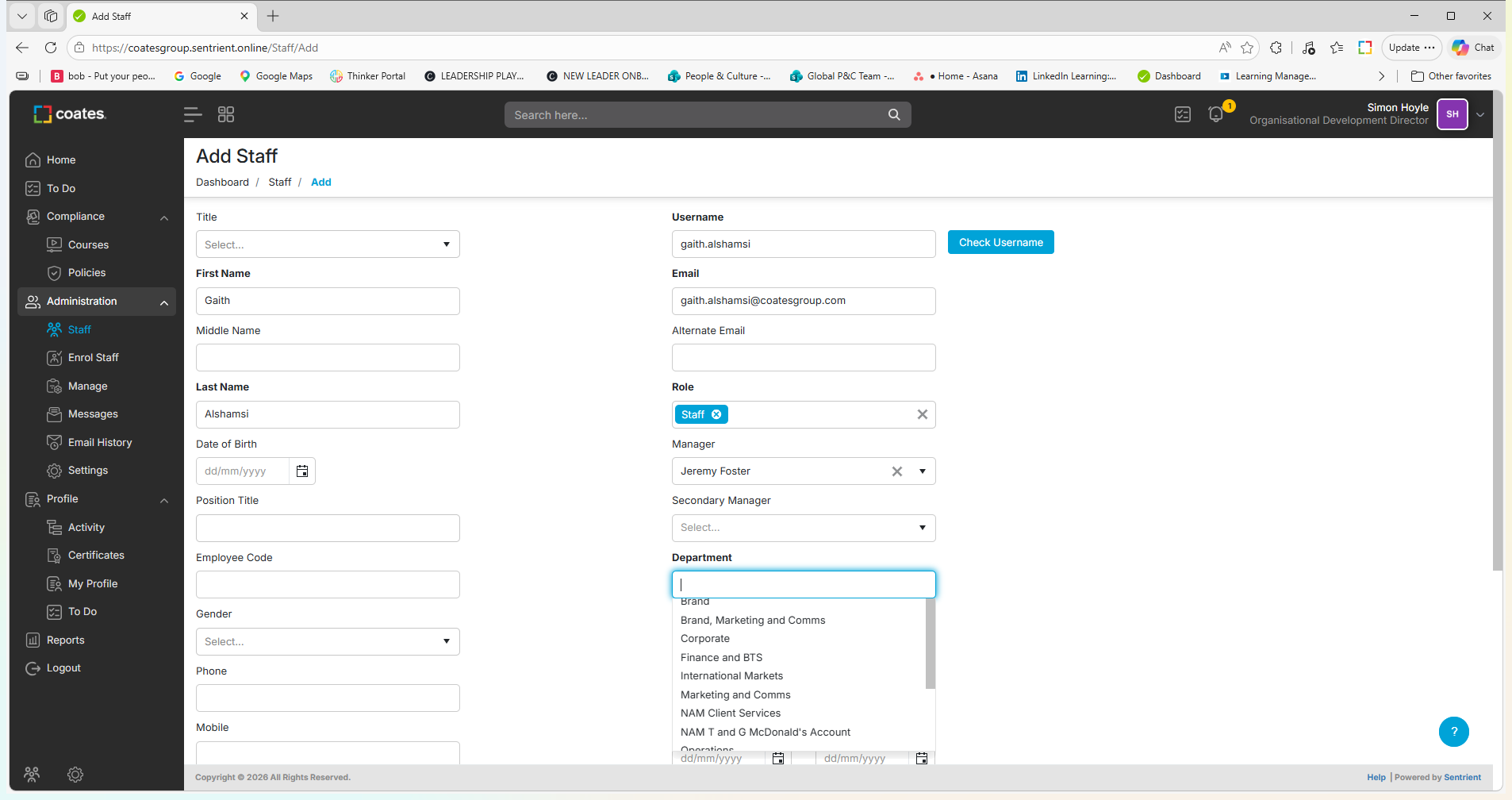
Select the Department (e.g., Strategy & Legal) to ensure department-specific workflows are routed correctly.
Step #7: Select the Department (e.g., Strategy & Legal) to ensure department-specific workflows are routed correctly.
8
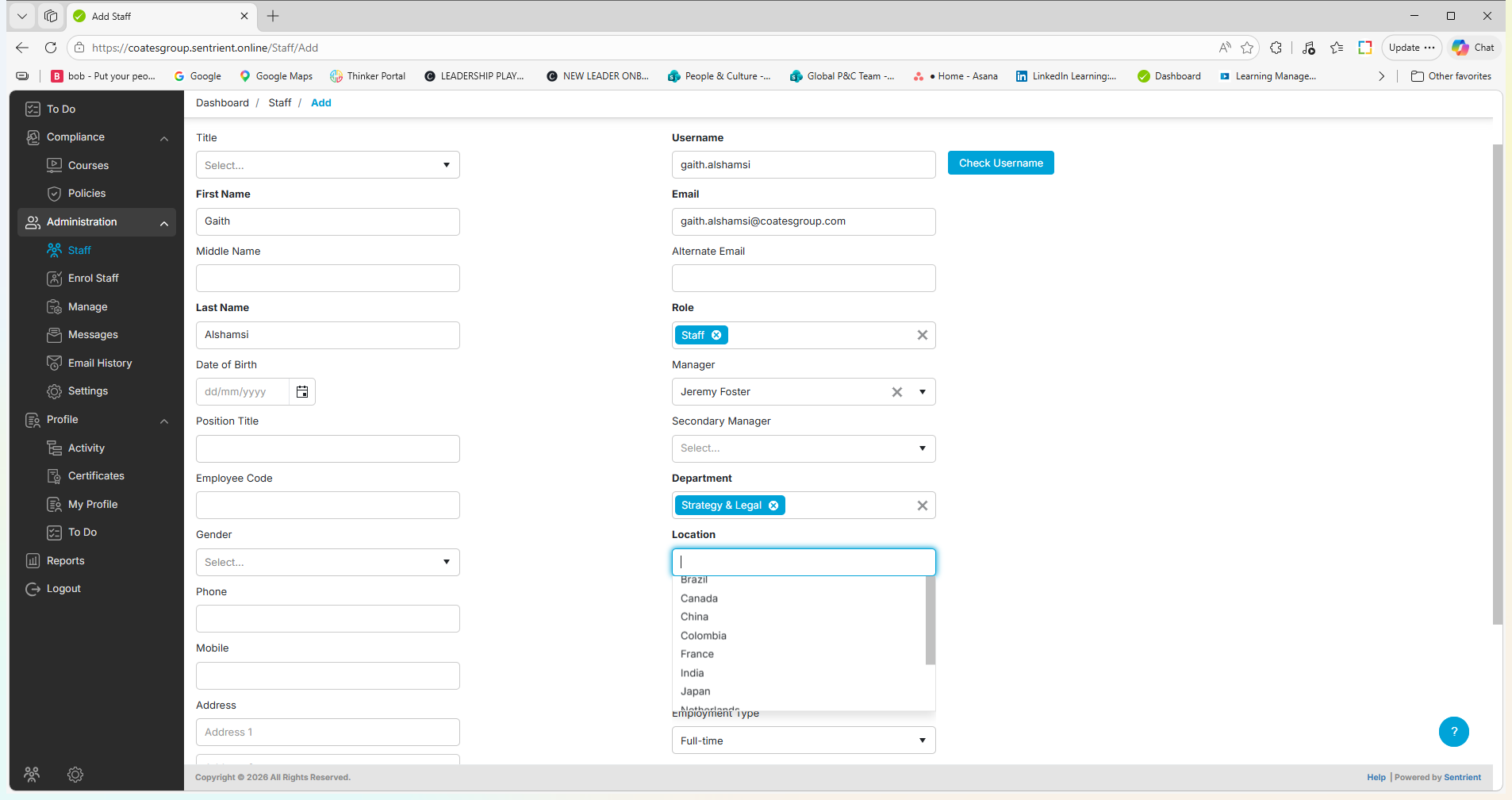
Select the employee's Location (e.g., Australia). Many compliance policies and workflows depend on this designation.
Step #8: Select the employee's Location (e.g., Australia). Many compliance policies and workflows depend on this designation.

Configure Employment Details

9
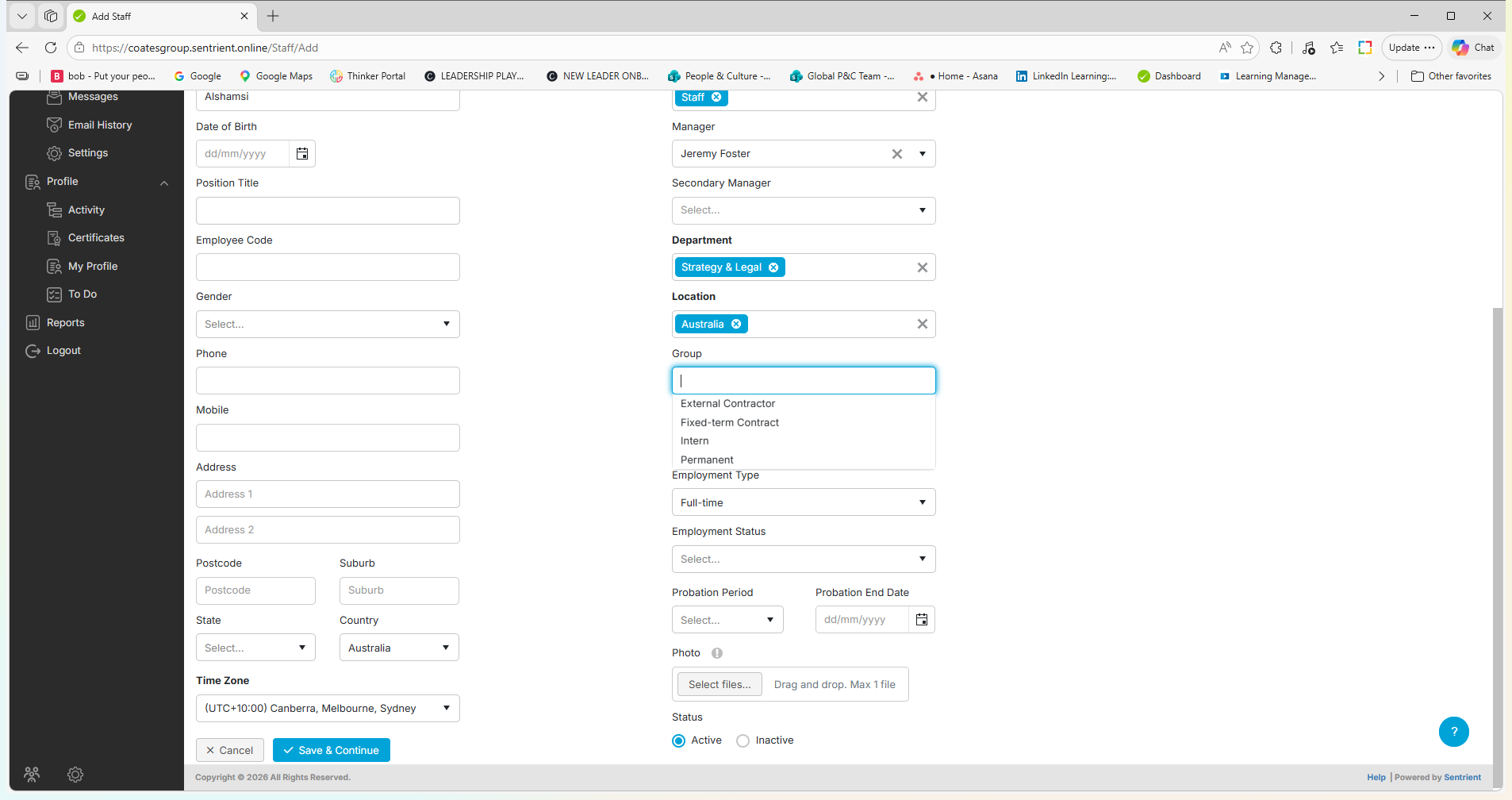
Select the Group to define the employment category (e.g., Permanent).
Step #9: Select the Group to define the employment category (e.g., Permanent).
10
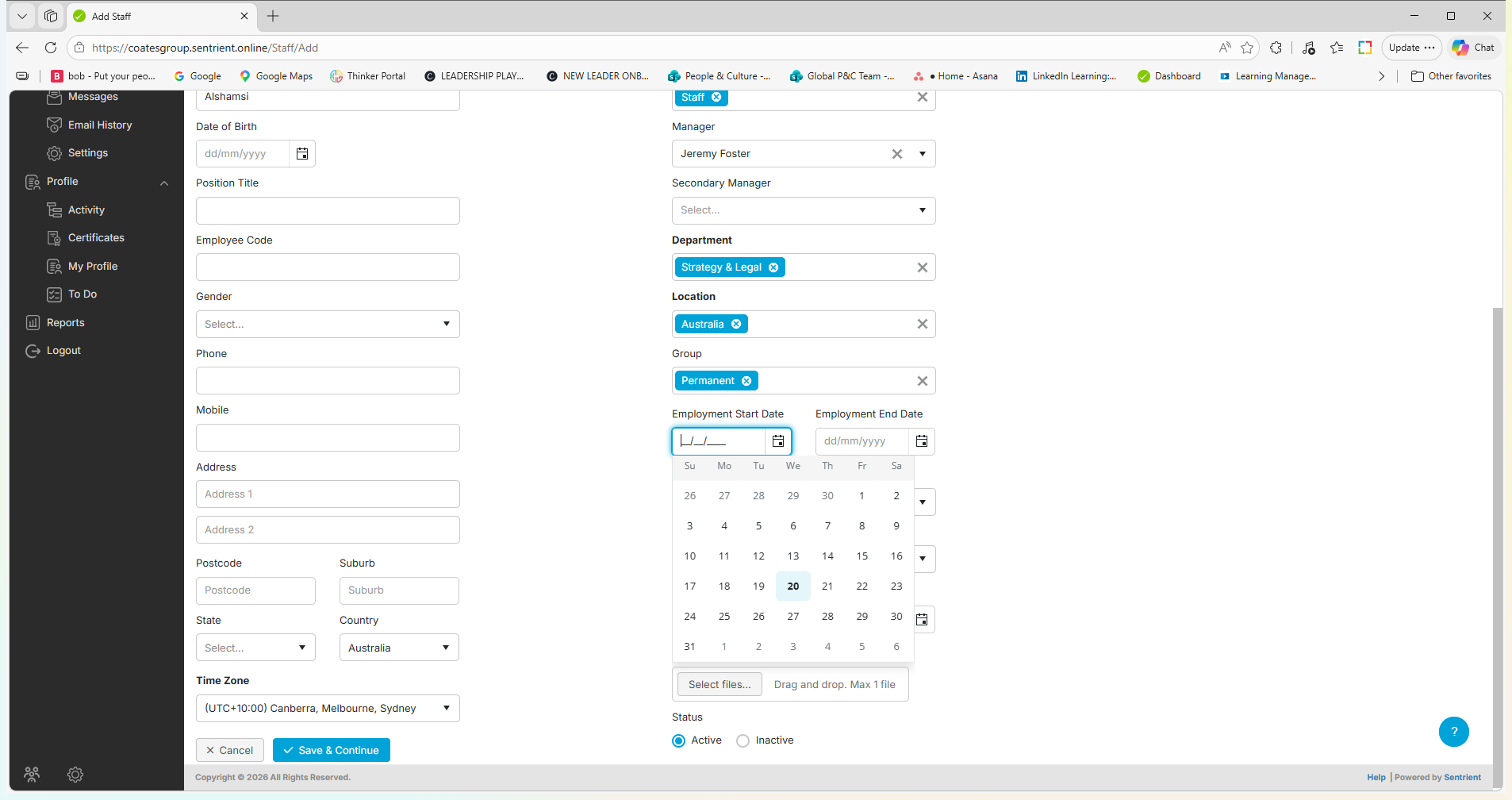
Set the Employment Start Date using the calendar picker. Time-based workflows trigger automatically based on this date.
Step #10: Set the Employment Start Date using the calendar picker. Time-based workflows trigger automatically based on this date.
11
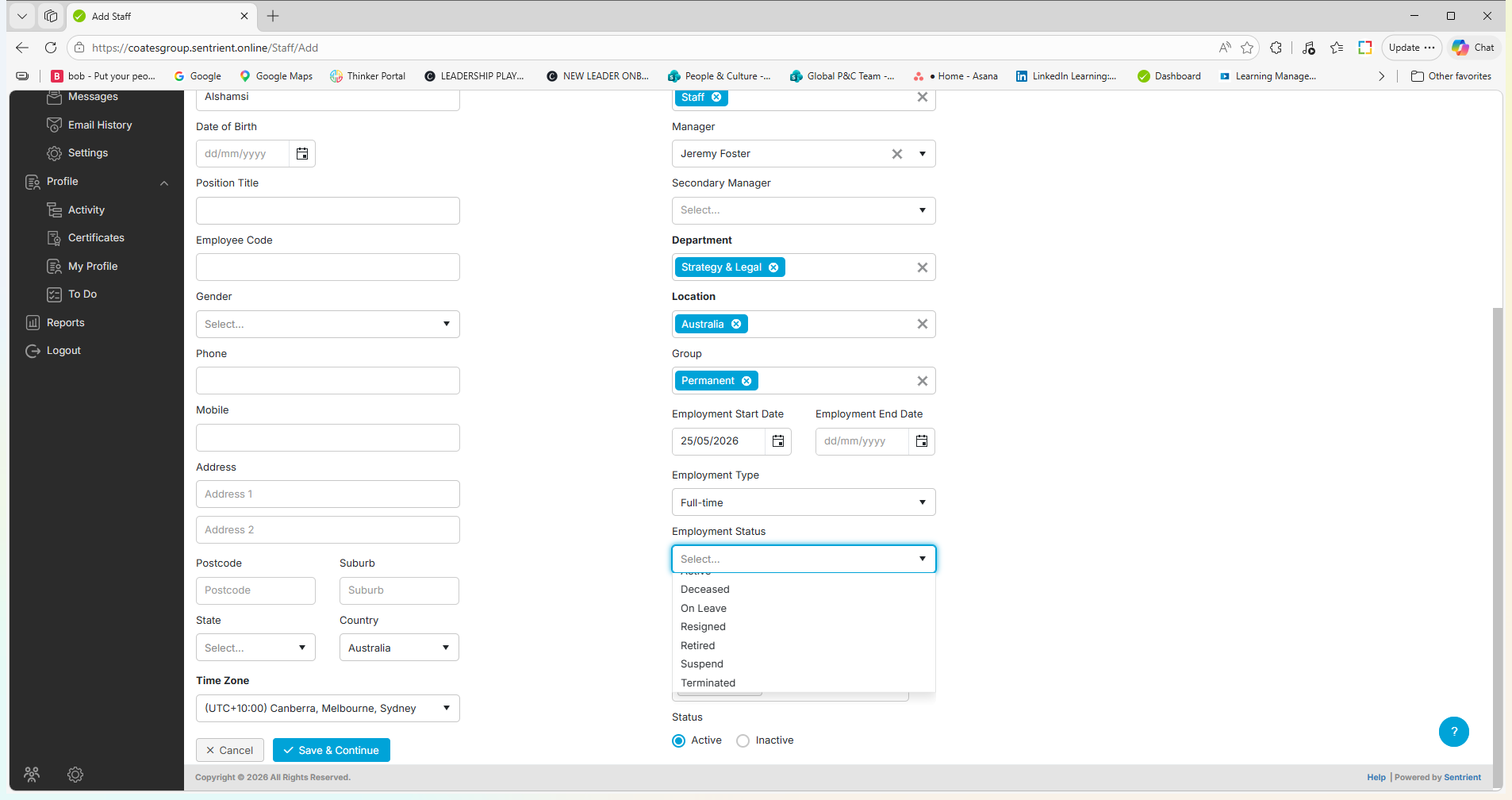
Select the Employment Type (e.g., Full-time).
Step #11: Select the Employment Type (e.g., Full-time).

Finalize and Save

12
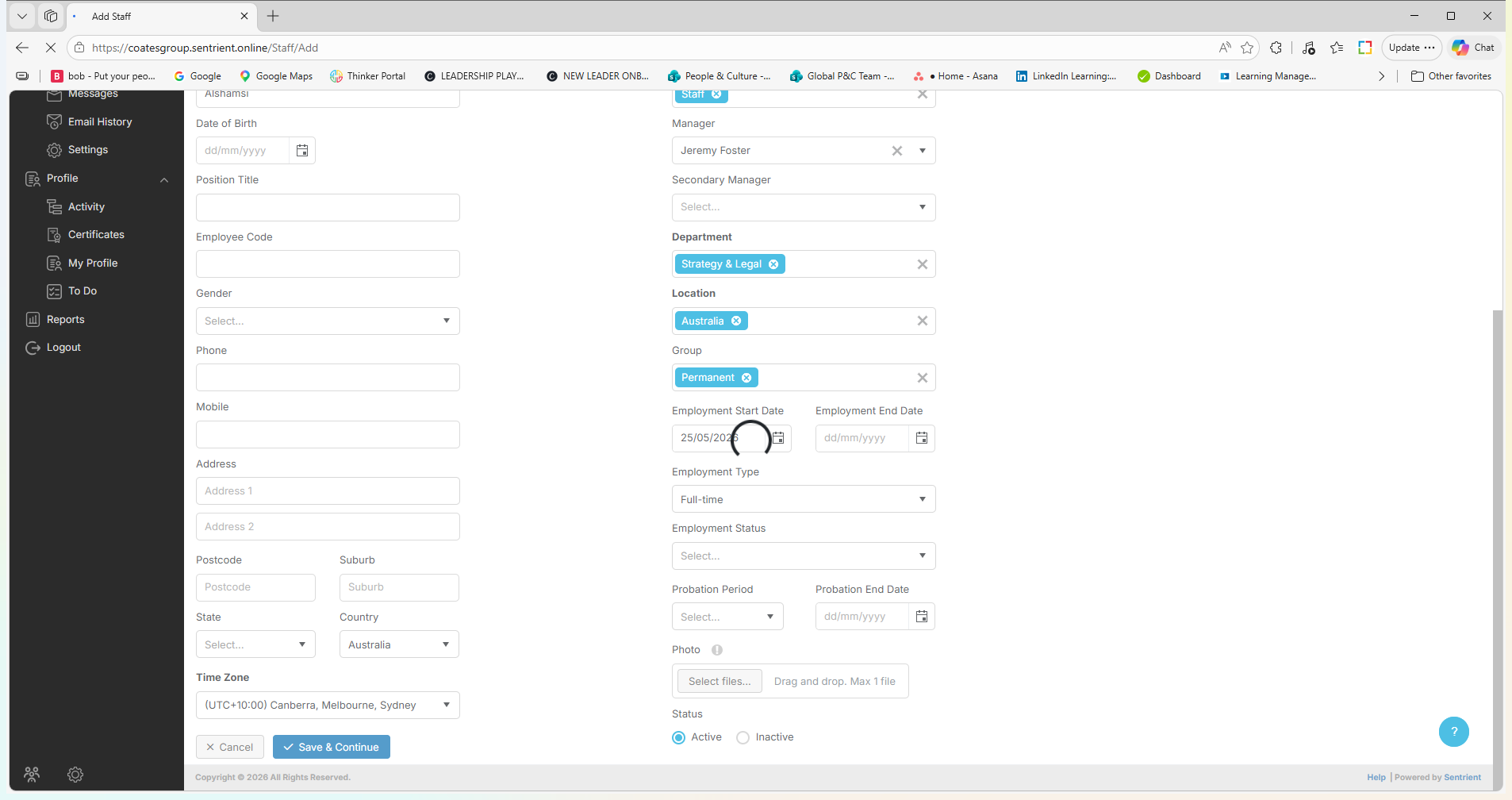
Click Save & Continue at the bottom of the form.
Step #12: Click Save & Continue at the bottom of the form.
13
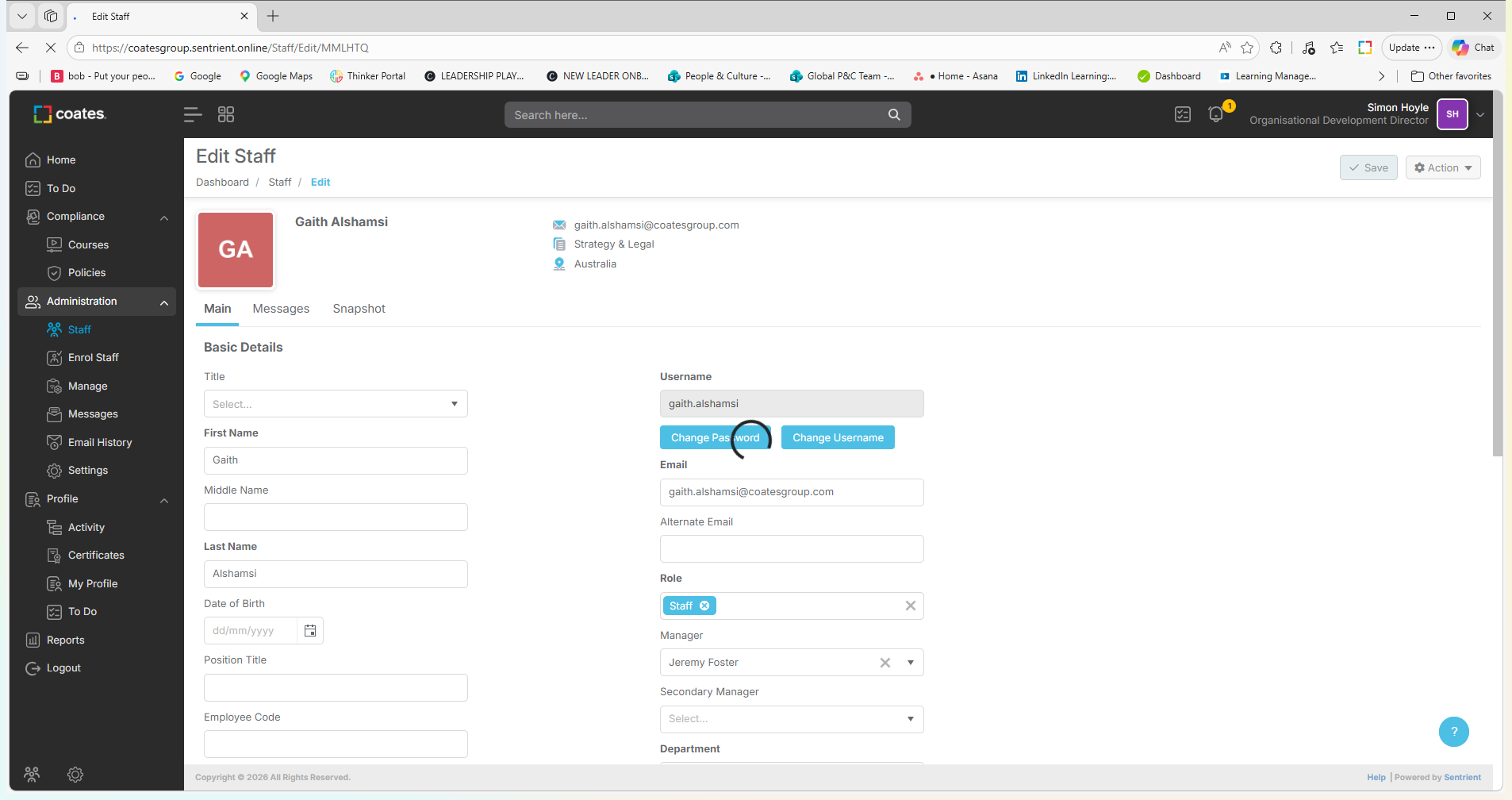
Scroll back to the top of the page and click Save to officially add the employee to the platform.
Step #13: Scroll back to the top of the page and click Save to officially add the employee to the platform.

FAQ

Q: Do I need to manually create a username?

A: No, the system automatically generates the username based on the entered first and last name. You can use the "Check Username" button to verify it isn't already taken.

Q: When will the new employee receive onboarding emails?

A: They will receive a welcome email immediately upon profile creation notifying them they are part of the platform. However, specific compliance workflows will not trigger until their entered start date (or a set number of days after, depending on the workflow settings).

Q: Should I change the Role field?

A: No, unless the person is an Administrator or an HR team member, you should leave their role set to "Staff".

How to Manually Add a New Employee