
How to Add a New Lead in Guestbook 2.0
Learn how to create and configure a new lead in Guestbook 2.0, including setting up client details, project scope, and opportunity probability.
This guide demonstrates how to add and configure a new lead in Guestbook 2.0. By completing this process, you will successfully capture a new client opportunity and organize it within your sales pipeline.
This workflow is designed for sales representatives and account managers. Use these steps whenever you need to log an initial call, prospect, or incoming project inquiry into the CRM.
To get started, open Guestbook 2.0 and navigate to your Pipeline.
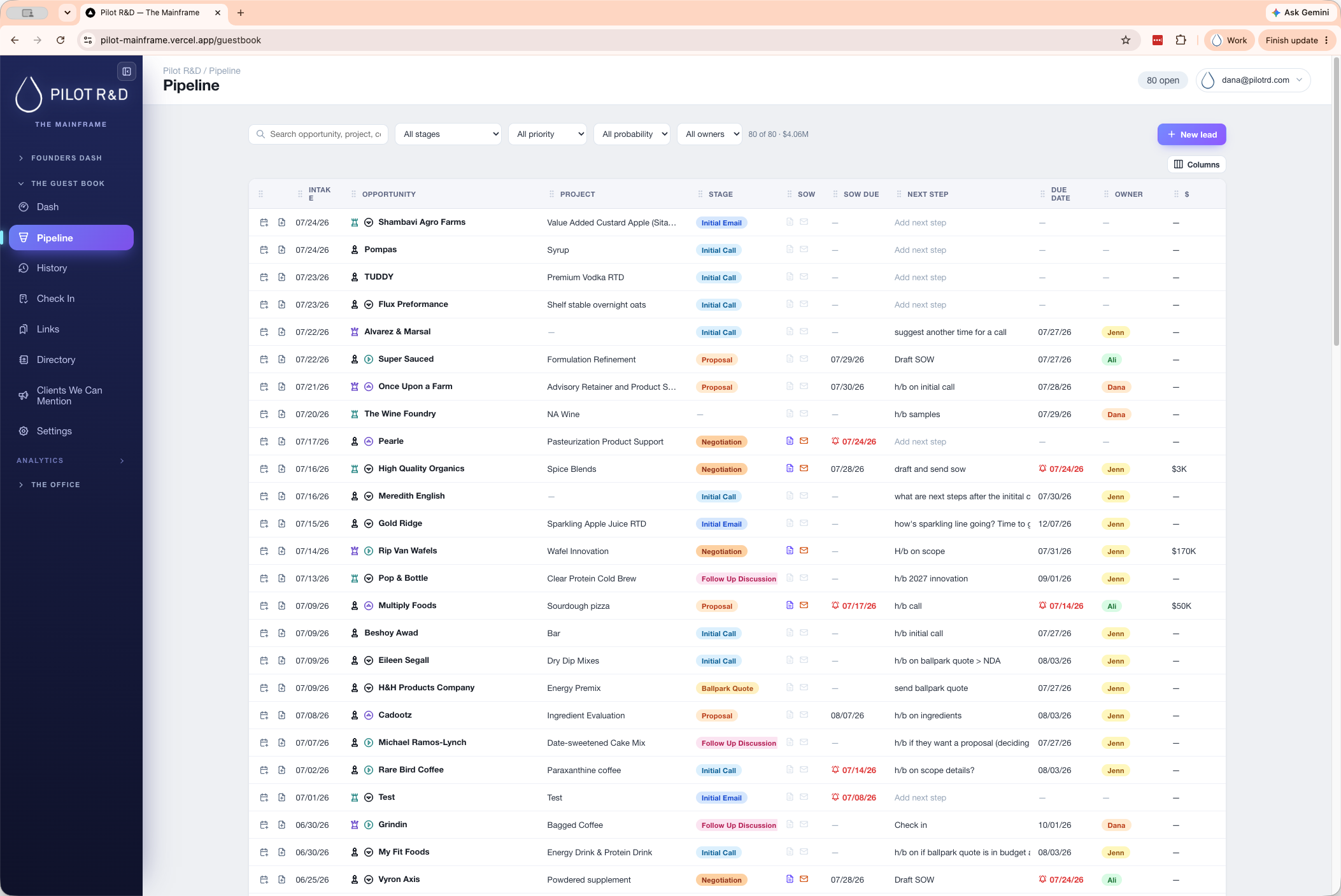
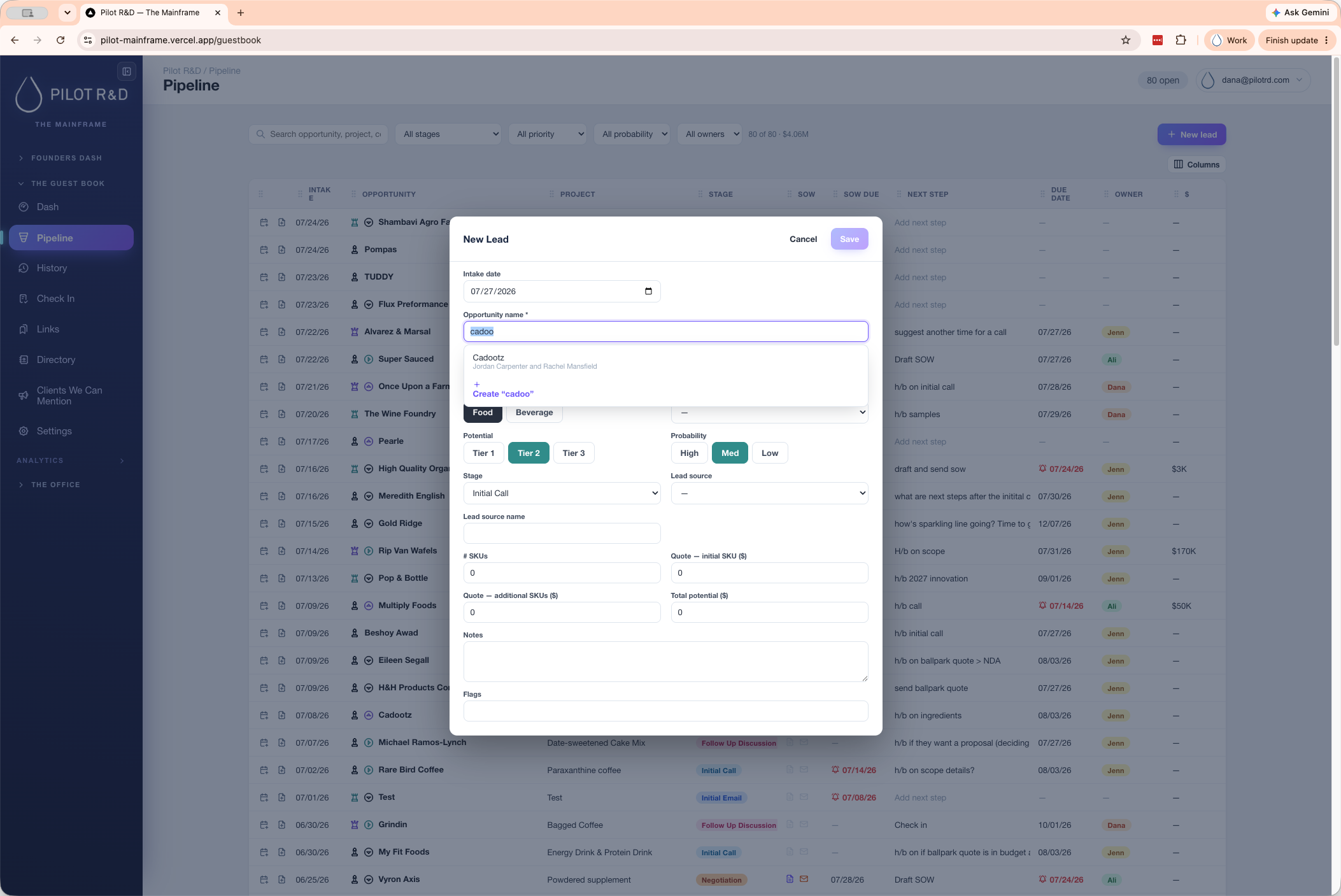
![Step #3: Click Create "[Your Client Name]" from the dropdown menu.](https://di8mn0rali2ic.cloudfront.net/uploads/fab7b027-c133-4be8-8f0e-c168f5e8c0eb/756b26eb-18fb-4822-aae5-c028734c4ebb.png)
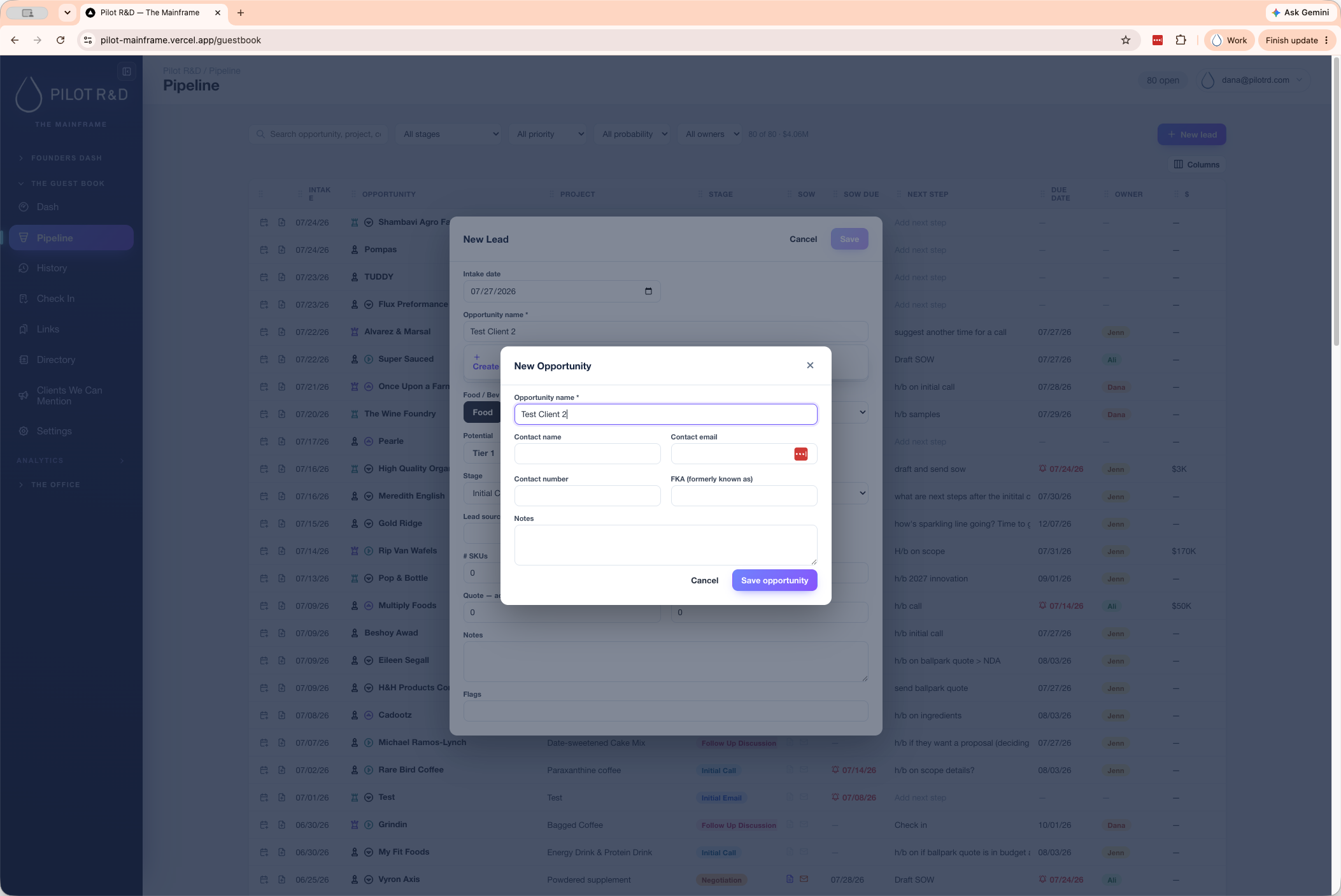
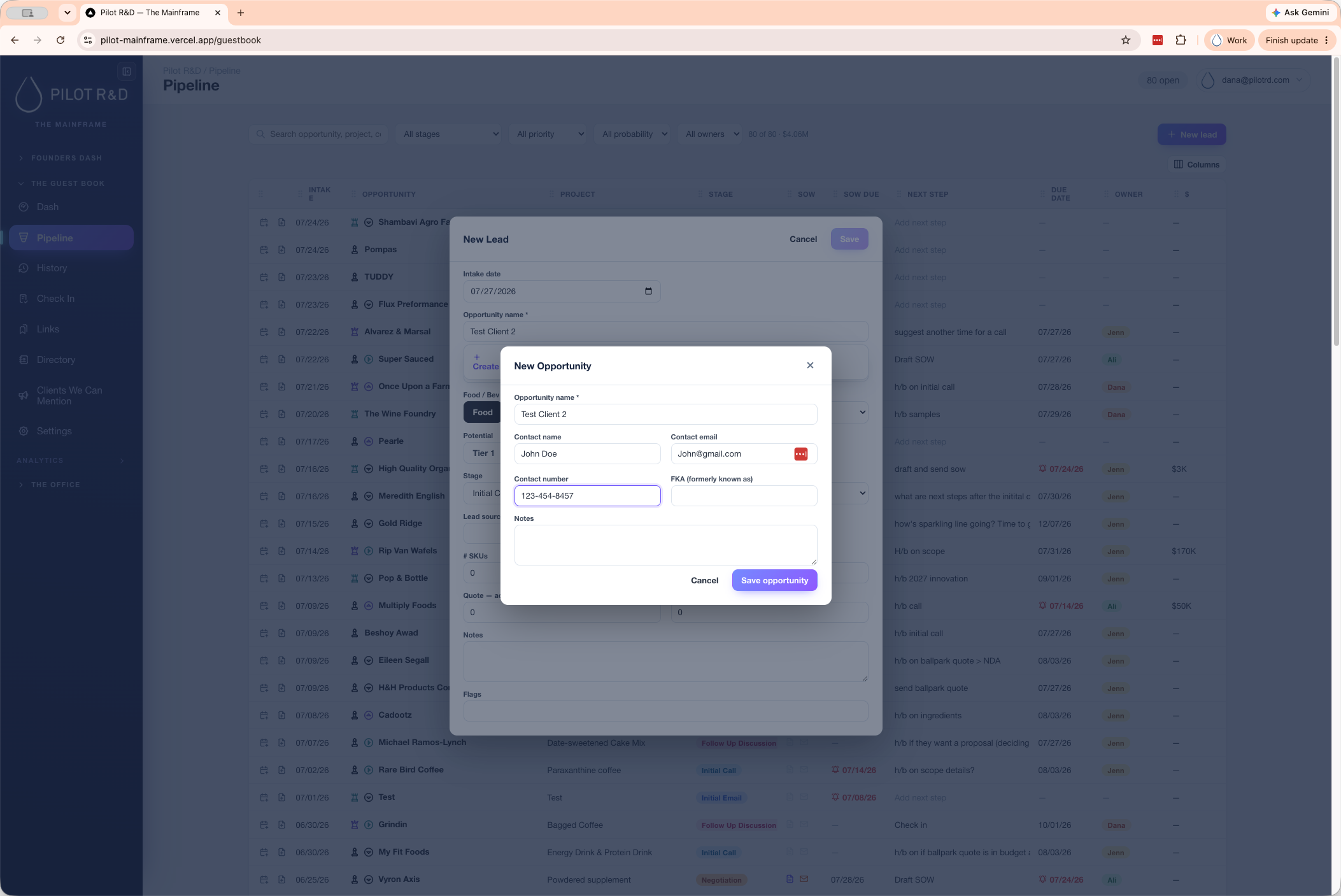
With the core opportunity created, you now need to categorize the lead.
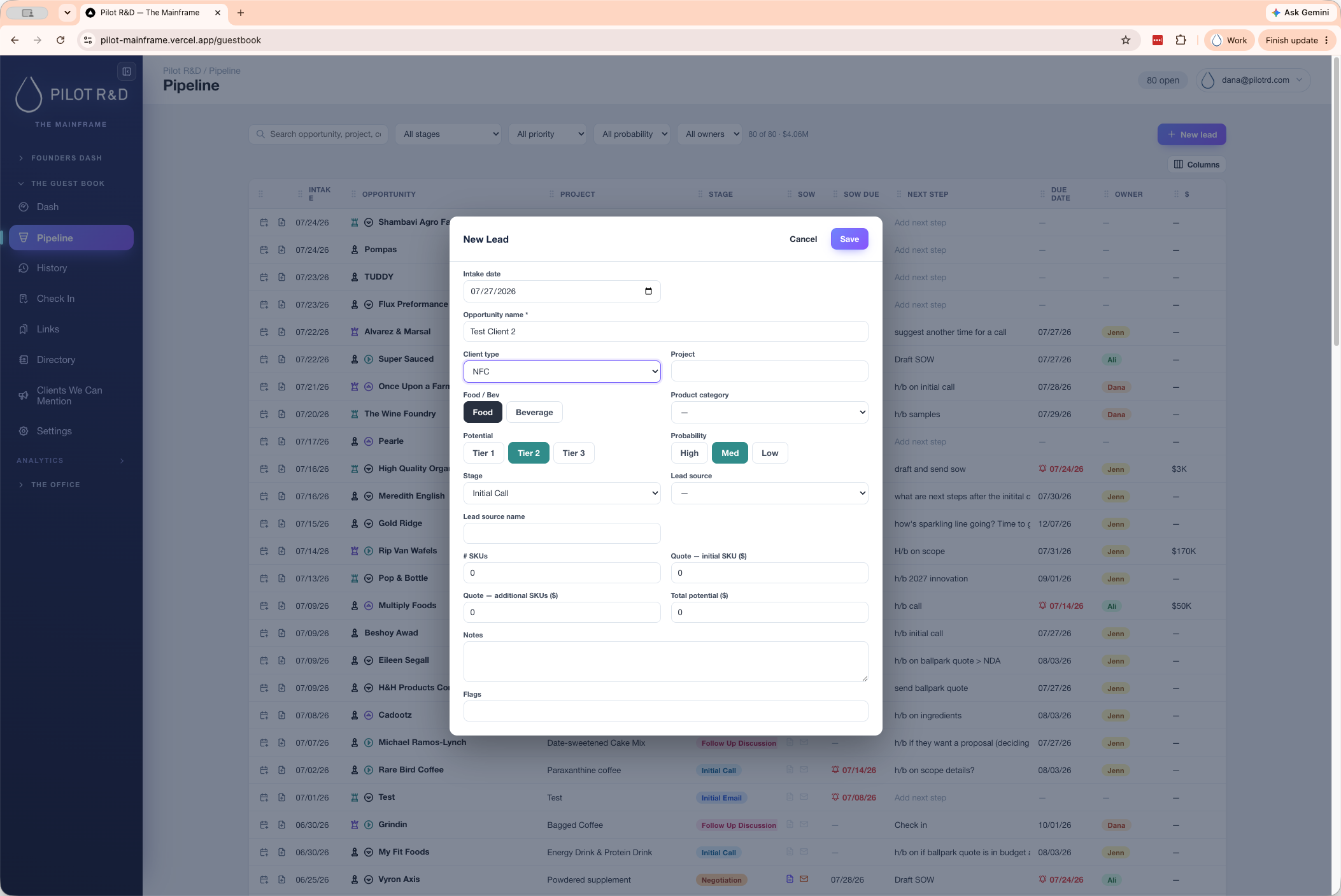
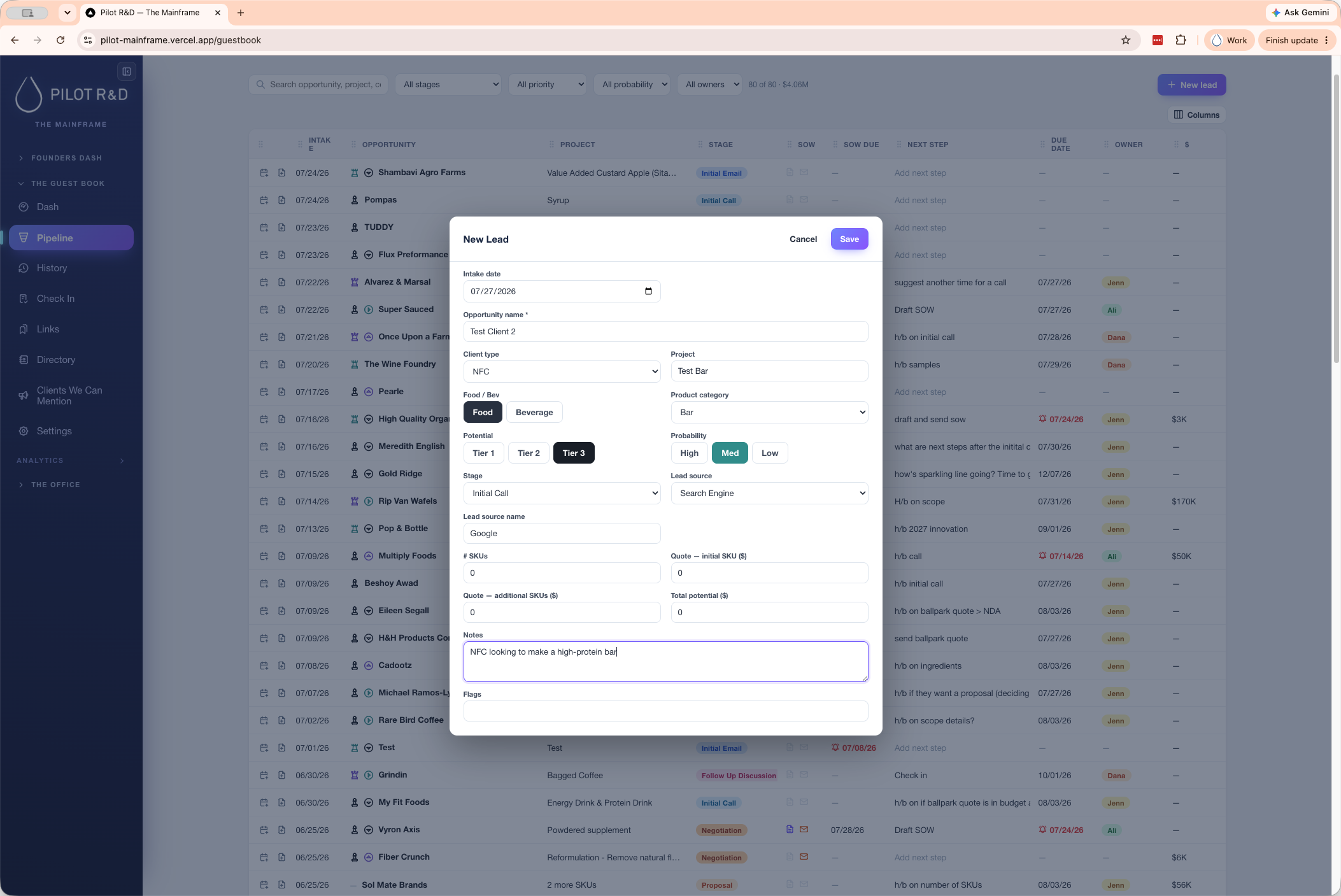
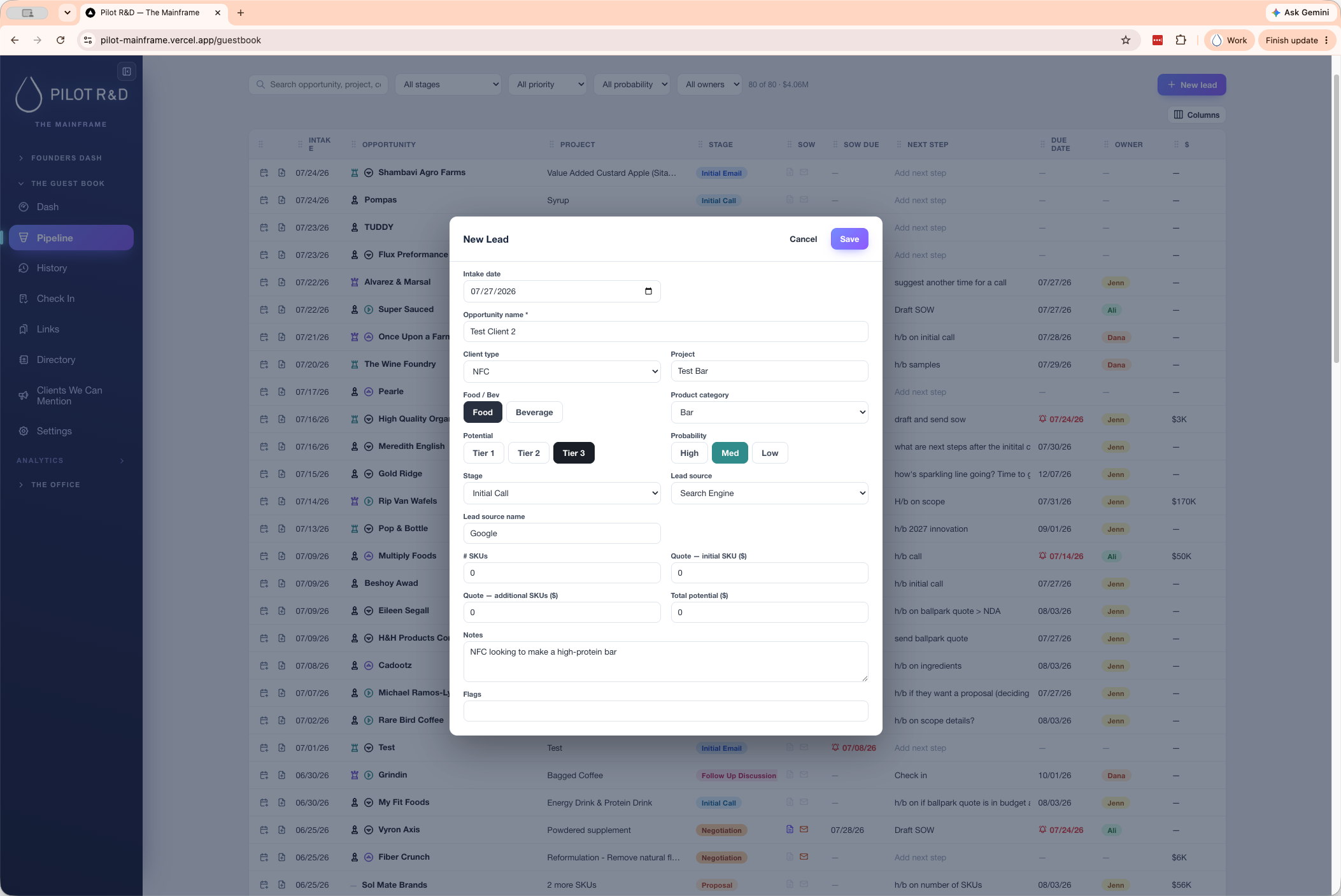
Use the following form fields to structure your opportunity data:
Field | Description |
|---|---|
Client type | The categorization of the business or prospect. |
Project | The specific name or scope of the incoming project. |
Product category | The overarching industry or product type (e.g., Food, Bar). |
Potential tier | The business value tier of the opportunity (e.g., Tier 3). |
Probability | The likelihood of successfully closing the deal (e.g., Medium). |
Stage | The current status of the pipeline relationship (e.g., Initial call). |
Lead source | Where the lead originated from (e.g., Search Engine, Google). |
Quote / SKUs | Pre-existing quote numbers or SKU counts. Leave blank if unknown. |
Q: What if I already have a quote or know the number of SKUs for a new lead?
A: You can enter the quote number or SKU count directly on the new lead form. If you do not have this information during the initial setup, simply leave those fields blank.
Q: How can I identify the tier of a lead directly from the pipeline view?
A: Visual indicators appear next to the lead in the table. For example, a pawn icon signifies a Tier 3 lead.
Q: What does the right-pointing arrow icon mean next to a lead?
A: The right-pointing arrow icon indicates that the lead currently has a medium probability of closing.
Term | Definition |
|---|---|
Pipeline | A visual tracking system within the CRM used to manage and monitor the progress of prospective client opportunities. |
SKU | Stock Keeping Unit, a scannable barcode or alphanumeric code used to track specific product variations. |
Opportunity | A qualified prospect or lead that is being actively tracked toward a potential sale or project. |