How to Add a New Pet to an Existing Client in Vet Visor
Learn how to register a new pet for an existing client in Vet Visor, including entering species, breed, and birth details to keep records updated.
By Rogin Roi Reillo
This guide explains how to register a new pet under an existing client in the Vet Visor platform. Completing this ensures the patient's medical records and intake details are correctly associated with their owner's account.
This workflow is intended for veterinary receptionists and technicians during the intake process when a returning client brings in a new animal.
Follow these steps from the main Clients management dashboard to add a new patient to an existing client:
1
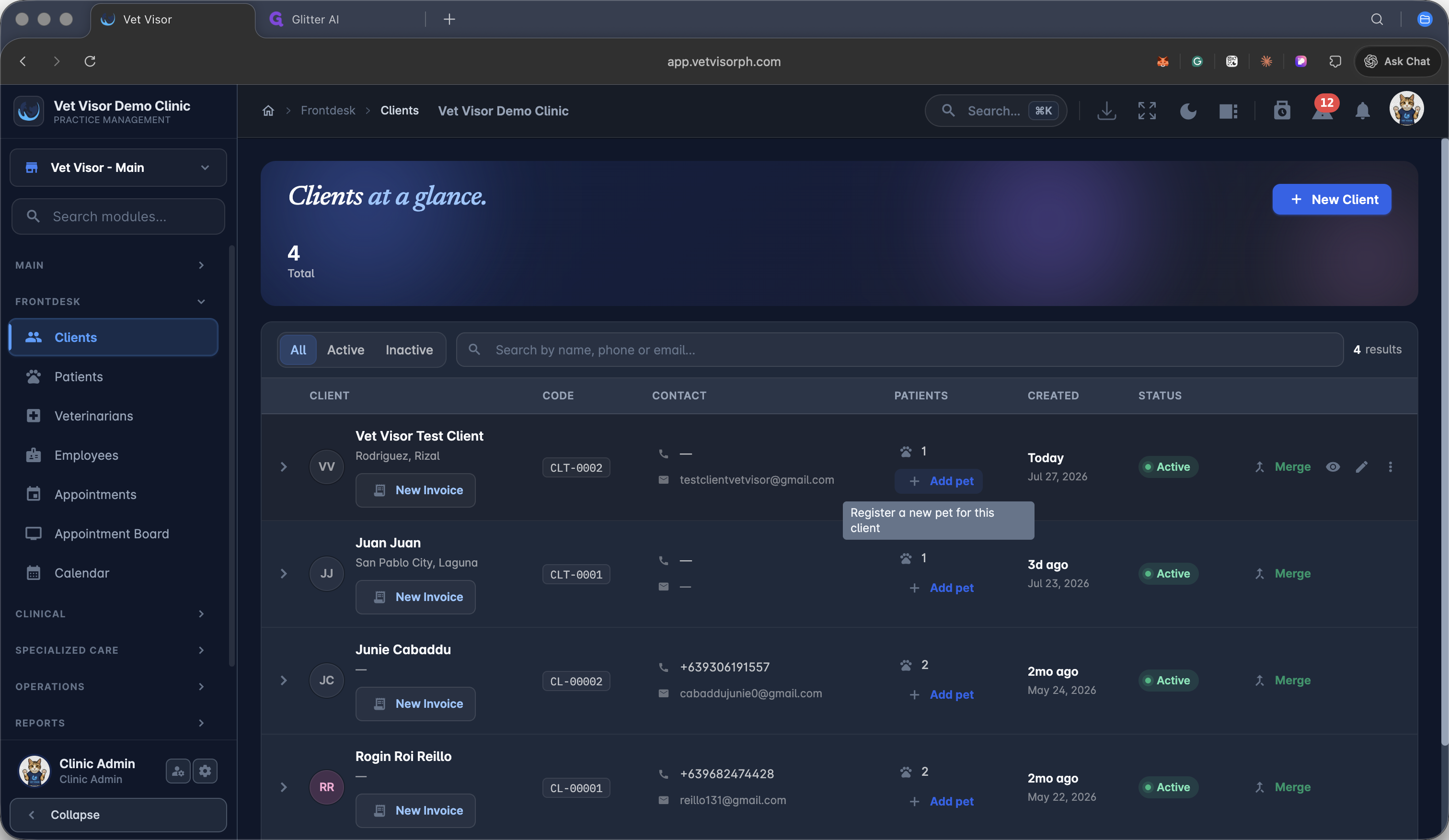
Click + Add pet next to the specific client's name to open the registration panel.
2
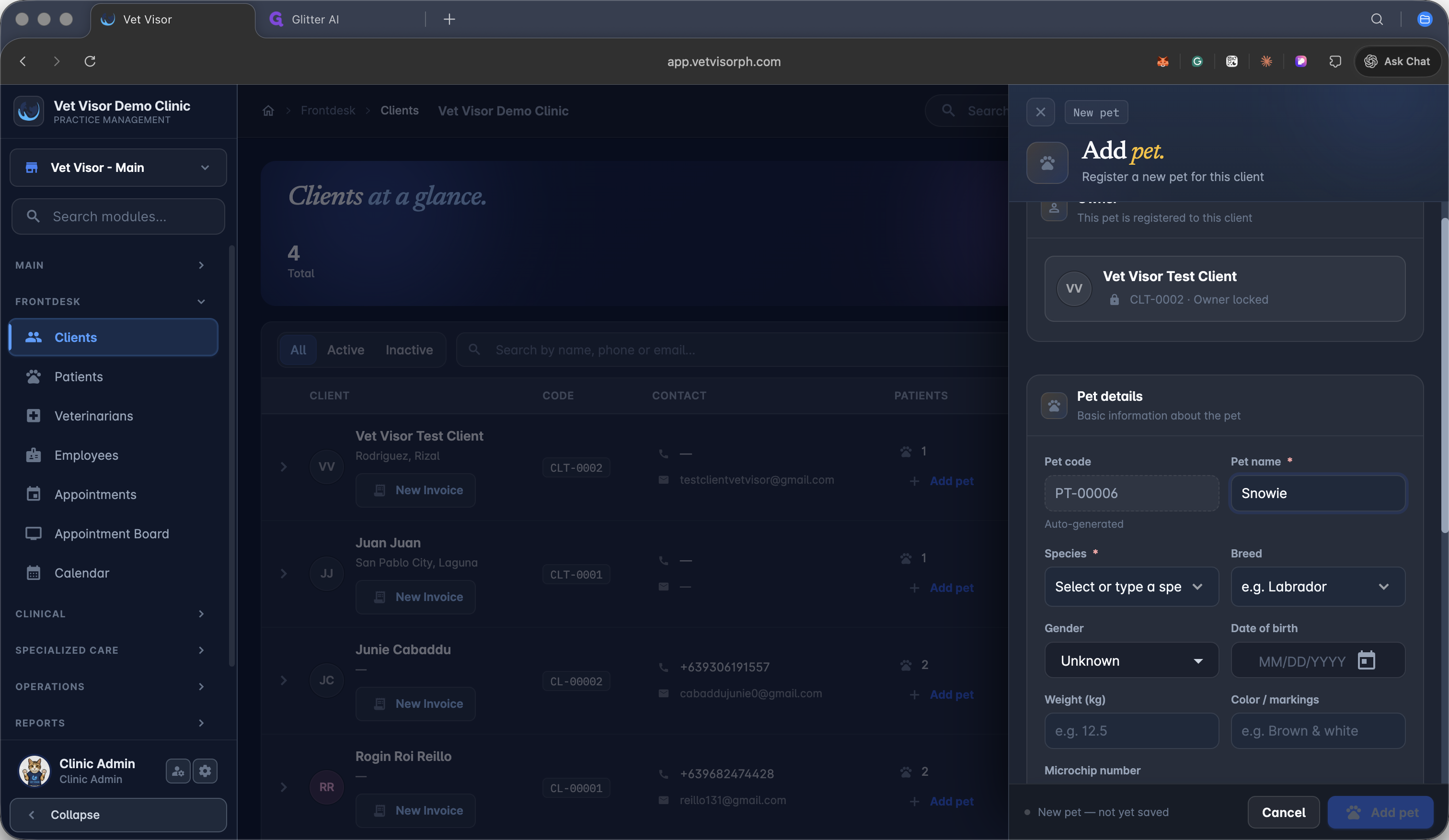
Type the animal's name in the Pet name field.
3
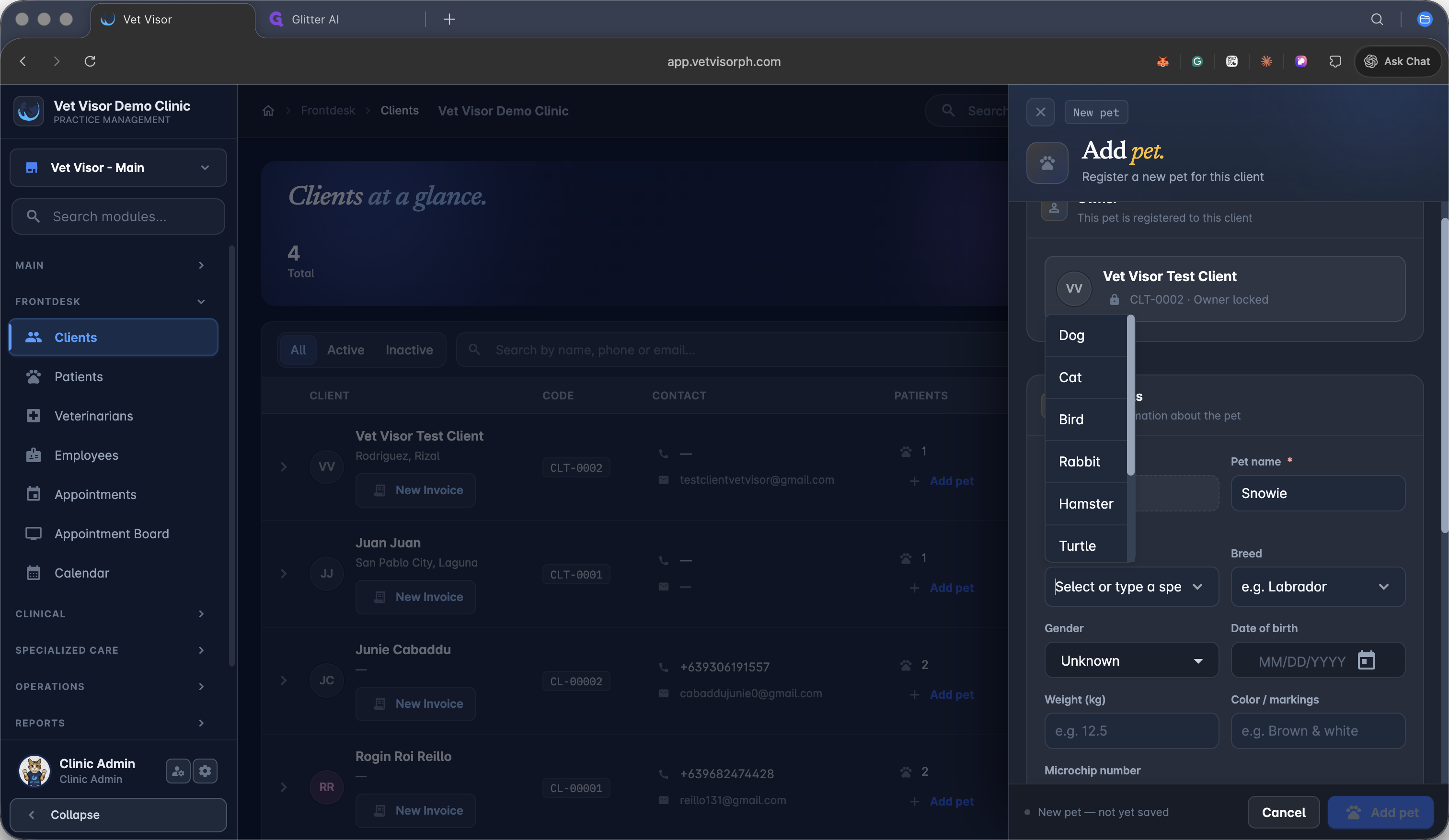
Open the species dropdown menu and select the correct species.
4
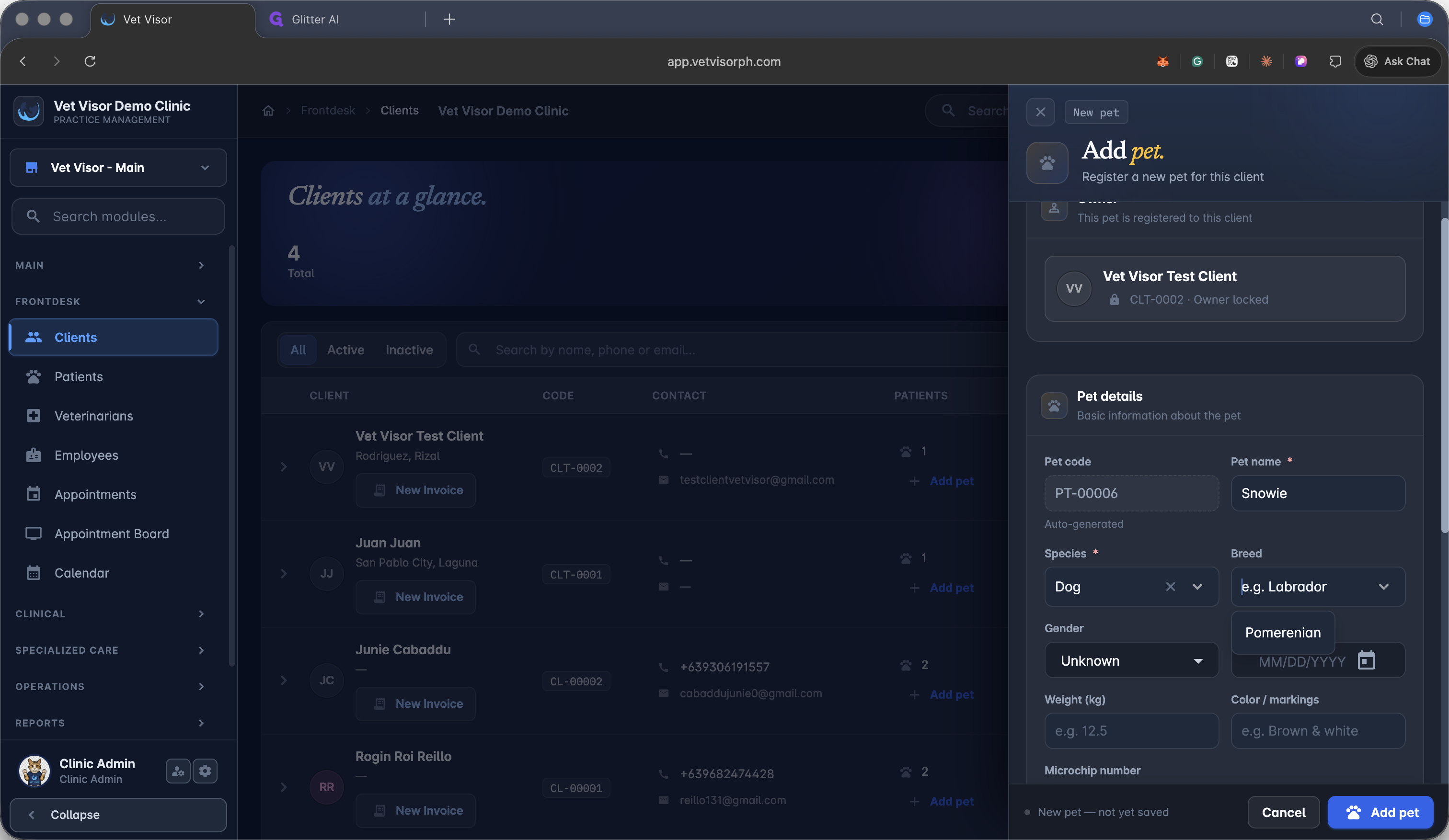
Select or type the breed into the breed selection field.
5
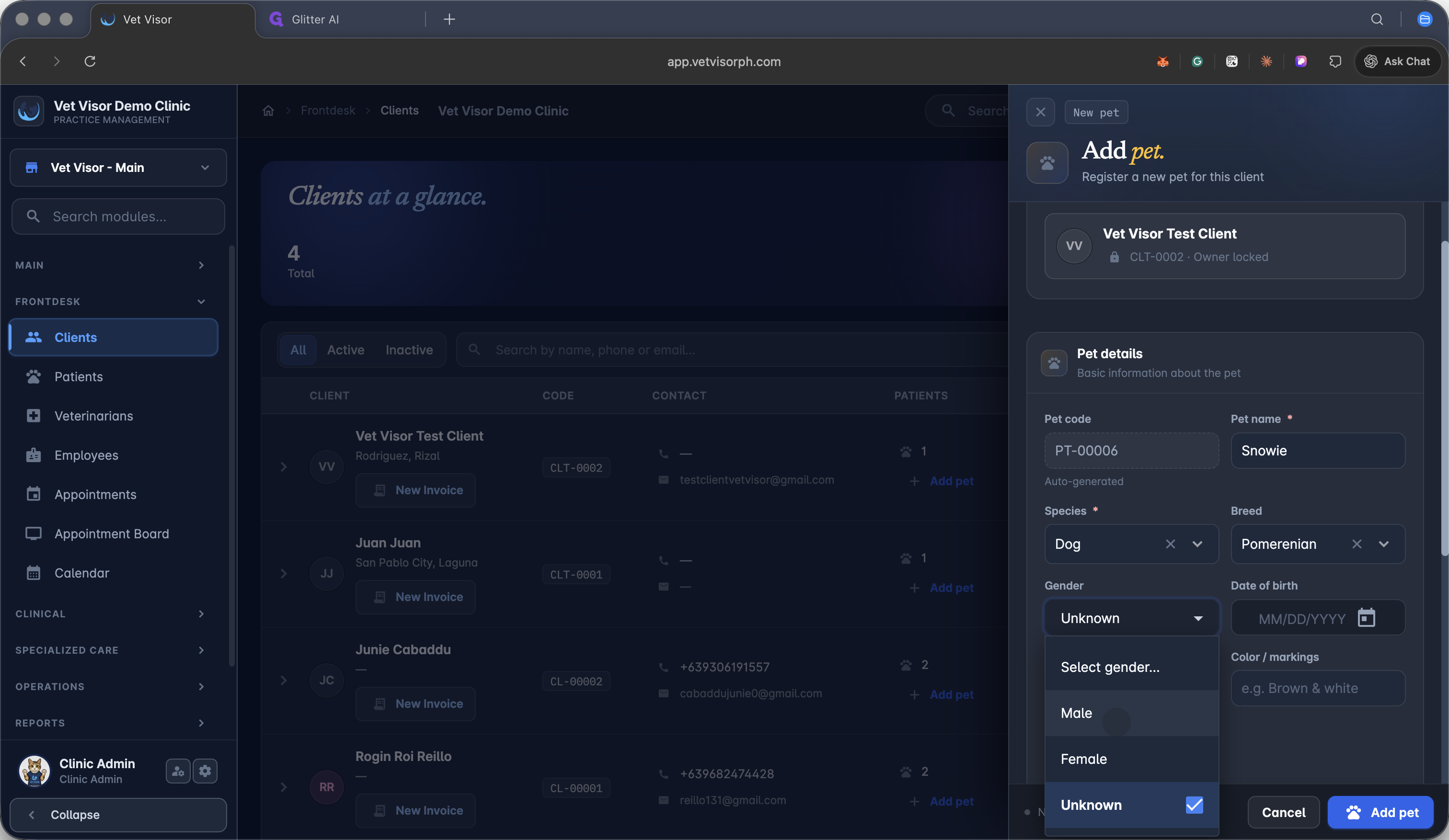
Choose the pet's gender from the dropdown menu. If you are unsure, you can select Unknown.
6
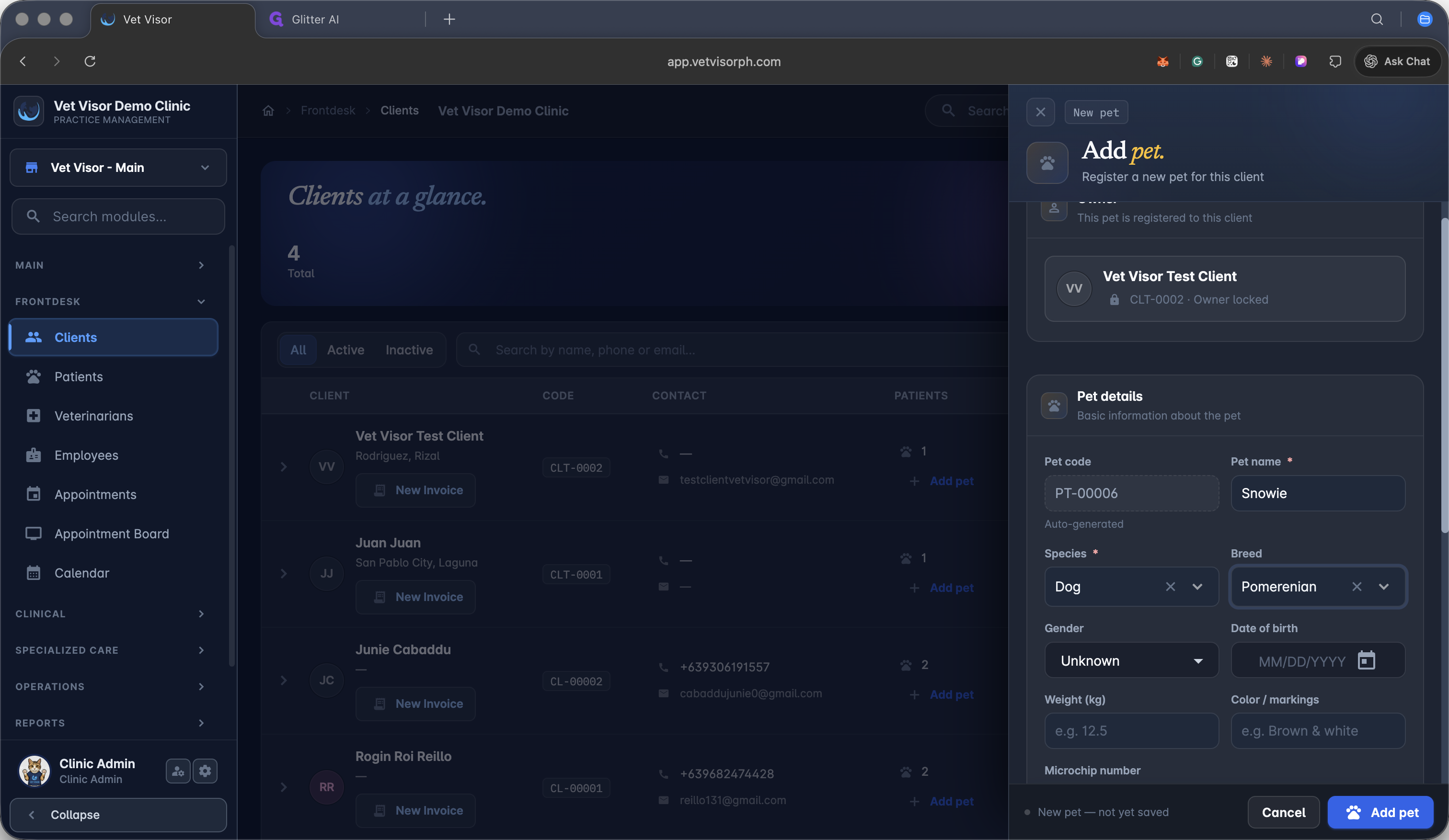
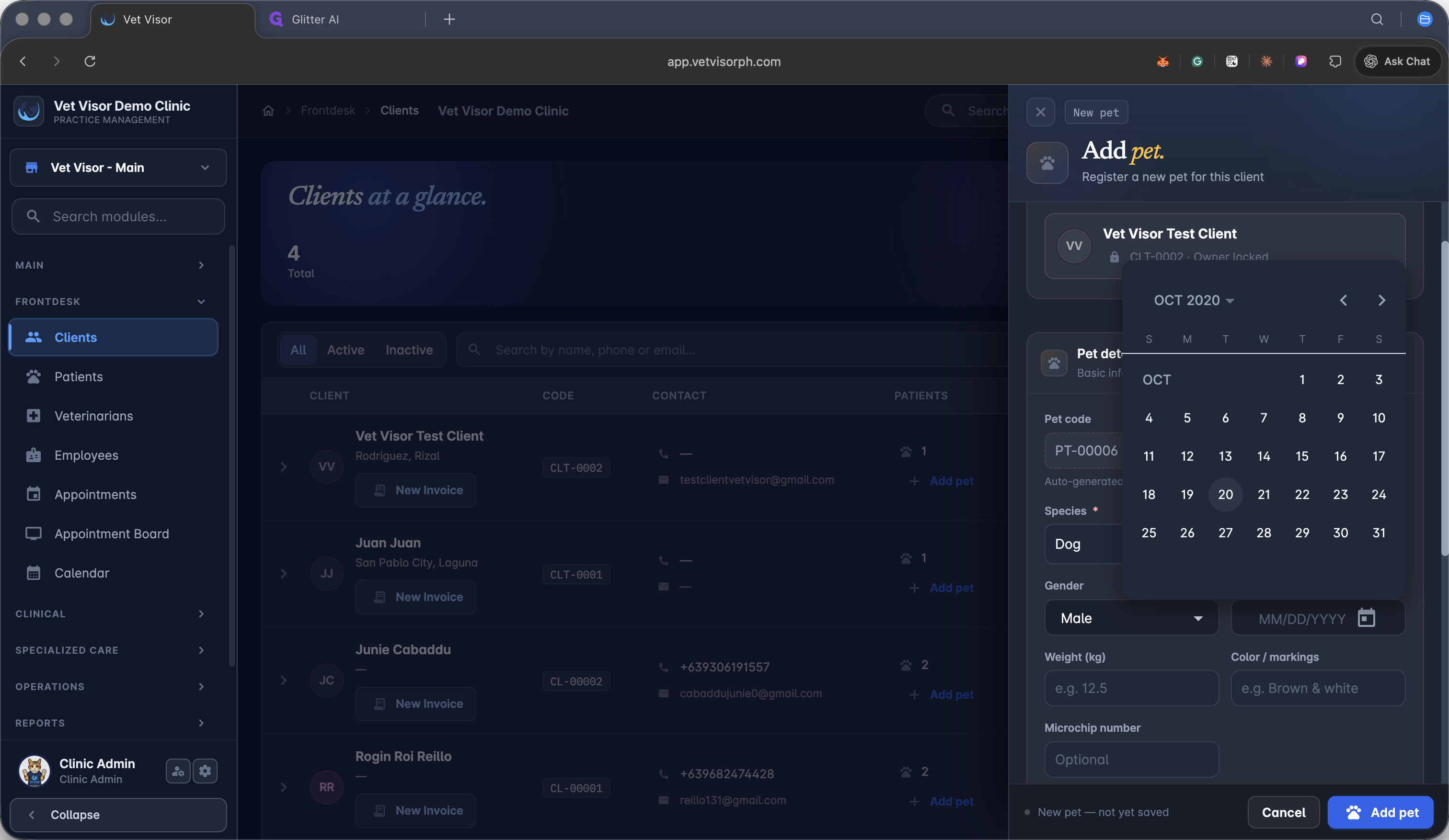
Click the Date of birth field to open the calendar picker.
7
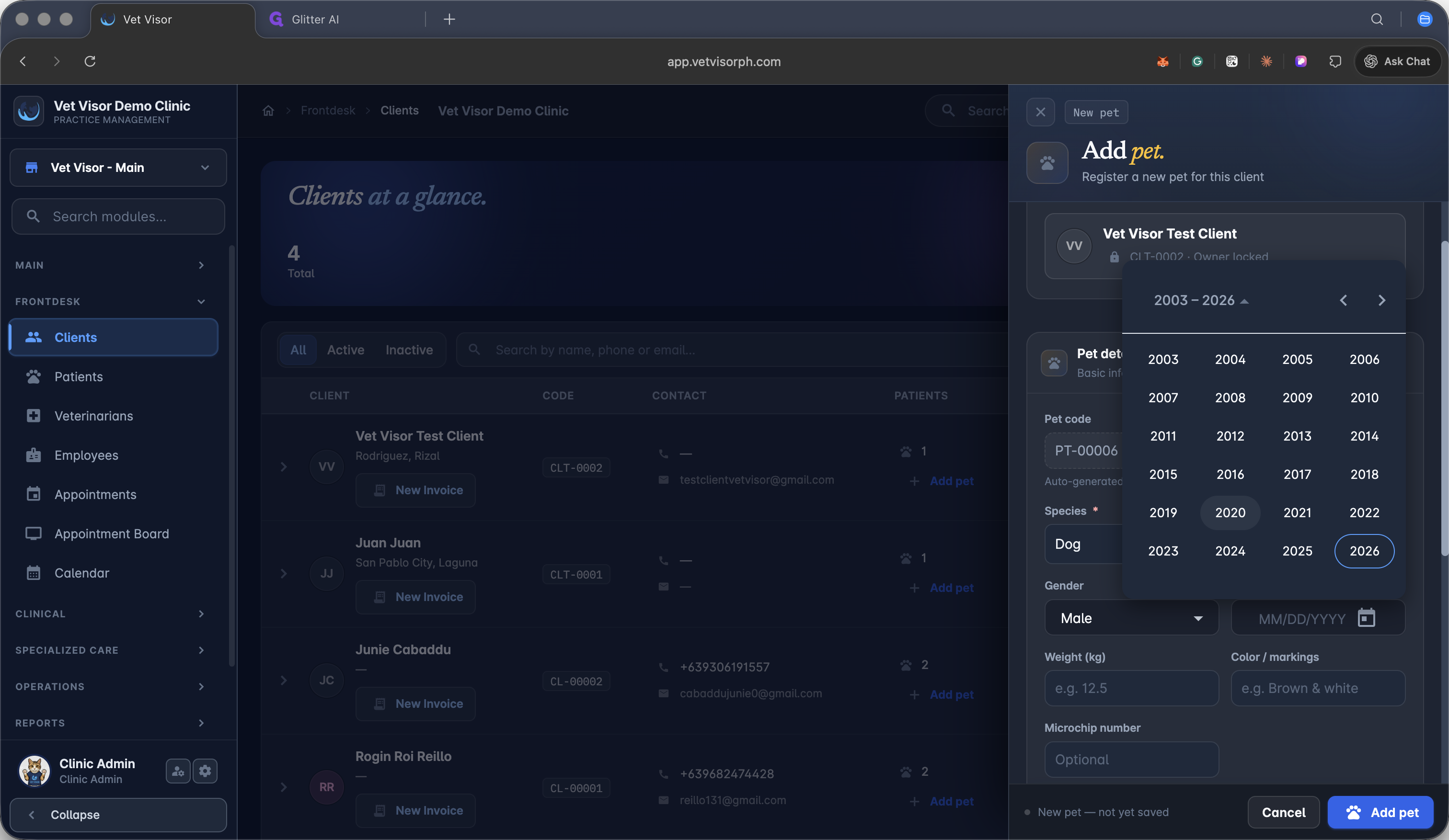
Select the correct birth year from the list.
8
Click the specific date on the calendar to finalize the patient's date of birth.
9
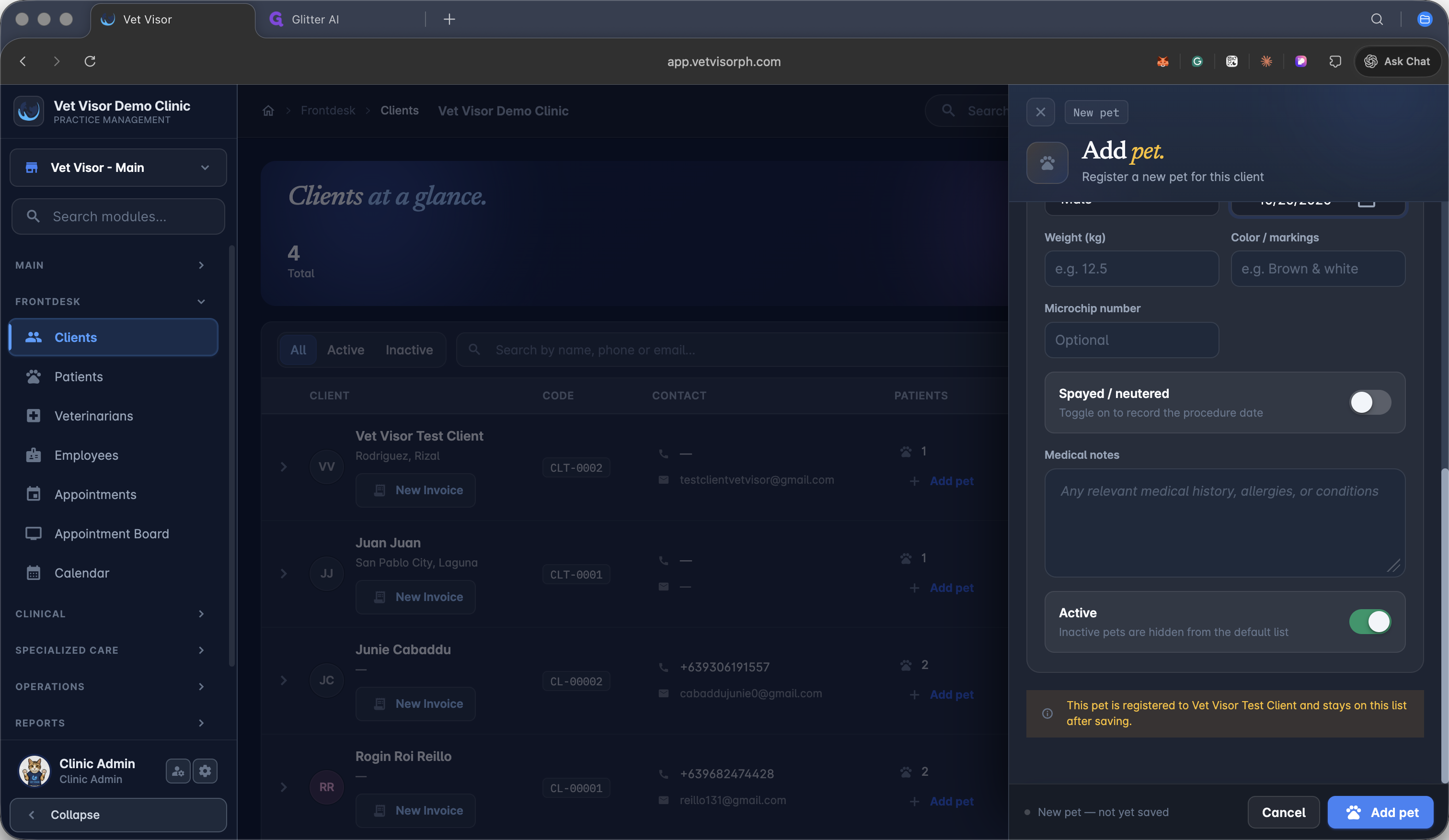
Click Add pet at the bottom of the modal to save the new patient to the client's record.