How to Add a New Prize to the Inventory
Learn how to quickly add a new prize to your Prize Management dashboard with this straightforward step-by-step guide.
By Primael Oswald Lebrun
Made with Glitter AI
This guide walks you through the process of adding a new prize to the Prize Management system. Completing this task ensures your rewards inventory is up-to-date and ready for distribution to participants.
This process applies to administrators and campaign managers responsible for maintaining the prize inventory. Use this workflow whenever you need to introduce a new reward into your campaign ecosystem.
1
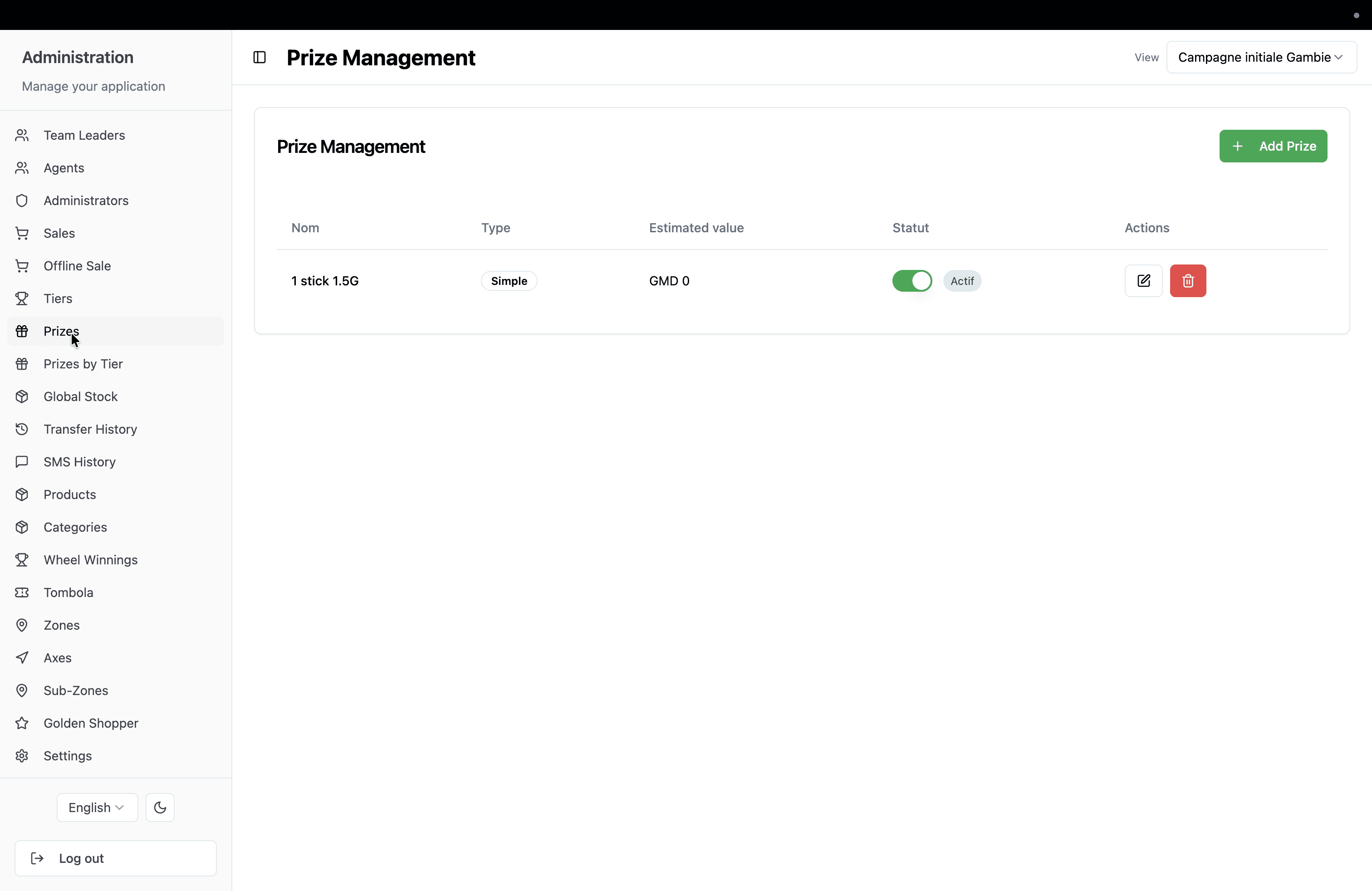
Click Prizes in the left-hand navigation sidebar to access your inventory.
2
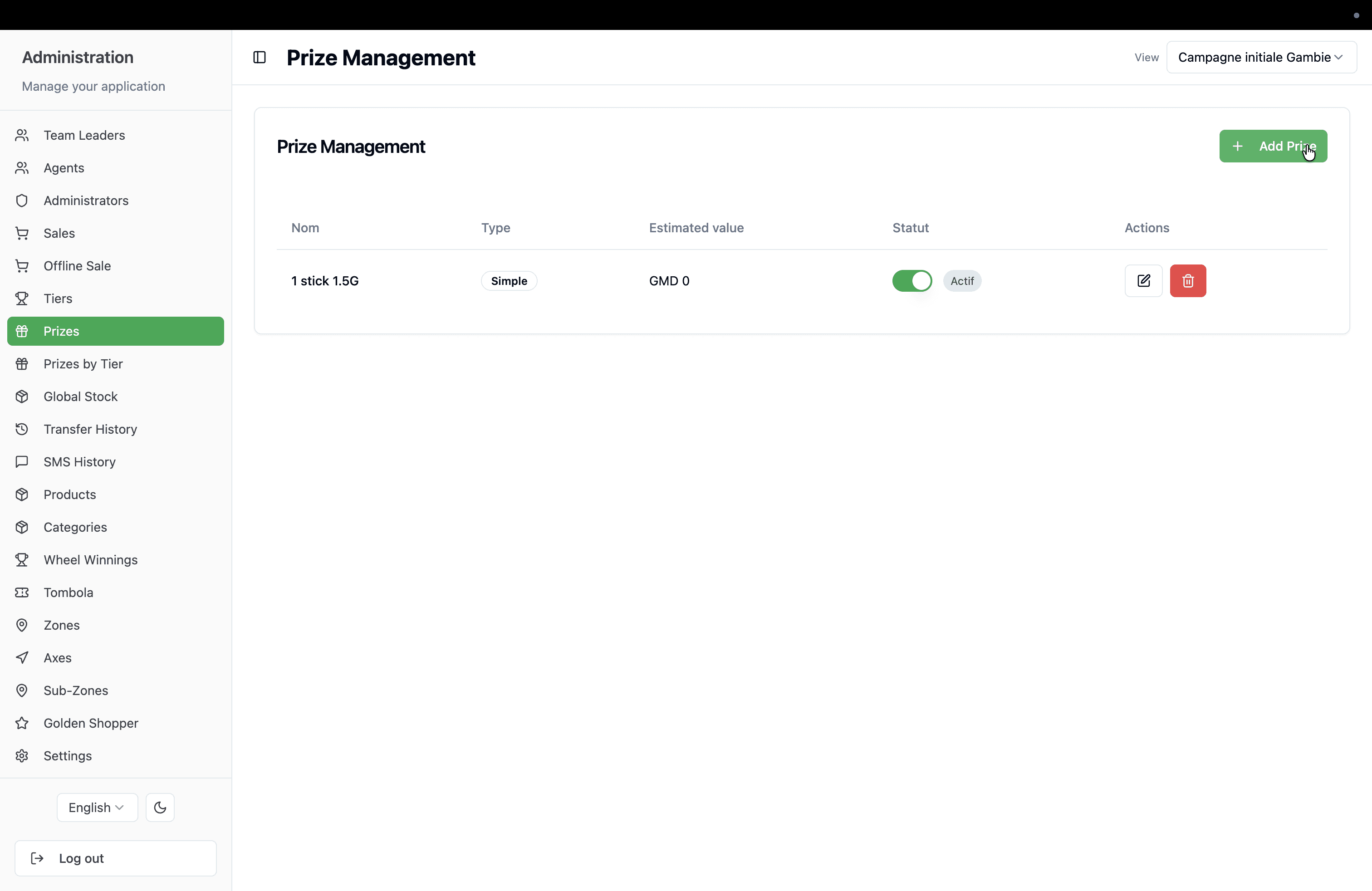
Click + Add Prize in the top right corner of the main dashboard.
3
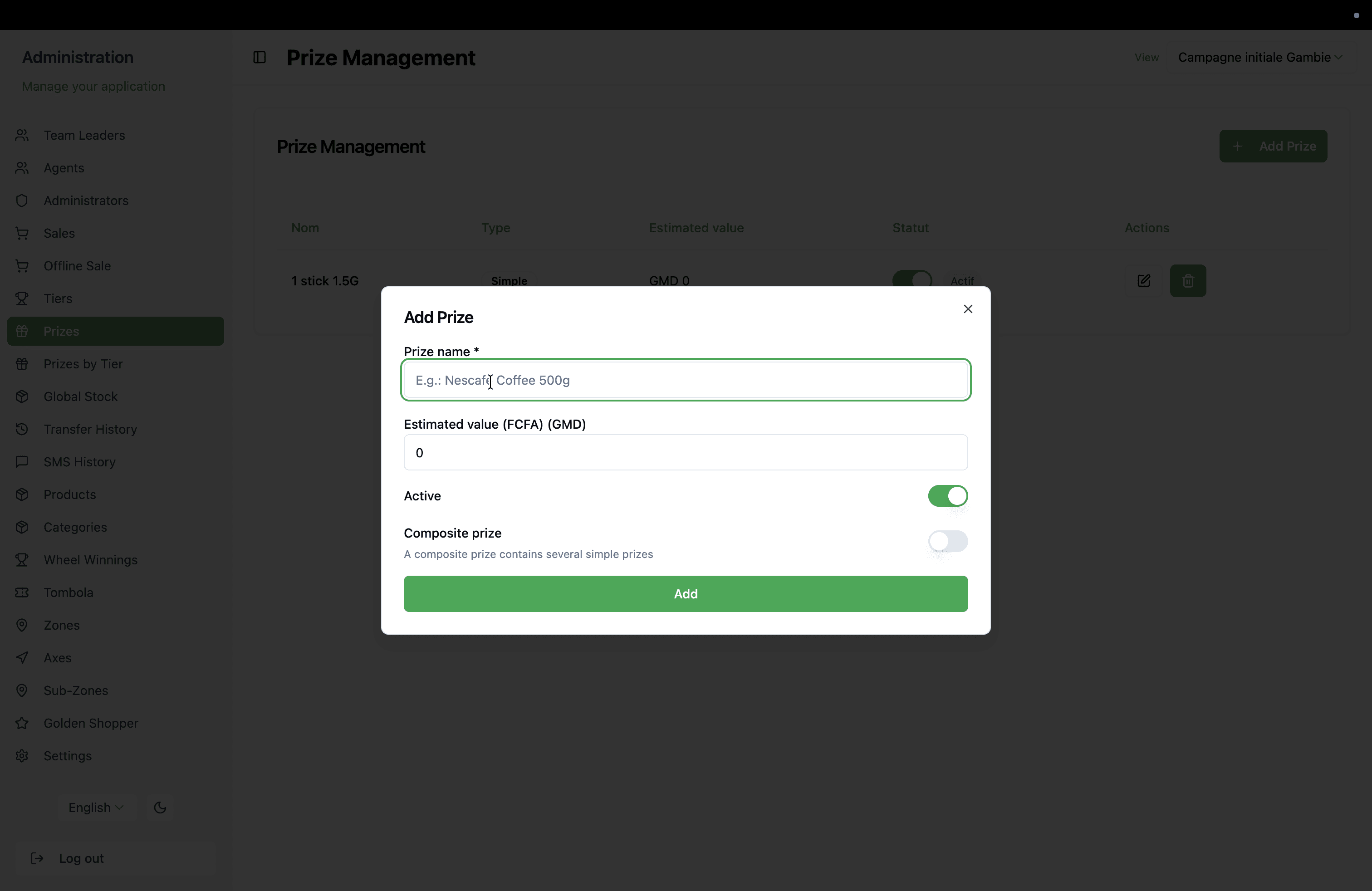
Enter the name of the new prize (e.g., "Nescafe Coffee 500g") into the highlighted prize name text field.
4
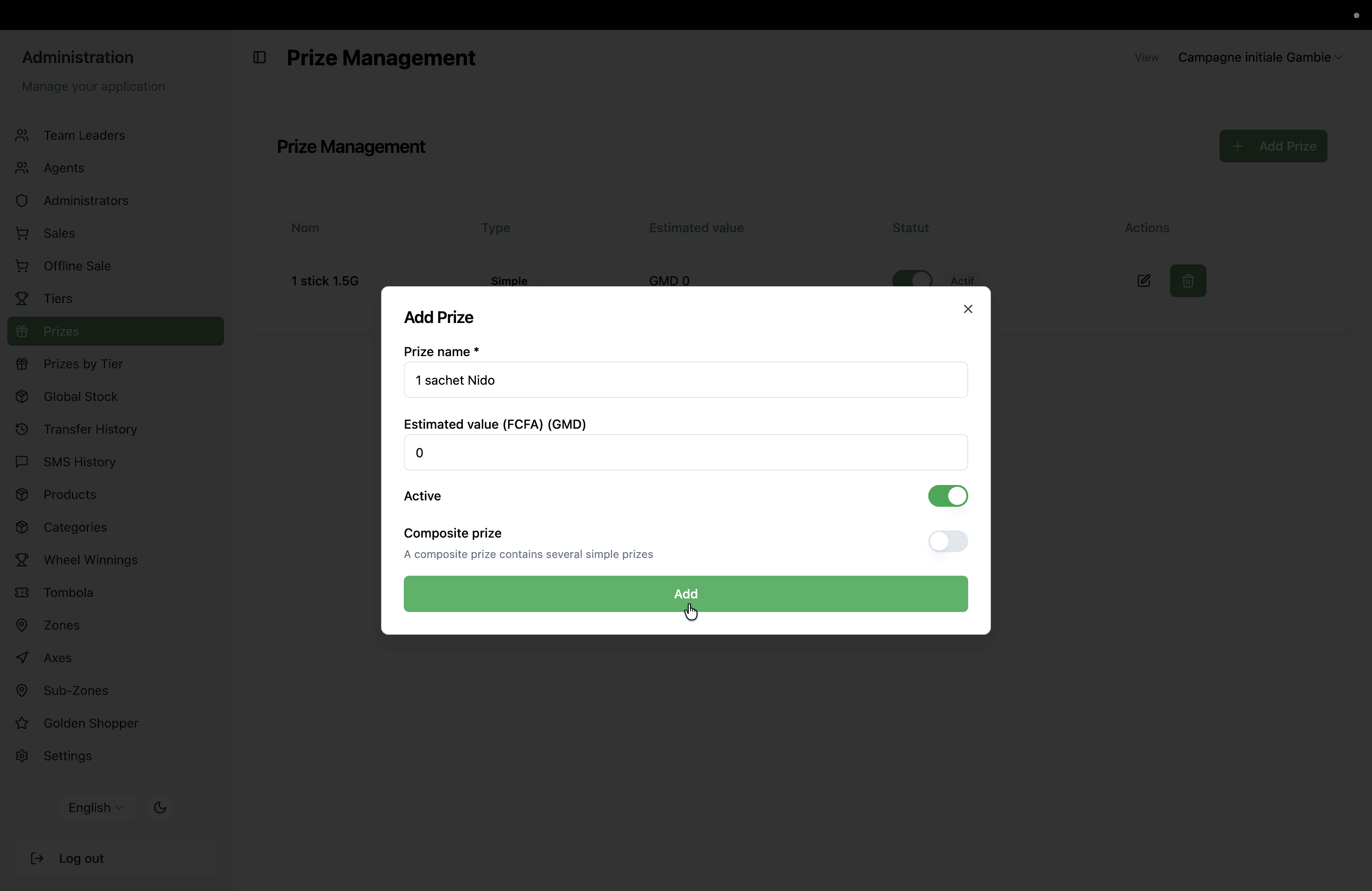
Click Add at the bottom of the modal to save the new prize to your inventory.