Add SQL Reports to Favorites in PowerSchool SIS
Learn how to quickly add SQL Reports to your Favorites menu in PowerSchool SIS to save time and streamline your daily data reporting workflow.
By Cindy Warner-Dobrowski
This guide shows you how to add SQL Reports to your Favorites menu in PowerSchool SIS. Completing this will save you time by providing direct access to your reporting tools from any screen.
This workflow applies to school administrators, teachers, and staff who frequently run SQL reports. It is best used as a one-time setup to optimize daily reporting efficiency.
Navigate to SQL Reports
1
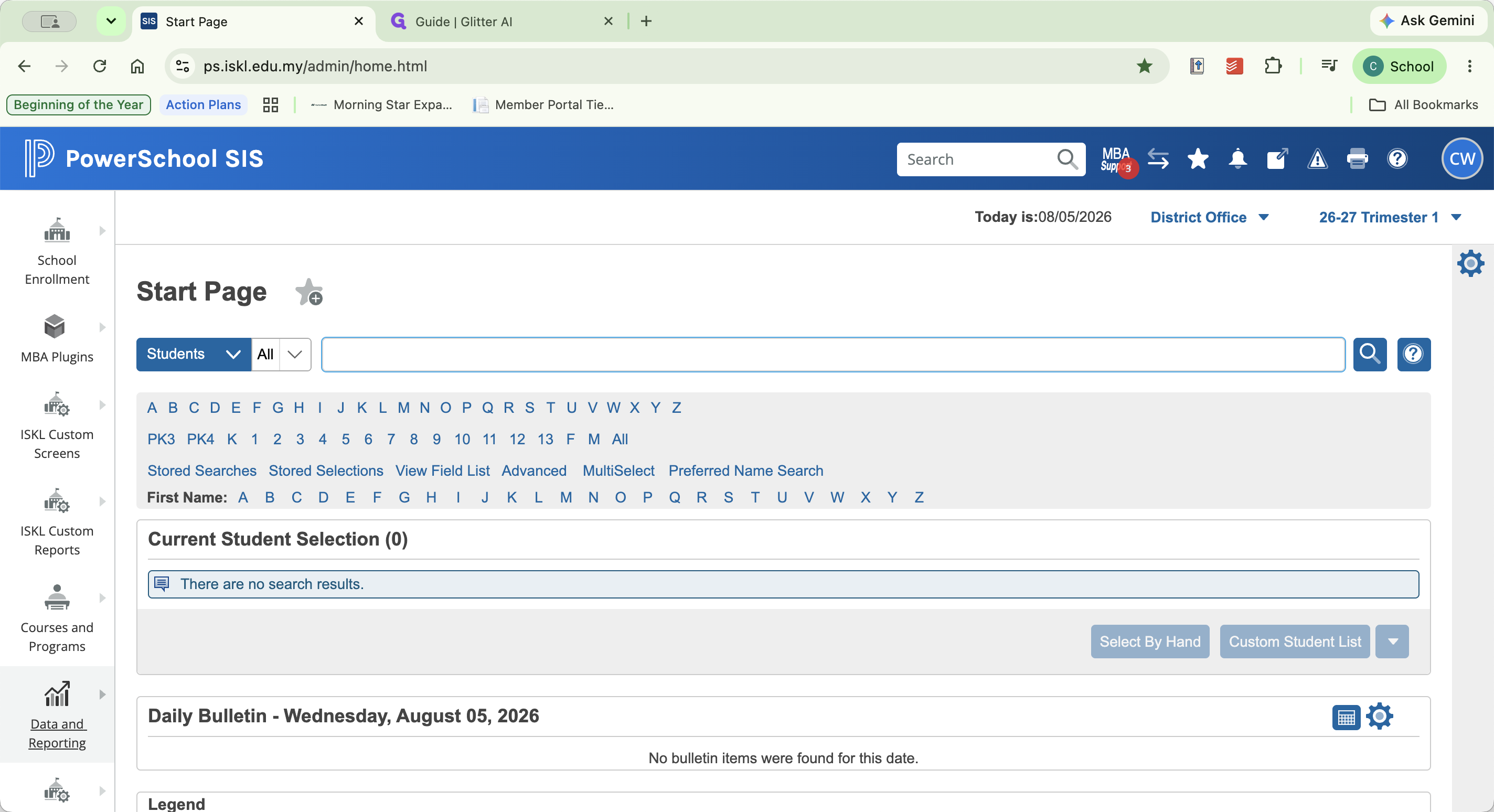
Click Data and Reporting in the main navigation sidebar.
2
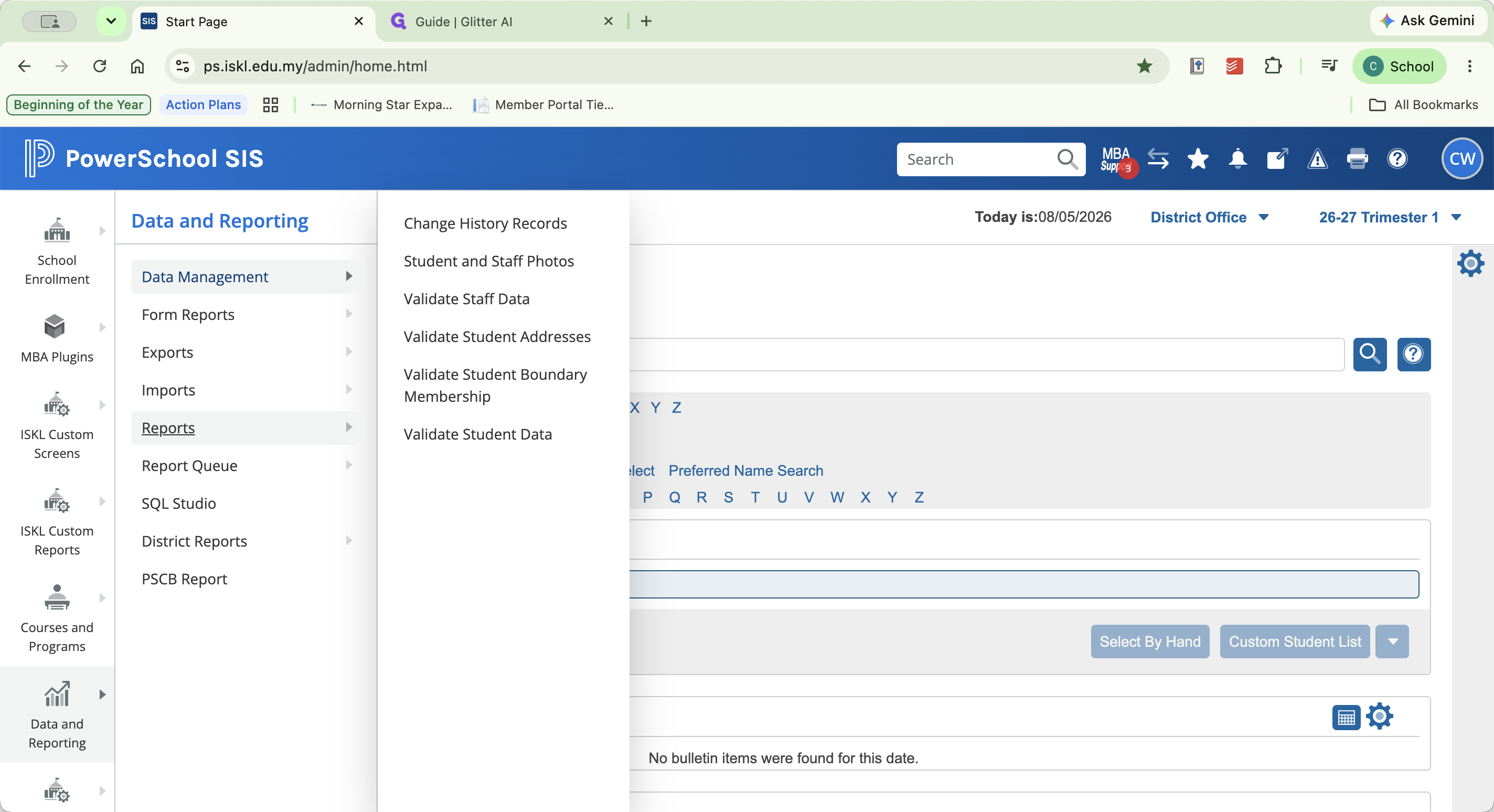
Hover over or click Reports to reveal the sub-menu.
3
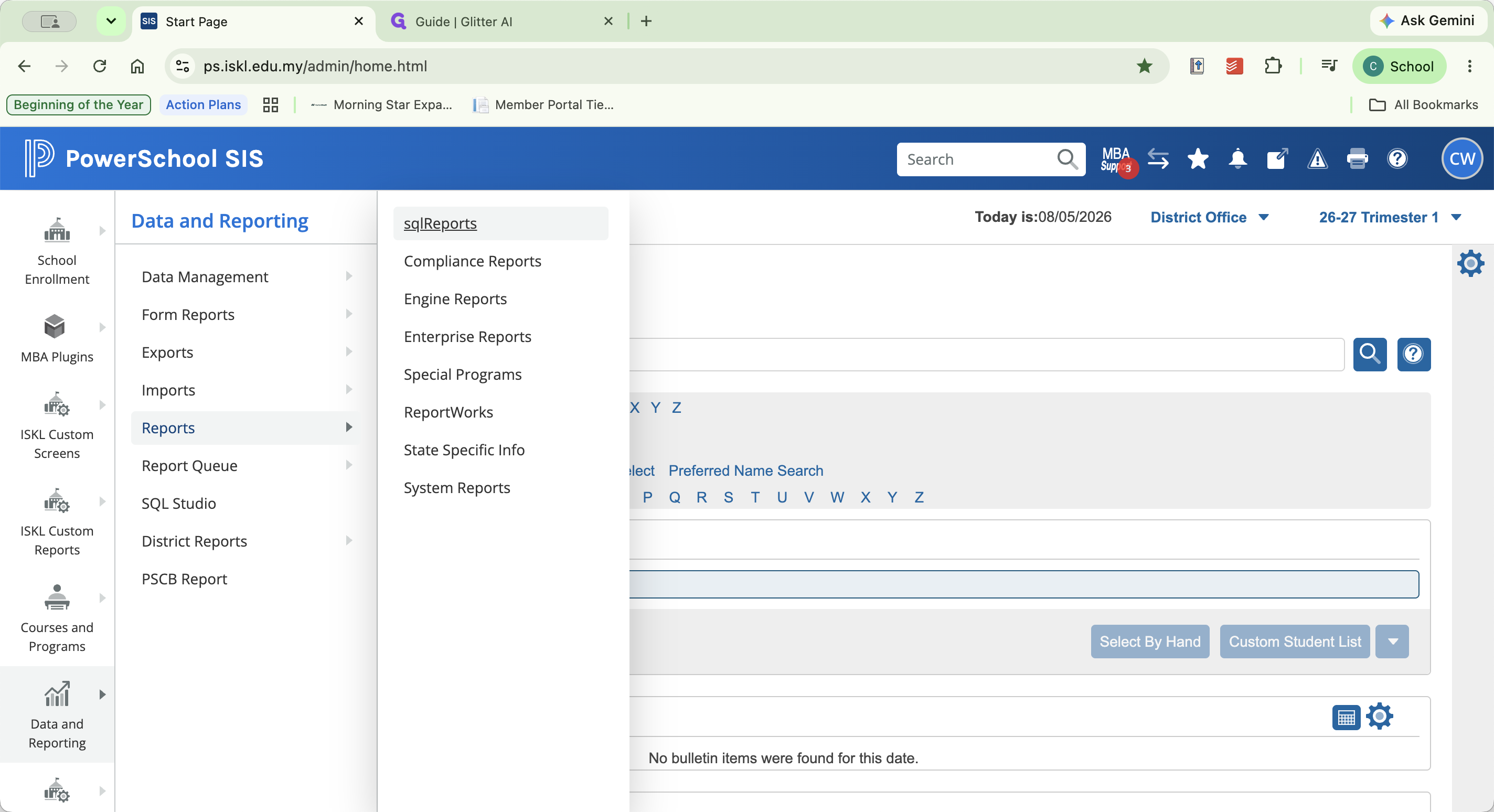
Click sql Reports to open the reports page.
Save to Favorites
4
Click the + (Add to Favorites) icon located at the top of the page.
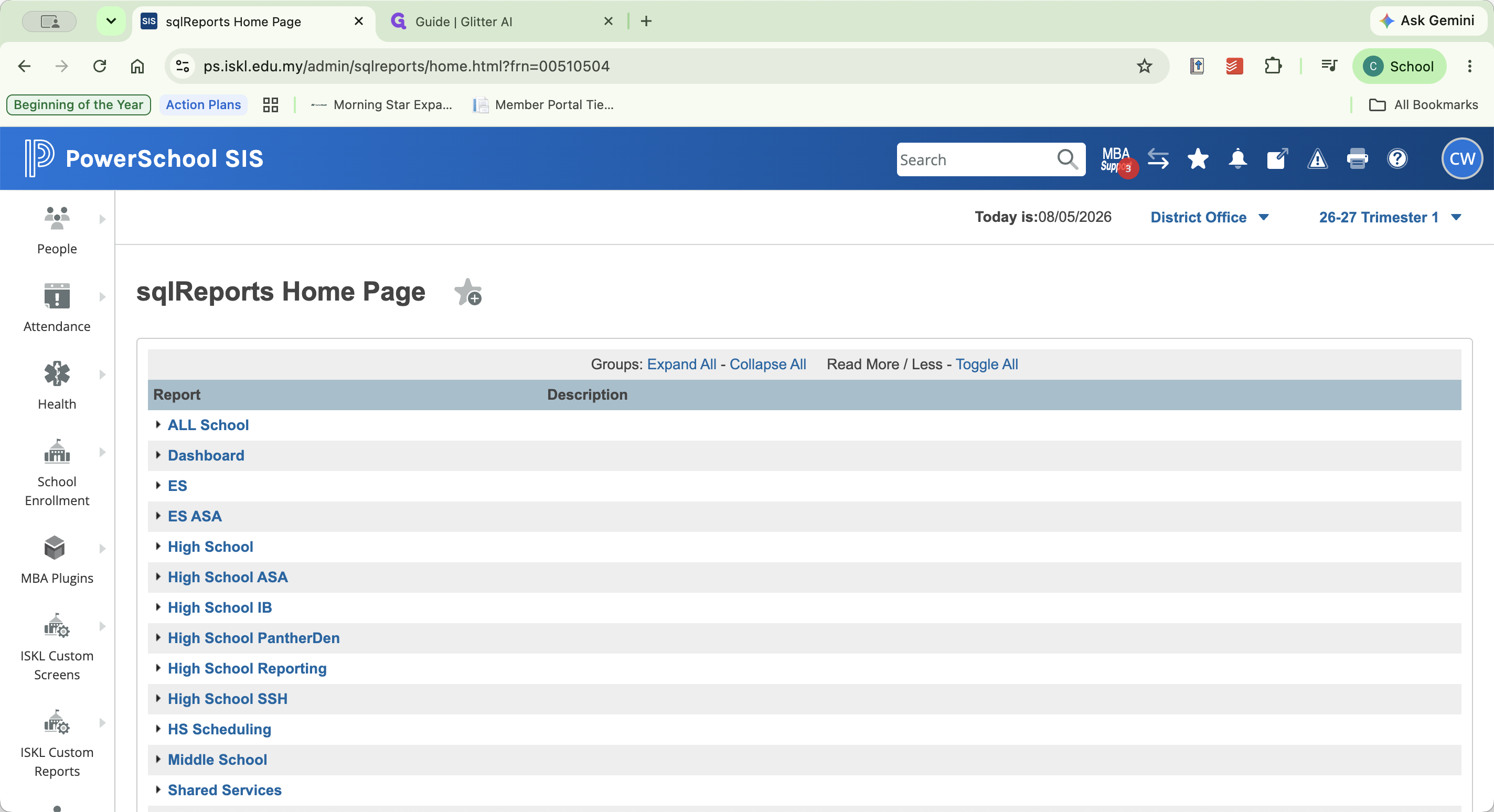
5
In the pop-up modal, select the checkbox for the Data and Reporting category.
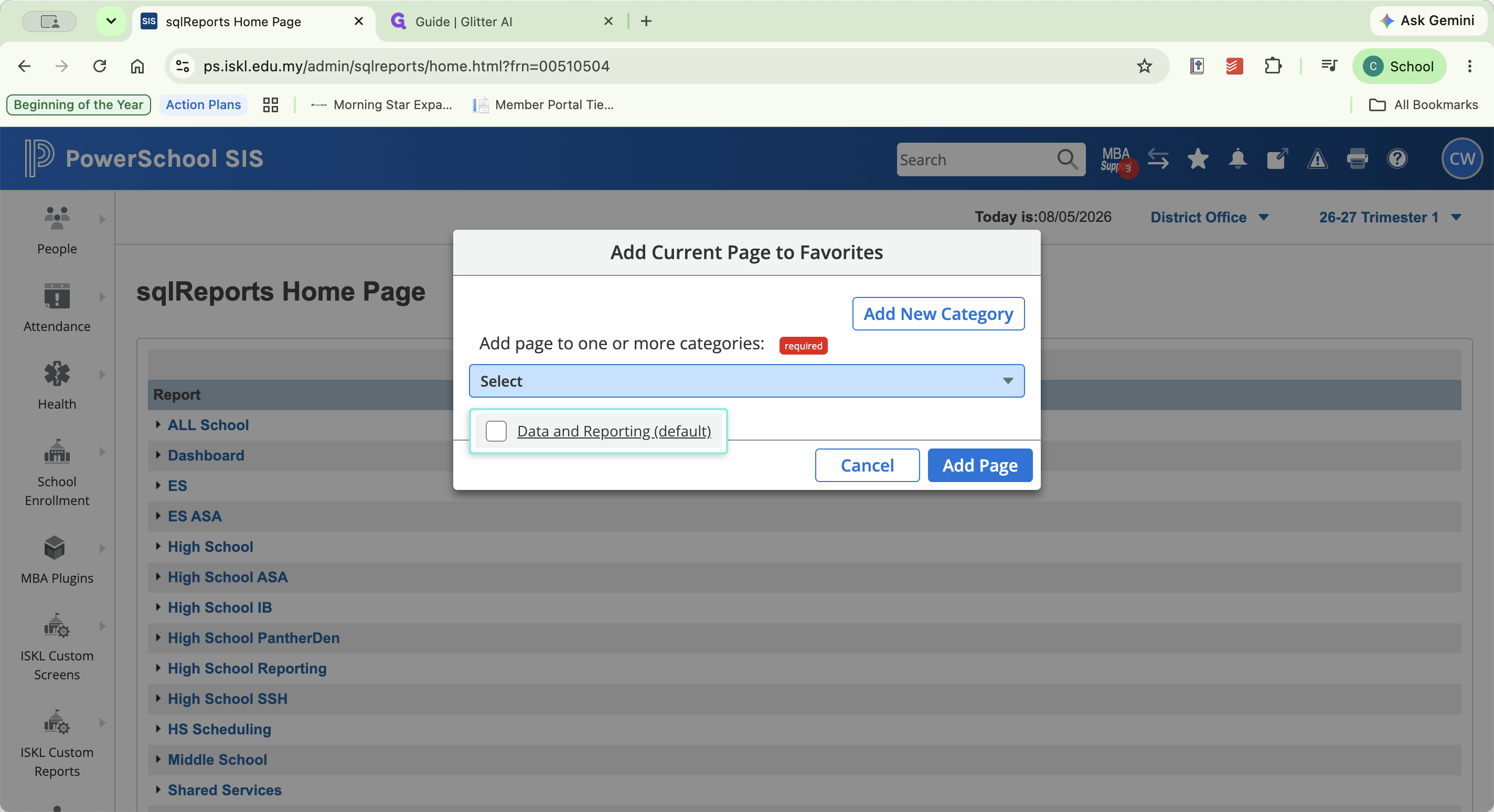
6
Click Add Page to confirm and save the link to your Favorites menu.
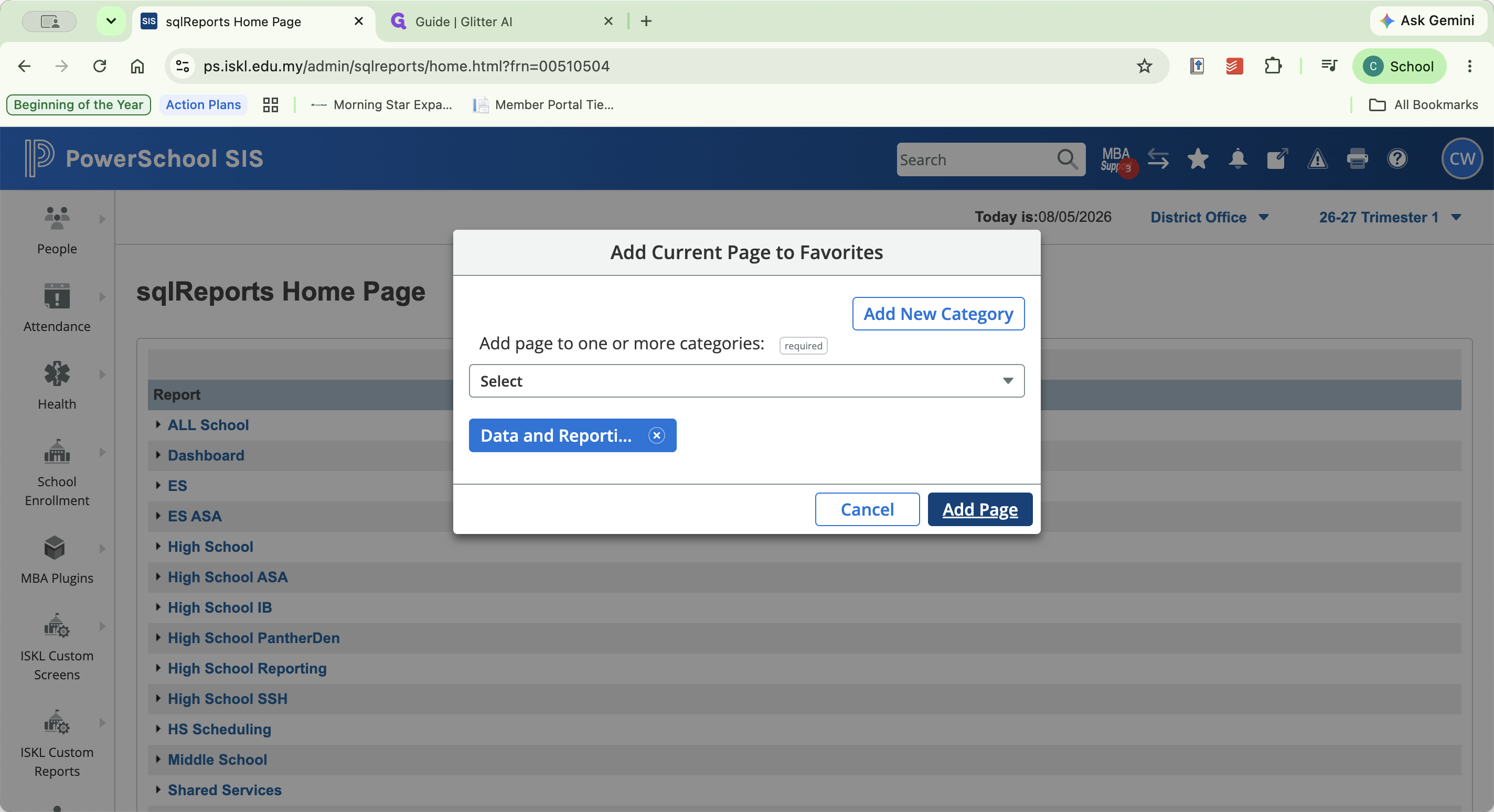
Access Your New Shortcut
7
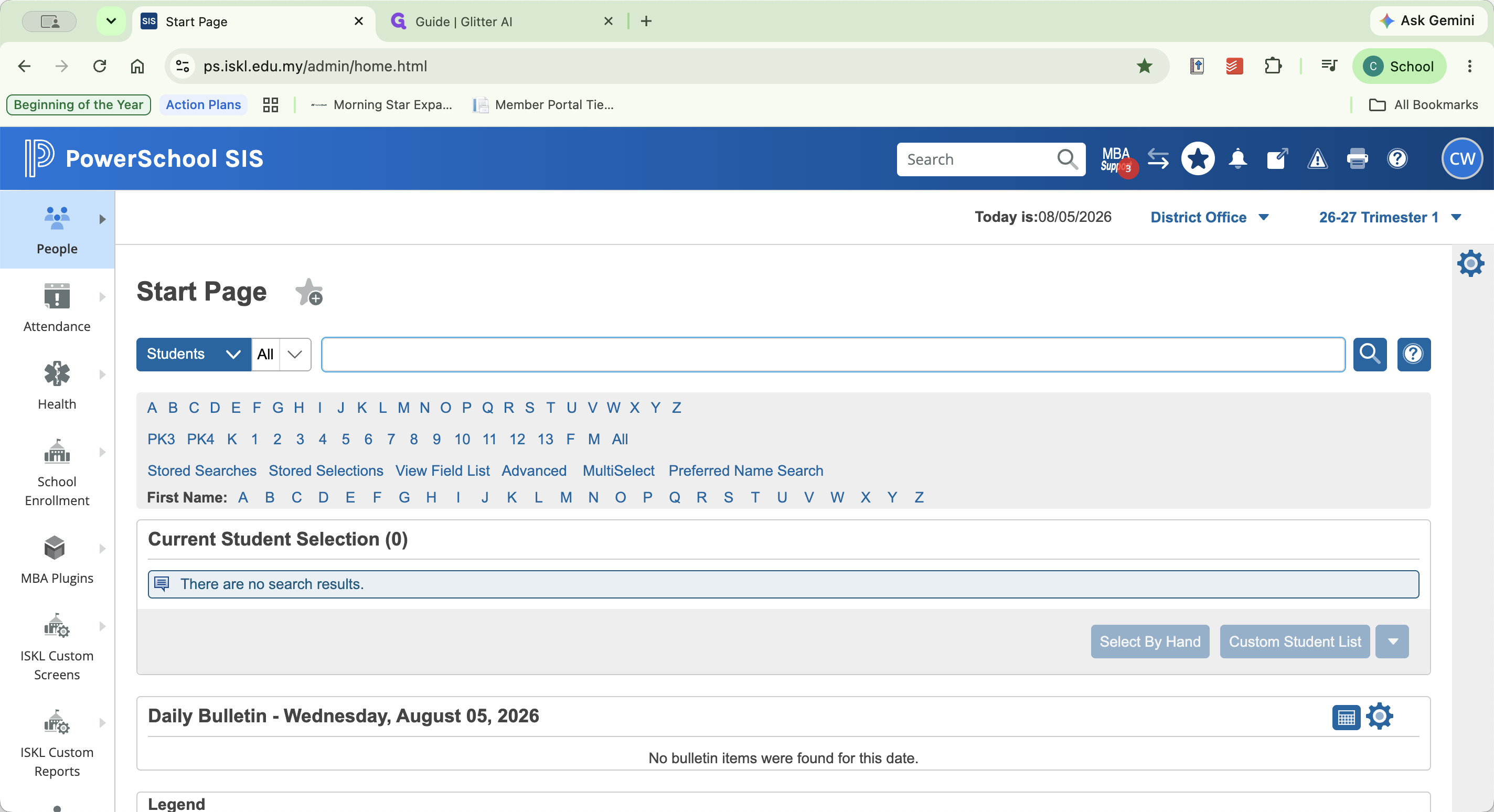
Click the PowerSchool SIS logo in the upper-left corner to return to the Start Page.
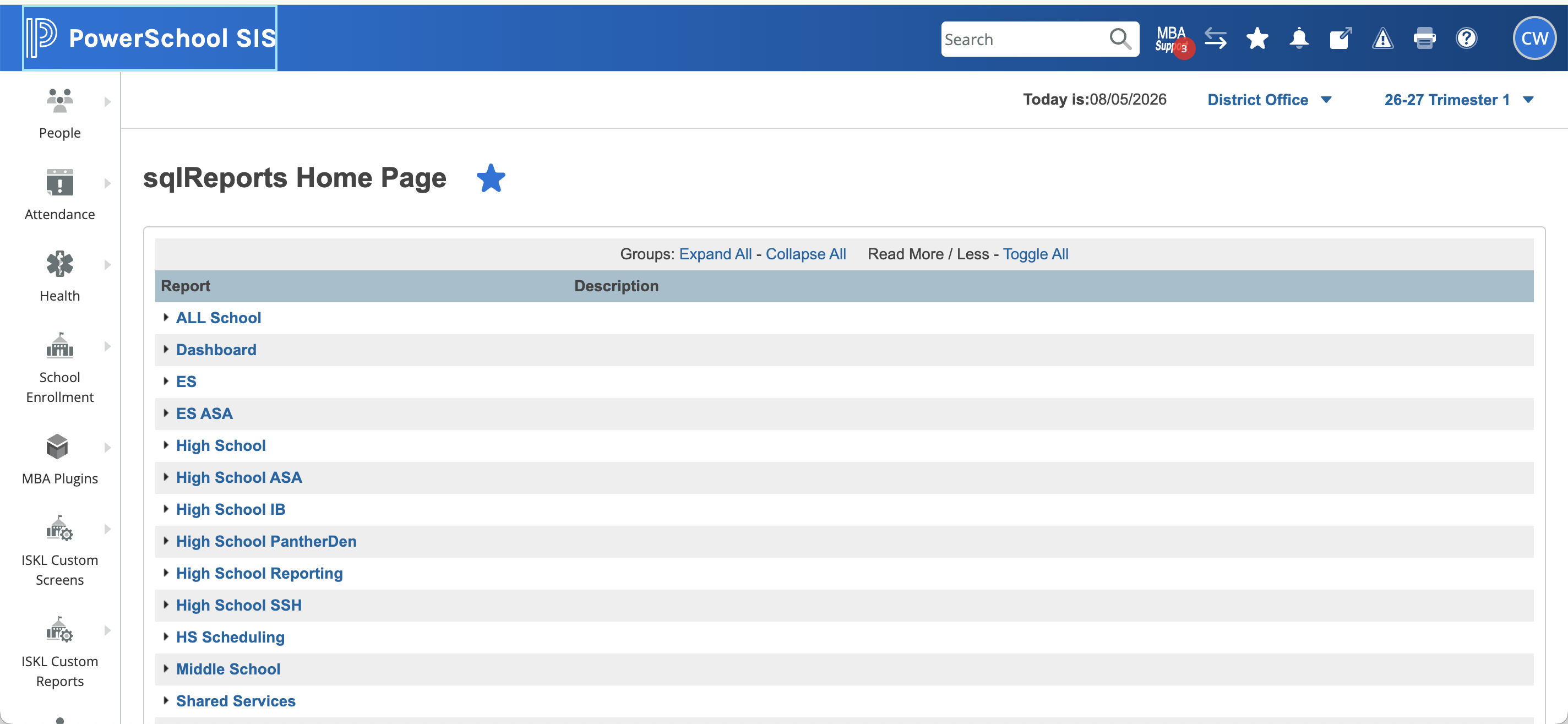
8
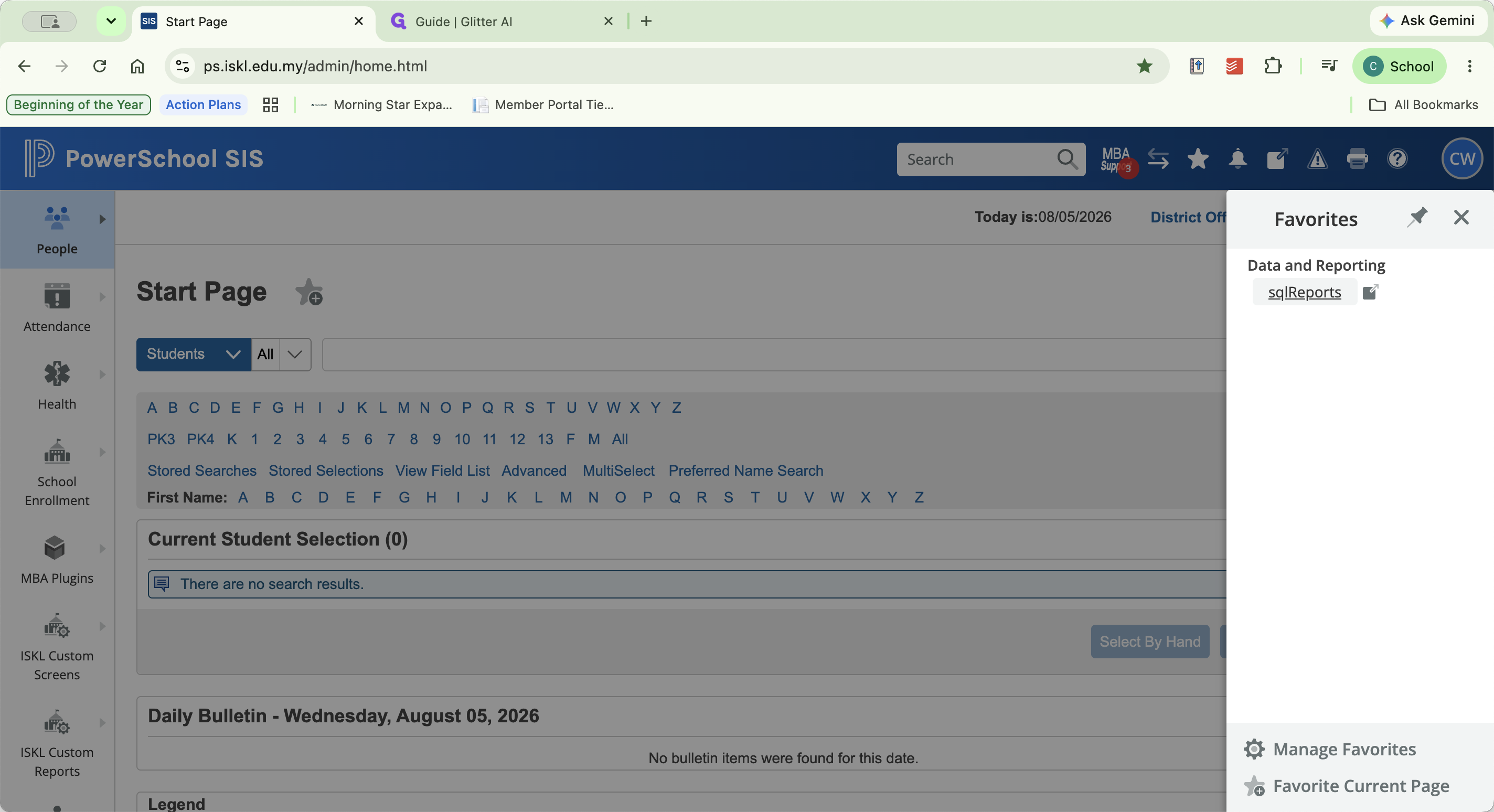
Click the Favorites (star) icon in the top right header area.
9
Click sql Reports to navigate directly to your saved page instantly.