
Add a Transaction Coordinator Delegate in RE-Sure
Learn how to assign a transaction coordinator or delegate to your RE-Sure account to grant them transaction access.
This guide shows you how to add a delegate, such as a transaction coordinator, to your RE-Sure account. Completing this allows external support staff to securely access your account and manage real estate transactions on your behalf.
This process applies to real estate agents and brokers using RE-Sure who need to grant account access to external transaction coordinators or administrative support staff.
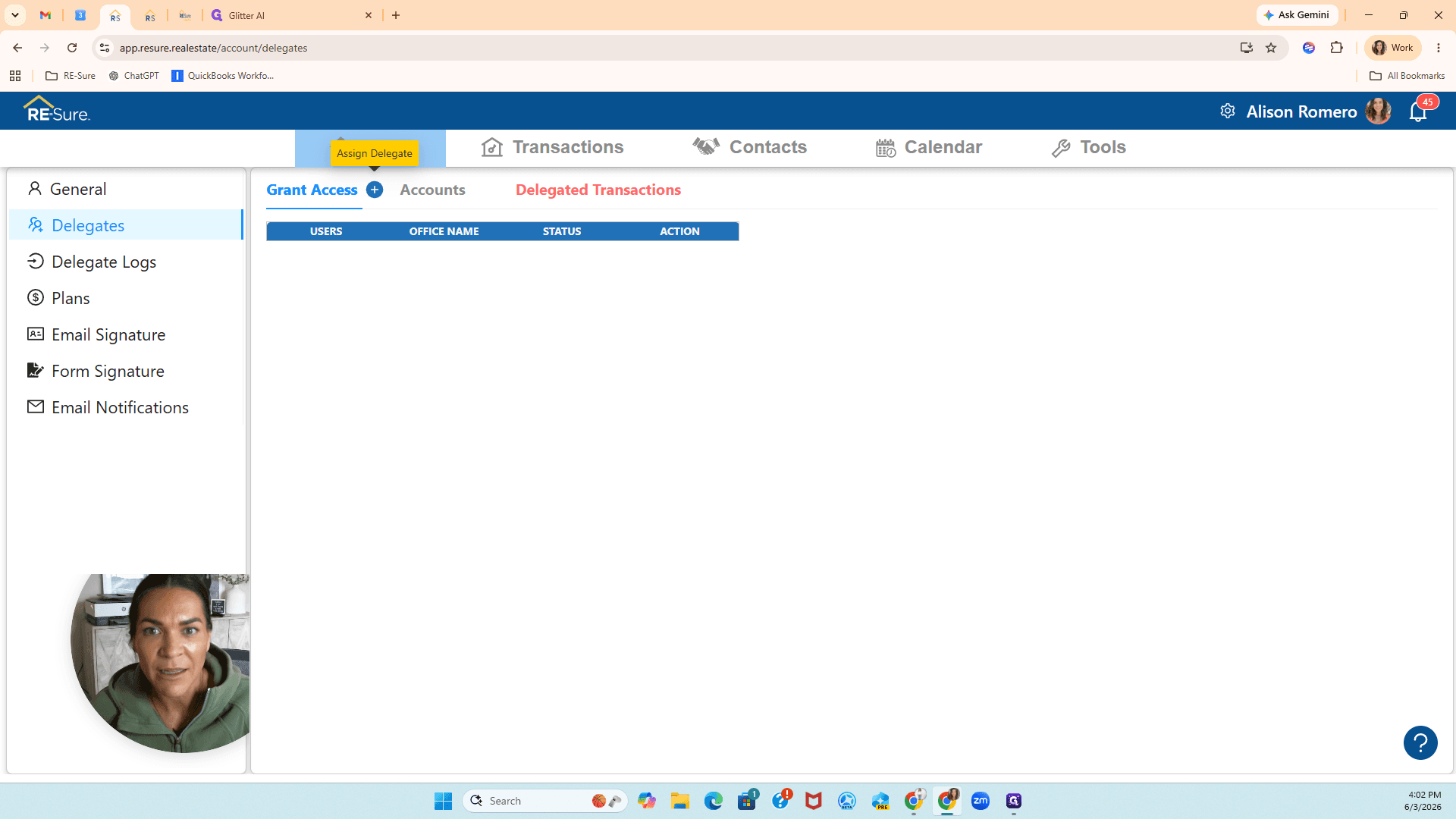
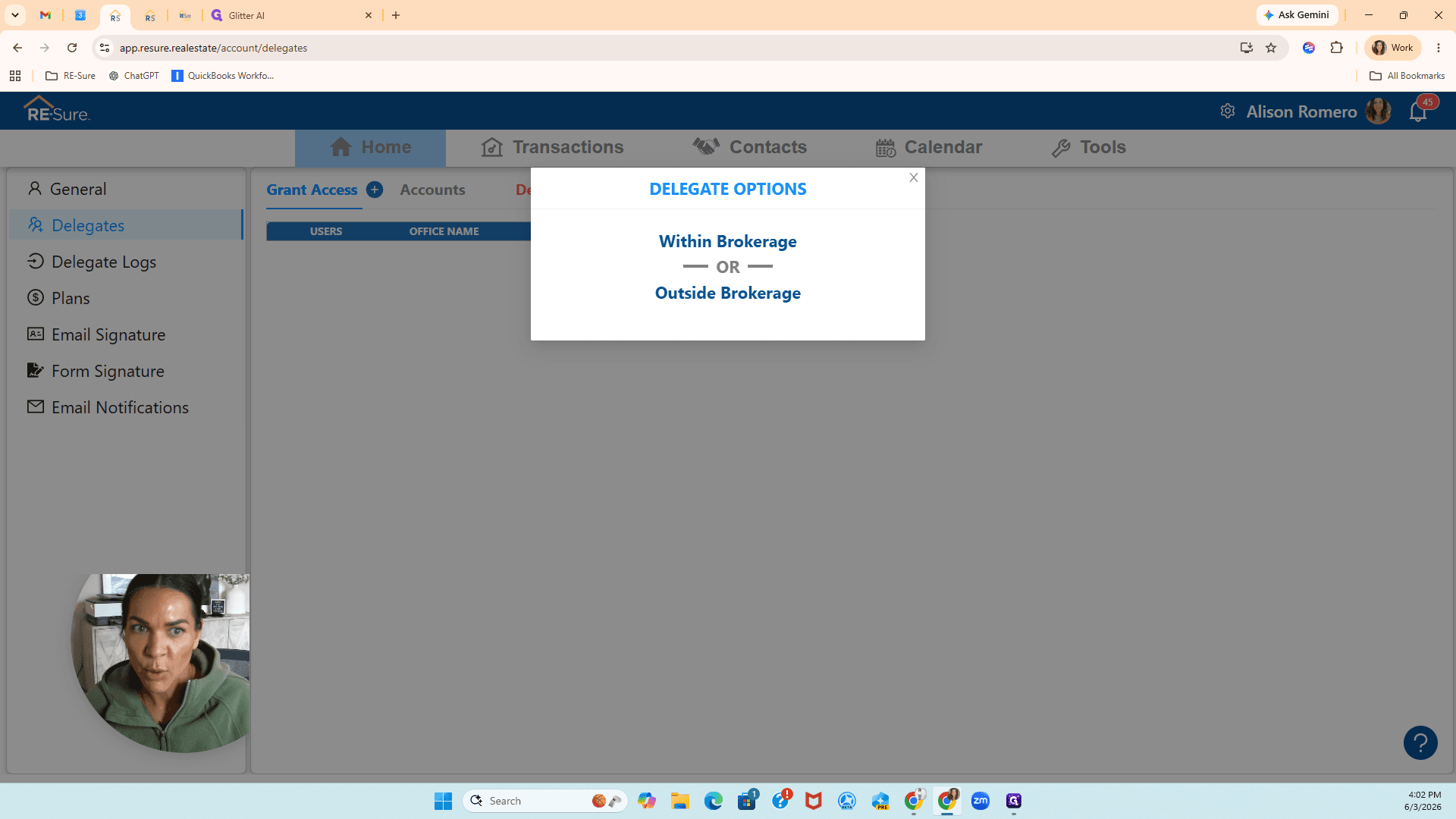
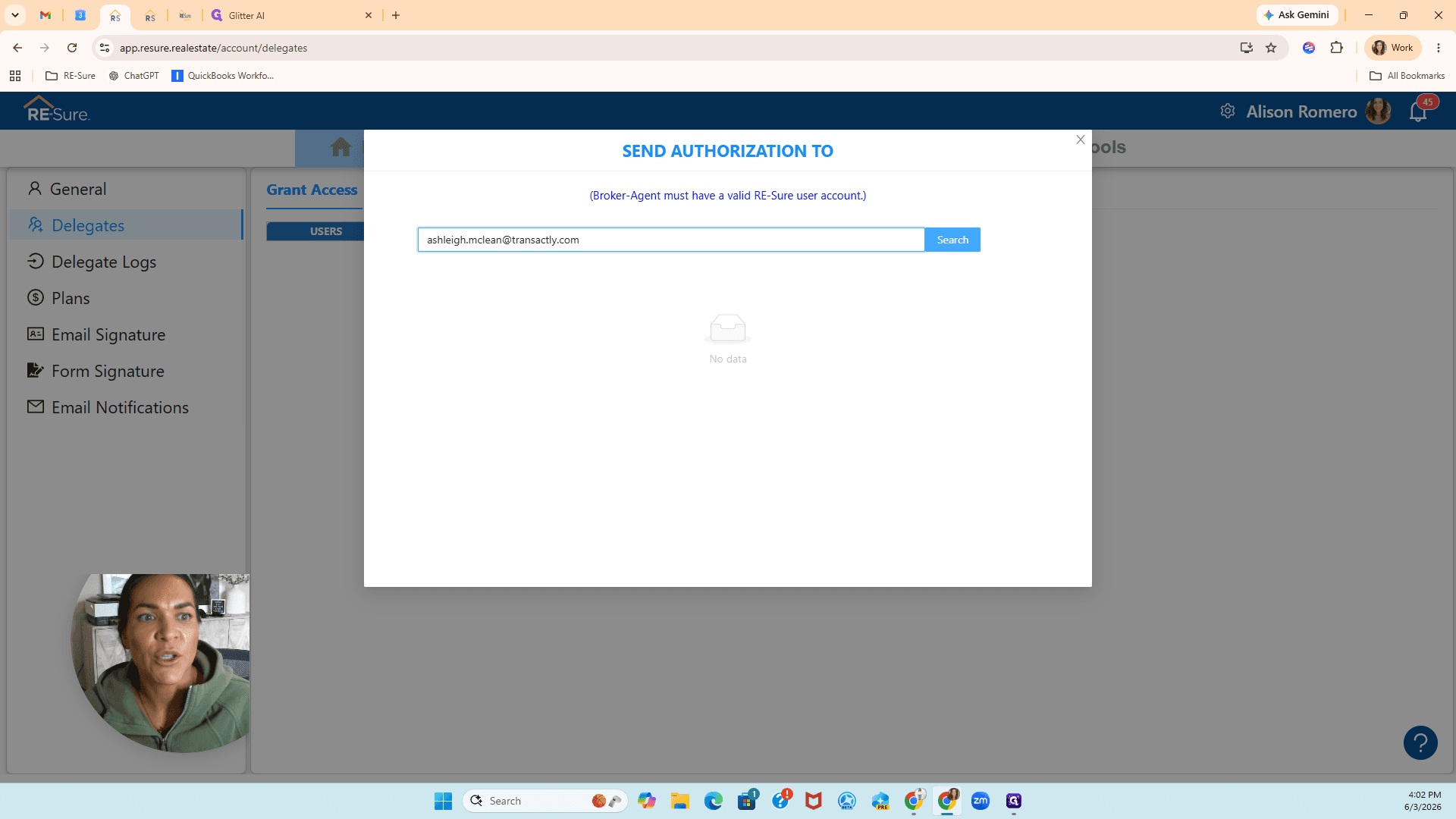
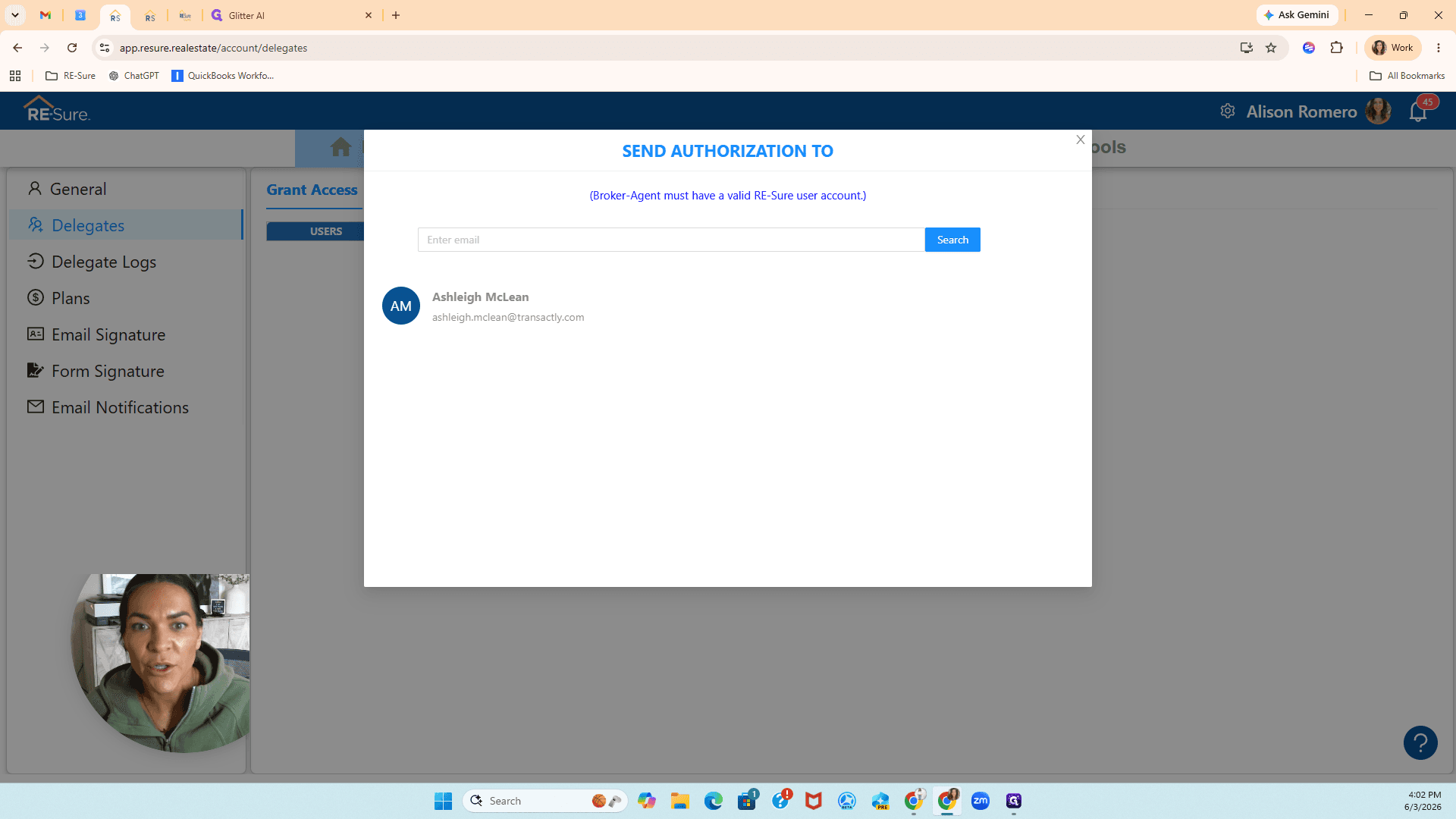
When adding a delegate, you must specify where they operate:
Location Option | Description |
|---|---|
Within Brokerage | Select this if your delegate works directly for your specific real estate brokerage. |
Outside Brokerage | Select this if your delegate, such as an independent transaction coordinator, works for a third-party company. |
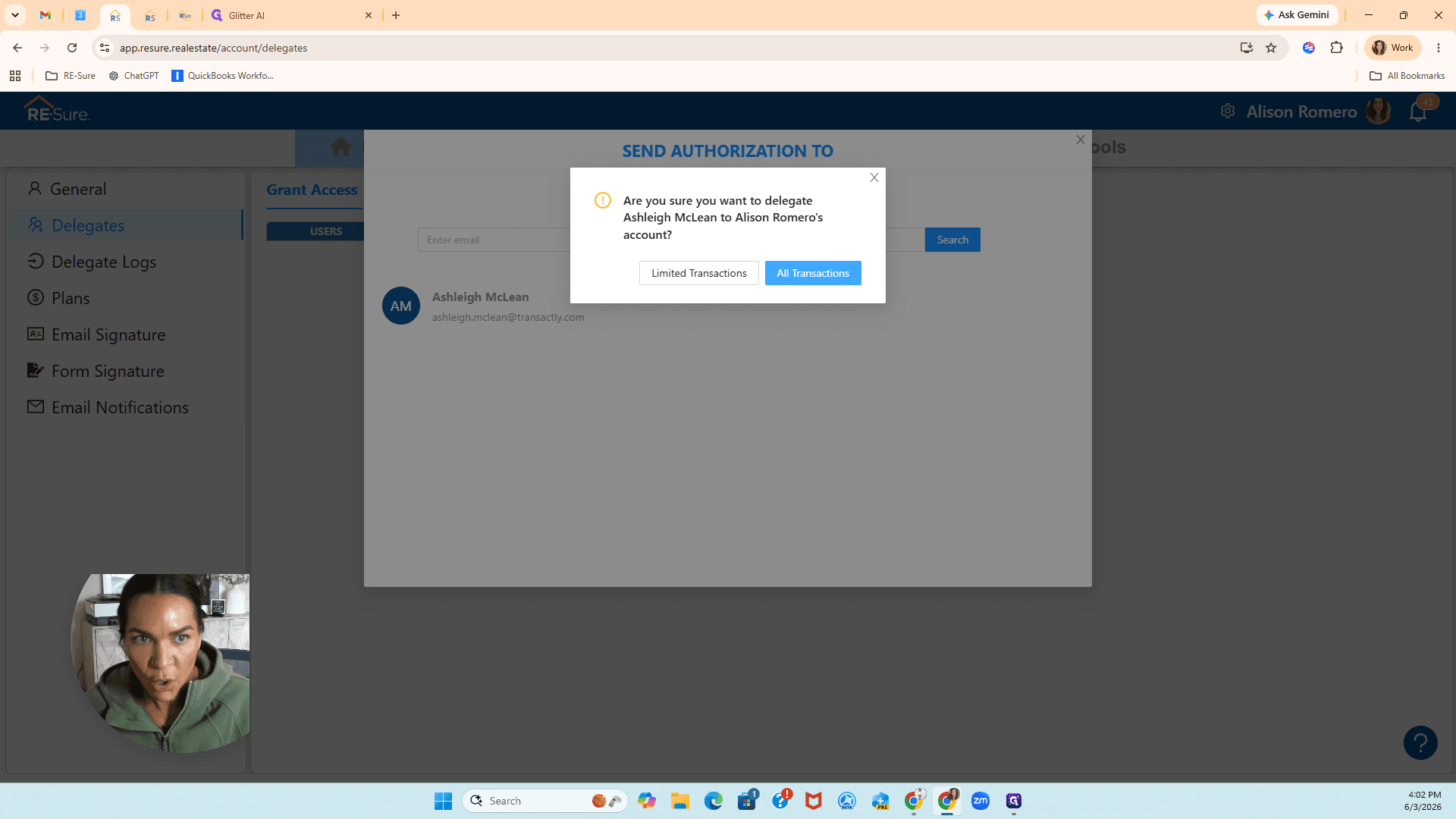
You must now determine the level of access the delegate needs:
Access Level | Description |
|---|---|
Limited Transactions | Restricts the delegate to viewing and managing only specifically chosen transactions. |
All Transactions | Grants the delegate full working access to oversee and manage every transaction in your account. |
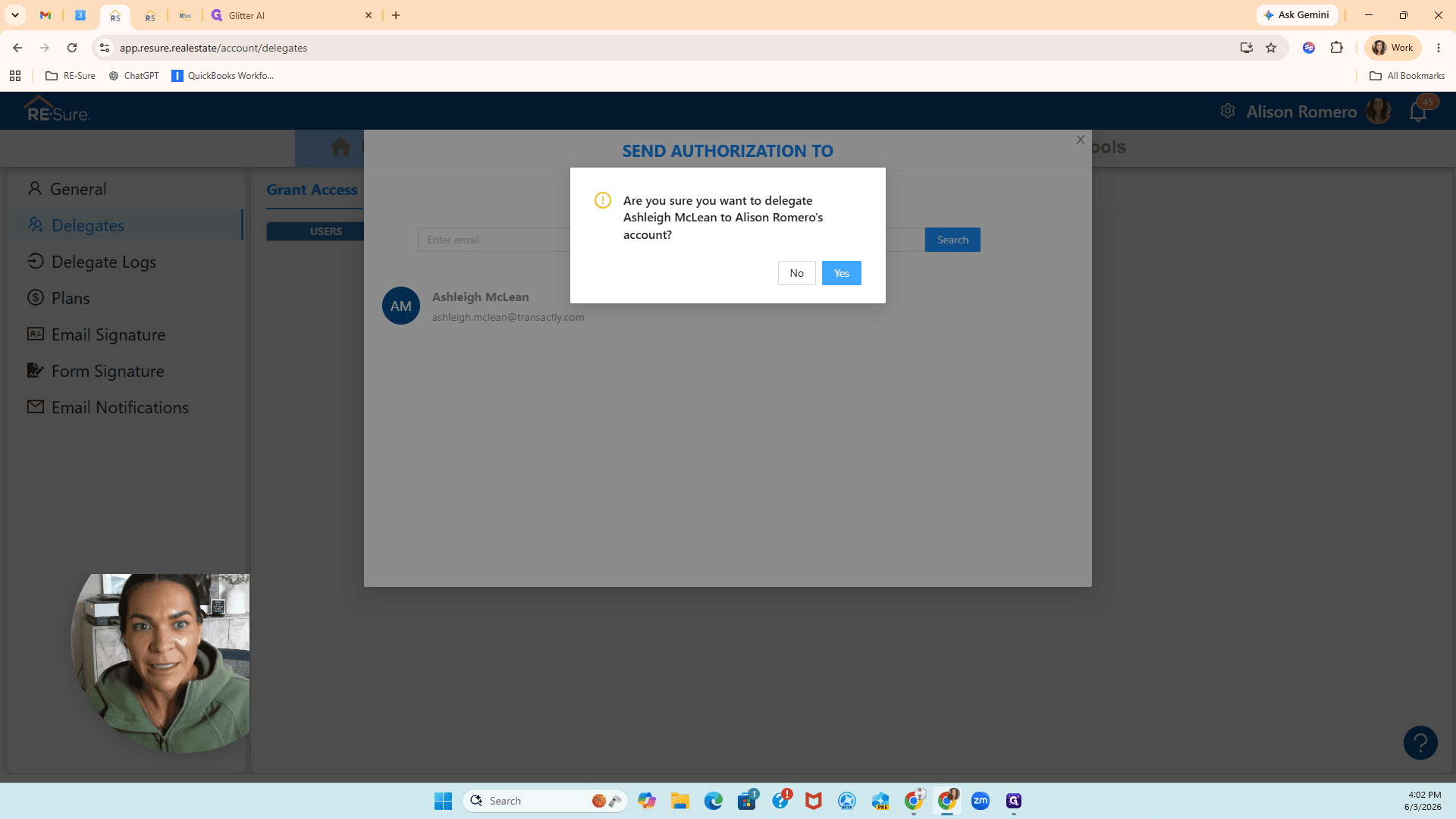
Q: What does the "Inactive" status mean next to my newly added delegate?
A: The "Inactive" status indicates that the delegate is not currently logged into and actively working within your account. Once they access your account, their status will update to active.
Q: Should I choose "Within Brokerage" or "Outside Brokerage"?
A: Select "Within Brokerage" if your support staff works for your specific brokerage. Choose "Outside Brokerage" if you are hiring an independent transaction coordinator or someone from a third-party transaction company.
Q: Can I limit which transactions my delegate can see?
A: Yes. When setting up access, you can choose "Limited Transactions" instead of "All Transactions" to restrict their view to specific files.
Term | Definition |
|---|---|
Delegate | A user who has been granted permission to access and manage another user's account on their behalf. |
Transaction Coordinator (TC) | A professional who manages all the paperwork, deadlines, and administrative tasks involved in a real estate transaction. |
Brokerage | The real estate agency or firm that employs agents and oversees their real estate transactions. |