
How to Add a User with App-Only Access in GV-Cloud
Learn how to create a new user with app-only operator privileges in GeoVision GV-Cloud, assign 24/7 door access rules, and manage monitoring permissions.
This guide explains how to add a new user and grant them app-only operator privileges in GeoVision GV-Cloud. Completing this process allows you to provide limited remote access to specific individuals so they can operate doors without accessing broader administrative settings.
This guide is intended for system administrators and security managers who manage user access in GeoVision GV-Cloud. It is useful when onboarding new personnel who require remote access to specific building entrances via the app.
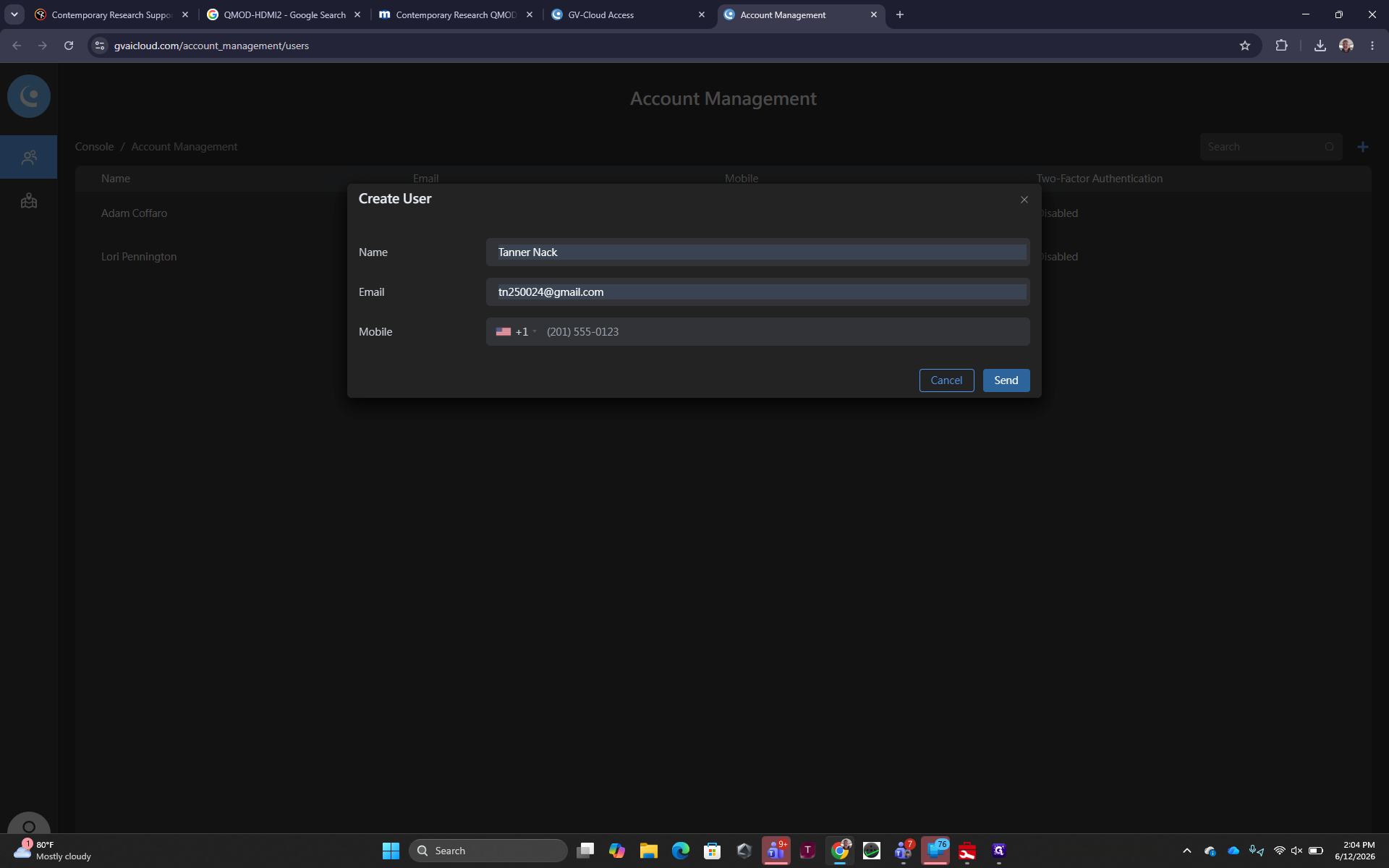
Create a New User
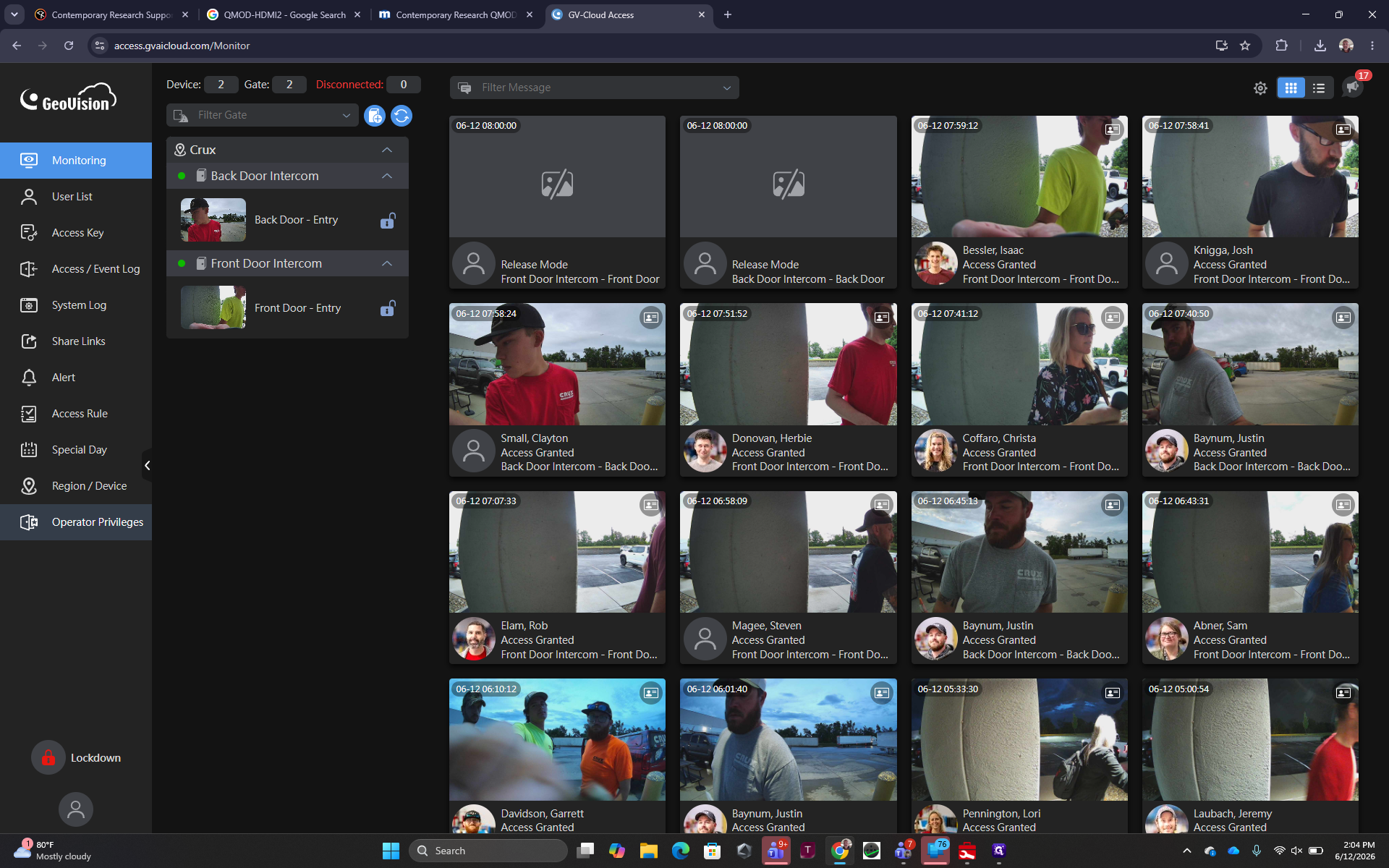
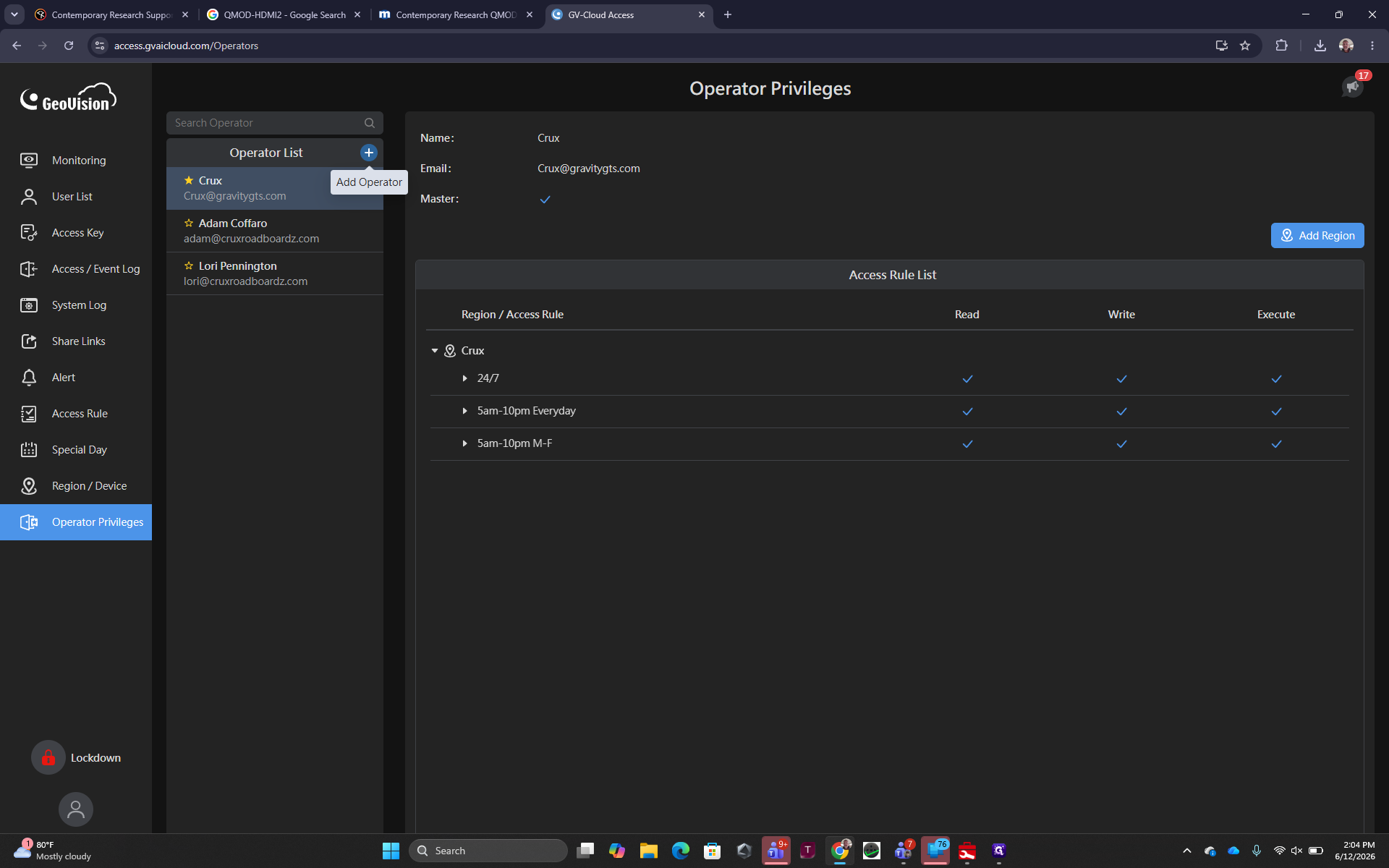
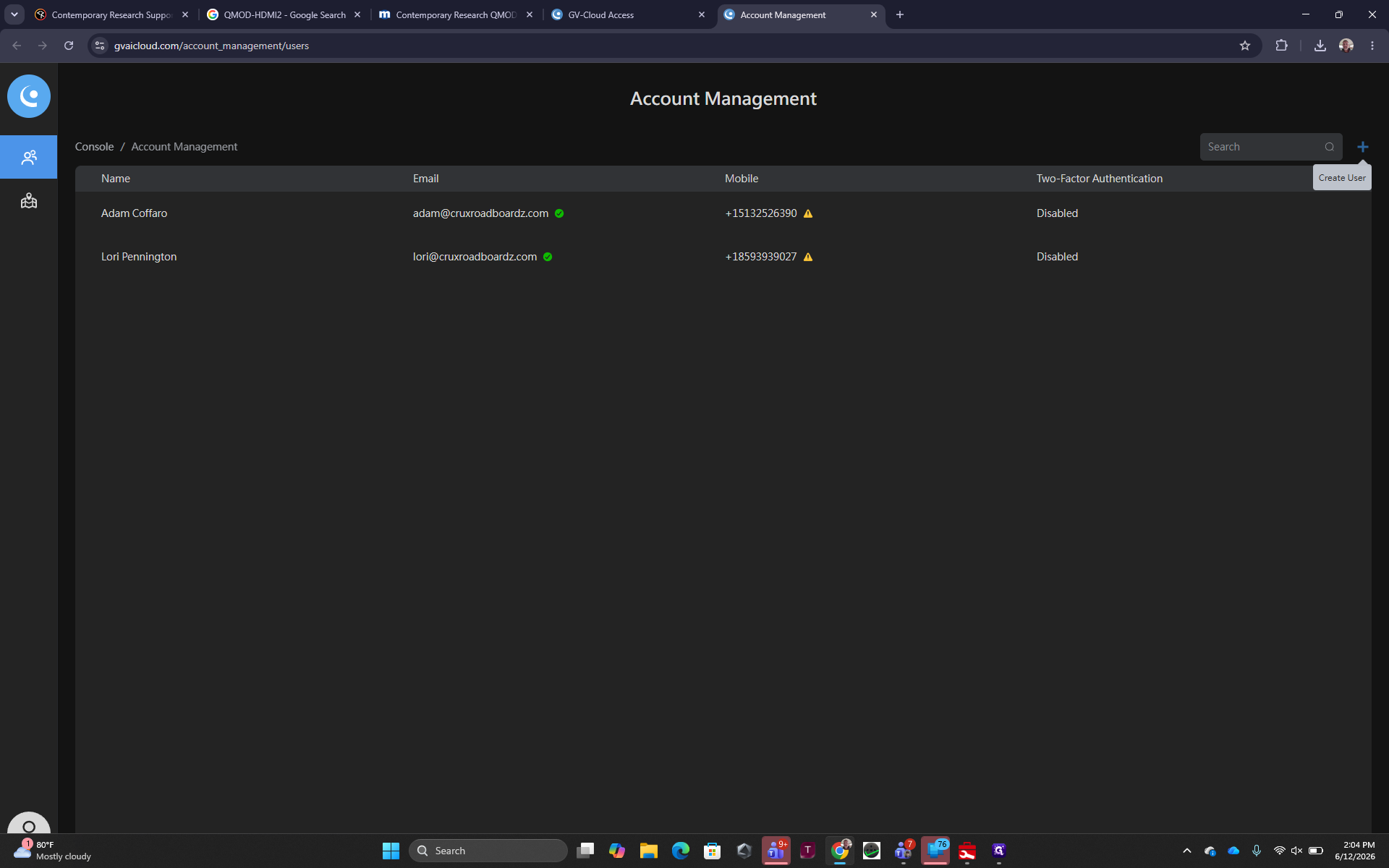
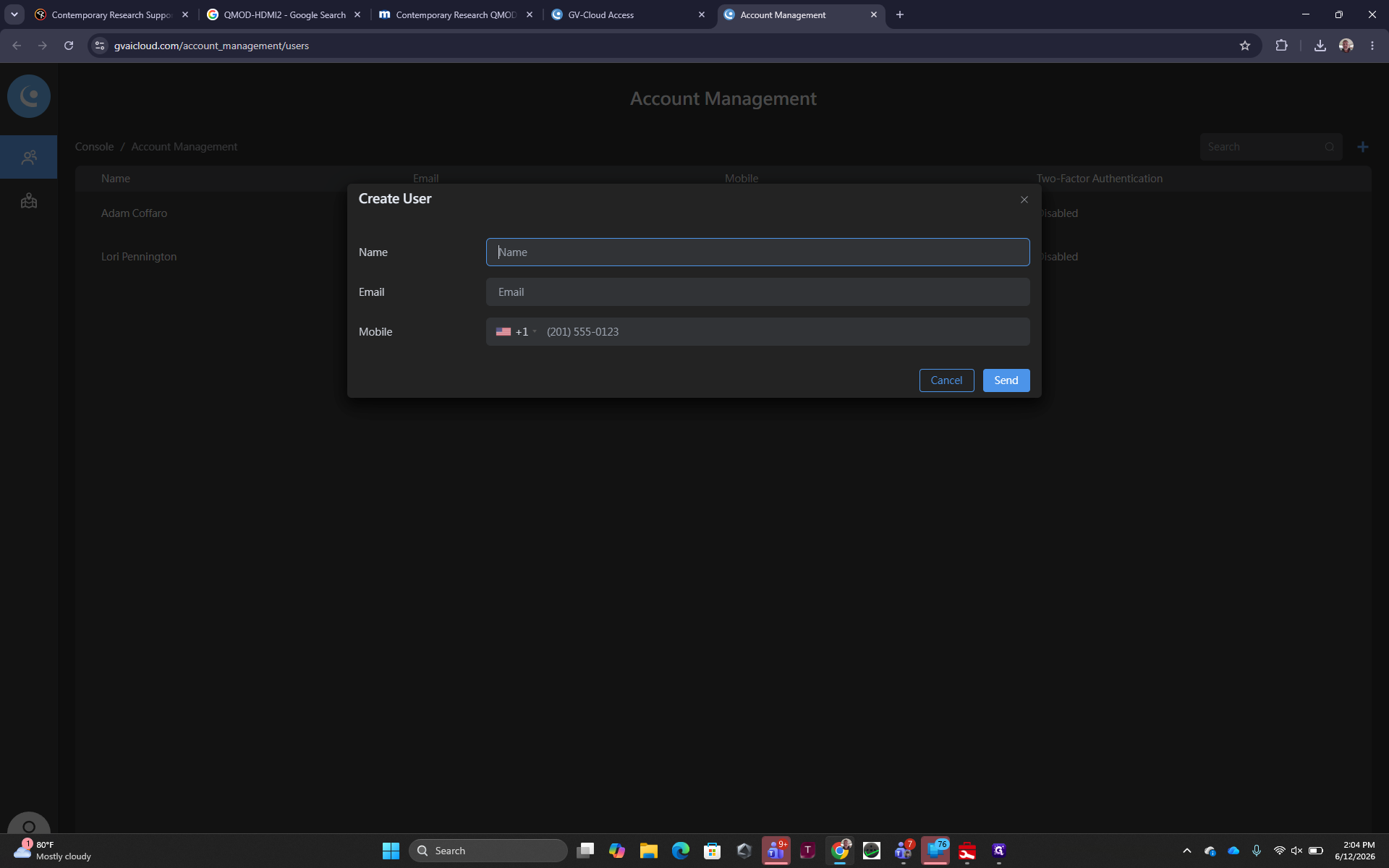
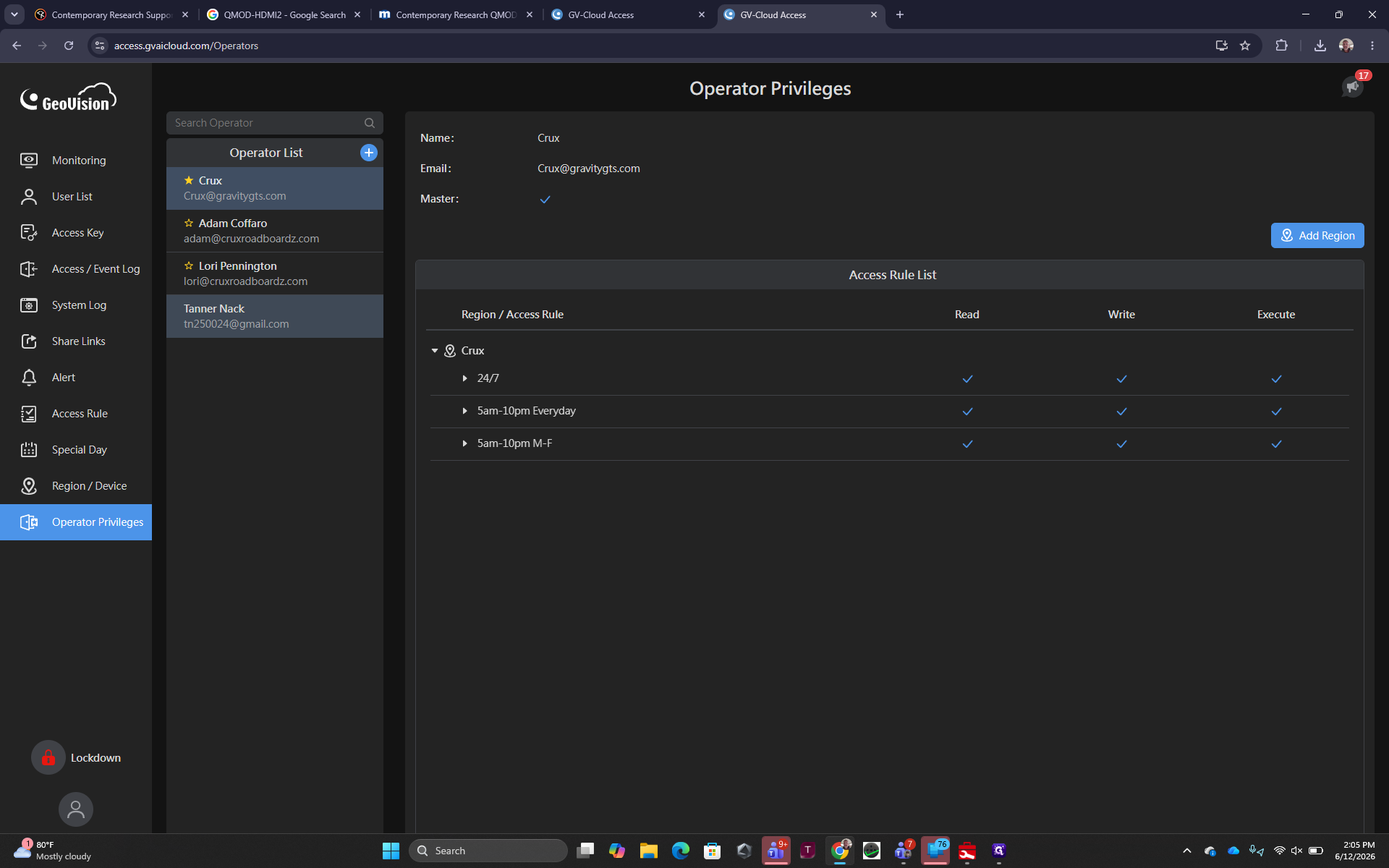
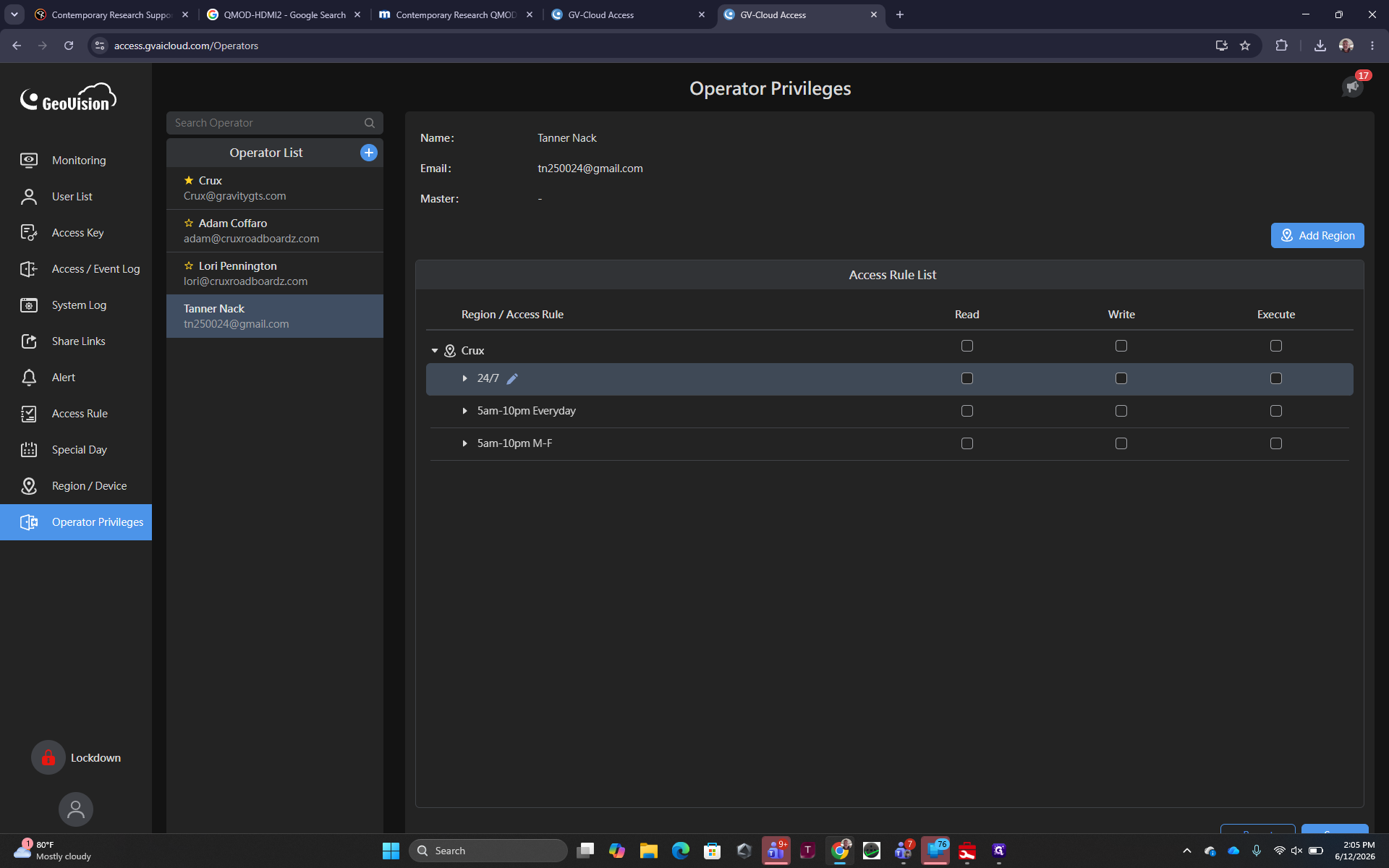
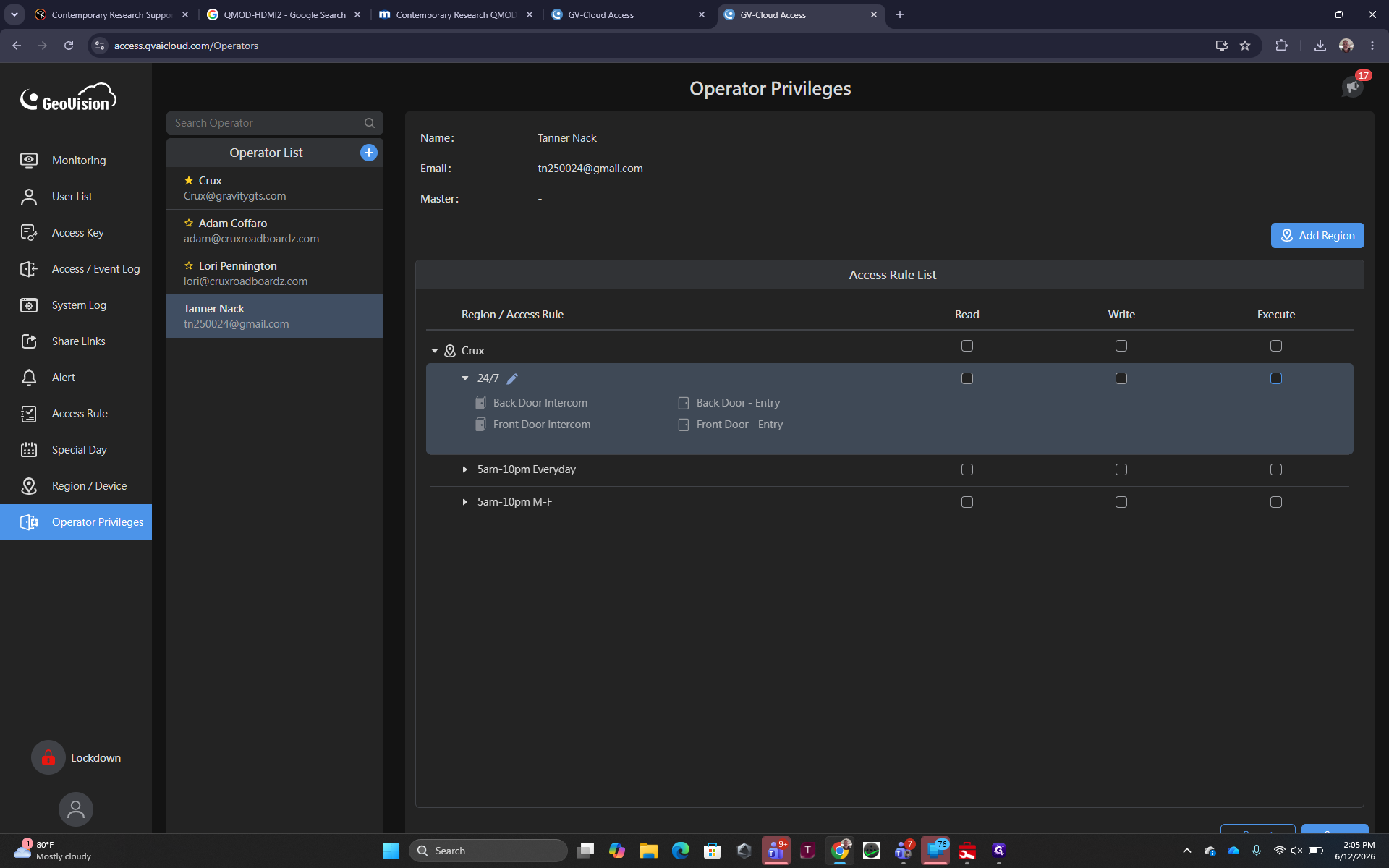
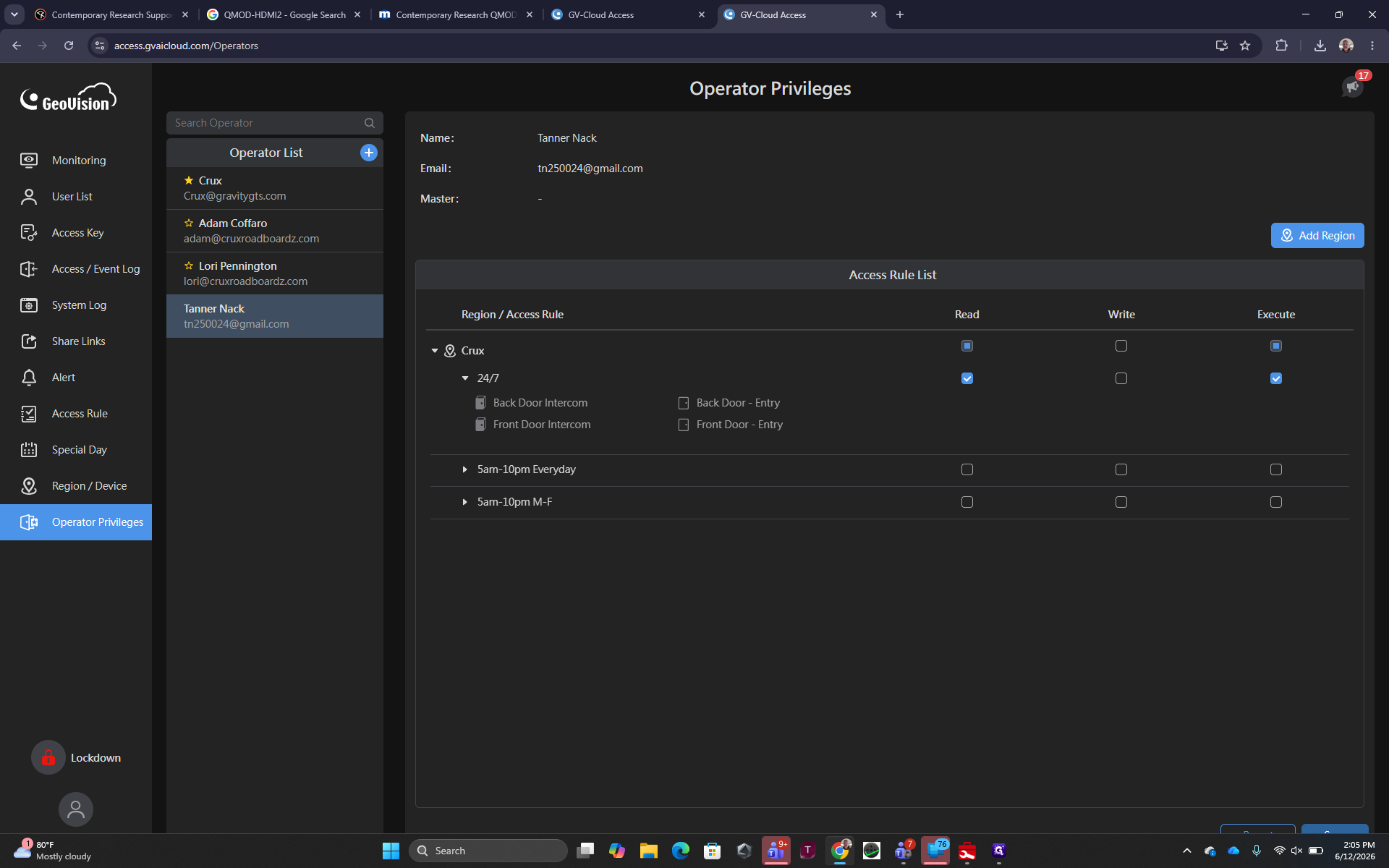
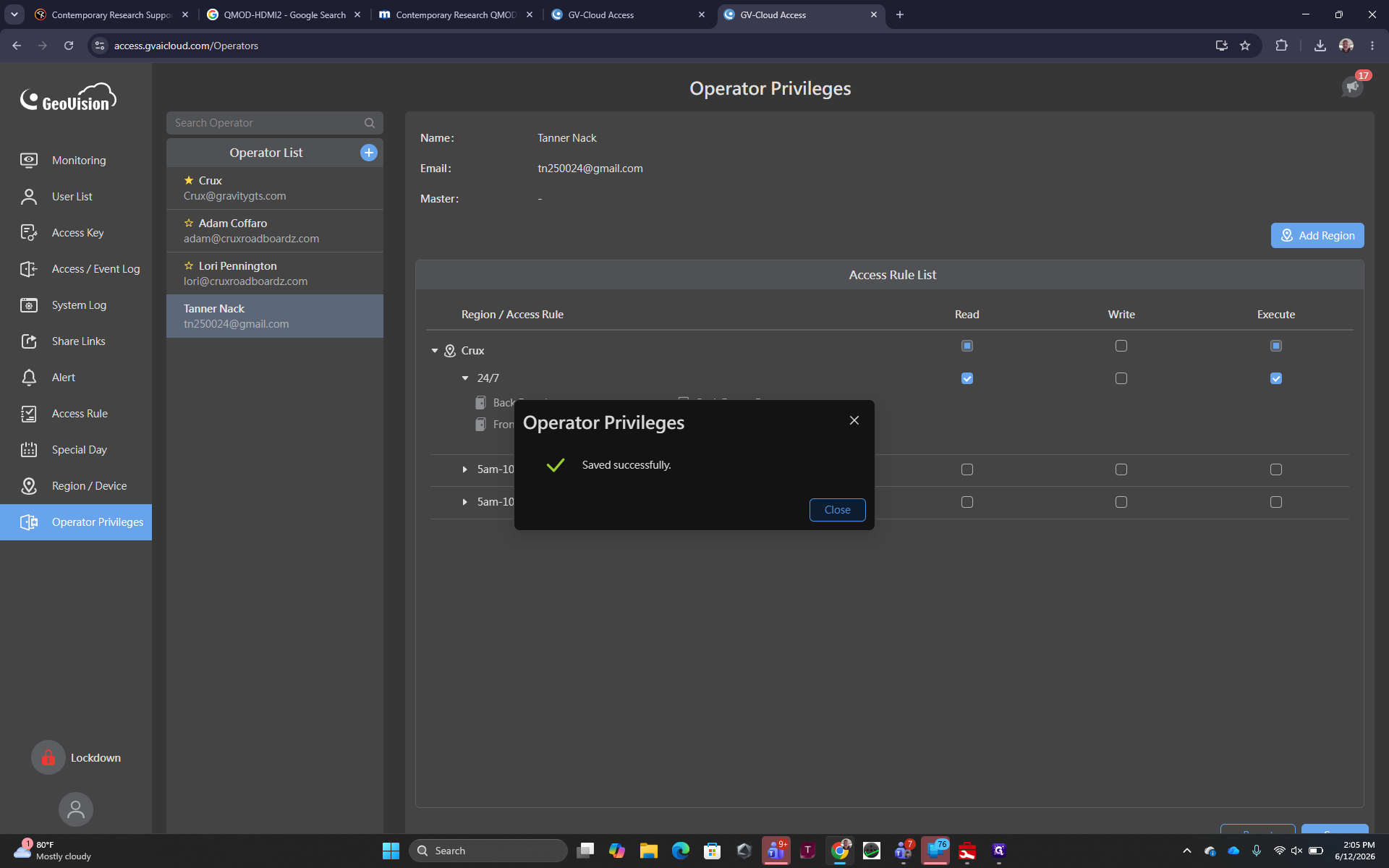
Assign Operator Privileges
Using the App-Only Account
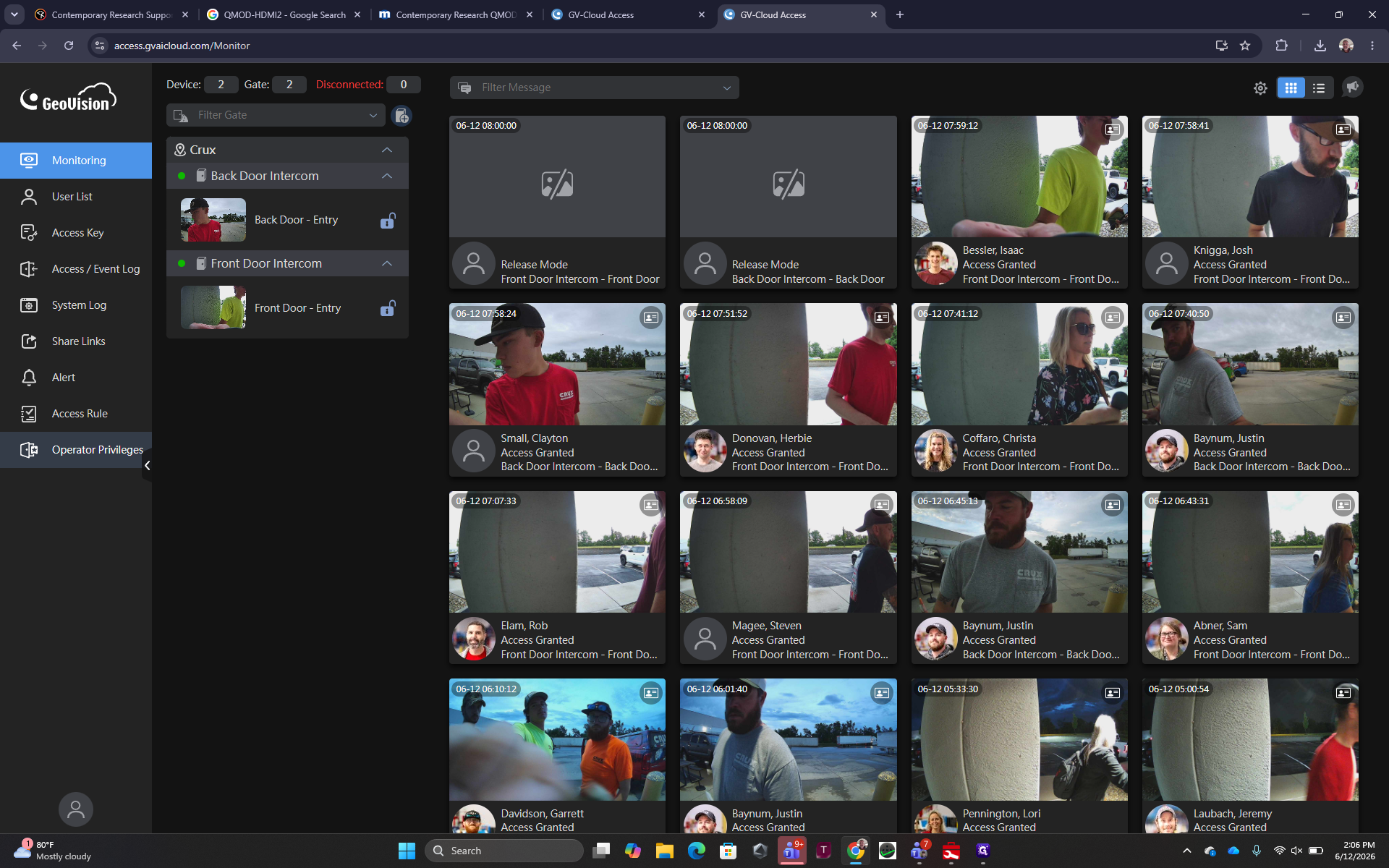
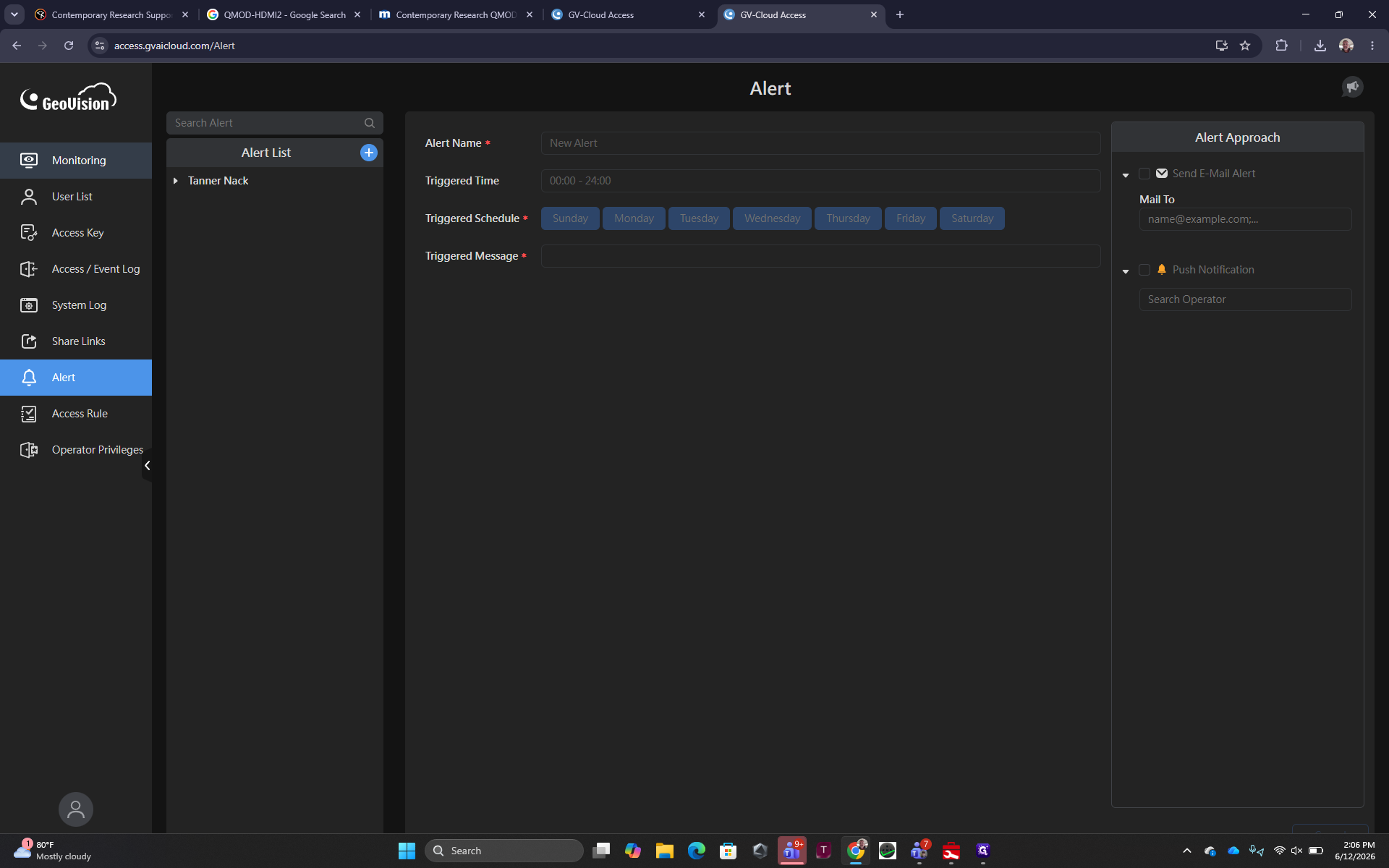
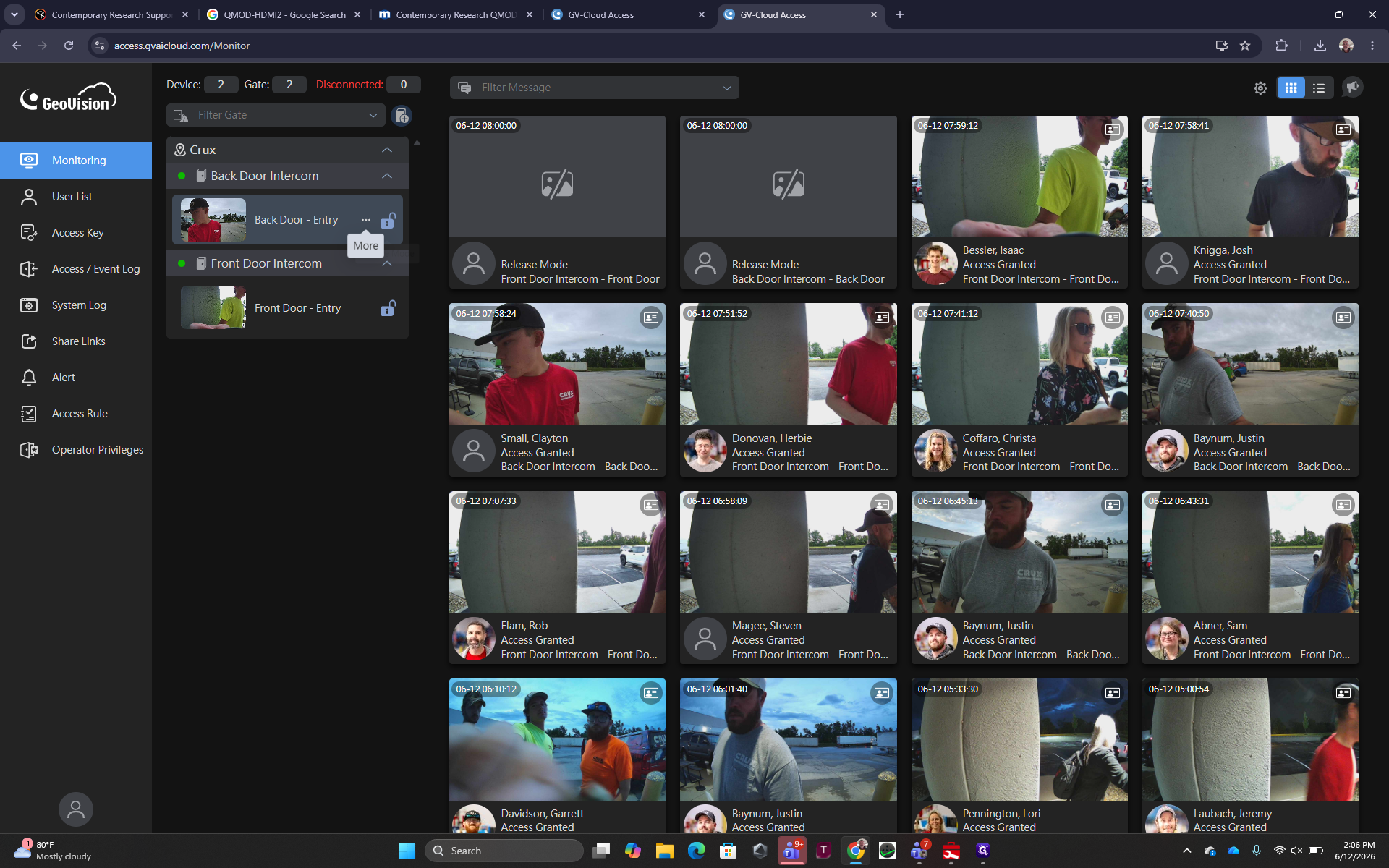
When logged in as an app-only operator, administrative options are restricted.
Door Operation Options
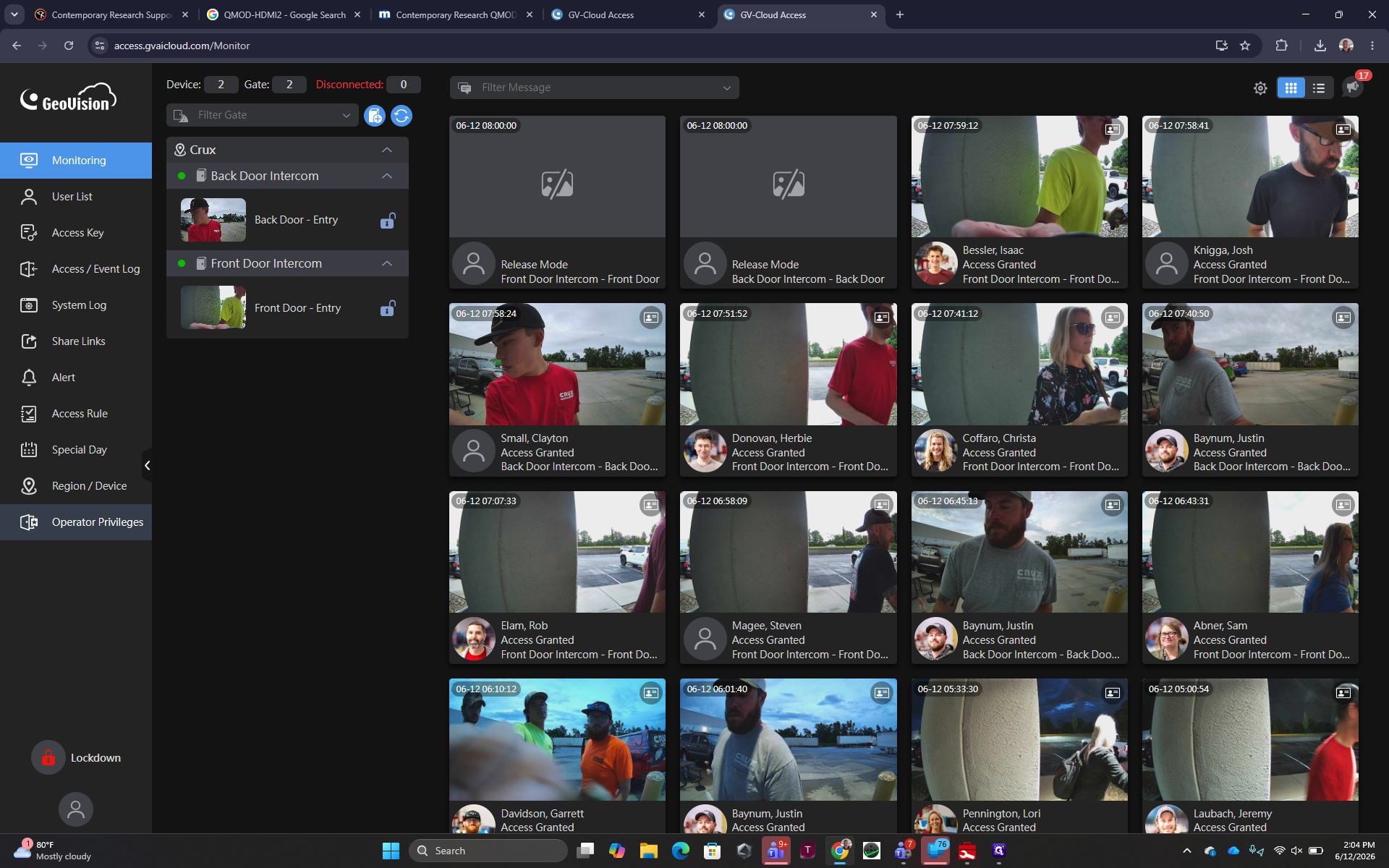
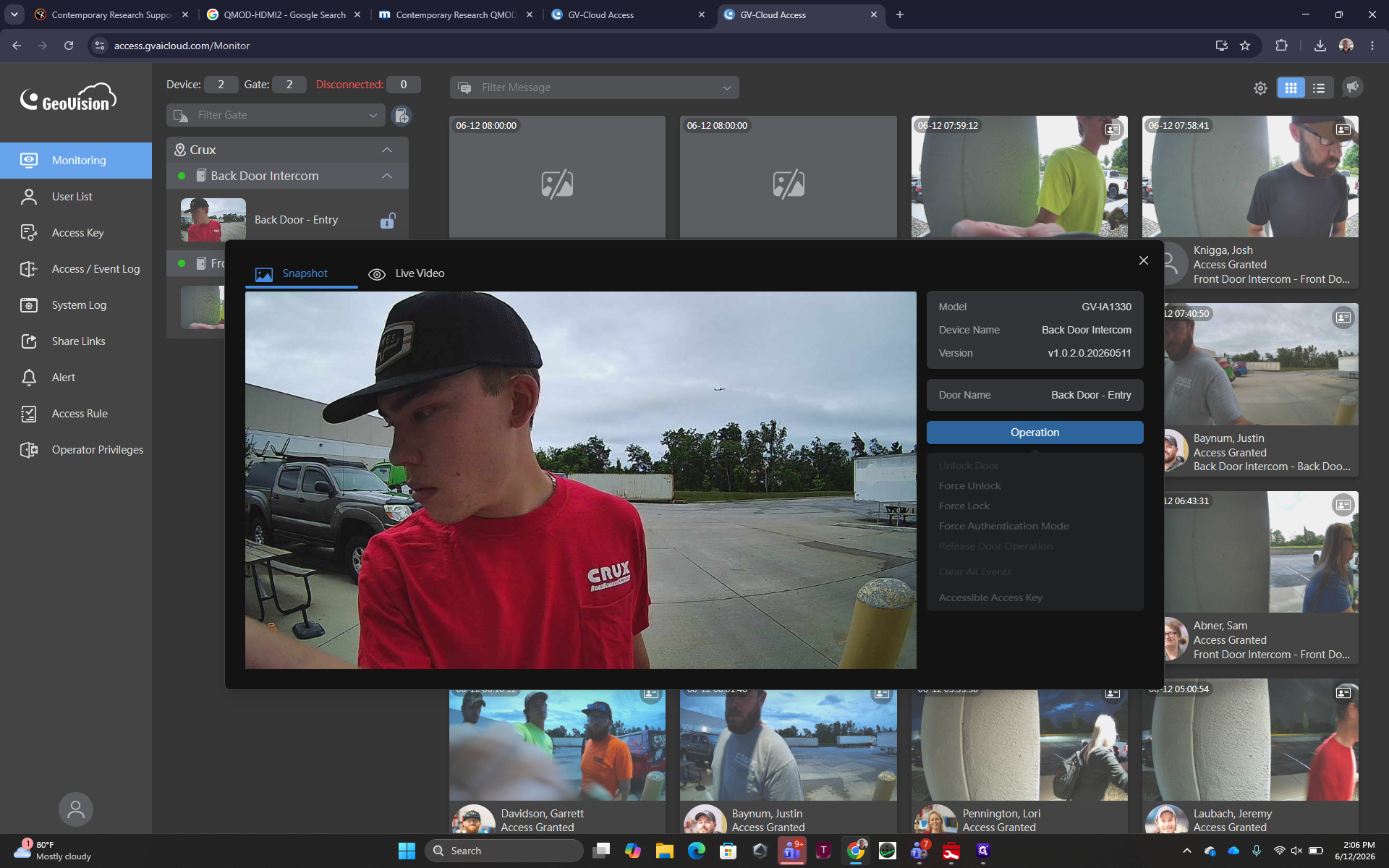
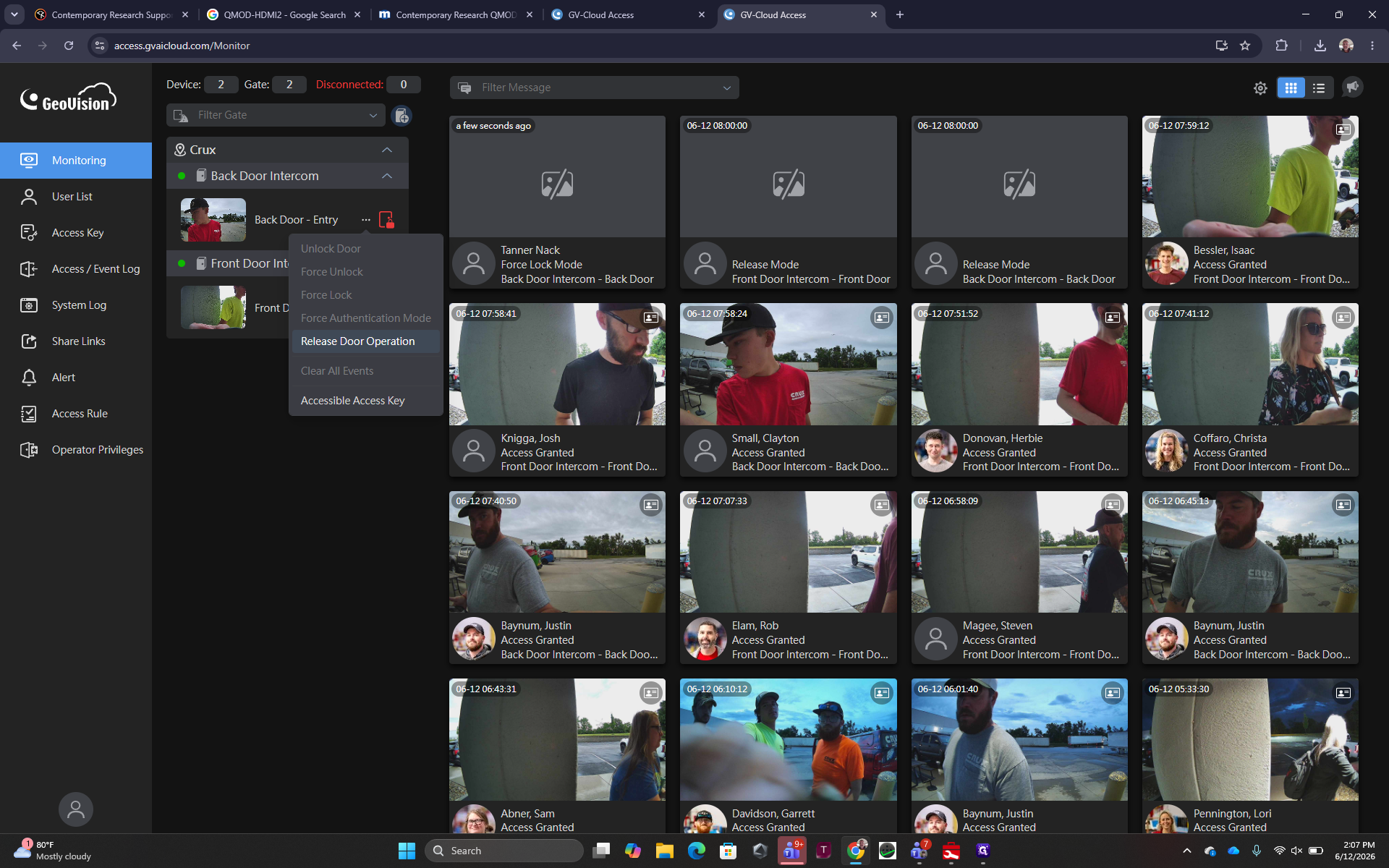
When operating a door from the monitoring interface, you will see several options depending on the system's setup.
Operation Mode | Description |
|---|---|
Unlock | Standard unlock operation that allows entry for a set period. |
Force Unlock | Overrides schedules to keep the door unlocked indefinitely. |
Force Lock | Overrides schedules to keep the door locked, preventing all normal access. |
Release Door Operation | Clears any forced states and returns the door to its scheduled operation. |
Q: Can an app-only user modify their own operator privileges or access rules?
A: No, an app-only user does not have permission to edit their operator privileges, access rules, or alert configurations. They only have the ability to execute door operations based on the rules assigned to them.
Q: What happens when you add a new operator?
A: An email with a verification link is sent to the address provided. The user must click the link to verify their account before they can log in.
Term | Definition |
|---|---|
Operator Privileges | A set of permissions defining what an individual user can view or execute within the system. |
Execute Permission | A specific access right that allows a user to perform an action, such as unlocking or locking a door. |
Release Door Operation | A command that returns a previously forced door state back to its normal schedule or access rules. |