
How to Add Users and Assign Access Credentials
Learn how to add new users, capture unprinted access card details, and assign credentials in the QxControl access management system.
This guide explains how to add new personnel to the QxControl system and assign them access credentials. By completing this, you will ensure users can successfully authenticate and unlock designated doors using physical cards or mobile devices.
This guide applies to security administrators or facility managers responsible for onboarding new employees and issuing building access credentials.
Capturing an Unmarked Credential
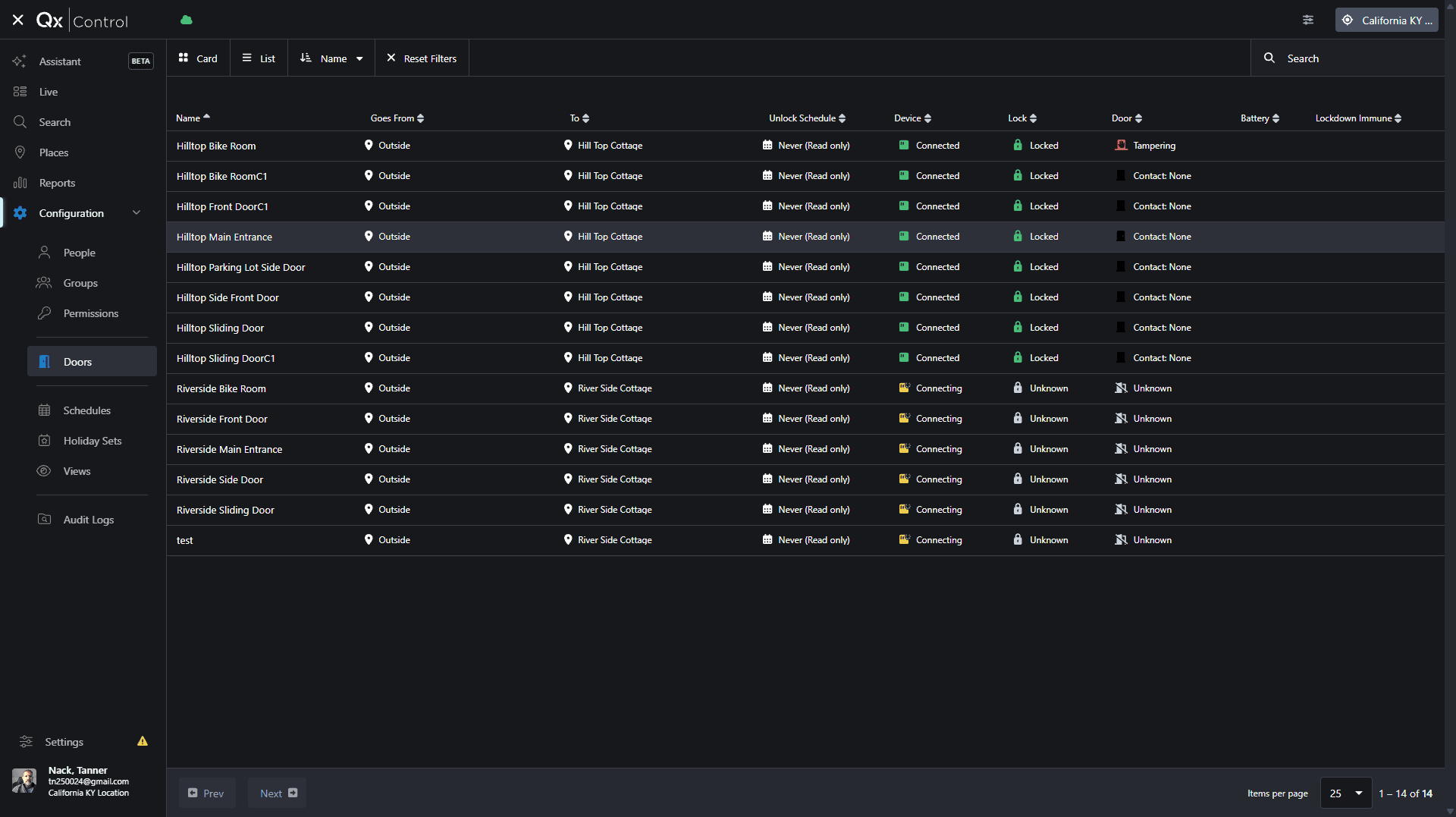
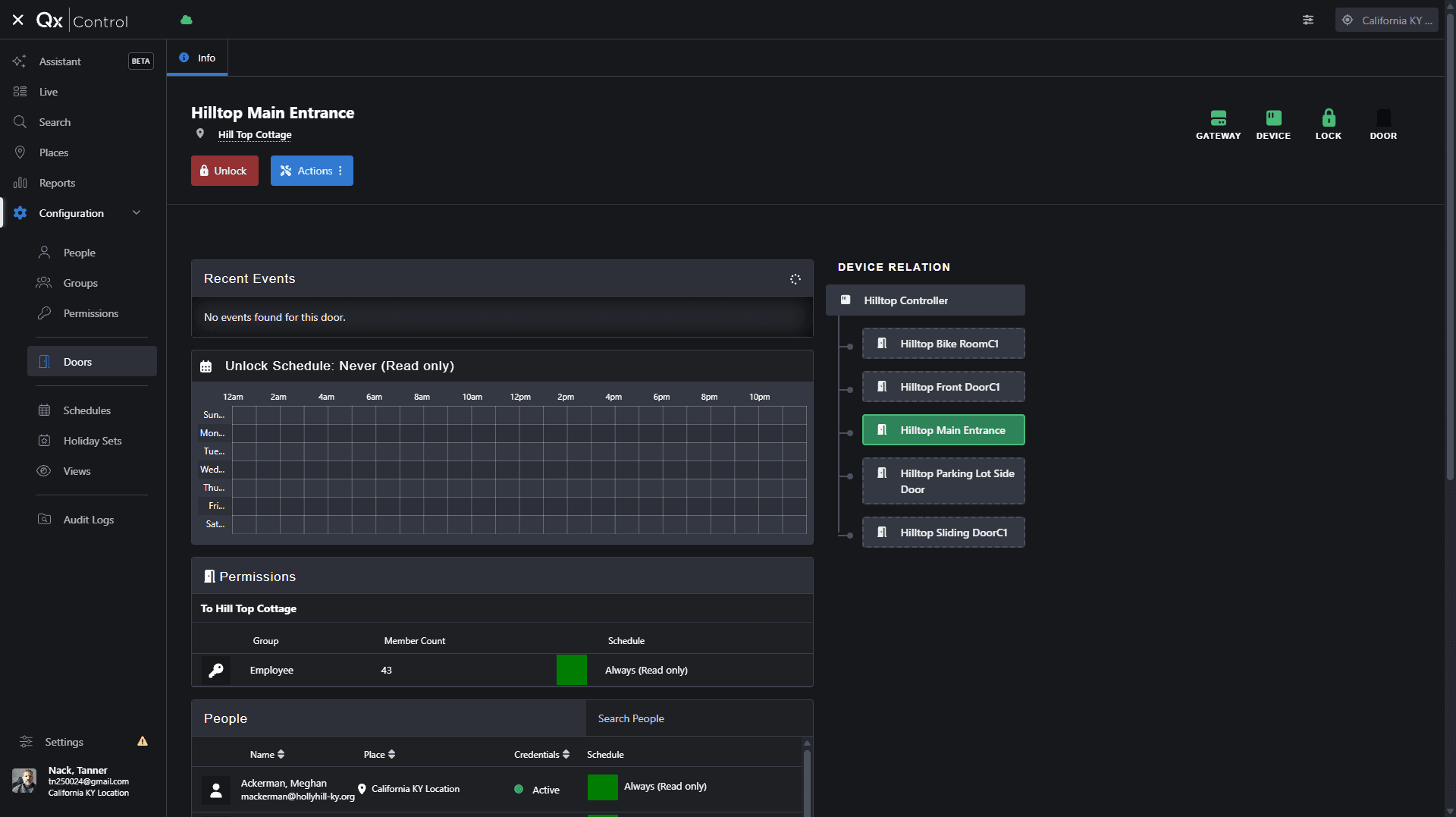
If a credential doesn't have the site code and ID printed on it, you must scan it to capture its details. If you already know the site code and ID, you can skip this section and go straight to creating the user.
Instruct the person to scan their unassigned card at a designated door reader.

Wait for the door's recent events to load. If no events are found, you may need to scan the card again.
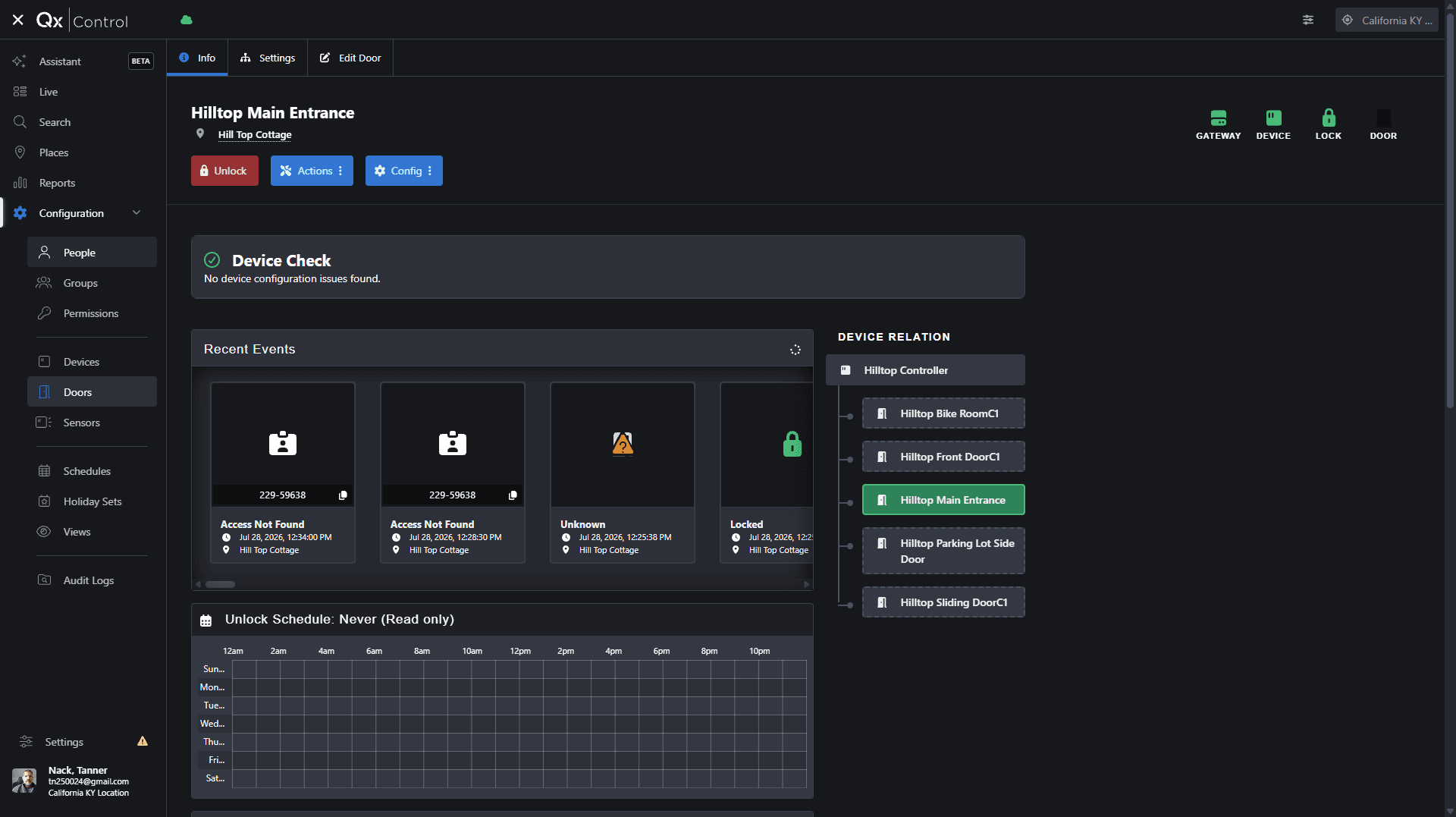
Creating the User Profile
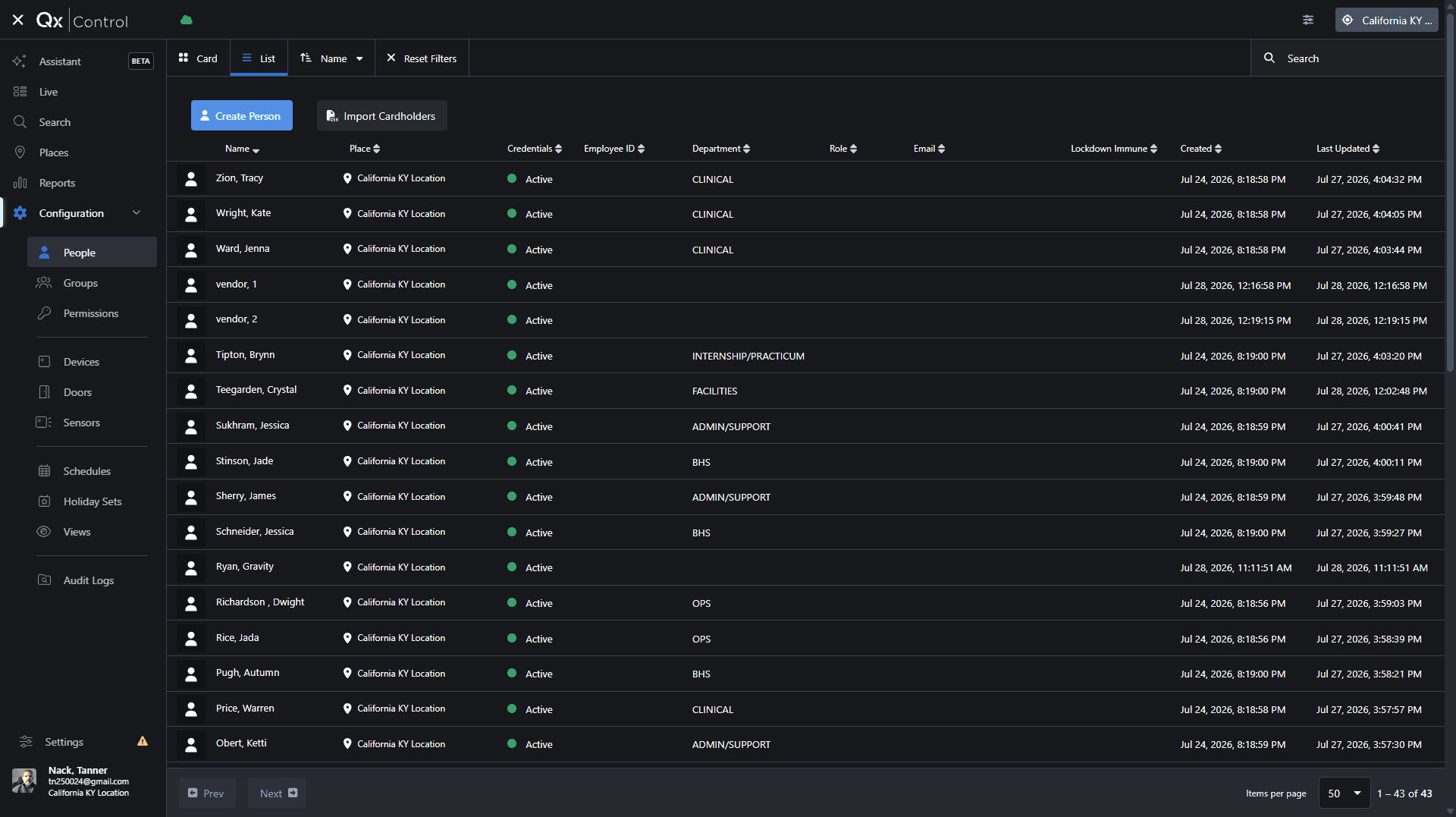
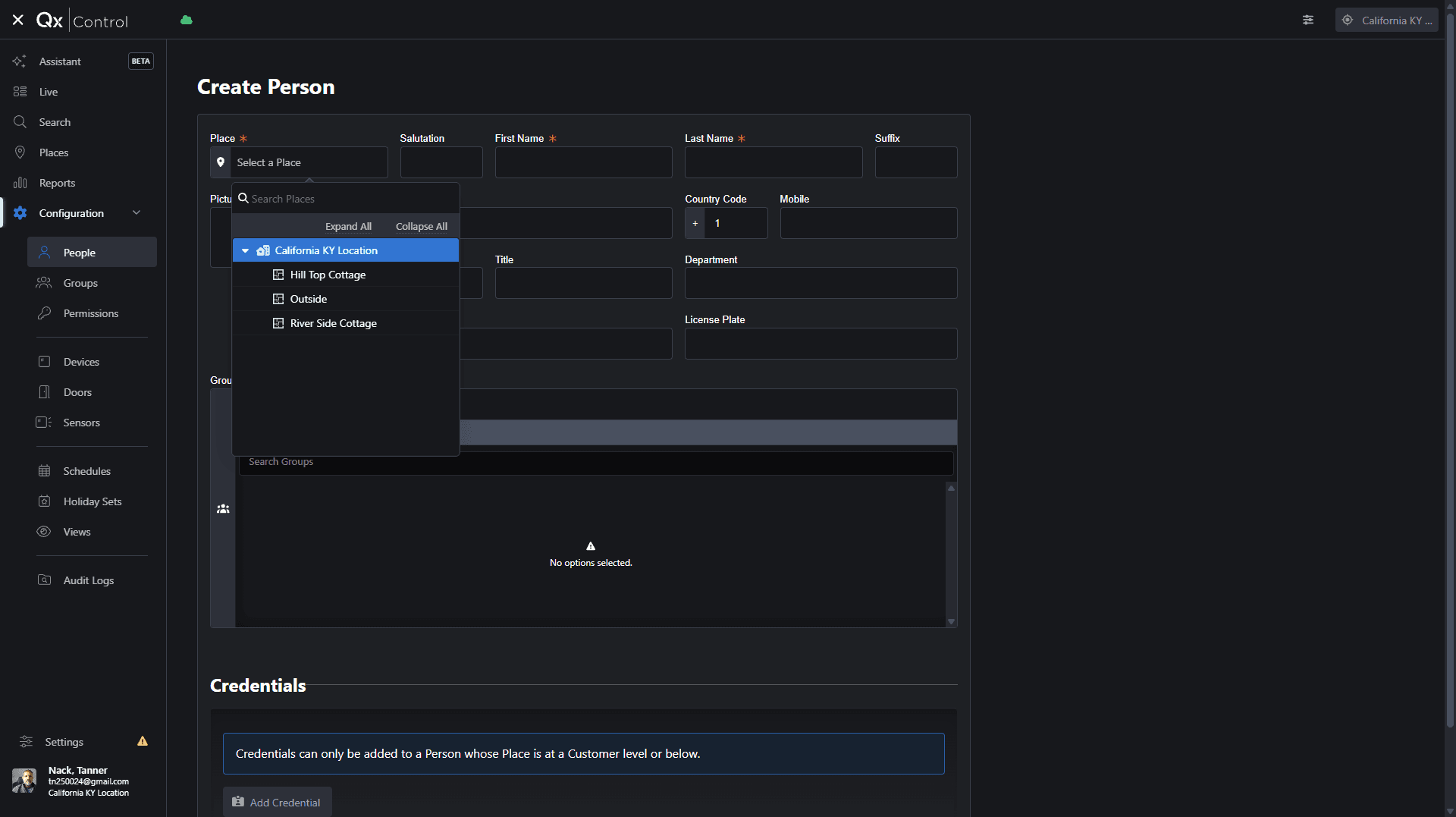
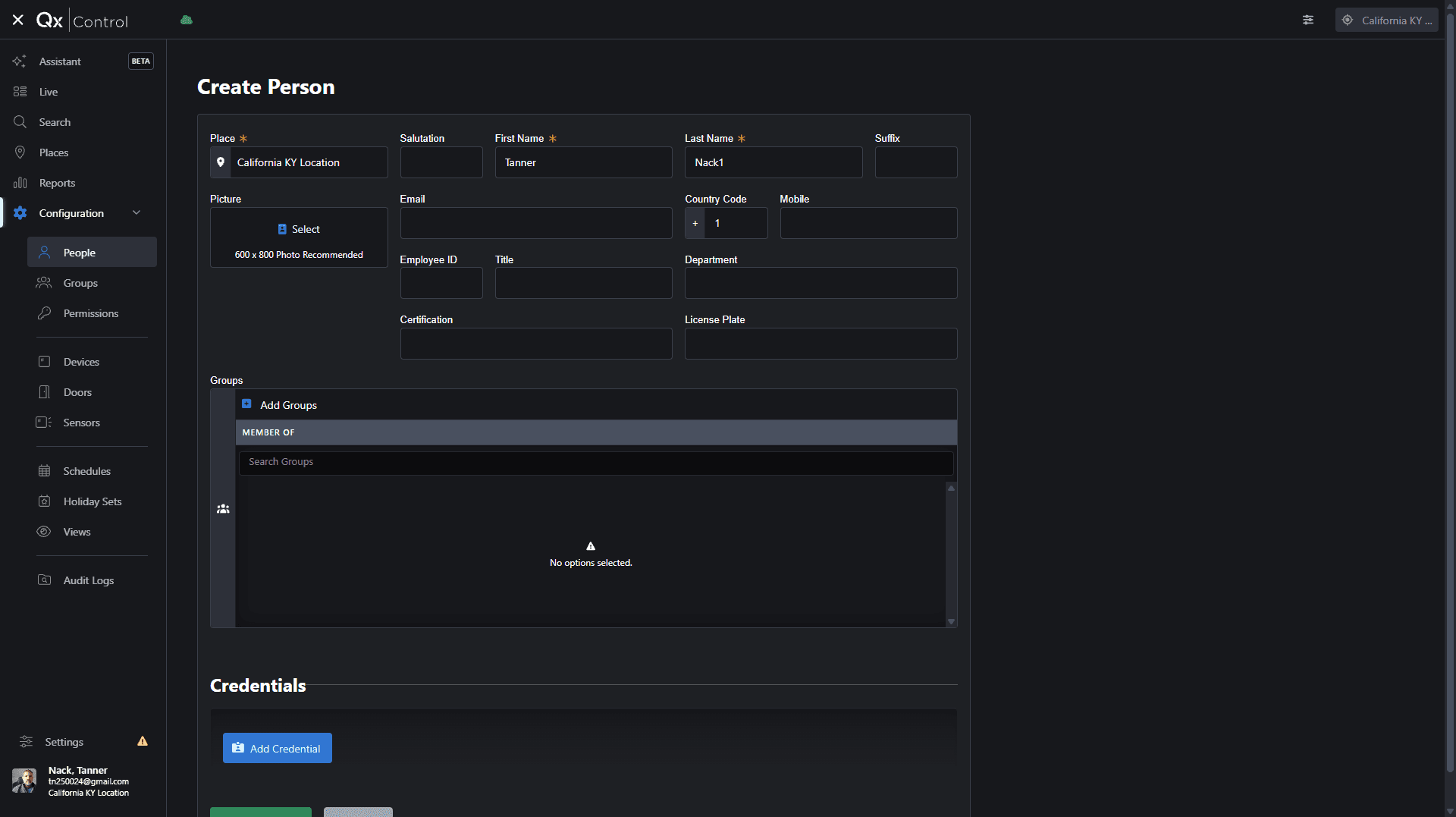
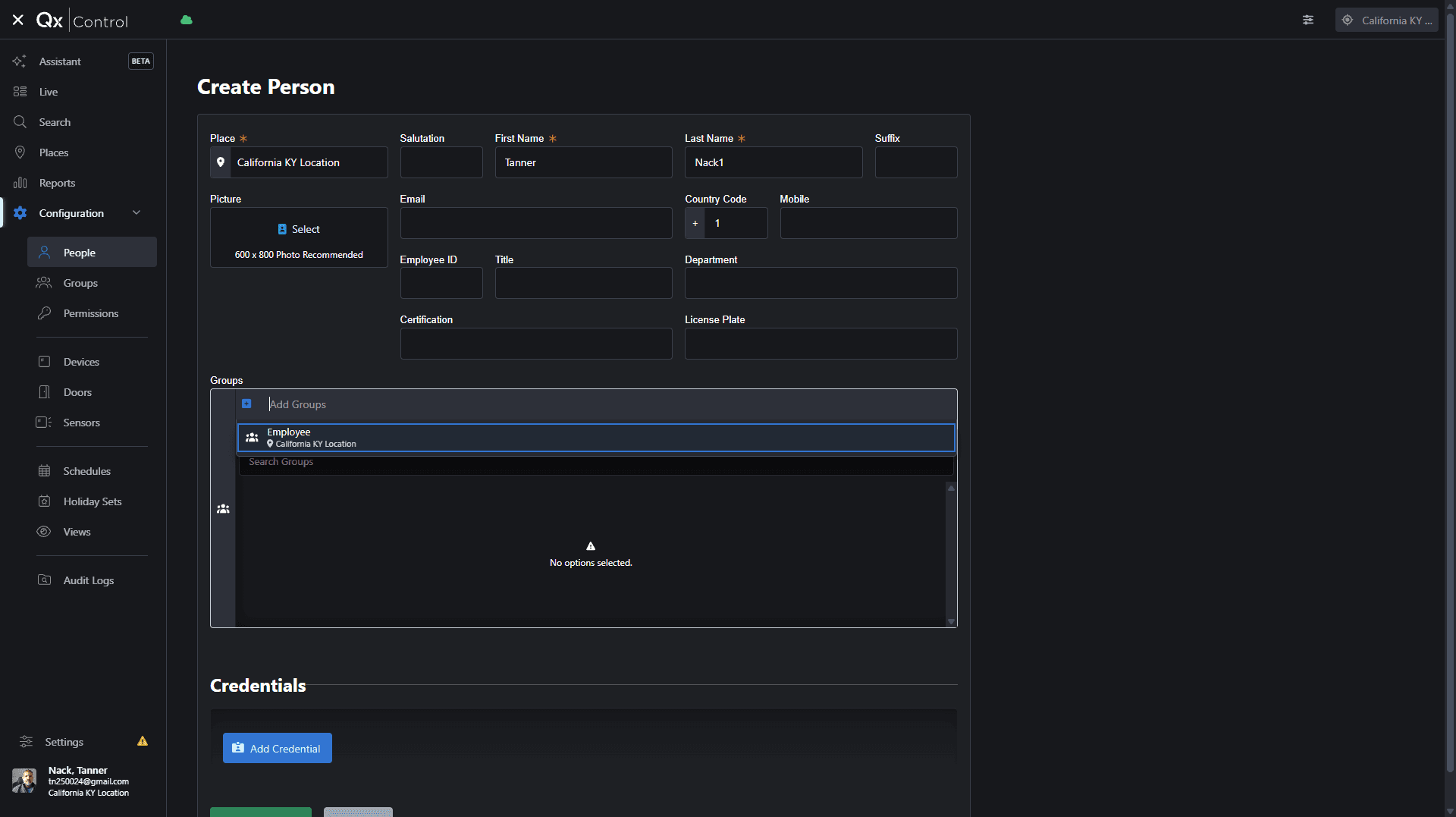
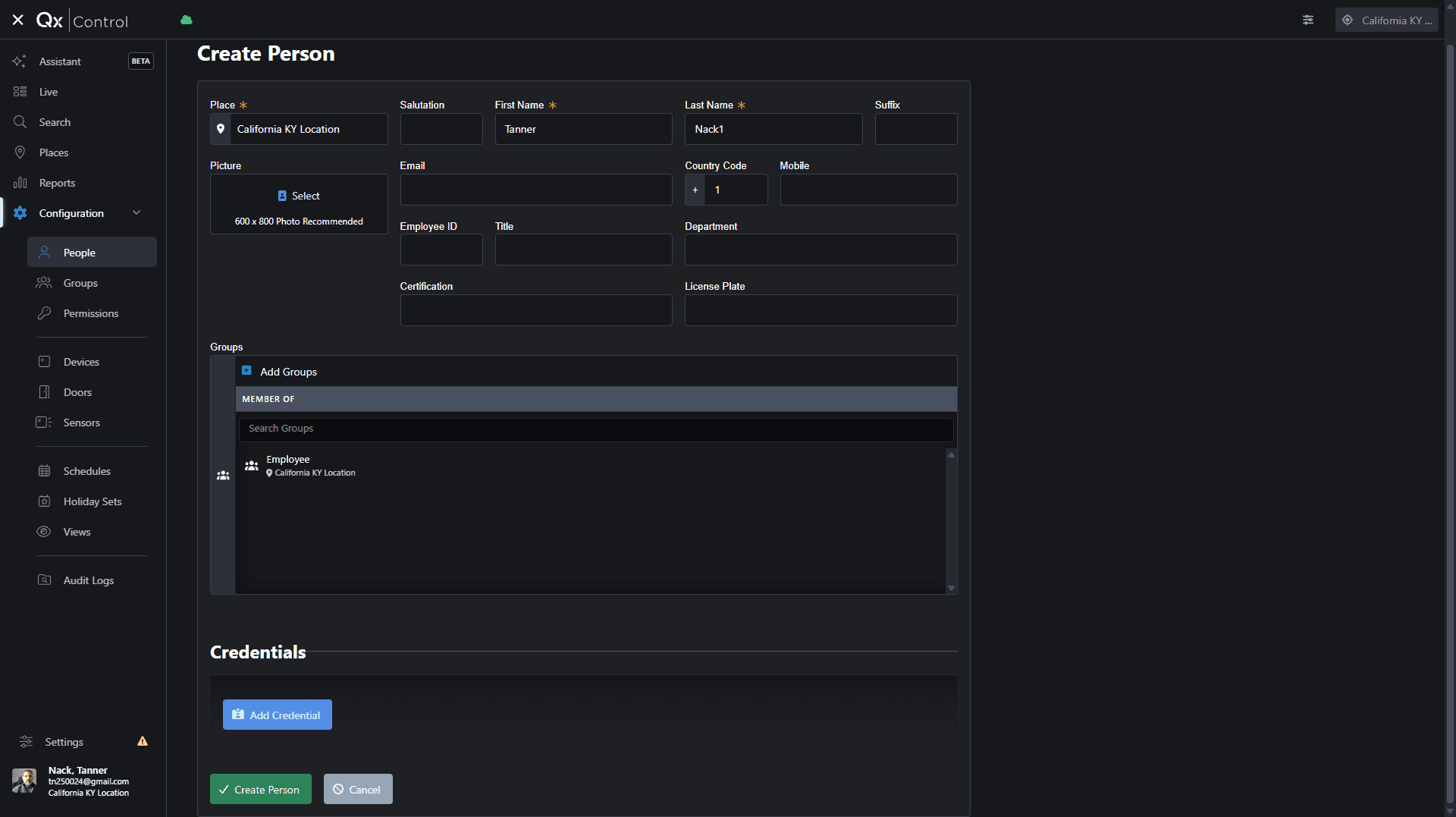
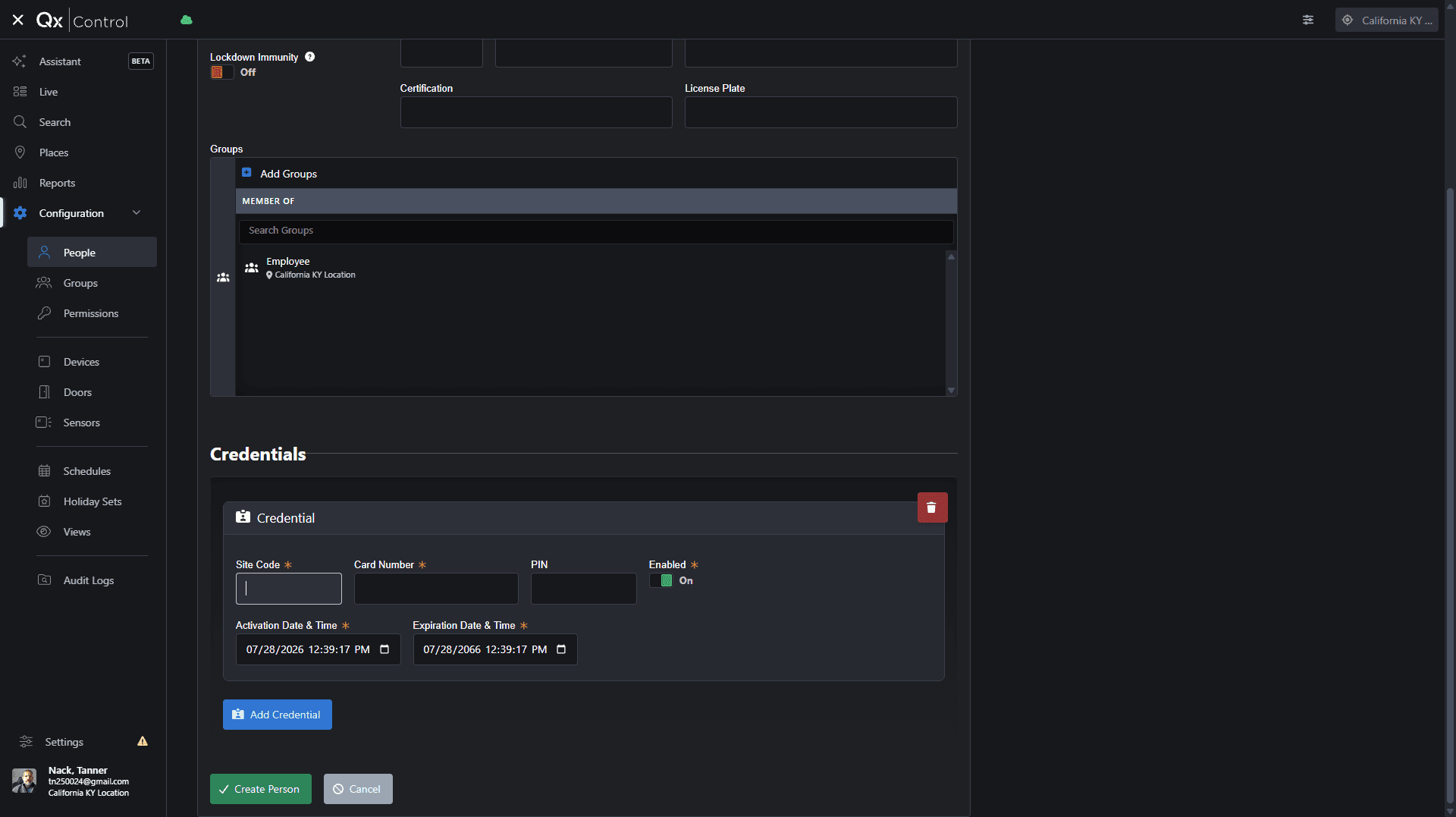
By default, the credential activates today and expires far in the future. You can adjust the activation or expiration dates if you are issuing a temporary credential.
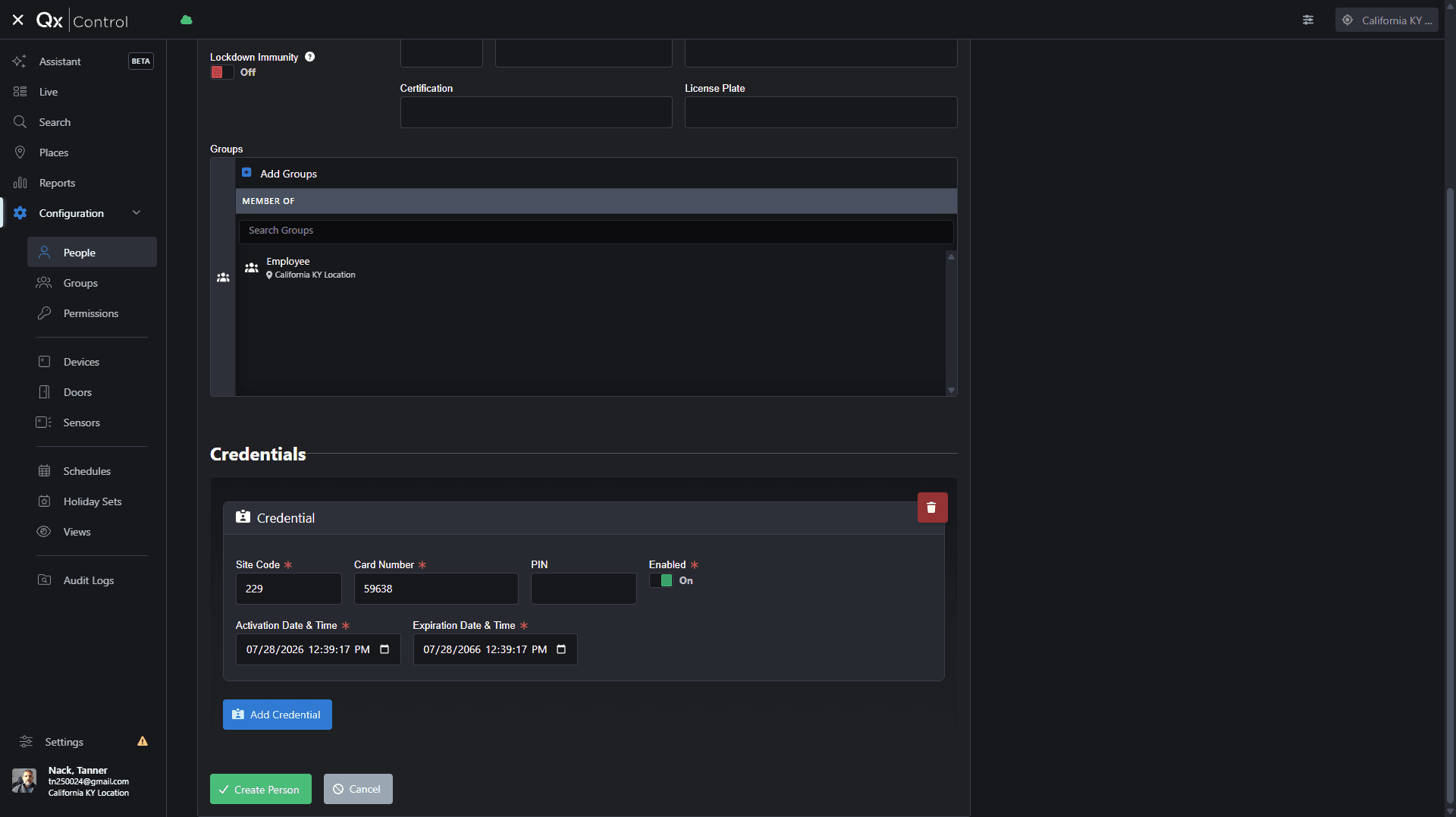
Verifying Access and Adding Details
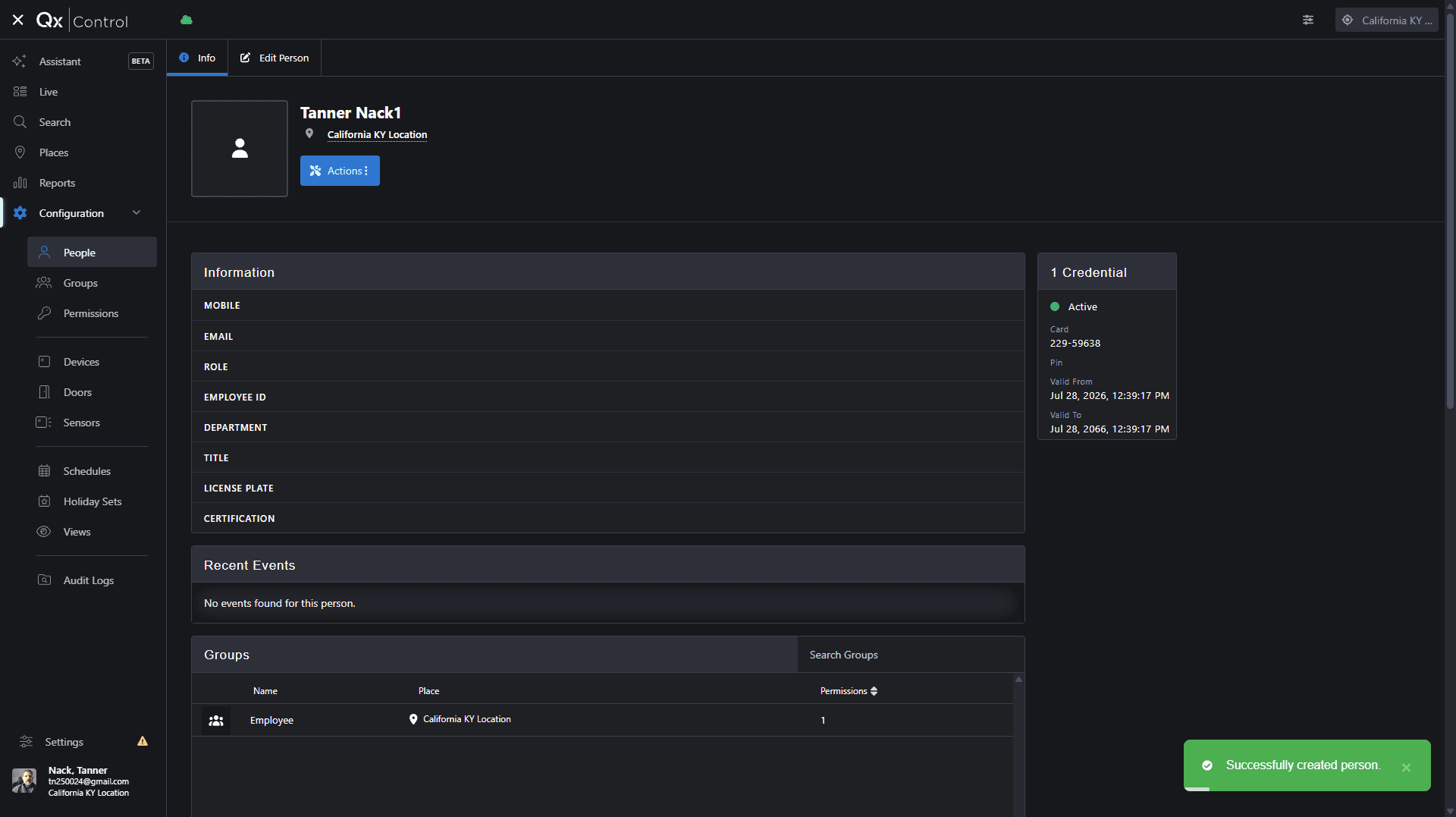
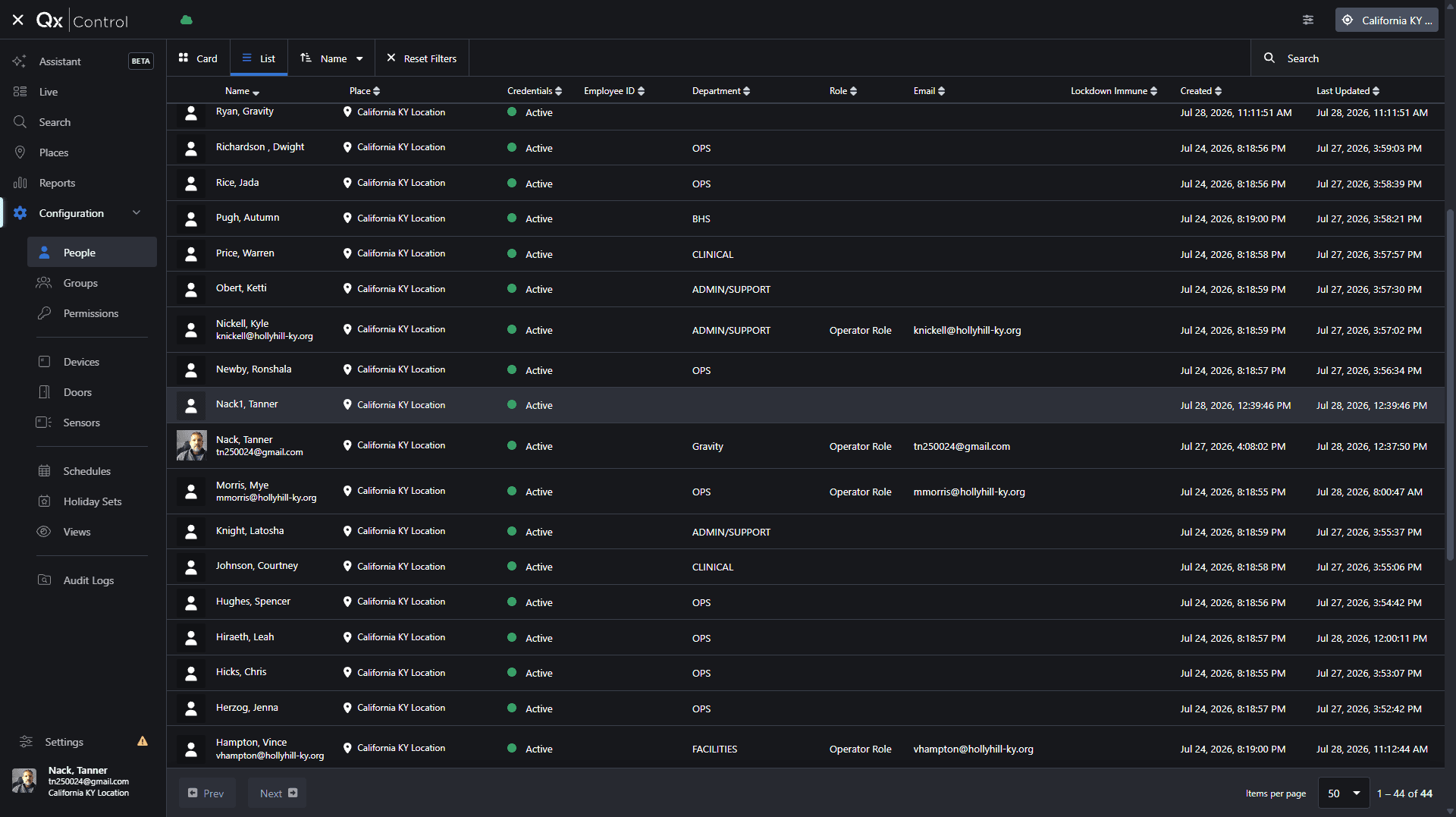
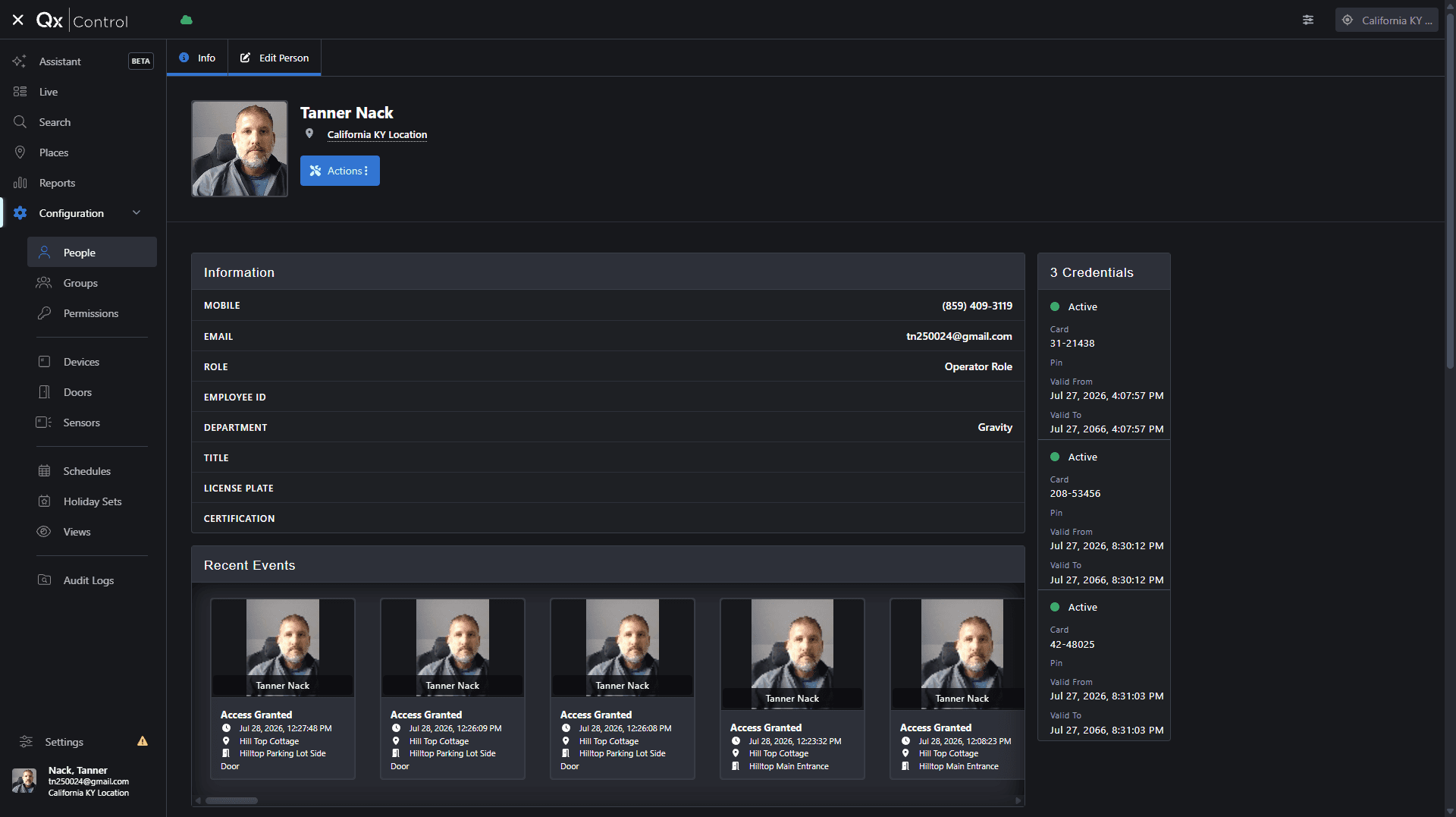
Have the user scan their newly assigned badge at a door. The "Recent Events" feed on their profile will now show an "Access Granted" event.
Q: What should I do if the card has the site code and ID stamped on it?
A: You can skip the scanning step entirely. Simply read the site code and ID directly from the physical card and manually type them into the user's profile.
Q: Why aren't any events showing up for the door I selected?
A: If you see a "No events found" message, the door reader may not have registered the card swipe. You may need to scan the card again to populate the log.
Q: Is it mandatory to enter the user's email address?
A: No, email and other personal information fields are entirely optional and will not negatively affect the user's access if left blank.
Q: Can a single user use more than one type of credential?
A: Yes. You can add multiple credentials to a user's profile, allowing them to use both a physical card and a mobile Bluetooth credential simultaneously.
Q: How do I disable an active credential?
A: You can disable a user's credential by navigating to their profile's edit screen and adjusting the expiration date or directly disabling it.
Term | Definition |
|---|---|
Site Code | A facility-specific identifier assigned to a batch of access cards, used in combination with a unique ID to authenticate entry. |
Credential | A physical card, mobile device, or token that contains authentication data used to unlock secured doors. |
Bluetooth Credential | A digital key stored on a user's mobile phone that communicates with a door reader via Bluetooth to grant access. |