
How to Add Veterinarians and Employees in Vet Visor
Learn how to create new veterinarian profiles, assign professional licenses, and add staff members with custom work schedules in your Vet Visor dashboard.
By Rogin Roi Reillo
This guide explains how to add new veterinarians and staff employees to your clinic's system. Completing these steps ensures your team's professional details, licenses, and schedules are accurately recorded for streamlined practice management.
This applies to clinic administrators and practice managers who are onboarding new staff members or updating their team's credentials and weekly schedules.
Adding a New Veterinarian
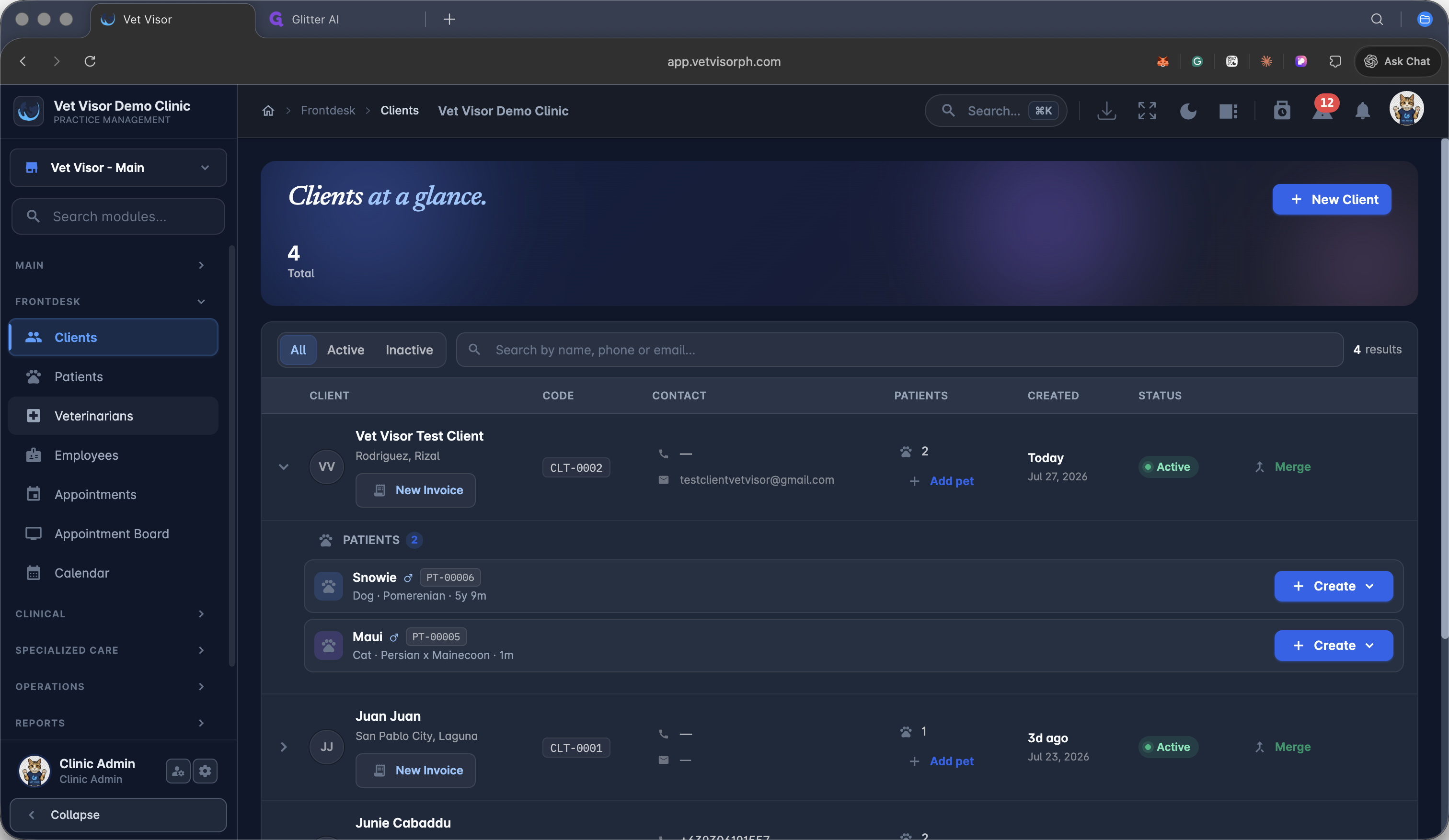
1
Click Veterinarians in the main navigation menu.
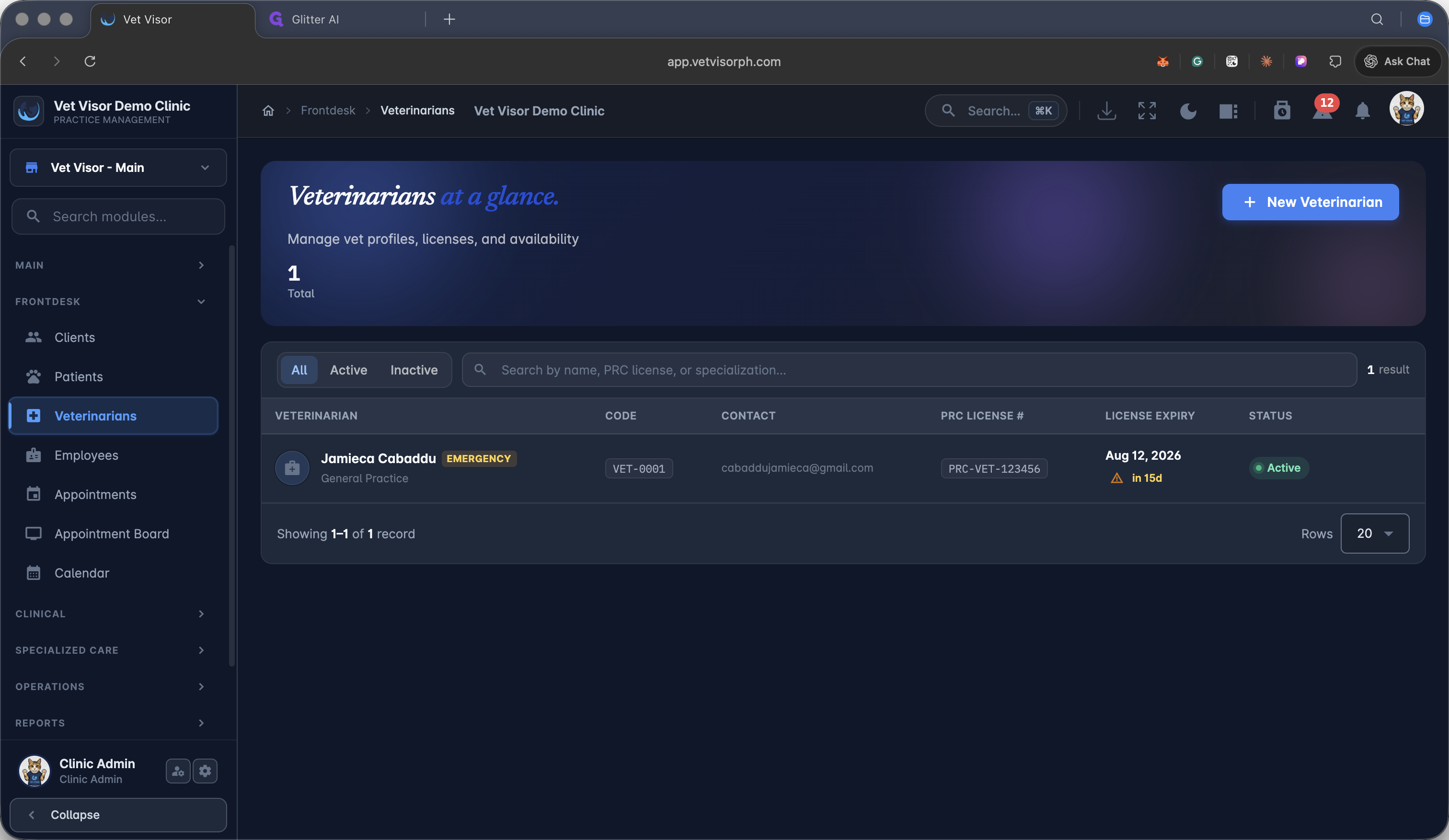
2
Click + New Veterinarian in the upper-right corner of the dashboard.
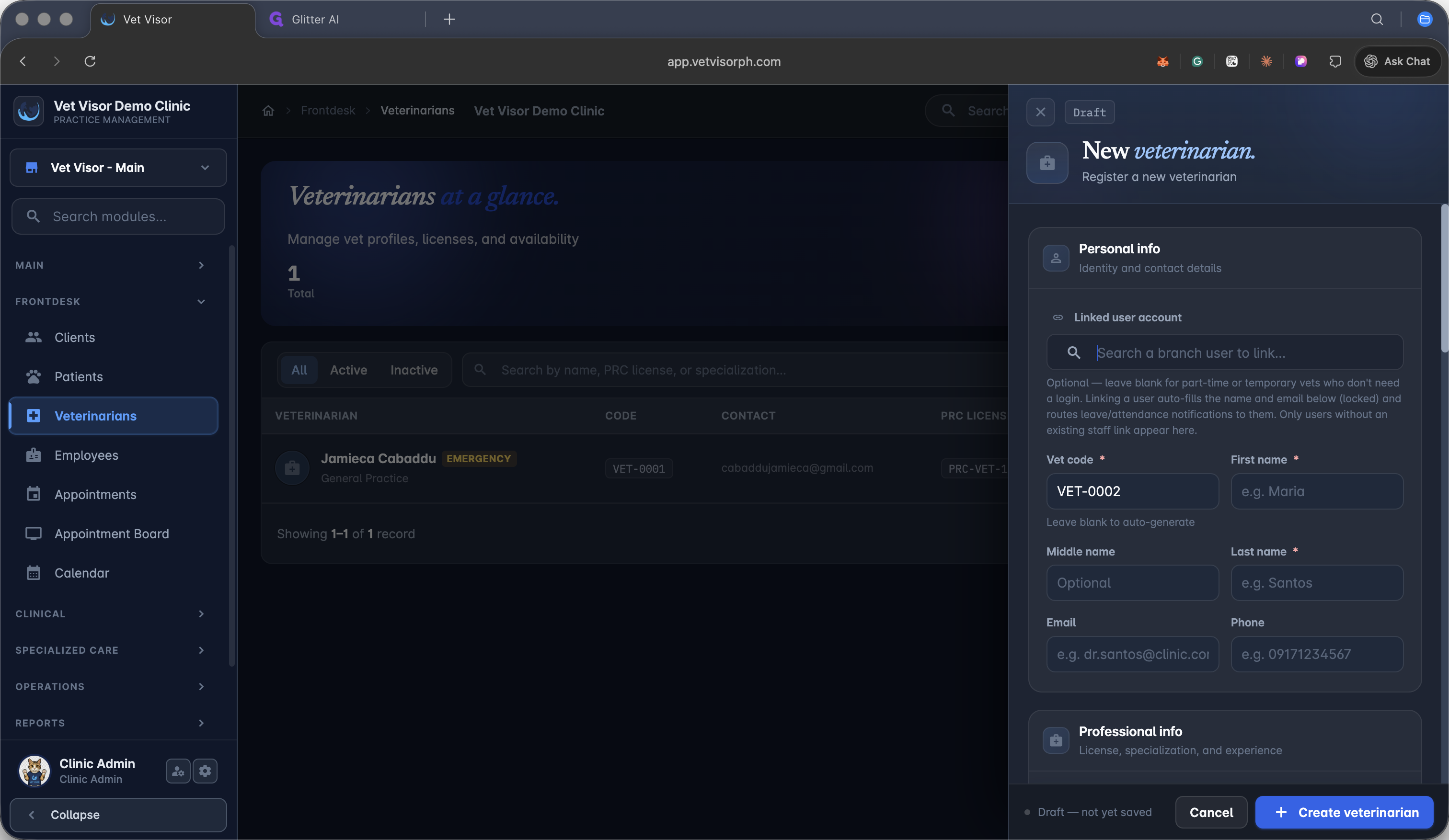
3
Click Search a branch user to link to associate an existing clinic admin or user account with this profile.
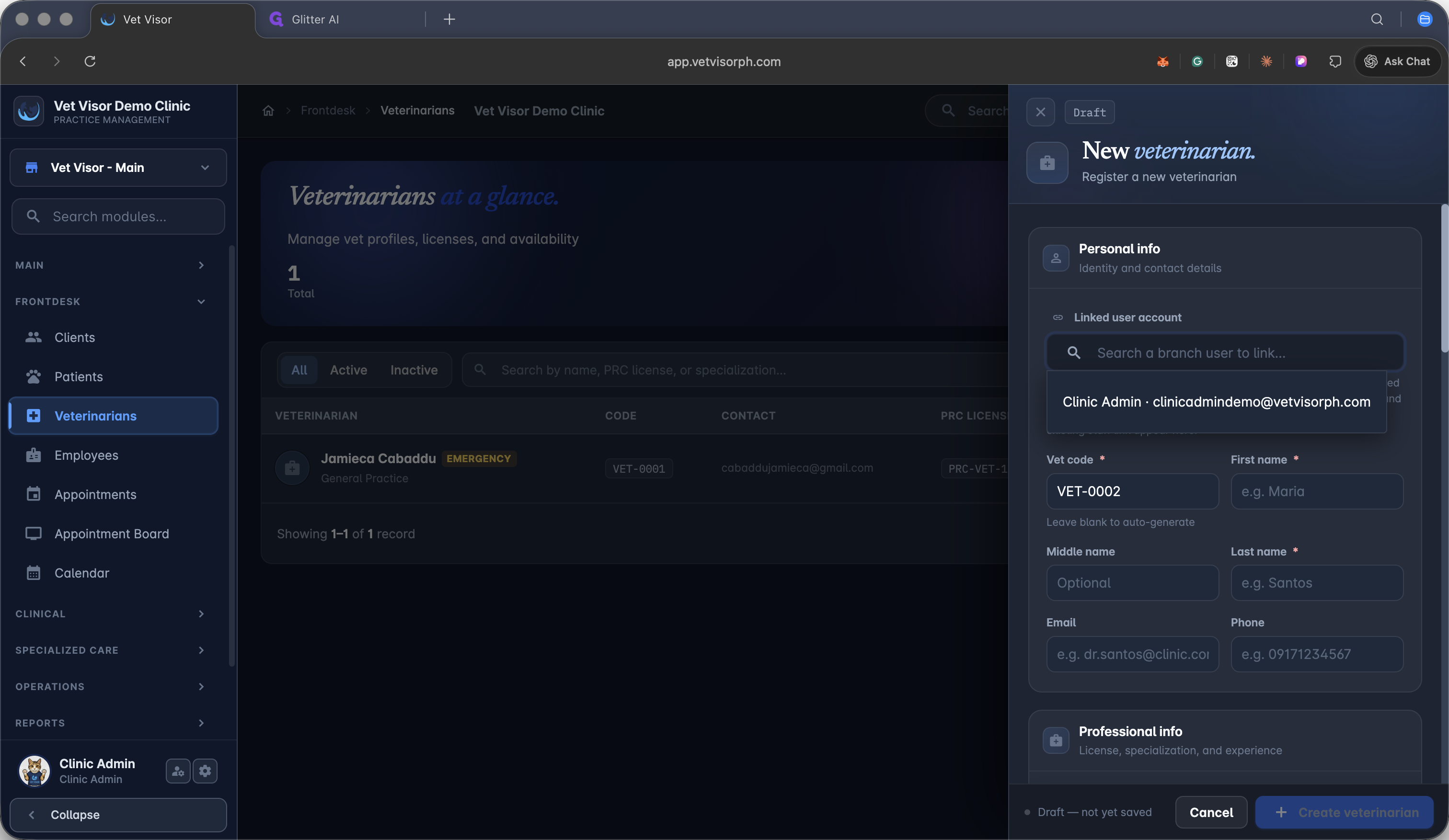
4
Select the appropriate user from the dropdown menu.
5
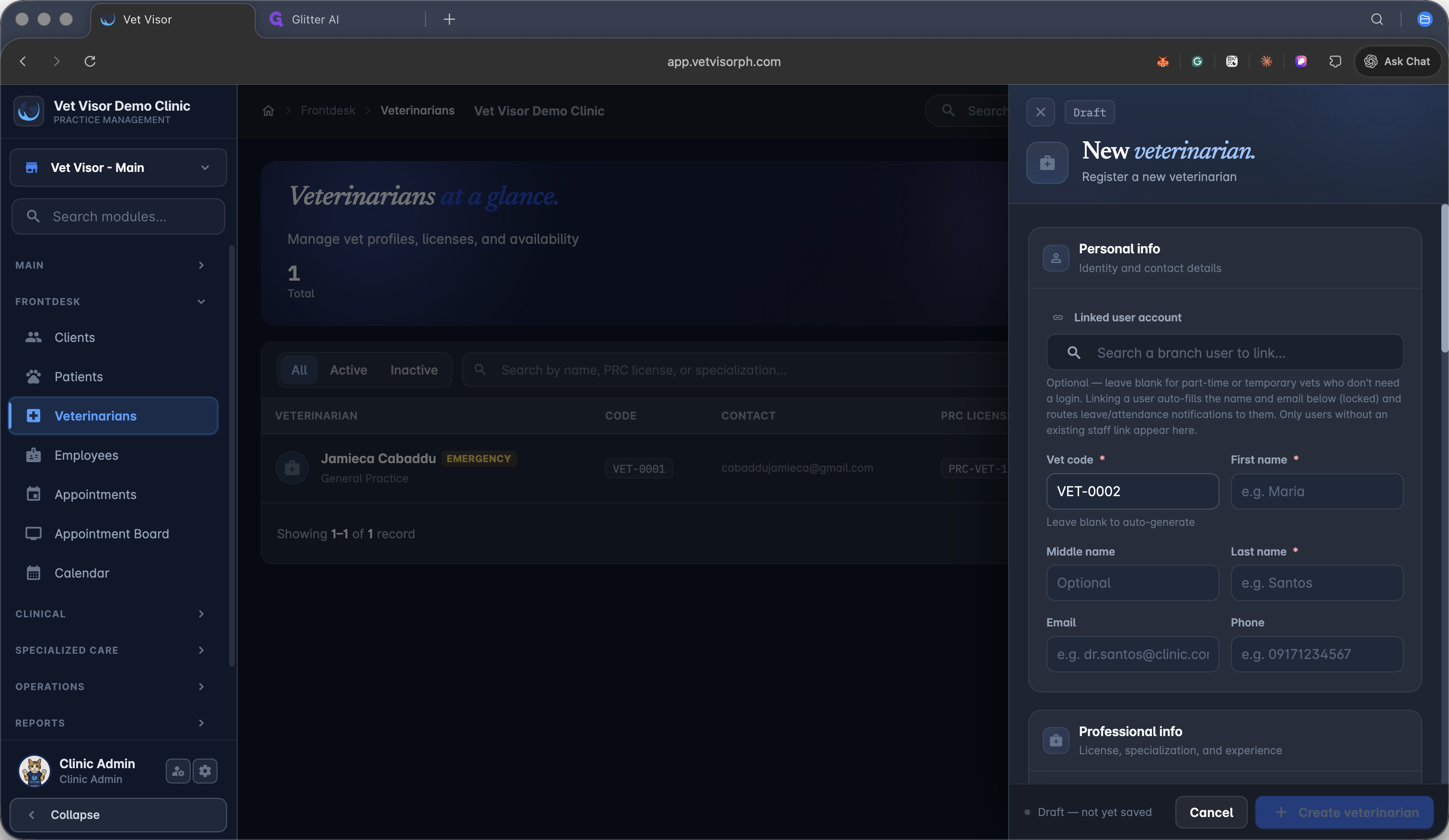
Click the First name field in the Personal Info section.
6
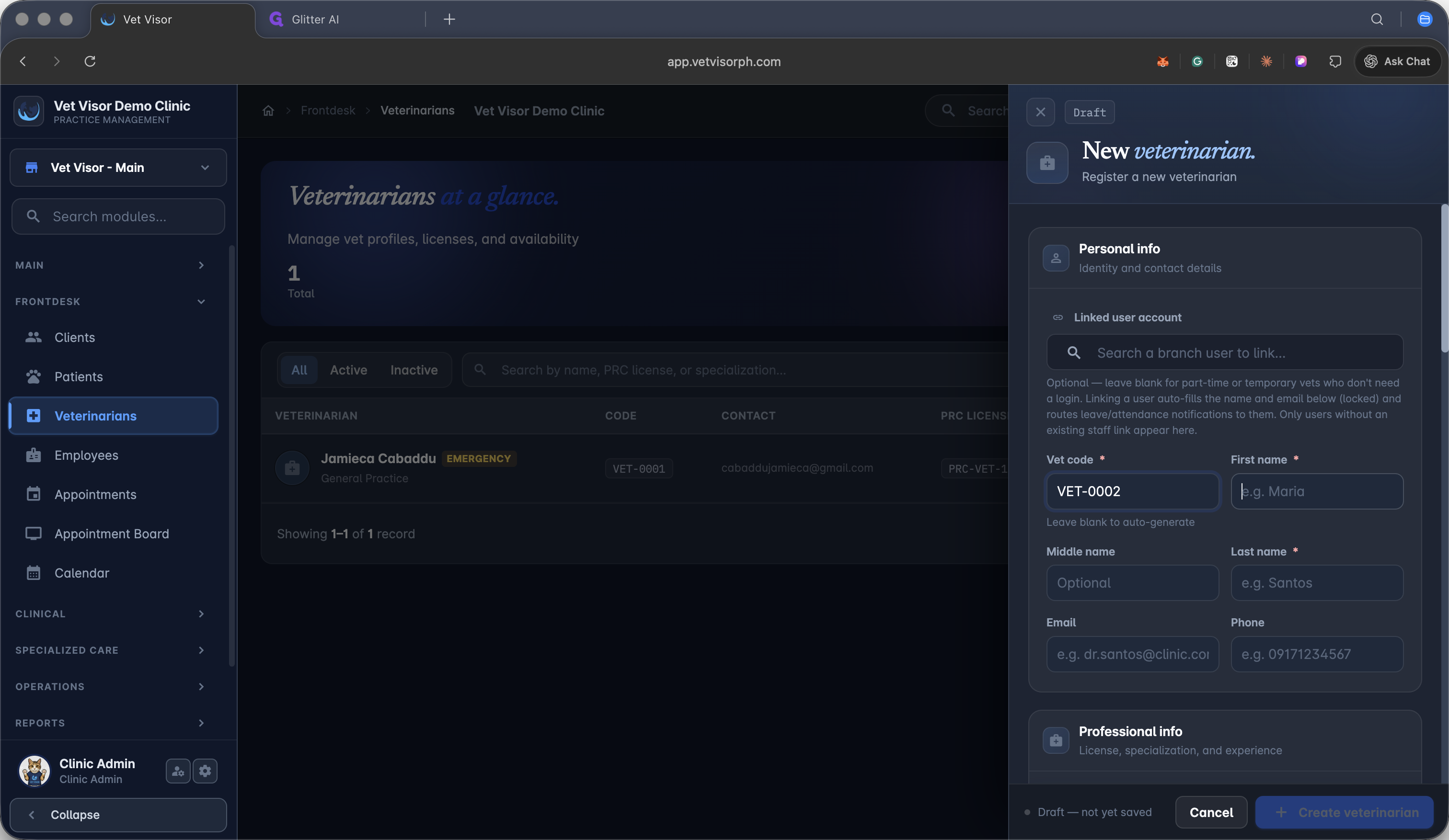
Enter the veterinarian's first name.
7
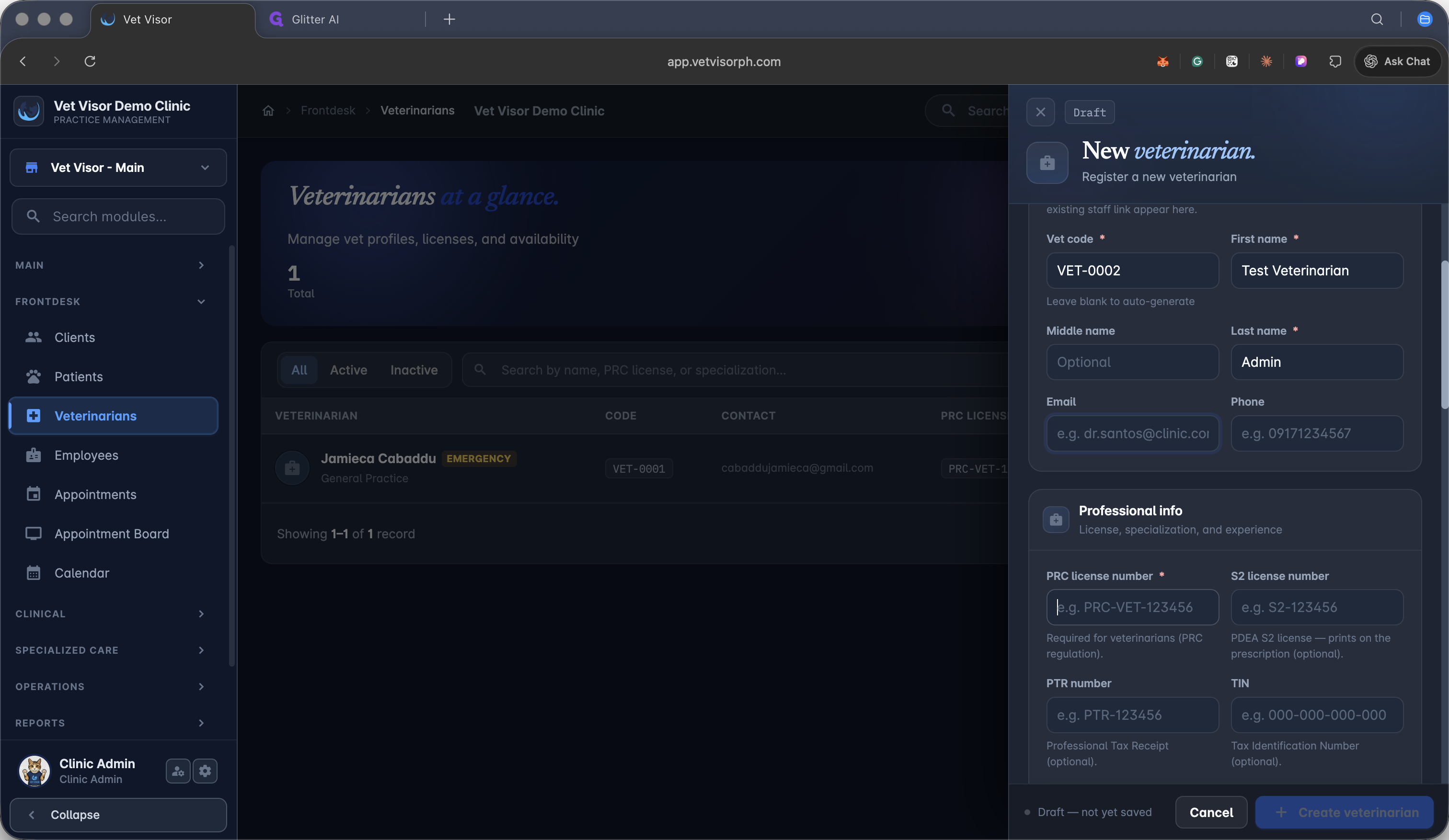
Enter their PRC license number.
8
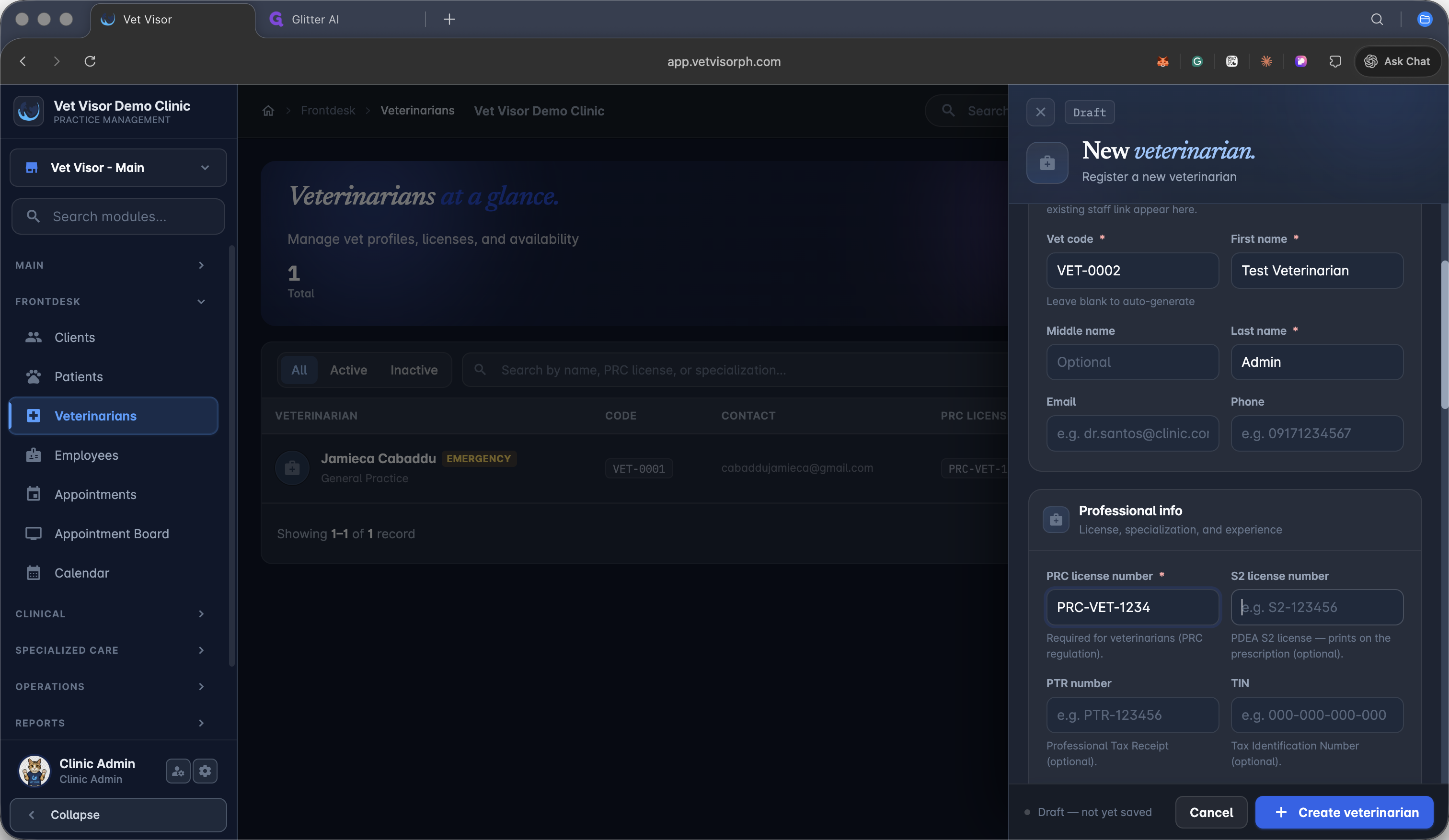
Enter their S2 license number.
9
Enter their PTR number.
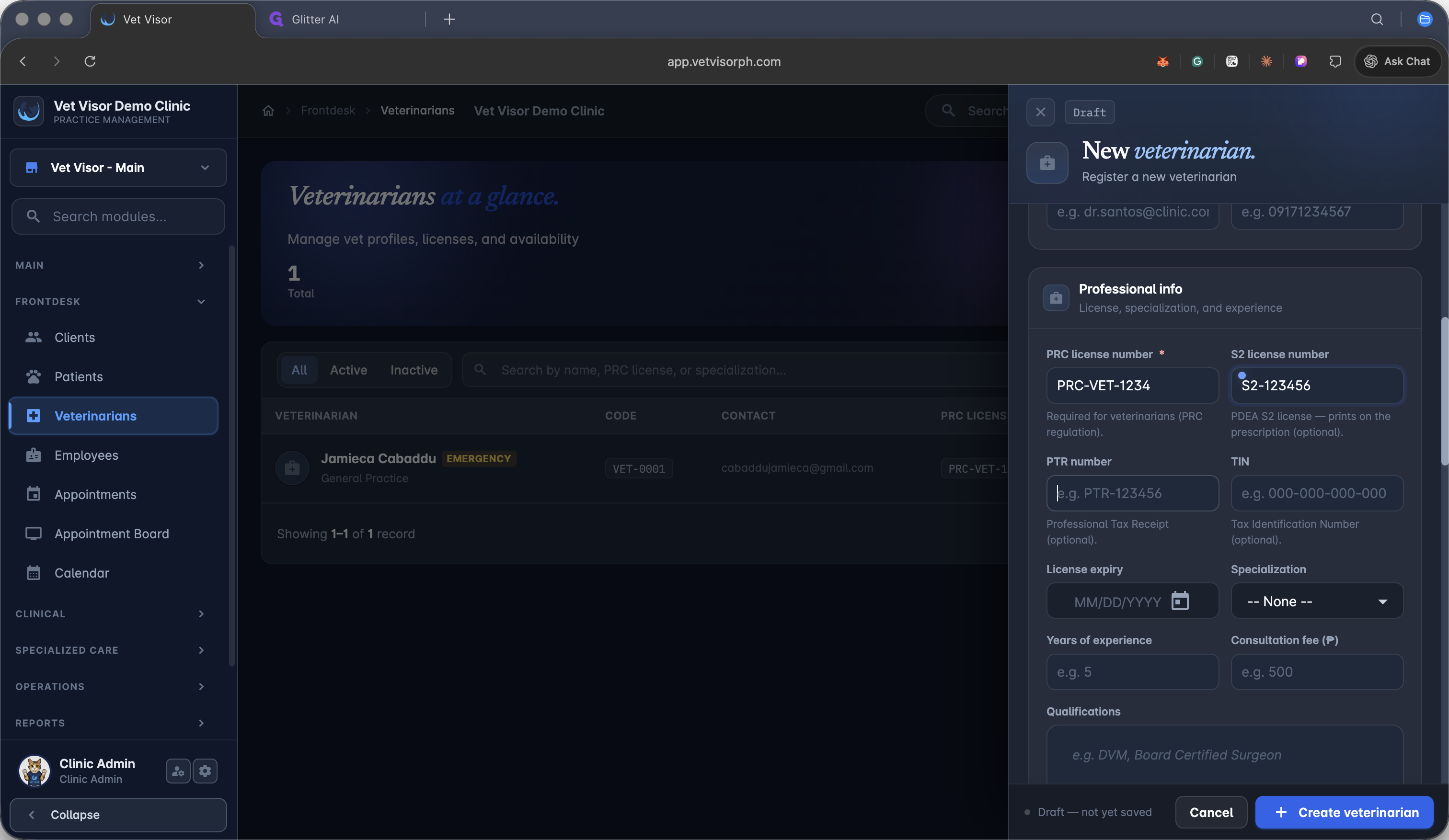
10
Click the date field to set the license issue or expiration date.
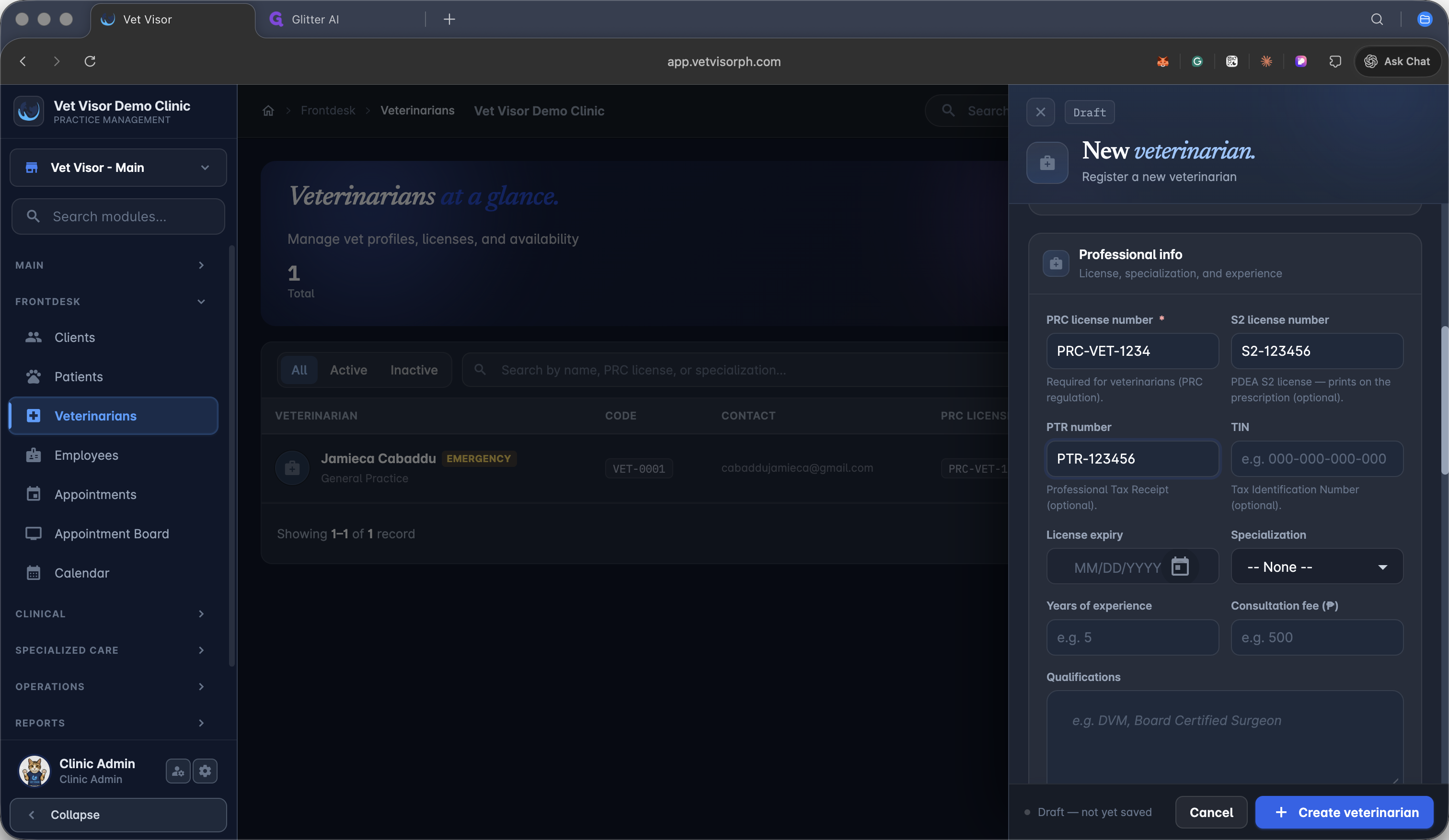
11
Open the calendar date picker.
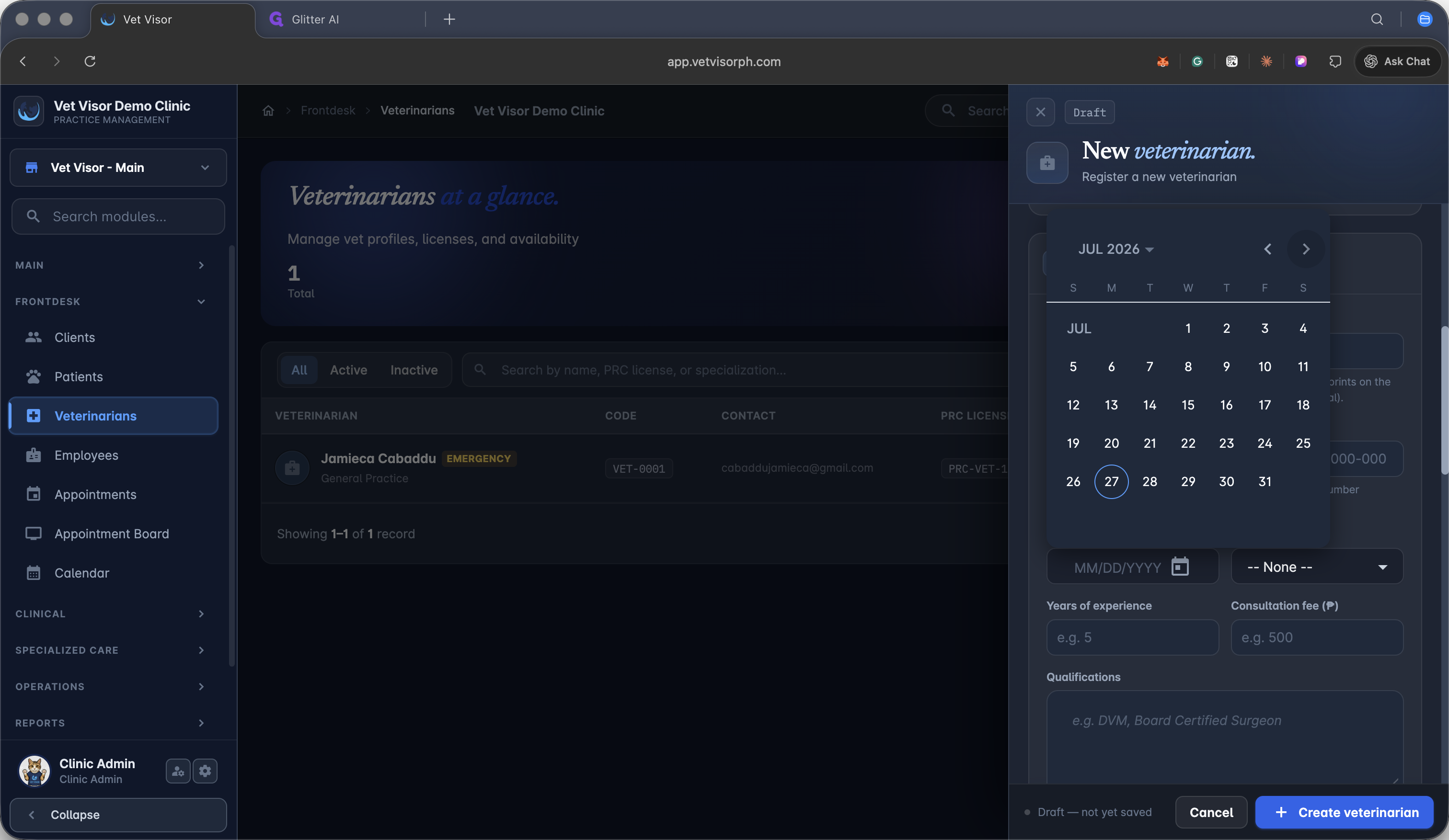
12
Select the correct date from the calendar.
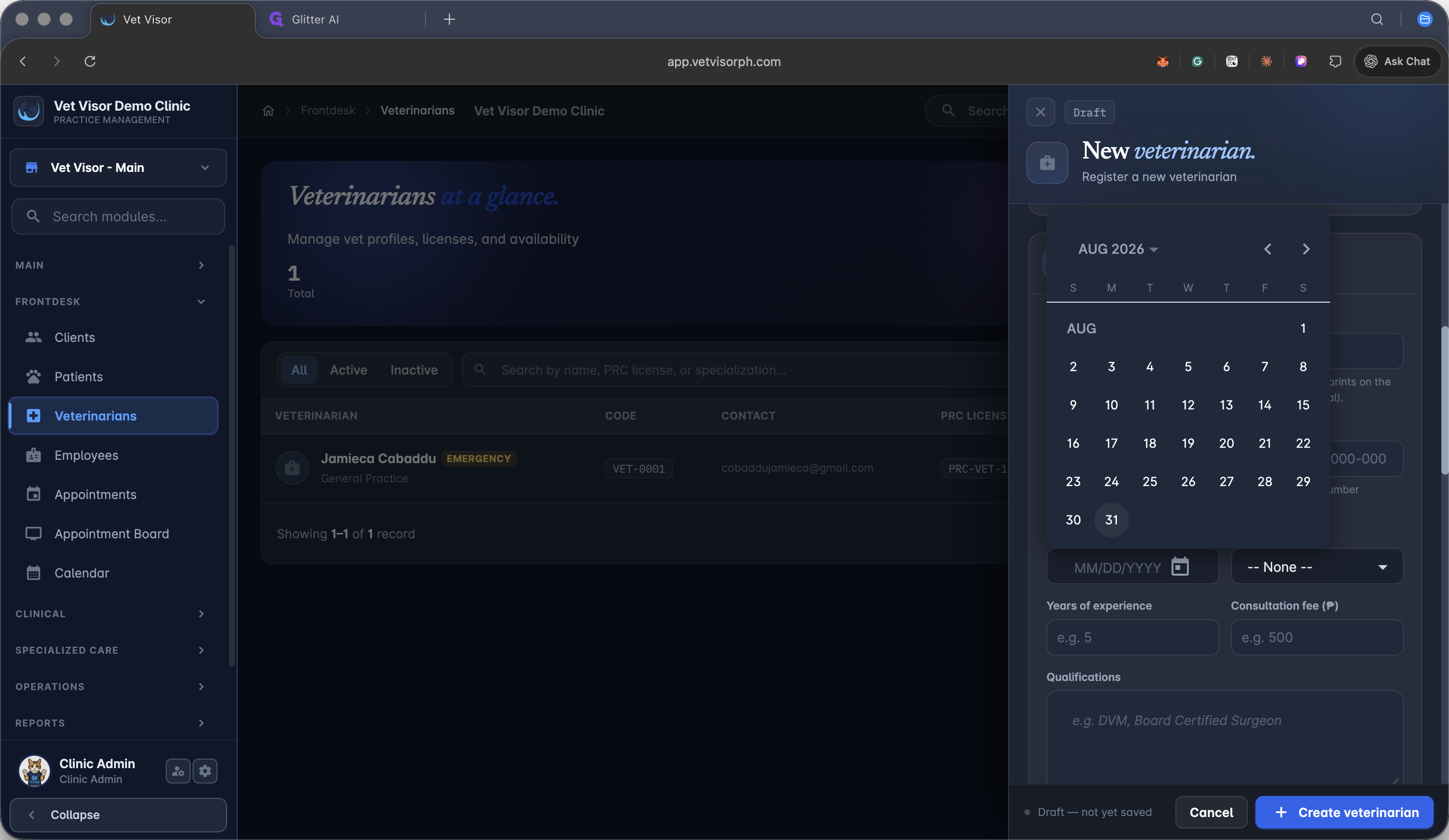
13
Click the specialization dropdown menu.
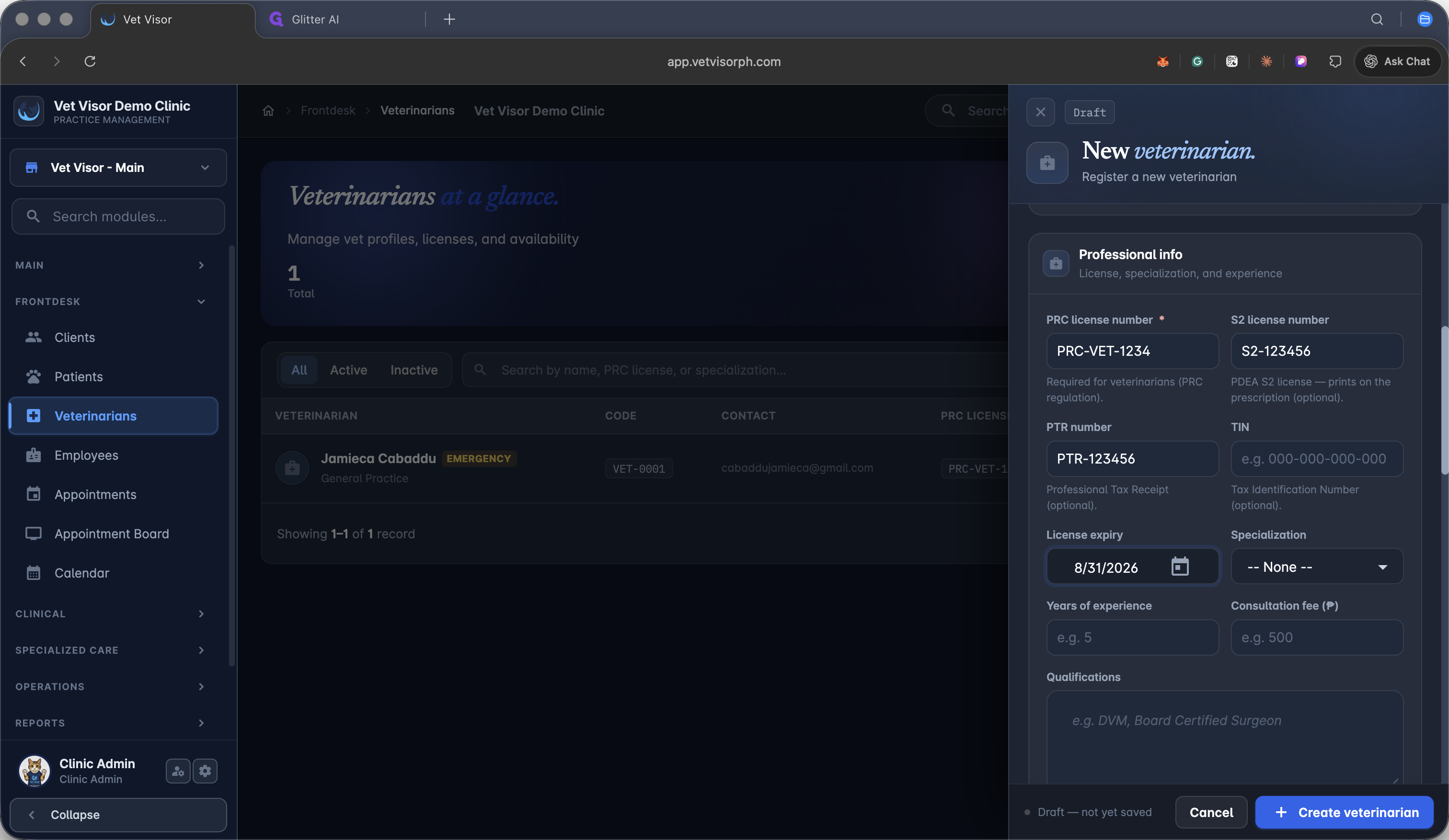
14
Select General Practice or the appropriate medical specialization.
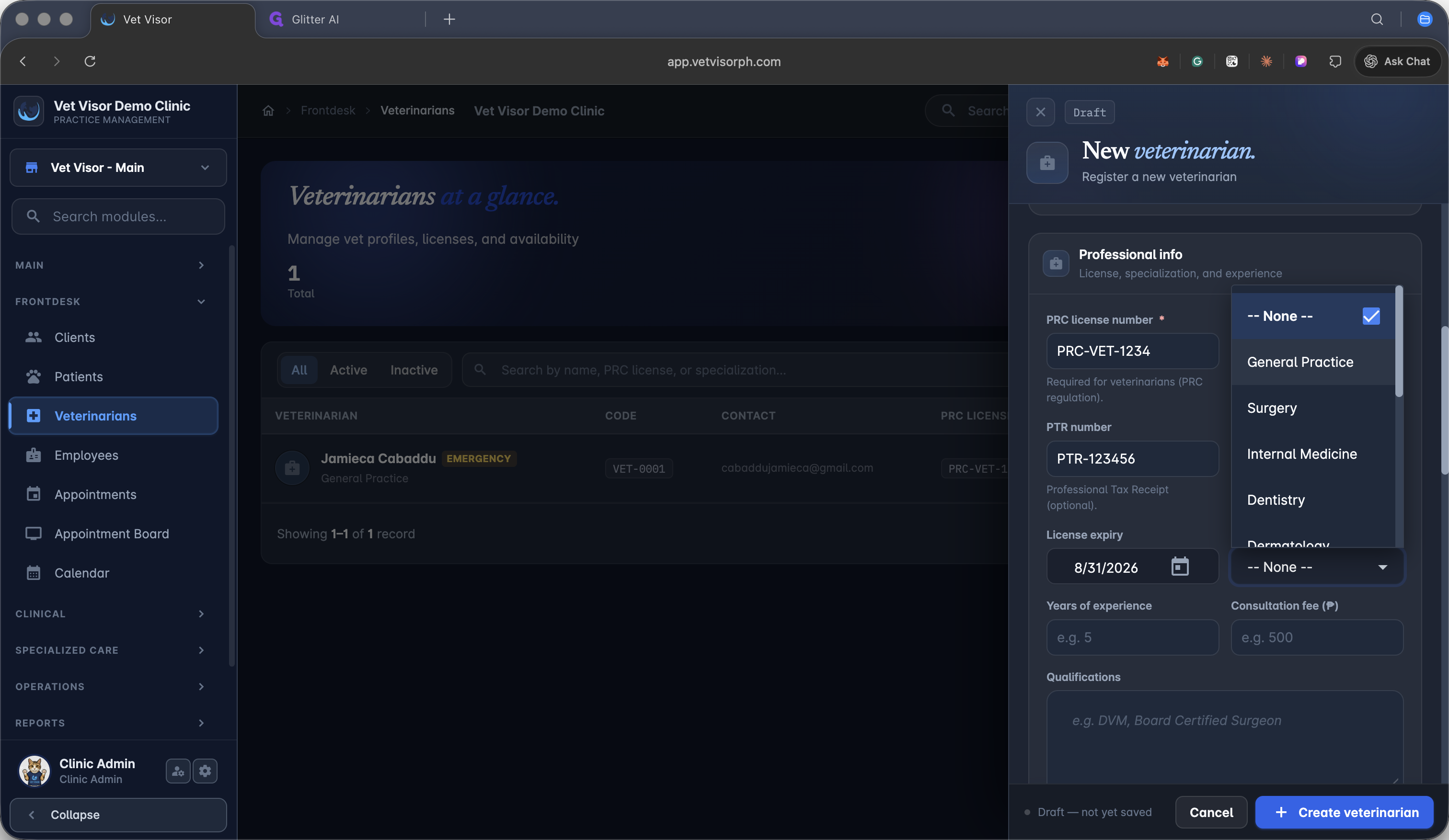
15
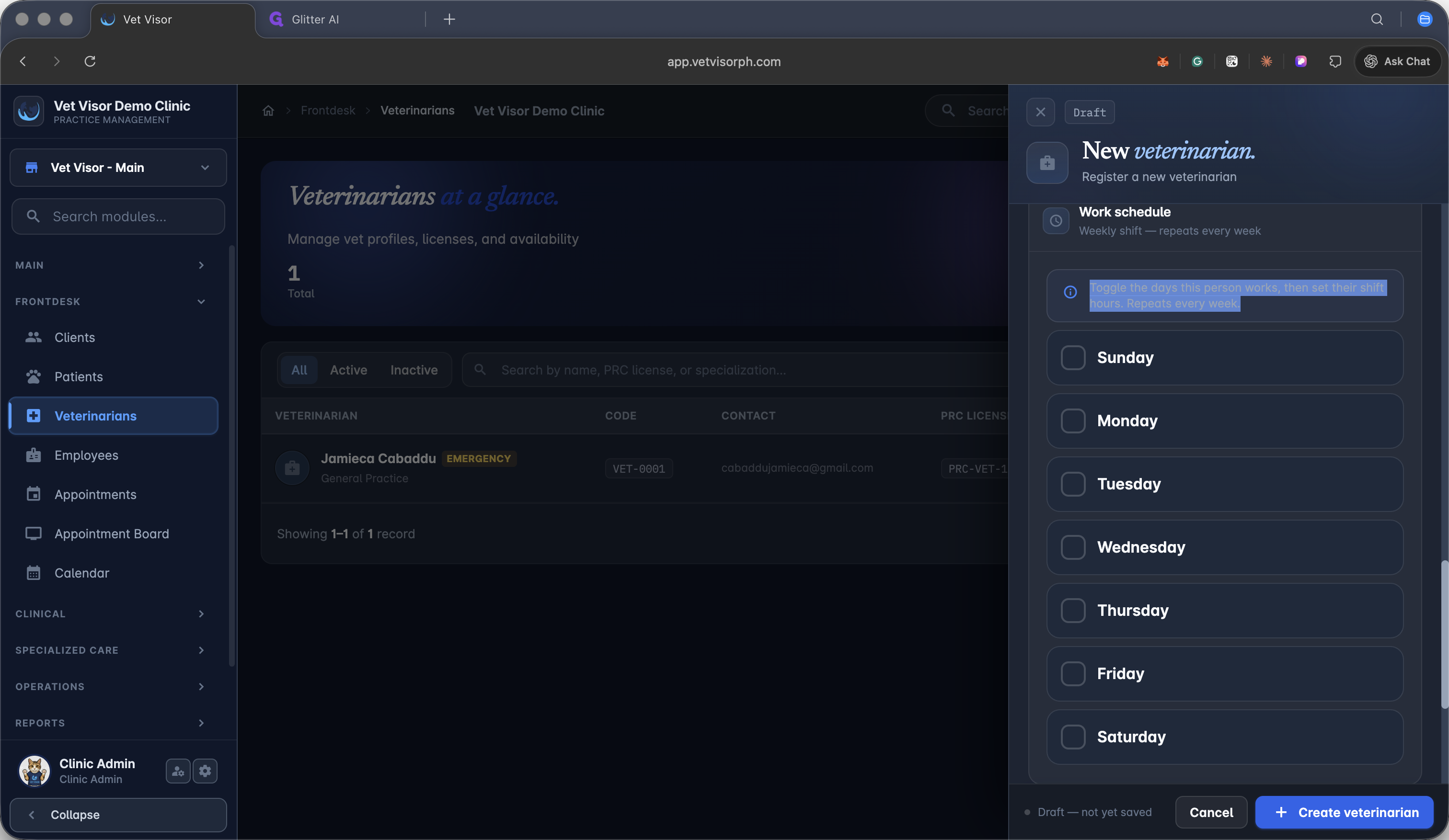
Scroll down to the scheduling section of the panel.
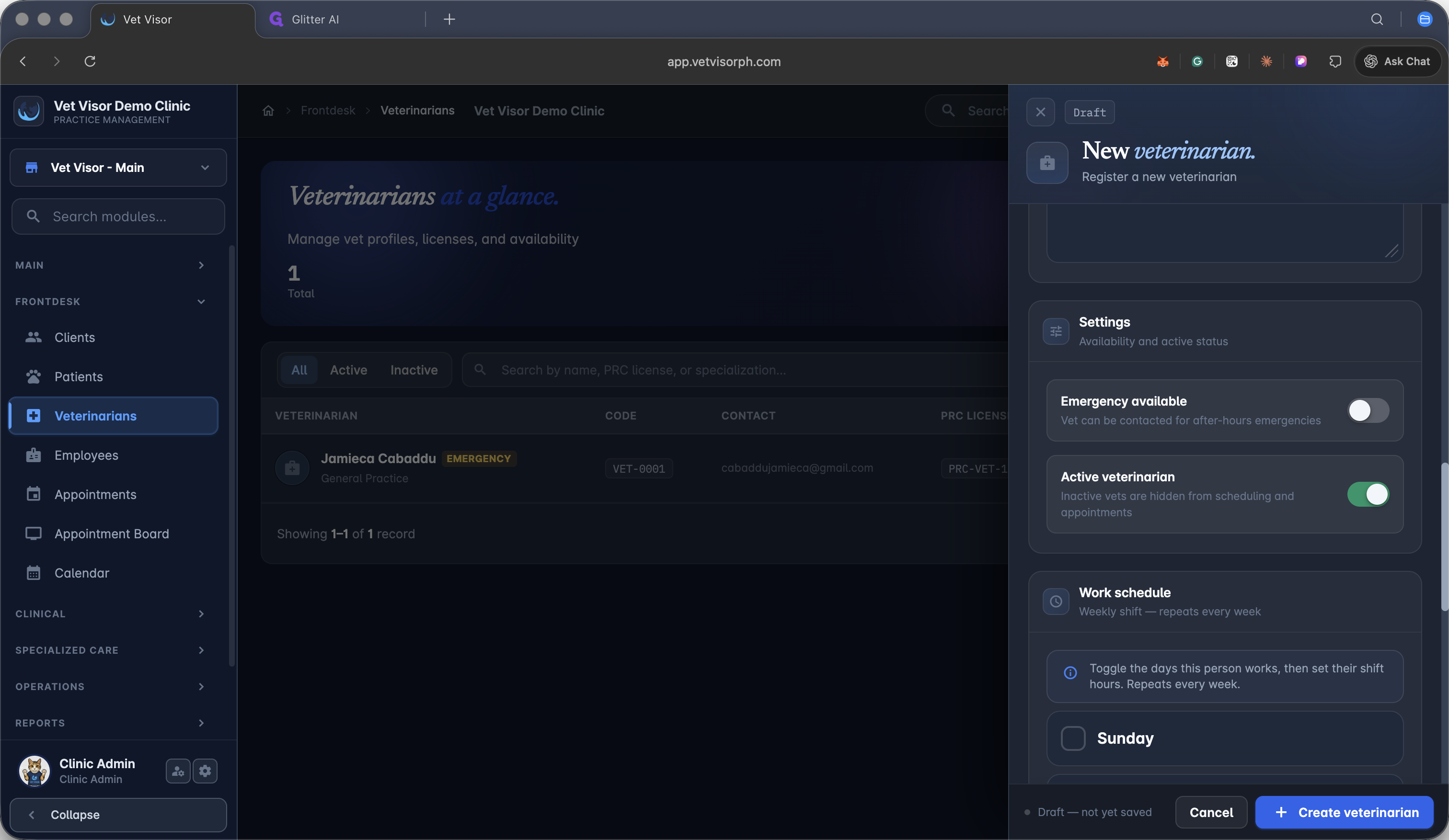
16
Toggle the checkboxes for the days the veterinarian works.
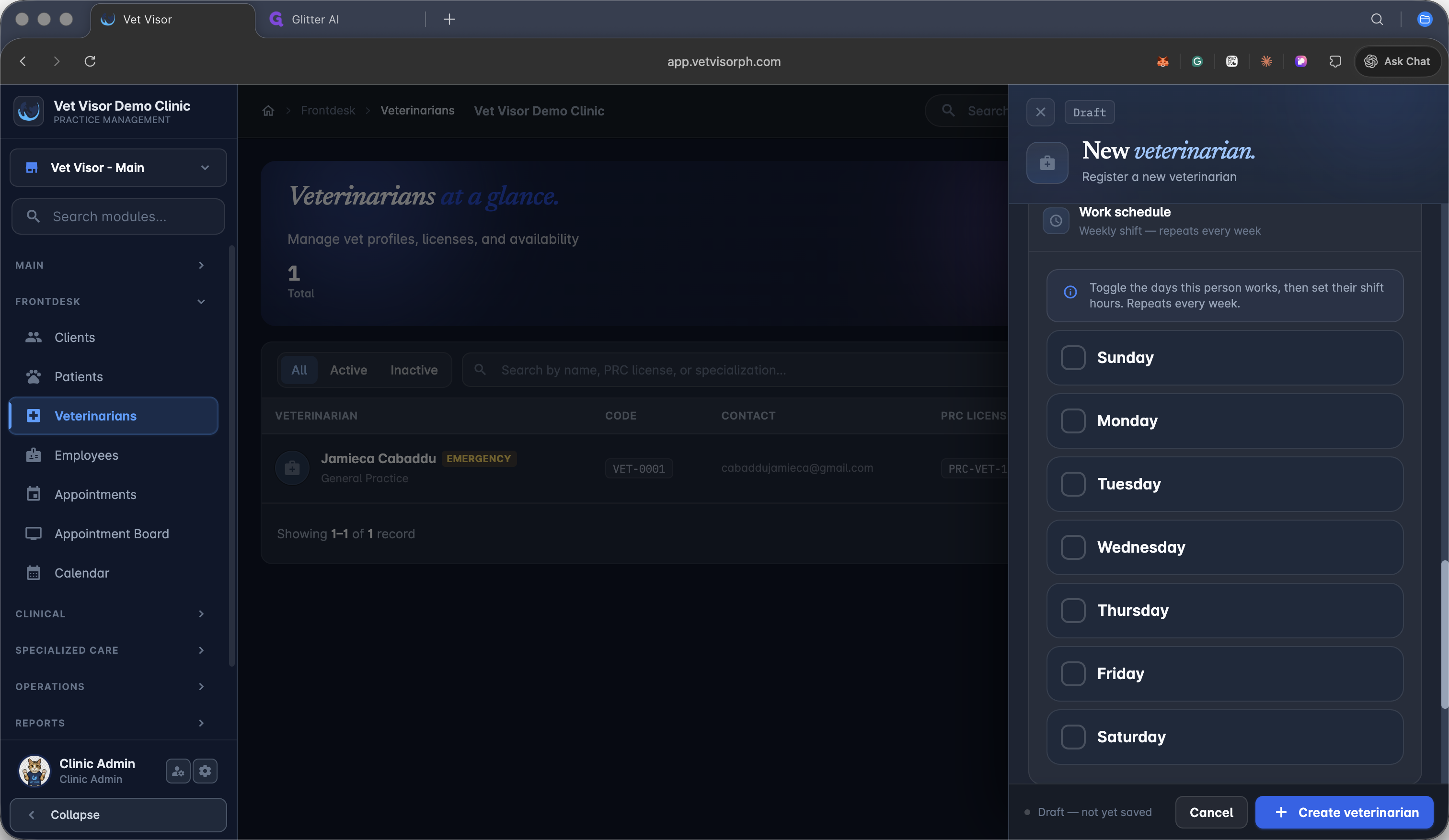
17
Set the specific working hours for the selected days.
18
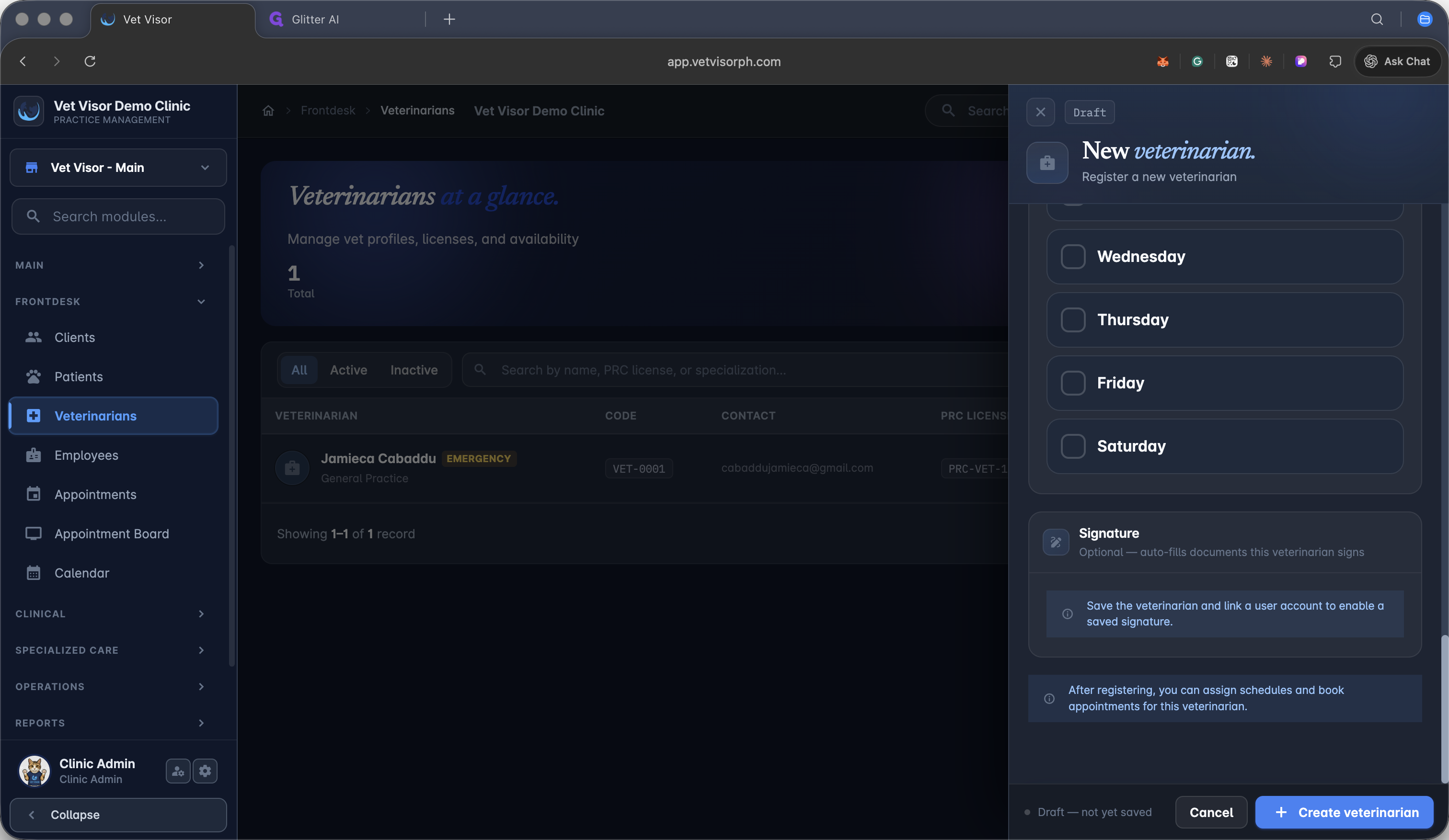
Click + Create veterinarian at the bottom of the form to save the profile.
Adding a New Employee
19
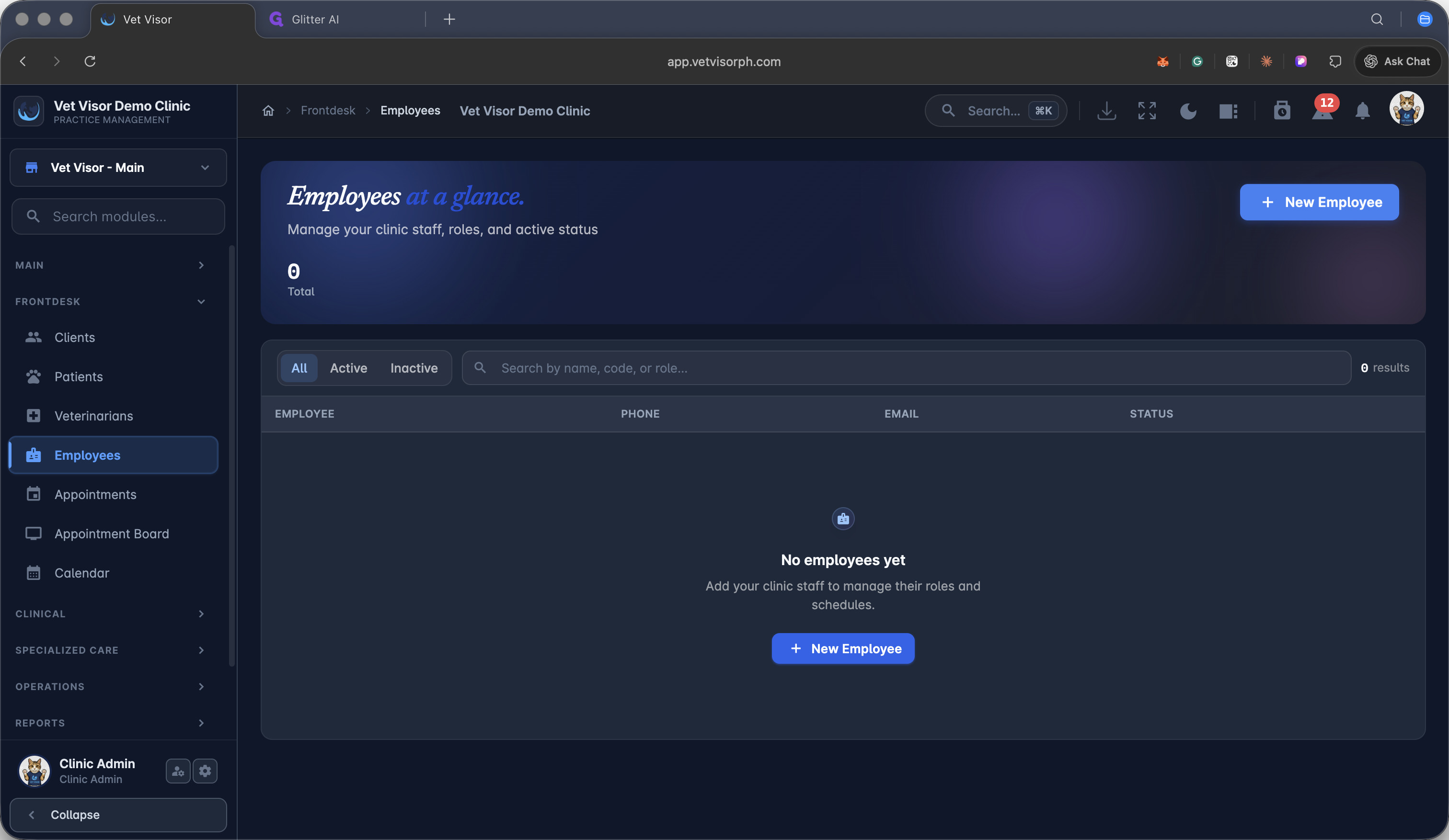
Navigate to the Employees dashboard and click + New Employee in the main content area.
20
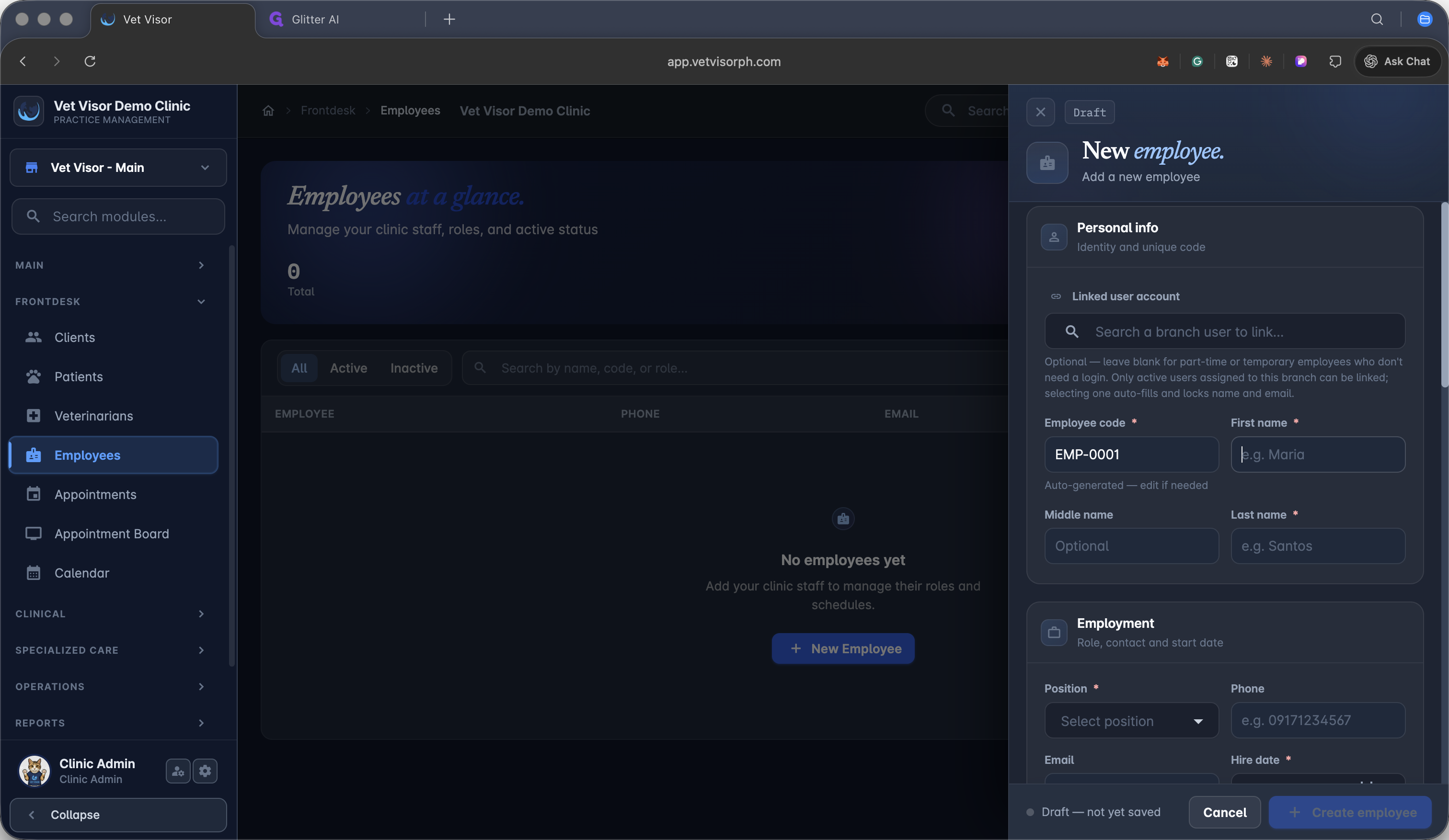
Enter the employee's first name.
21
Enter the employee's last name.
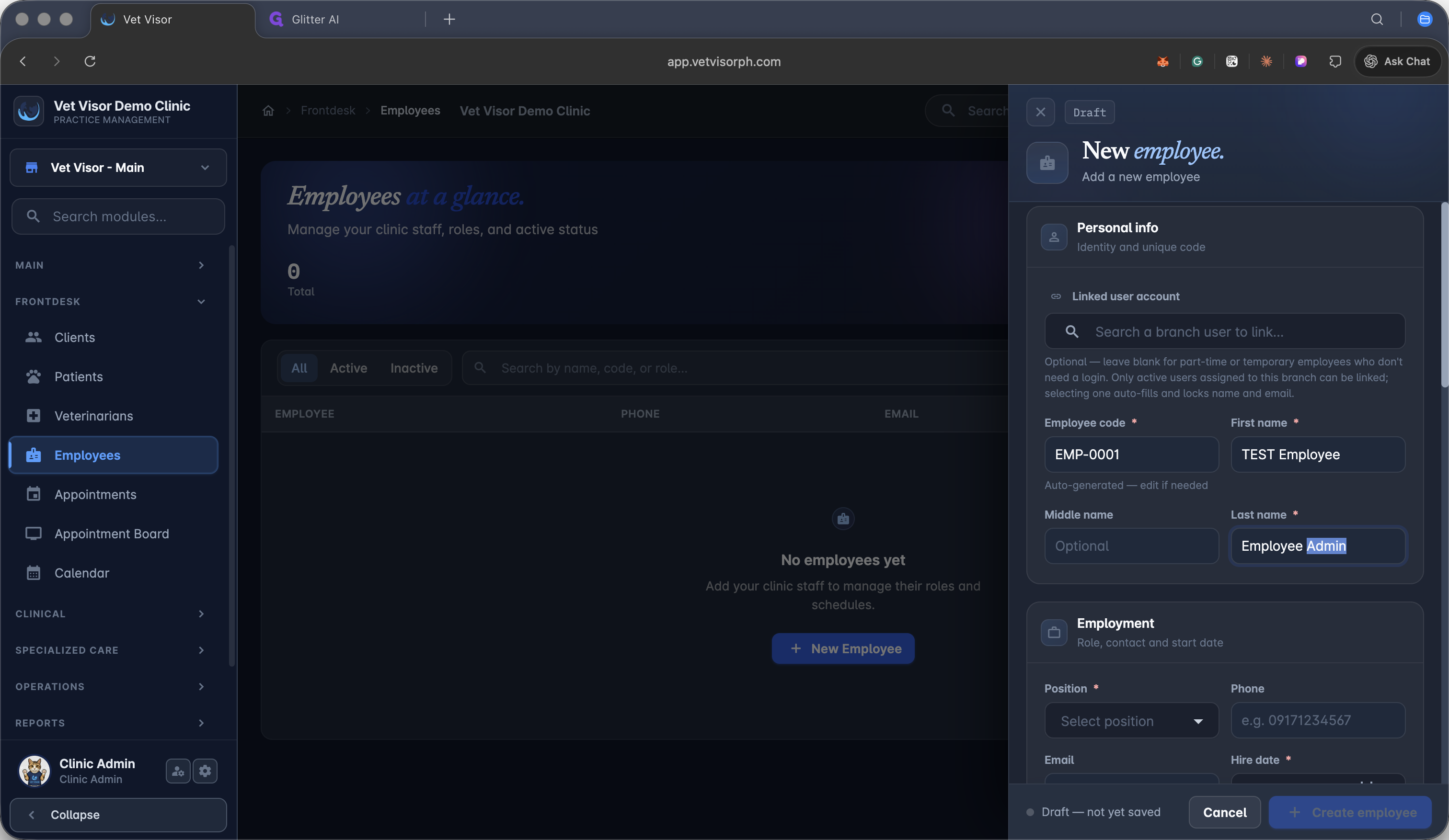
22
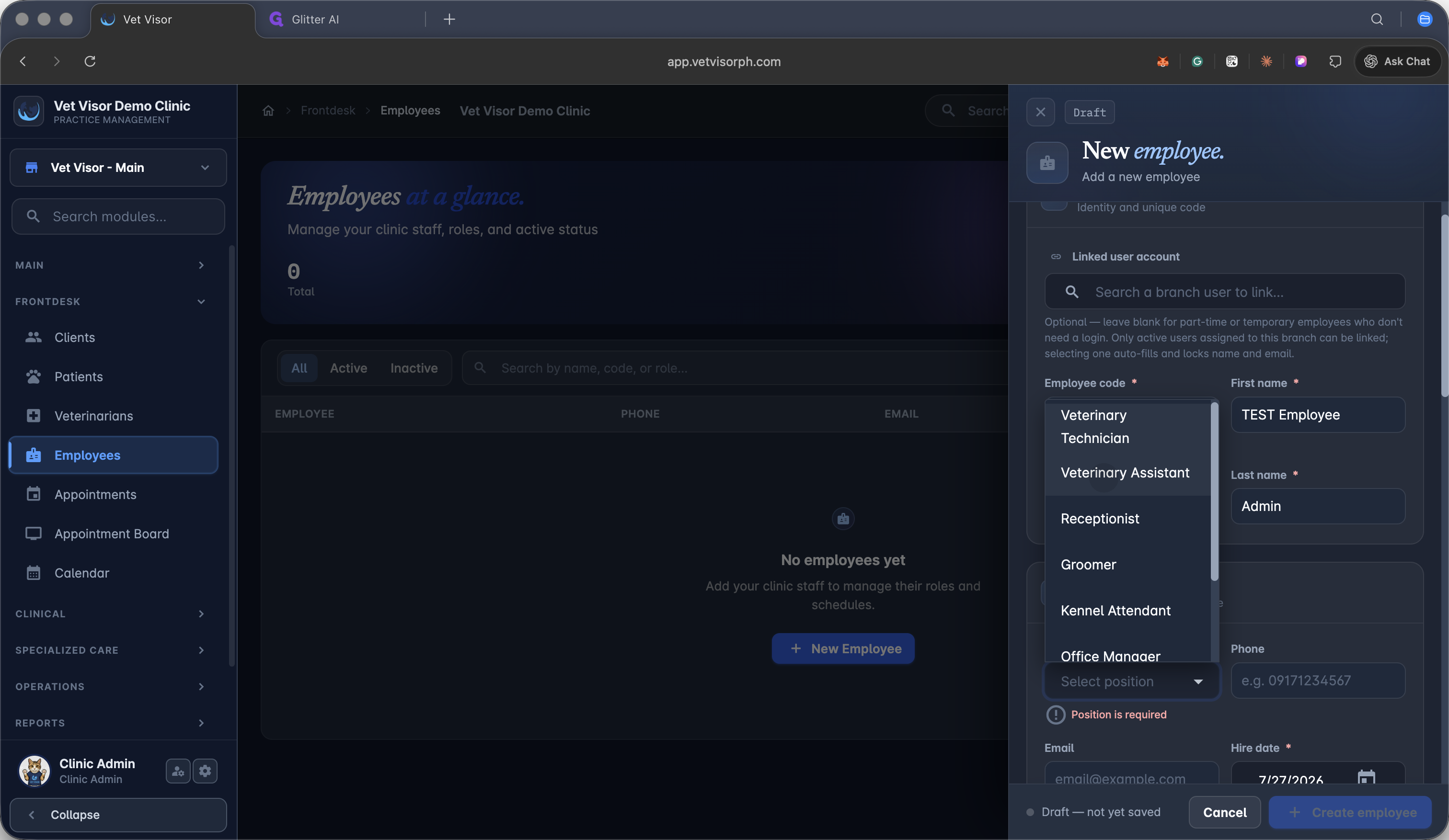
Click the Select position dropdown menu.
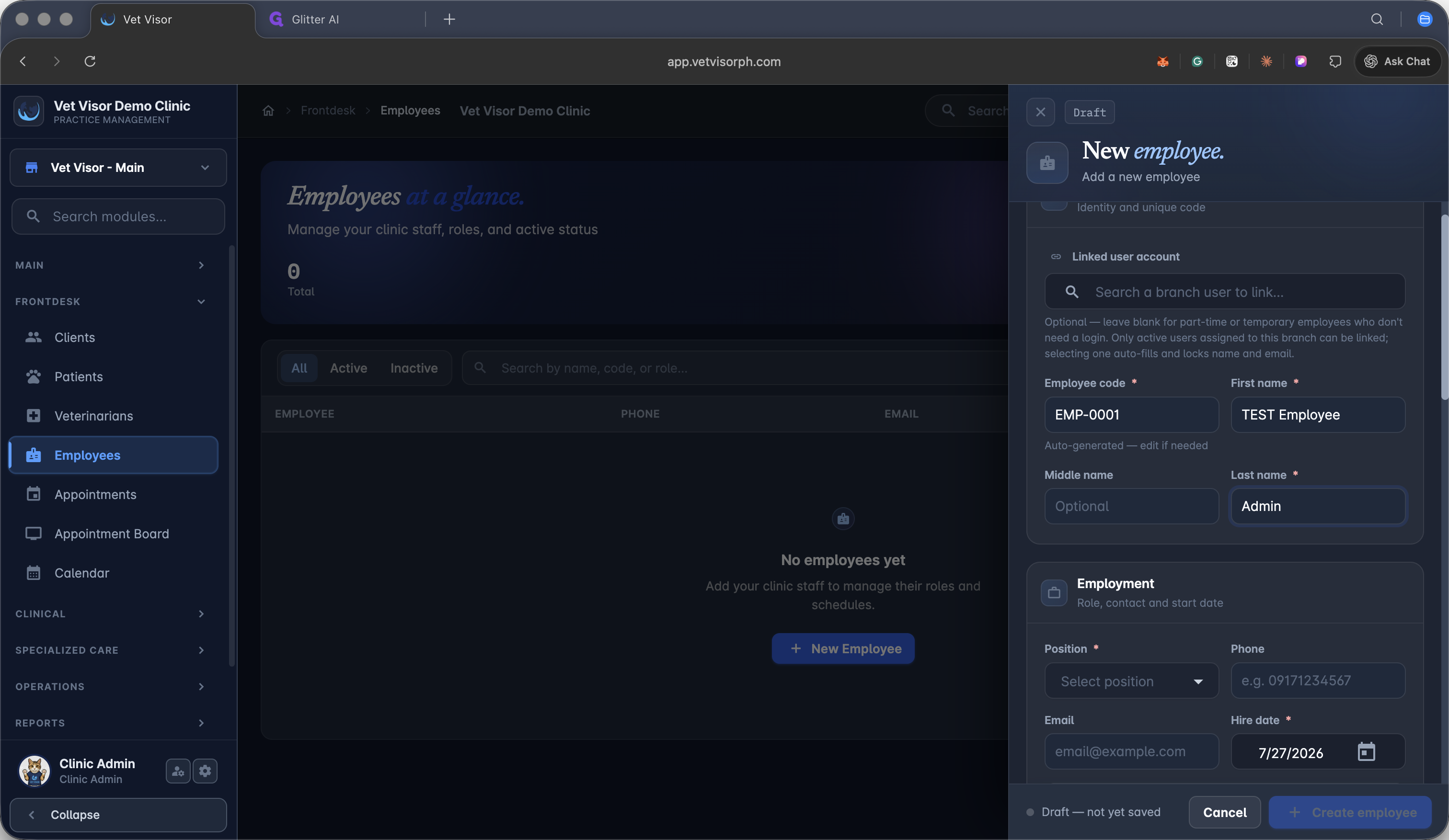
23
Select the appropriate role, such as Veterinary Assistant.
24
Proceed to the professional information section if applicable.
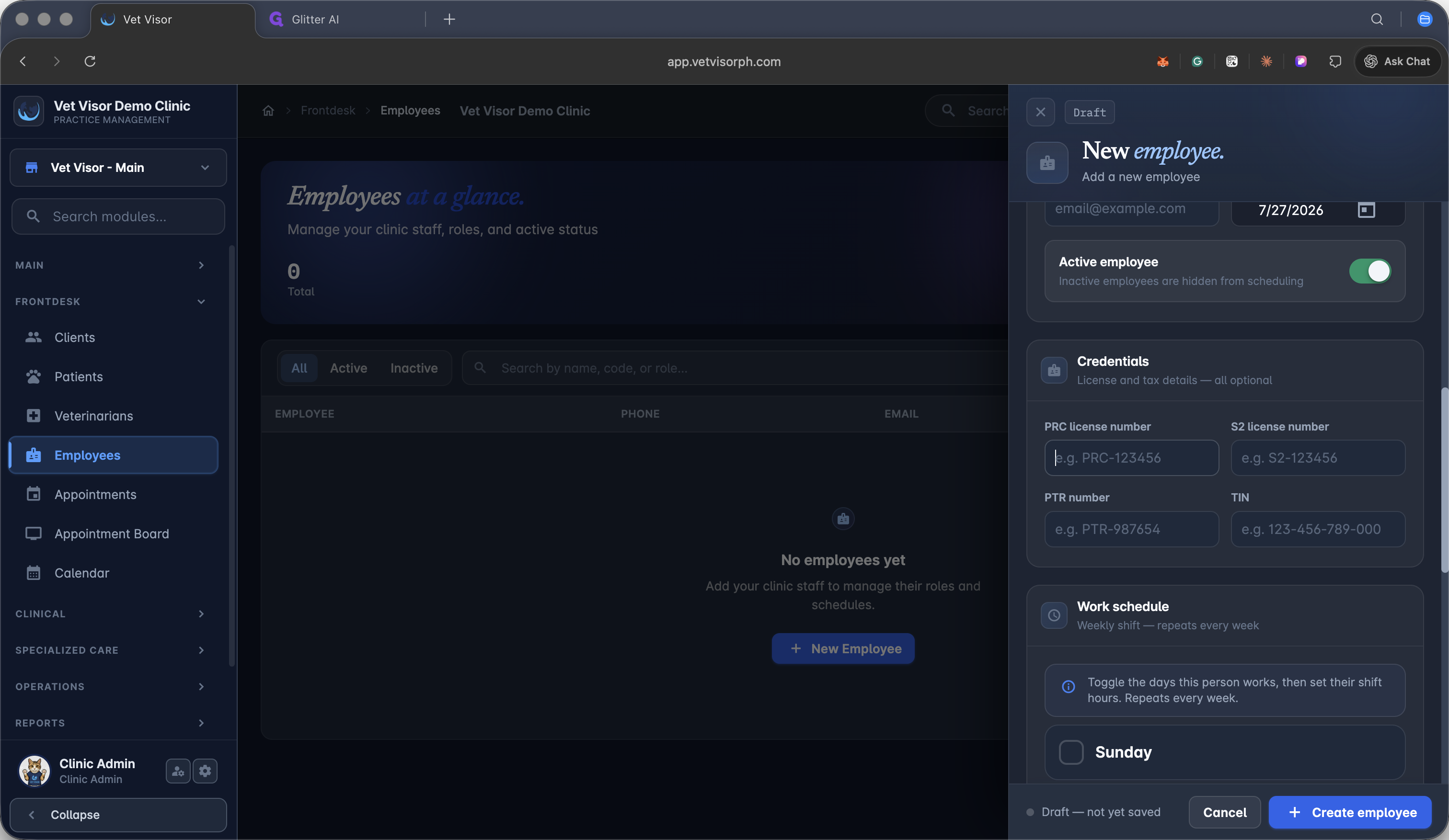
25
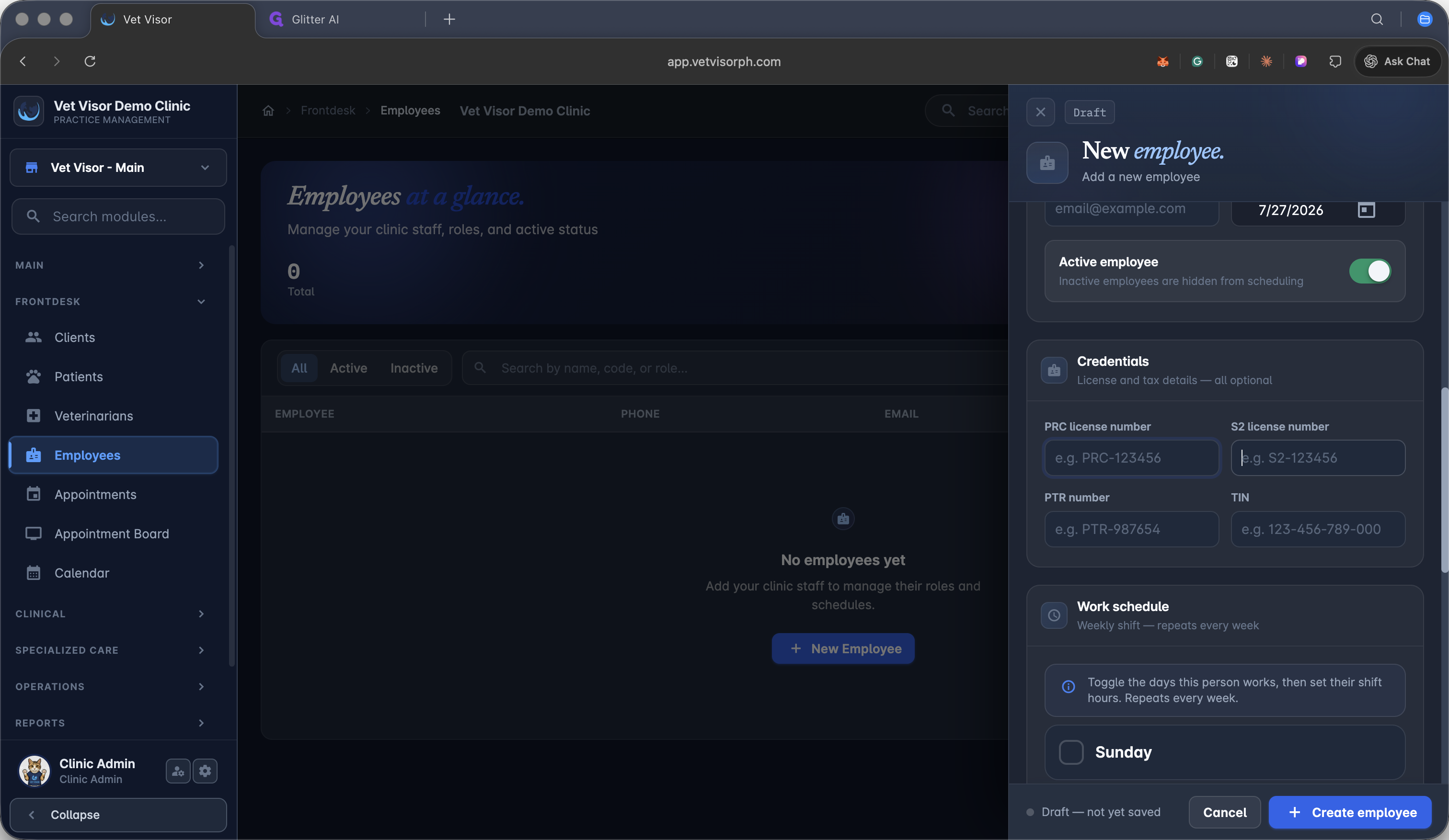
Enter their S2 license number if required for their role.
26
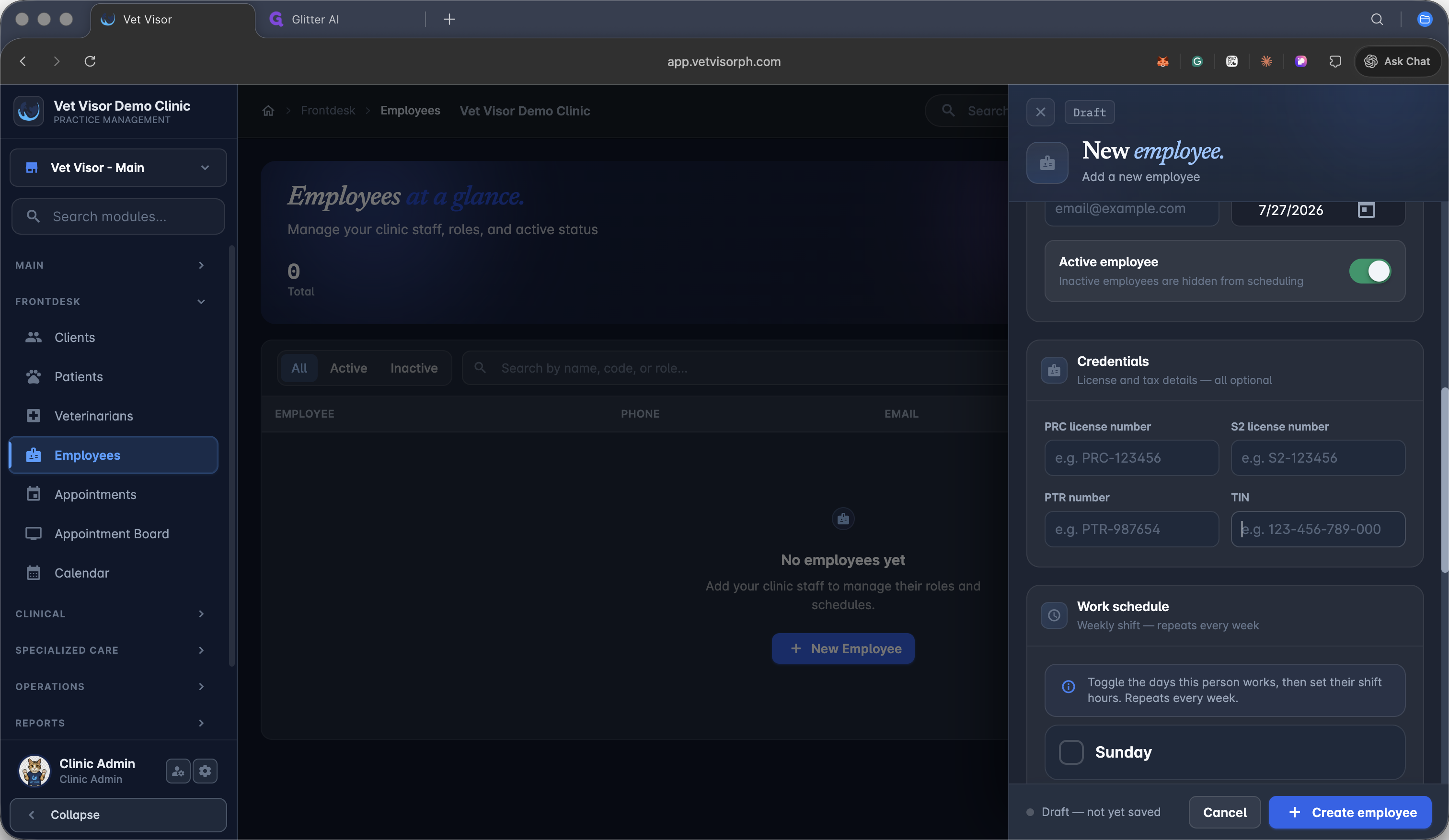
Enter their tax identification or relevant ID number.
27
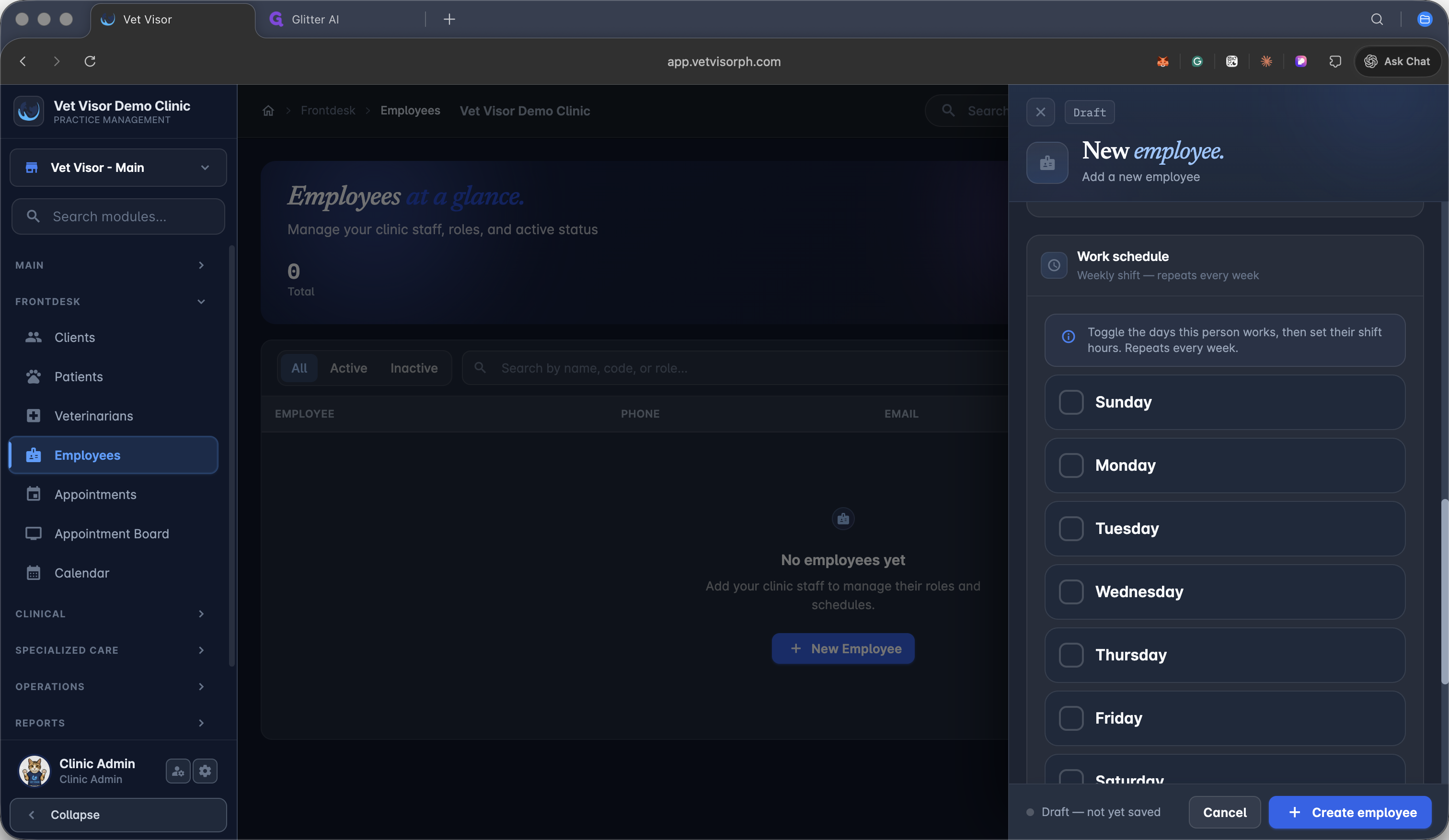
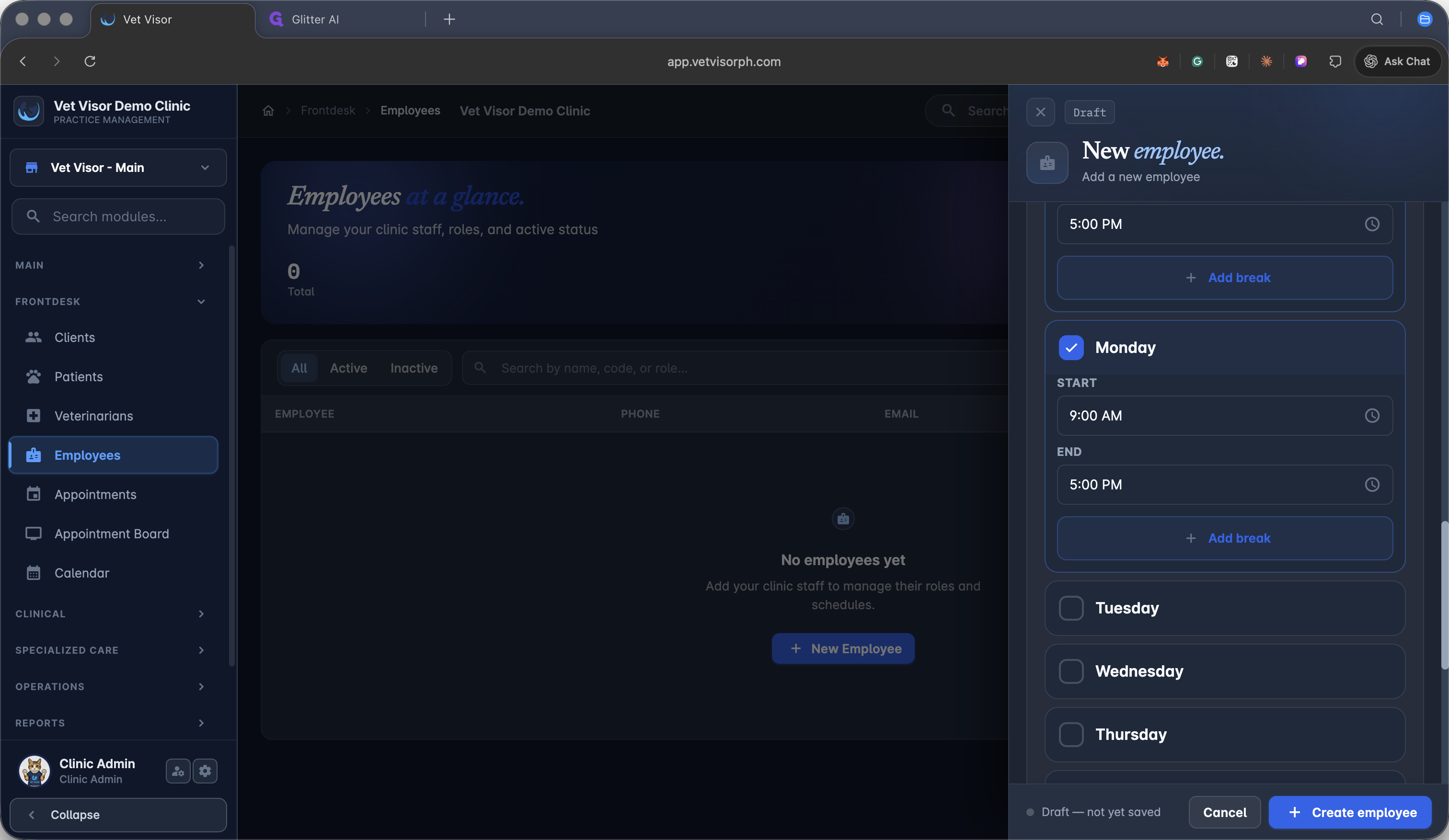
Select Sunday to begin configuring the weekly work schedule.
28
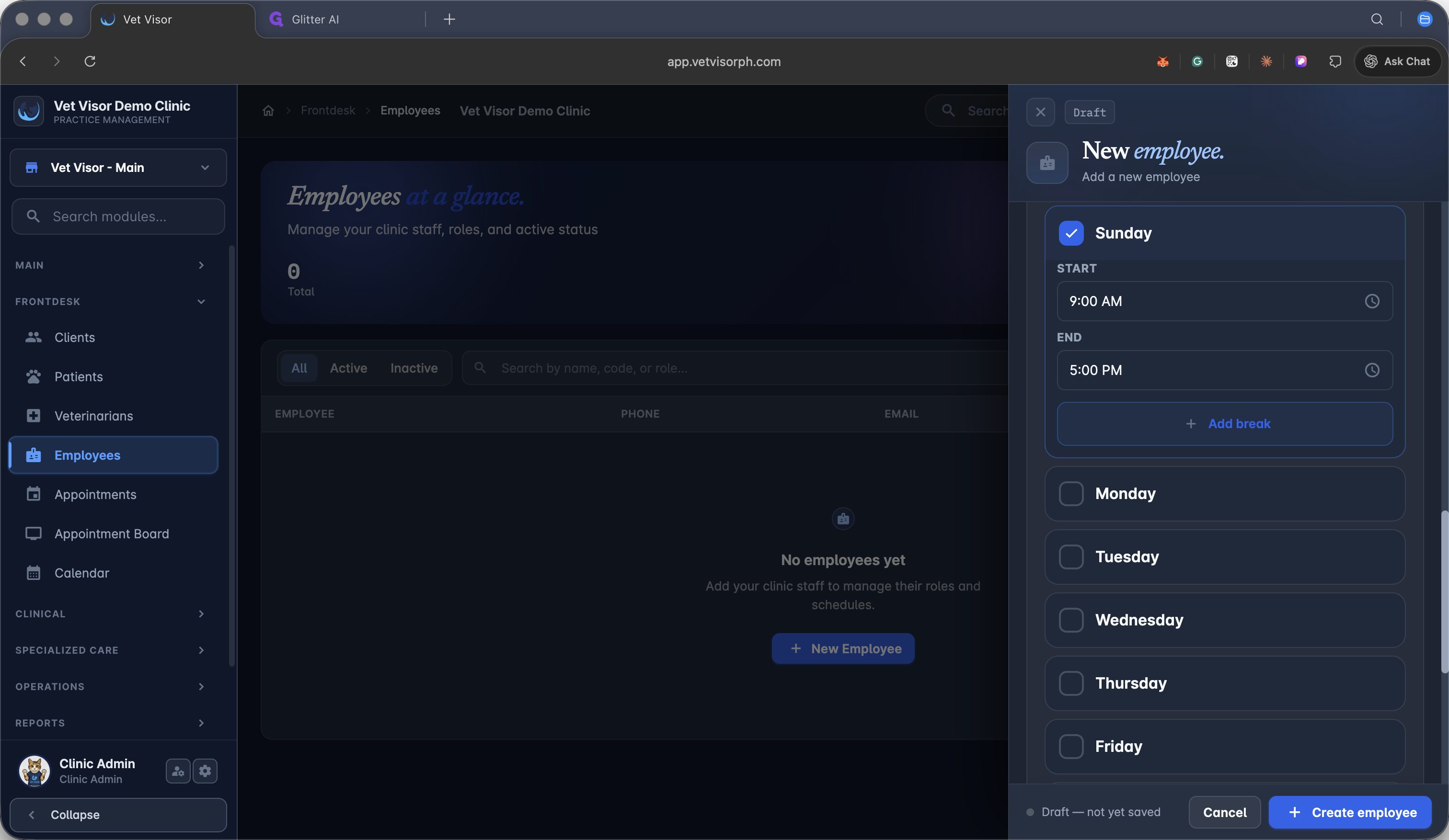
Set the shift start and end times for the selected day.
29
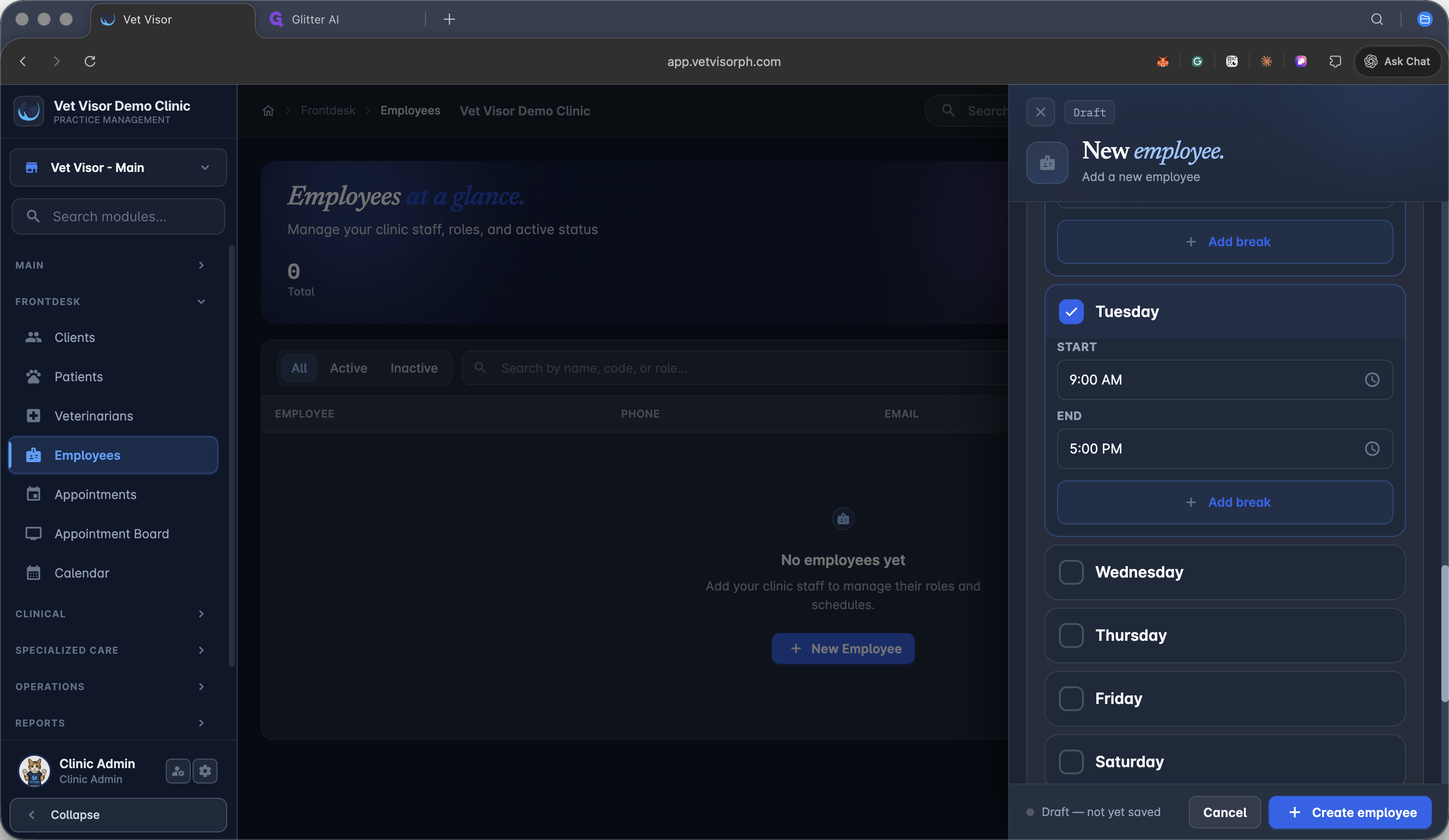
Select Tuesday to configure additional working days.
30
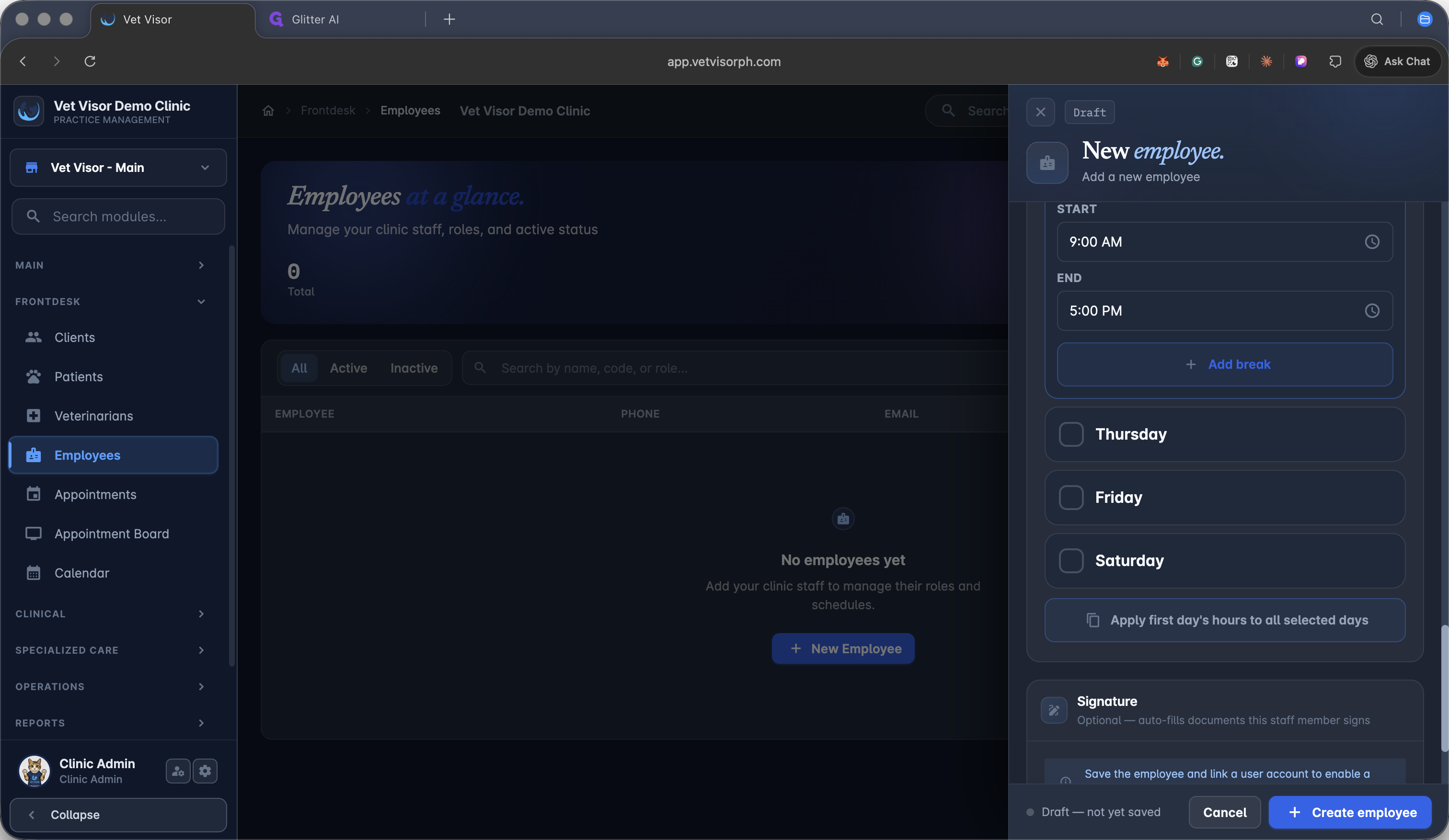
Select Wednesday to add it to the schedule.
31
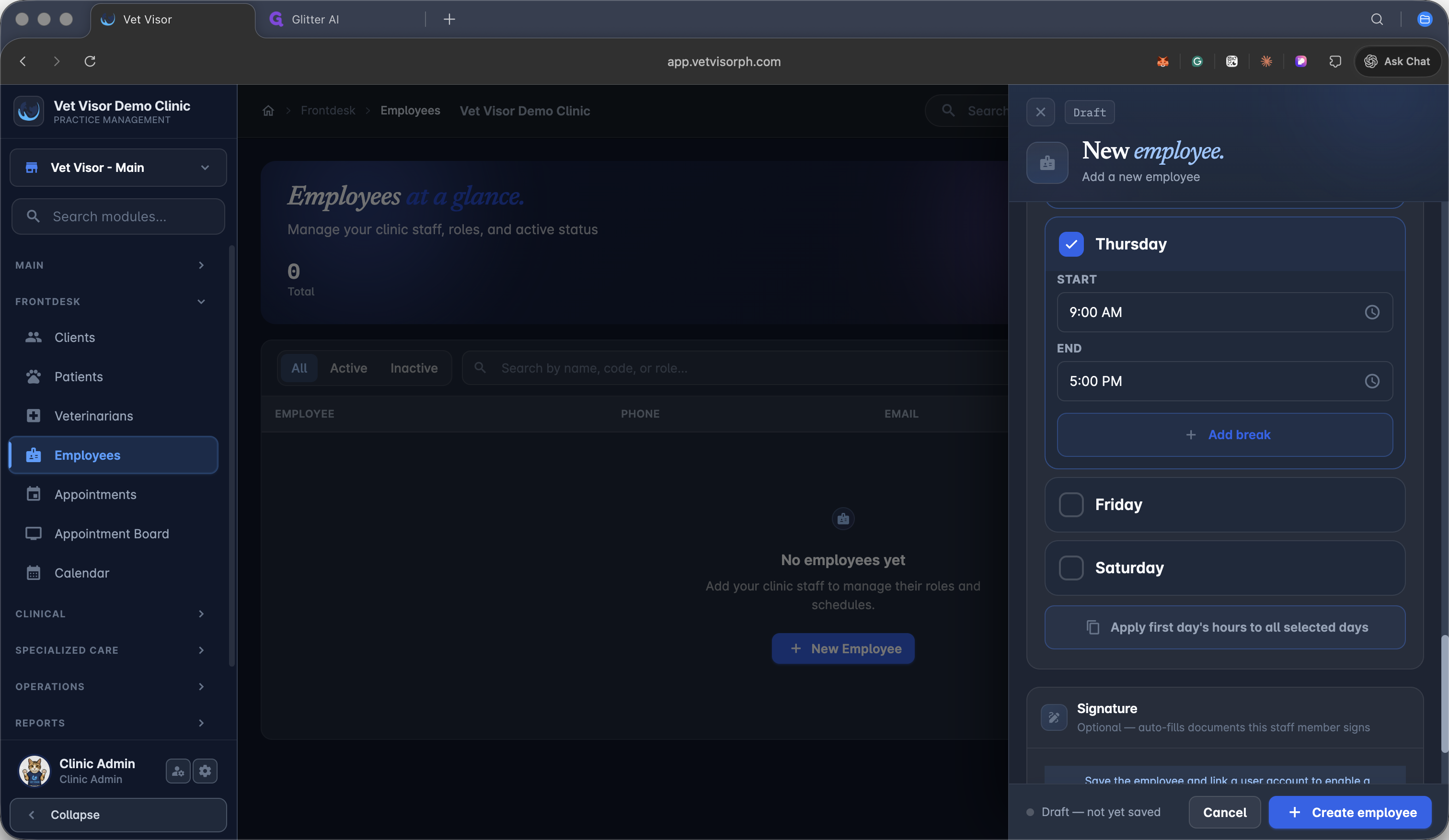
Select Thursday to complete the work week selection.
32
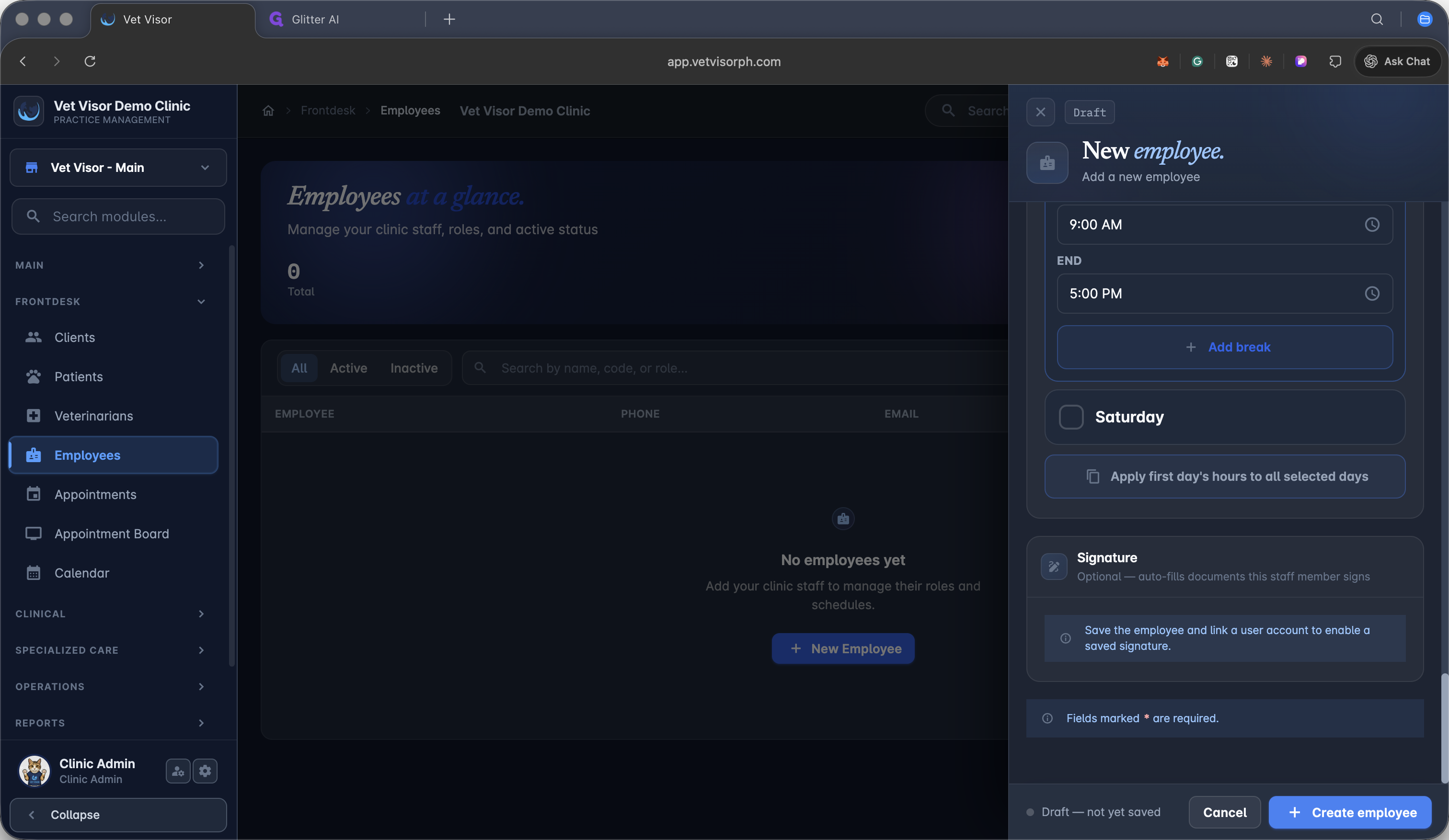
Adjust specific hours or click Add break for the selected days.
33
Click + Create employee to finalize and save the staff profile.
Term | Definition |
|---|---|
PRC License | A professional identification card issued by the Professional Regulation Commission for registered professionals. |
PTR | Professional Tax Receipt, a document proving the payment of local professional taxes required to practice. |
S2 License | A special license required for practitioners to legally prescribe dangerous drugs. |