
Adding a Volunteer Position to the Careers Page
Learn how to add a new open volunteer position to the Work With Us page using the WordPress Gutenberg accordion block.
This guide explains how to add a new open volunteer position to the "Work With Us" page in WordPress. Completing this ensures prospective volunteers can view and apply for newly available roles directly on the website.
This applies to website administrators and People/HR team members managing volunteer recruitment. Use this workflow whenever a new volunteer role is finalized and needs to be published publicly on the careers page.
Locate the Accordion Block
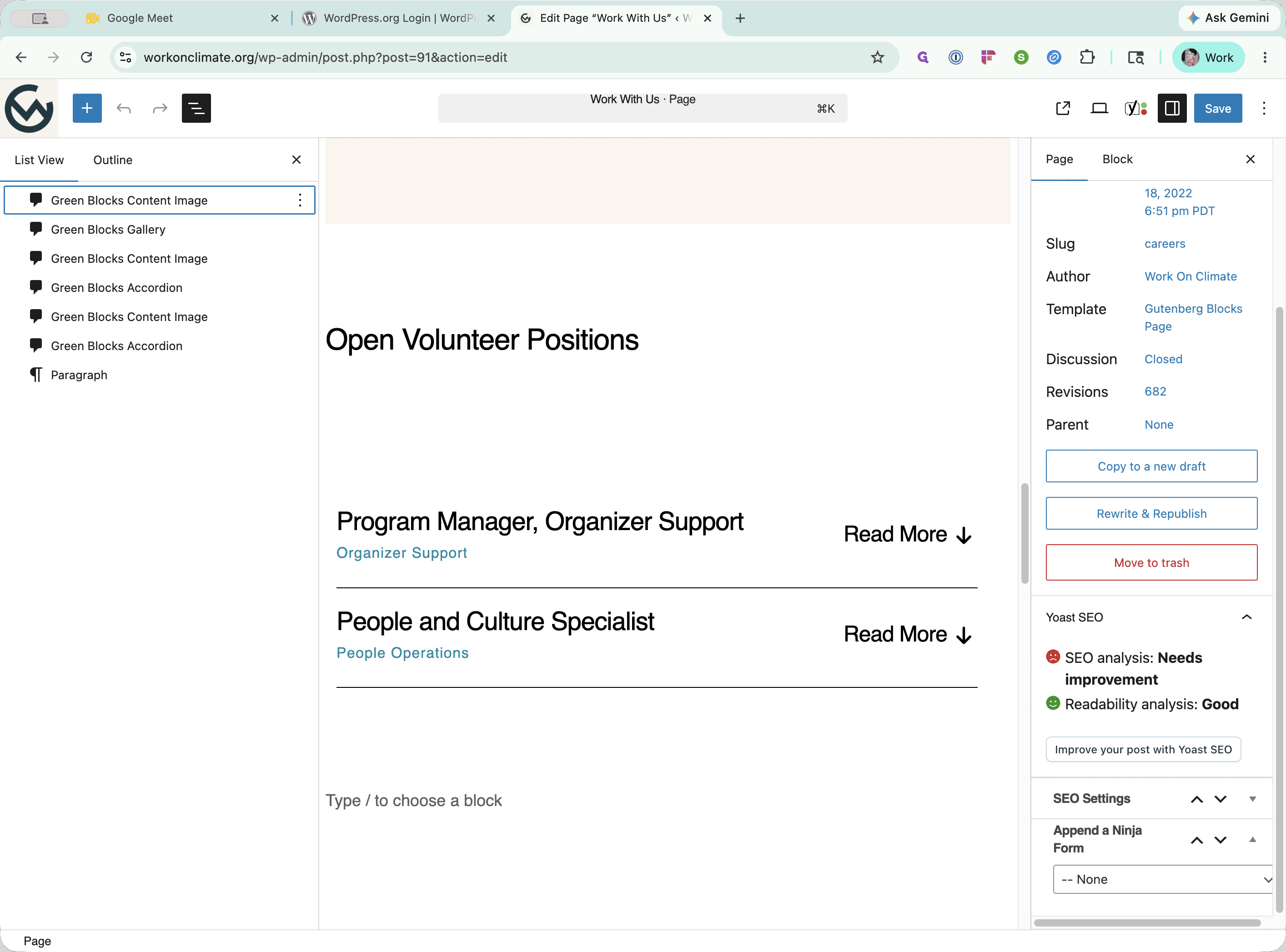
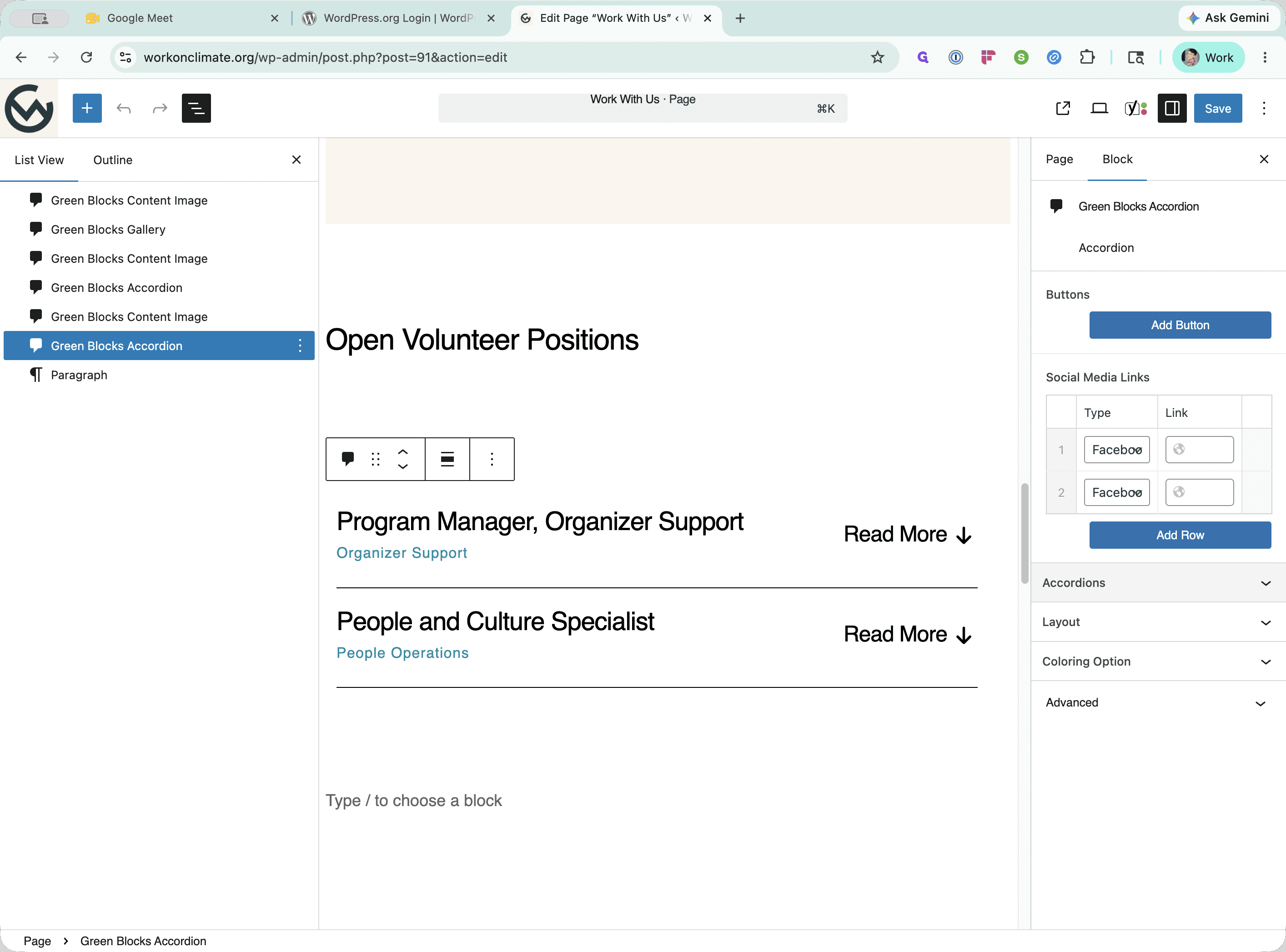
Add the New Role
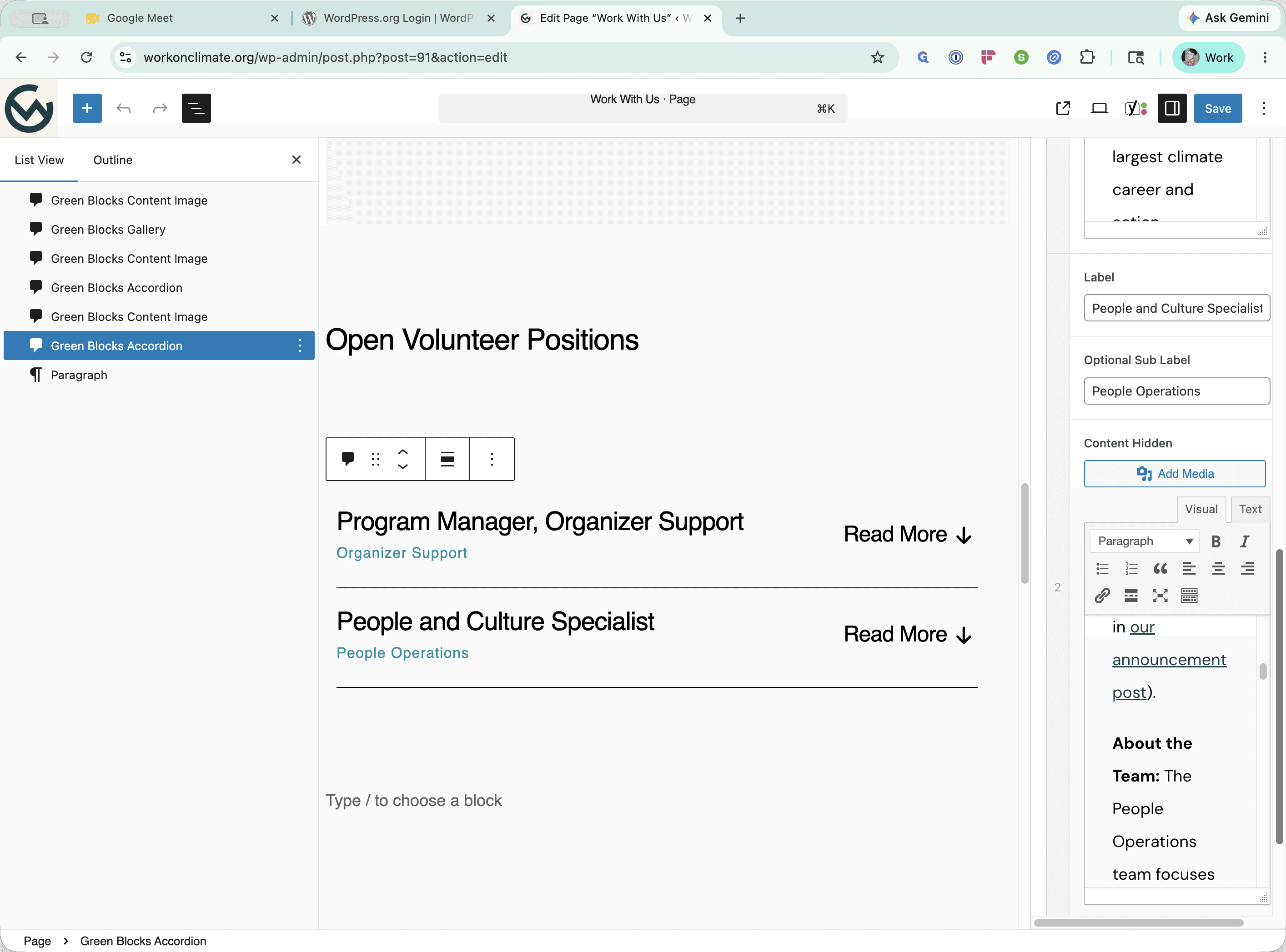
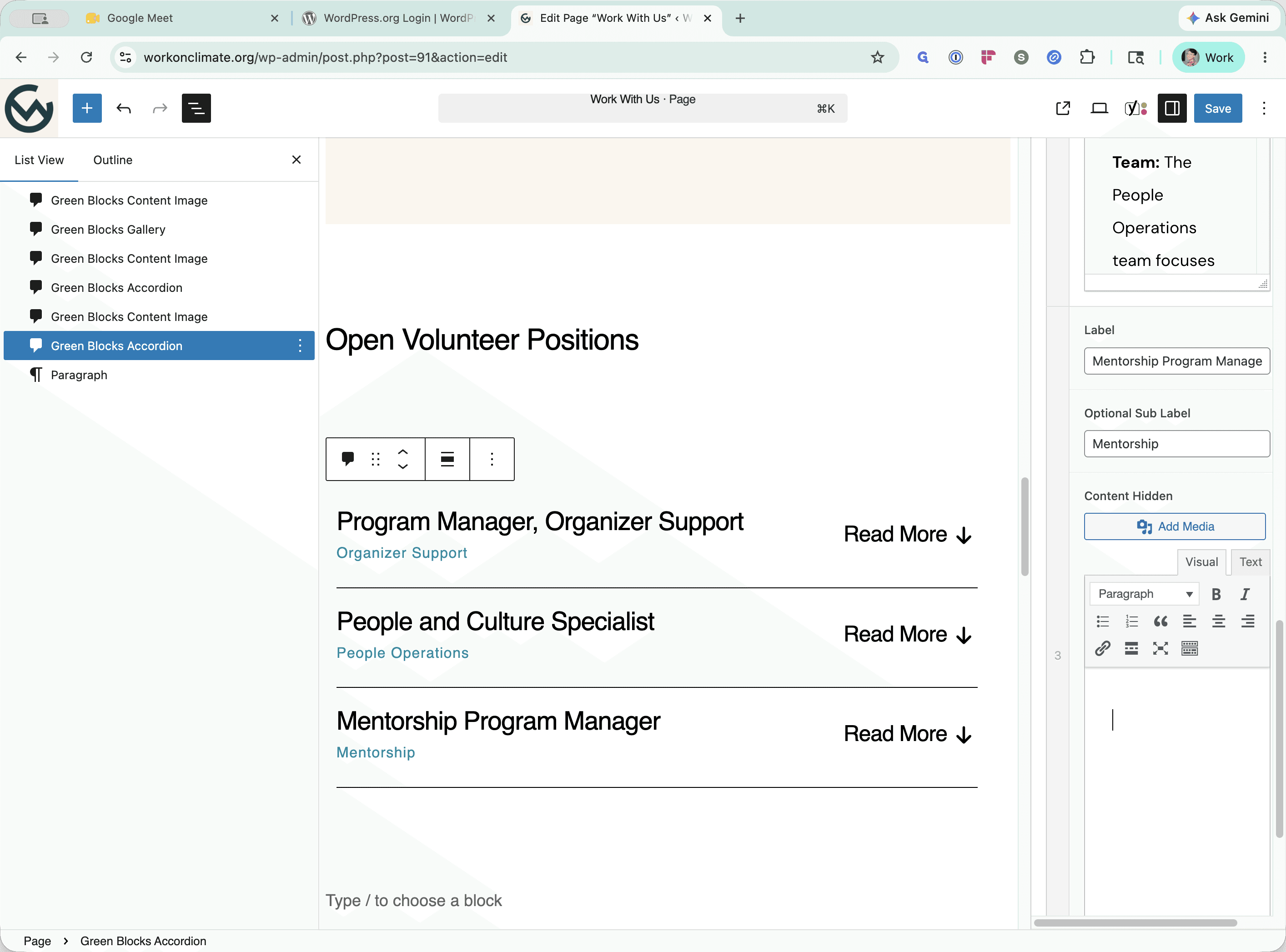
Configure the new accordion row using the following fields:
Field | Action |
|---|---|
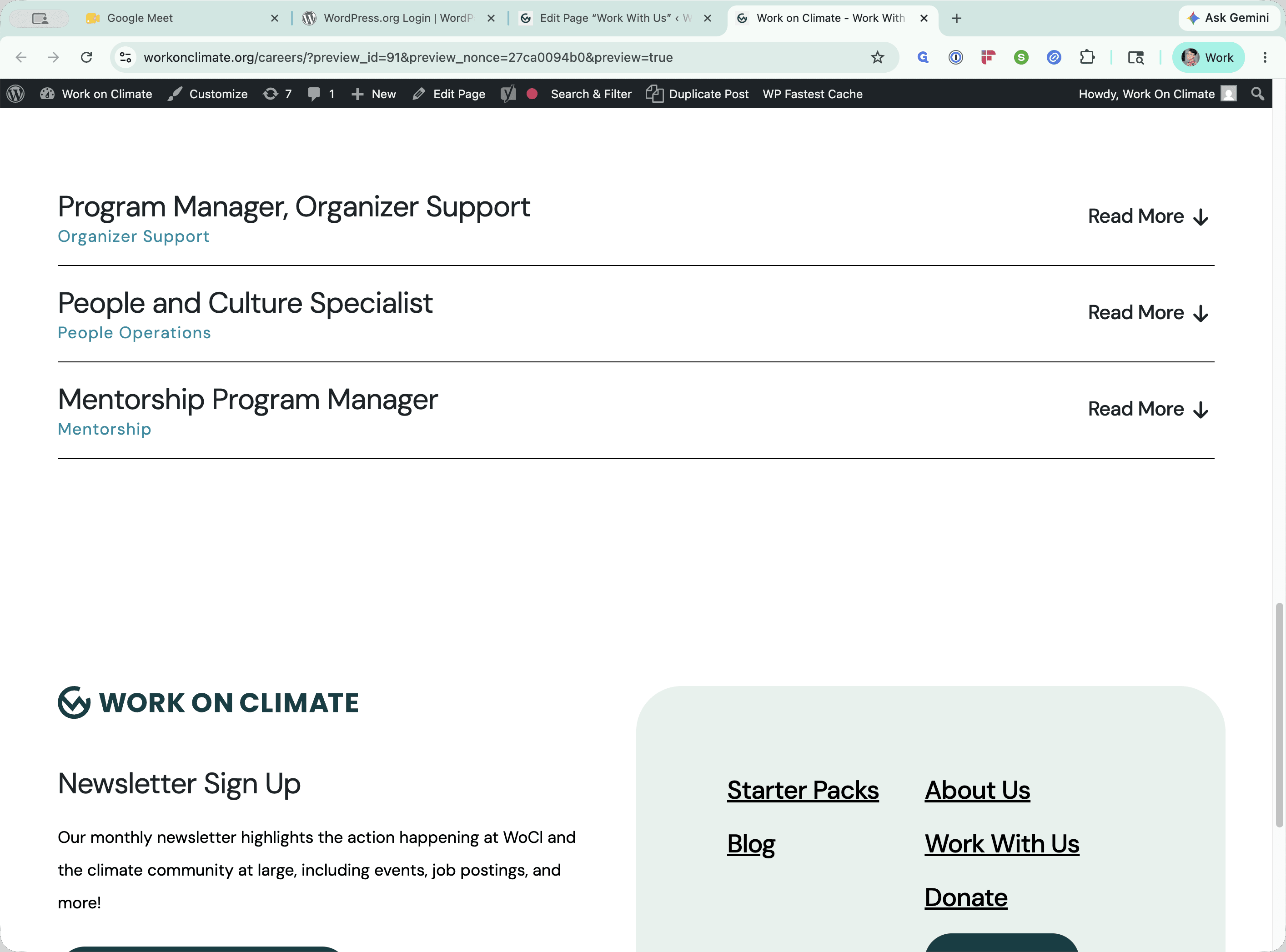
Label | Enter the official role title (e.g., Mentorship Program Manager). |
Optional Sub Label | Enter the department or team name (e.g., Mentorship). |
Content Hidden | Paste the full job description from your Notion page or source document. |
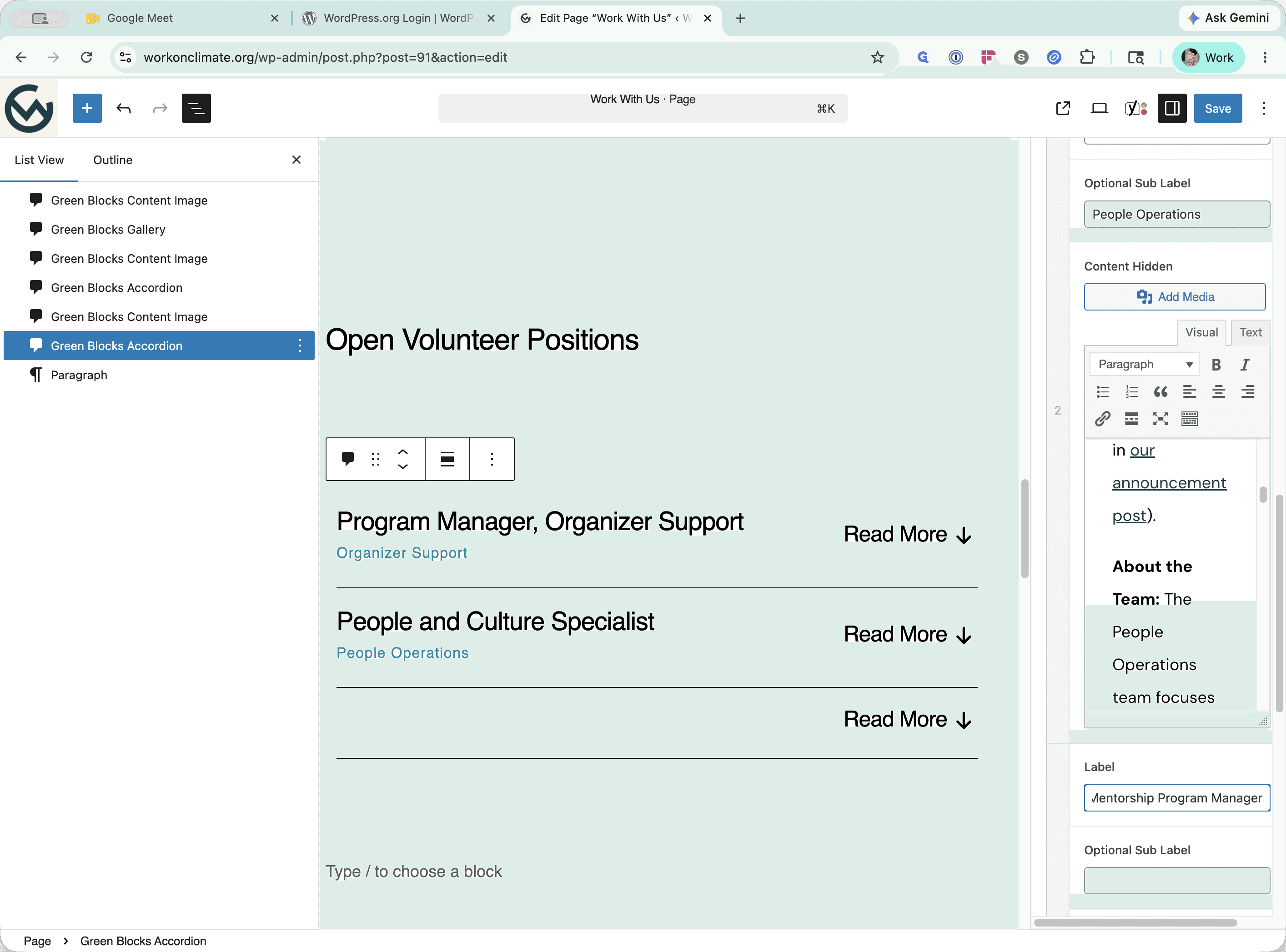
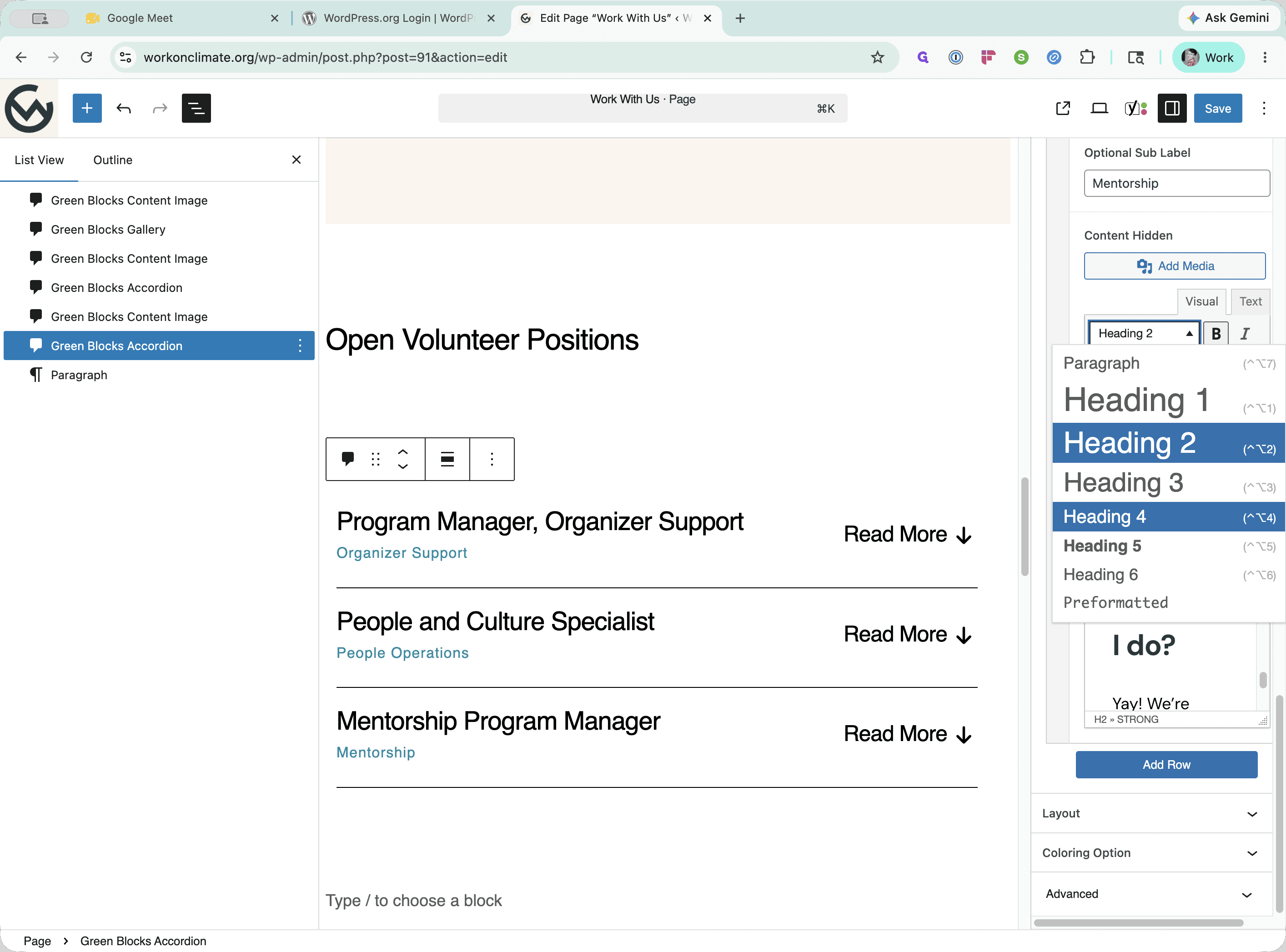
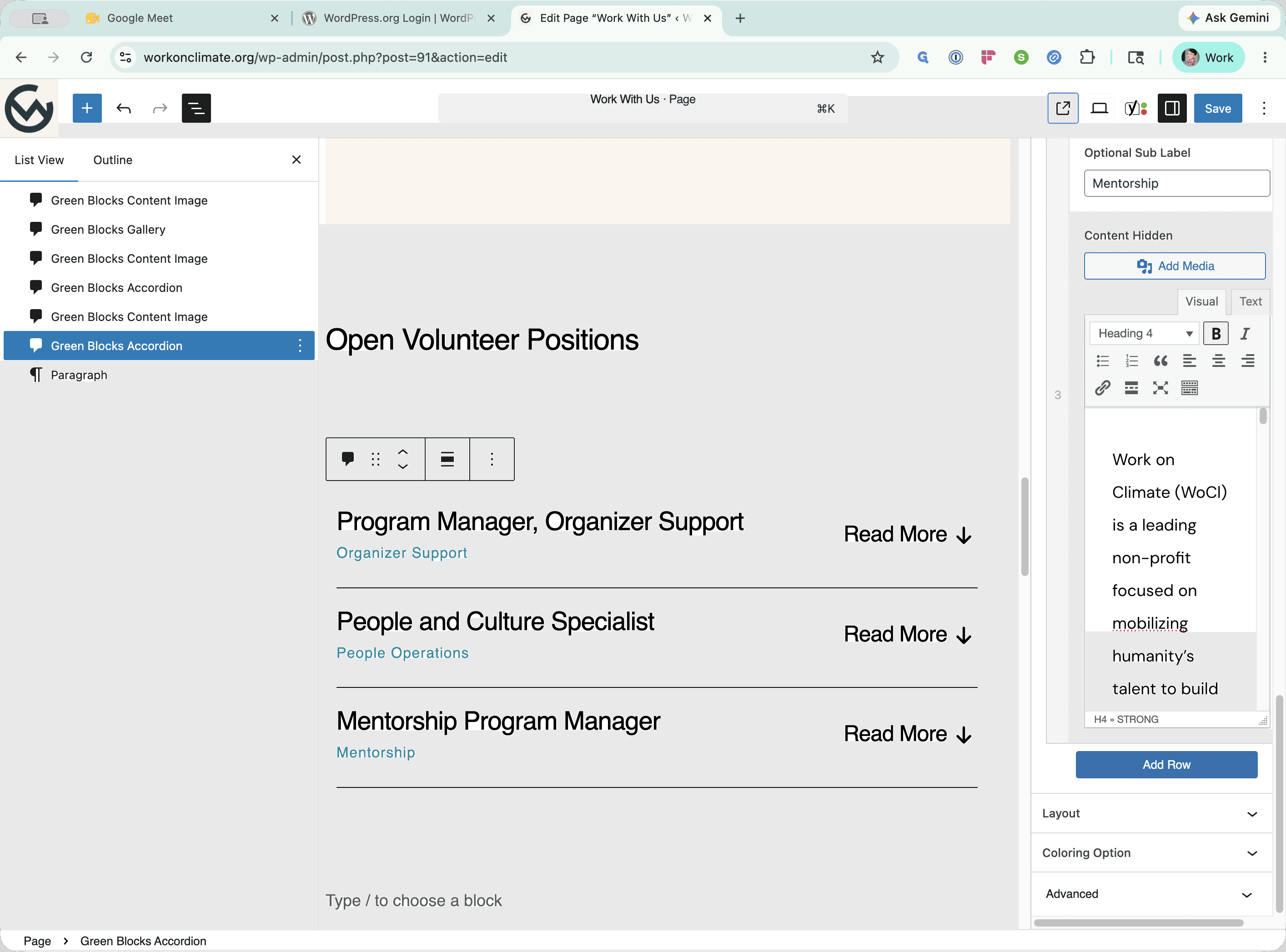
Format Headings
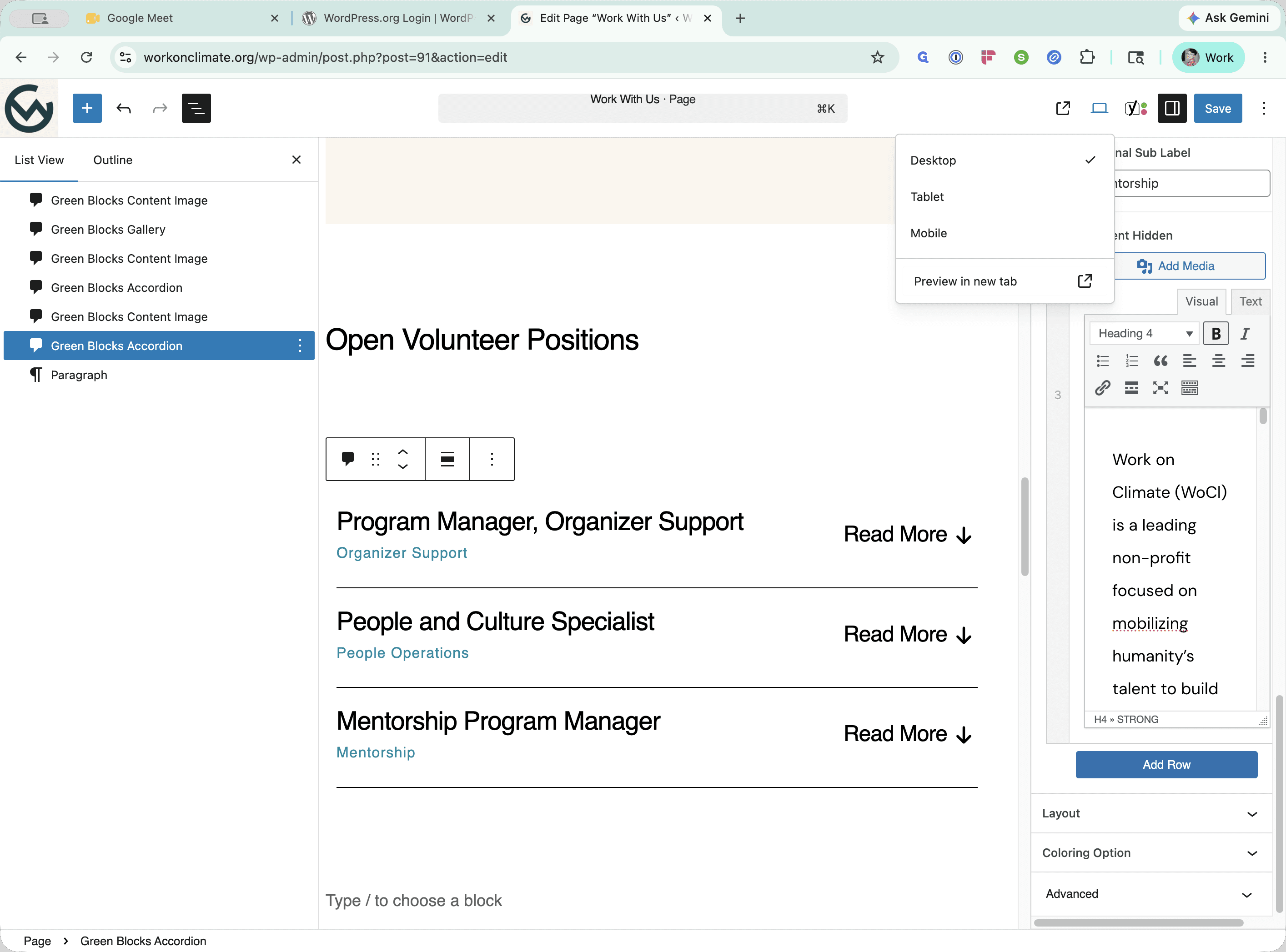
Preview and Test
Q: Why do I need to change the heading levels after pasting the job description?
A: Pasted content typically retains its original large heading sizes (like Heading 2), which disrupt the visual hierarchy of the accordion layout. Downsizing them to Heading 4 ensures they display neatly.
Q: What should I use for the accordion Label and Optional Sub Label?
A: Use the exact Notion page title (the job role) for the Label, and the specific team name (e.g., Mentorship) for the Optional Sub Label.
Term | Definition |
|---|---|
Accordion | A user interface element on a webpage that expands to reveal hidden content when clicked, commonly used for lists or FAQs to save space. |
Block Editor | The default component-based page builder in WordPress where content is structured using individual blocks. |
List View | A navigation tool in the WordPress editor sidebar that shows a hierarchical outline of all the blocks currently used on the page. |