Admin and User Management: How to Manage Users, Roles, and Clients
Learn how to efficiently manage users, roles, and clients in the admin panel. Discover how to activate, deactivate, and update user roles and client assignments with step-by-step instructions.
By Aasma Technology Solutions
In this guide, you will learn how to manage users within the admin panel. It covers viewing user details, updating user roles, assigning clients, and deactivating users. These actions help ensure user information remains accurate, secure, and well organized.
Let's get started
This section explains admin management, focusing on user management, where you can view and manage all users.
1
Click on User Management tab
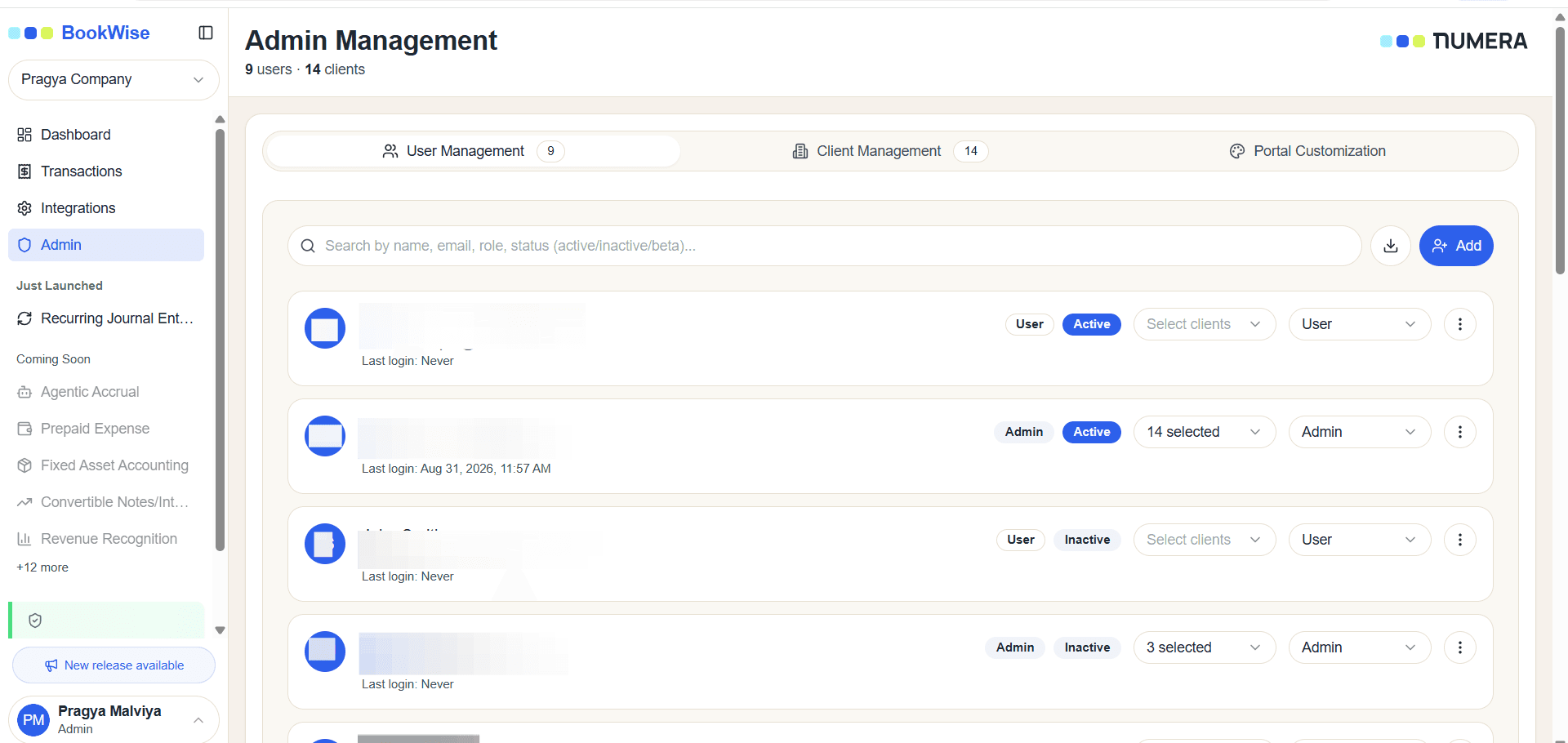
This section lets you activate the user, review their activity, and view their assigned role. You can also select a client for the user by clicking “Select a Client”
2
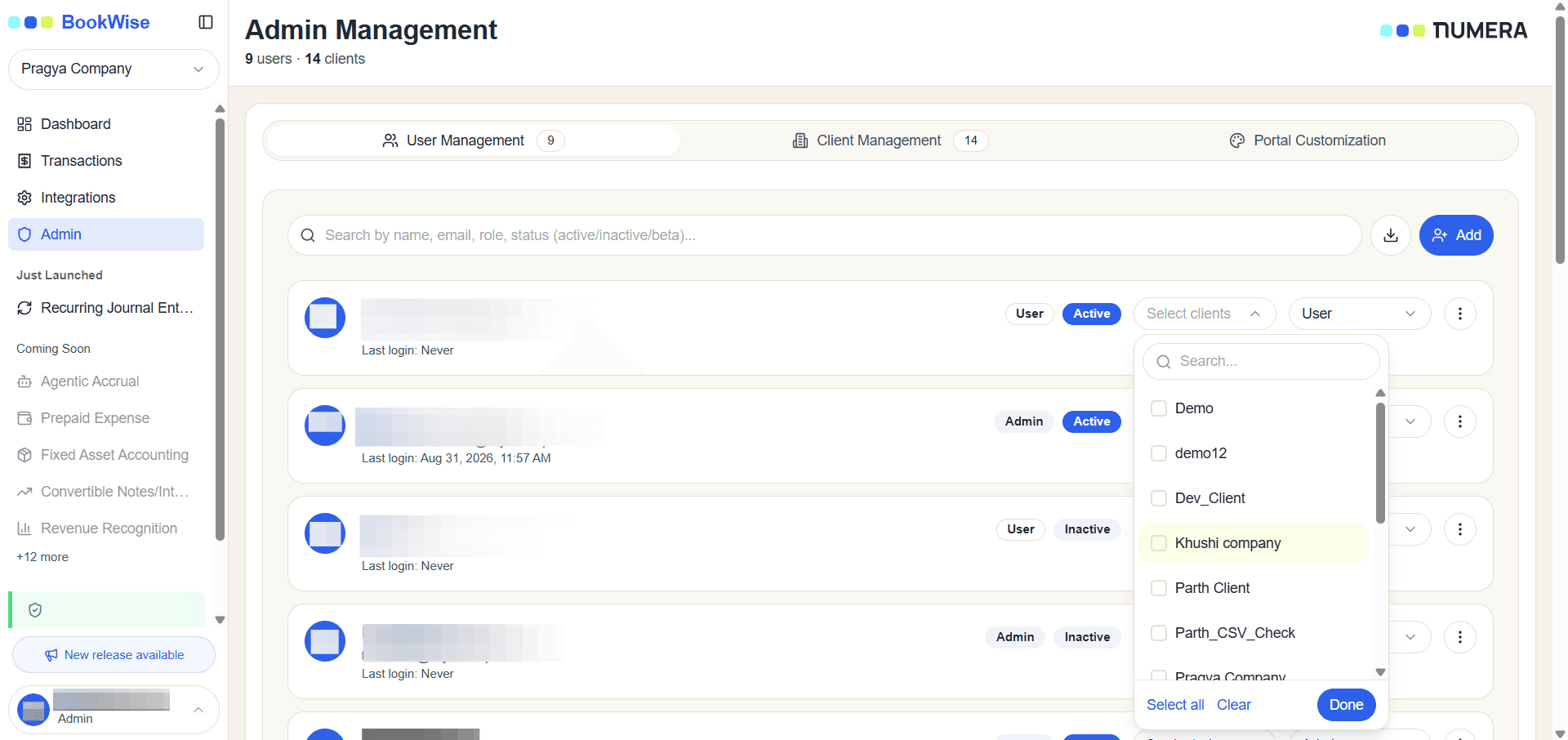
Click on the Select Client dropdown buttoClick here
3
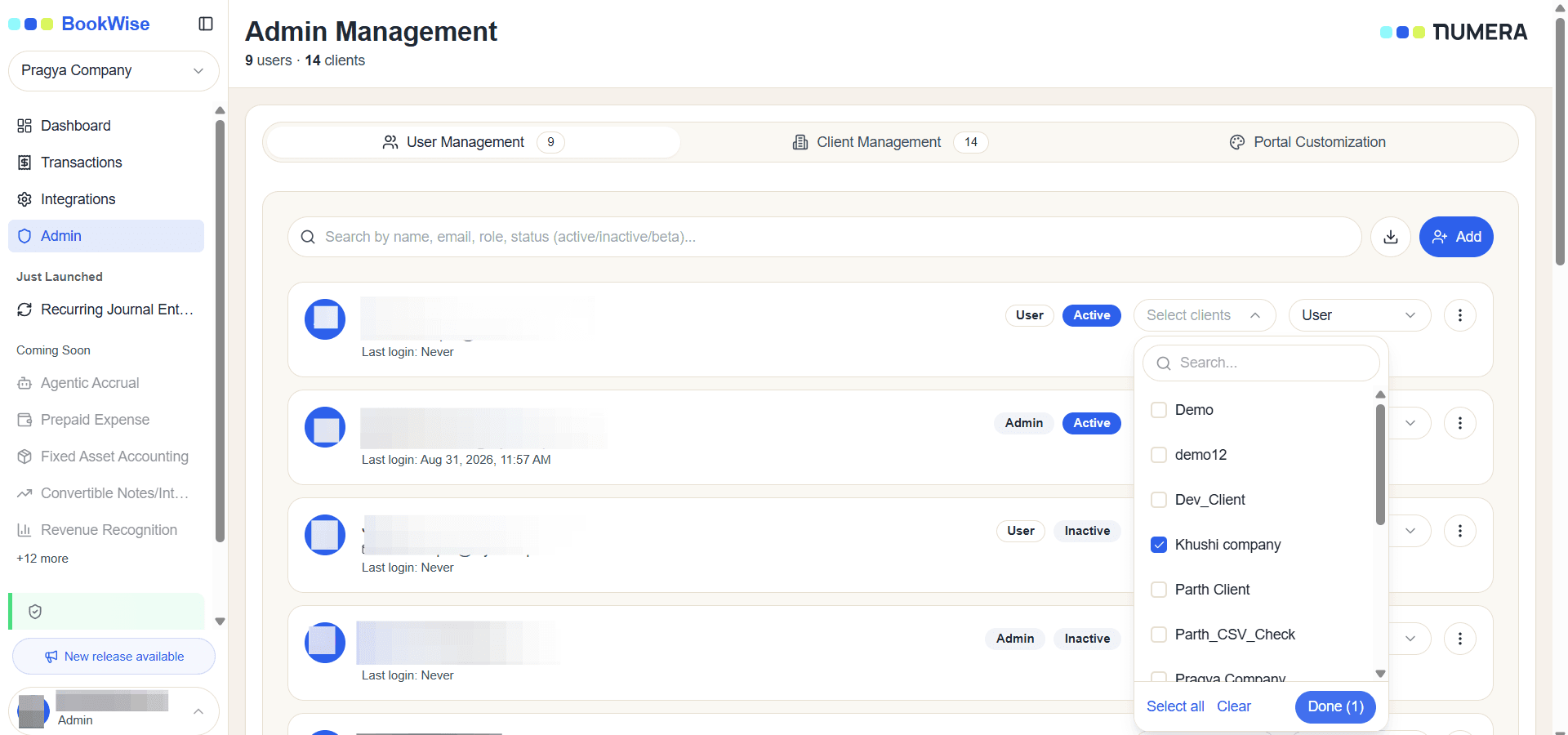
Select Client and click on done button
4
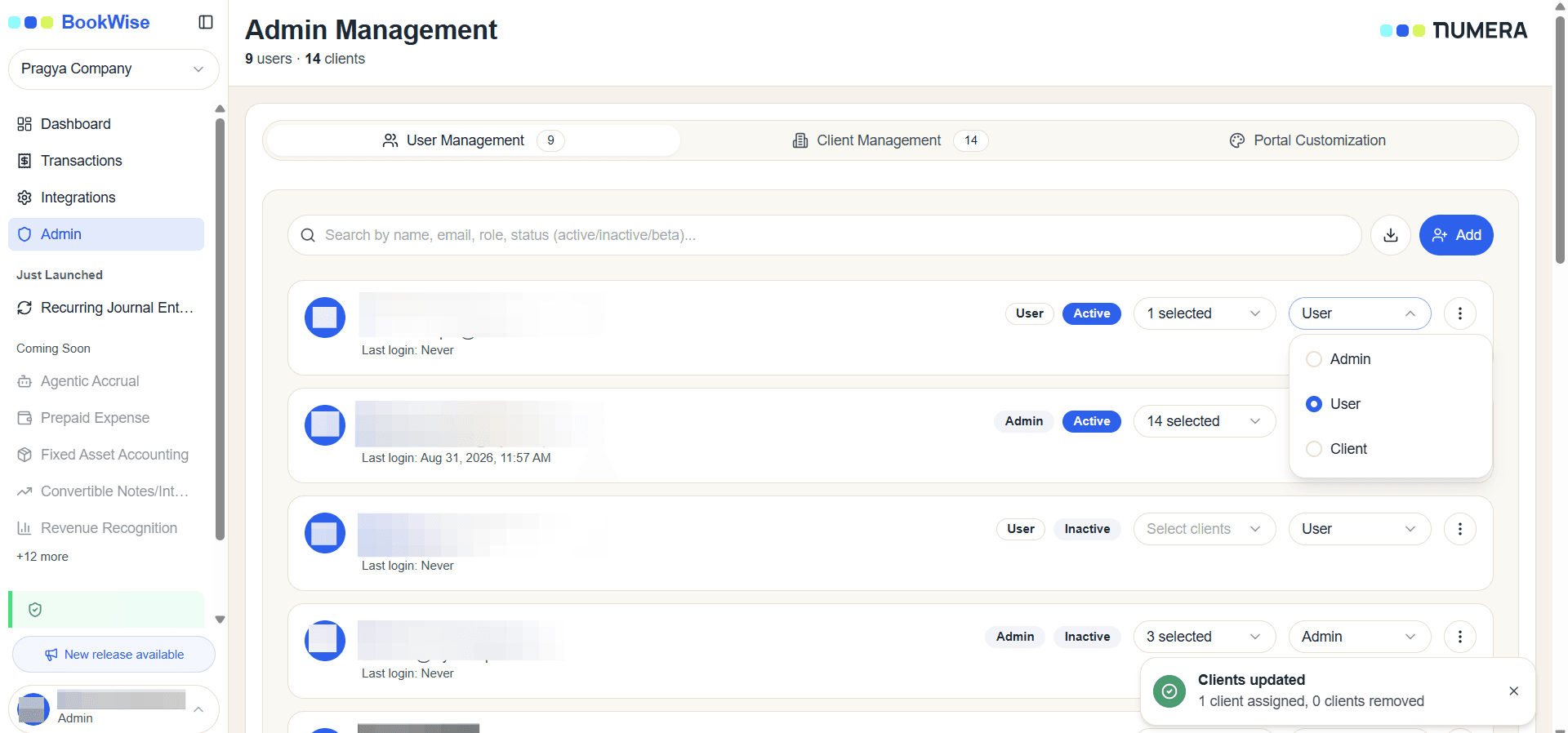
When click on Admin dropdown we can change role from here
5
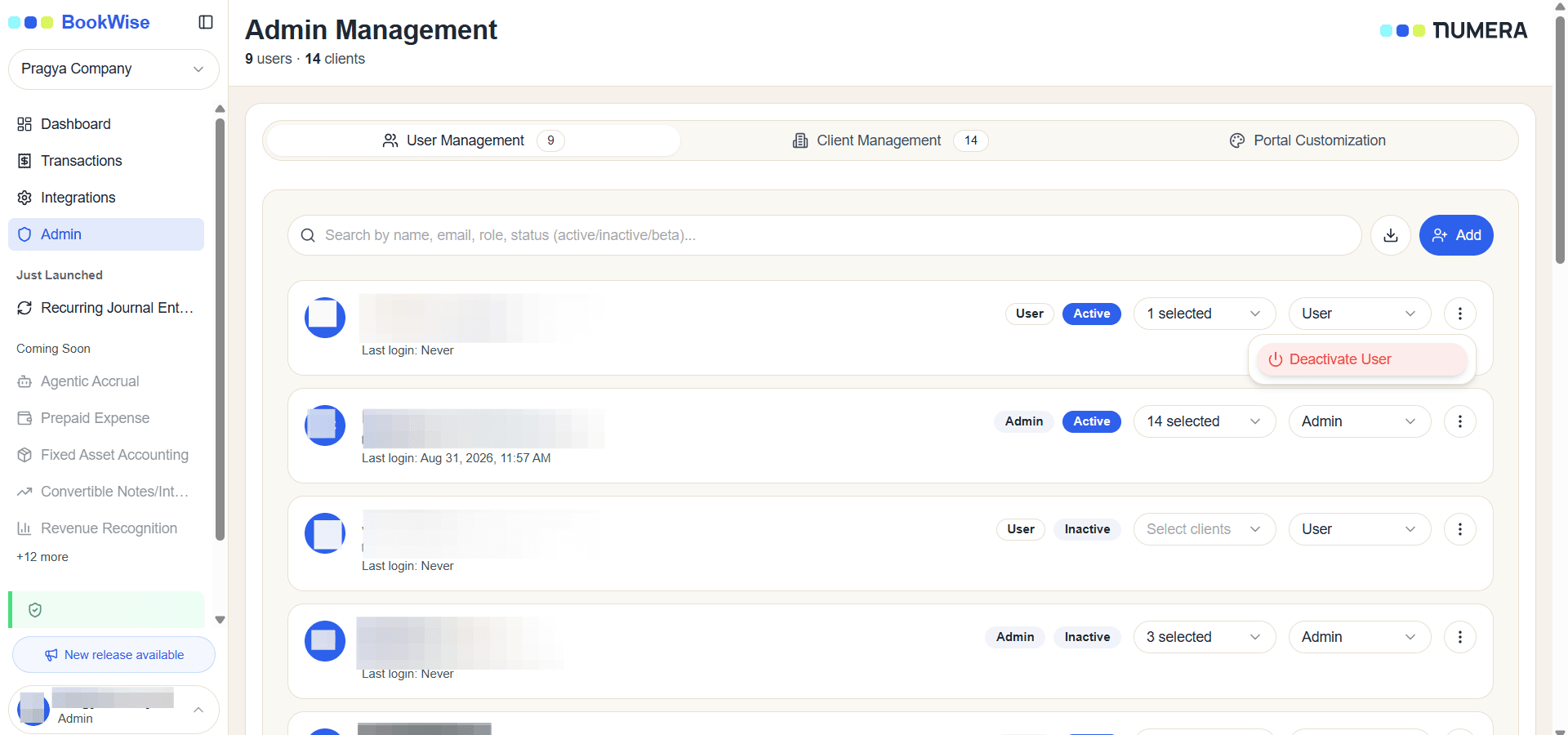
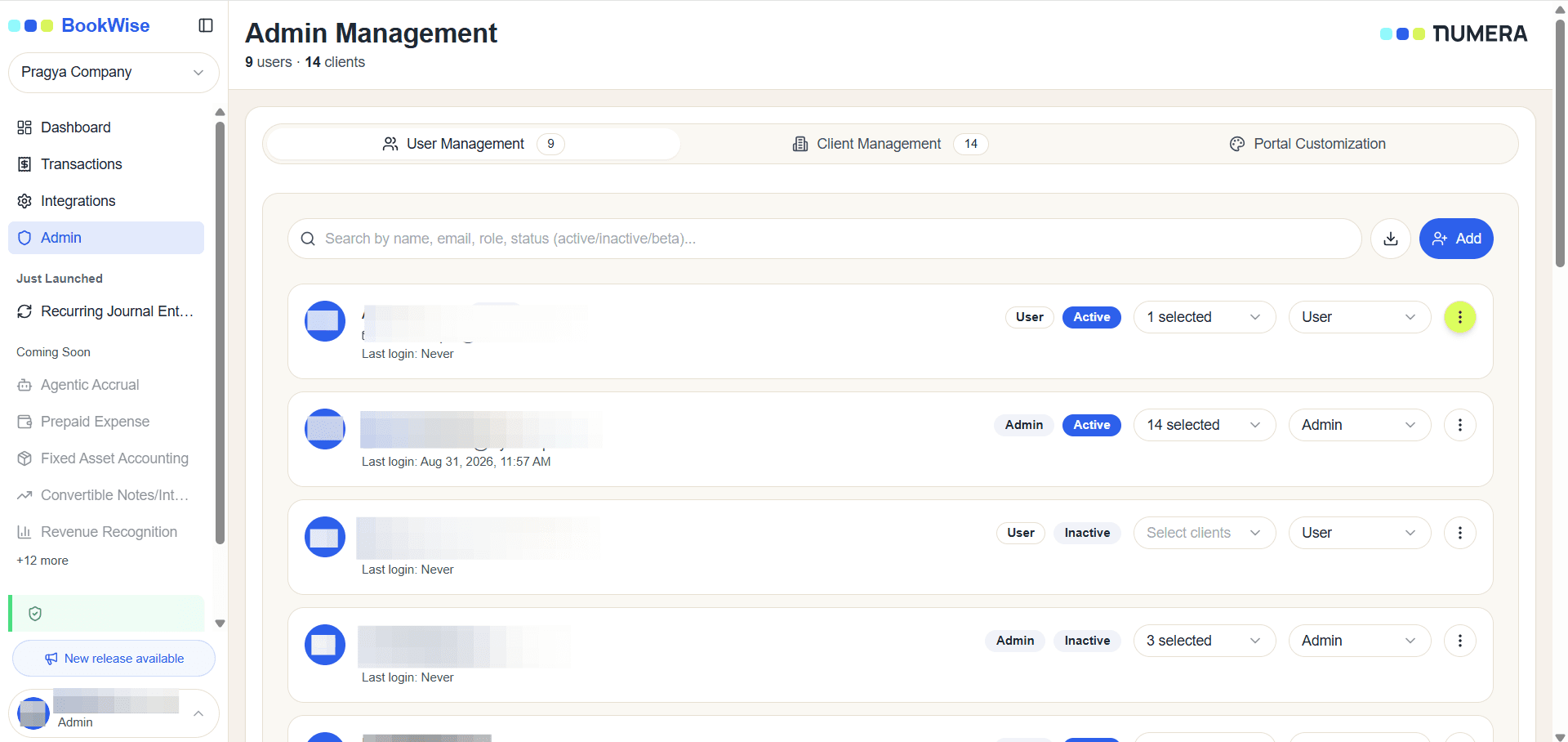
Click the three-dot menu to access the option to deactivate the user.
6
Click “Deactivate User” to deactivate the user.