How to Allow Pop-ups for a Specific Site in Google Chrome
Learn how to allow pop-ups and redirects for a specific website in Google Chrome by updating your privacy and security settings.
By Barry Finney
This guide explains how to explicitly allow pop-ups and redirects for a specific website in Google Chrome. Completing this ensures that essential prompts and features from trusted sites are not blocked by your browser.
This applies to any Chrome user who needs to bypass the browser's default pop-up blocker for specific internal tools, trusted third-party applications, or websites that rely on pop-up windows to function properly.
To begin, open your Google Chrome browser and access your Settings menu by clicking the three-dot icon in the top right corner.
1
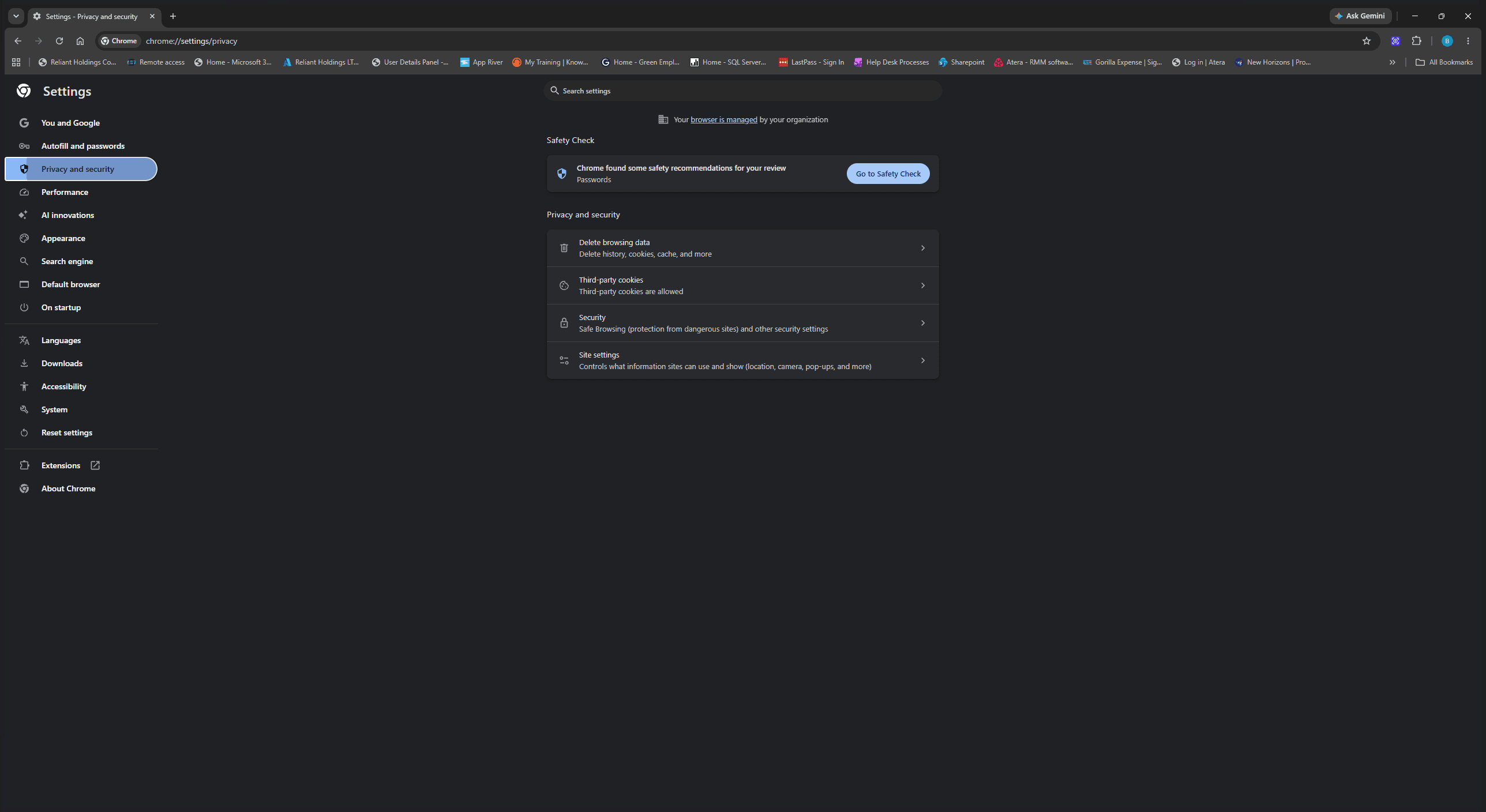
Select Privacy and security from the left-hand navigation menu.
2
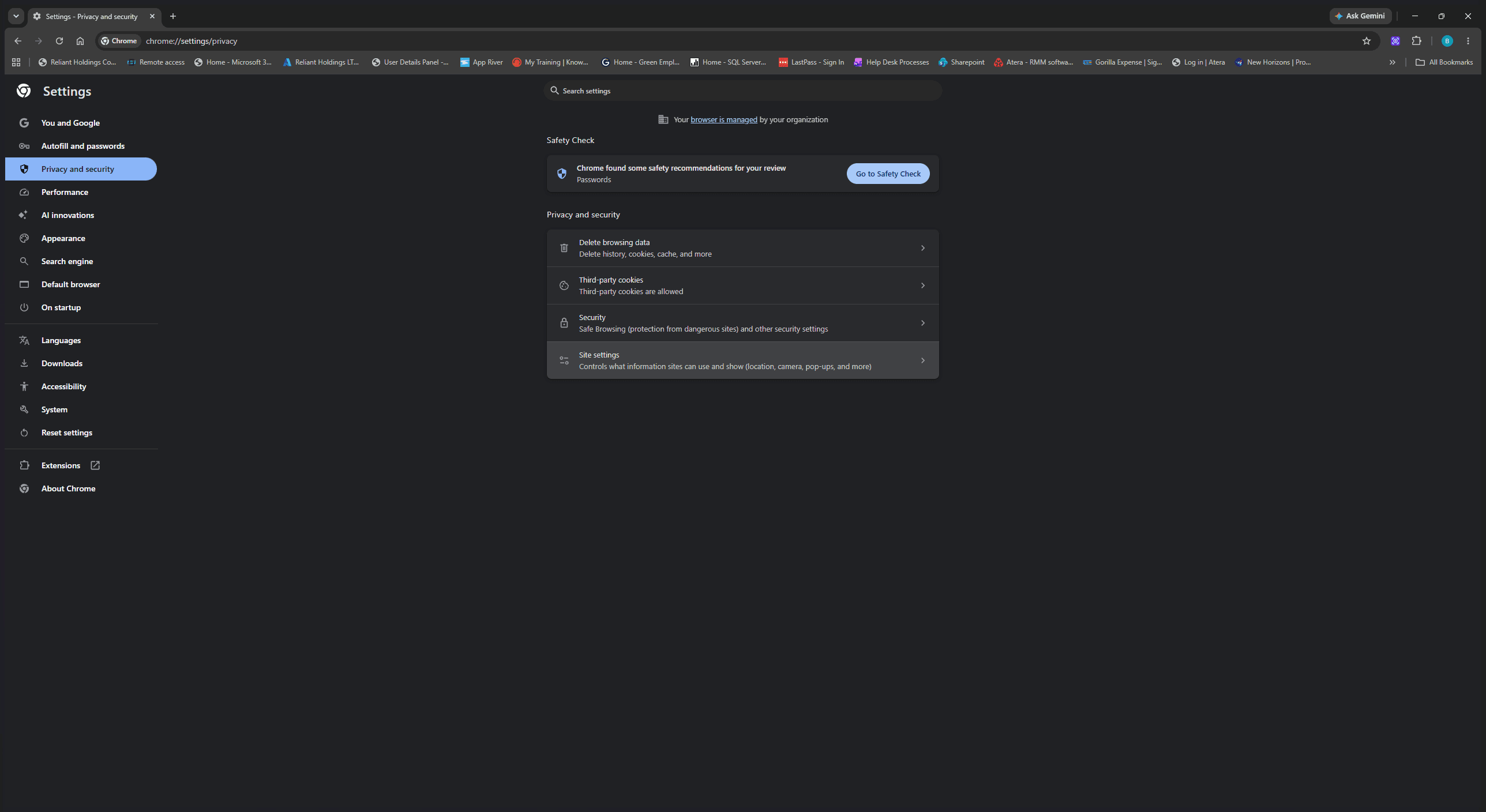
Scroll down to the main panel and click on Site settings.
3
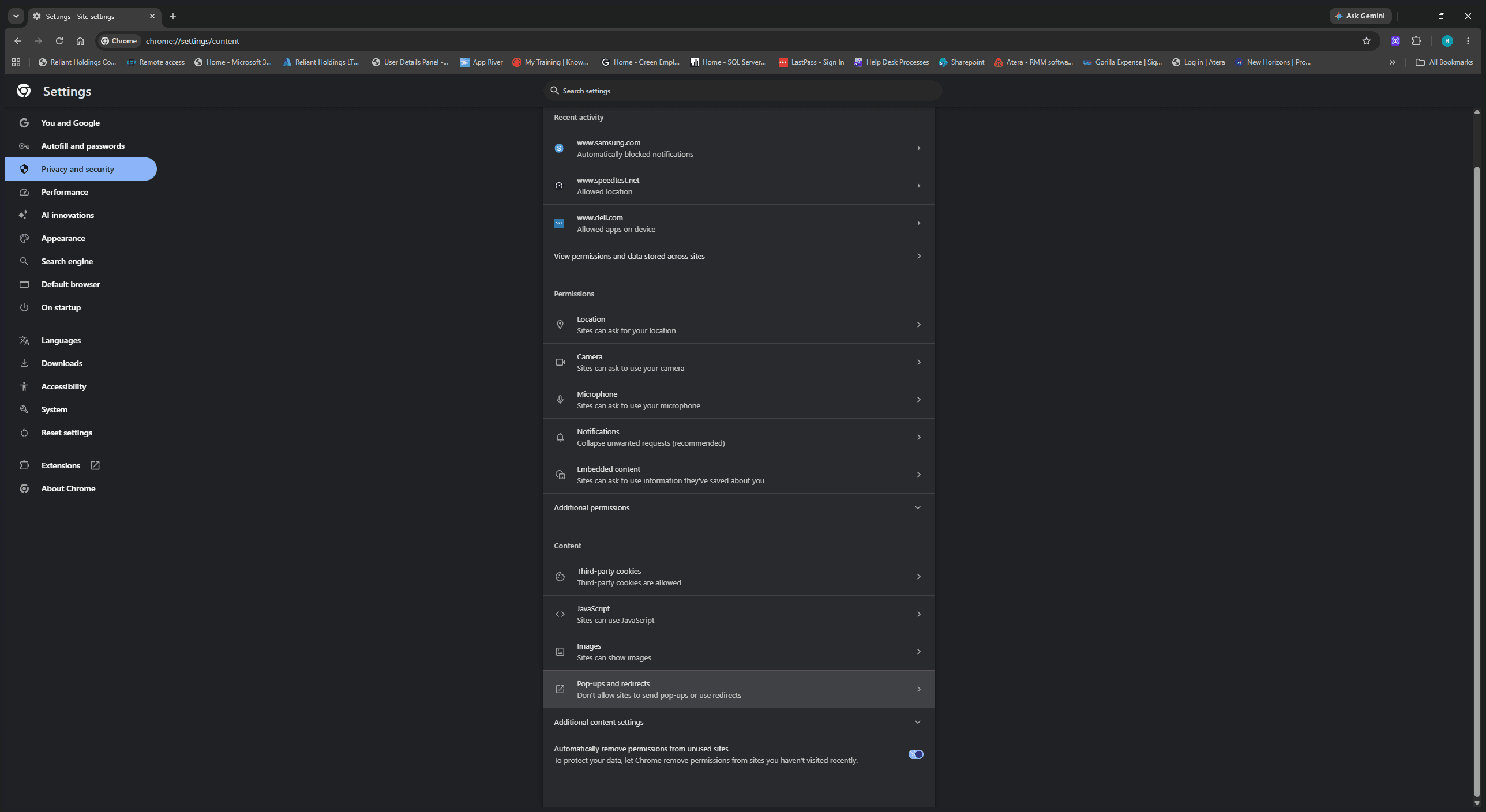
Scroll down to the Content section and click on Pop-ups and redirects.
4
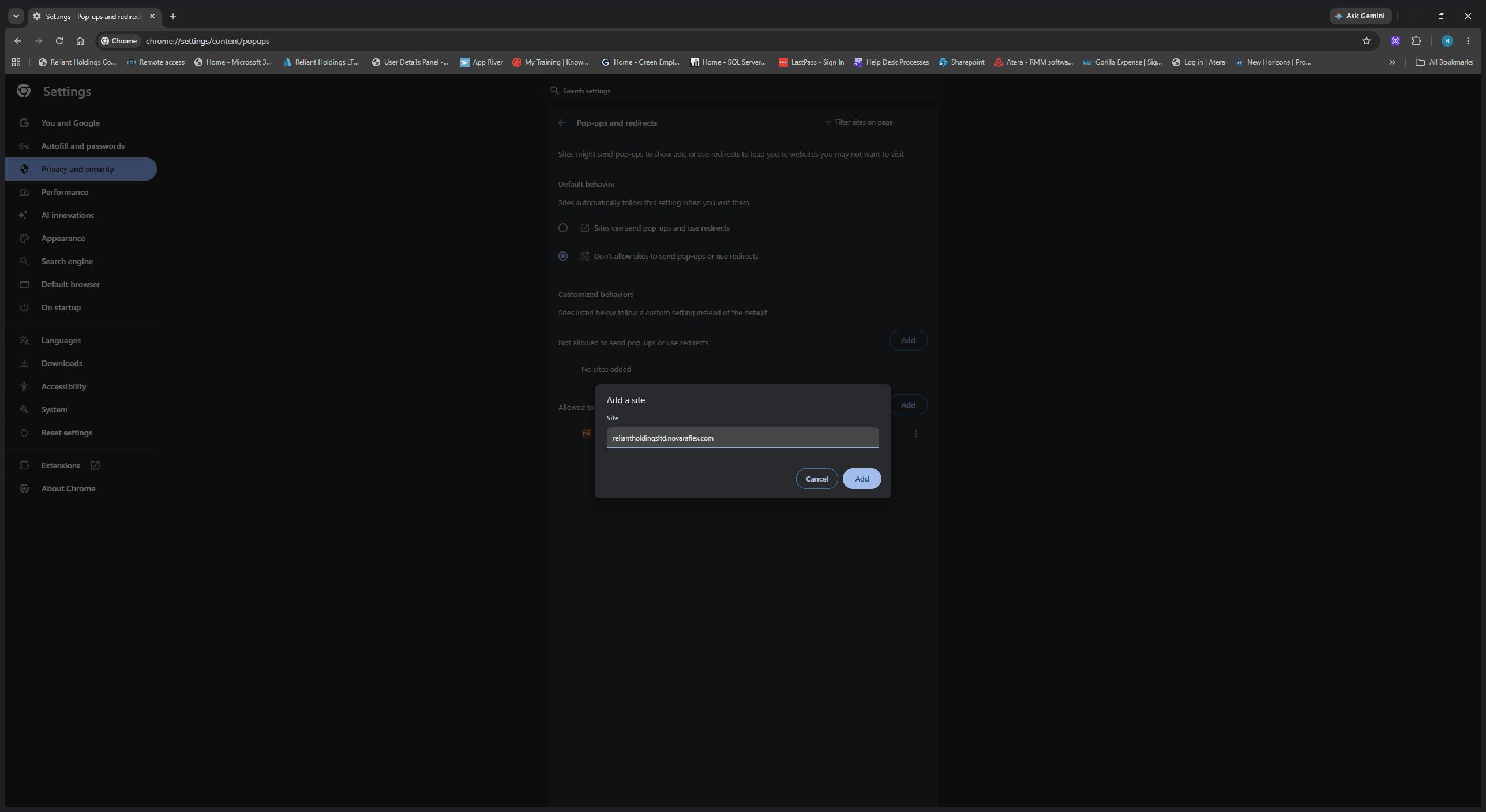
Locate the section titled "Allowed to send pop-ups and use redirects" and click the Add button next to it.
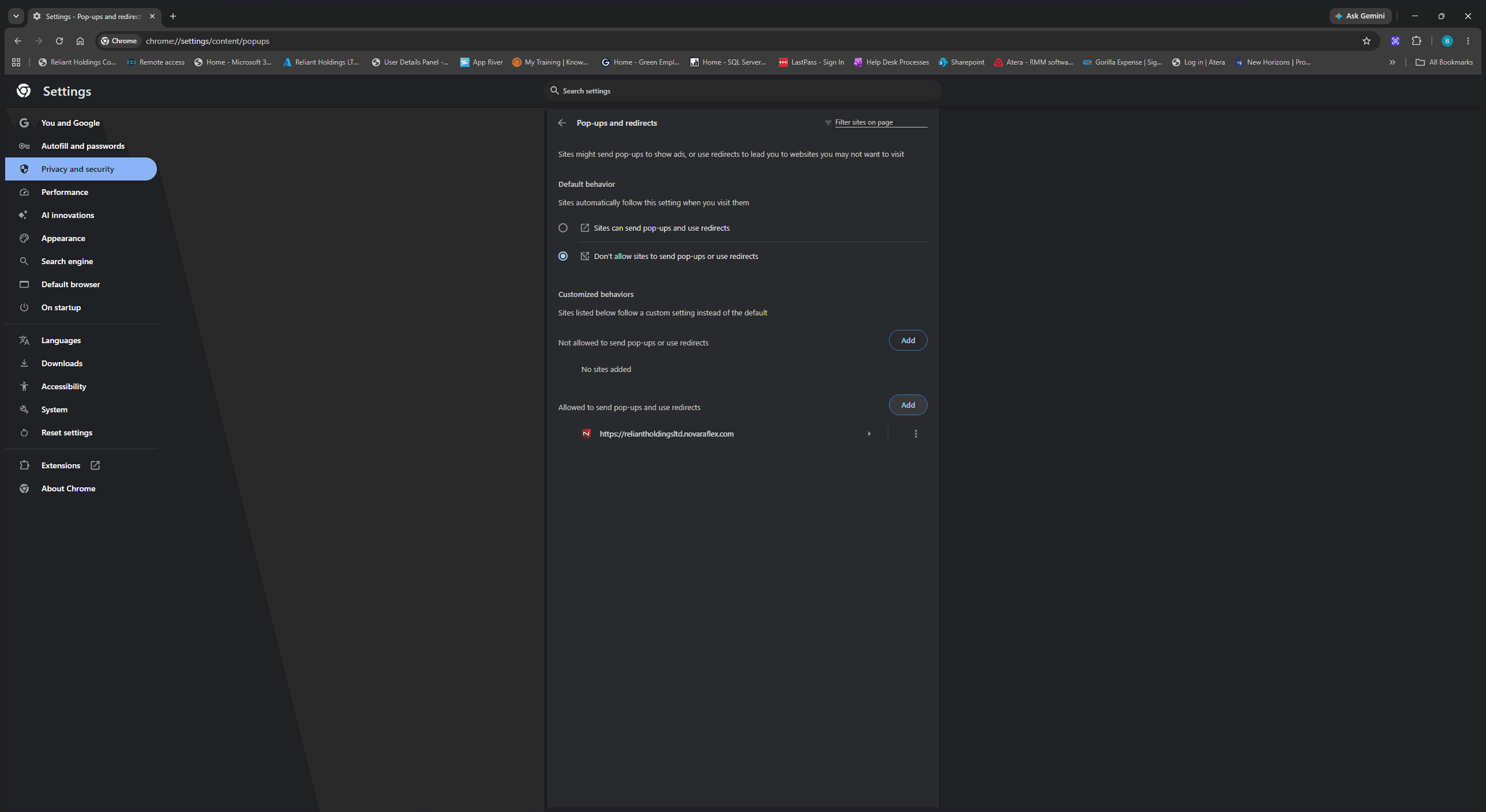
5
In the modal that appears, type or paste the exact URL of the website you wish to allow.
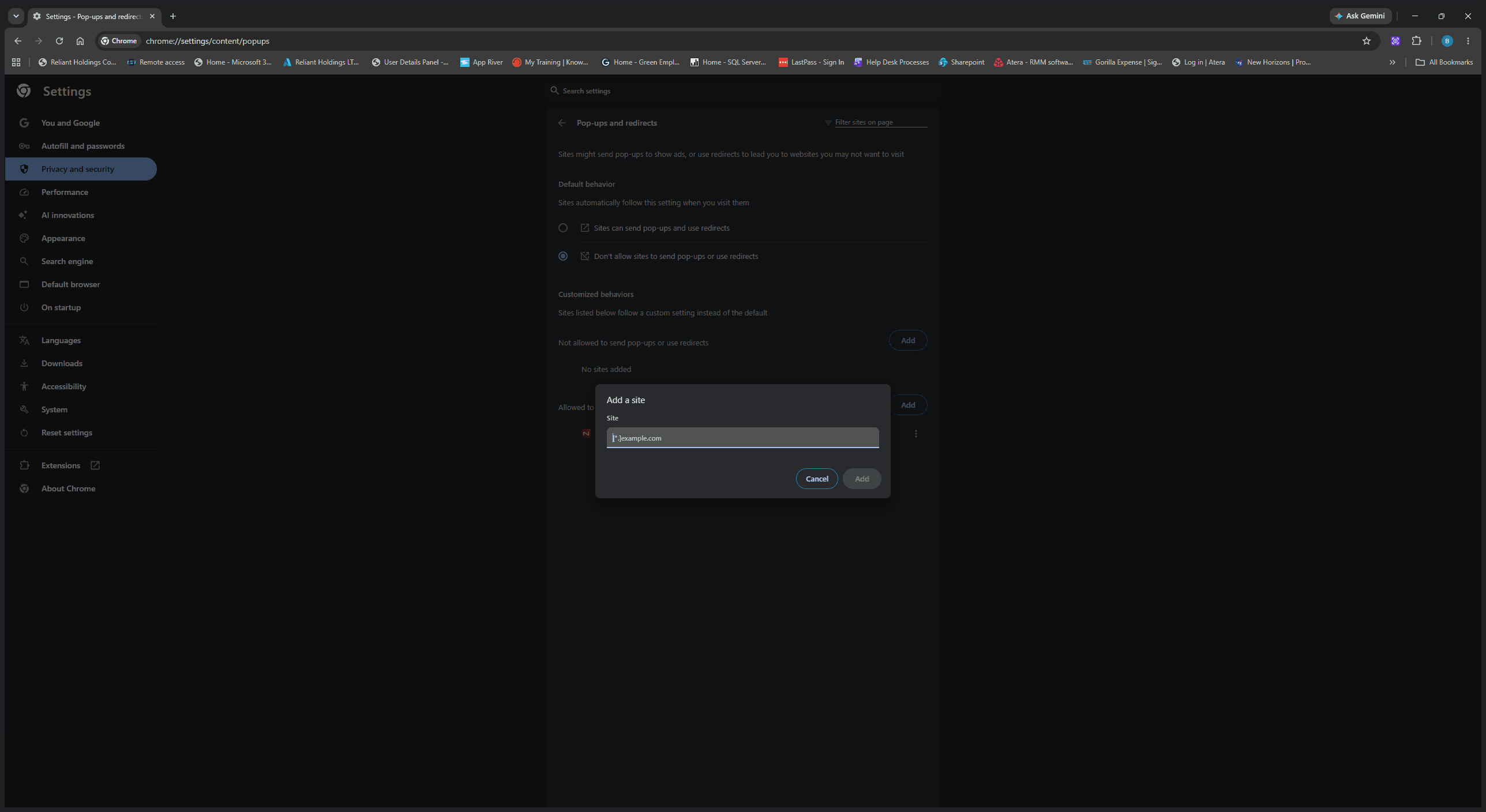
6
Click Add to confirm and save the exception for this site.