AP: Enter Direct Entry Invoices into Sage
Learn how to record purchase order notes in ServiceTitan and enter bill details into Sage Intacct.
By Autumn Bowman
Purpose
This guide details the procedure for documenting purchase order updates in ServiceTitan and processing corresponding accounts payable bills in Sage Intacct. Following these steps ensures inventory records align accurately with financial entries across both platforms until the bill is submitted.
Scope
Entering bills not related to a COGS account
Document Purchase Order in ServiceTitan
1
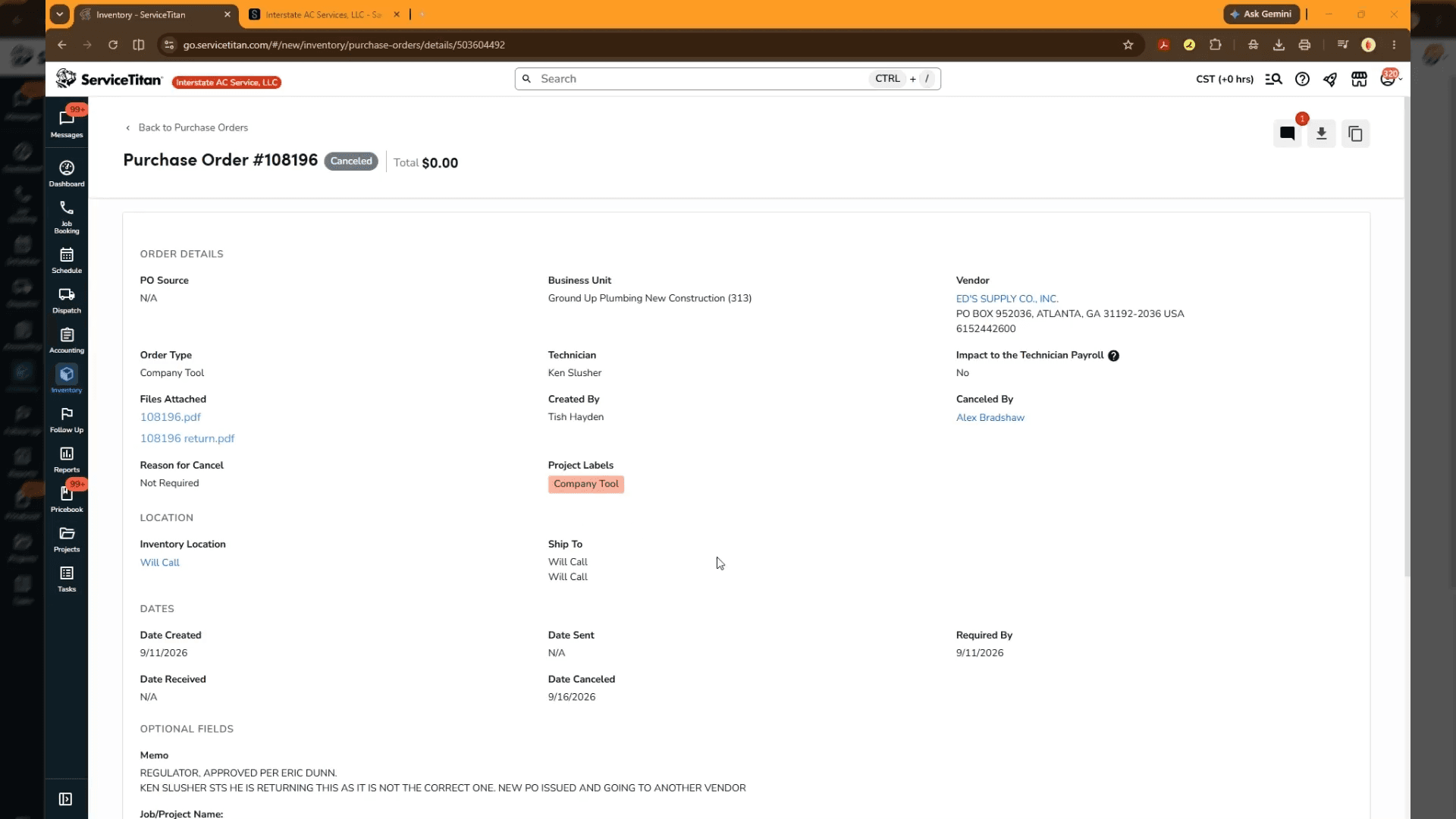
Find your purchase order in ST
2
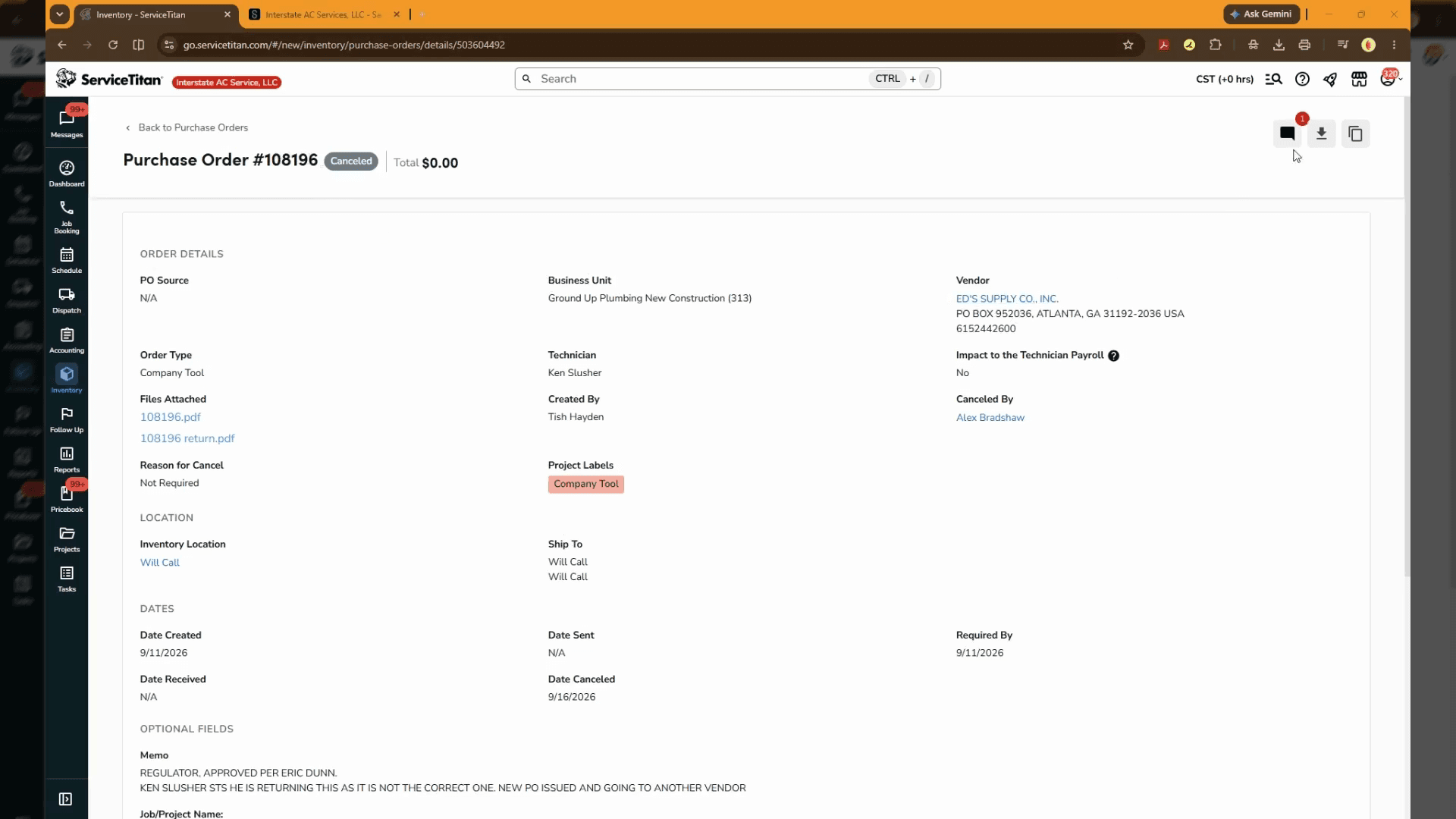
Click the comments button in the top right area of the ServiceTitan purchase order screen. Type the cancellation comment for the purchase order.
3
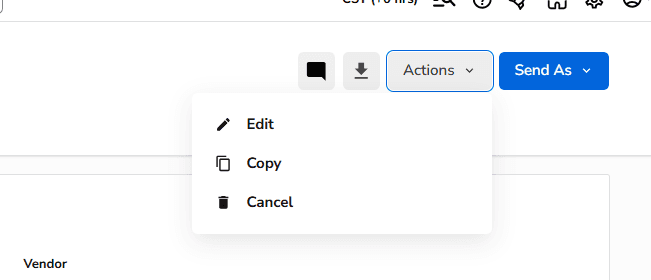
Cancel the PO in ST - select actions in the right corner and select cancel
Enter Bill Details in Sage Intacct
1
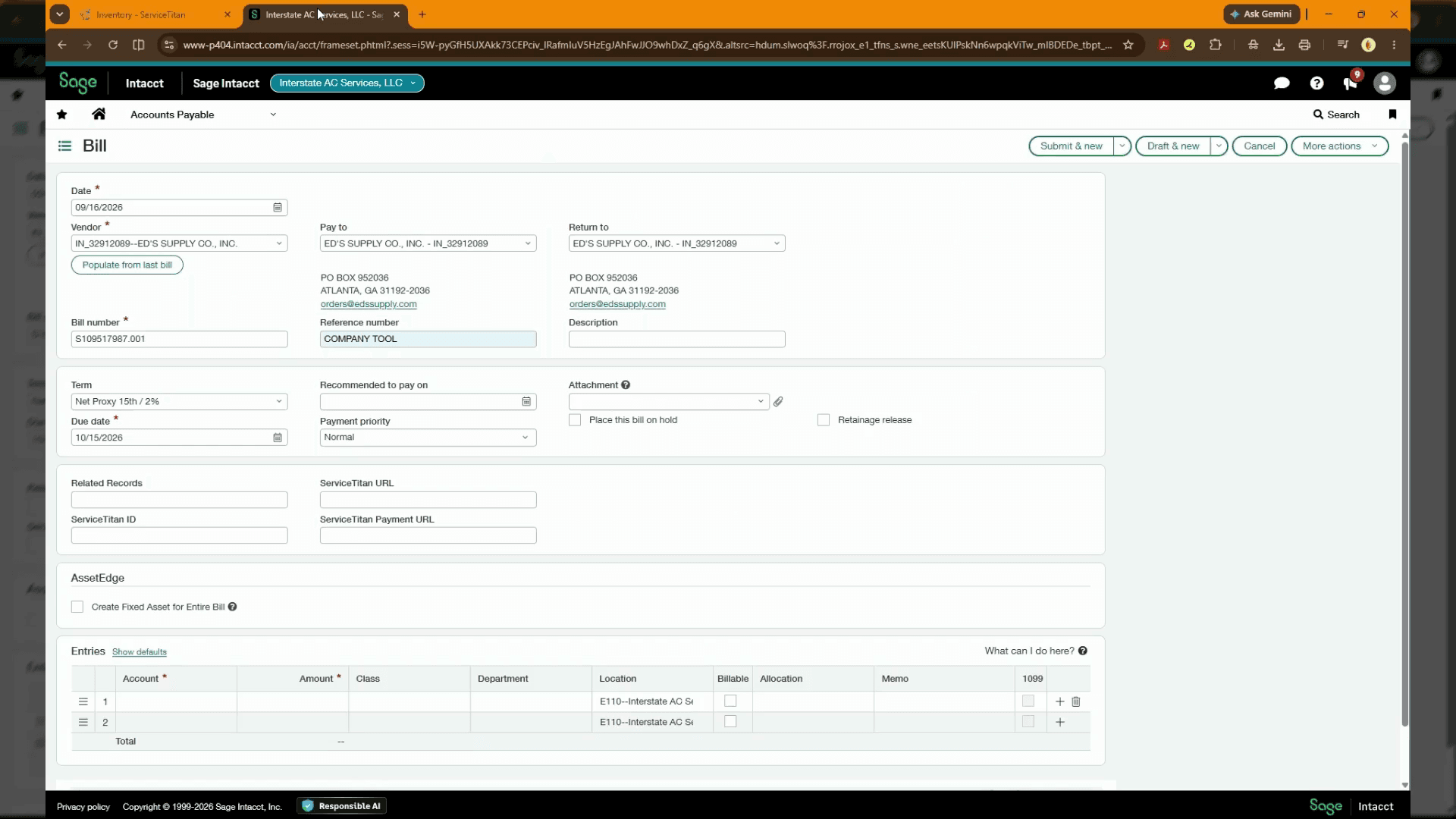
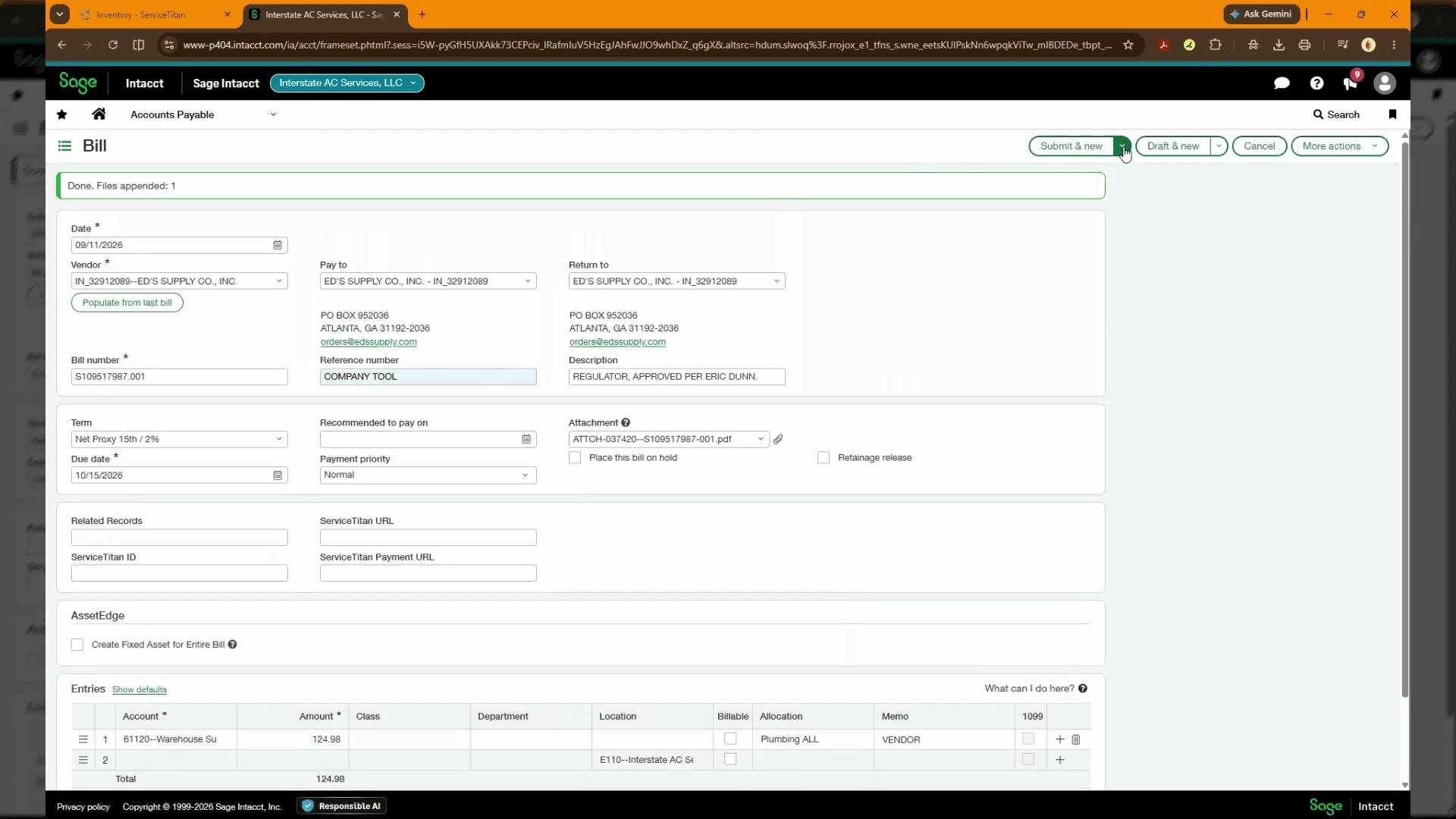
Switch to the Accounts Payable tab in Sage Intacct - Select Bill
2
Watch the clip below
3
Complete the necessary fields in Sage
4
Click Submit and New in the top right corner of the Bill form.
FAQ
Q: Why should comments be added to the purchase order in ServiceTitan before entering the bill?
A: Documenting notes or cancellations directly on the purchase order maintains an accurate audit trail in ServiceTitan so team members know the status before accounts payable entries are finalized in Sage Intacct.
Q: What does selecting Submit and New do on the Bill form in Sage Intacct?
A: It posts the current bill entry to Accounts Payable and immediately loads a blank bill form so you can enter the next transaction.