AP: Enter Ramp Bills in Sage Intacct
Learn how to export receipt details from Ramp and enter them as accounts payable bills in Sage Intacct.
Purpose
This guide explains how to extract transaction receipts from Ramp and manually record corresponding bills within Sage Intacct. Following this procedure ensures that all corporate card expenditures are accurately accounted for and supported by digital receipt attachments in accounts payable.
Scope
This process applies to finance and accounting team members responsible for reconciling corporate card transactions and entering bills into Sage Intacct. It covers downloading receipts from the Ramp web application and populating the bill entry form in Sage Intacct through submission. Automated bank feeds and direct API integrations between Ramp and Sage Intacct are outside the scope of this manual workflow.
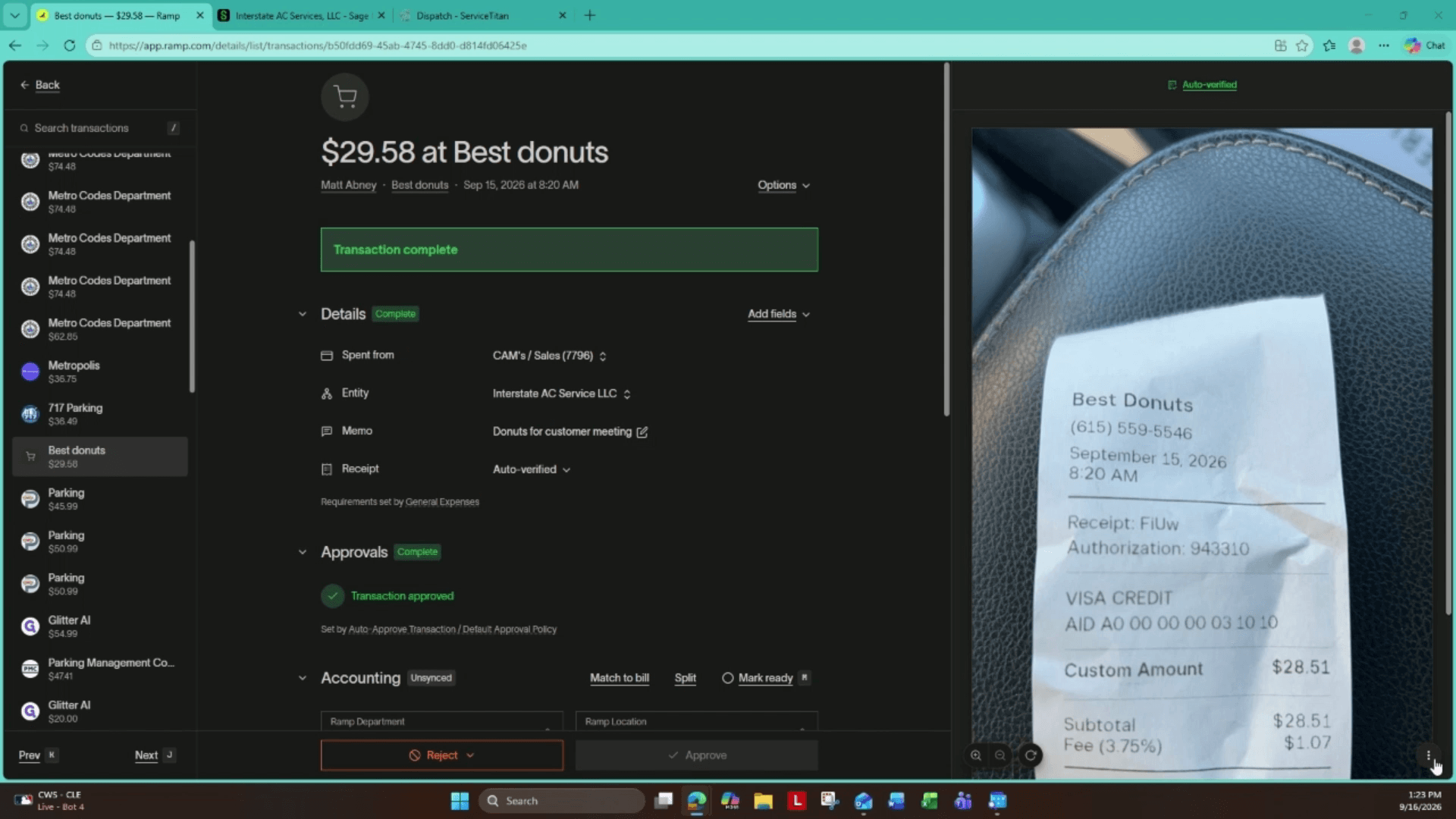
Export the Receipt from Ramp
Retrieve the transaction receipt and note the relevant payment details before entering the bill.
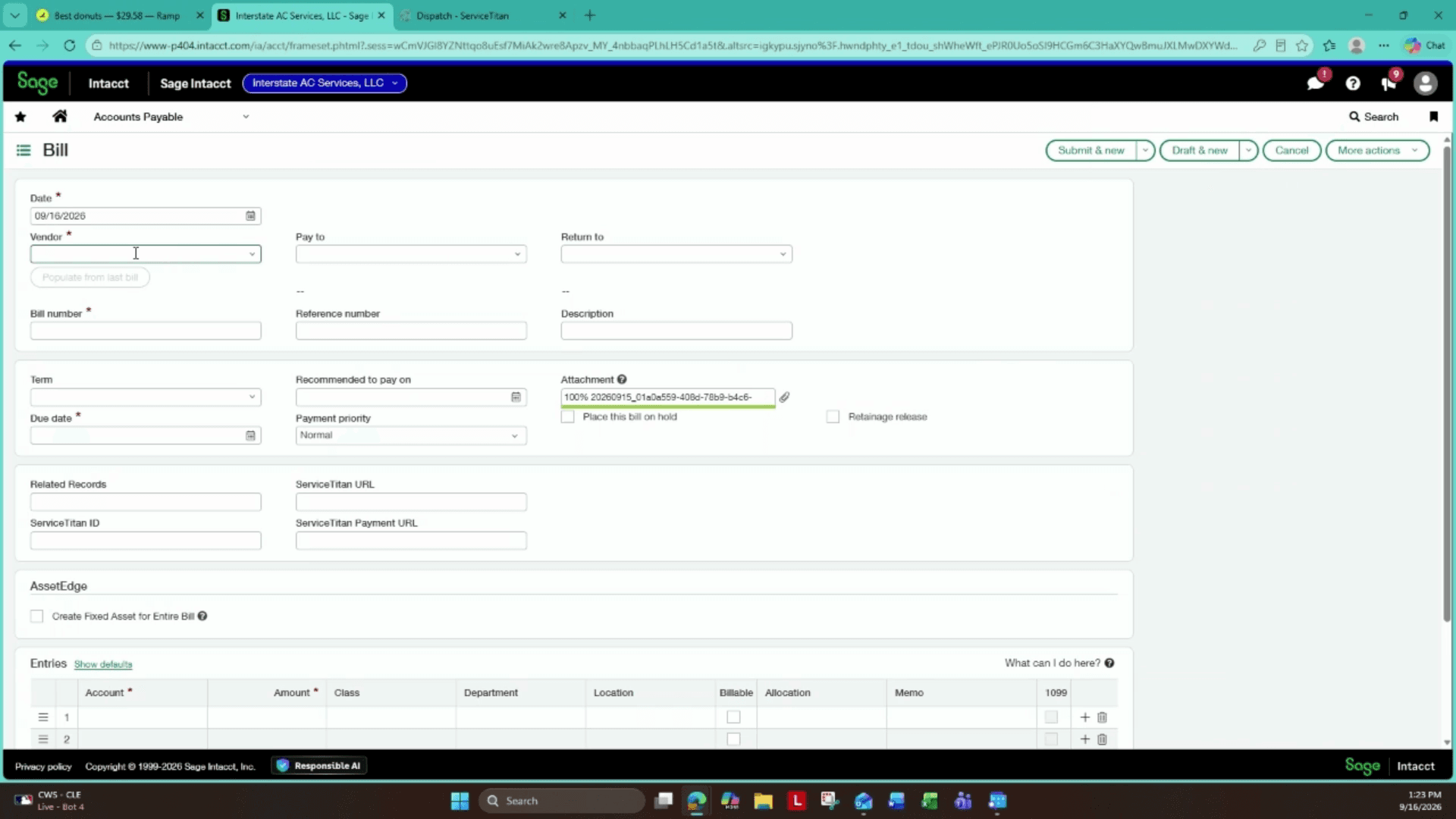
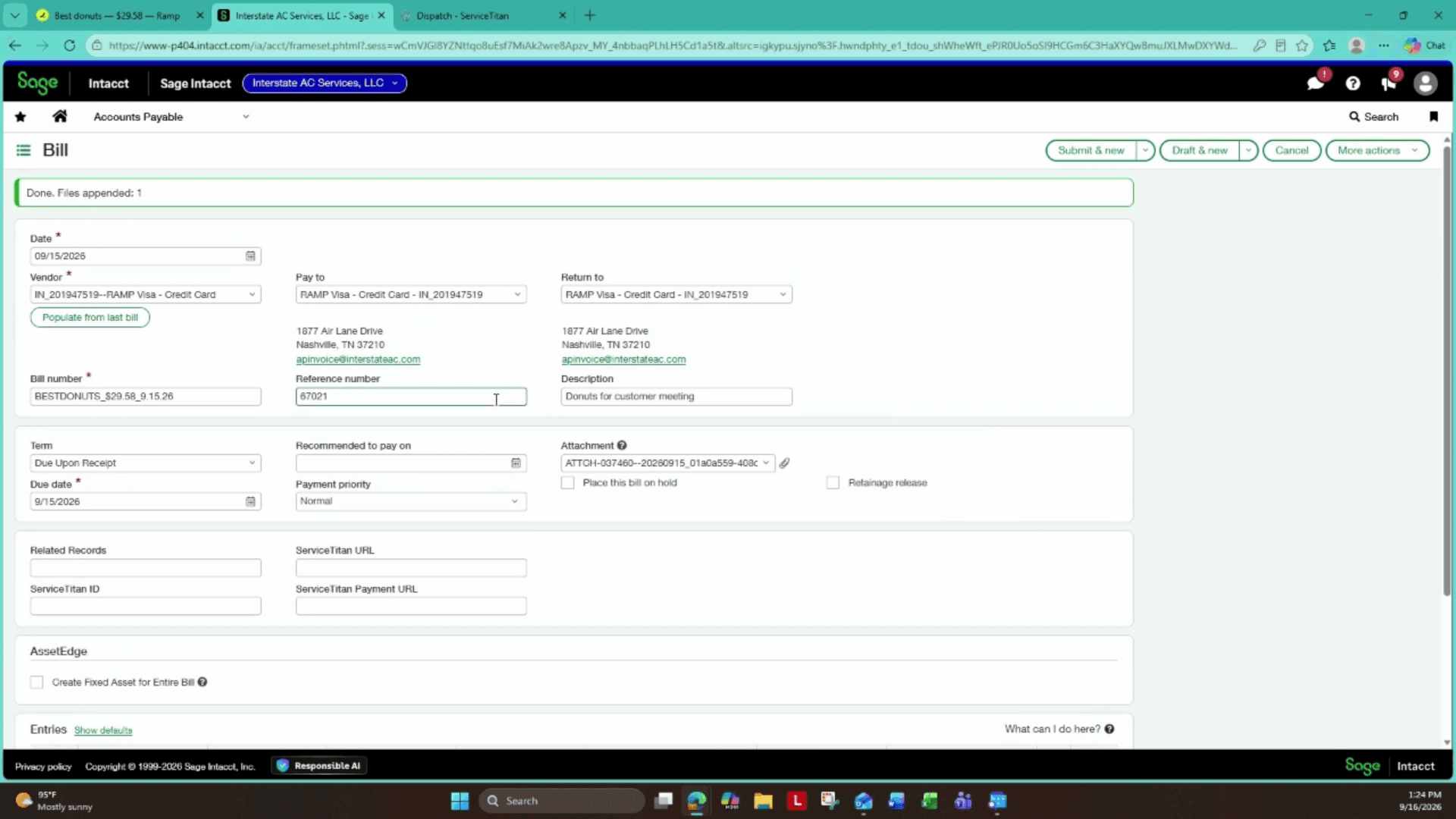
Create the Bill in Sage Intacct
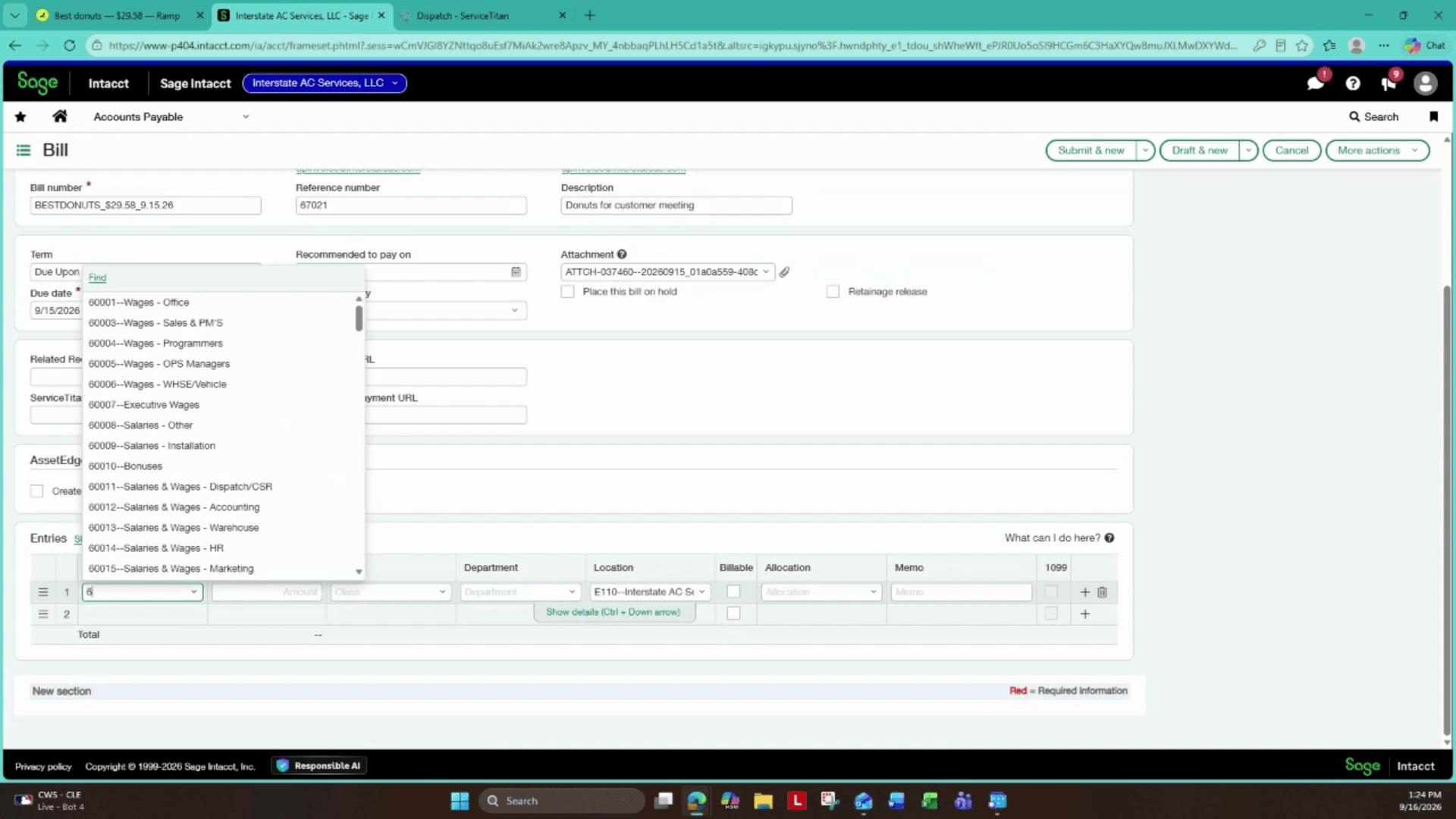
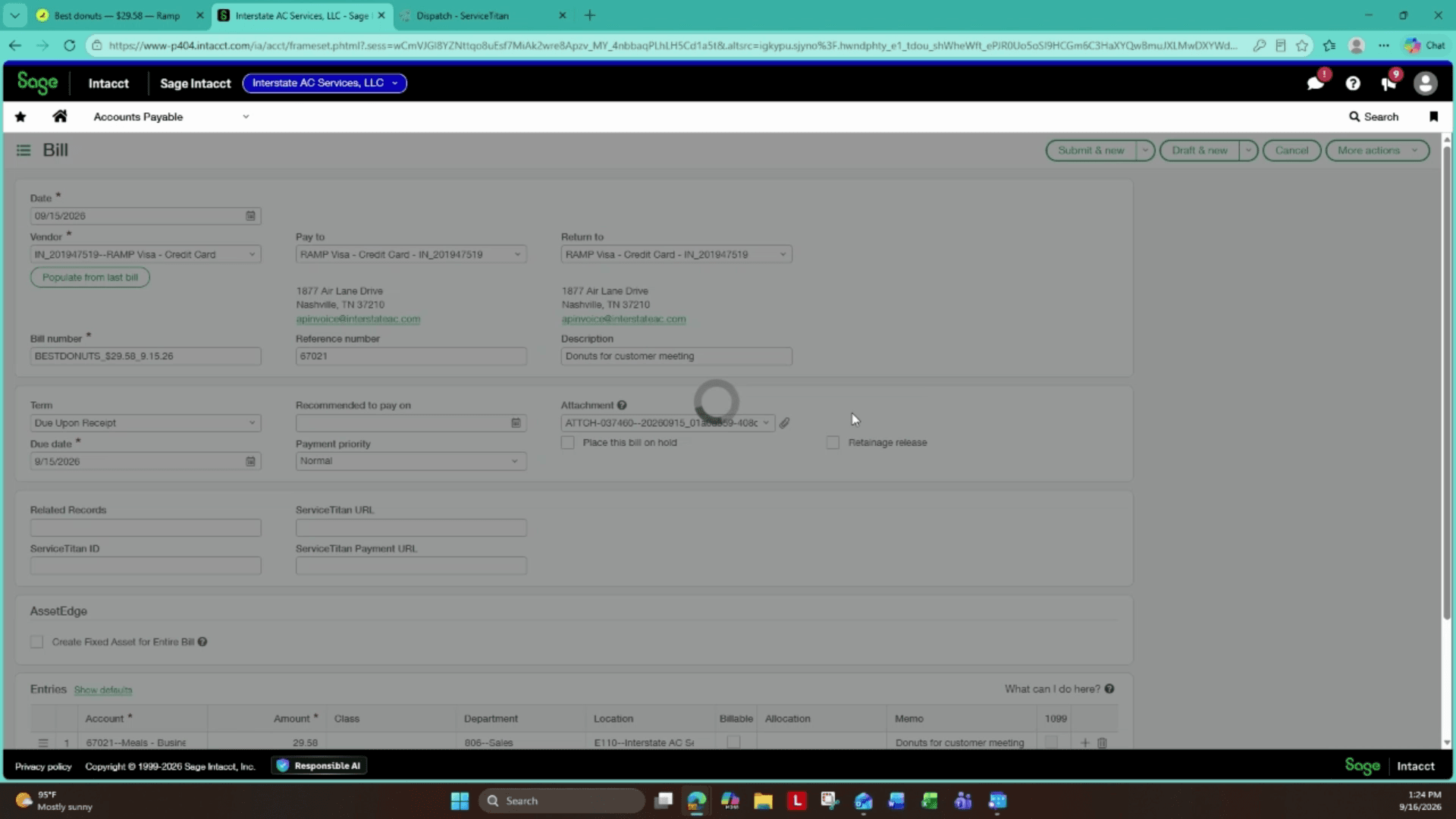
Log in to Sage Intacct to enter the bill details and attach supporting documentation.
FAQ
Q: What should I use as the reference number when entering a Ramp transaction?
A: Use the transaction or receipt identification number provided by Ramp to ensure cross-system traceability.
Q: Why should I click Submit and New instead of standard Save or Submit?
A: Clicking Submit and New posts the completed bill directly to accounts payable and immediately clears the form so you can process consecutive receipts without returning to the main menu.
Glossary
Term | Definition |
|---|---|
Ramp | A corporate card and spend management platform used to track employee expenses and receipts. |
Sage Intacct | A cloud-based financial management and enterprise resource planning (ERP) system. |
Reference number | An alphanumeric code, such as an invoice or transaction ID, assigned to identify an individual bill. |