AP: Process Vendor Discounts in Sage Intacct
Learn how to duplicate an existing bill and record vendor discounts as negative amounts in Sage Intacct.
Purpose
This guide explains how to apply and record vendor discounts on eligible bills in Sage Intacct. Following this process creates an accurate vendor discount credit line against an existing invoice using standard GL coding and documentation.
Scope
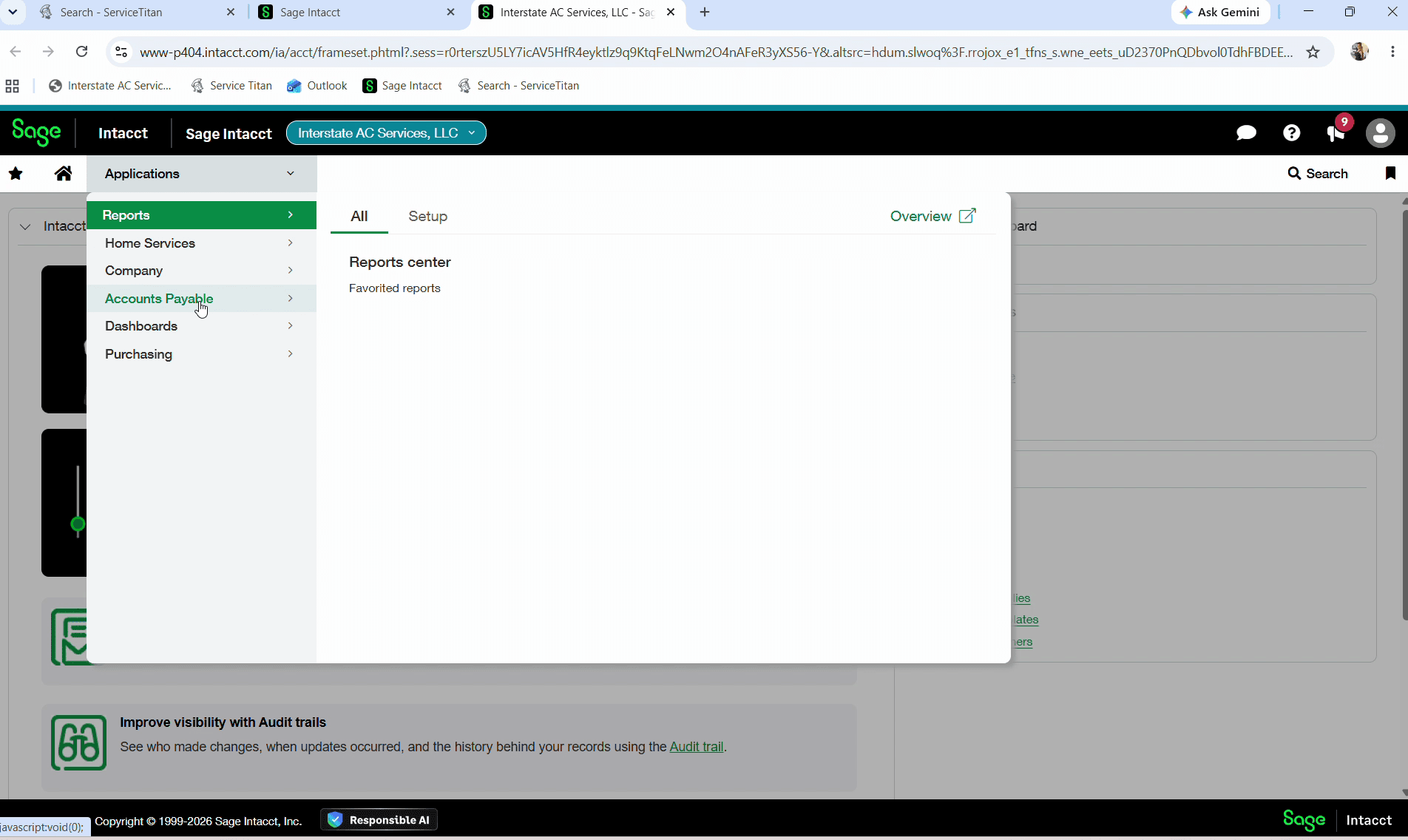
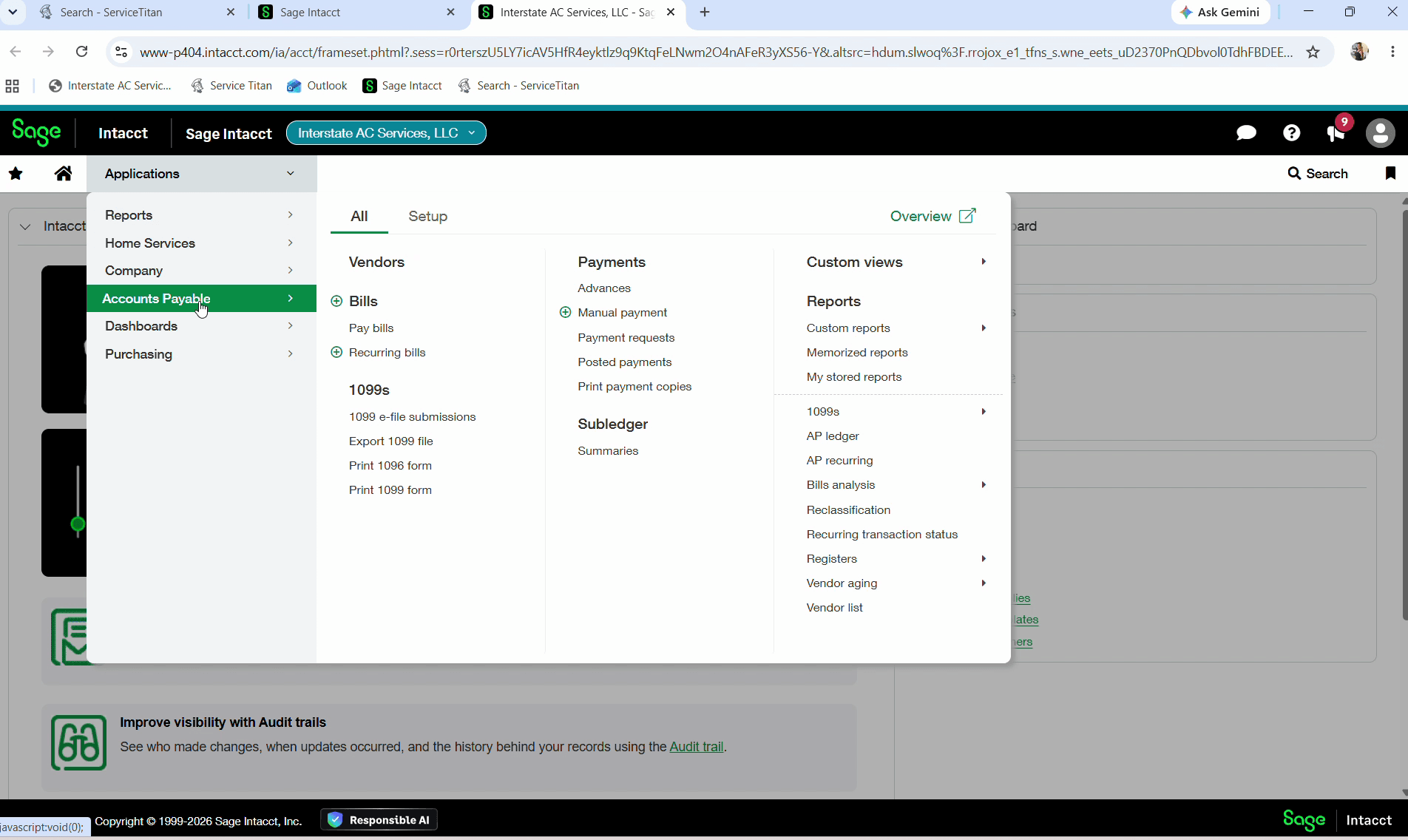
This procedure applies to the Accounts Payable team processing invoices eligible for vendor discounts (such as United Refrigeration). It covers locating existing exported bills from ServiceTitan in Sage Intacct, duplicating the bill, and entering the corresponding discount credit.
Locate the Existing Bill
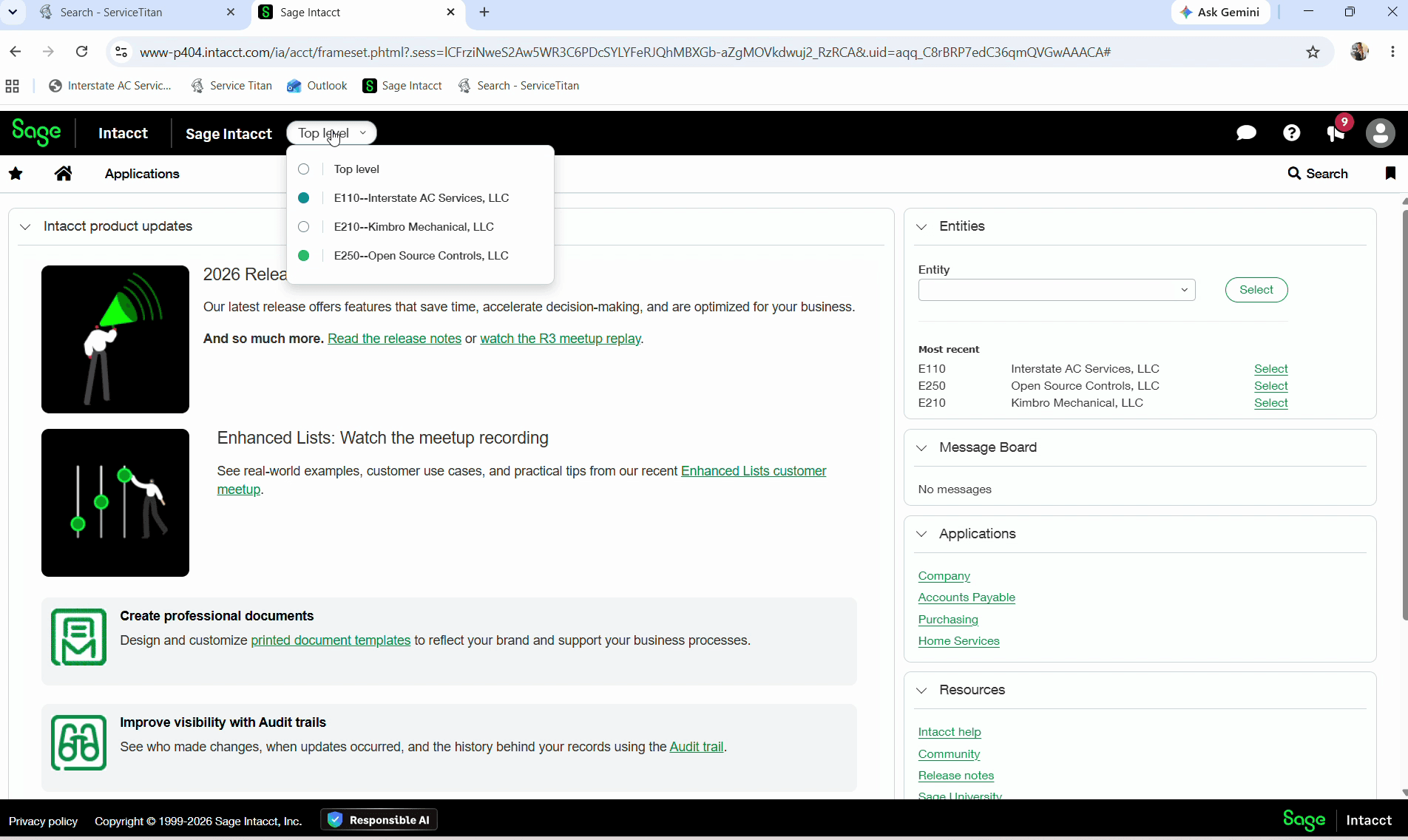
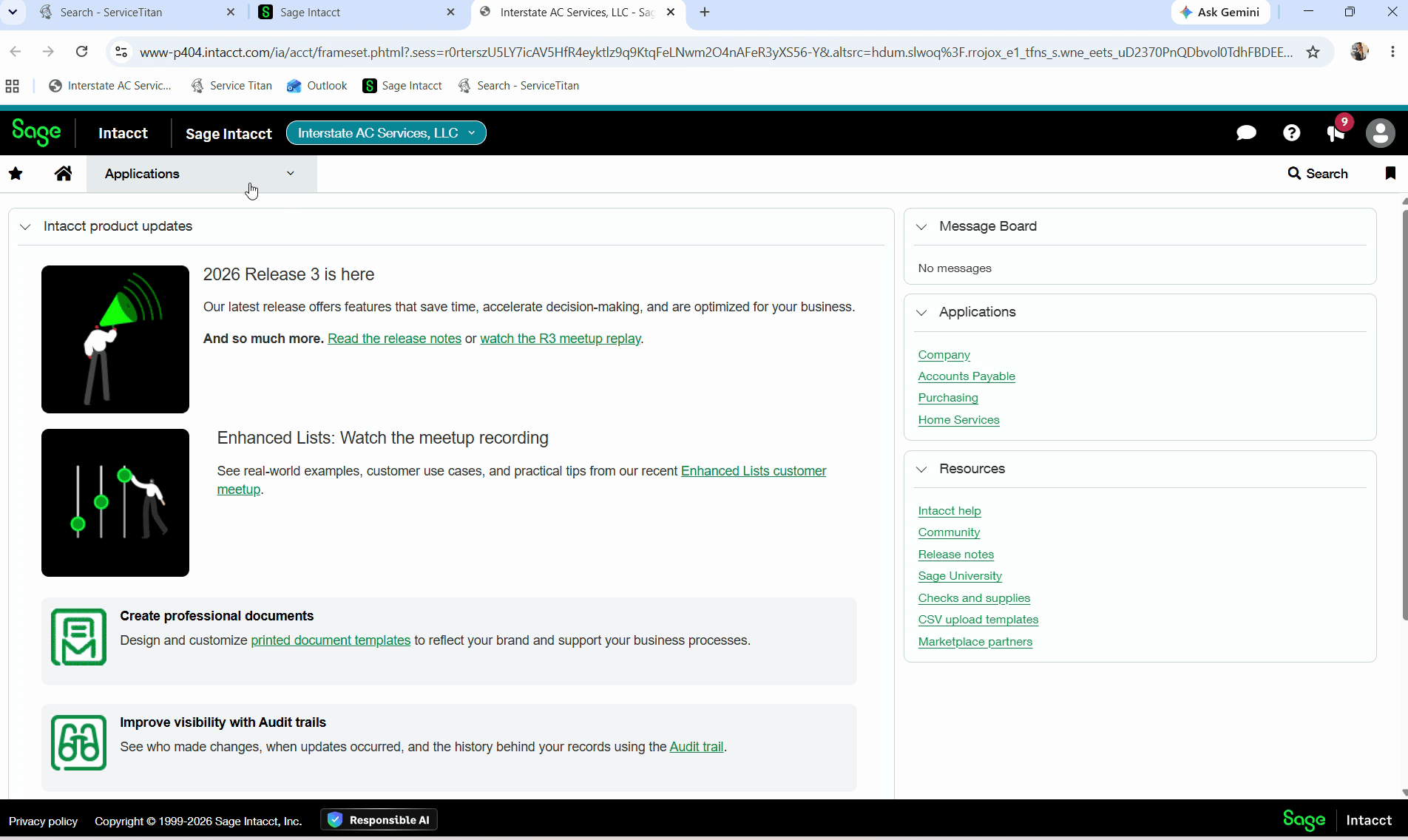
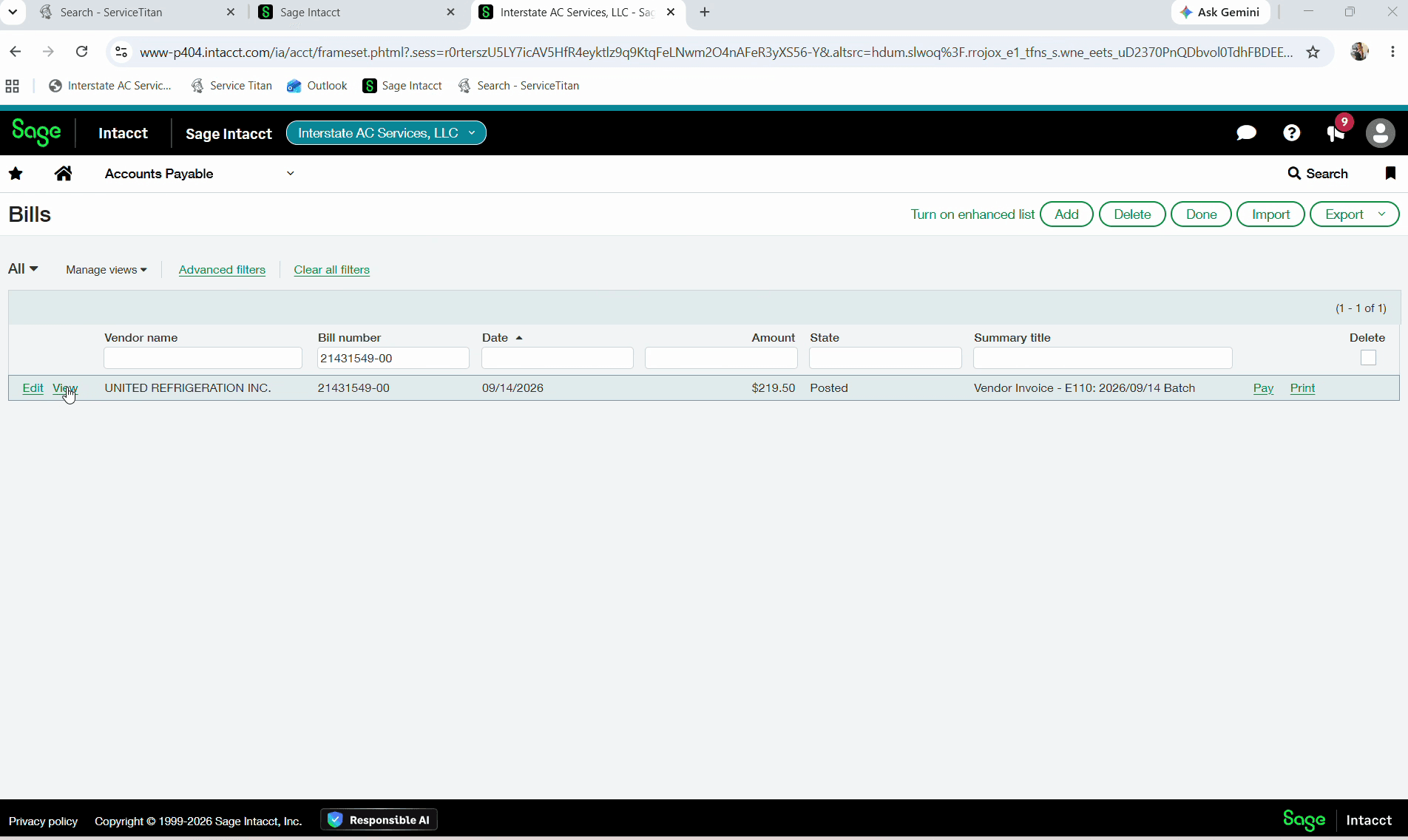
Wait for the entity workspace to load before navigating menus.
Duplicate and Update the Bill
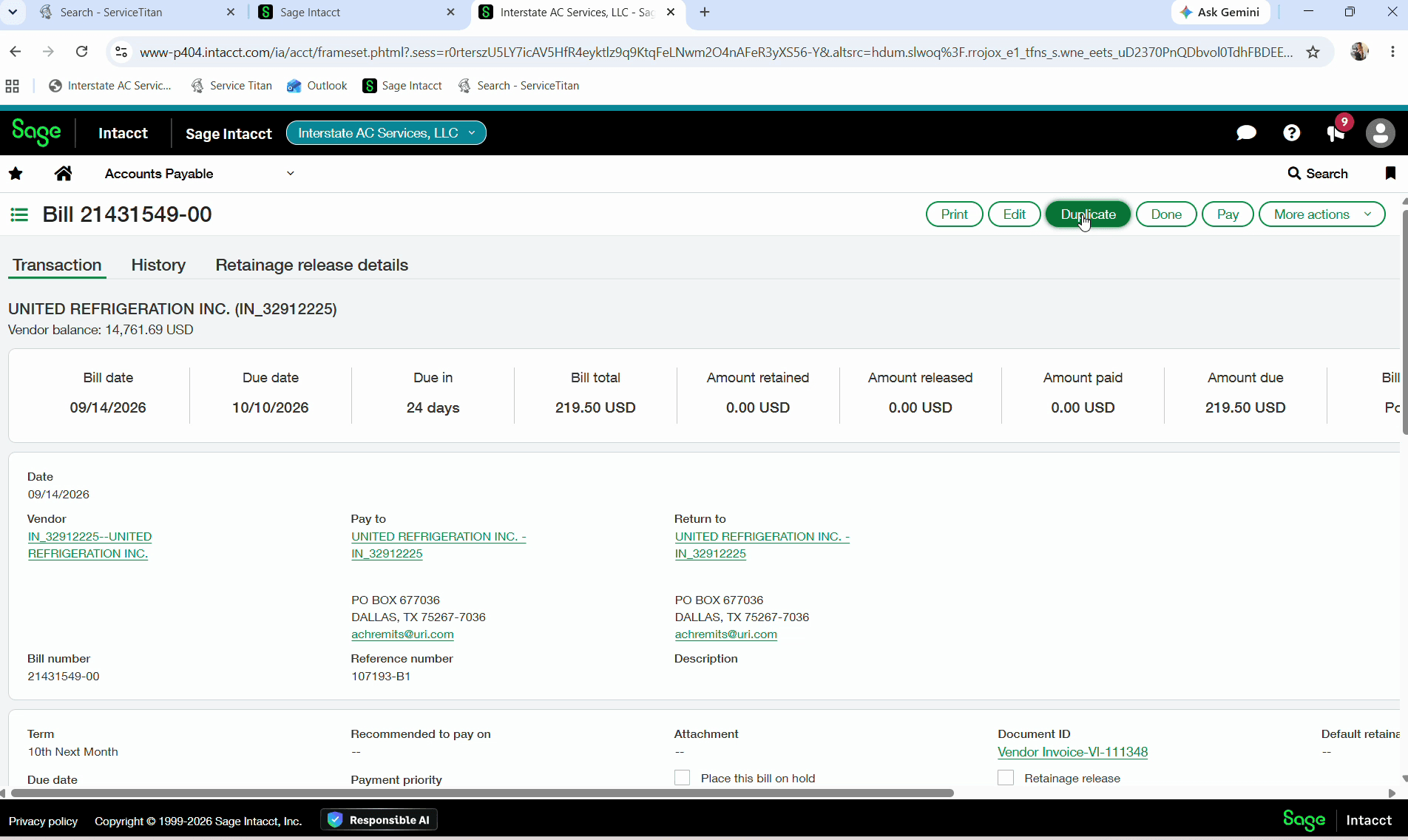
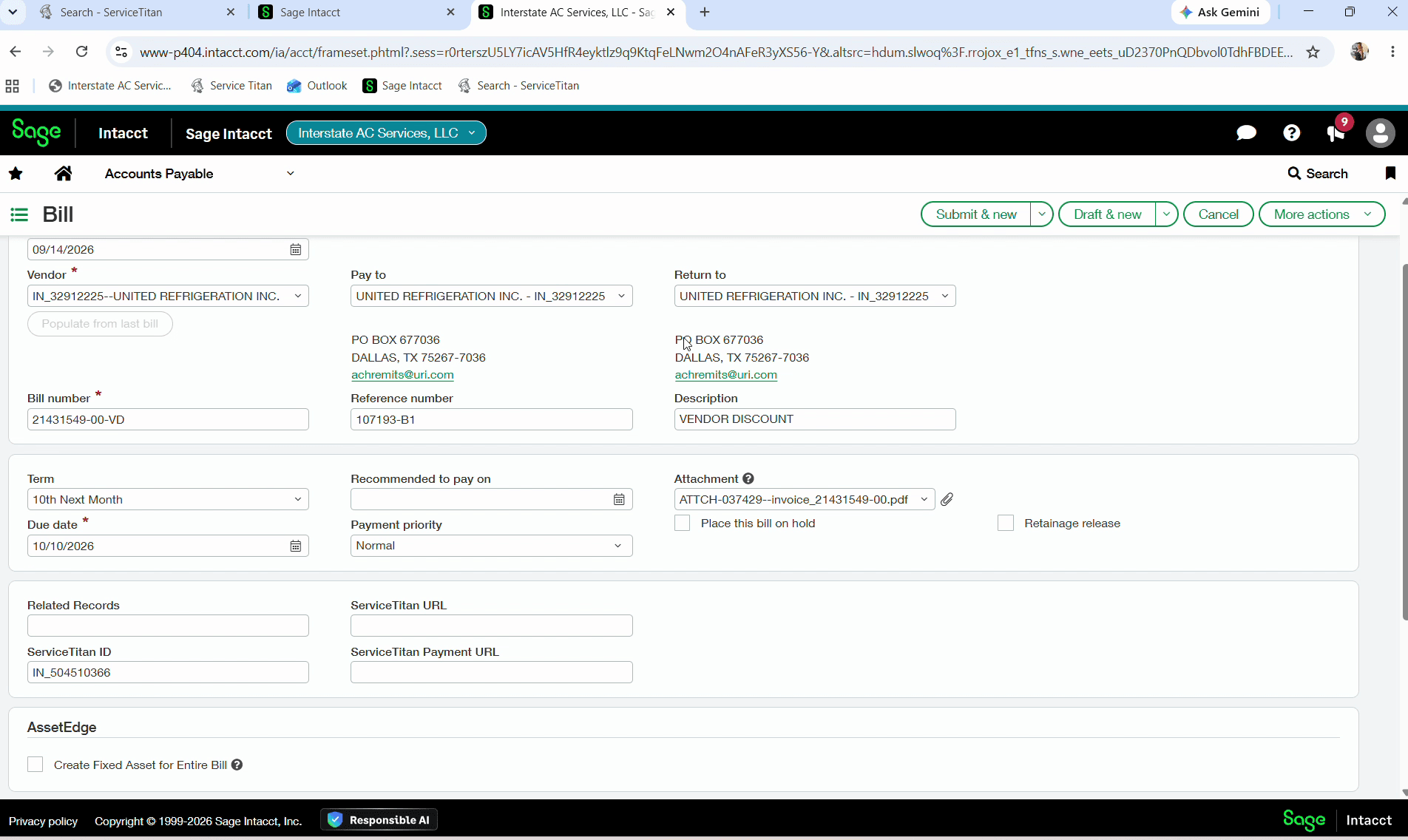
Verify that the bill date is accurate before updating line items.
-VD to the end of the existing value in the Bill Number field.This suffix designates the entry as a vendor discount credit.
Vendor discount into the Description field.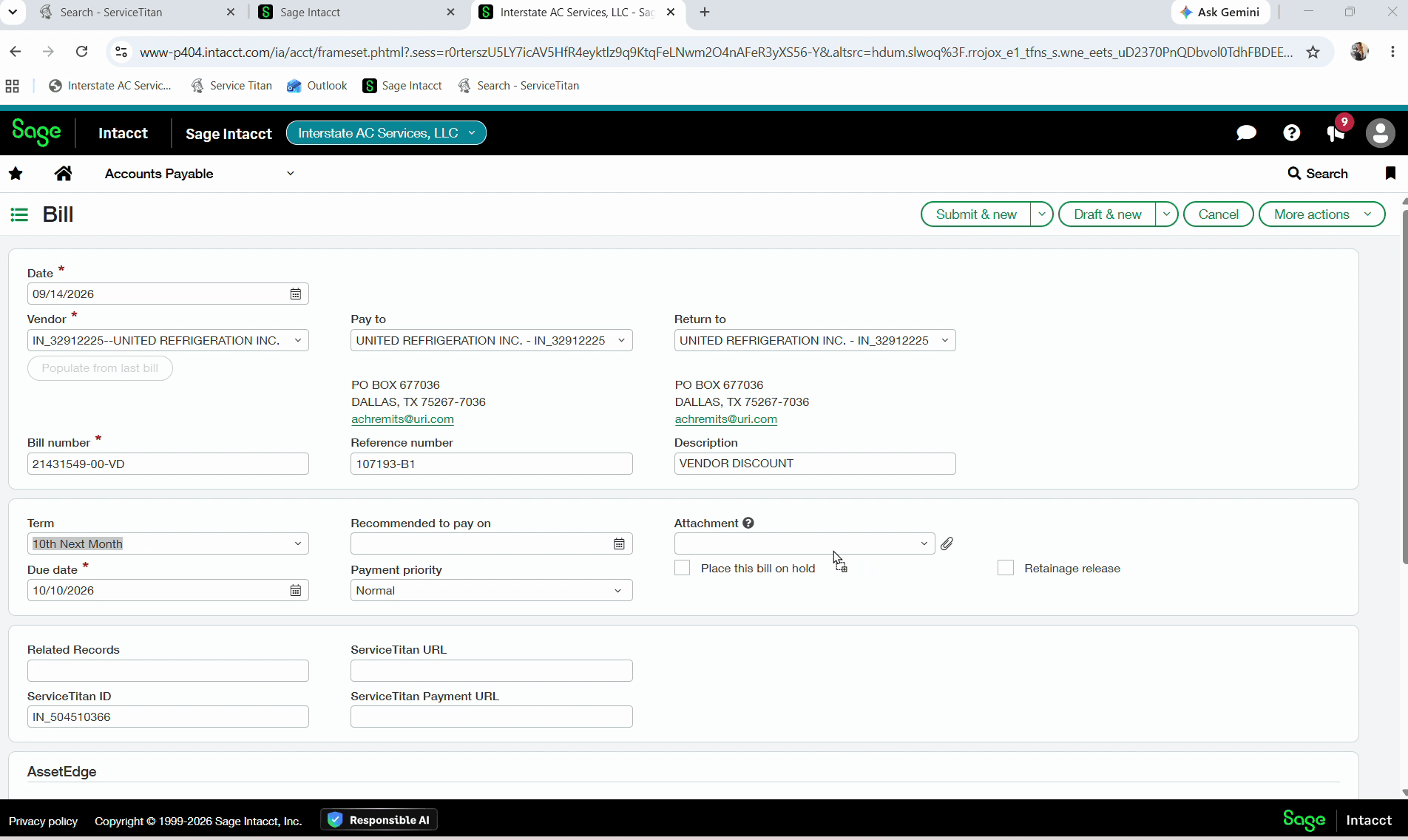
Configure Line Entries and Submit
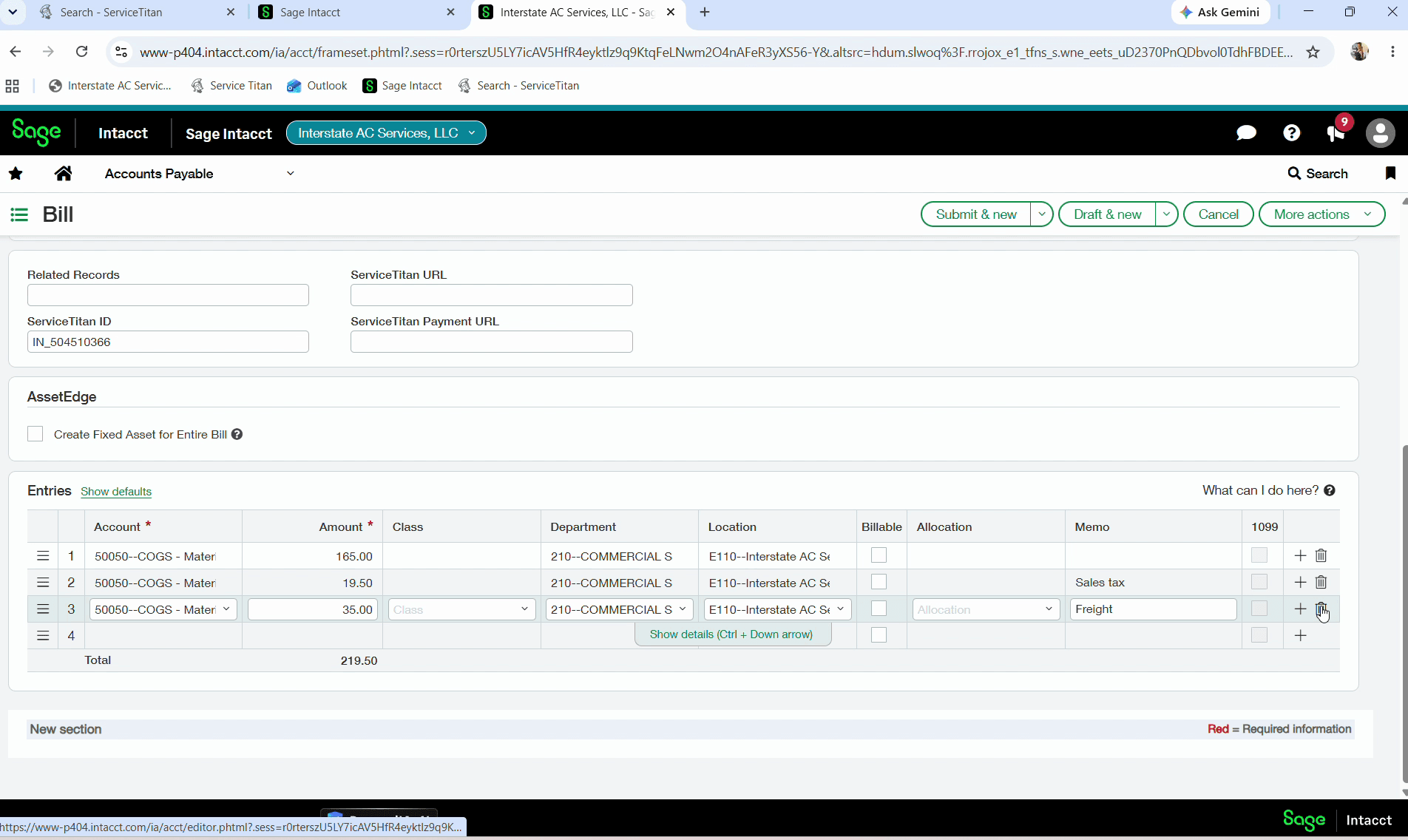
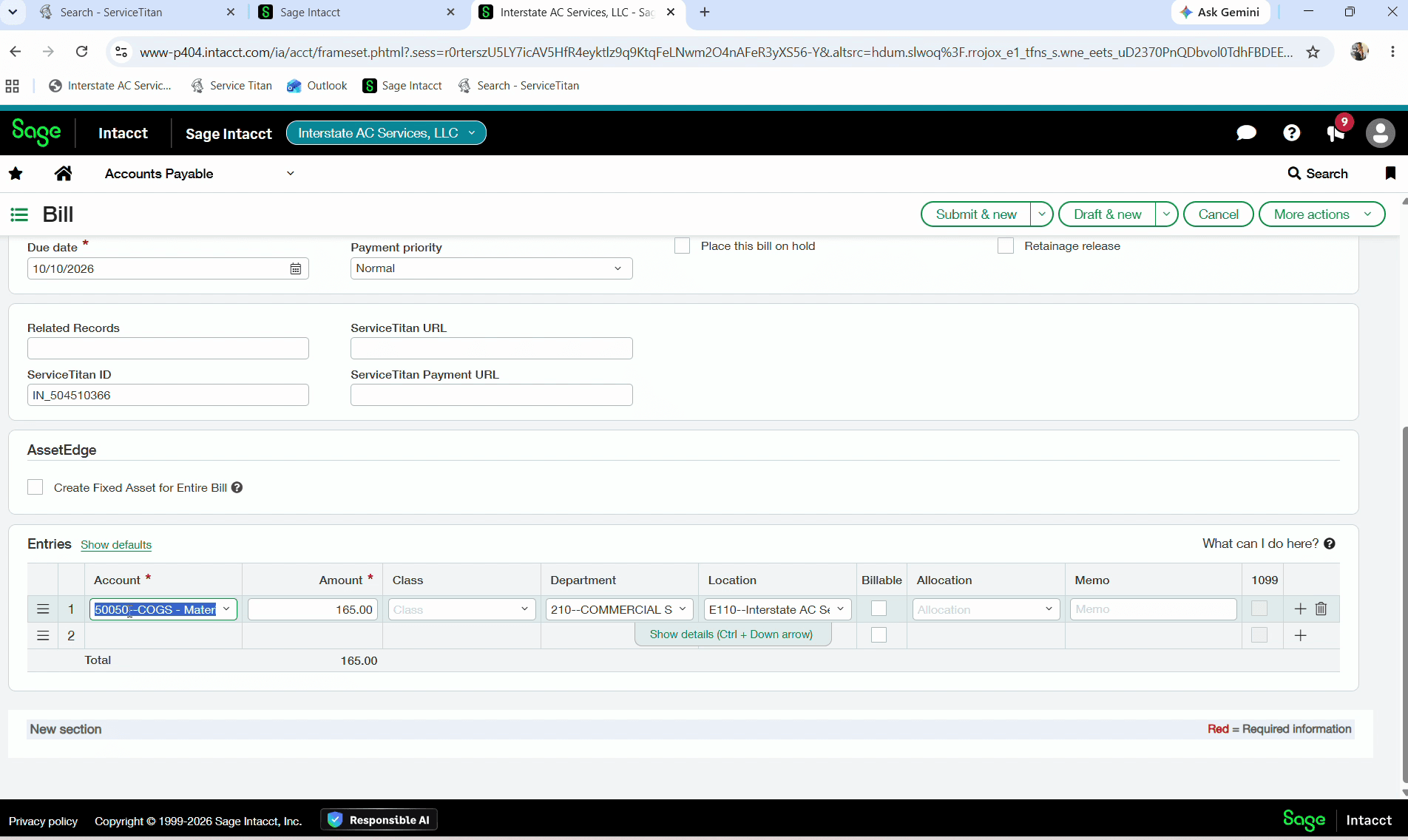
General ledger account 50081 is the required code for vendor discounts.
Sage Intacct requires credits to be entered with a preceding minus sign (for example, -1.65).
FAQ
Q: Why is my invoice number not appearing in the Bills list?
A: Invoices must be exported from ServiceTitan to Sage Intacct first. If an invoice has not yet been exported, it will not display in the search results.
Q: How should the discount amount be entered in the Amount field?
A: Always enter the discount as a negative number with a minus sign in front (such as -1.65), as Sage Intacct requires negative values for credit entries.
Q: What general ledger account is used for vendor discounts?
A: Always code vendor discount line entries to GL account 50081.
Glossary
Term | Definition |
|---|---|
-VD | Suffix appended to the original bill number in Sage Intacct to denote a vendor discount credit bill. |
50081 | The designated general ledger account code used to record vendor discounts. |