AP: Reconcile Vendor Statements
Learn how to verify vendor statement invoices in ServiceTitan inventory receipts, save reviewed files, and locate missing invoices.
Purpose
This guide outlines the procedure for reconciling incoming vendor statements against inventory receipts in ServiceTitan/Sage. Completing this process ensures all billed vendor invoices match recorded amounts, processed records are tracked and archived in the statements directory, and missing invoices are identified for follow-up.
Scope
This procedure applies to accounting and accounts payable team members responsible for reconciling supplier and vendor statements. It covers matching invoices in ServiceTitan/Sage and Outlook, saving verified records to the shared statements folder, and identifying missing receipts. Requesting invoice copies from external vendors after verification fails is handled as a separate follow-up task.
Match Invoices in ServiceTitan
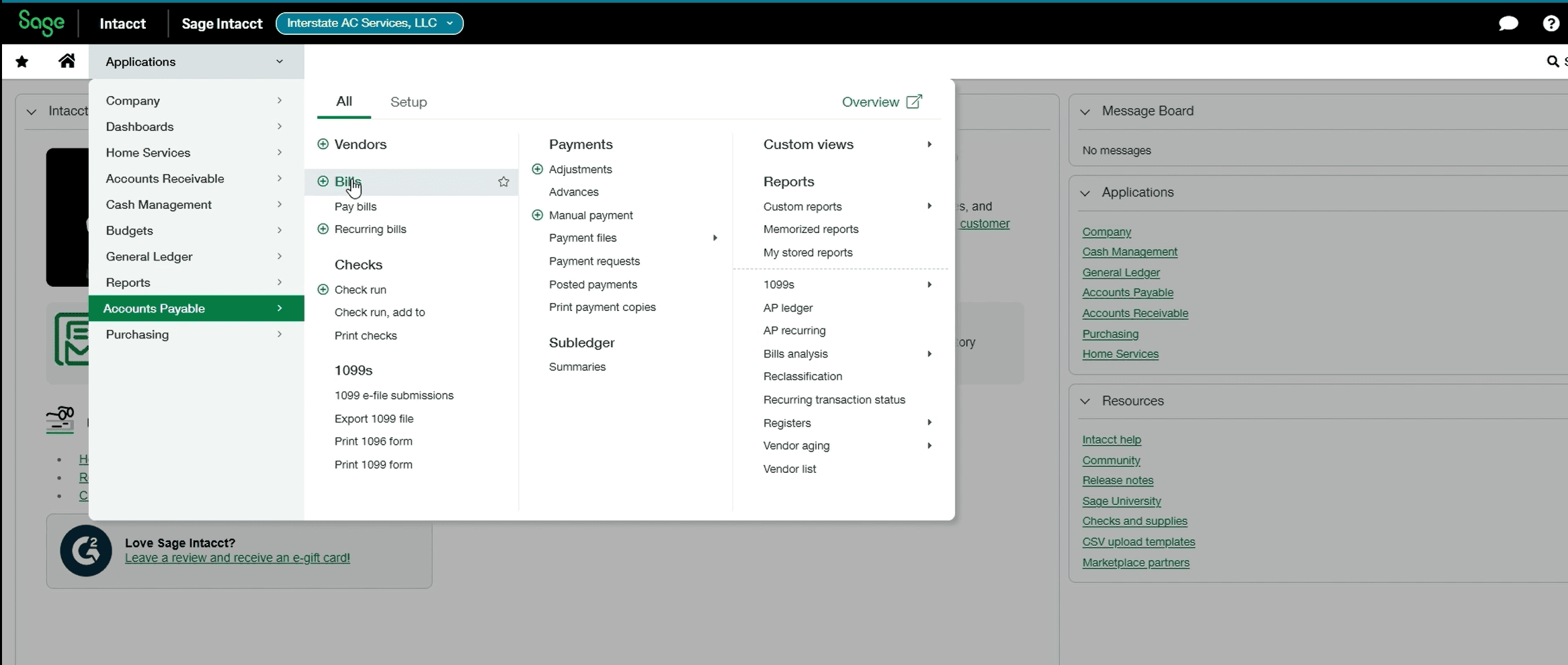
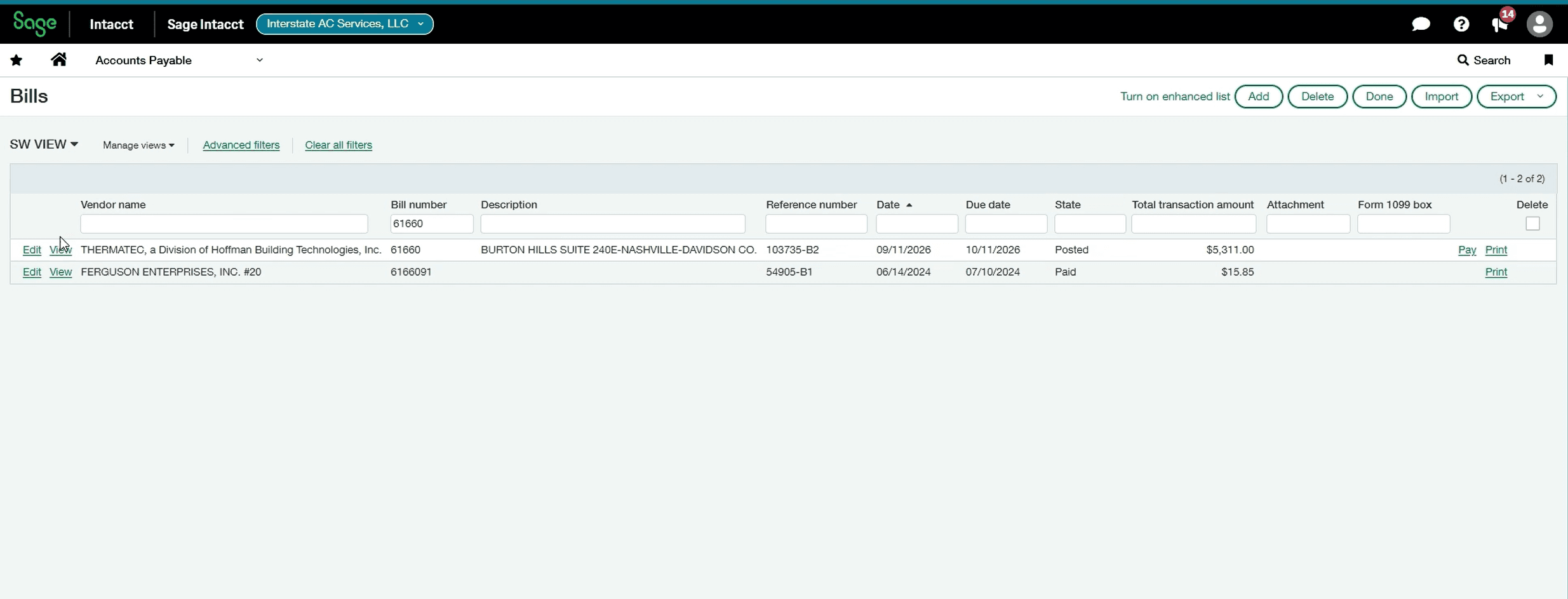
Open your vendor statement alongside ServiceTitan to compare each line item against recorded receipts.
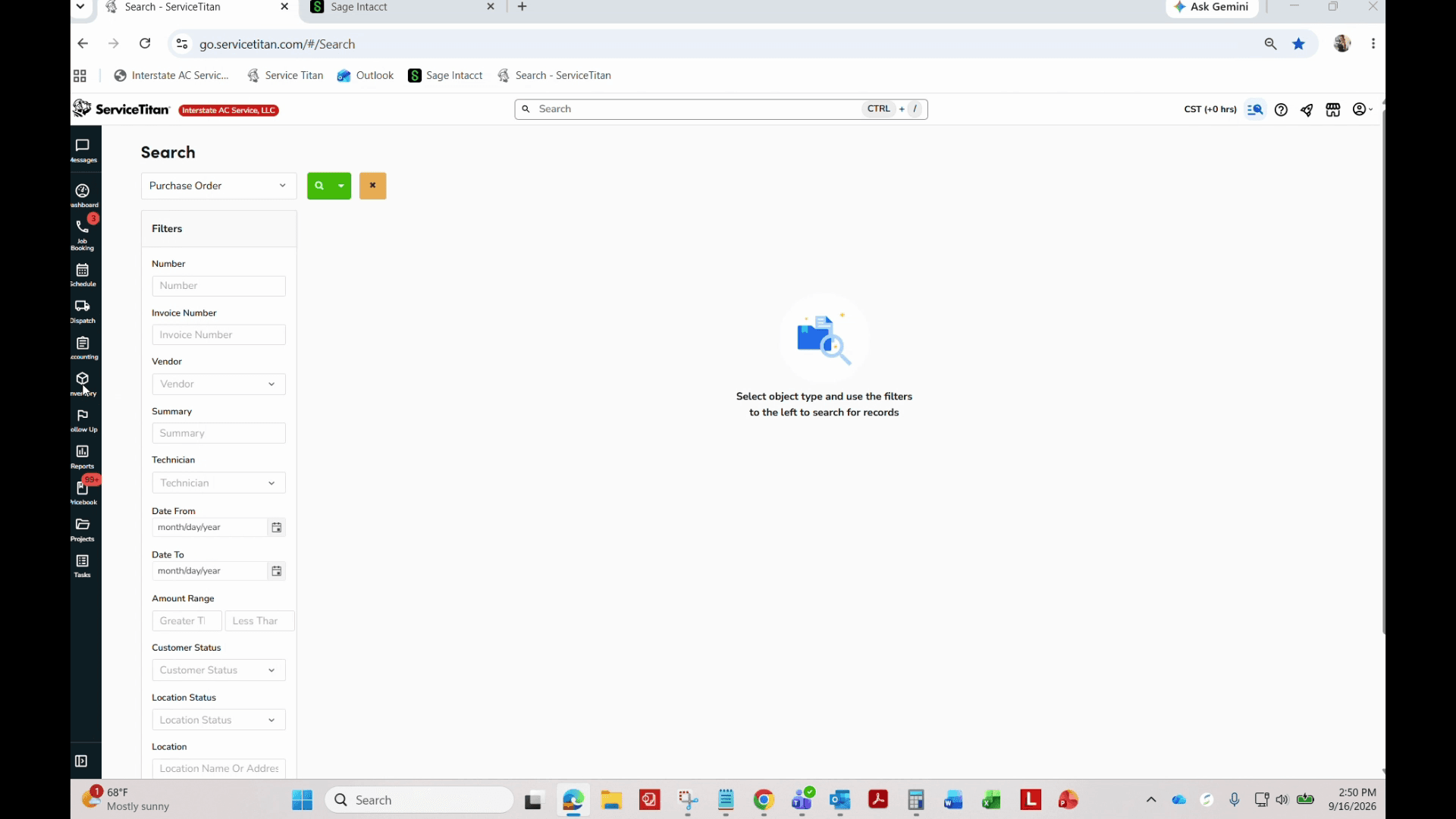
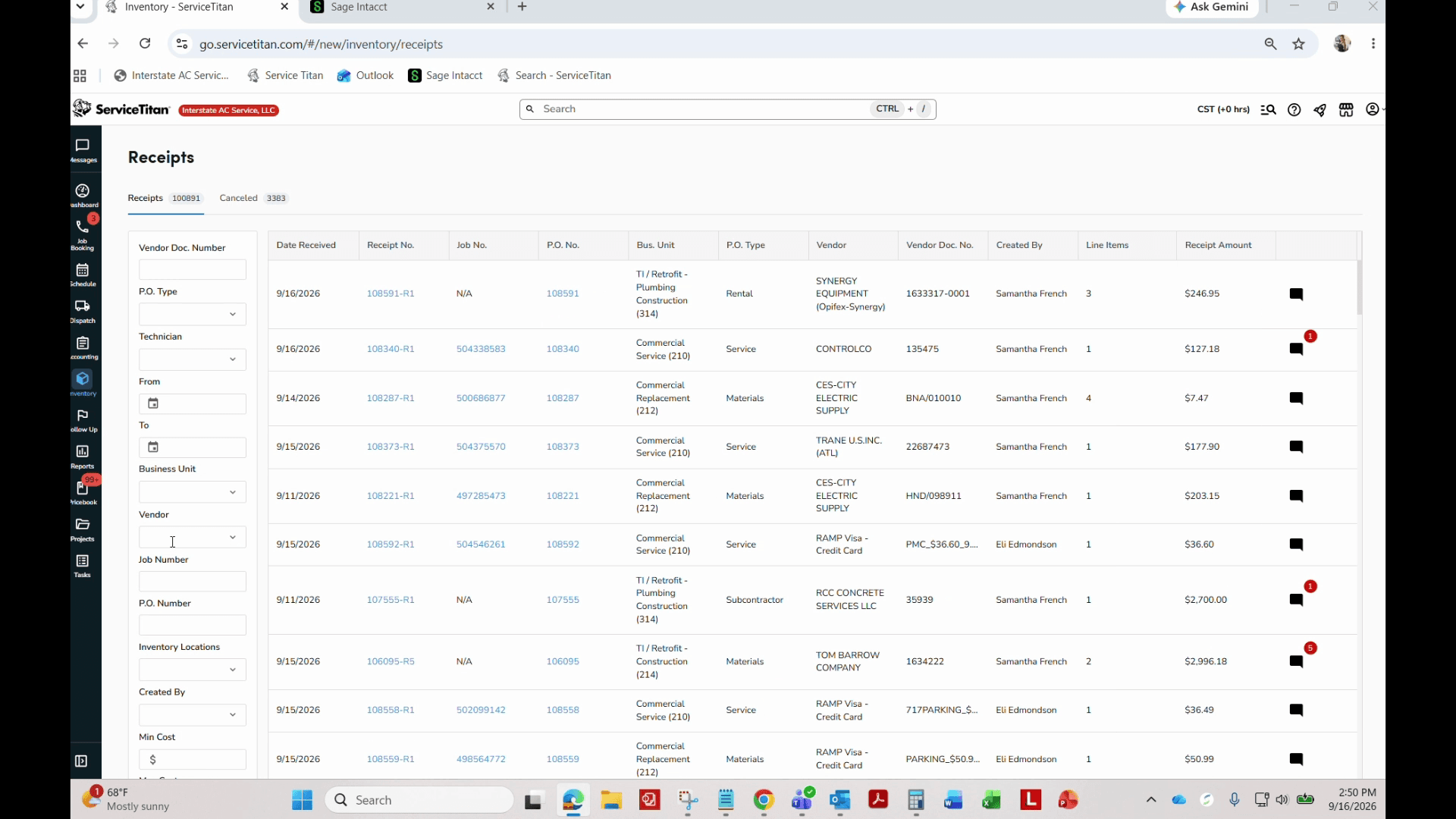
Verify that the line item matches the expected vendor name and dollar amount.
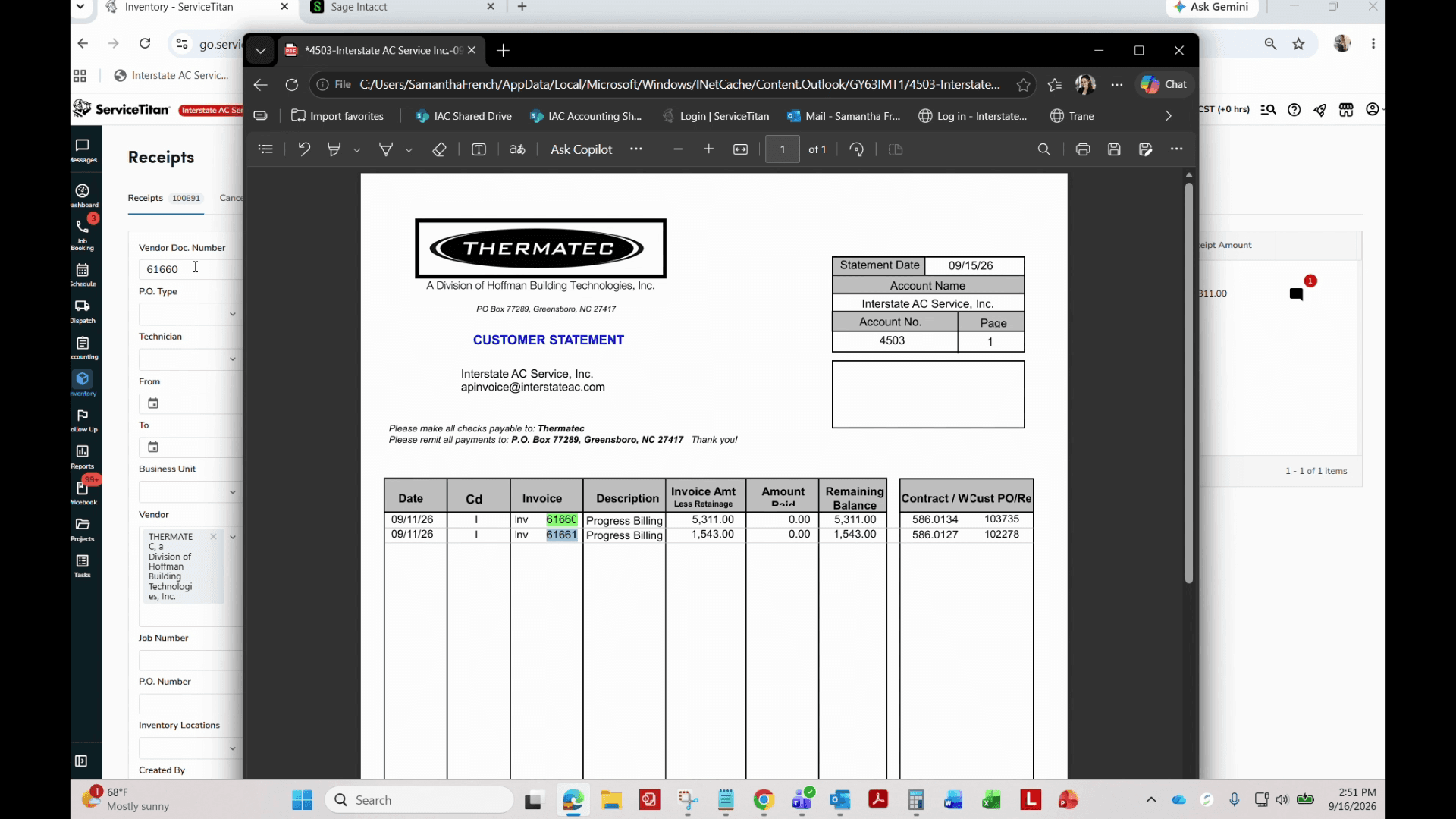
Highlight verified lines in green on your PDF statement to show they are confirmed and good to go.
Archive the Completed Statement
Once all line items on the statement have been reconciled, save the annotated statement to the archive folder.
Ctrl + S to open the save prompt for the statement file.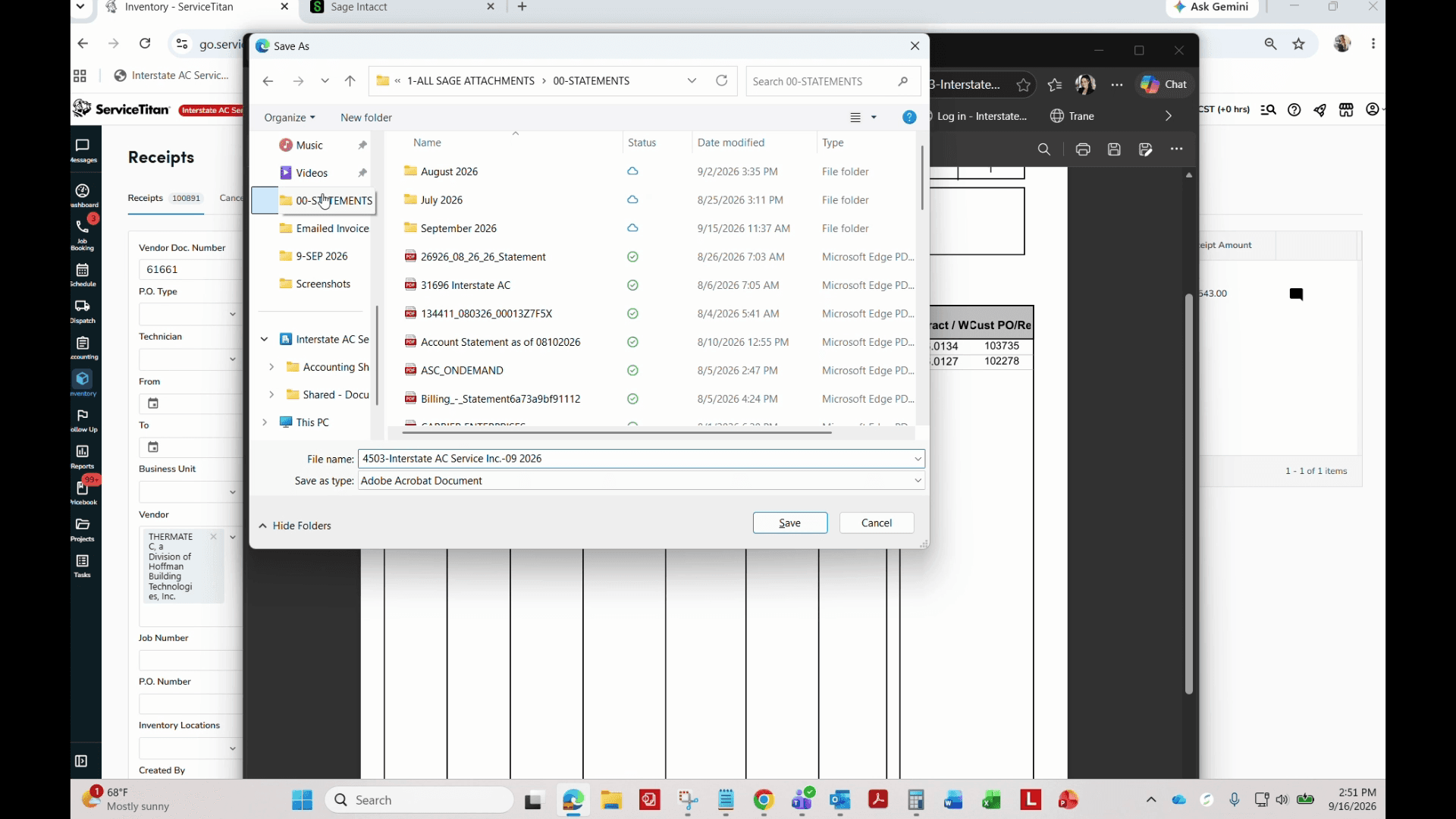
done_[initials]_[vendor] and click Save.![Step #3: Name the file following the standard convention done_[initials]_[vendor] and click Save.](/_next/image?url=https%3A%2F%2Fmedia.glitter.io%2Fuploads%2Fabd00c77-2f08-4434-8eaa-6e8839295d3d%2F0faa960d-d4e1-4a77-a511-2131a725ecdf.png&w=3840&q=75)
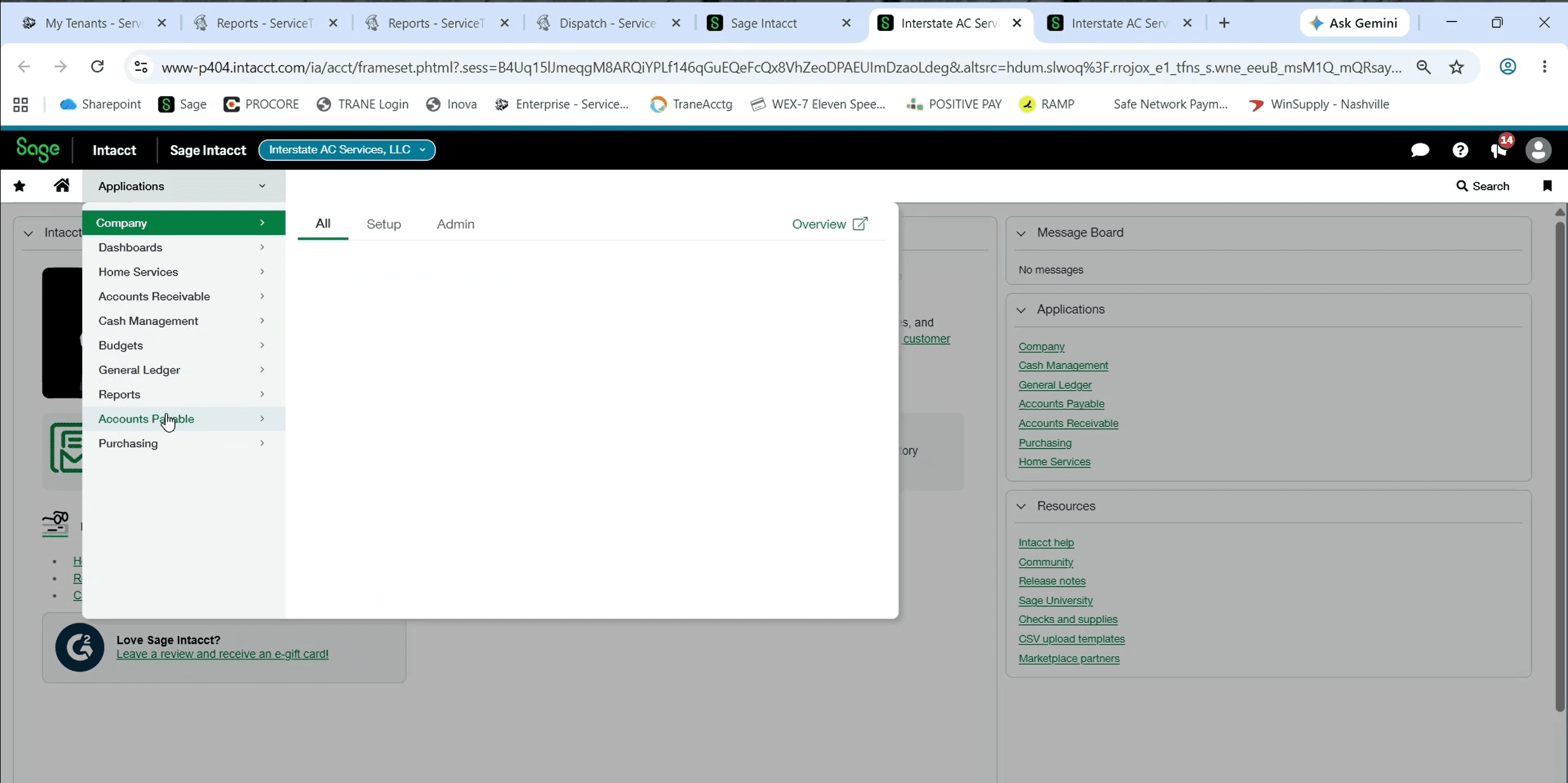
Locate Missing Invoices in Outlook
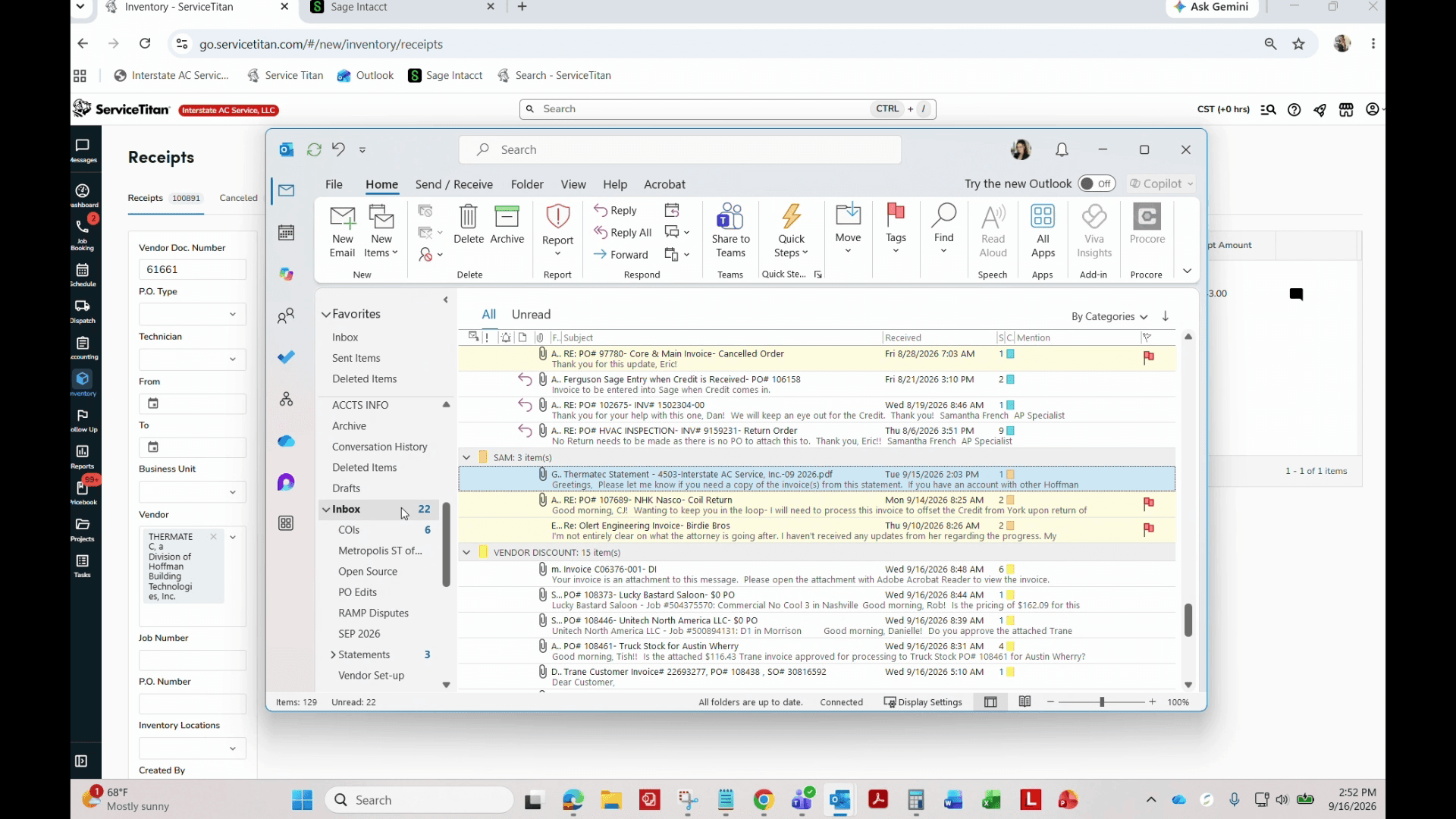
If an invoice listed on the statement does not appear in your ServiceTitan inventory receipts, search email history before requesting a re-send.
FAQ
Q: What naming convention should be used when saving a reconciled statement?
A: Use the format done_[initials]_[vendor] (for example, done_AB_Thermatec) so the team can identify who reconciled the document and for which supplier.
Q: What should I do if an invoice on the statement does not appear in ServiceTitan?
A: Search your Outlook folders—including Deleted Items—by invoice number to confirm whether it was ever received. If no record exists, reach out to the vendor to request the missing invoice.
Q: What does green highlighting on a statement indicate?
A: Green highlighting indicates that the invoice has been verified against ServiceTitan inventory receipts and the dollar amounts match.
Glossary
Term | Definition |
|---|---|
Ven Doc Number | The field in ServiceTitan used to search and store the external vendor's invoice or document number. |
Inventory Receipts | The ServiceTitan module where received vendor goods and associated vendor invoices are tracked. |
00-STATEMENTS | The shared directory used to store and archive reconciled vendor statements by month. |