AP: Run Monthly Reports and Reconcile Department Net Costs in Excel
Learn how to export monthly closing reports from your reporting portal and calculate departmental net costs and percentages in Excel.
Purpose
This guide explains how to export monthly report data from the reporting portal and reconcile department net cost allocations in Microsoft Excel. Completing this workflow allows you to subtotal transaction records, compute departmental percentage distributions, and verify grand totals against statement balances.
Scope
This procedure applies to finance, accounting, and operations team members responsible for end-of-month reconciliation and departmental reporting. It covers exporting monthly statements from the web portal, subtotaling driver net costs, and applying Excel formulas to determine net loss distributions across construction, executive, and replacement departments.
Export Monthly Report Data
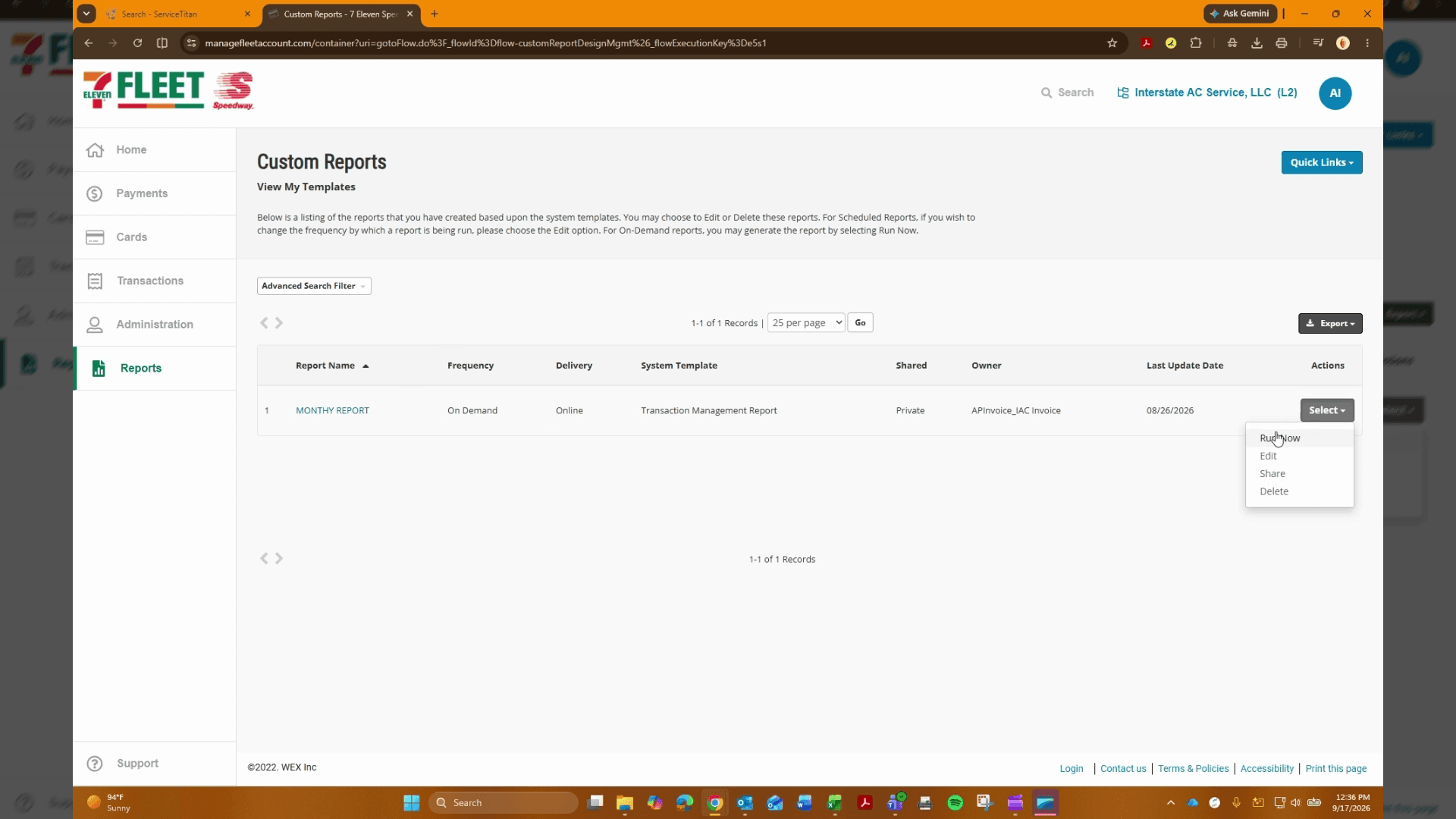
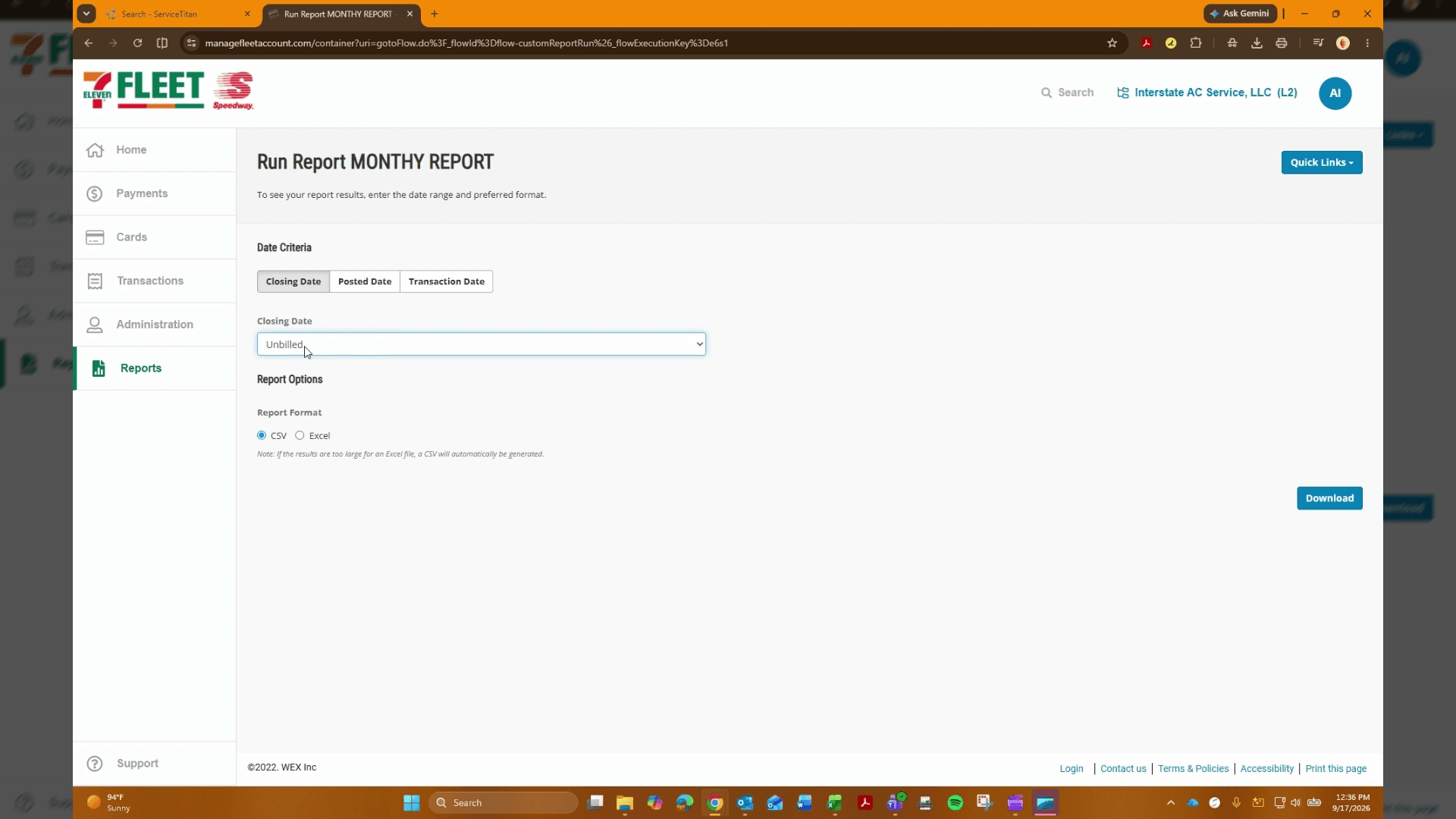
Access the fleet management portal to run and download the monthly transaction report for the target accounting cycle.
Subtotal Driver Net Costs in Excel
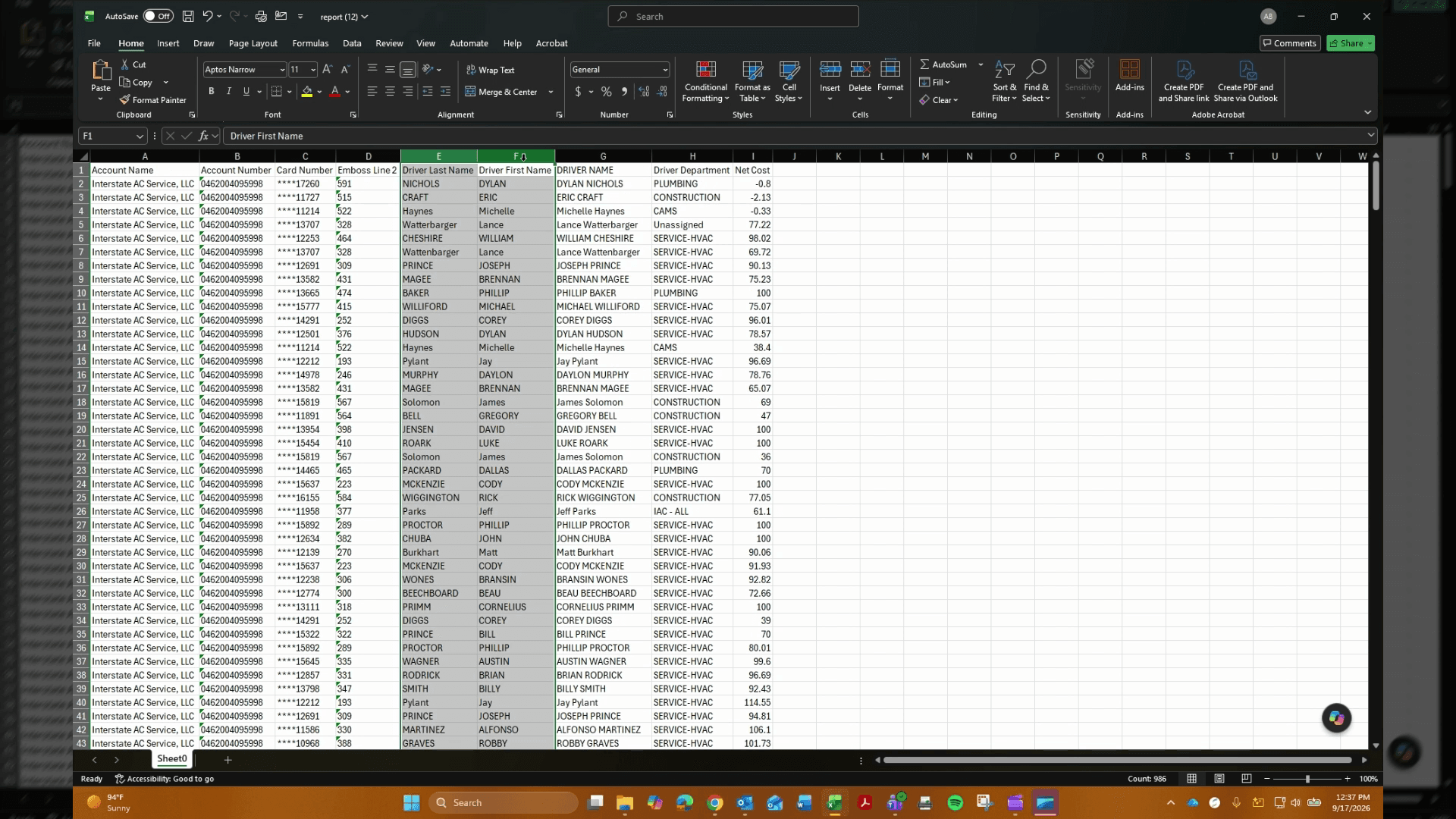
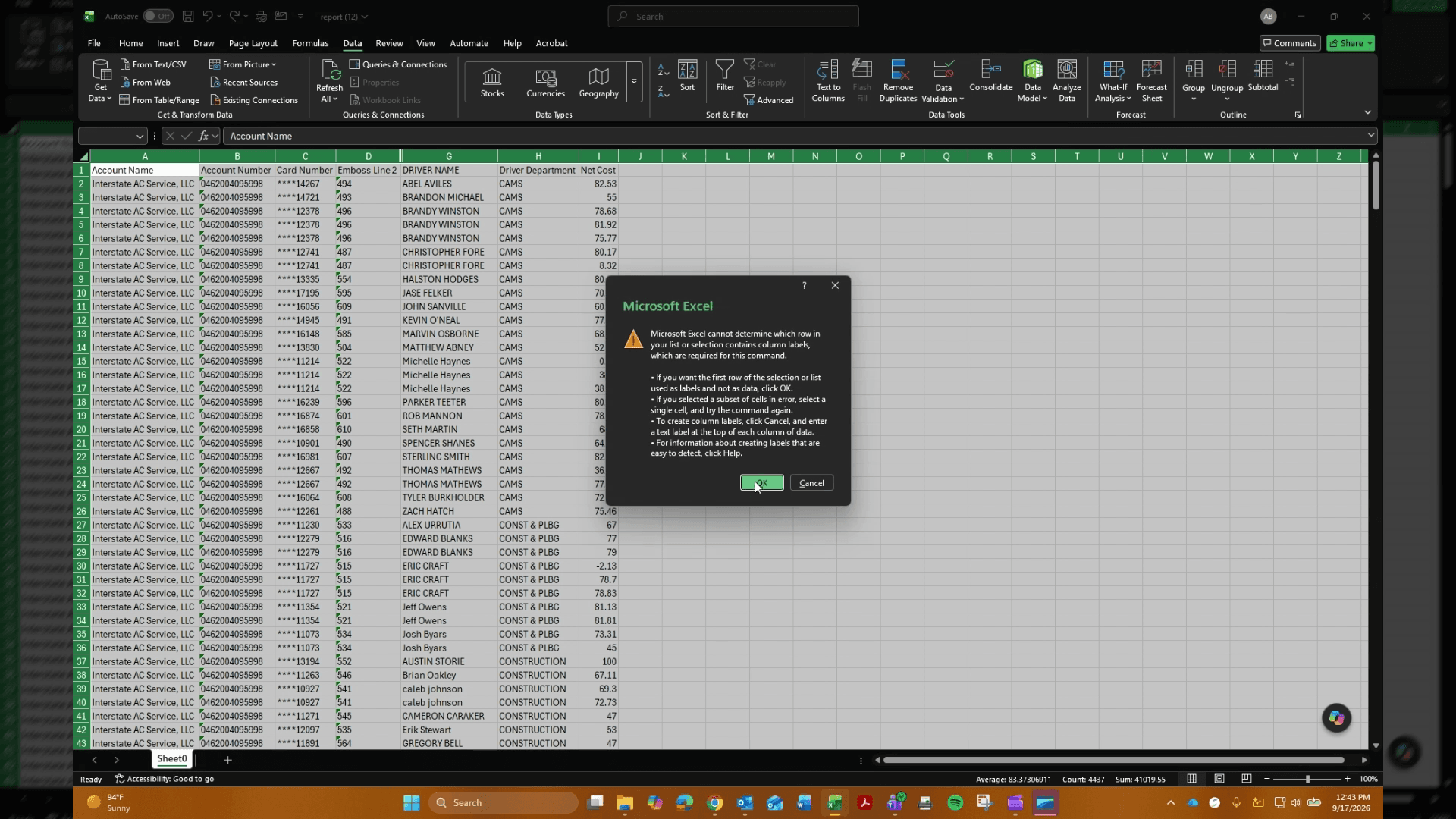
Perform these steps after exporting the monthly data file to summarize net cost amounts grouped by driver. Once applied, each driver group will display an aggregated net cost total.
Reconcile Transactions with the Invoice Statement
Perform this reconciliation to verify that your calculated Excel driver net costs match the billing figures displayed on the web invoice statement. Once completed, your transactional sums will be confirmed against the external invoice balance.
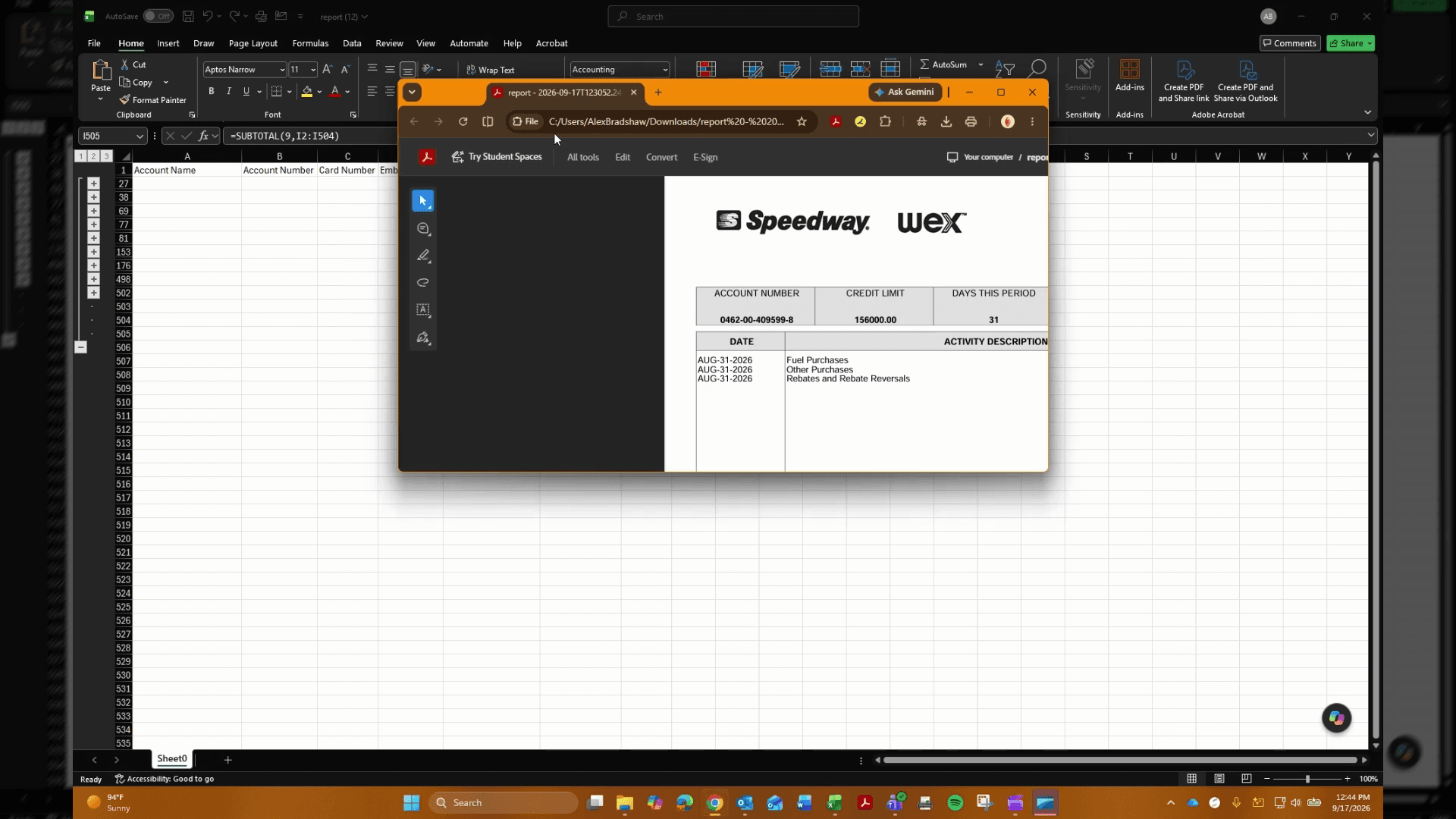
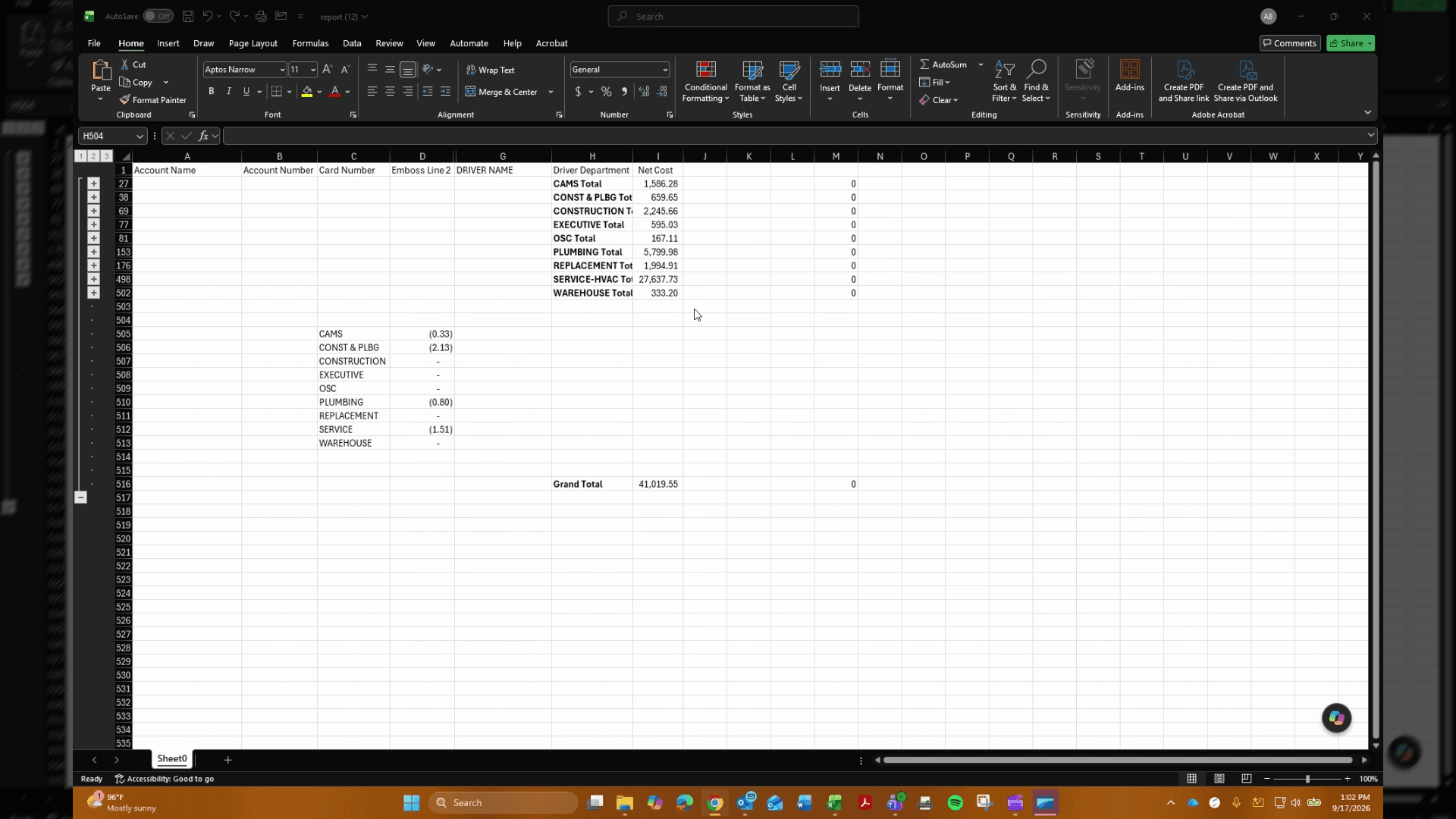
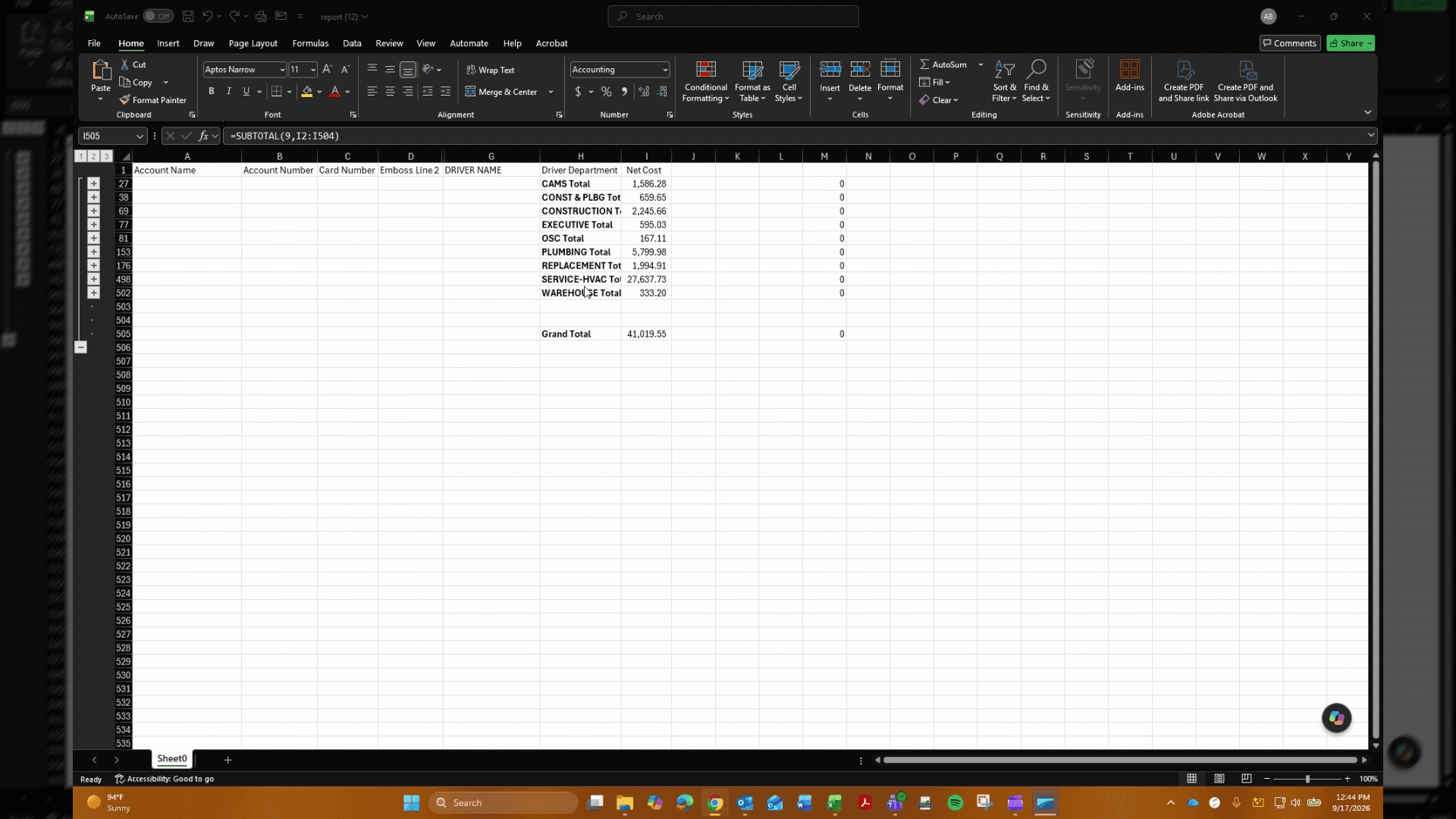
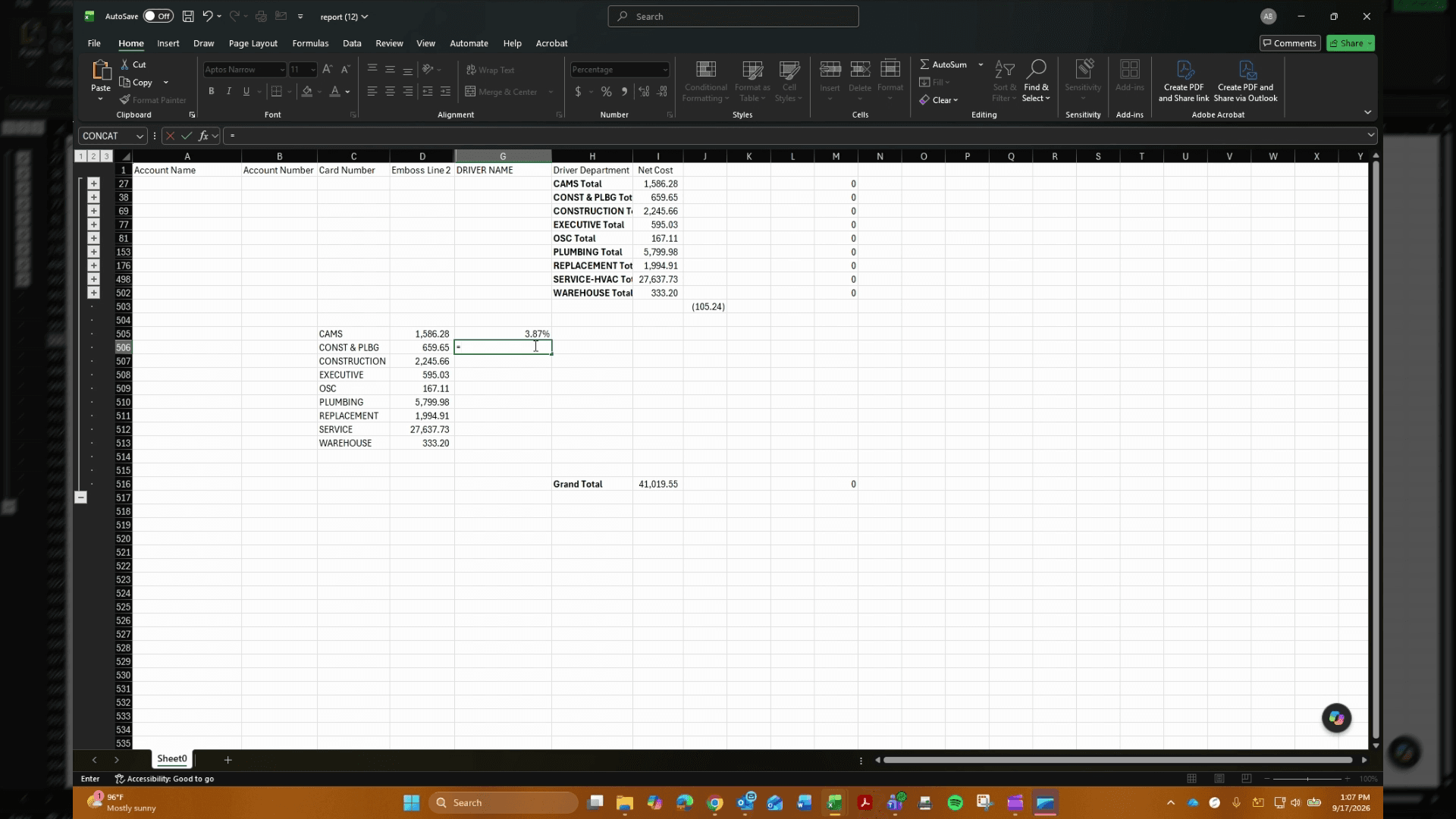
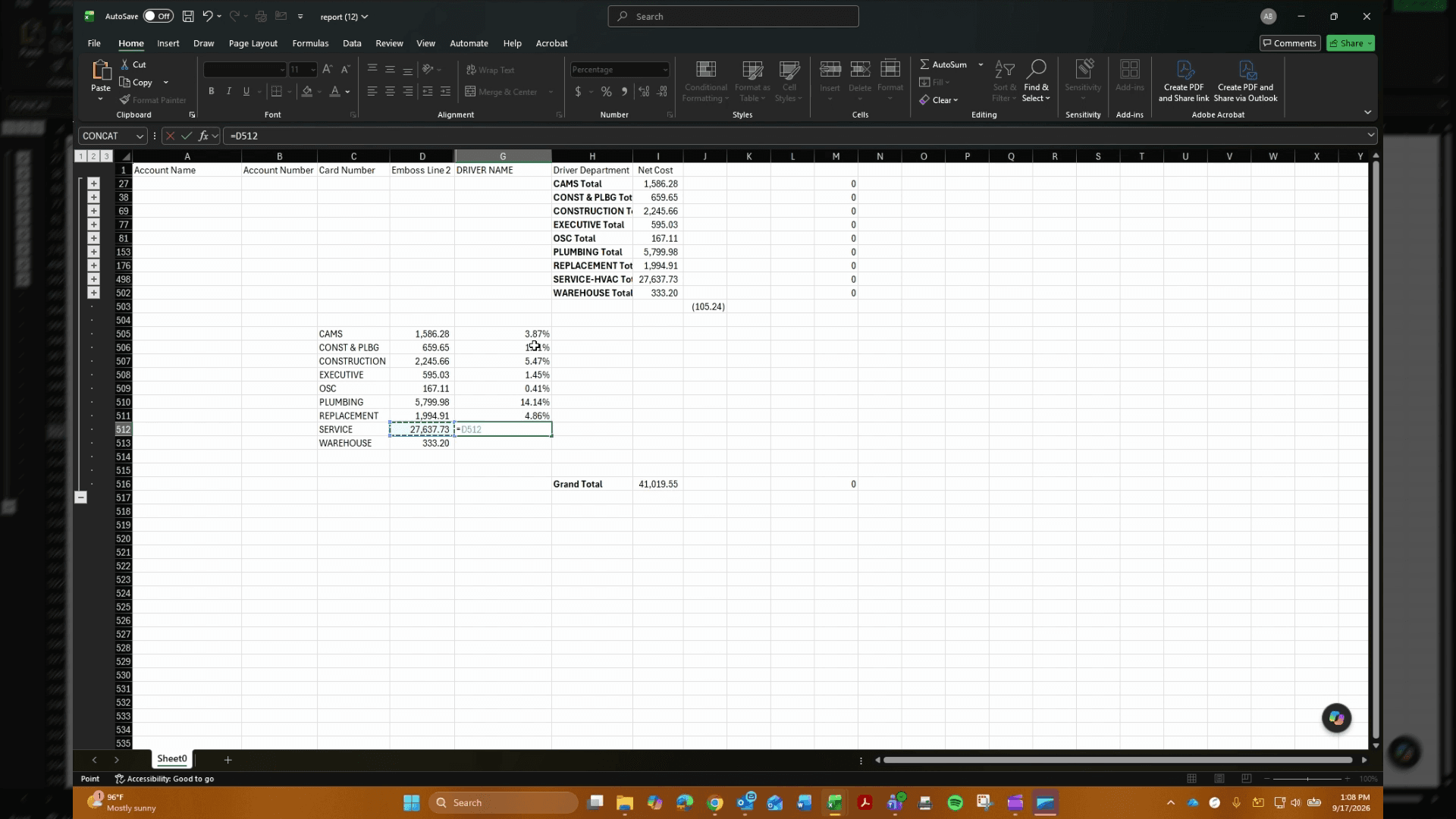
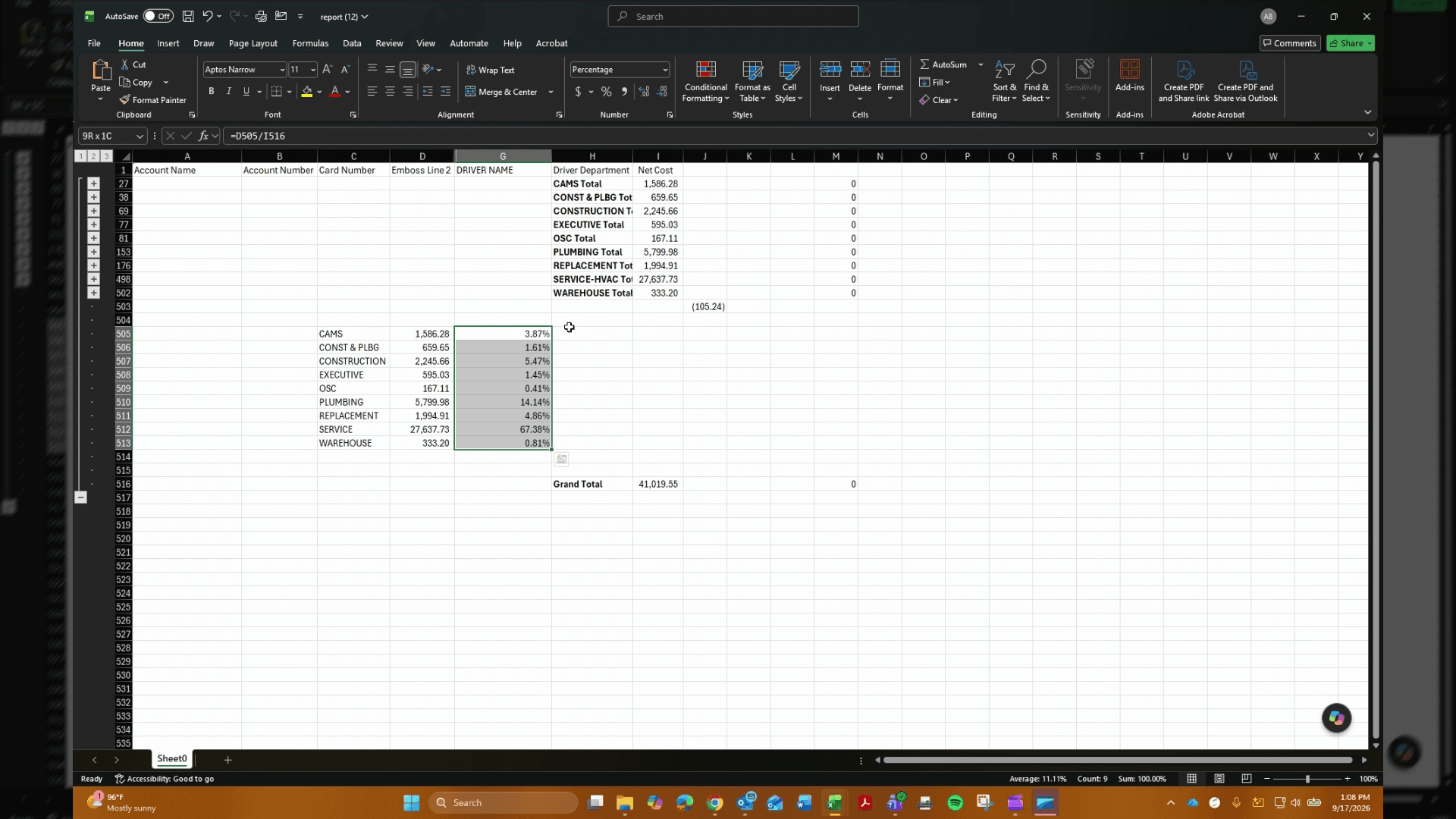
Calculate Department Net Cost Percentages
Perform this procedure after reconciling your statement transactions to establish each department's proportional share of net costs. Completing these steps calculates departmental percentages, applies standard percentage formatting, and populates the remaining rows.
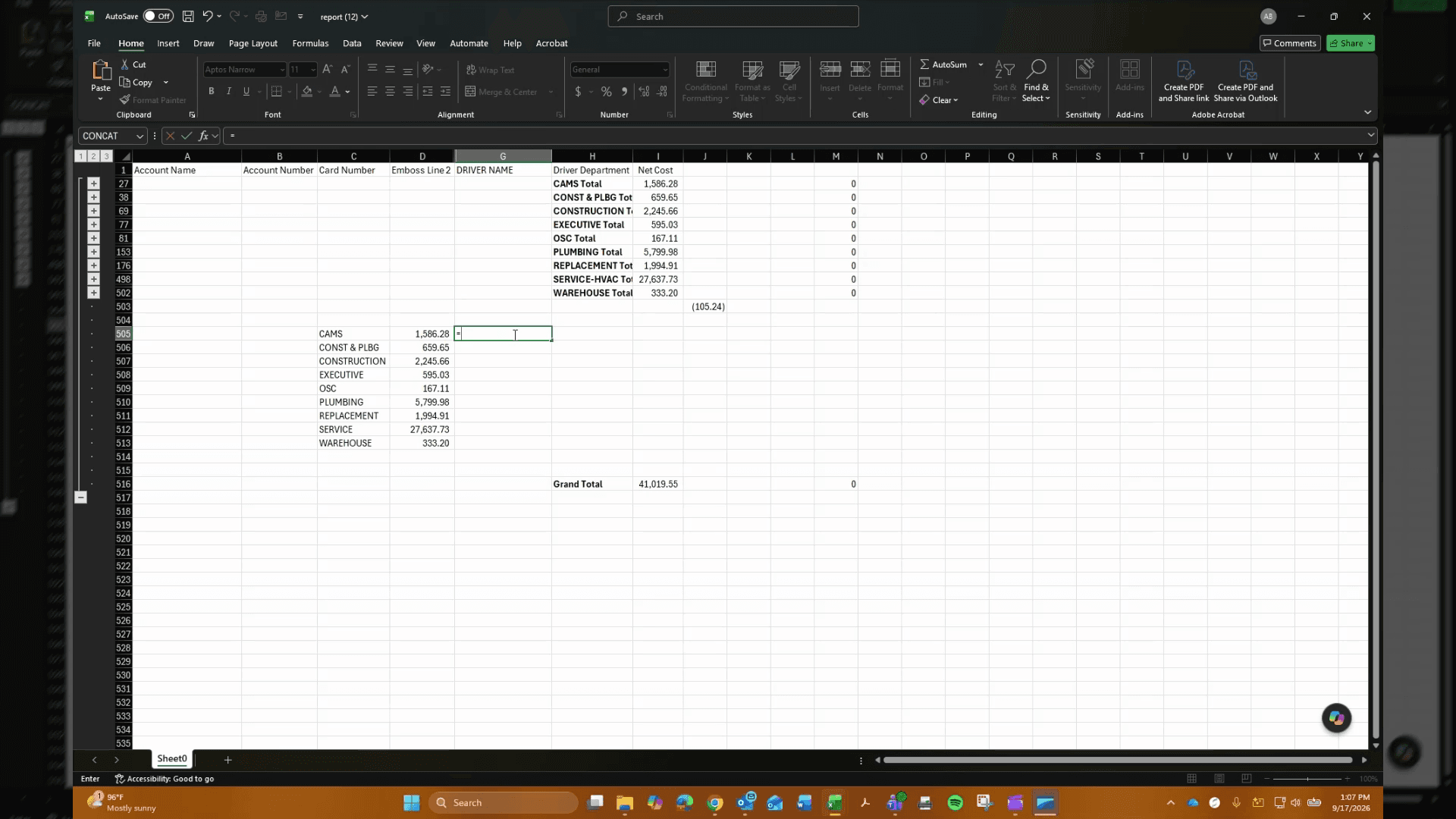
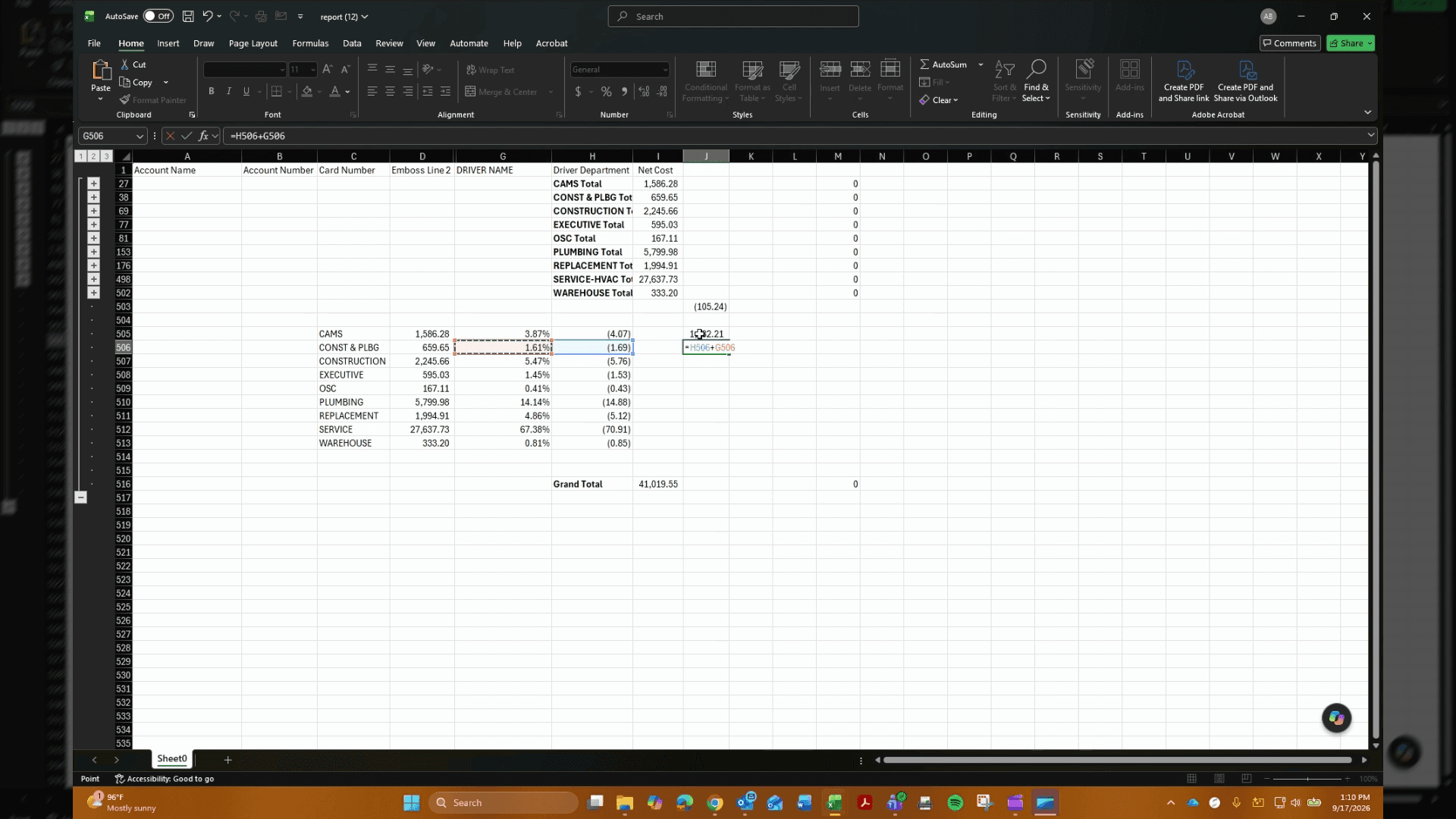
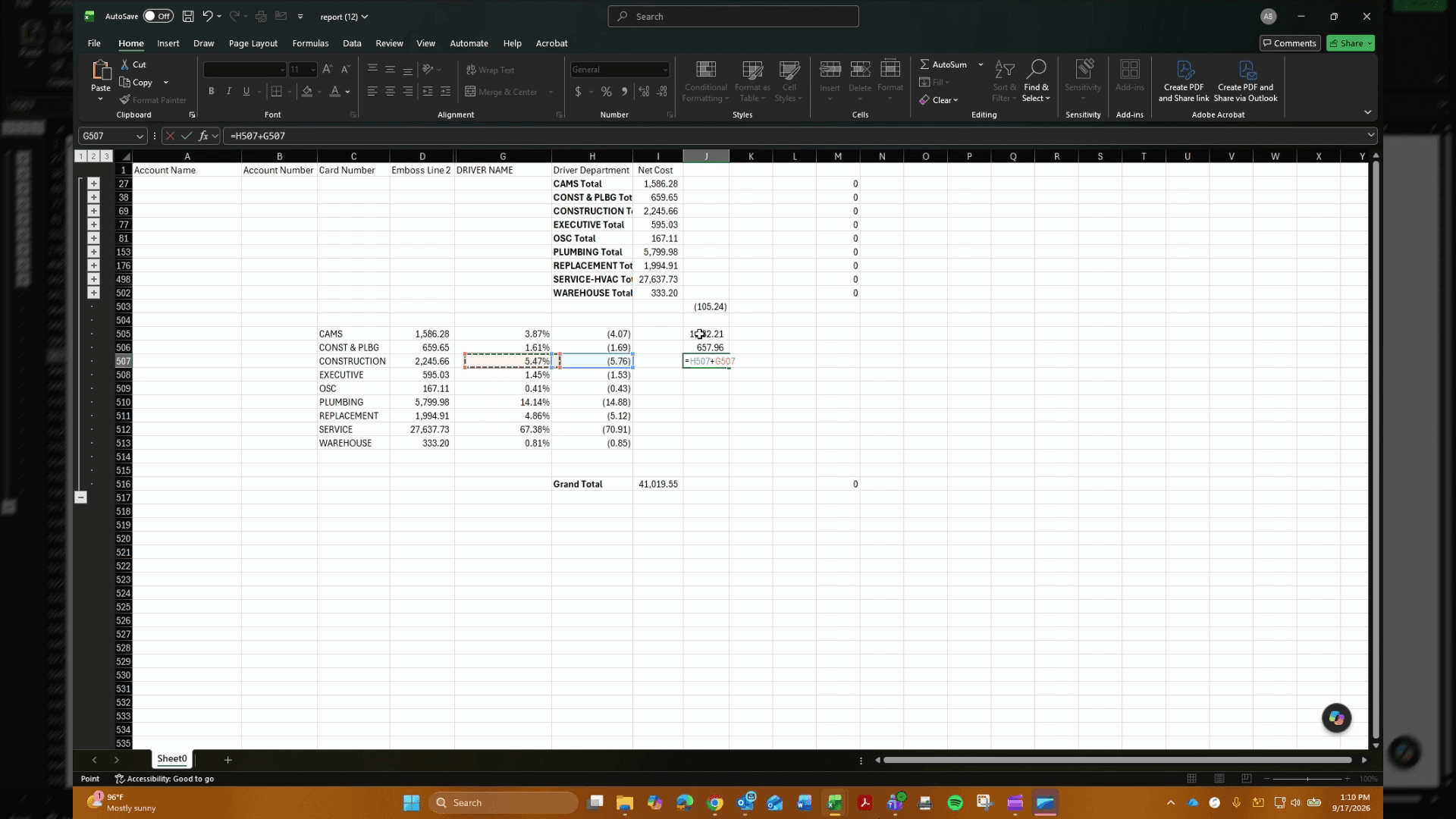
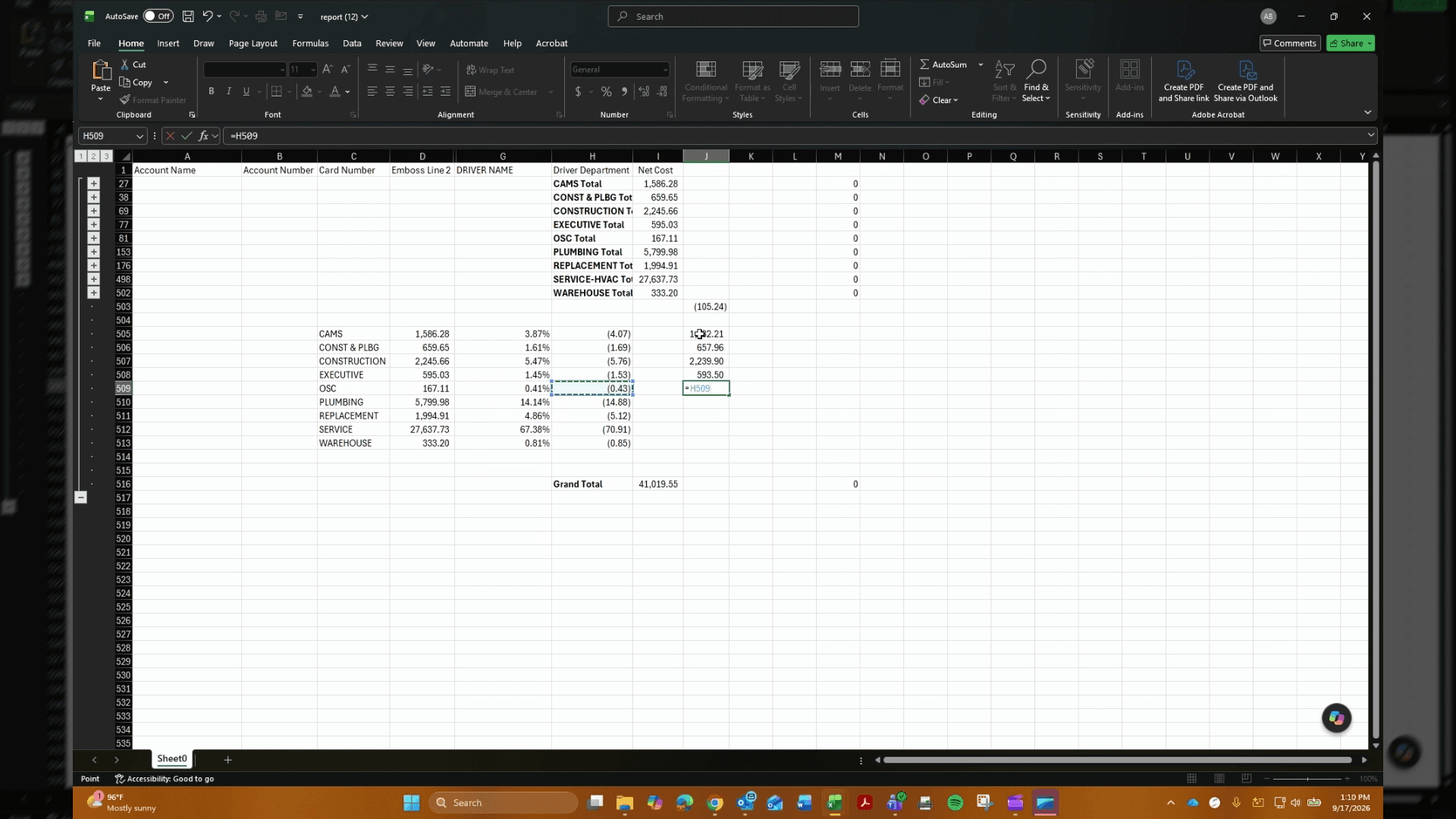
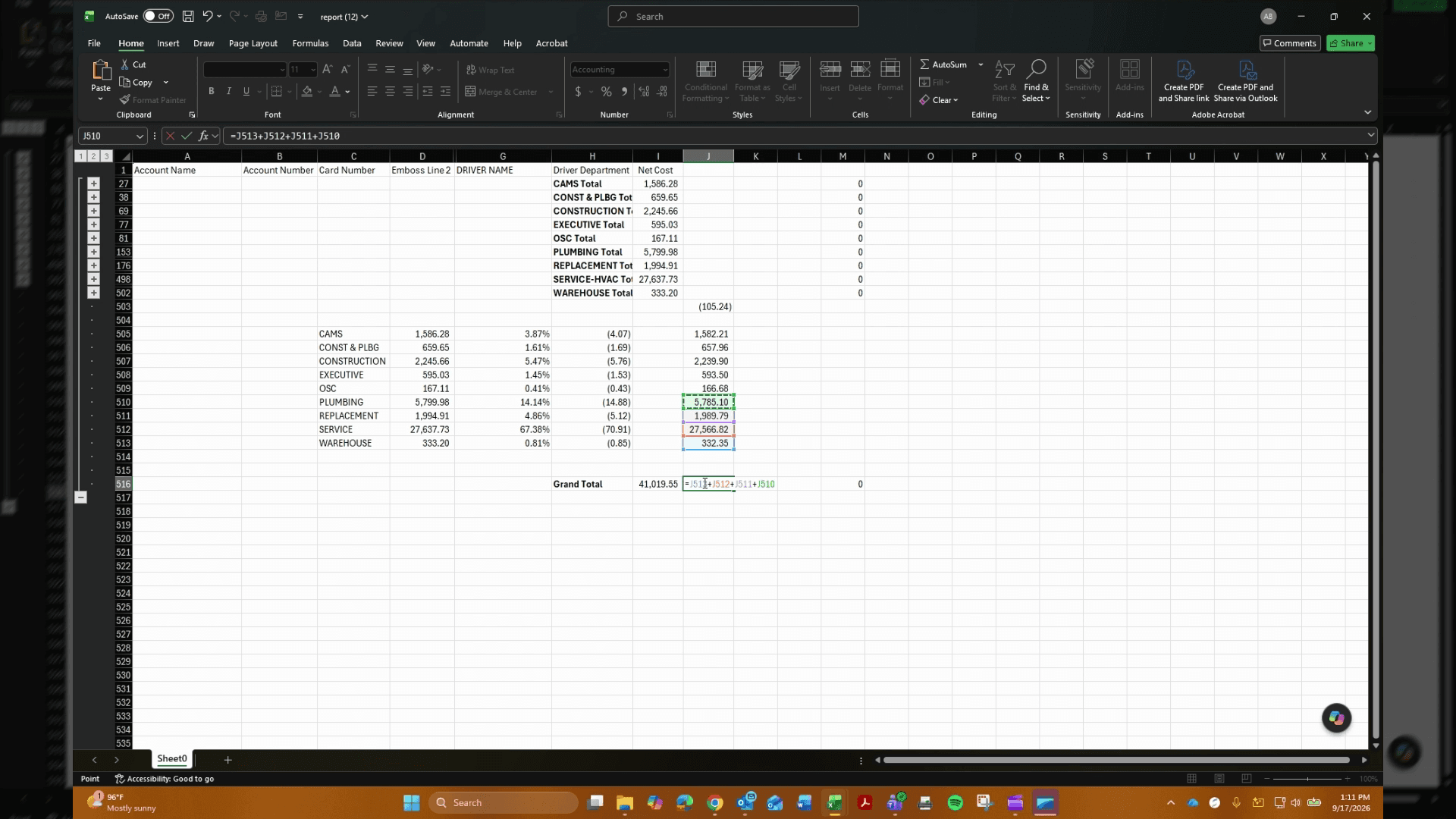
Calculate Department Net Loss and Grand Totals
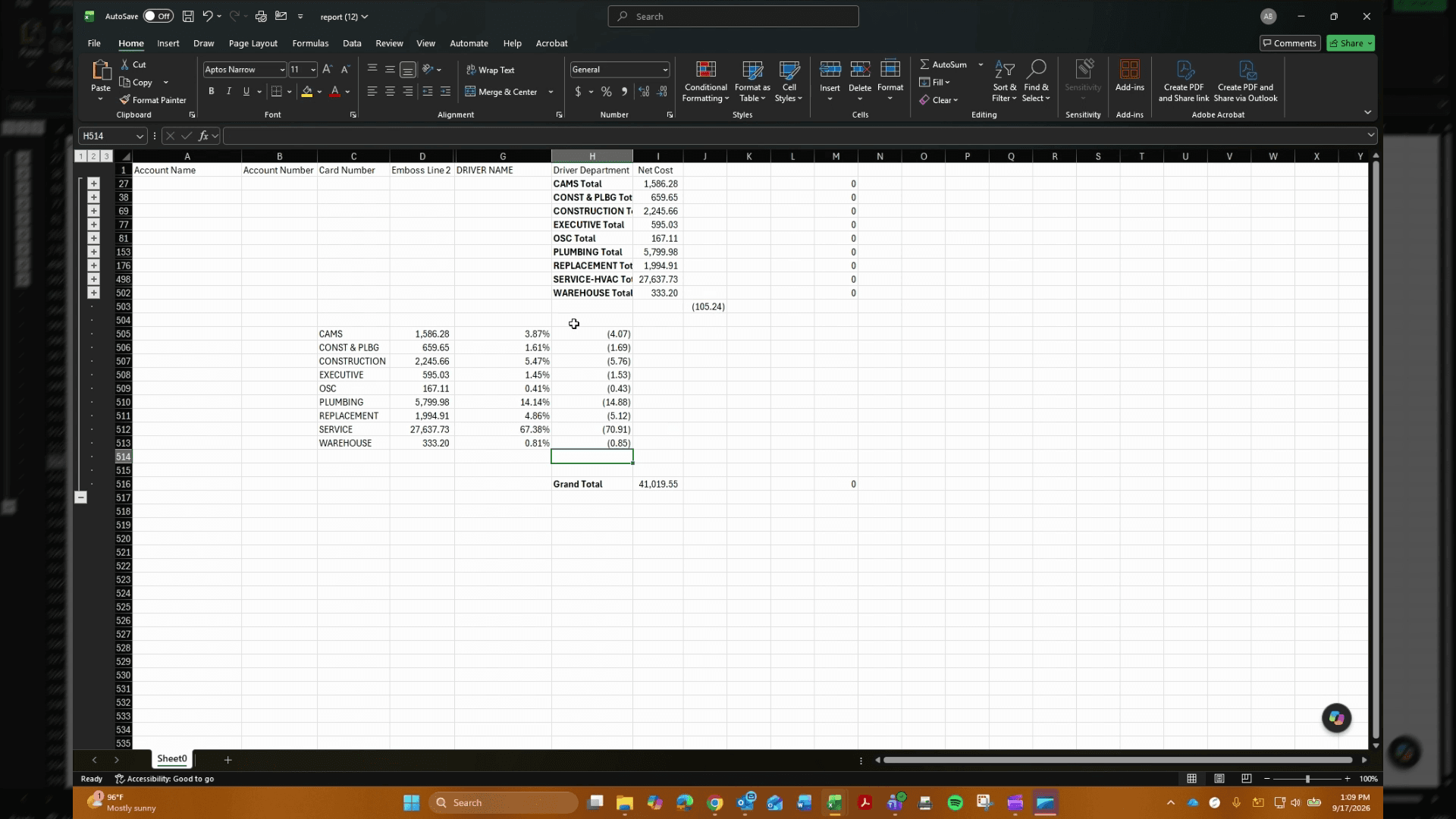
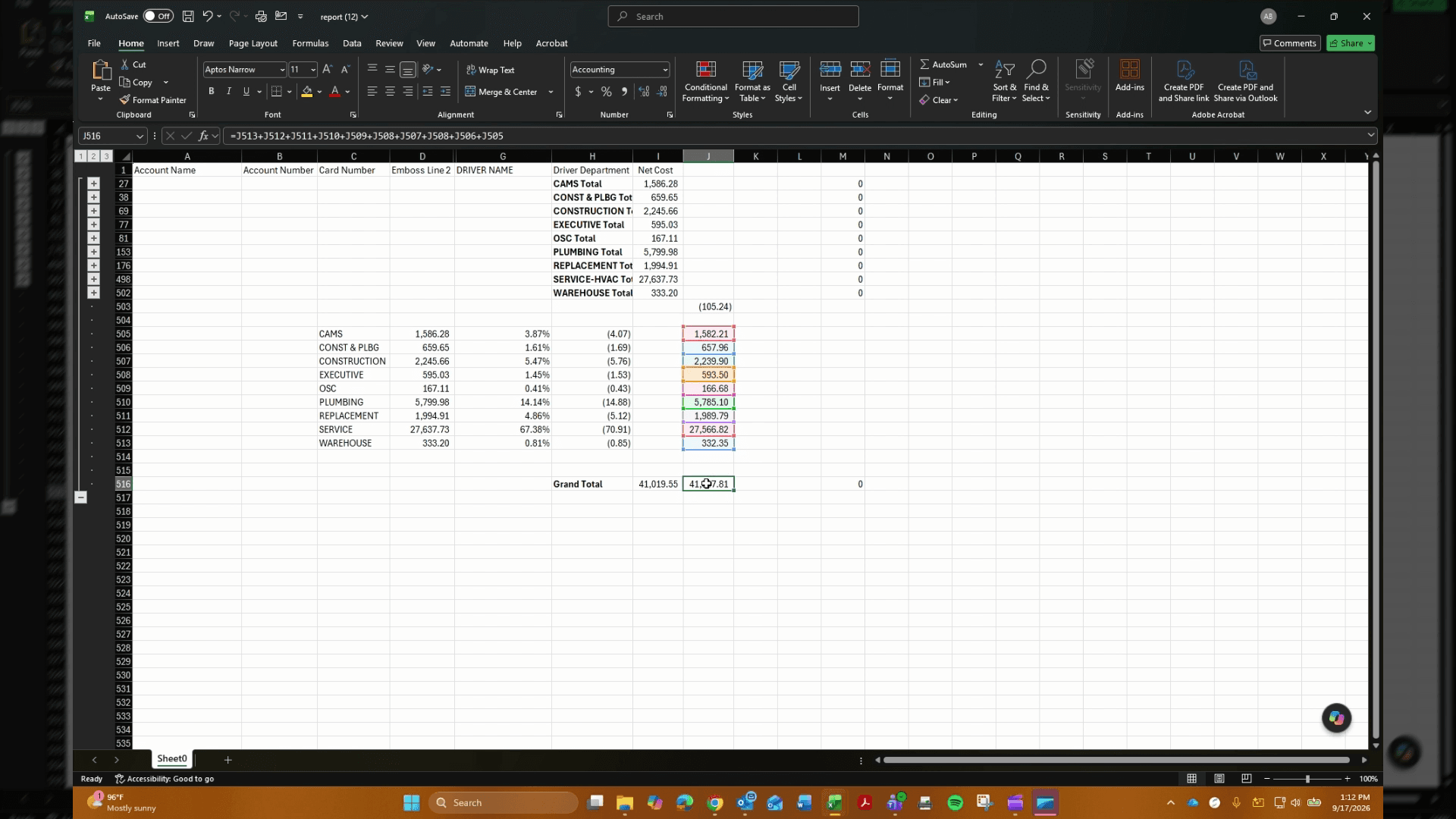
Perform these calculations after establishing the department percentages to allocate the overall net loss and compute the final grand totals. Once completed, the spreadsheet will display full net loss figures across construction, executive, and replacement departments.

Verify Final Financial Summary
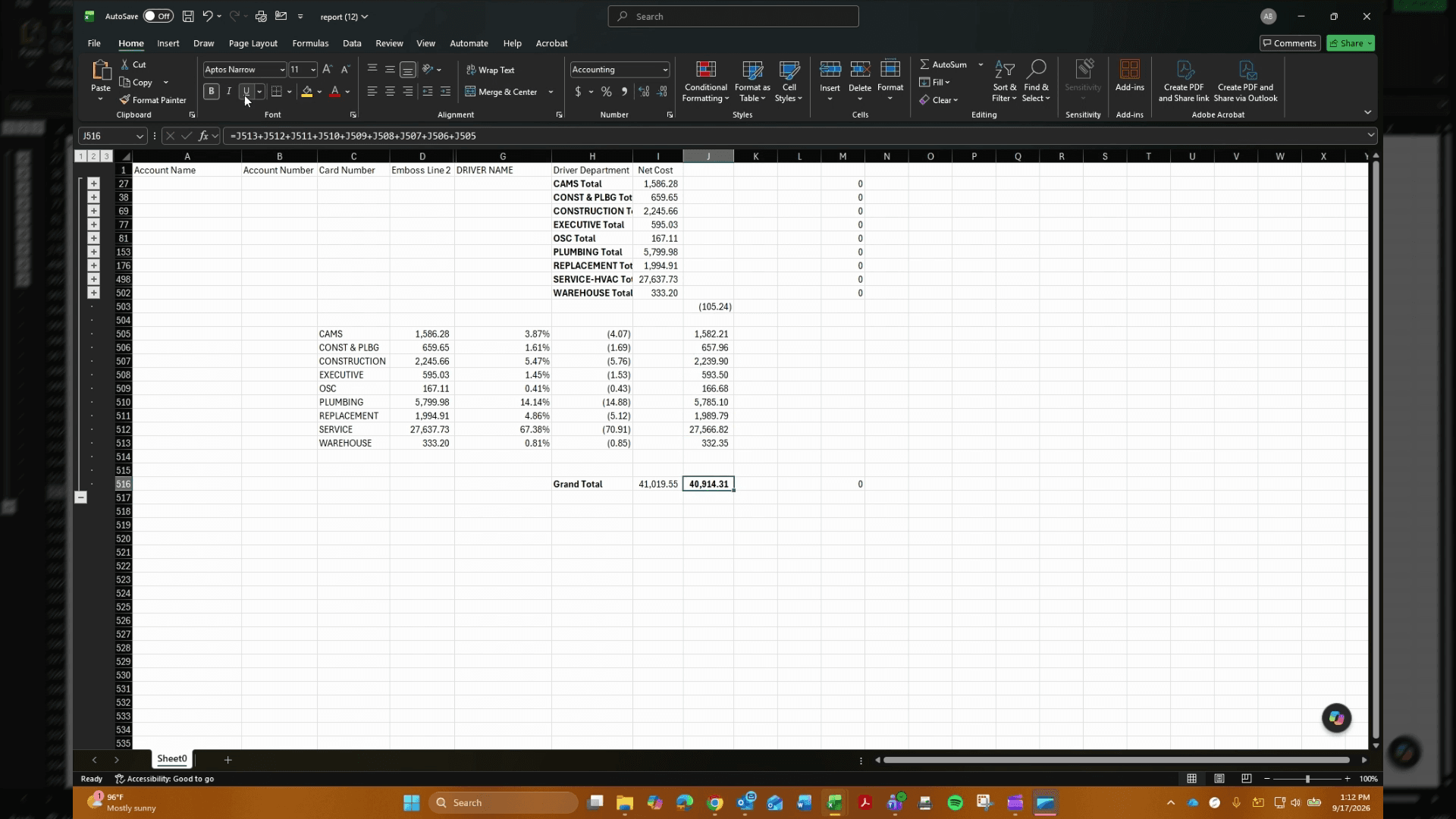
Perform this final check after calculating all departmental breakdowns to ensure the summary figures balance. This confirms that all totals match across your financial report before final submission.
FAQ
Q: Which template should be selected for end-of-month reconciliation?
A: Choose the Monthly Report template from the "View my templates" section under Reports.
Q: How do I group transactions by department or driver cost in Excel?
A: Use the Subtotal feature located on the Data tab after opening the downloaded spreadsheet to group and calculate transaction sums.
Q: How should department allocation percentages be formatted?
A: Apply standard percentage formatting using the percentage toolbar button after computing the ratio for each department row.