AP: Selecting and Processing Check Run
Learn how to review vendor aging, filter bills, and process weekly EFT payment batches in Sage Intacct.
Purpose
This procedure walks through conducting a weekly payment run in Sage Intacct Accounts Payable. The goal is to review vendor aging balances, select and filter approved invoices for payment, and submit the payment batch to the outbox so it advances to the manager approval queue.
Scope
This guide applies to Accounts Payable specialists responsible for weekly check and EFT payment disbursements. It covers generating vendor aging reports, creating payment batches, and submitting requests within Sage Intacct. Managerial invoice review and final payment authorization are out of scope.
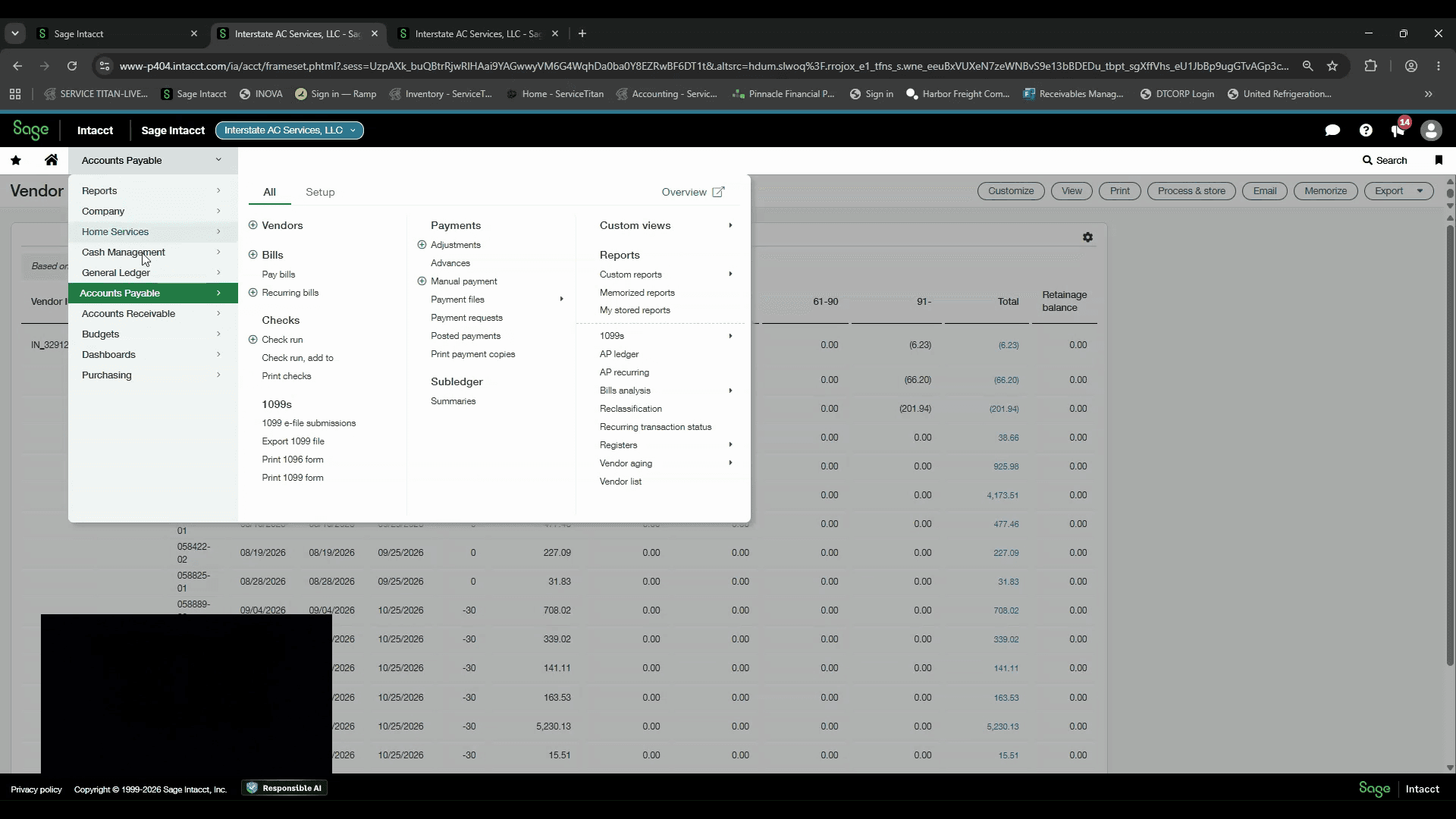
Review Vendor Aging
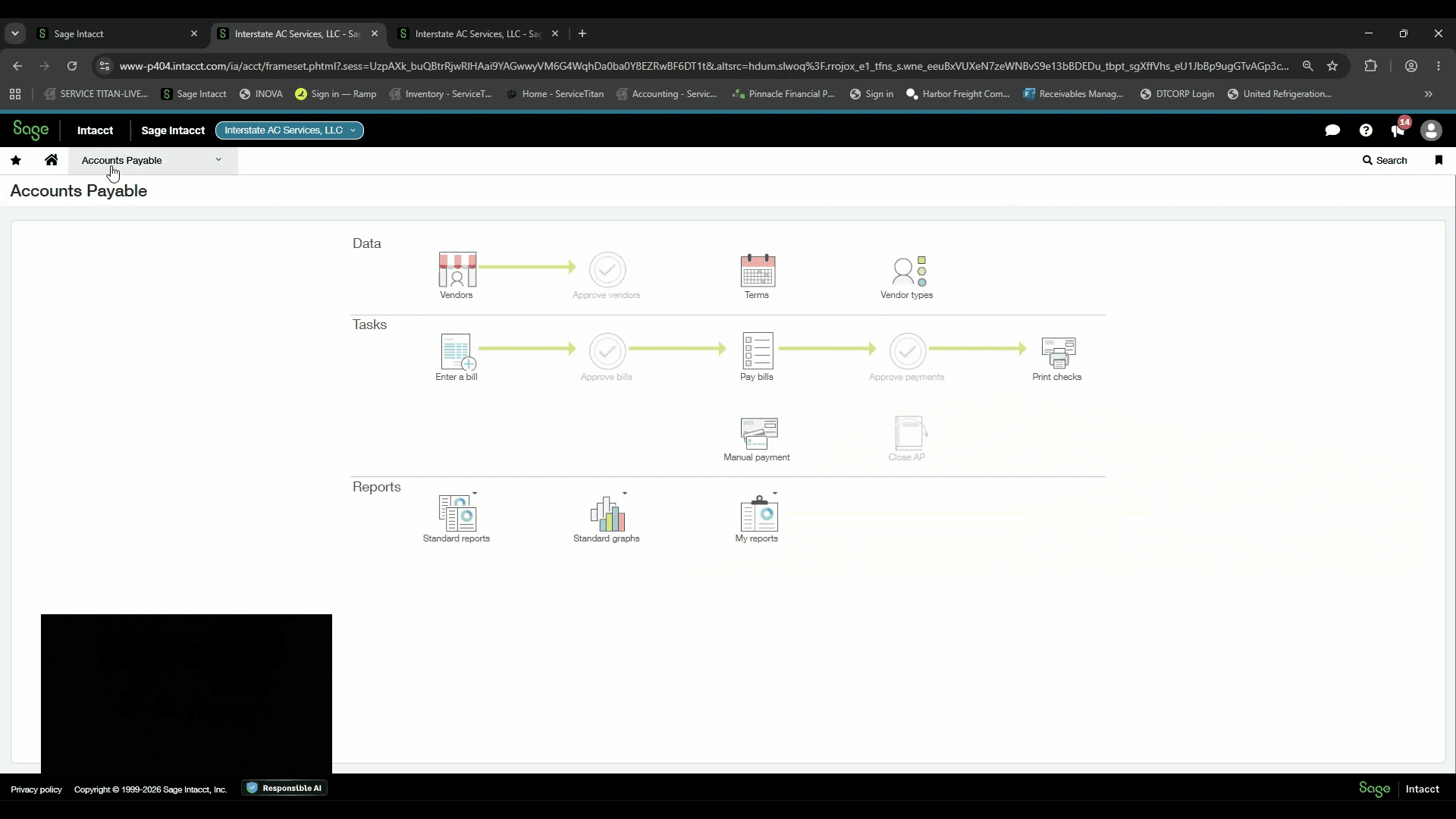
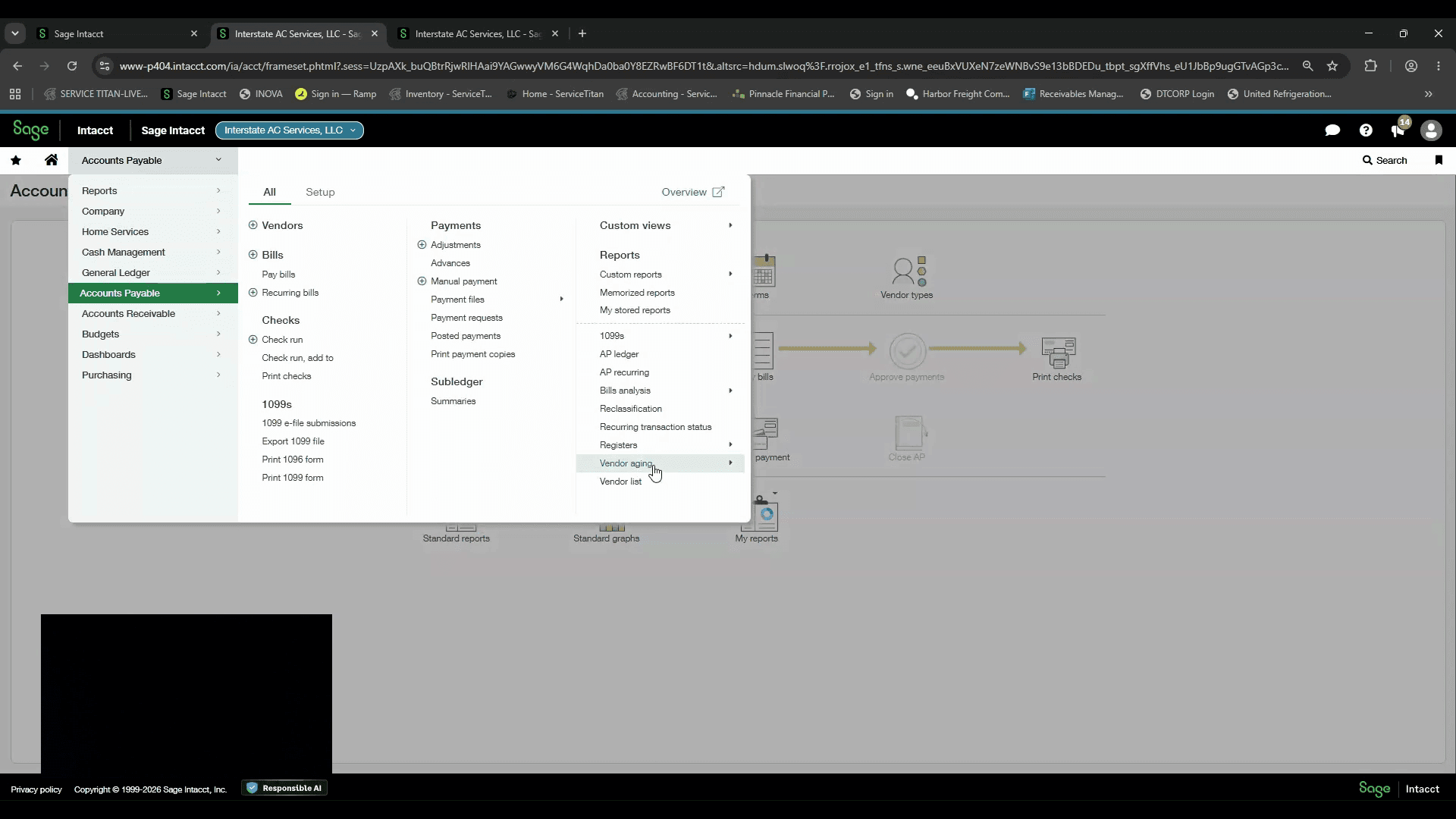
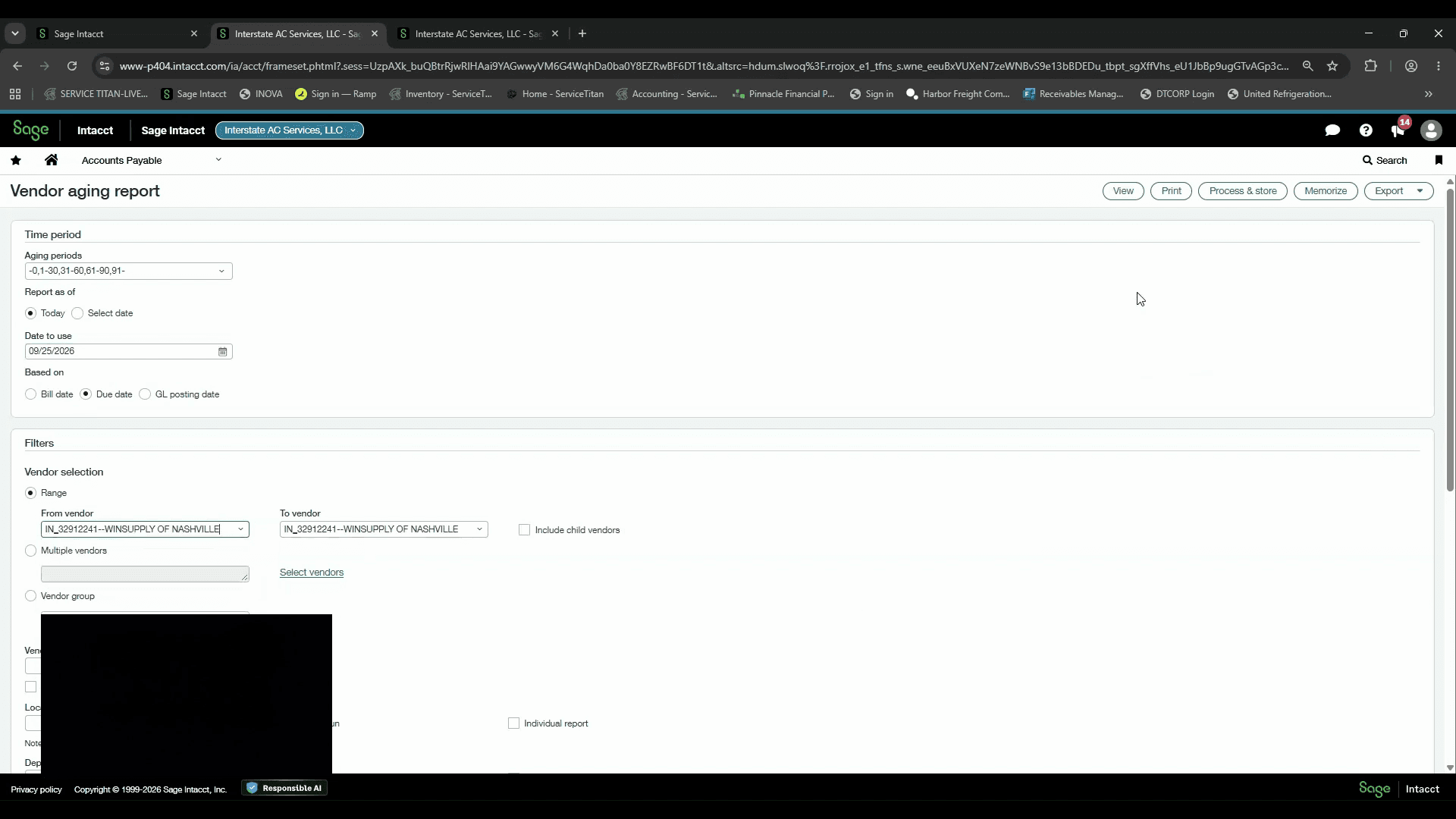
Print or review the report to identify the invoices eligible for payment this cycle.
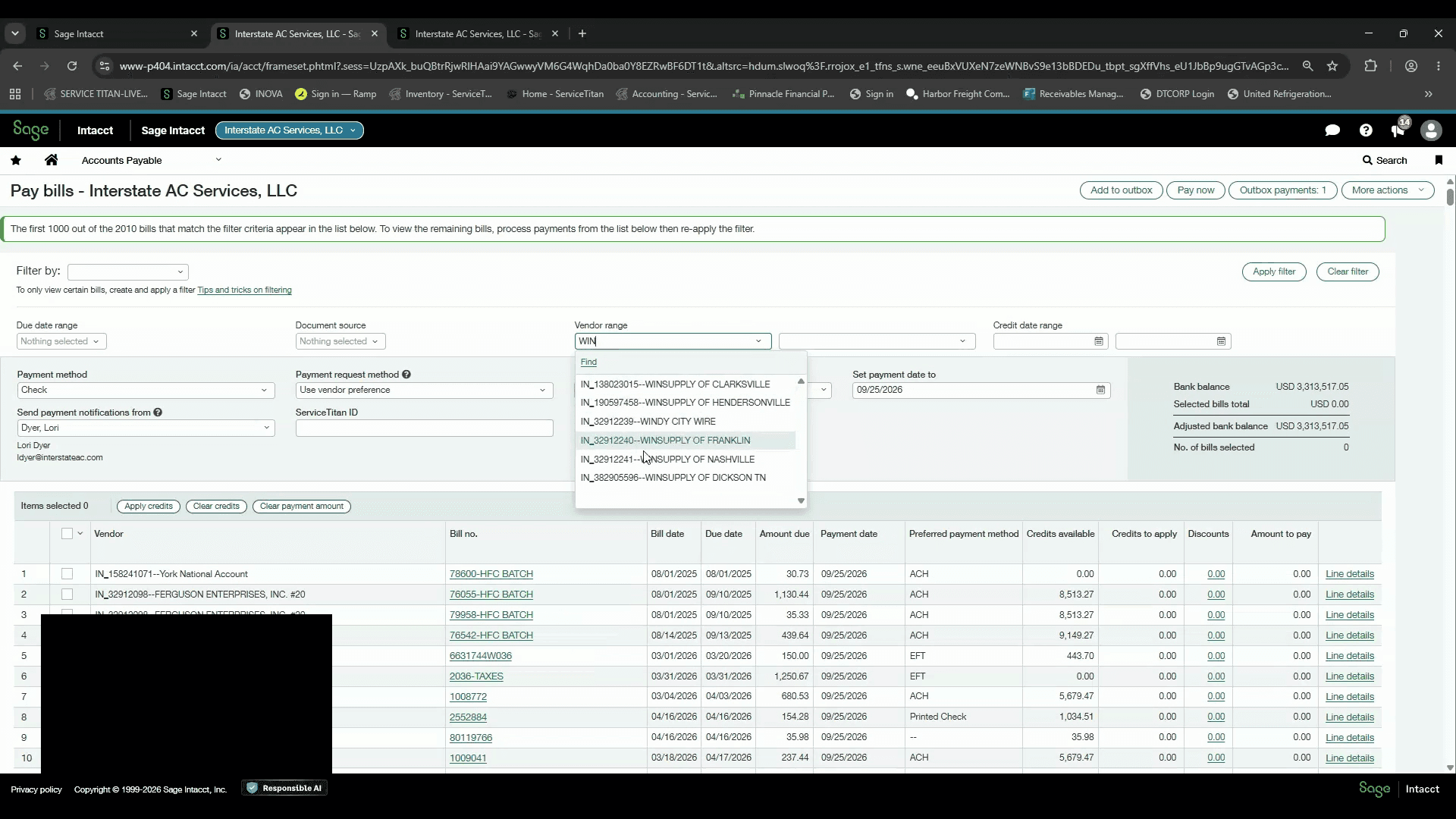
Select and Filter Bills for Payment
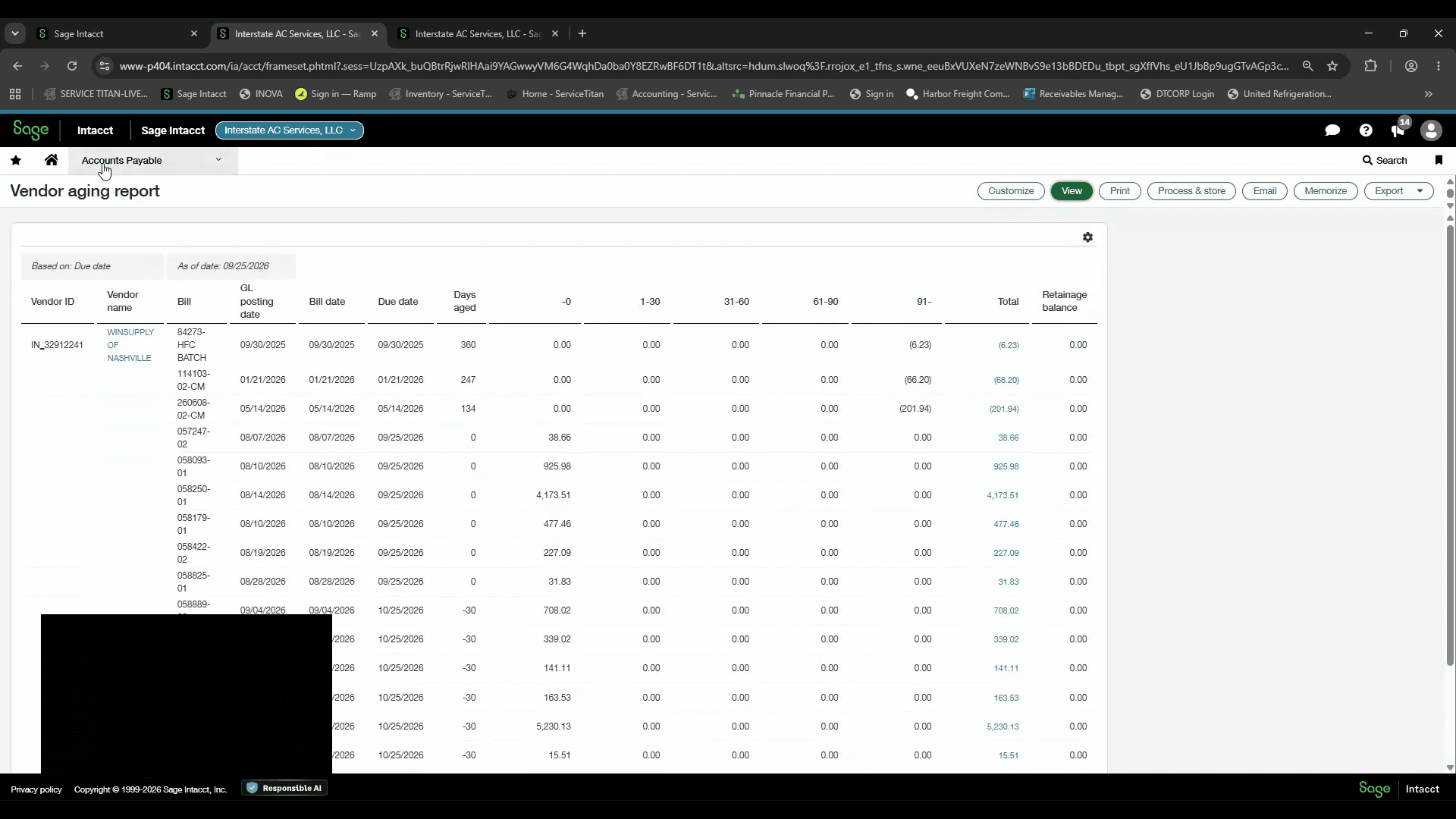
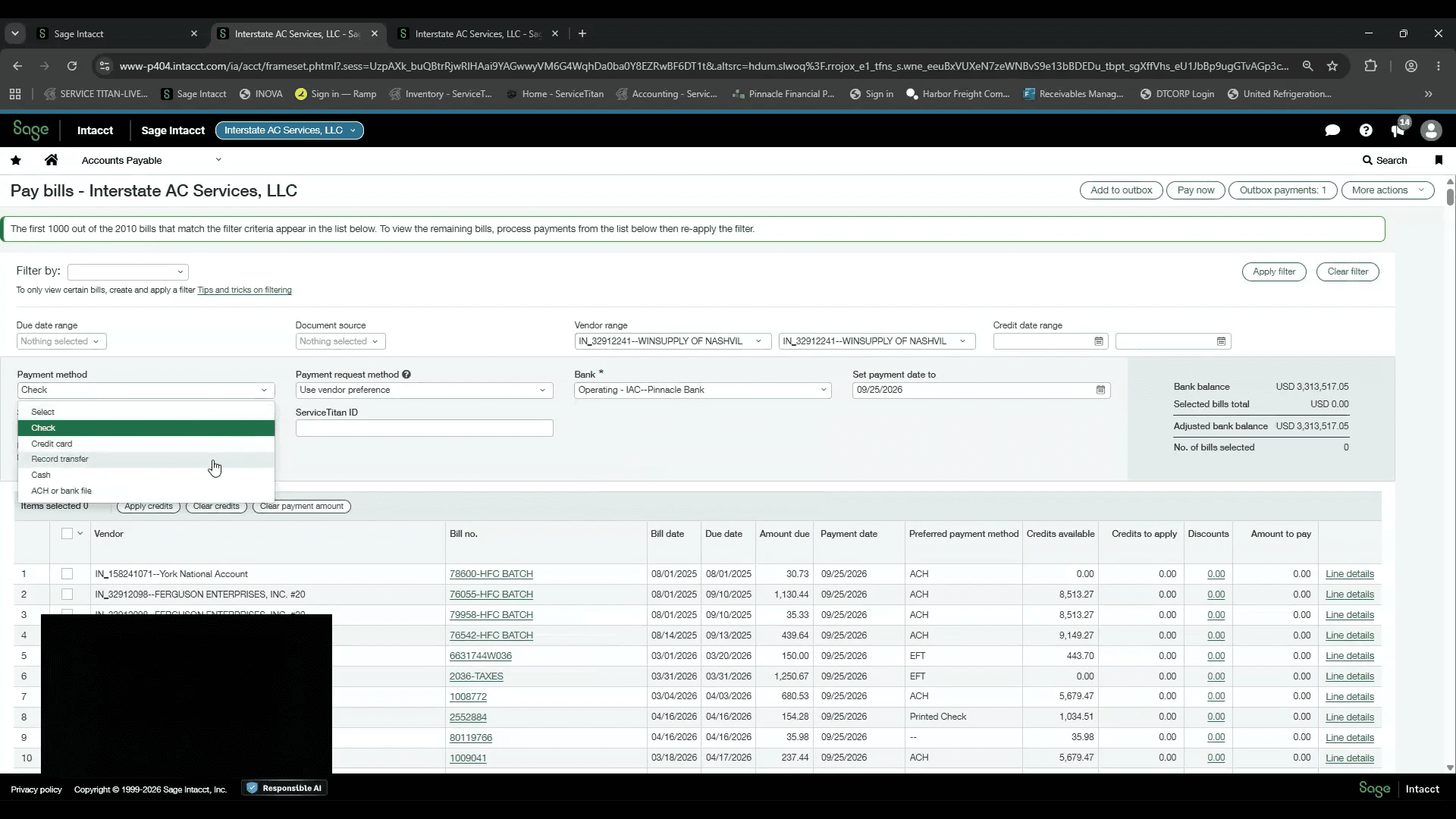
Use this option when processing EFT payments.
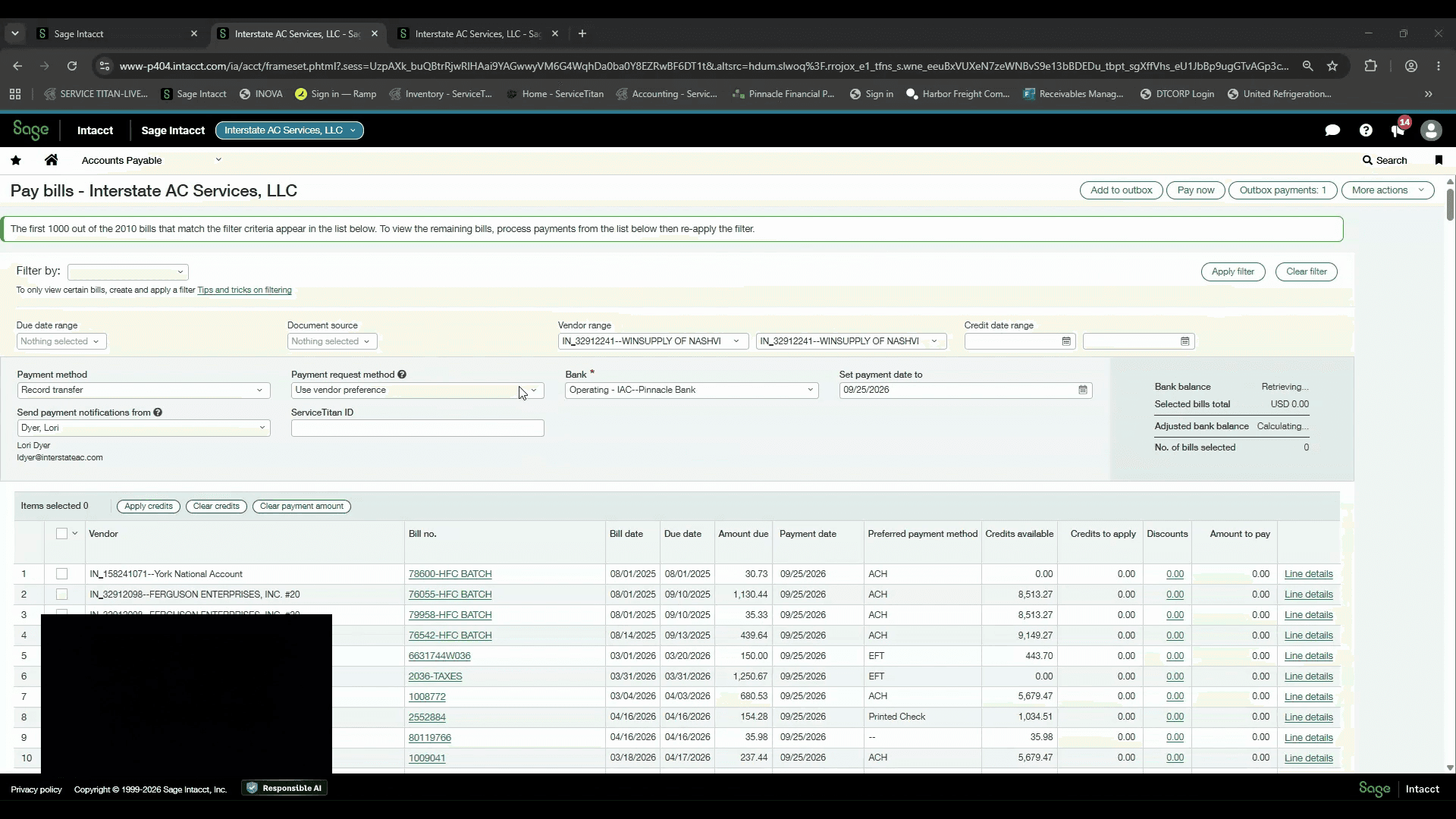
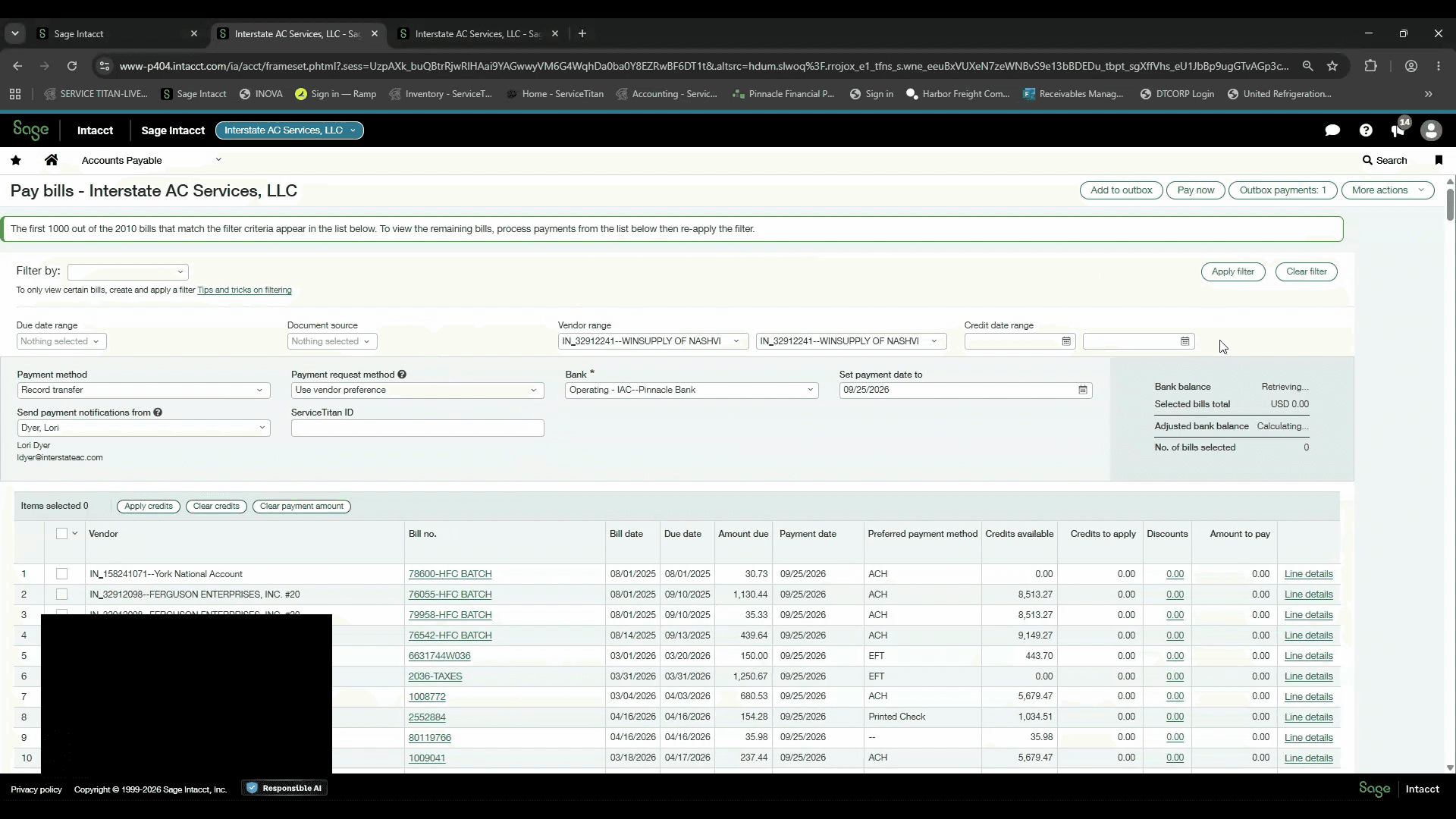
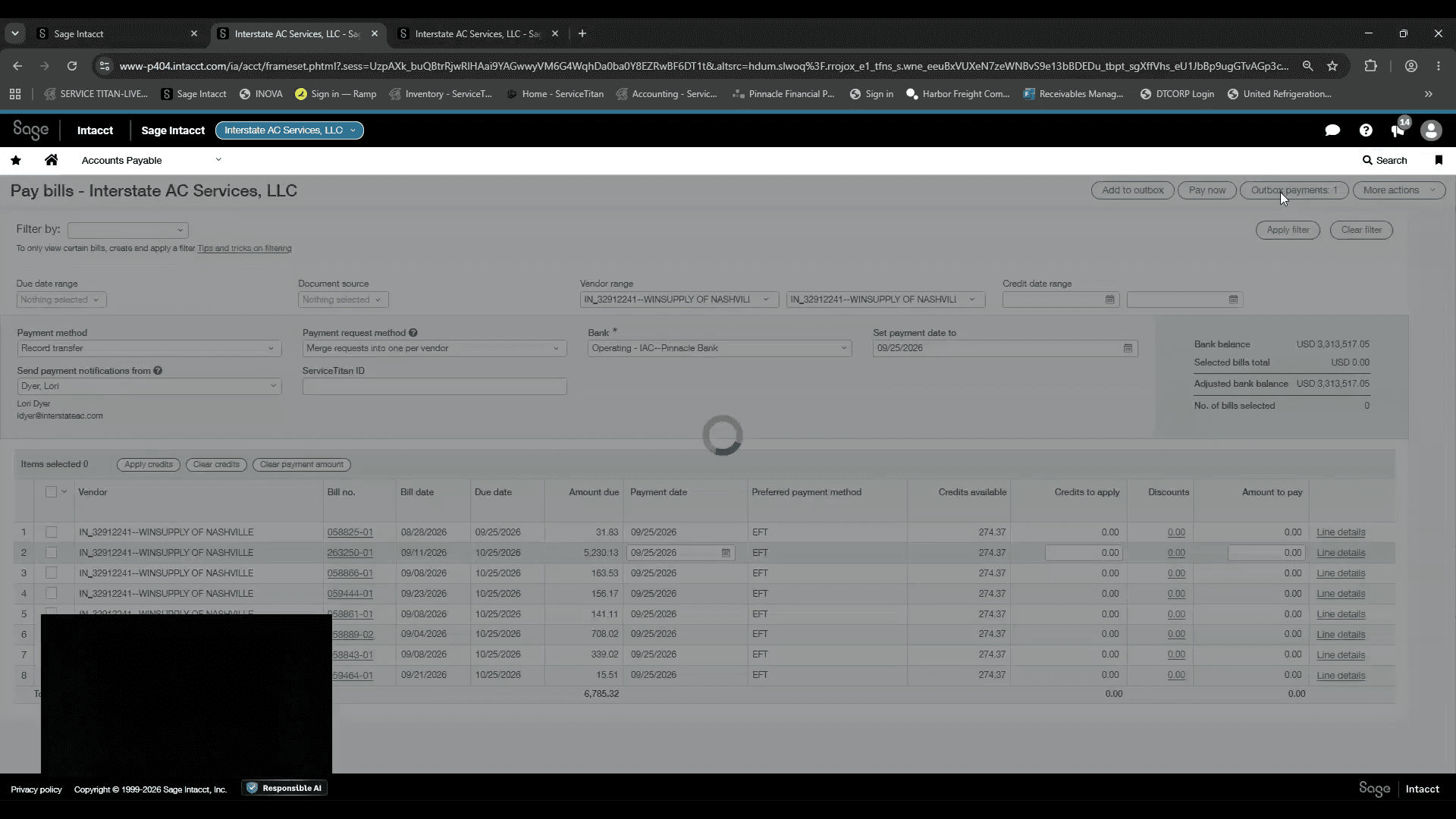
Submit the Payment Batch
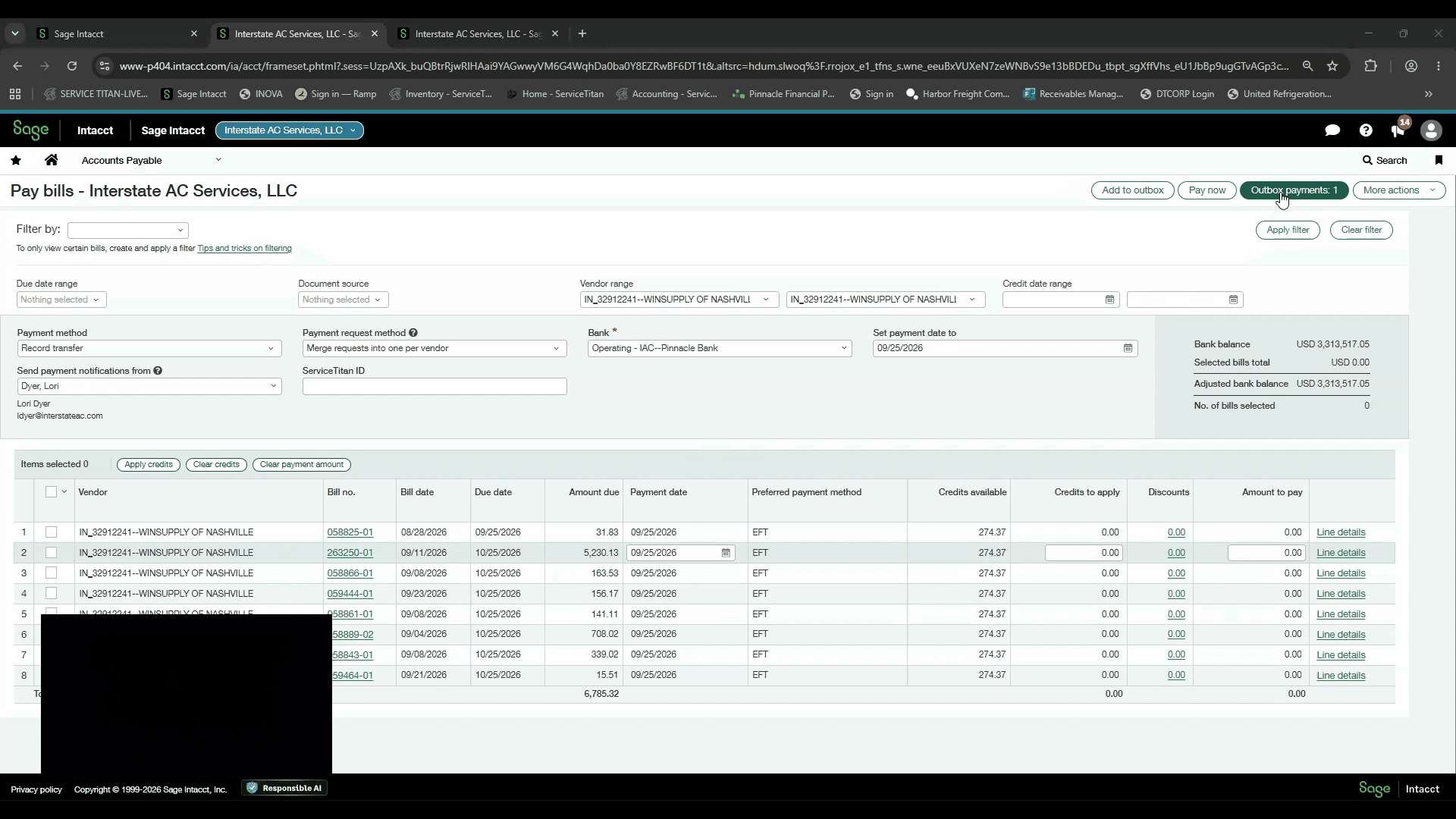
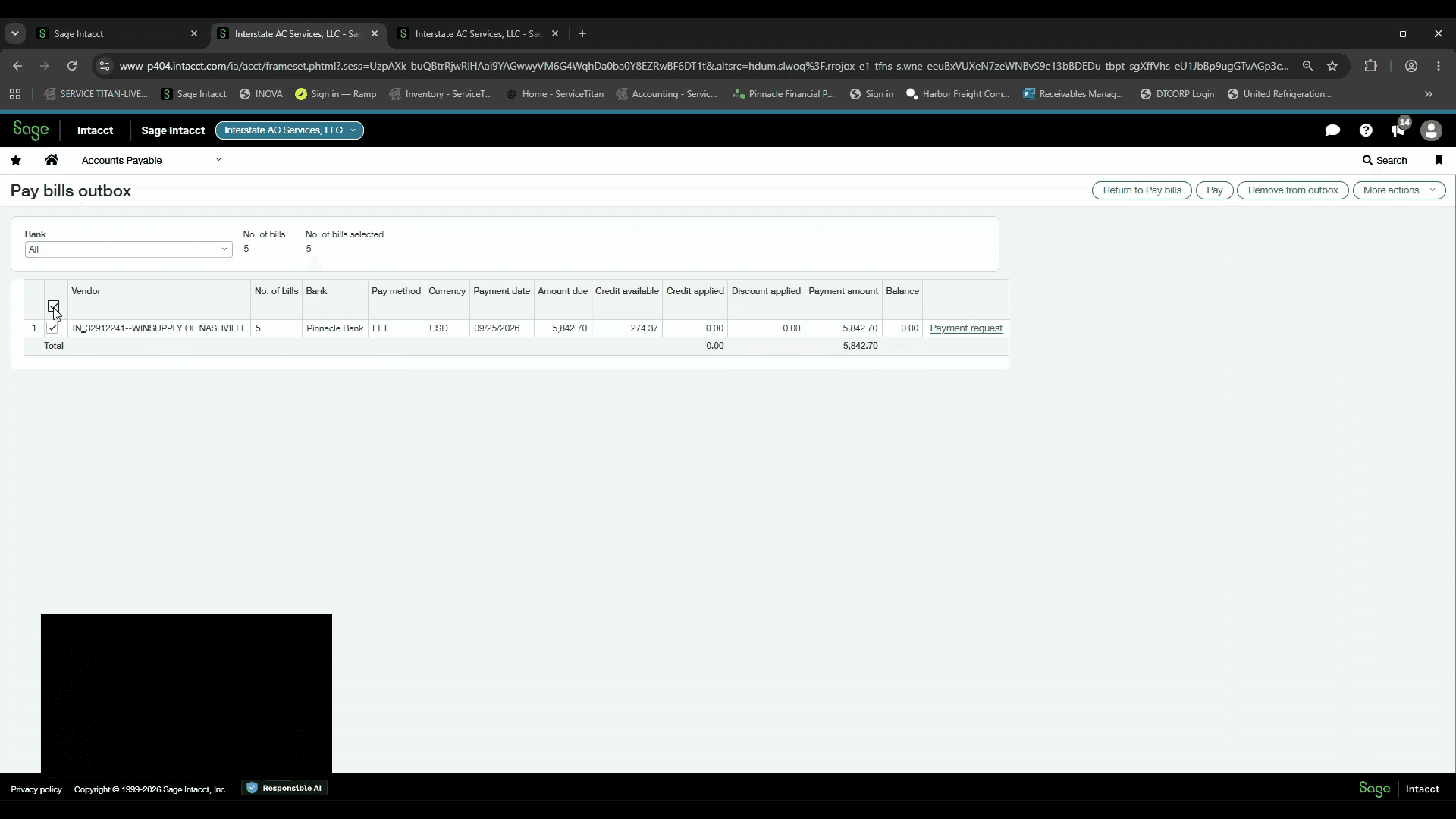
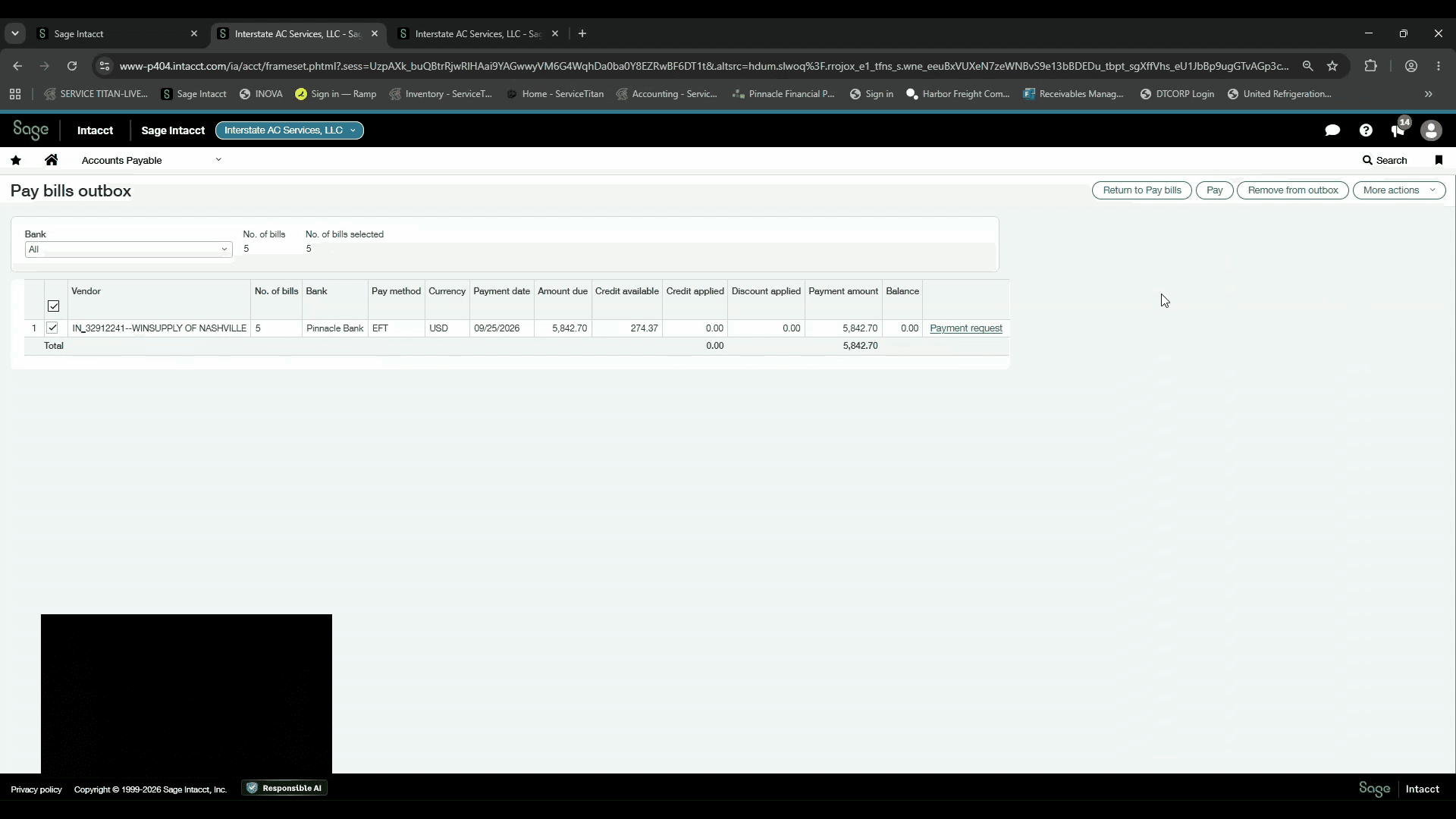
This moves the payment into the awaiting approval status. Notify the manager to review and authorize the payment.
FAQ
Q: What should I do if the vendor invoices do not display after selecting the payment criteria?
A: Click the Apply Filter button to force the Pay Bills screen to refresh and populate the invoice list.
Q: How can multiple invoices be combined into a single disbursement?
A: Select the option to Merge Requests Into One Per Vendor before sending the batch to the outbox.
Q: What happens after clicking Pay in the outbox?
A: The batch transitions to the awaiting approval process, requiring notification to the manager for review and final sign-off.
Glossary
Term | Definition |
|---|---|
Vendor Aging Report | A Sage Intacct accounts payable report listing outstanding vendor invoices categorized by due date intervals. |
Record Transfer | A payment method in Sage Intacct used to document EFT or electronic bank disbursements. |
Outbox | The temporary queue in Sage Intacct holding prepared bill payments awaiting final batch release or processing. |