Applying a Loyalty Account In Store
This is a How-To Guide on how to apply a guest's loyalty account in store. It is recommended that you start the guest interaction by asking them if they have currently have a Thompson Table Rewards account. The steps in this guide are applicable to a regular POS or handheld.
By Wendy
Let's get started
You can enter a guest's phone number before OR after you start the check and add menu items.
1
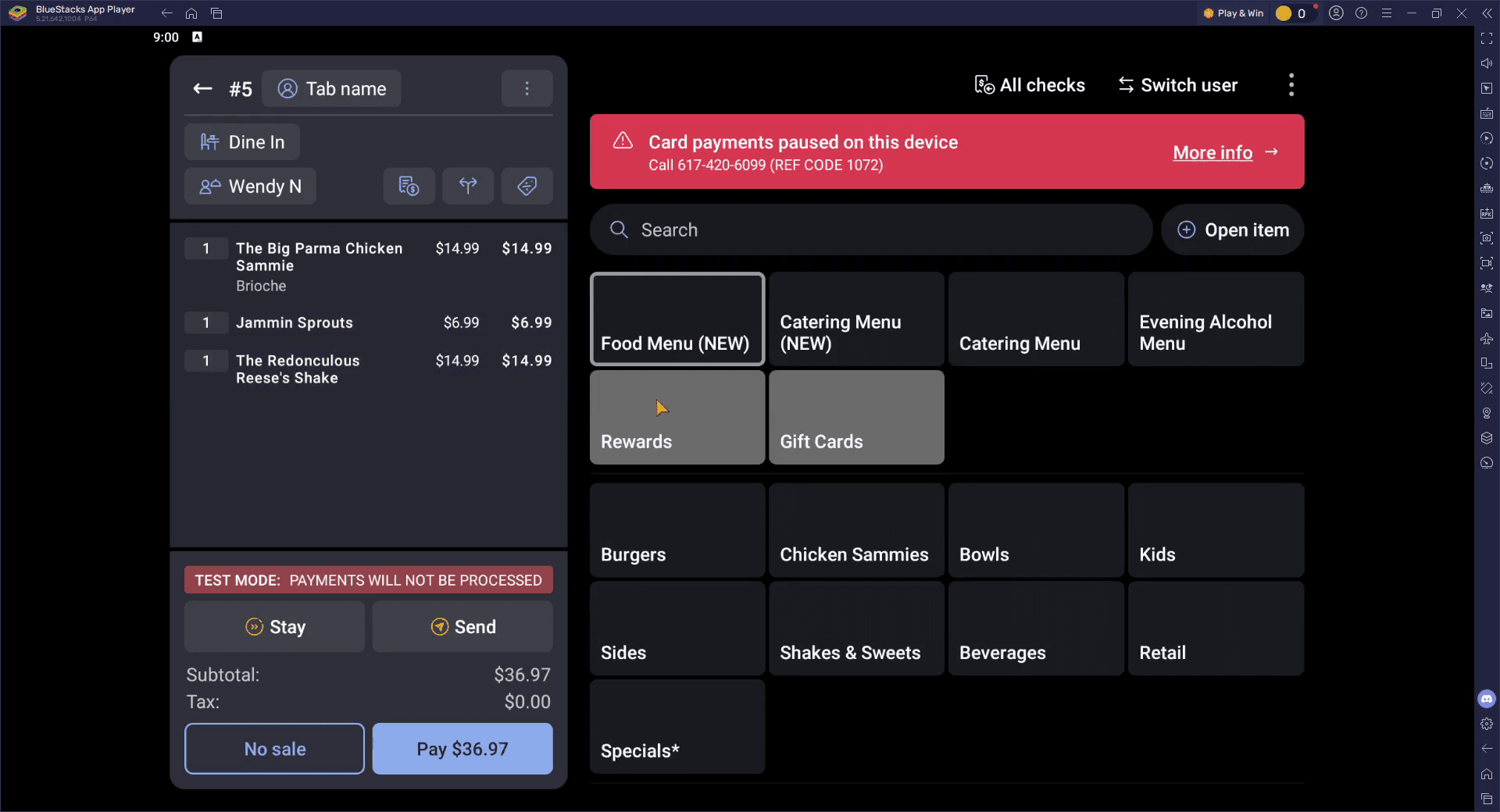
Select the Rewards button.
2
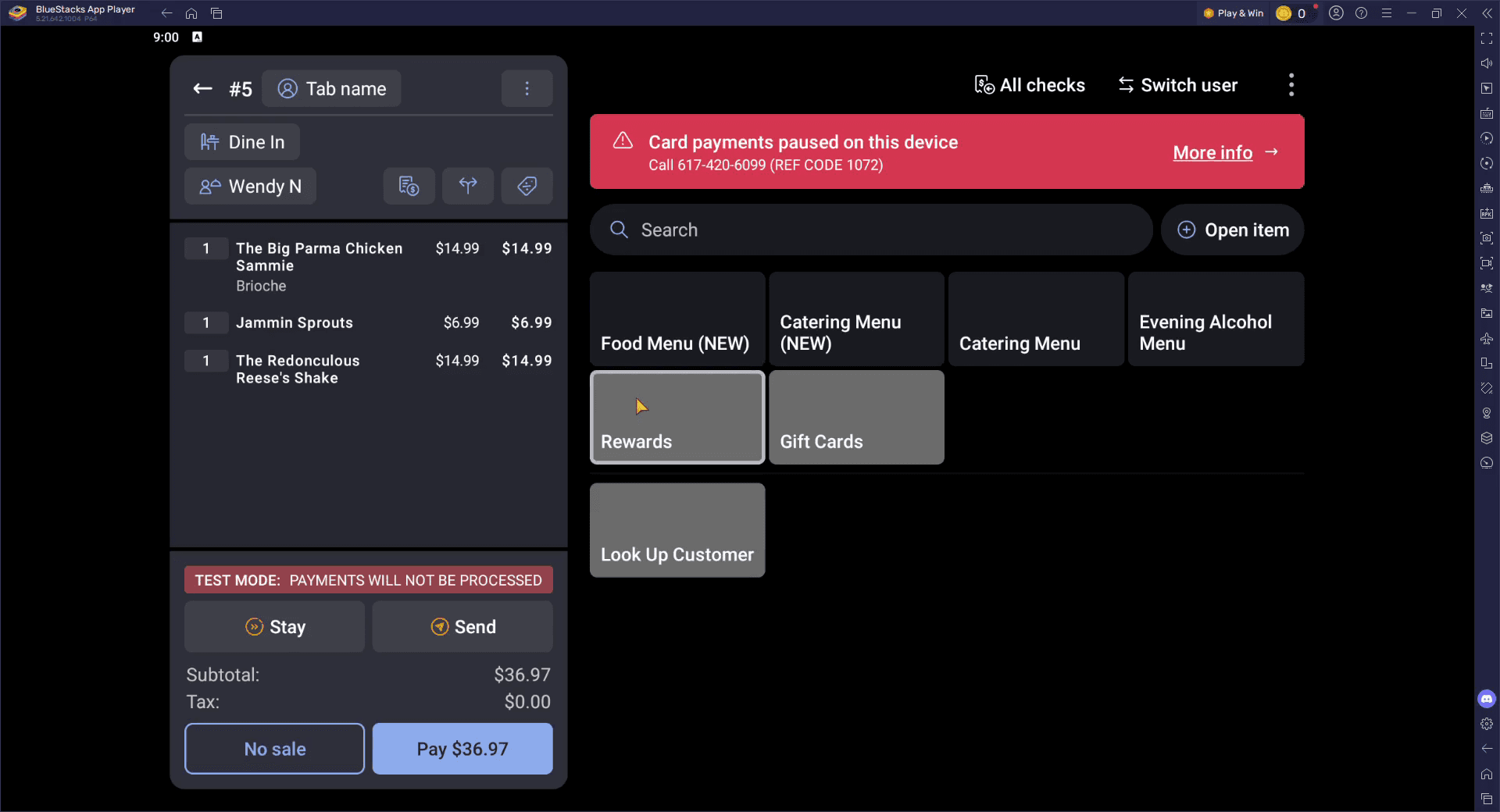
Select the Look Up Customer button.
3
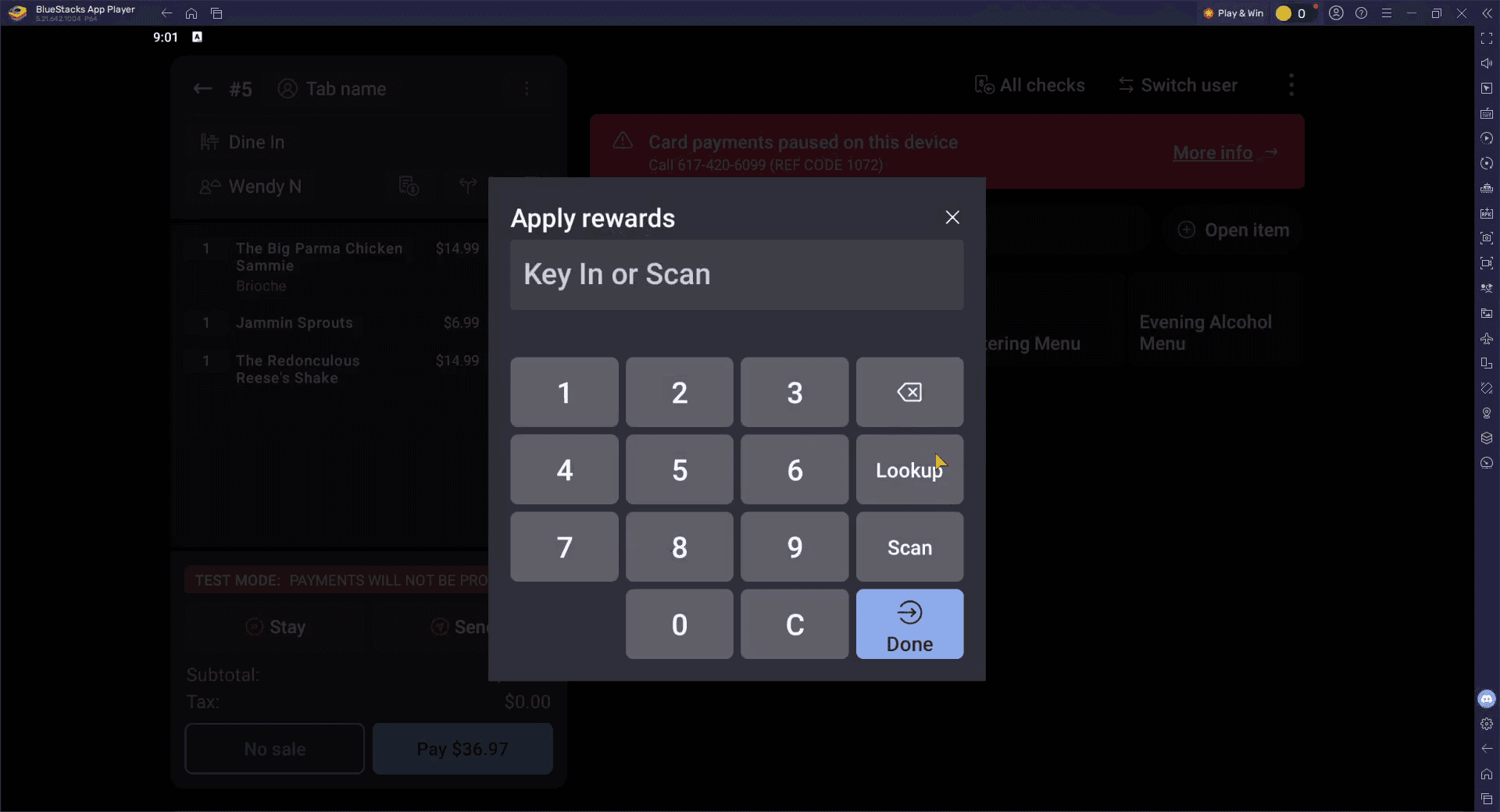
Click the Lookup button. *THIS STEP IS VERY IMPORTANT*
You need to select this second "Lookup" button in order to access our current Olo Loyalty guest database.
You need to select this second "Lookup" button in order to access our current Olo Loyalty guest database.
4
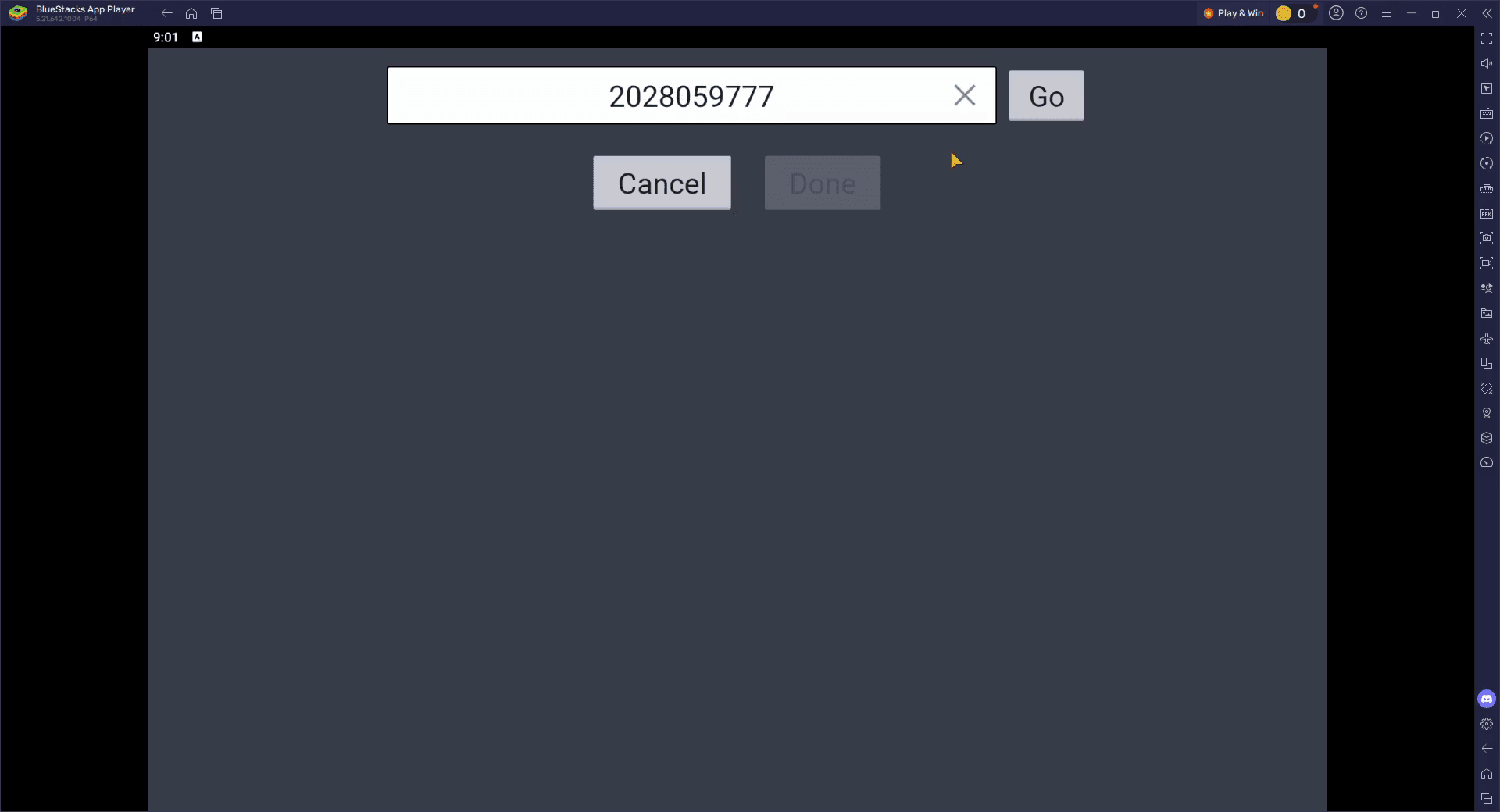
Type the guest's phone number into the field.
5
Click the Go button.
6
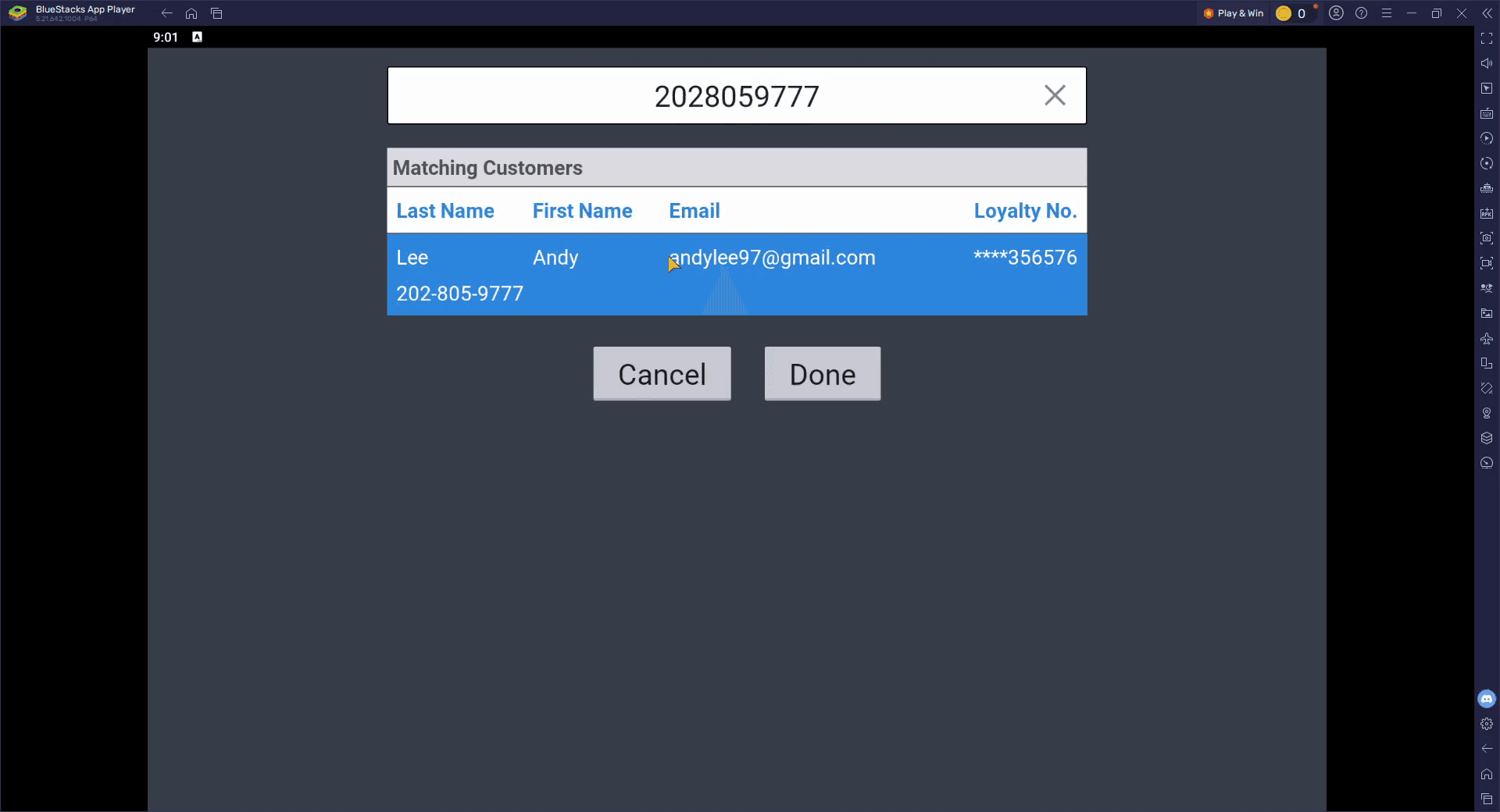
Highlight the guest account. Click the Done button.
7
If the guest has any applicable* rewards, they will show up on the next screen with a blue "Redeem" button.
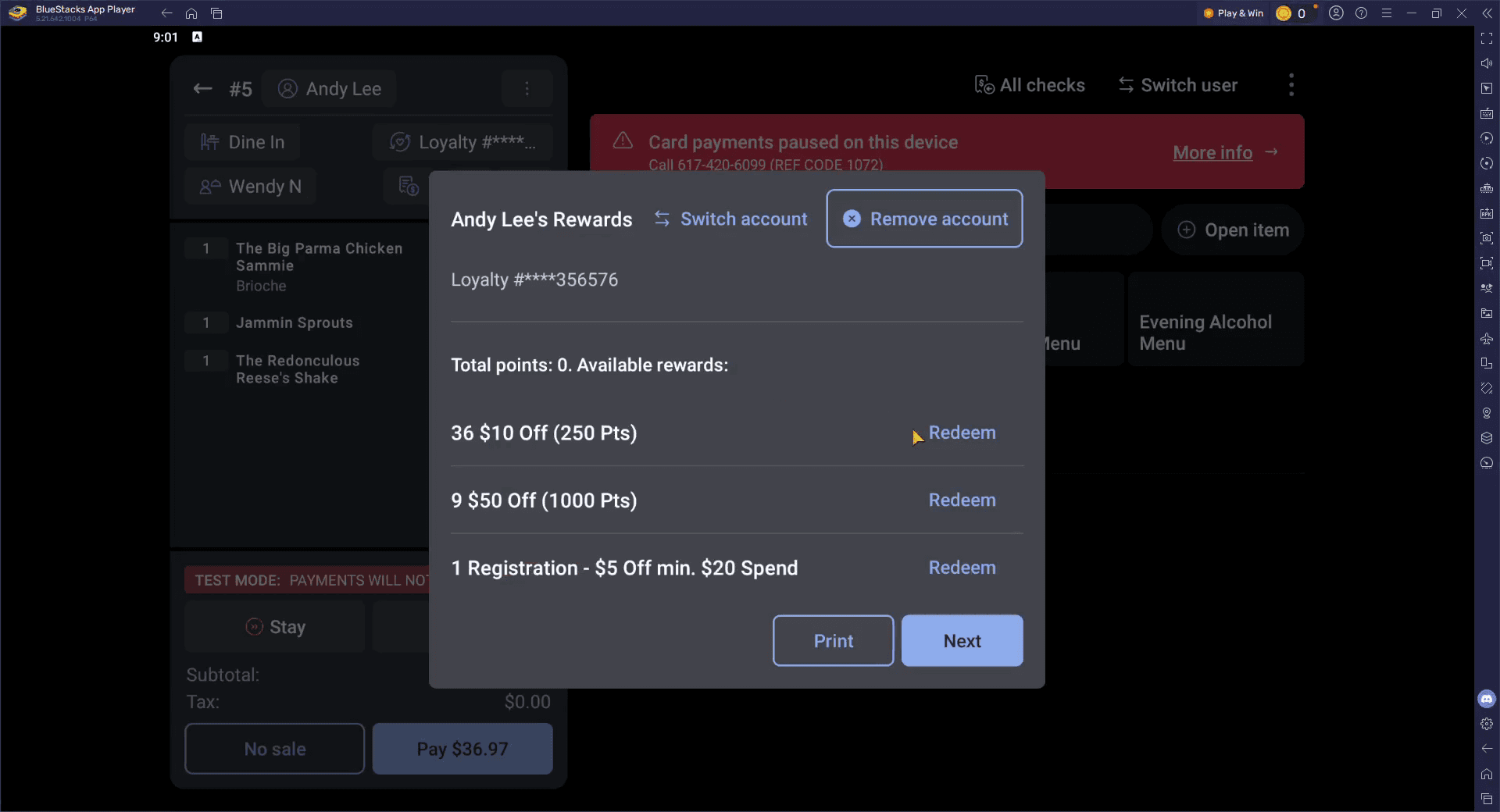
*PLEASE NOTE: If the rewards listed appear greyed out, this means the check has not met the requirements to redeem rewards. It may be due to one of the following reasons:
There are no applicable rewards available for the current check.
The check does not meet the requirements for reward redemption.
The guest is still a Starter Member and must complete their registrations before redeeming rewards. If this is the case, they can complete their registration by visiting: my.spendgo.com/thompsonrestaurants to finish signing up with their mobile number.