Assign Delivery Drivers and Manage Routes on Reservety
Learn how to assign delivery drivers to orders, optimize routing, and manage statuses using the Reservety dashboard and Delivery Driver app.
This guide explains how to assign delivery drivers to existing orders, optimize delivery routes, and track order statuses in real-time.
By completing this, you ensure timely deliveries and seamless synchronization between your rental system and the mobile app.
This applies to dispatchers and store managers responsible for logistics and order fulfillment. You will use this workflow to manage delivery schedules and coordinate with drivers.
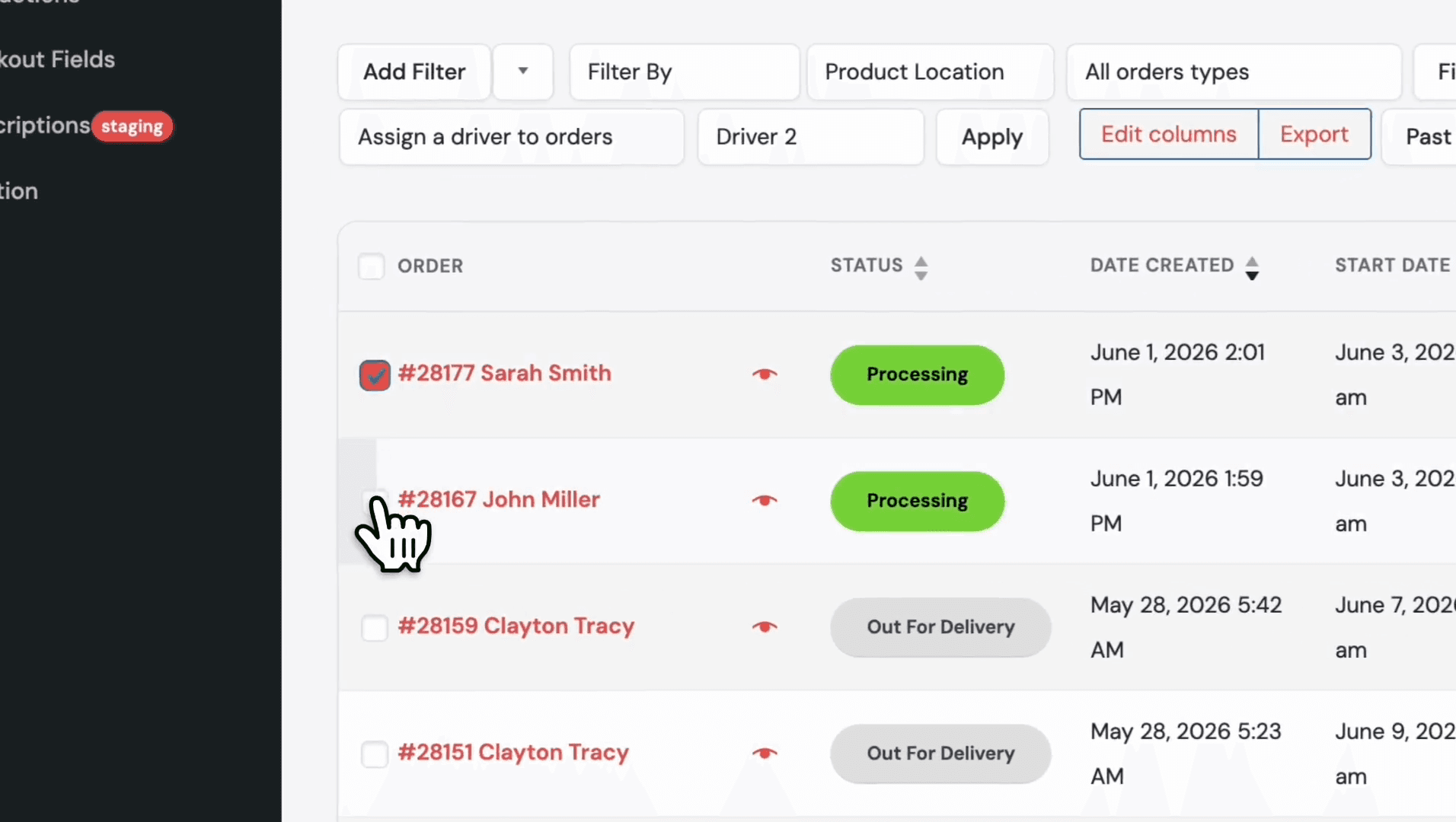
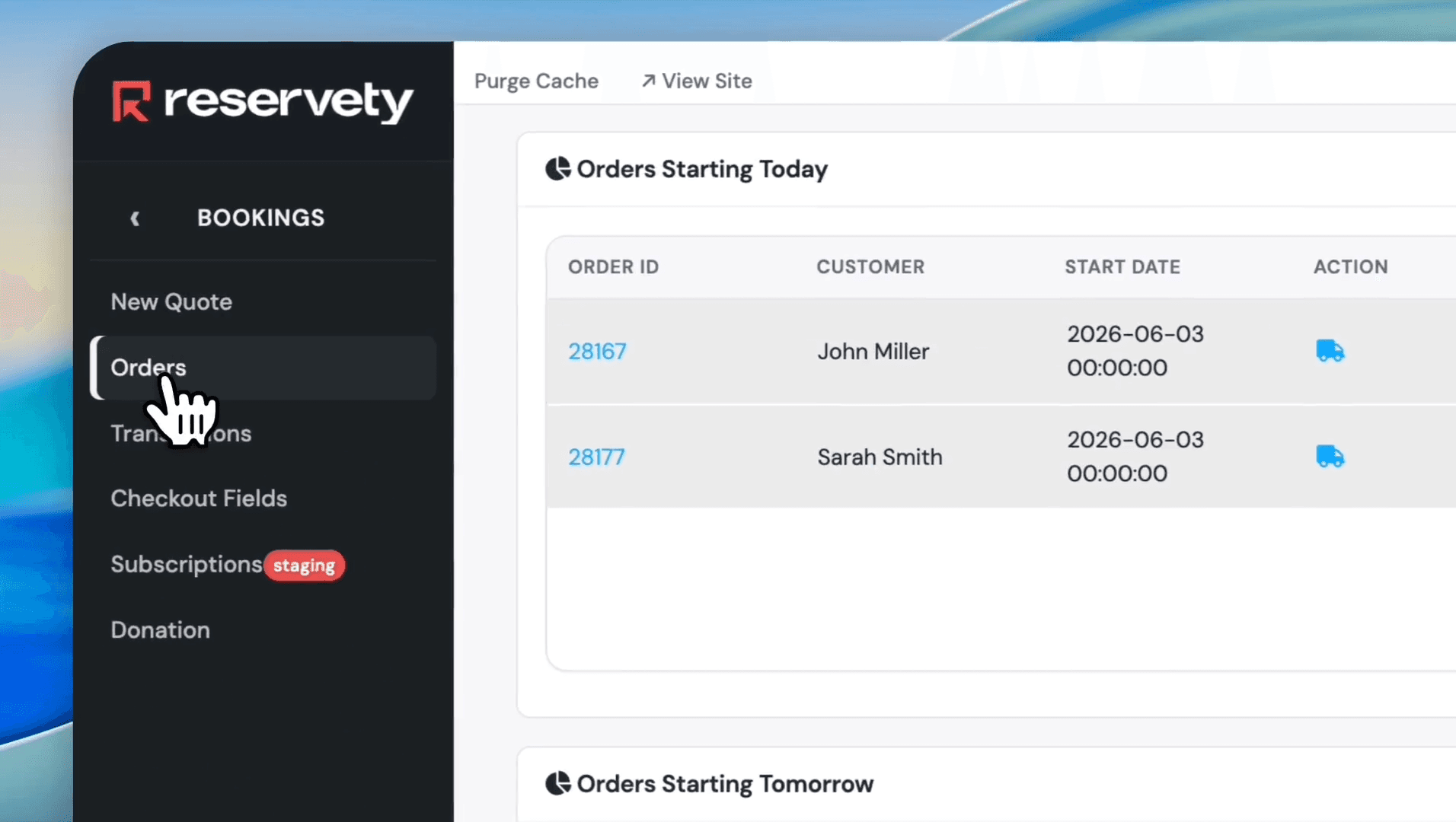
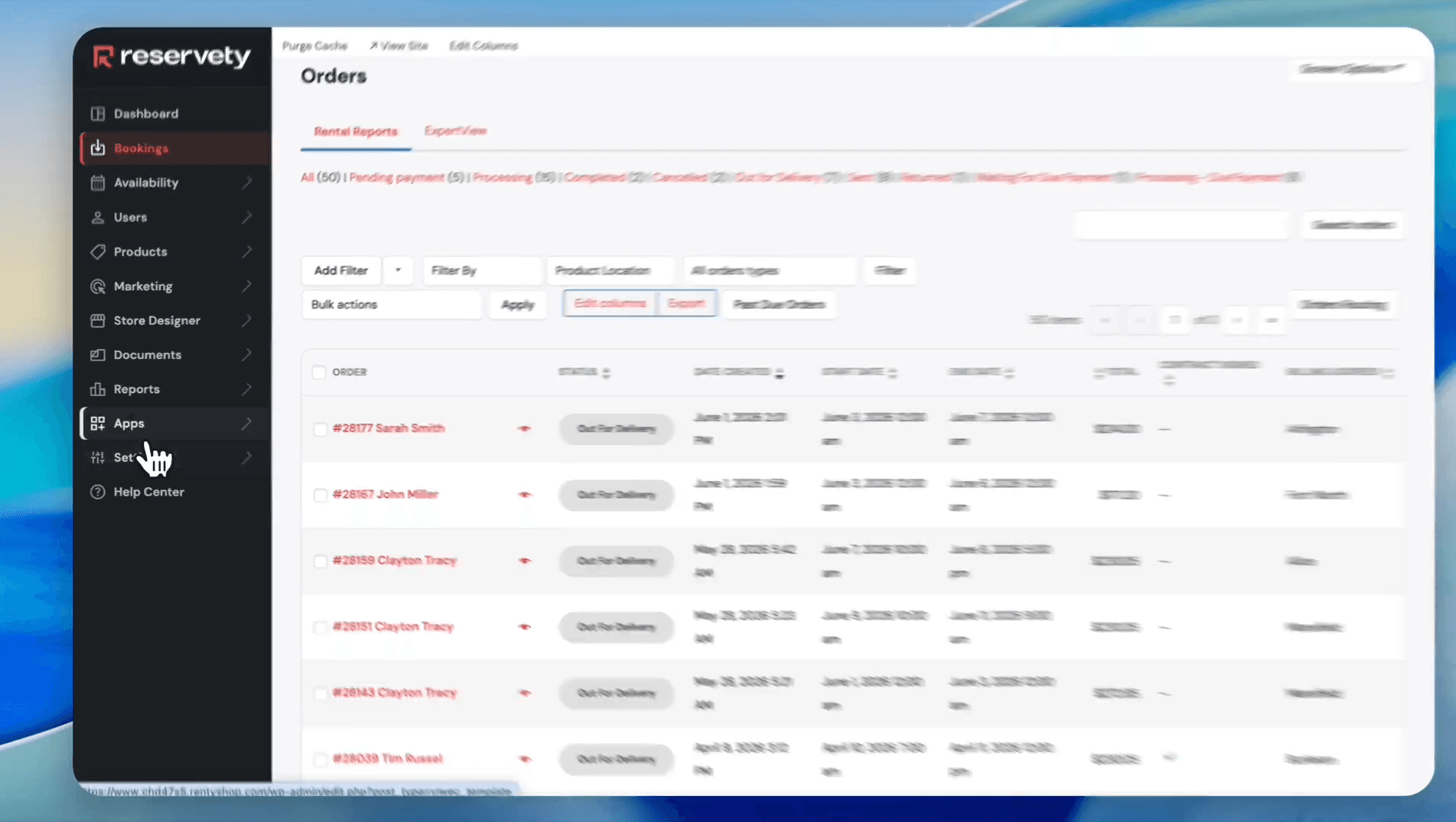
To assign delivery drivers to existing orders, navigate to the main bookings view.
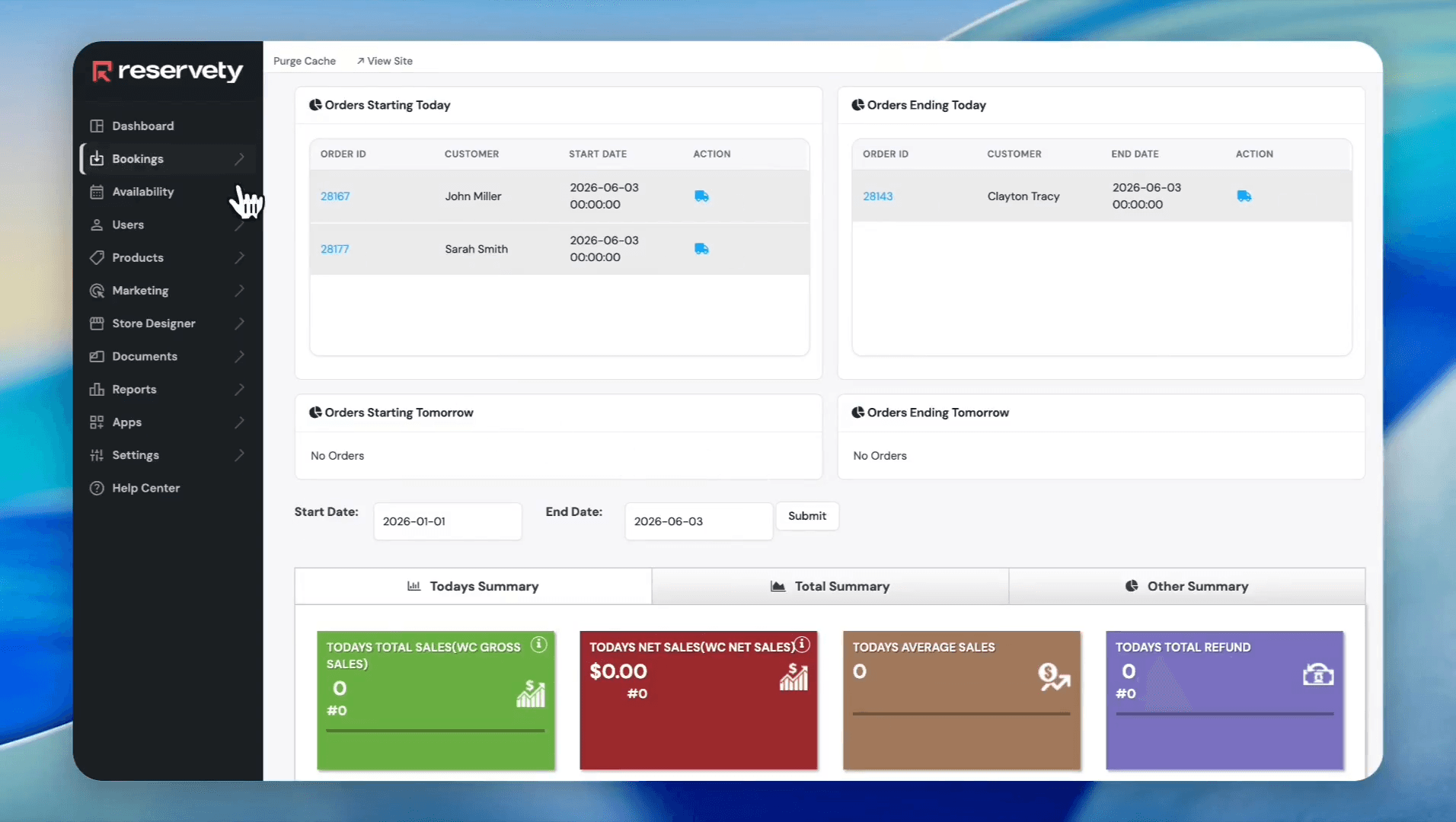
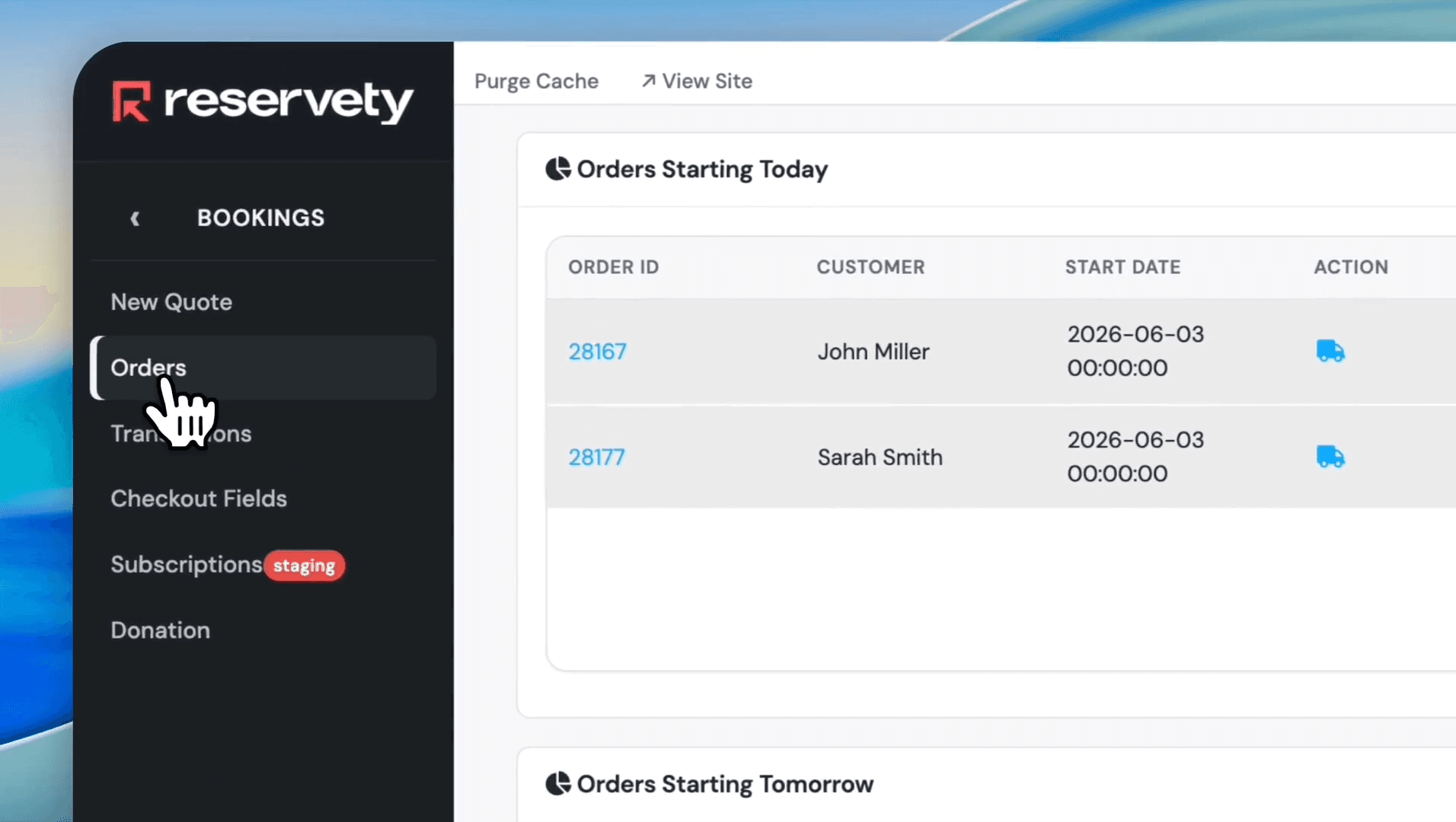
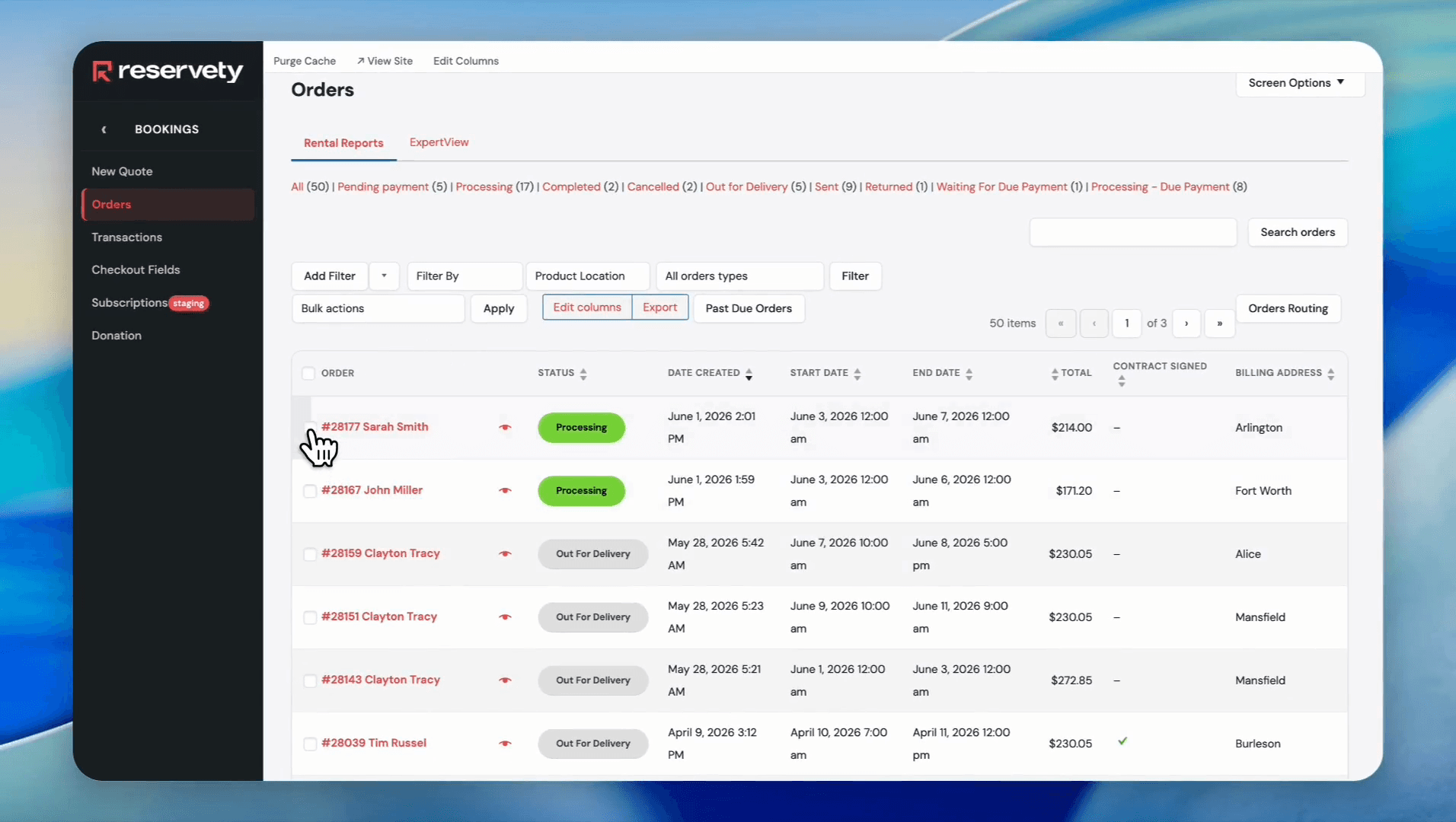
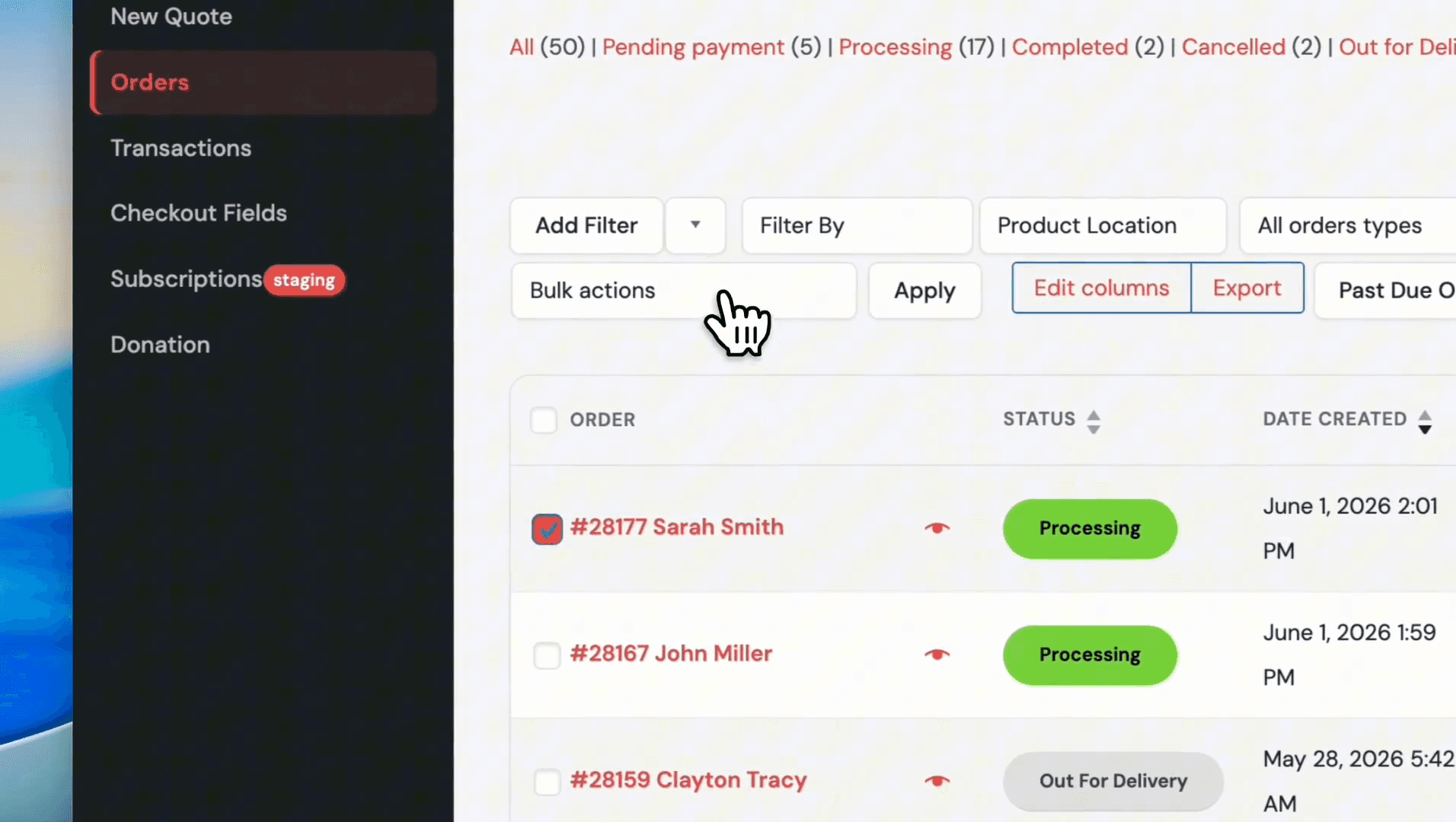
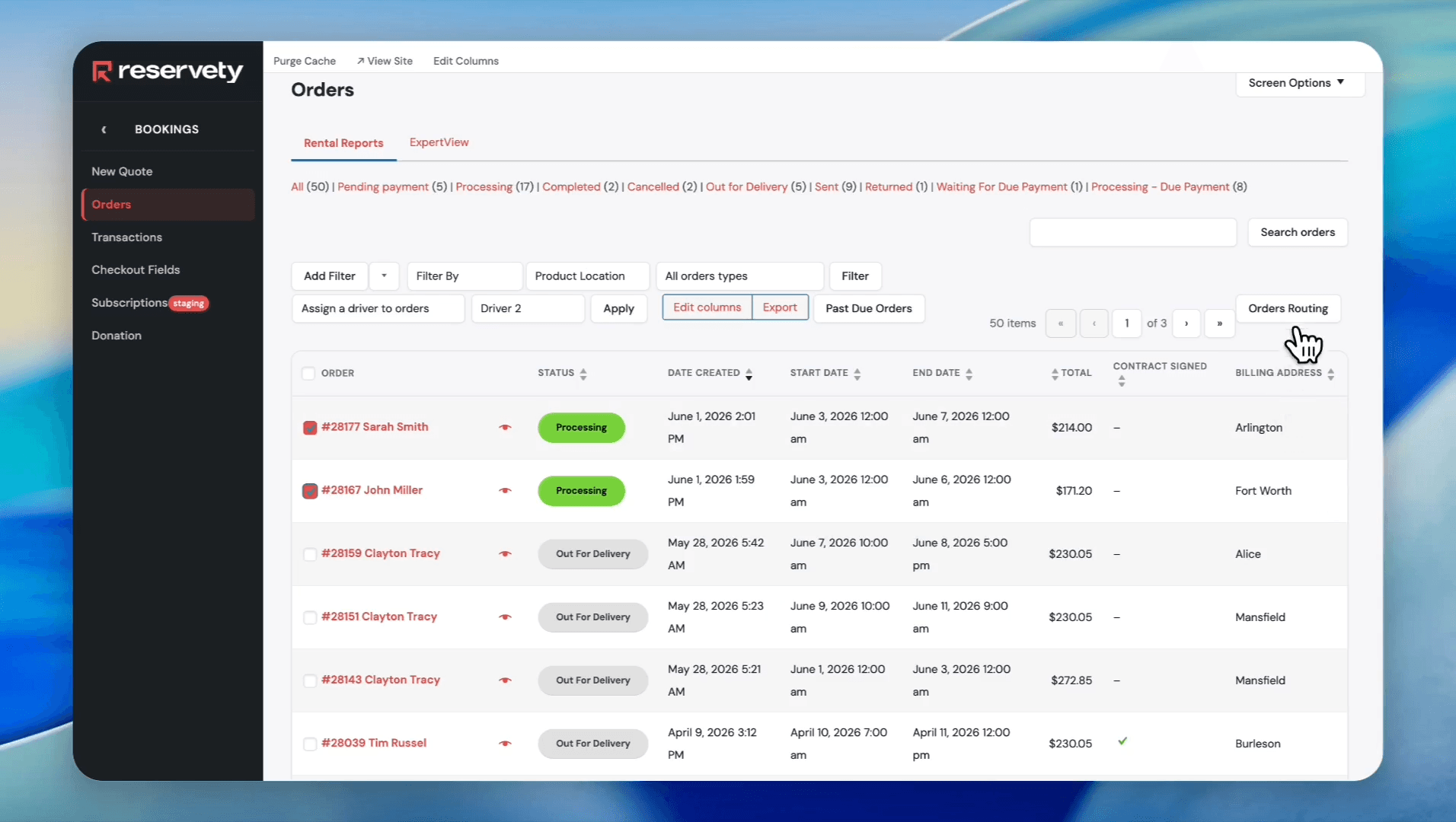
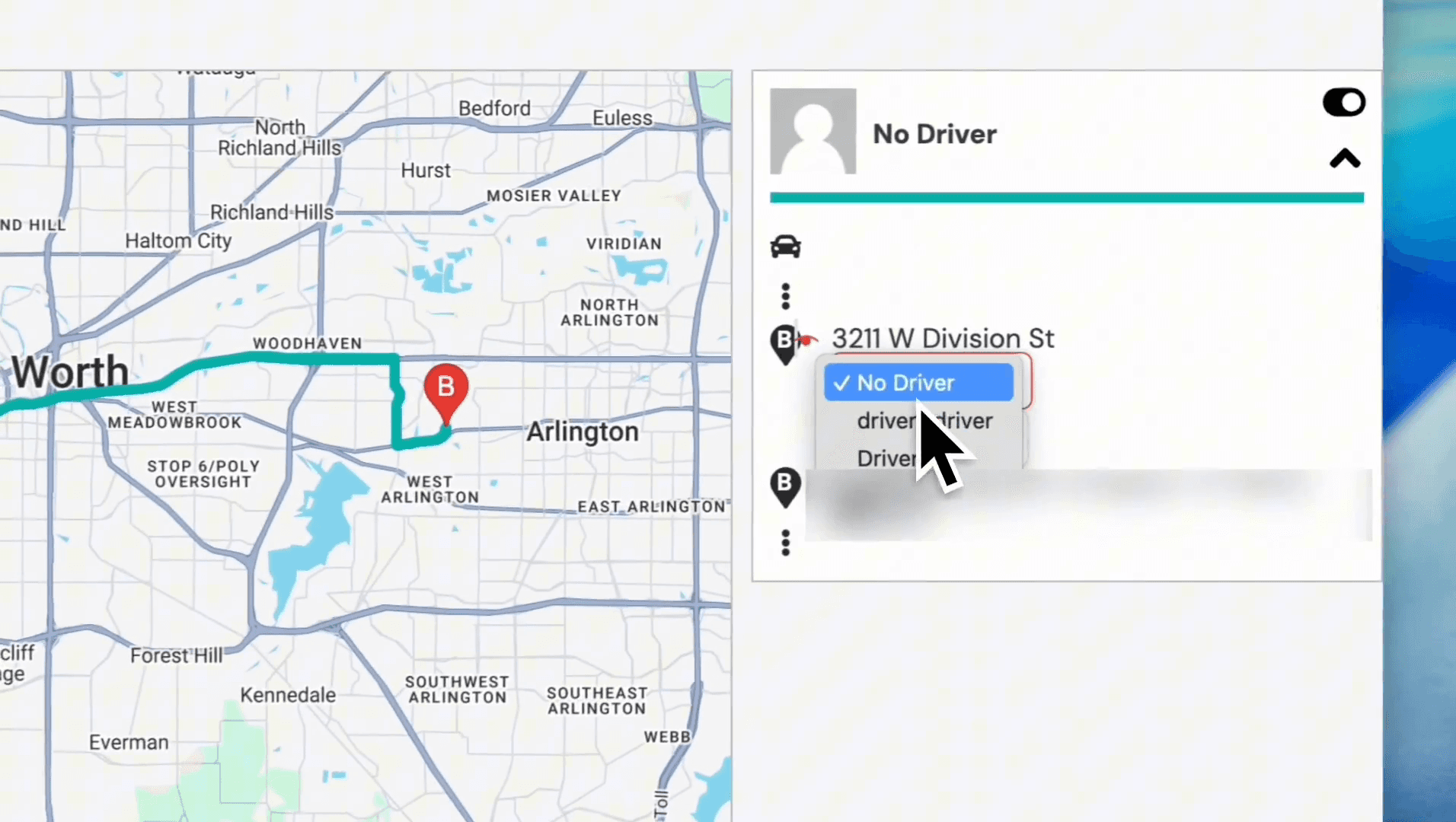
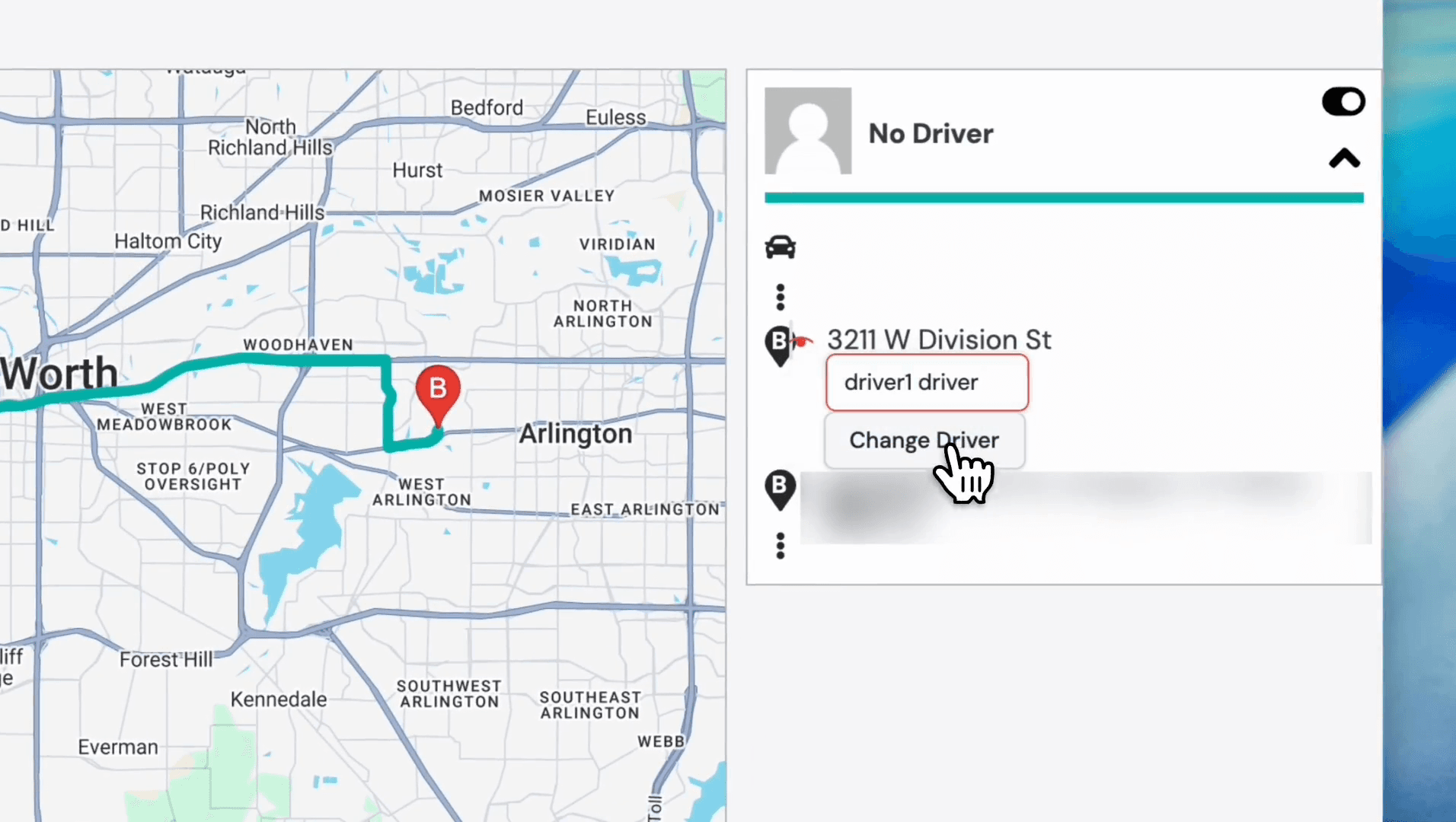
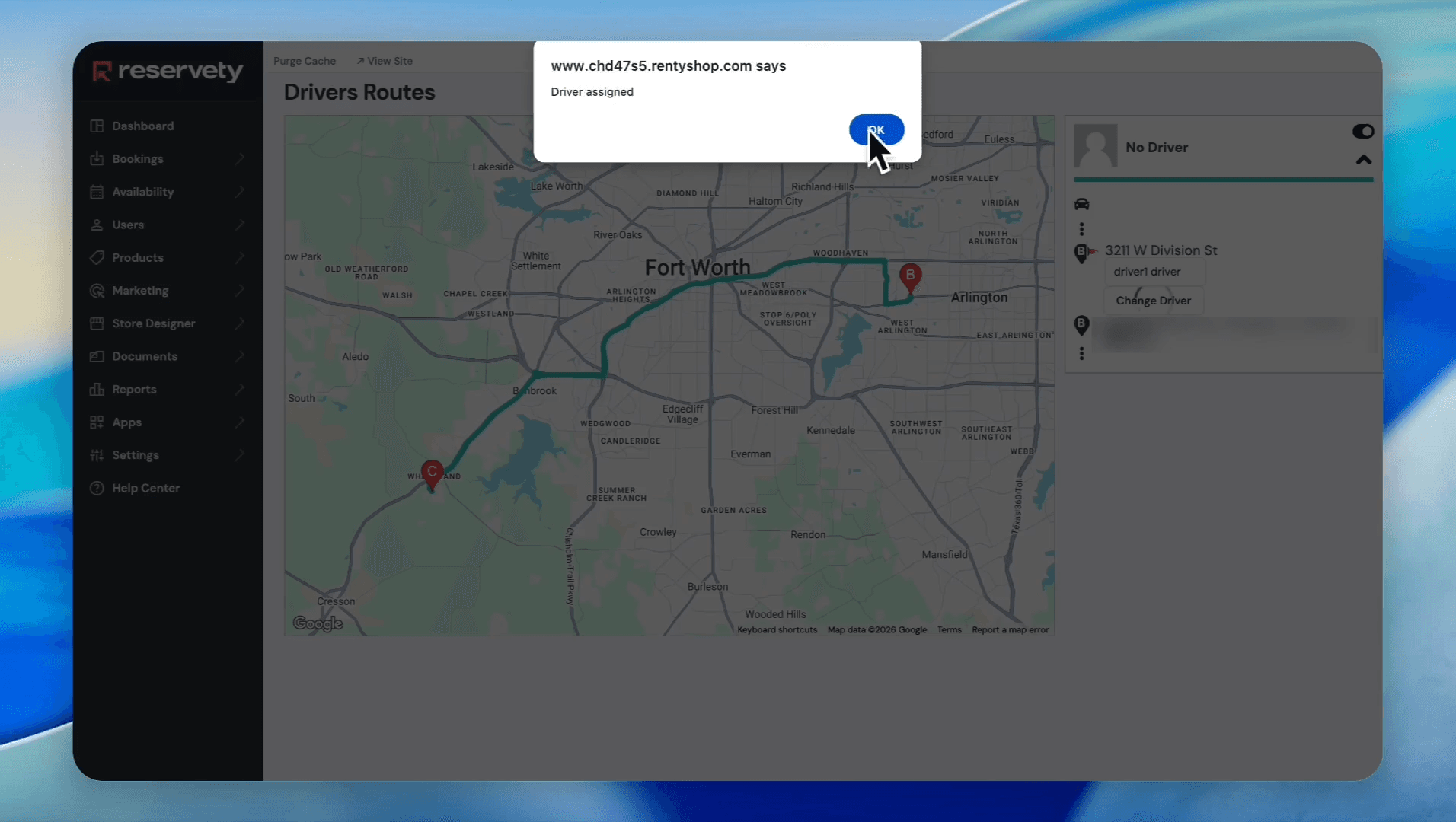
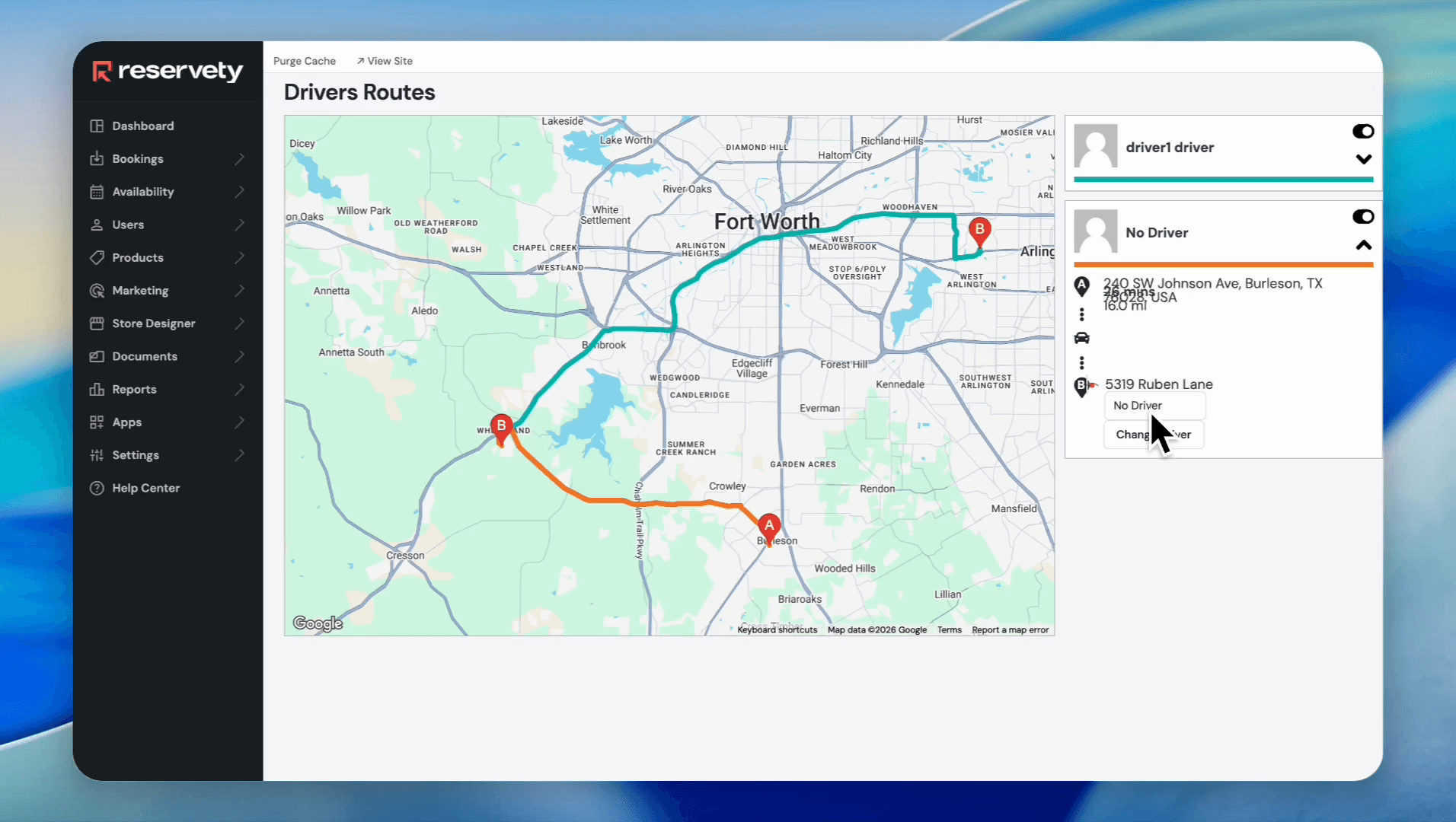
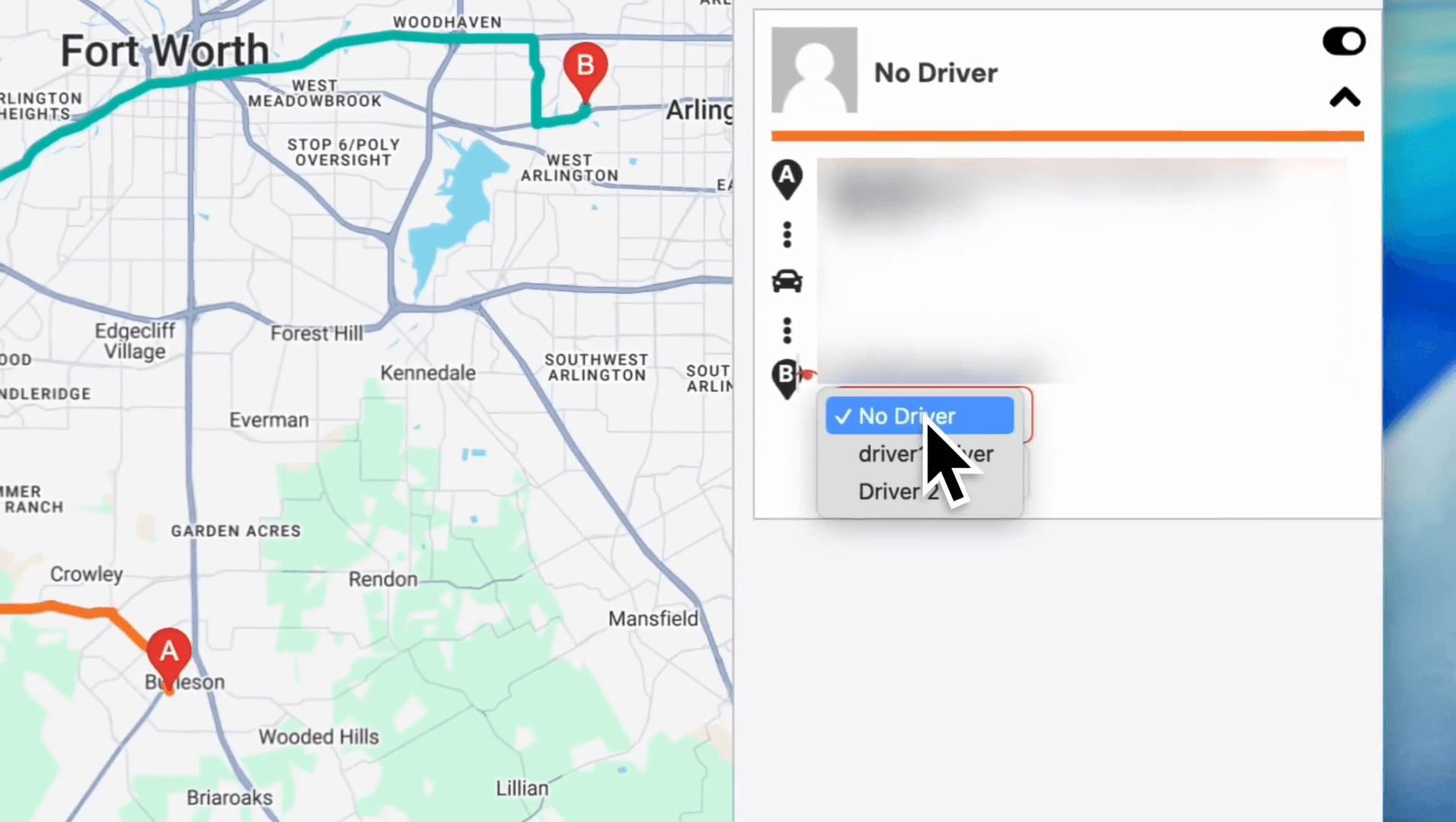
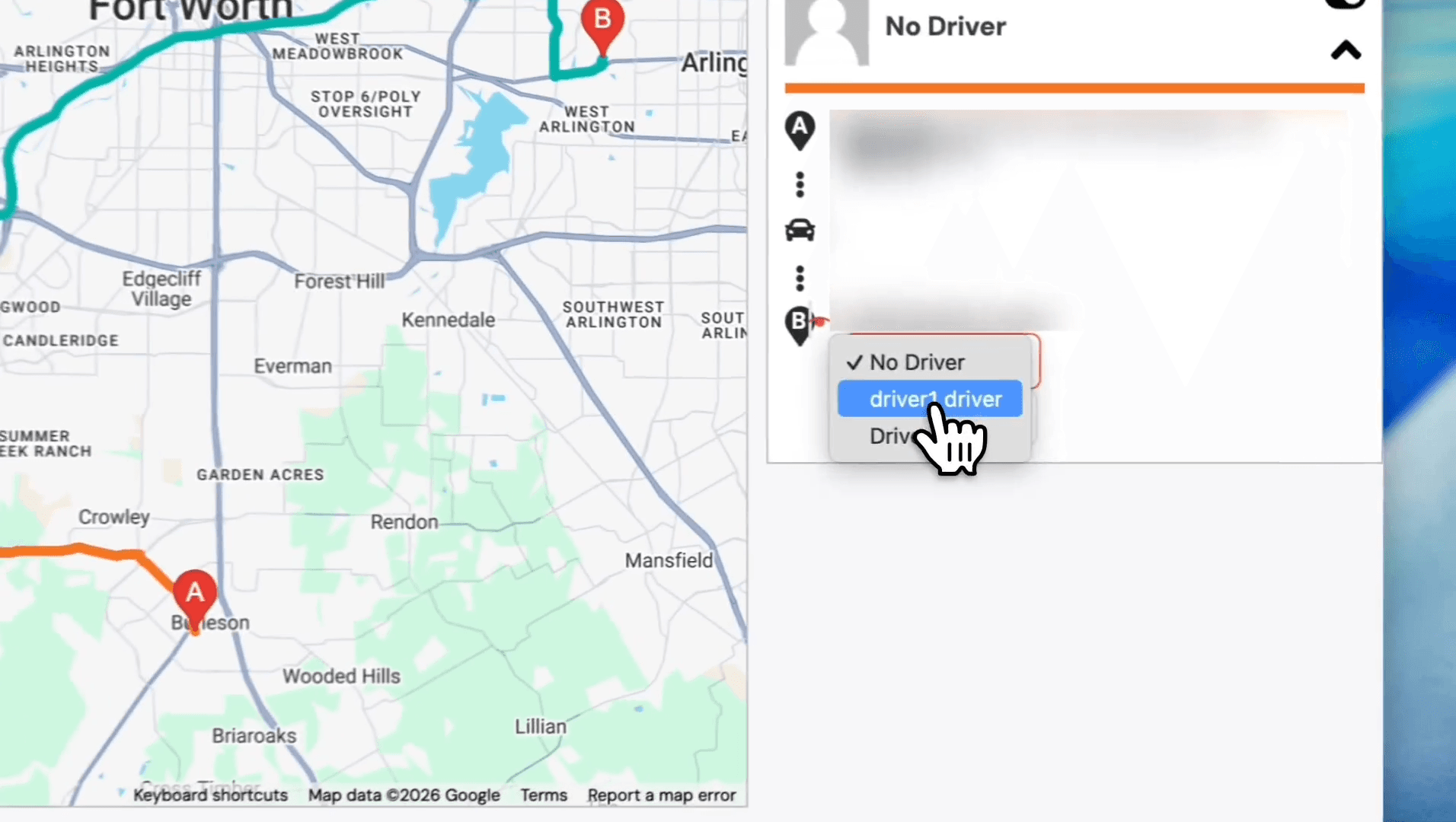
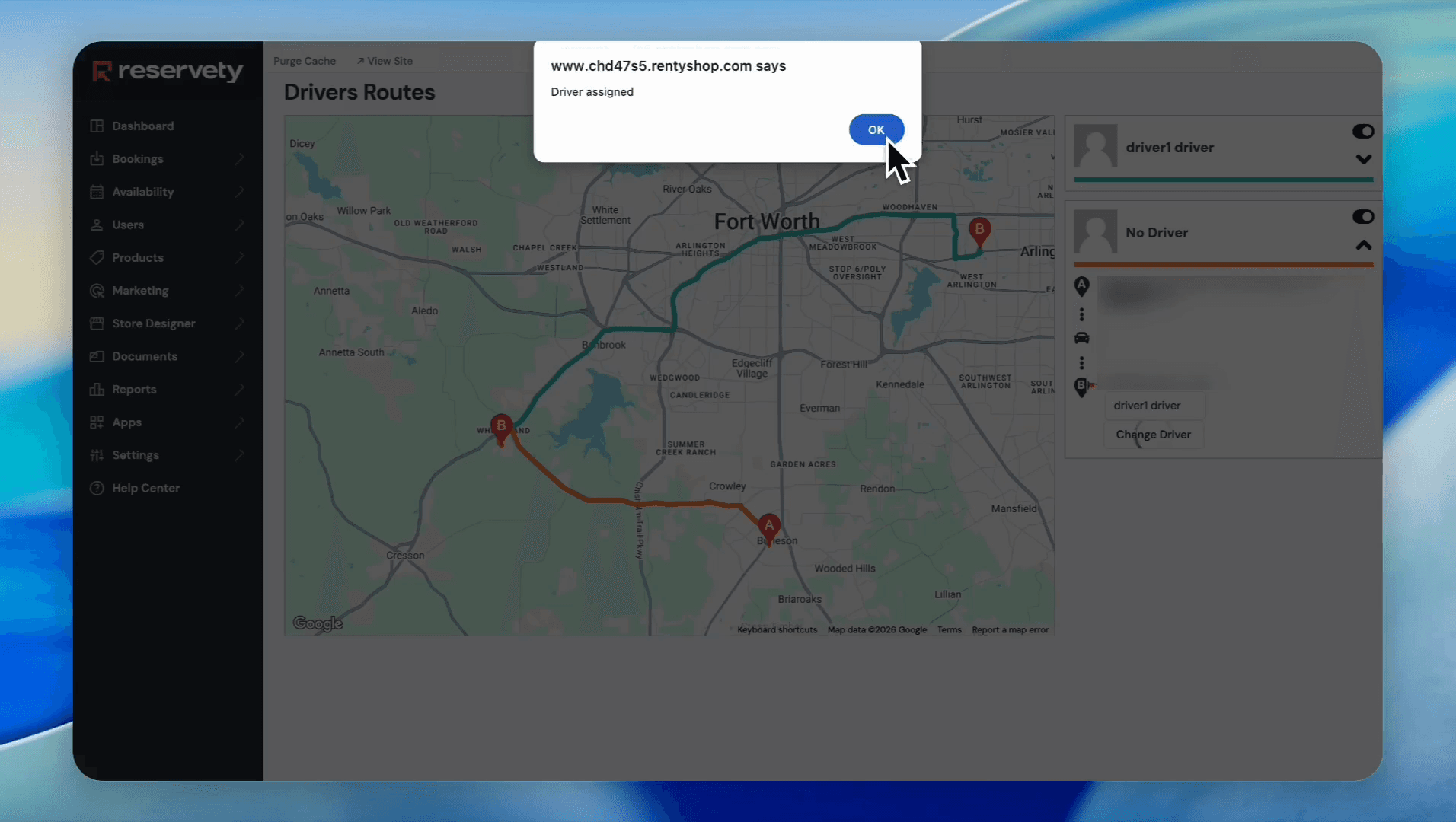
Orders in a "Processing" status need to be assigned to drivers. You can assign drivers directly from the main view or use the interactive Orders Routing map.
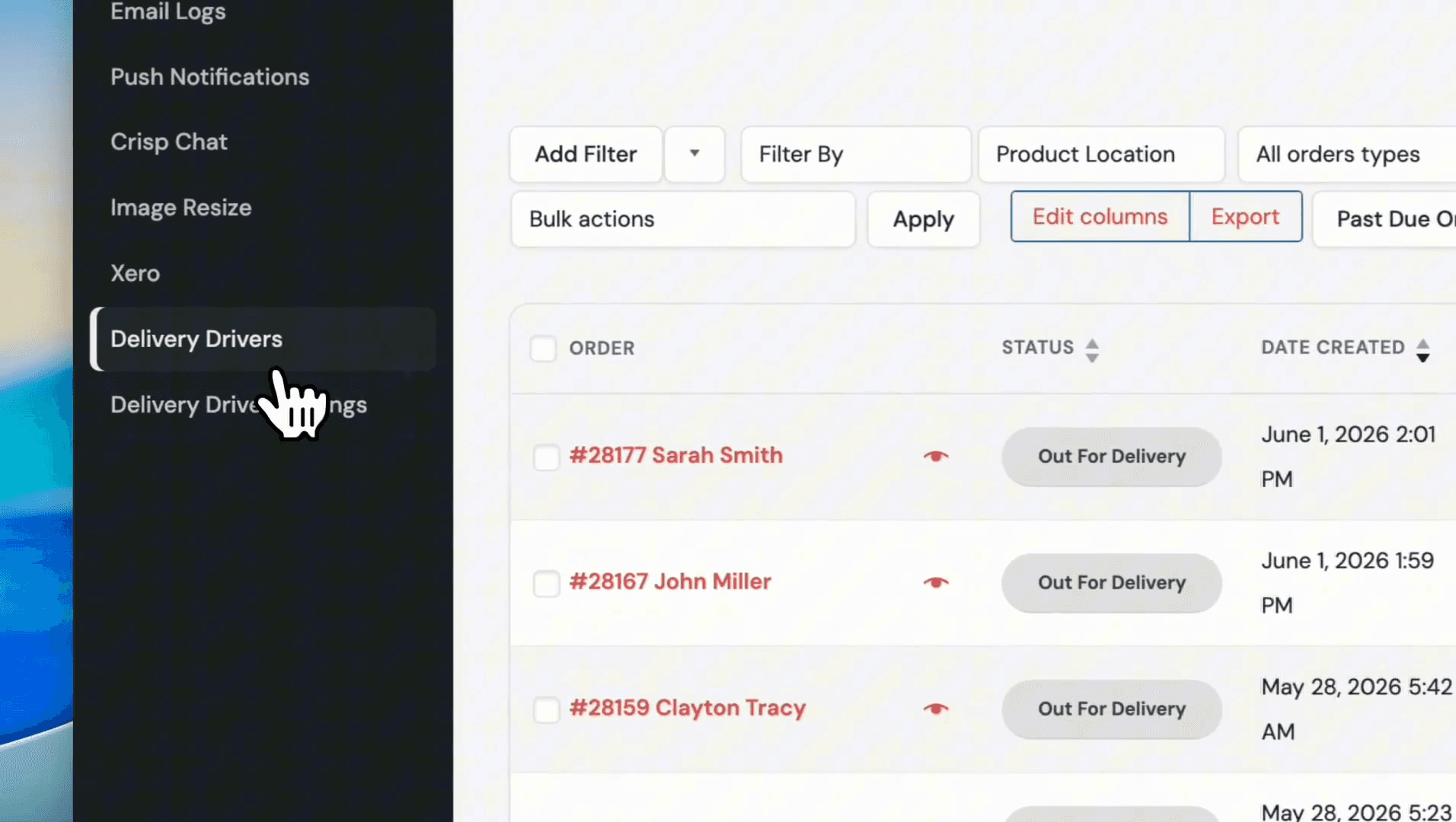
Method 1: Direct Assignment from Orders List
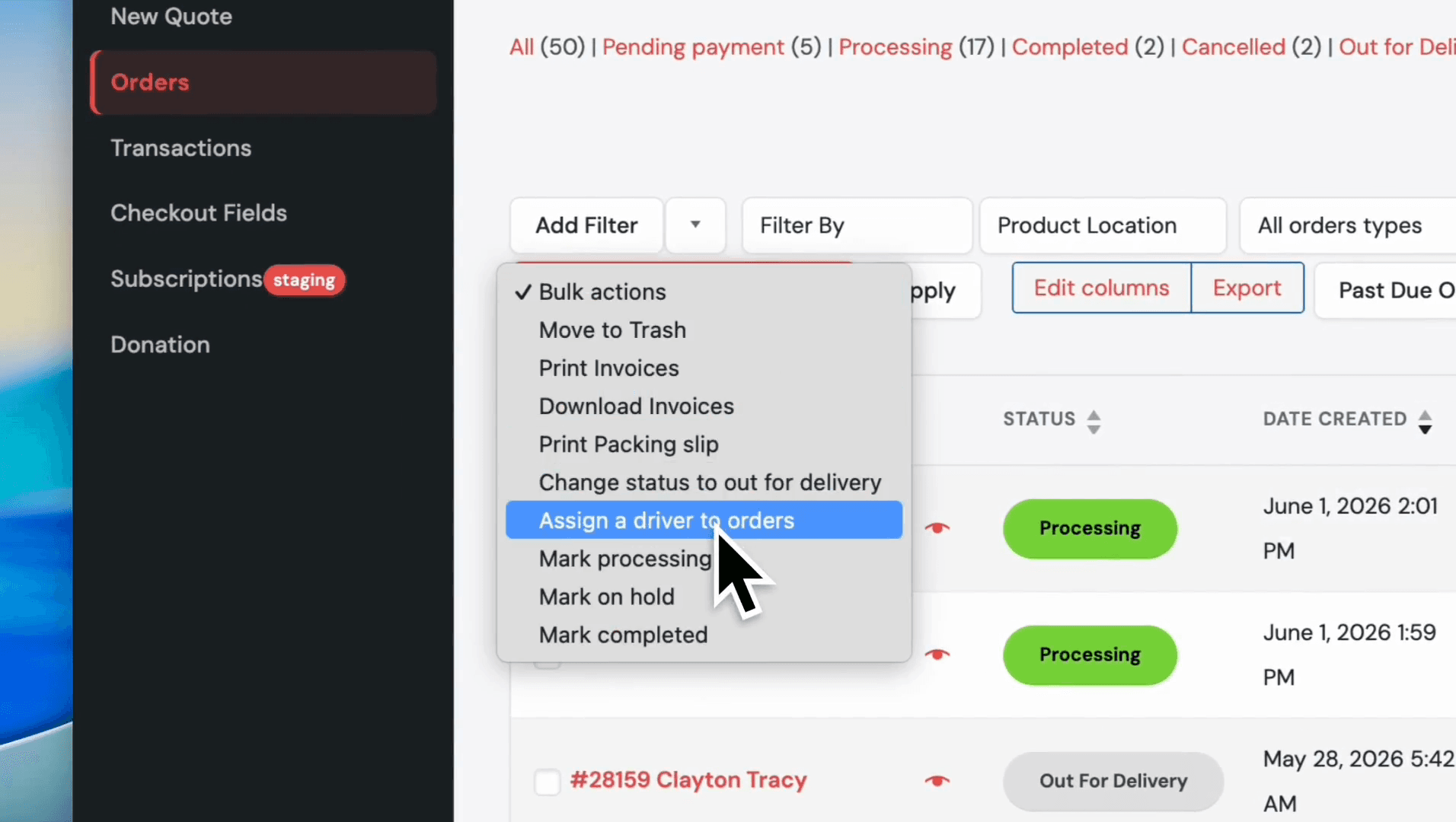
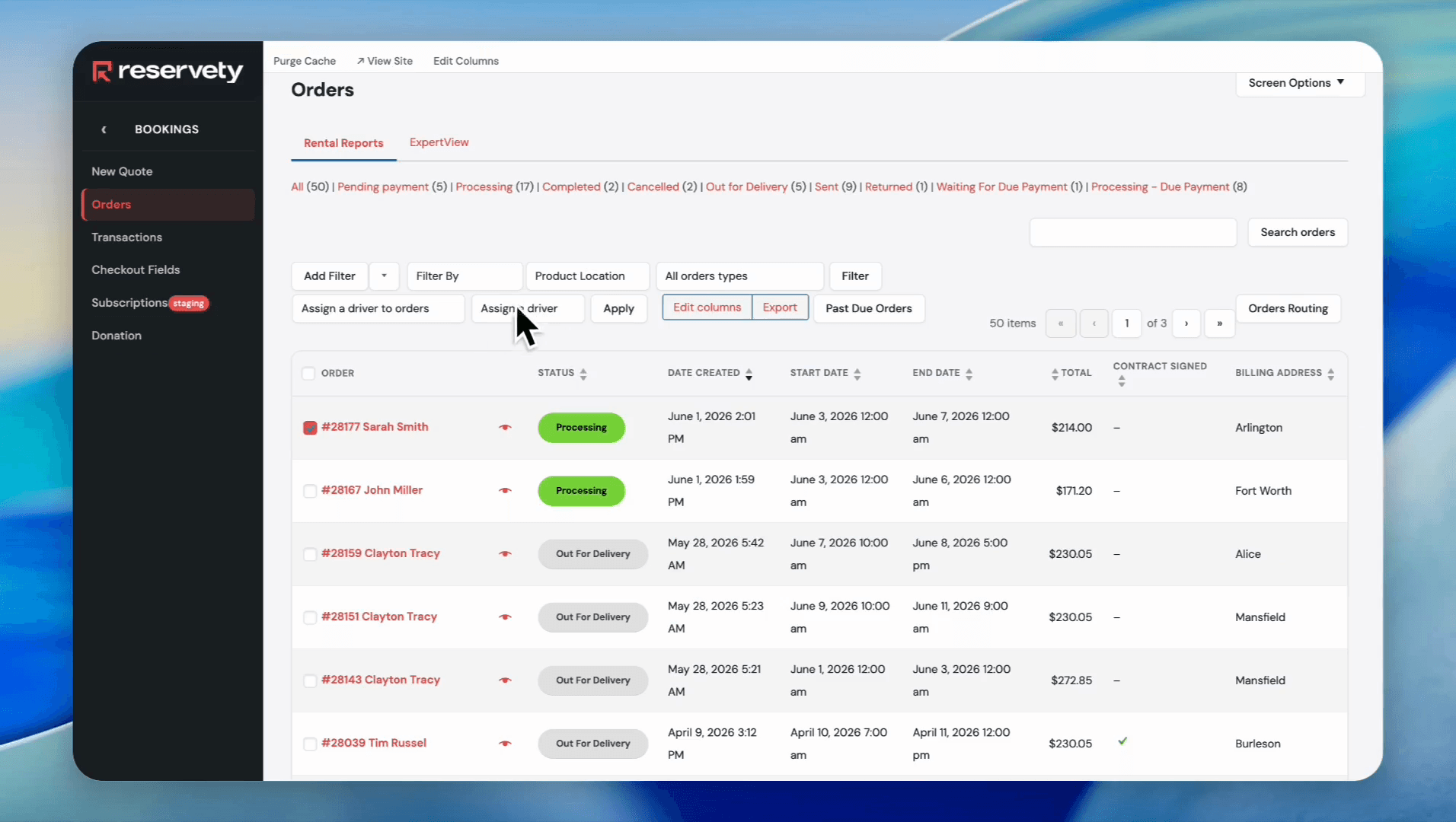
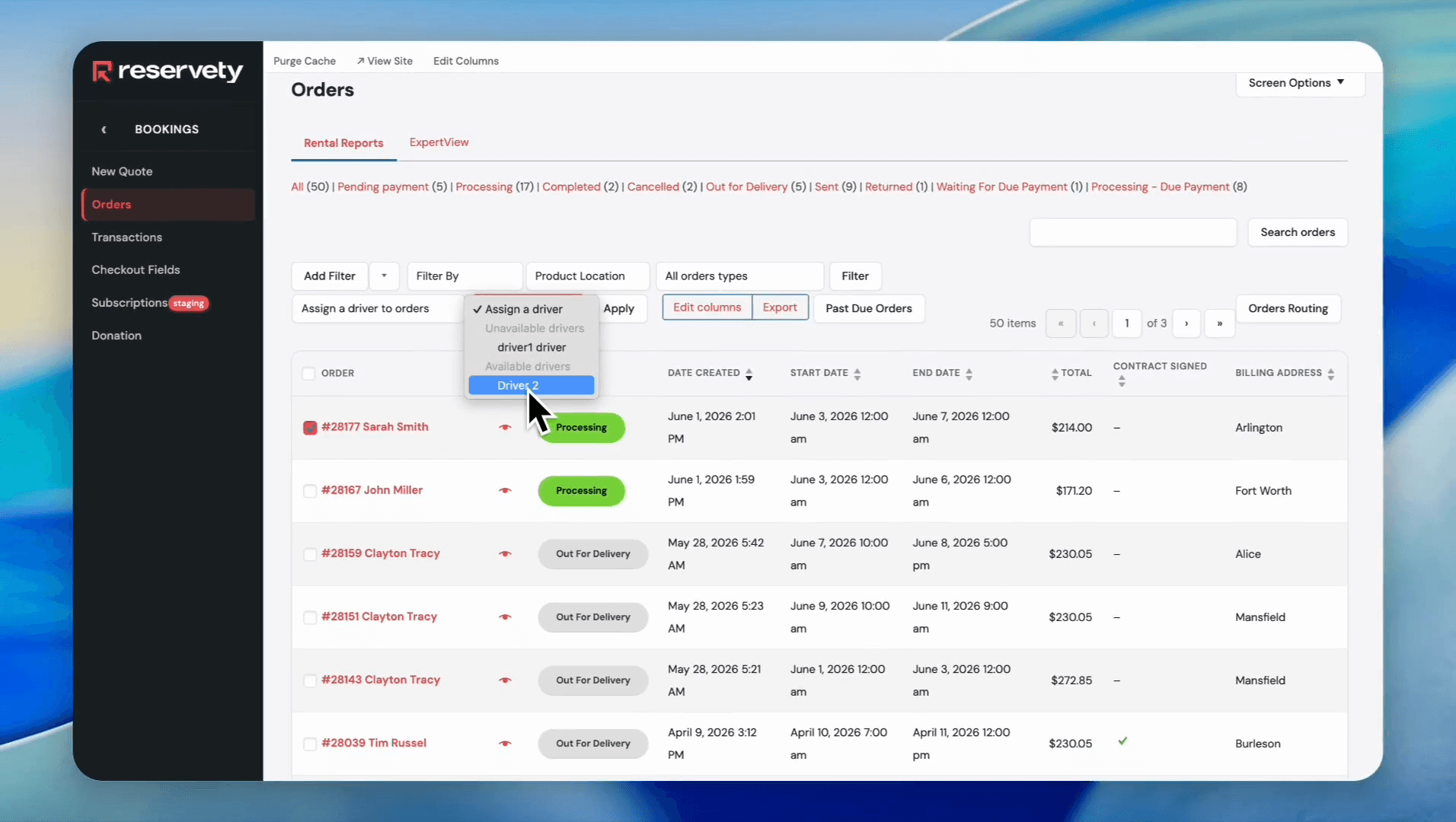
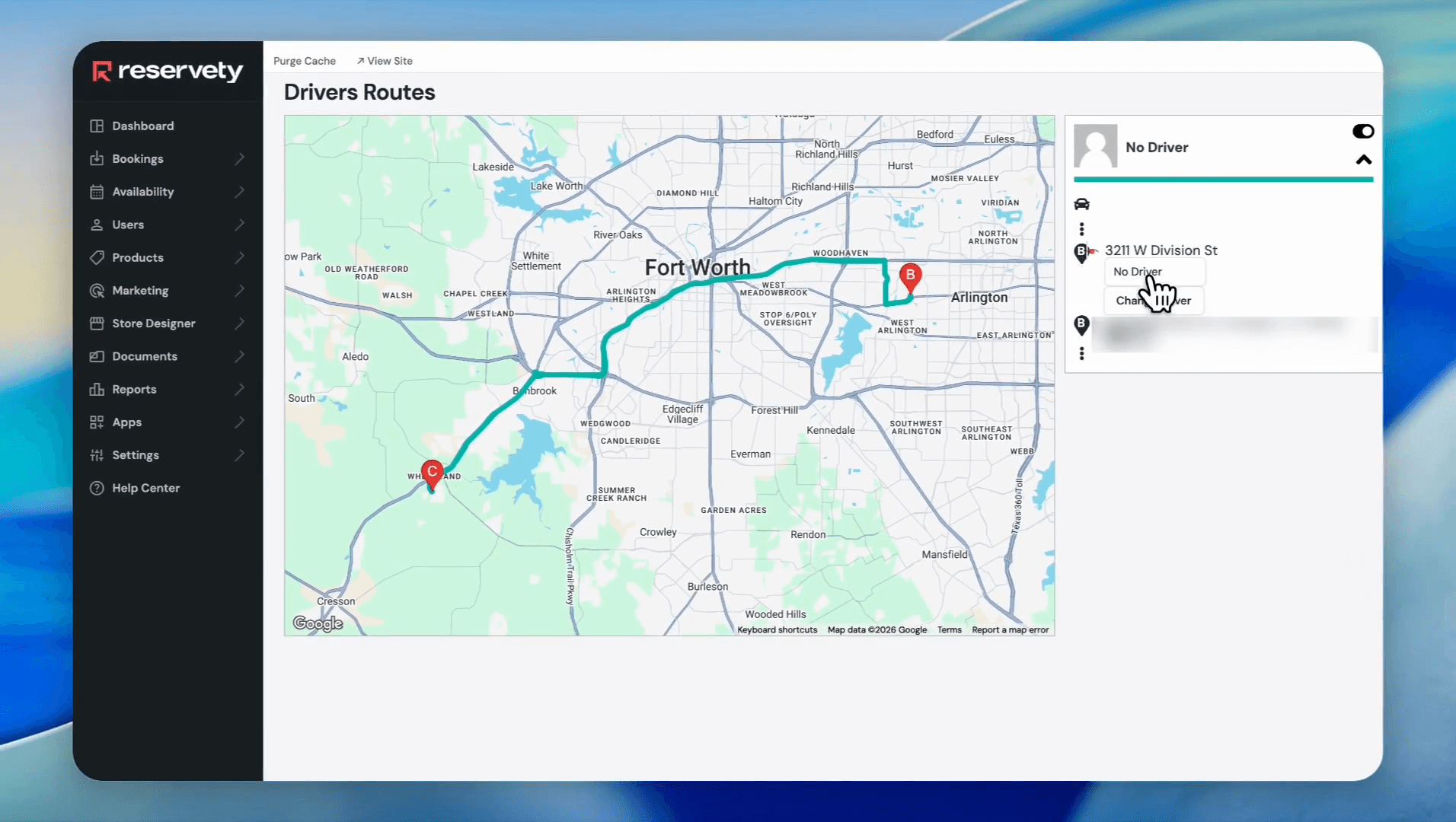
Method 2: Interactive Orders Routing
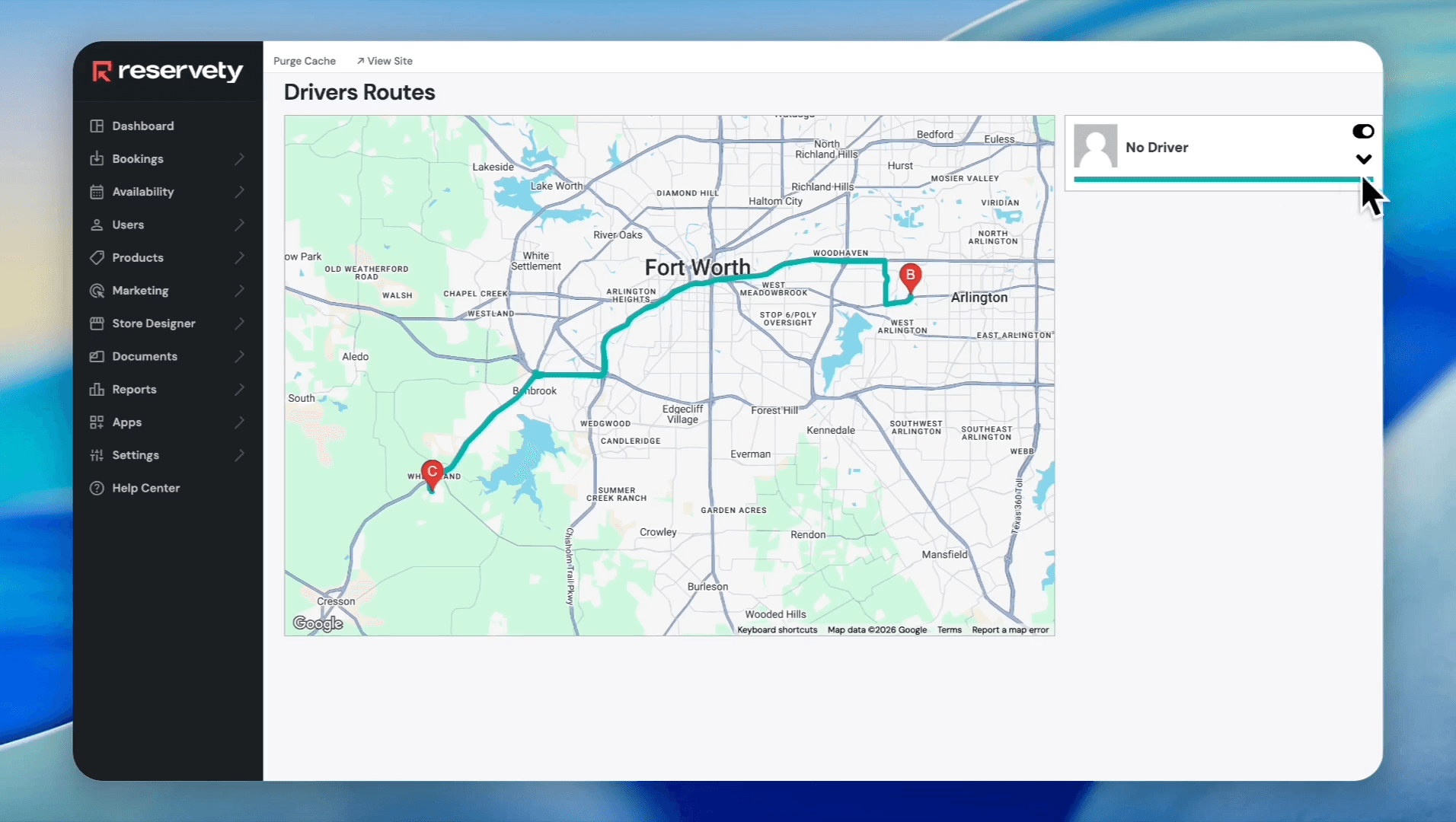
To view delivery time estimates and geographic data, use the Orders Routing interface.
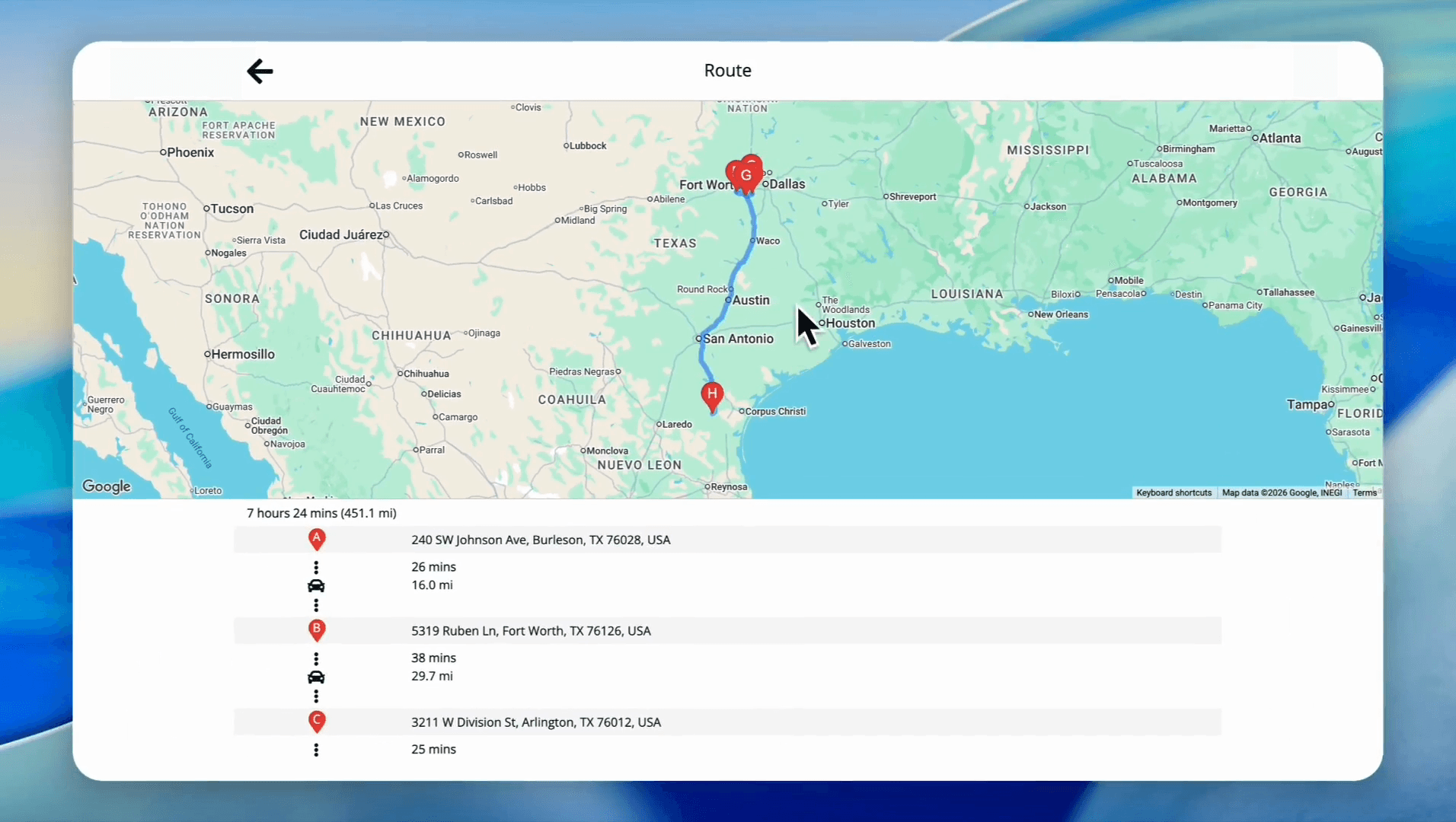
This view displays a route map with destination points, showing exactly how long it will take to deliver to each location.
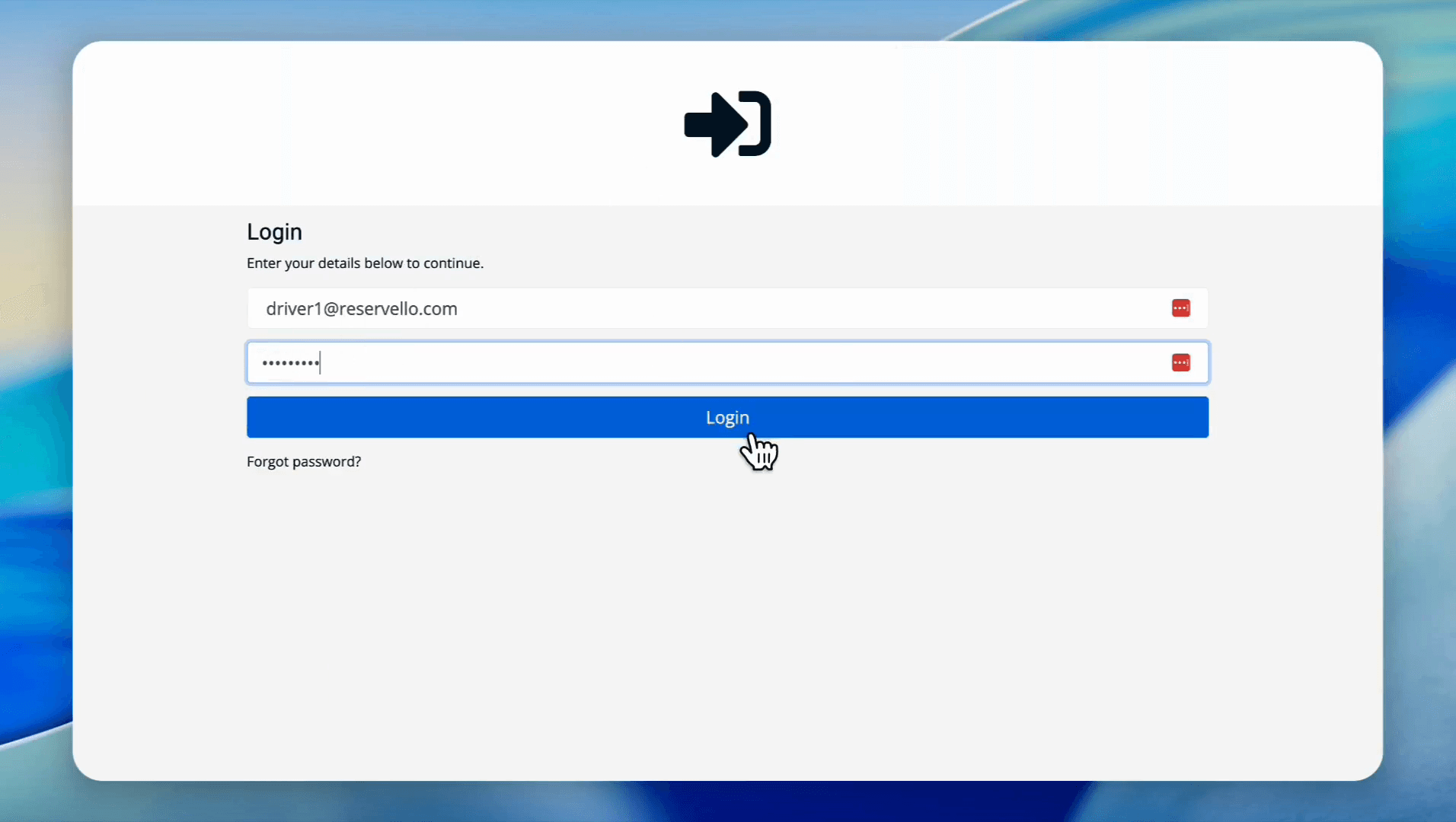
Log into the Delivery Driver App
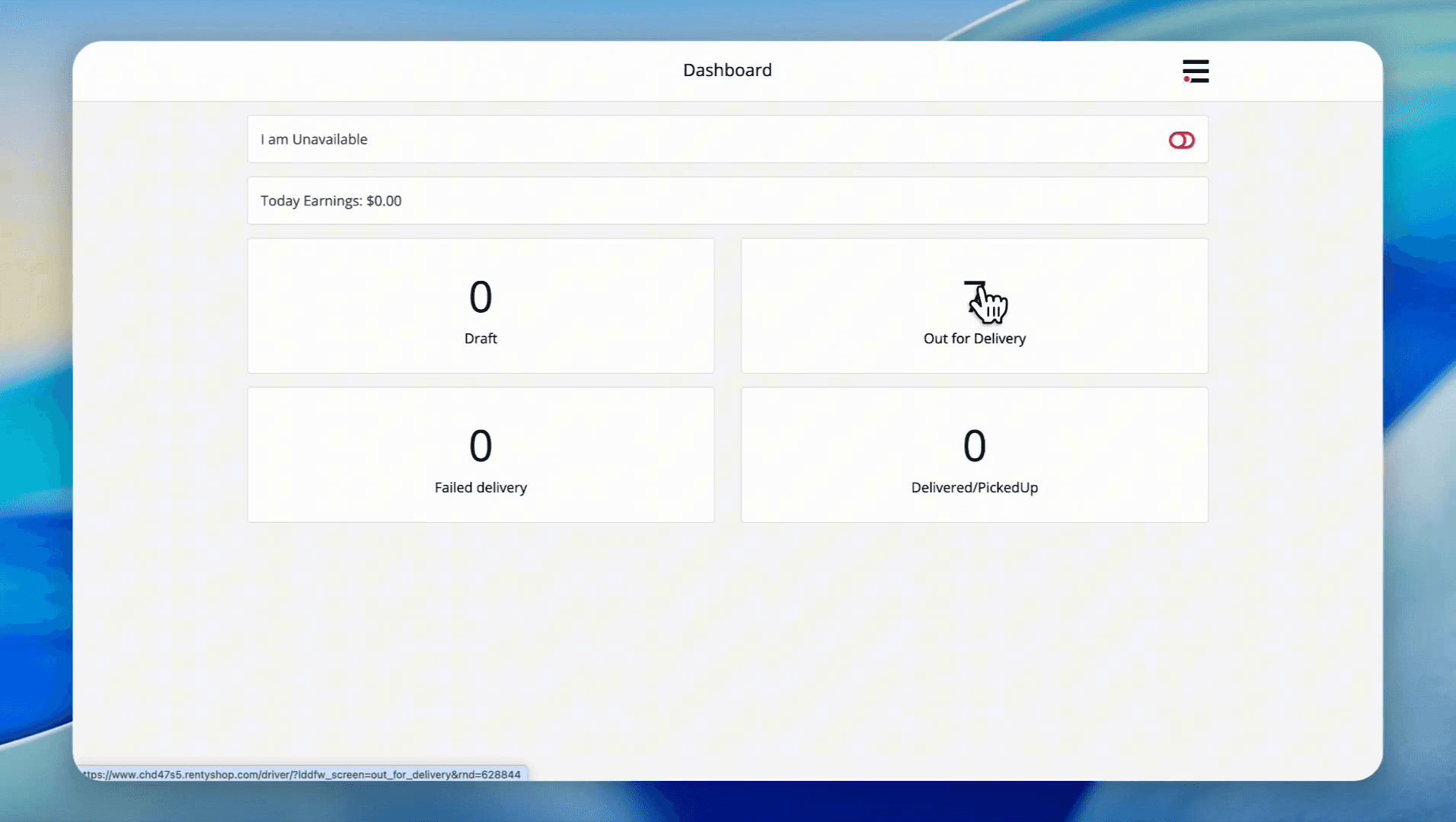
Drivers use their mobile devices to view orders and log statuses.
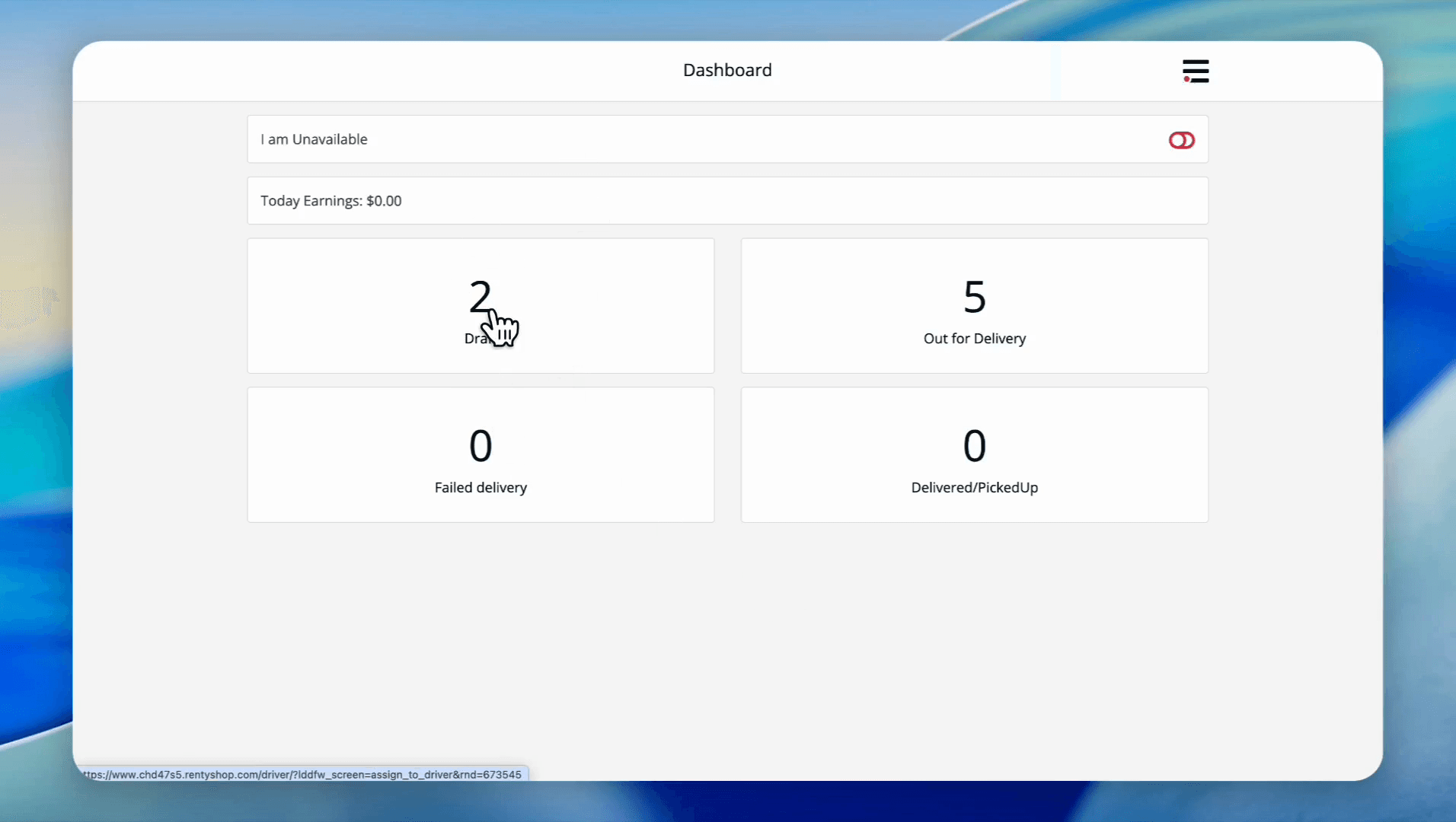
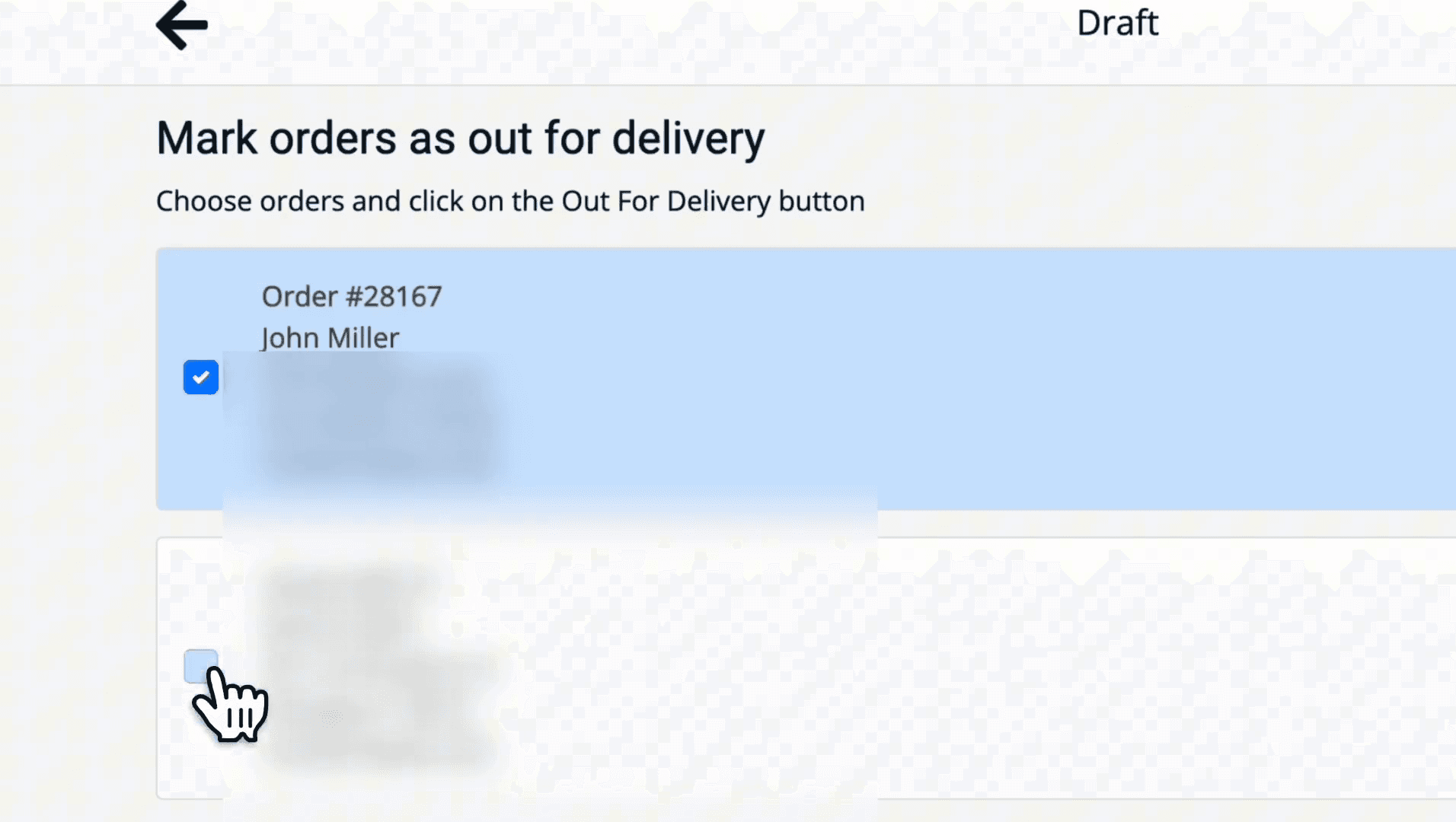
Once selected, the driver marks the orders as "Out for Delivery". Doing this automatically synchronizes the status back to the main rental dashboard.
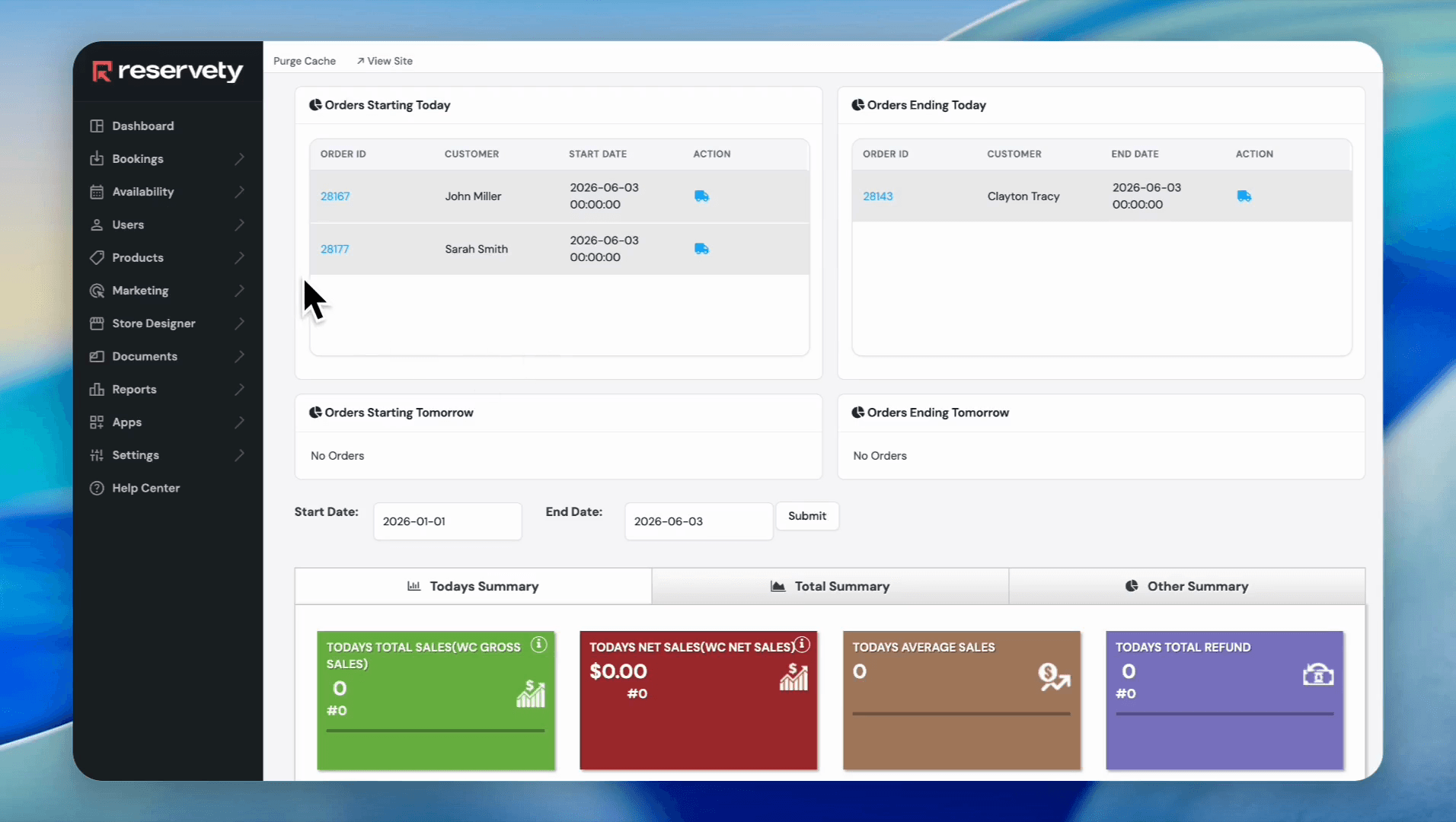
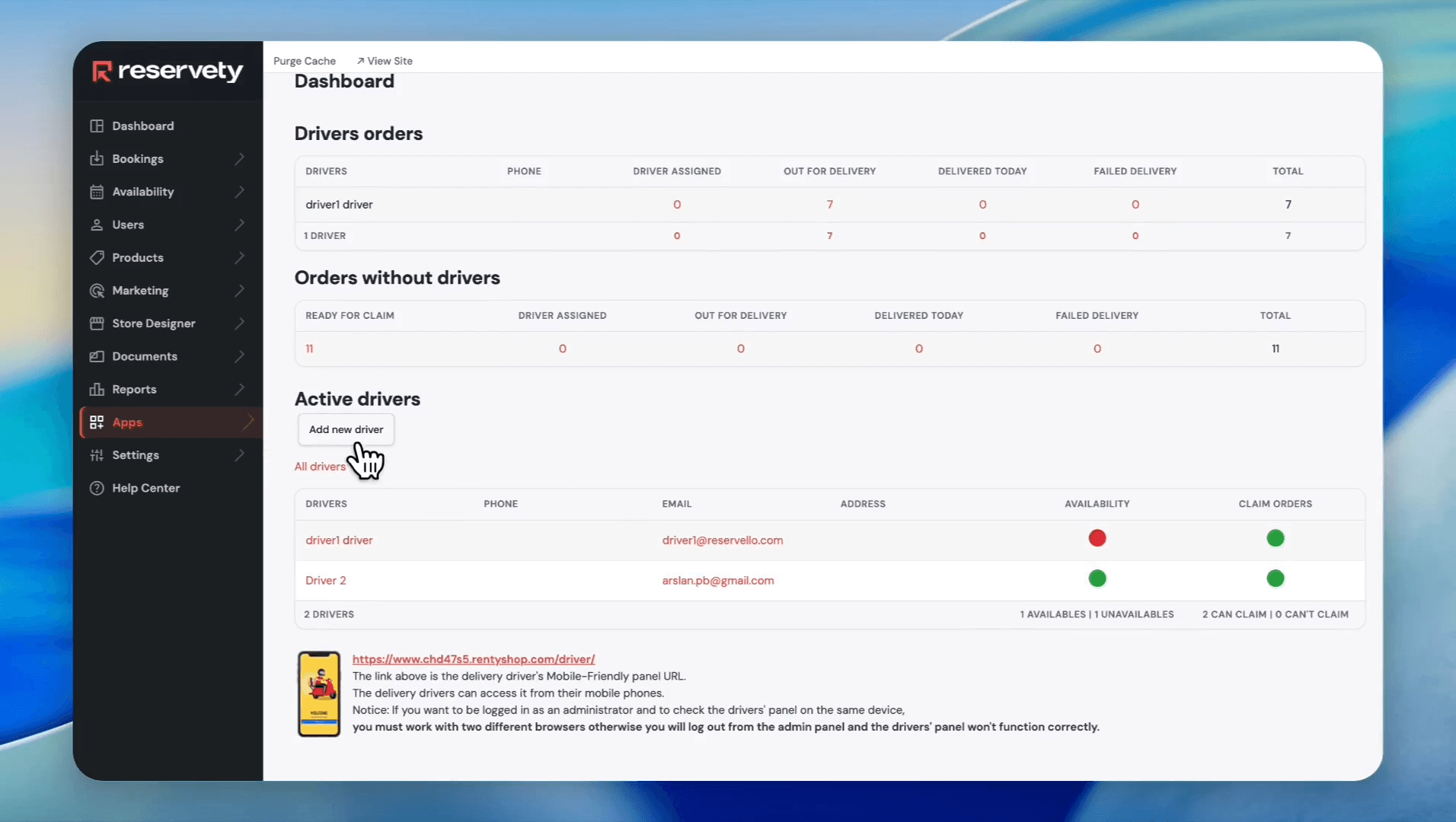
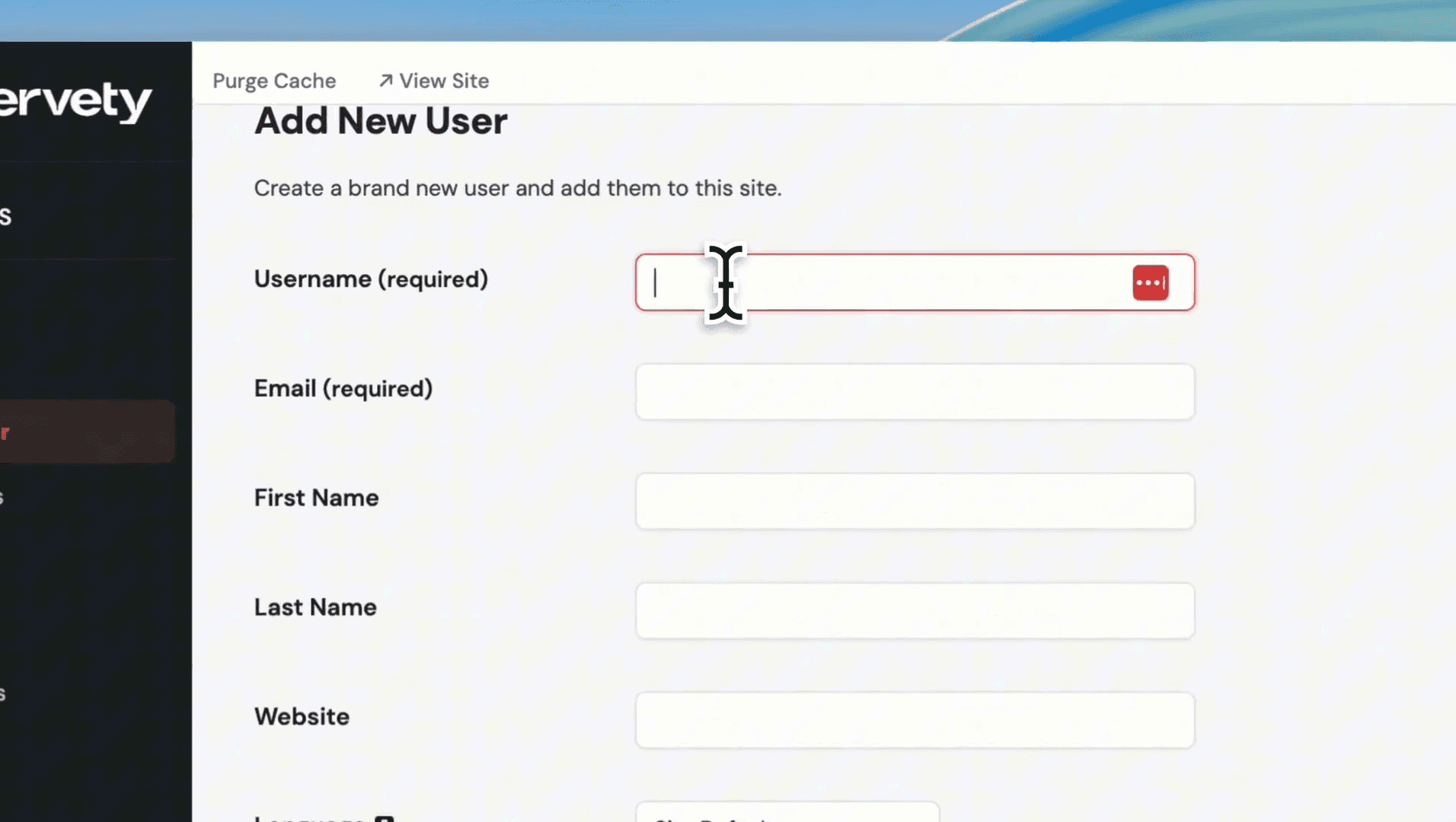
Add a New Delivery Driver
You can expand your team by creating new driver profiles from the main dashboard.
Optimize Routes and Complete Deliveries
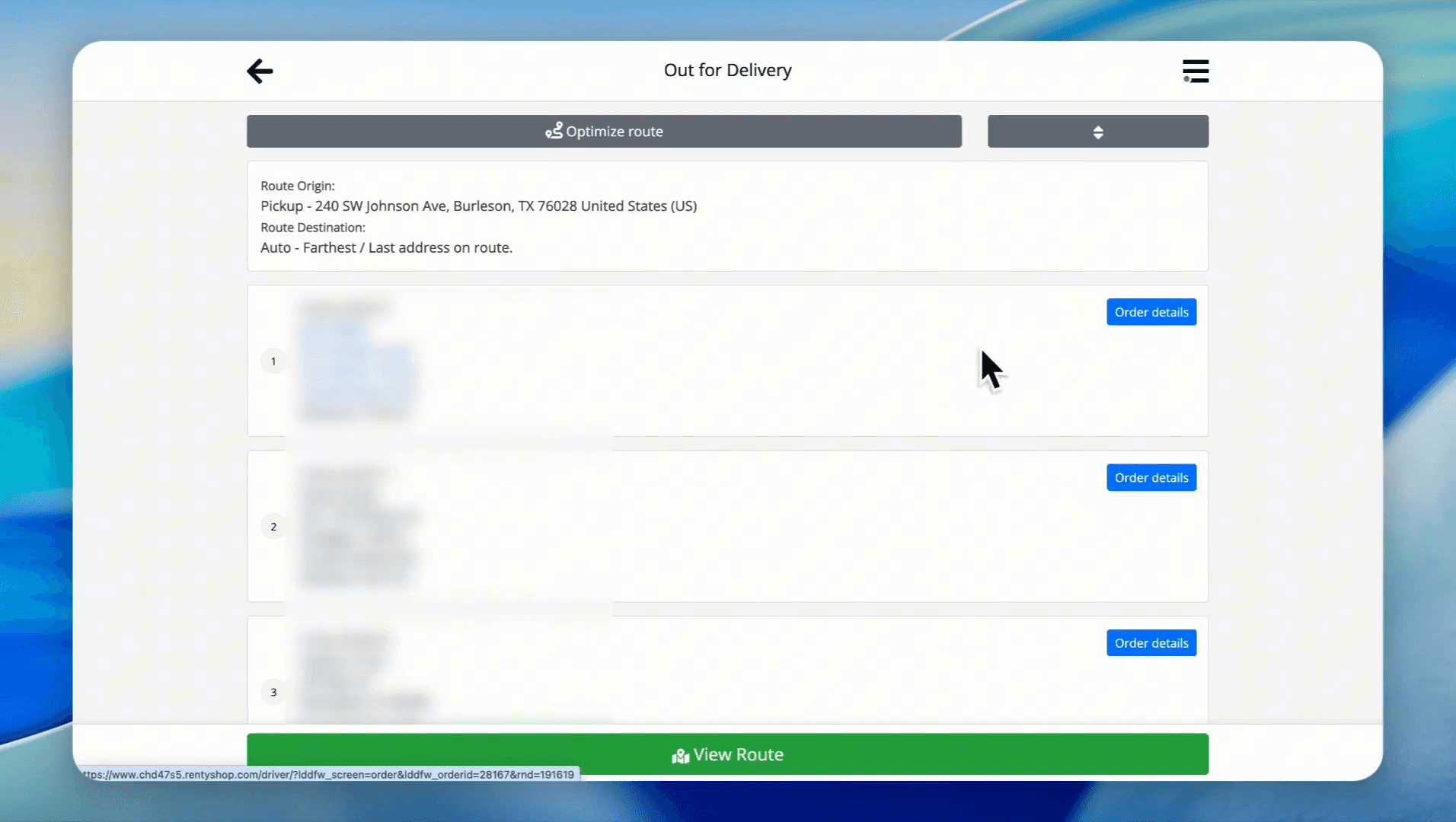
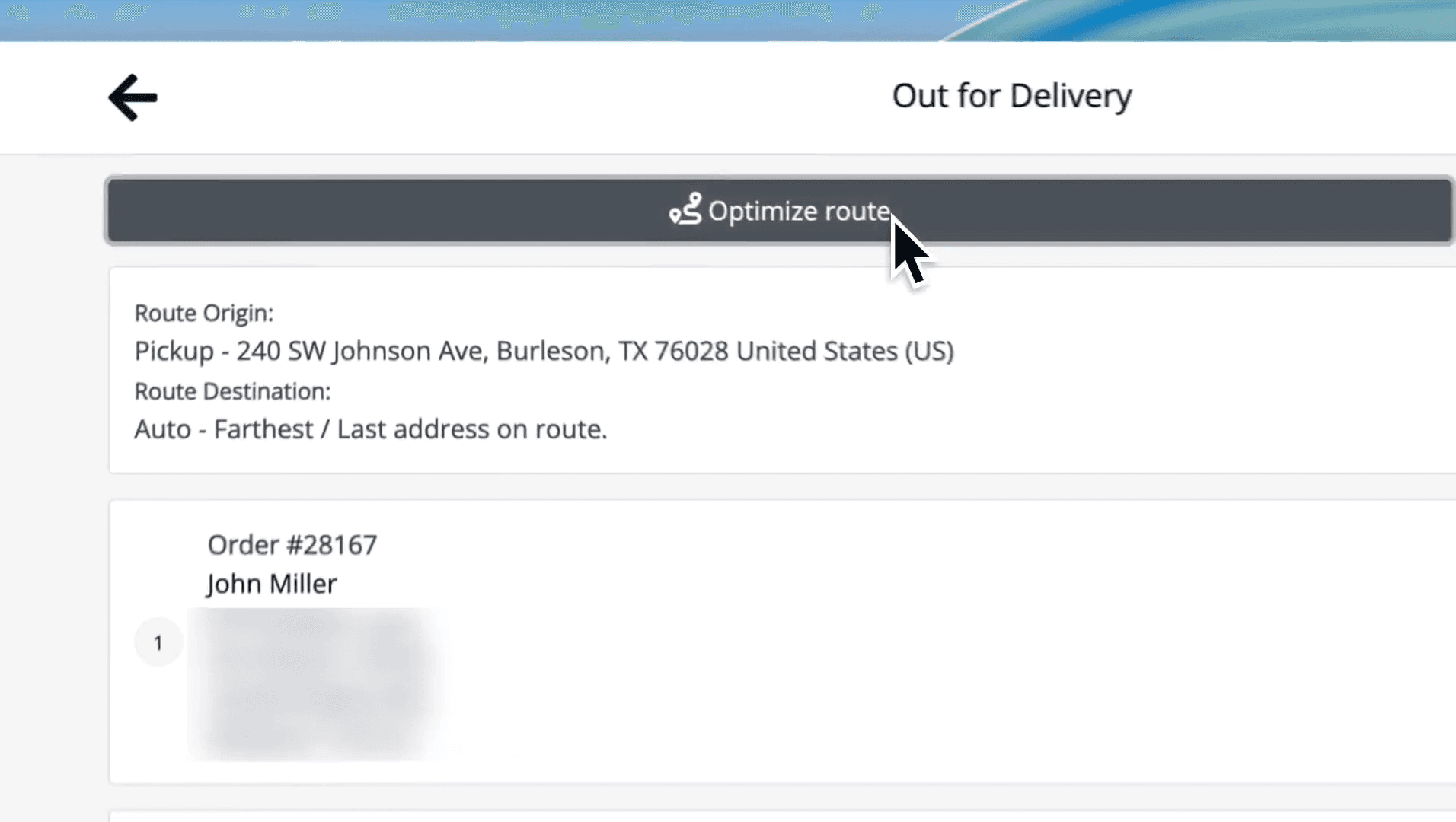
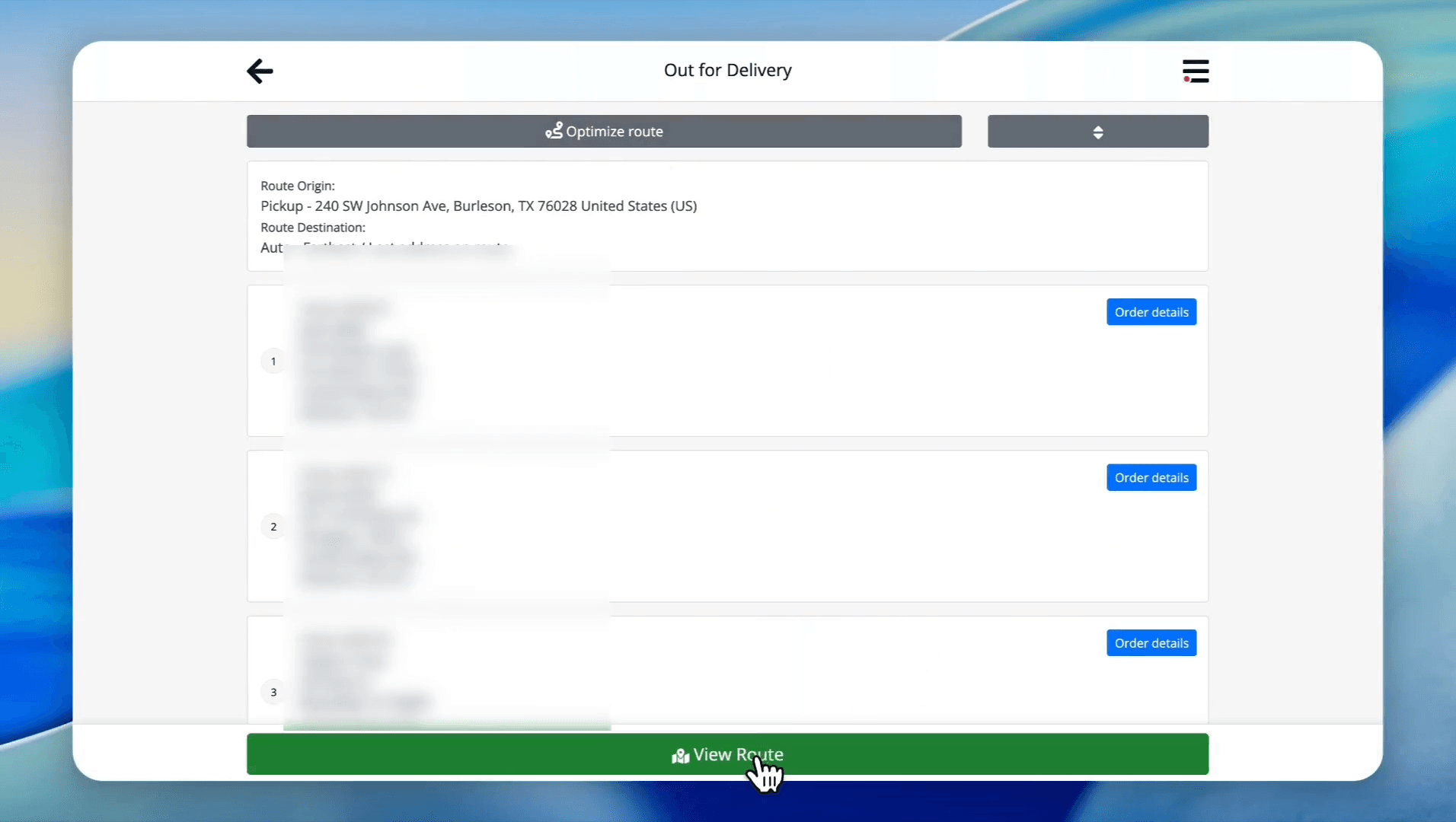
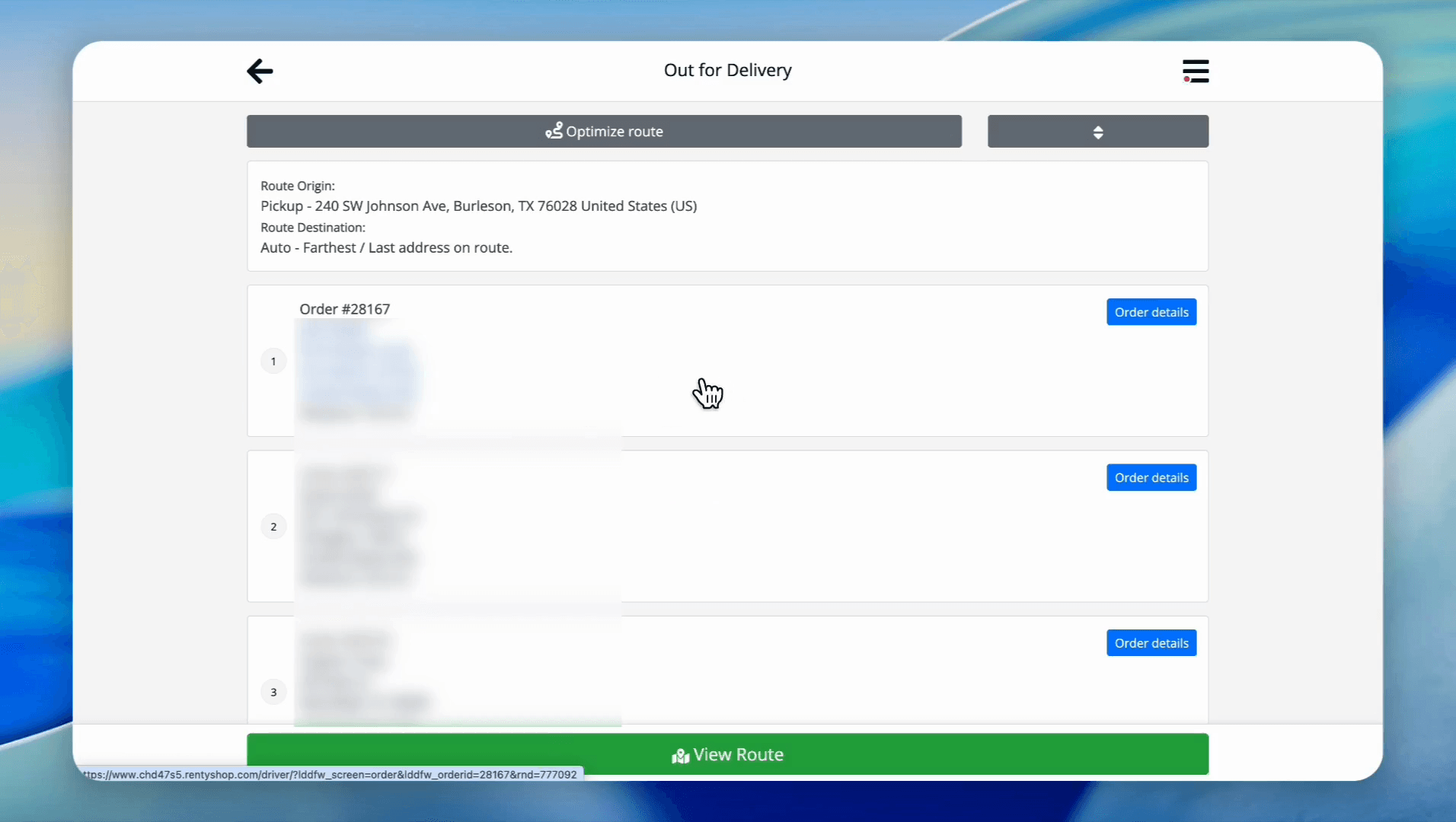
If you have multiple drop-offs, optimize your driving path before starting.
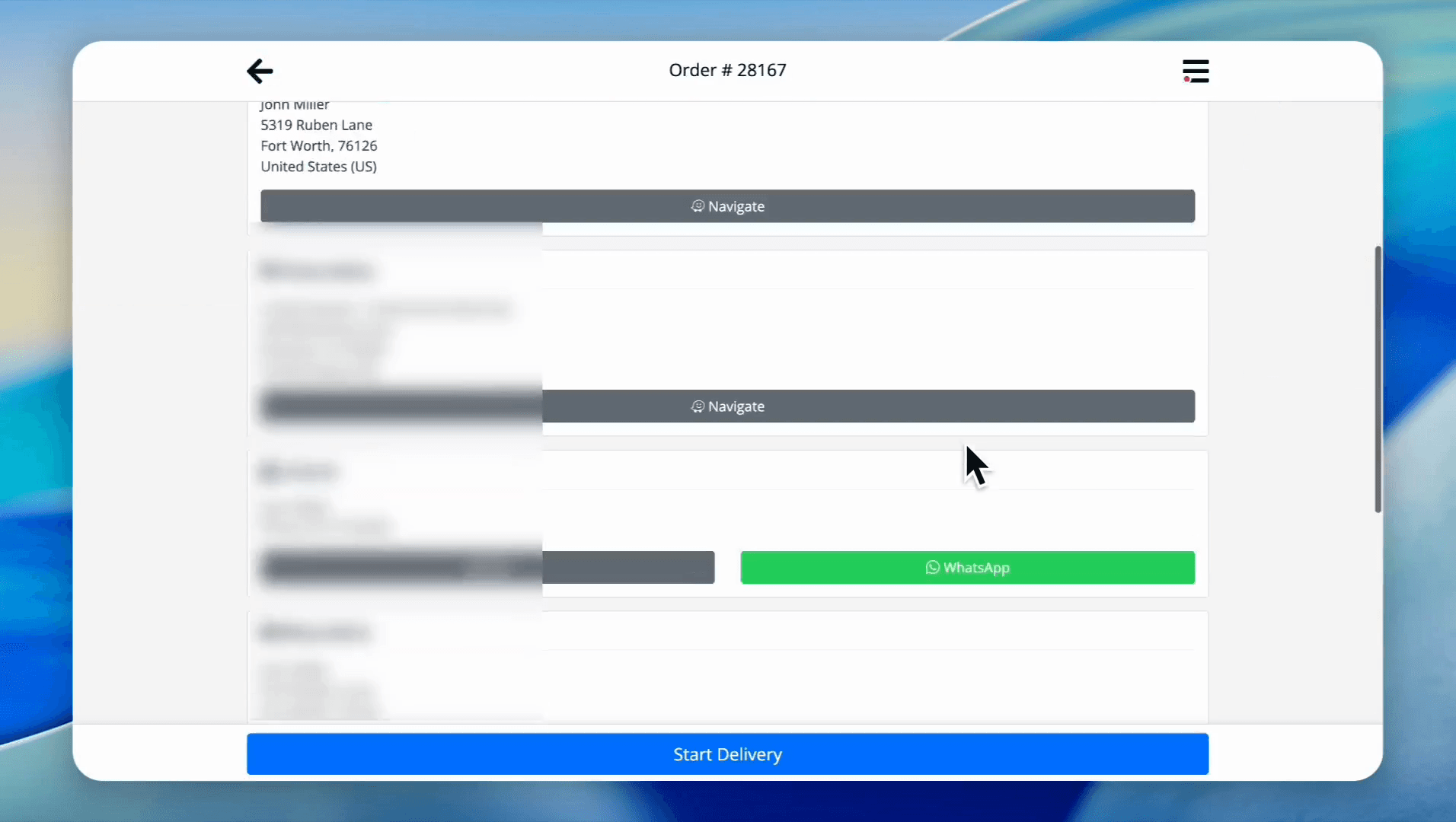
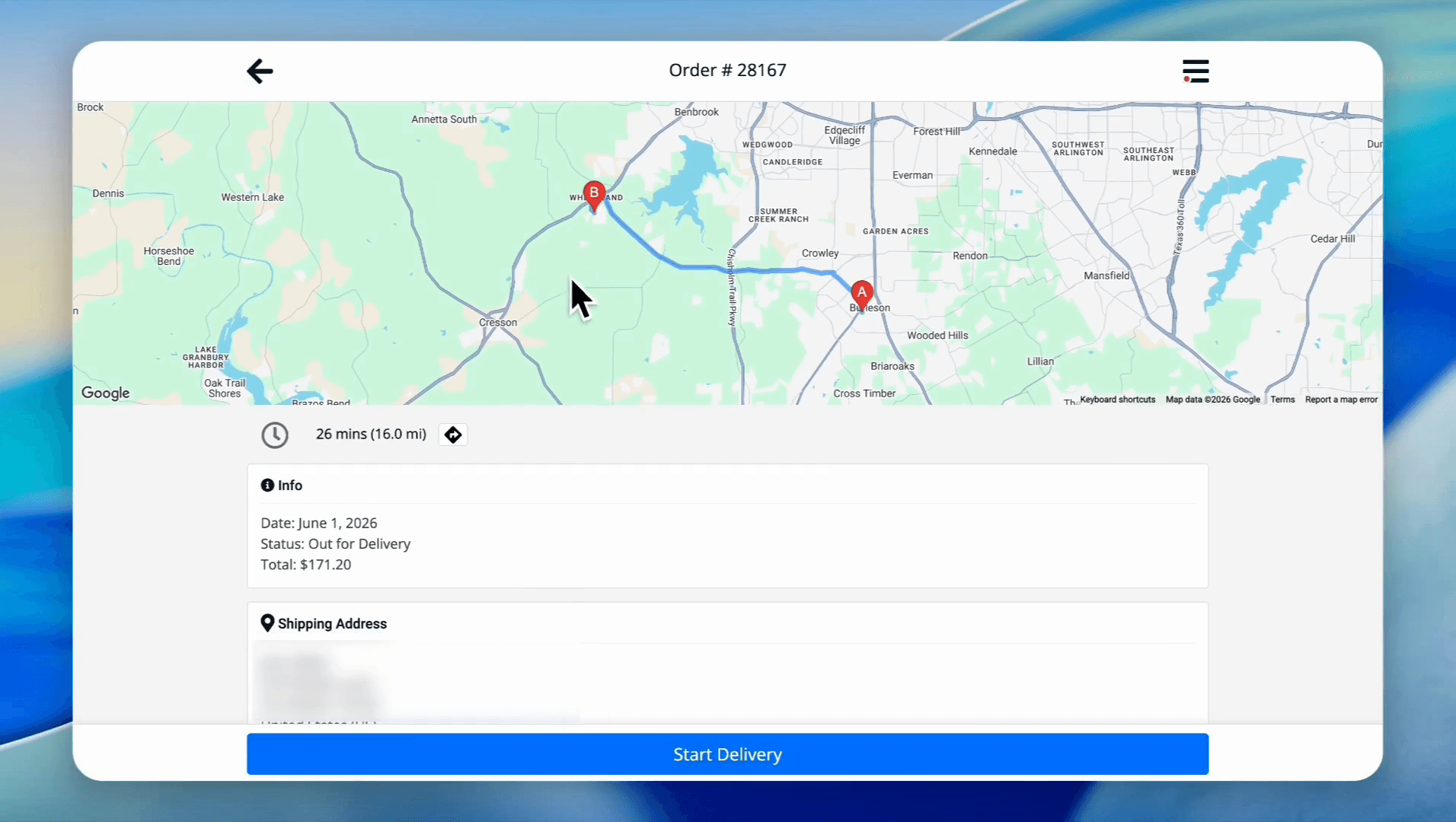
Once a delivery is started, you must select its final outcome. Review the available actions:
Delivery Action | Purpose |
|---|---|
Prepare Delivery | Indicates the driver is gathering the items before starting transit. |
Deliver It | Marks the delivery as successfully completed and dropped off to the customer. |
Not Deliver It | Marks the delivery as failed or canceled if the drop-off was unsuccessful. |
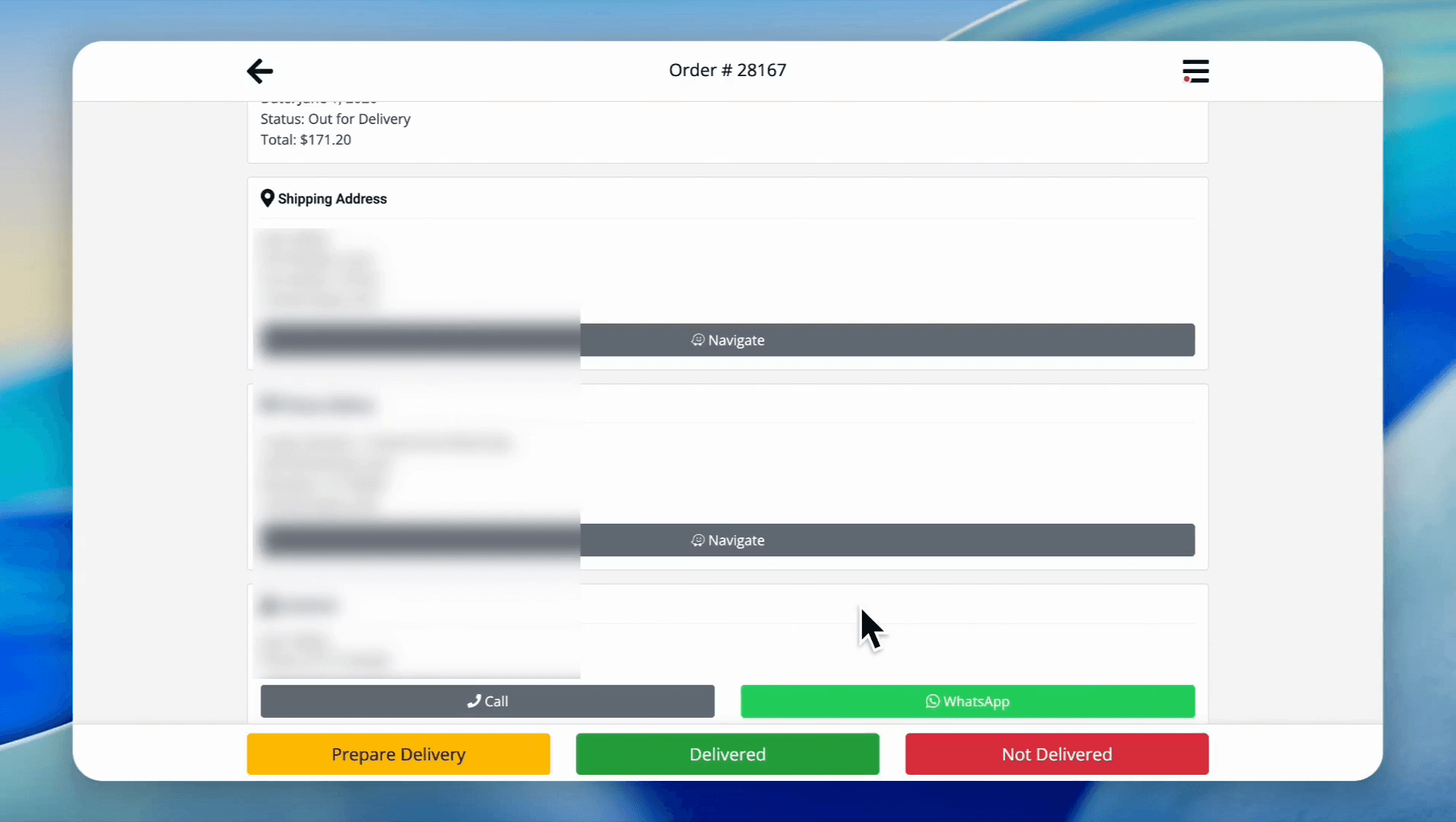
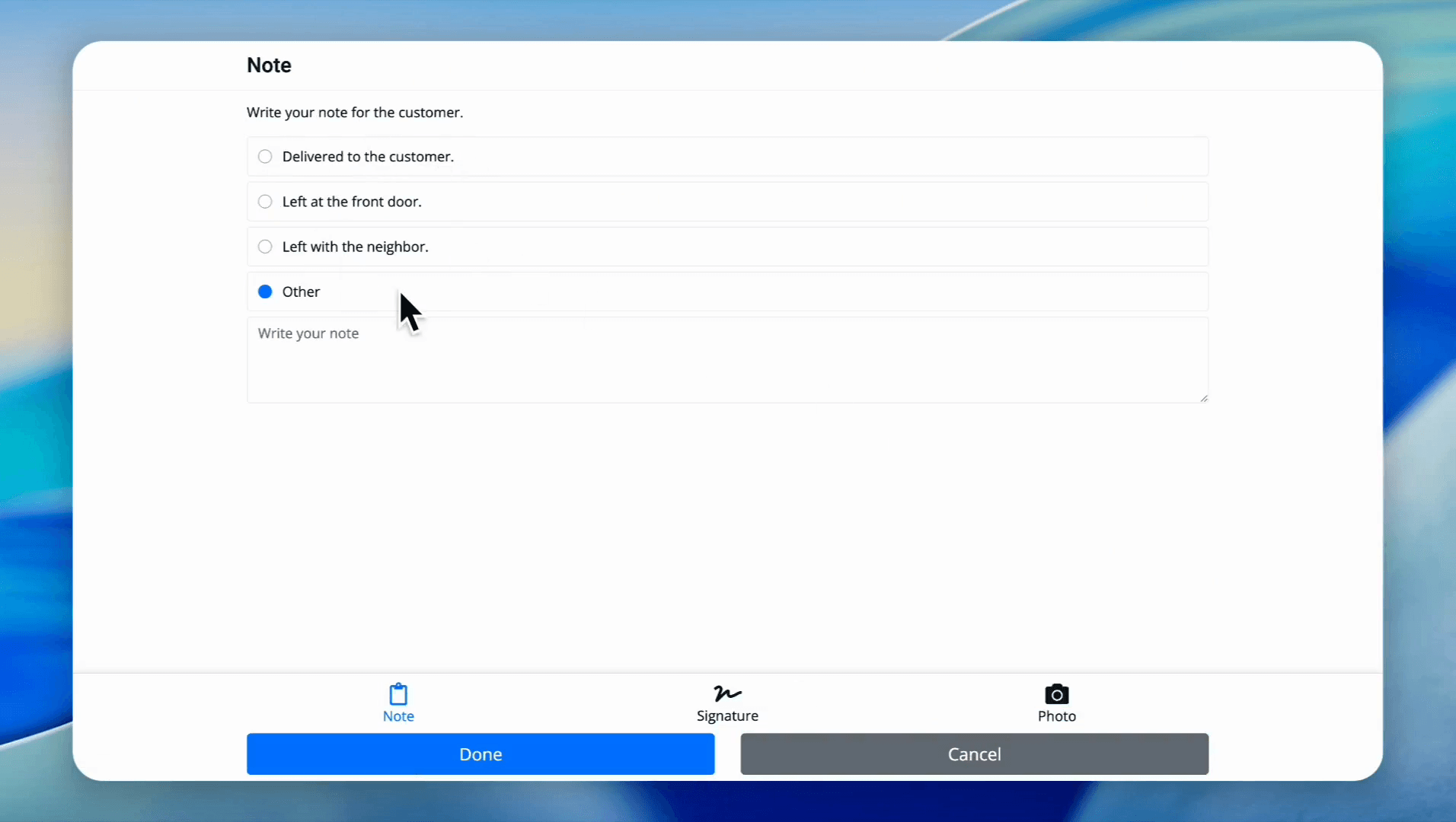
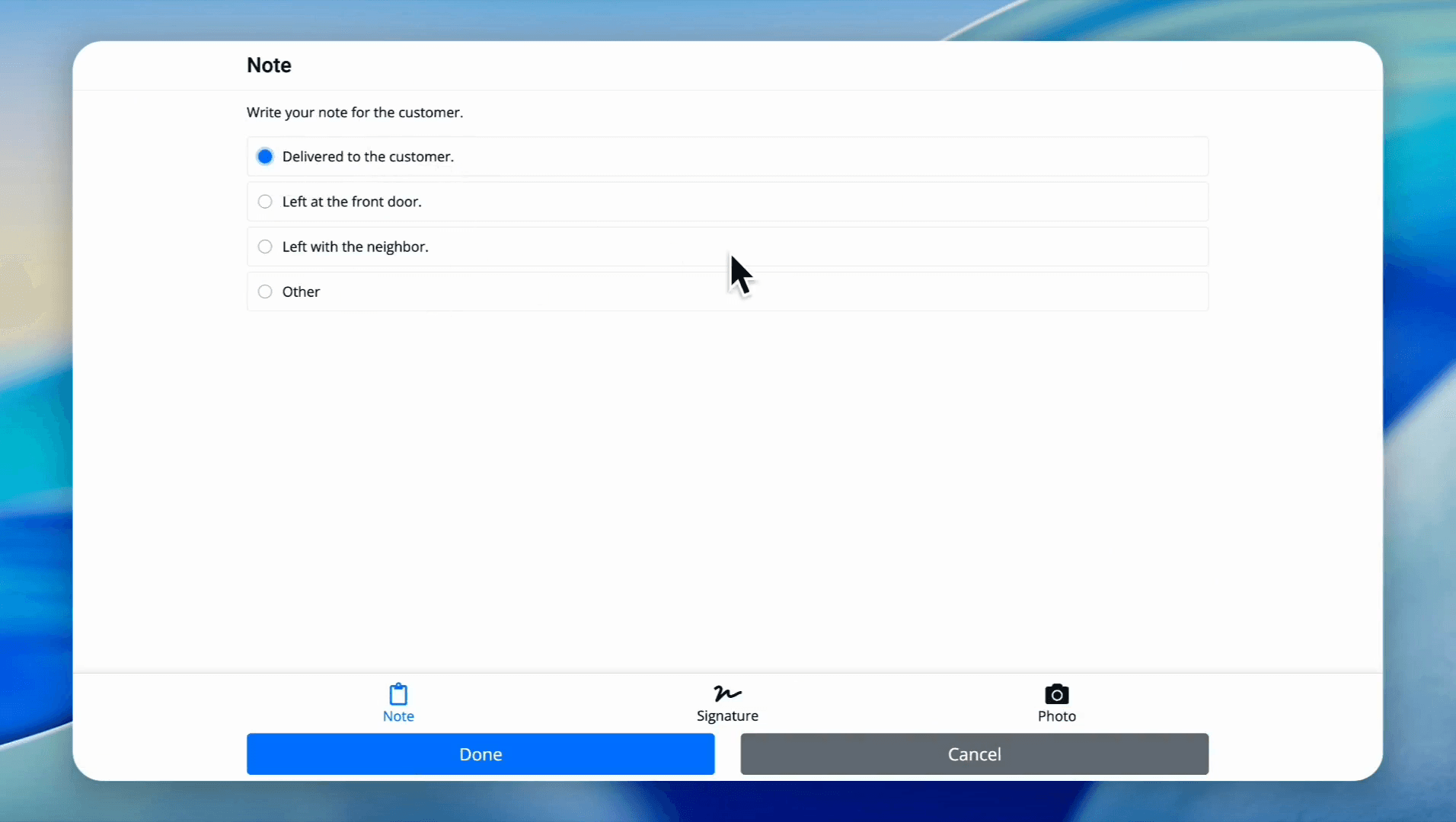
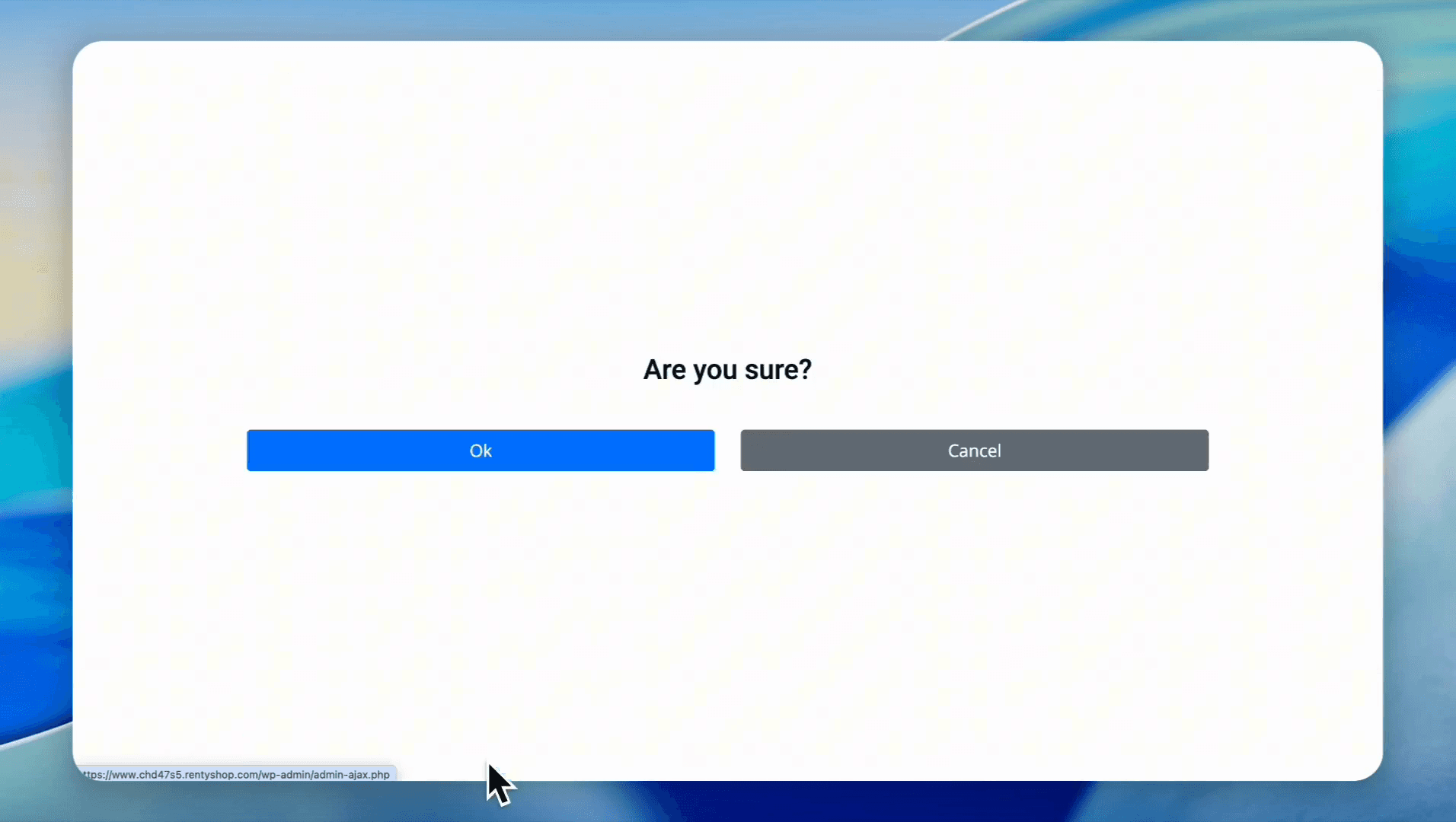
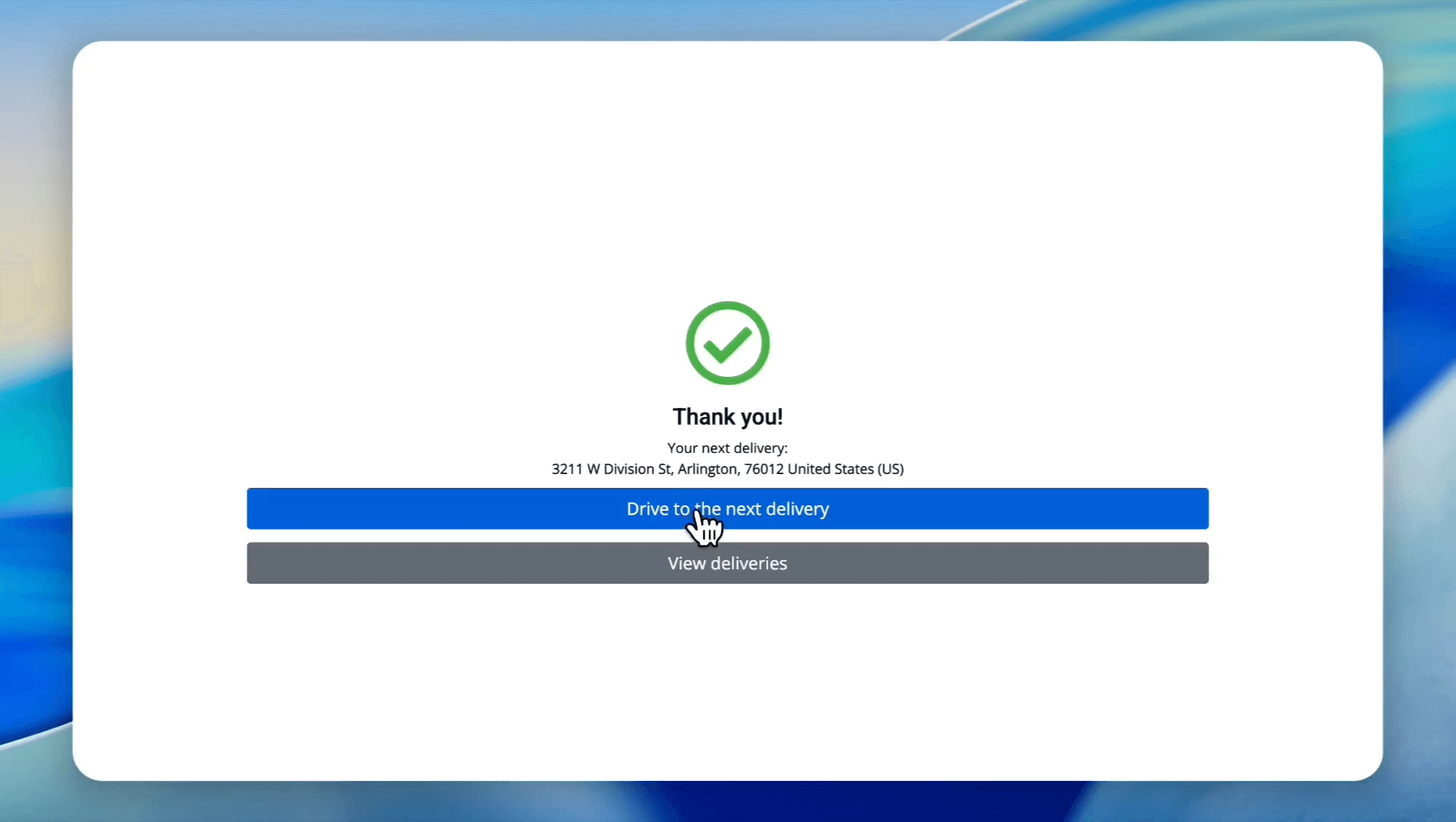
As drivers complete these steps, statuses update in real-time.
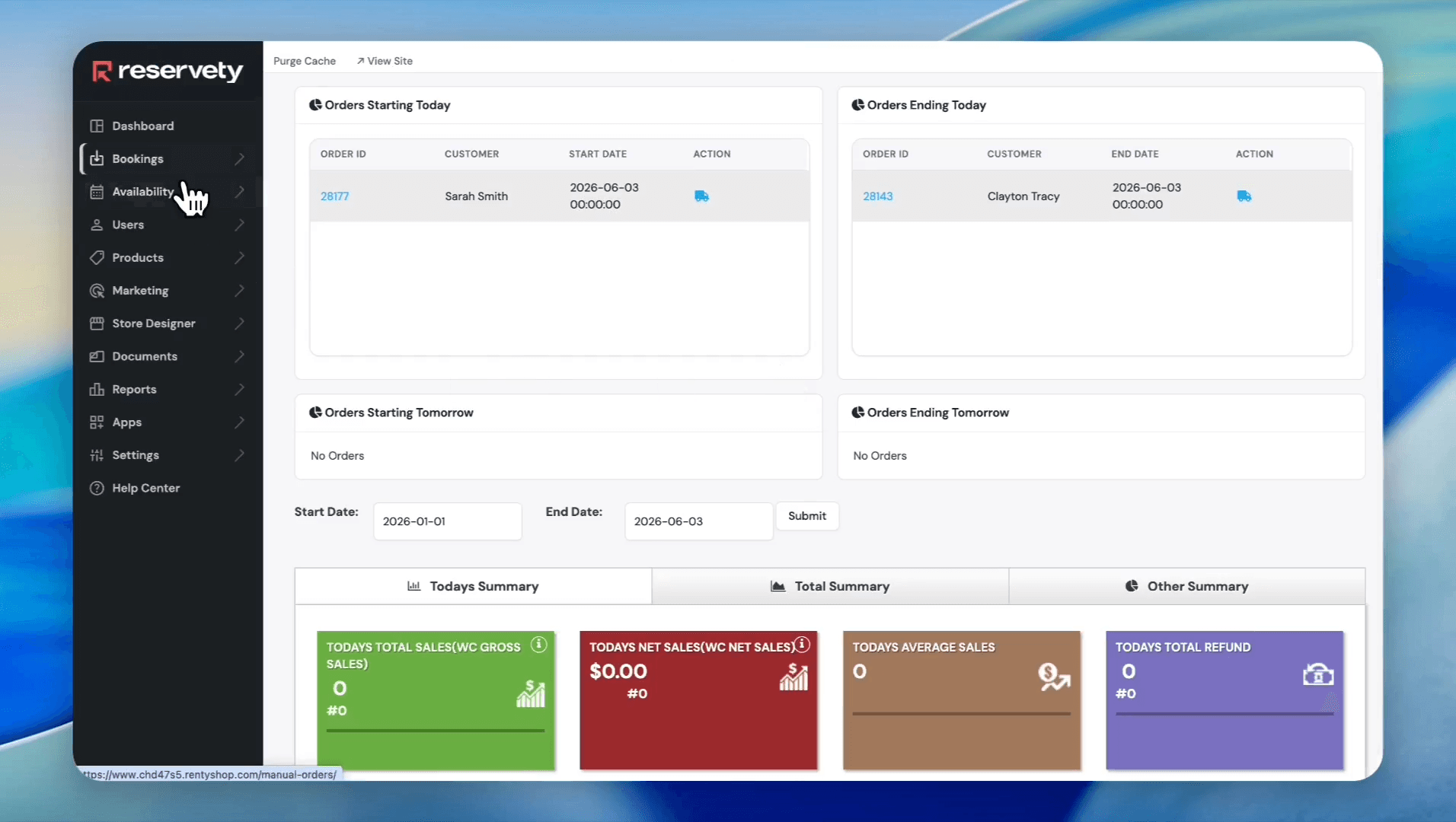
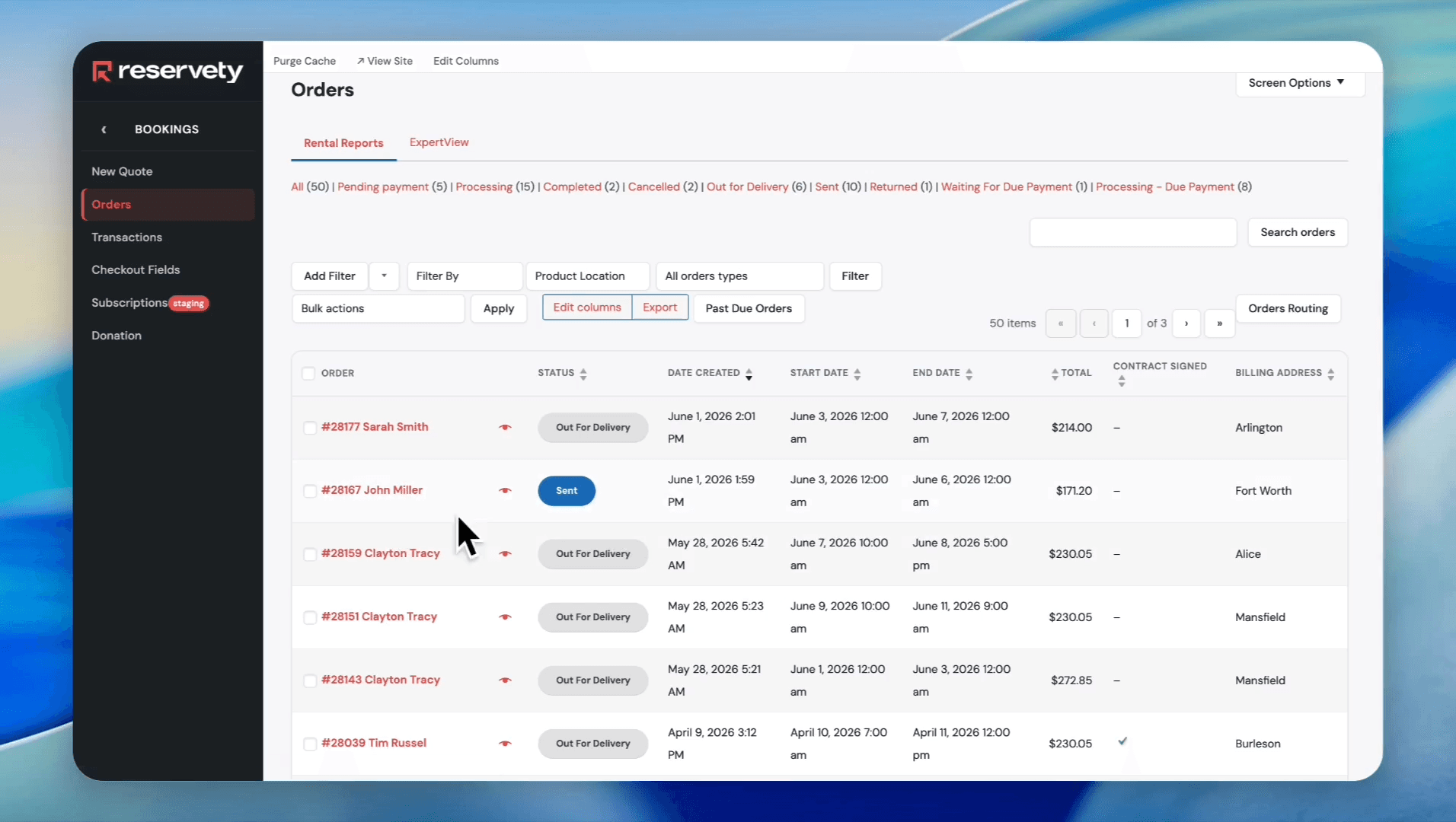
The system automatically marks the completed order status as "Sent" to reflect the successful delivery.
Q: How do order statuses update once a driver leaves for delivery?
A: When a driver marks items as "Out for Delivery" in their mobile app, the order status in the main dashboard automatically updates to reflect the change.
Q: How do I calculate the most efficient route for multiple deliveries?
A: In the Delivery Driver app, select all your pending orders and click "Optimize Route". The system calculates the fastest sequence and provides an organized itinerary.
Q: Can drivers contact customers directly from the app?
A: Yes. Drivers can call customers or send a WhatsApp message using the contact buttons found inside the Order Details view.
Term | Definition |
|---|---|
Orders Routing | An interactive map view in the dashboard used to estimate driving times and visually assign drivers to geographic destinations. |
Delivery Driver App | A mobile-friendly application that allows drivers to manage routes, track statuses, and coordinate drop-offs. |
Optimize Route | A dispatching feature that calculates the fastest delivery sequence for a batch of pending orders based on geographic proximity. |
Bulk Actions | A dashboard dropdown menu allowing dispatchers to apply changes, like driver assignments, to multiple orders simultaneously. |