How to Manage the Auditorium Admin Dashboard
Learn how to process admin fees, view bookings, manage venues, execute lottery draws, and access audit logs in the municipal auditorium dashboard.
By khushi uttamani
Made with Glitter AI
Welcome to the auditorium administration dashboard. This guide covers the essential workflows for managing reservations, processing payments, executing automated draws, and maintaining venue data.
Login to Municipal Corporation Website
To get started, you must authenticate using Login Credentials
1
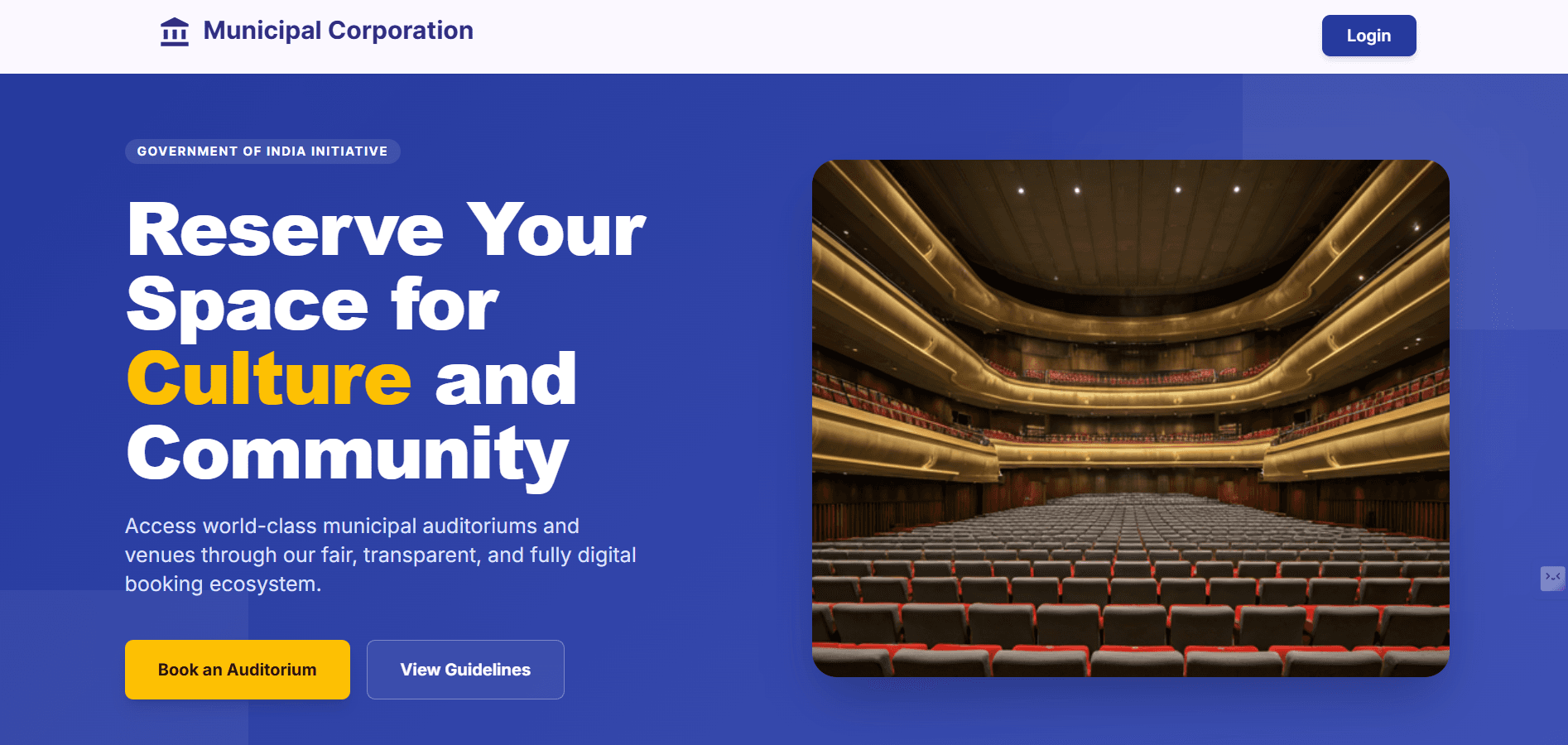
Home page of Municipal Corporation, click on Login/Book an Auditorium to Login in it.
2
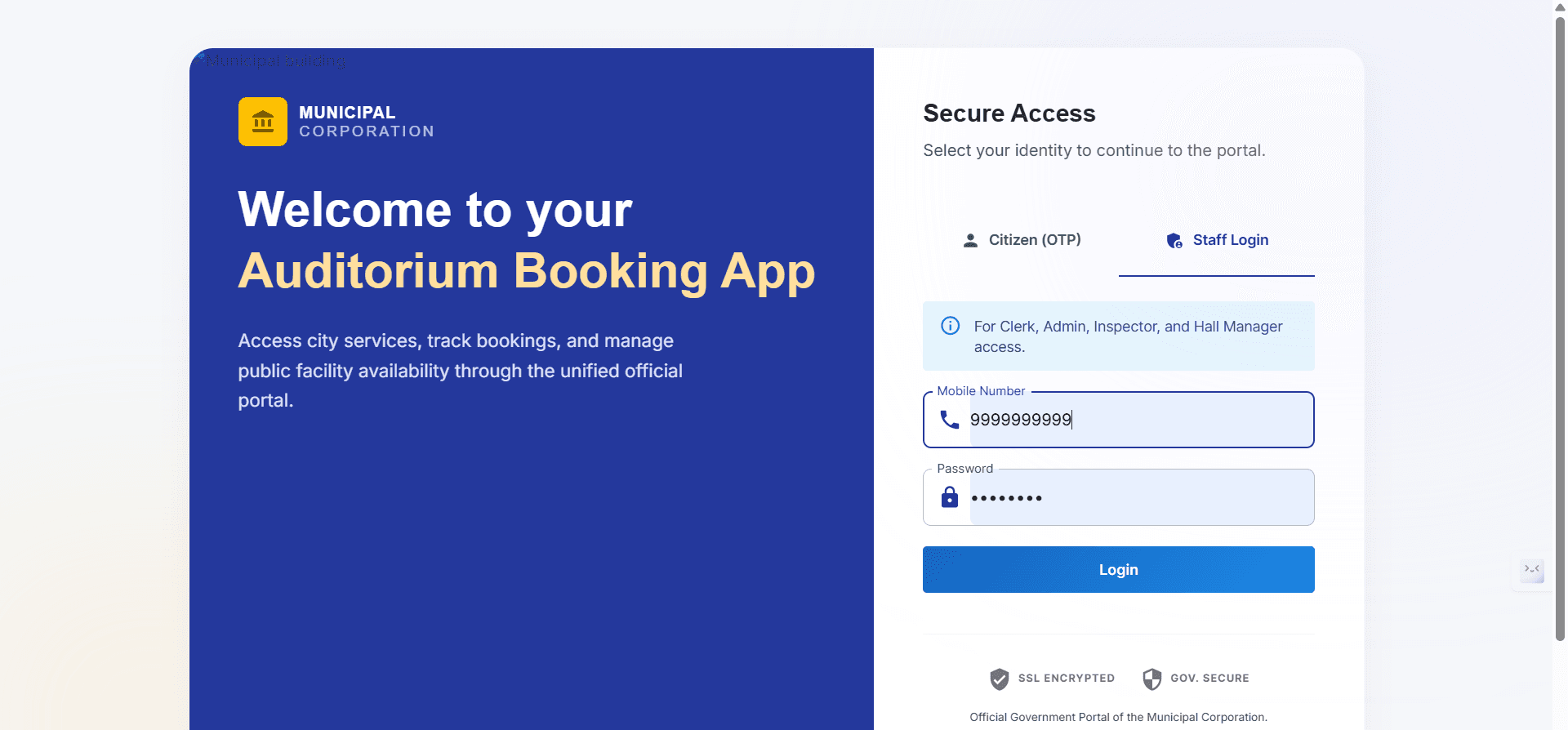
In Staff Login, provide registered phone number and password, then click on Login
Dashboard & Analytics of Bookings
3
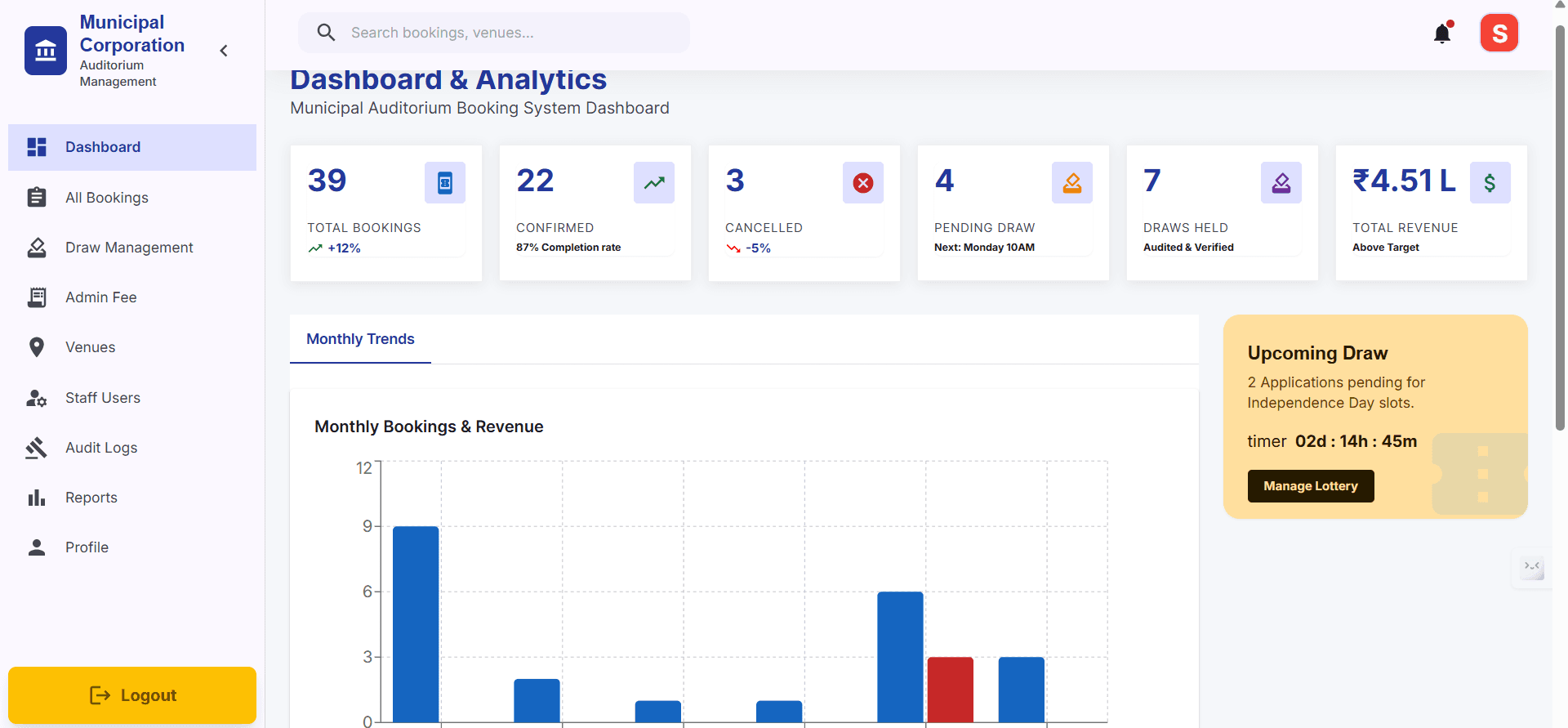
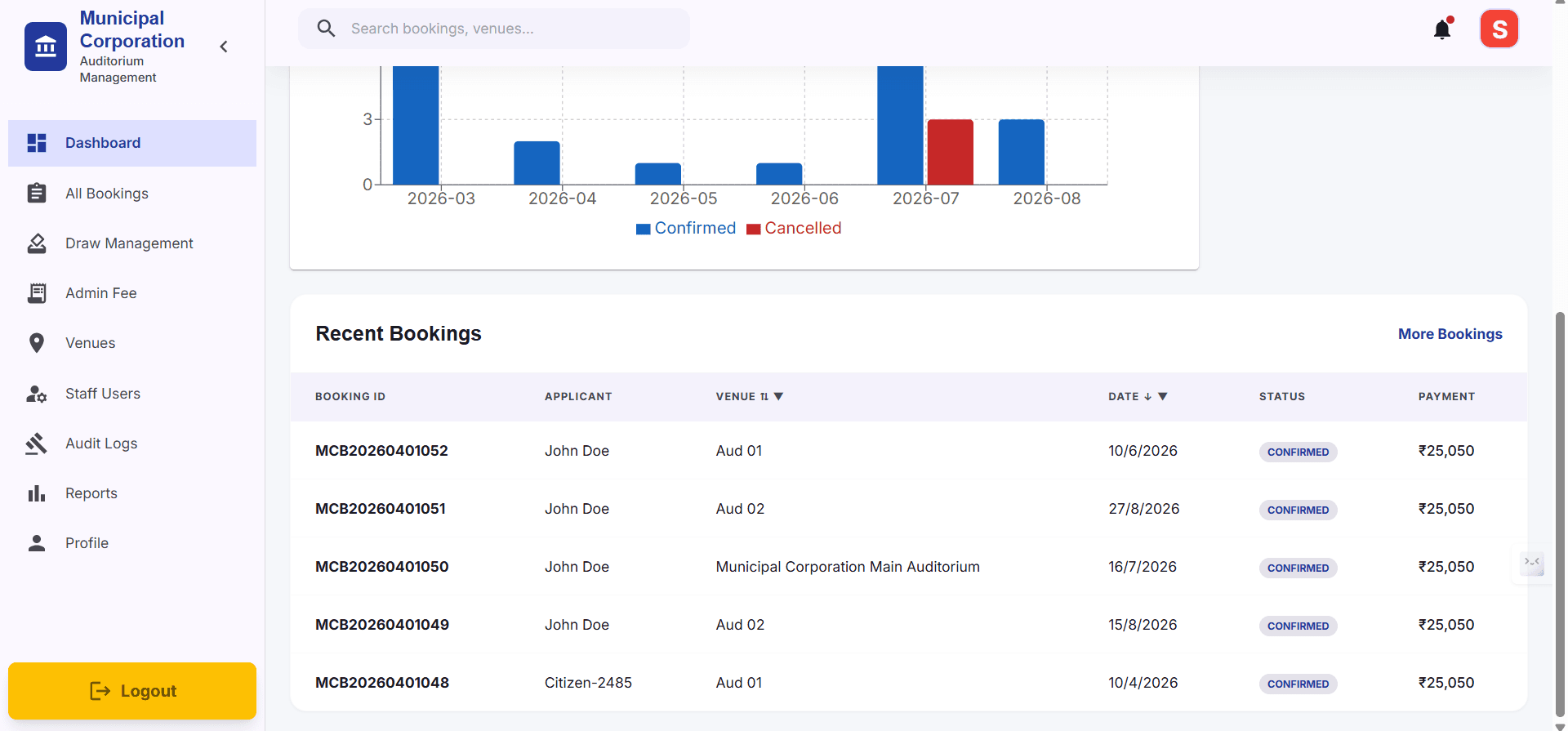
Dashboard is the first page after login, it shows an overview through cards and stats of bookings made by Citizens. It also contains shortcuts of Draw to directly manage draw system
4
If you scroll down, it has Recent bookings table which contains top 5 bookings. When click on "More Bookings" it will redirected to All Bookings tab
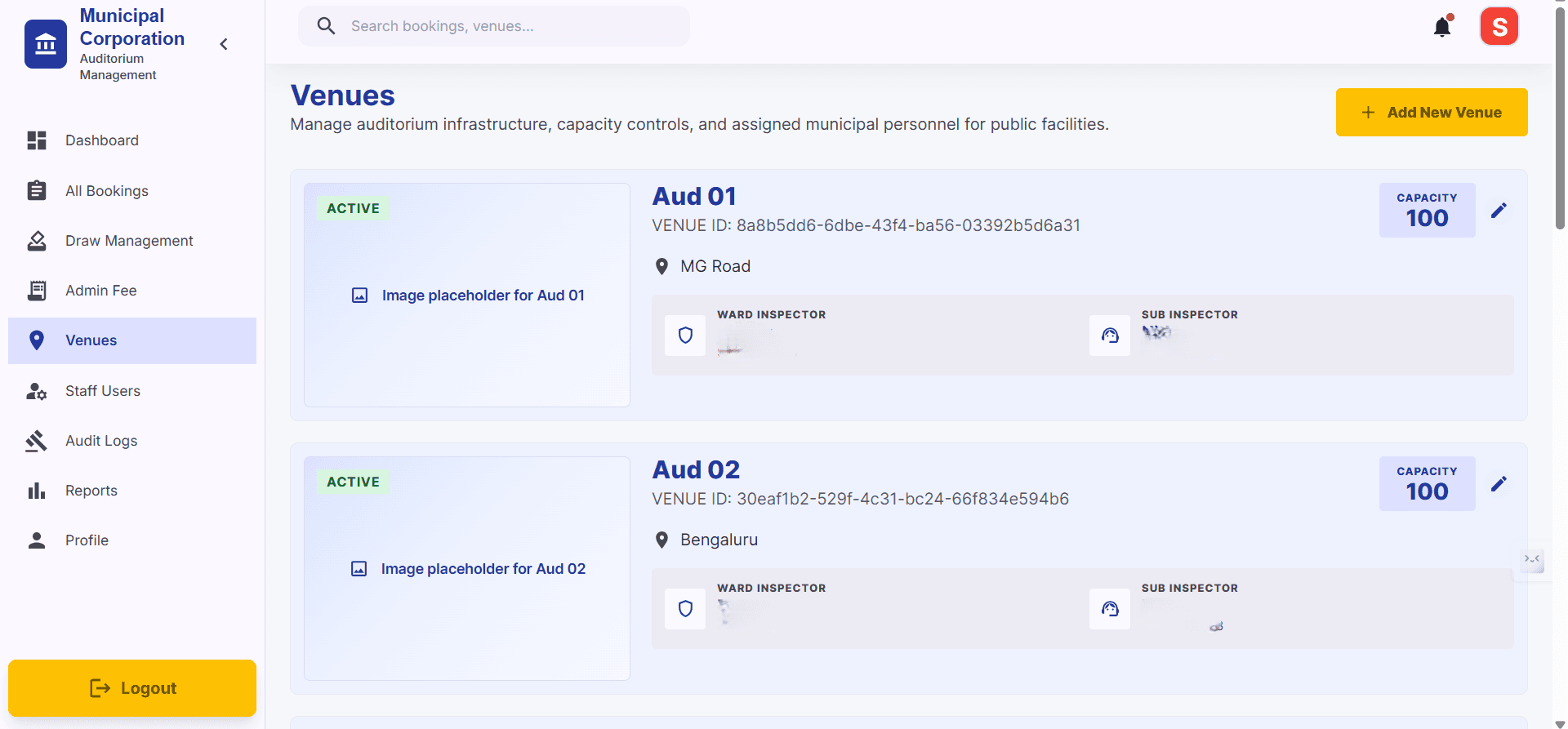
Venues and their details
5
Venues tab is used to represent existing venues and their details in it.
6
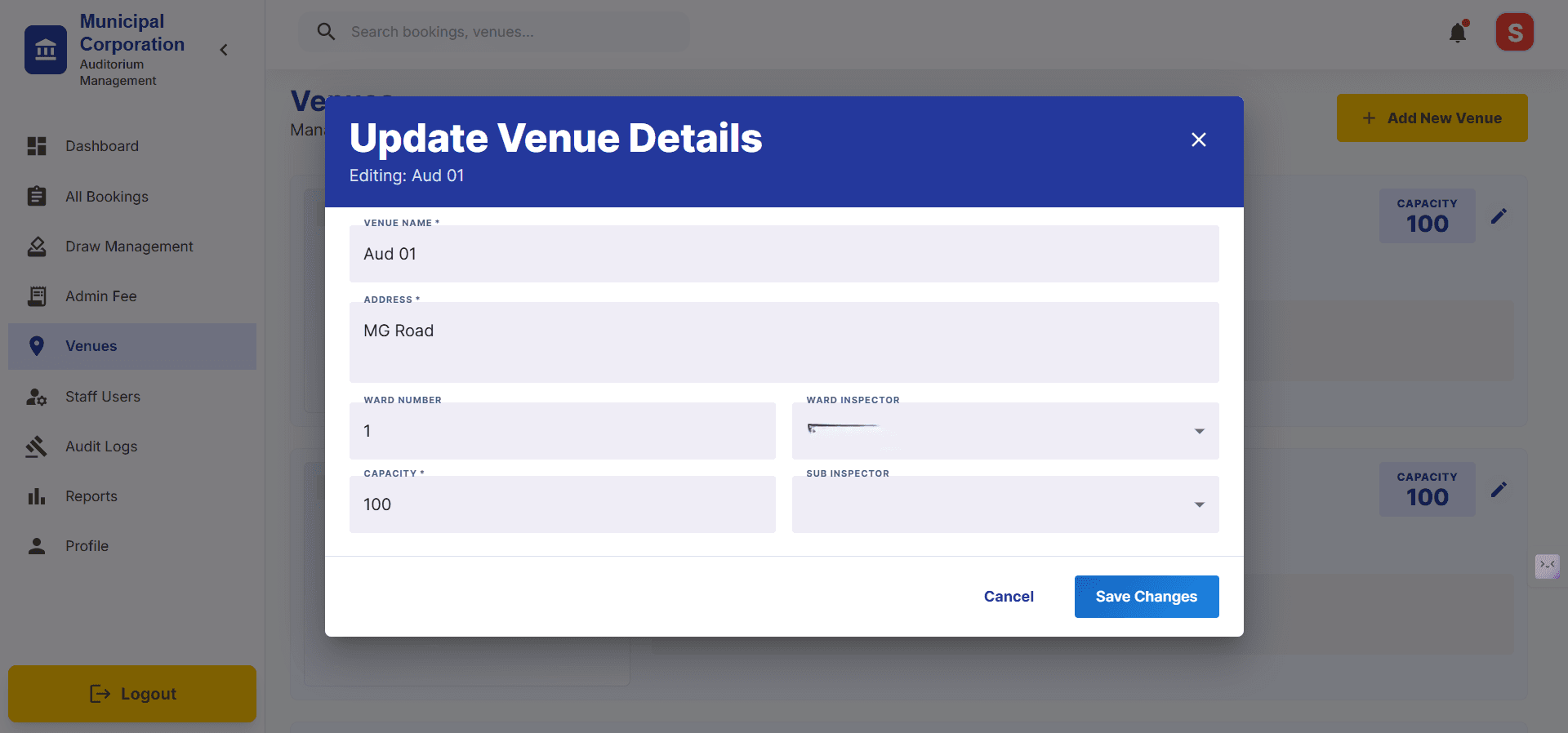
By clicking on Update Venue Details you can update the details of it, then click on Save Changes
7
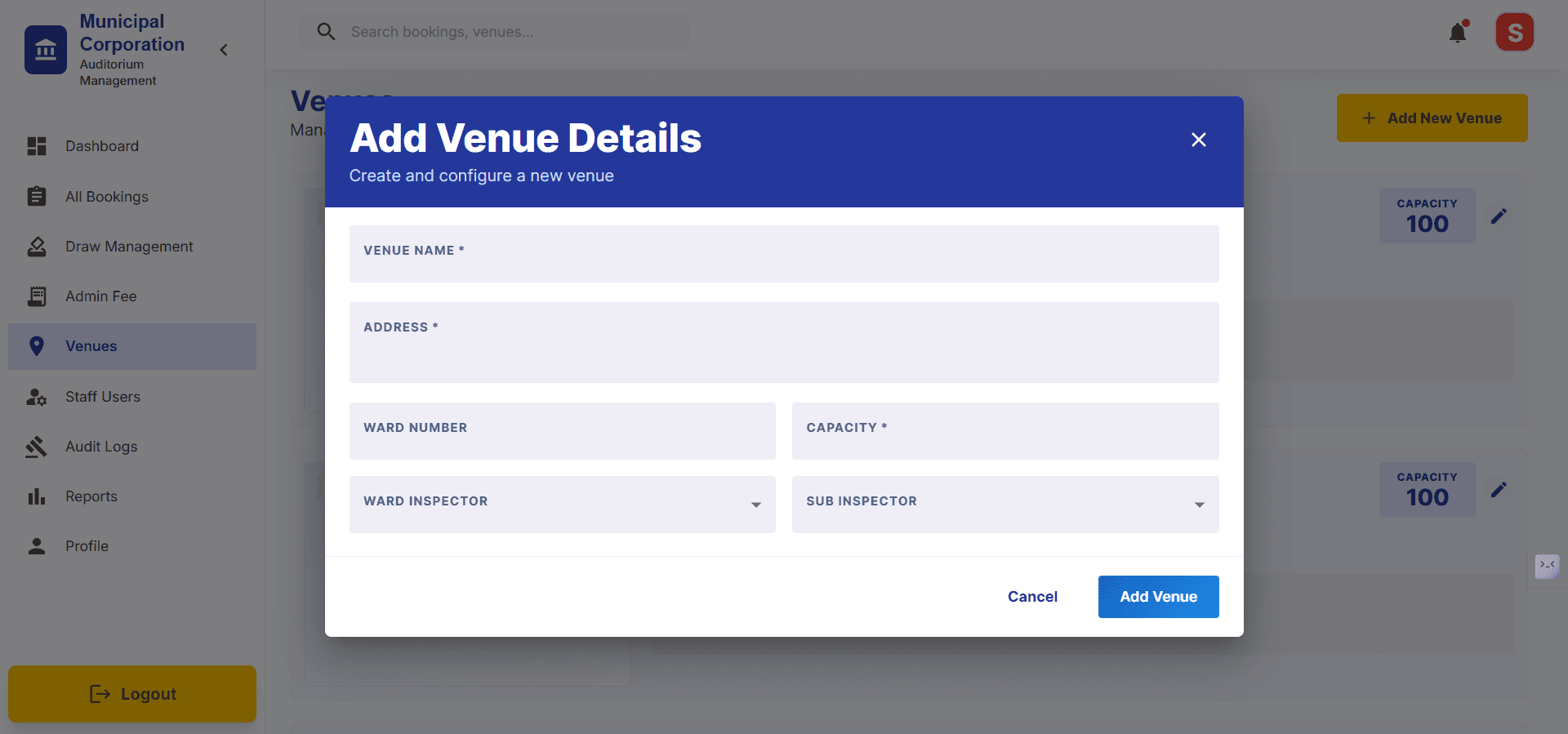
Add New Venue Button, on top right is used to add new Venue in the list. So provide required details then click on Add Venue button.
Viewing Booking Records
8
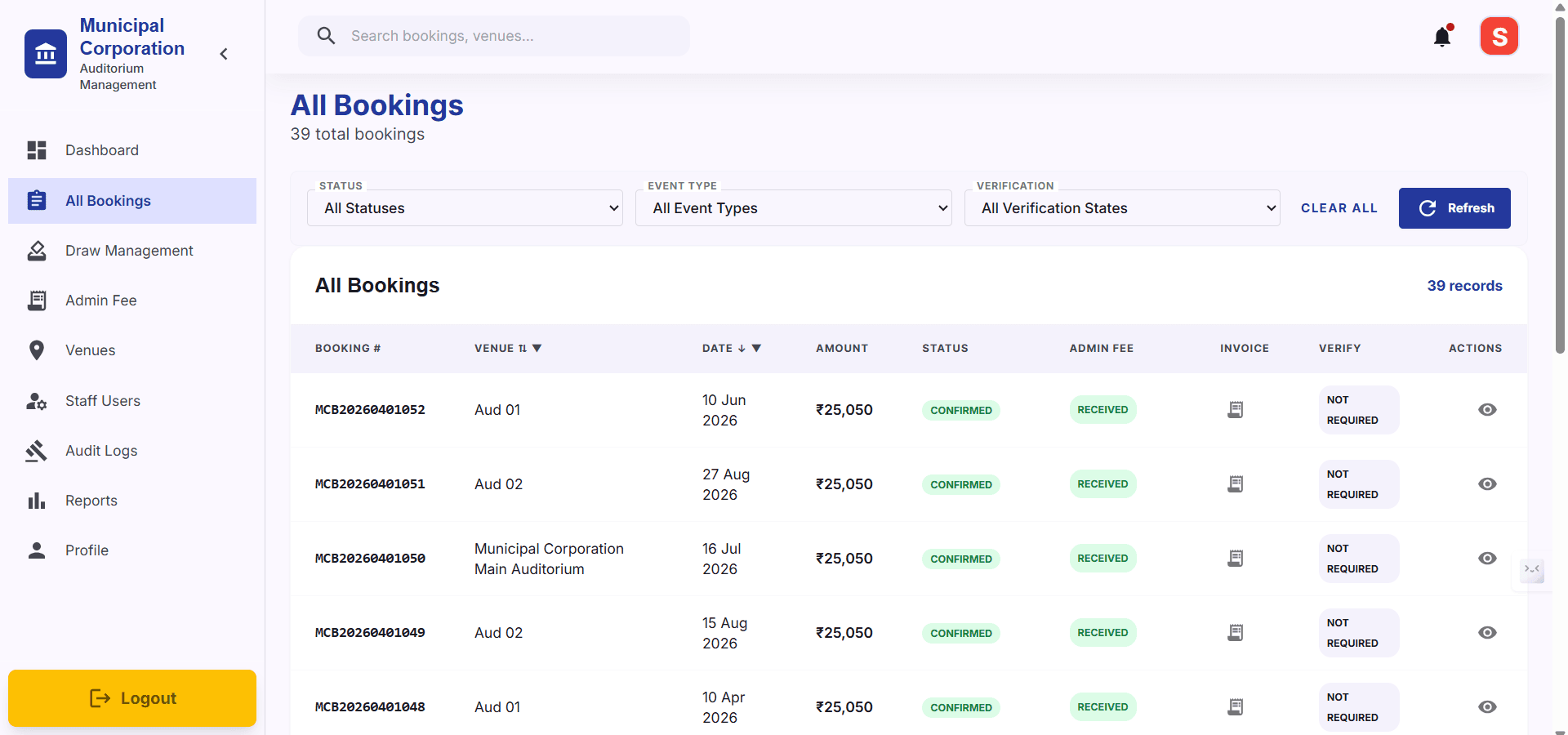
All Bookings tab is used to show all bookings that have been made. Multiple filters are available to filter out required bookings out of all.
9
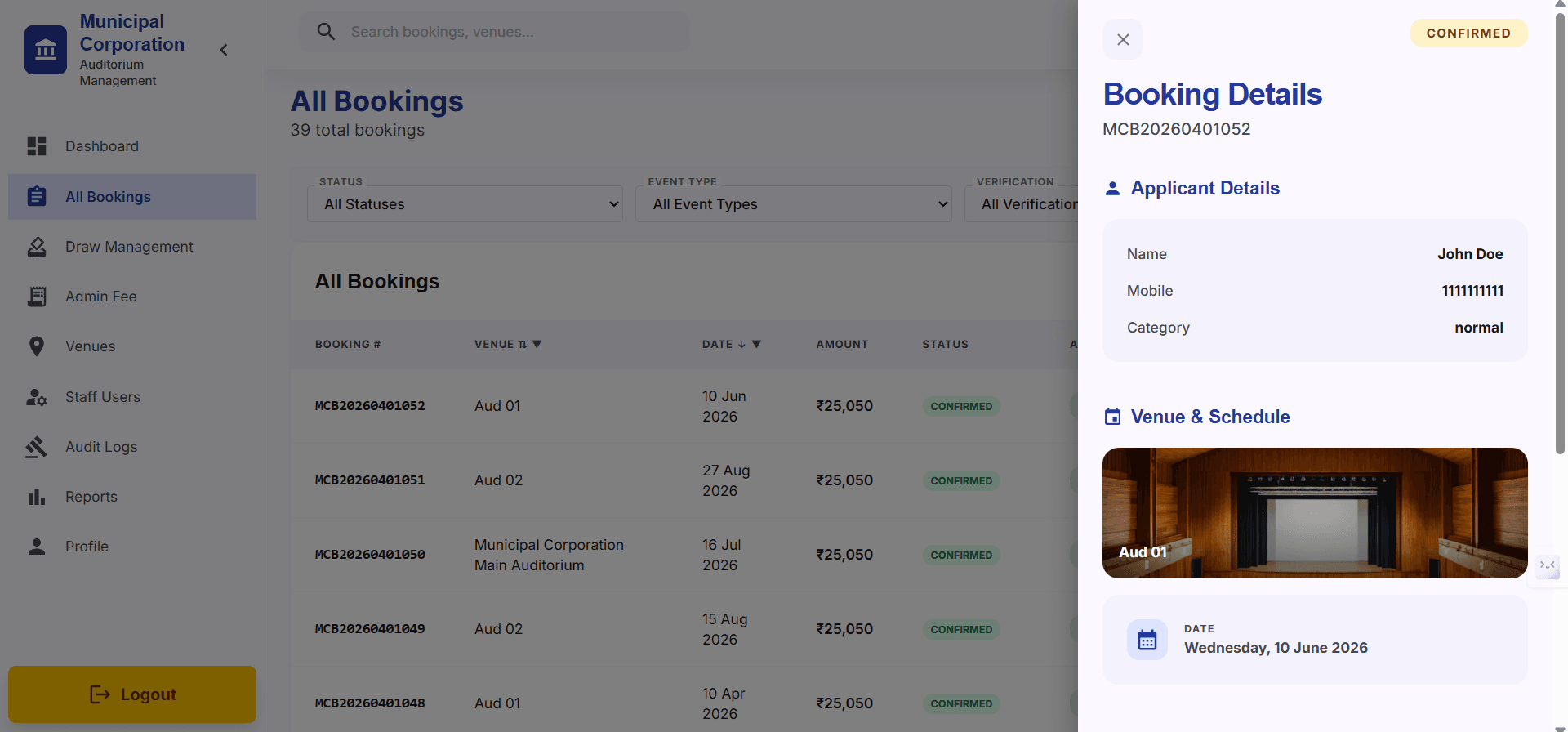
By clicking on Actions column, booking details will pop up
10
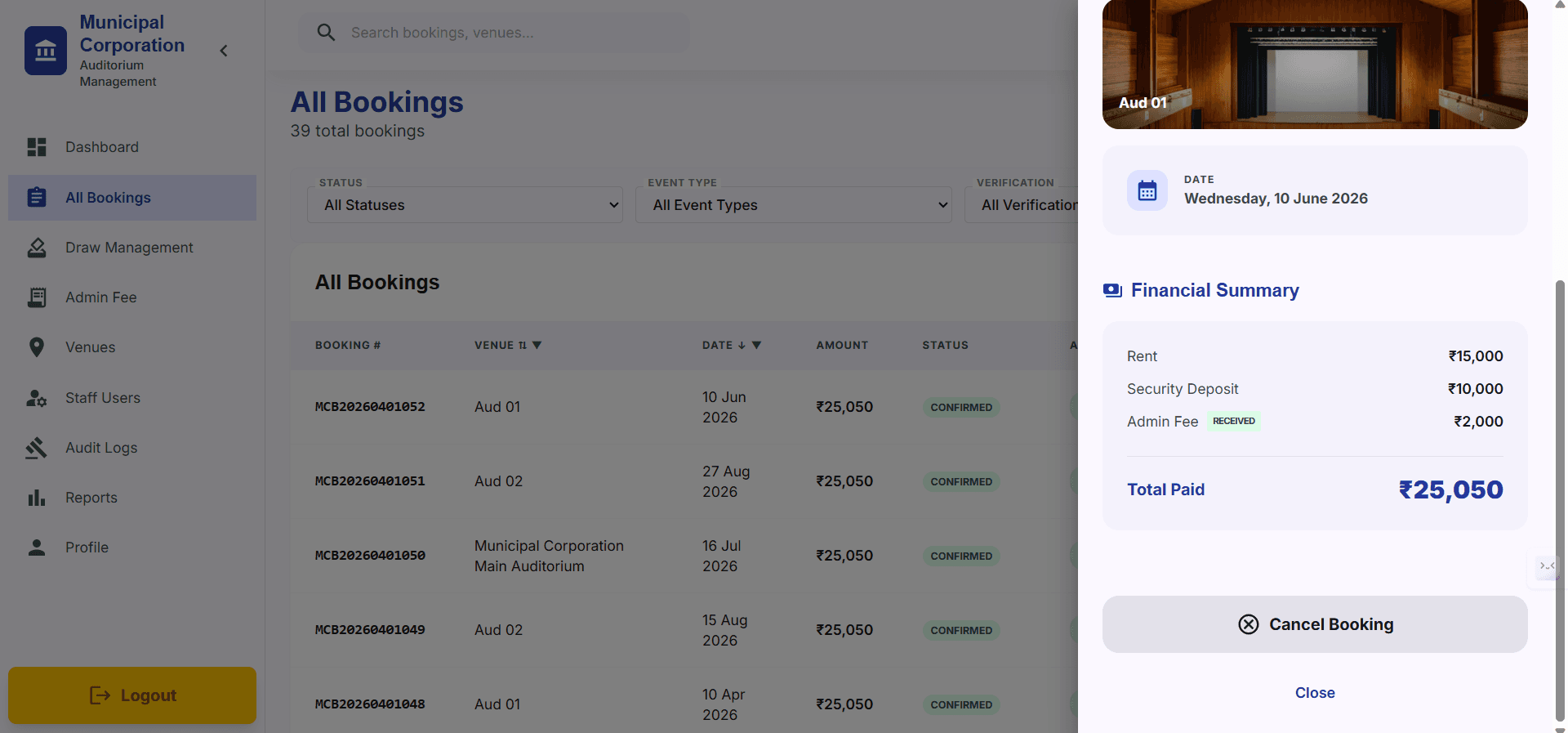
Slide down in Booking details pop up, You'll see Cancel Bookings option, click on it to cancel if there is any issue.
Executing Lottery Draws
11
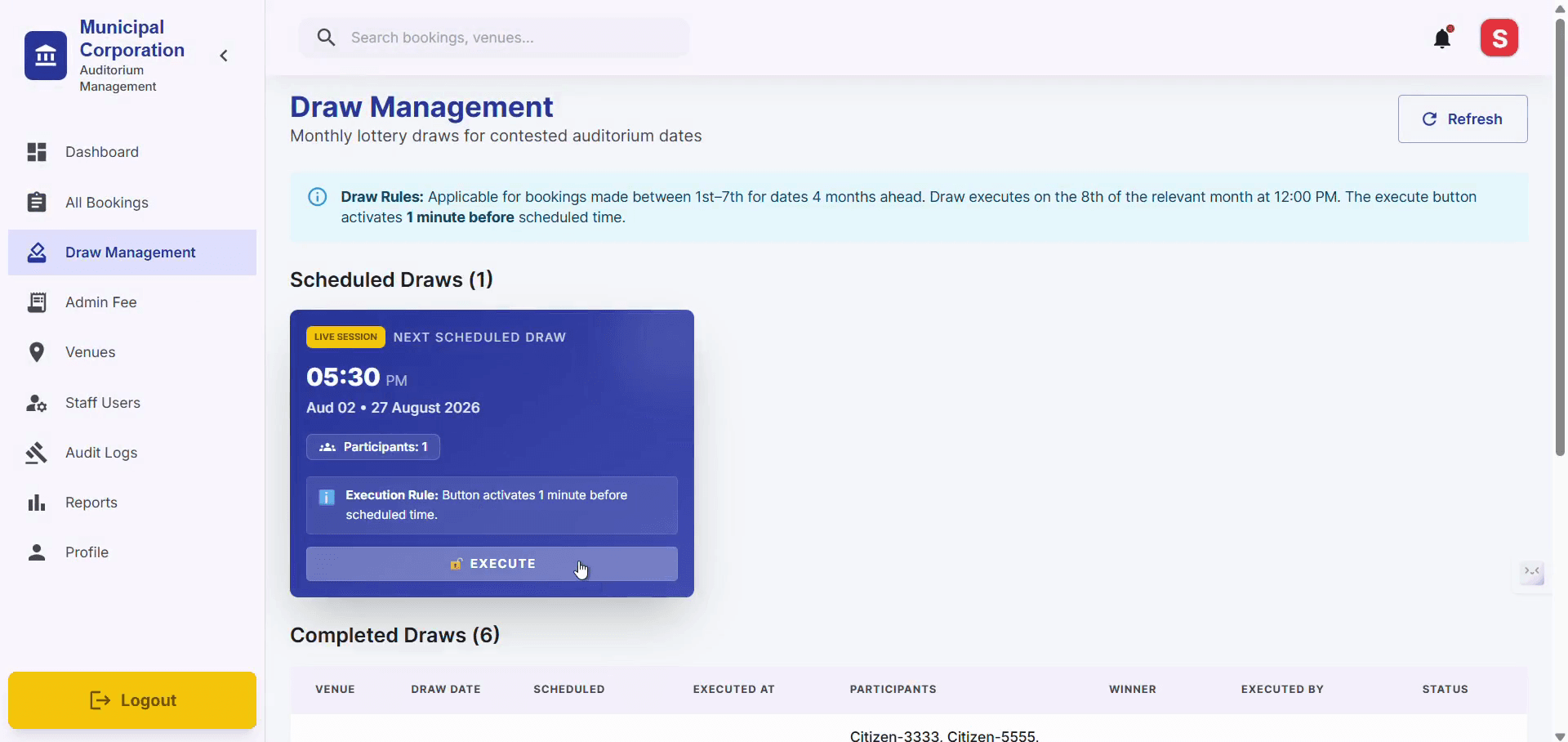
Navigate to Draw Management tab, Click Execute Draw on the scheduled lottery draw card so that a Citizen will be allotted for that date
12
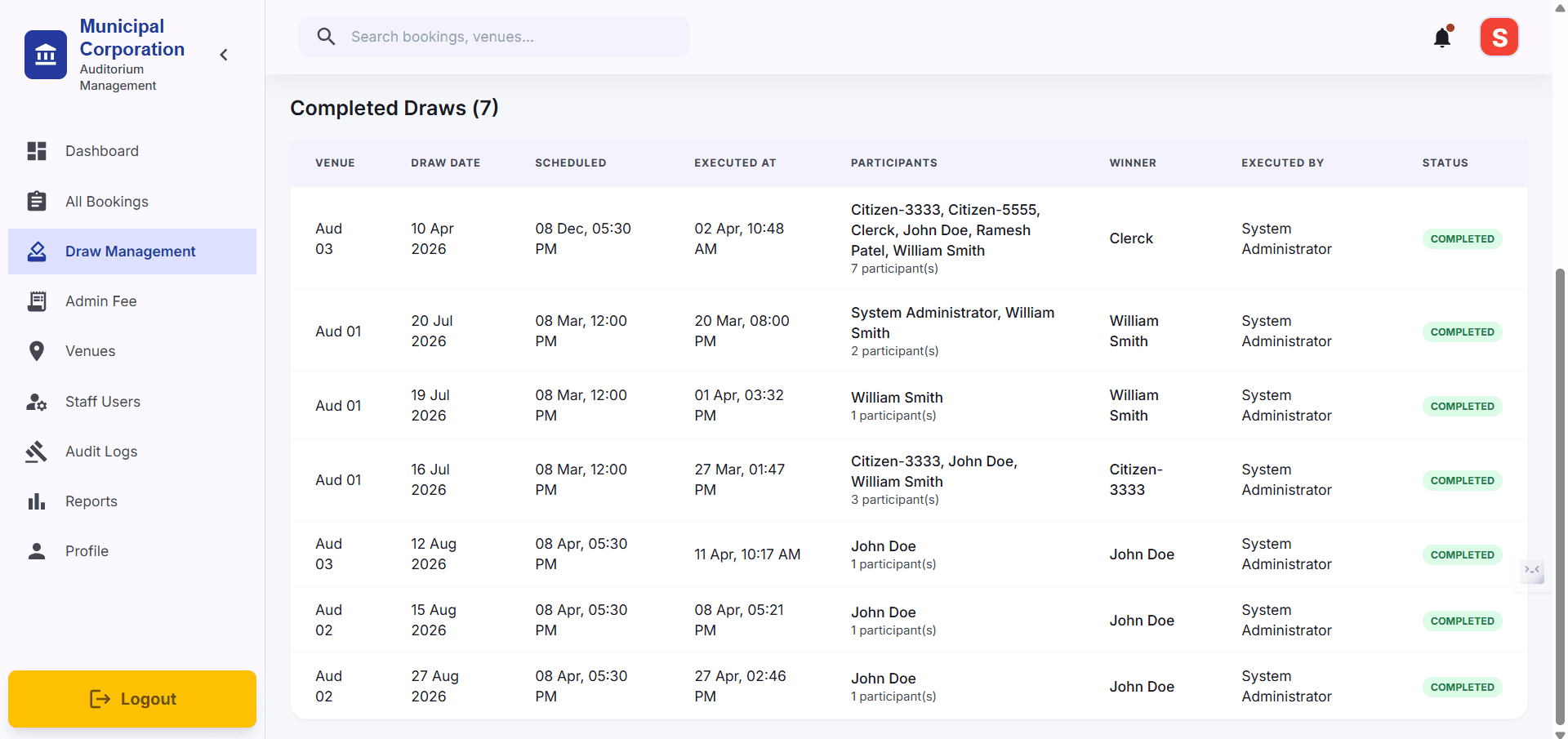
If you scroll down in Draw Management, you will be able to have a look on Completed Draws
Managing Admin Fees
13
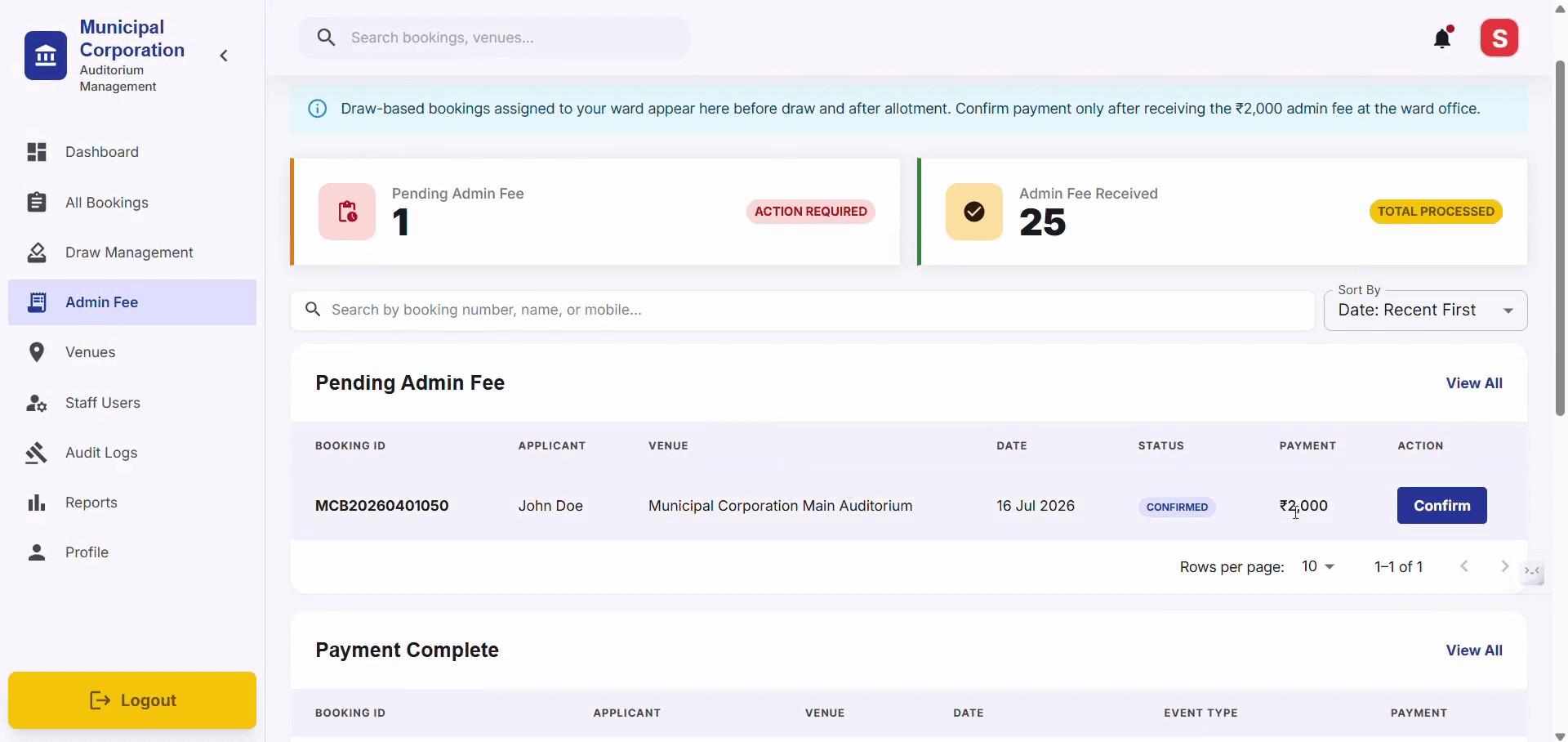
In Admin Fee tab, accept the Admin fee if paid by Citizen by clicking on Confirm Payment.
14
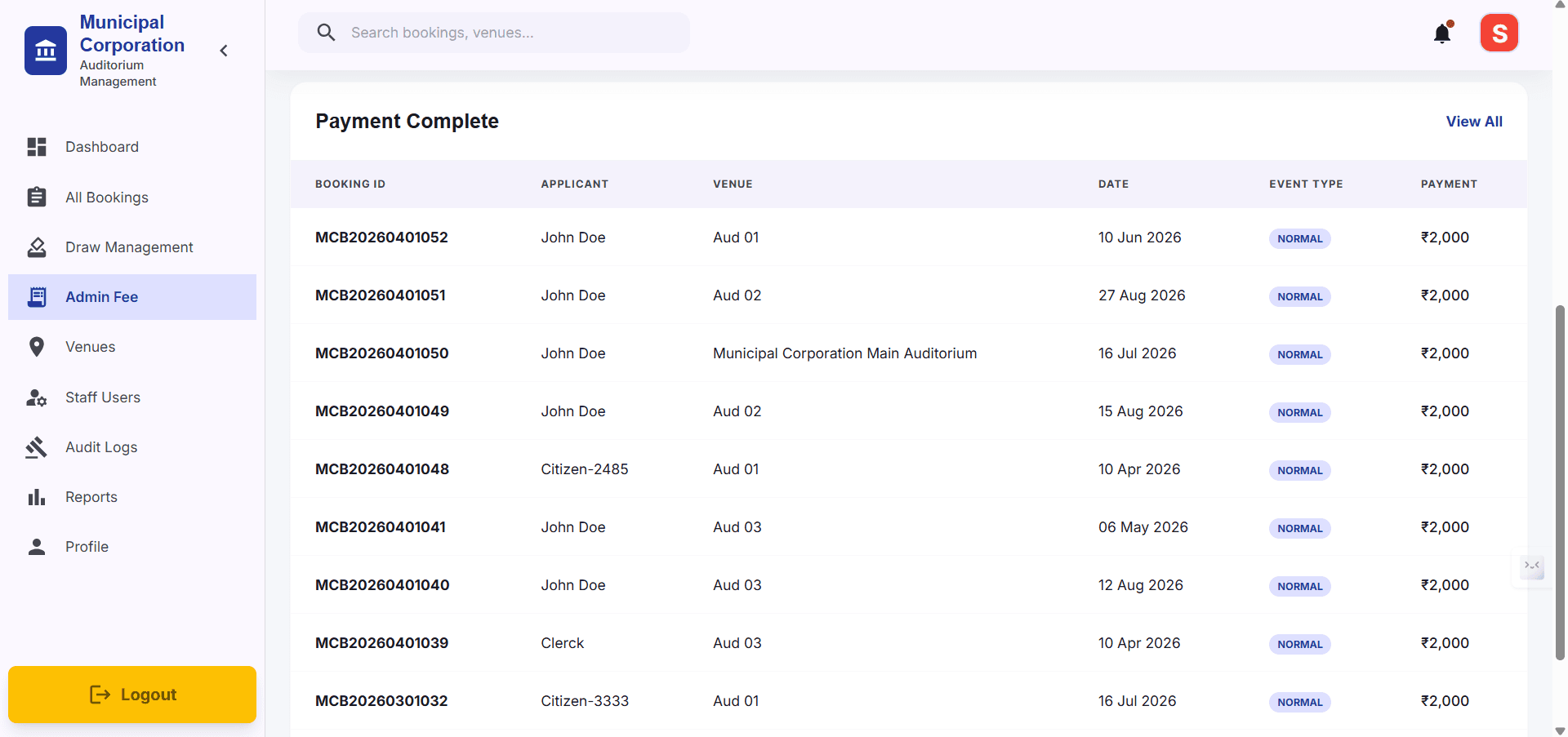
If you scroll down in Admin Fee, you'll be able to have a look on Payment Complete table which contains Paid Admin Fee citizens and their details
User Management & Accessing System Logs
Use the administrative menus to audit system activity and review internal personnel access.
15
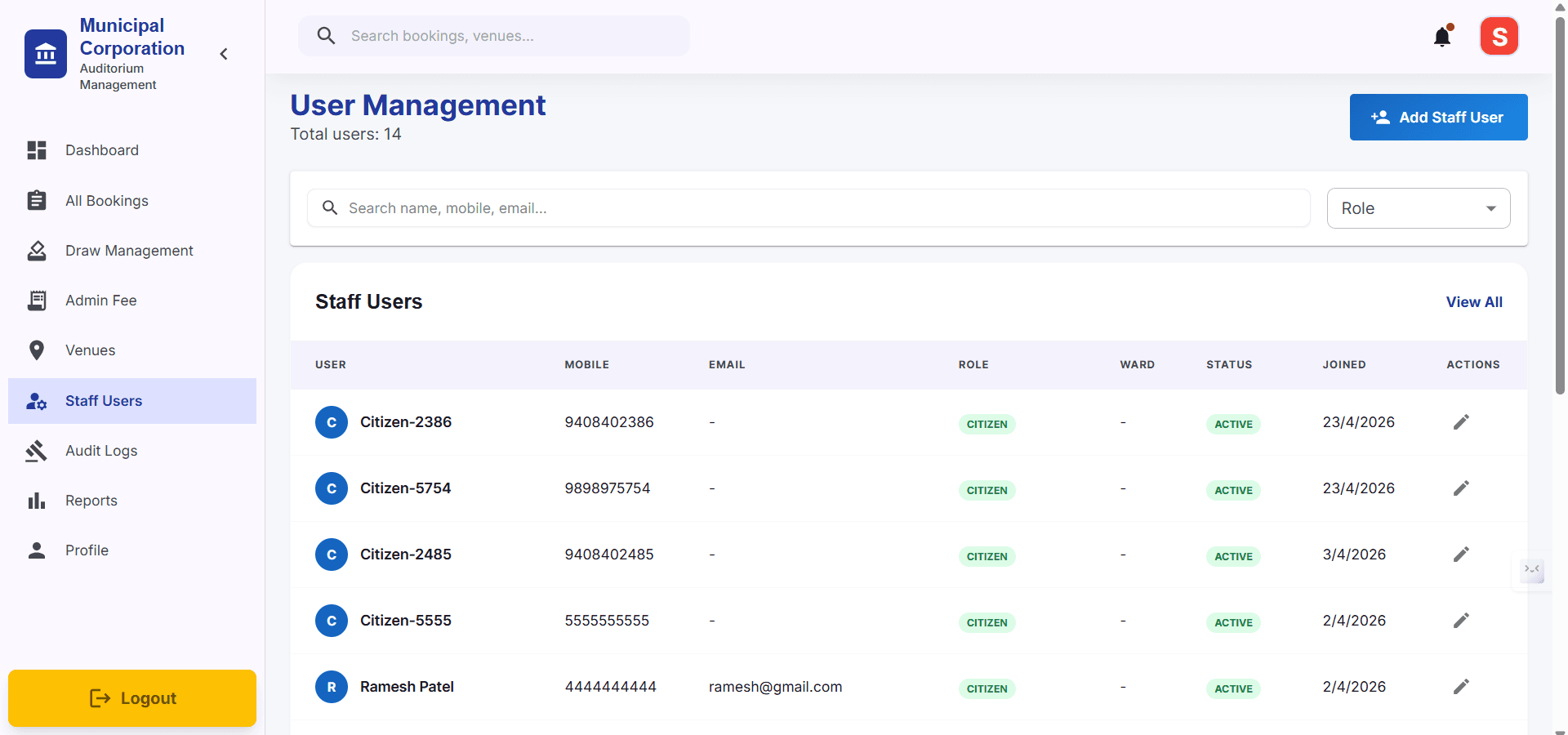
Click Staff Users to know who can access this website, it contains every role and their details. If want to edit details click on Edit Icon
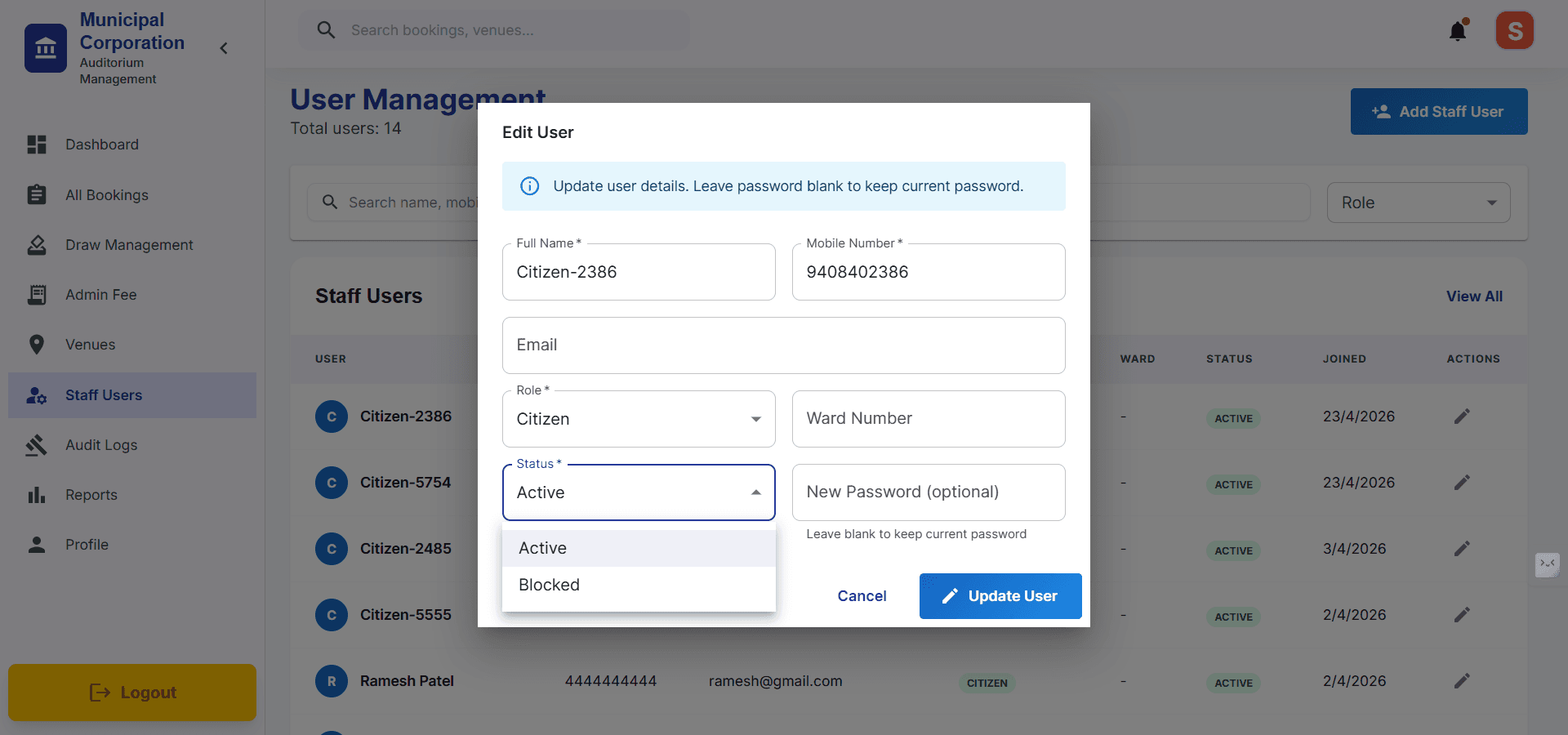
16
Through edit, Admin can edit details as well as Status of the user. Basically if he wants to Block access he can do it from here.
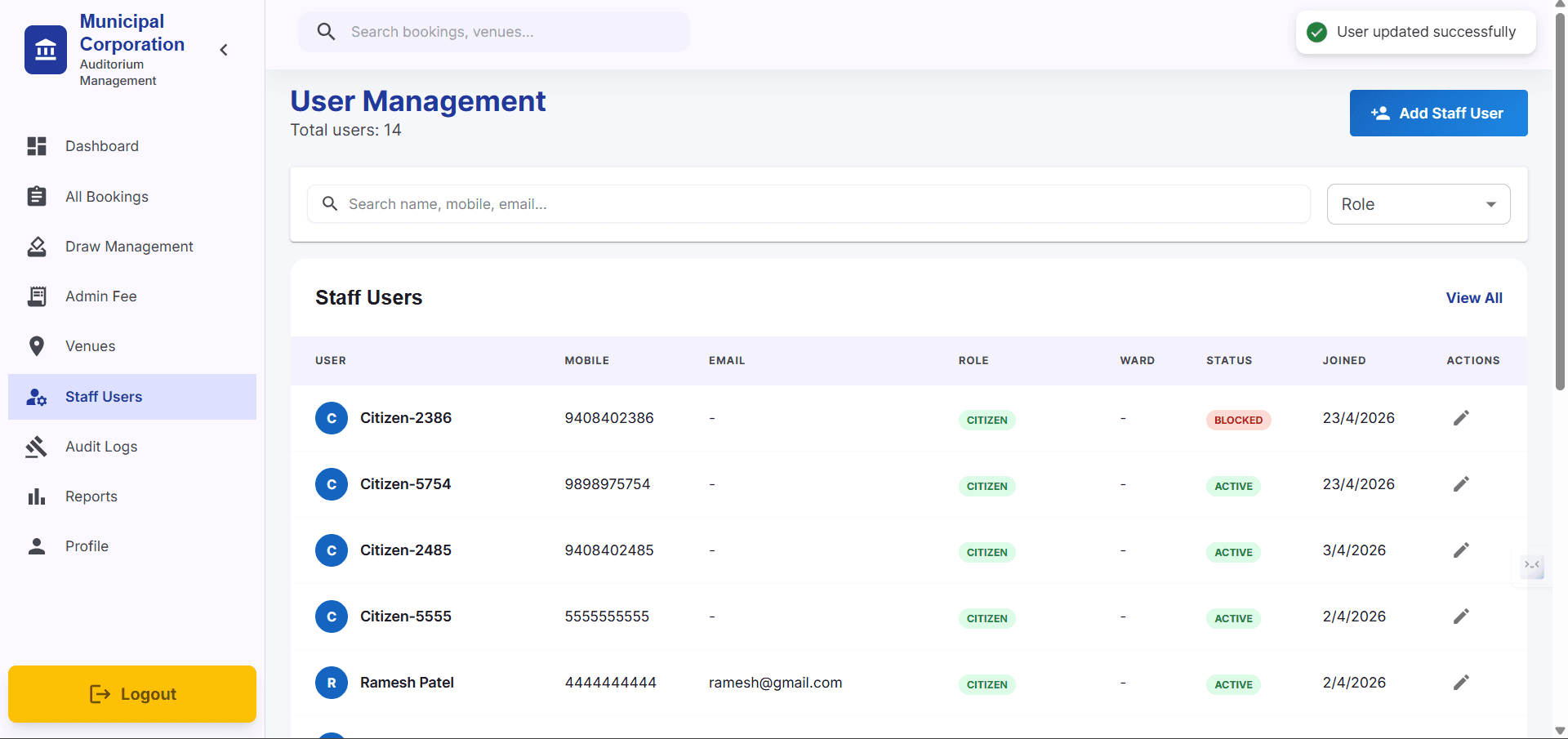
17
If Citizen is blocked, Status will be updated and that user won't be able to Login again.
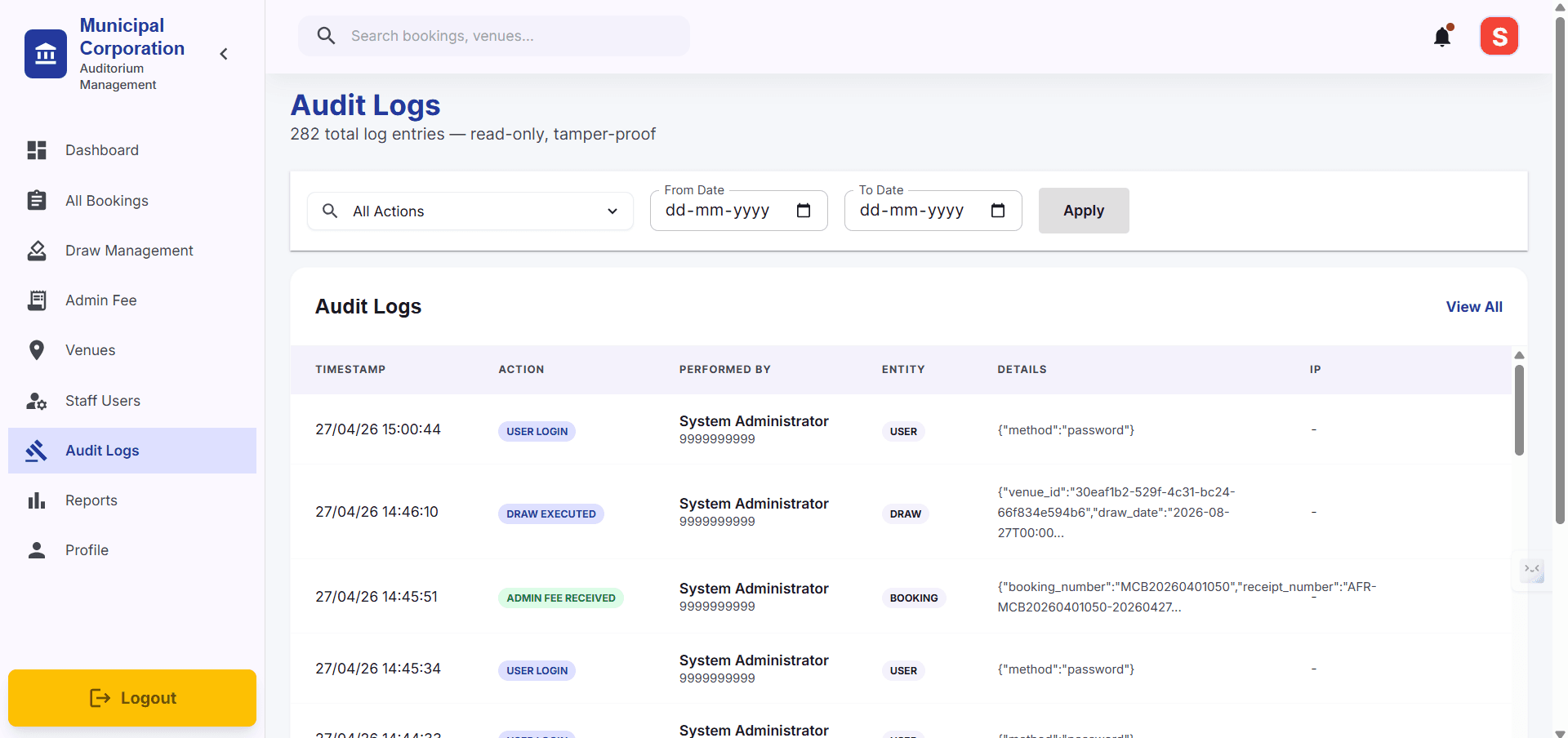
18
Go to Audit Logs tab to track actions taken across the application.
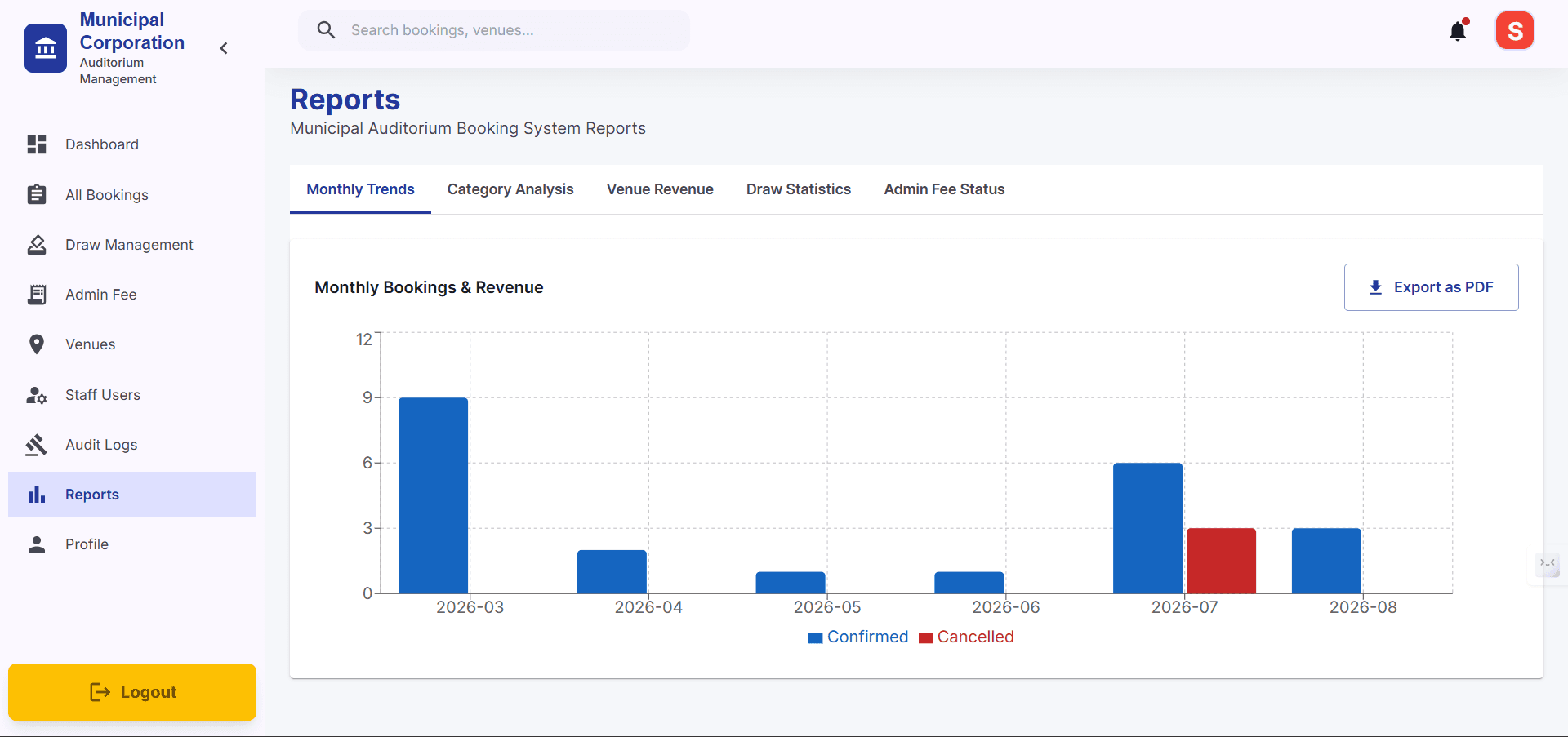
Types of Reports
19
Reports tab contains different types of stats for visual representation of bookings. You can also download that report as PDF
Update Your Profile
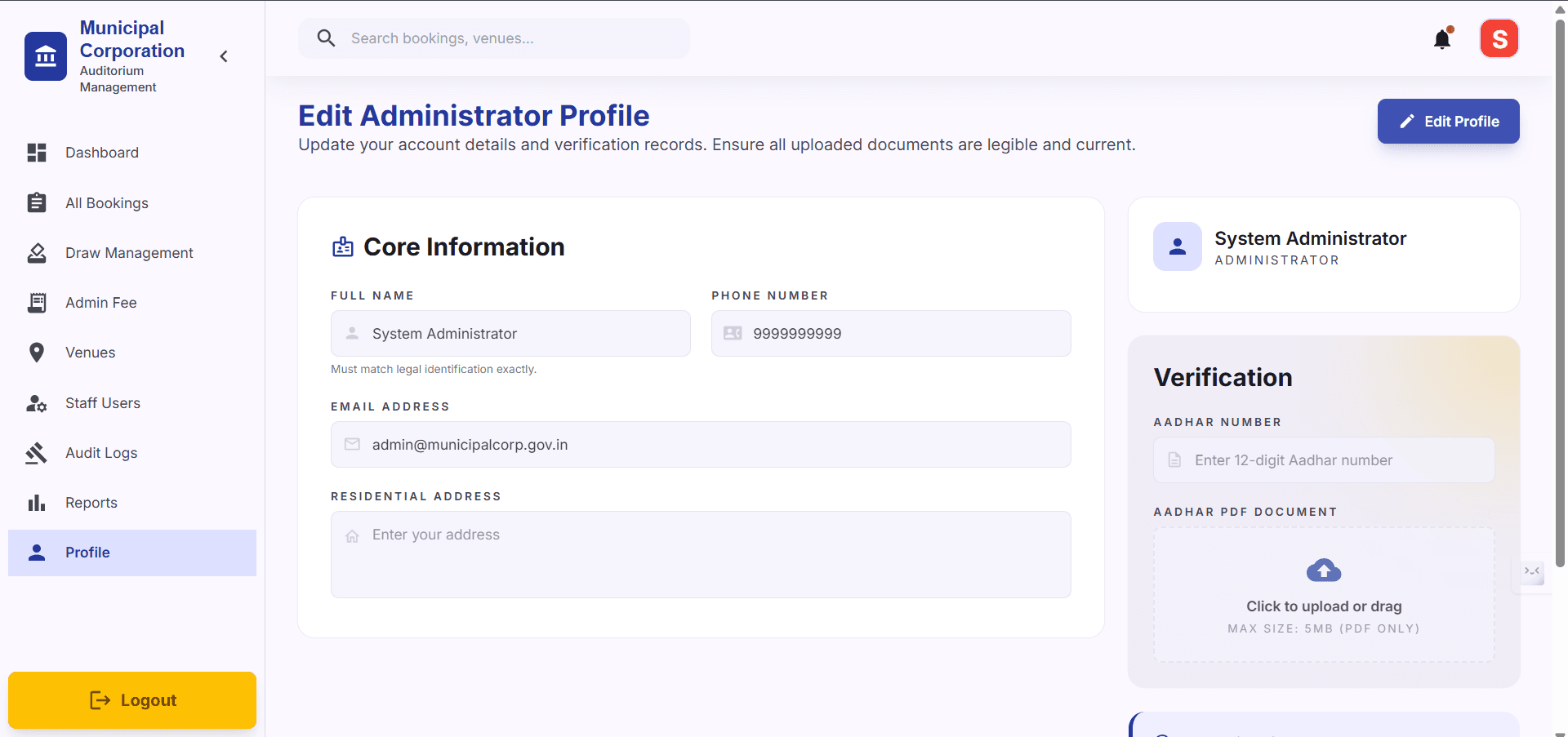
Keeping your profile information accurate ensures you receive notifications about your bookings.
20
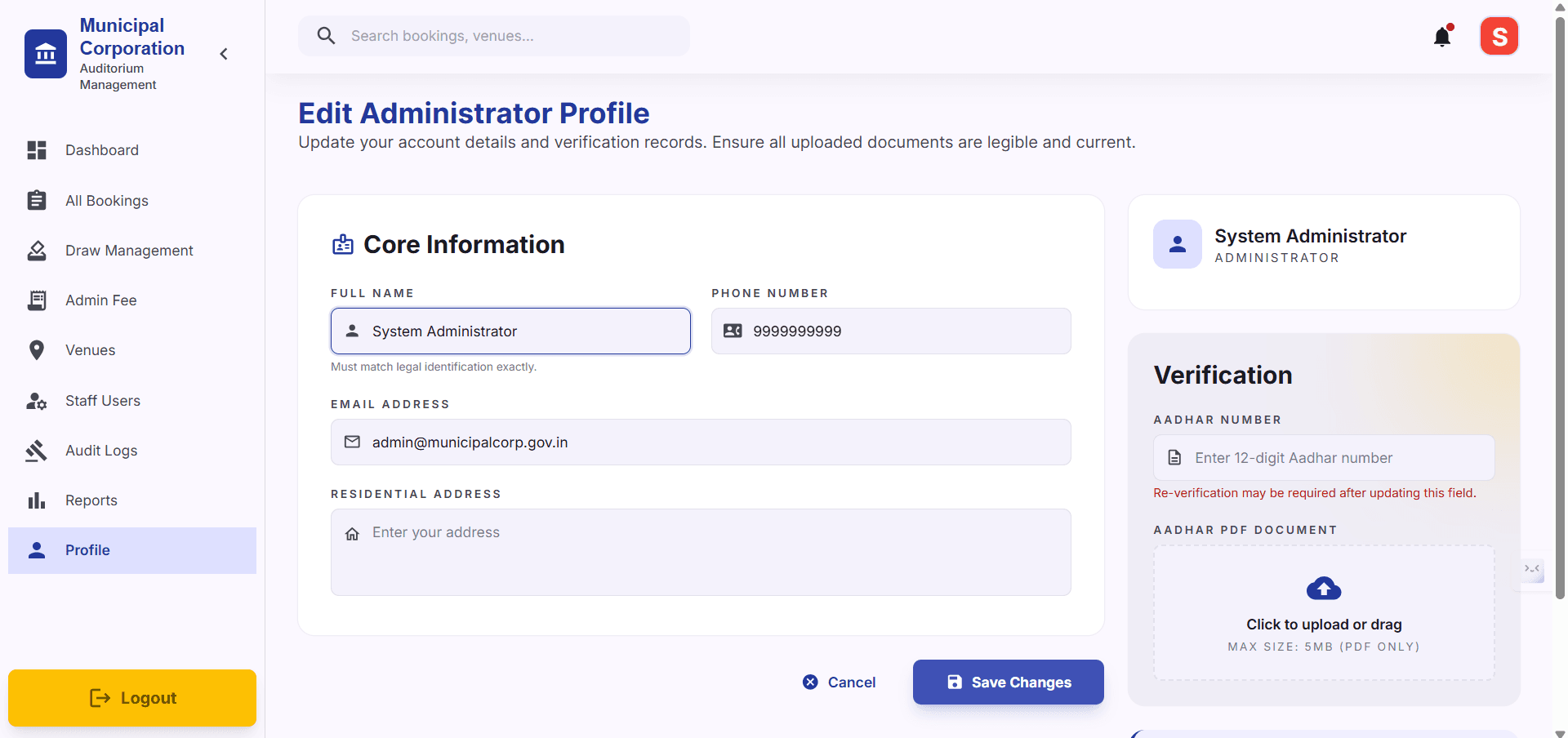
Click on your Profile tab, then Edit Profile button if you want to edit details of yours
21
Click Save Changes to apply your updates.