How to Book Appointments in the RiteCare Slot Availability App
Learn how to set up your account, filter schedules by location and specialty, and book patient appointments using the new RiteCare scheduling tool.
This guide explains how to transition from using Google Sheets to the new scheduling application. By following these steps, you will learn how to create your account, view slot availability, and successfully book patient appointments.
This workflow is intended for scheduling staff and administrative teams responsible for managing patient bookings. You will use this tool daily to verify technician availability and secure appointment slots.
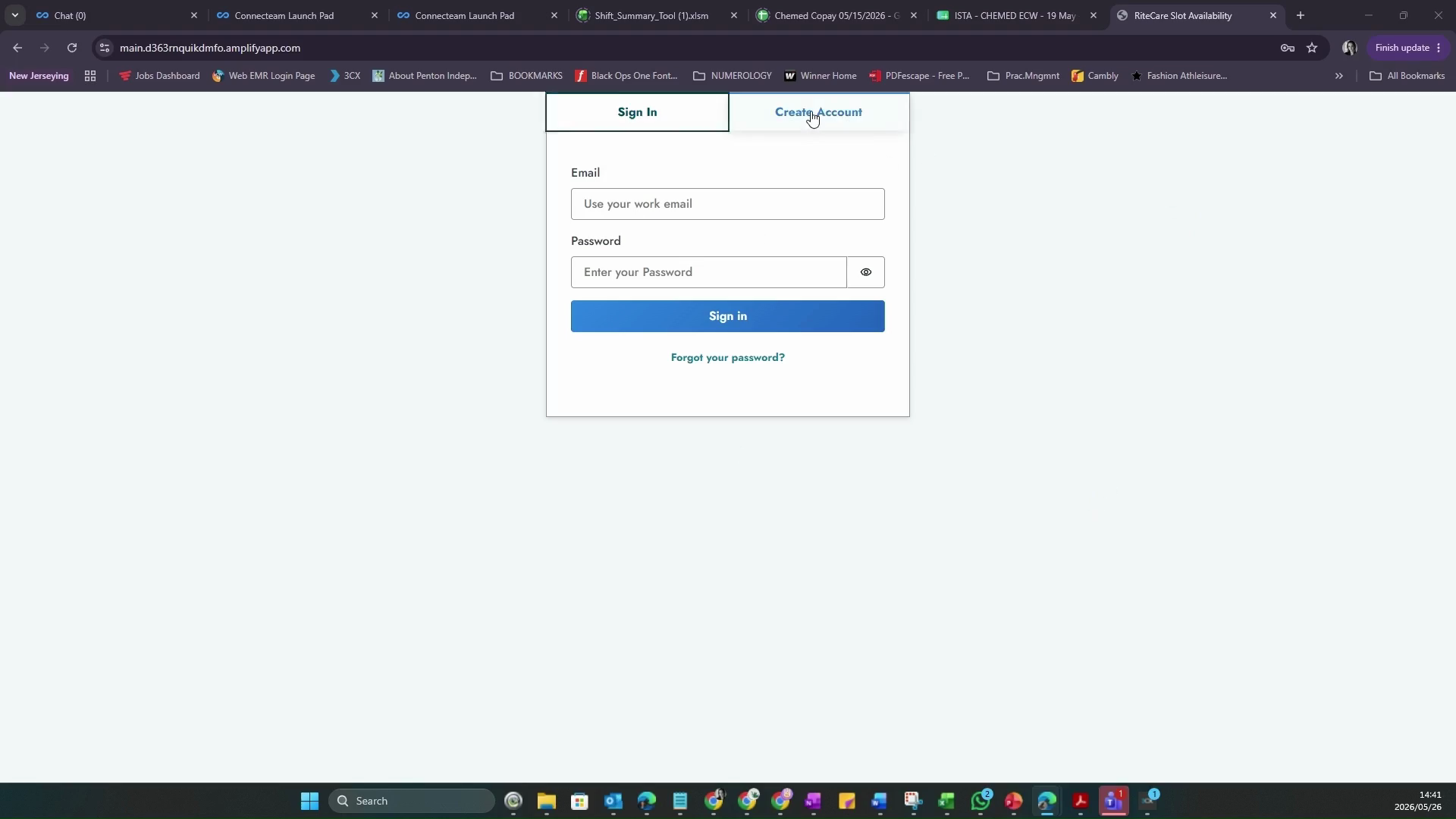
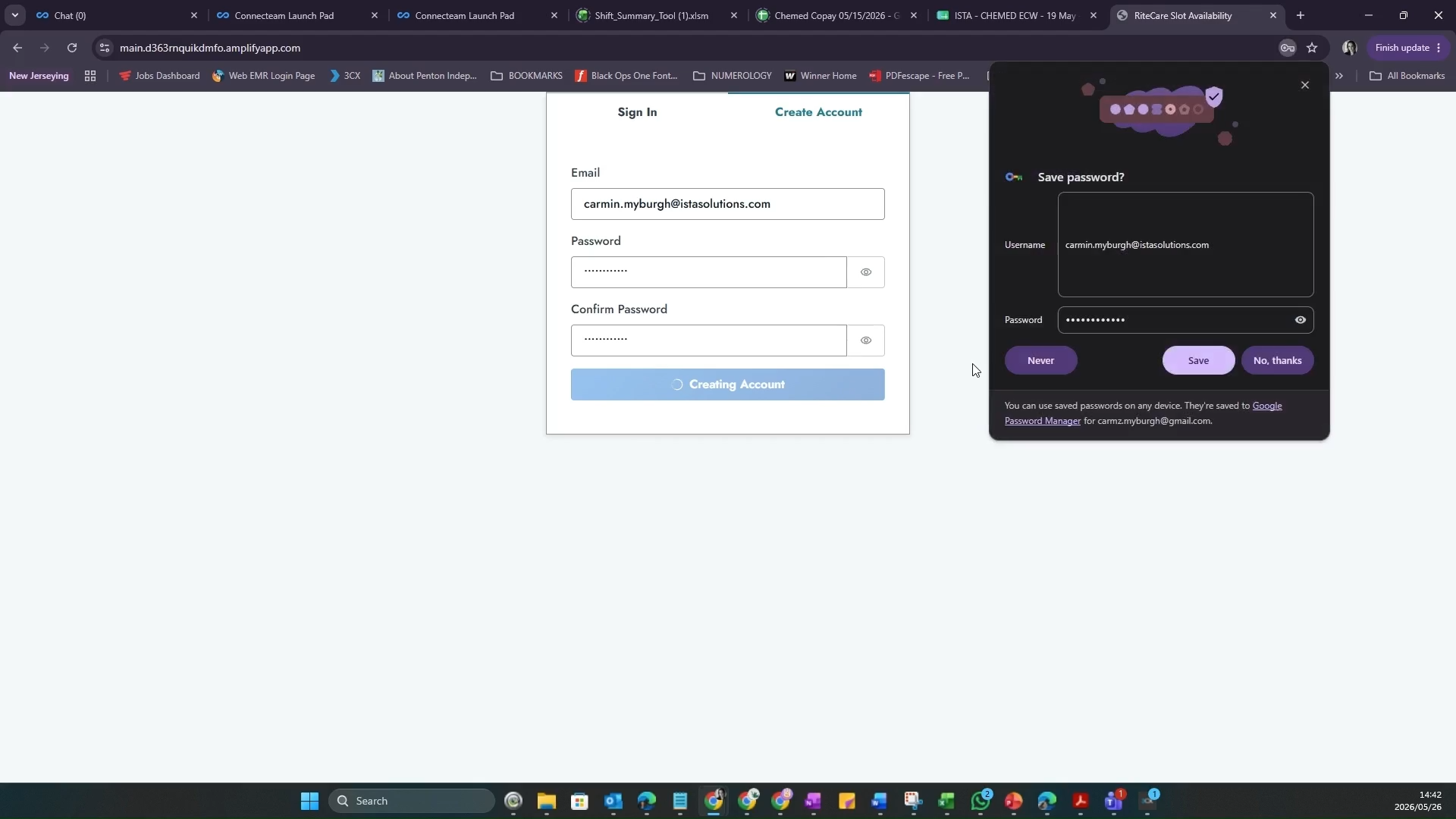
Create an Account
Filter the Schedule
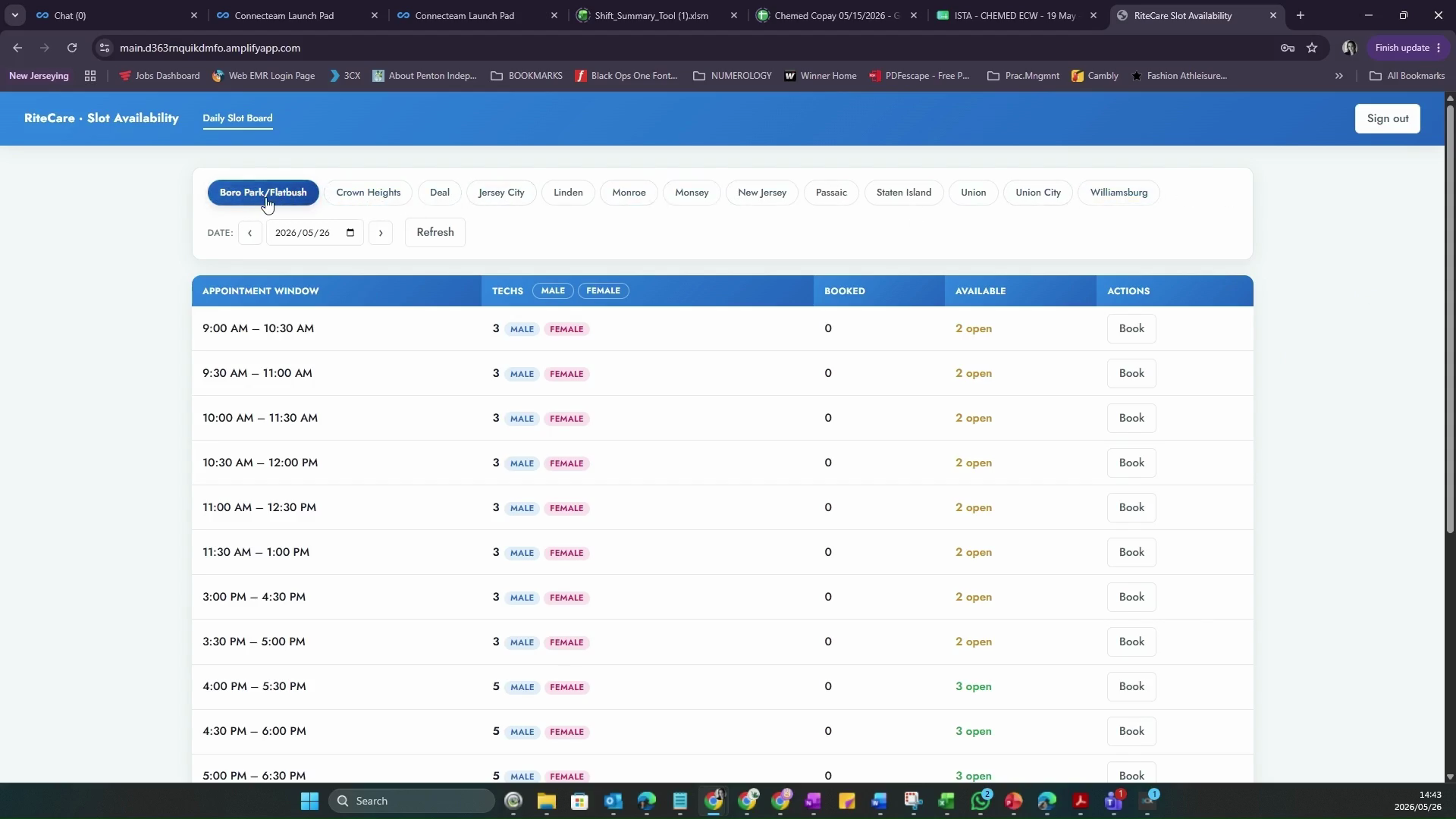
Location Filter | Description |
|---|---|
Boro Park / Flatbush | The default location view. |
Crown Heights | Filters the board for Crown Heights appointments. |
Deal | Filters the board for Deal appointments. |
Jersey City | Filters the board for Jersey City appointments. |
Linden | Filters the board for Linden appointments. |
Monroe | Filters the board for Monroe appointments. |
Monsey | Filters the board for Monsey appointments. |
New Jersey | Filters the board for broader New Jersey appointments. |
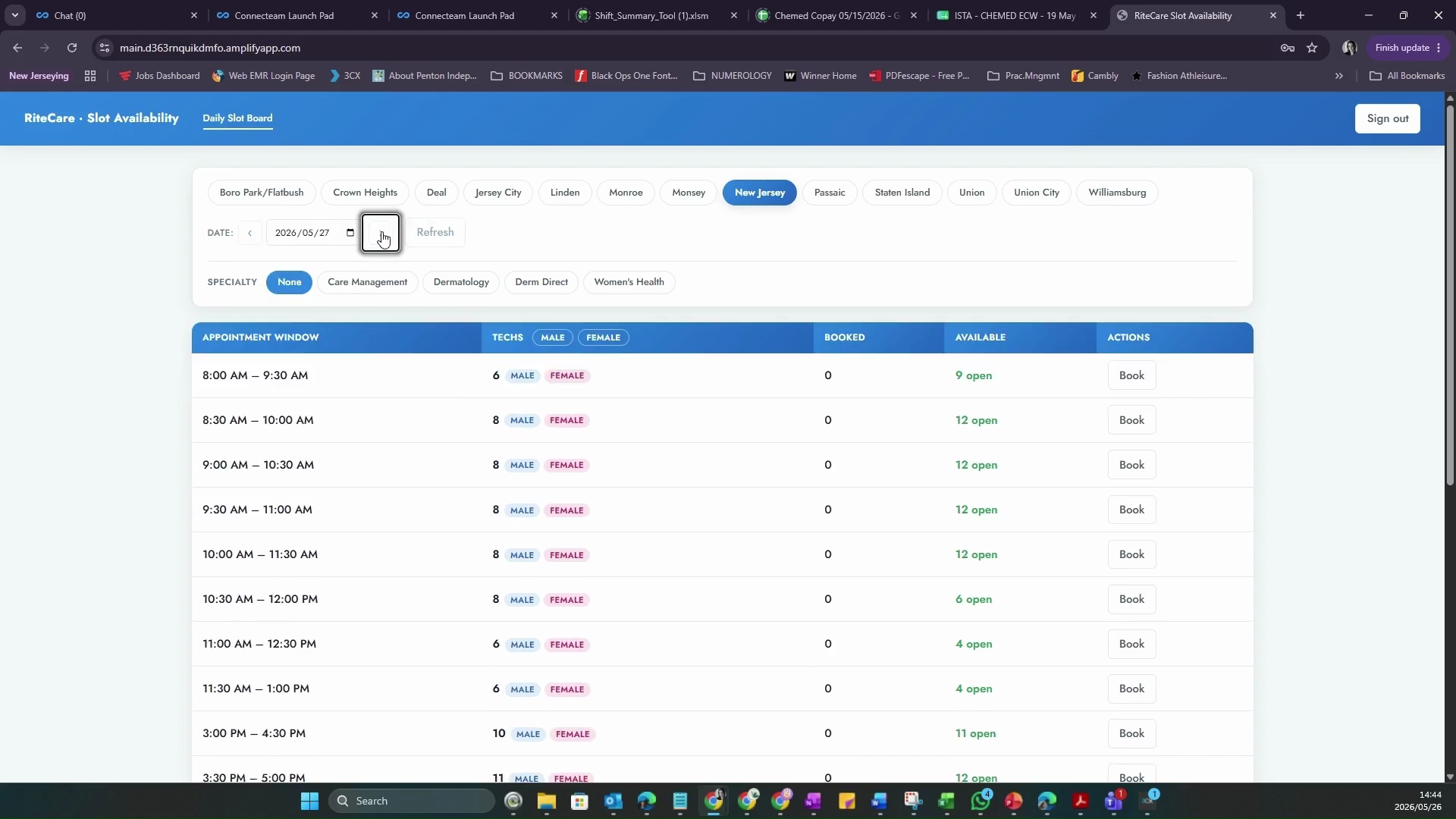
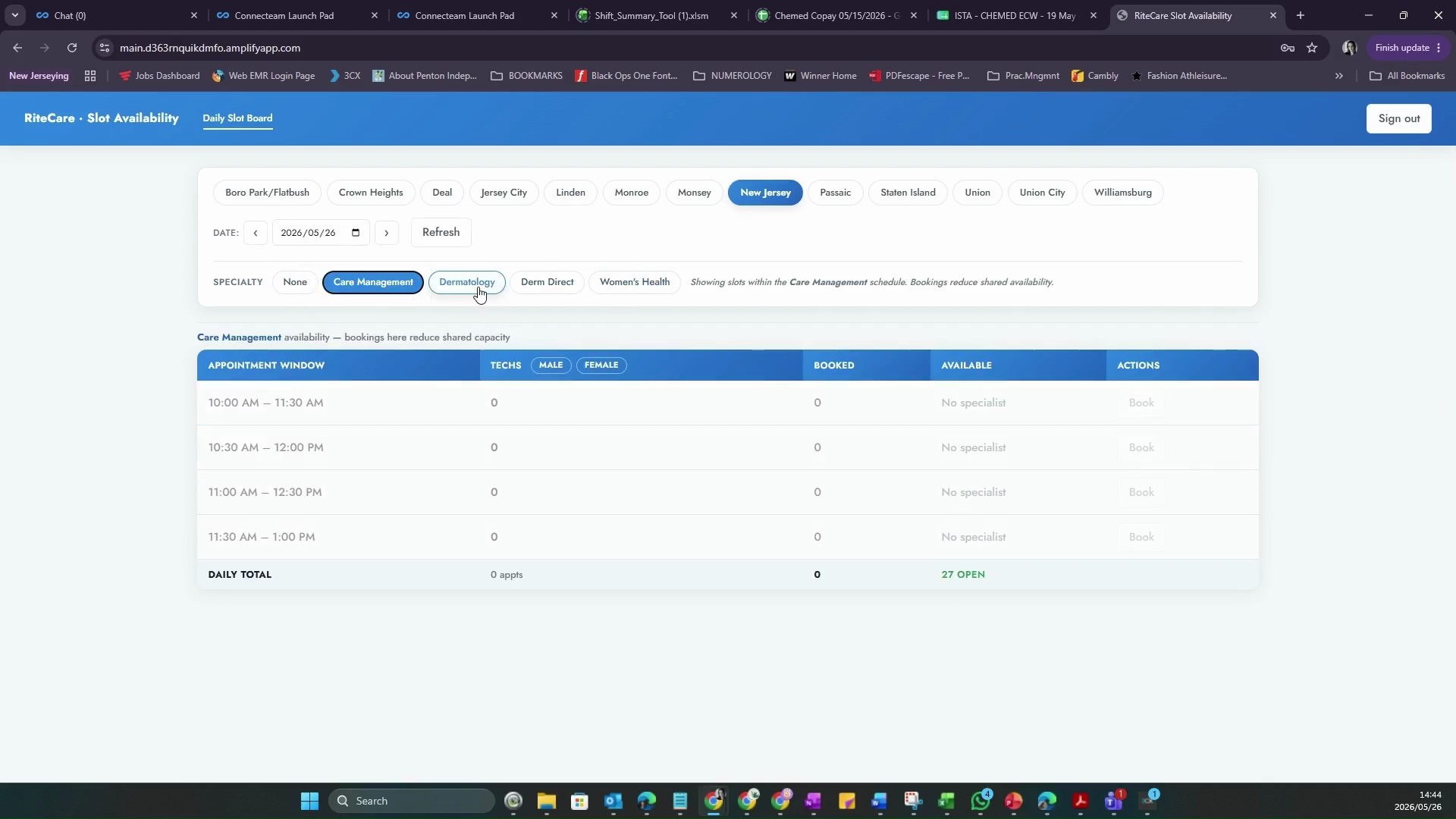
Specialty Filter | Description |
|---|---|
Care Management | Filters the schedule for care management visits. |
Dermatology | Filters the schedule for standard dermatology visits. |
Derm Direct | Filters the schedule for direct dermatology visits. |
Women's Health | Filters the schedule for women's health visits. |
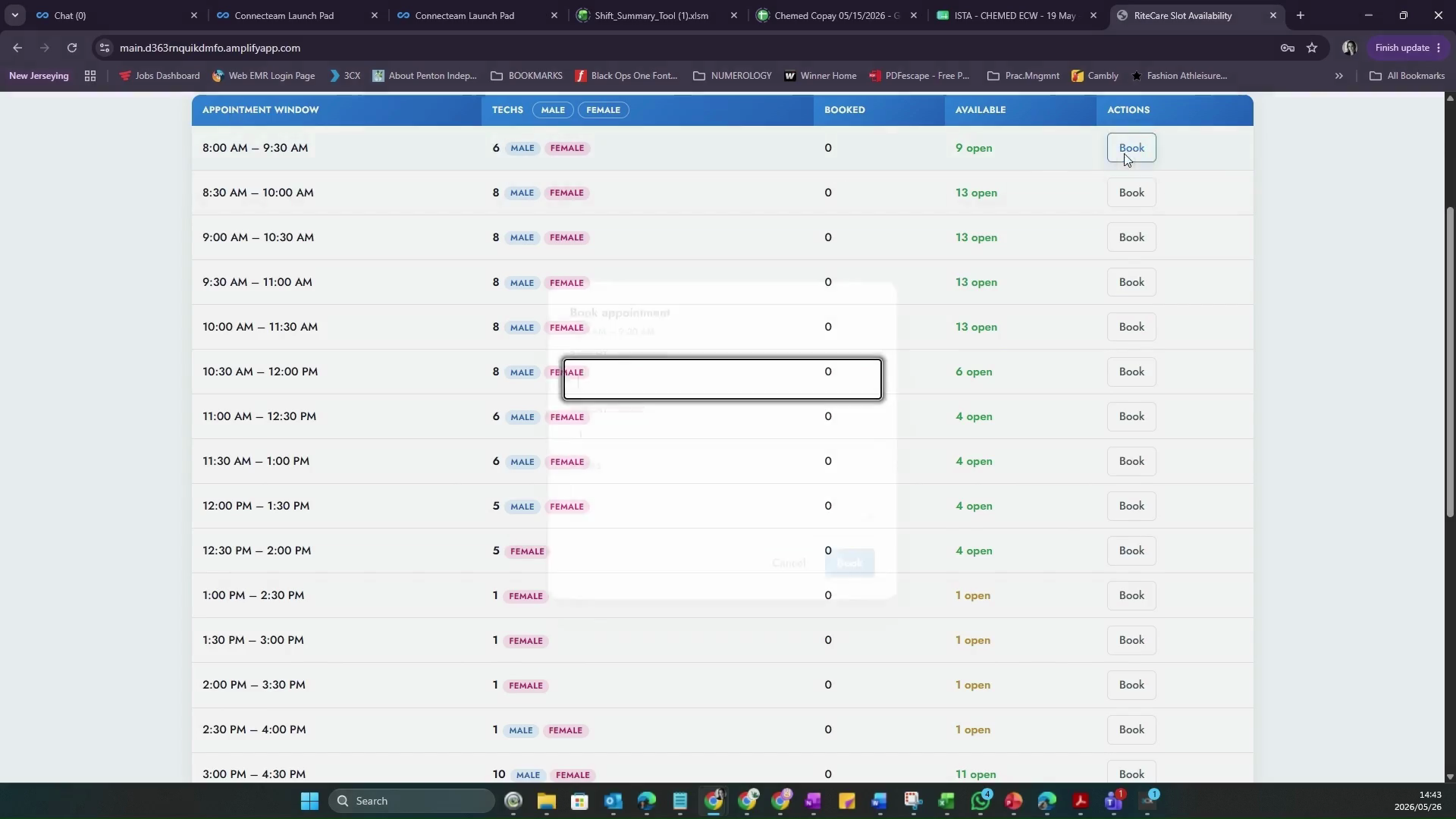
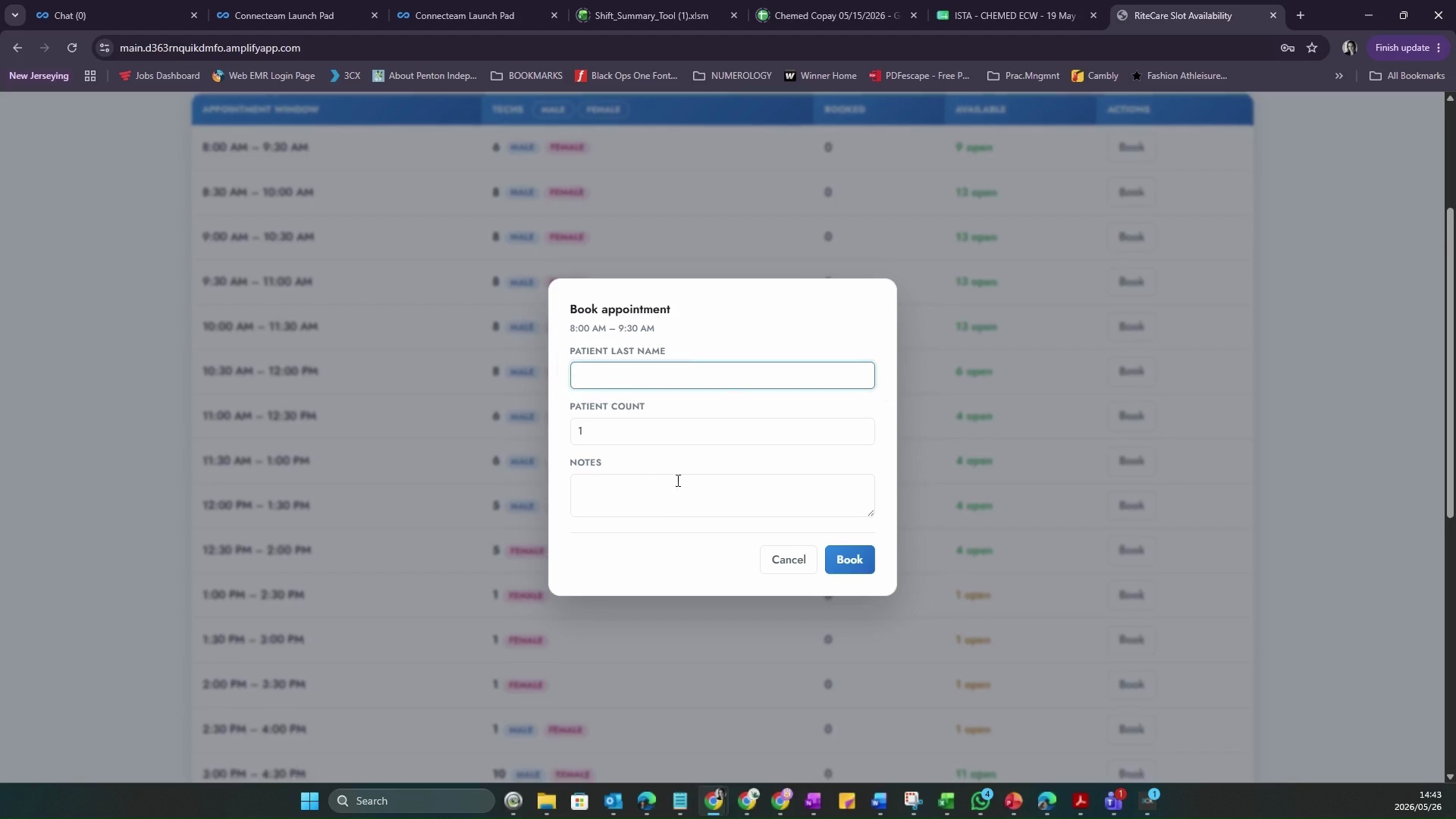
Book an Appointment
Q: What are the password requirements?
A: Your password must be exactly twelve characters long to successfully create an account.
Q: Do I need to manually coordinate technician genders?
A: No. The new system automatically tracks and displays the remaining slots with male and female technician availability already accounted for.
Q: Can I book an appointment for a future date?
A: Yes. Use the date picker arrows at the top of the schedule to advance the date and view future availability.