How to Browse, Search, and Restore Emails in MailStore
Learn how to log into MailStore Server, navigate your archived email folders, perform advanced searches, and restore messages to your active inbox.
This guide demonstrates how to access and manage your archived emails in the MailStore desktop client. By completing these steps, you will be able to navigate folder structures, search for specific records, and restore historical messages to your active inbox.
This workflow is intended for employees and IT administrators who need to recover deleted or older emails from the organization's MailStore archive.
Logging In
XXXXXXXXX@simatelex.com.hk) in the email field.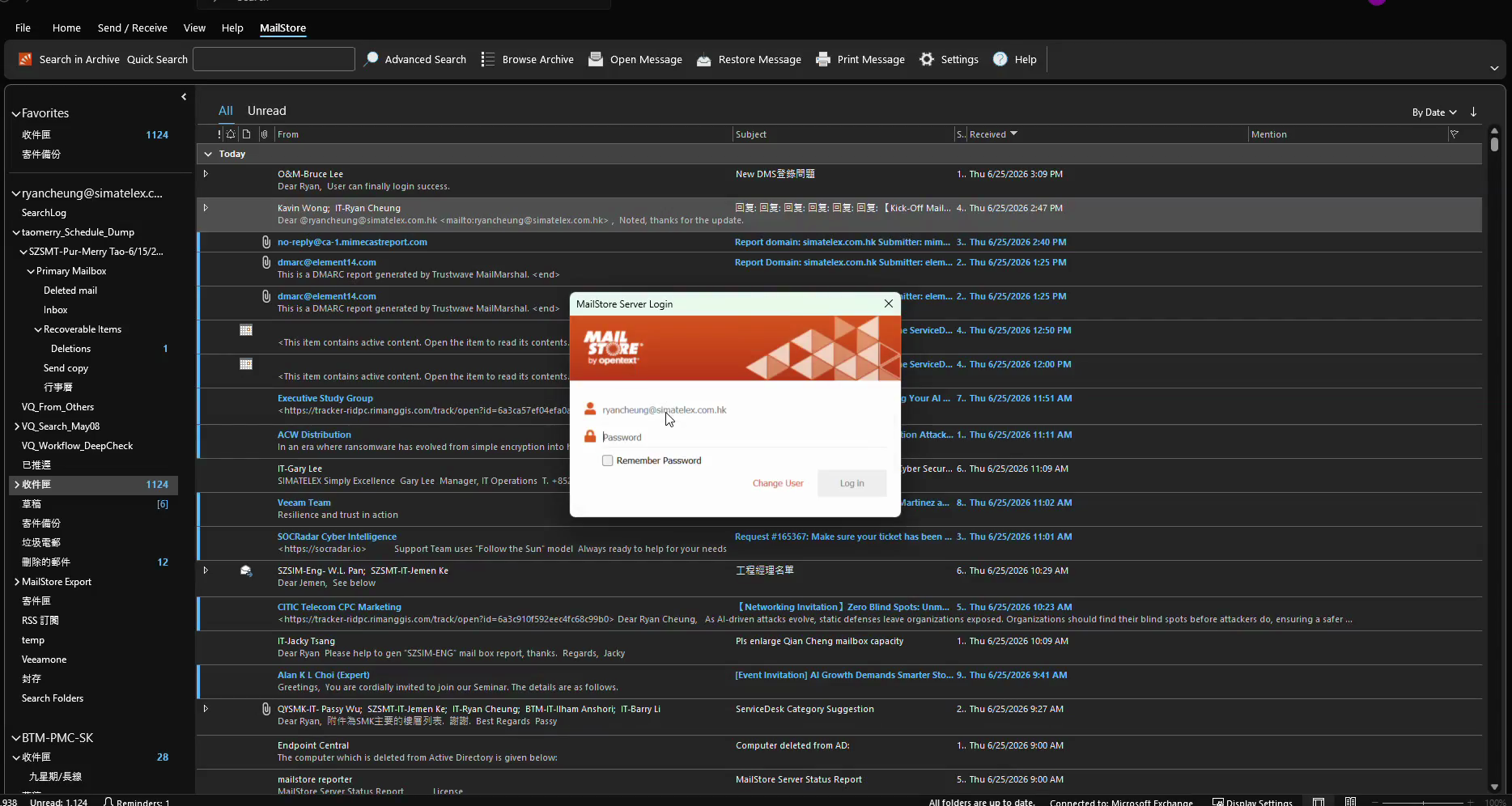
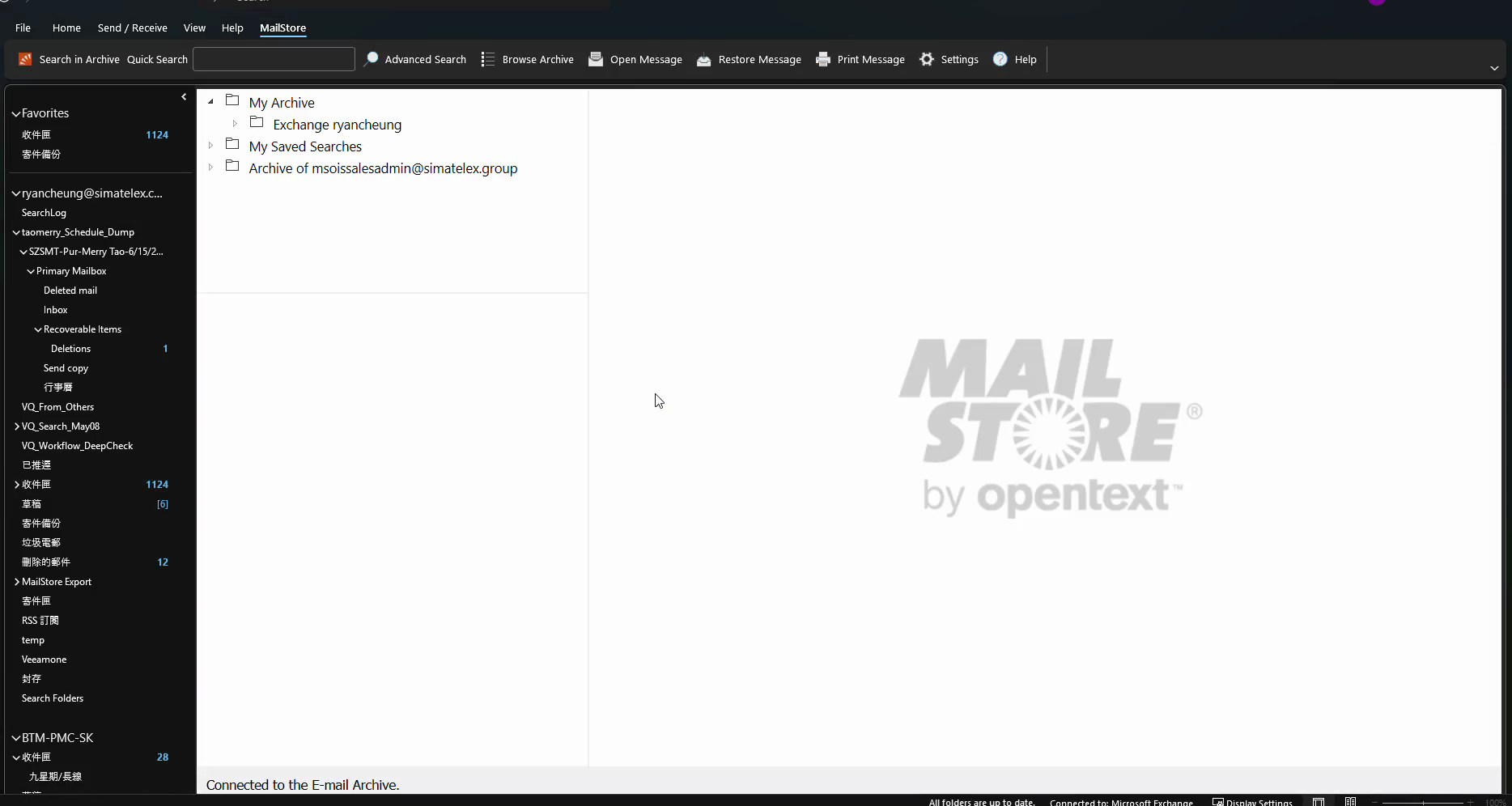
Browsing the Archive
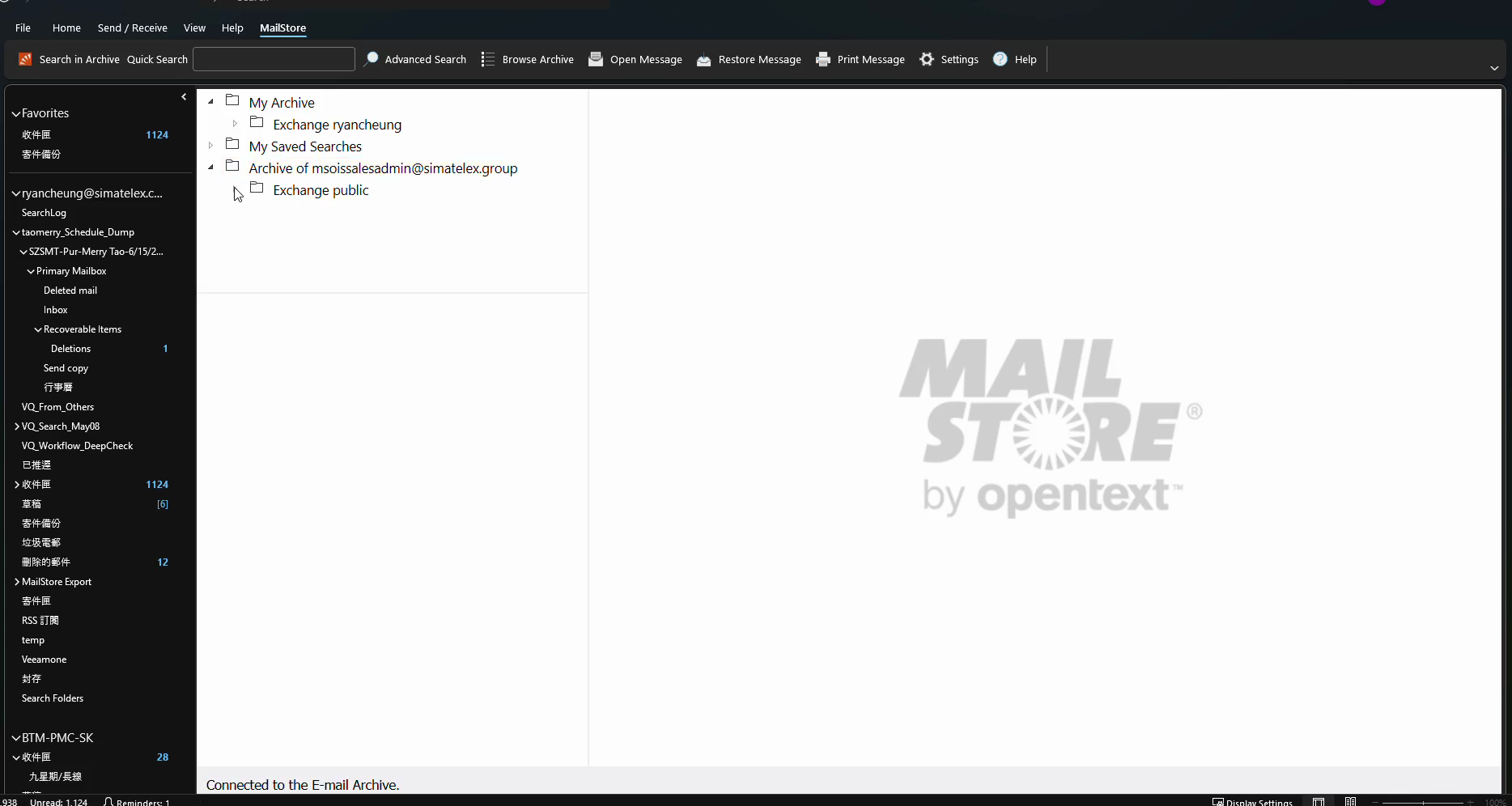
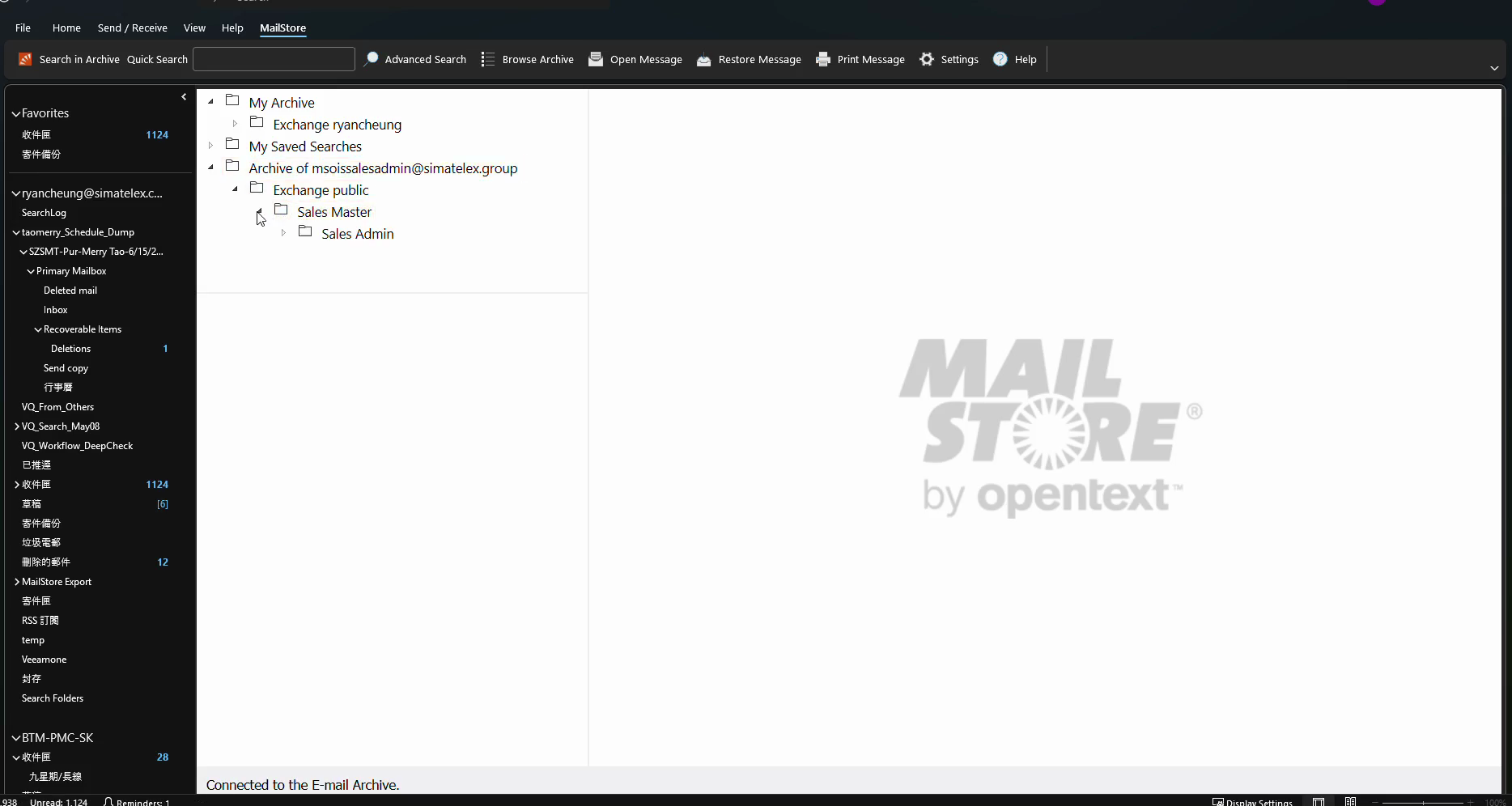
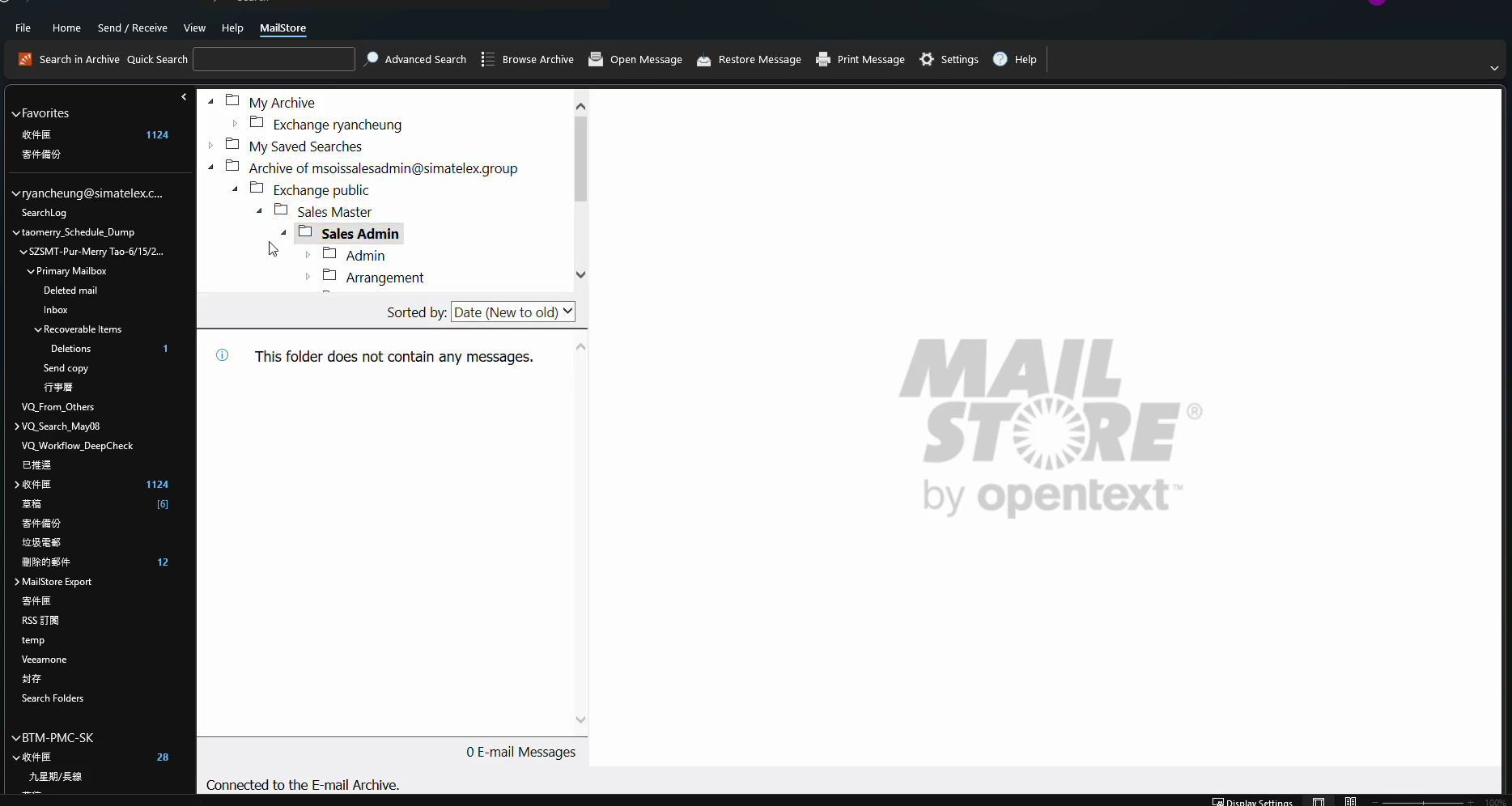
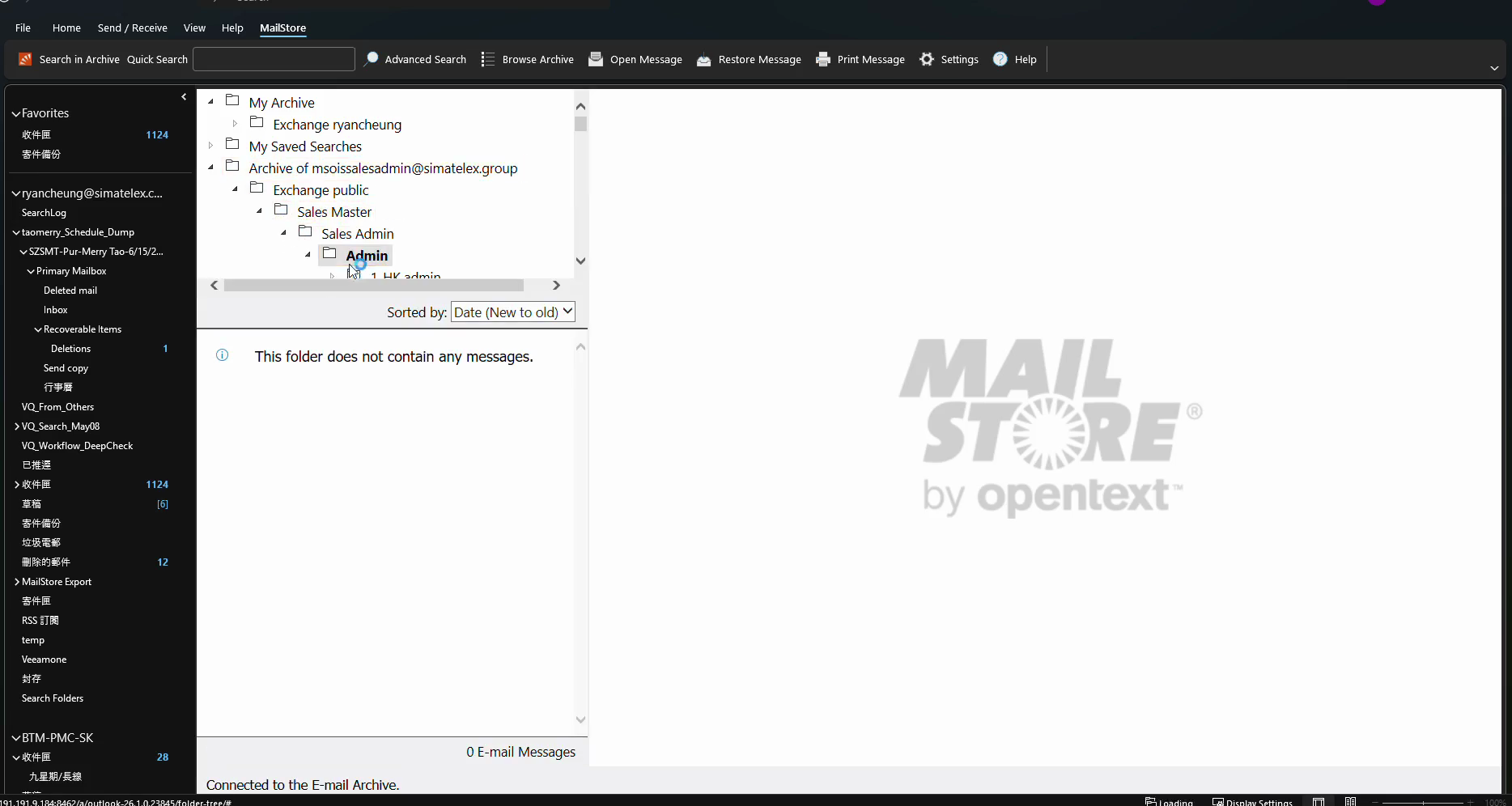
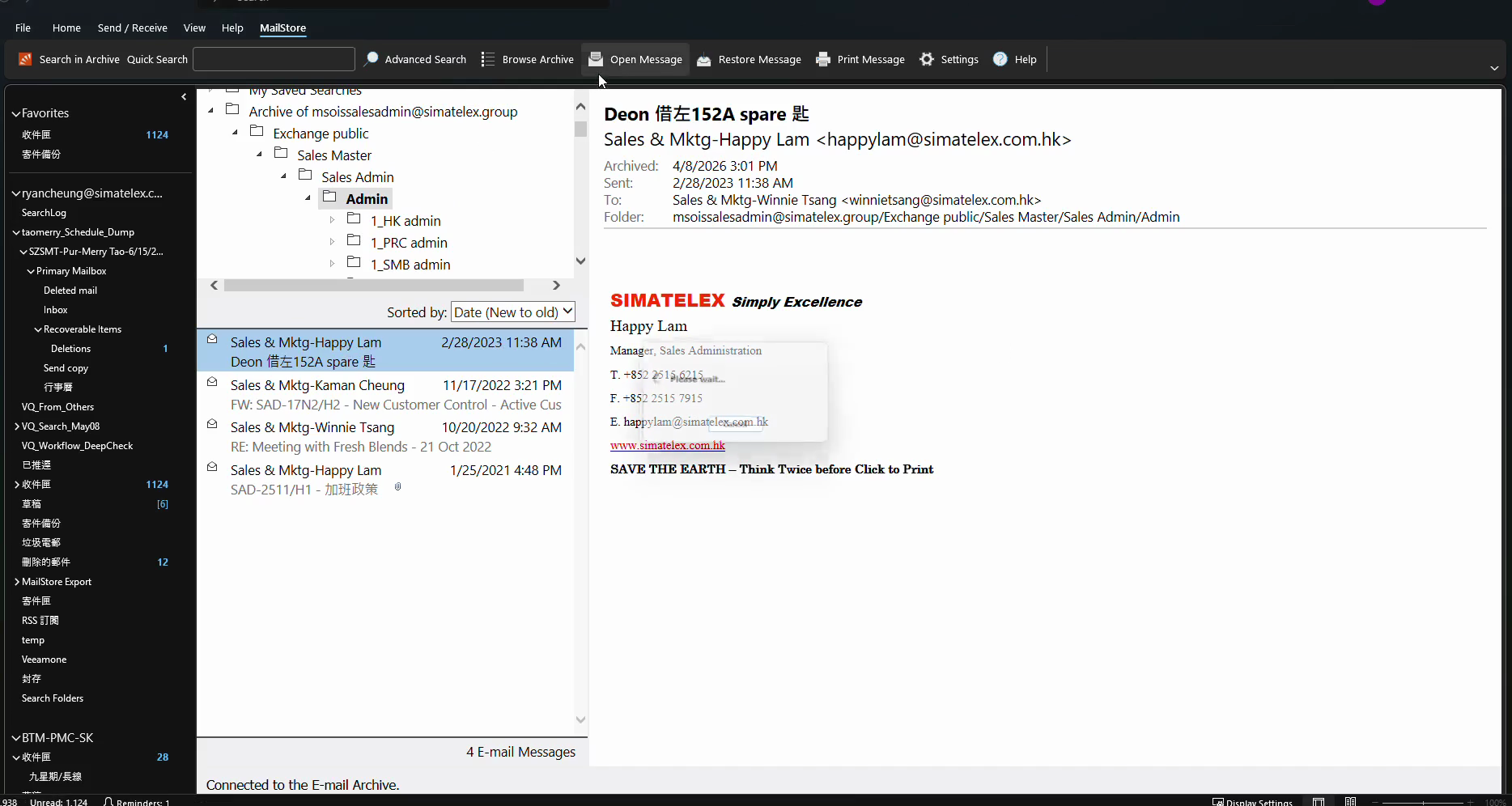
Searching for an Email
If you cannot locate an email by browsing manually, use the search function.
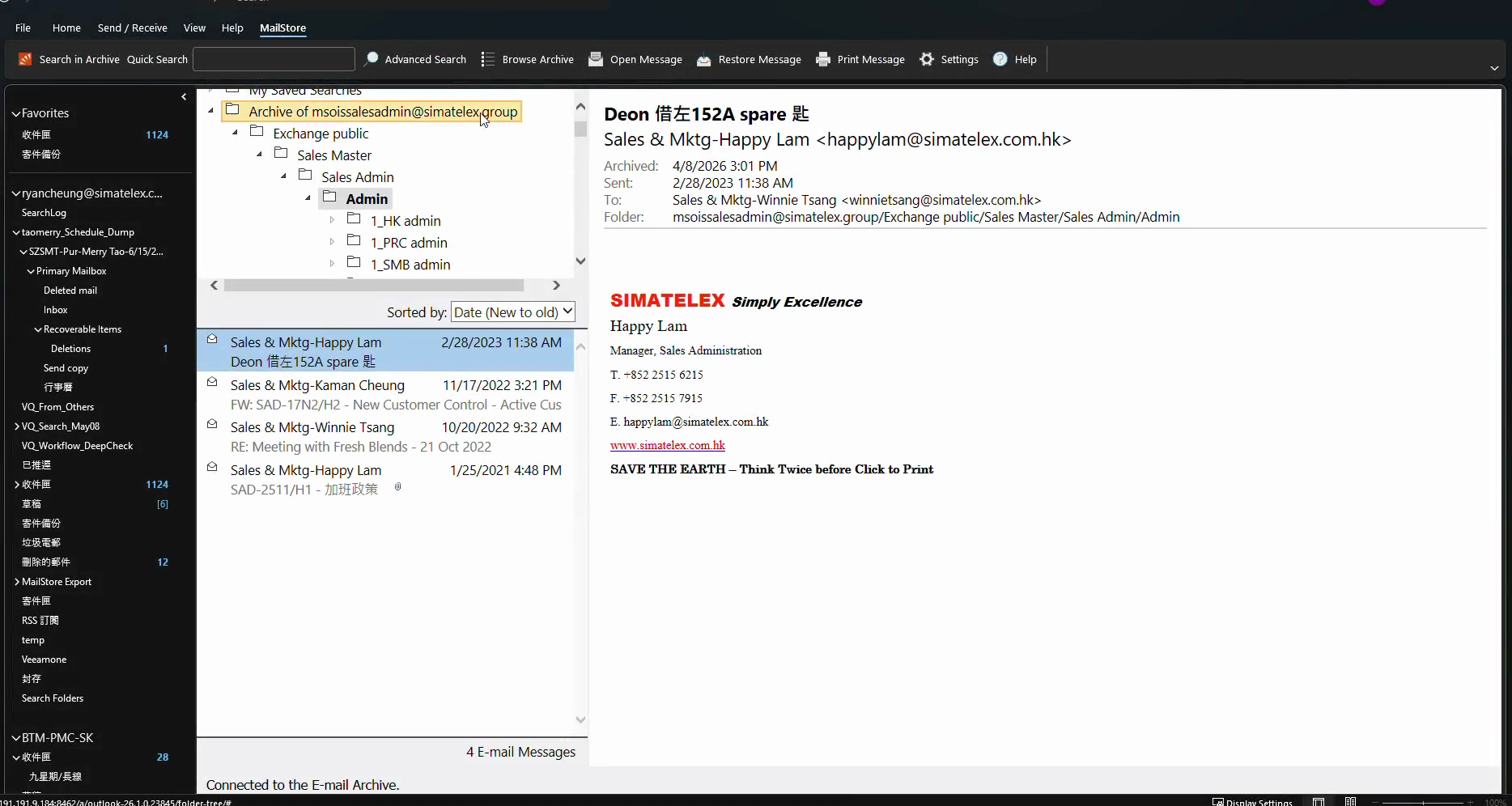
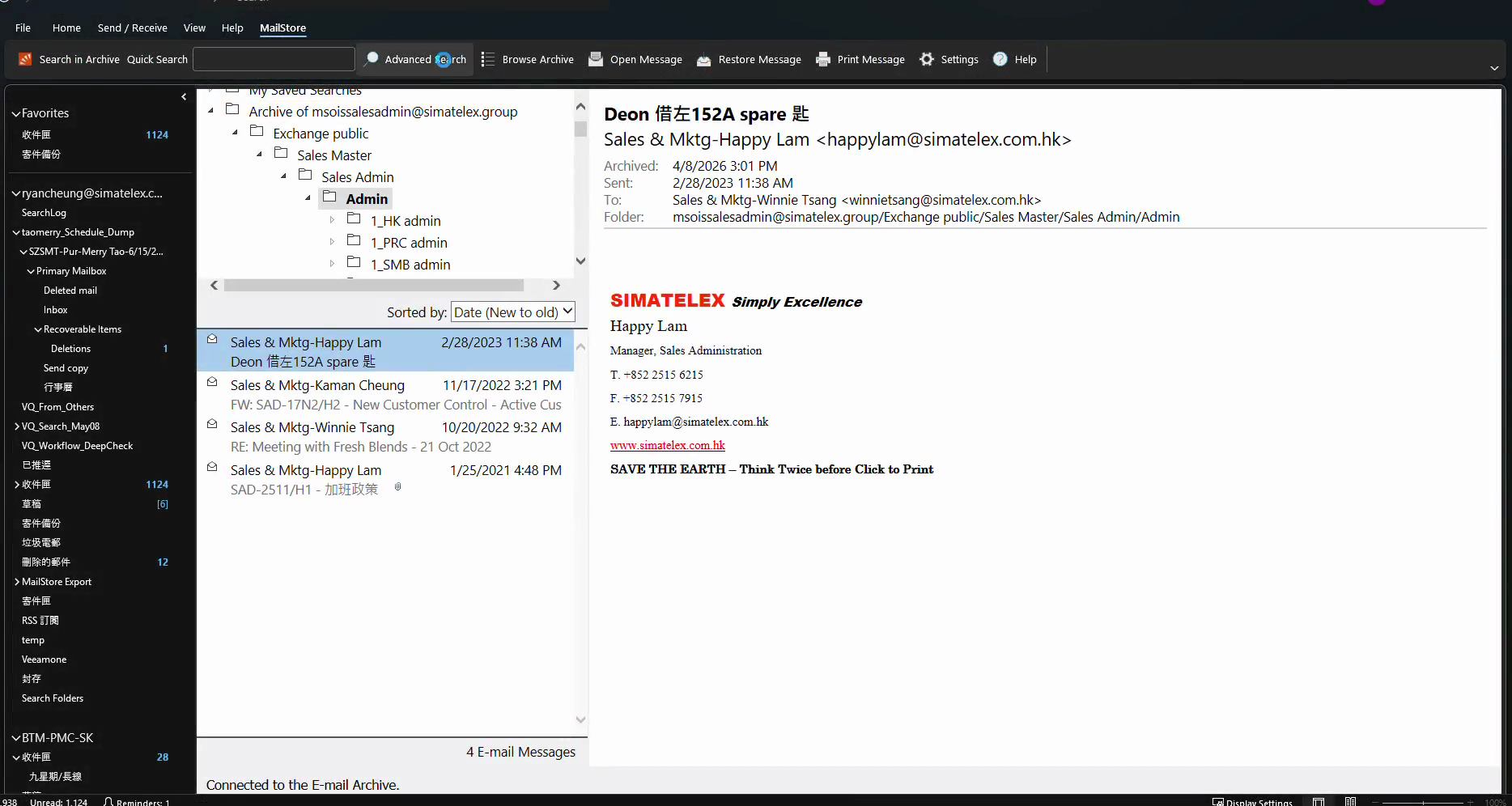
sales).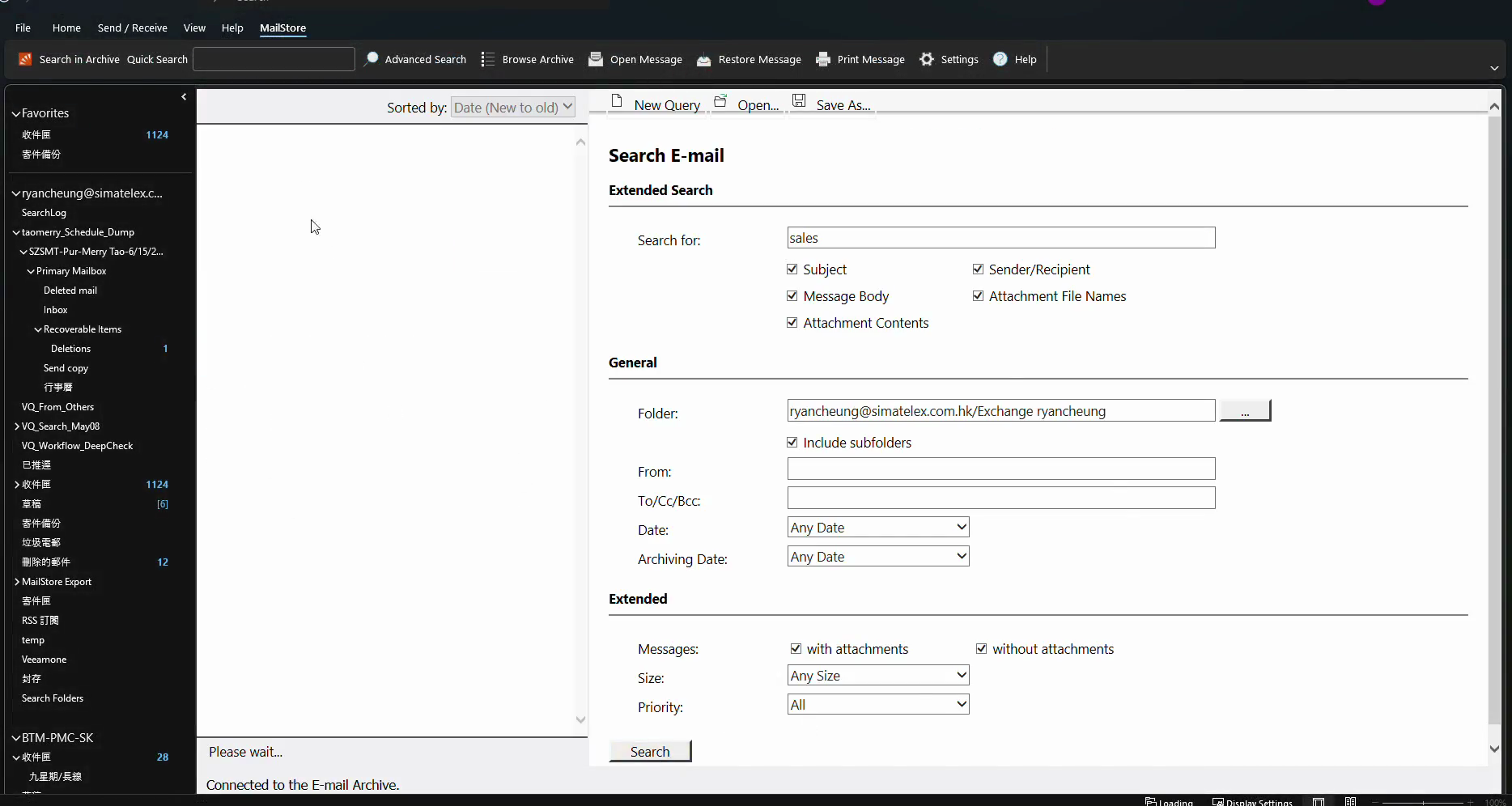
Q: Why did a login prompt appear while I was searching?
A: MailStore sessions may time out if left idle. If prompted, simply re-enter your password and click Log In to re-authenticate and continue your search.
Term | Definition |
|---|---|
MailStore Server | An email archiving software that securely stores historical emails while keeping them accessible to users. |
Advanced Search | A robust feature allowing users to query archived emails using specific criteria like keywords, dates, or senders. |