Icon

Bulk Order Transparency Codes and Upload to OPR

Learn how to bulk purchase Amazon Transparency codes and simultaneously upload multiple products into OPR (Operational Performance Review) using Excel templates.

By SellerPro Amazon Agency

This guide explains how to bulk purchase Amazon Transparency codes and subsequently bulk upload those products into OPR (Operational Performance Review). Completing this task allows you to efficiently secure and activate protection for large batches of inventory at once without manually requesting individual codes.

This workflow applies to brand owners and catalog managers handling Amazon Transparency enrollment. It is most helpful when you need to order codes for multiple SKUs and immediately transition those products into active OPR monitoring.

Download the Bulk Ordering Template
1
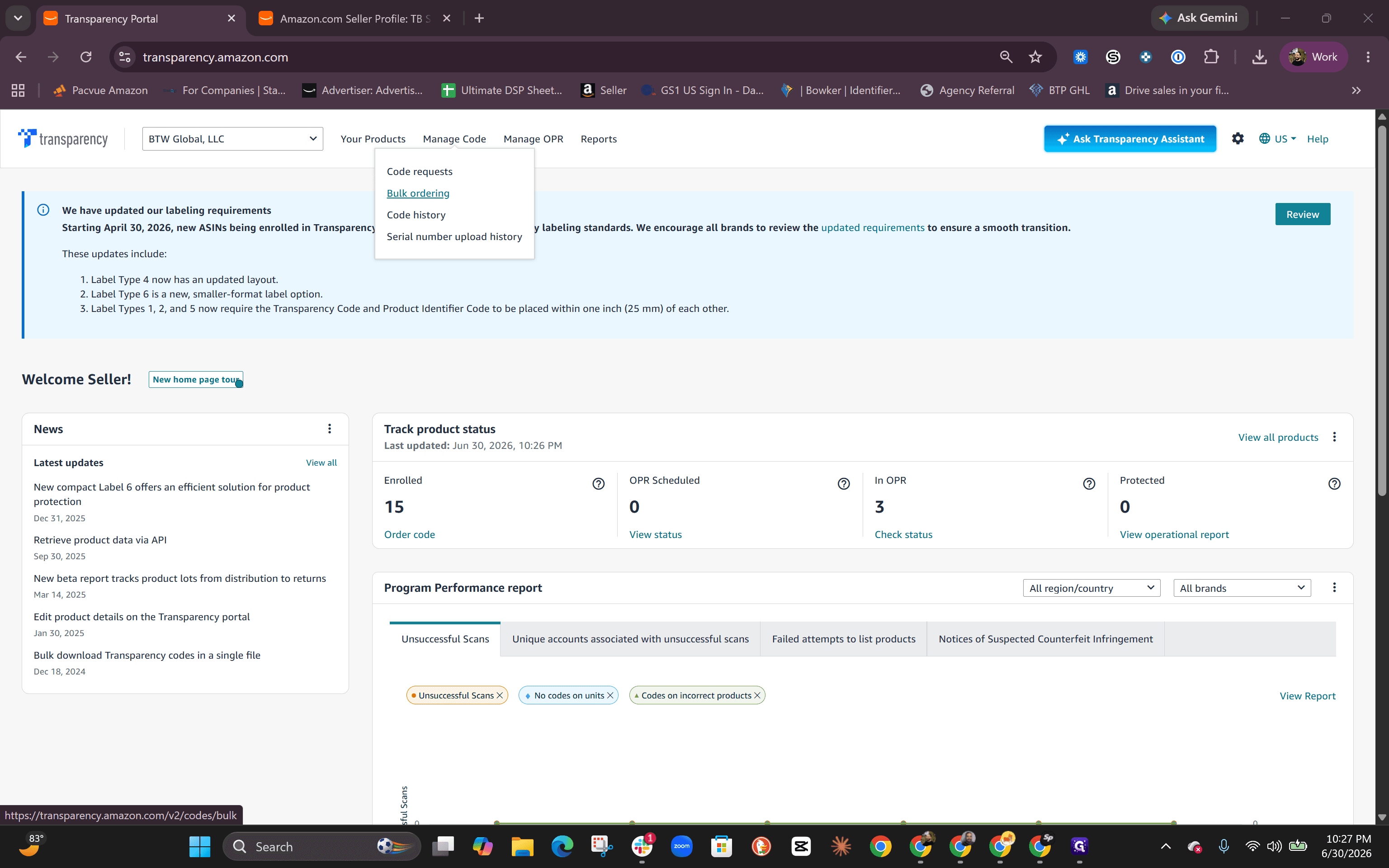
Navigate to the Manage Code menu and select Bulk ordering.
Step #1: Navigate to the Manage Code menu and select Bulk ordering.
2
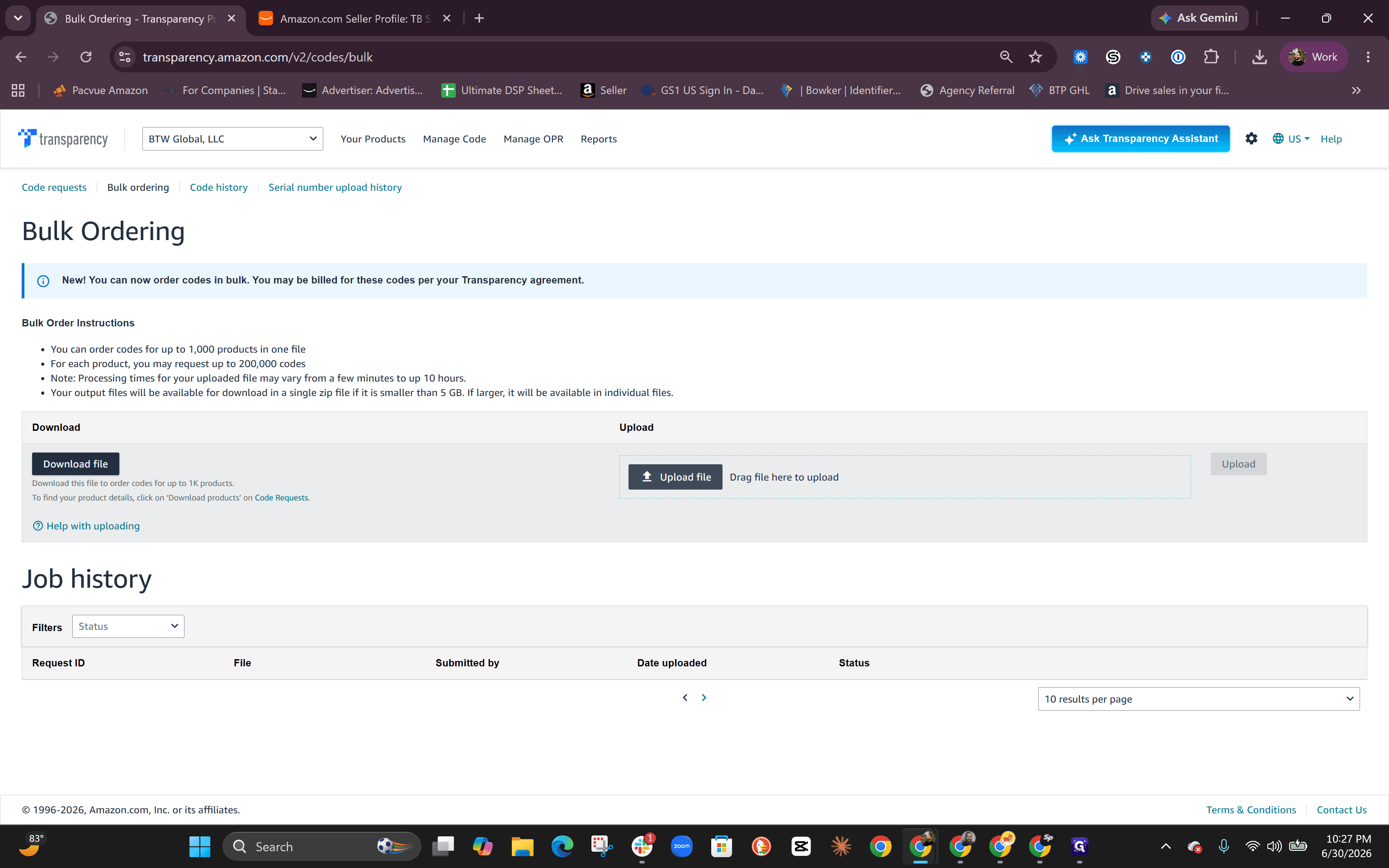
Click Download file to save the bulk ordering Excel template.
Step #2: Click Download file to save the bulk ordering Excel template.

Retrieve Your Product GTINs

3
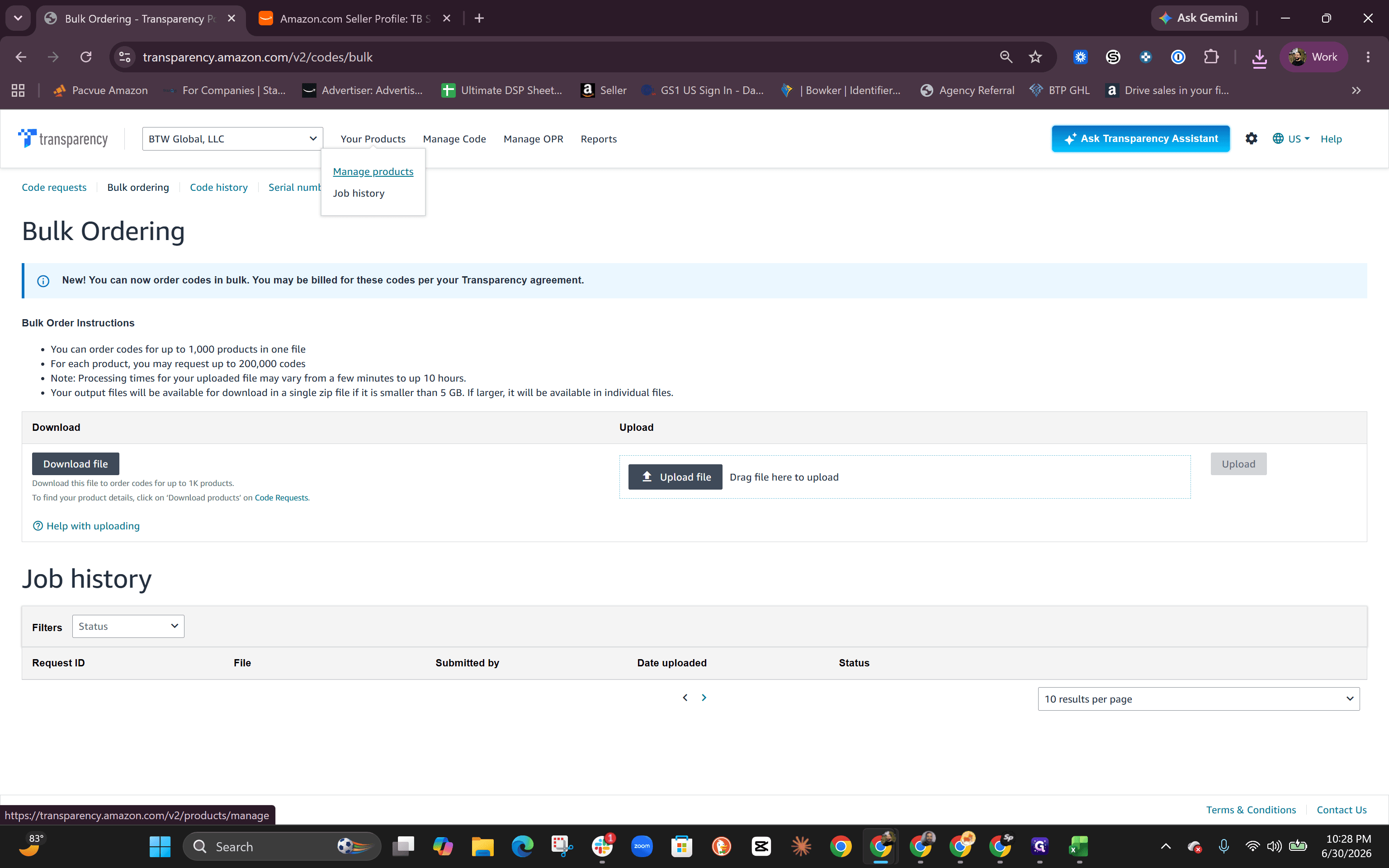
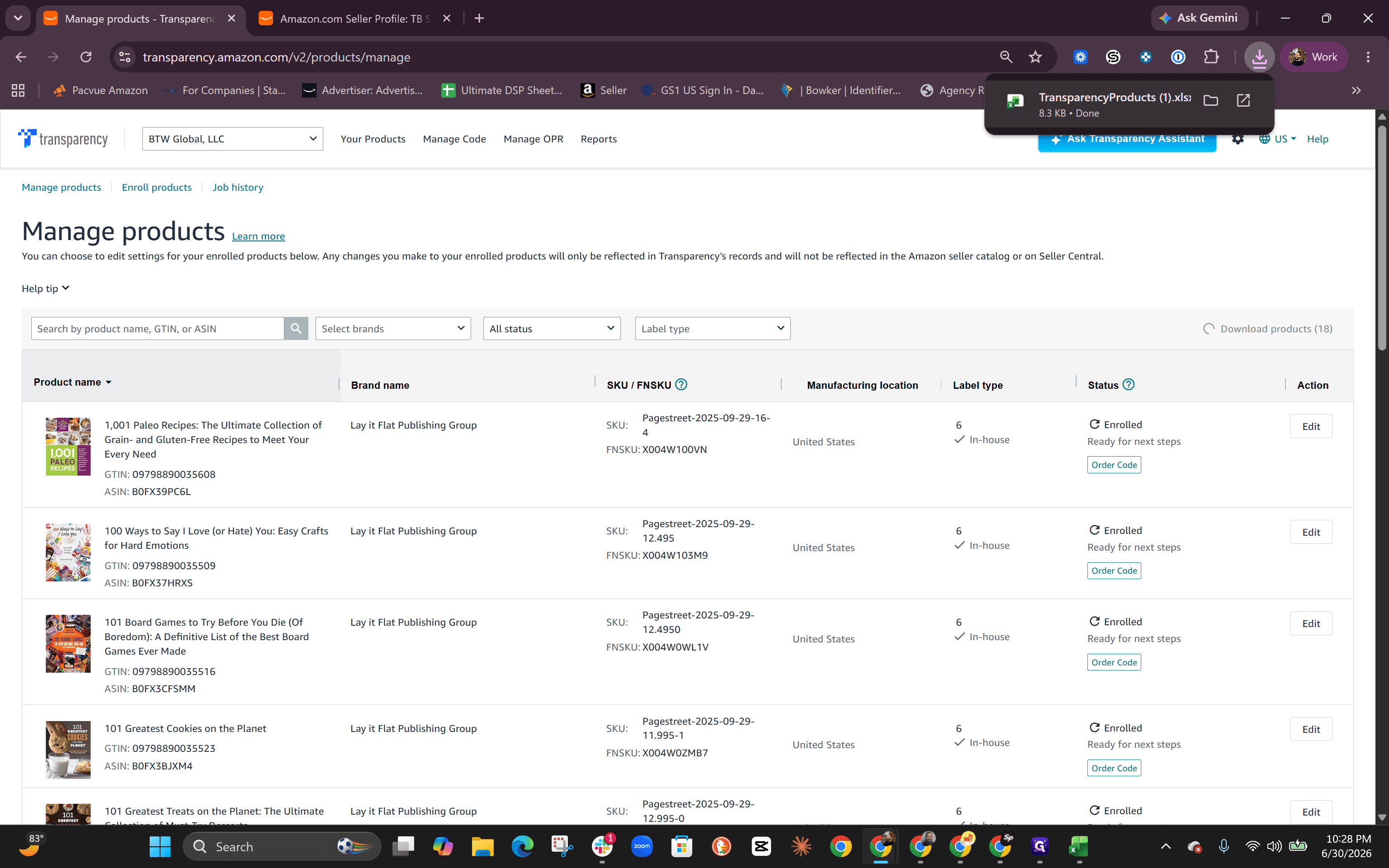
Go to the Manage products dashboard.
Step #3: Go to the Manage products dashboard.
4
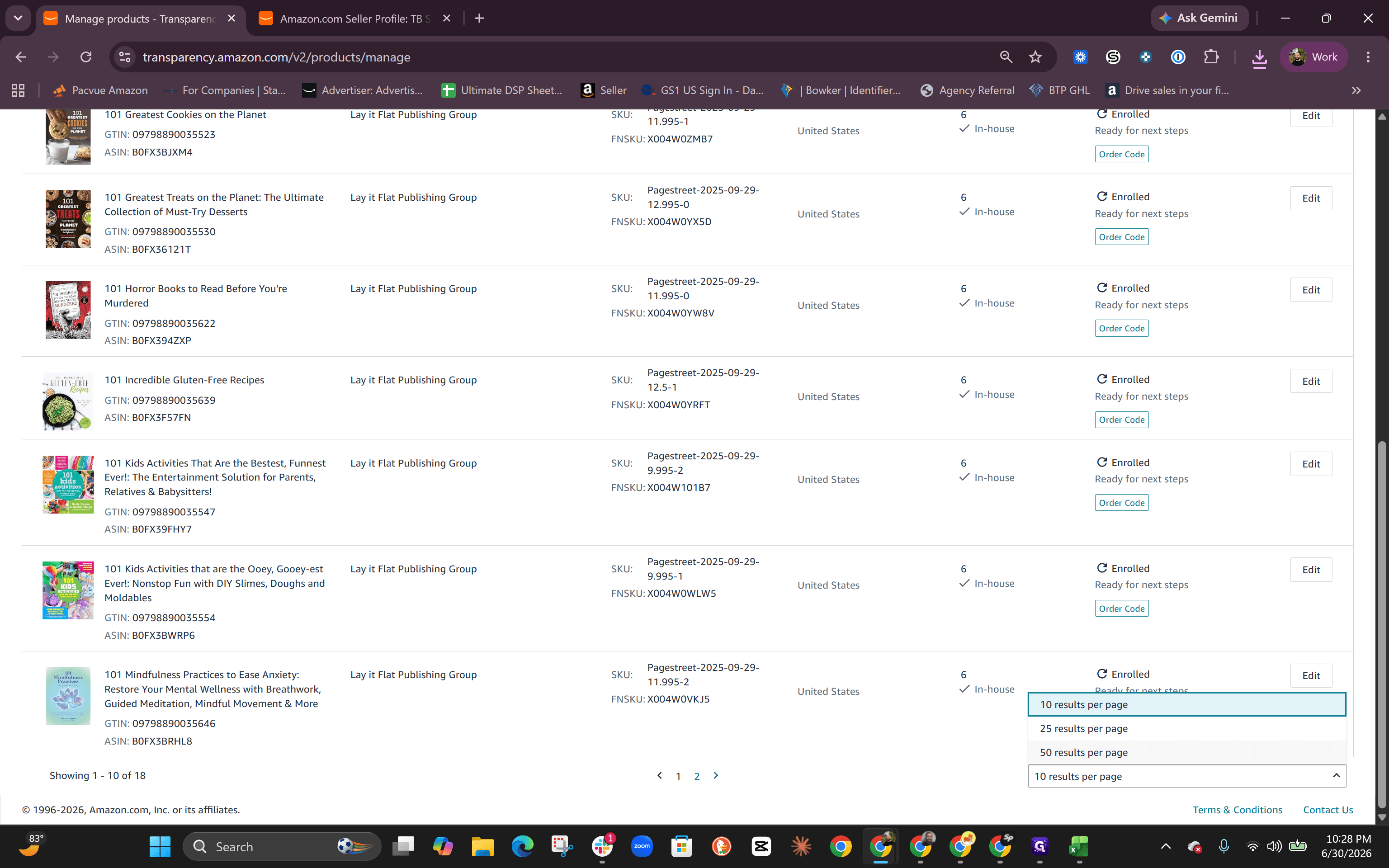
Change the pagination dropdown to 50 results per page (or a number large enough to display your entire catalog on a single page).
Step #4: Change the pagination dropdown to 50 results per page (or a number large enough to display your entire catalog on a single page).
5
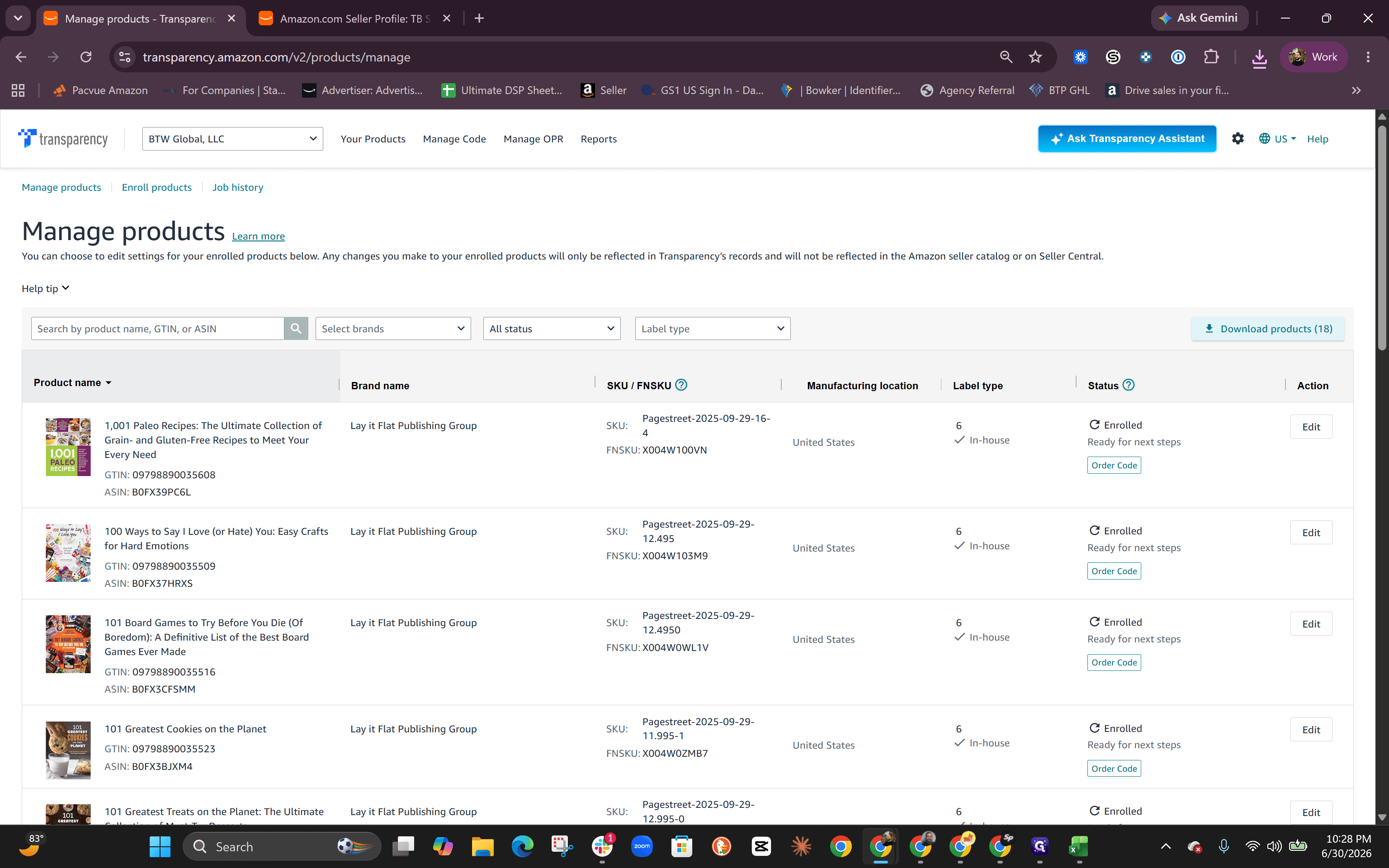
Click Download products to export your catalog data to a spreadsheet.
Step #5: Click Download products to export your catalog data to a spreadsheet.
6
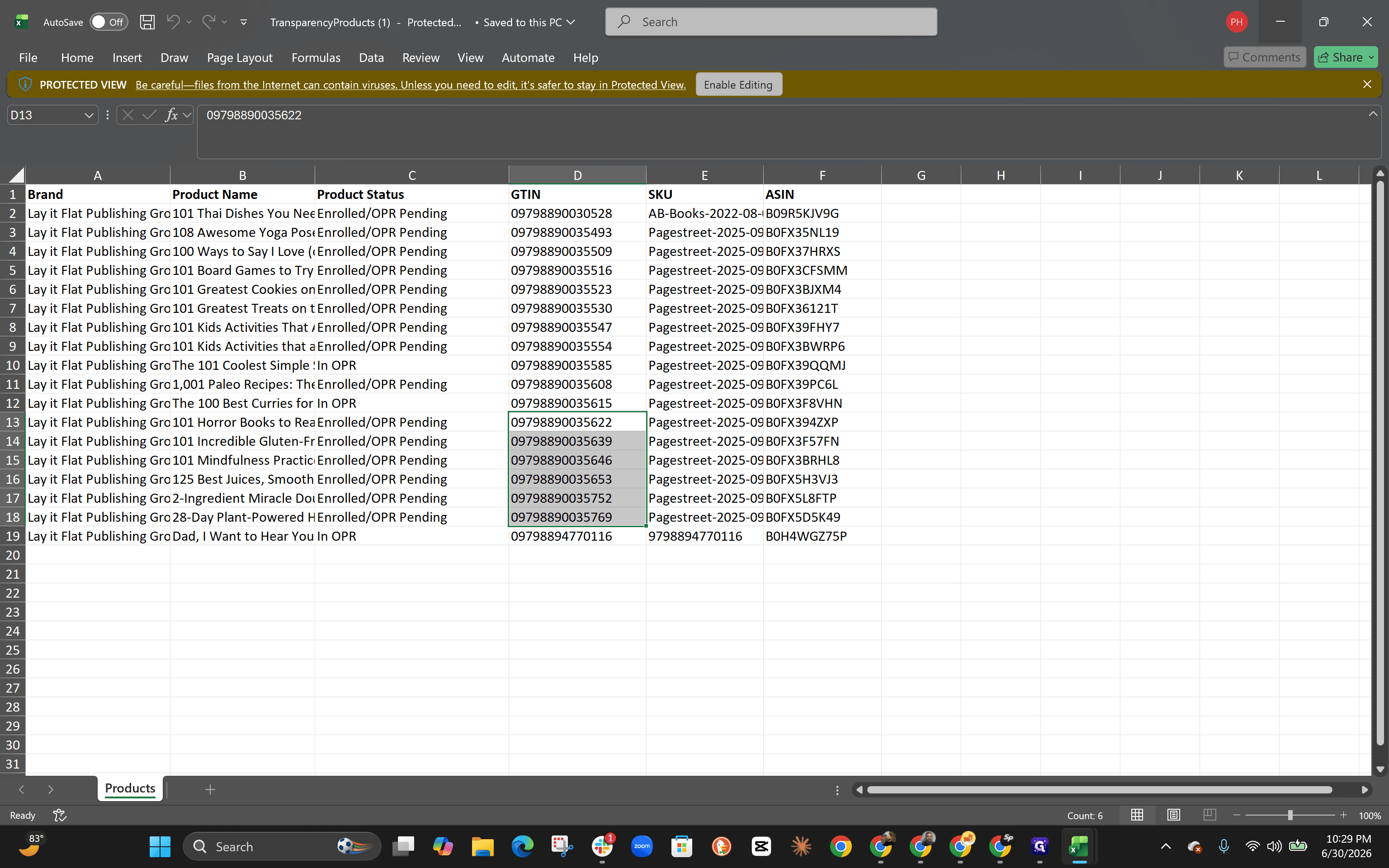
Open the downloaded TransparencyProducts spreadsheet.
Step #6: Open the downloaded TransparencyProducts spreadsheet.
7
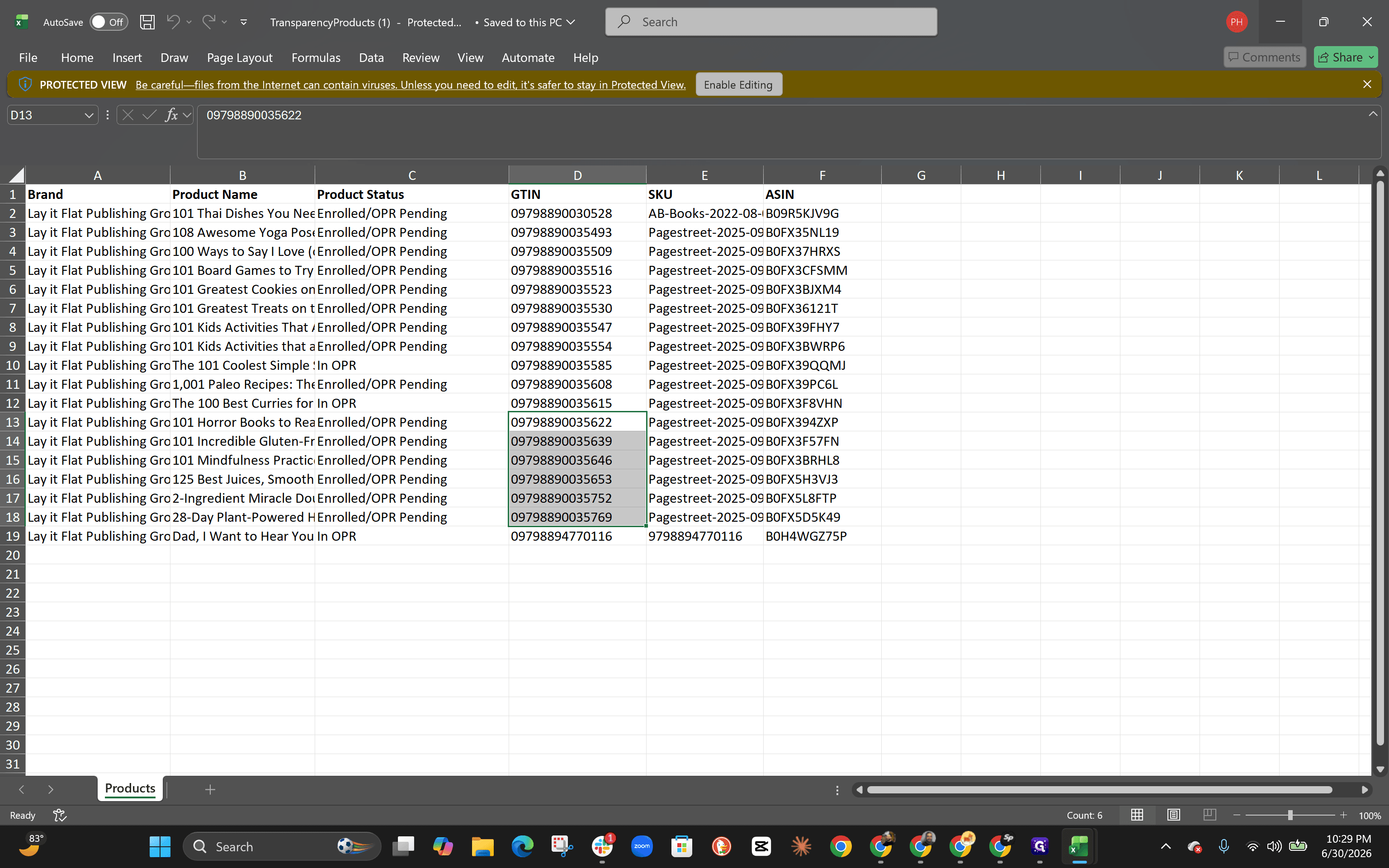
Highlight and copy the GTINs for the products that require Transparency codes.
Step #7: Highlight and copy the GTINs for the products that require Transparency codes.

Submit the Bulk Code Order

8
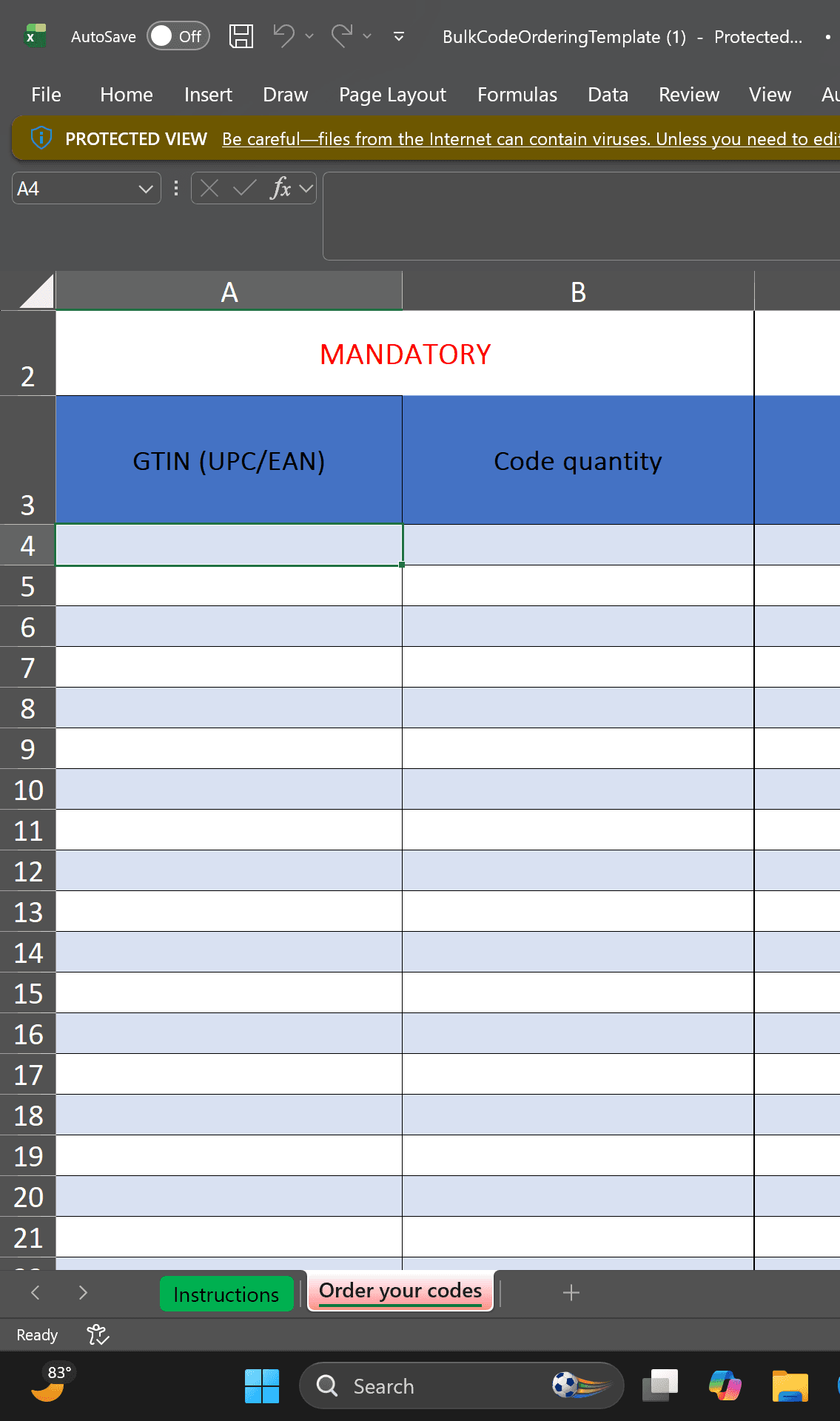
Open the bulk ordering template you downloaded earlier, paste your copied GTINs into the required column, and enter the quantity of codes you want to purchase for each.
Step #8: Open the bulk ordering template you downloaded earlier, paste your copied GTINs into the required column, and enter the quantity of codes you want to purchase for each.

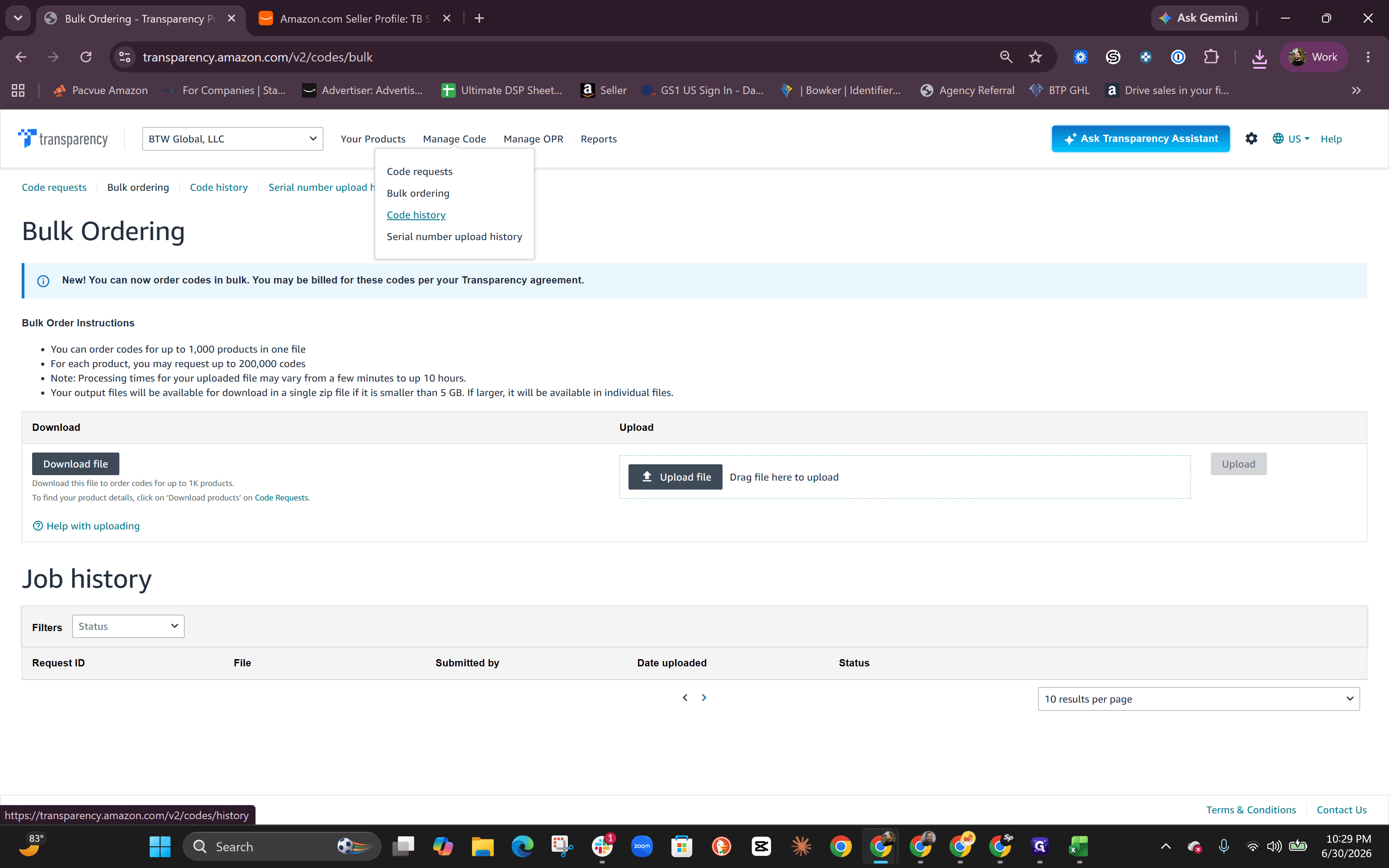
After filling out the template, save it, return to the Bulk ordering page, and upload your file.
9
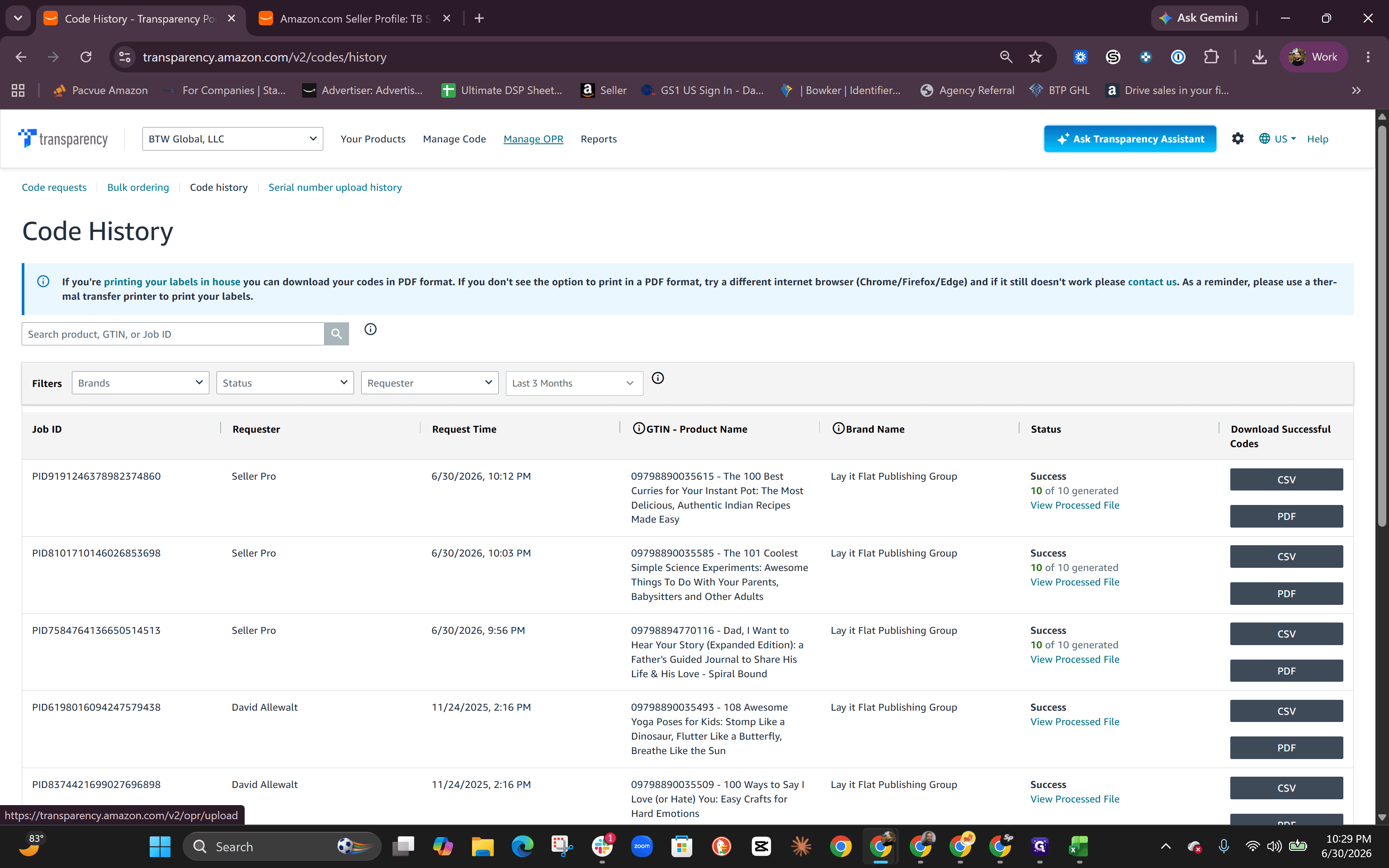
Navigate to Code history to track your purchase order and retrieve your generated codes once processed.
Step #9: Navigate to Code history to track your purchase order and retrieve your generated codes once processed.

Bulk Upload Products to OPR

10
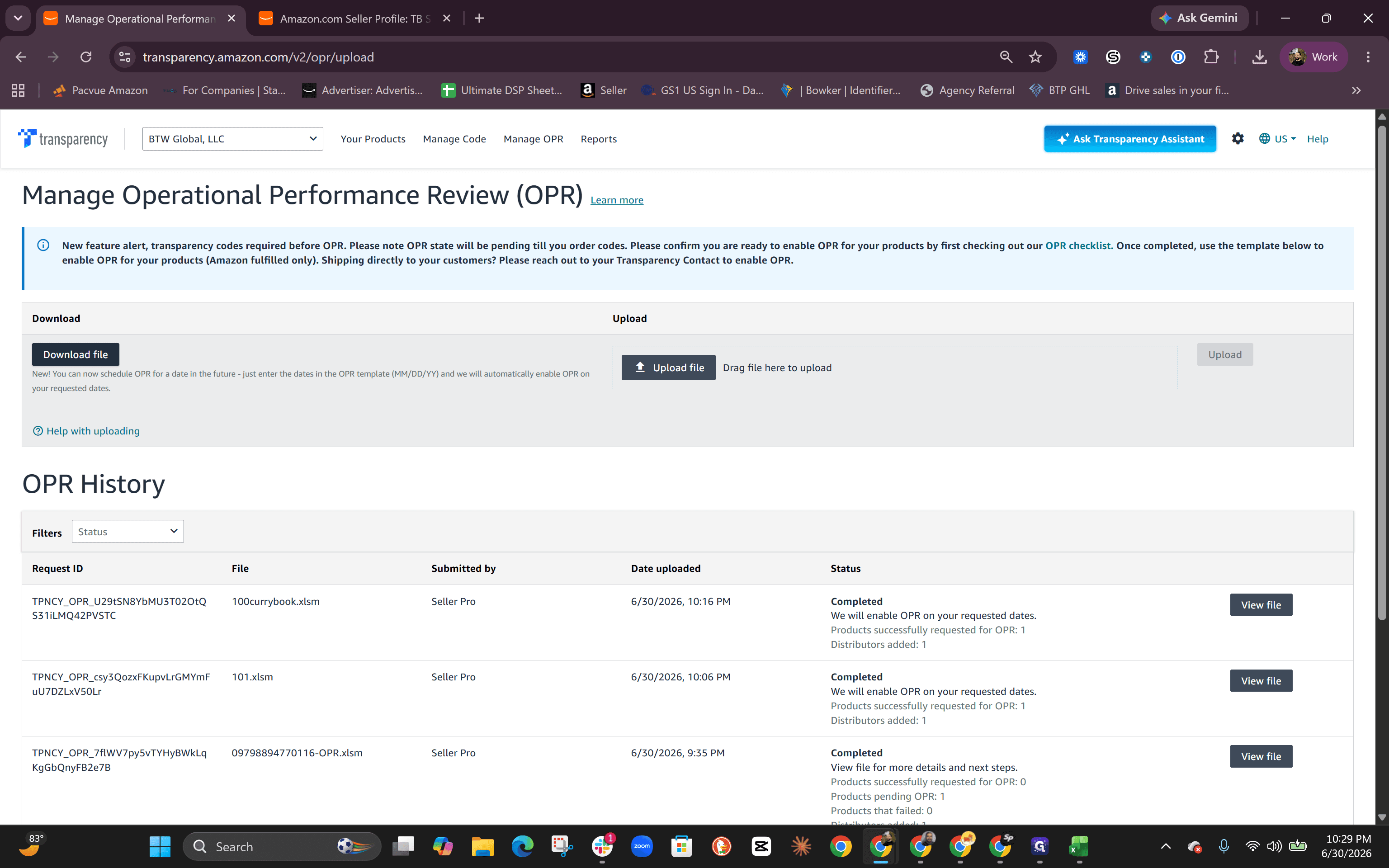
Click Manage OPR in the main navigation menu.
Step #10: Click Manage OPR in the main navigation menu.
11
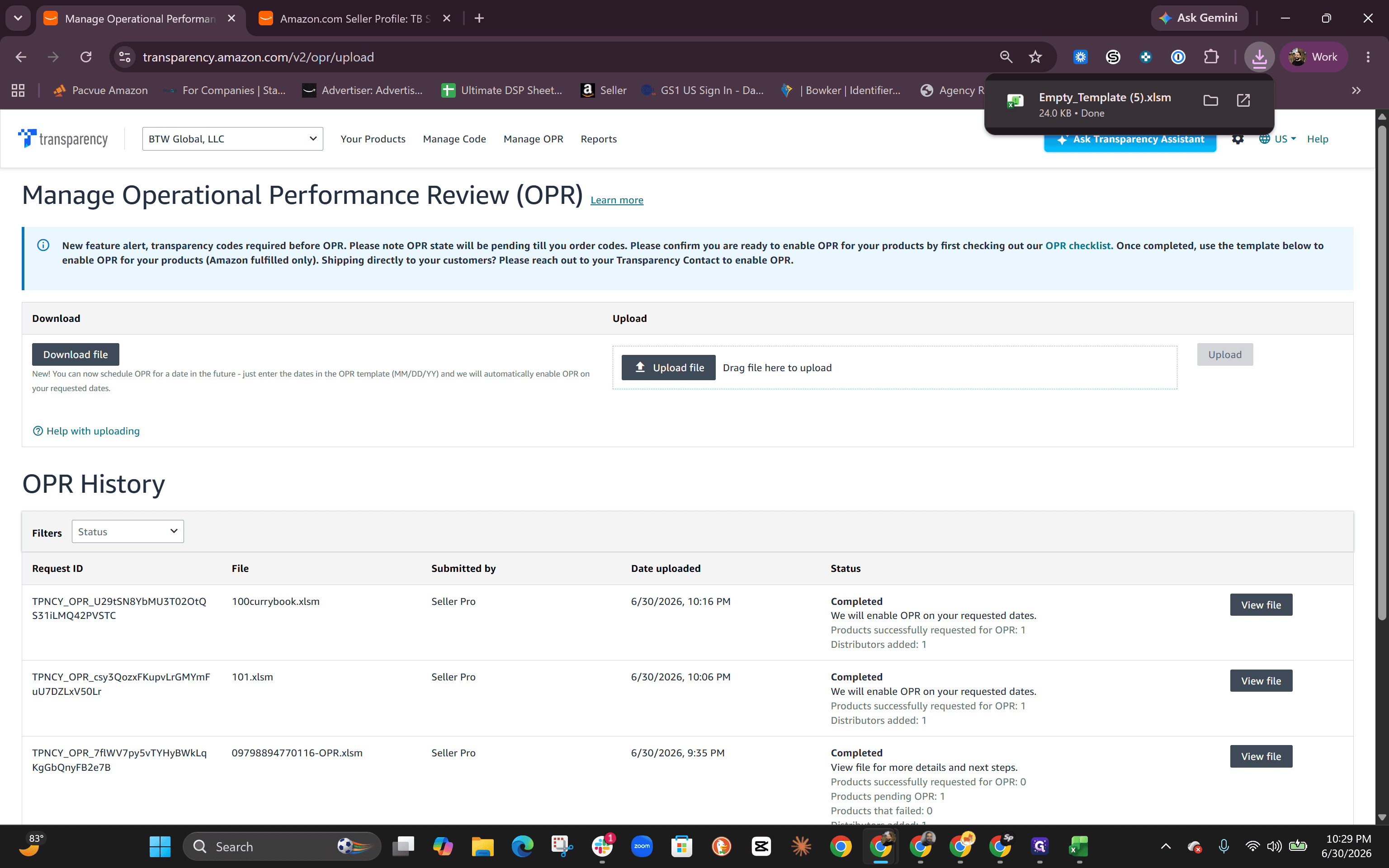
Click Download file to get the OPR bulk upload template.
Step #11: Click Download file to get the OPR bulk upload template.
12
Open the downloaded Empty_Template file.
Step #12: Open the downloaded Empty_Template file.
13
Paste the same list of GTINs into the OPR template.
Step #13: Paste the same list of GTINs into the OPR template.

Input today's date for the OPR turn-on date and enter your 3P Merchant Token into the designated columns.

14
If necessary, switch to the Add distributors tab to include authorized distributor information.
Step #14: If necessary, switch to the Add distributors tab to include authorized distributor information.

Save the file and upload it to the Manage OPR dashboard to finalize the bulk enrollment.

Q: How do I easily get a list of my GTINs for the bulk order?

A: You can download a complete list of your enrolled products by going to "Manage products," adjusting the results per page to view your full catalog, and clicking "Download products." From there, simply copy the GTIN column out of the downloaded spreadsheet.

Q: Where do I find my purchased Transparency codes after uploading the bulk order form?

A: Once you upload your bulk ordering template, a purchase order is automatically generated. You can retrieve the requested codes from the "Code history" section under the "Manage Code" navigation dropdown.

Term

Definition

GTIN

Global Trade Item Number, a unique string of numbers used to identify individual products.

OPR

Operational Performance Review, a transitional phase in the Amazon Transparency program where products are monitored to ensure labeling compliance.

3P Merchant Token

A unique identifier assigned to third-party sellers on Amazon used to link systems or process batch requests.