
How to Buy Shipping in Amazon Seller Central
Learn how to purchase shipping labels, enter package weight, and reprint shipping labels for FBM orders in Amazon Seller Central.
This guide walks through the process of purchasing shipping for a fulfilled-by-merchant (FBM) order in Amazon Seller Central. By following these steps, you can accurately declare package dimensions, secure a shipping label, and retrieve documents for already-shipped orders.
This workflow applies to fulfillment and warehouse teams who manually process Amazon FBM orders. Use this process when you need to purchase a shipping label for a new order or reprint documentation for a previously shipped order.
Purchasing Shipping
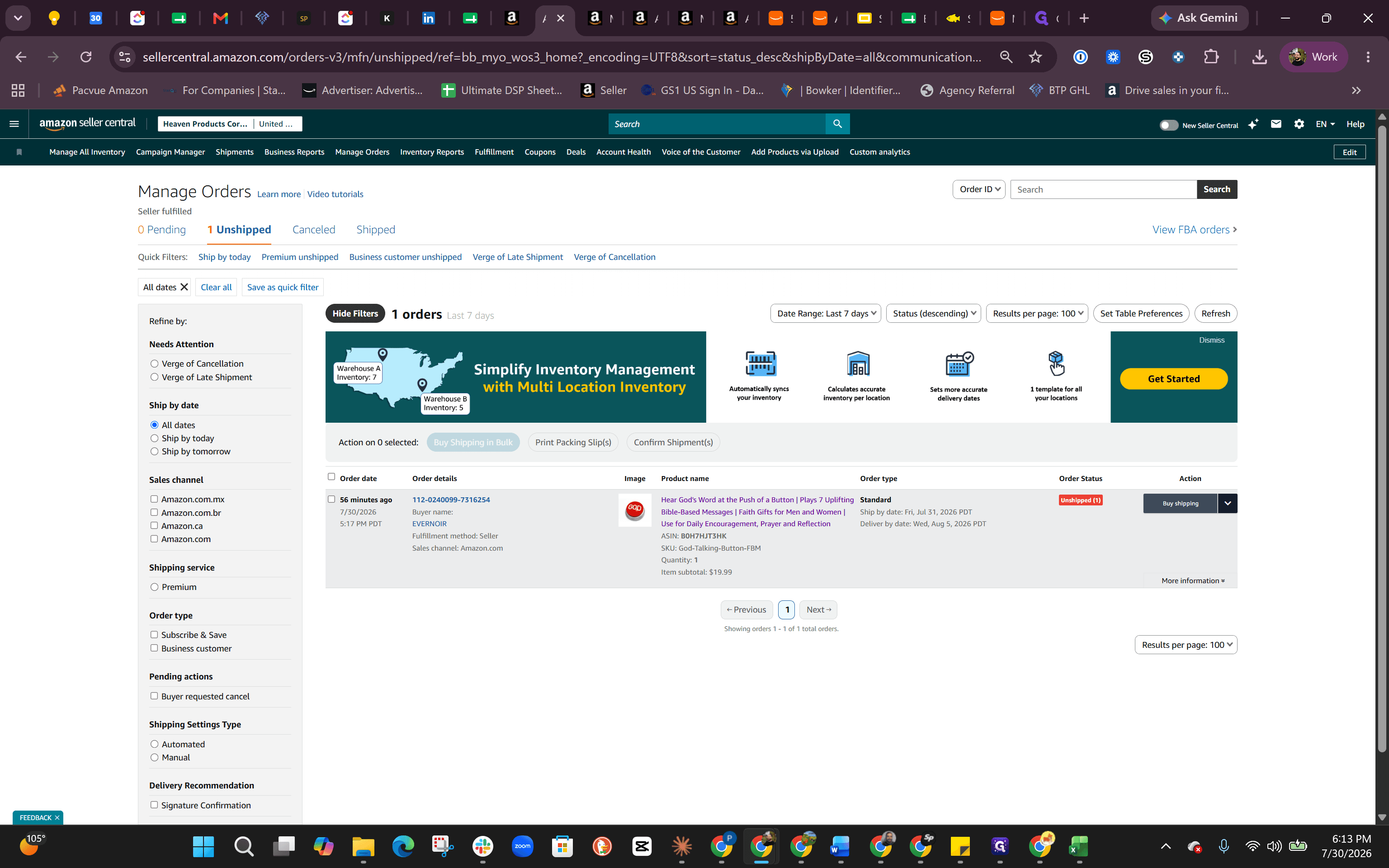
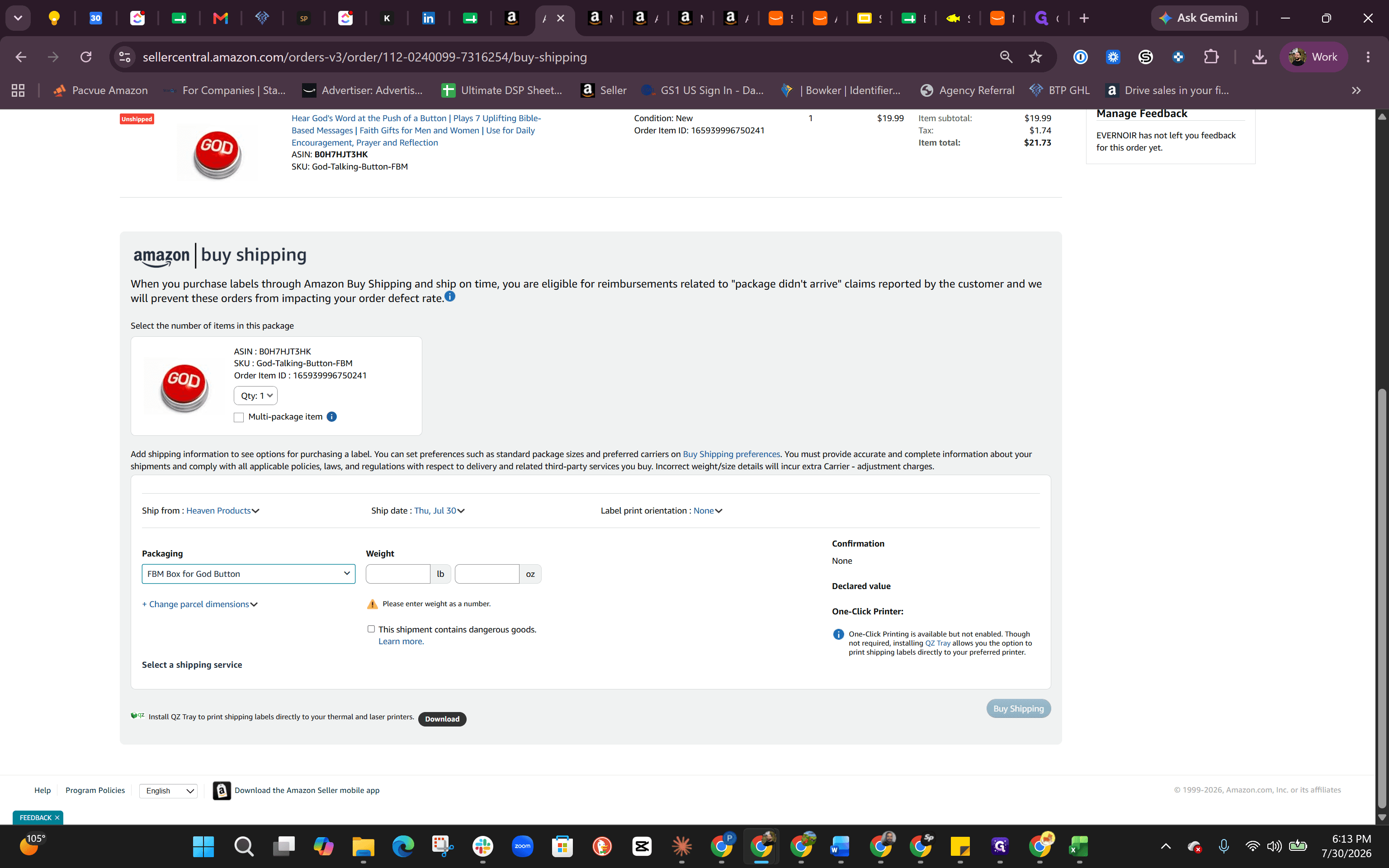
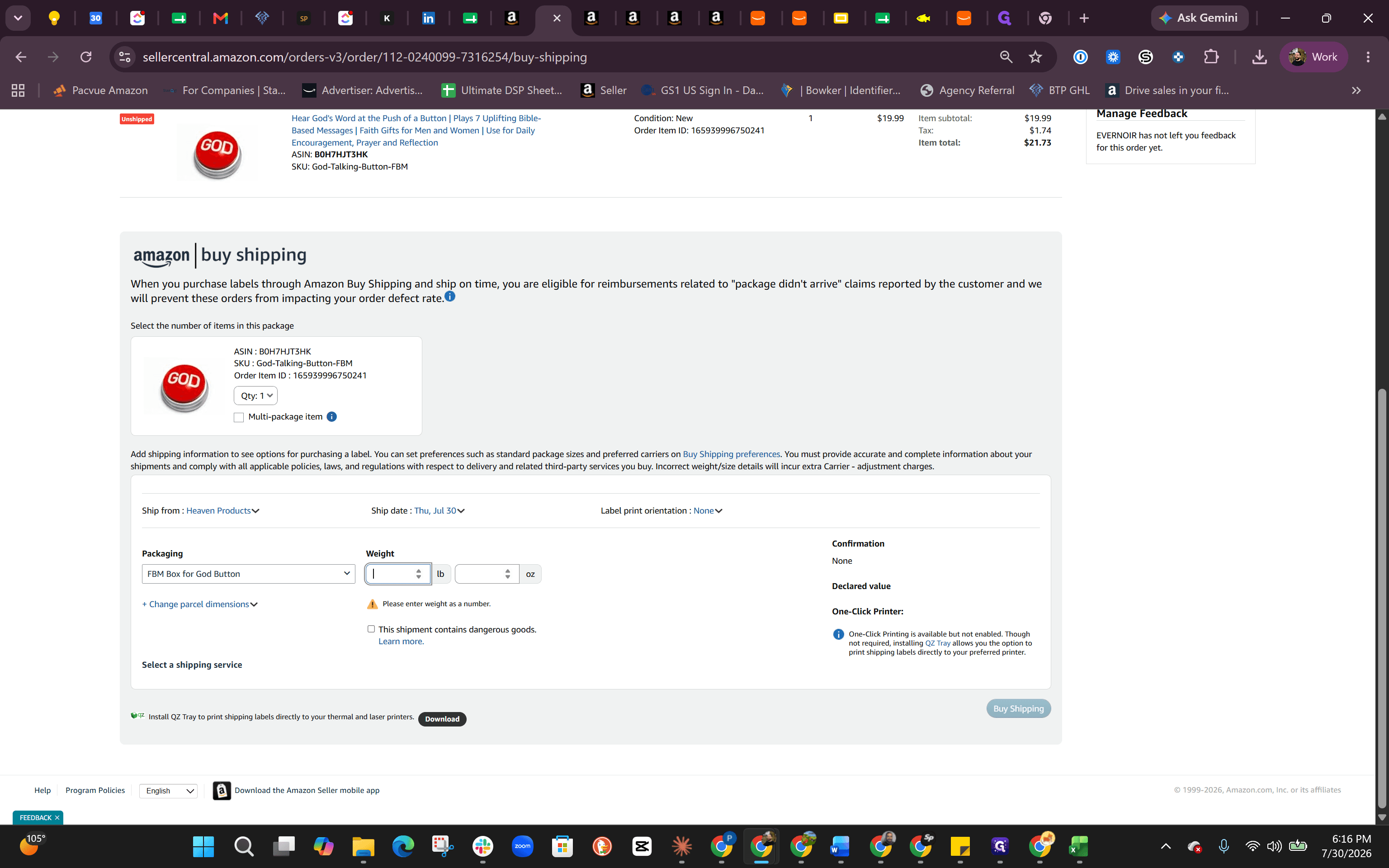
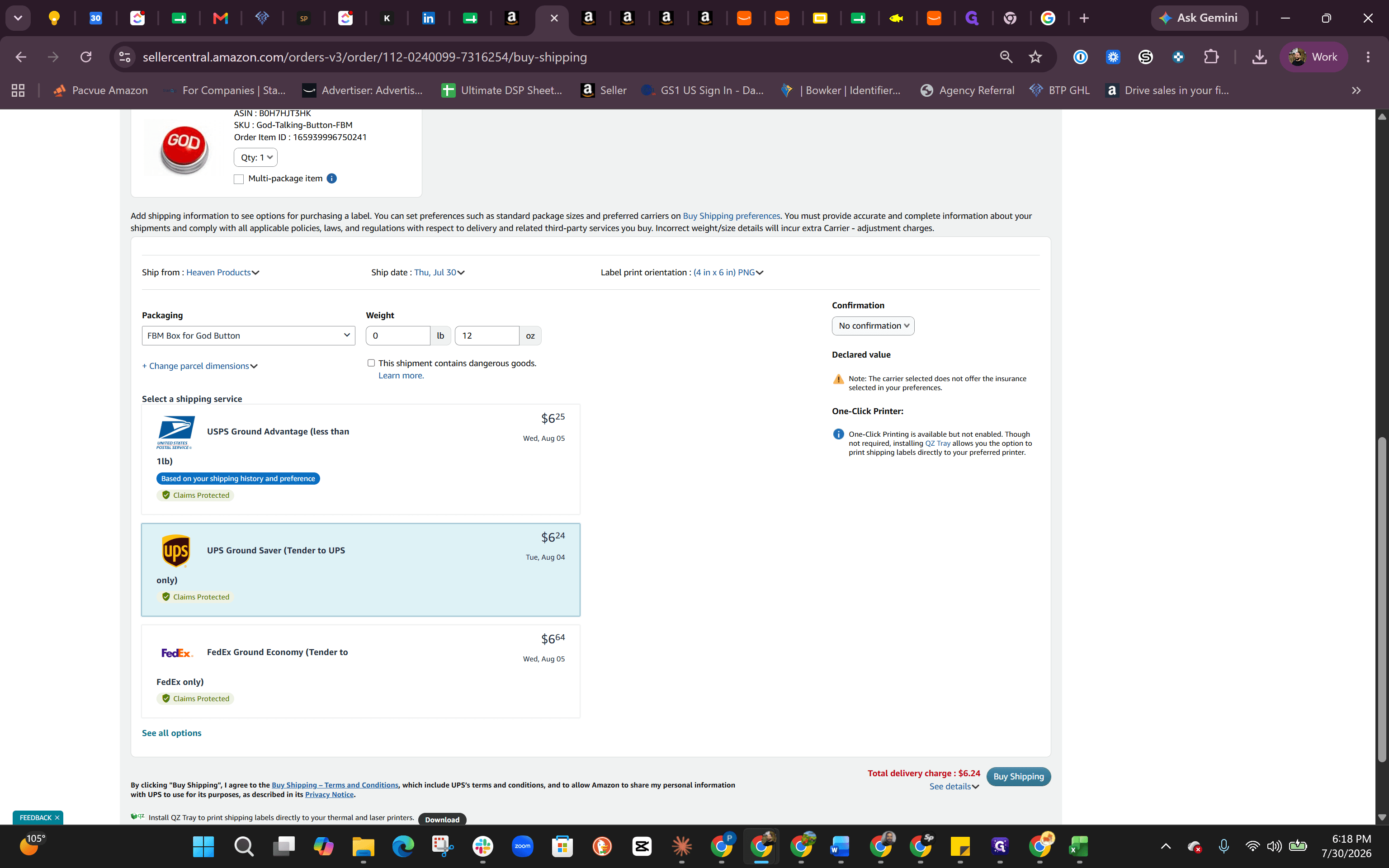
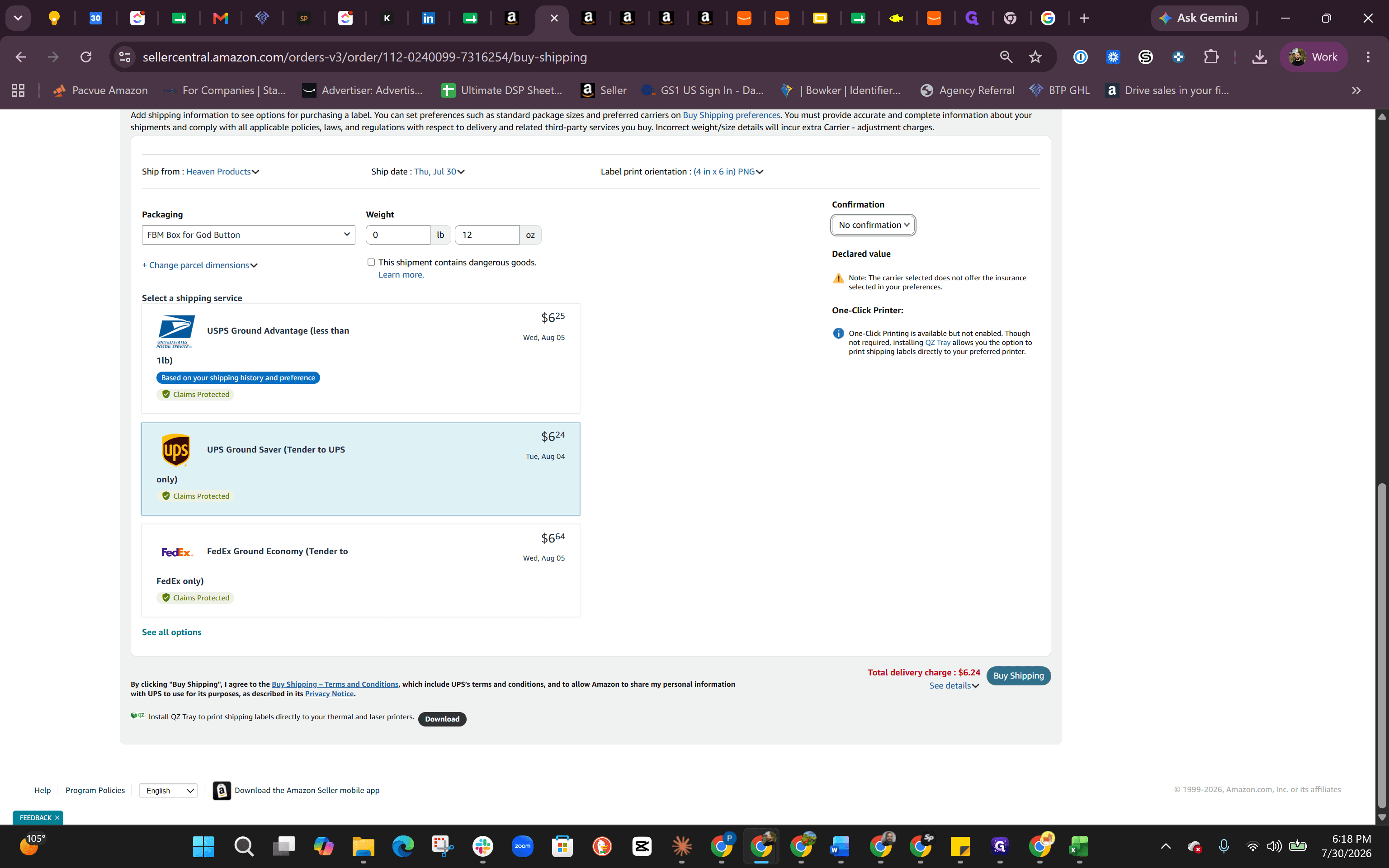
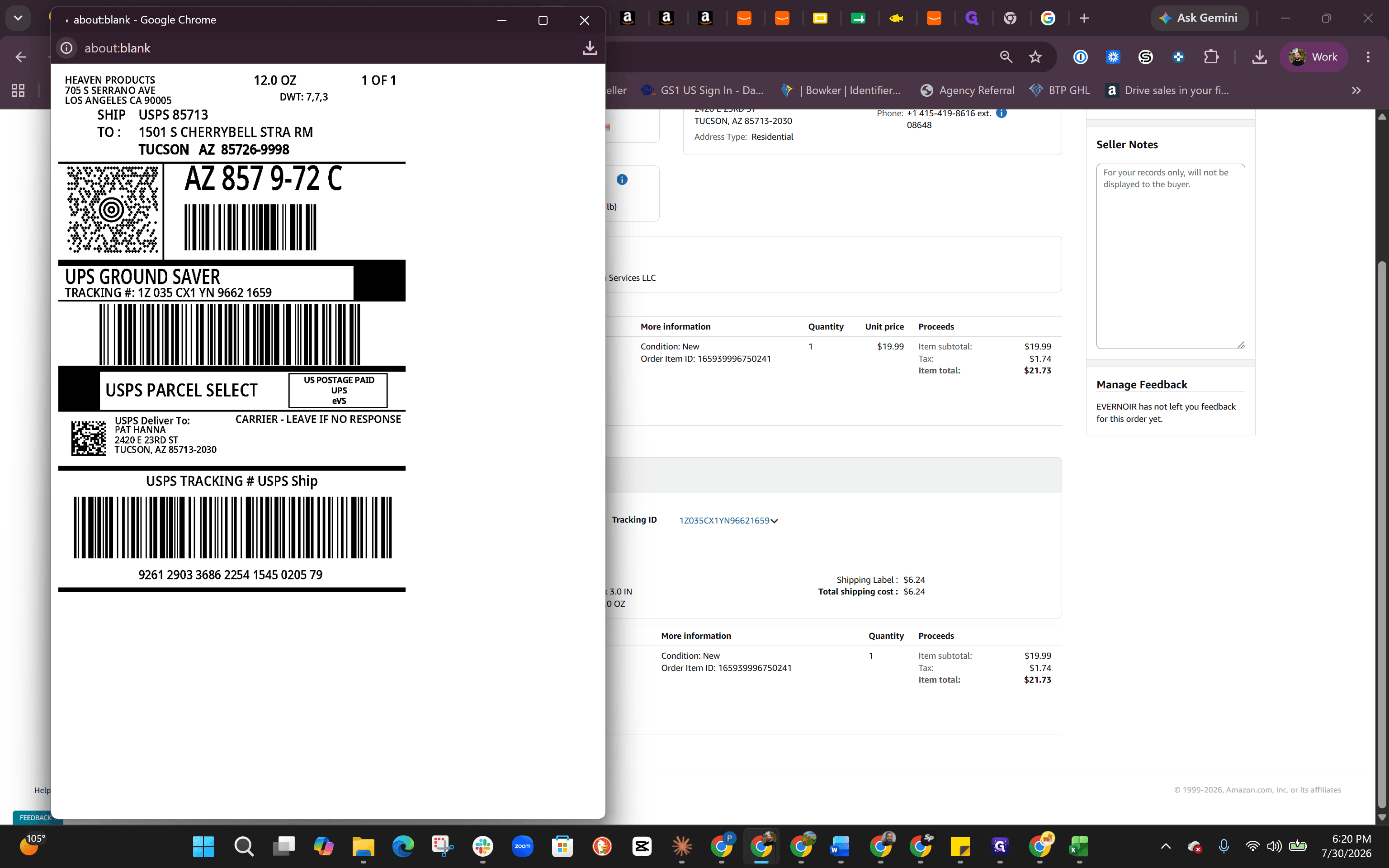
The label will open in a pop-up window or new tab where you can download or print it directly.
Reprinting Documents
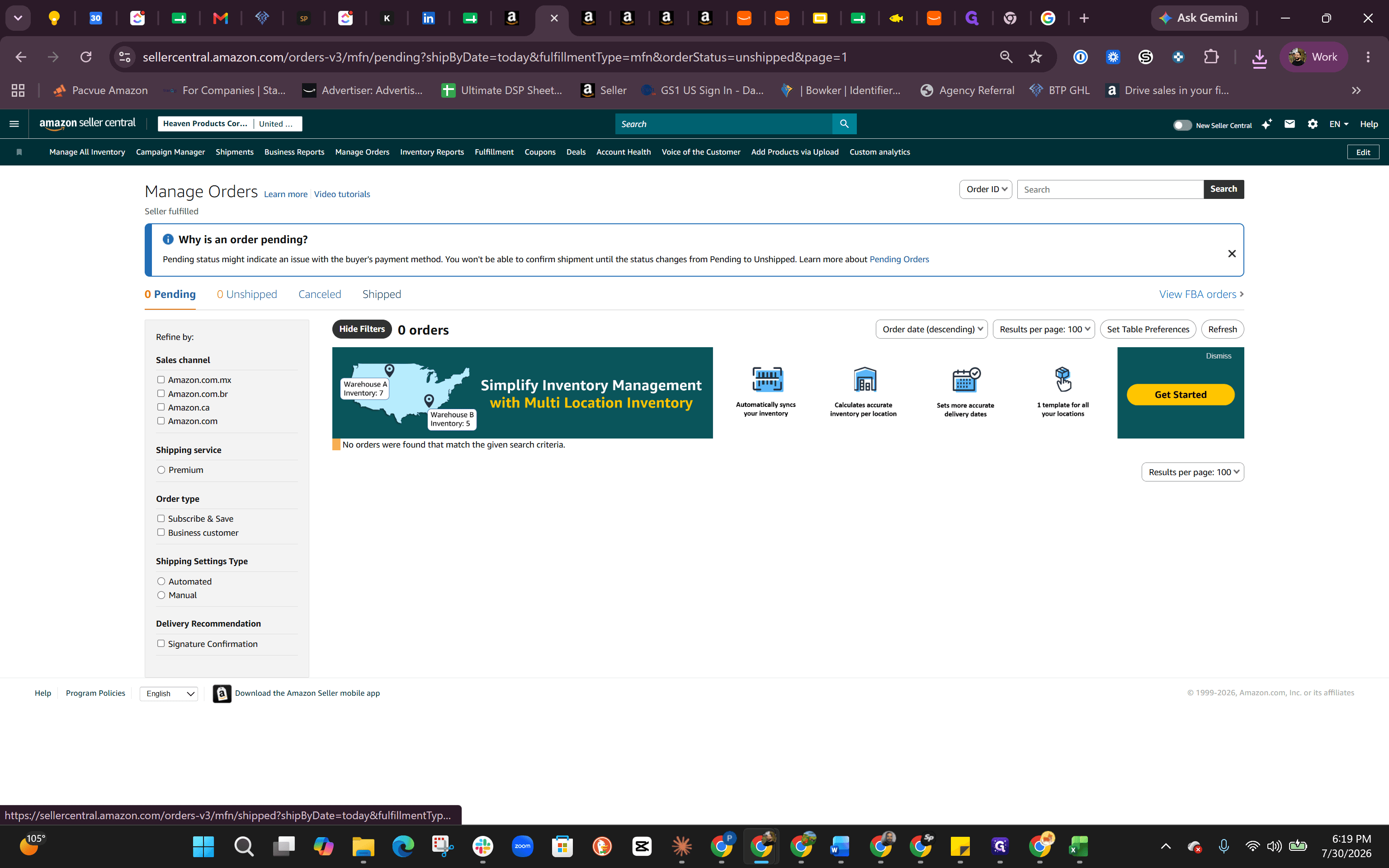
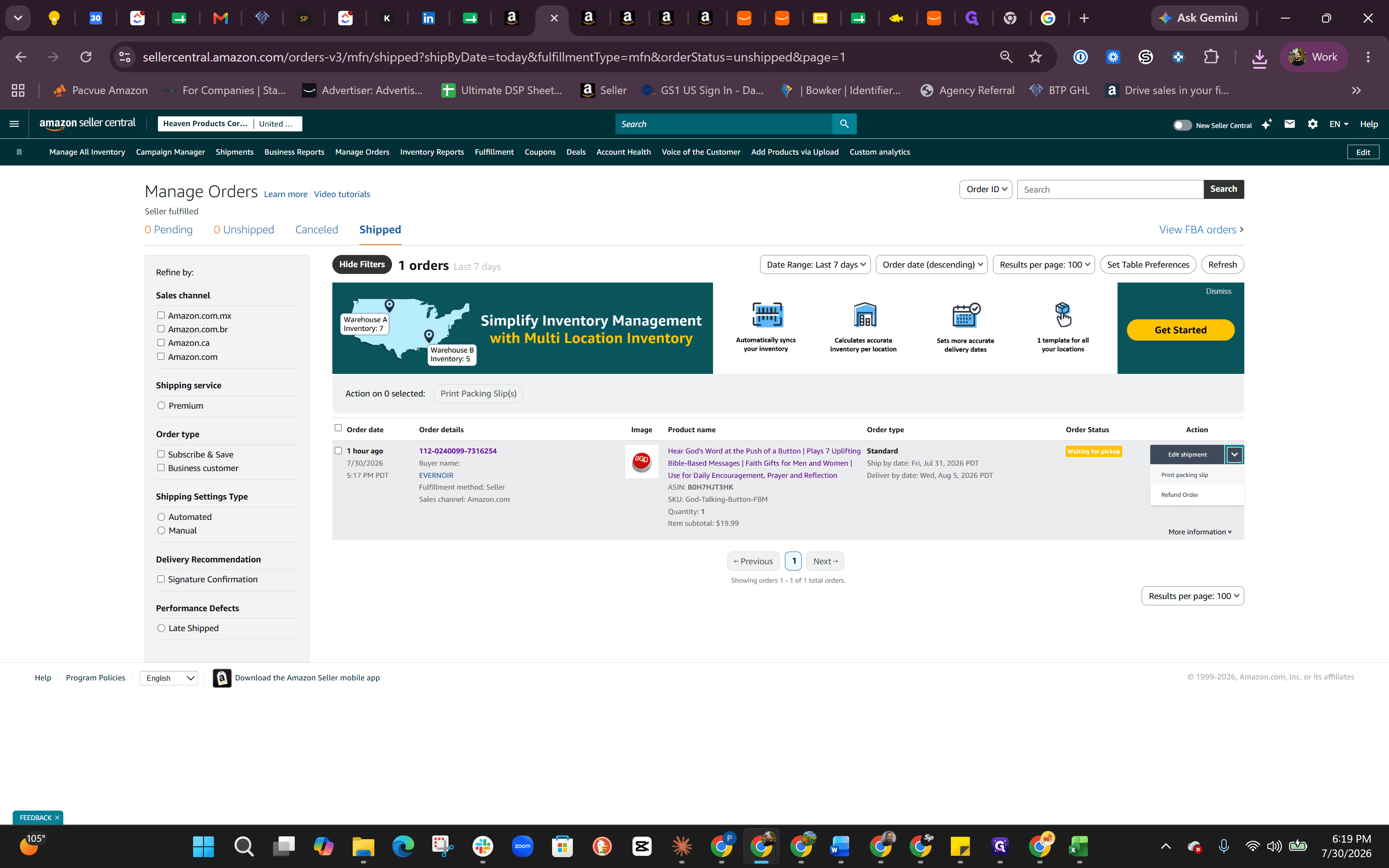
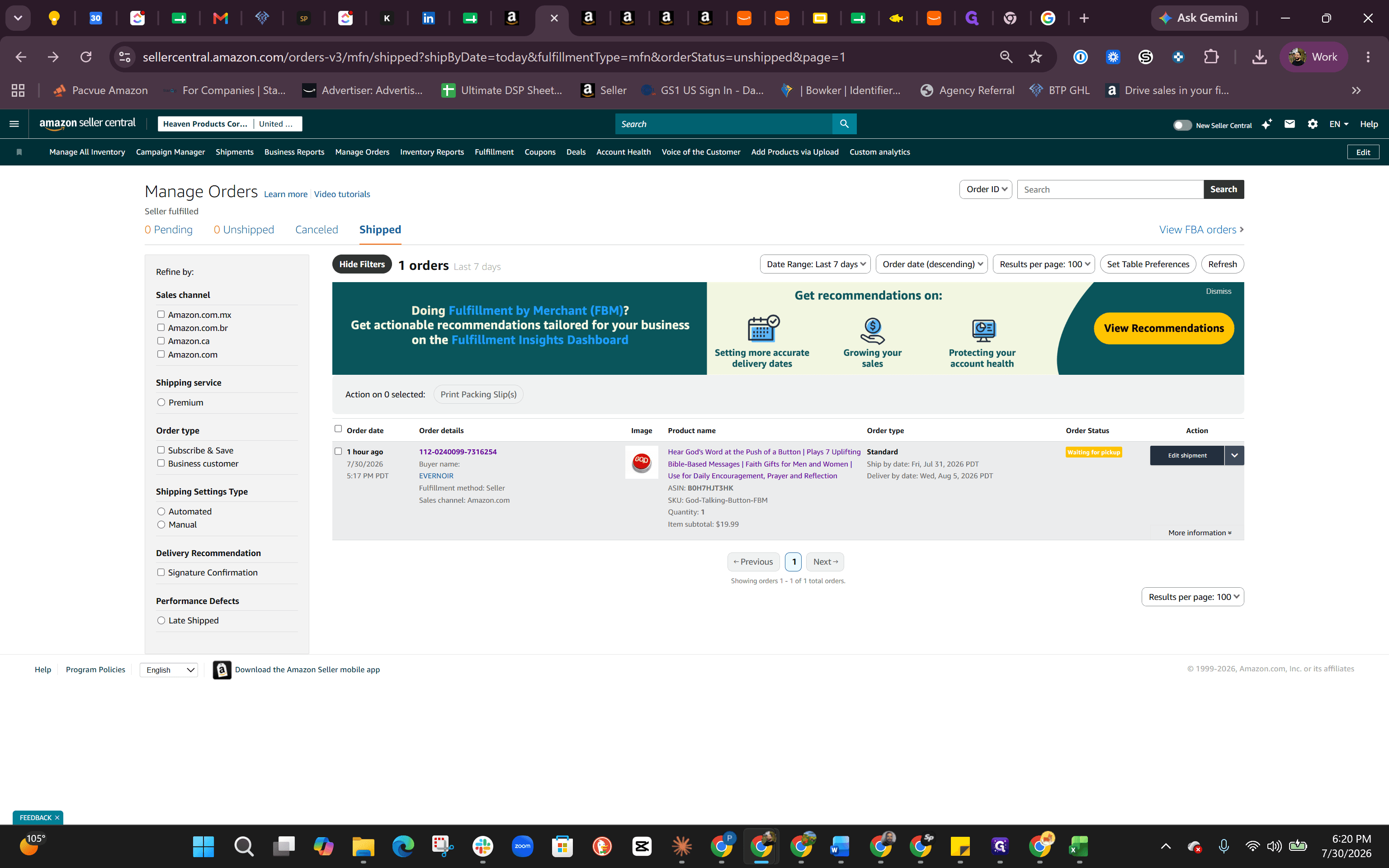
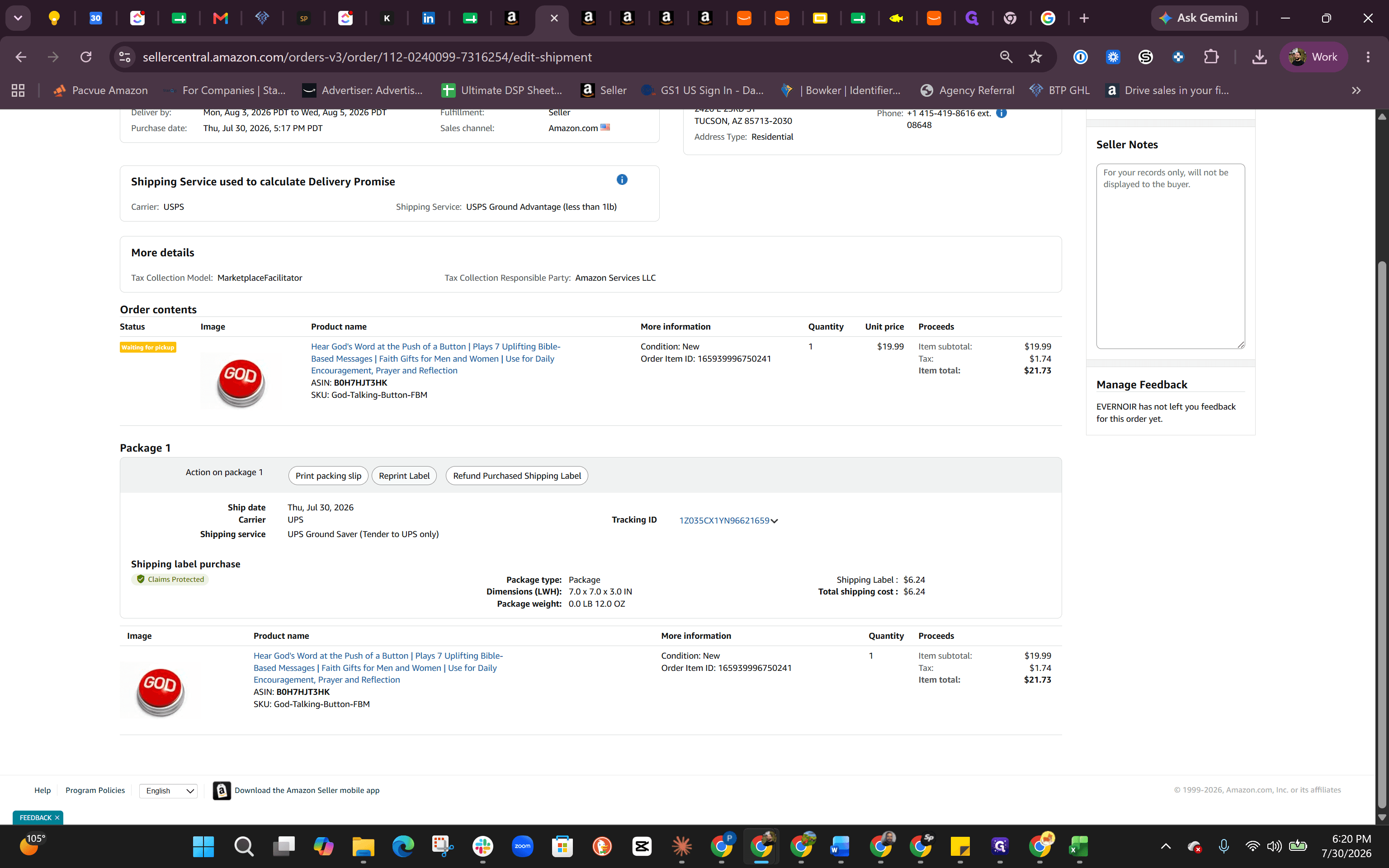
If you need to access documentation for an order that has already been processed, you have multiple options:
Post-Shipping Action | Description | Navigation |
|---|---|---|
Reprint Packing Slip | A summary of the order to include inside the box. | Select Print packing slip from the order dropdown. |
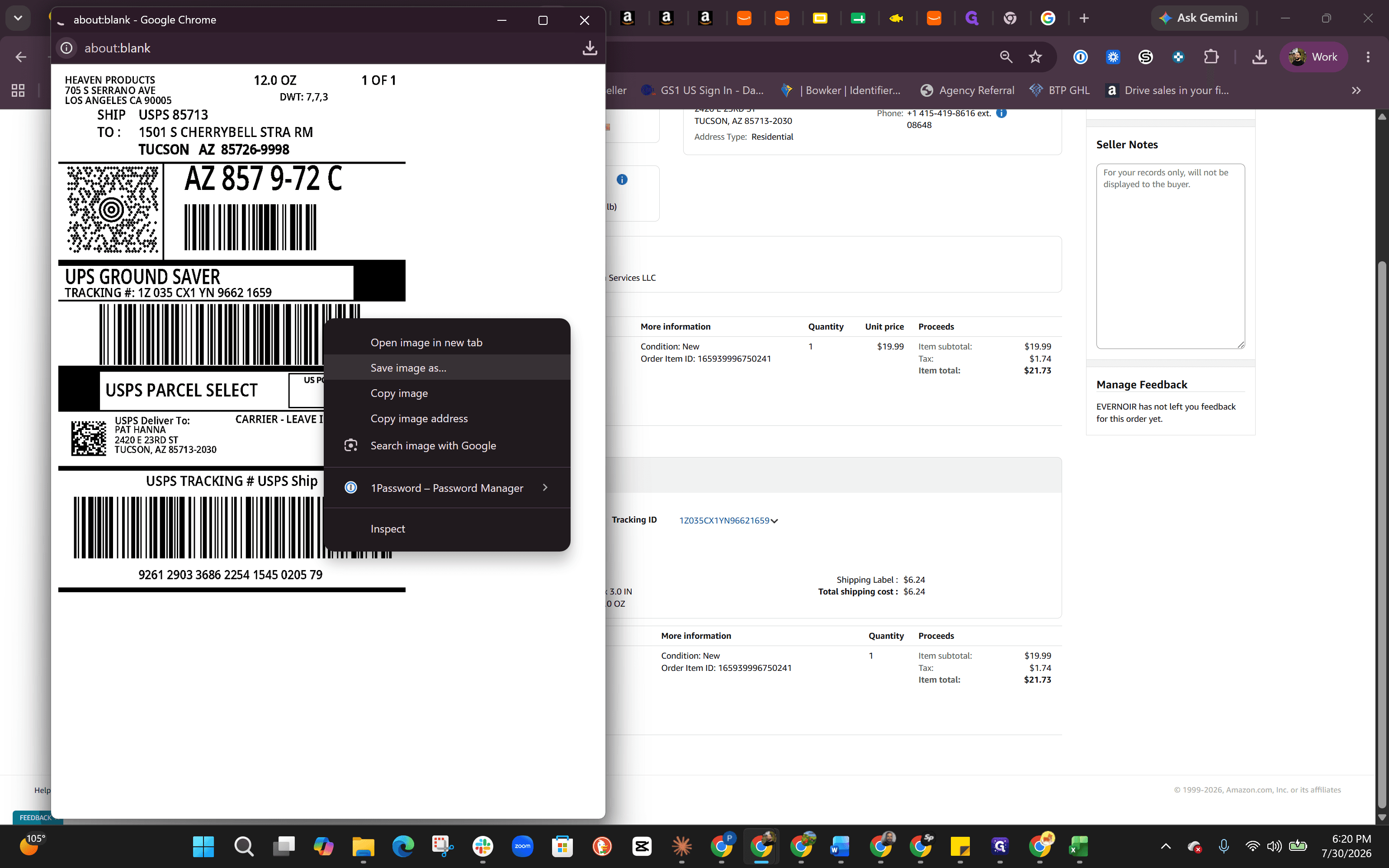
Reprint Shipping Label | The carrier label to affix to the outside of the box. | Click Edit shipment > Reprint Label, then save or print the image. |
Q: What if I don't know the exact weight of the package before boxing?
A: You can estimate the weight to review shipping costs, but you should always weigh the final packed and sealed box before purchasing the label to avoid carrier adjustments.
Q: Where do I drop off a UPS Ground Saver package?
A: Even though UPS Ground Saver relies on USPS for final delivery in some regions, you must tender the initial drop-off to a UPS location.
Q: How do I recover a label if I close the browser window?
A: Navigate to the Shipped tab in Manage Orders, click "Edit shipment" on the corresponding order, and select "Reprint Label" to view and save the label again.
Term | Definition |
|---|---|
FBM (Fulfilled by Merchant) | A fulfillment method where the seller is responsible for storing, packing, and shipping orders directly to the customer. |
Packing Slip | A printed document included inside a shipment that details the contents and order information for the customer. |
UPS Ground Saver | An economy shipping service that utilizes the UPS network for transit and often hands off to USPS for final-mile delivery. |