
How to Change Text Font Size in Figma
Learn how to adjust the font size of text layers in Figma to ensure responsive styling across desktop and mobile screens.
This guide explains how to select text layers and adjust their font size in Figma to ensure consistent legibility across different device screens.
This guide is for UI/UX designers and editors modifying typography properties on design layouts.
Selecting Text and Updating Font Size
To change the dimensions of any text element, select the target layer directly on the canvas and update its size property in the sidebar.
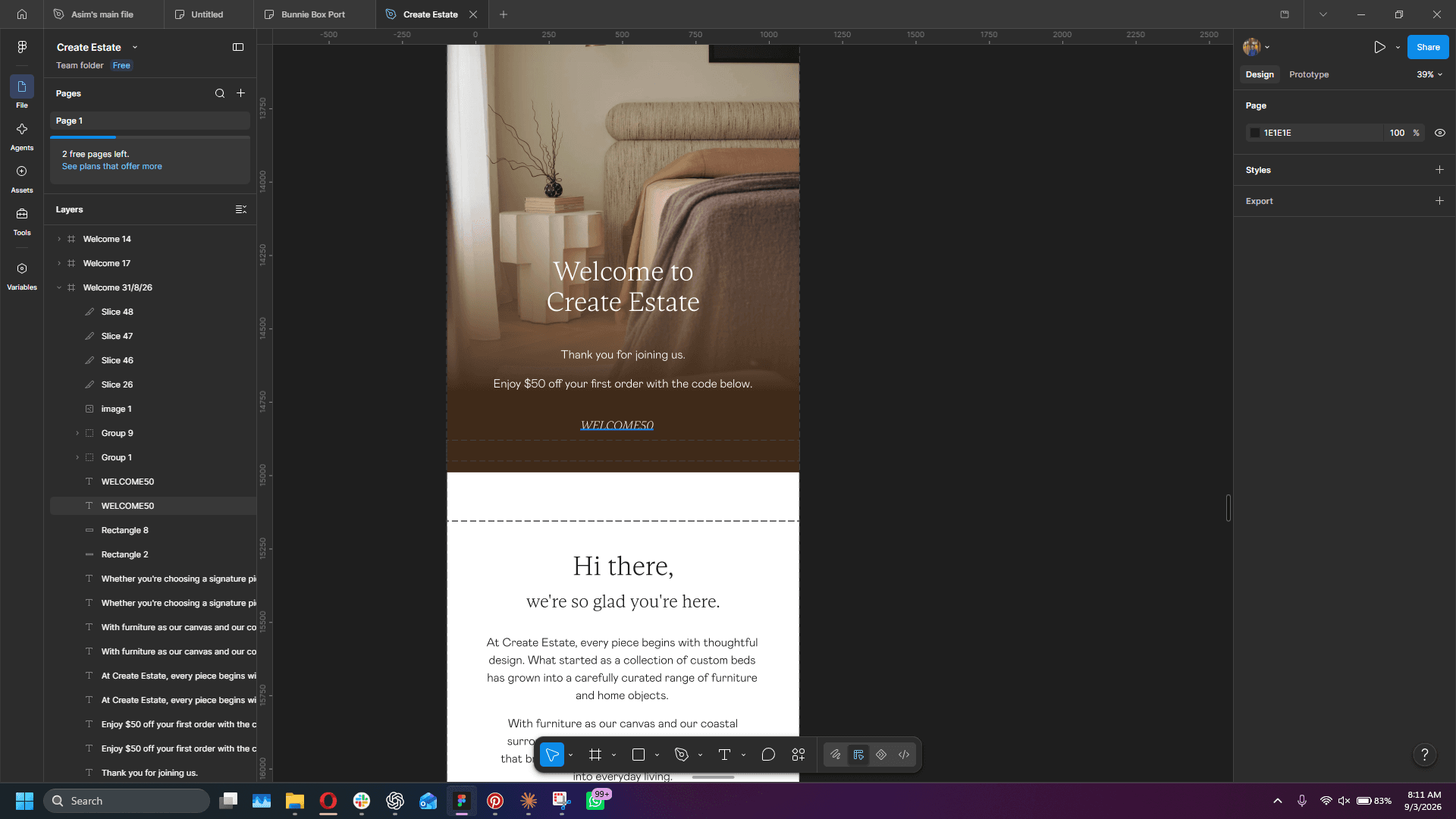
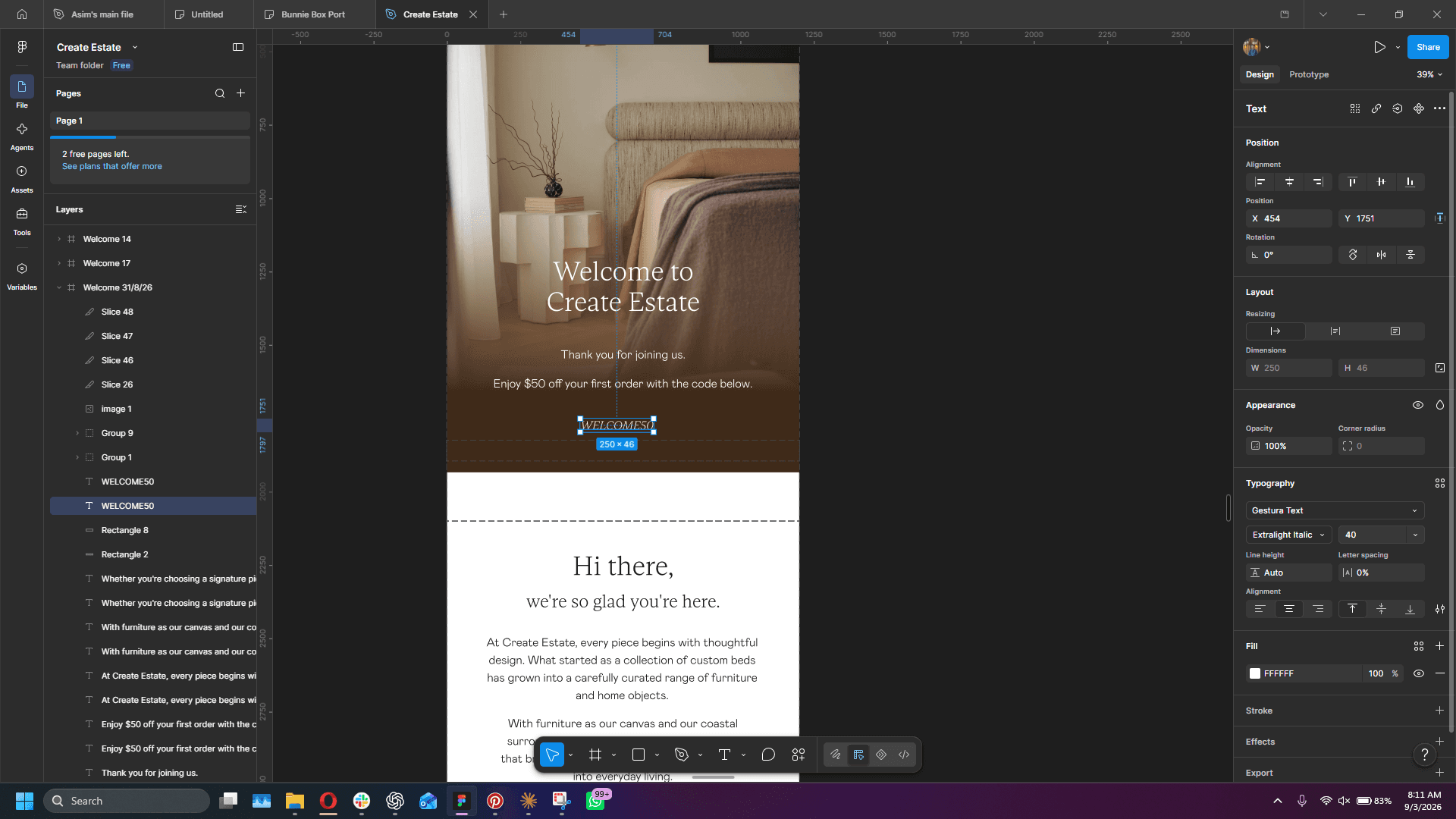
50 and press Enter.Adjusting to Standard Sizes
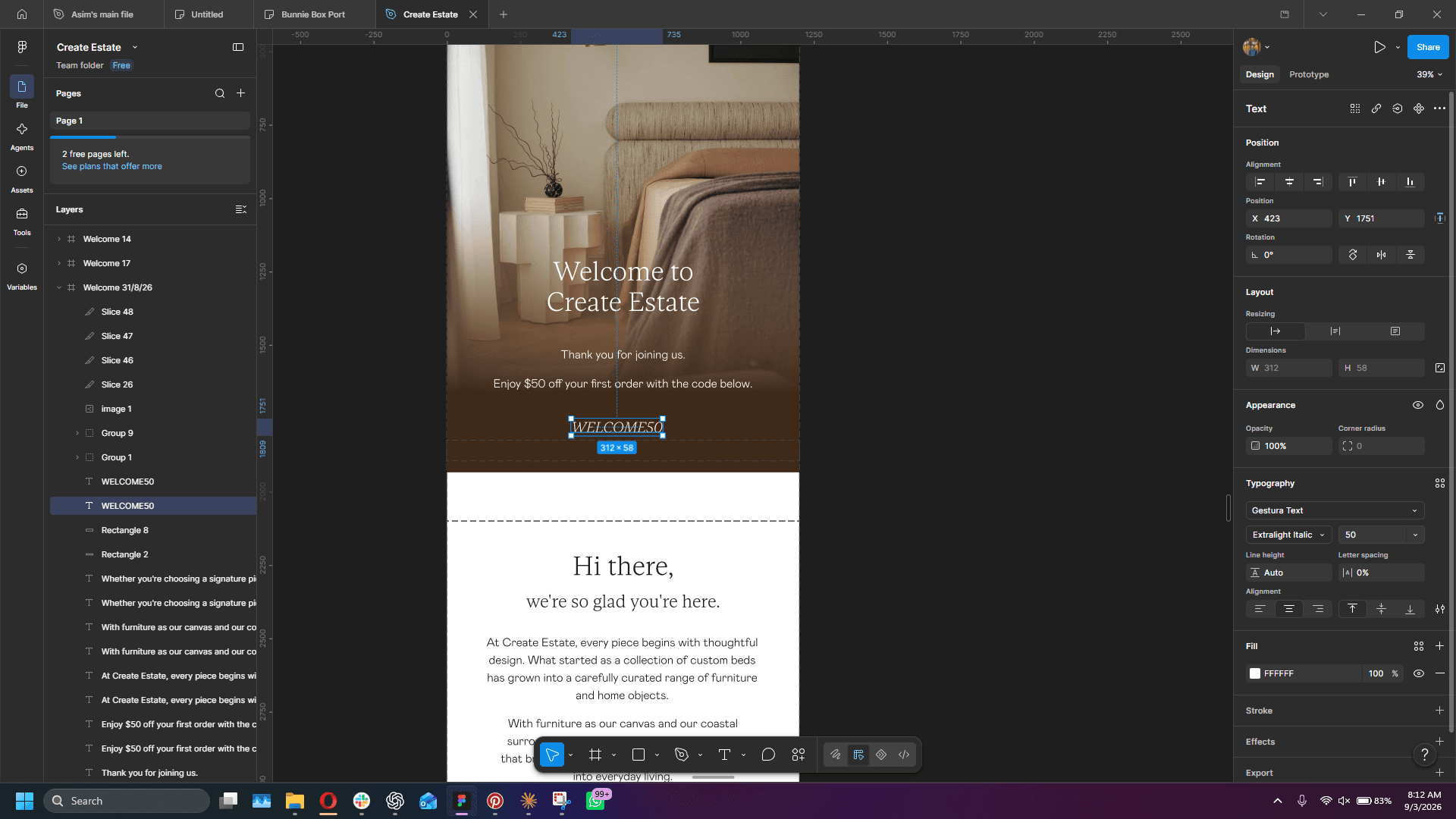
40 and press Enter.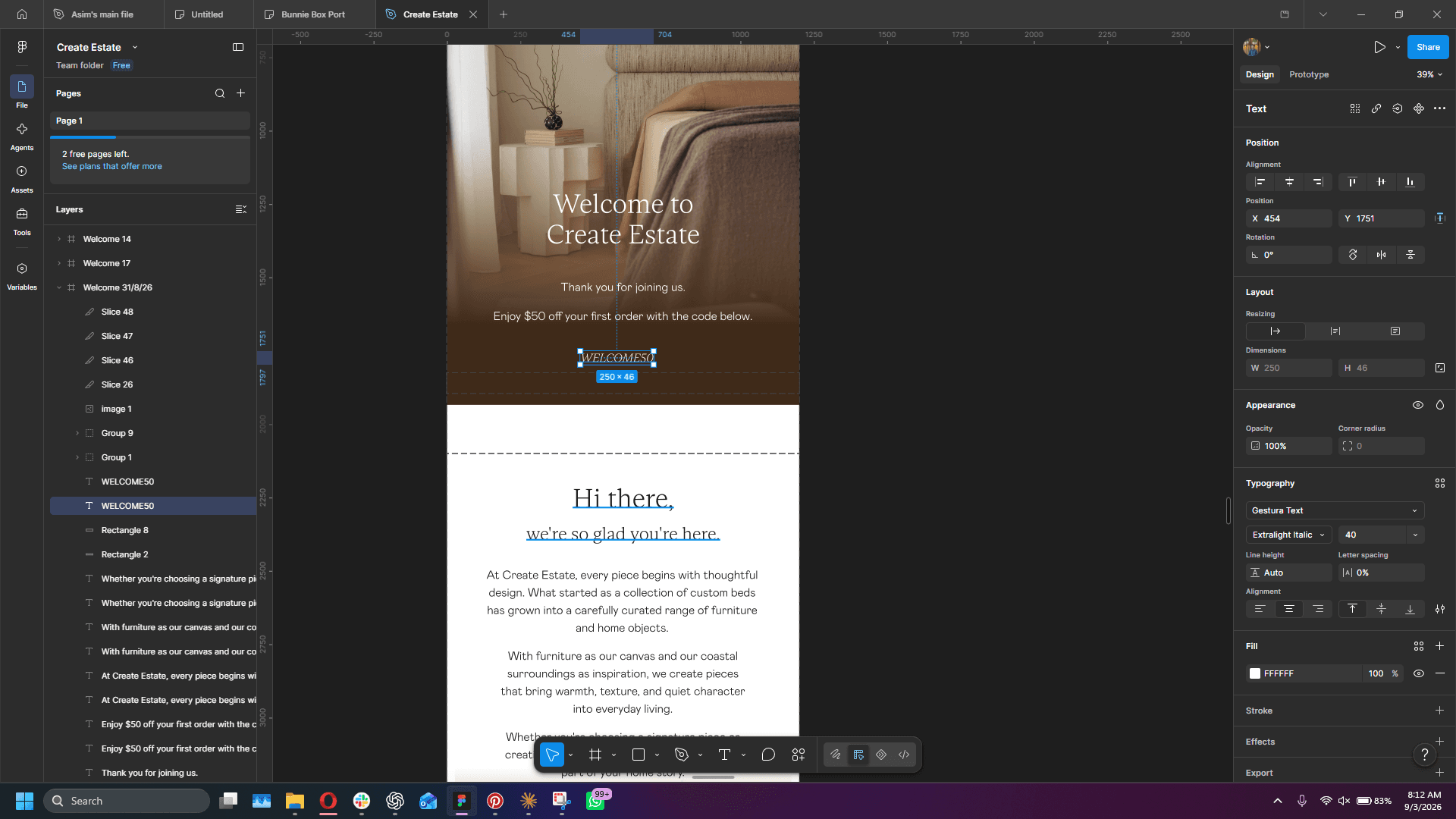
Q: Why is font size 40 recommended for layout headers or primary text?
A: Font size 40 is frequently used because it maintains optimal proportion and readability across both mobile and desktop viewports.
Term | Definition |
|---|---|
Canvas | The infinite workspace area in Figma where design frames, components, and text layers are created and edited. |
Typography Panel | The section within the right-hand Design panel that controls font family, weight, size, line spacing, and alignment. |
Text Layer | A dedicated design element containing editable typography within a layout. |