How to Change a Top-Up Plan Status to In Force
Learn how to accurately update contribution dates, select a proposition, and push a draft top-up plan status to in force within your financial management portal.
By Elliott Potter
Changing a newly created top-up from "Draft" to "In force" requires updating a few details first. Before the status can be pushed through, you must ensure that both the underlying contribution and the plan summary have a designated start date, and that a proper proposition is selected.
Follow these steps to update the required details, activate the top-up, and verify your changes.
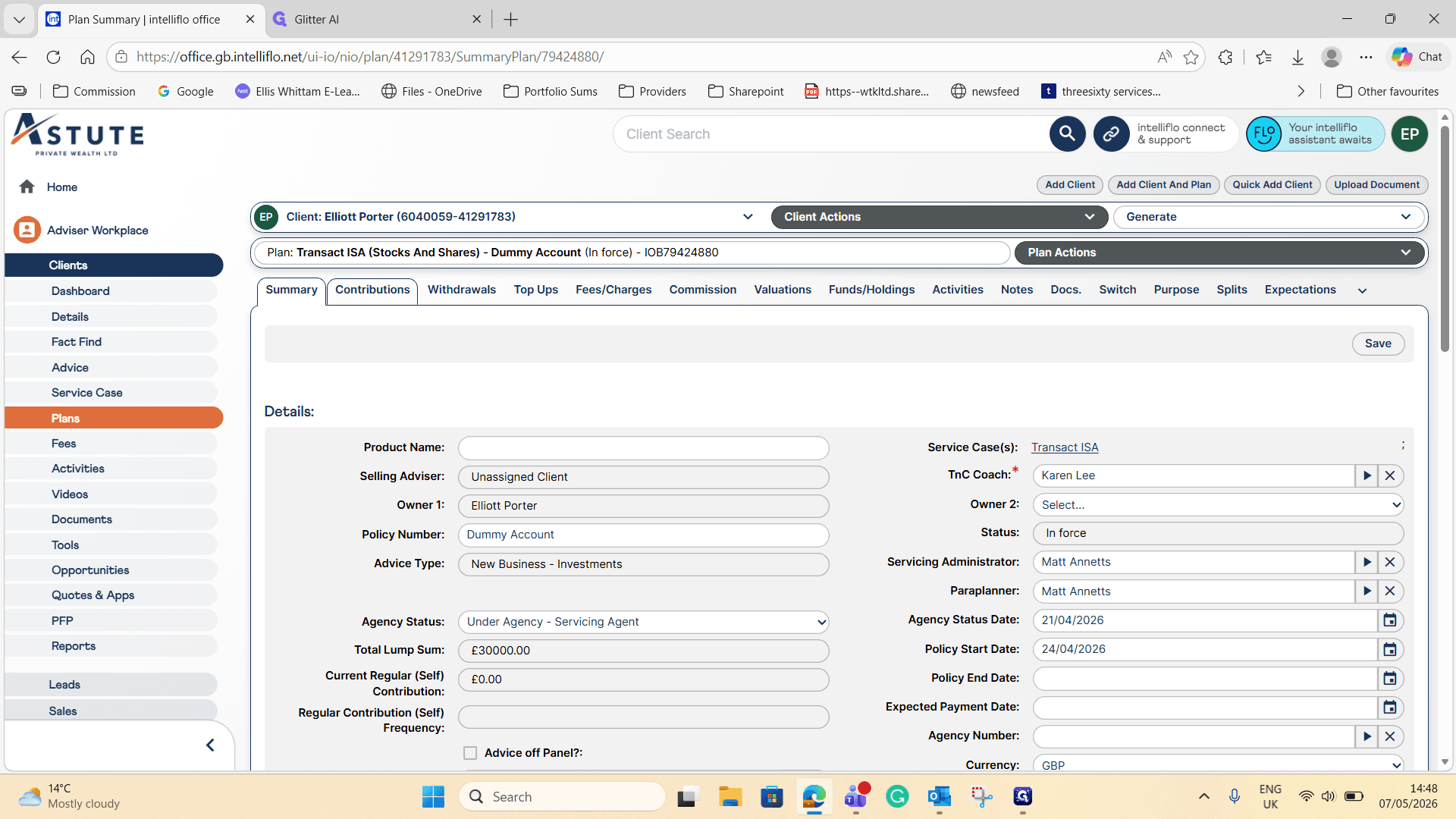
Access the Draft Top-Up
1
Click on the main plan reference number (e.g., IOB79424880).
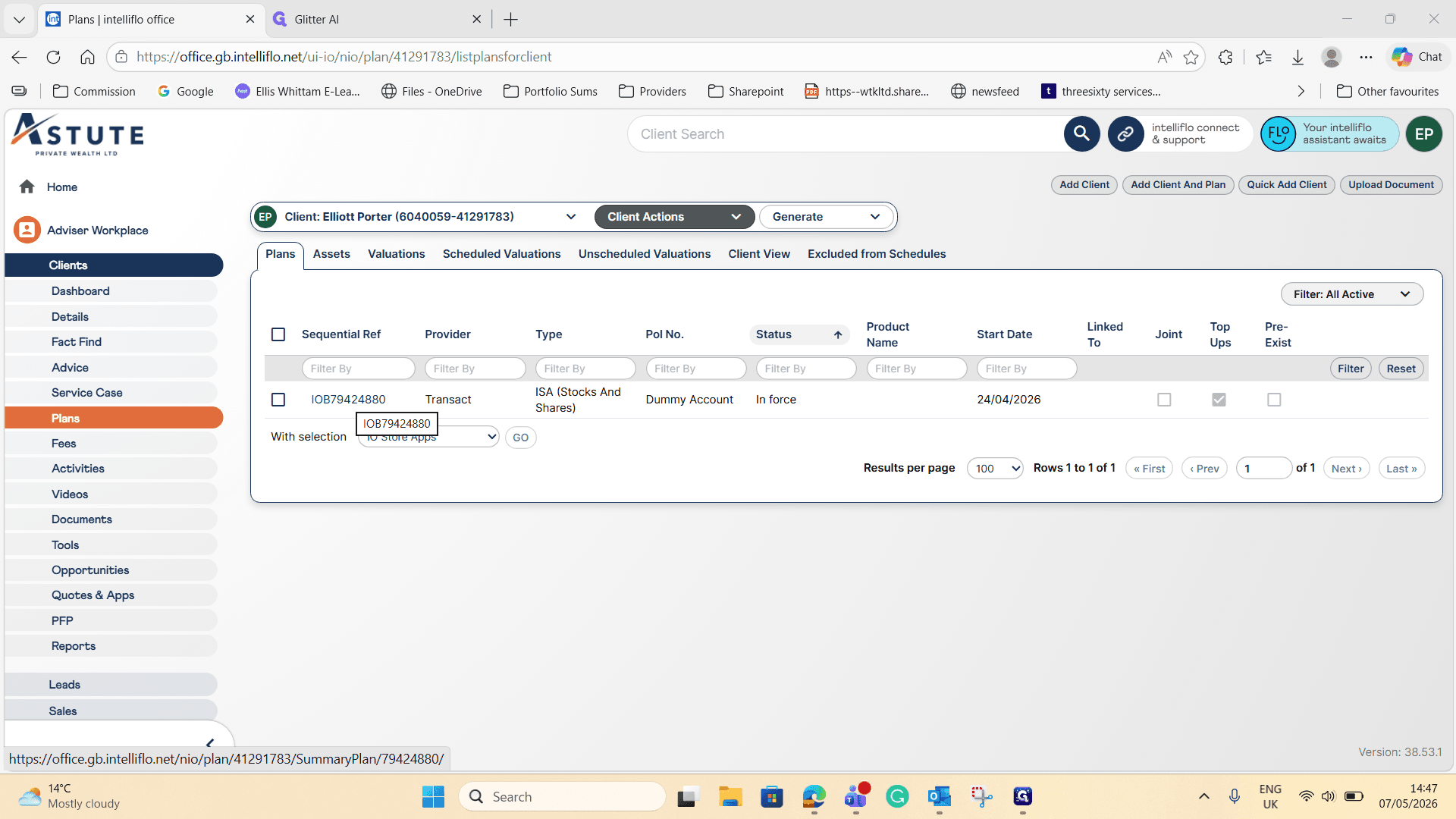
2
Navigate to the Top Ups tab.
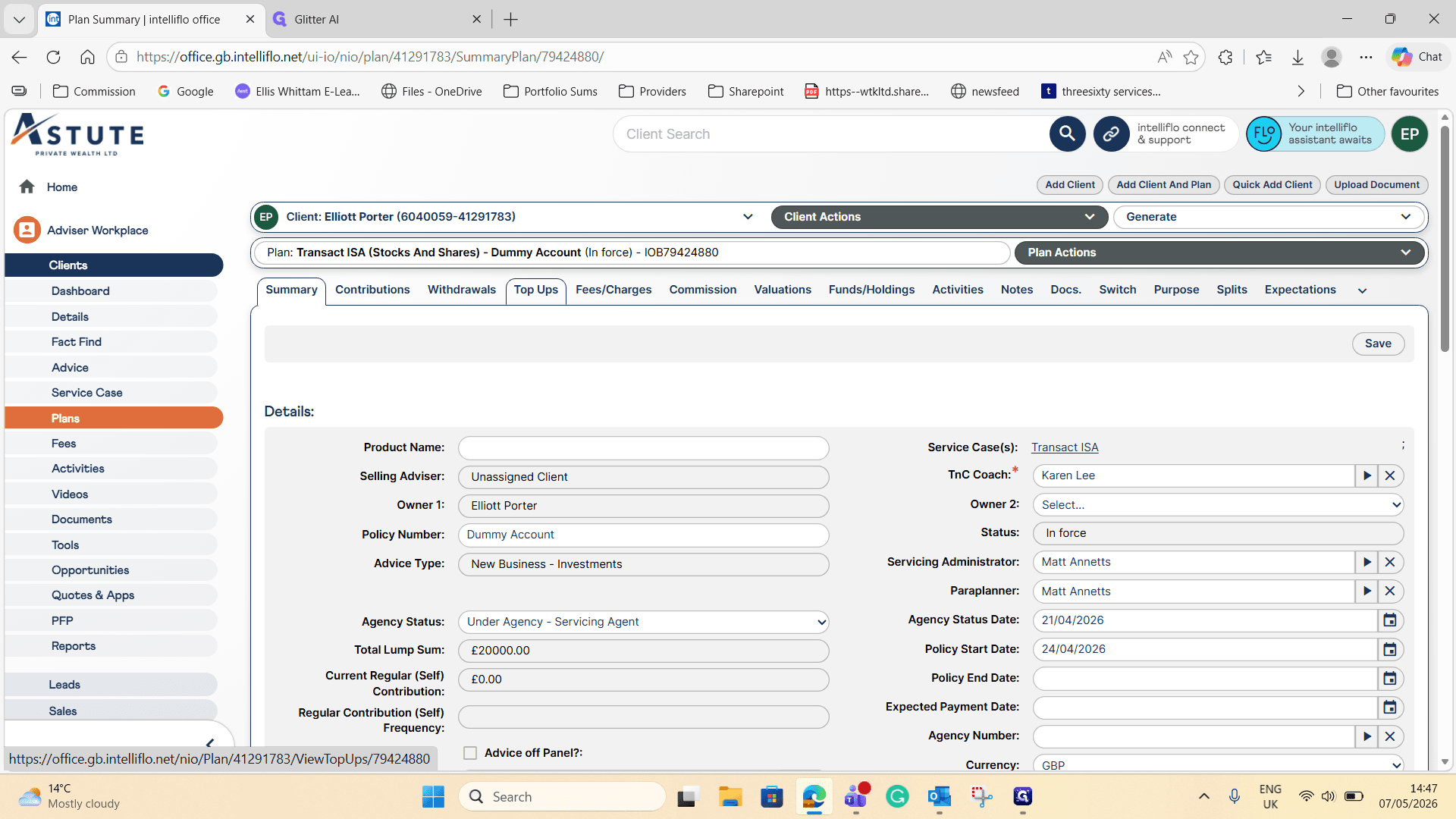
3
Select the reference number for your draft top-up (e.g., IOB79574543).
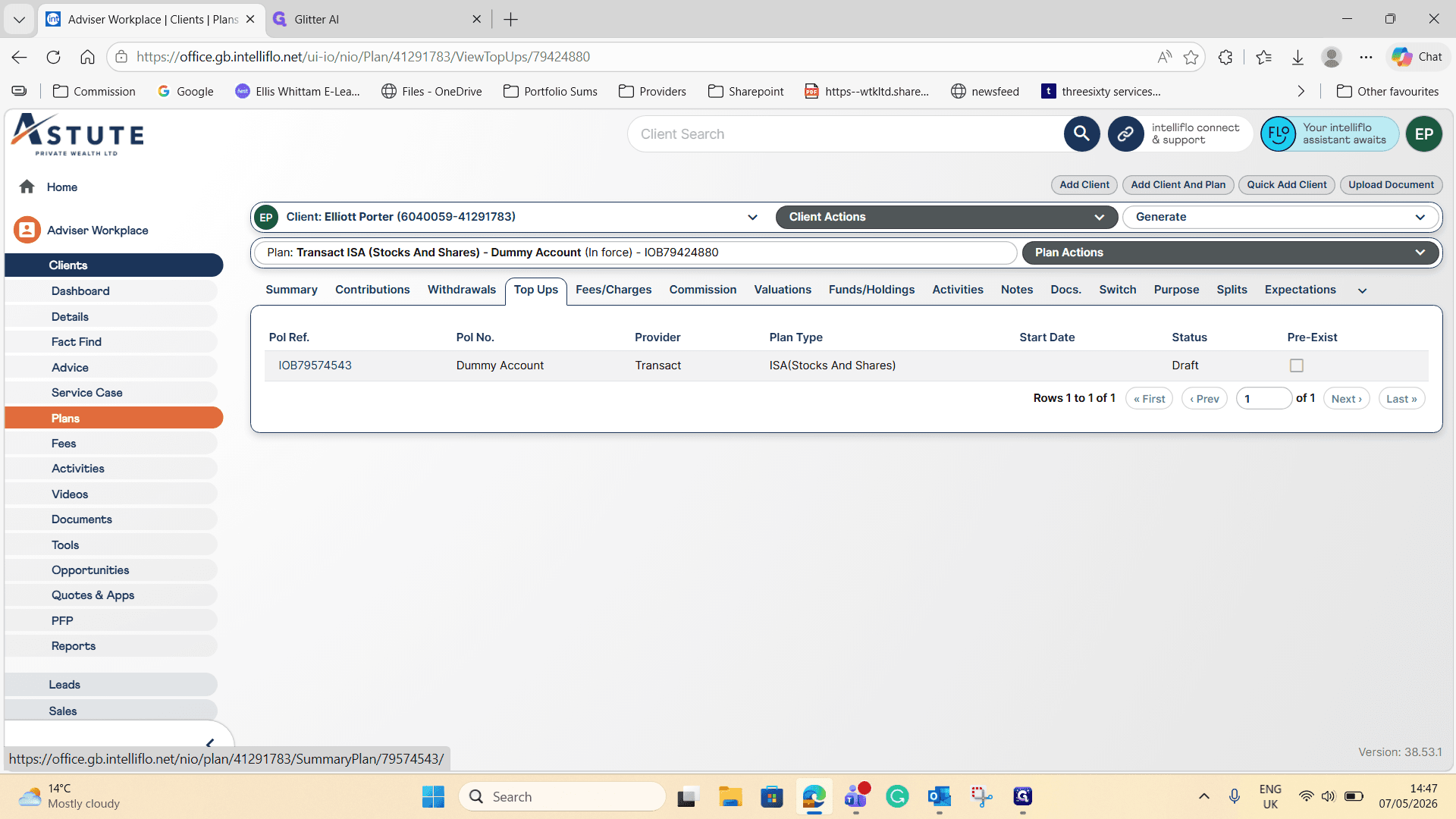
Update Contribution and Plan Dates
4
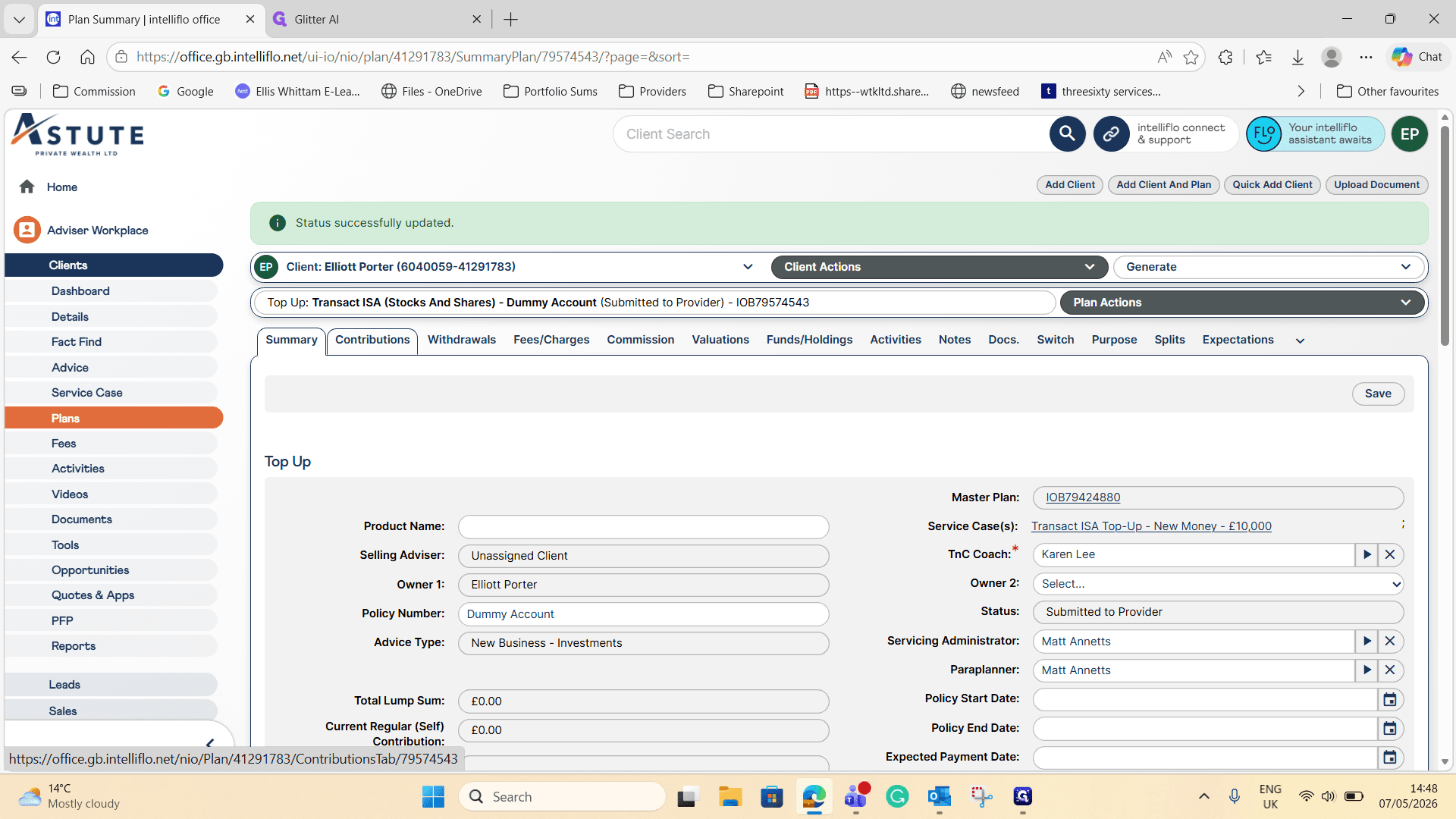
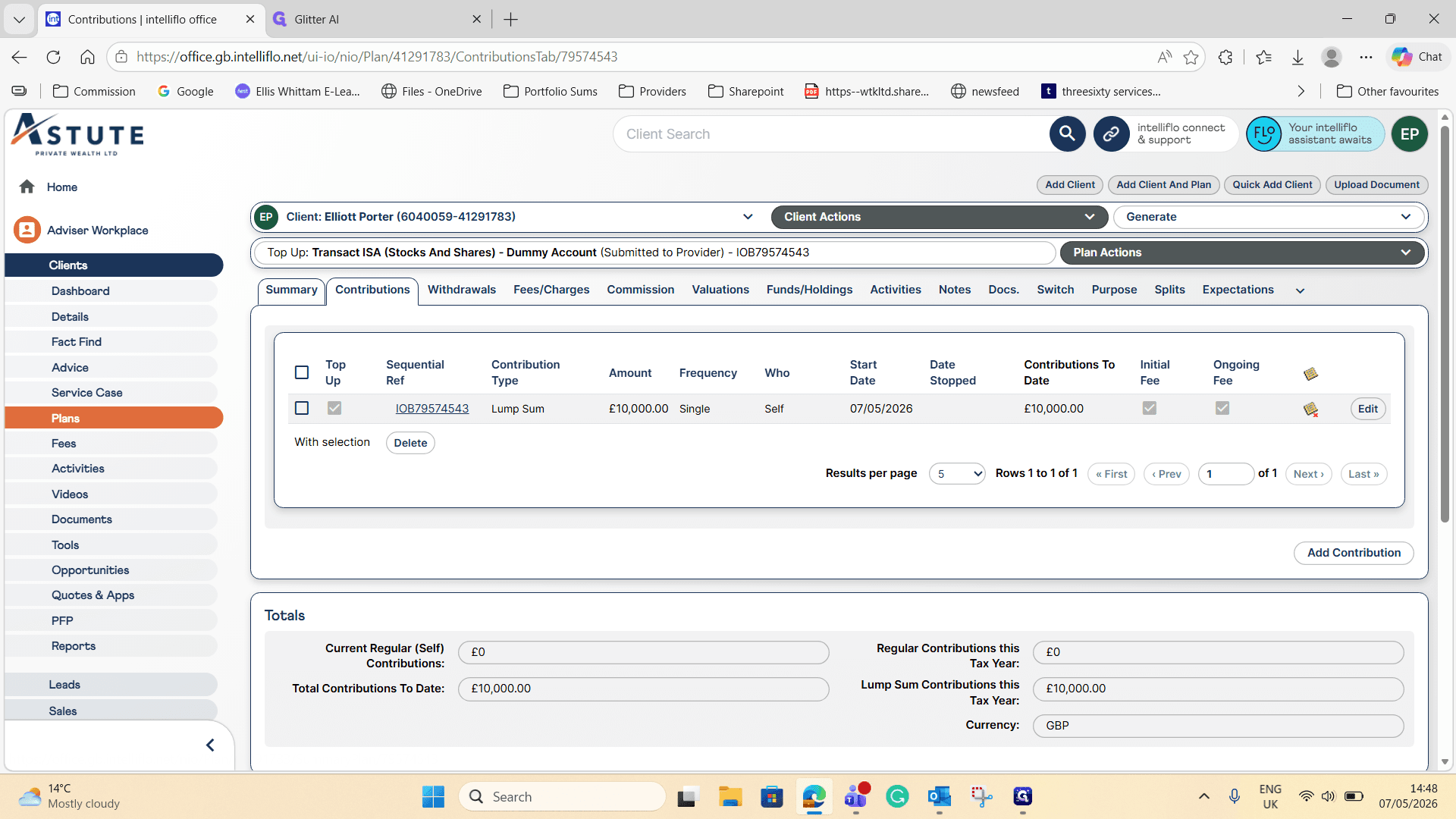
Click on the Contributions tab in the sub-navigation menu.
5
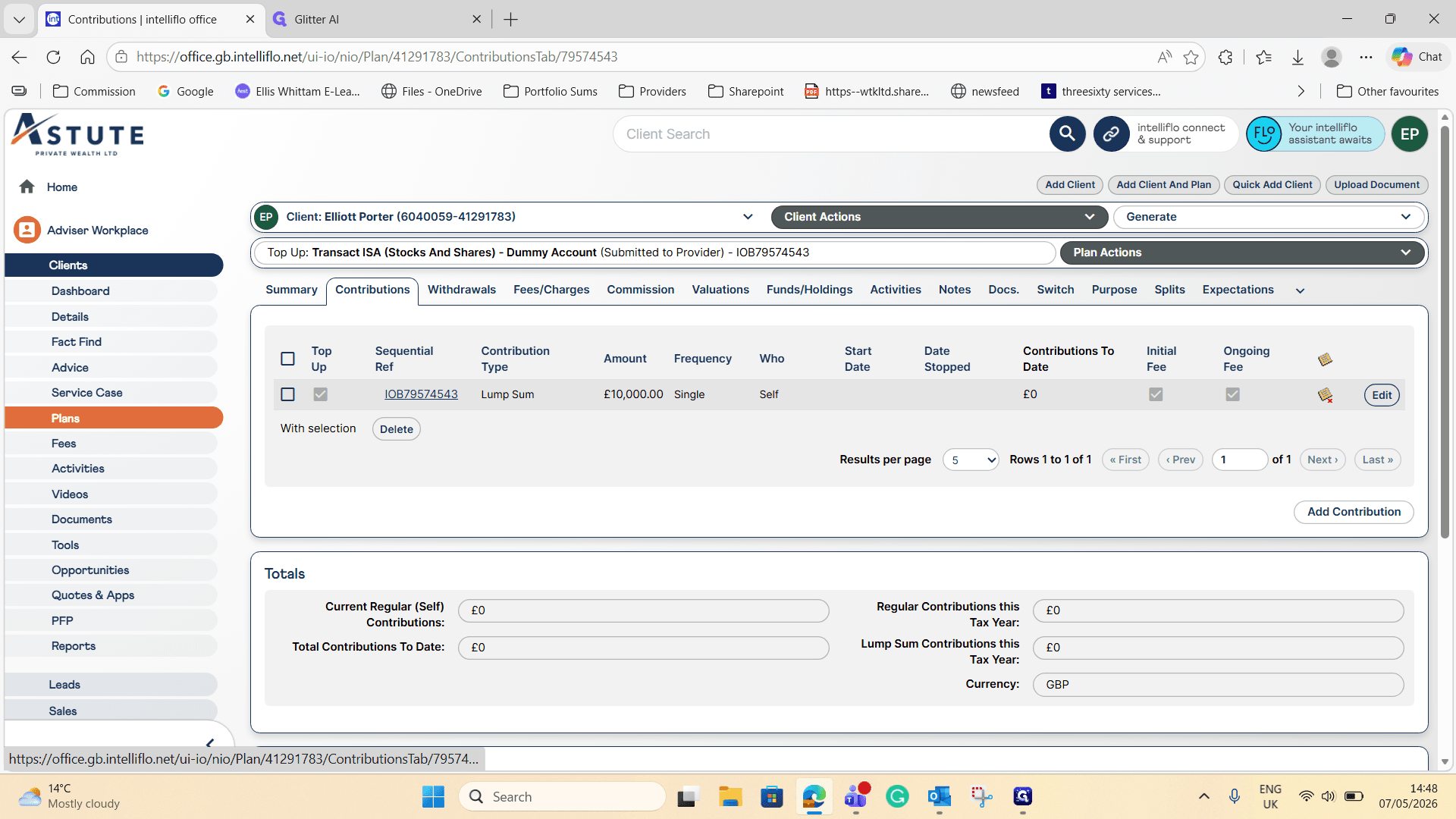
Click Edit next to the lump sum contribution record.
6
Enter the Start Date for the contribution (e.g.,
07/05/2026).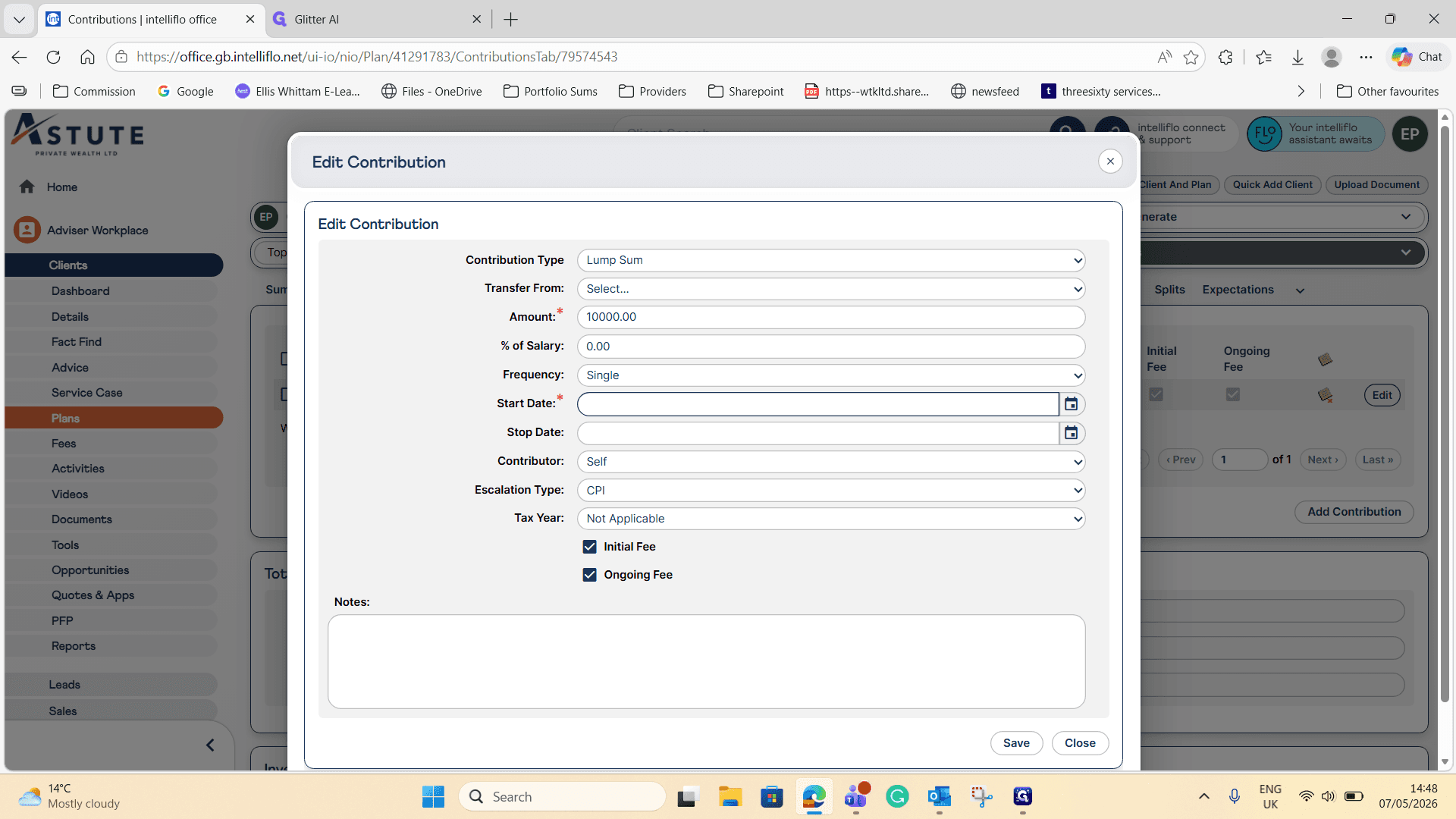
7
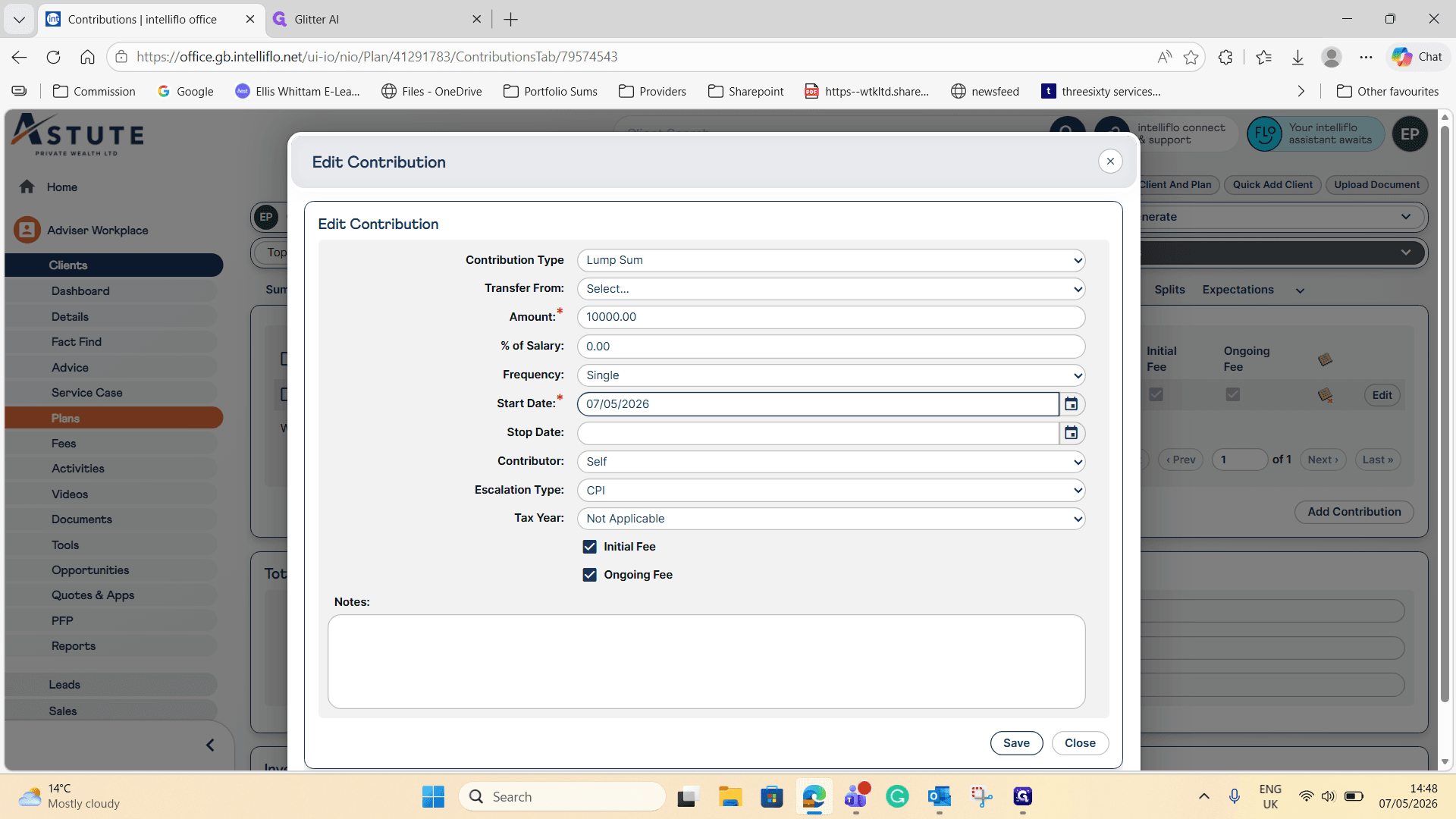
Click Save to update the contribution details.
8
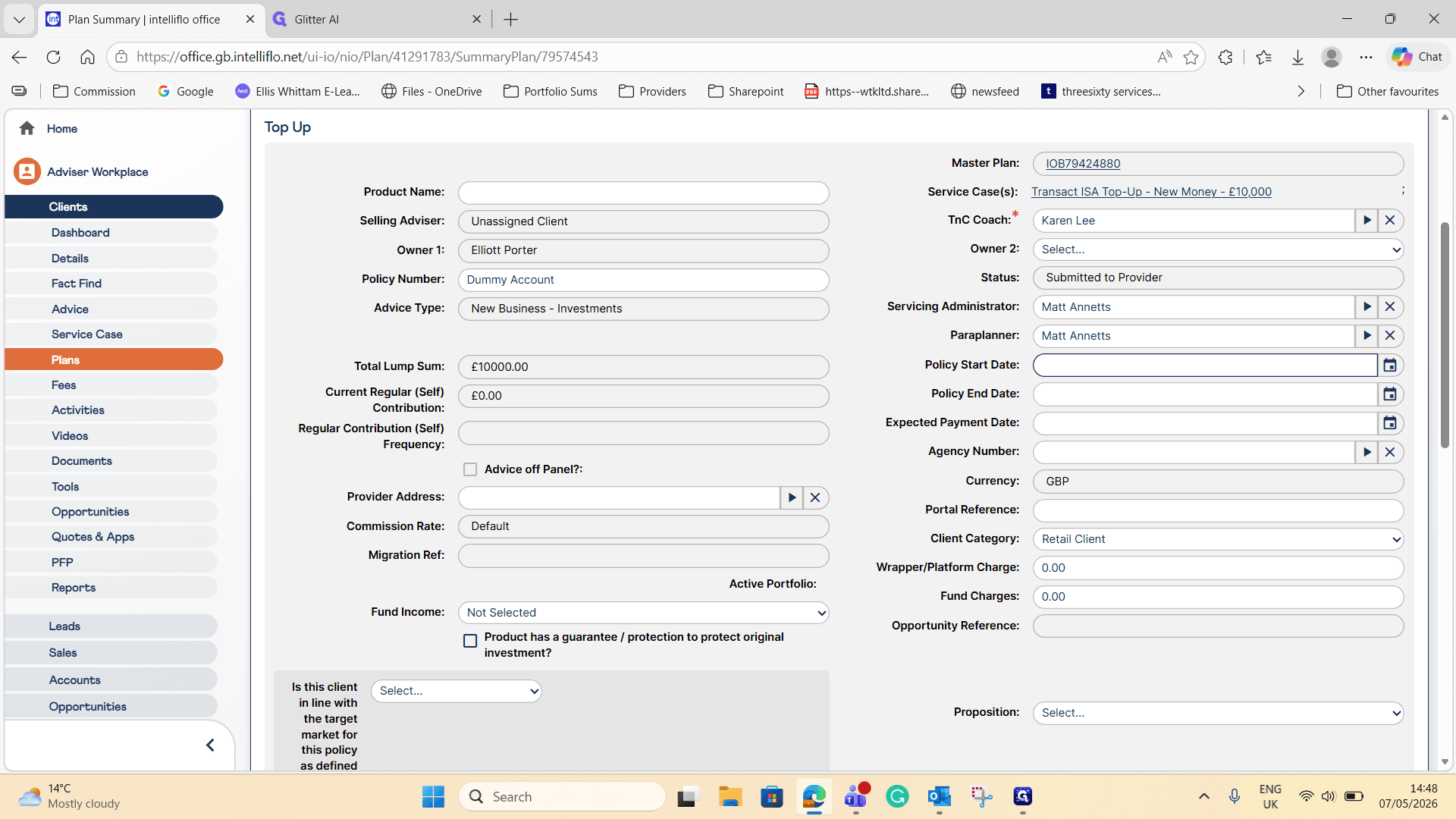
Return to the Summary tab.
9
Update the Policy Start Date to exactly match the contribution date you just set.
Update Proposition and Change Status
10
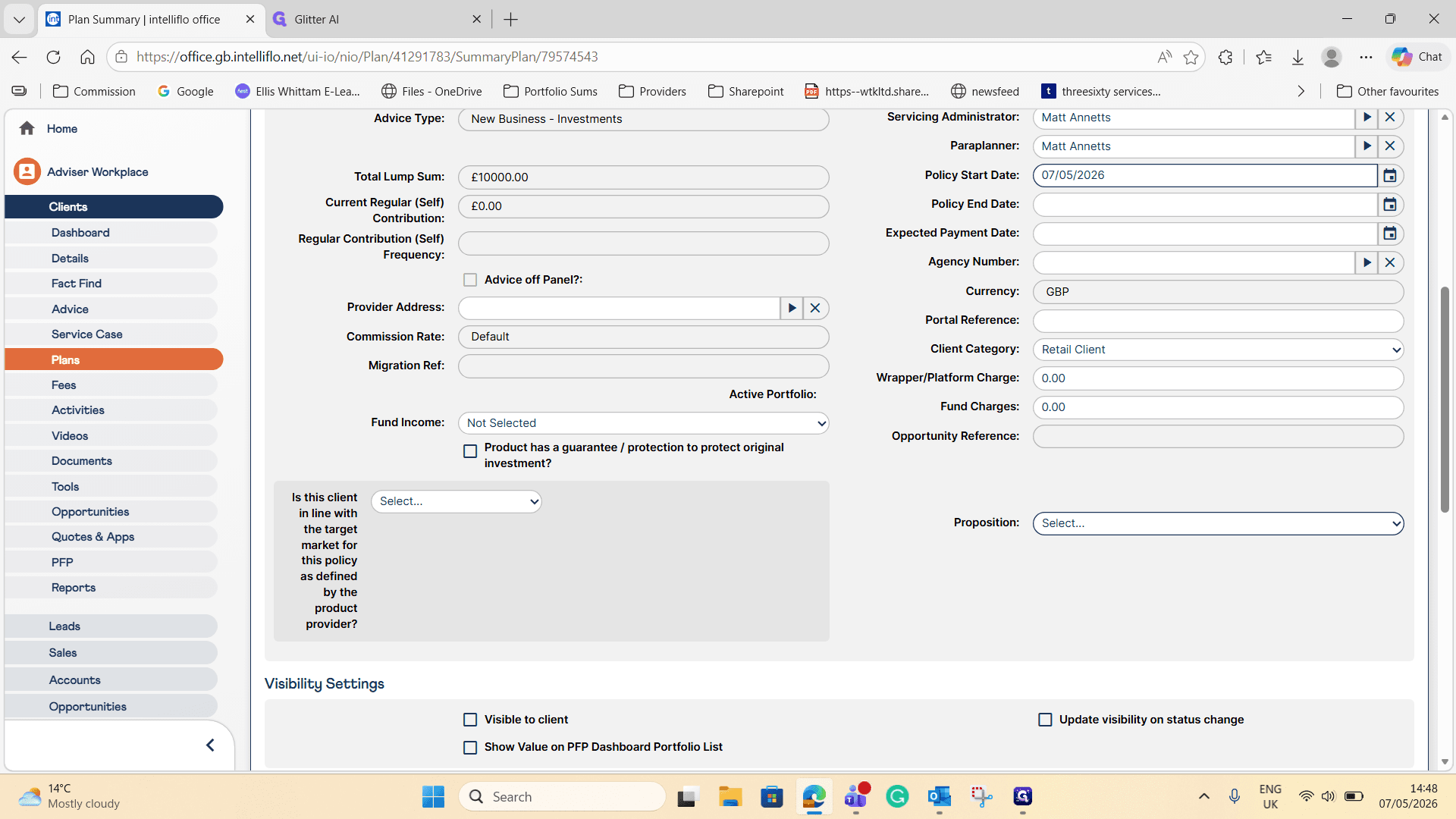
Open the Proposition dropdown and select the appropriate target market (e.g., 98-100% AIM).
11
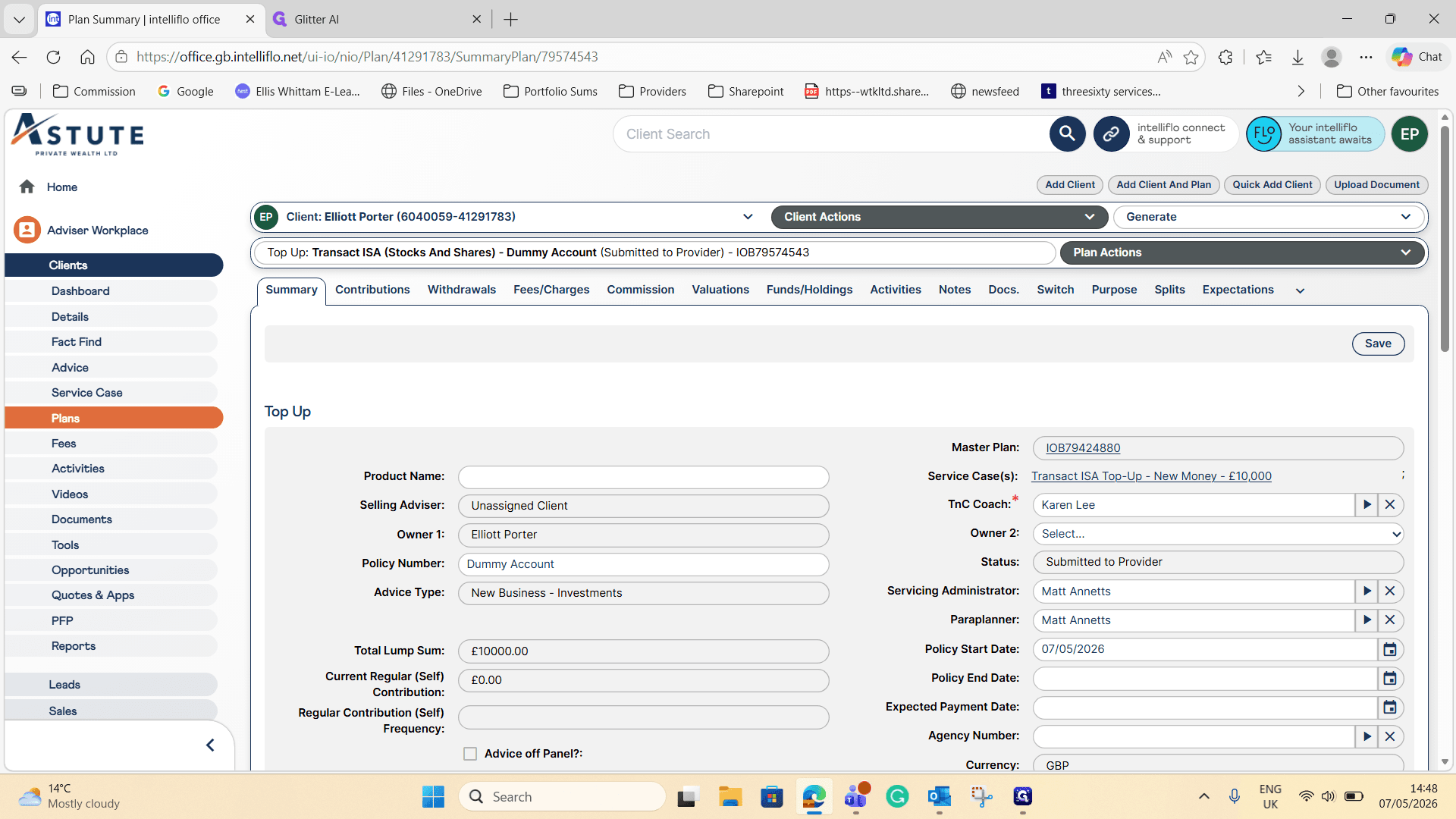
Click Save in the top right corner to confirm the summary changes.
12
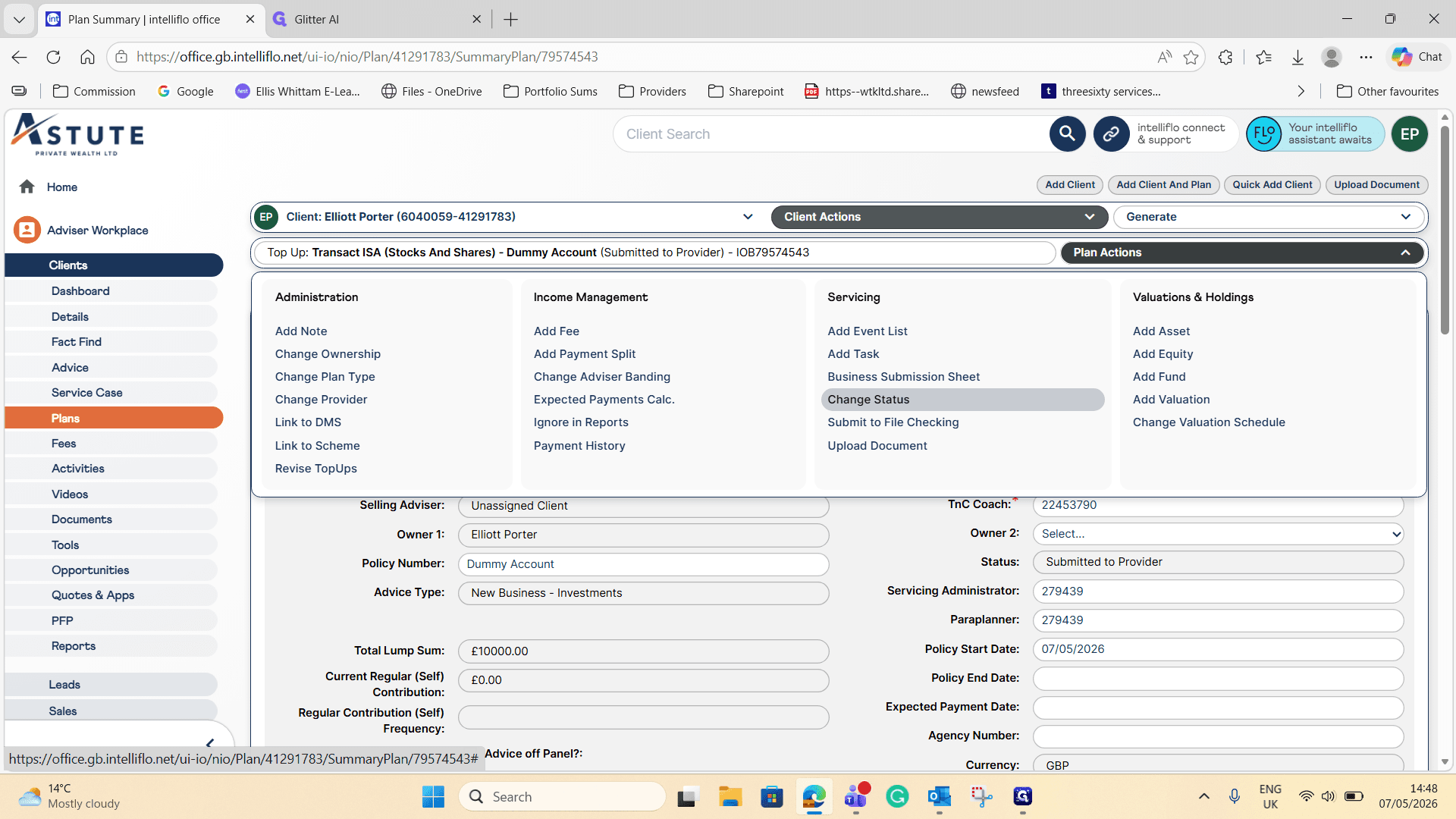
Open the Plan Actions menu and click Change Status.
13
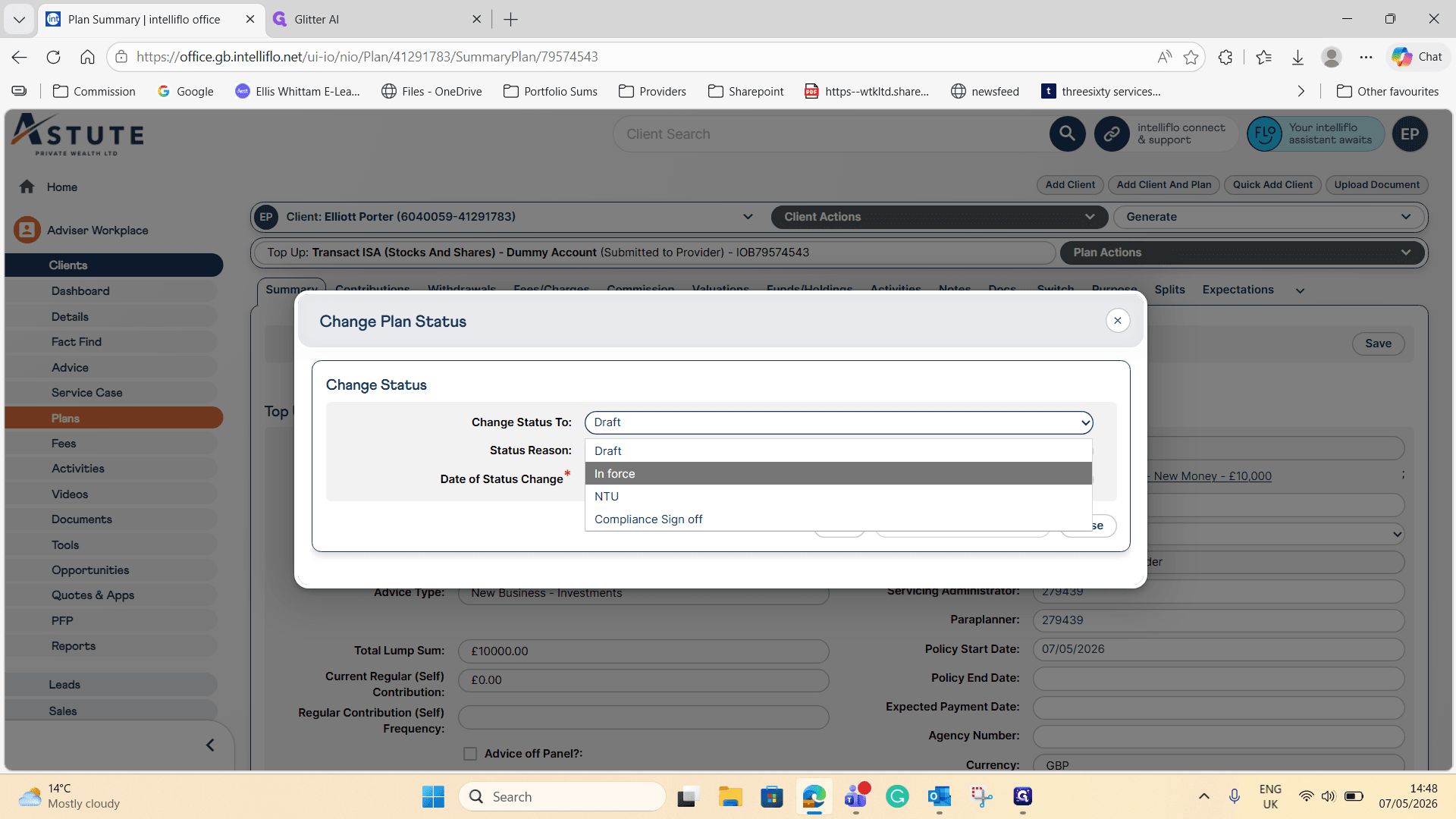
Select In force from the new status dropdown options.
14
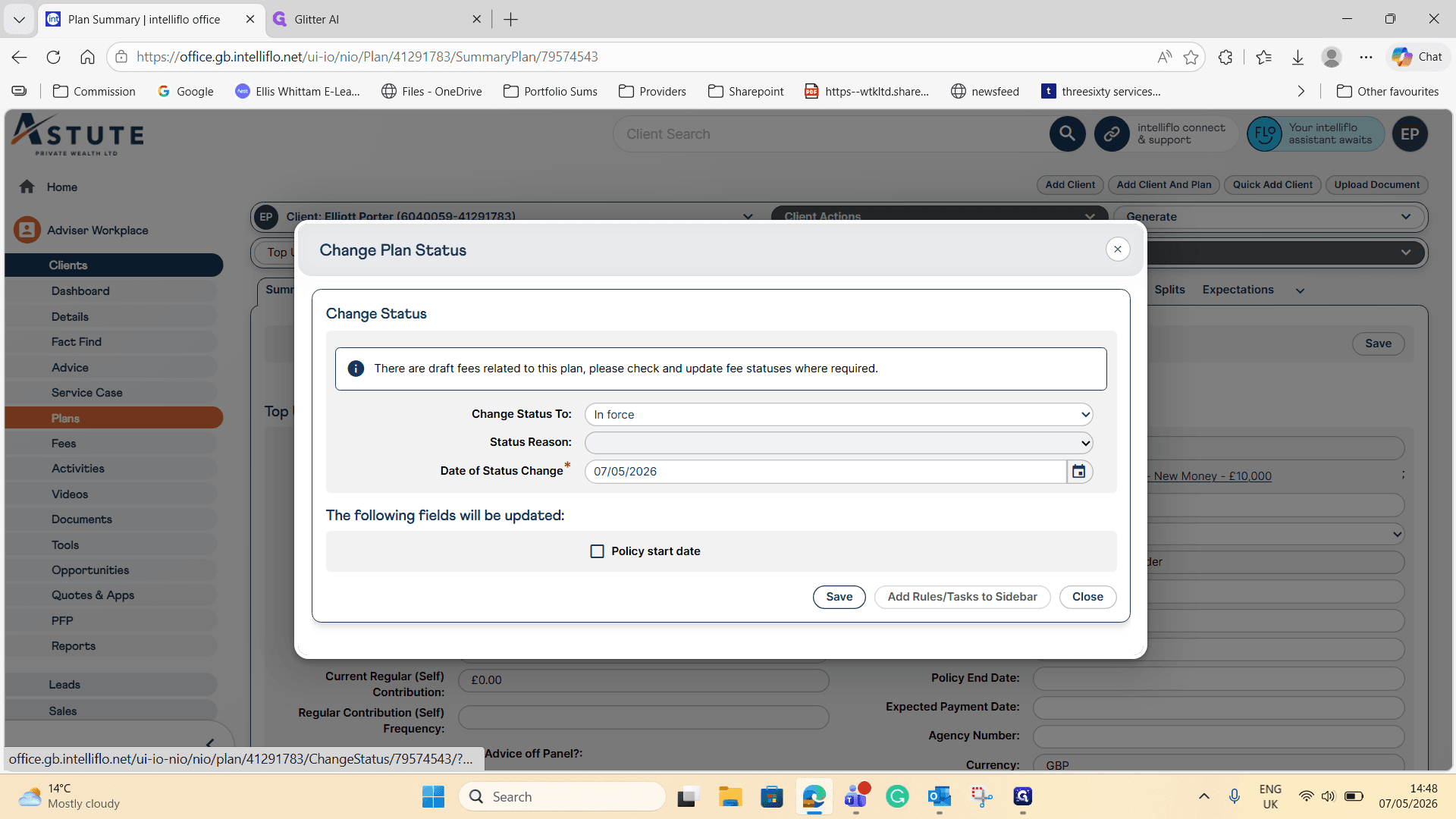
Click Save to apply the status change to your top-up.
Verify the Top-Up Contribution
15
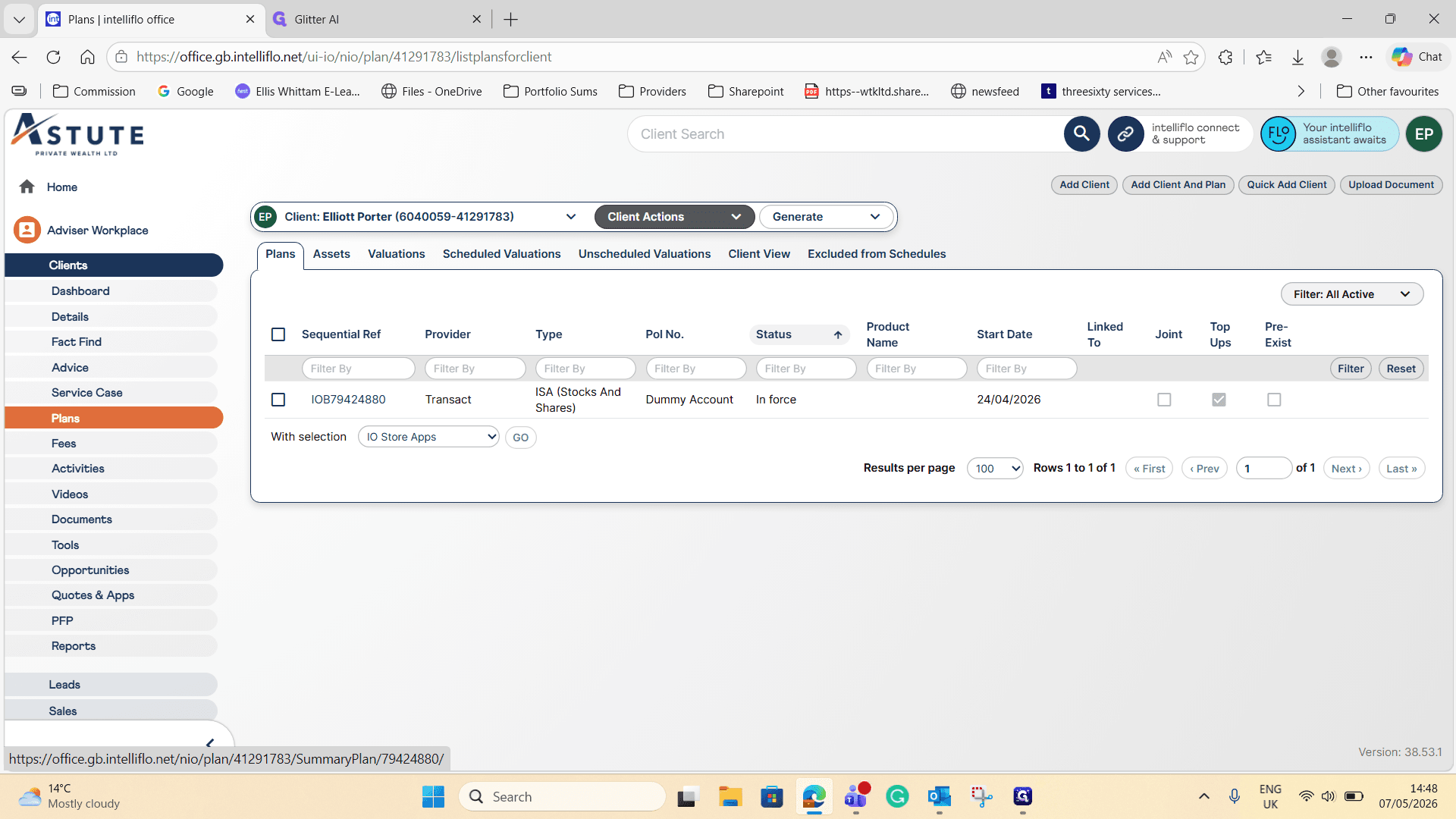
Navigate back to the parent plan by clicking its reference number.
16
Click on the Contributions tab to verify that the new top-up amount has been successfully loaded alongside your original balance.