How to Complete the Daily Power Drops Report in Smartsheet
Learn how to use Smartsheet WorkApps to track daily project completion percentages, batch update task statuses, and submit your end-of-shift Man Hour Form.
This guide outlines the daily procedure for updating the power drops tracker in Smartsheet, from logging individual task progress to submitting your end-of-shift hours.
This workflow applies to Electrical Supervisors and project leads responsible for daily site tracking and ensuring labor hours correspond correctly to project progress.
Accessing the Project Tracker
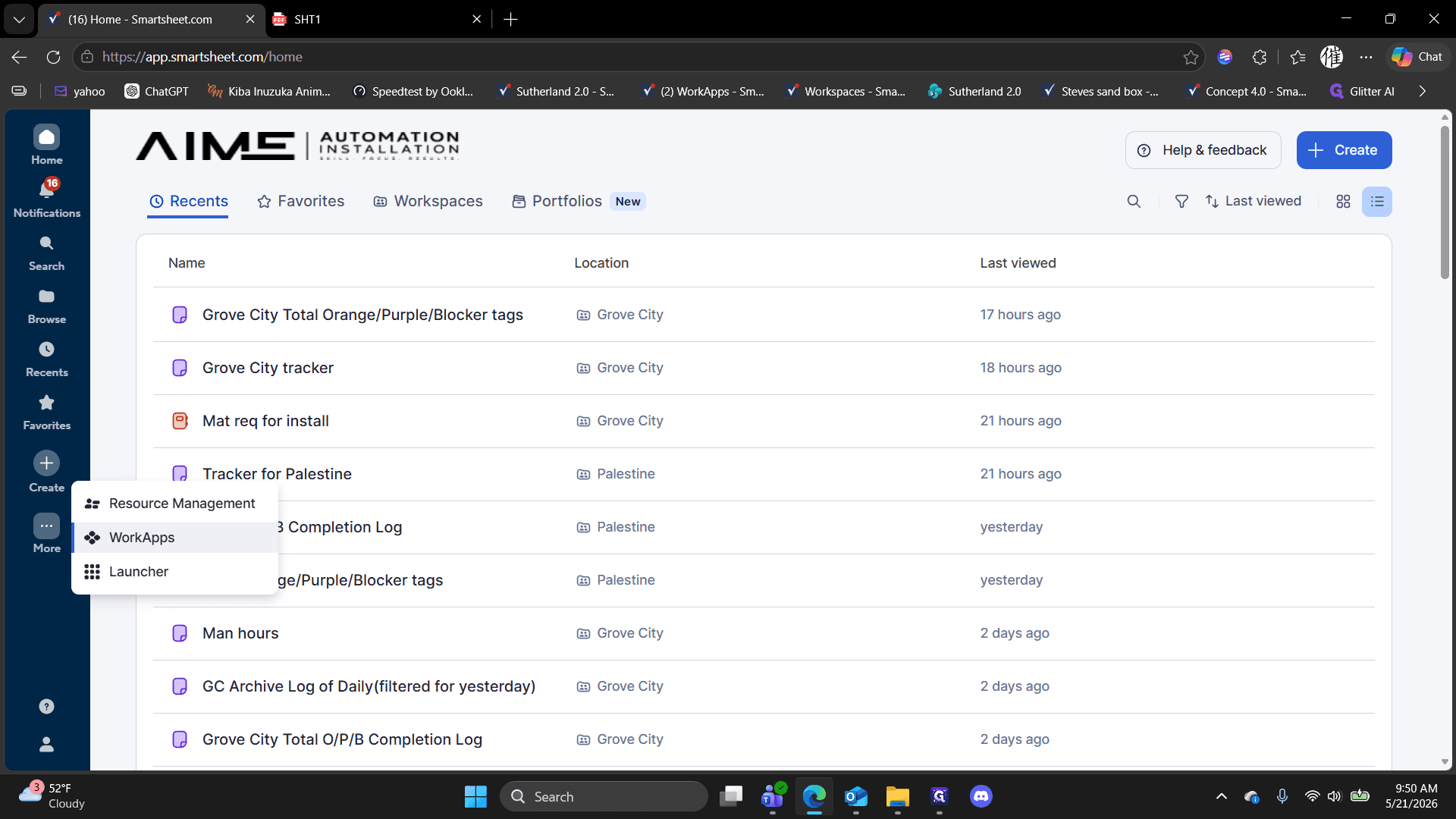
To begin your daily report, you need to open your specific project workspace within Smartsheet WorkApps.
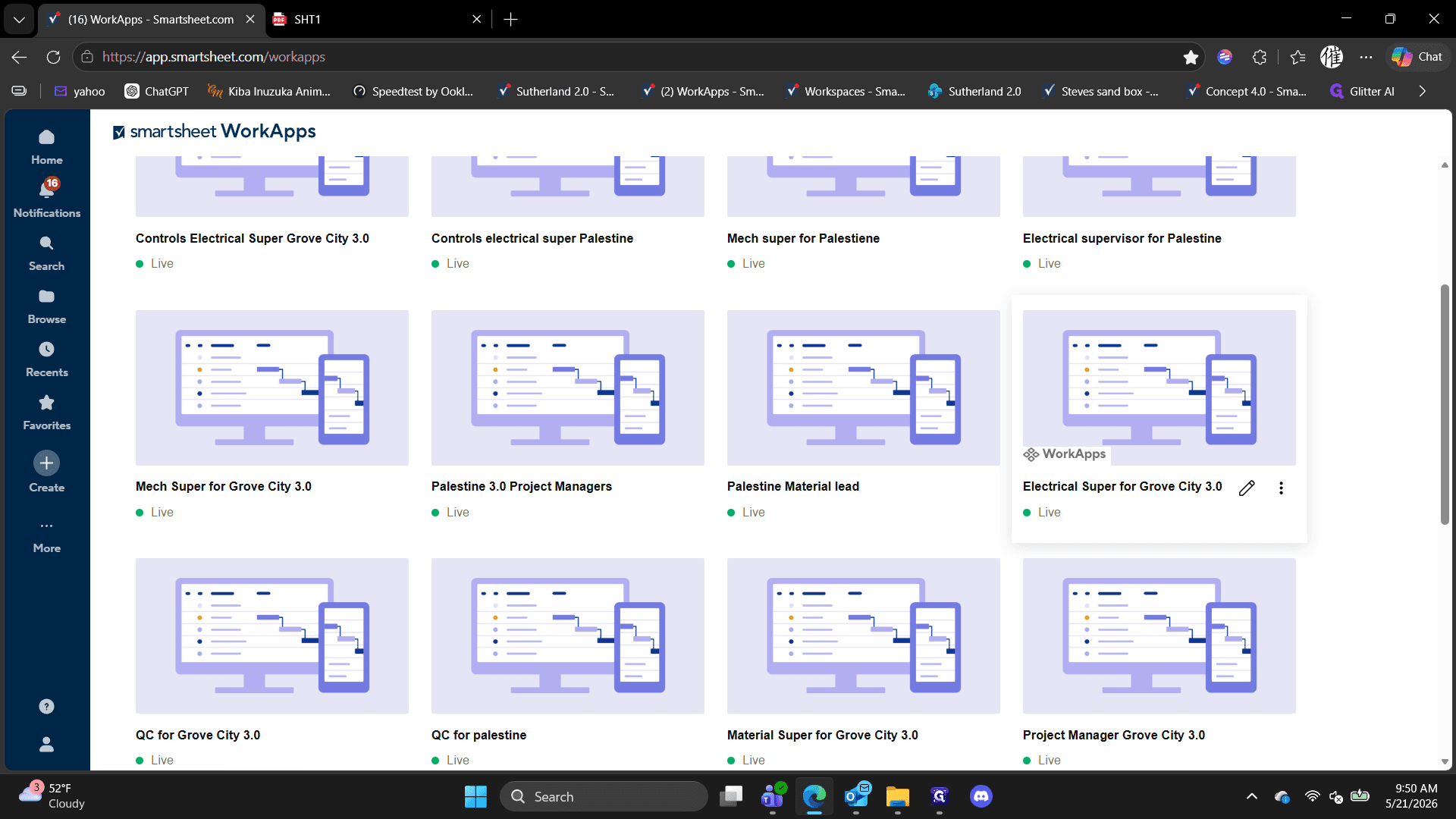
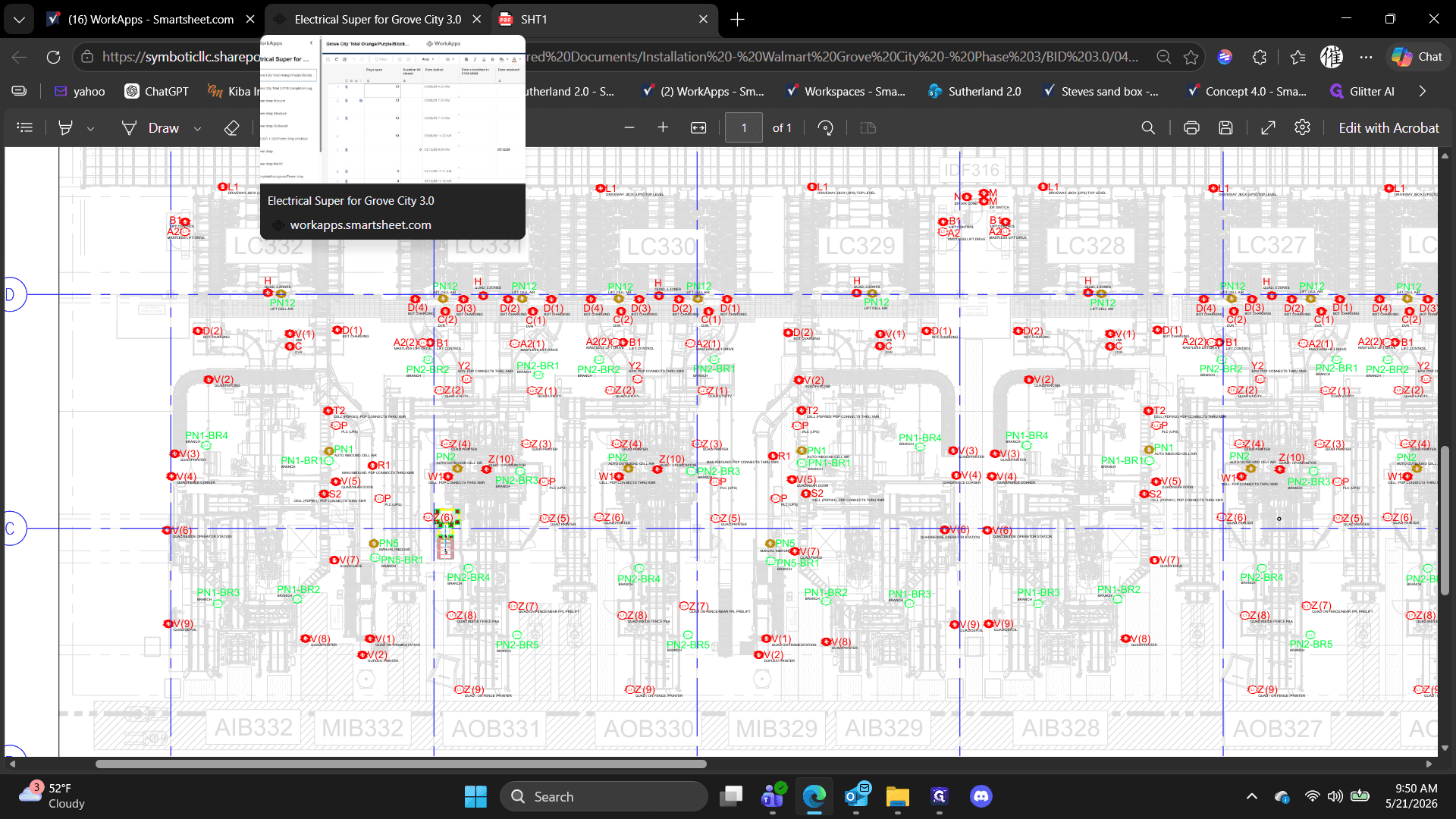
Updating Daily Task Progress
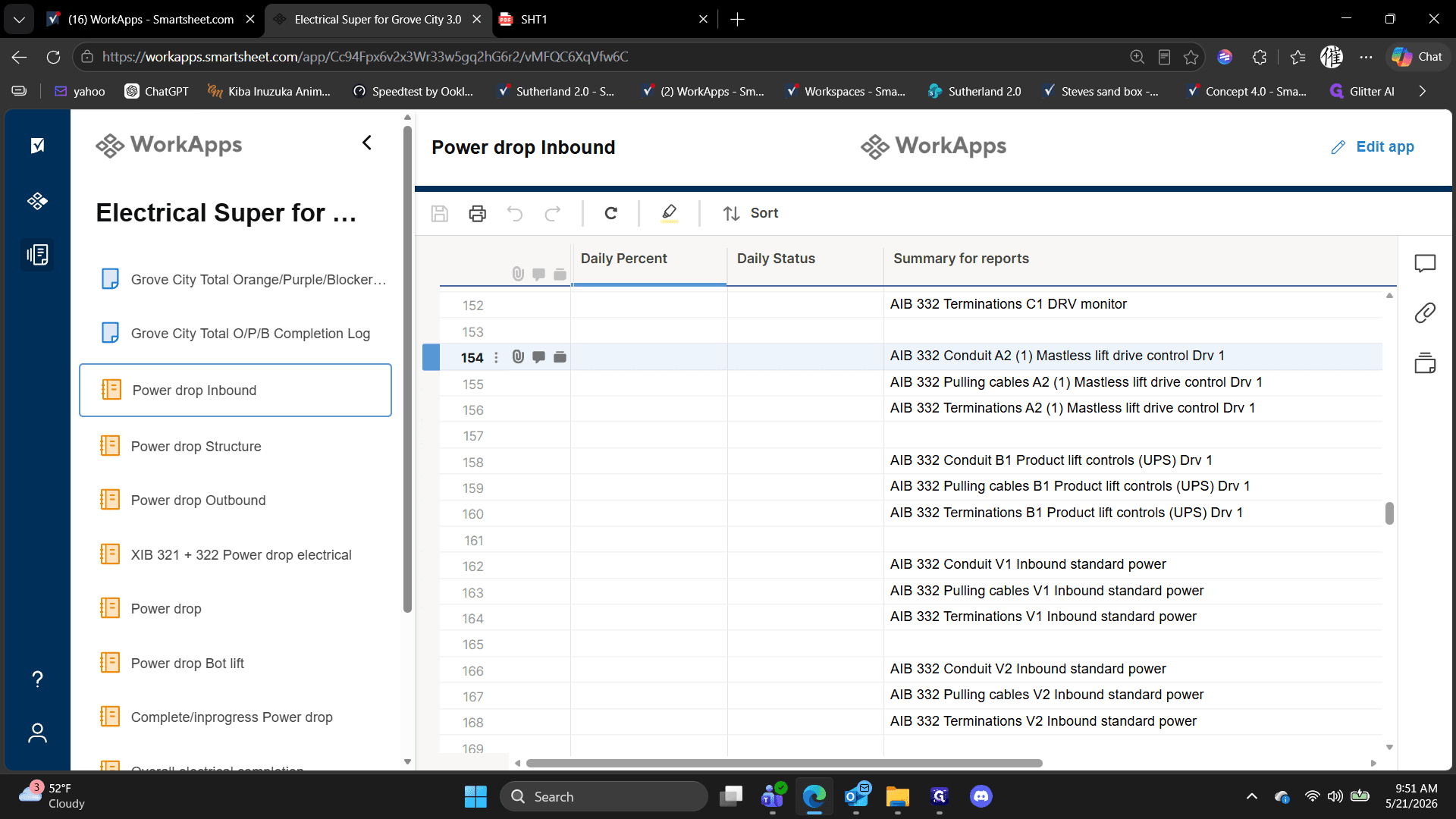
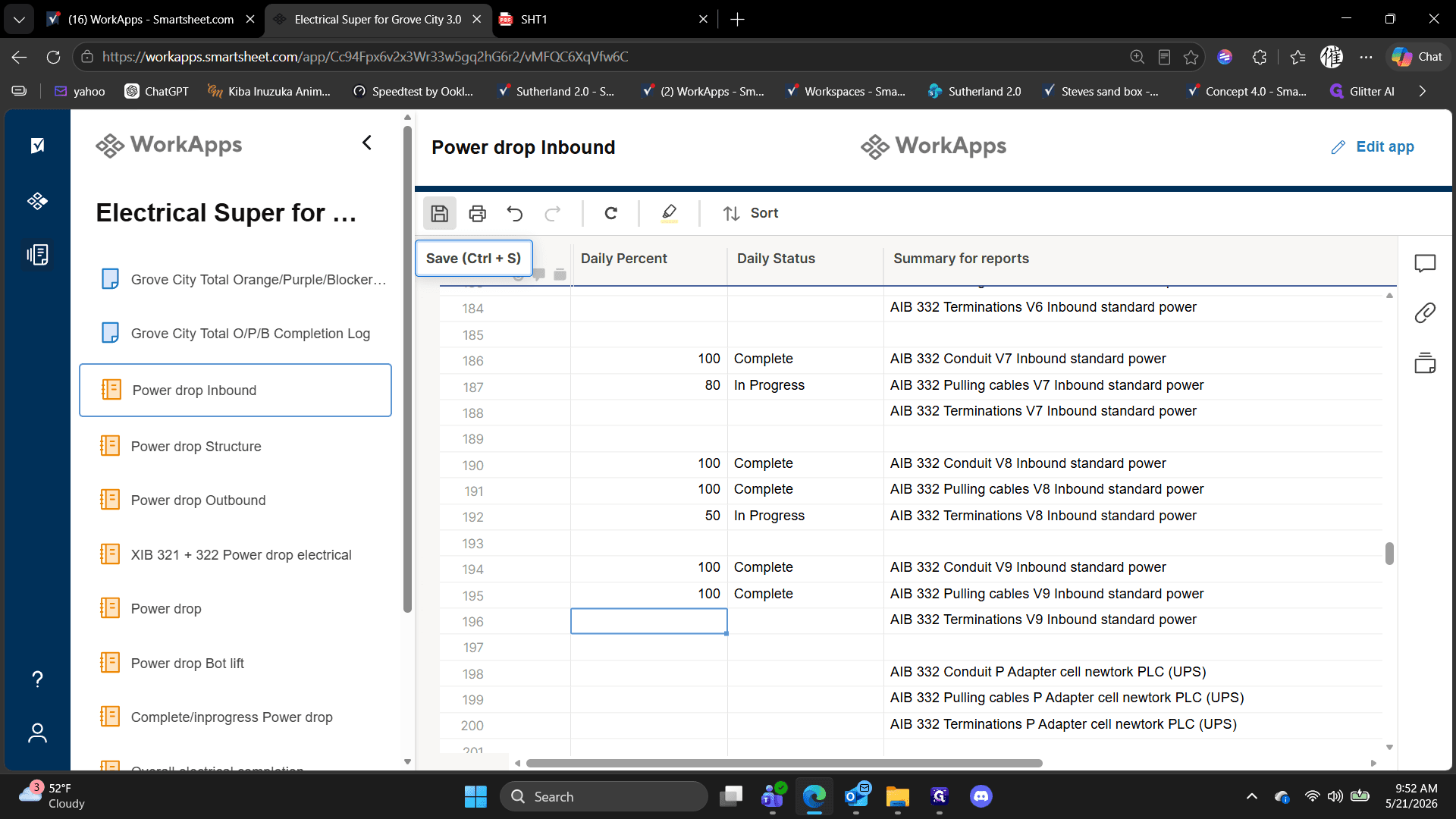
Once inside the data grid, you must record the completion status and percentage for the day's tasks. You can edit individual tasks or use keyboard shortcuts to batch-update consecutive rows.
100.
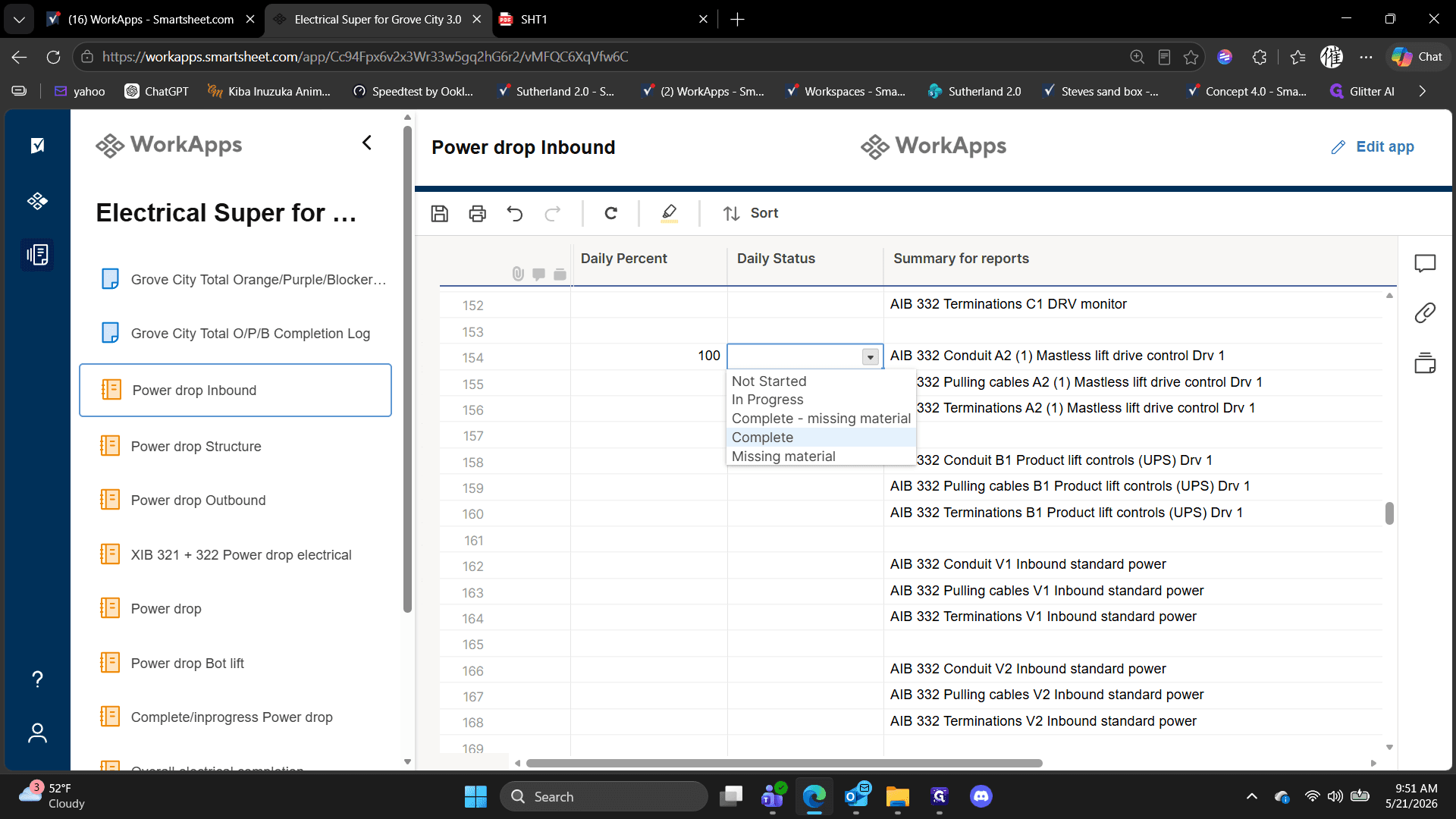
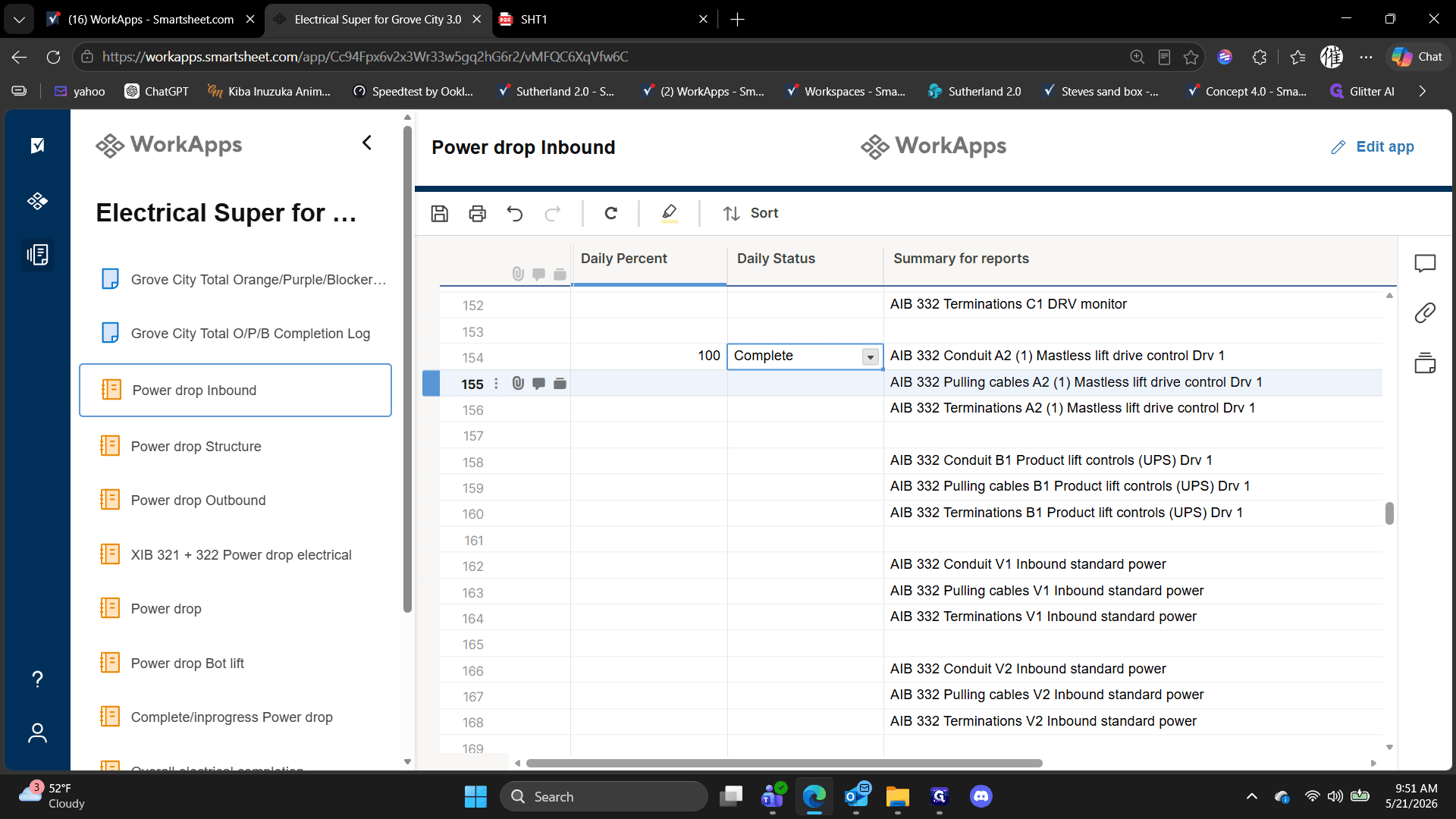
80) in the Daily Percent column.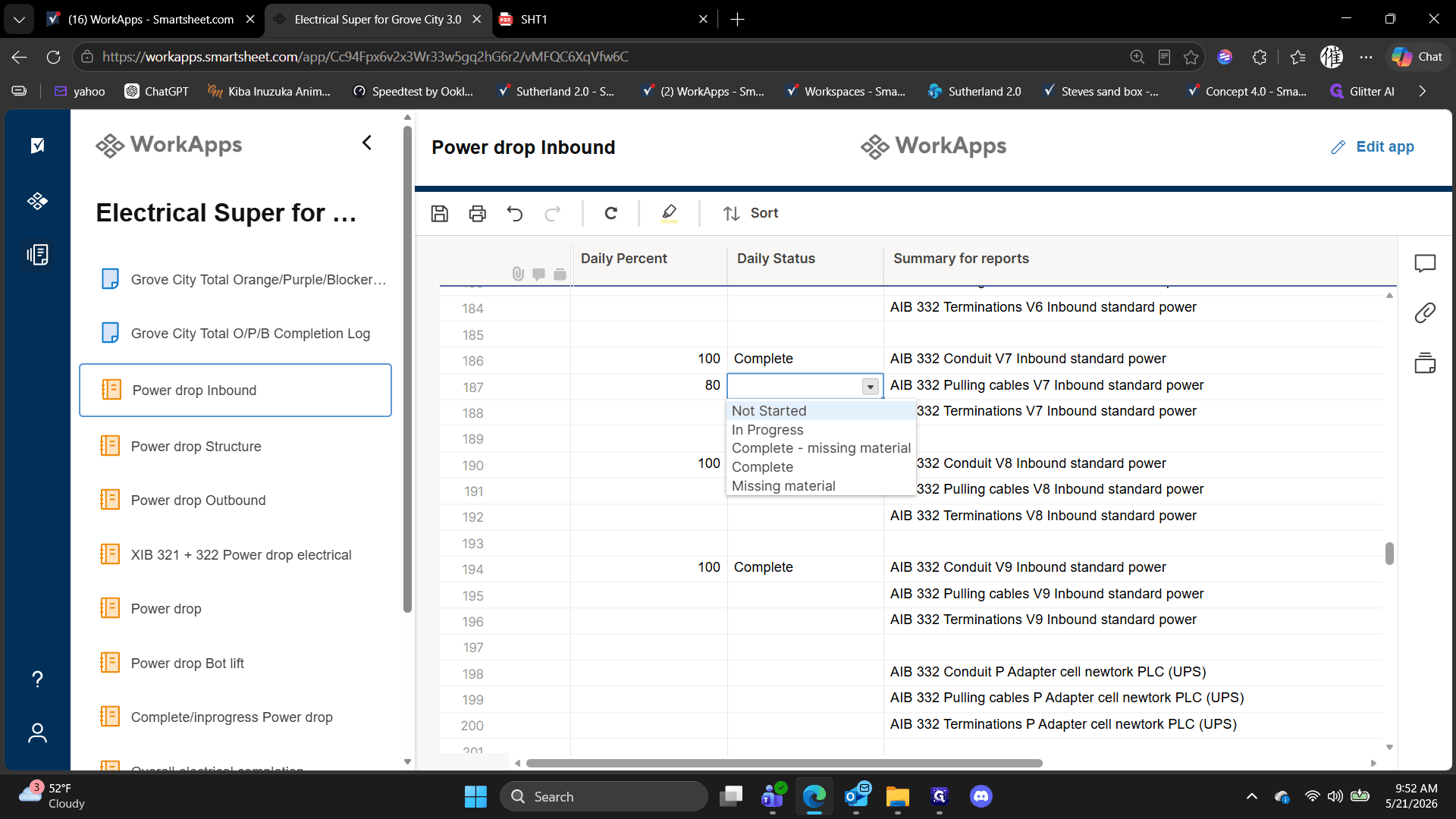
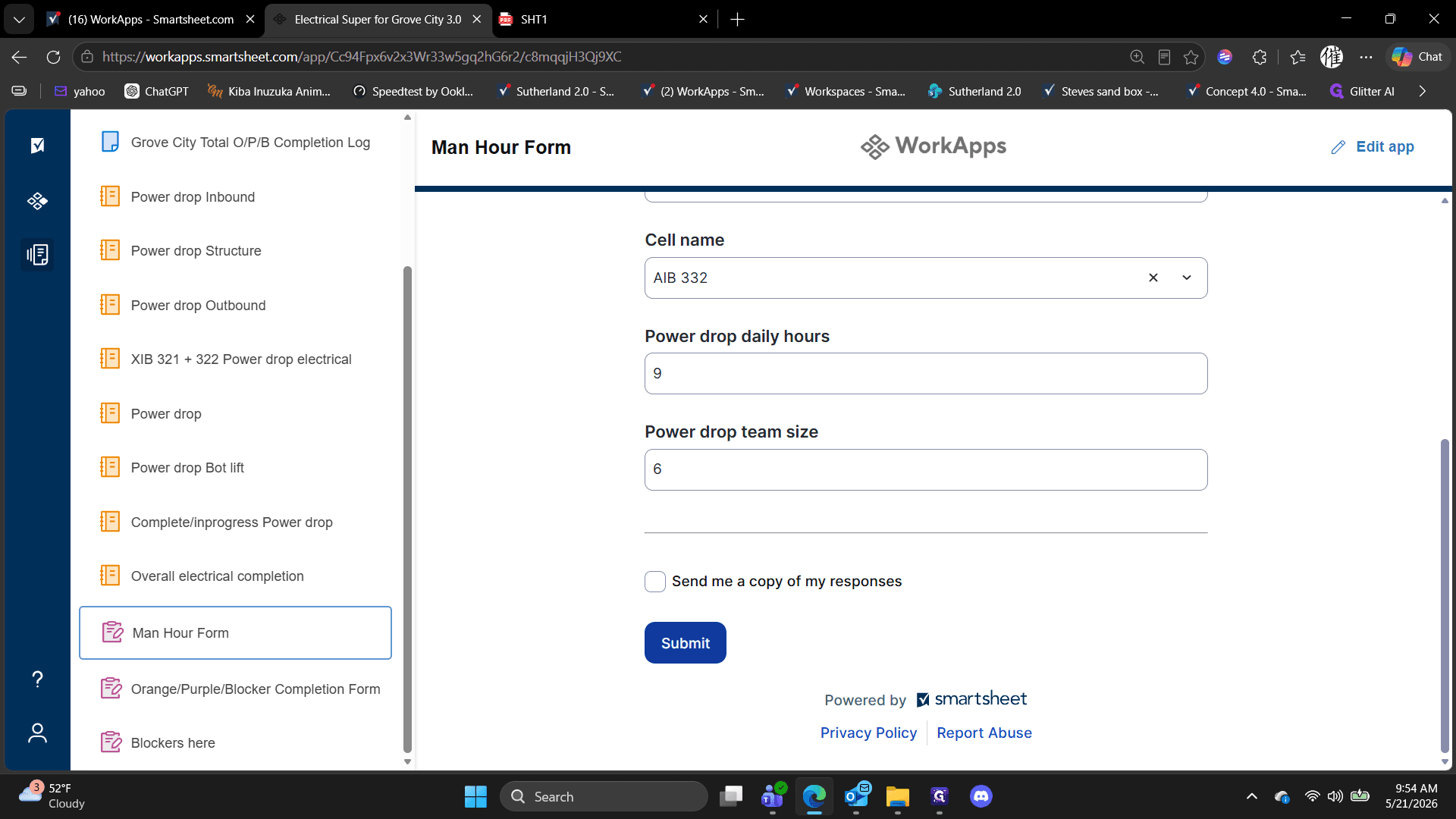
Submitting the Man Hour Form
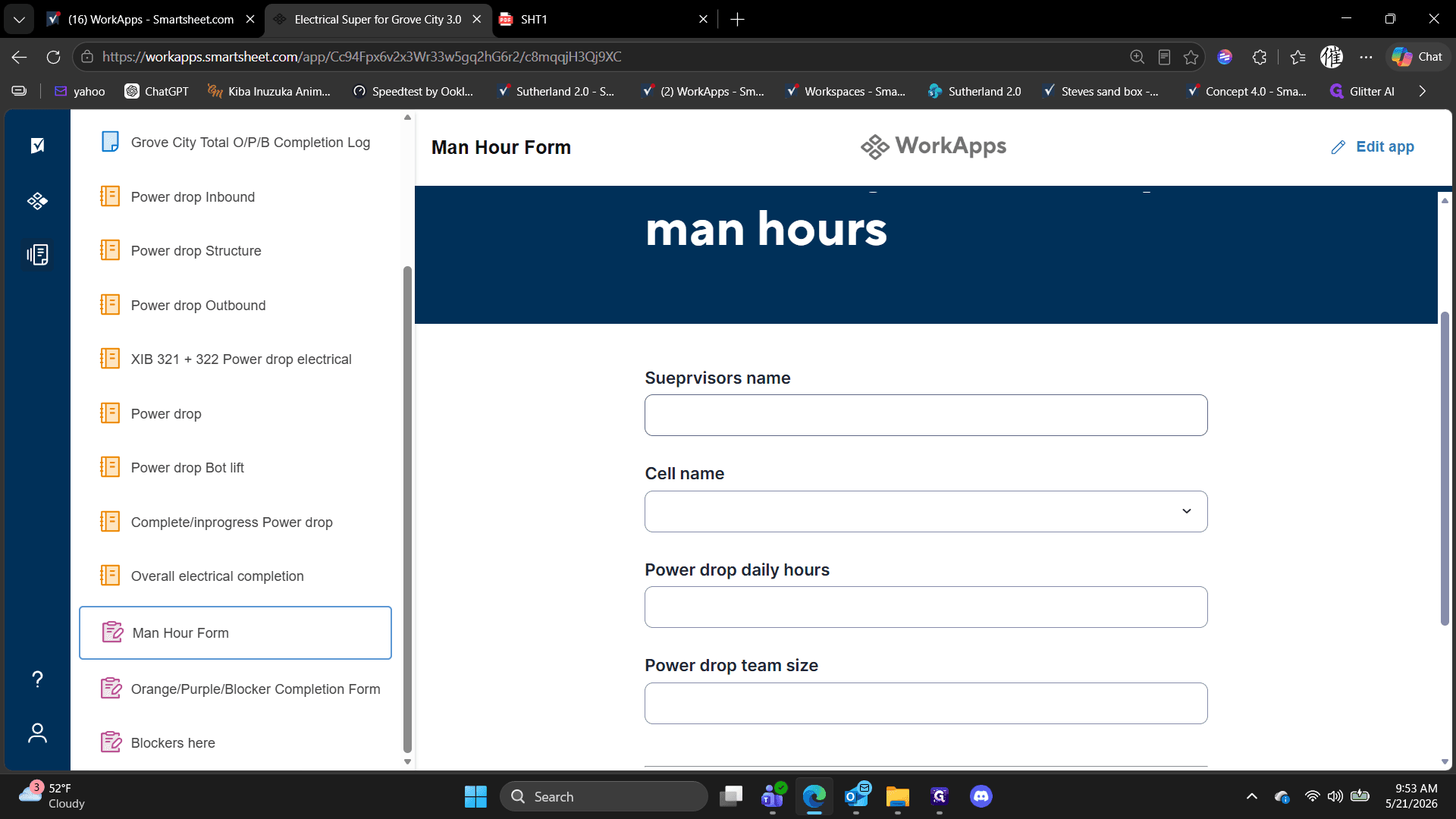
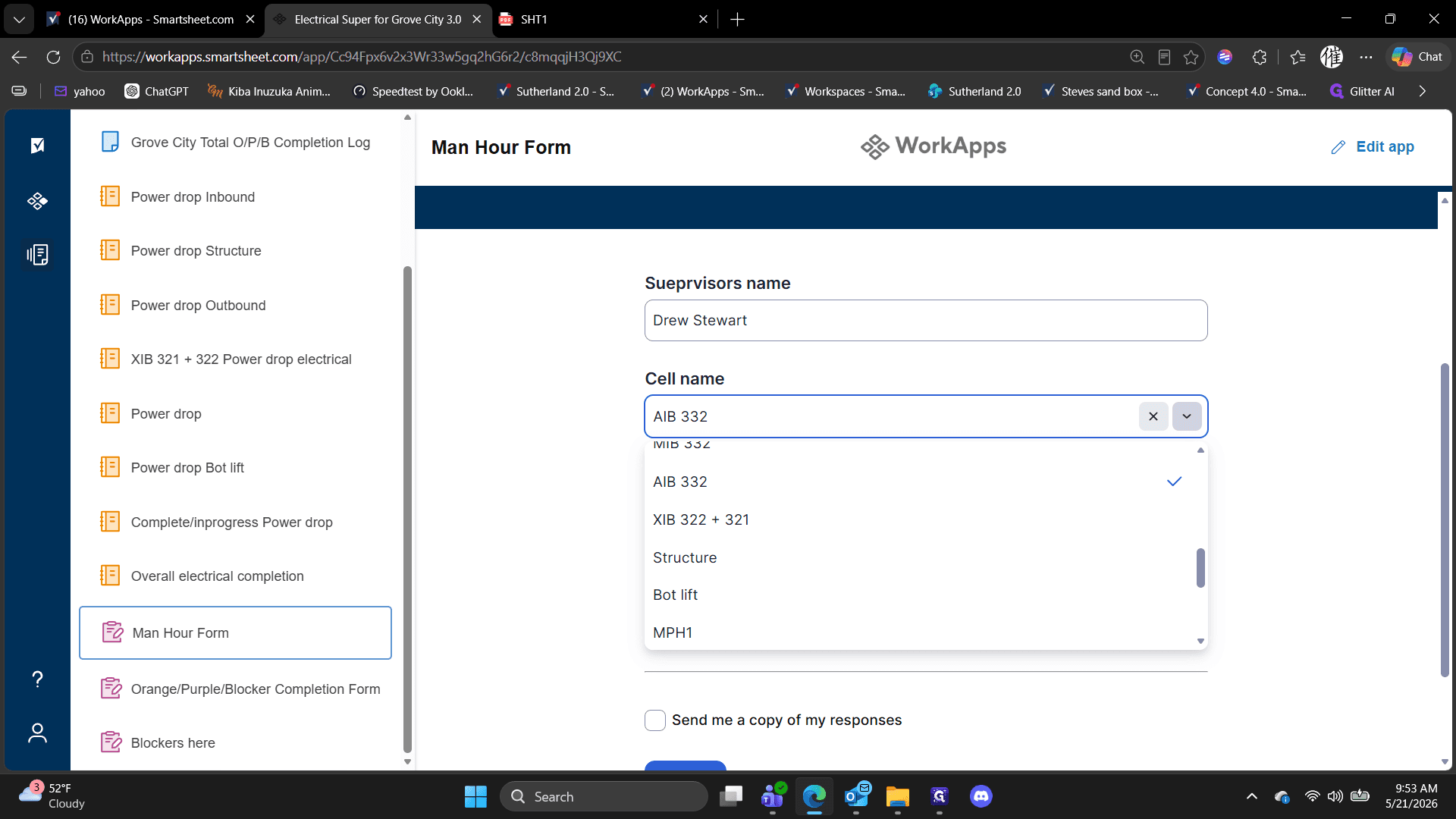
After ensuring the project grid correctly reflects the day's labor, you need to file the overarching man hours for the shift.