
Add Option Images and Link VR Pictures in Compuzz
Learn how to upload product option images and link dynamic color views to VR Pictures in Compuzz.
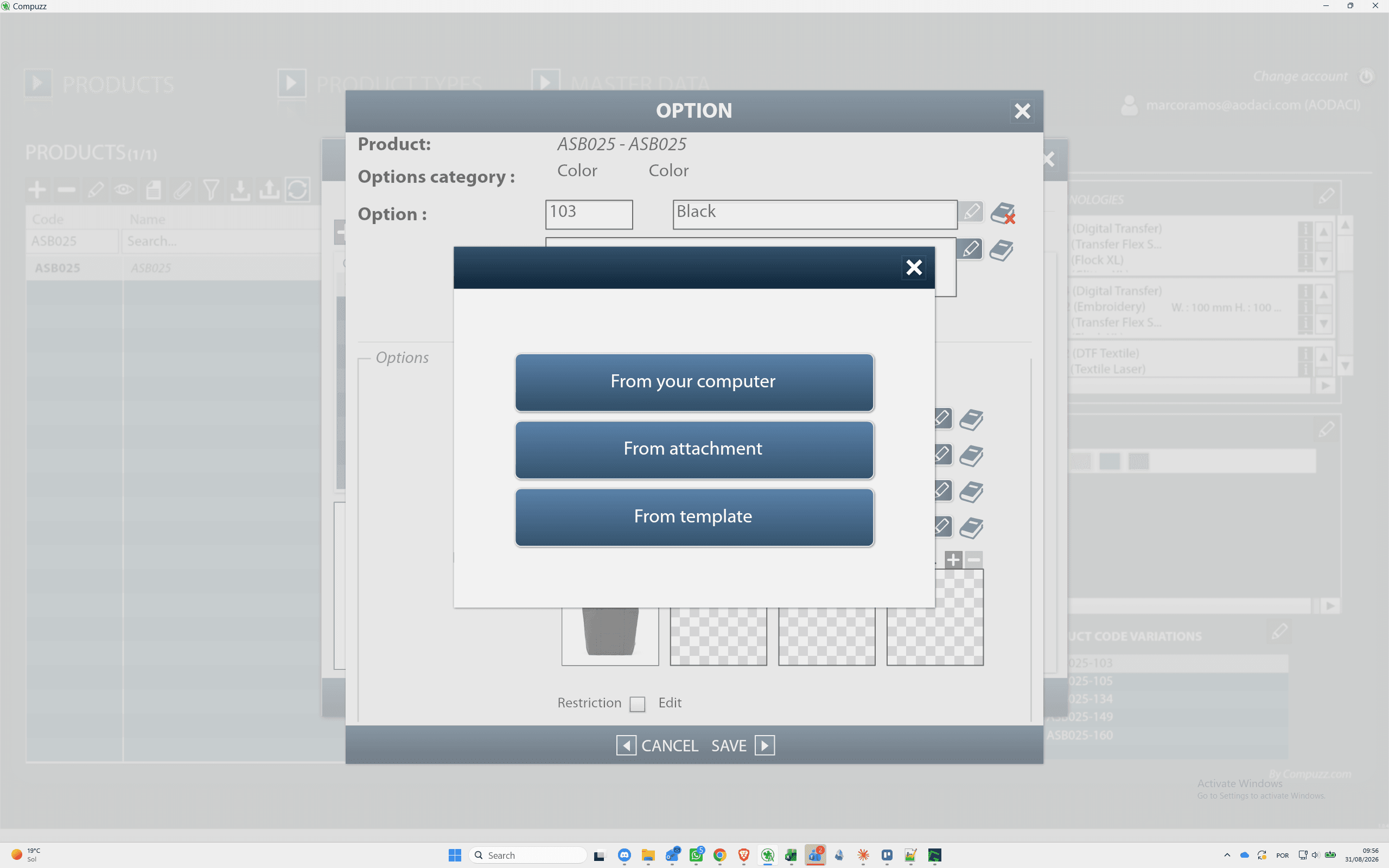
This guide walks through uploading product variant images to option categories and linking them to dynamic VR Pictures in Compuzz.
This procedure applies to catalog administrators and product managers configuring multi-color product variants and visual templates in Compuzz.
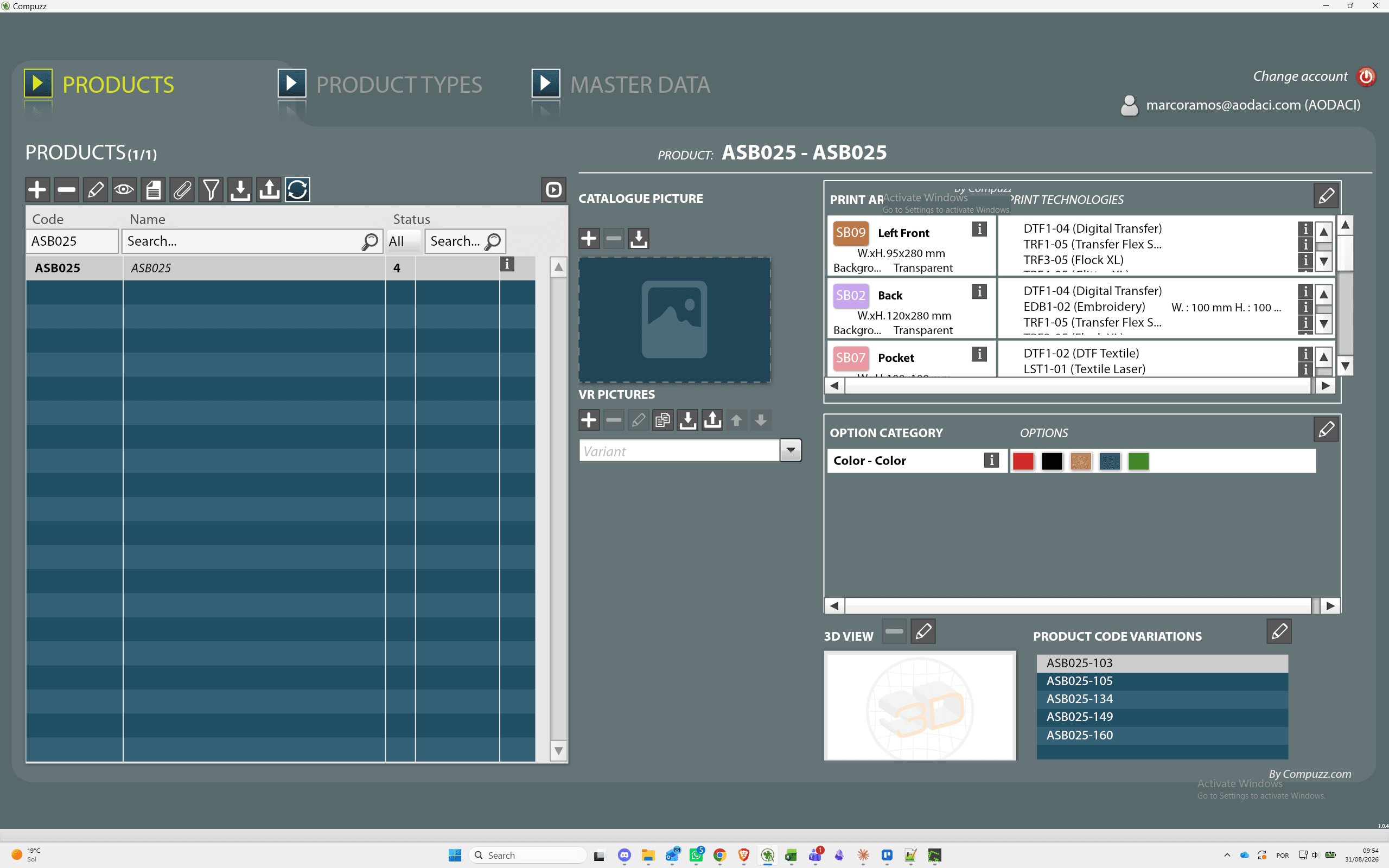
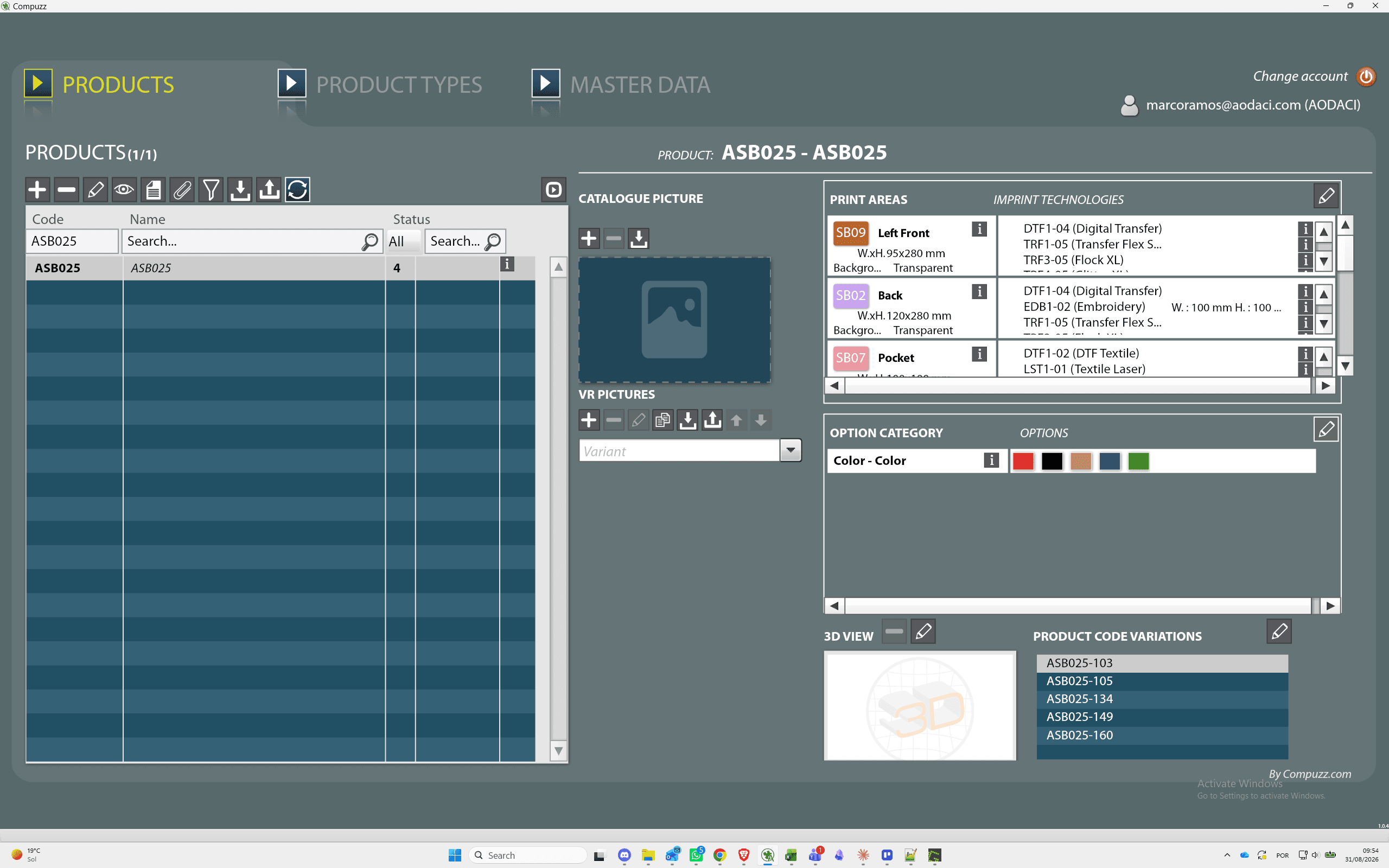
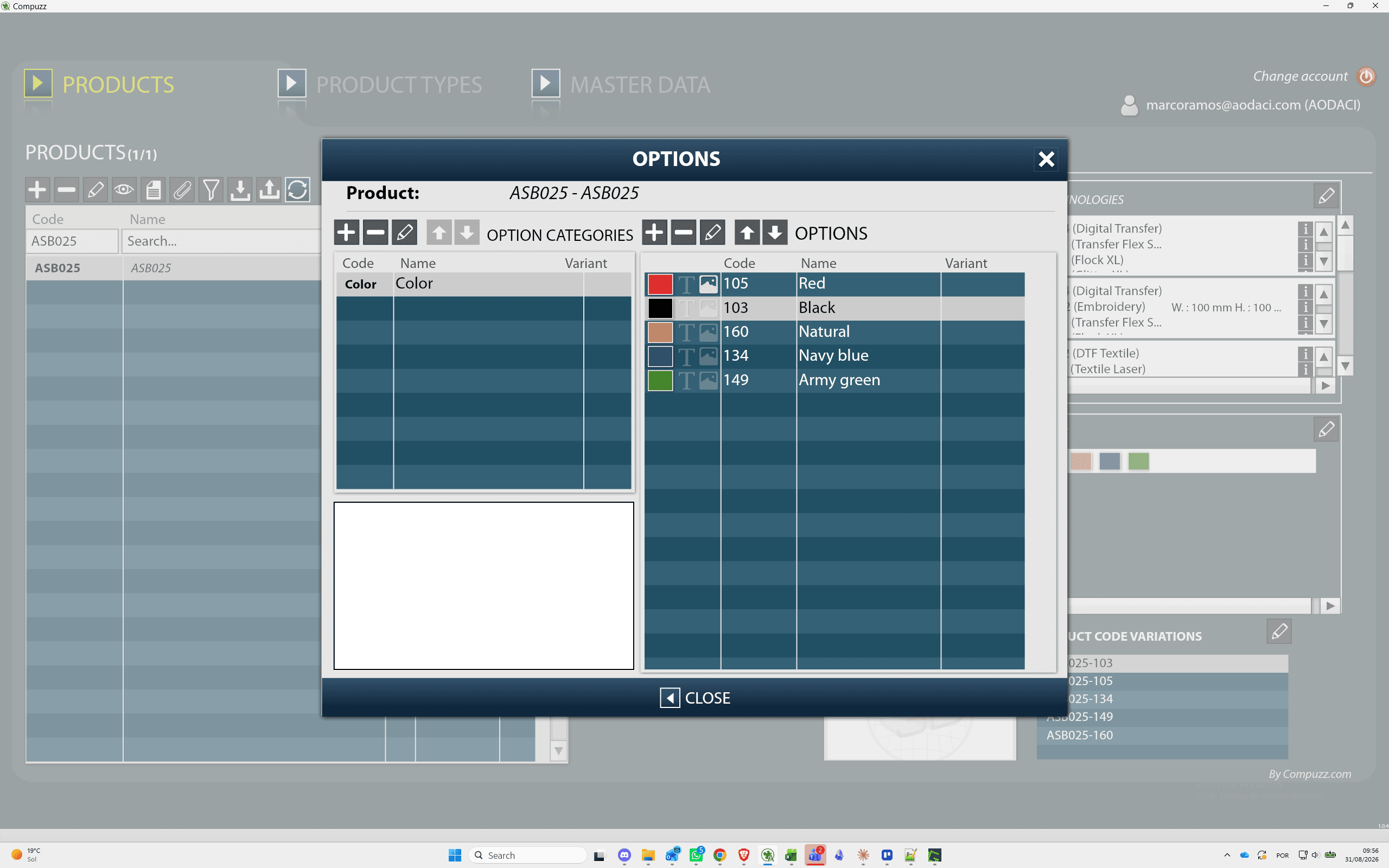
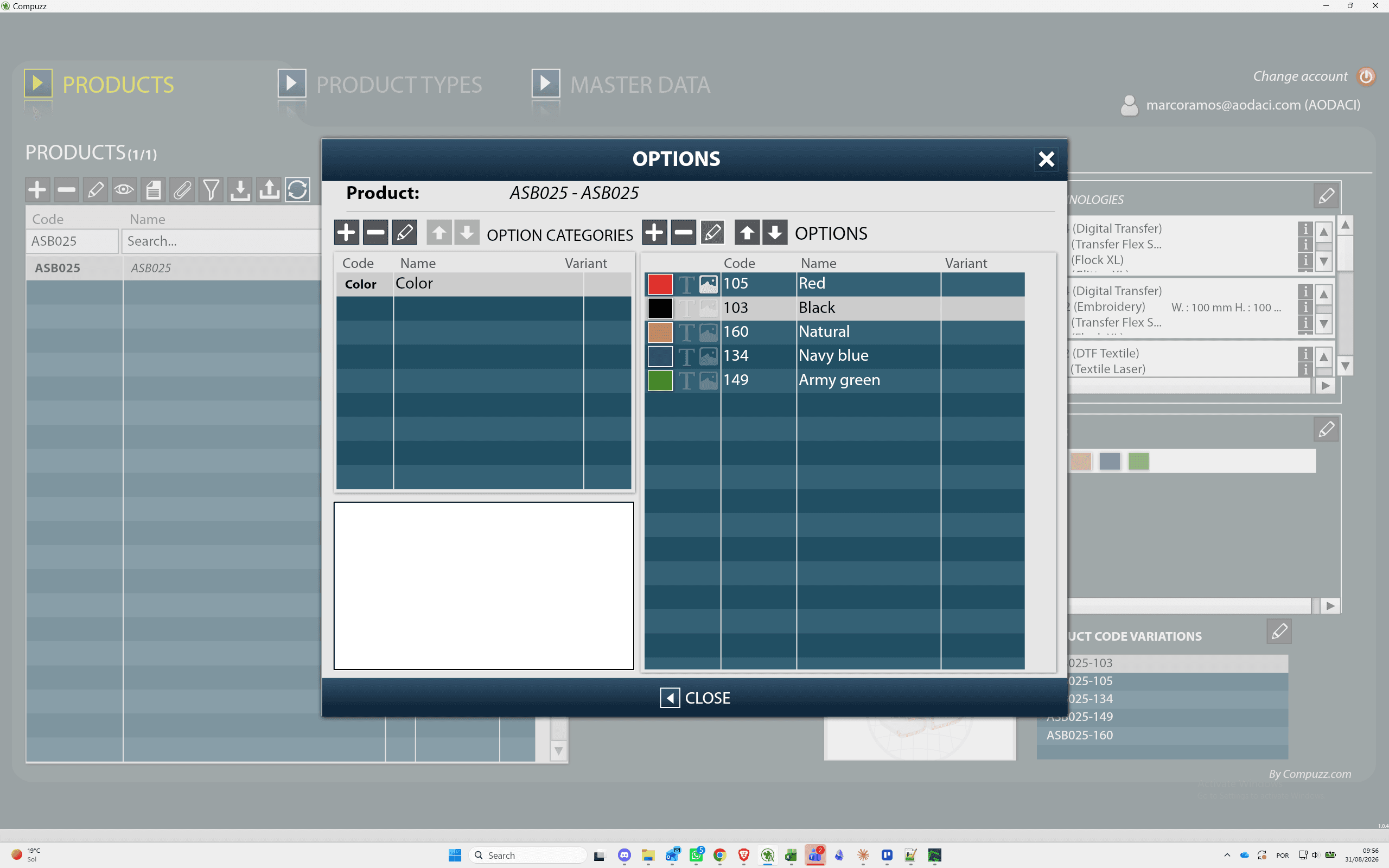
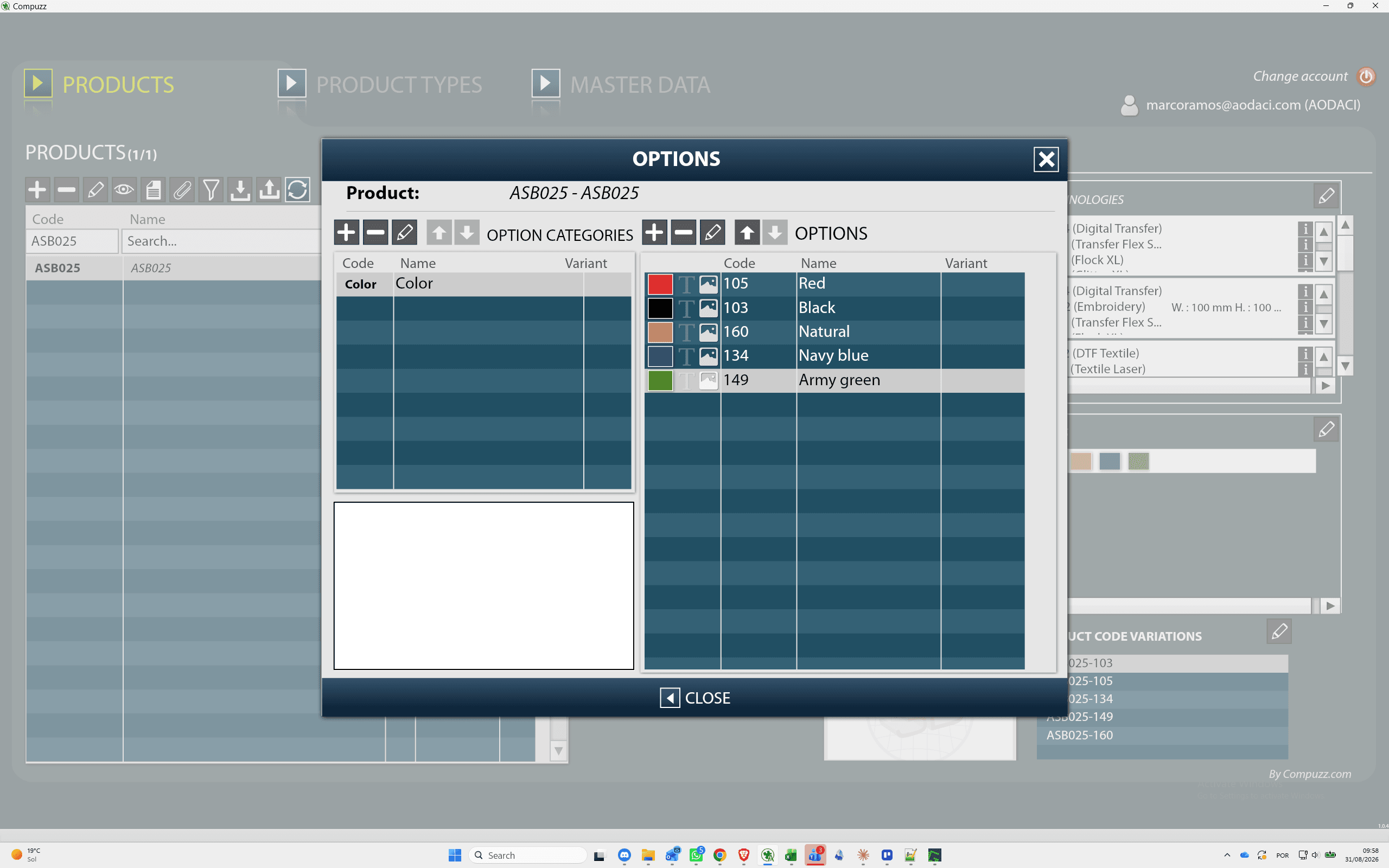
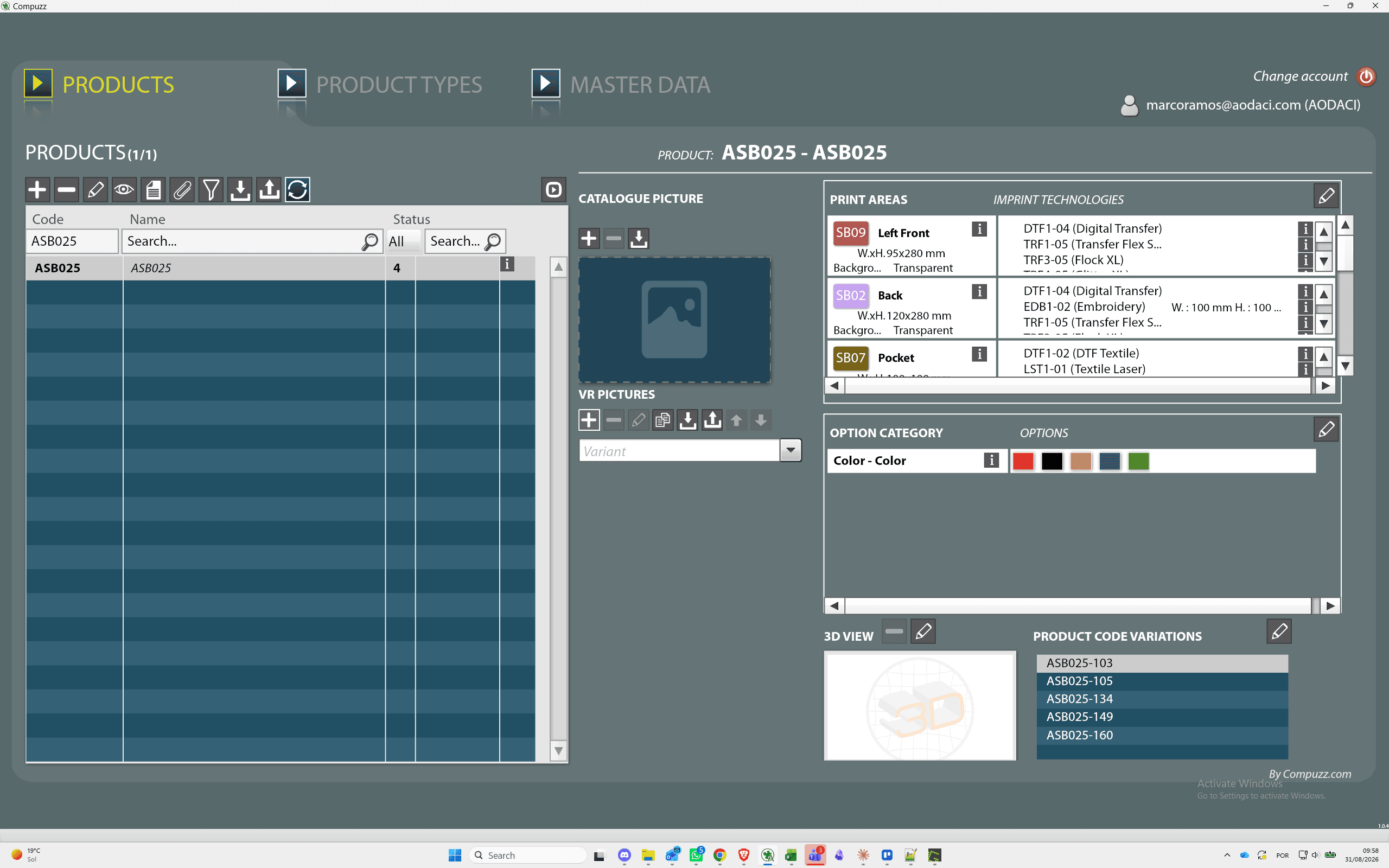
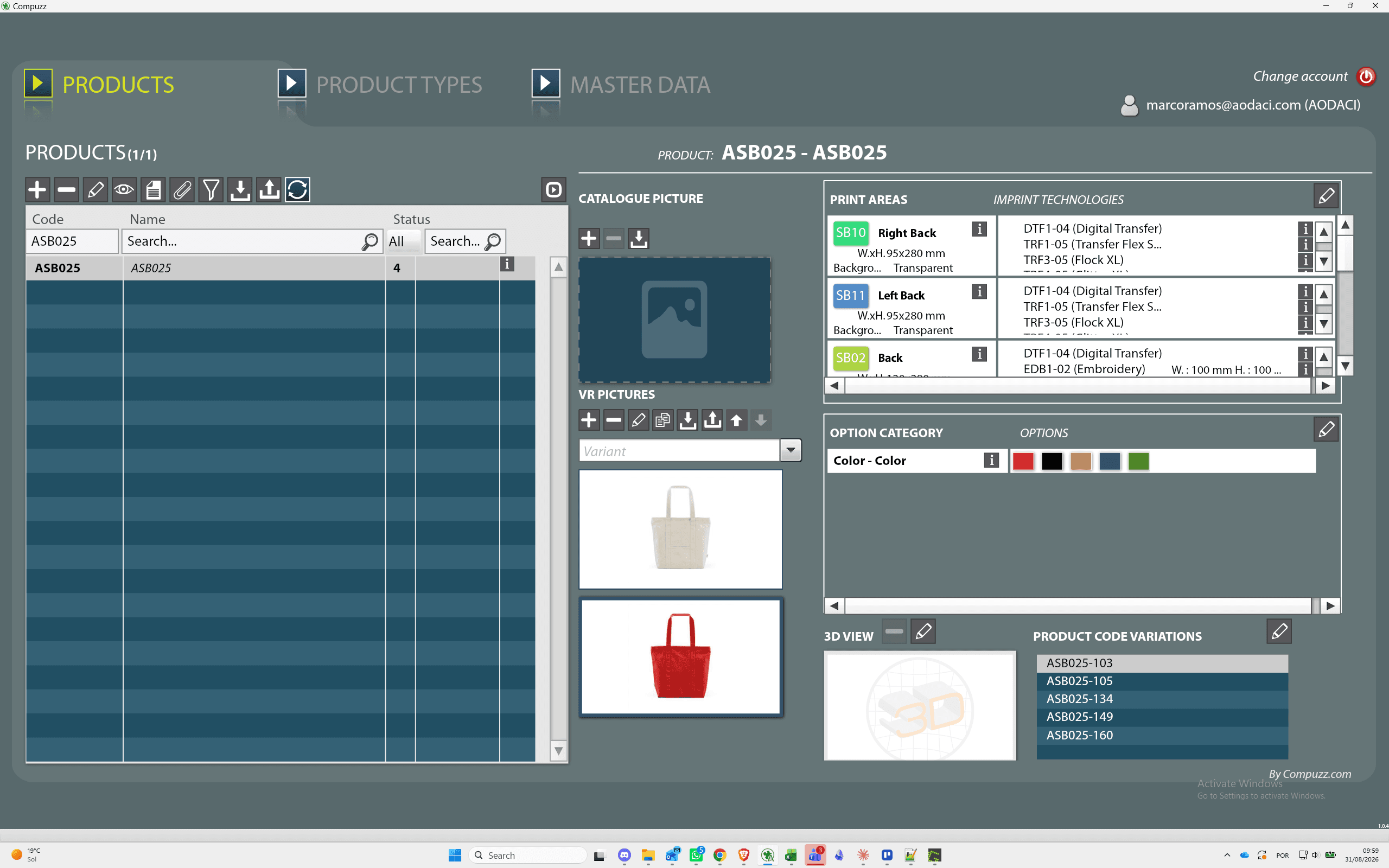
Open Product Options
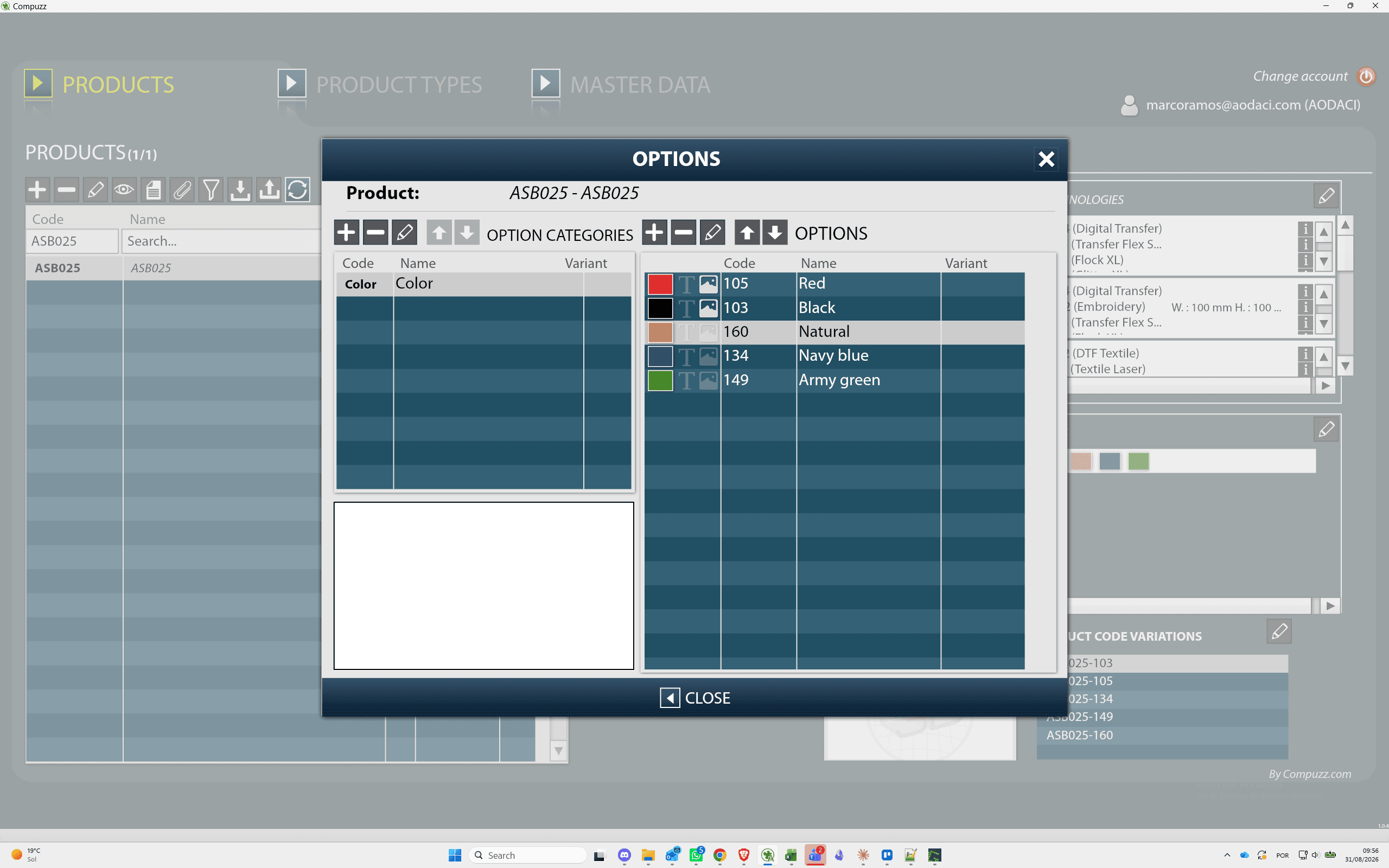
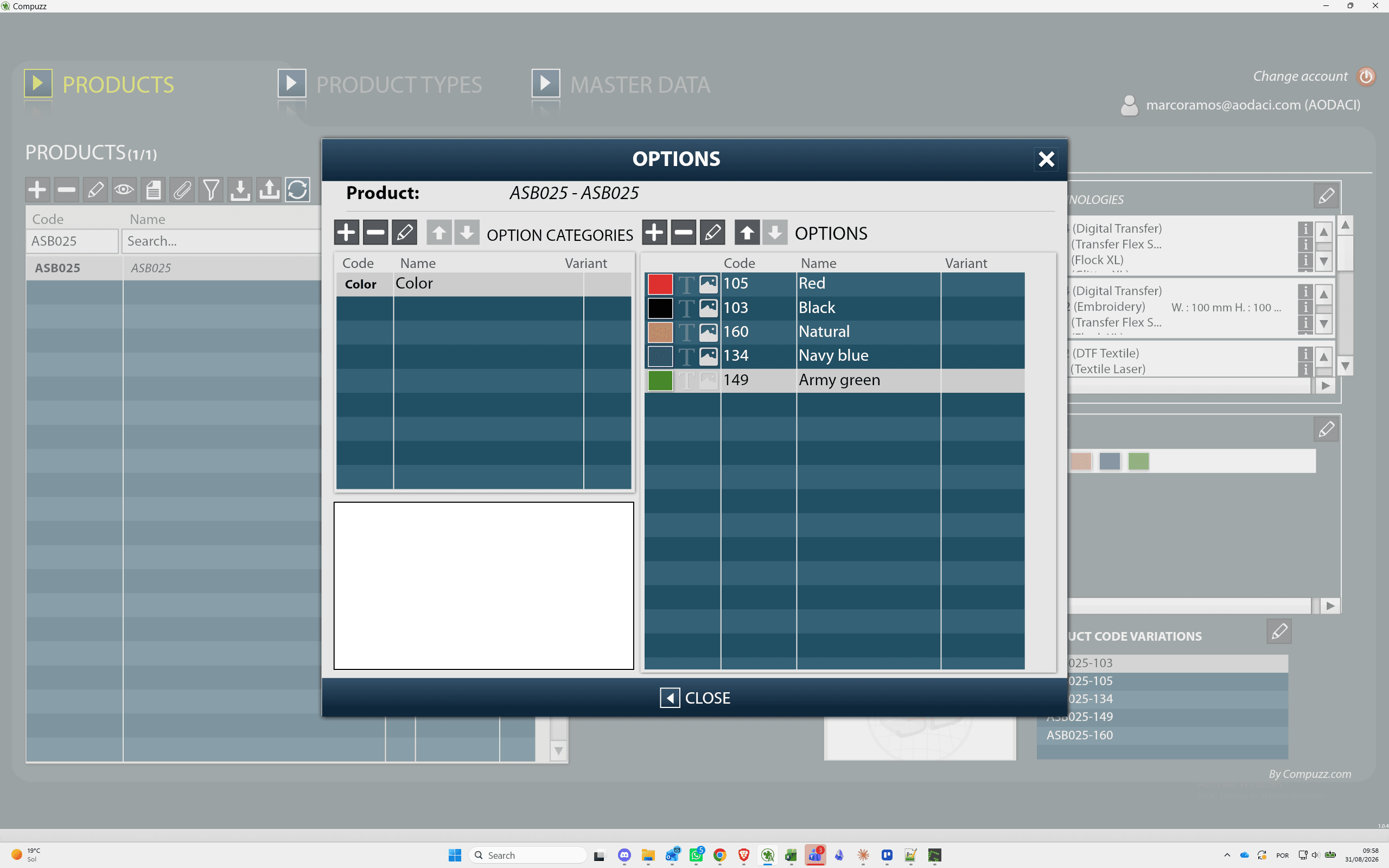
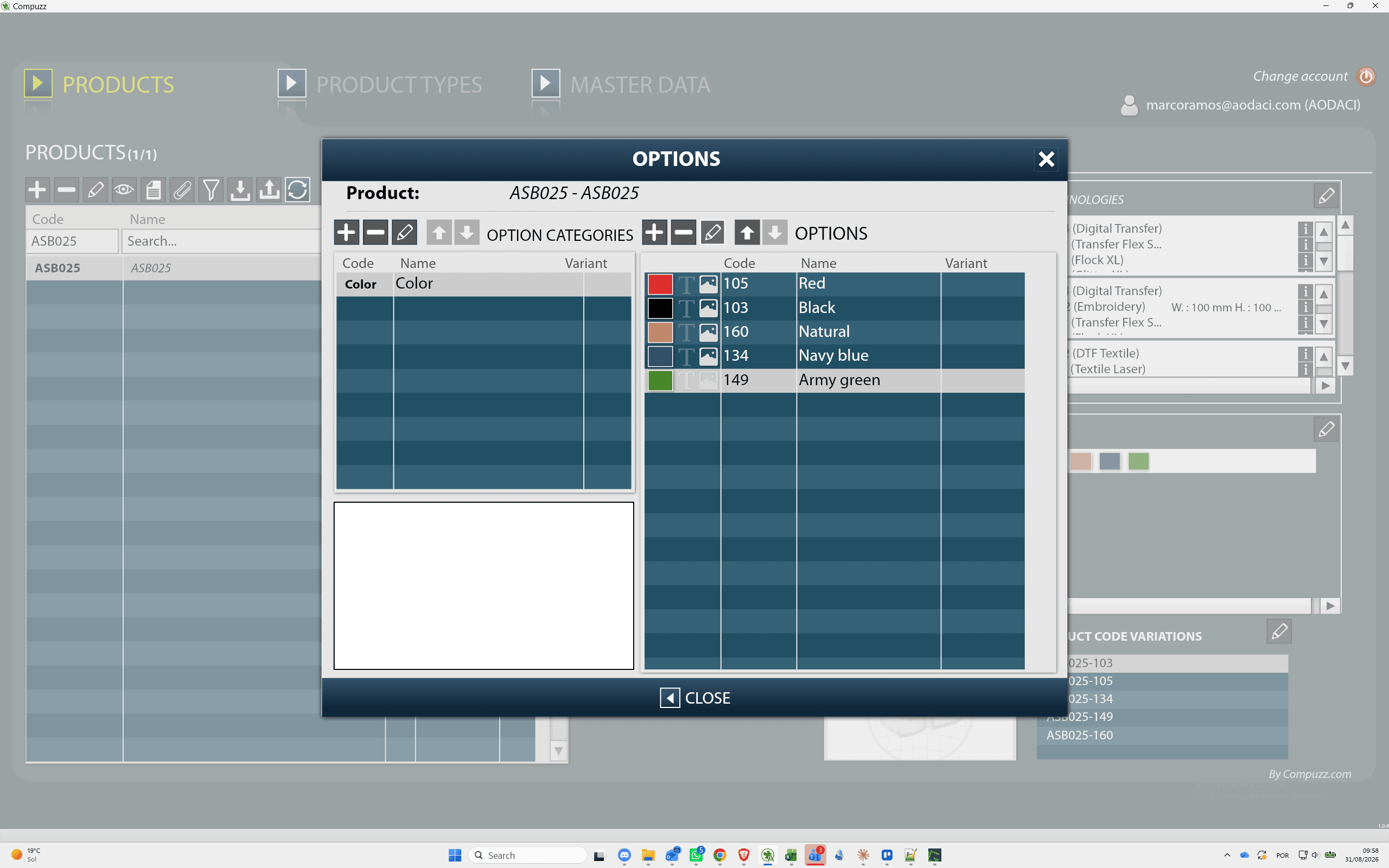
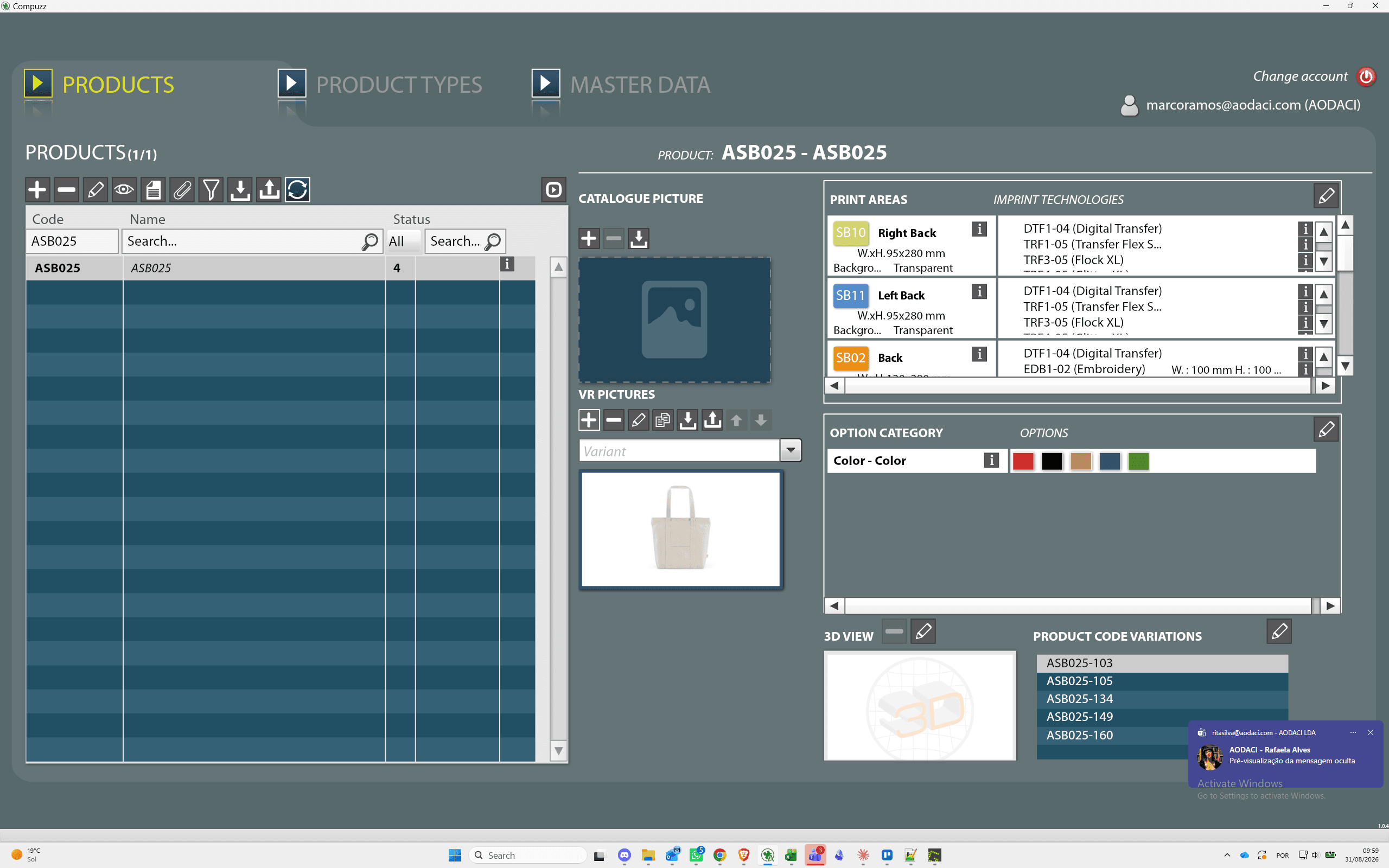
Begin by locating the product and opening its option configuration.
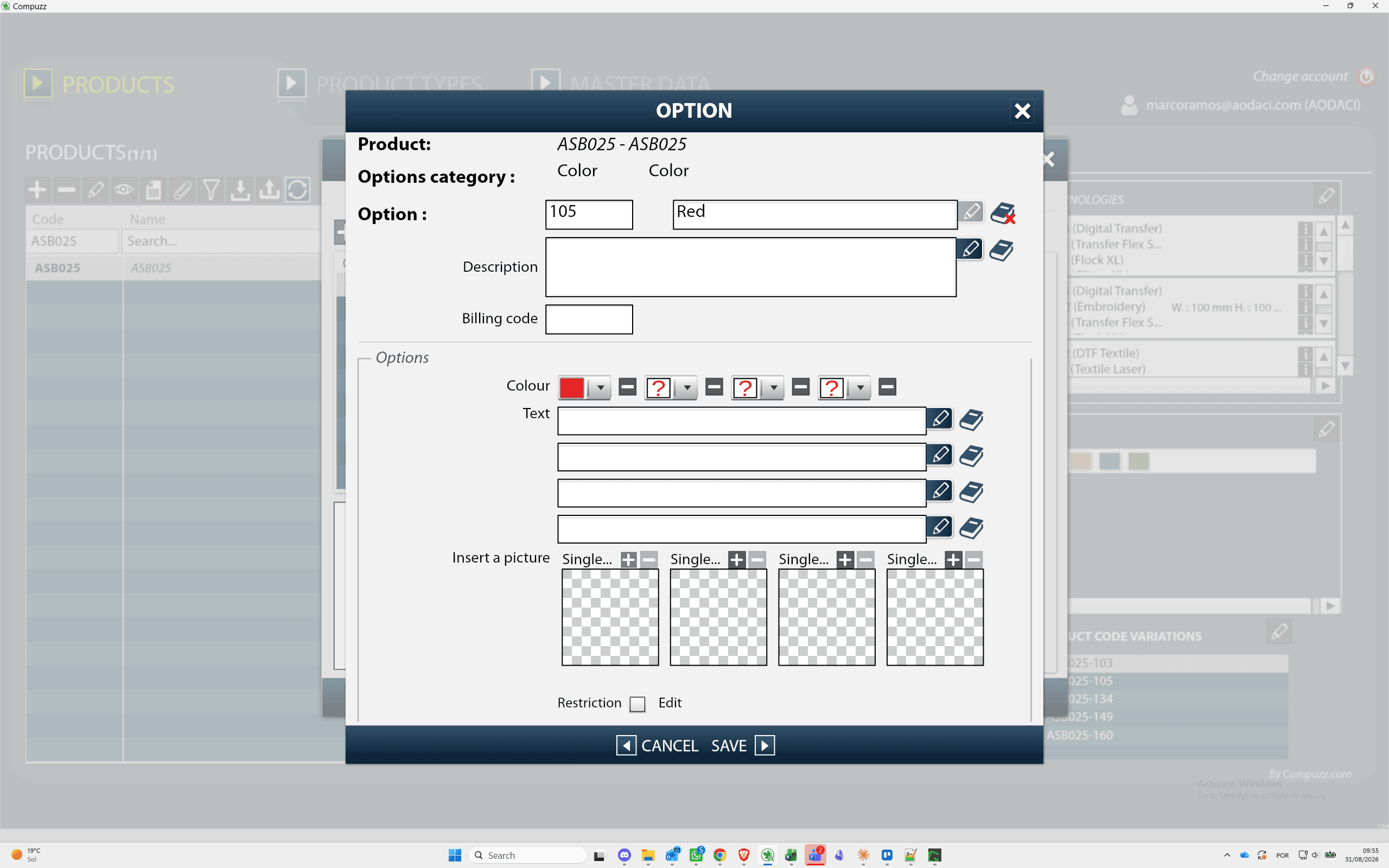
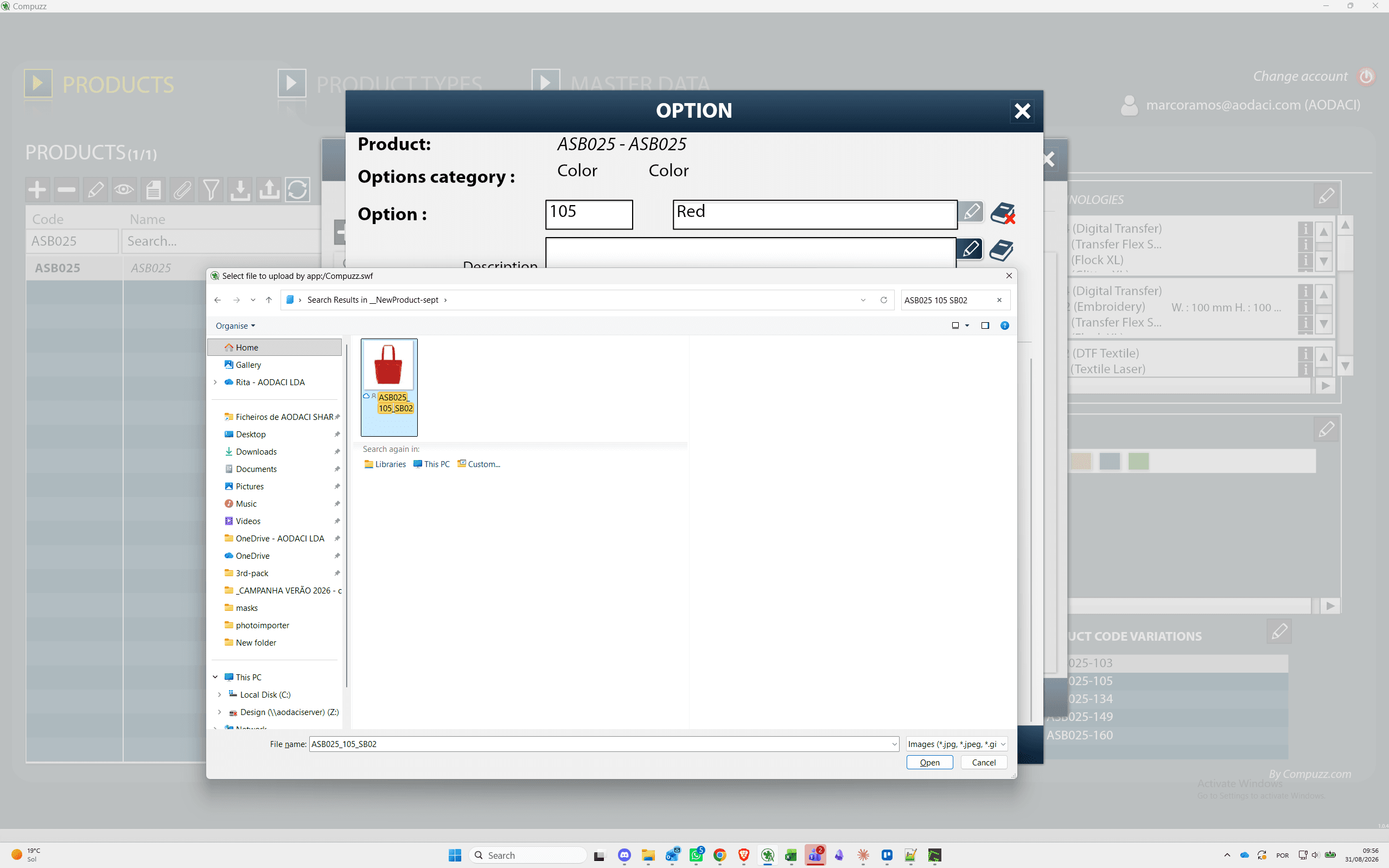
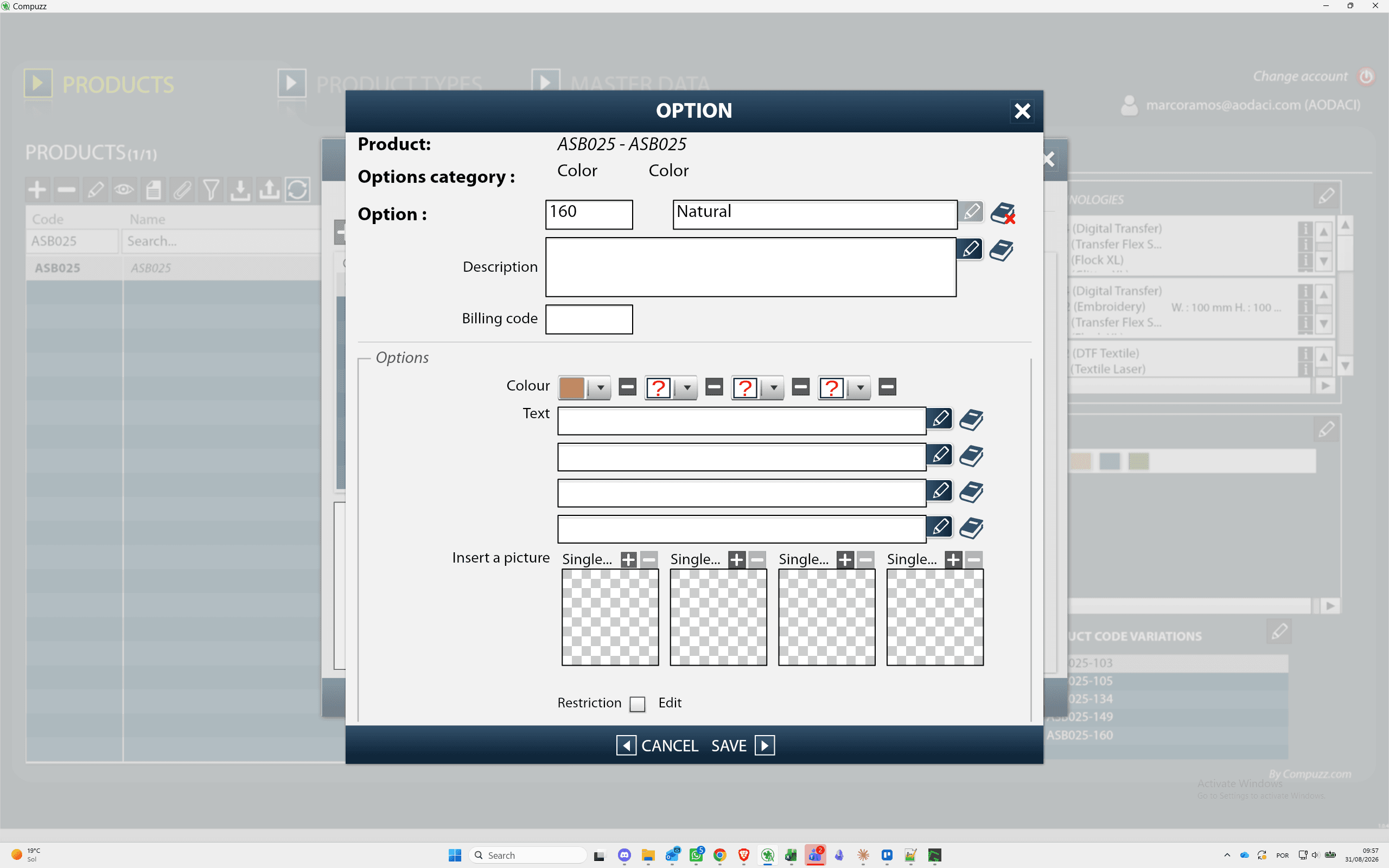
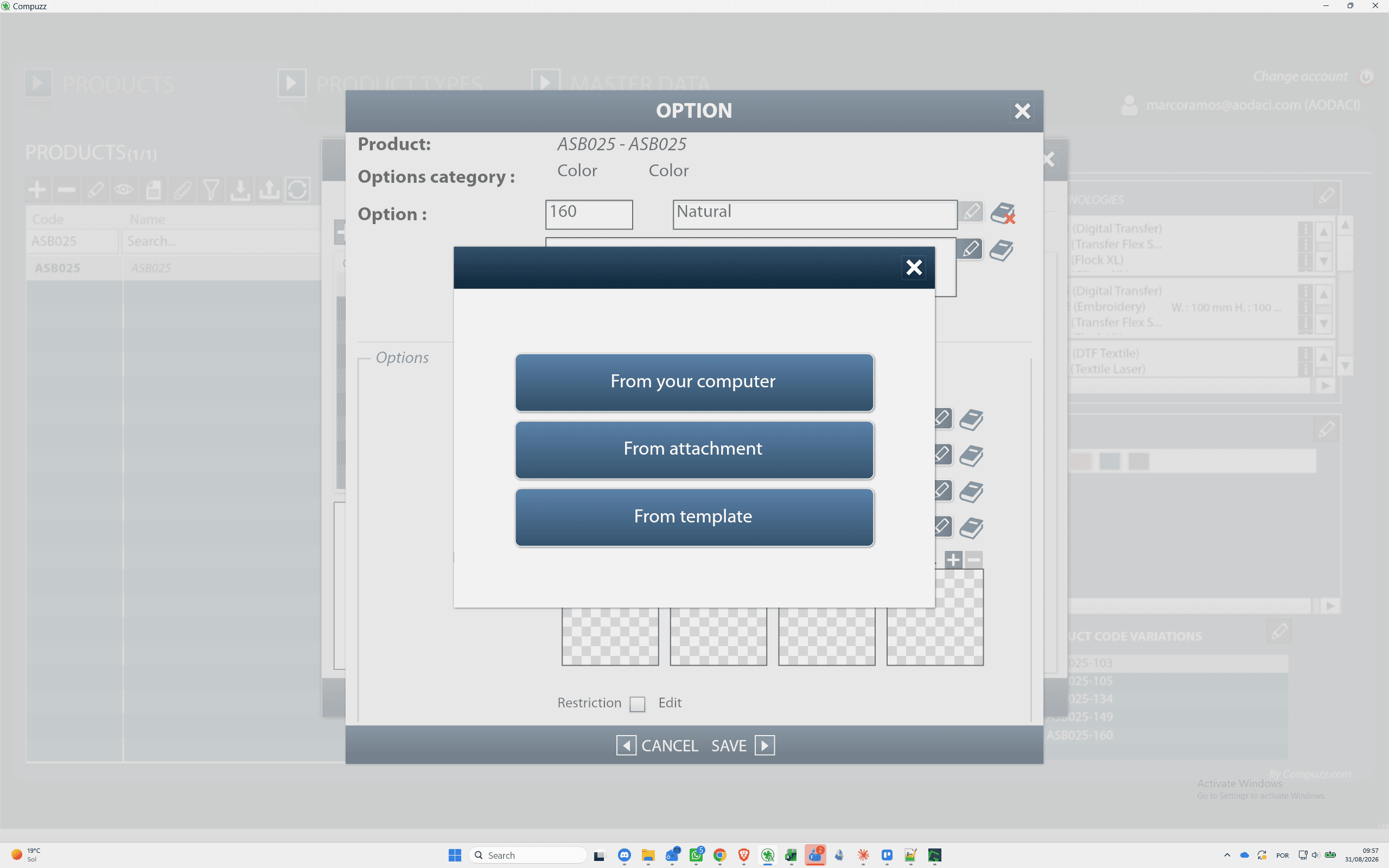
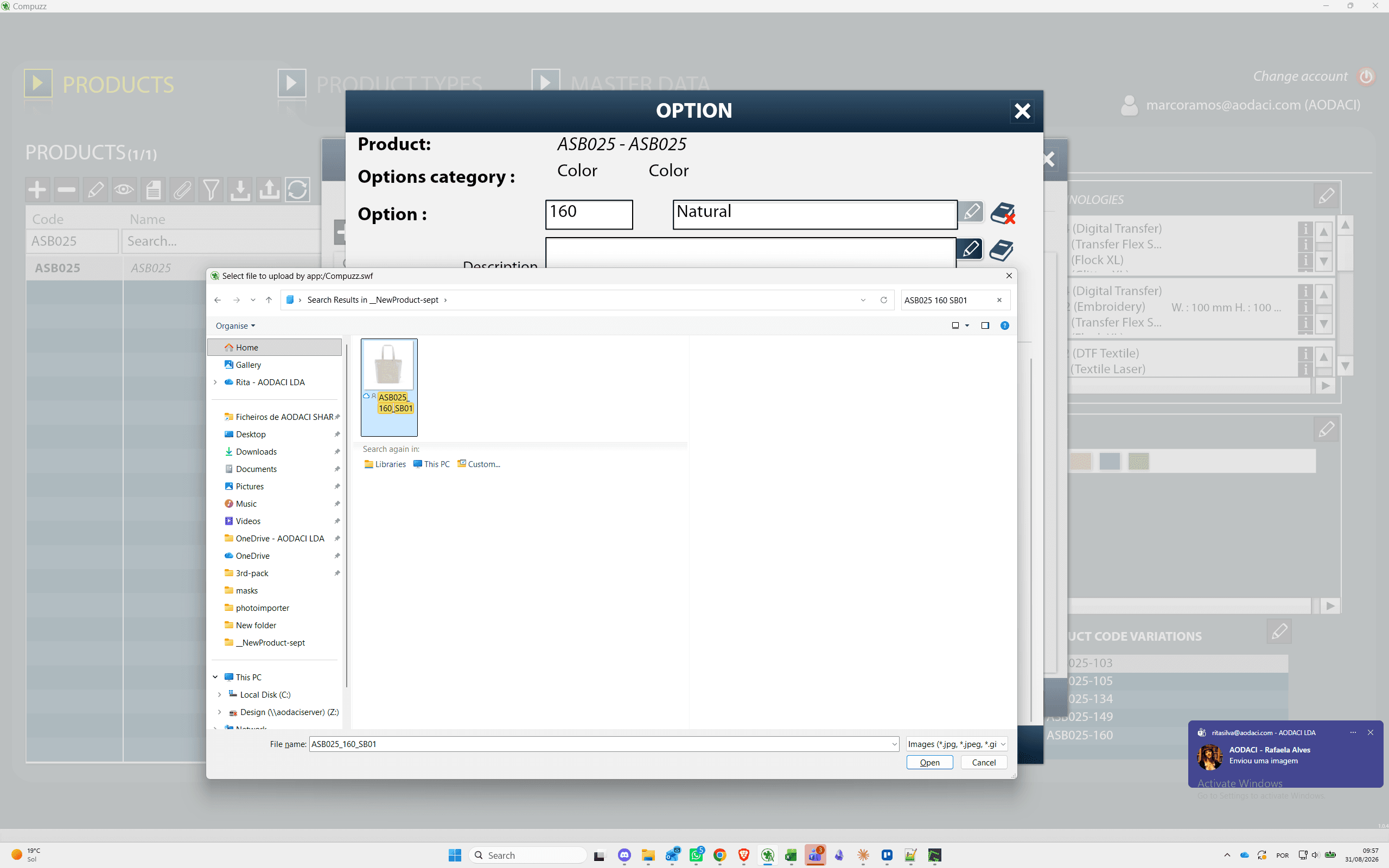
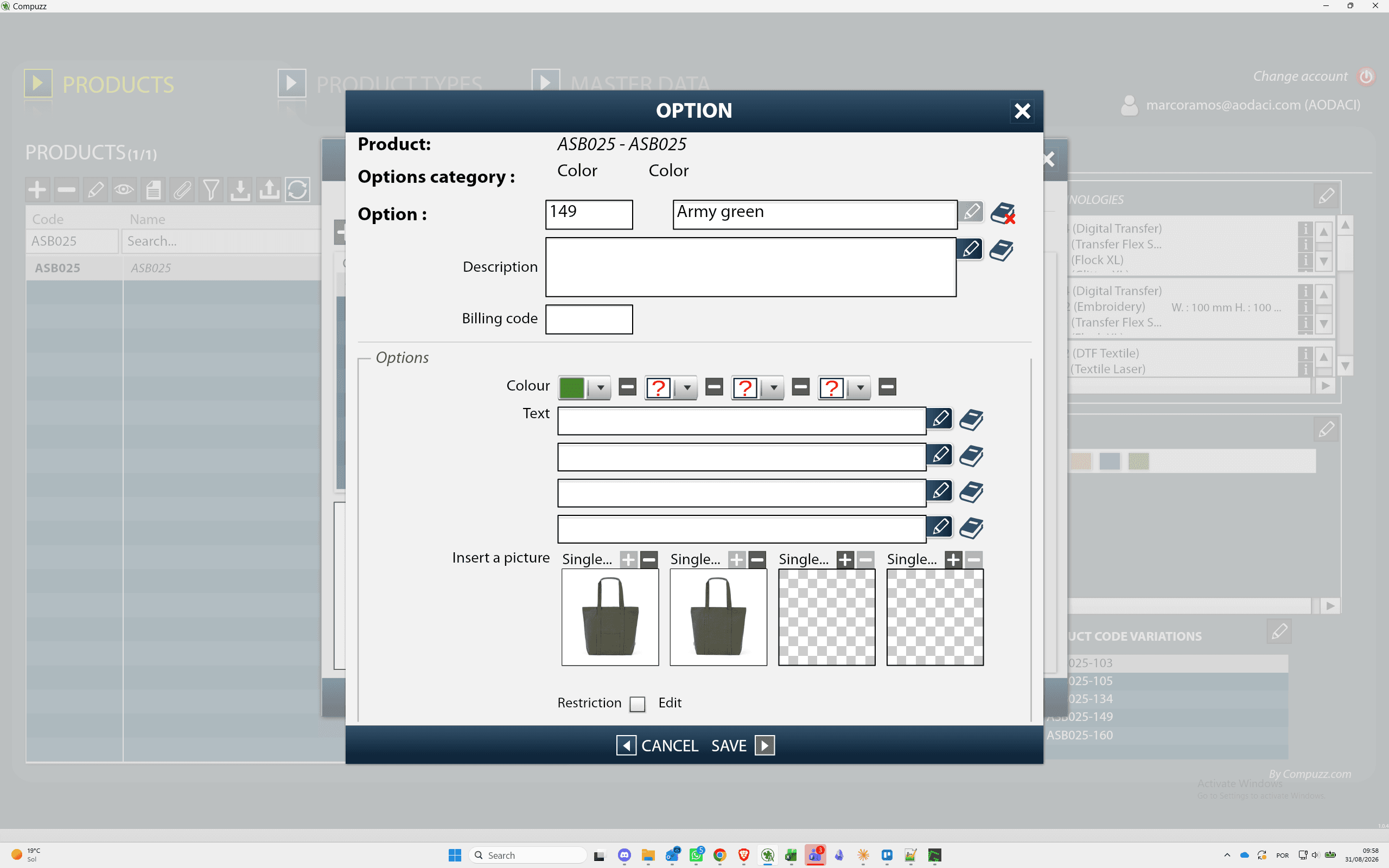
Upload Option Images
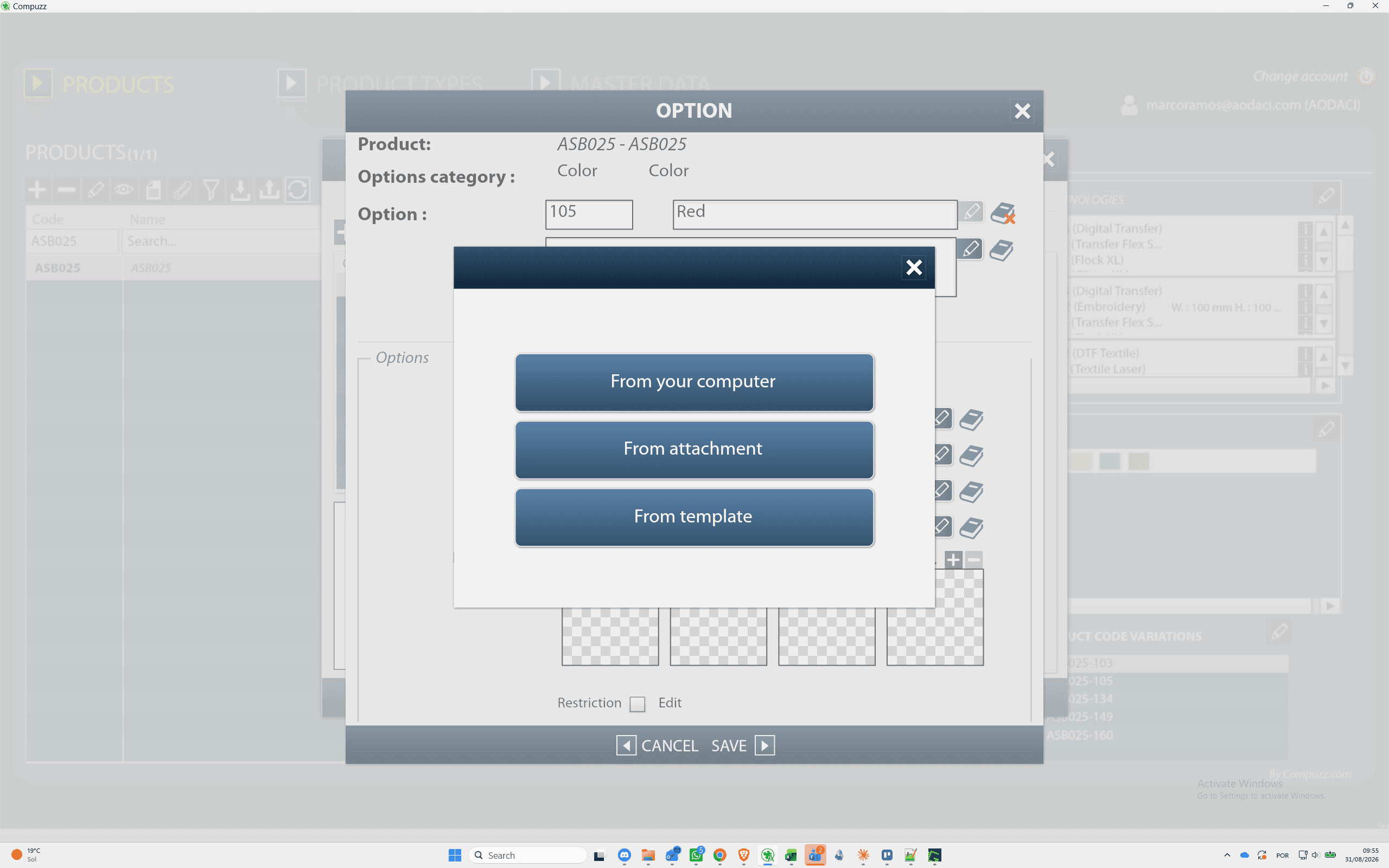
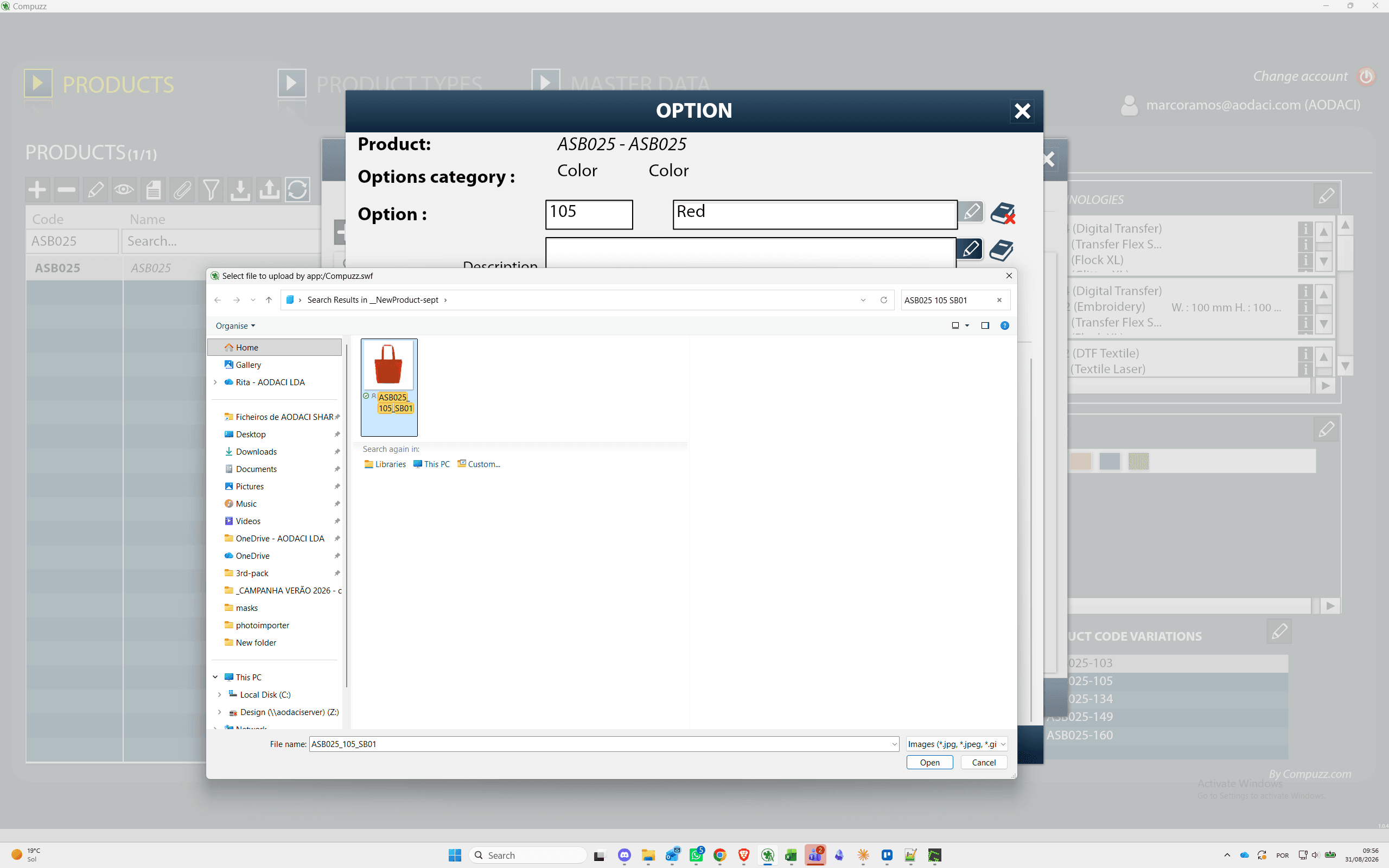
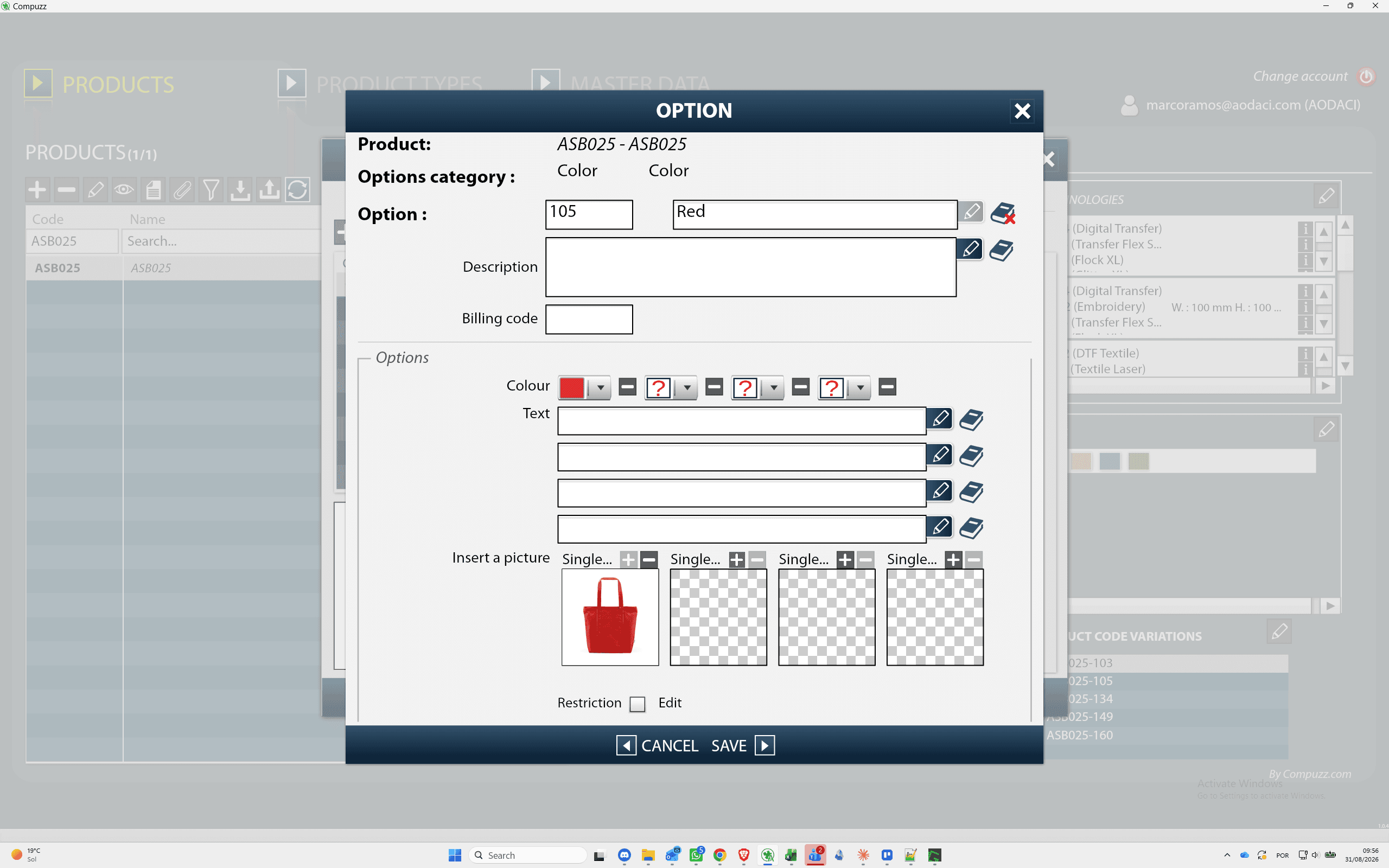
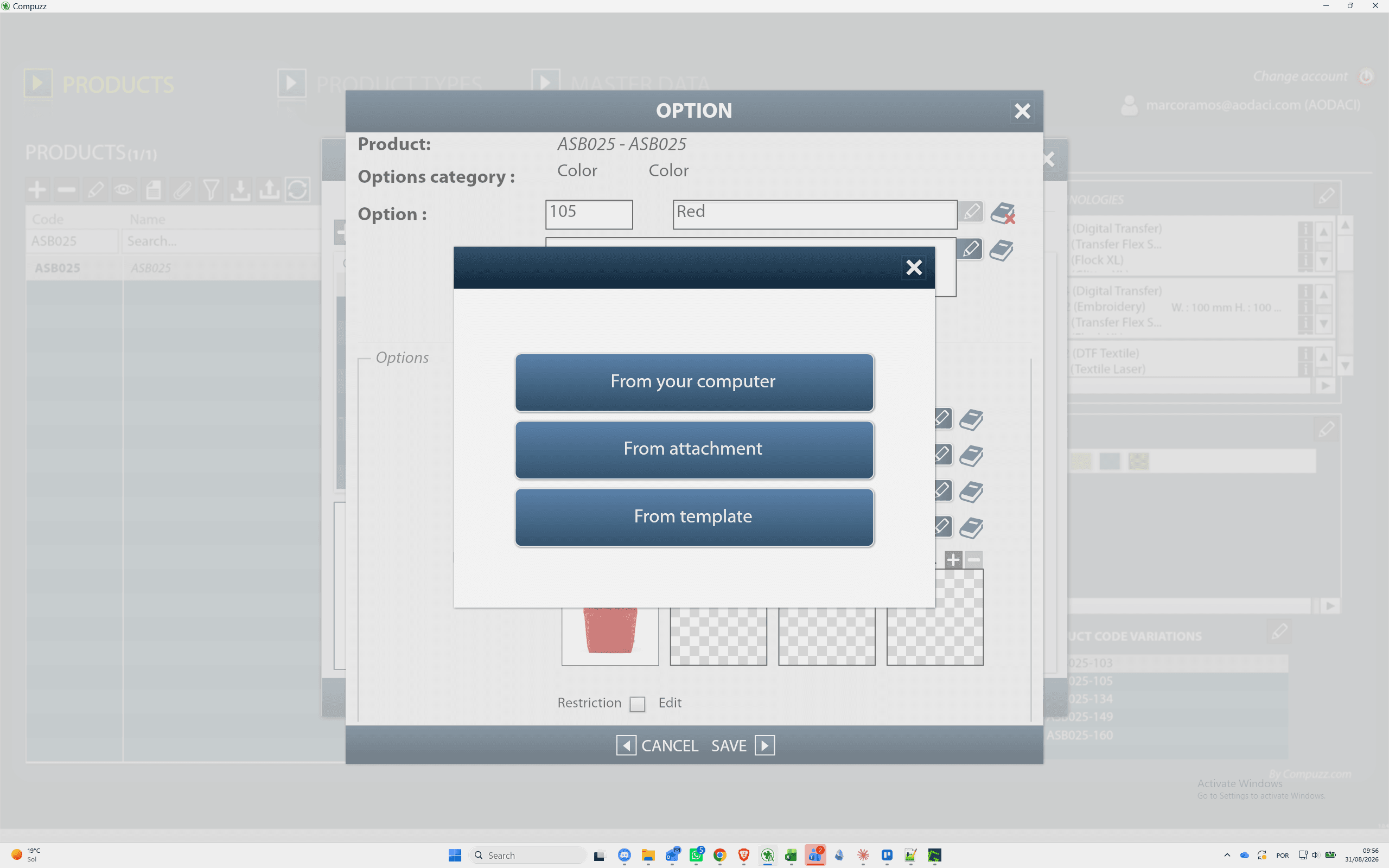
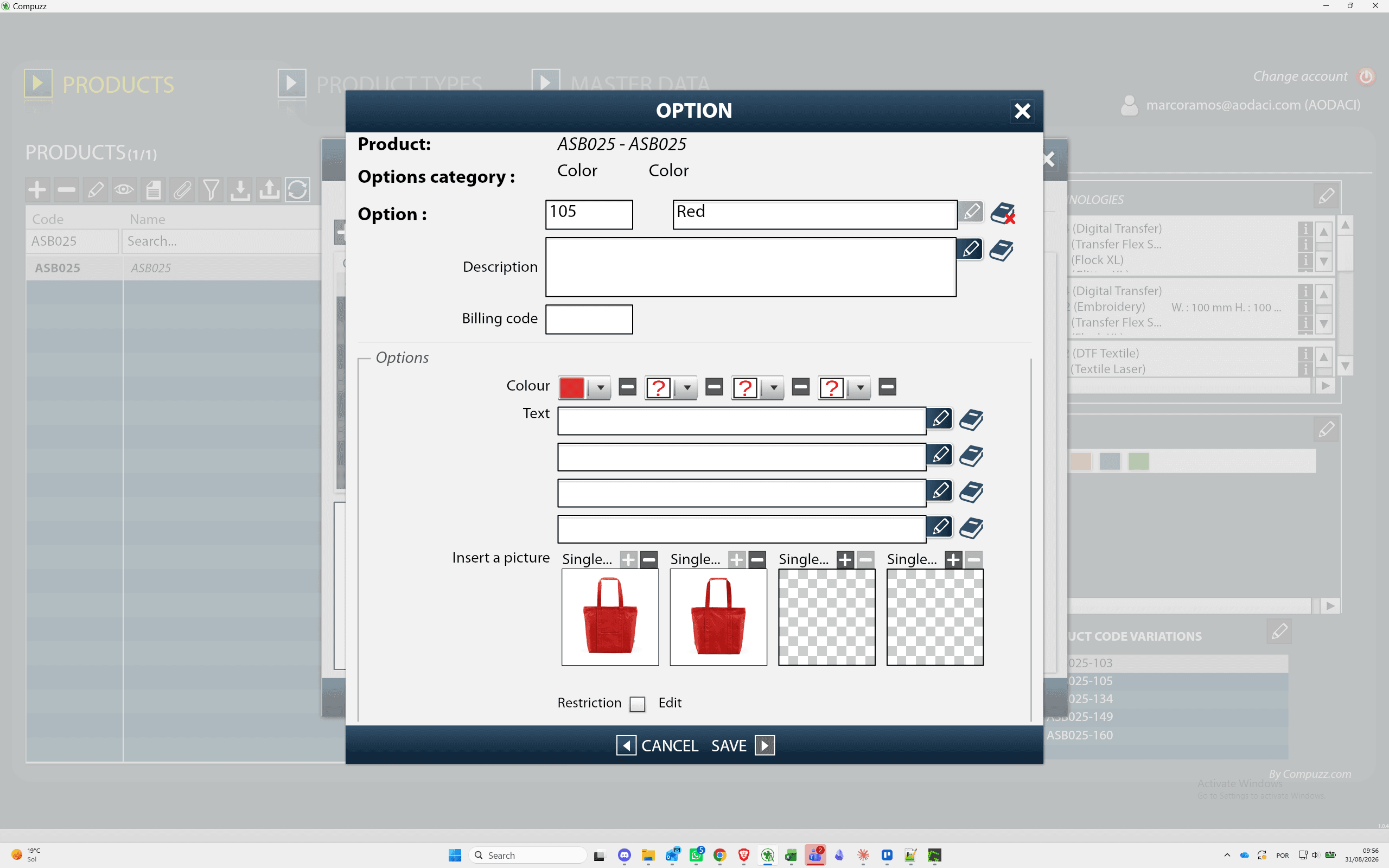
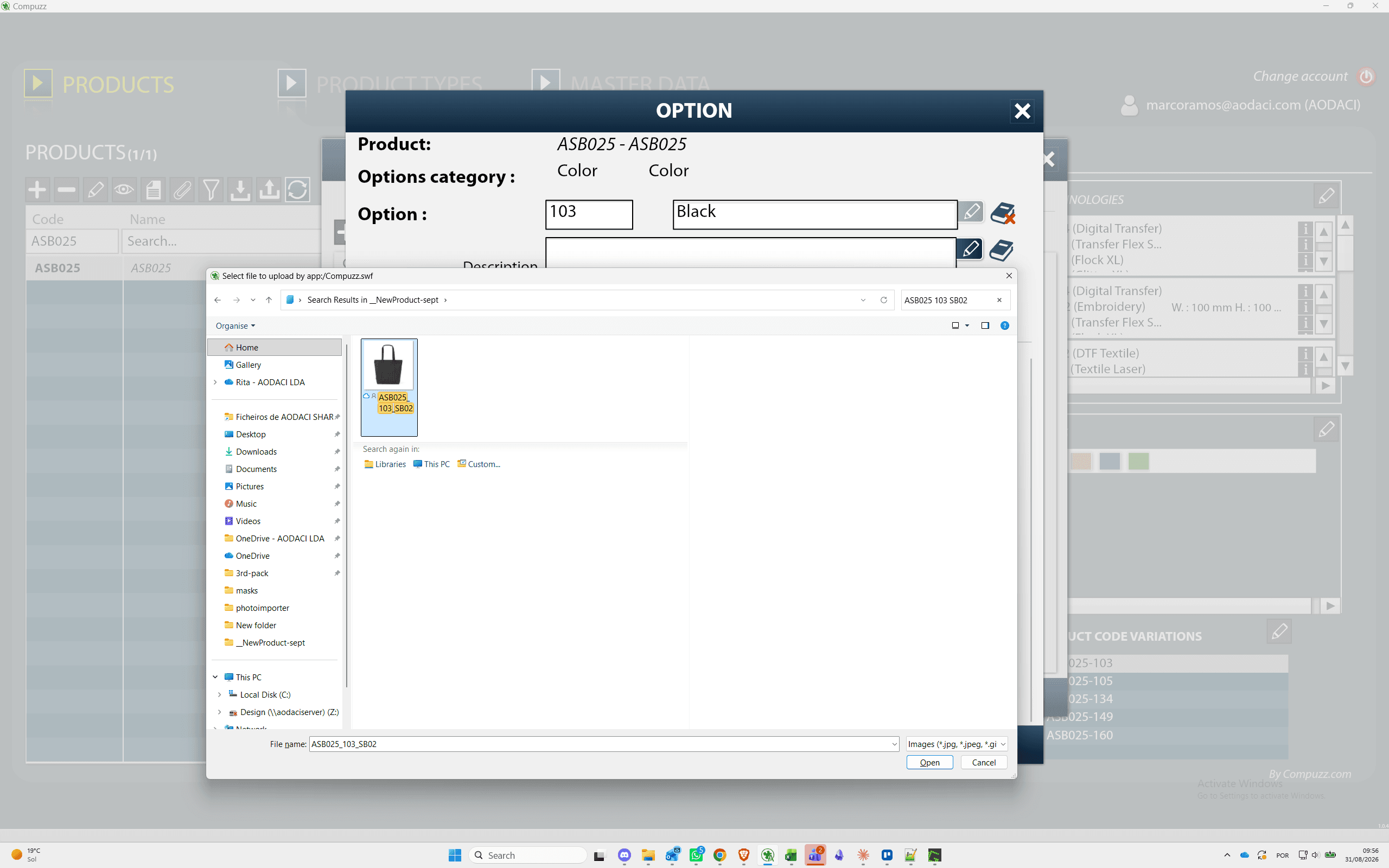
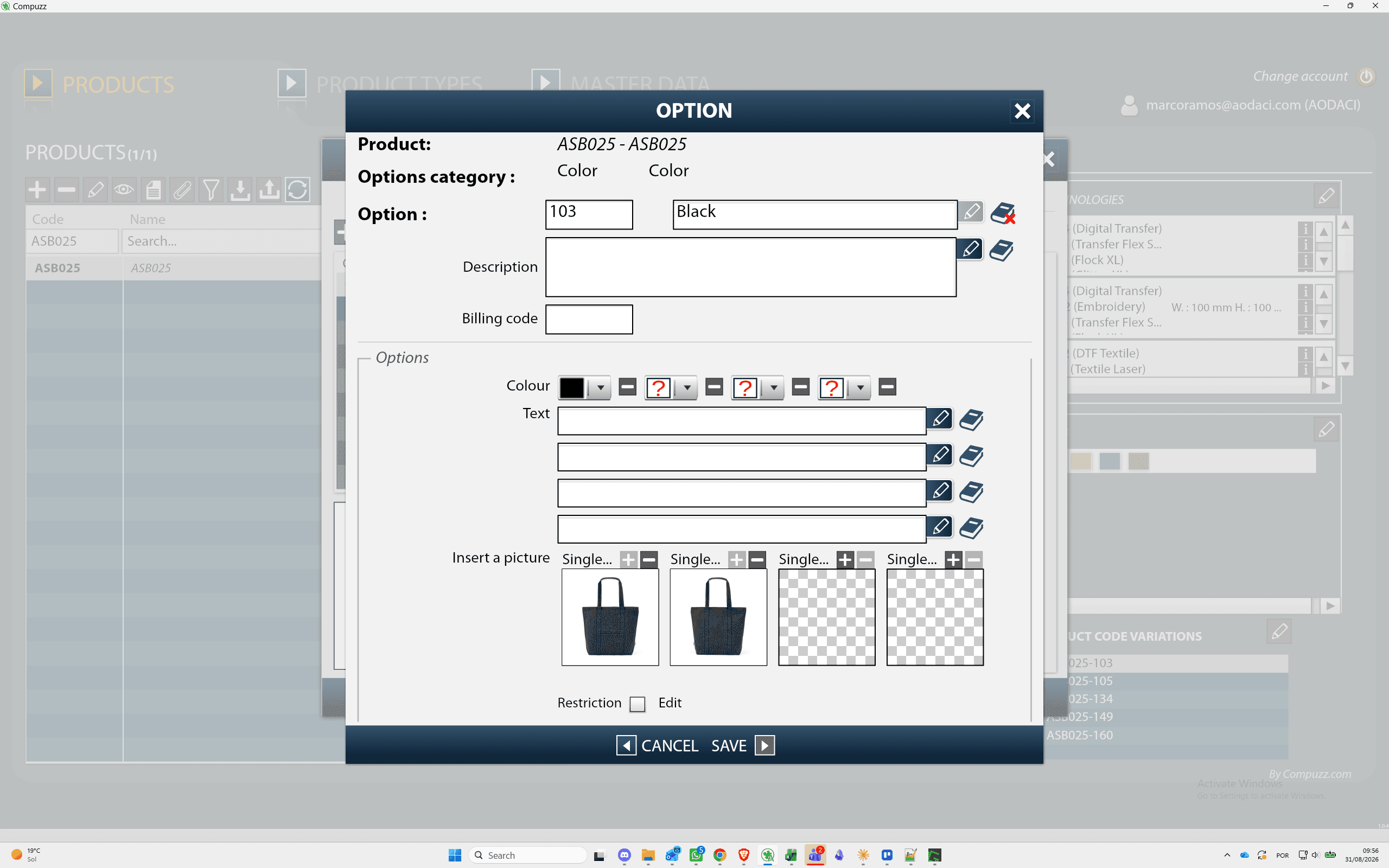
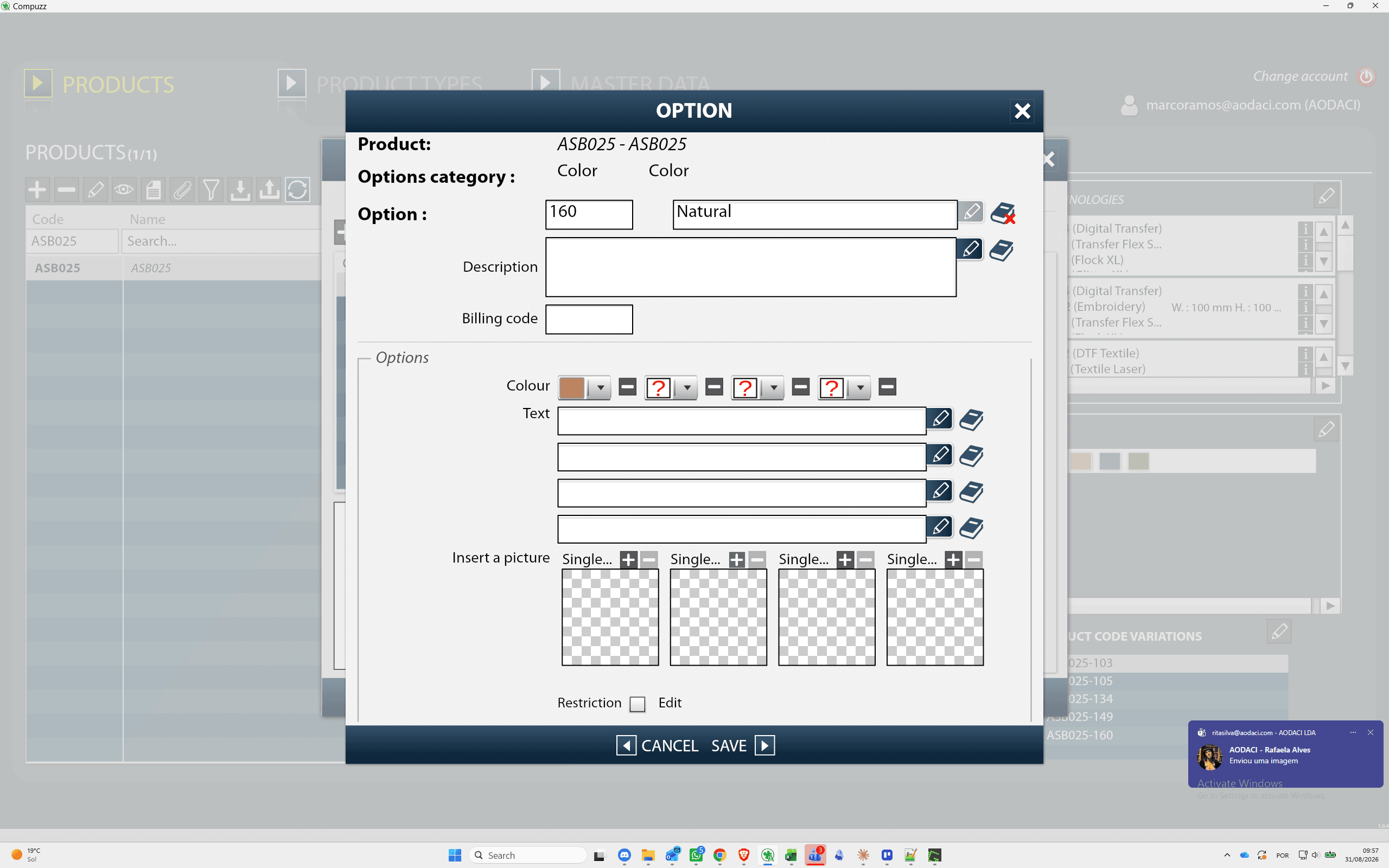
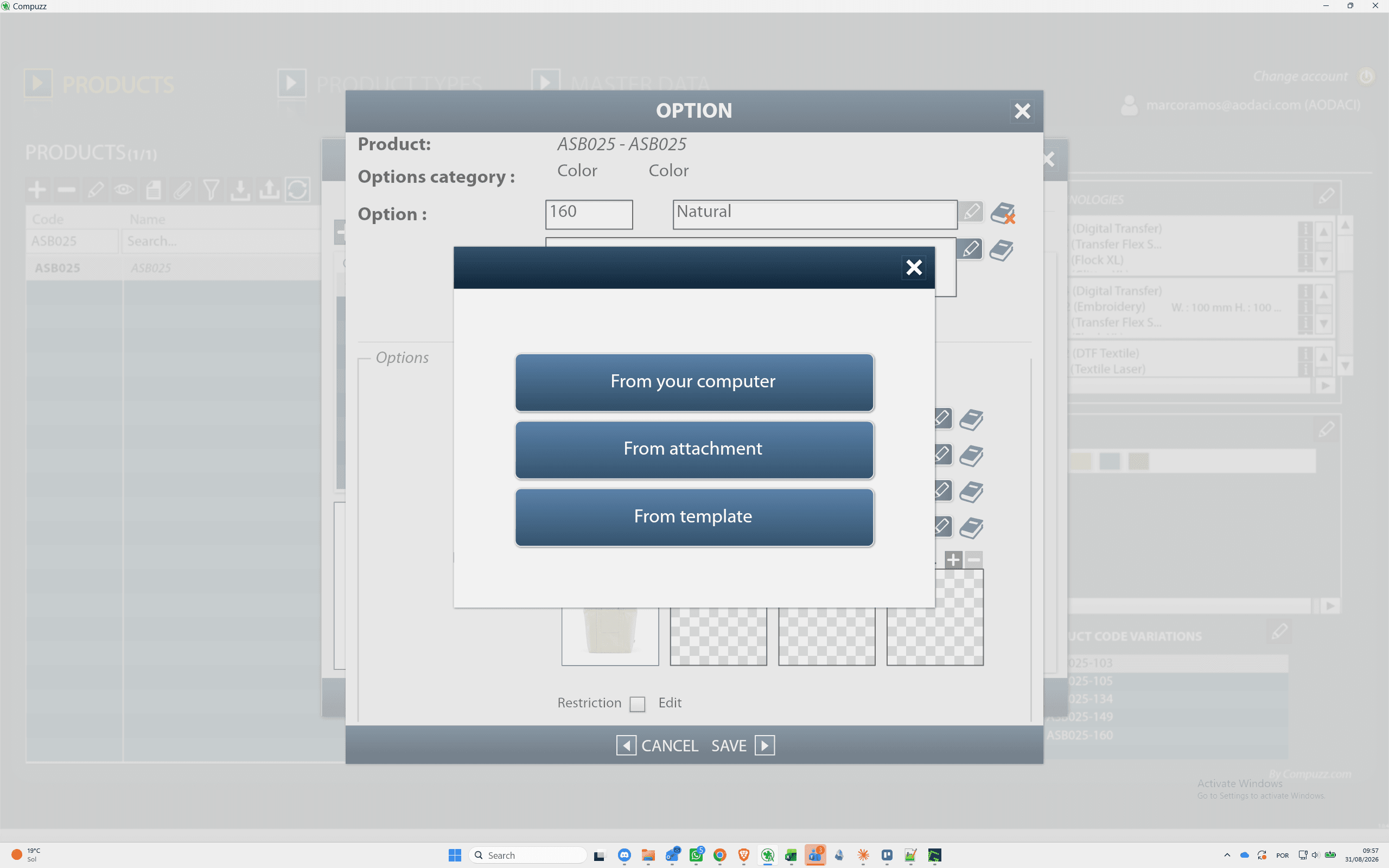
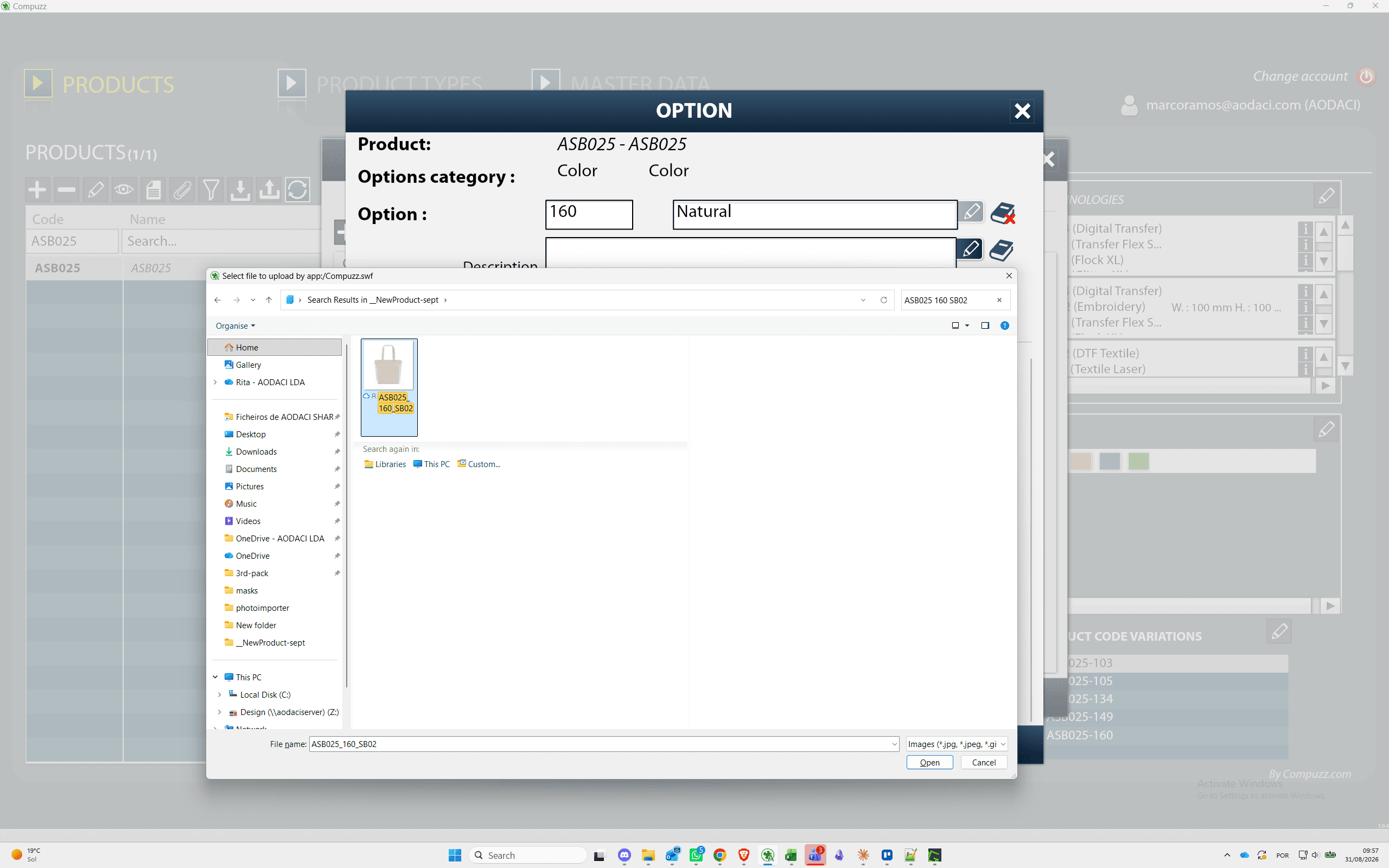
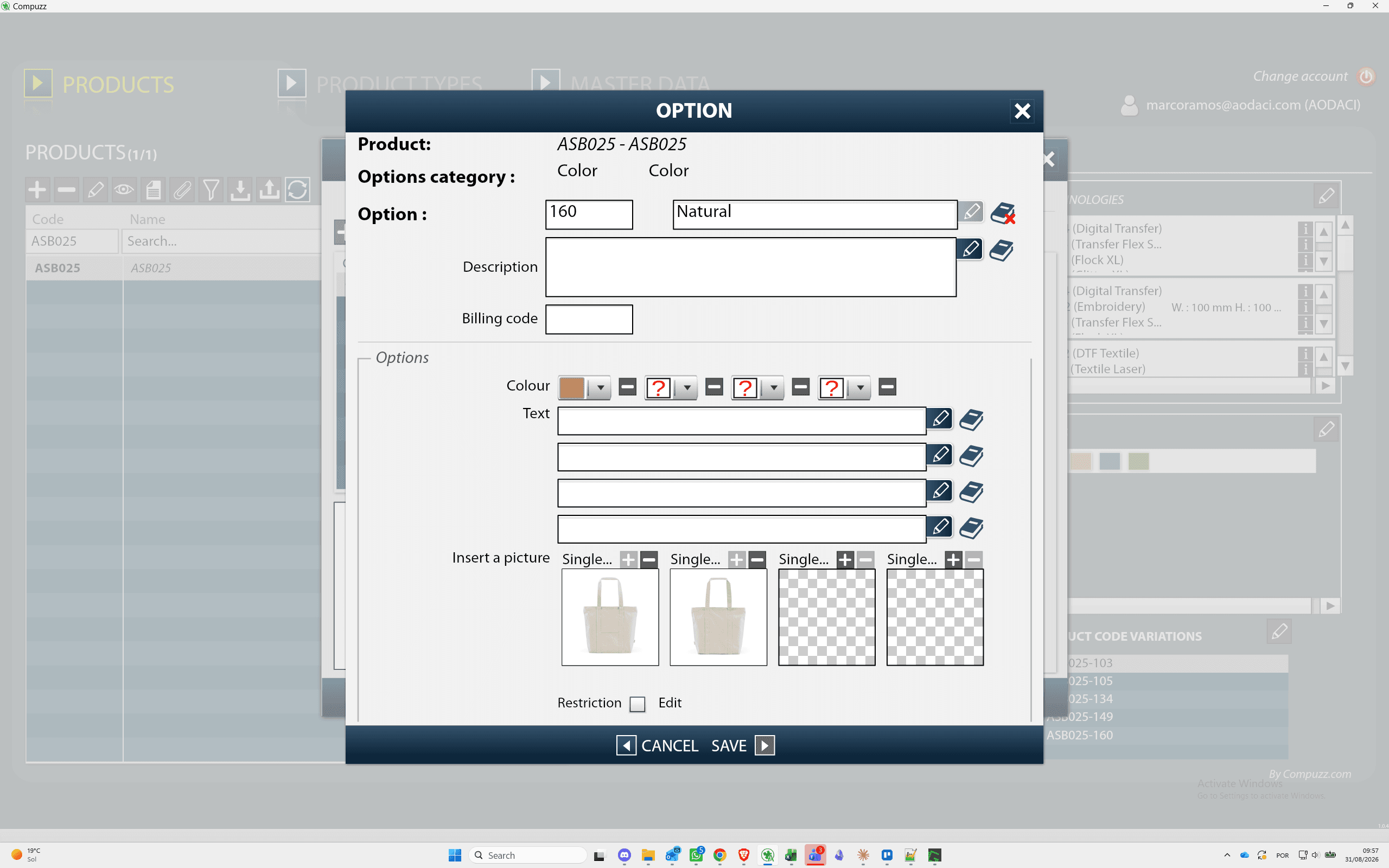
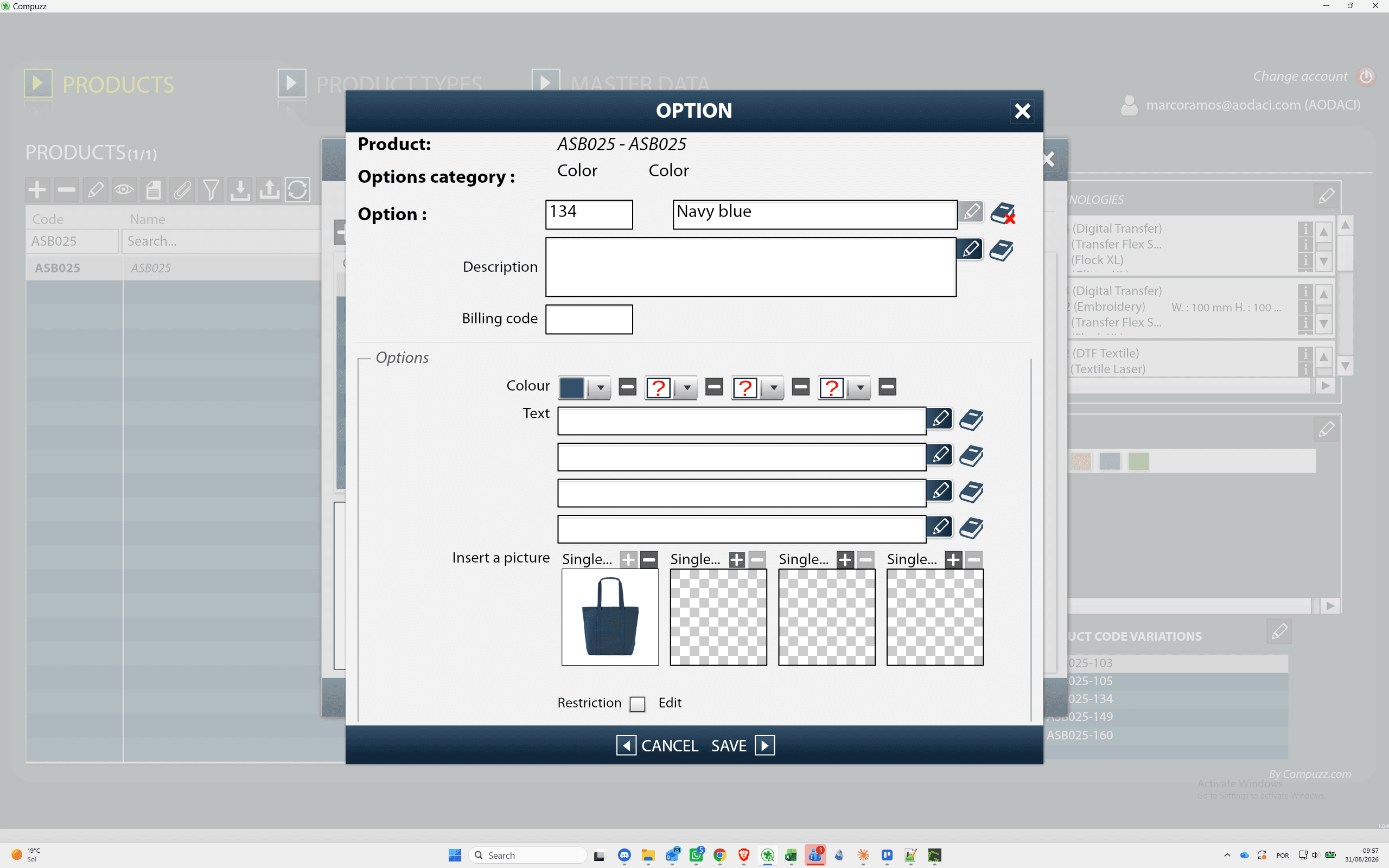
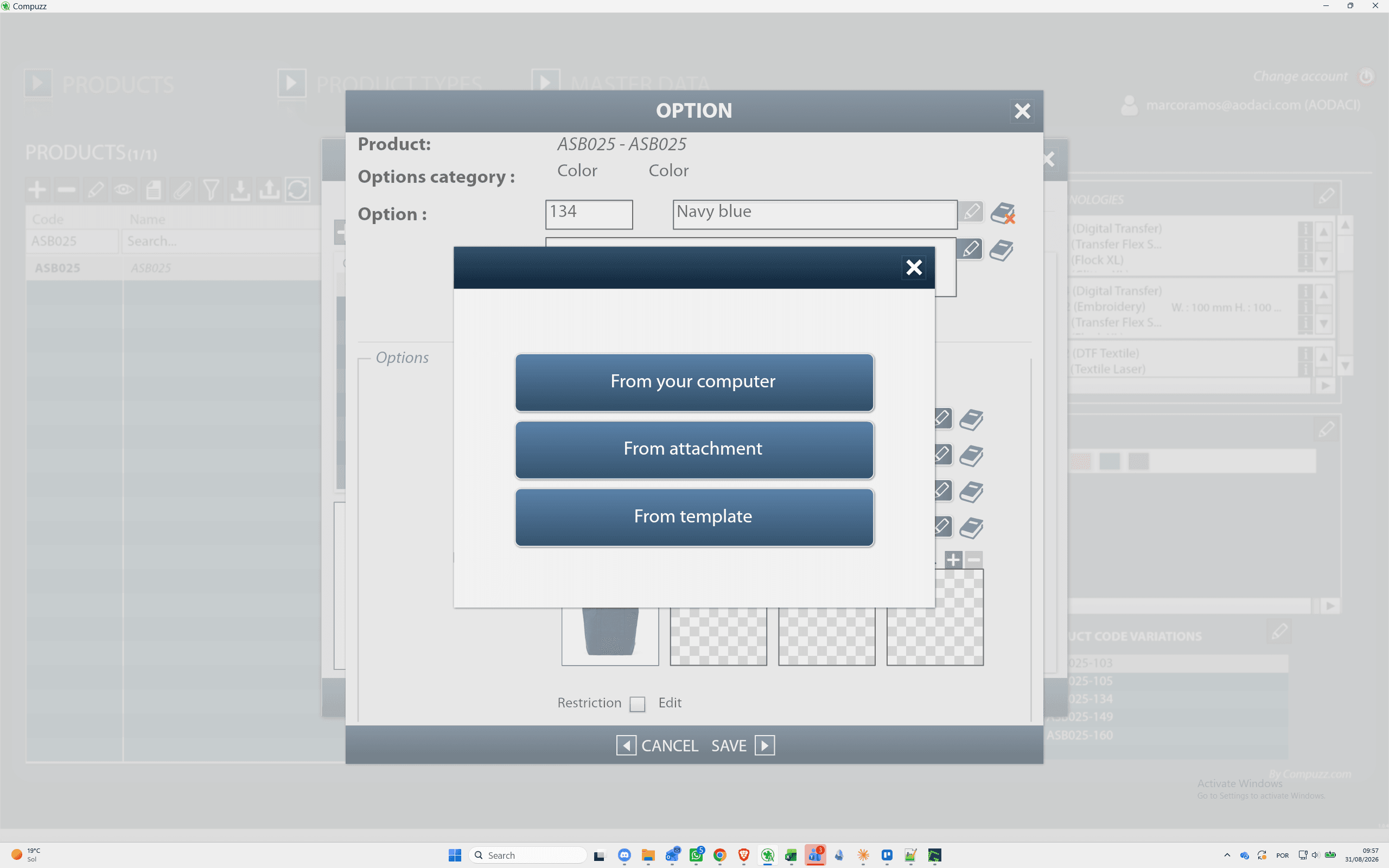
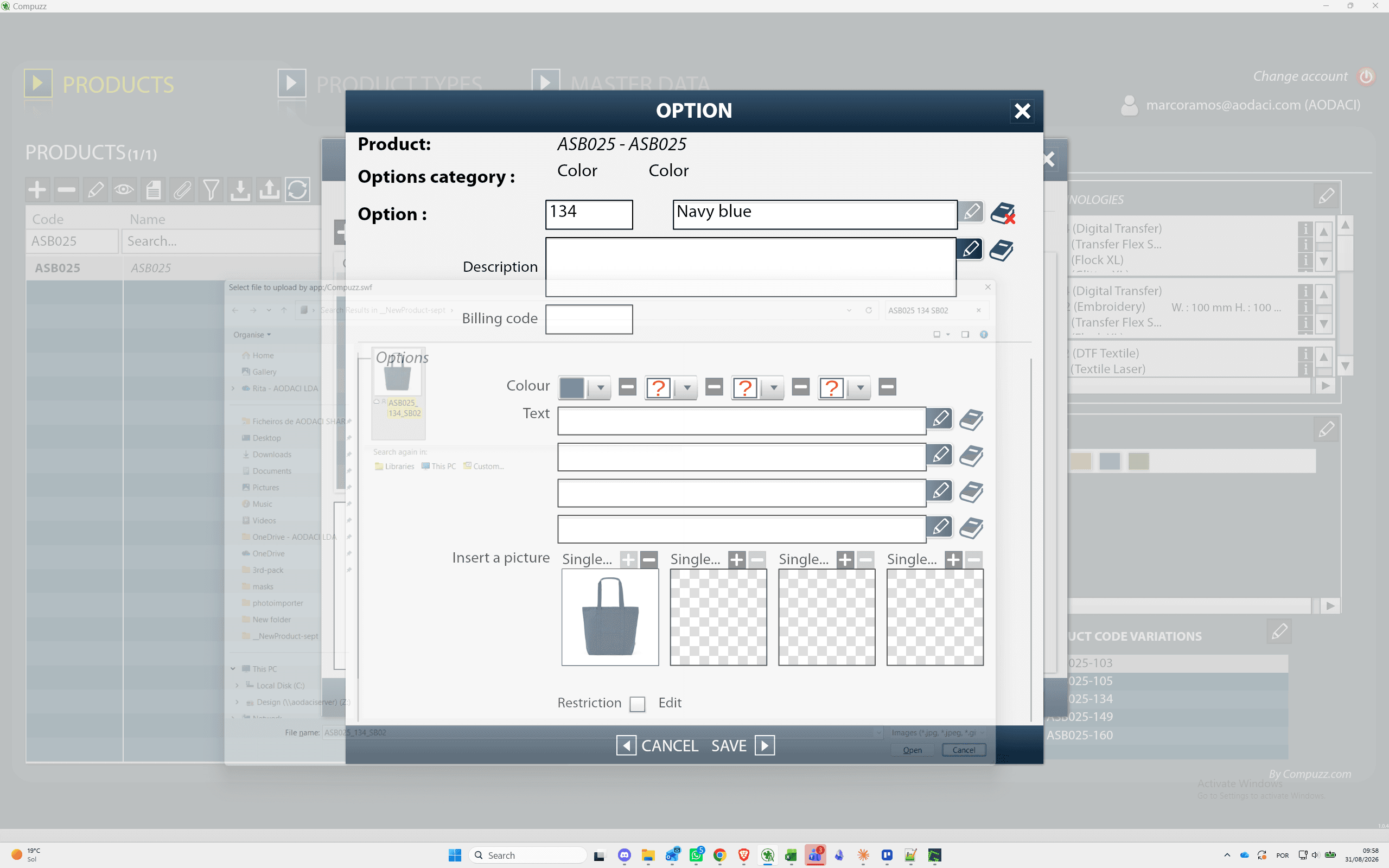
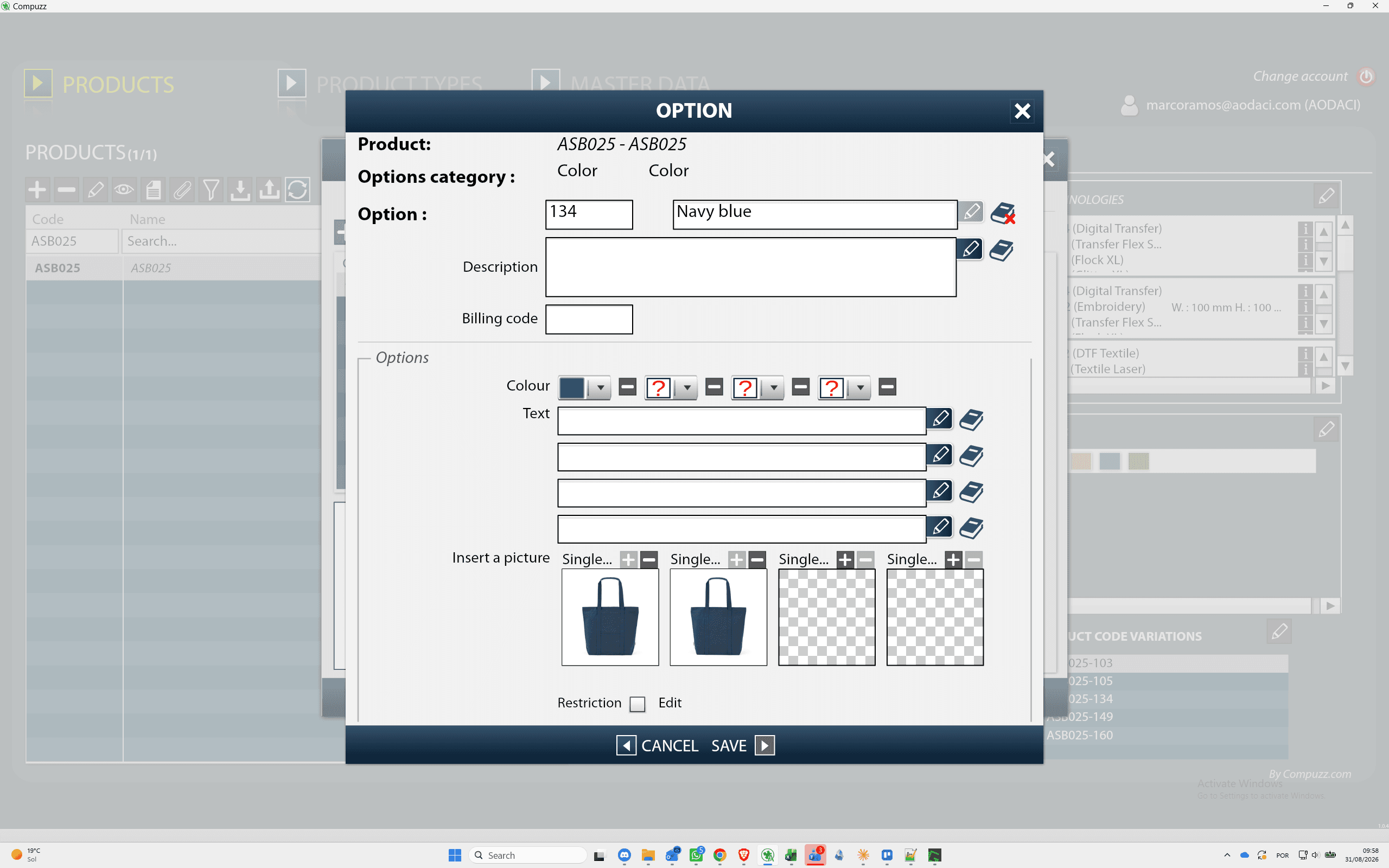
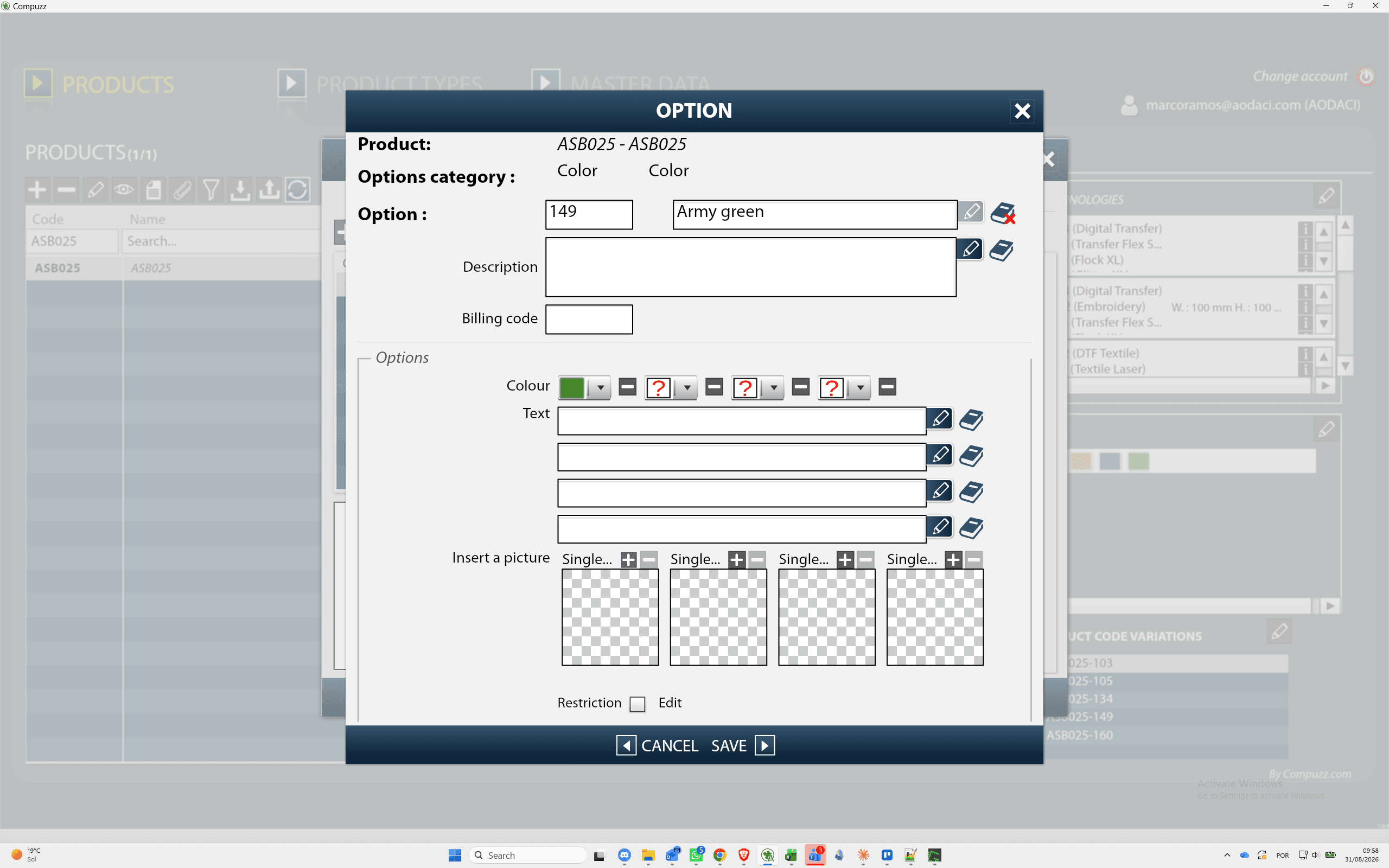
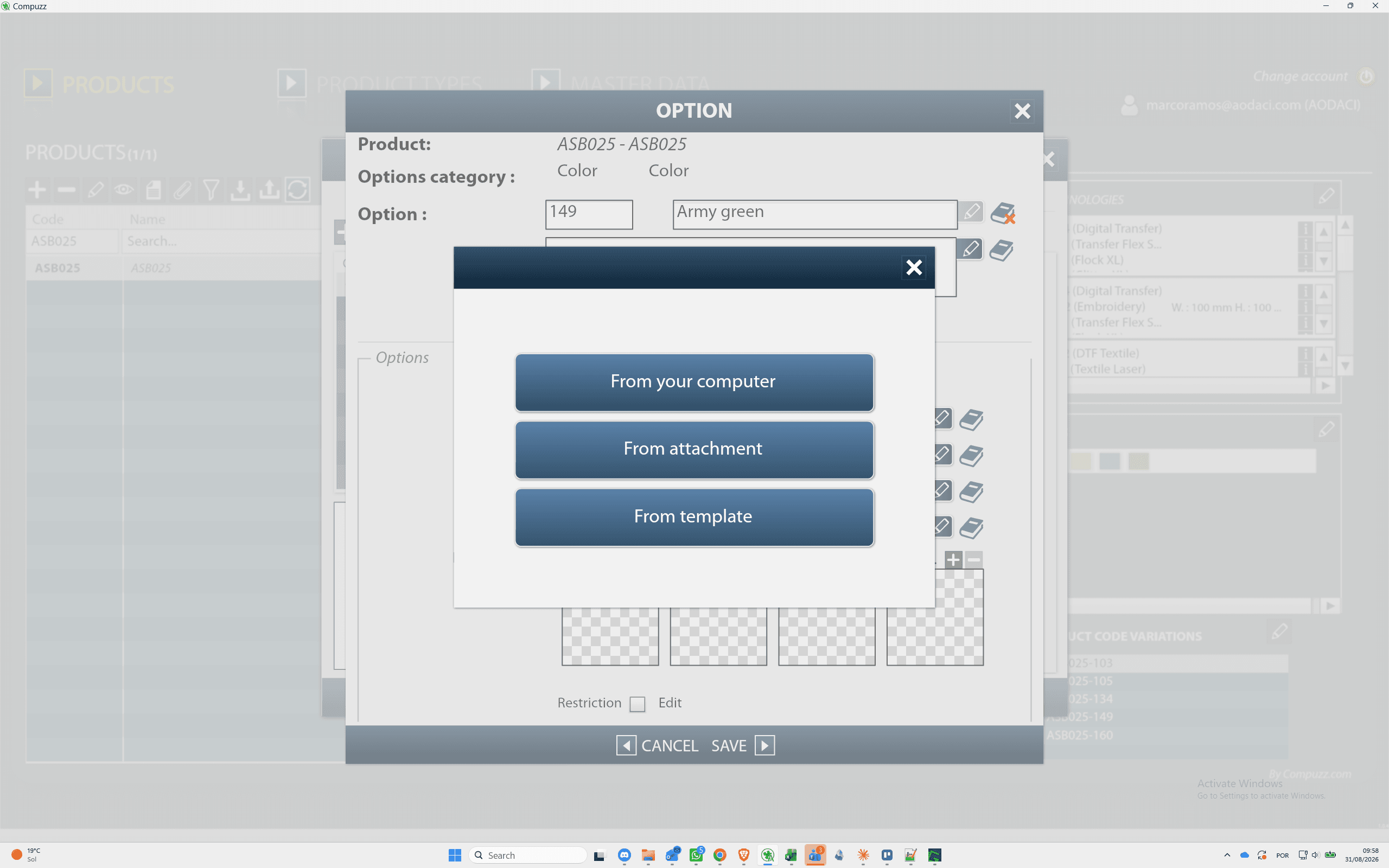
Upload the required image views for each product color variant.
Option 105 (Red)
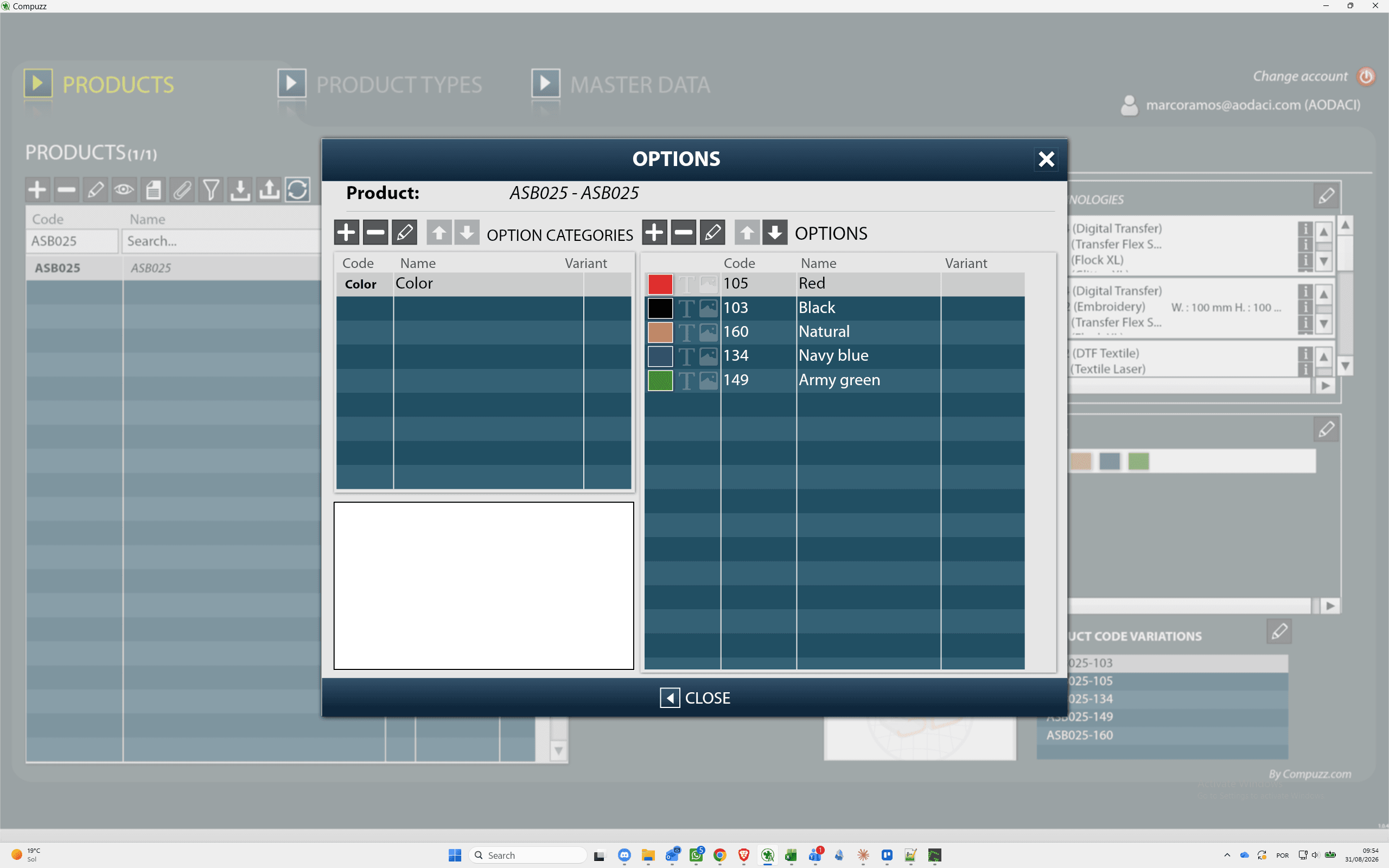
Option 103 (Black)
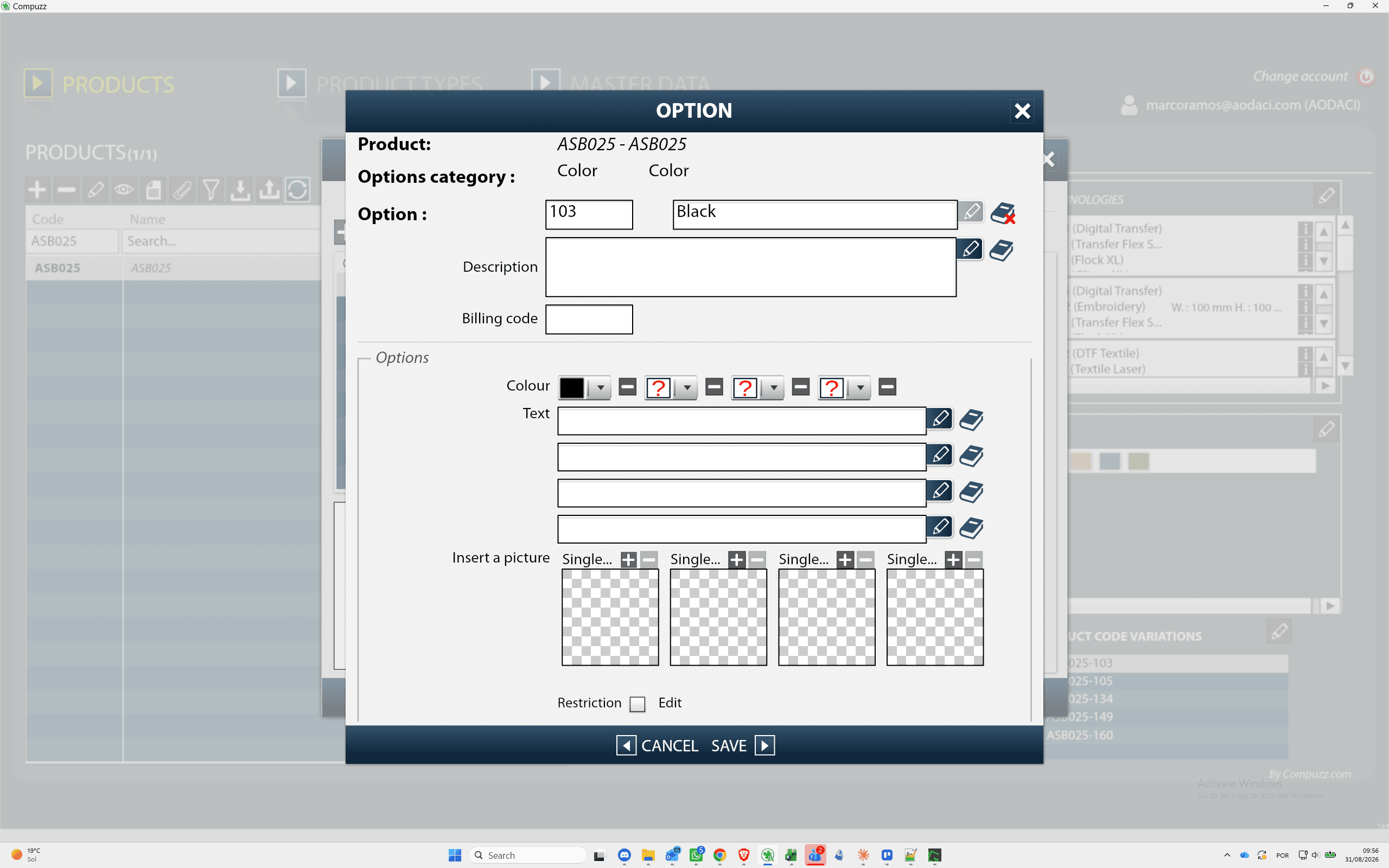
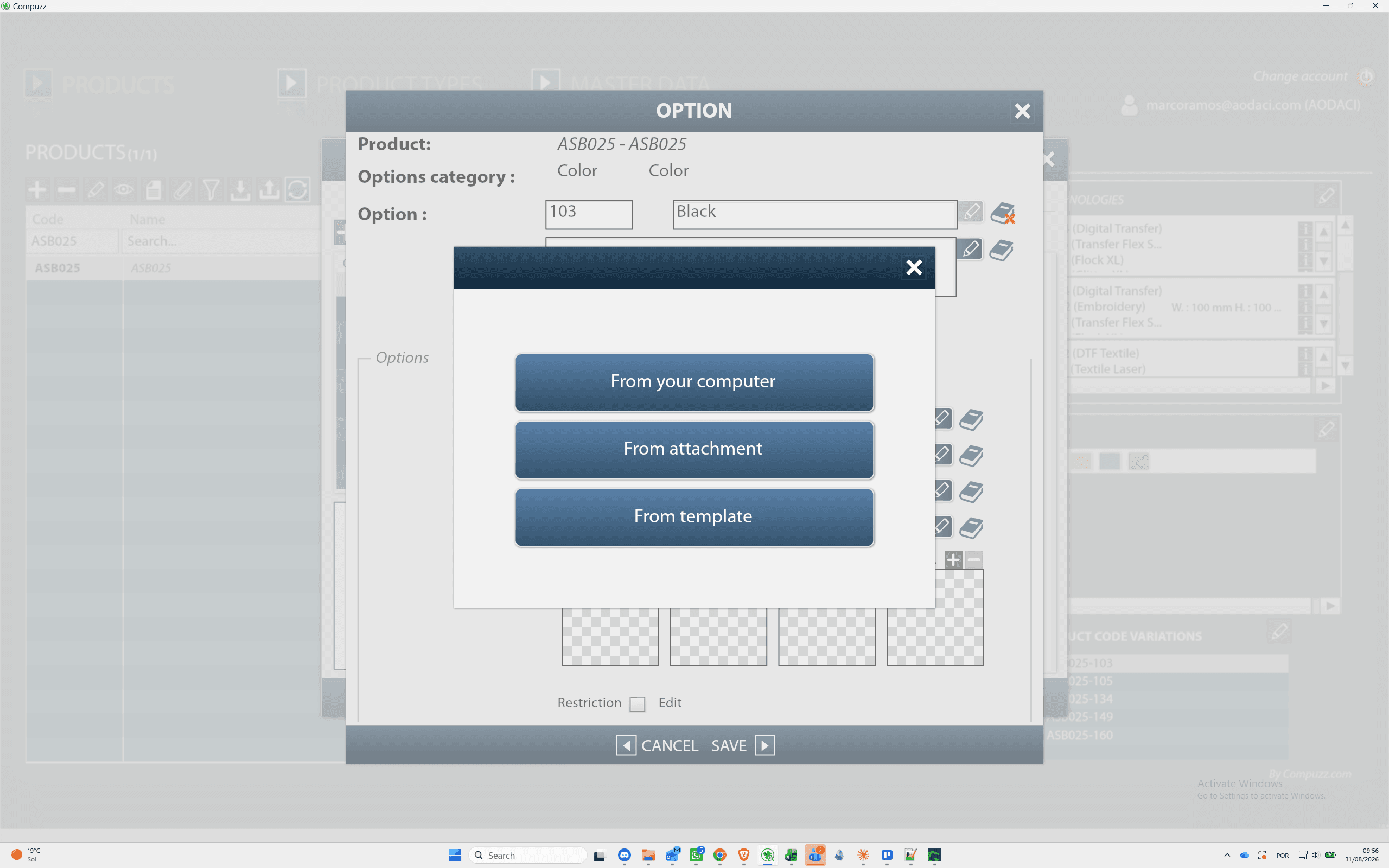
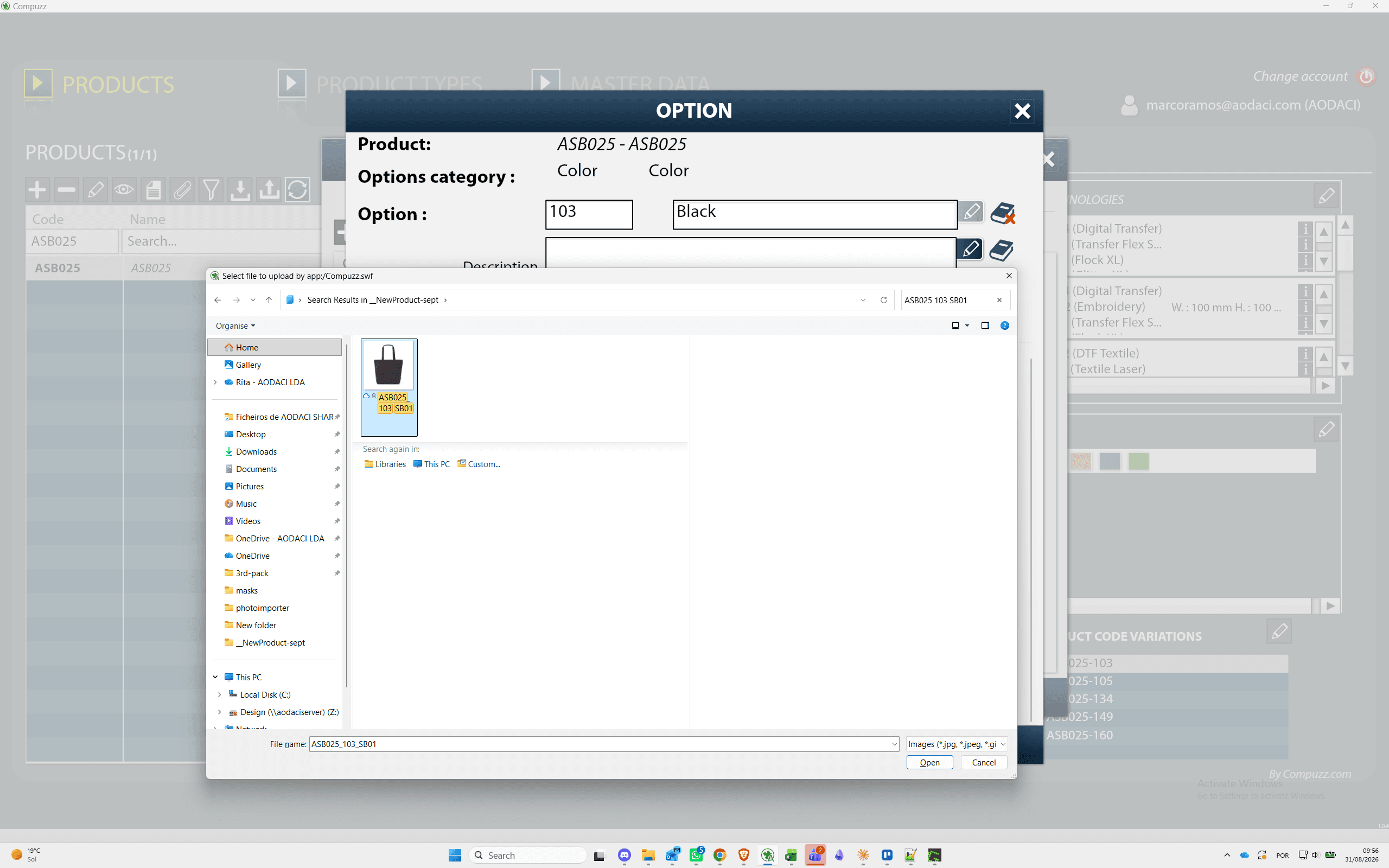
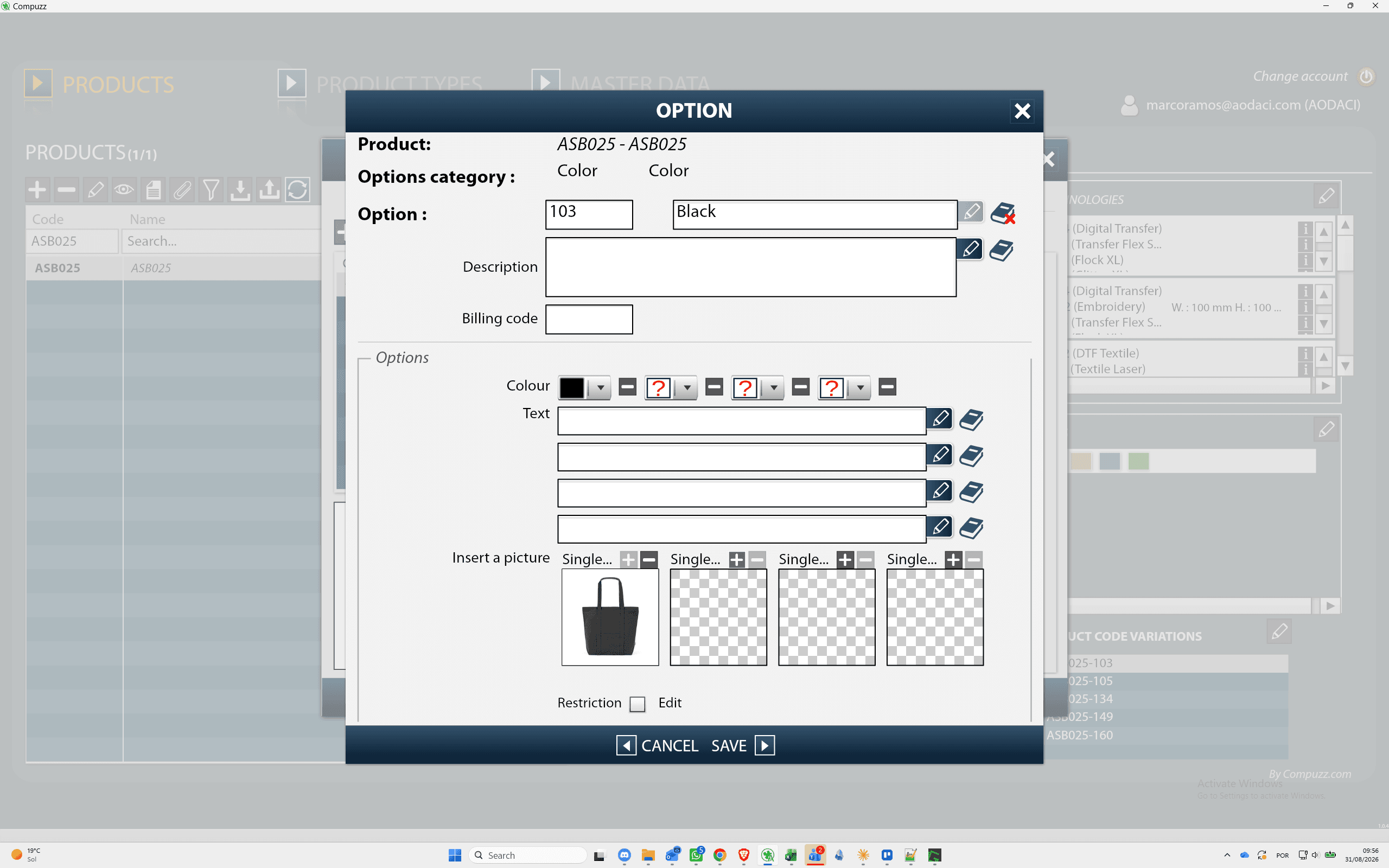
Option 160 (Natural)
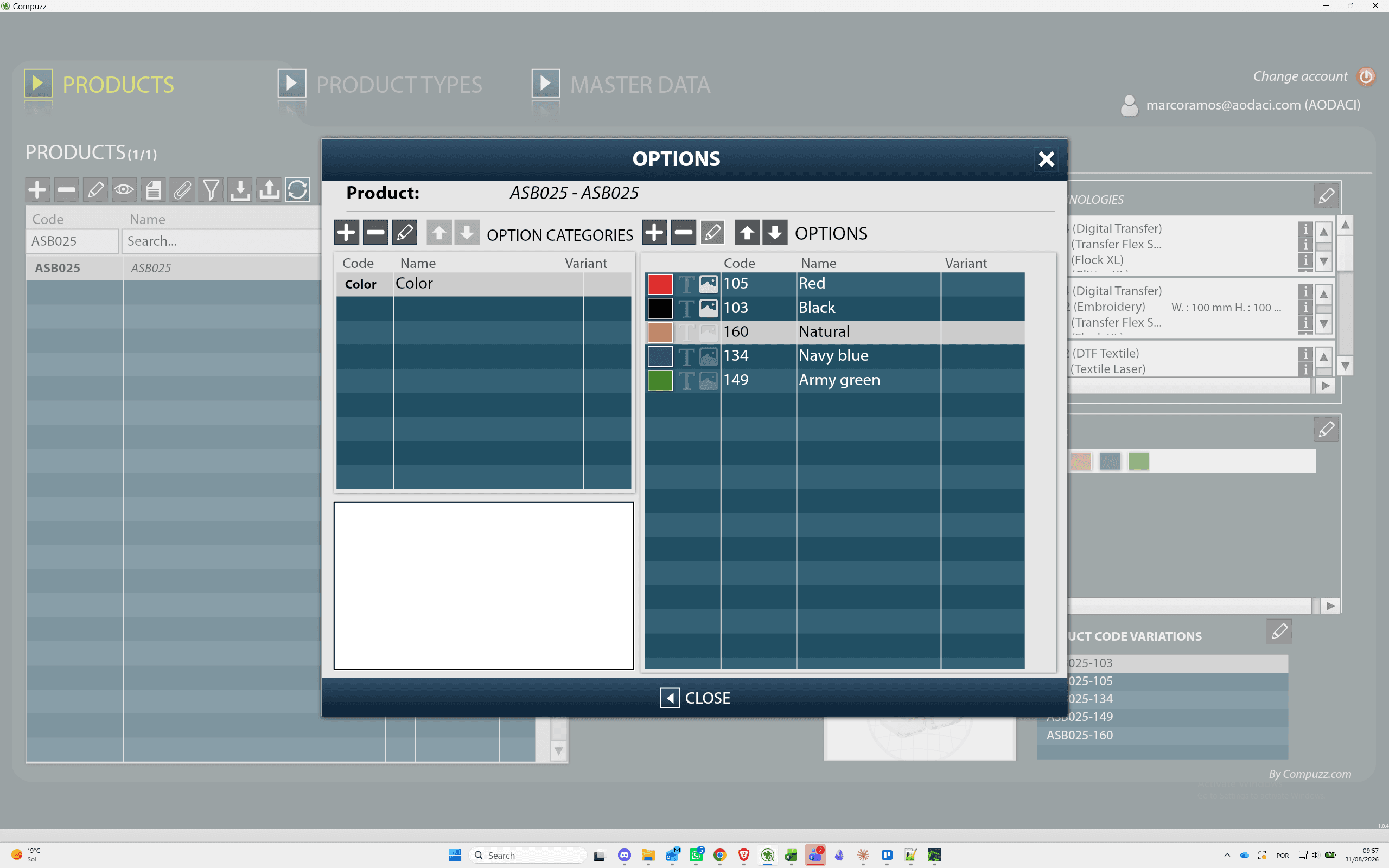
Option 134 (Navy Blue)
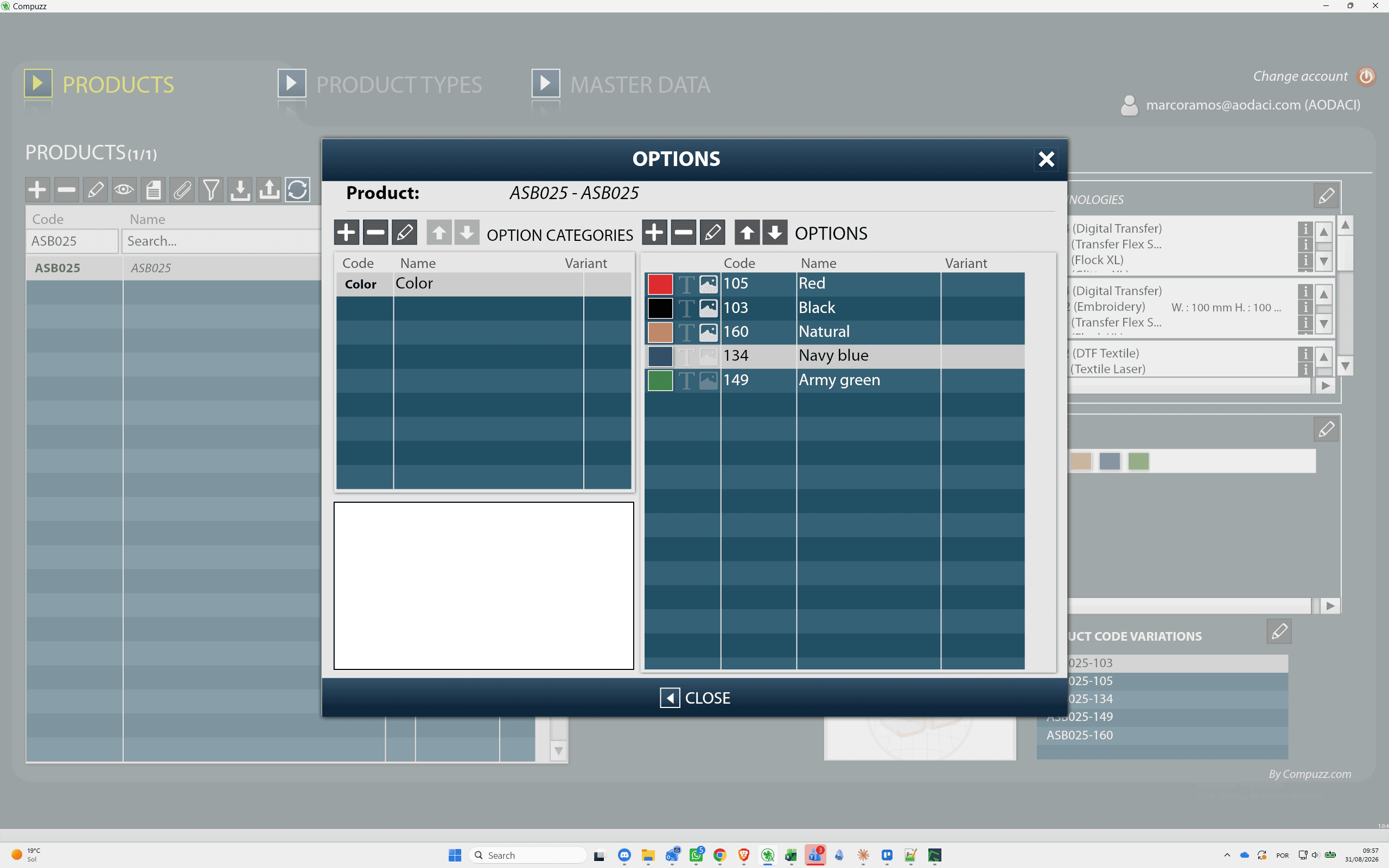
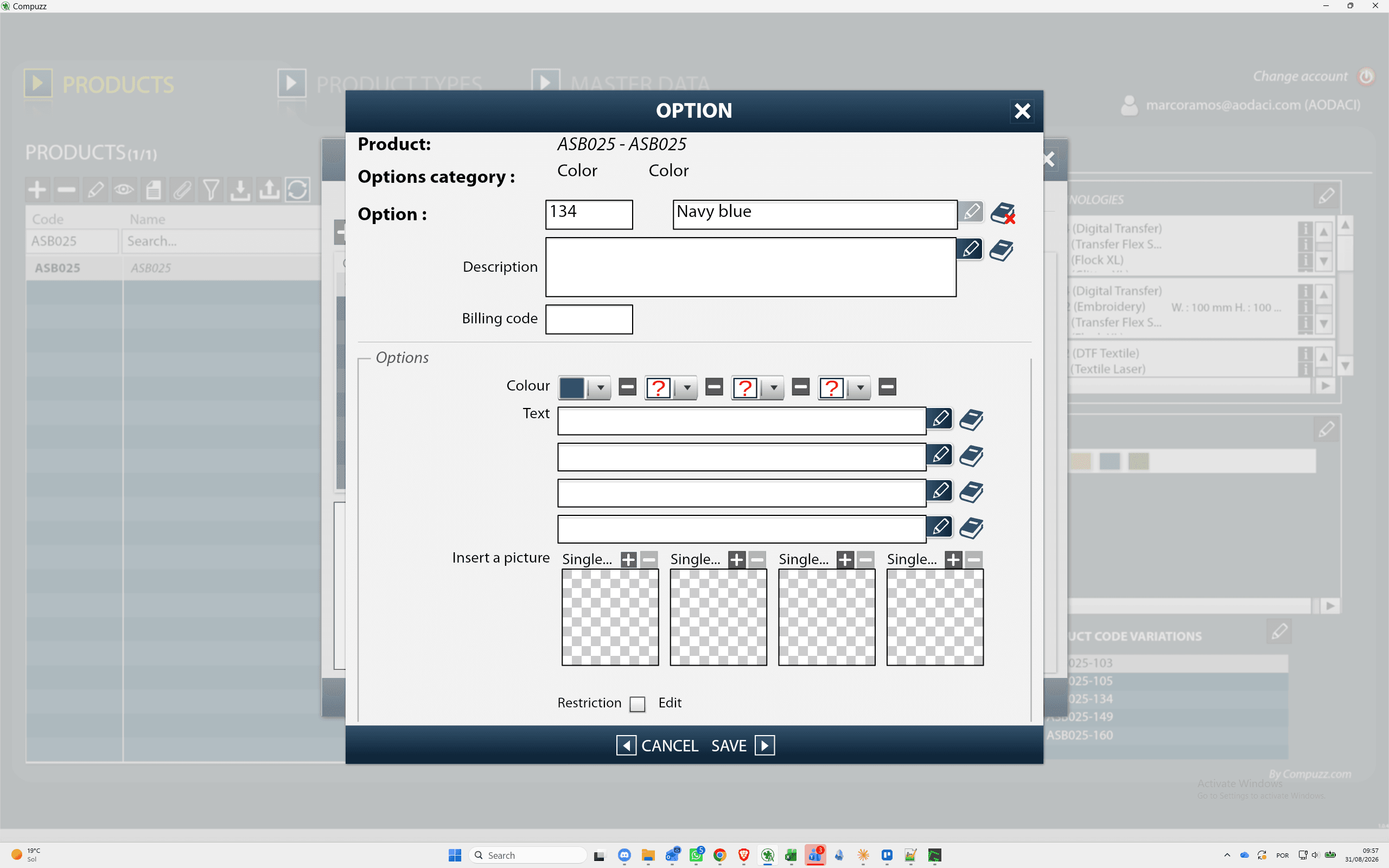
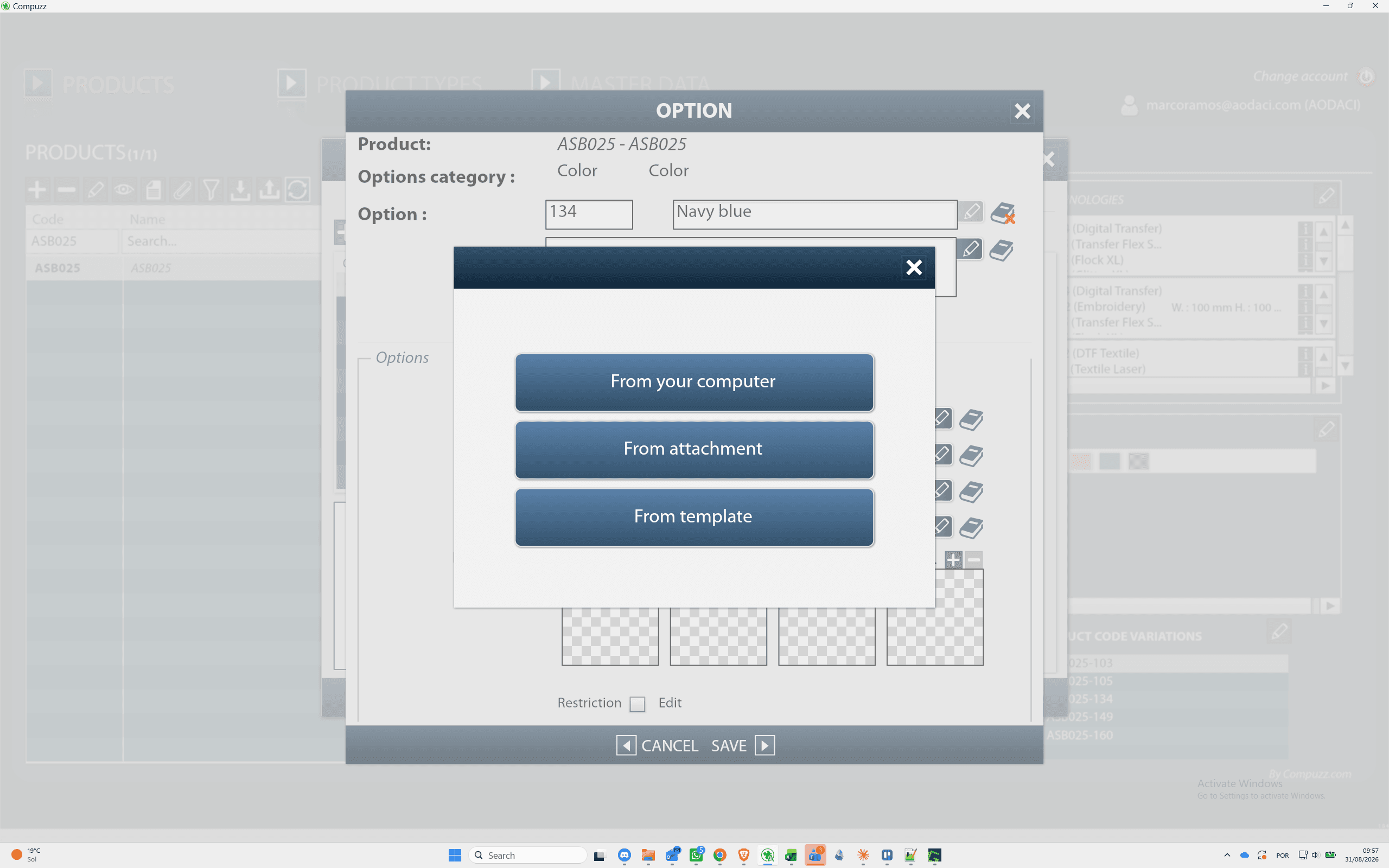
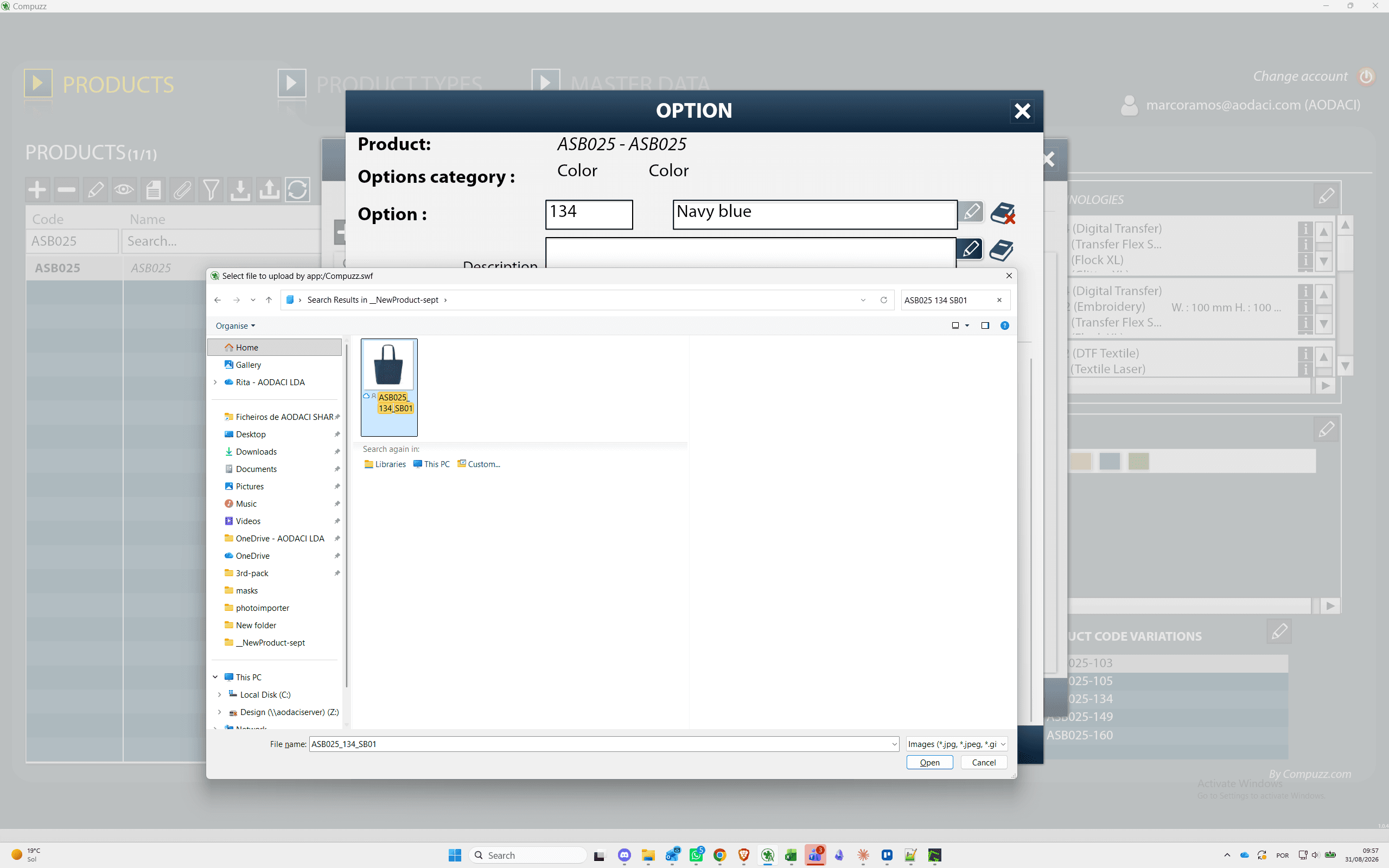
Option 149 (Army Green)
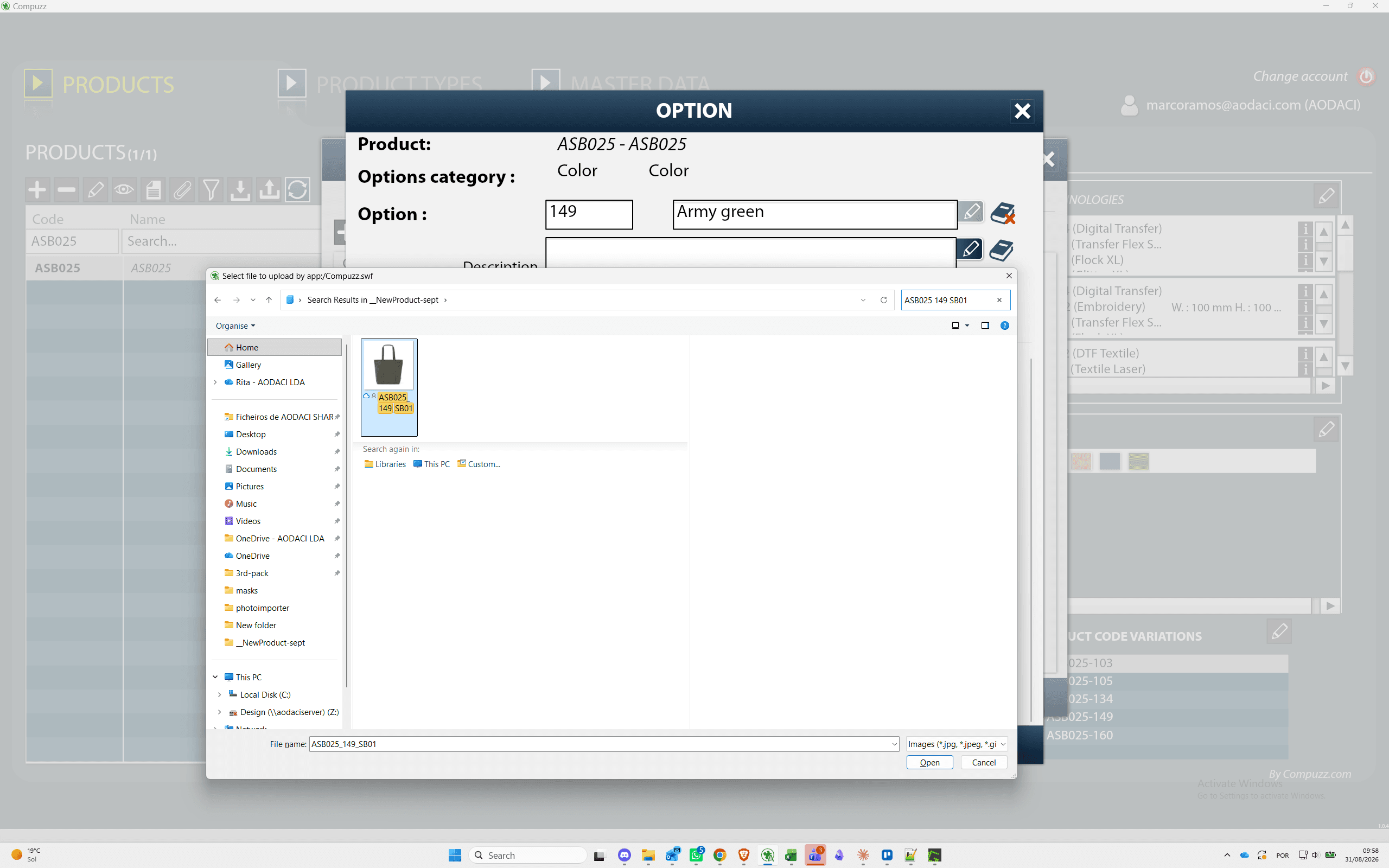
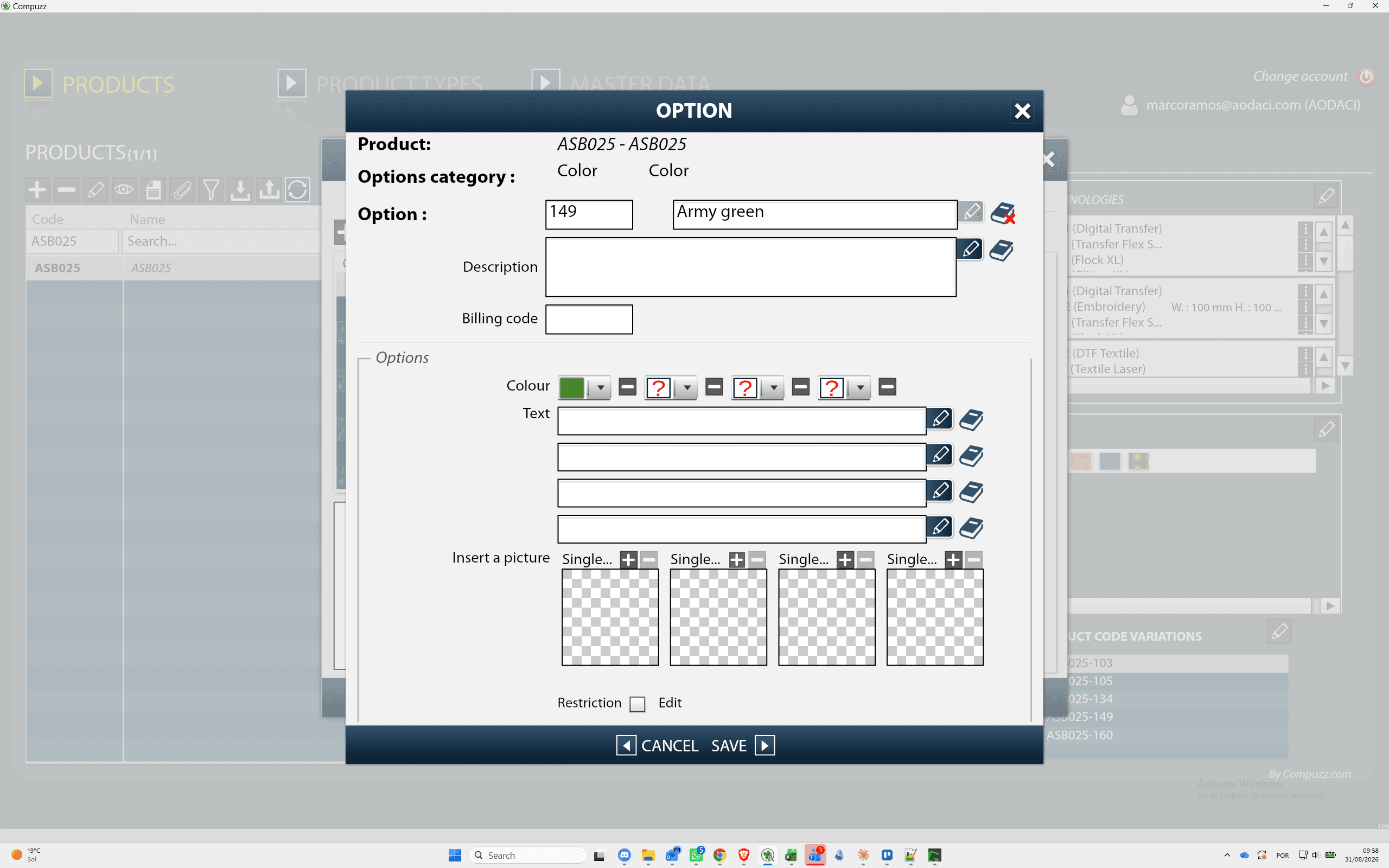
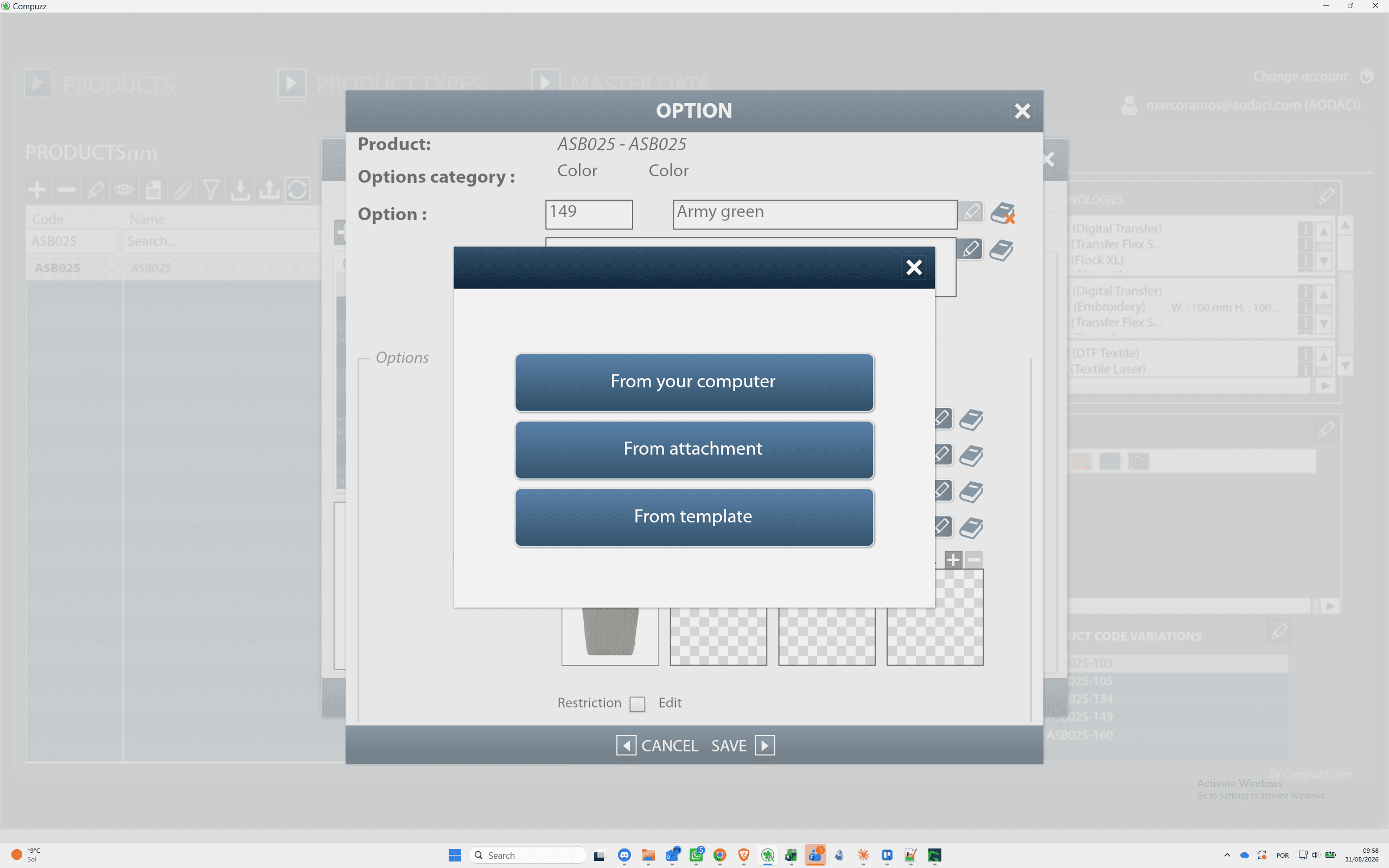
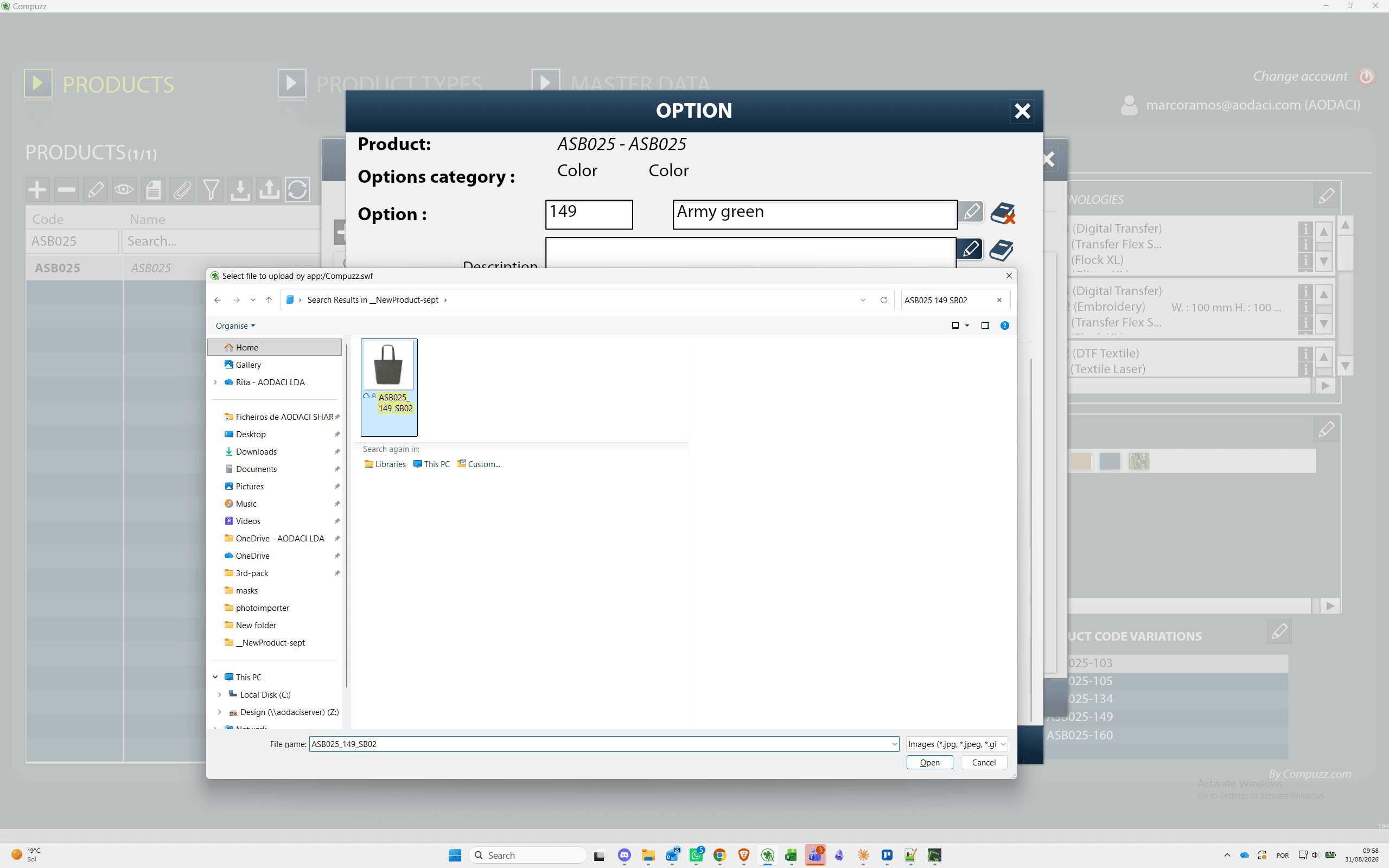
Link Option Pictures to VR Pictures
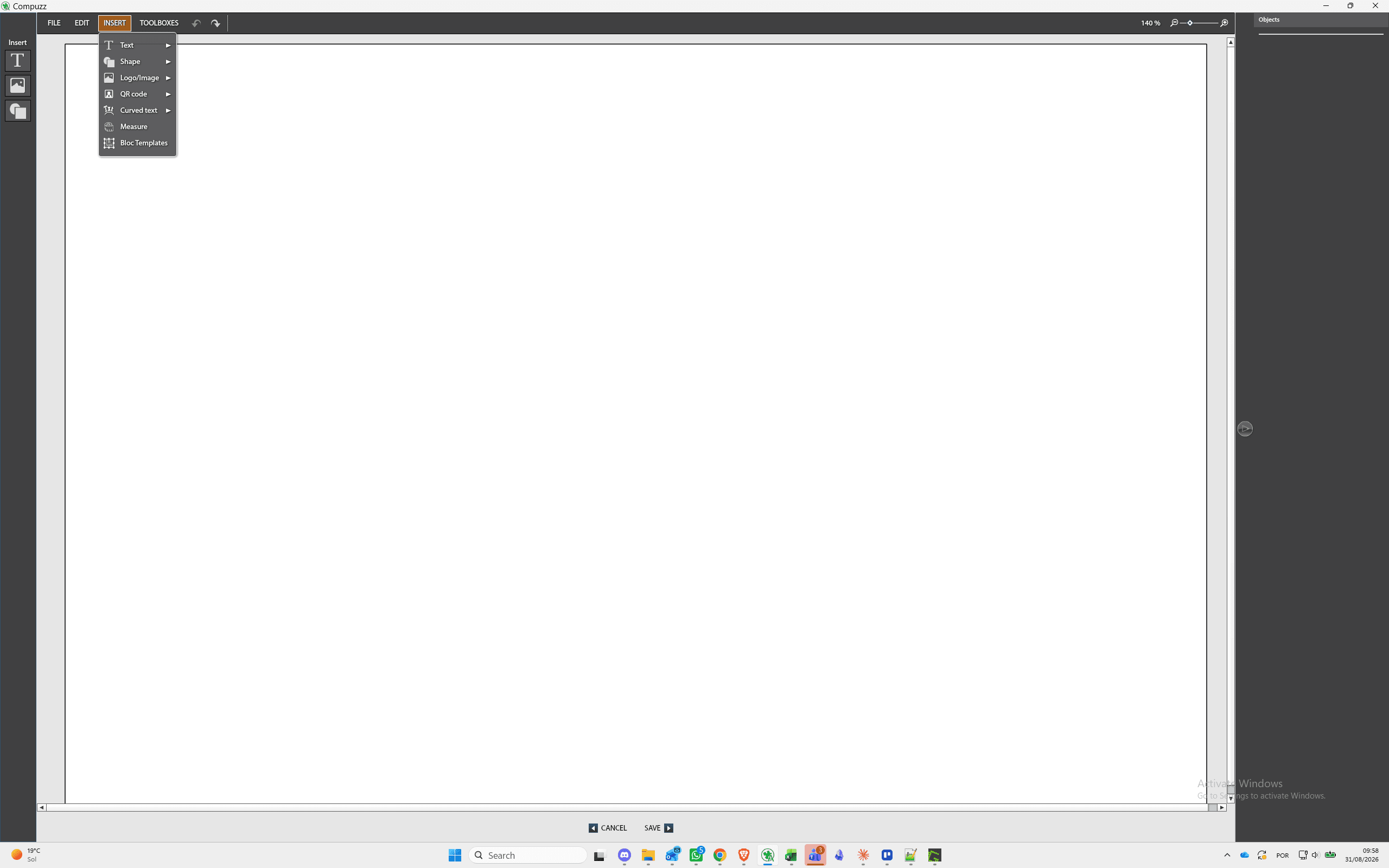
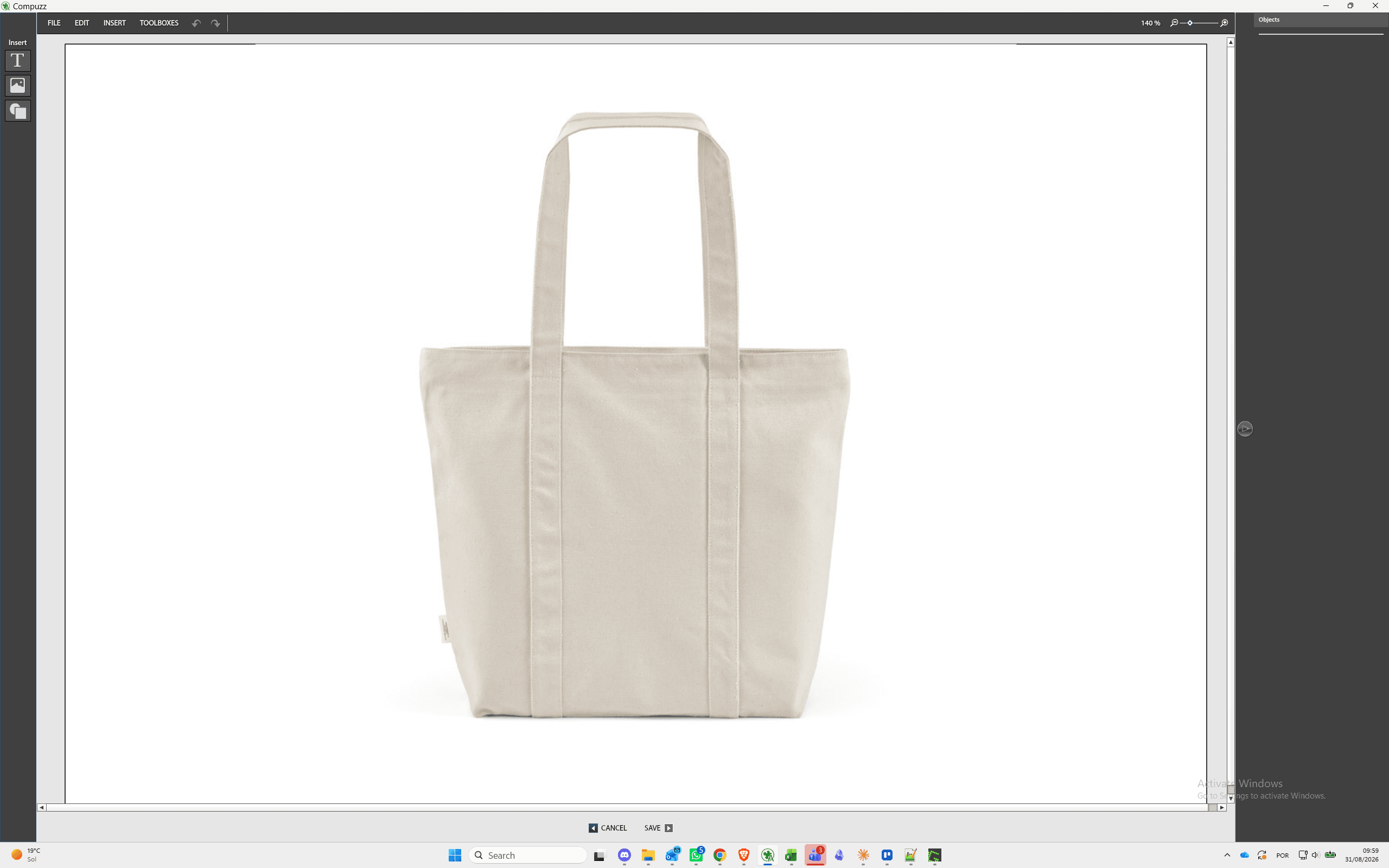
Link the uploaded option images to the product's VR Pictures templates so all variant colors render automatically.
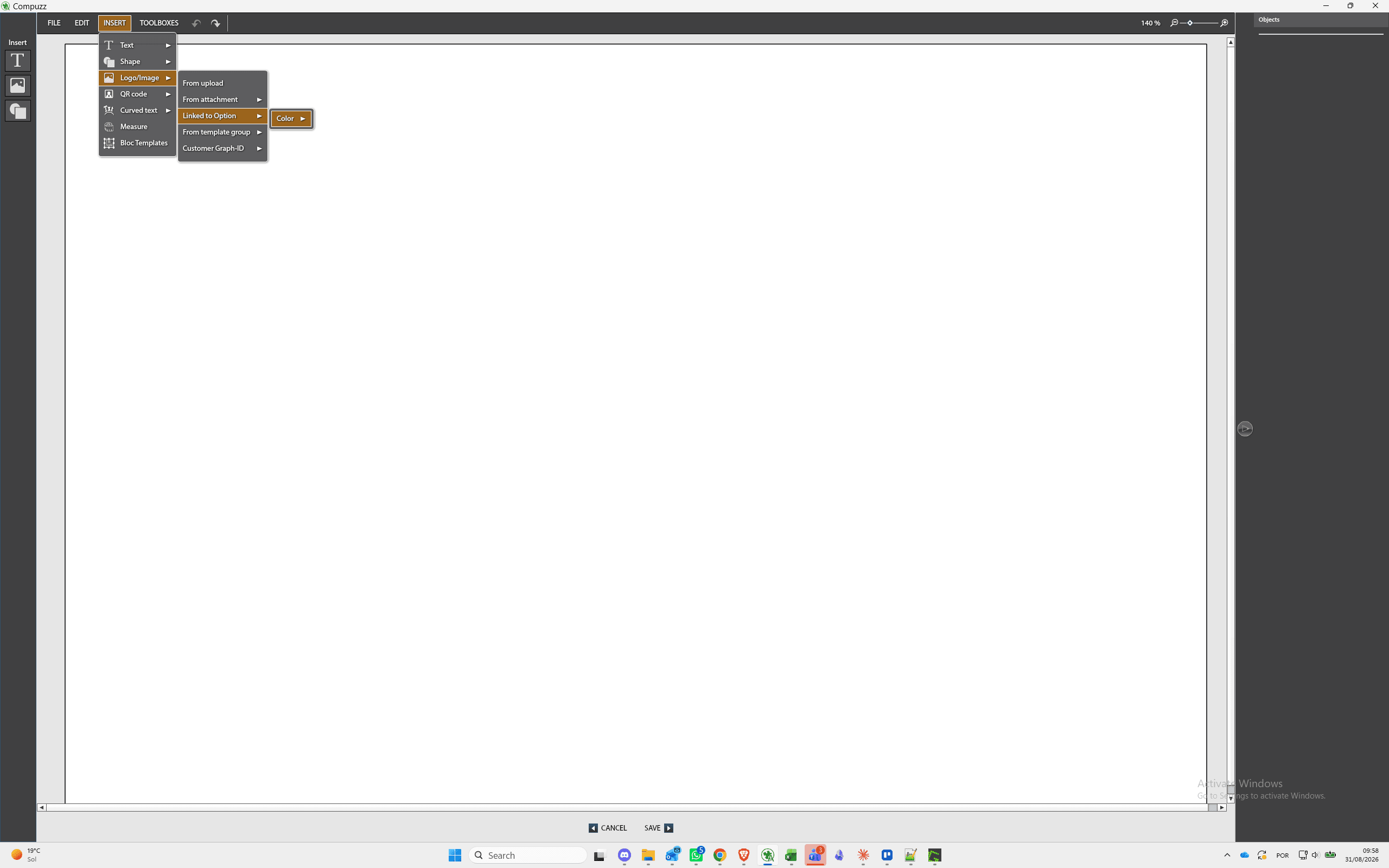
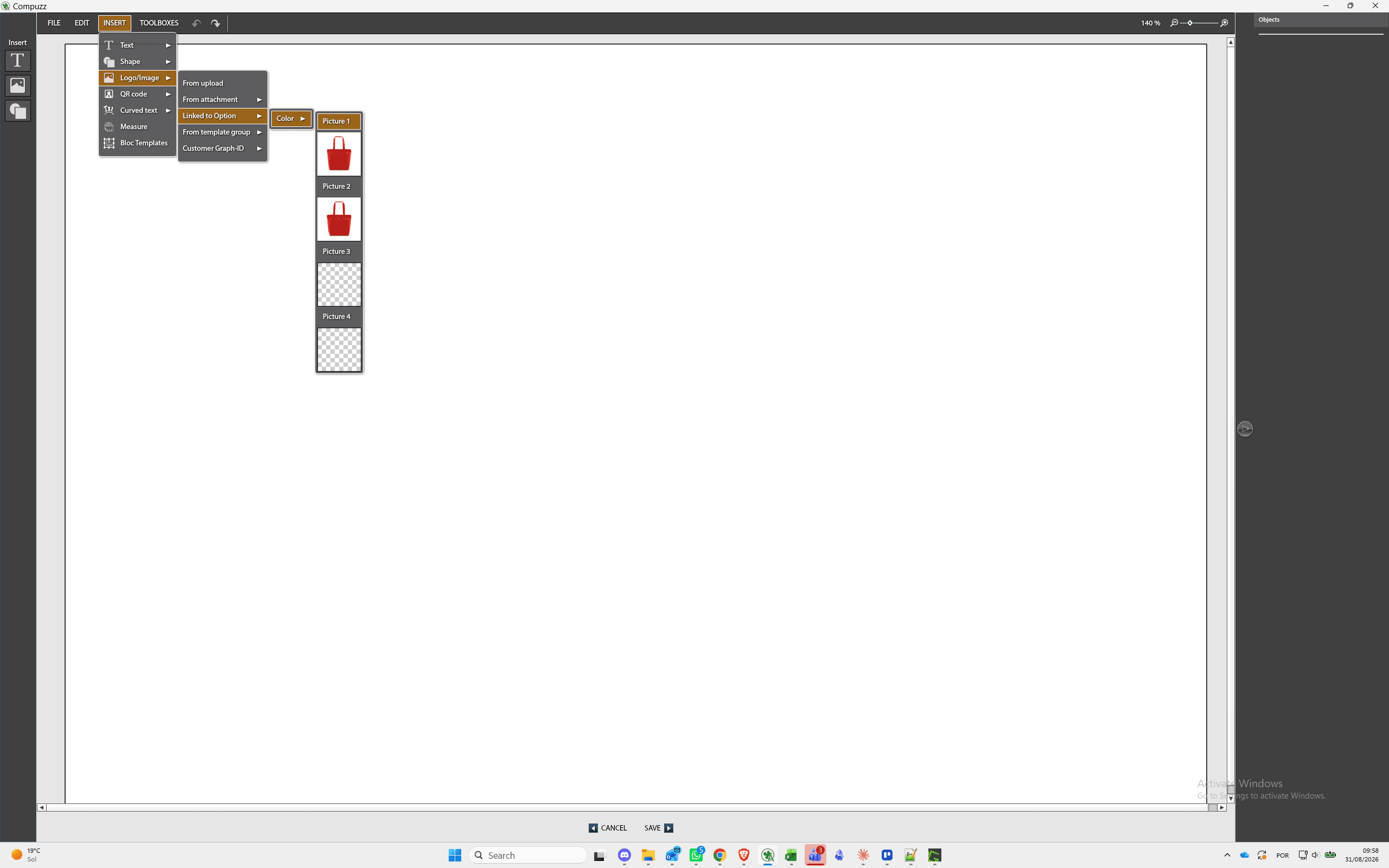
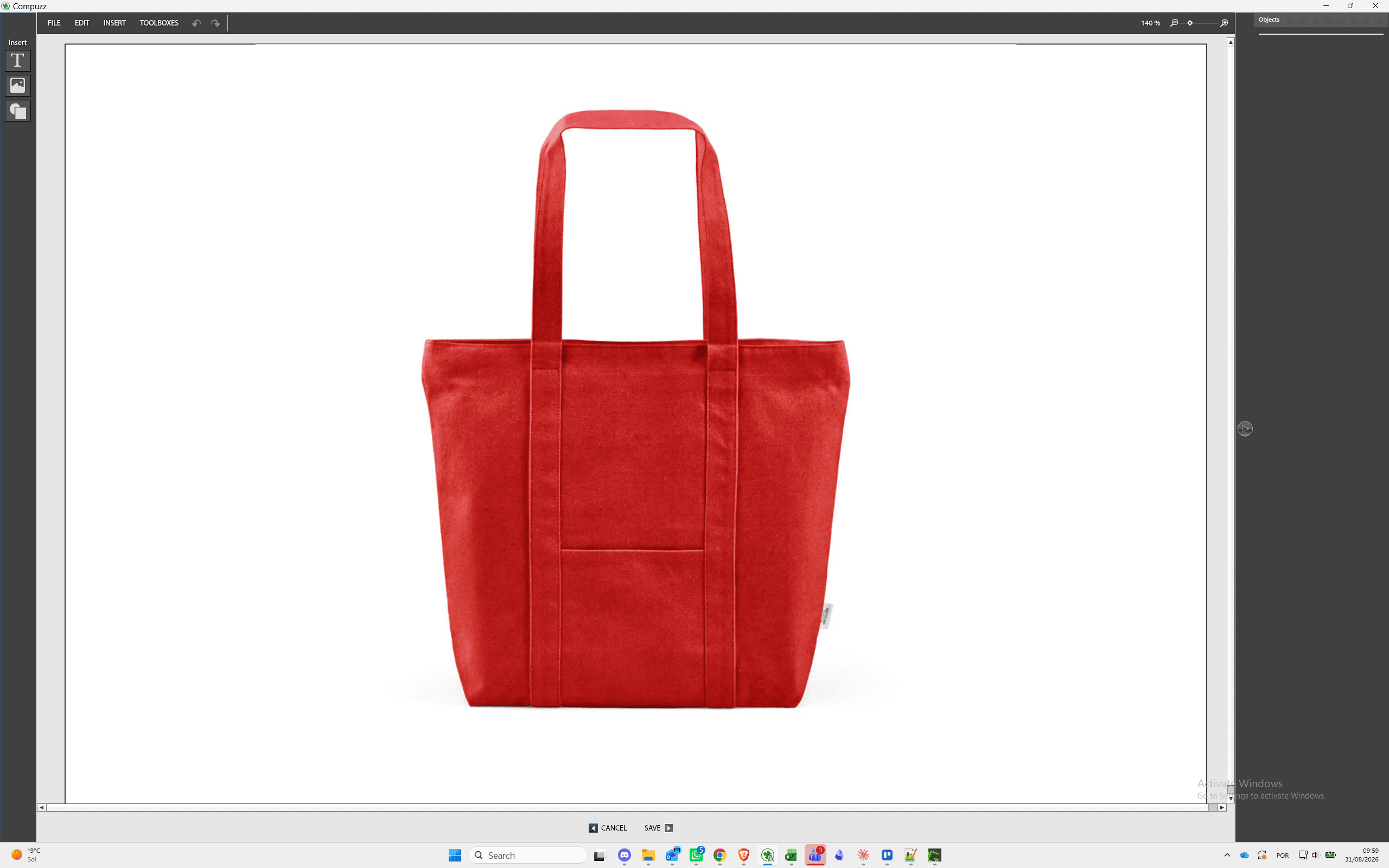
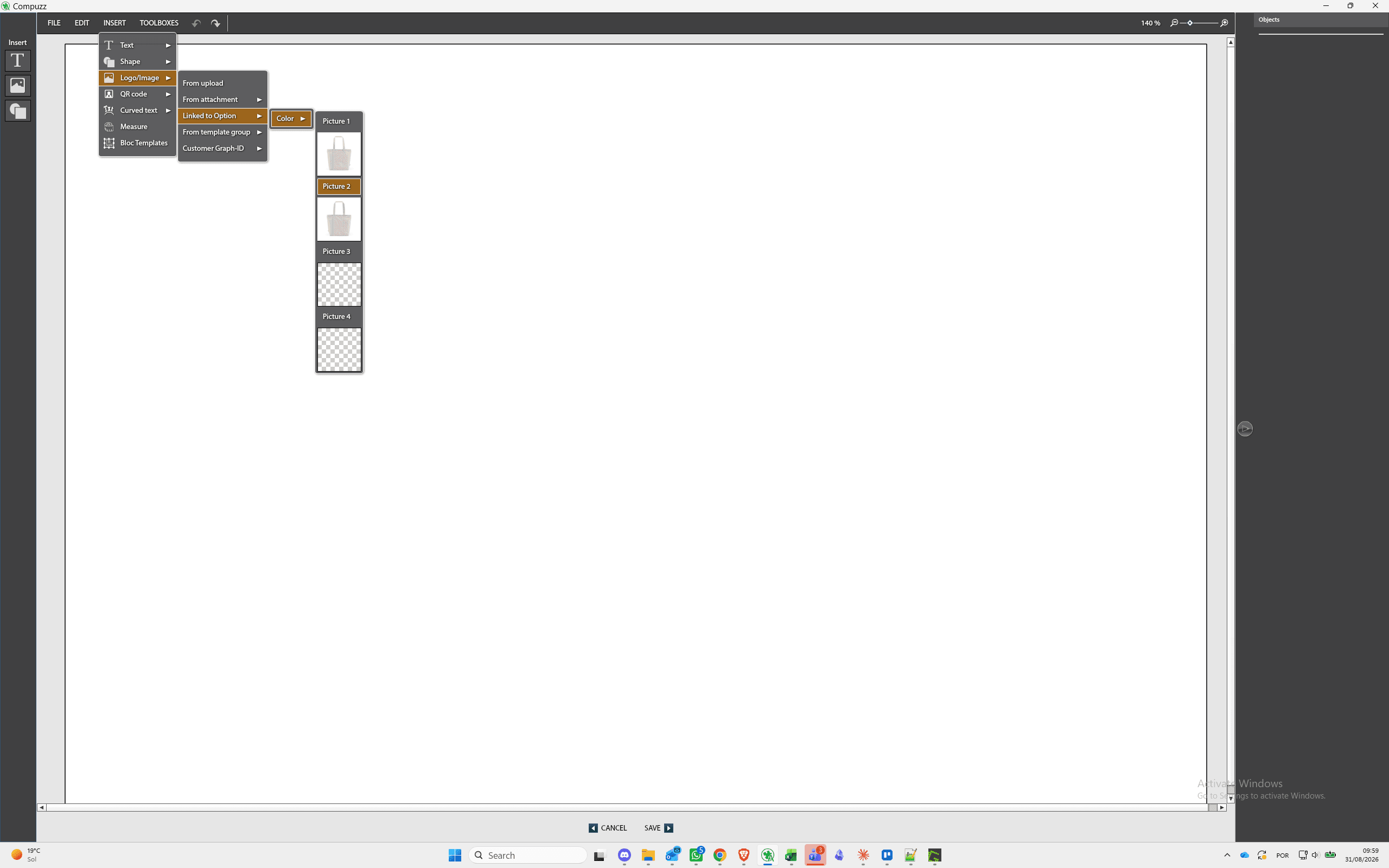
Q: Why do I need to upload two separate pictures for each option?
A: Slot 1 and Slot 2 represent different product views (such as front and back). Uploading both allows VR Pictures templates to dynamically generate all rendering angles for each color variant.
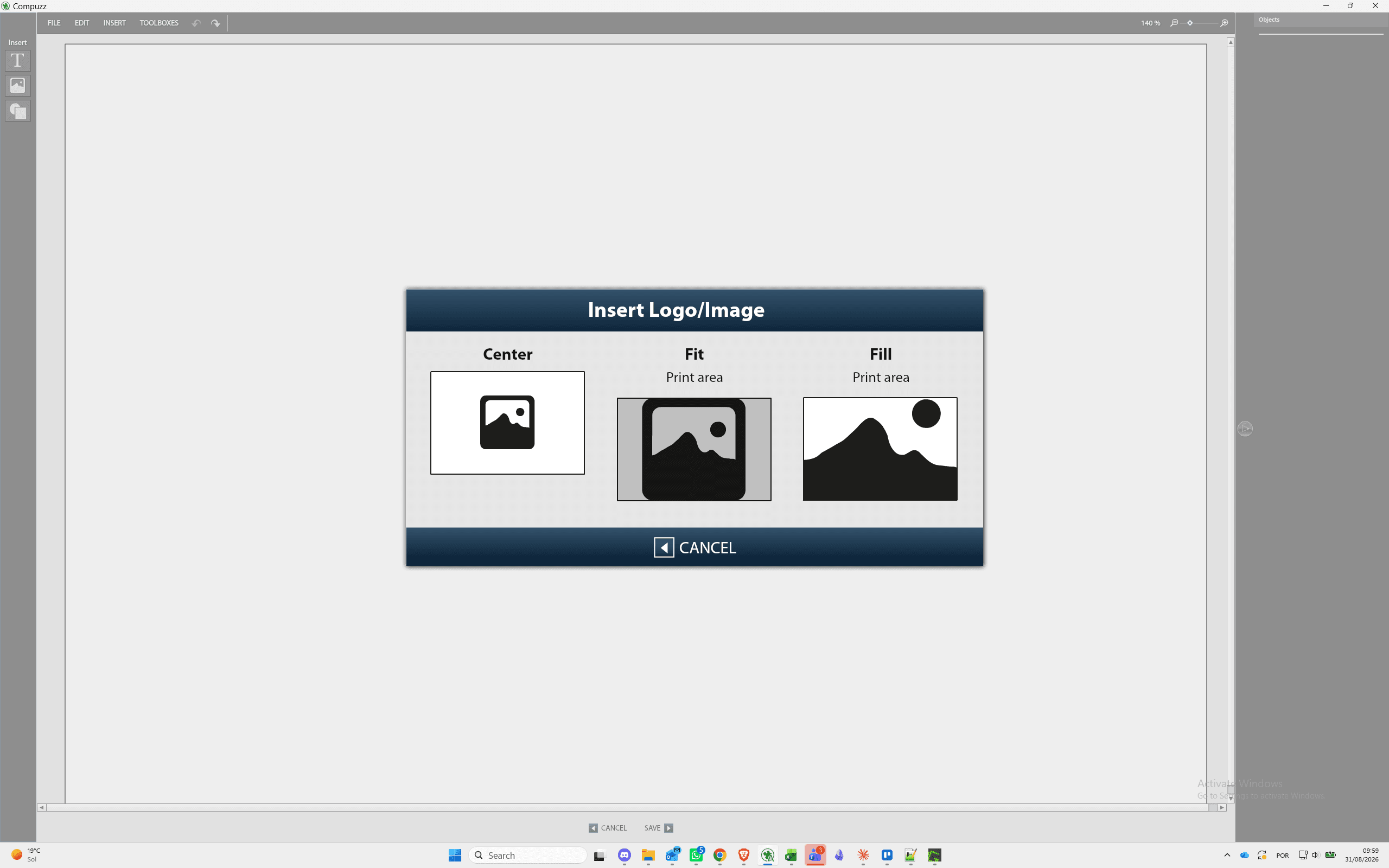
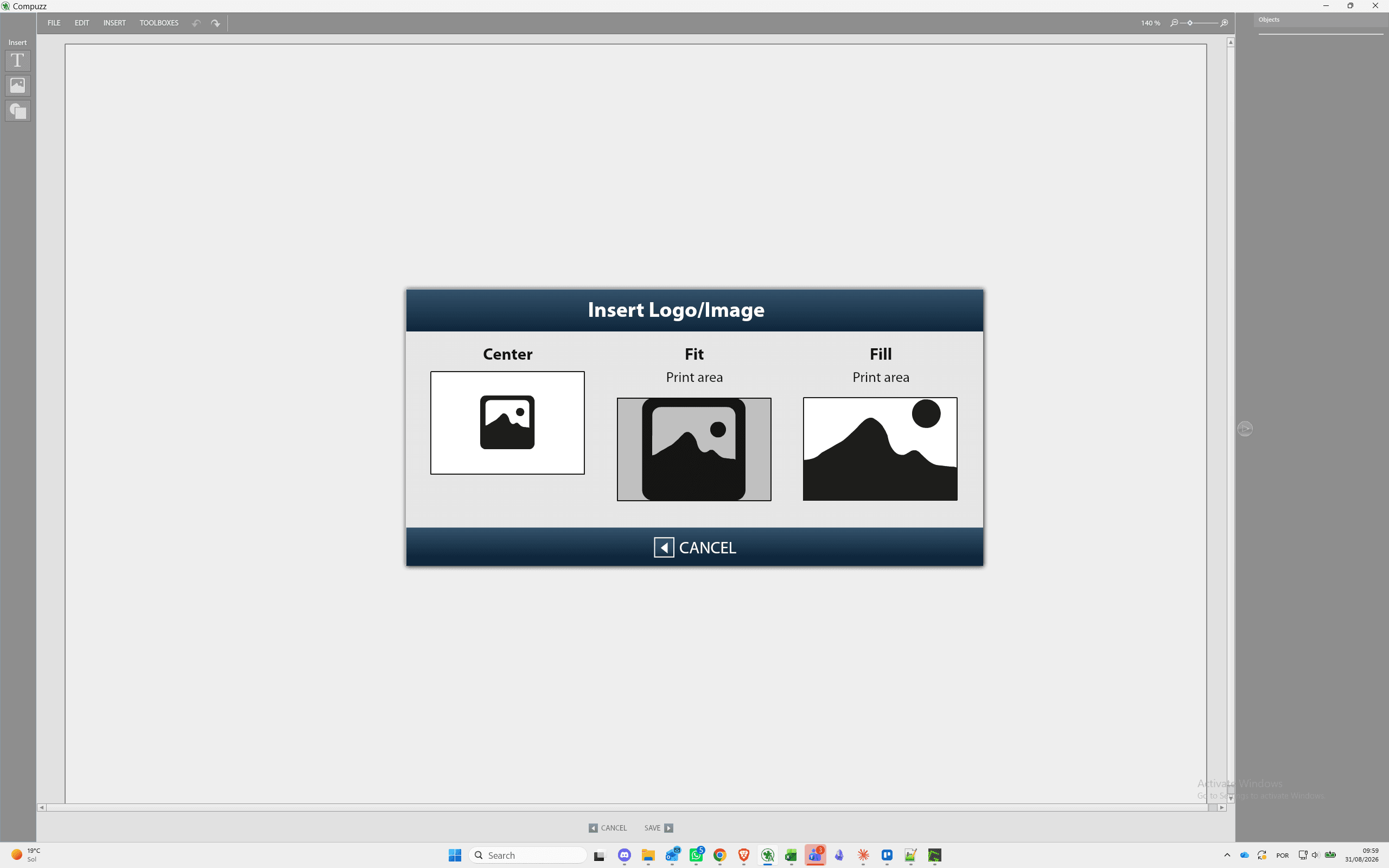
Q: What does the "Fit" option do when inserting a linked picture?
A: It automatically scales and fits the variant option image to match the dimensions of the VR picture canvas.
Term | Definition |
|---|---|
VR Pictures | Virtual rendering templates that dynamically display product images and imprint previews. |
Linked to Option | A mapping feature in Compuzz that dynamically binds template image slots to specific product variant options like color. |
Option Category | A grouping of product attributes (such as color or size) that define selectable item variants. |