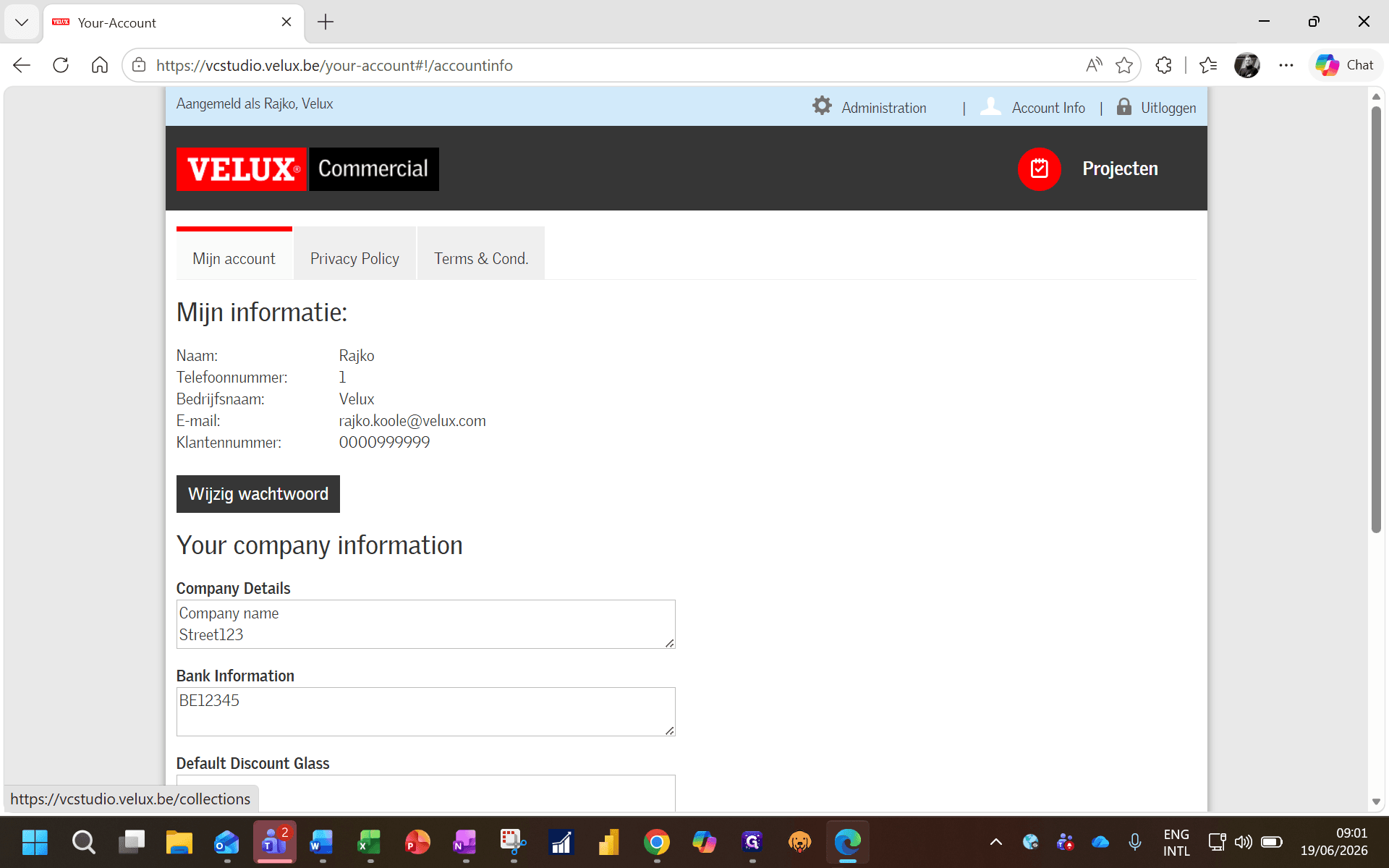
Configure Your Account Information in VC Studio
Learn how to set up your company details, bank information, and default payment terms to ensure accurate customer proposals.
By Rajko Koole
This guide explains how to configure your account information so that your company details and bank information display correctly on proposals sent to customers.
This process applies to new users who have recently gained platform access and need to set up their account profile before creating their first project.
After logging in for the first time, take a moment to add your company details and financial defaults so your proposals look professional and include the correct payment details.
1
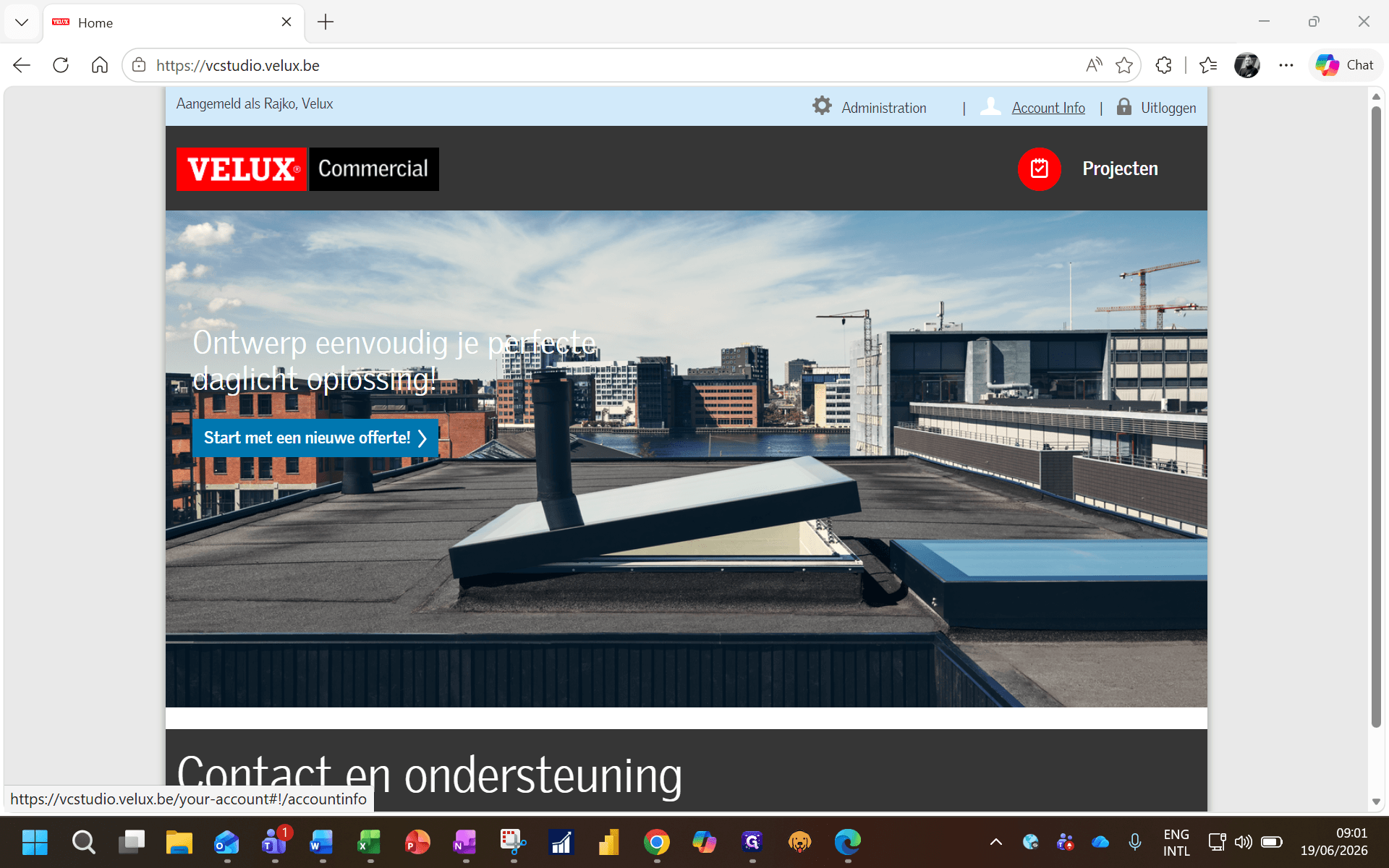
Click Account Info in the top navigation bar.
2
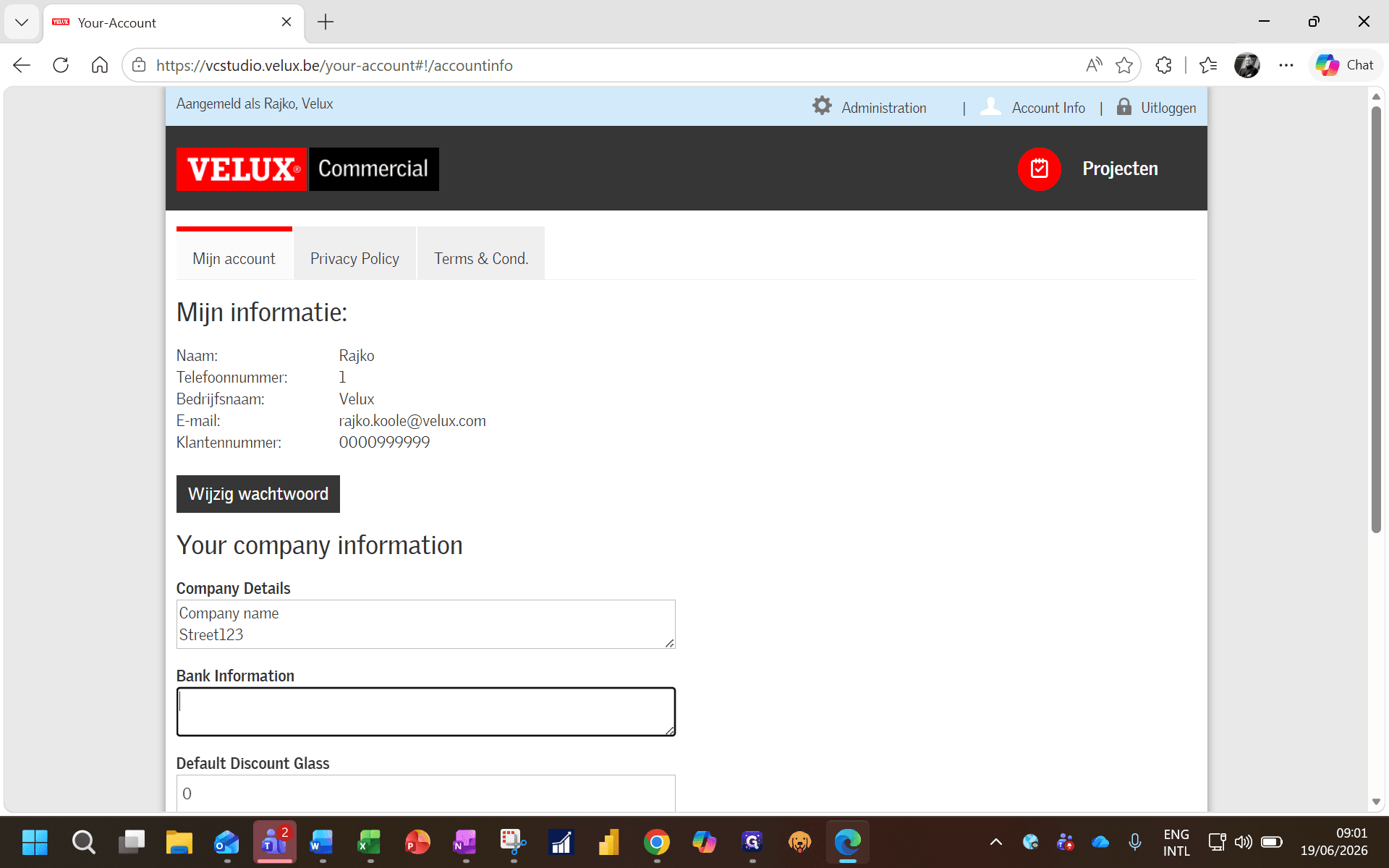
Enter your company name and street address in the company details section.
3
Enter your bank account details in the Bank Information field.
4
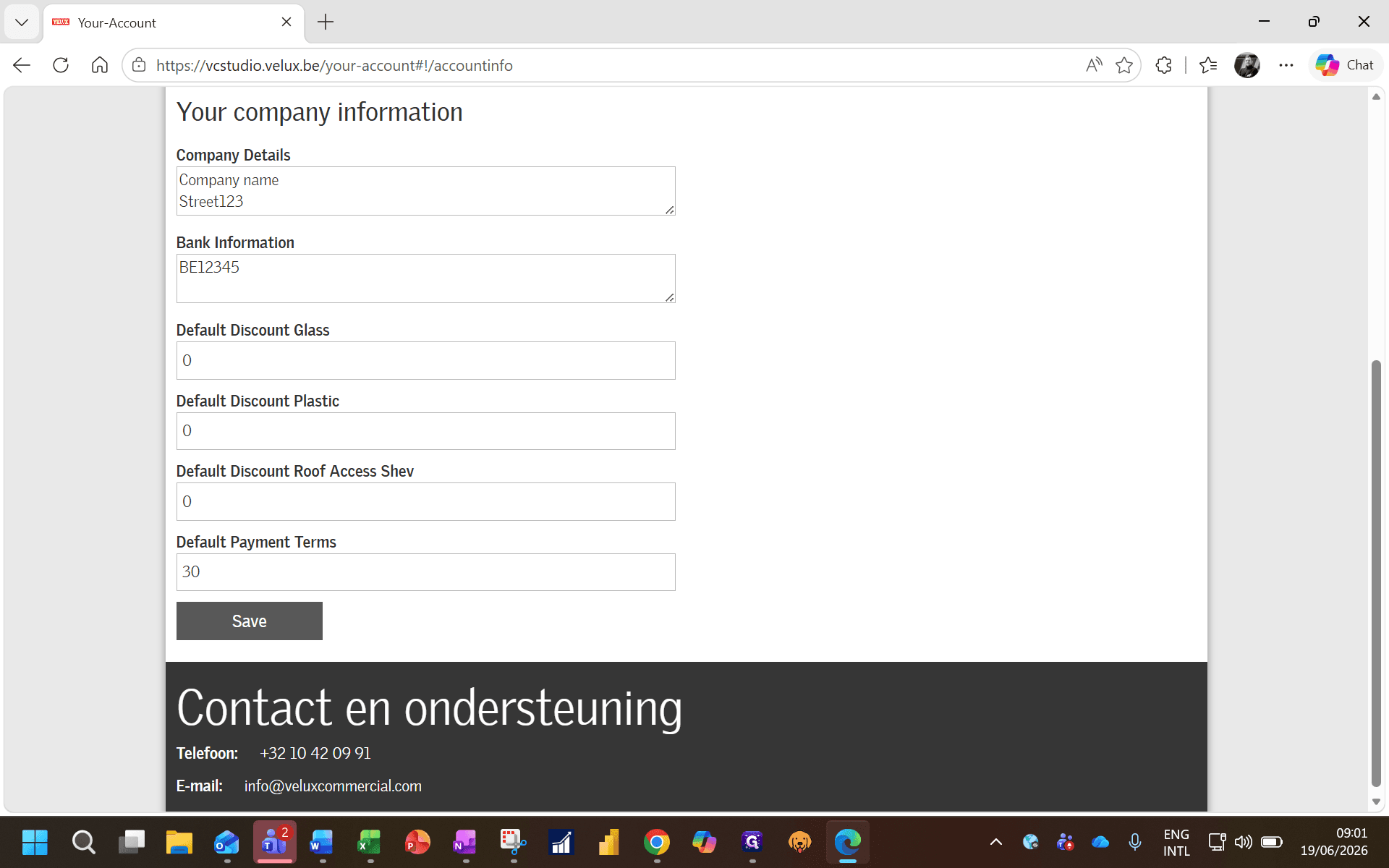
Scroll to the bottom of the page and enter your default payment terms, such as 30 for 30 days net.
5
Click Save to apply the changes to your profile.
6
Click Projects in the navigation bar to exit the settings and start building your first proposal.