Configure and Activate a Legal Scraping Source
Learn how to configure extraction instructions, preview scraping results, and activate a newly approved legal source.
This guide explains how to configure extraction instructions for an approved data source and activate it so that it automatically scrapes relevant legal documents on a schedule.
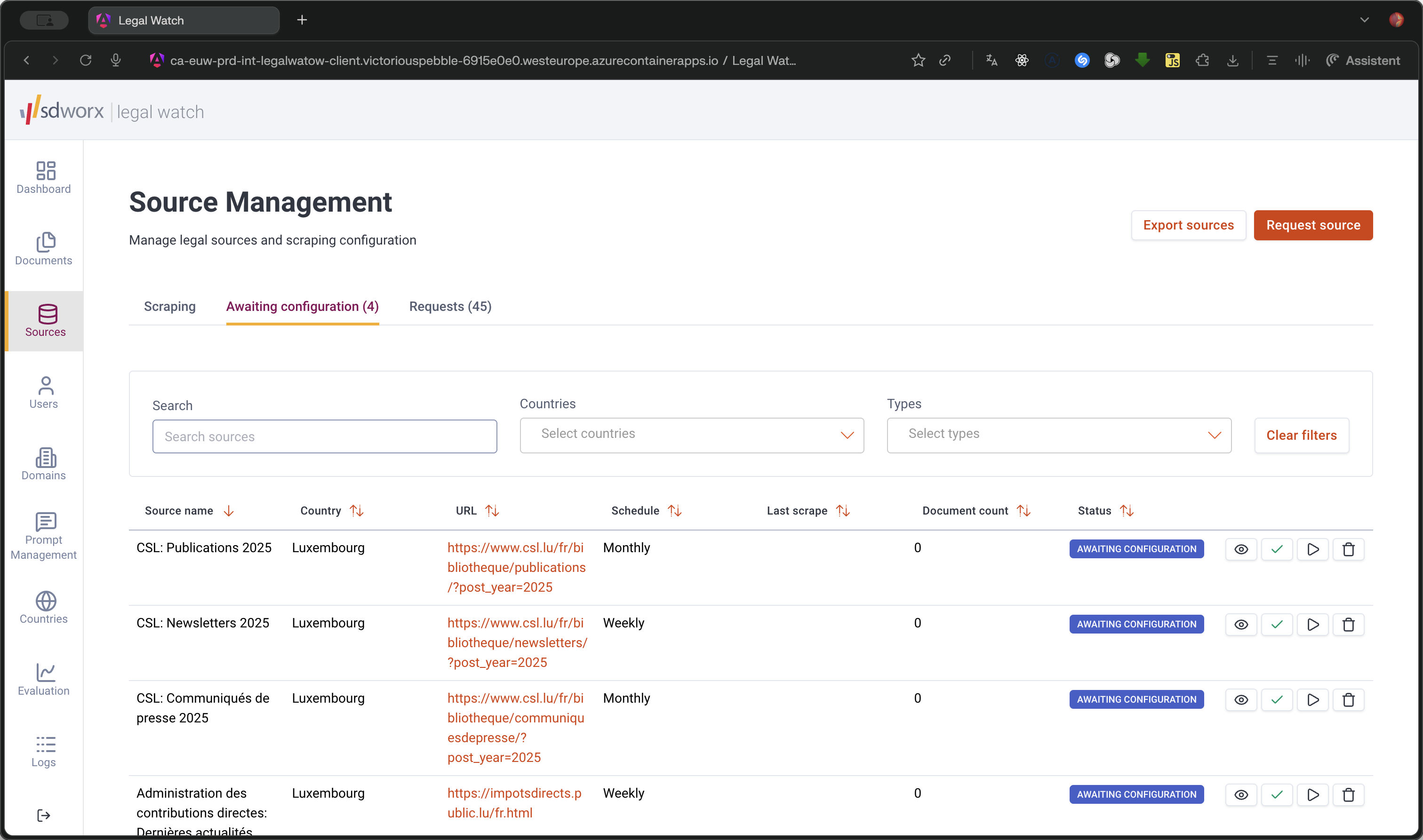
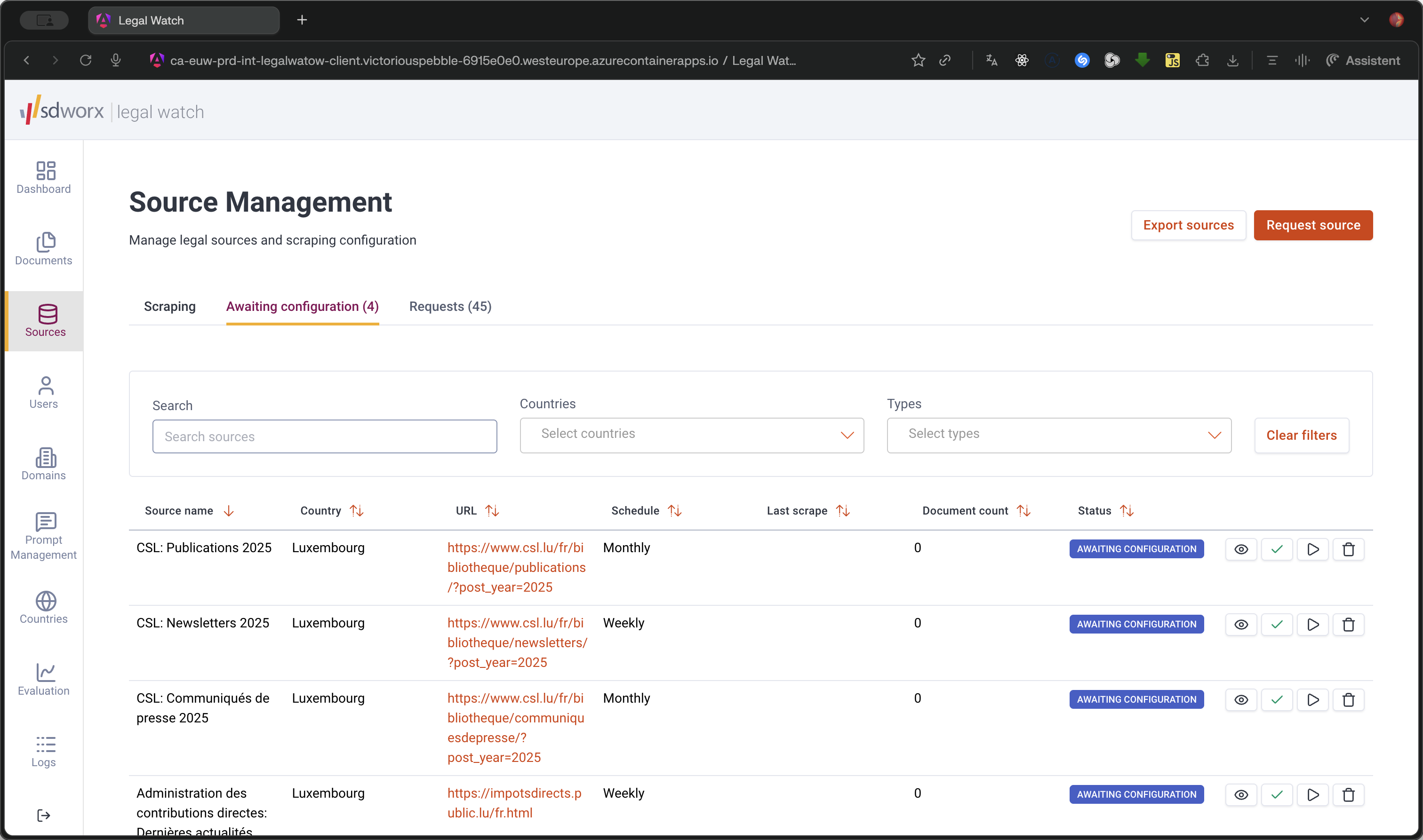
This workflow applies to Country Admins who need to process newly approved sources waiting in the configuration queue.
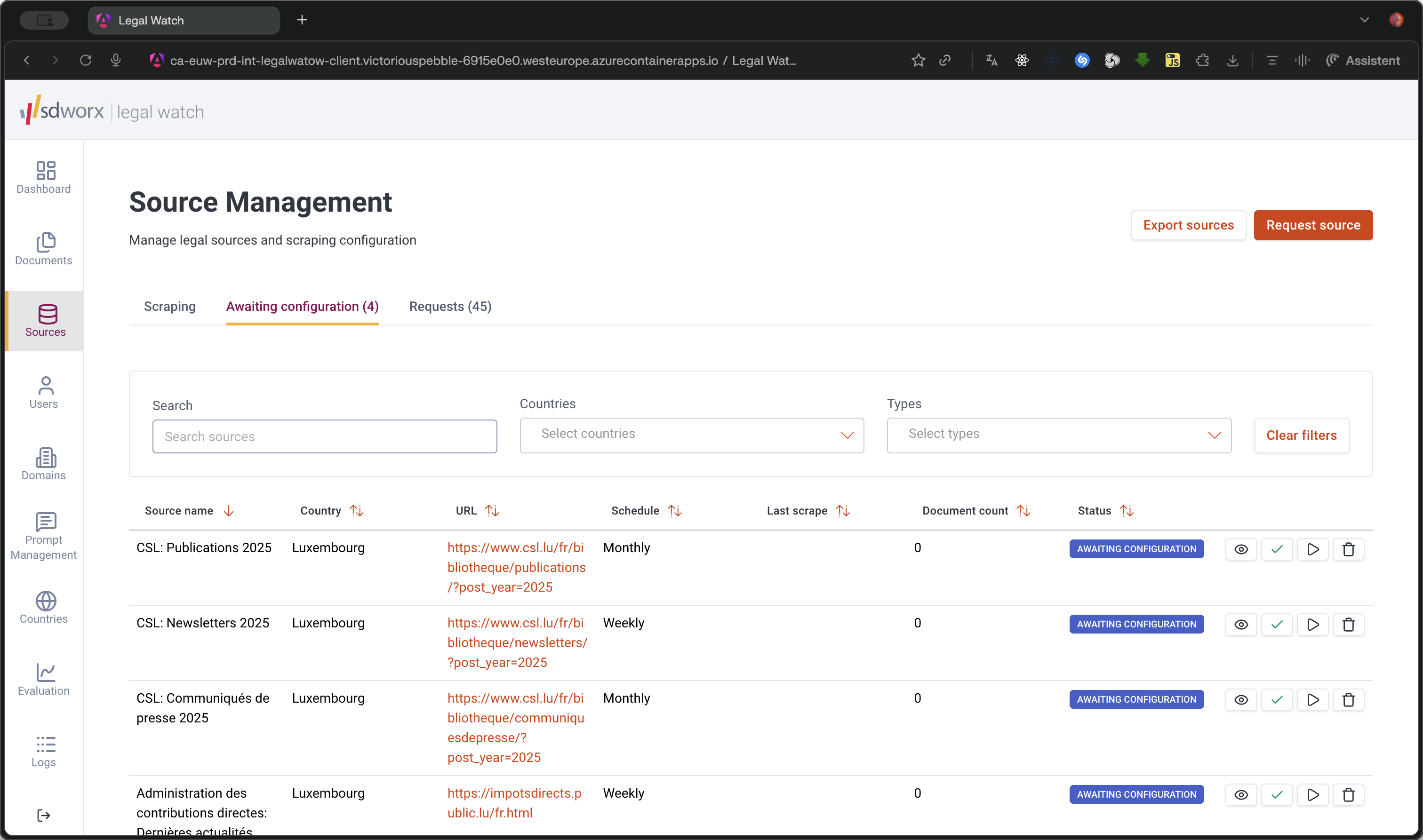
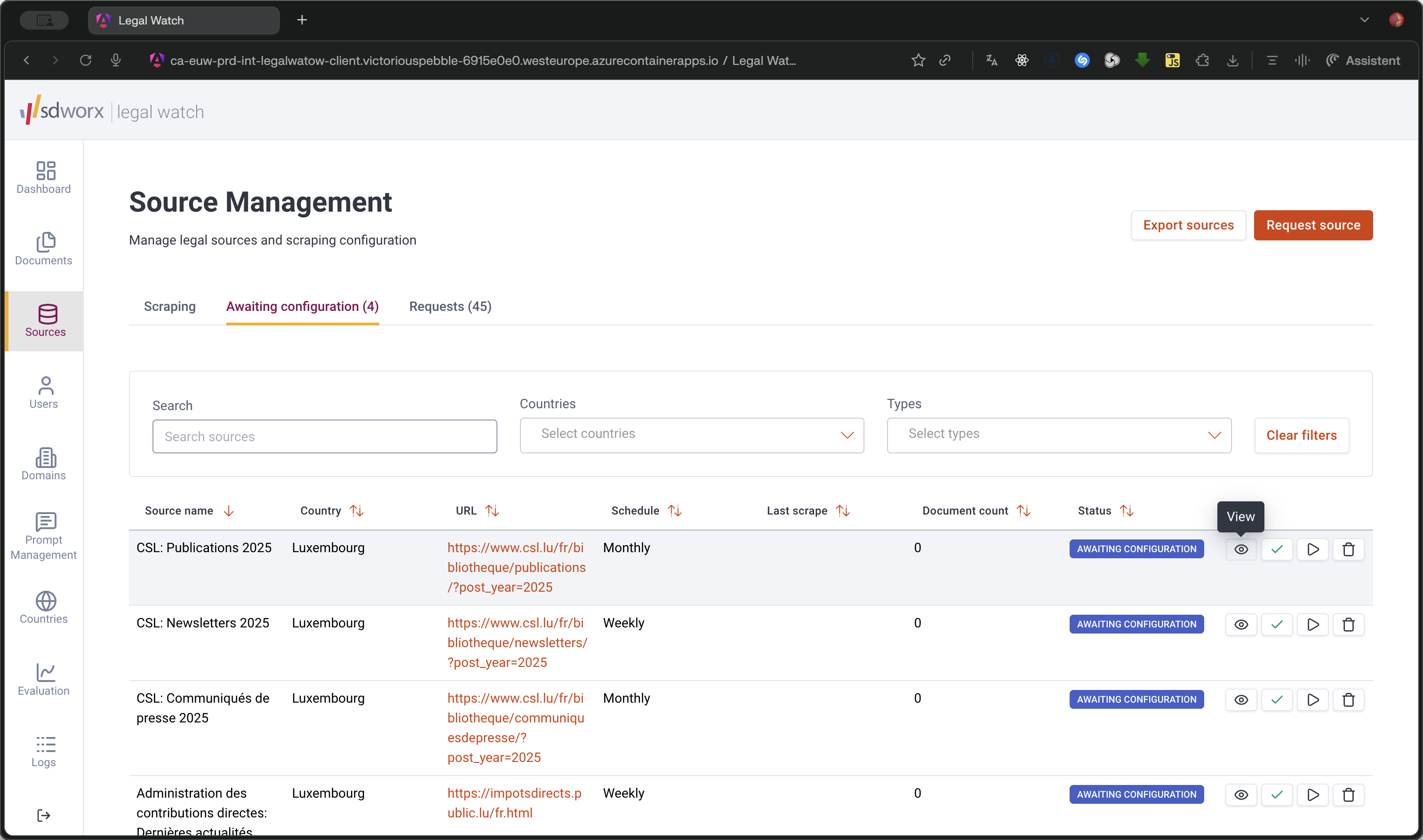
Configure Instructions
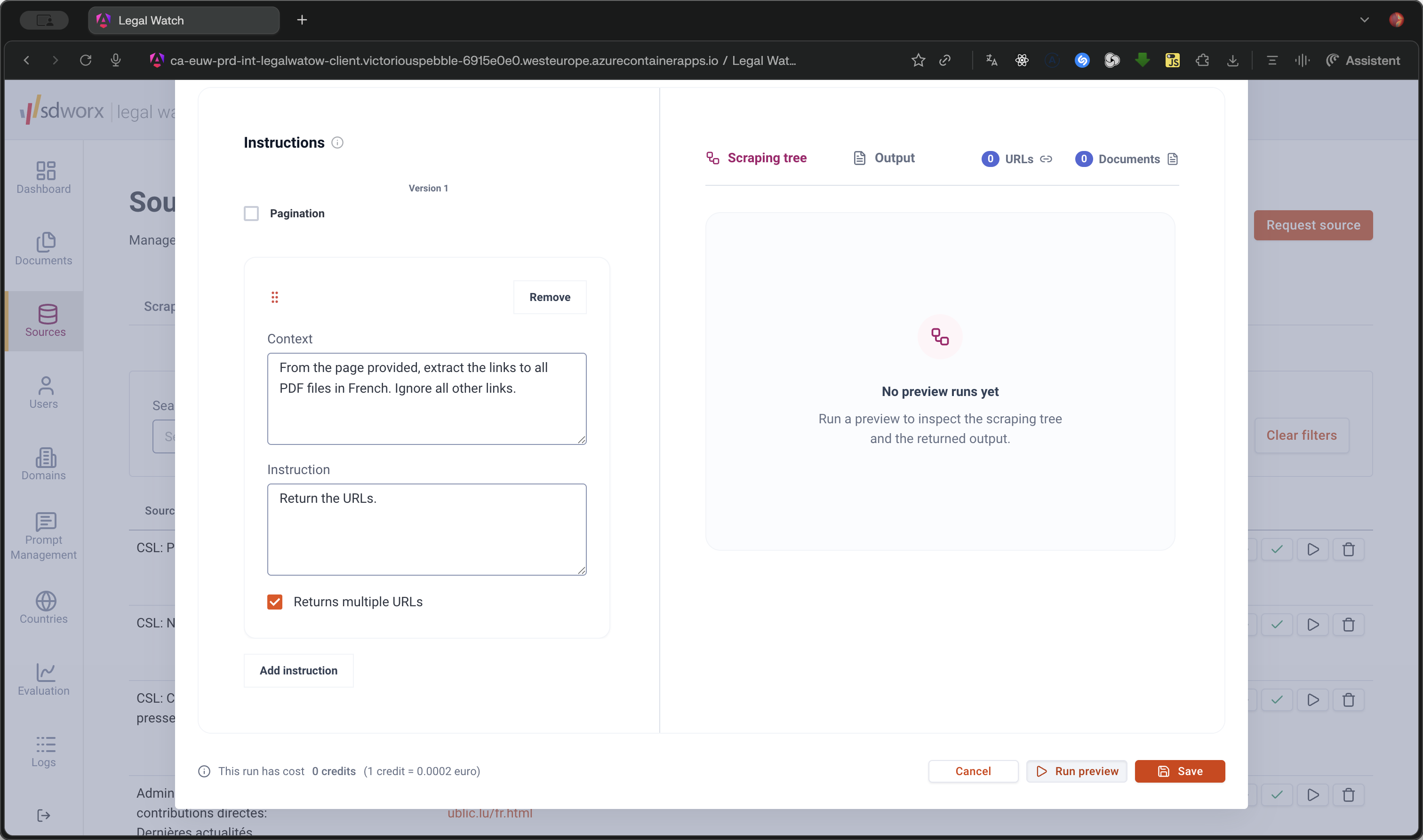
To ensure the correct data is extracted, define your scraping rules and run a preview.
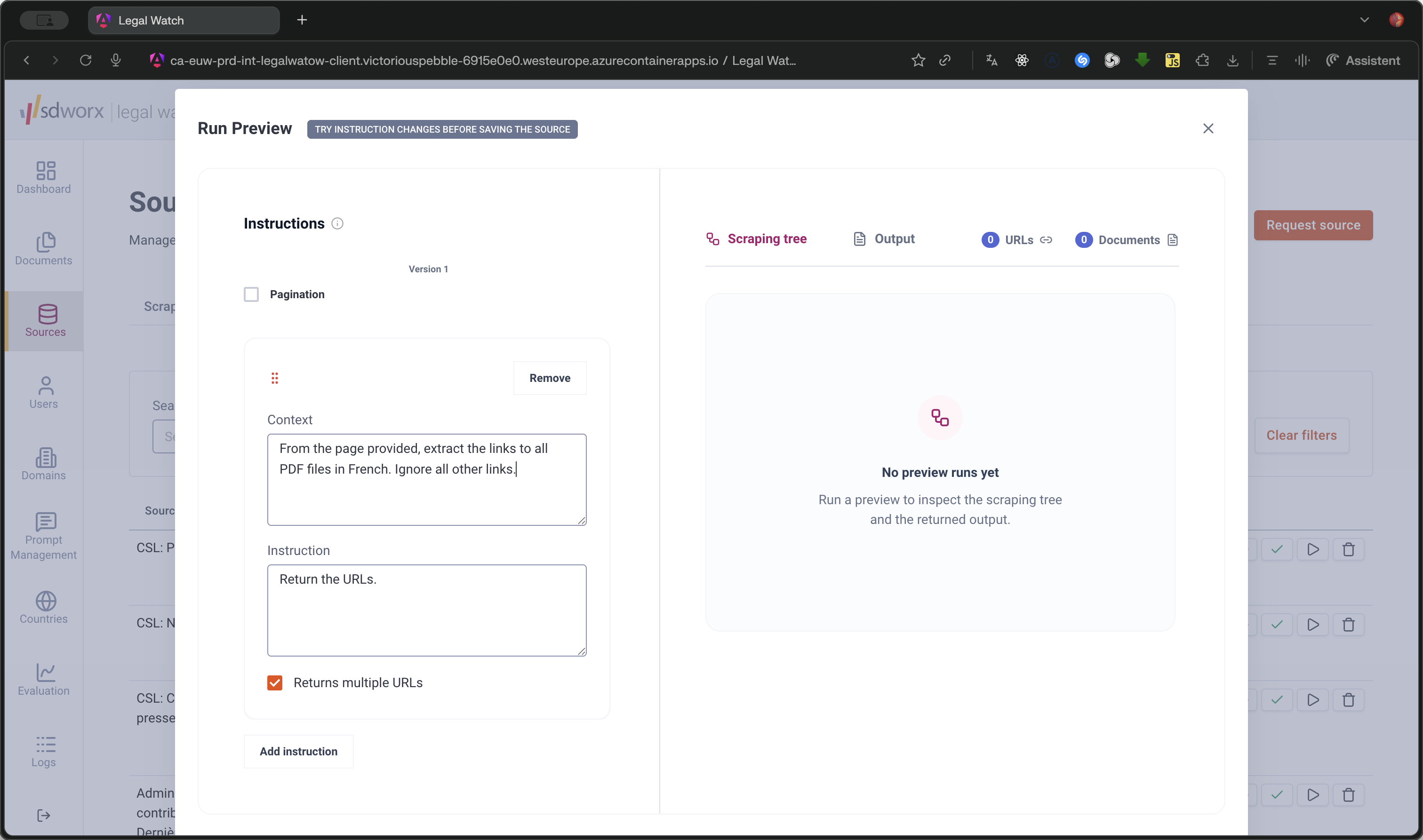
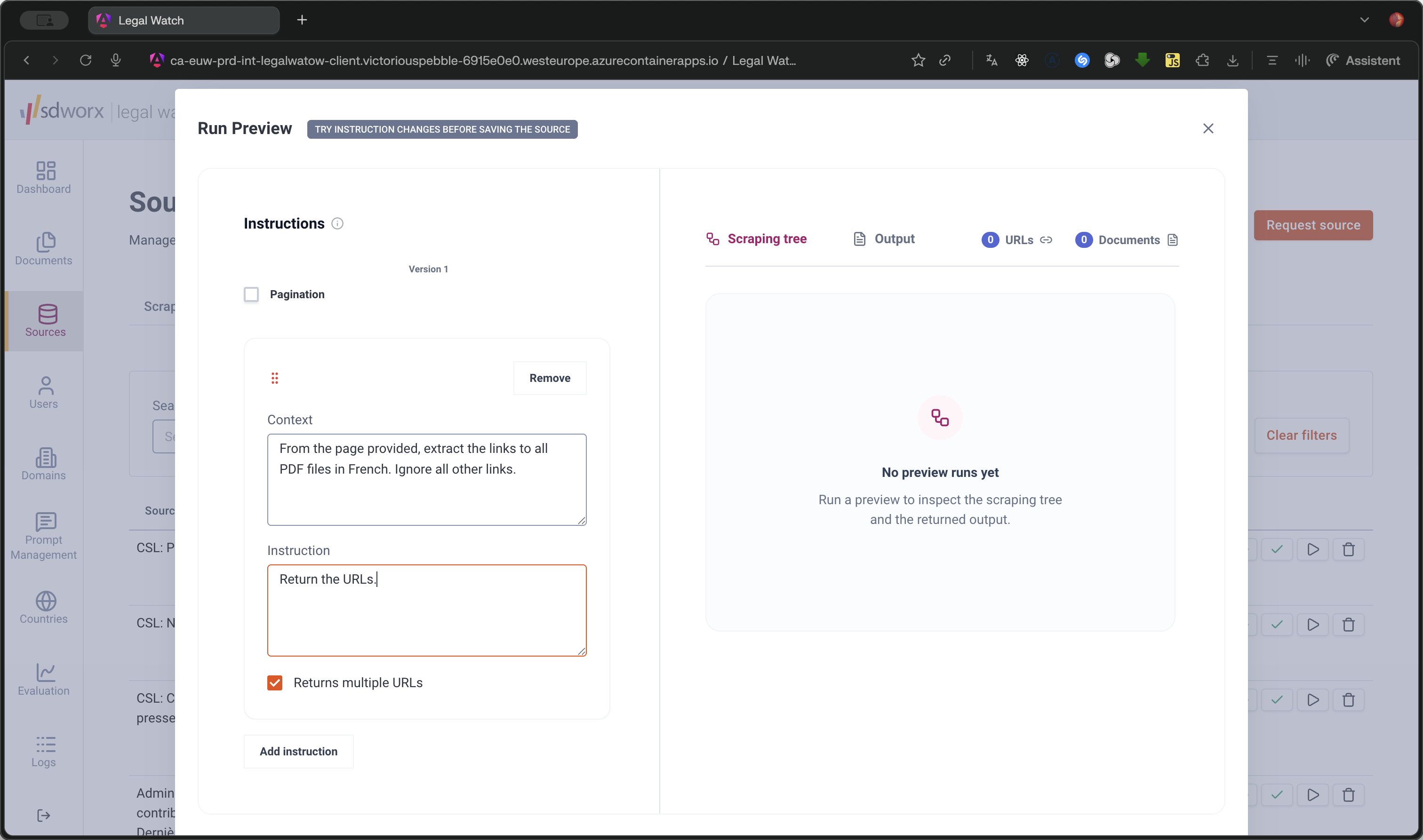
Review the Output
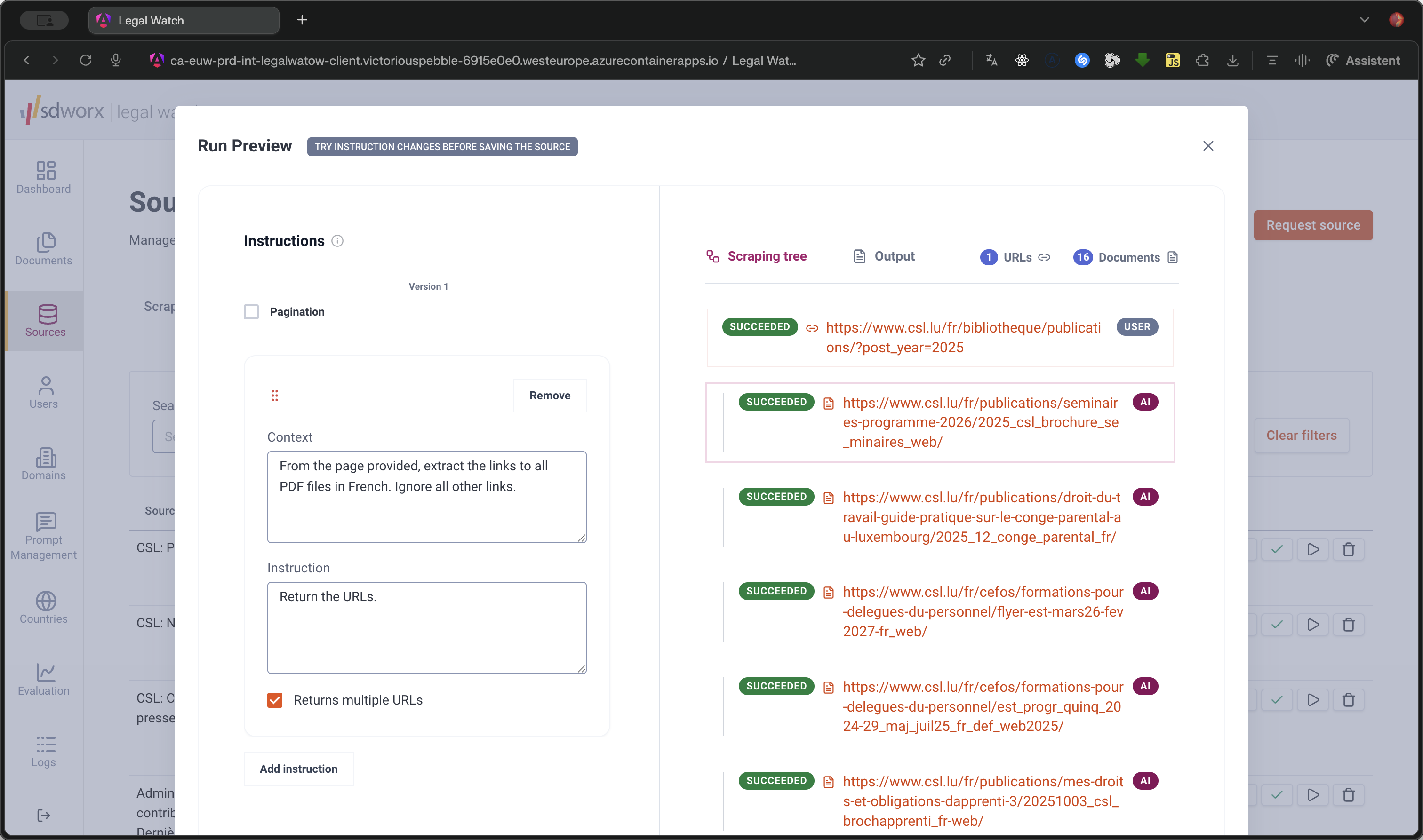
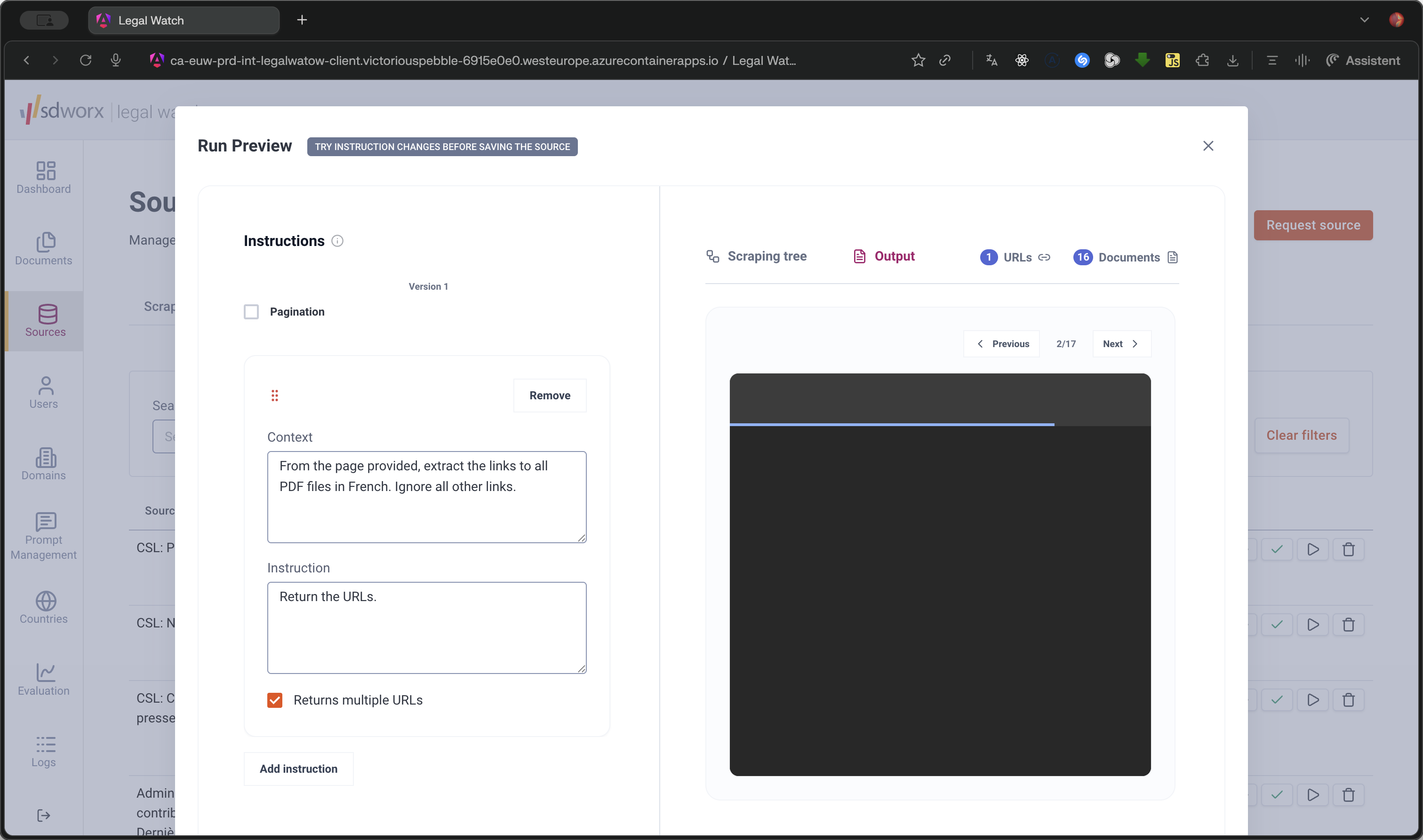
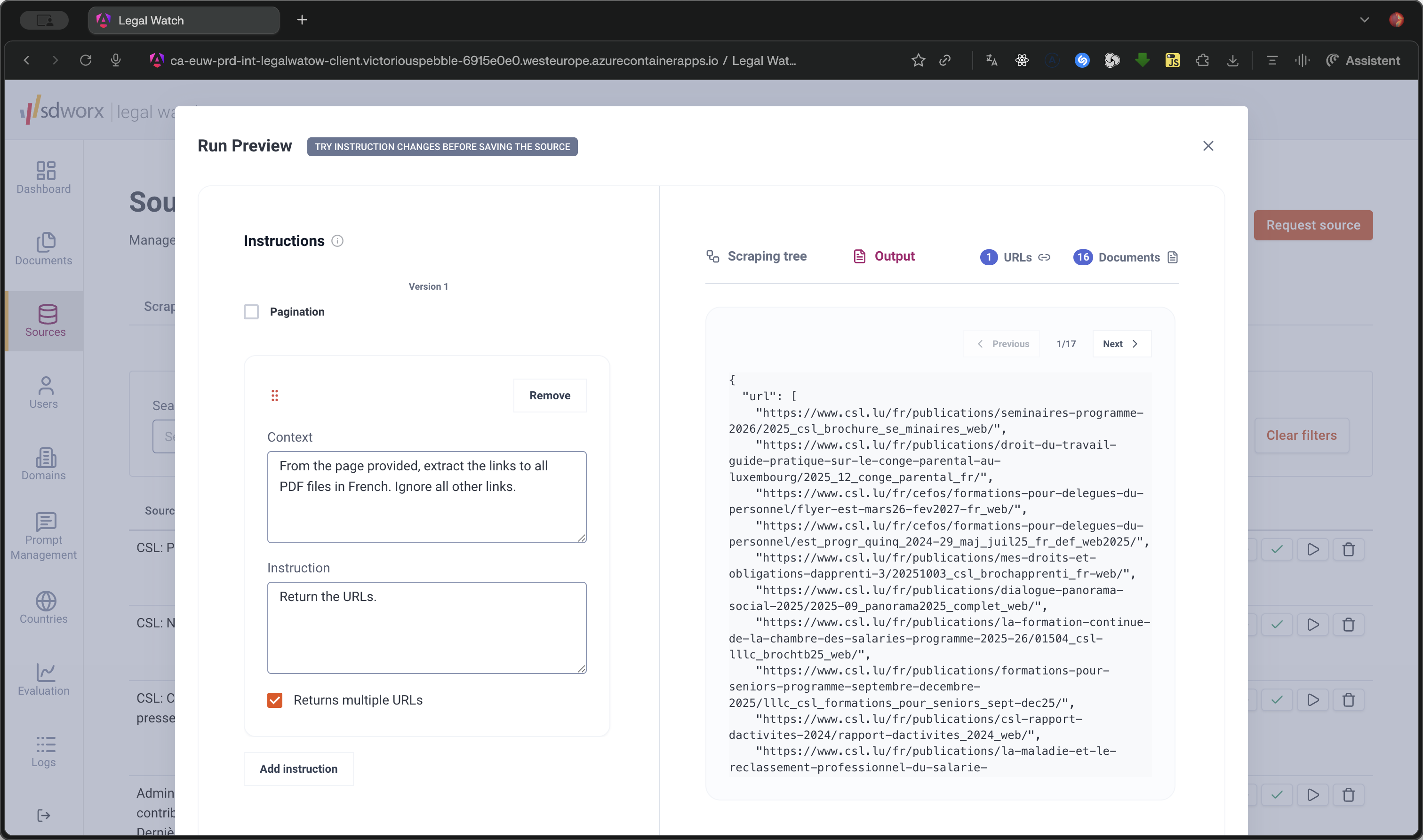
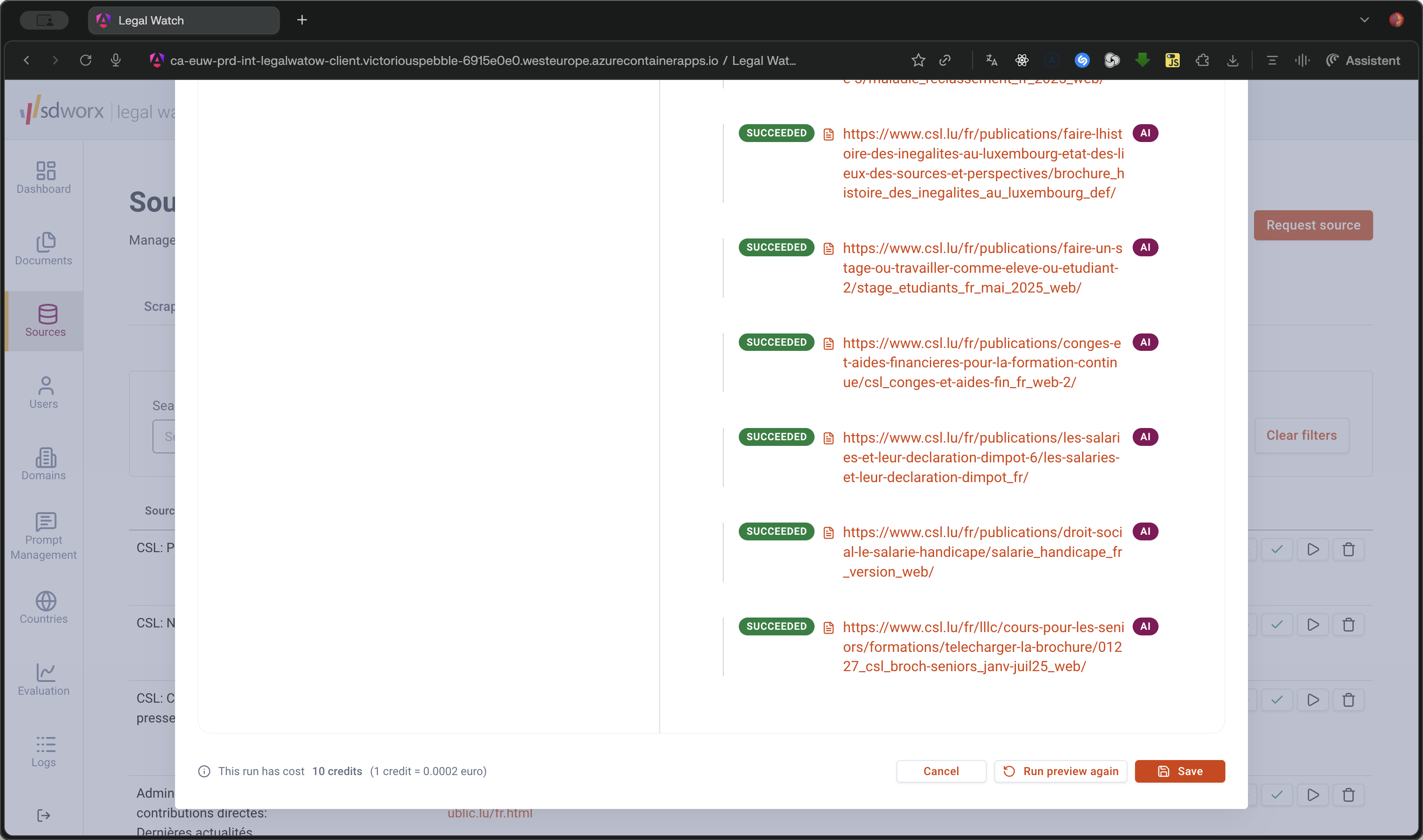
Once the preview finishes loading, verify that the scraper correctly identified the desired elements.
Save and Activate
Q: What happens if I exit without saving my instructions?
A: If you cancel without saving, all progress on your configured instructions will be permanently lost.
Q: Where do approved sources go before they are set up?
A: Once a legal expert approves a requested source, it moves to the Awaiting Configuration tab until a Country Admin configures and activates it.
Q: How do I distinguish between documents and links in the preview?
A: In the Scraping tree, each extracted element displays a specific indicator icon that identifies it as either a document or a URL link.
Term | Definition |
|---|---|
Scraping tree | A hierarchical preview displaying the URLs and documents successfully extracted during a preview run. |
Run preview | A test pipeline execution that scrapes and analyzes a source to display the expected output of your extraction instructions. |