Configure APM Insight .NET Agent for Cloud Instances
Learn how to configure the APM Insight .NET Agent to start reporting metrics for a cloud instance to the Site24x7 dashboard.
By Josh Frazier
Configure the Application Performance Monitor (APM) for a cloud instance to start reporting metrics to your Site24x7 dashboard.
Open the Agent Configuration
1
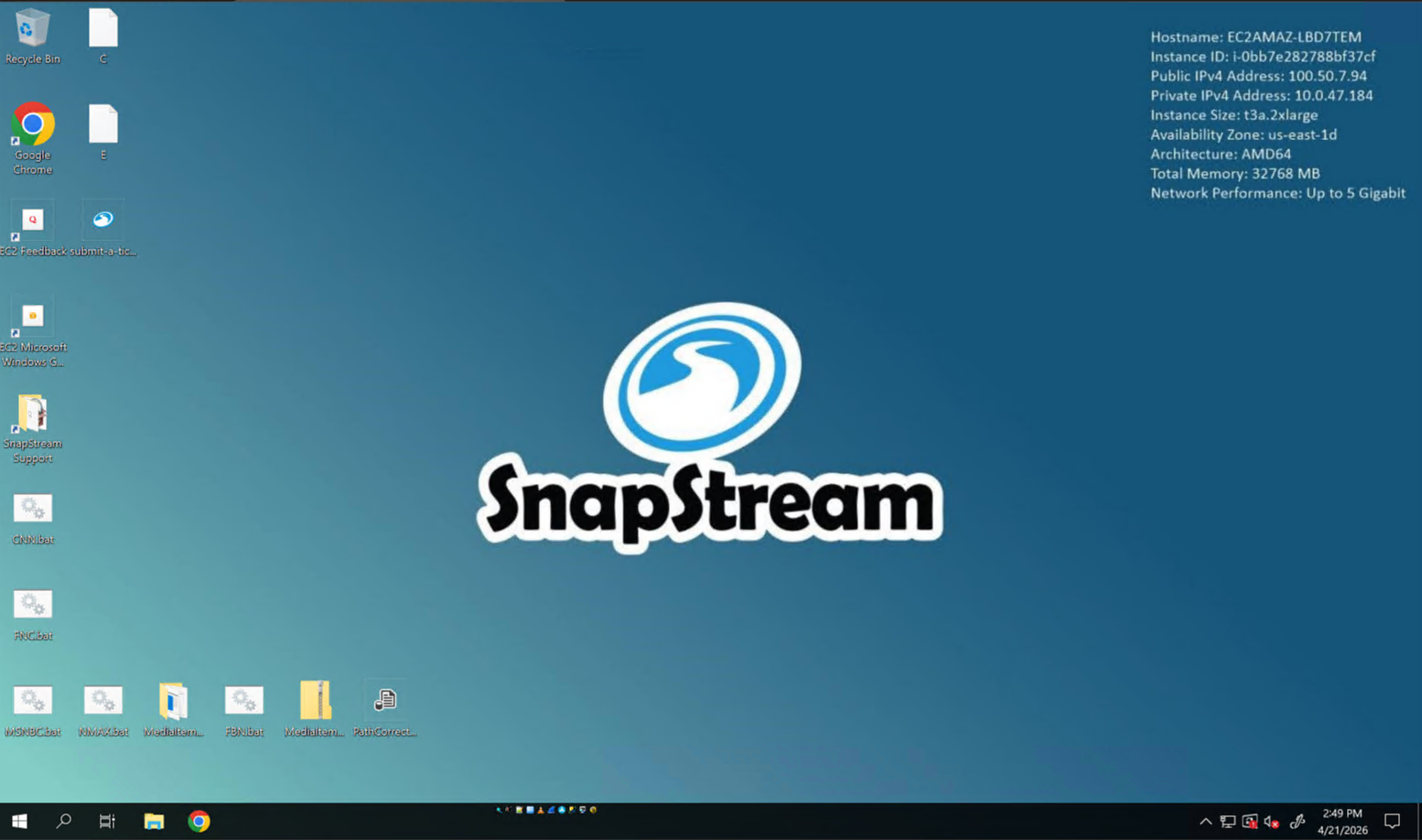
Open the Windows Start menu.
2
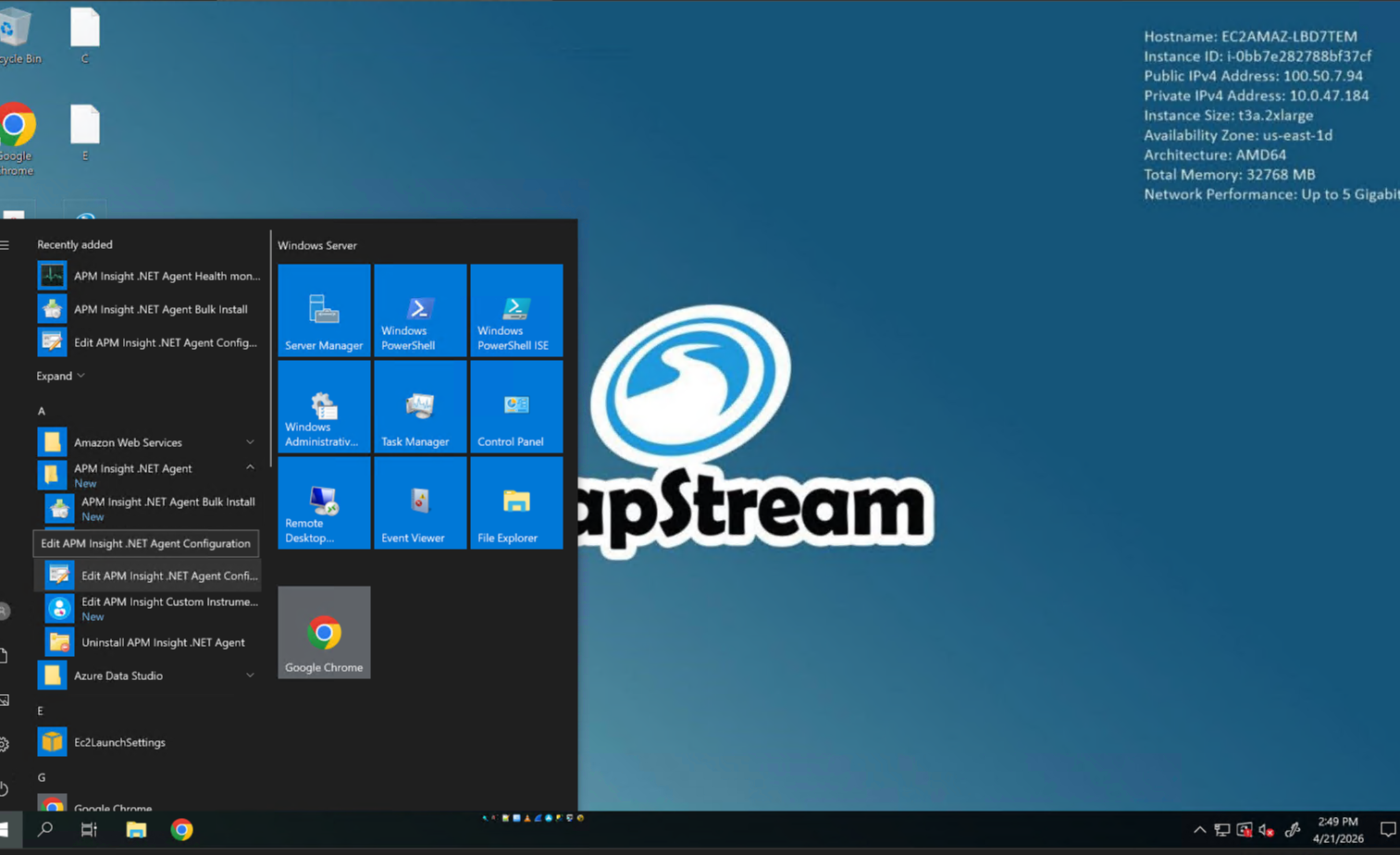
Locate the APM Insight .NET Agent folder and click Edit APM Insight .NET Agent Configuration.
Configure Applications and Services
3
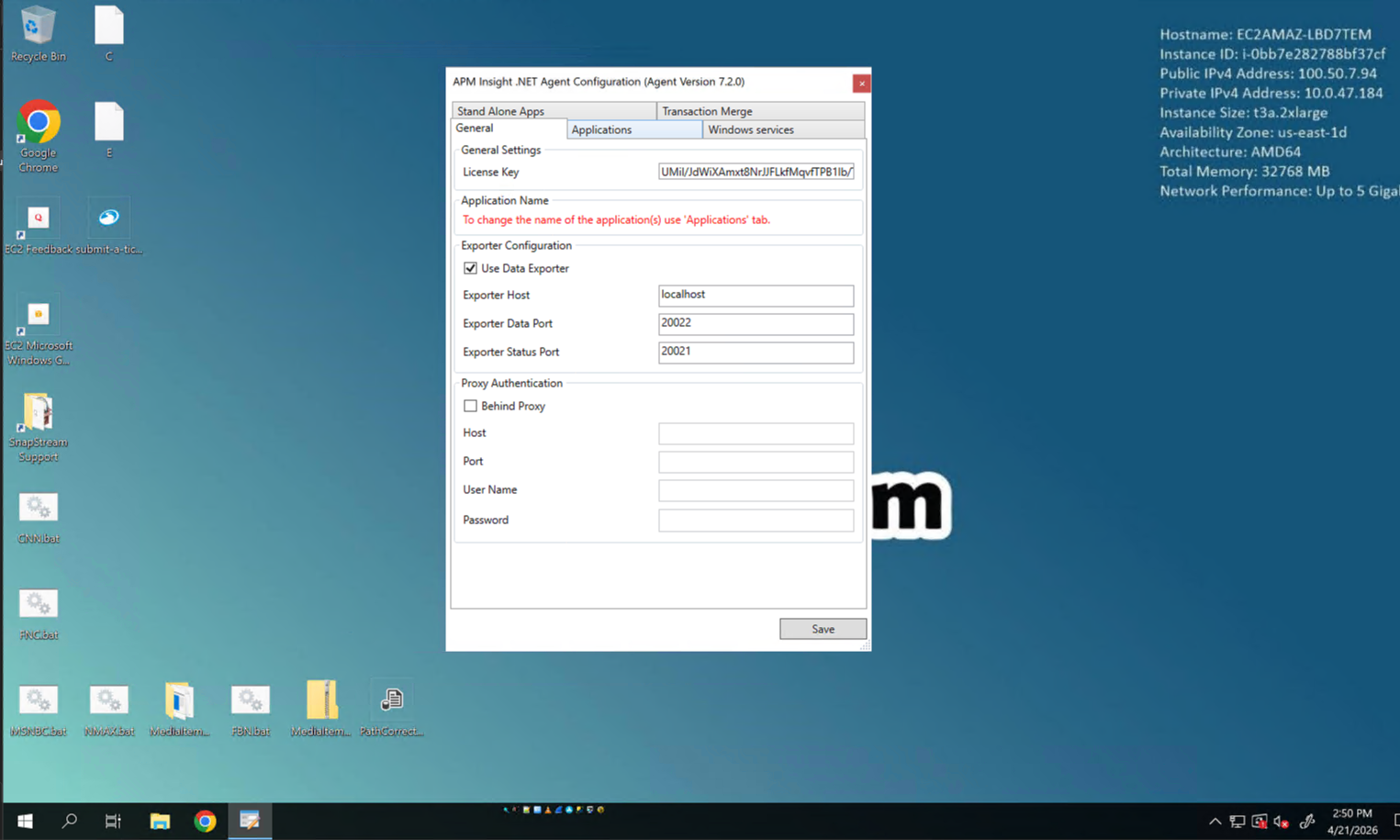
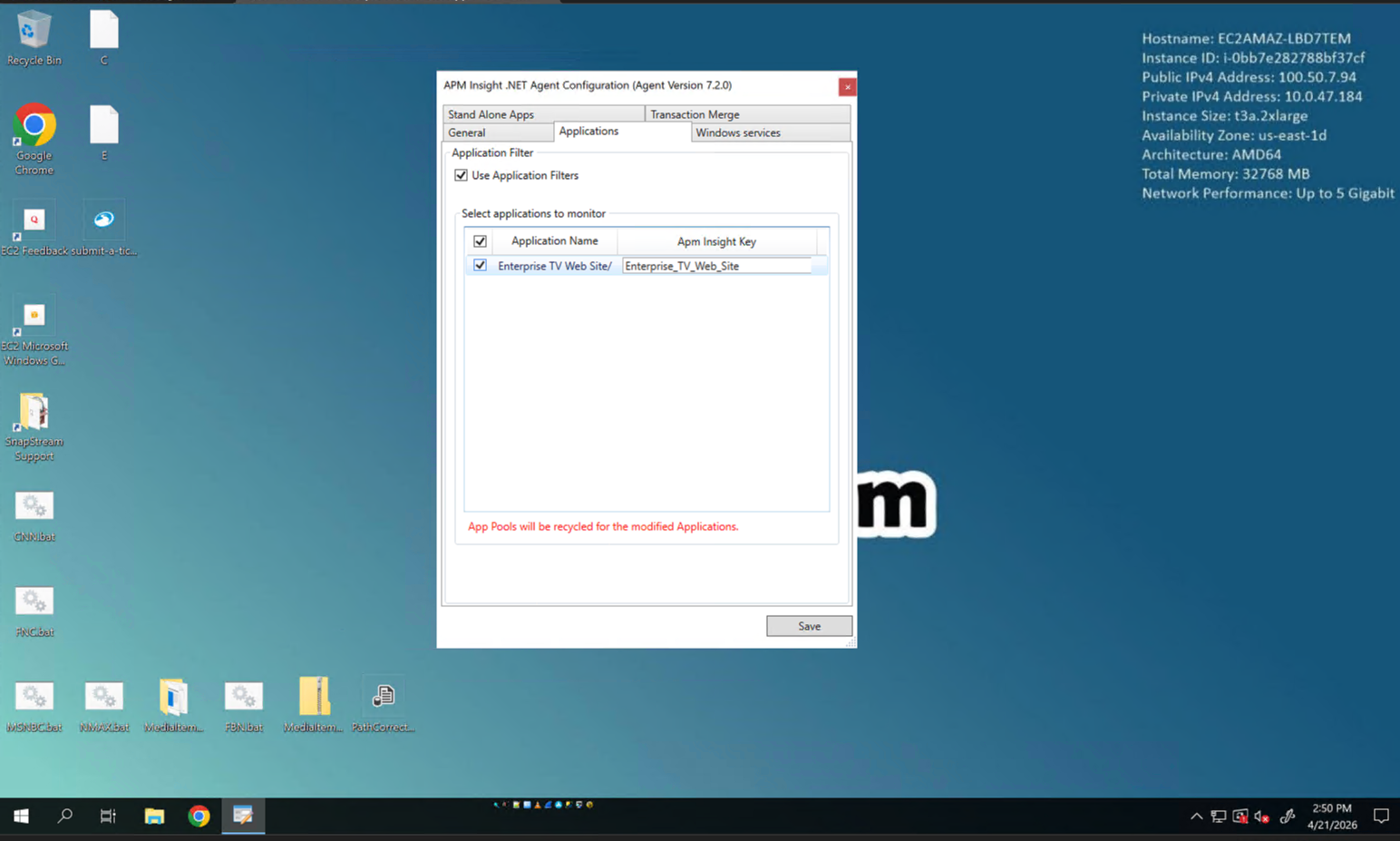
Navigate to the Applications tab.
4
Verify that the Enterprise TV Web Site checkbox is selected.
5
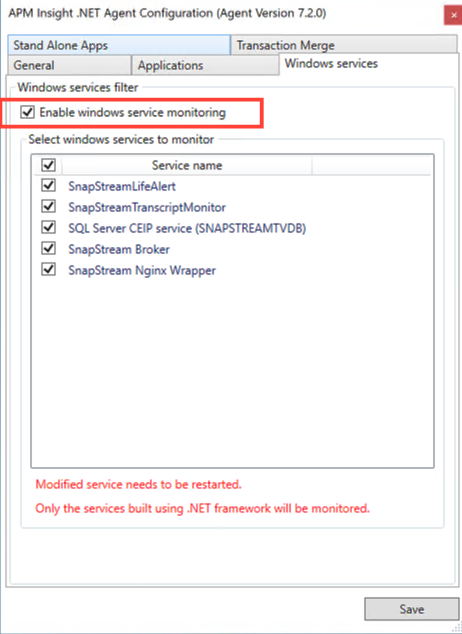
Switch to the Windows Services tab and ensure all service names have a checkmark next to them.
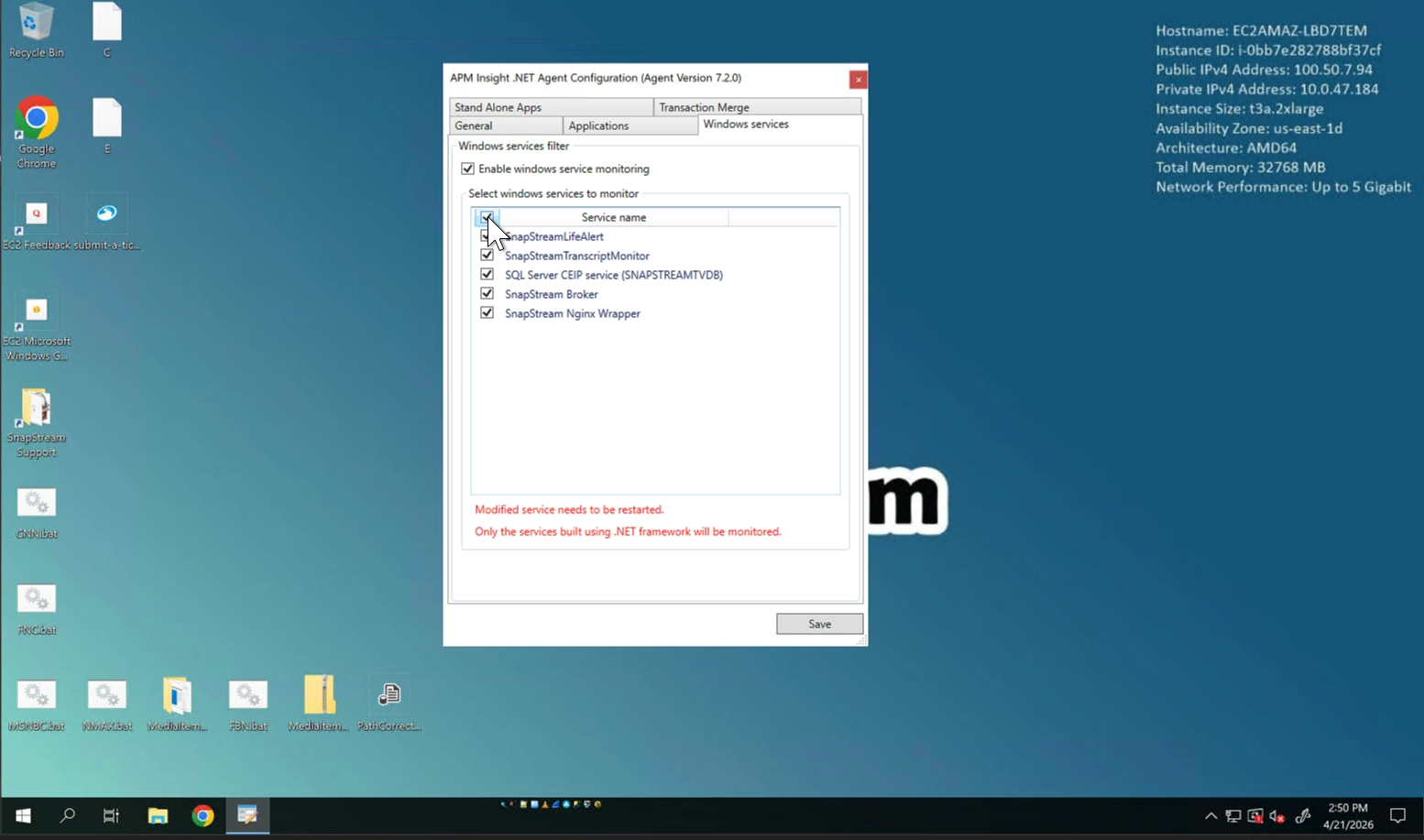
You can use the Select All option or check them individually.
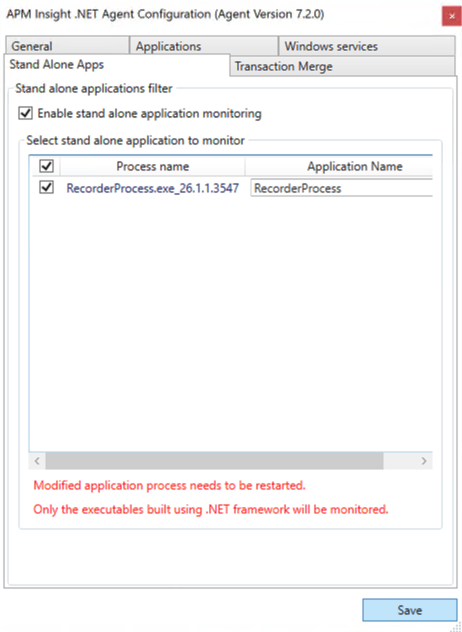
Enable Standalone Application Monitoring
6
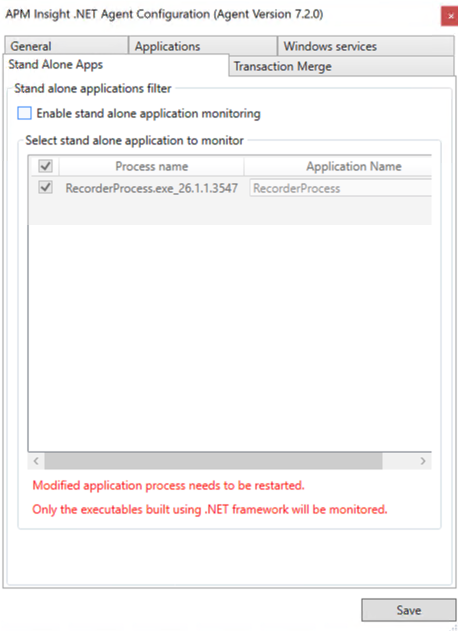
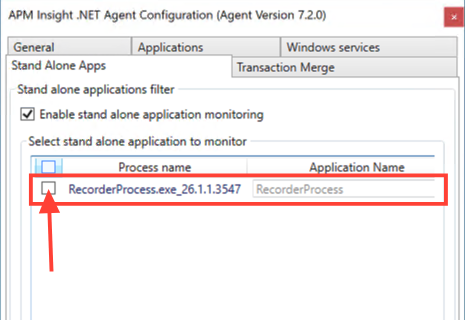
Click the Stand Alone Apps tab.
7
Check the box to Enable stand alone application monitoring.
8
Select the RecorderProcess.exe process from the list.
9
Click Save to apply your changes.