
How to Configure Prokeep Notification Sounds and Browser Permissions
Learn how to customize desktop alert sounds in Prokeep and properly configure Google Chrome site permissions so you never miss an incoming message.
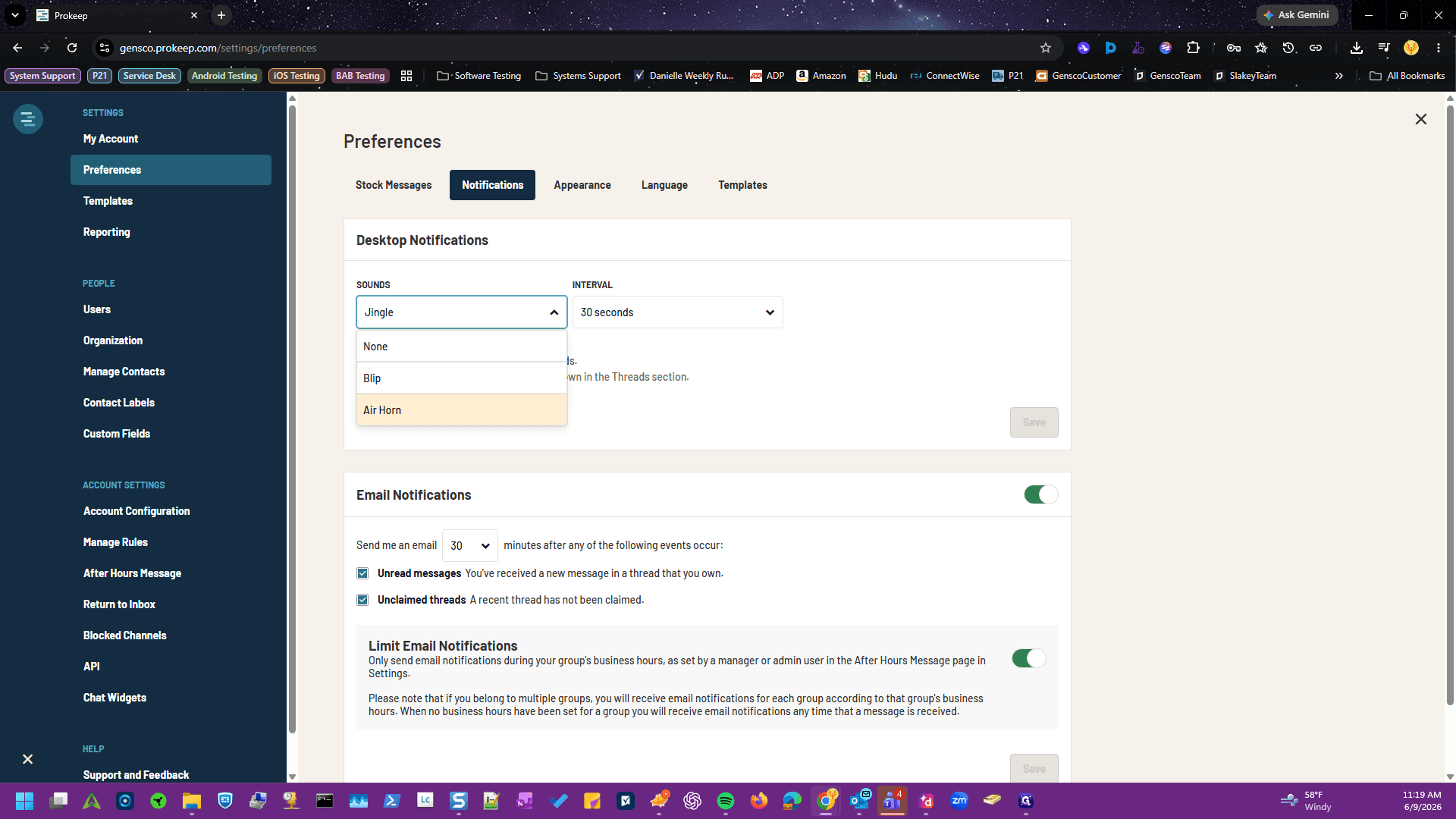
This guide walks you through customizing your desktop notification sounds in Prokeep and configuring the necessary browser permissions. Setting these up properly ensures you receive immediate audio and visual alerts for all incoming customer messages.
This workflow is relevant for any user who works out of the Prokeep web app and relies on desktop notifications to promptly answer inbound conversations during their shift.
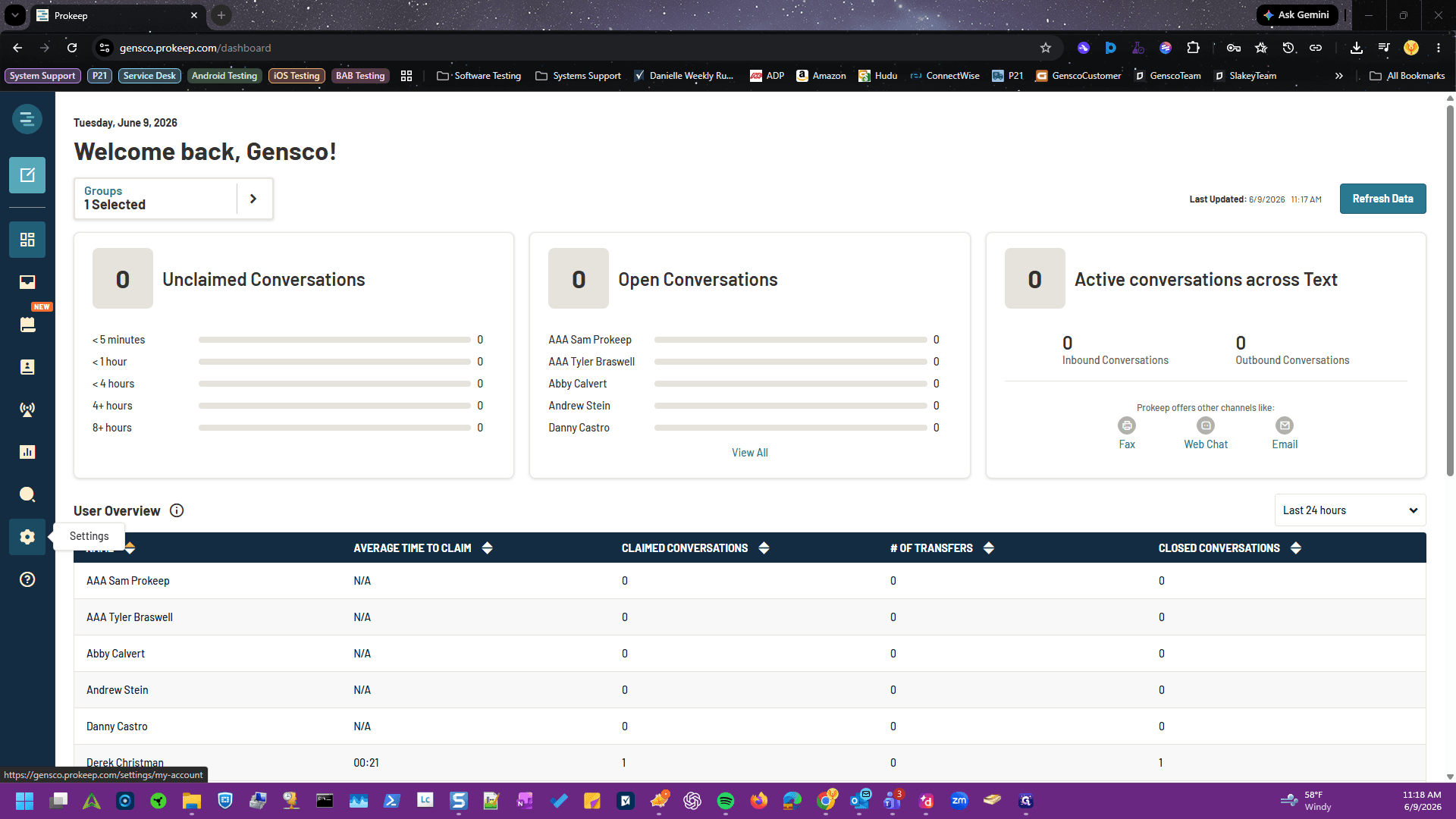
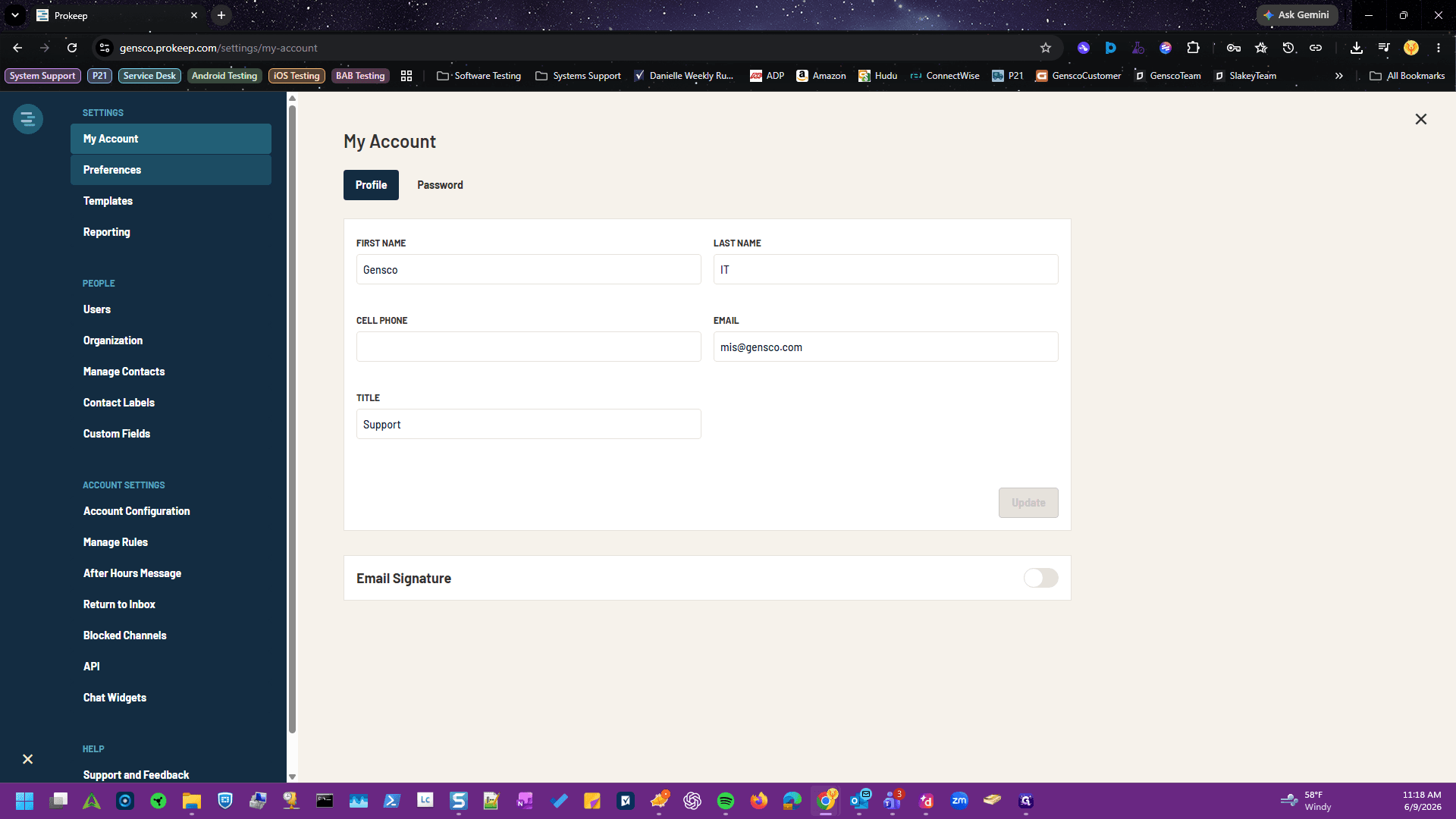
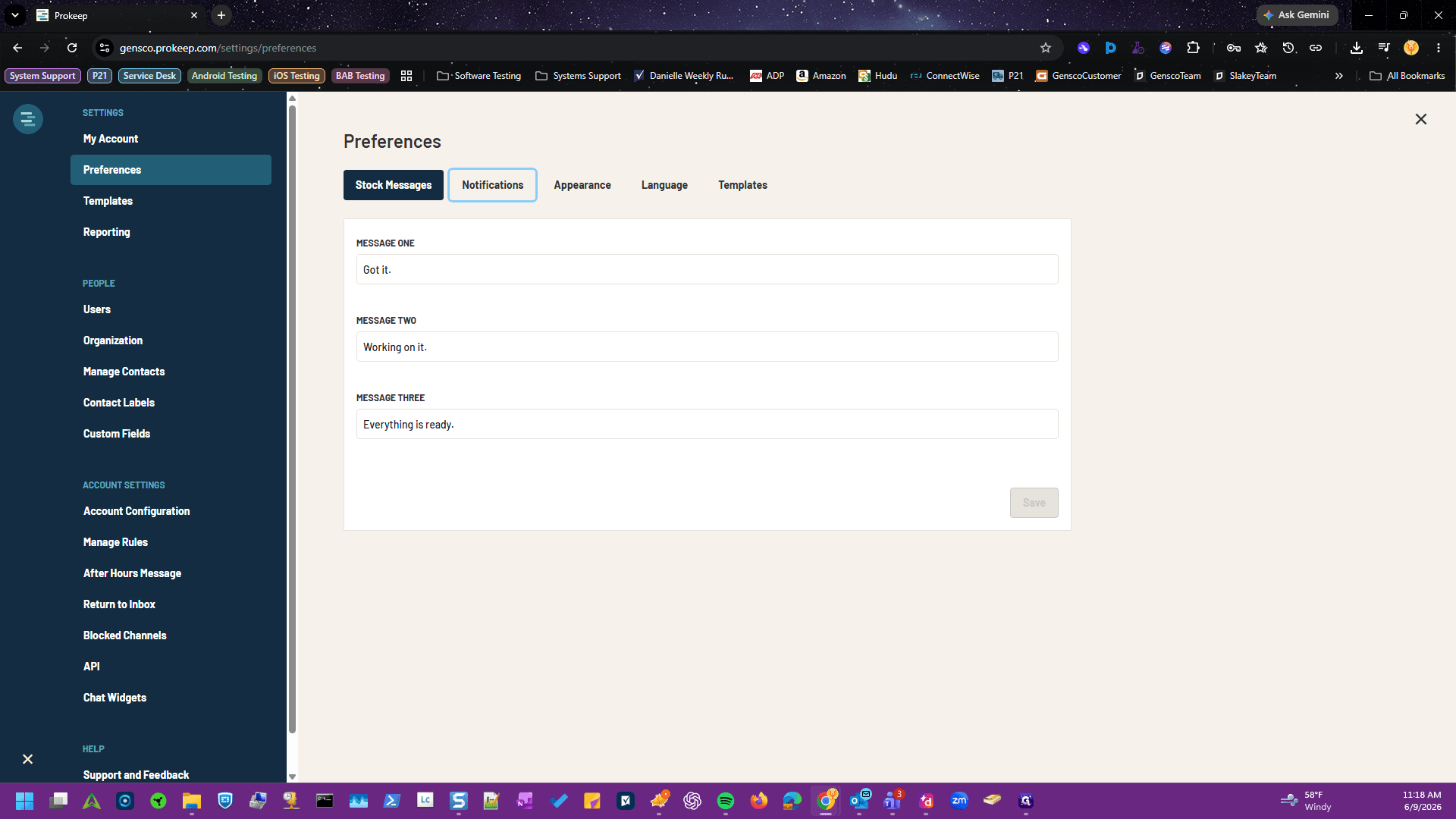
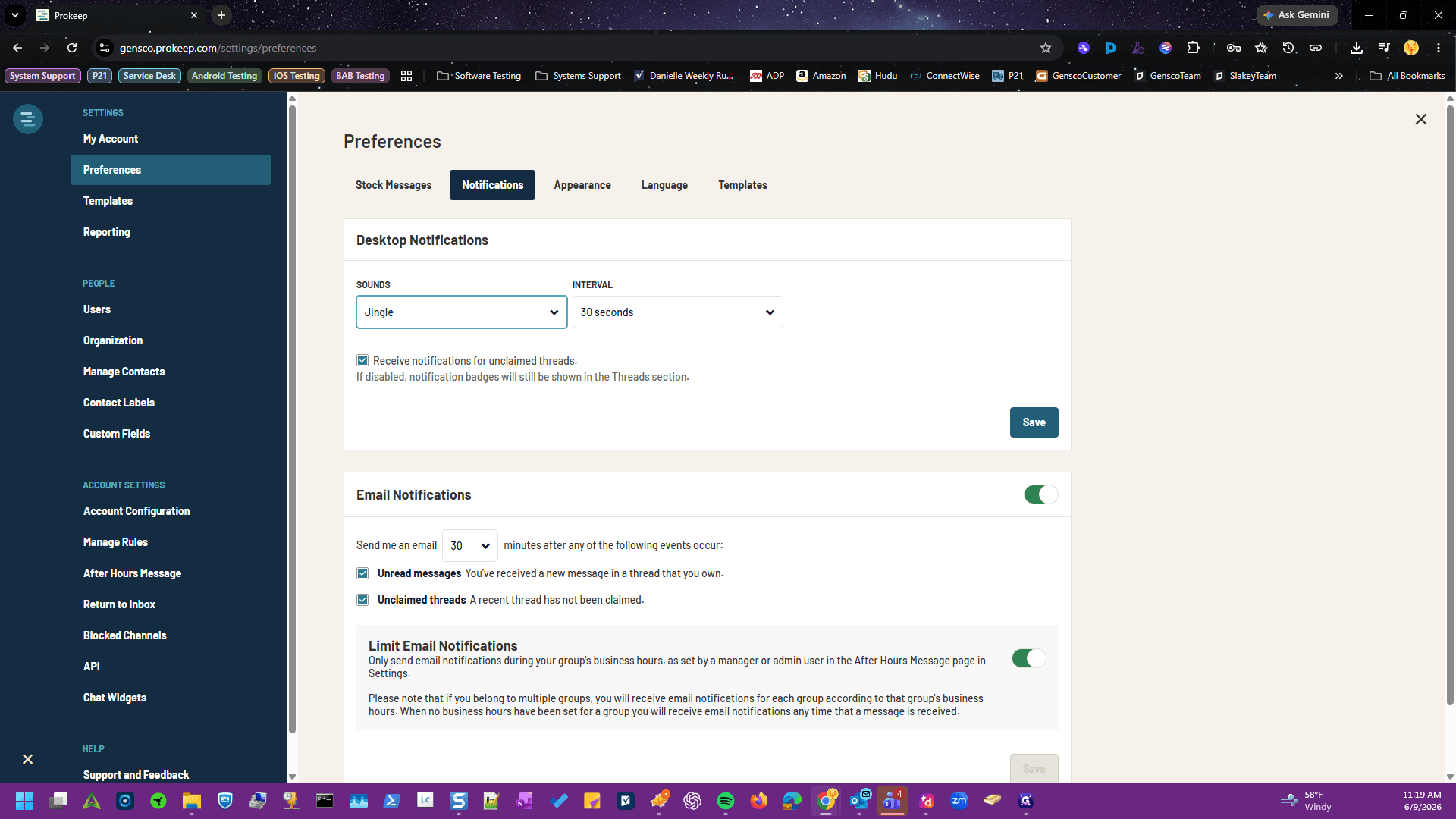
Configure Prokeep Notification Sounds
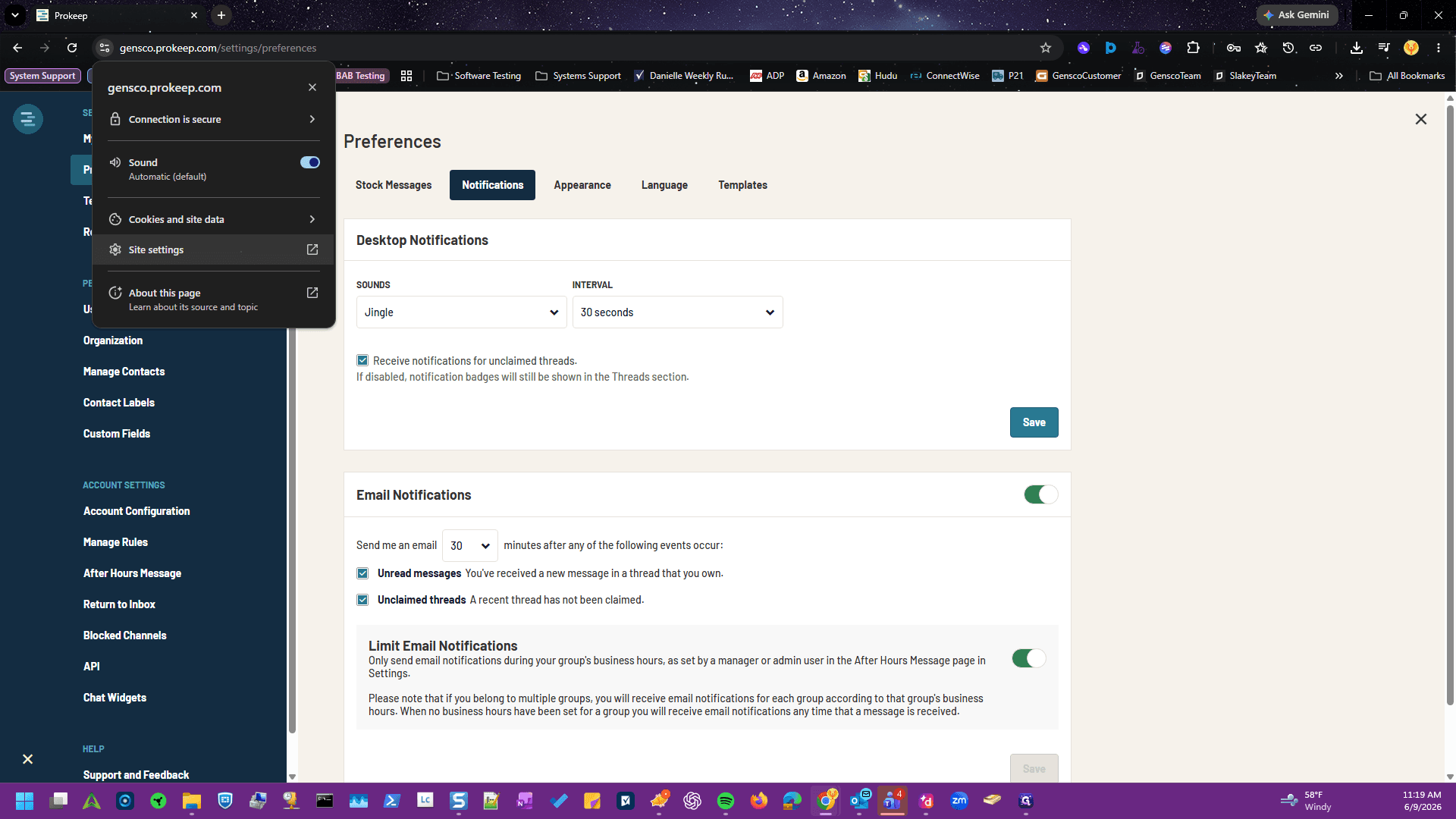
Configure Google Chrome Permissions
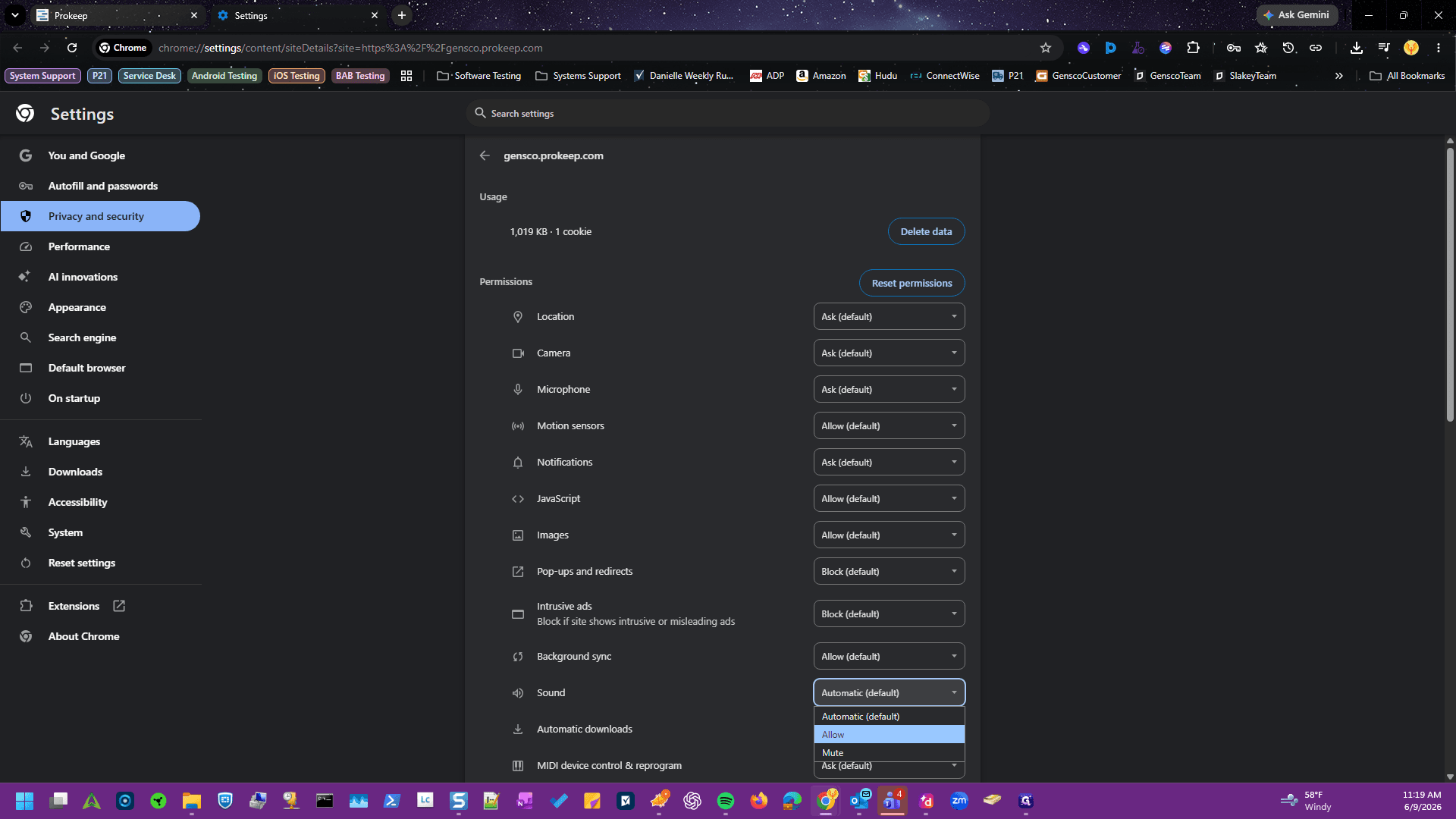
Permission | Required Setting |
|---|---|
Sound | Allow |
Pop-ups and redirects | Allow |
Notifications | Allow |
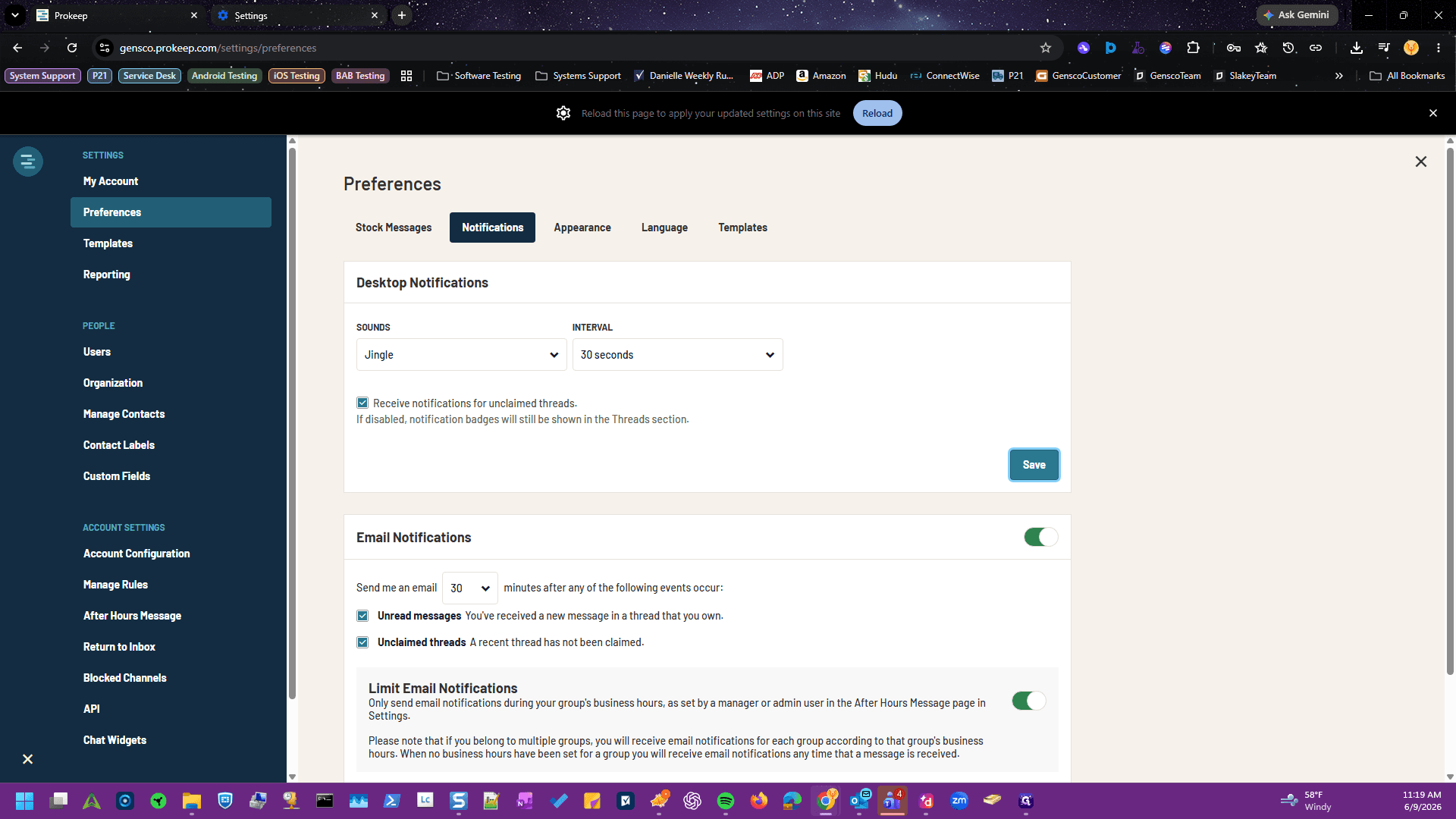
Q: Why aren't my new notification sounds playing when I receive a message?
A: Your browser might be restricting audio from the website. Ensure the Sound permission is explicitly set to "Allow" in your Chrome site settings.
Q: Why am I not seeing pop-up banners on my screen for new alerts?
A: Browsers often block pop-ups by default to reduce spam. You need to open your site information settings and change both Pop-ups and redirects and Notifications to "Allow".
Term | Definition |
|---|---|
Desktop Notifications | Visual banners that pop up on your computer screen to alert you of new activity, even when your browser is minimized. |
Site Settings | Browser-level configurations that dictate what a specific website is allowed to access or perform on your computer. |