Icon

How to Configure a Site-to-Site IPsec VPN on SonicWall

Learn how to configure a Site-to-Site IPsec VPN tunnel on a SonicWall appliance, from creating address objects to setting IKE proposals and keep alive.

By Anthony Yorks

Setting up a Site-to-Site IPsec VPN on a SonicWall firewall involves creating an address object for the remote network, defining the VPN policy, and configuring encryption and authentication protocols. Follow these steps to build and configure your secure VPN tunnel.

Step 1: Log in to your SonicWall
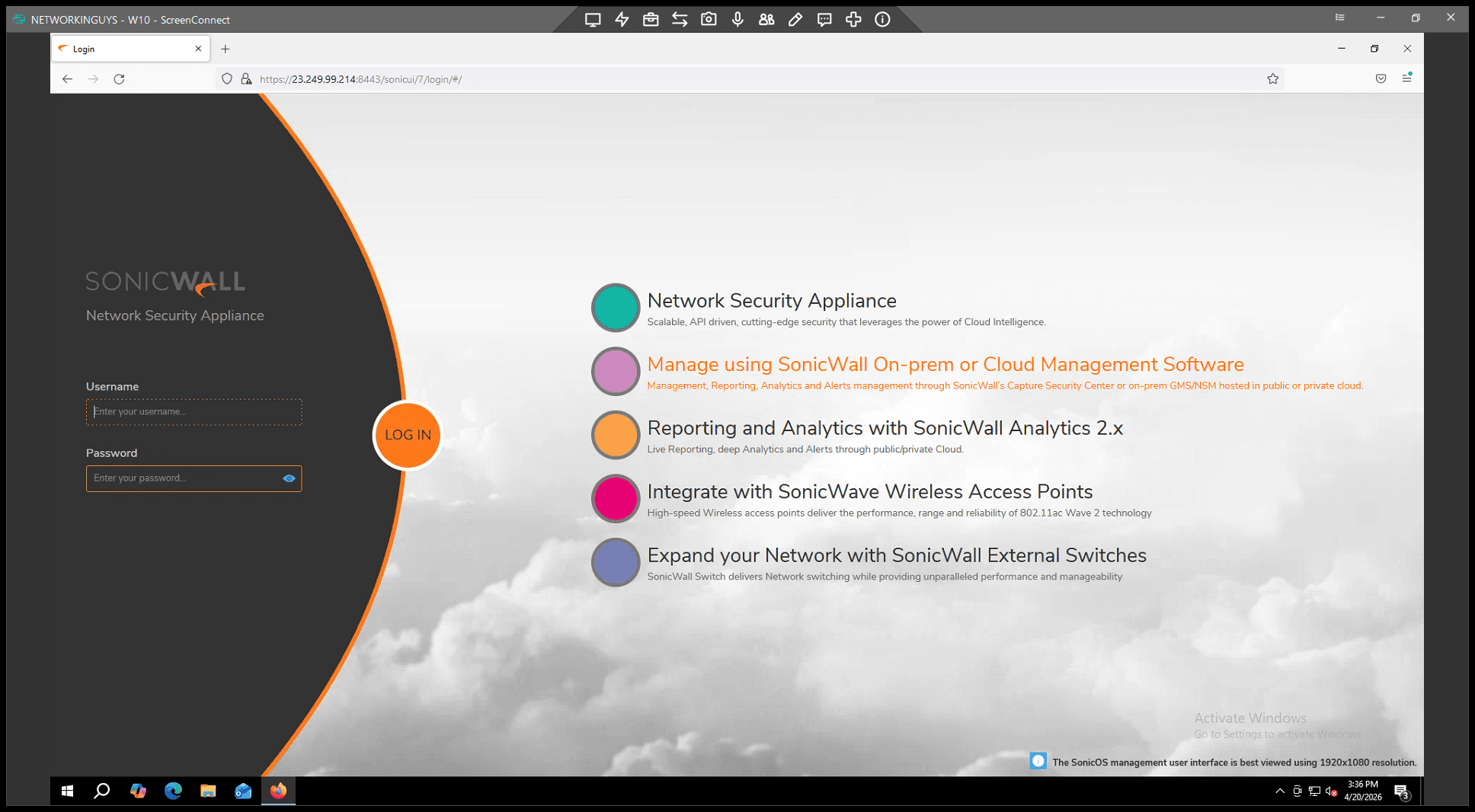
1
Enter your username and log in to the SonicOS web management interface
Step #1: Enter your username and log in to the SonicOS web management interface

.

Step 2: Create a Remote Address Object

Before you create the VPN policy, define an Address Object representing the remote network.
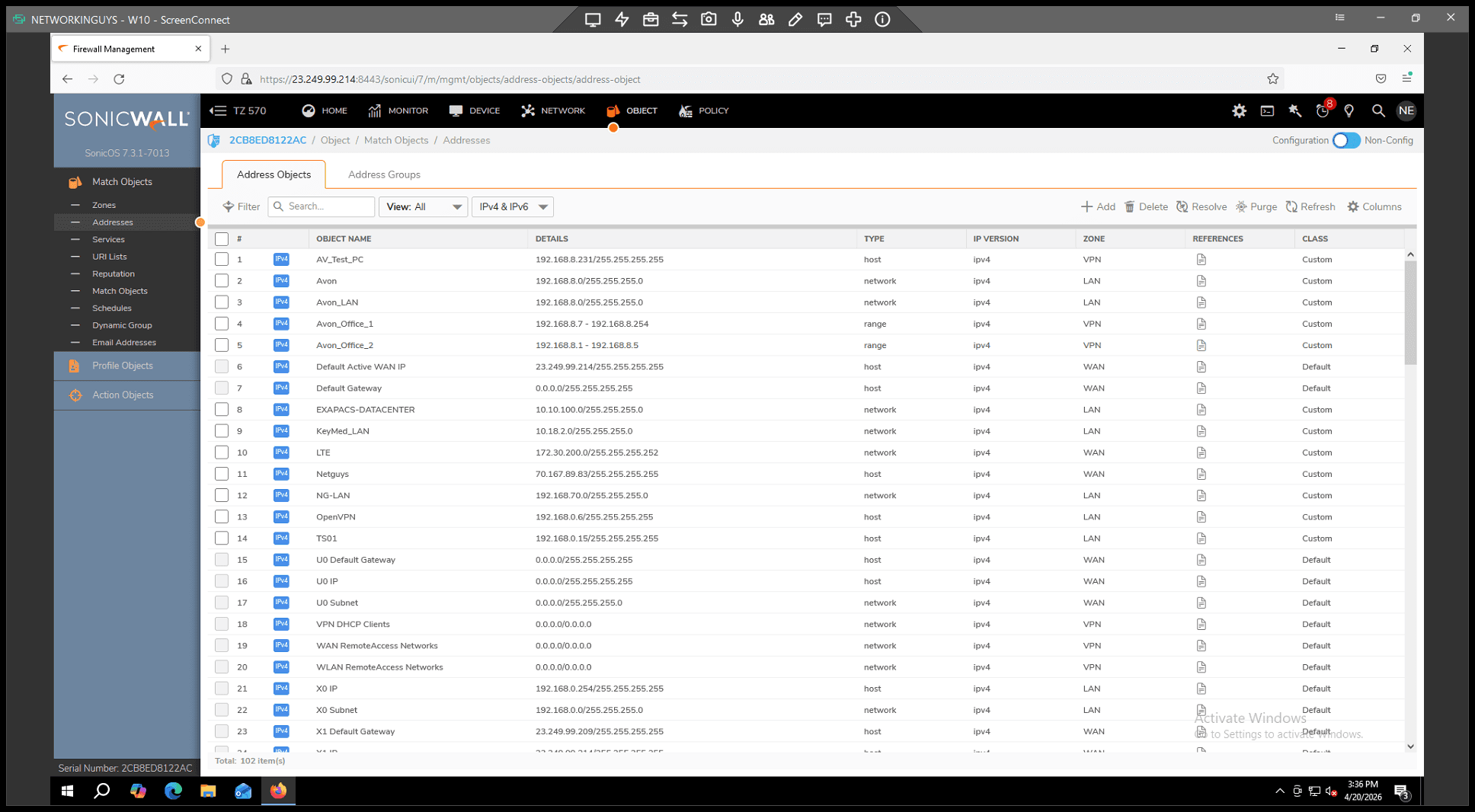
2
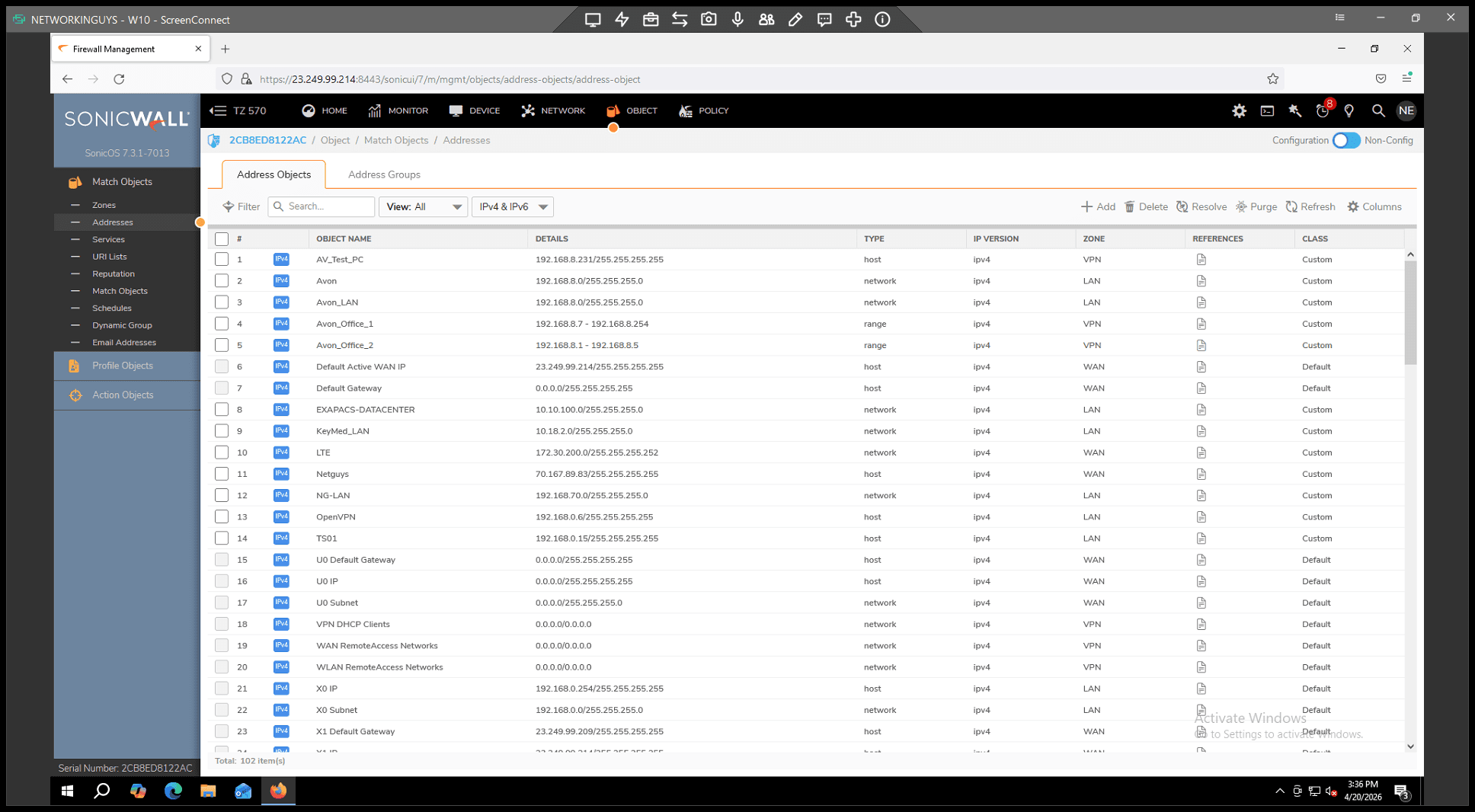
Click OBJECT in the top navigation bar
Step #2: Click OBJECT in the top navigation bar

. 2.

3
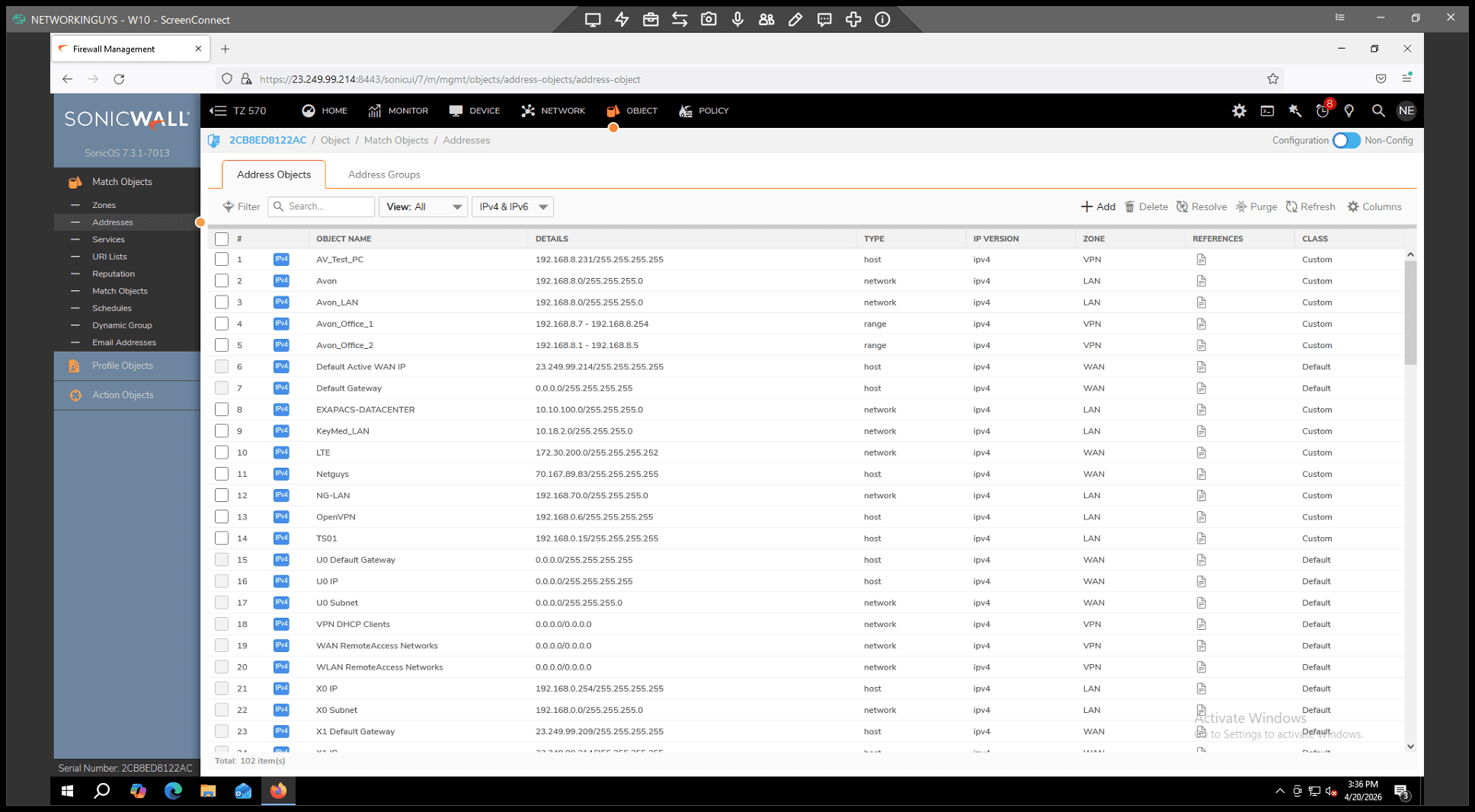
Select Addresses from the left-hand sidebar
Step #3: Select Addresses from the left-hand sidebar

. 3.

4
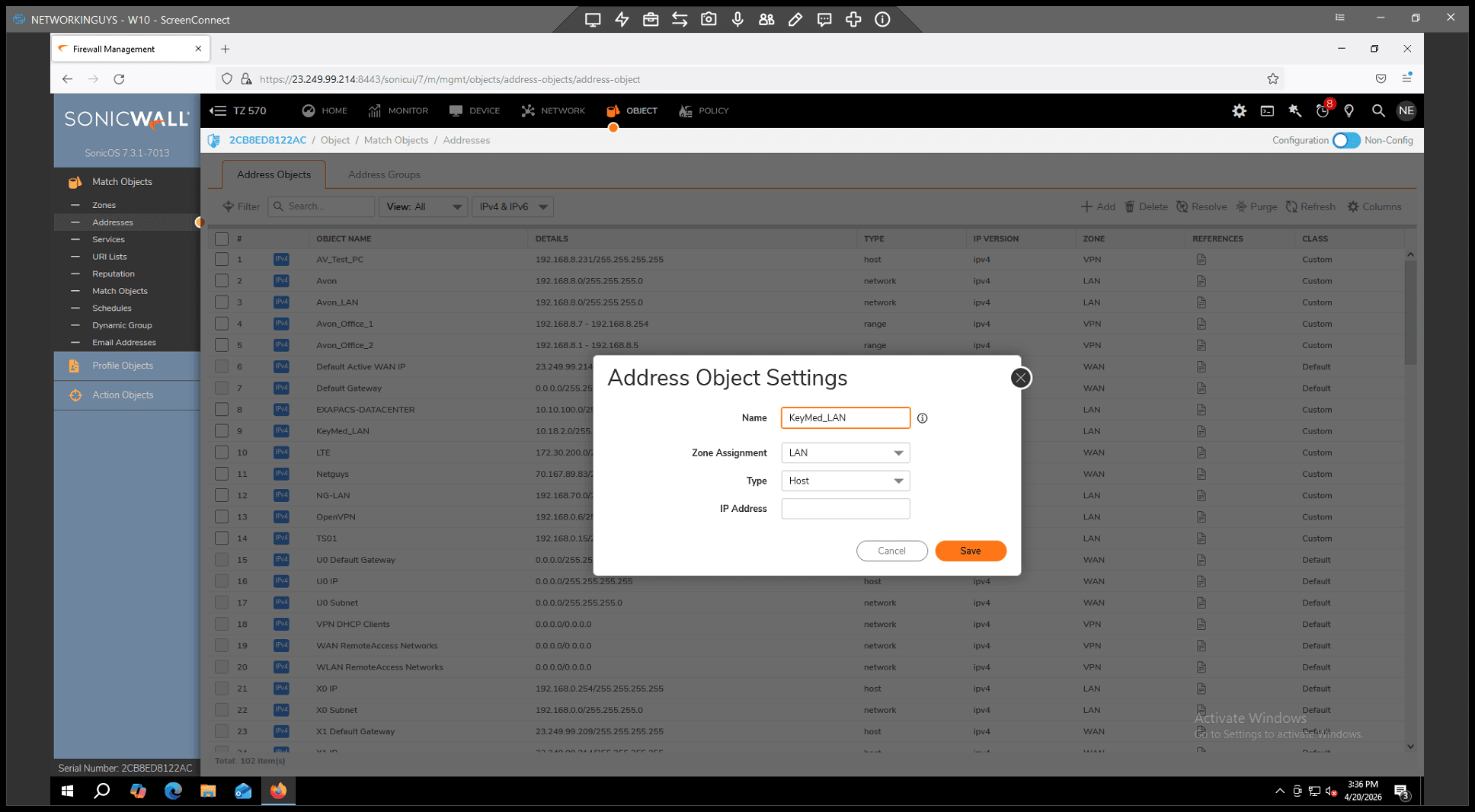
Click + Add to create a new address object
Step #4: Click + Add to create a new address object

. 4.

5
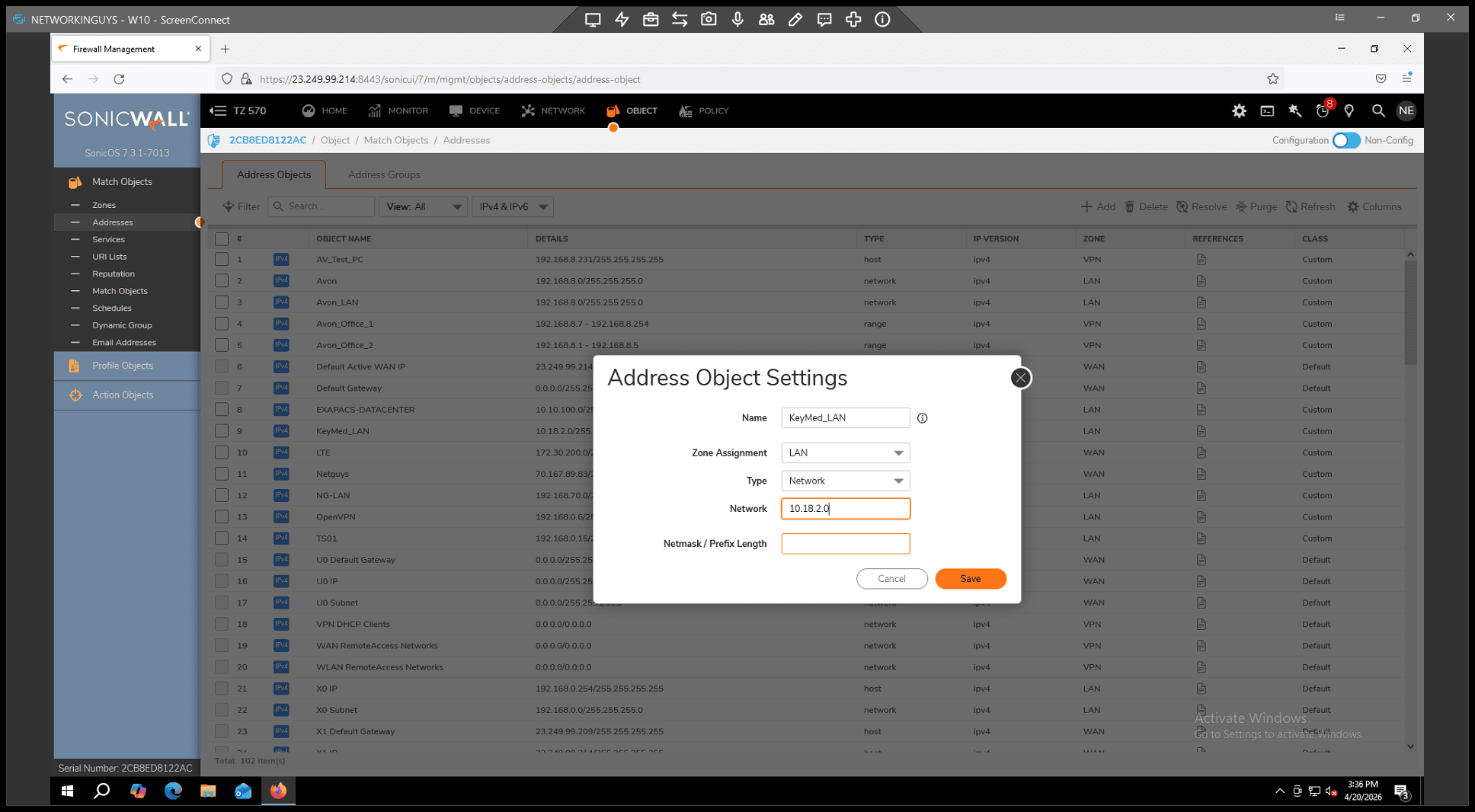
Type a familiar name
Step #5: Type a familiar name

for the remote network (e.g., "Vendor_LAN"). 5.
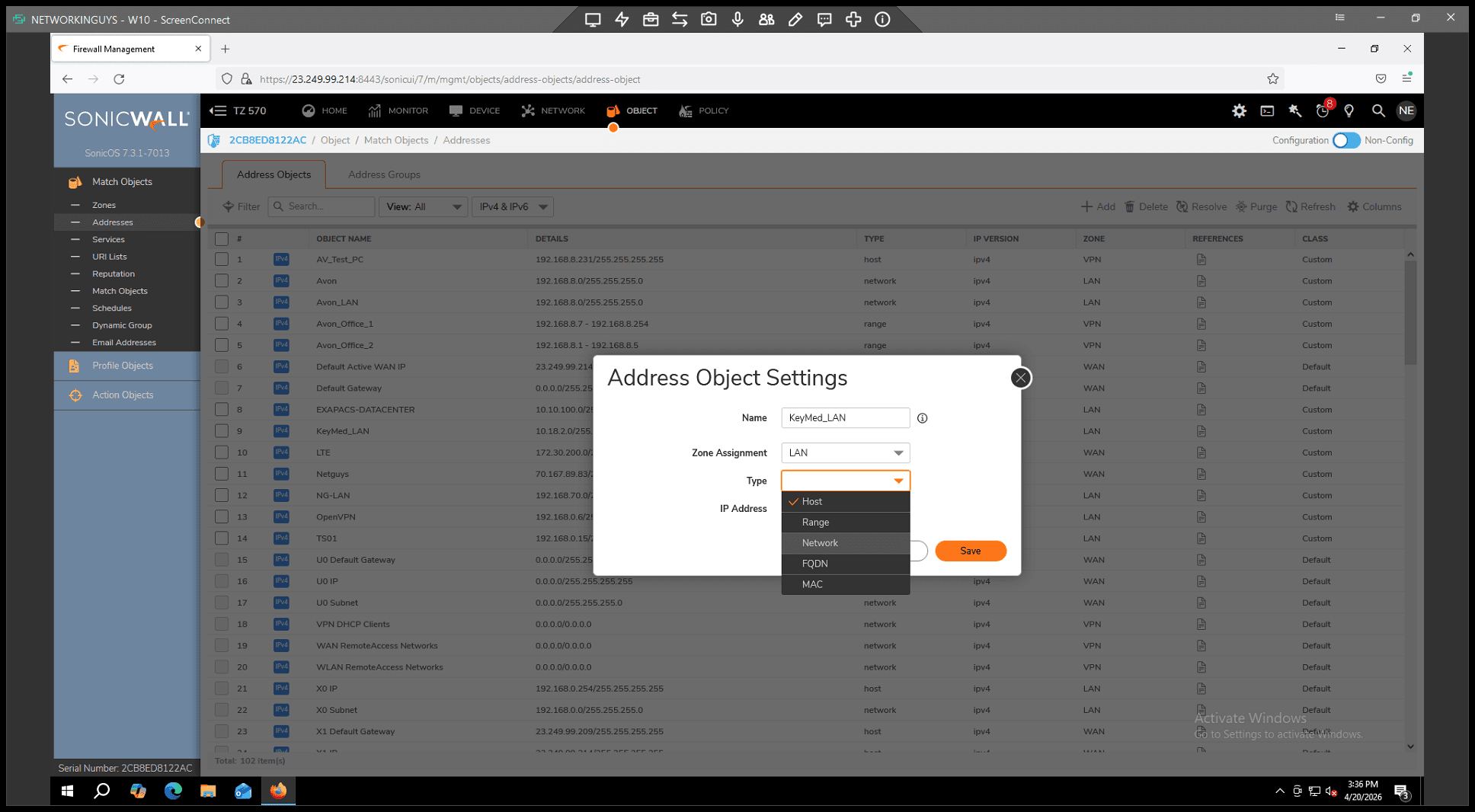
7
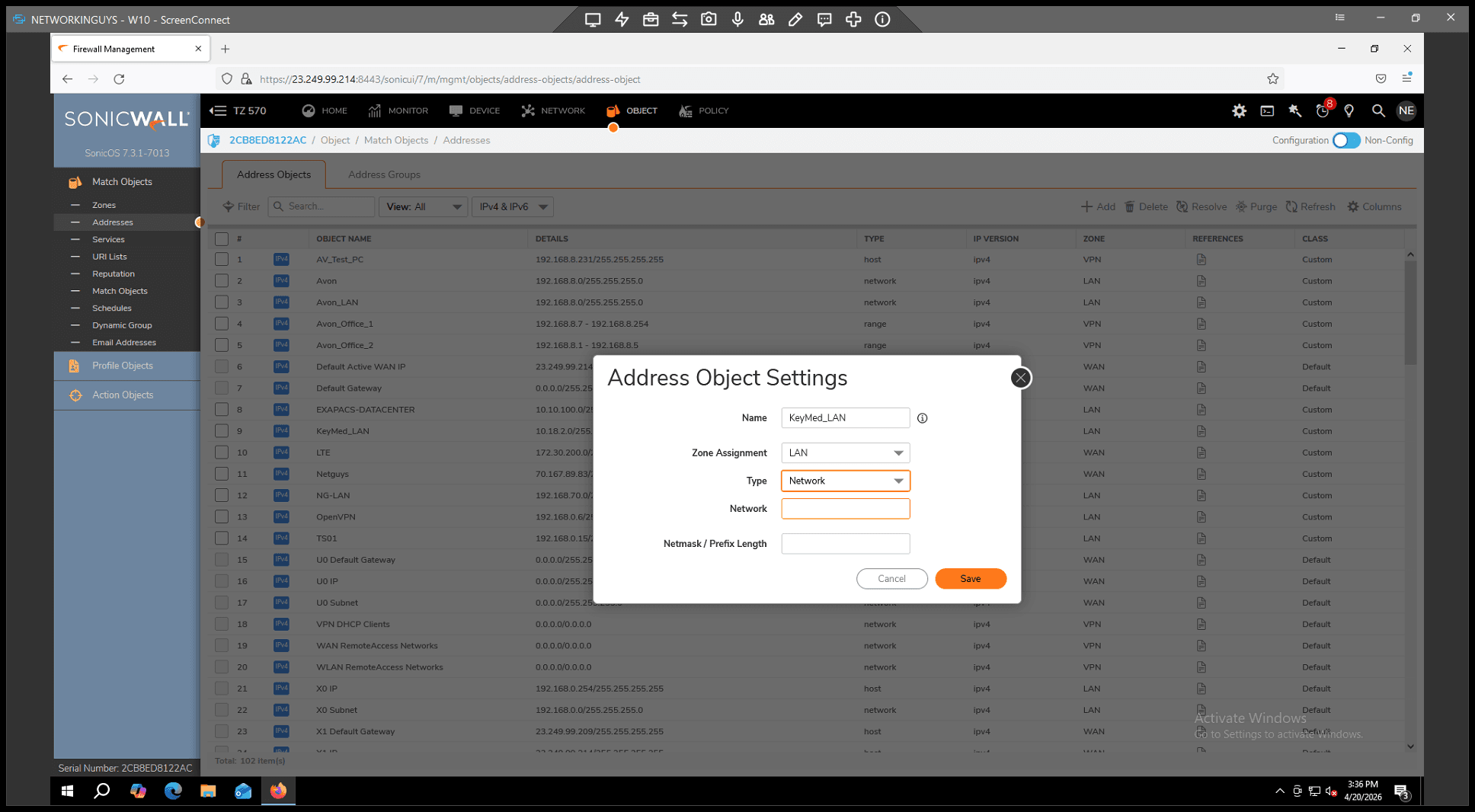
Select Network
Step #7: Select Network

from the Type dropdown. 6.

8
Enter the network IP address
Step #8: Enter the network IP address

of the remote side. 7.

9
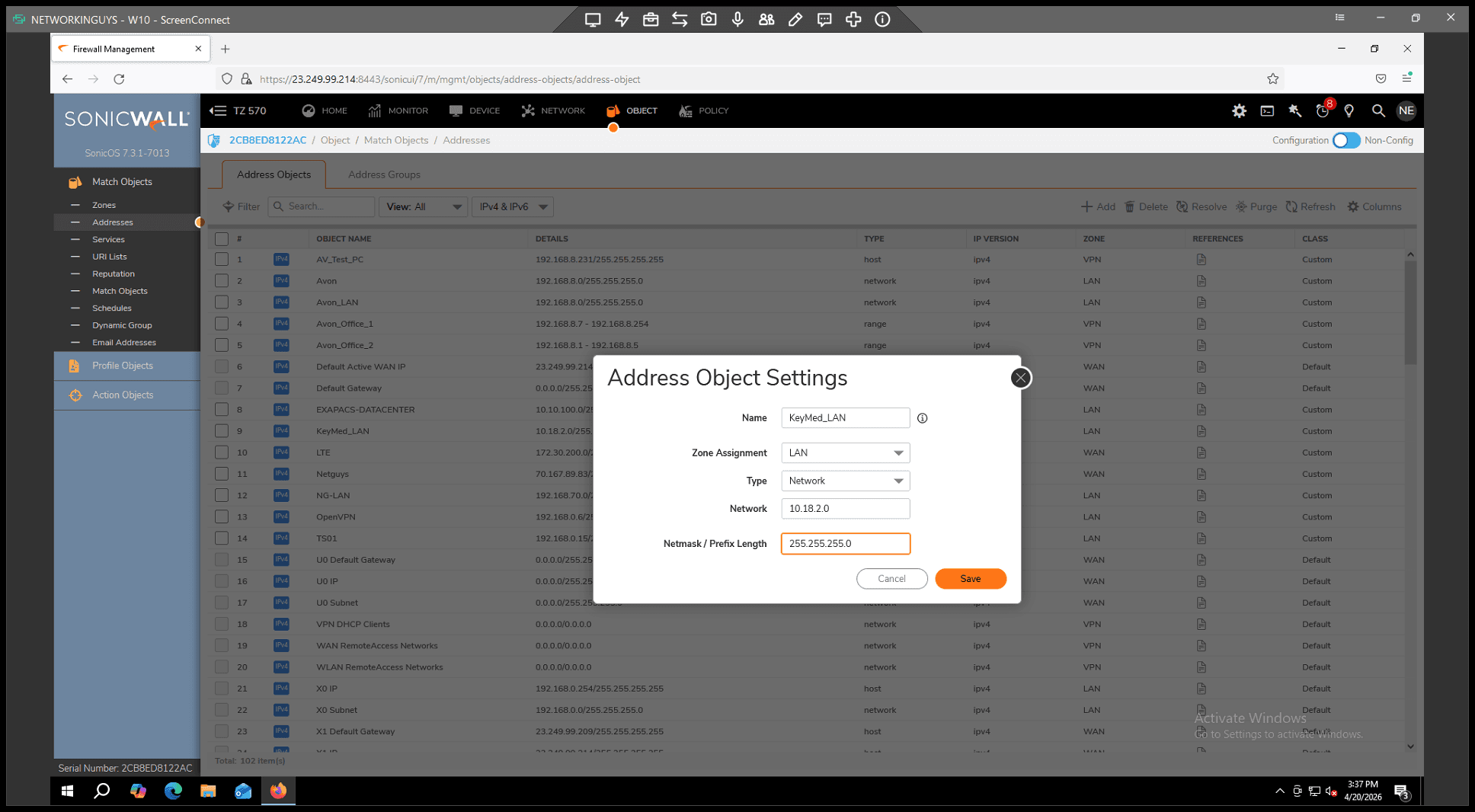
Provide the correct subnet mask
Step #9: Provide the correct subnet mask

. 8.

10
Click Save
Step #10: Click Save

to store the object.

Step 3: Configure VPN General Settings
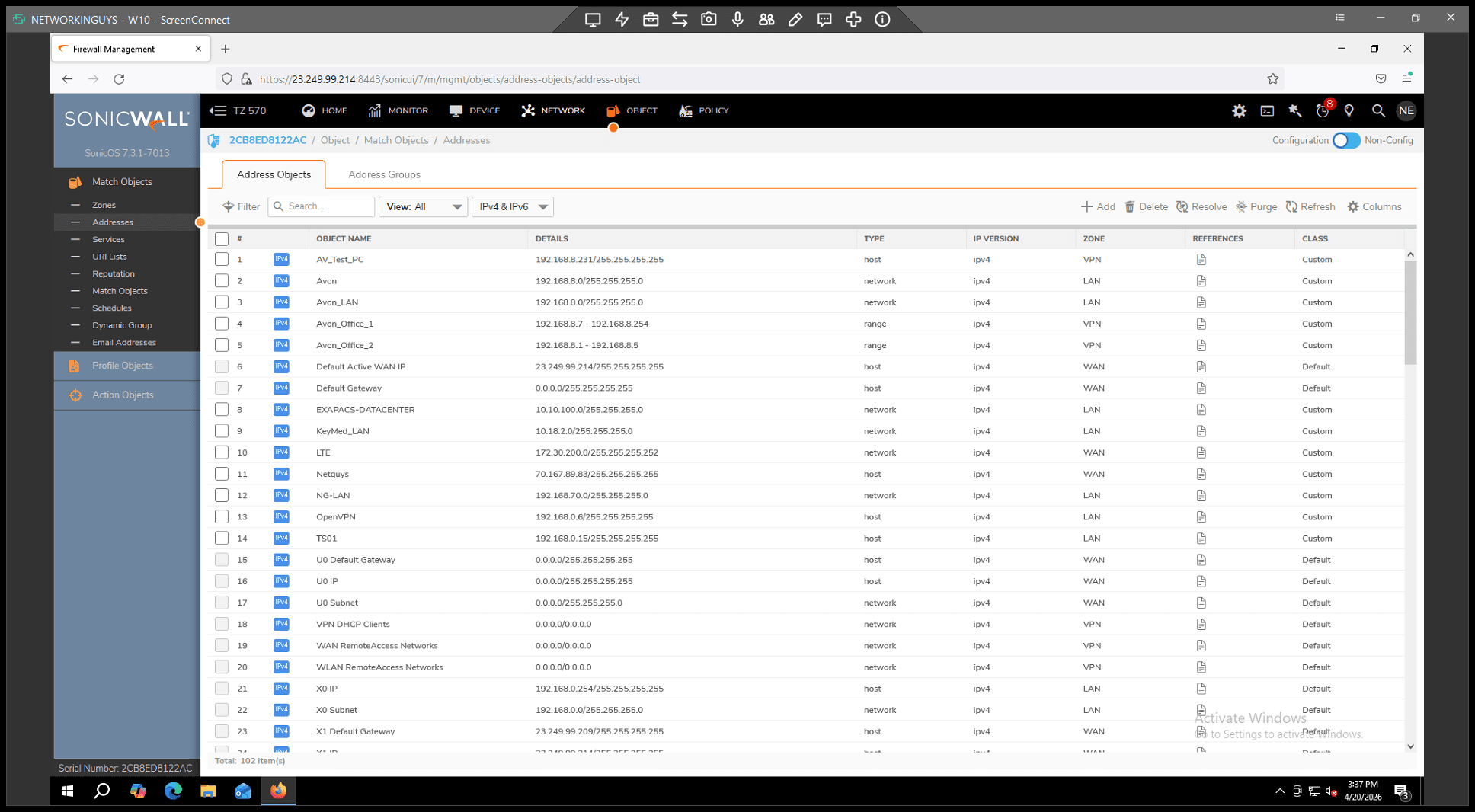
13
Click NETWORK in the top navigation bar
Step #13: Click NETWORK in the top navigation bar

. 2.

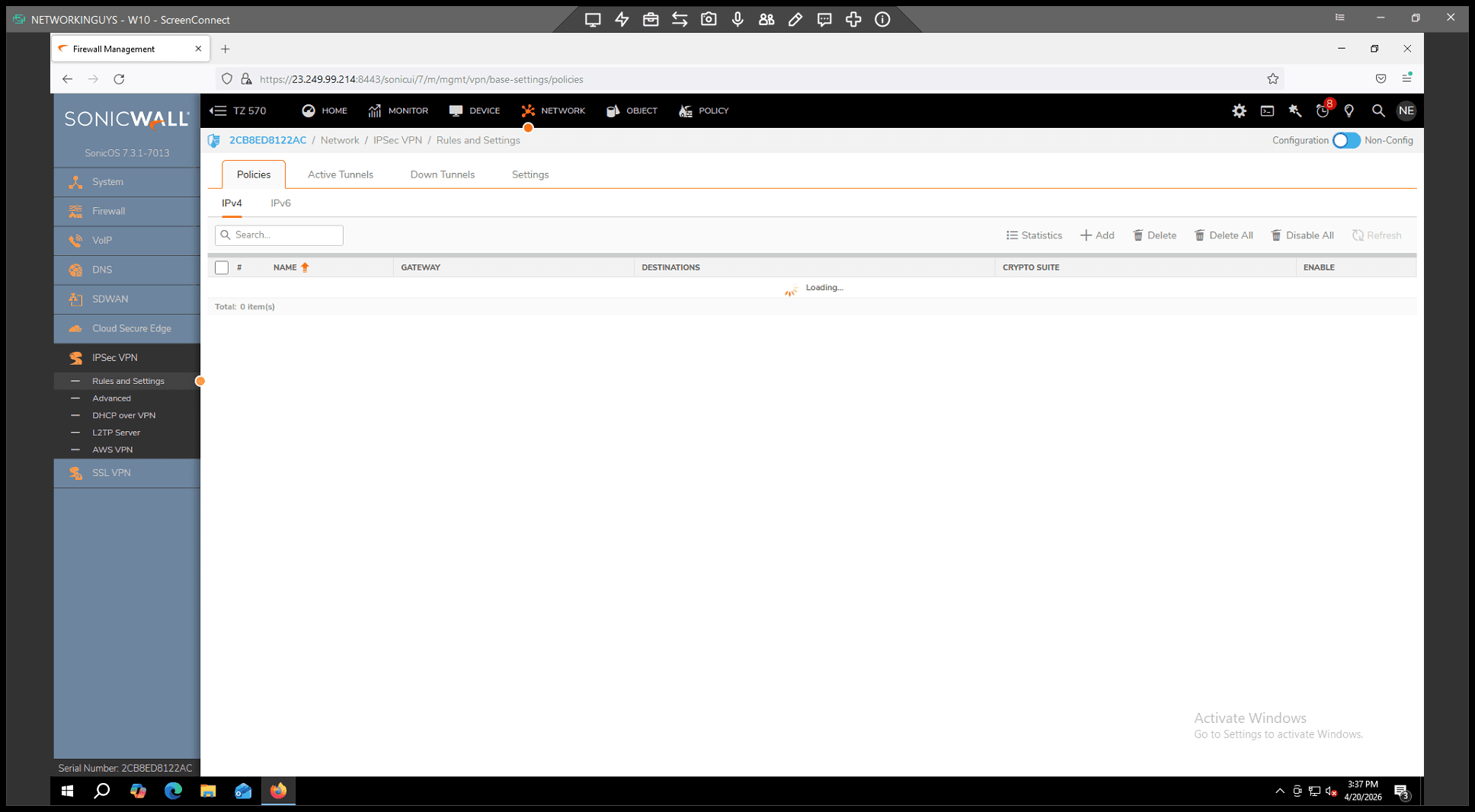
14
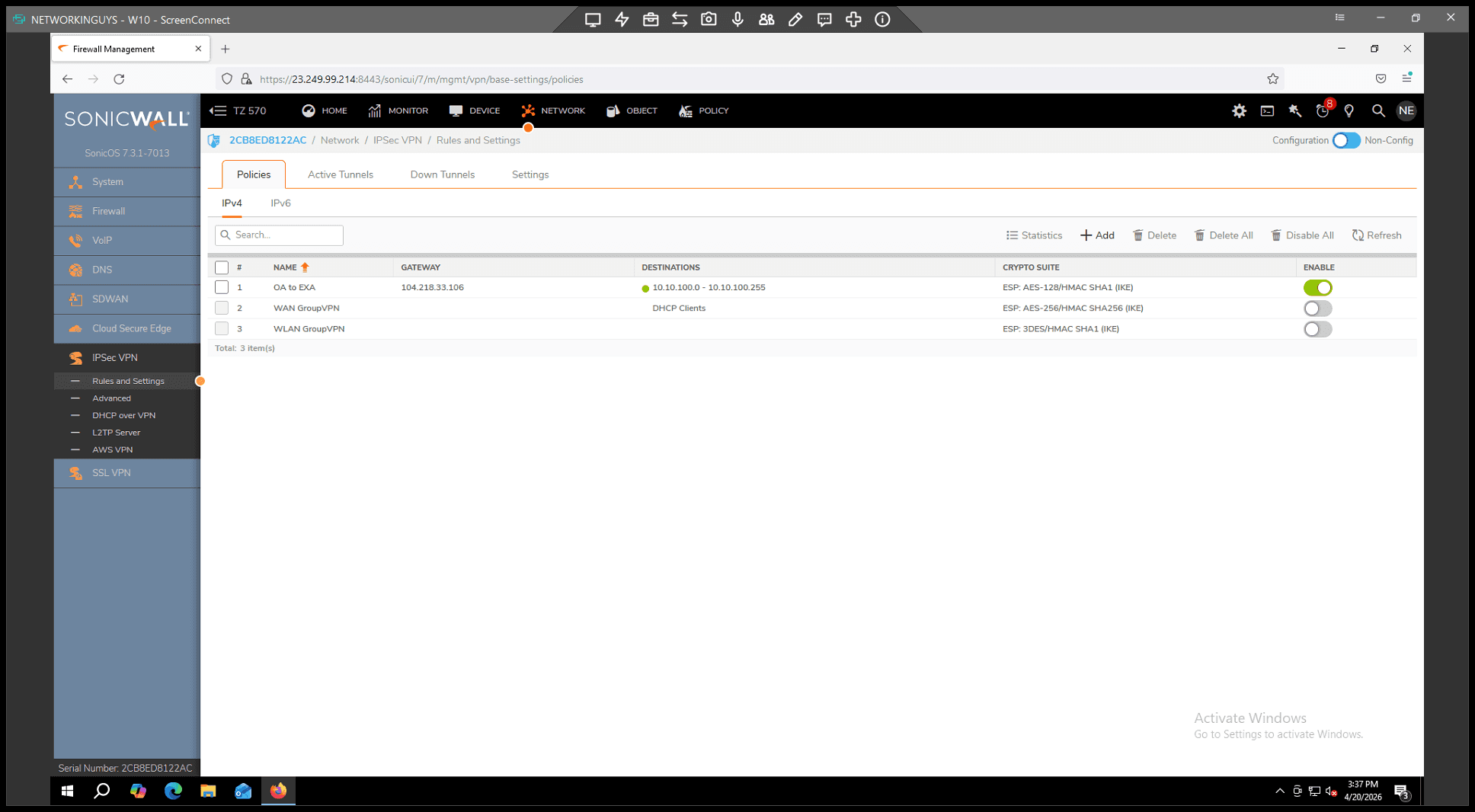
Navigate to IPsec VPN > Rules and Settings
Step #14: Navigate to IPsec VPN > Rules and Settings

. 3.

15
Click + Add to establish a new VPN policy
Step #15: Click + Add to establish a new VPN policy

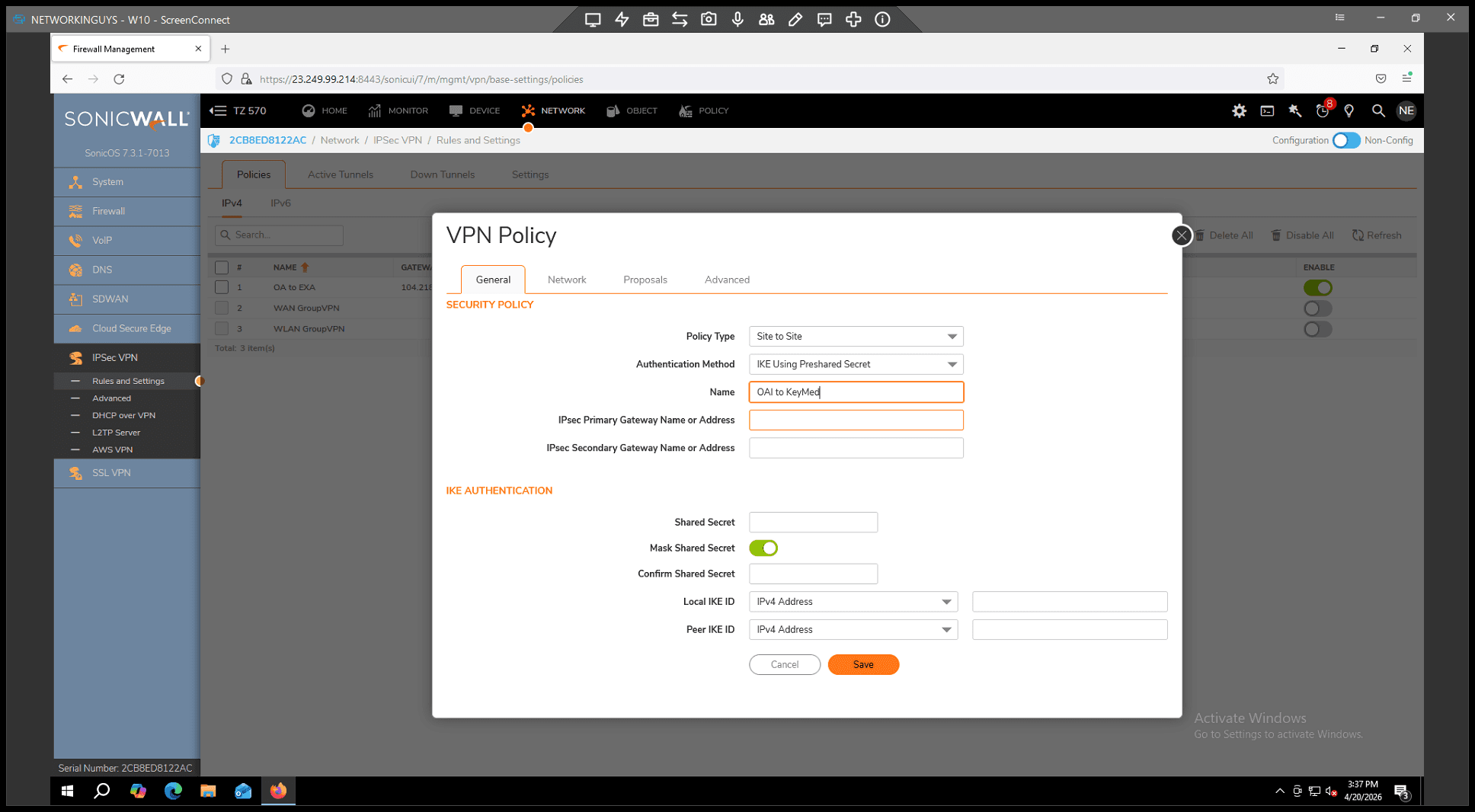
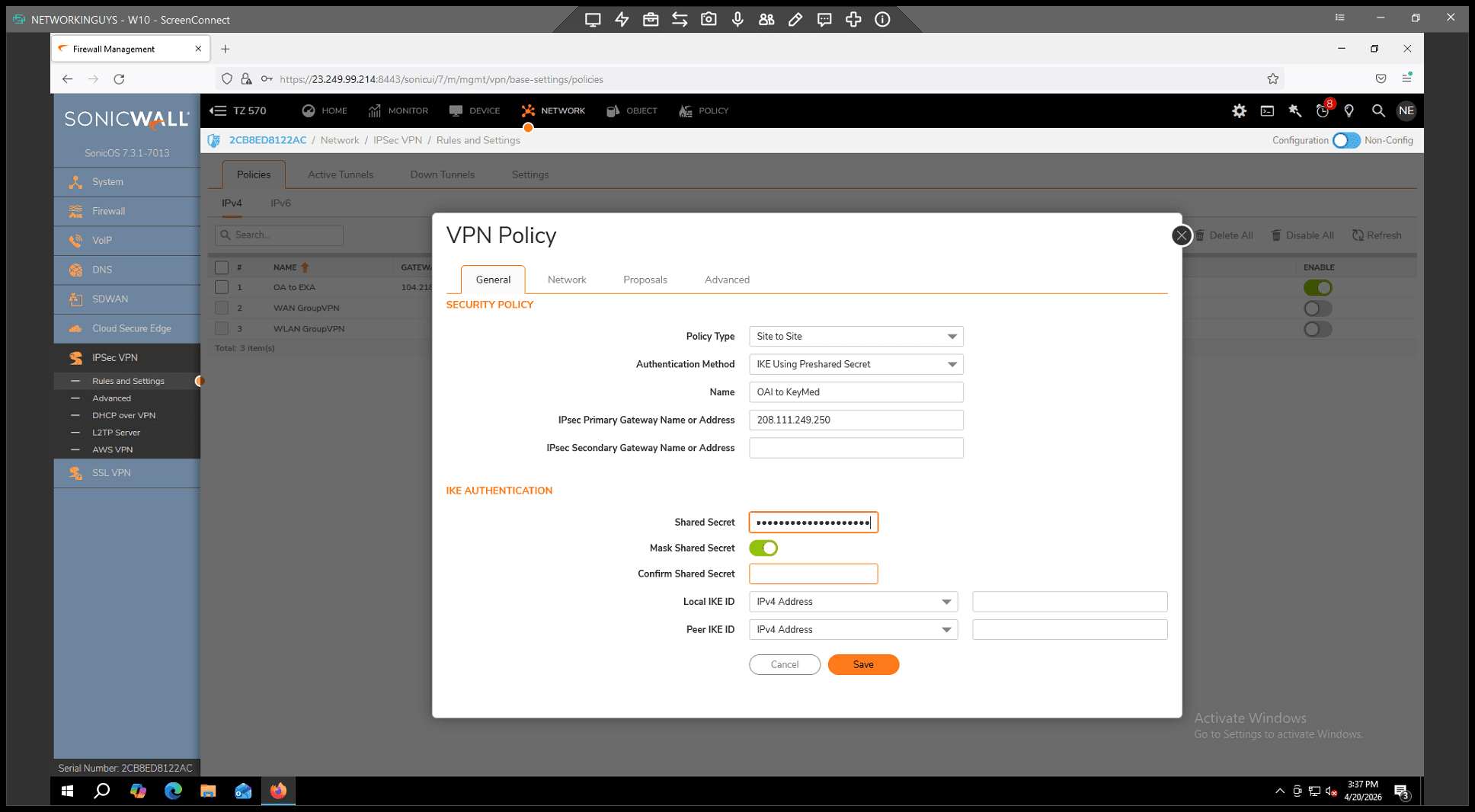
. 4. In the General tab,

17
enter a recognizable name
Step #17: enter a recognizable name

for the VPN policy. 5.

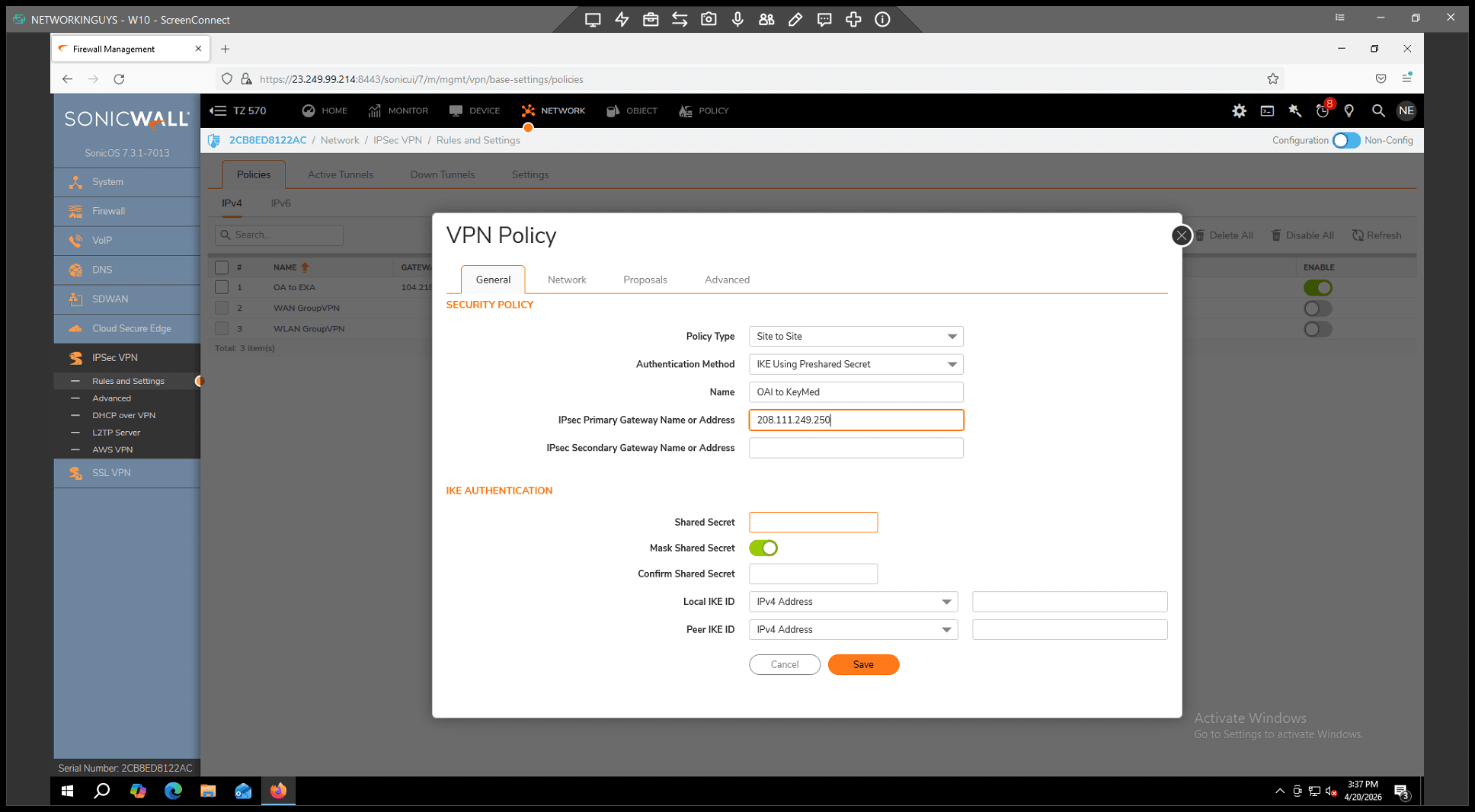
18
Type in the remote ISP's public IP
Step #18: Type in the remote ISP's public IP

into the IPsec Primary Gateway field. 6.
21
Enter your Pre-shared Secret
Step #21: Enter your Pre-shared Secret

(the password used to authenticate both ends of the tunnel).

Step 4: Define Local and Remote Networks

Now, define which networks are allowed to communicate across the tunnel.
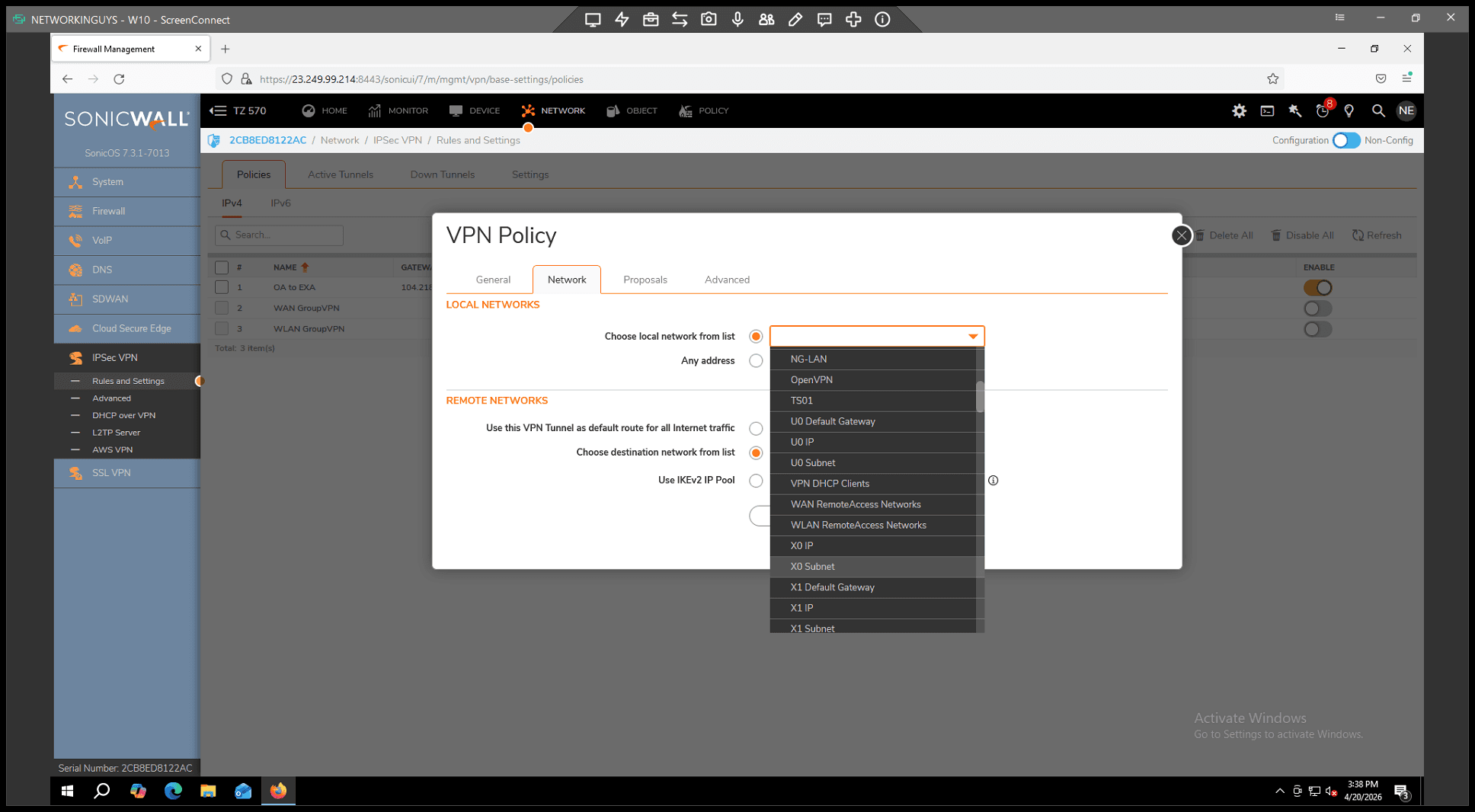
22
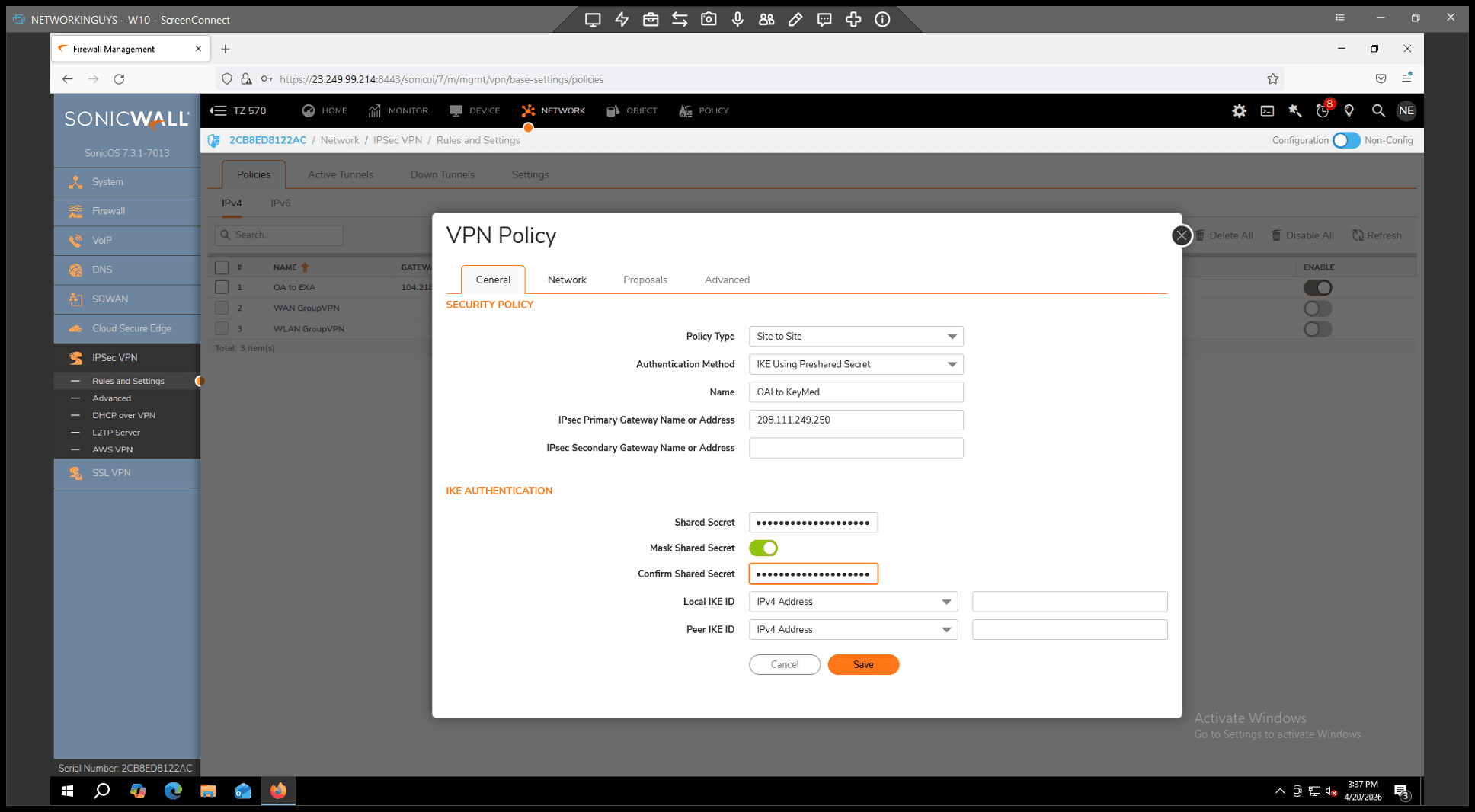
Switch to the Network tab
Step #22: Switch to the Network tab

within the policy configuration. 2.

25
Select your local network
Step #25: Select your local network

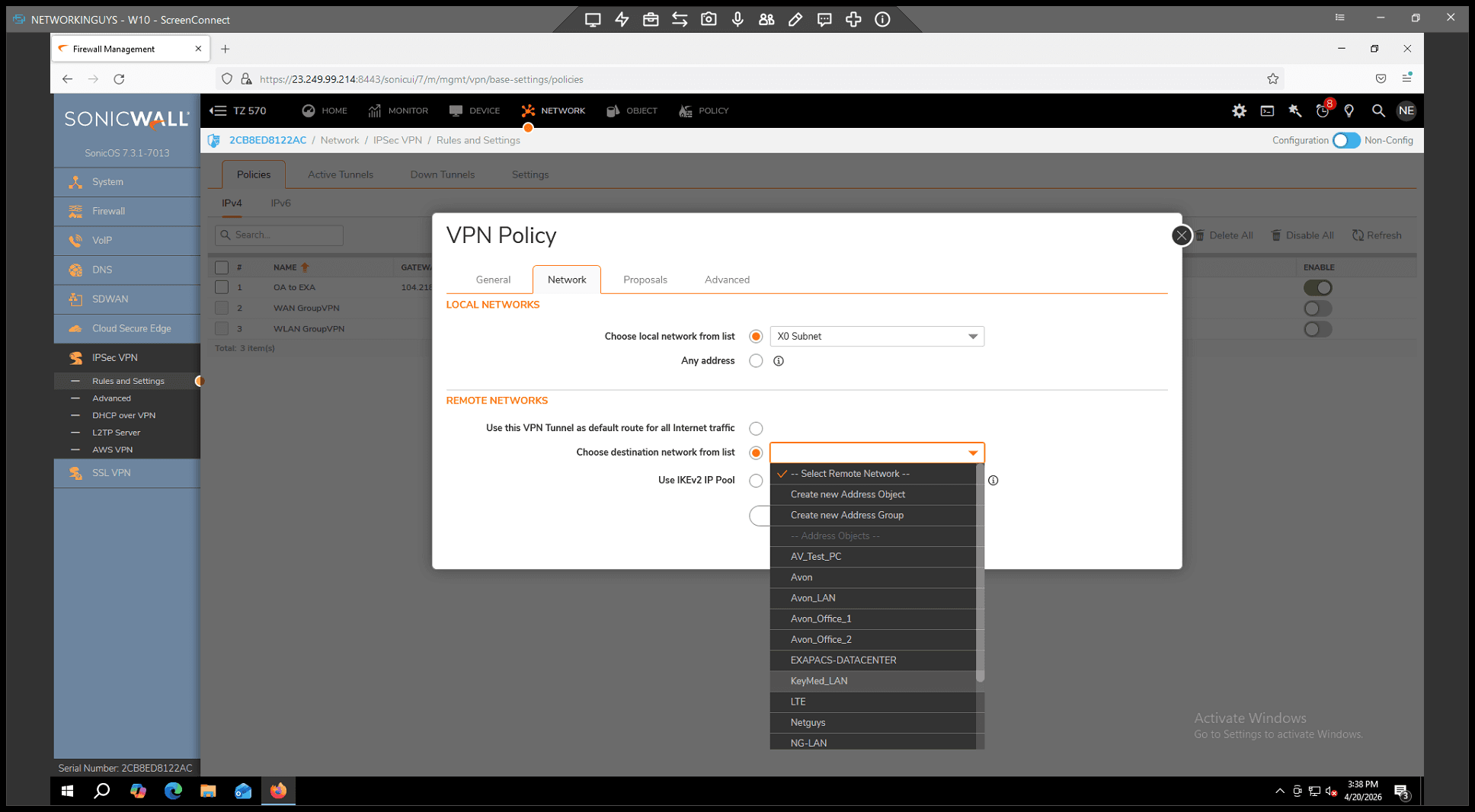
(for instance, the X0 subnet) from the local network dropdown list. 3. In the Remote Networks section,
28
select the address object you created earlier
Step #28: select the address object you created earlier

as the destination network.

Step 5: Configure IKE and IPsec Proposals
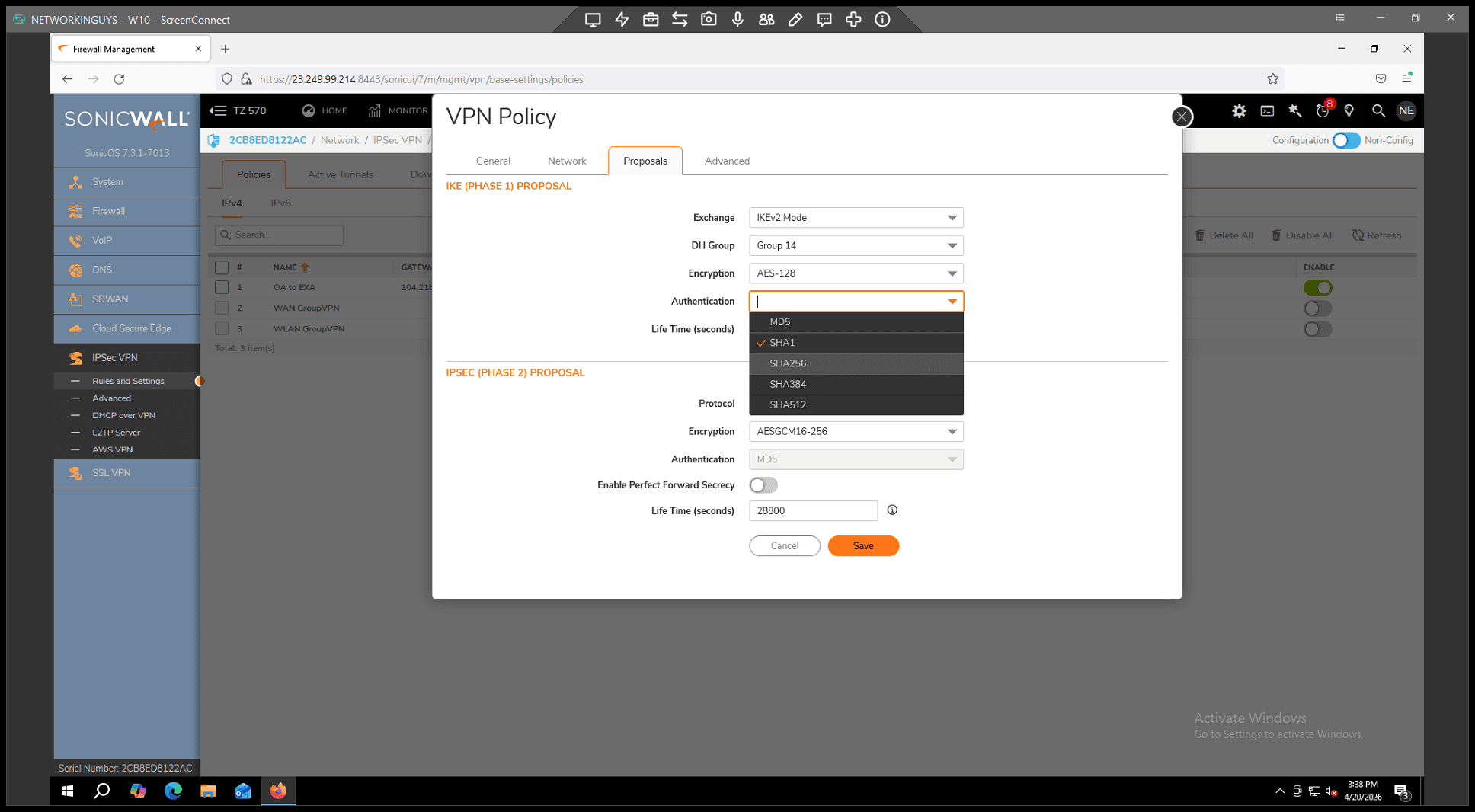
29
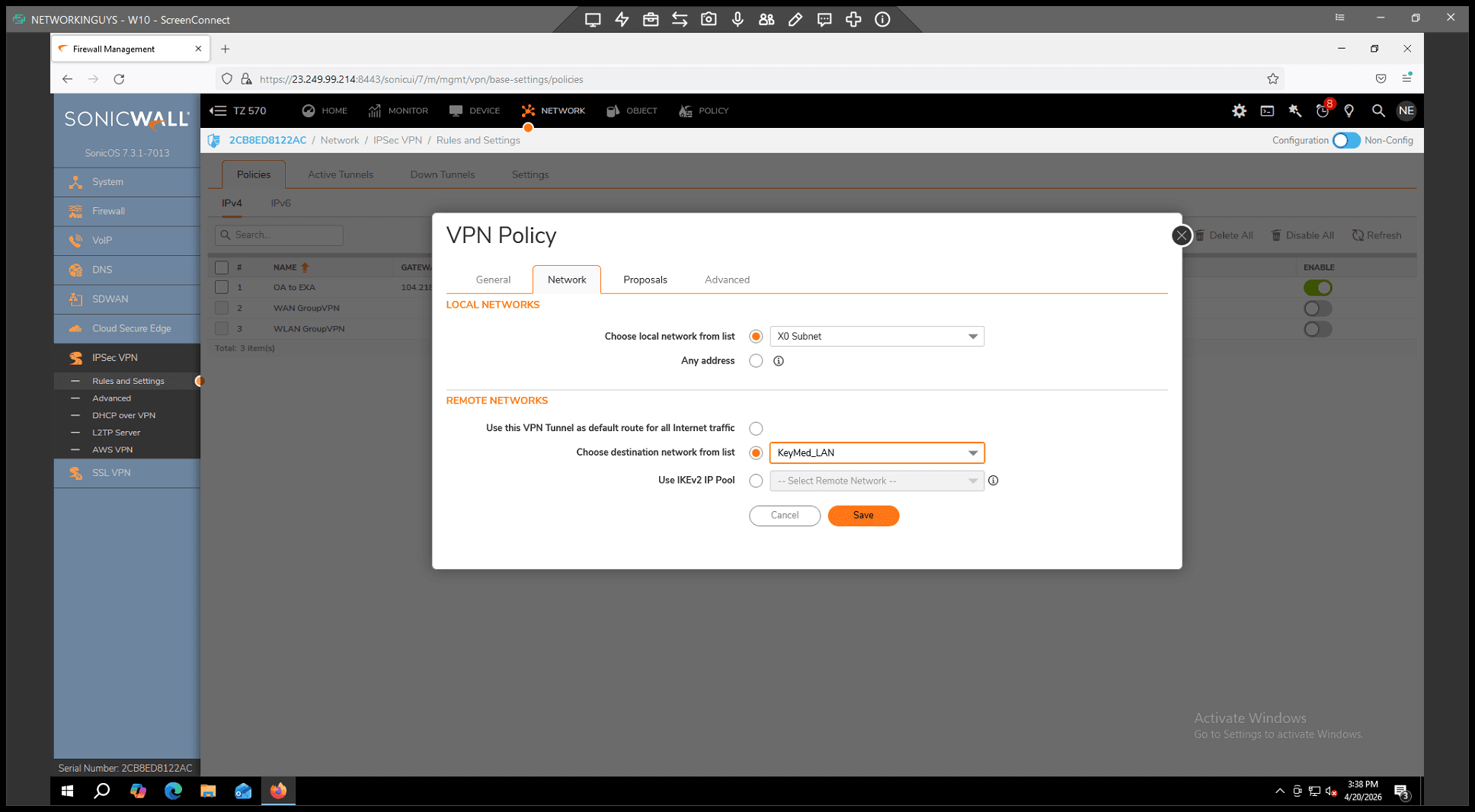
Click the Proposals tab
Step #29: Click the Proposals tab

. 2. Under the IKE (Phase 1) Proposal section: *
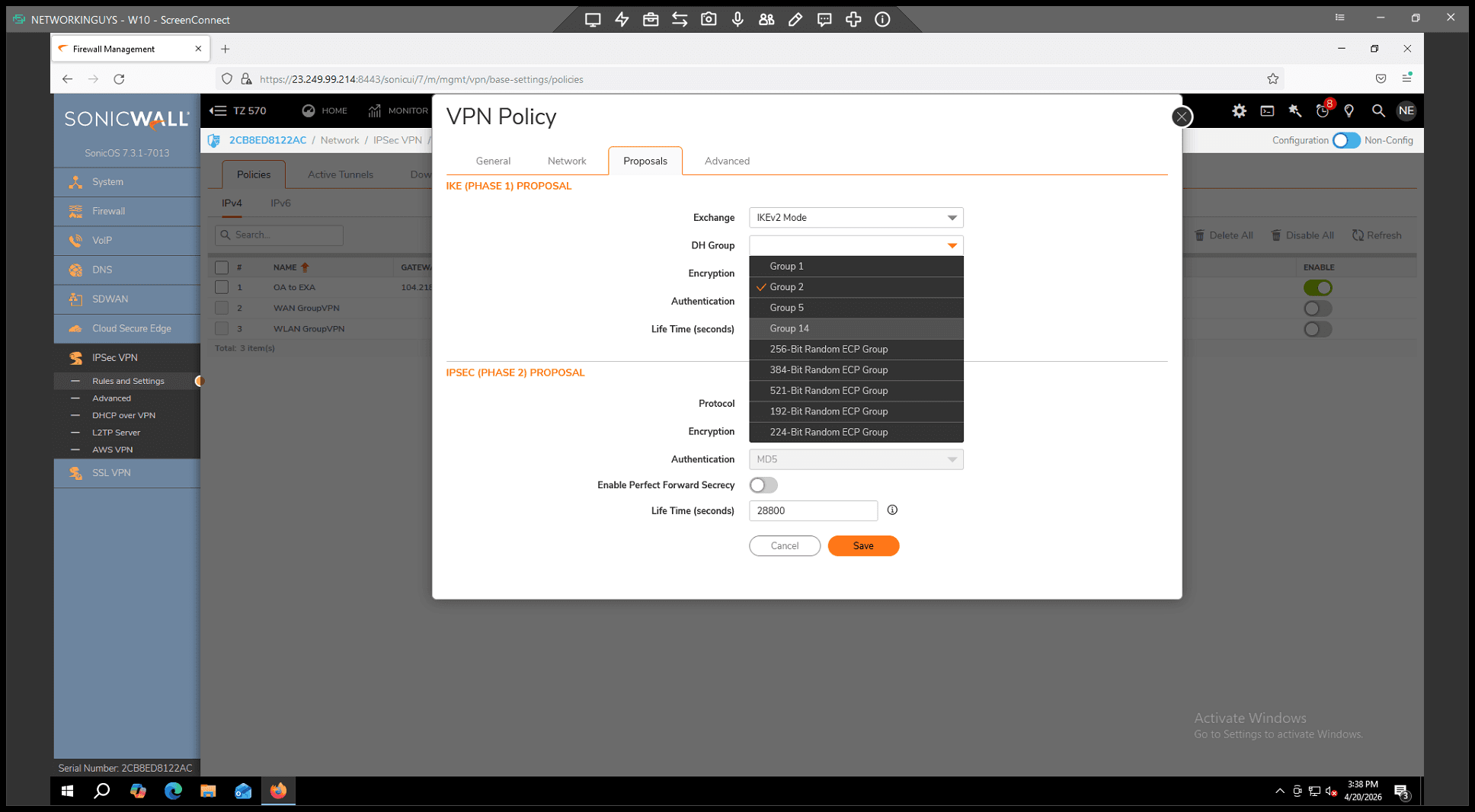
32
Set the DH Group to Group 14
Step #32: Set the DH Group to Group 14

. *

35
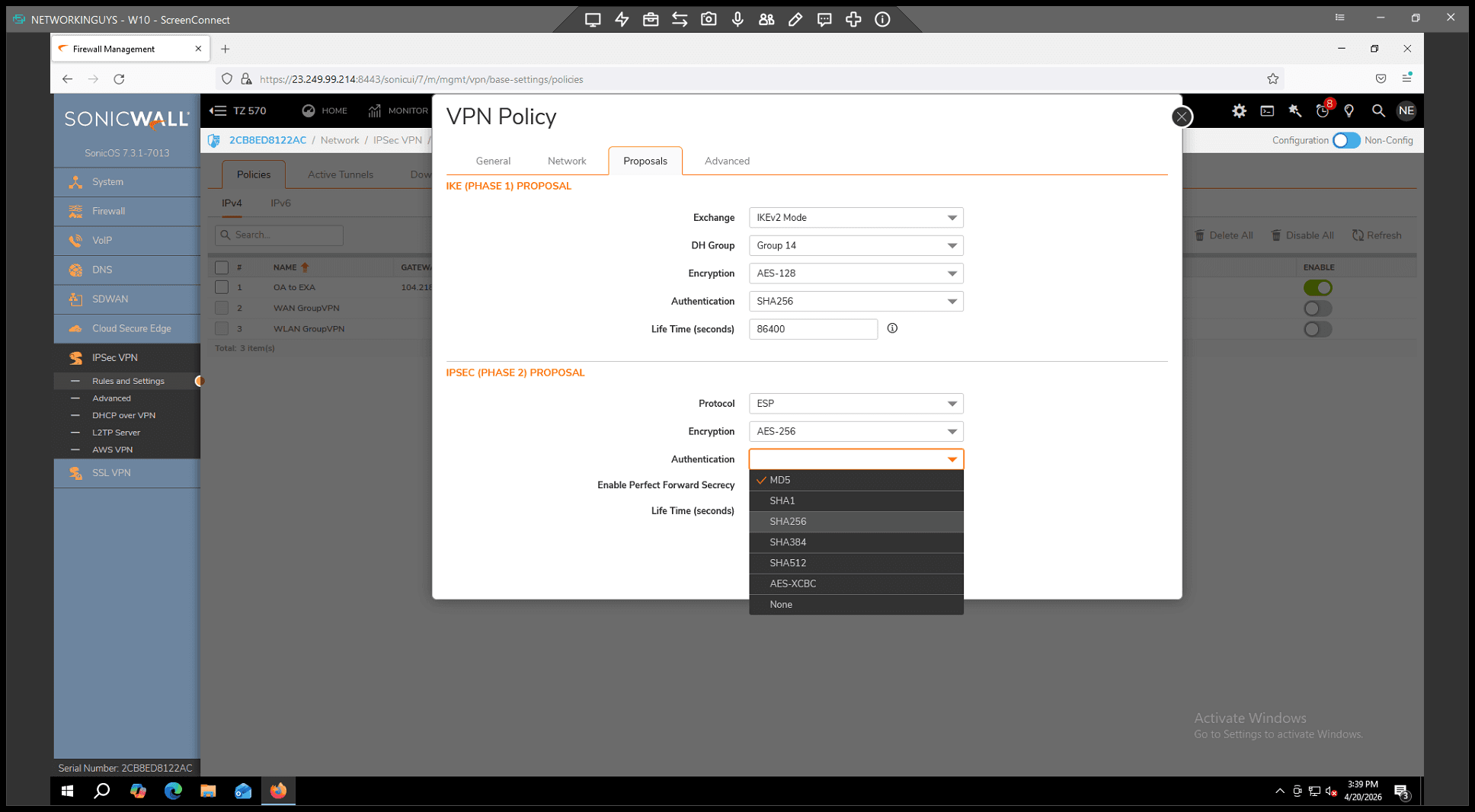
Select SHA384 for Authentication
Step #35: Select SHA384 for Authentication

(or according to your vendor's specifications). 3. Under the IPsec (Phase 2) Proposal section: *
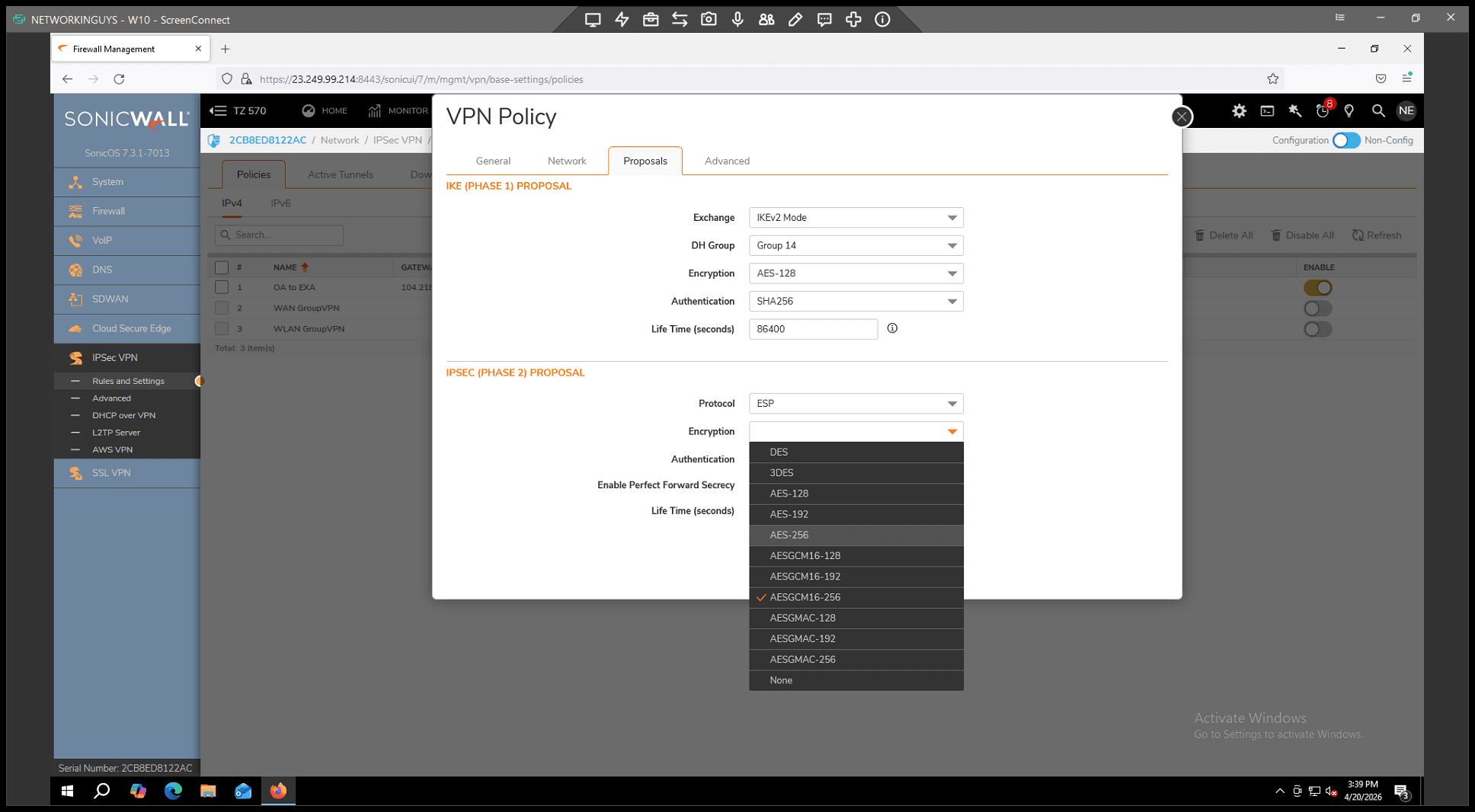
39
Set the Encryption protocol to AES - 256
Step #39: Set the Encryption protocol to AES - 256

. *

41
Select SHA256 for Authentication
Step #41: Select SHA256 for Authentication

. *

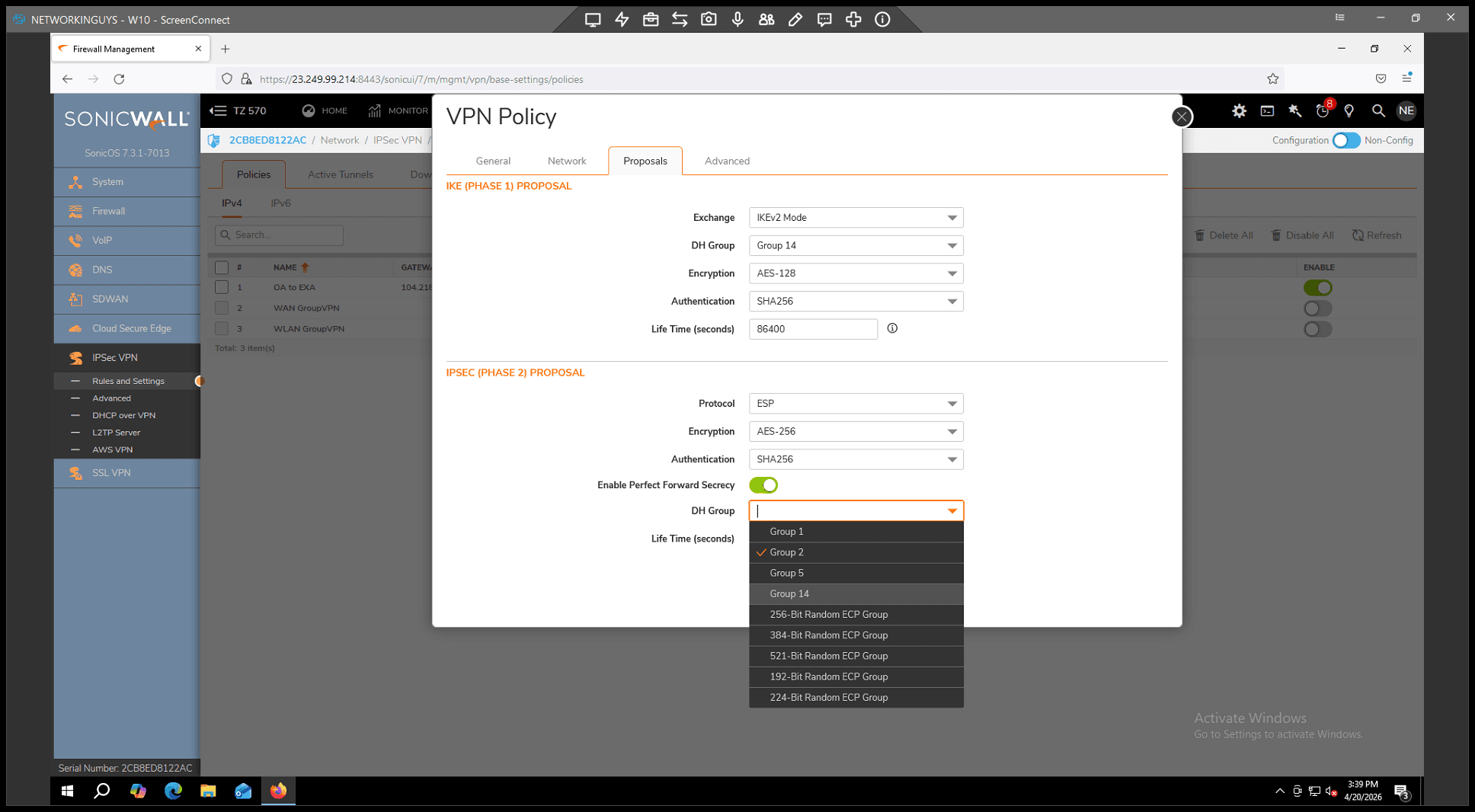
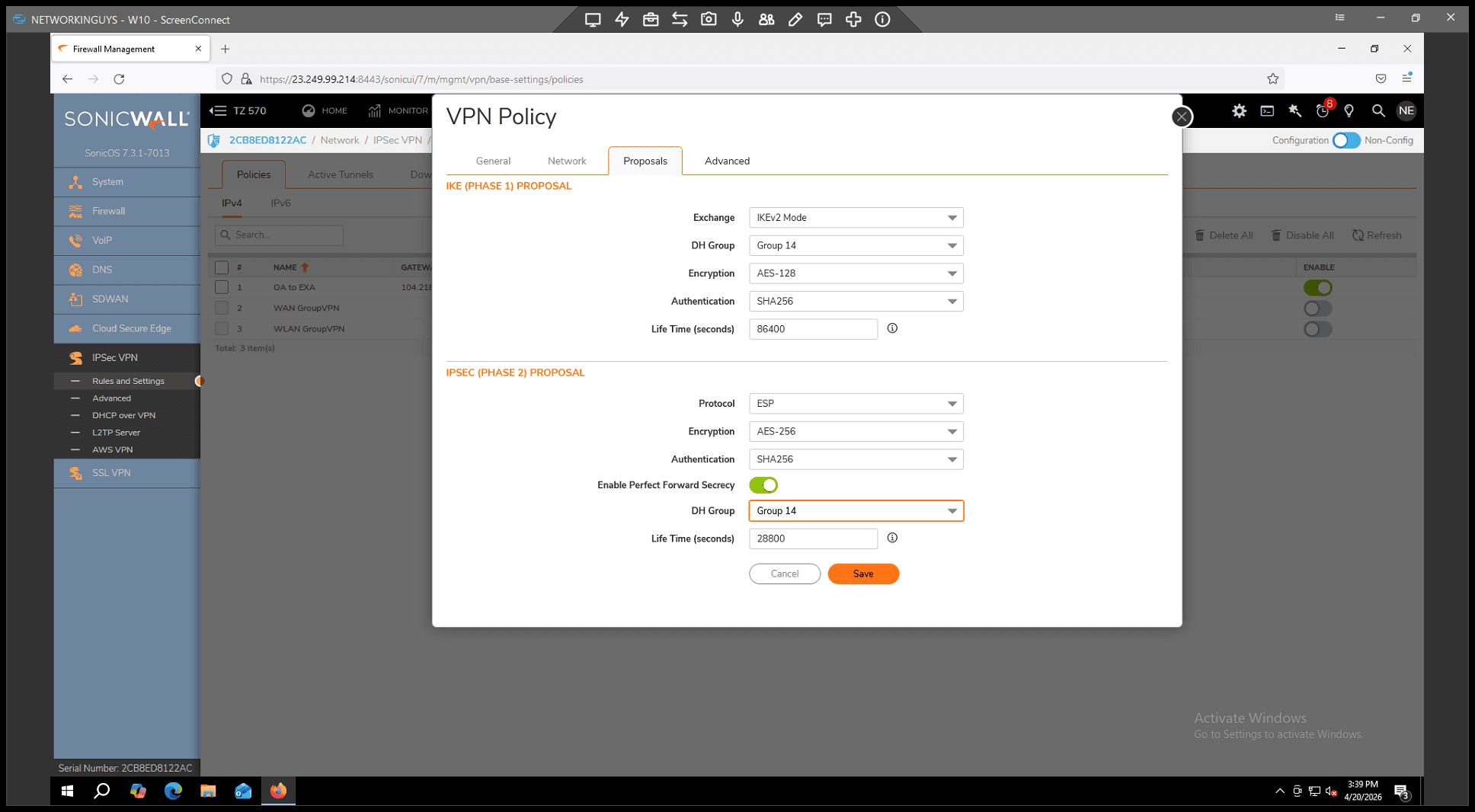
45
Set the DH Group to Group 14
Step #45: Set the DH Group to Group 14

.

Step 6: Enable Keep Alive and Save

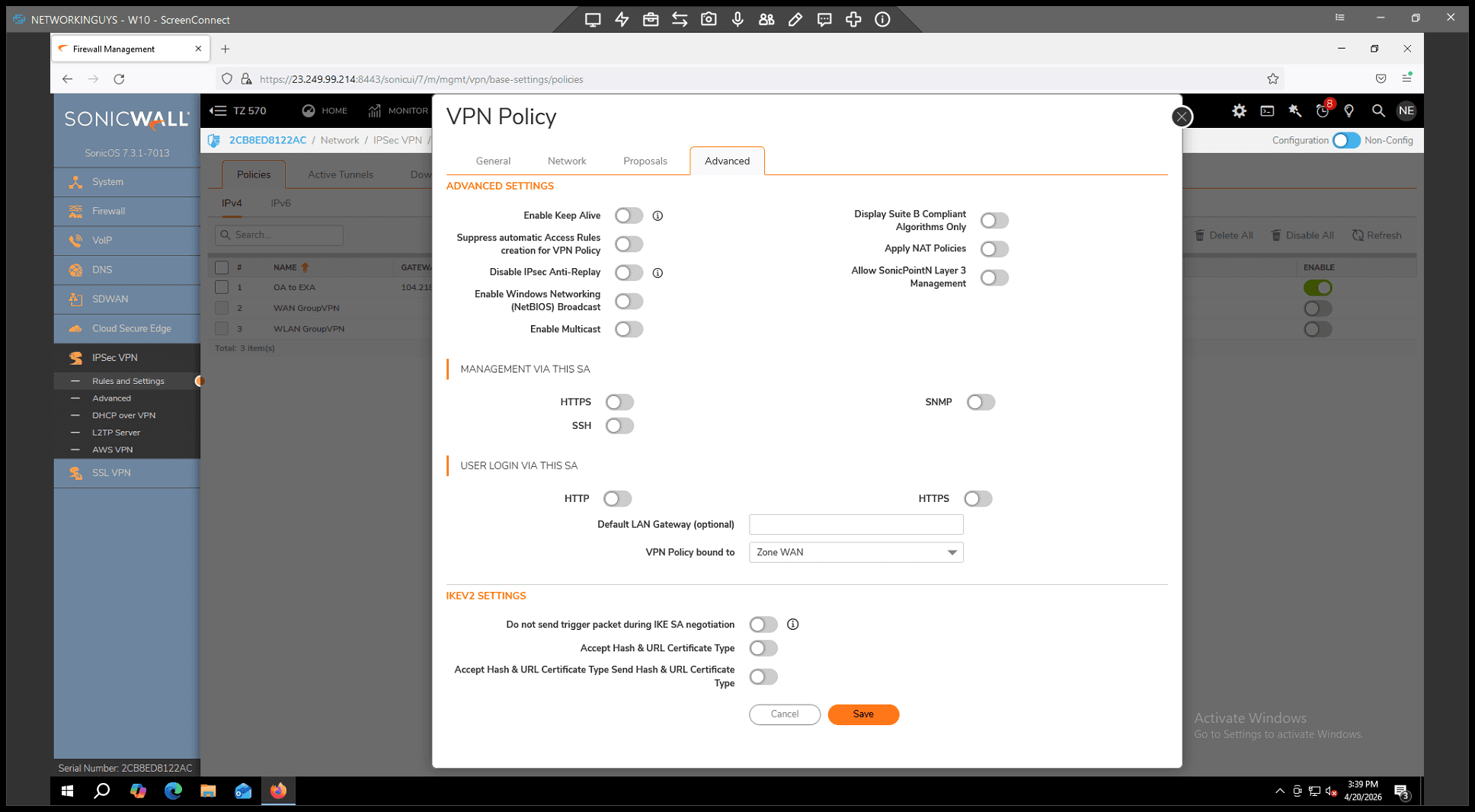
46
Switch over to the Advanced tab
Step #46: Switch over to the Advanced tab

. 2.

47
Toggle on Enable Keep Alive
Step #47: Toggle on Enable Keep Alive

to ensure the tunnel attempts to reconnect automatically if there are network drops. 3.
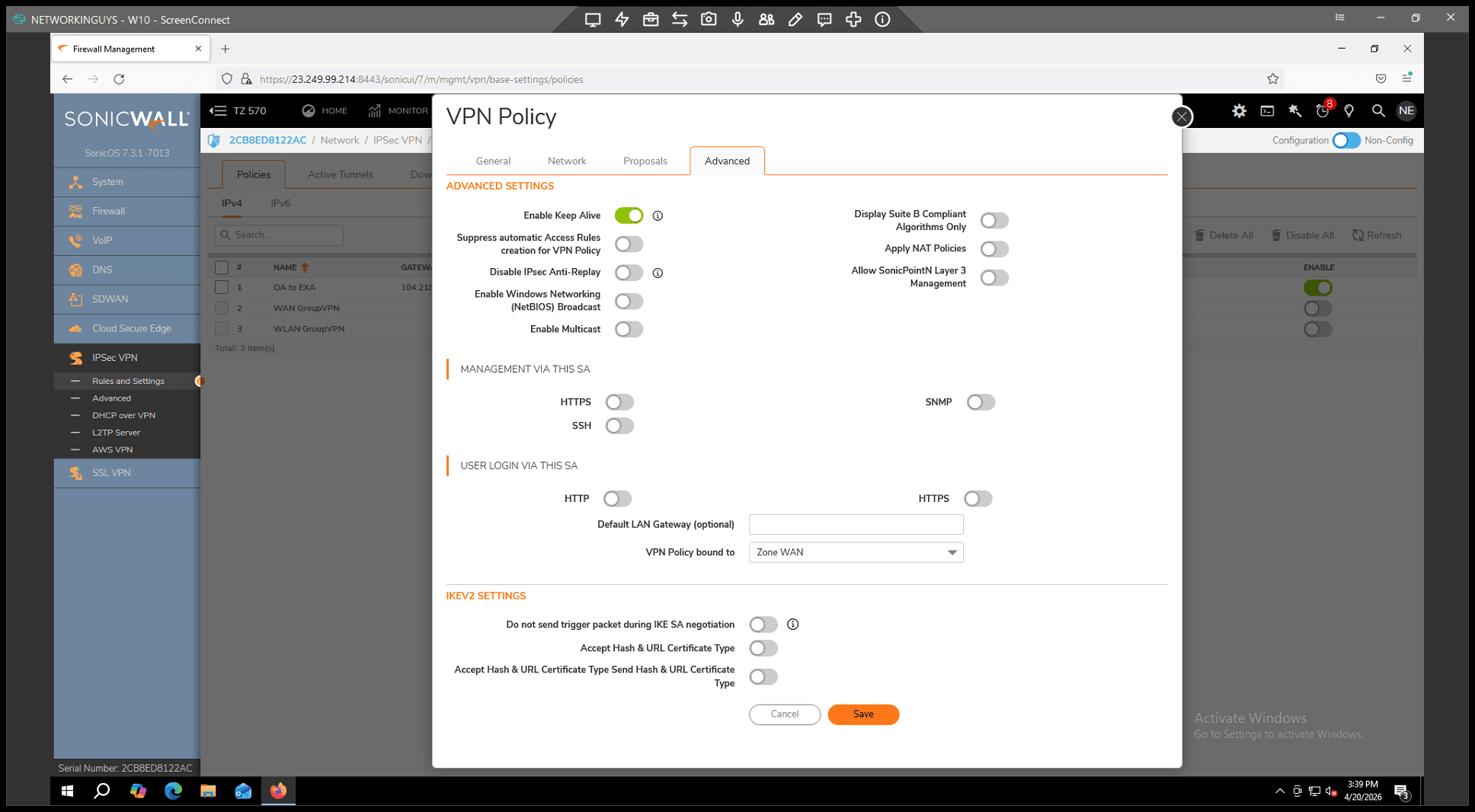
48
Click Save
Step #48: Click Save

to finalize your configuration.

You have now created the VPN policy. Once the customer, vendor, or remote office successfully matches these settings on their end, the tunnel will connect and display a green indicator next to the policy in your IPsec VPN table.

How to Configure a Site-to-Site IPsec VPN on SonicWall