Icon

How to Configure Time-Based Access Rules in GeoVision

Learn how to create time-based access schedules, assign them to specific operators, and restrict system access hours in GeoVision cloud.

By Tanner Nack

This guide demonstrates how to create customized time-based access rules and assign them to specific operators. By completing this workflow, you can restrict user access to certain doors strictly within designated days and hours.

This guide applies to system administrators and facility managers using GeoVision cloud access control. Use this process when you need to provide temporary or scheduled access for specific roles, such as cleaning staff, contractors, or part-time employees.

Creating a Time-Based Access Rule
1
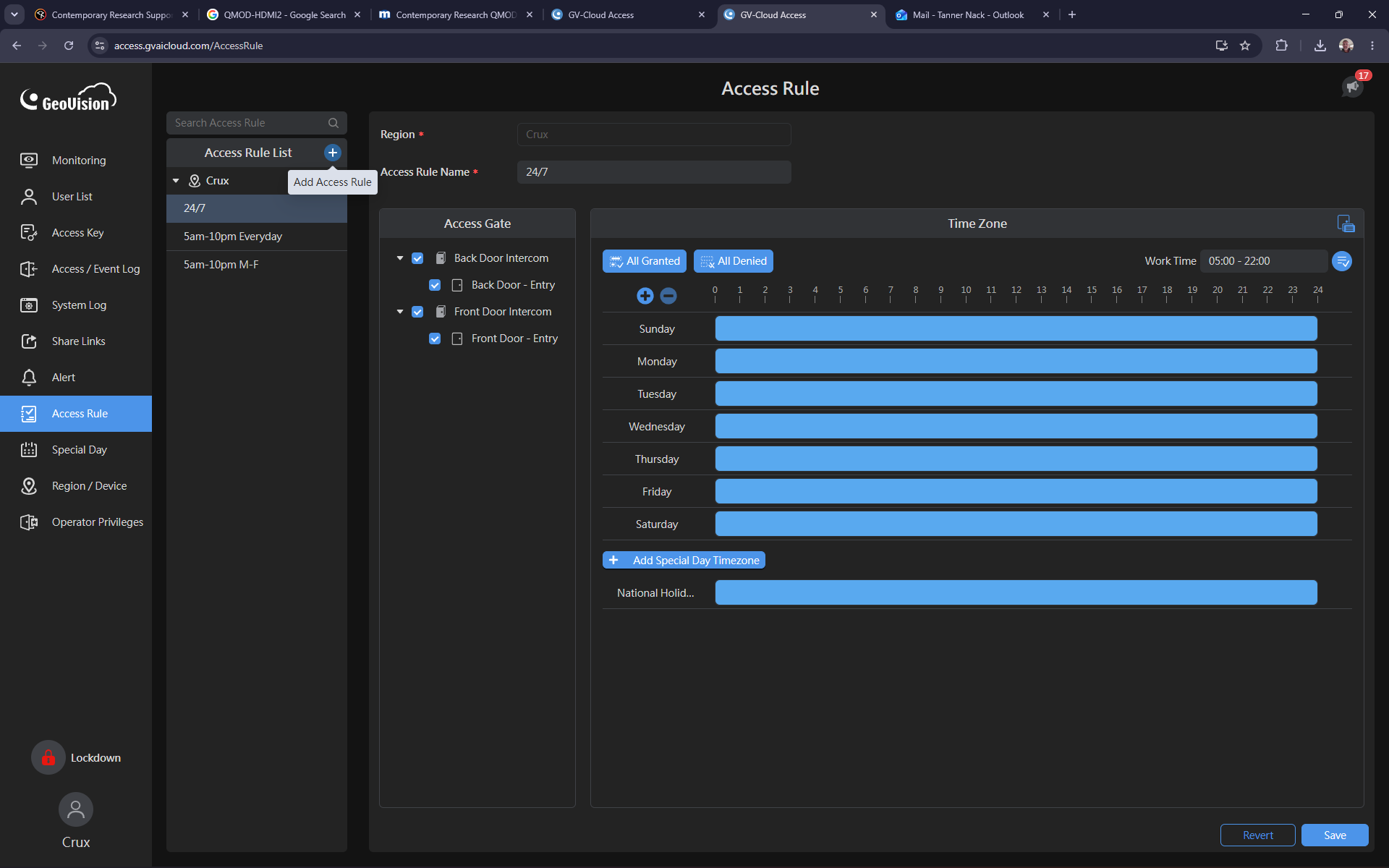
Click the + (Add) icon in the access control interface to create a new access rule.
Step #1: Click the + (Add) icon in the access control interface to create a new access rule.
2
Type a descriptive name for the rule, such as "Cleaner".
3
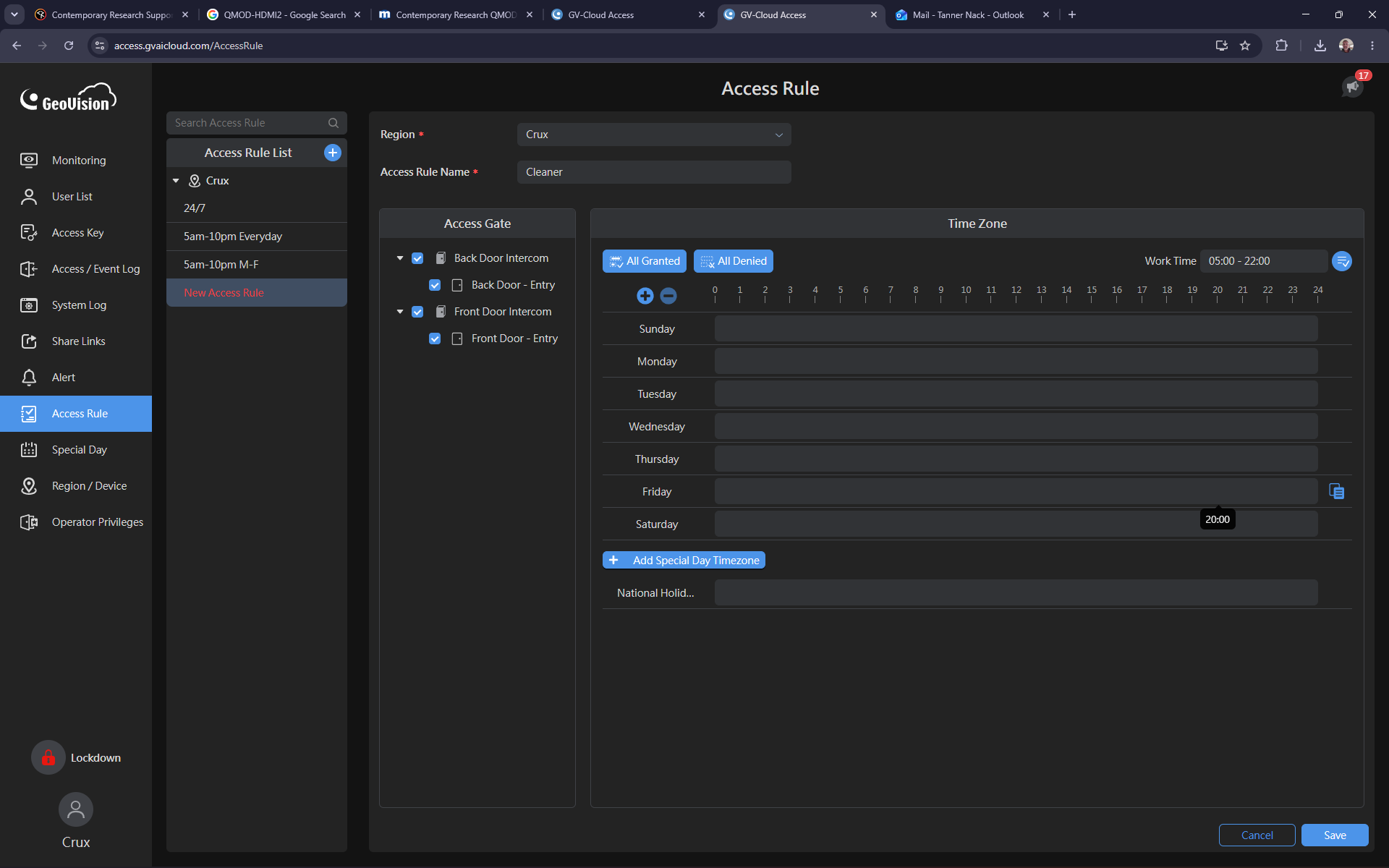
Drag your cursor along the time zone scheduling grid to highlight the desired access window (e.g., 20:00 to 22:00 on Friday).
Step #3: Drag your cursor along the time zone scheduling grid to highlight the desired access window (e.g., 20:00 to 22:00 on Friday).
4
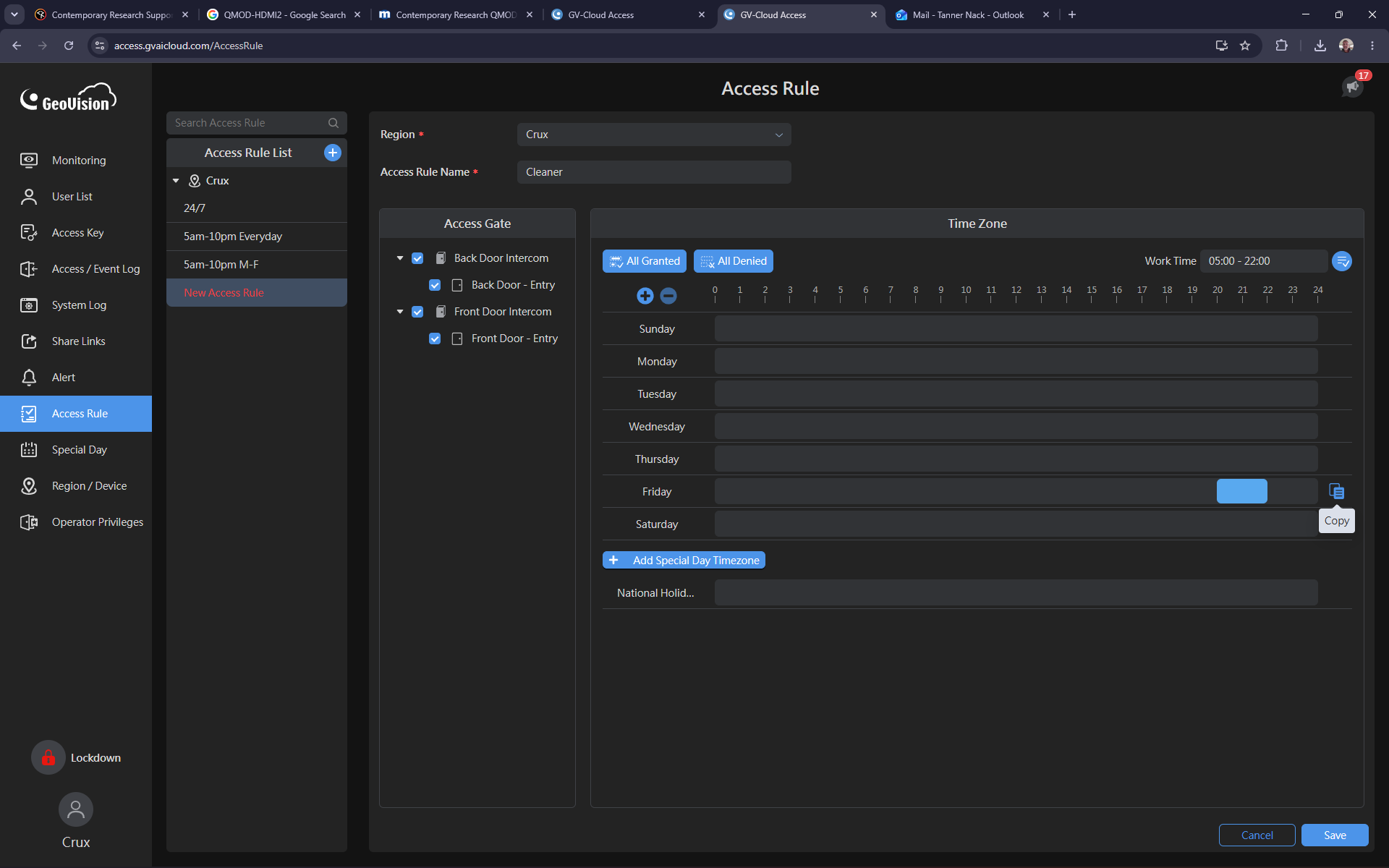
Click the Copy icon next to the Friday time zone row.
Step #4: Click the Copy icon next to the Friday time zone row.
5
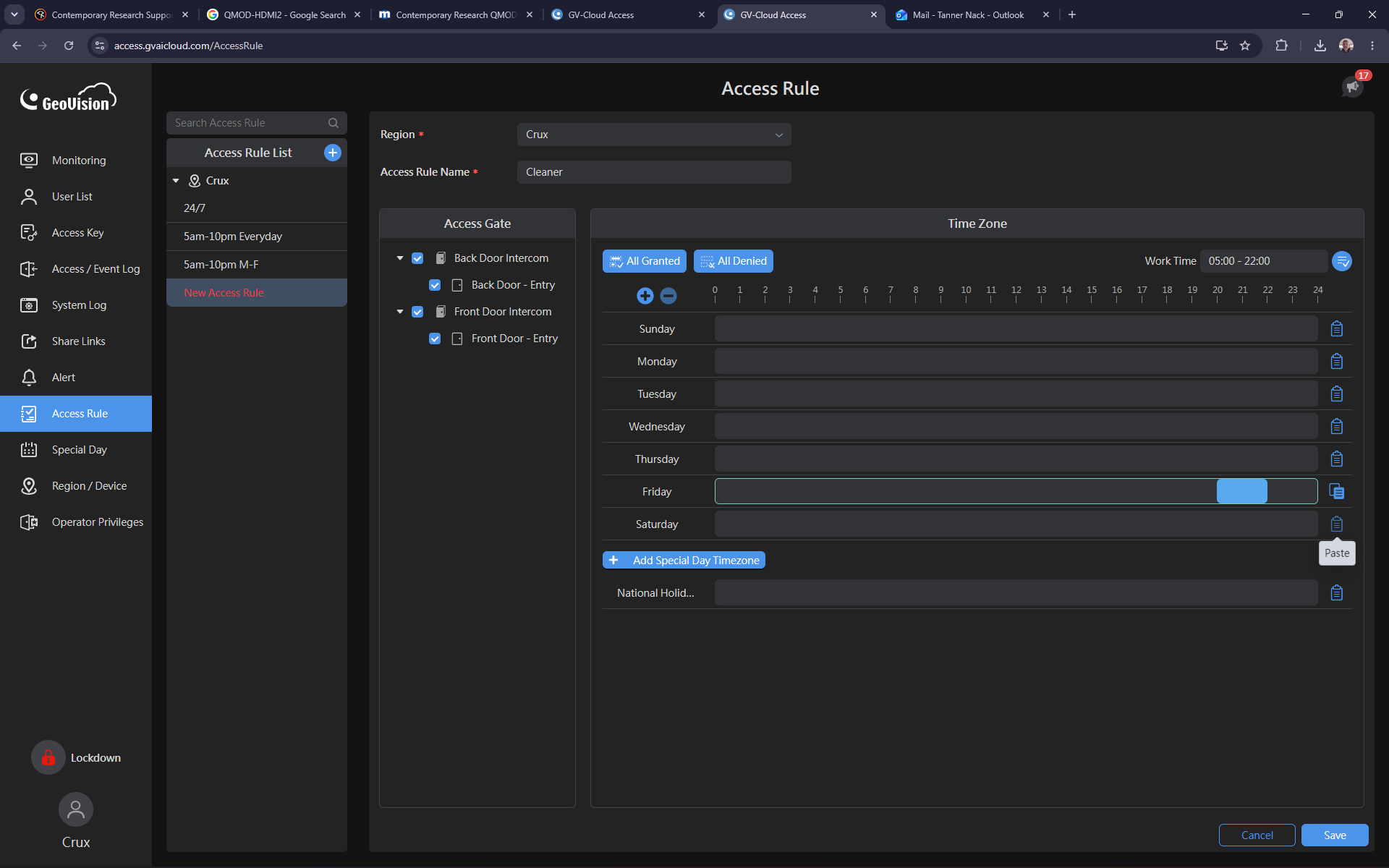
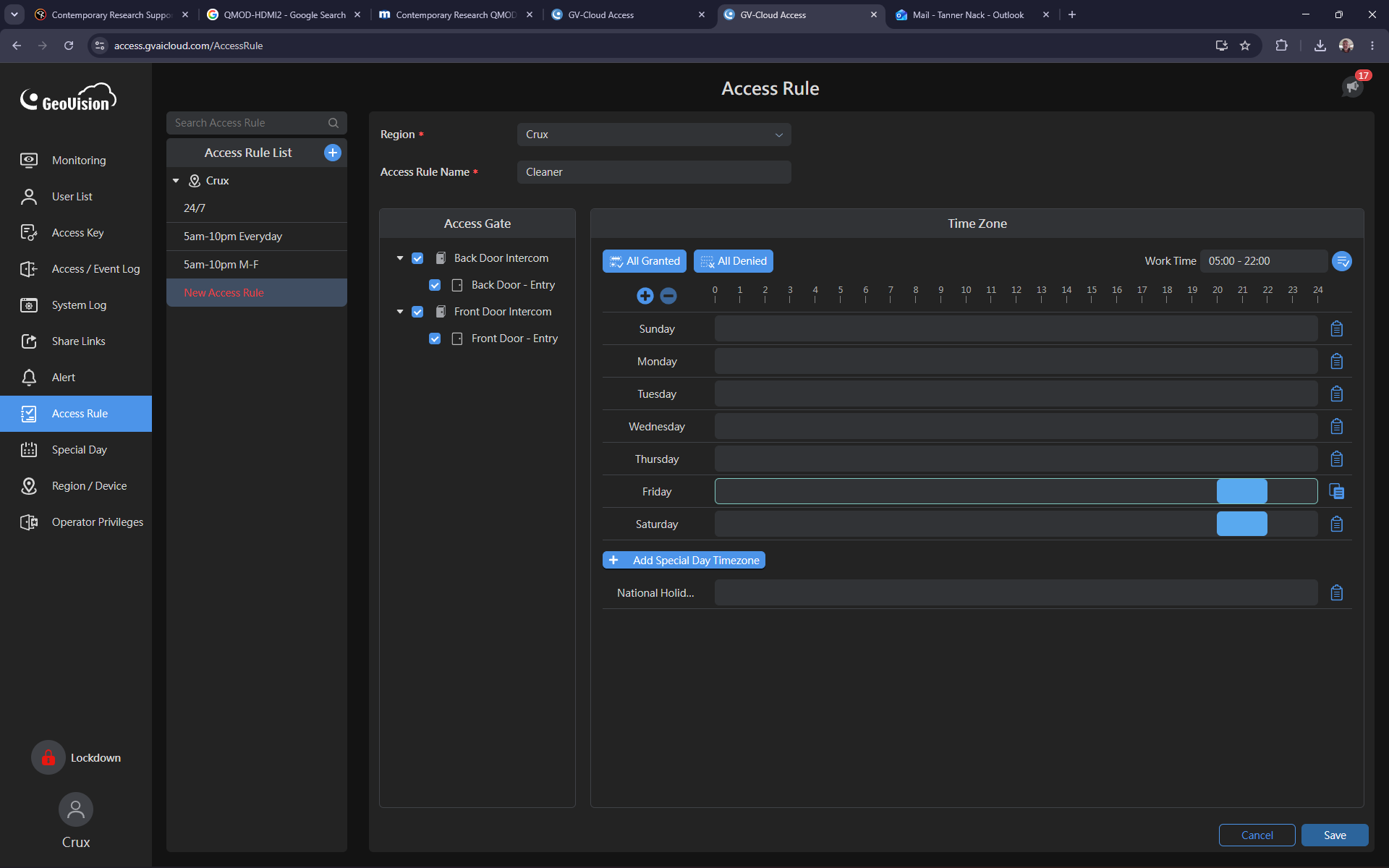
Click the Paste icon next to the Saturday row to duplicate the exact same schedule.
Step #5: Click the Paste icon next to the Saturday row to duplicate the exact same schedule.
6
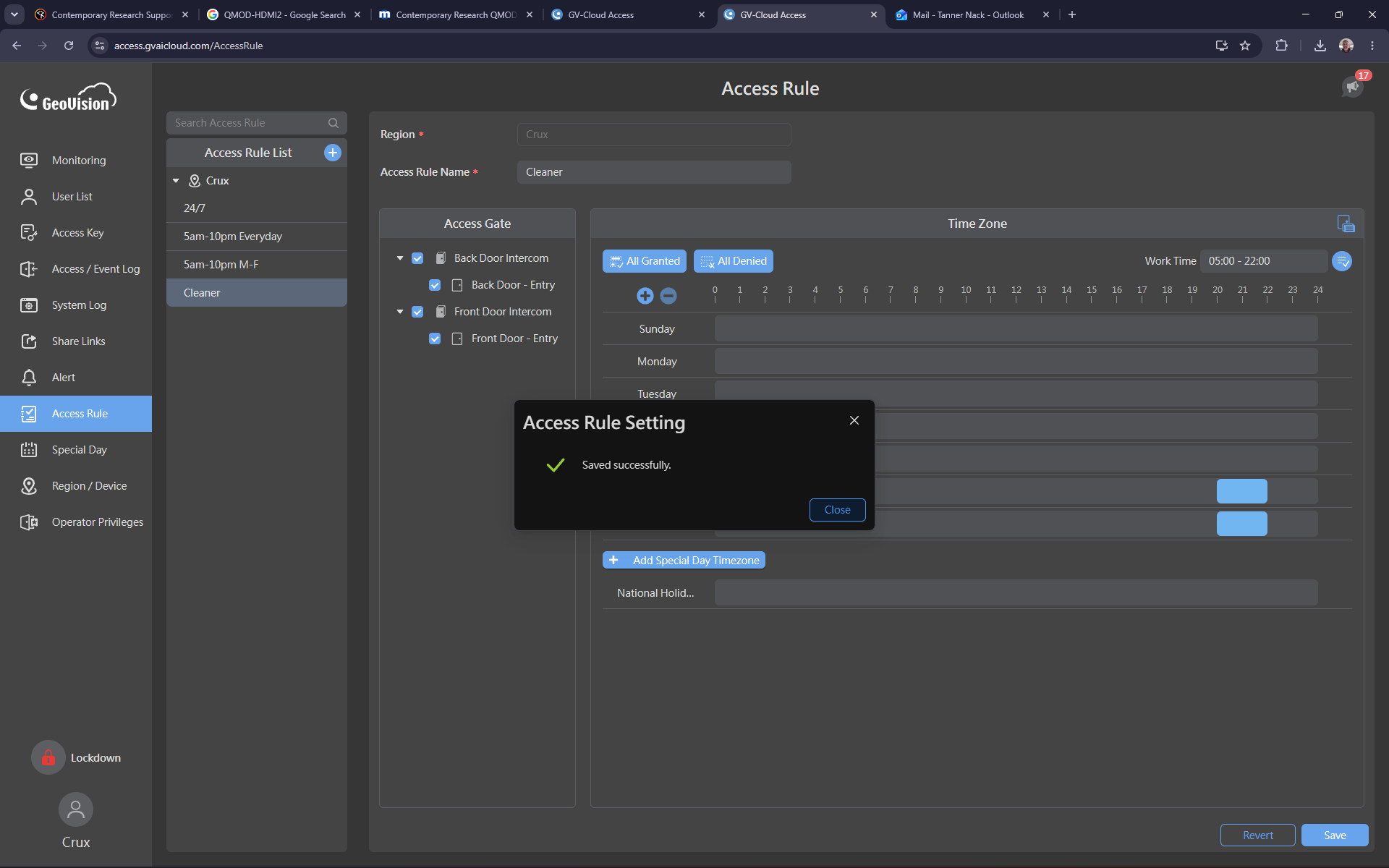
Click Save to commit the new schedule.
Step #6: Click Save to commit the new schedule.
7
Click Close on the success confirmation popup.
Step #7: Click Close on the success confirmation popup.

Assigning the Rule to an Operator
8
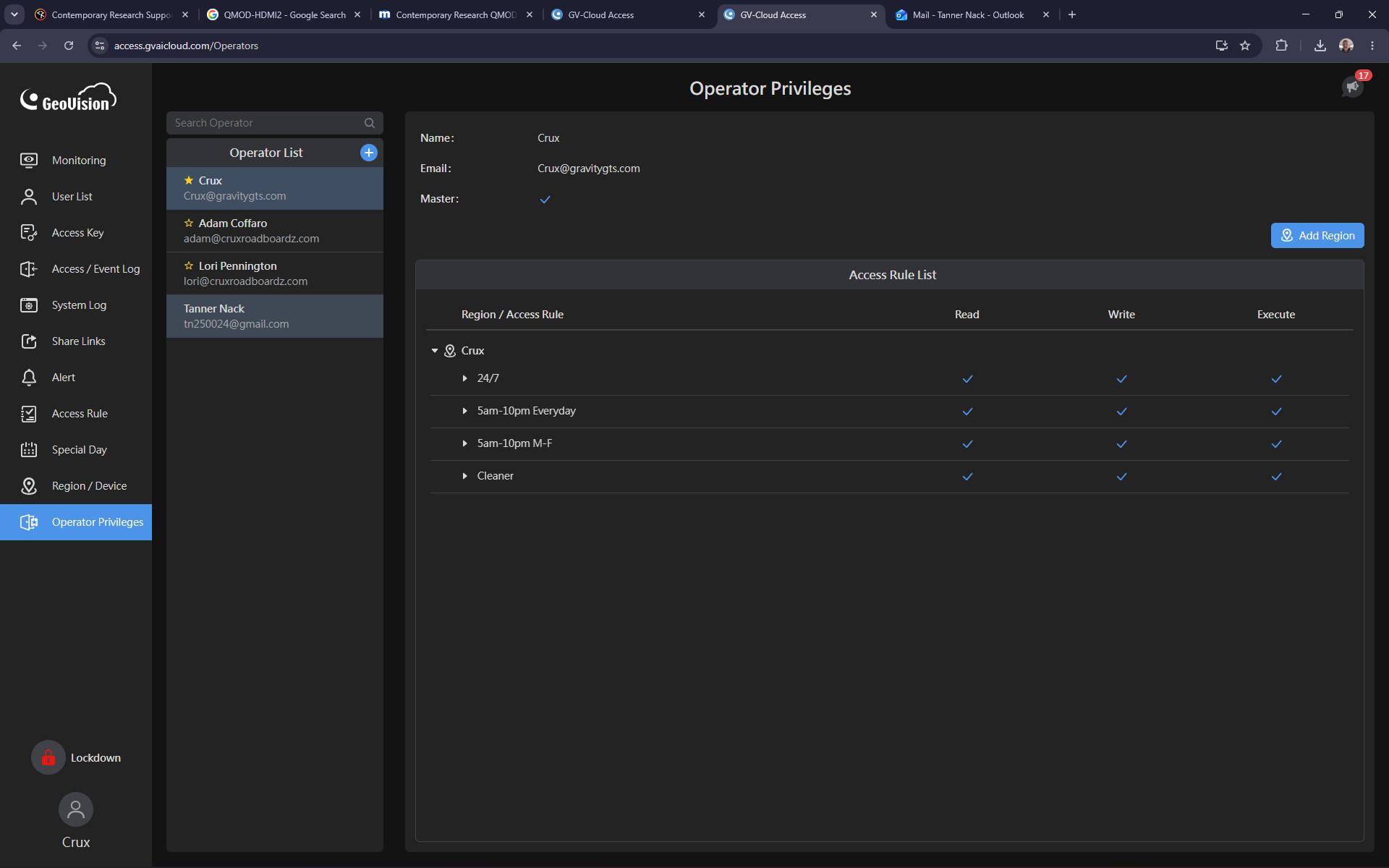
Click Operator Privileges in the main navigation menu.
Step #8: Click Operator Privileges in the main navigation menu.
9
Select the user you want to modify from the user list.
Step #9: Select the user you want to modify from the user list.

Permission Level

Description

Read

View door status and event logs.

Write

Modify system configurations and schedules.

Execute

Perform manual actions like locking or unlocking doors.

10
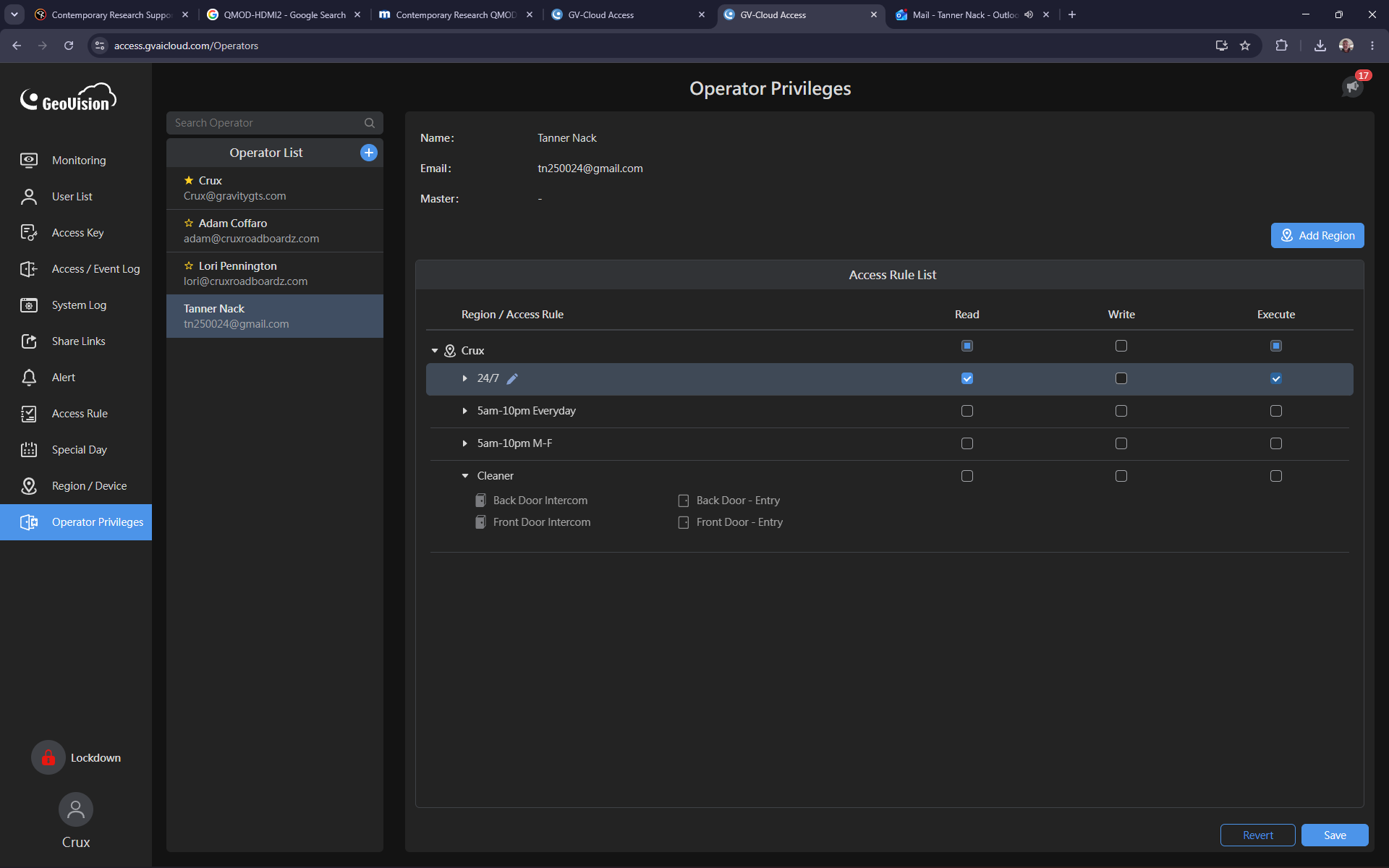
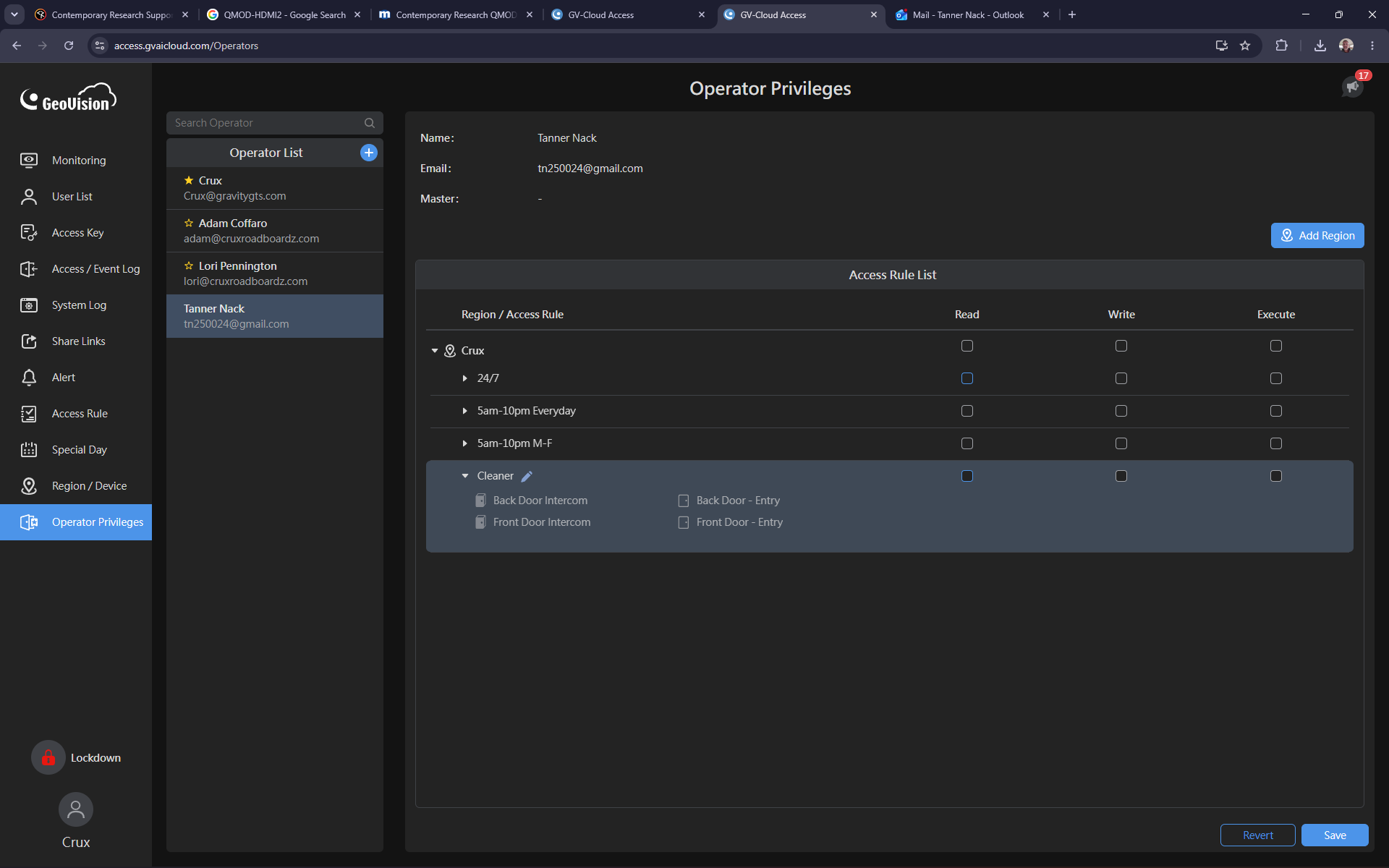
Uncheck the permissions for their existing broad access rule (like a 24/7 unrestricted schedule) to remove previous access levels.
Step #10: Uncheck the permissions for their existing broad access rule (like a 24/7 unrestricted schedule) to remove previous access levels.
11
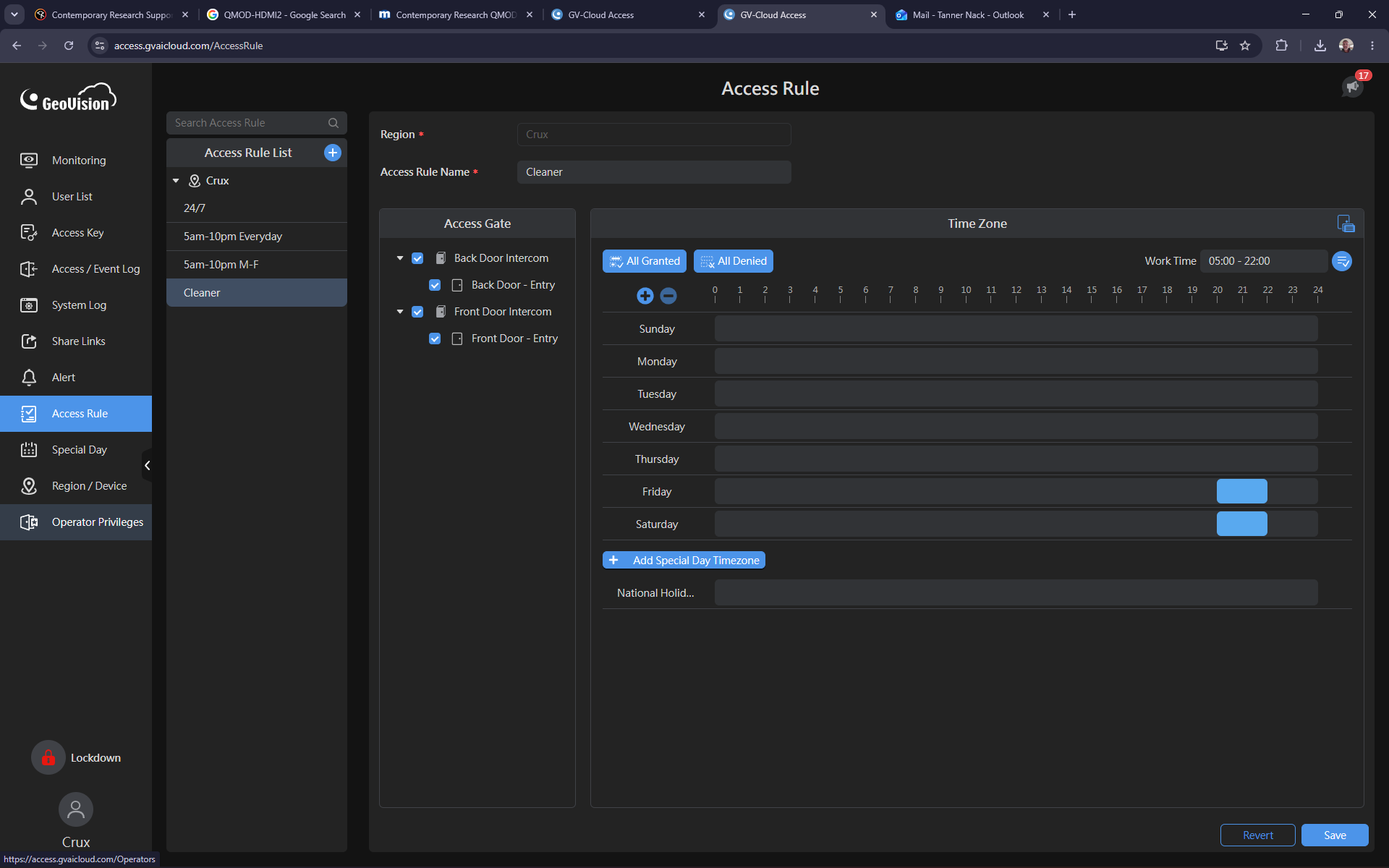
Locate the newly created schedule in the Access Rule List.
Step #11: Locate the newly created schedule in the Access Rule List.
12
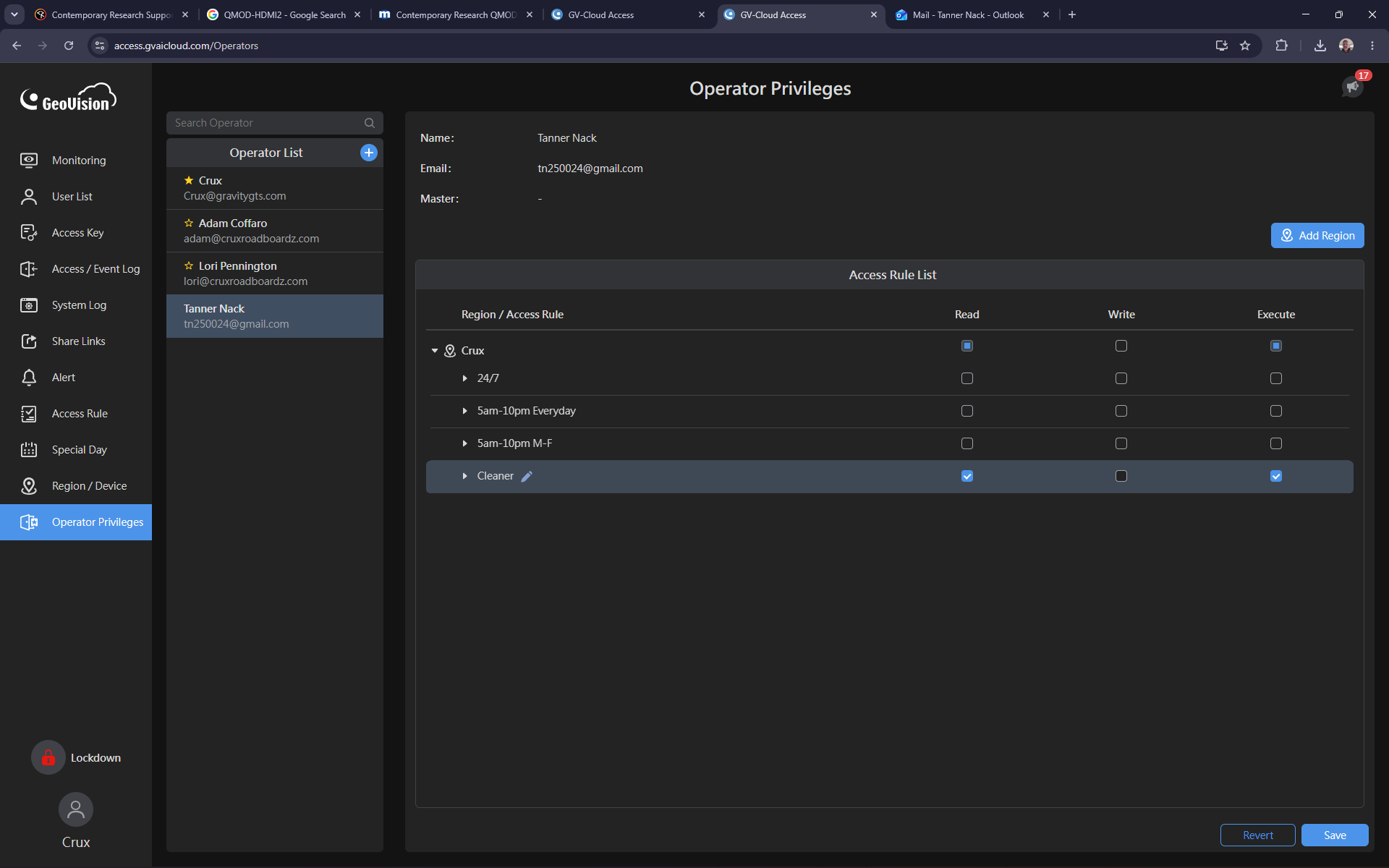
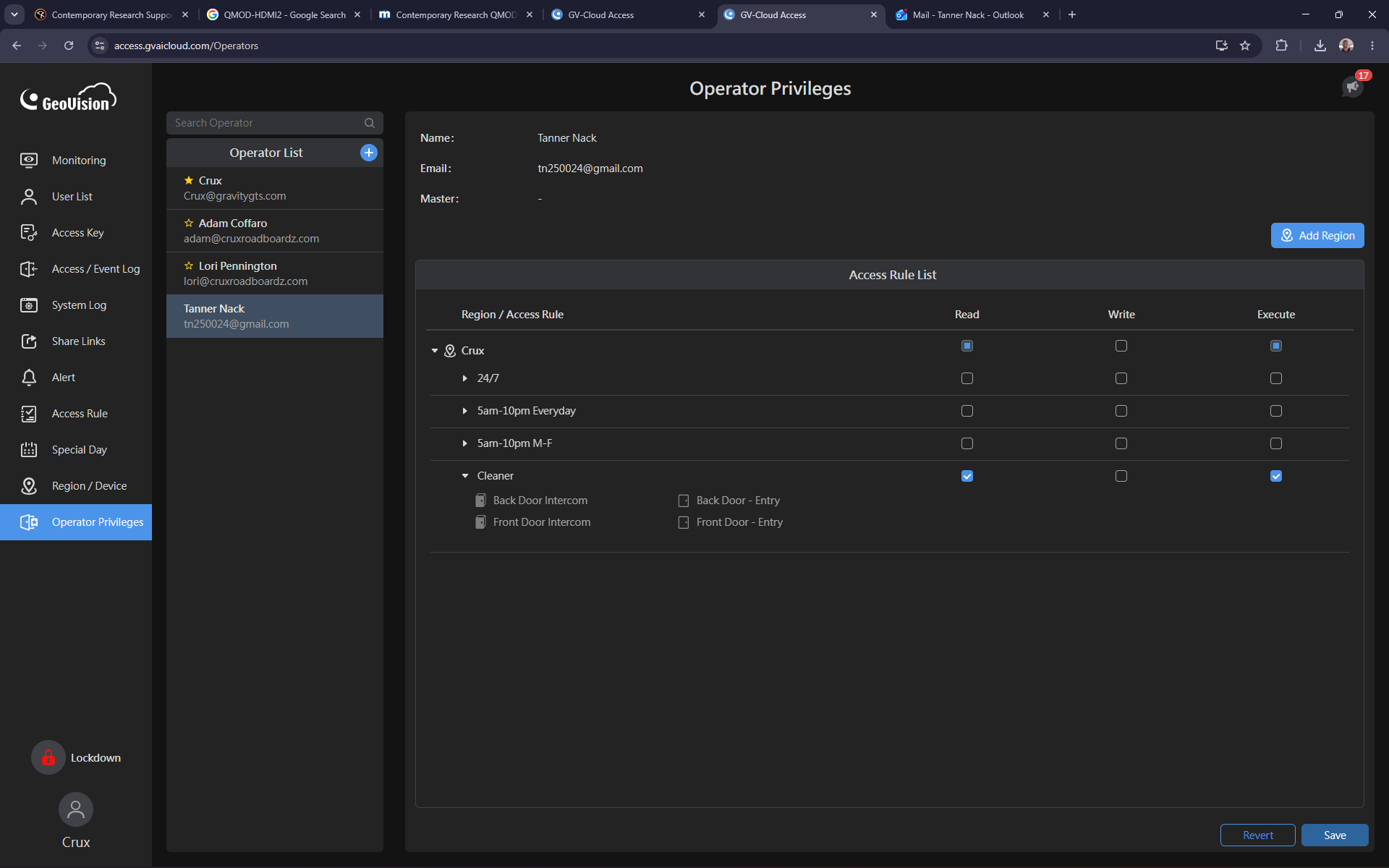
Check the boxes for Read and Execute next to the new rule so the operator can view and open the doors strictly during their shift.
Step #12: Check the boxes for Read and Execute next to the new rule so the operator can view and open the doors strictly during their shift.
13
Click Save to apply the updated privileges.
Step #13: Click Save to apply the updated privileges.
14
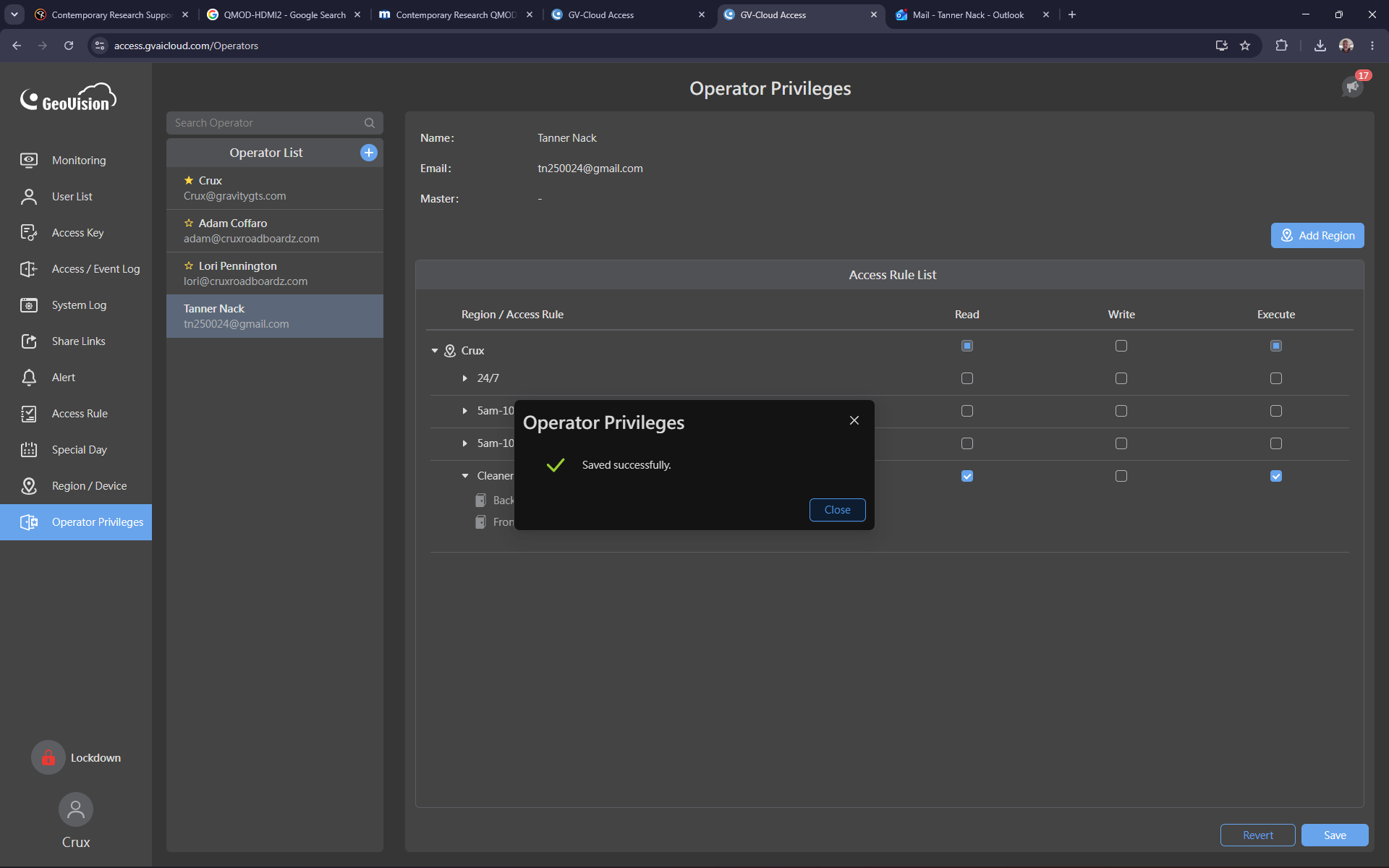
Click Close on the confirmation prompt.
Step #14: Click Close on the confirmation prompt.

Verifying the Access Restrictions

To ensure the restrictions work, log in as the newly restricted operator during a time outside of their permitted schedule.
15
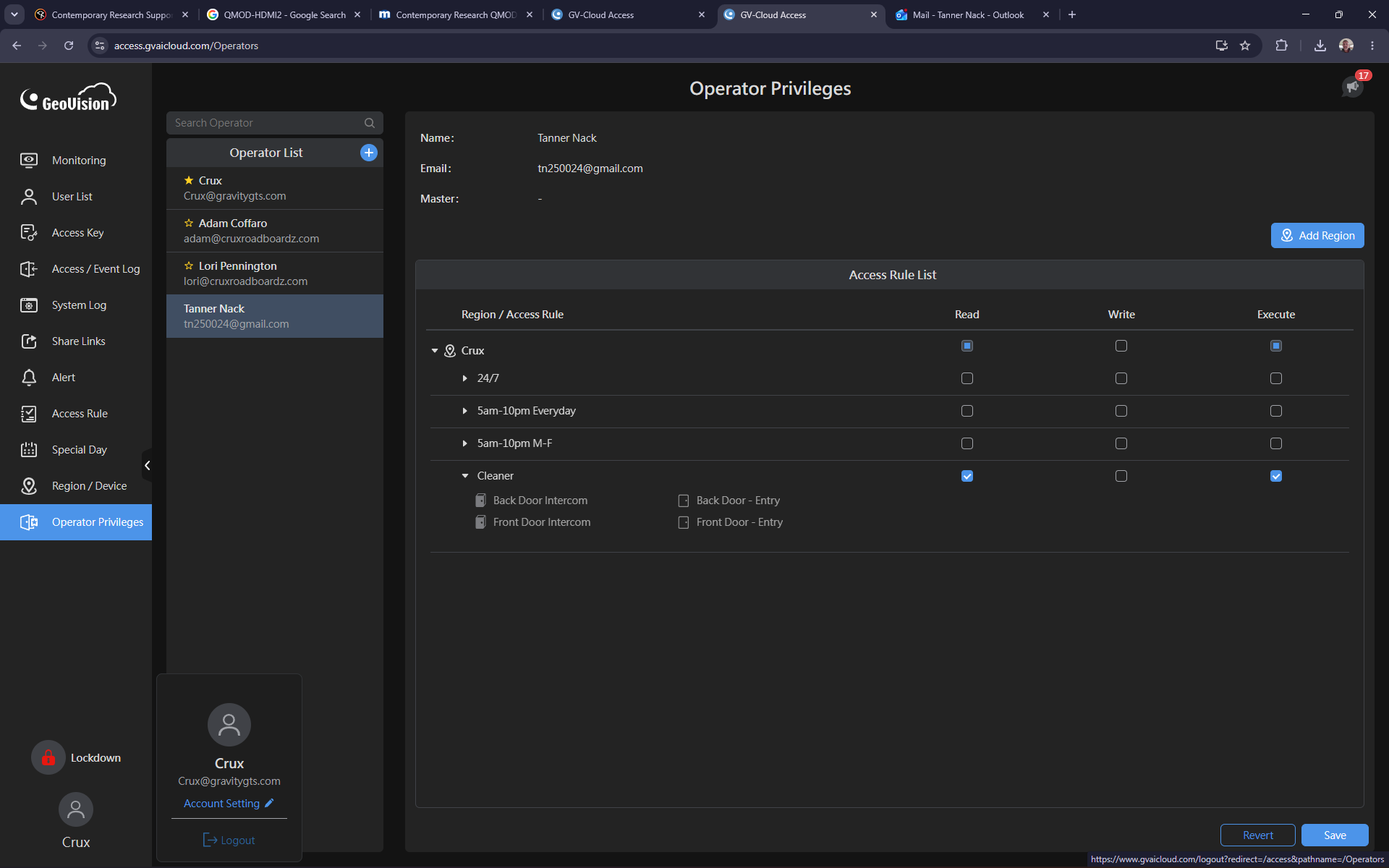
Click Logout and sign back into the system using the restricted operator's credentials.
Step #15: Click Logout and sign back into the system using the restricted operator's credentials.
16
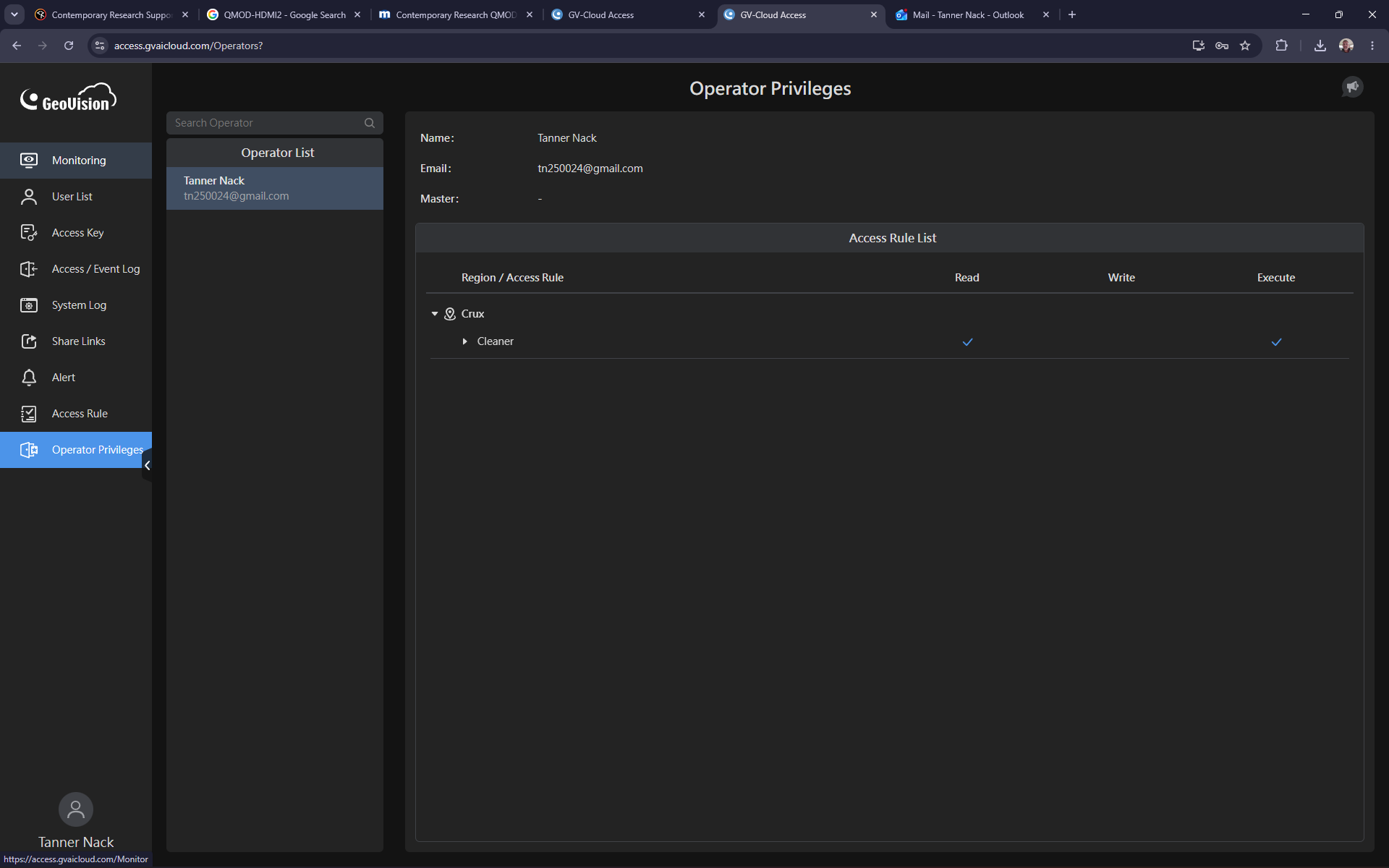
Click Monitoring to view the active gates.
Step #16: Click Monitoring to view the active gates.
17
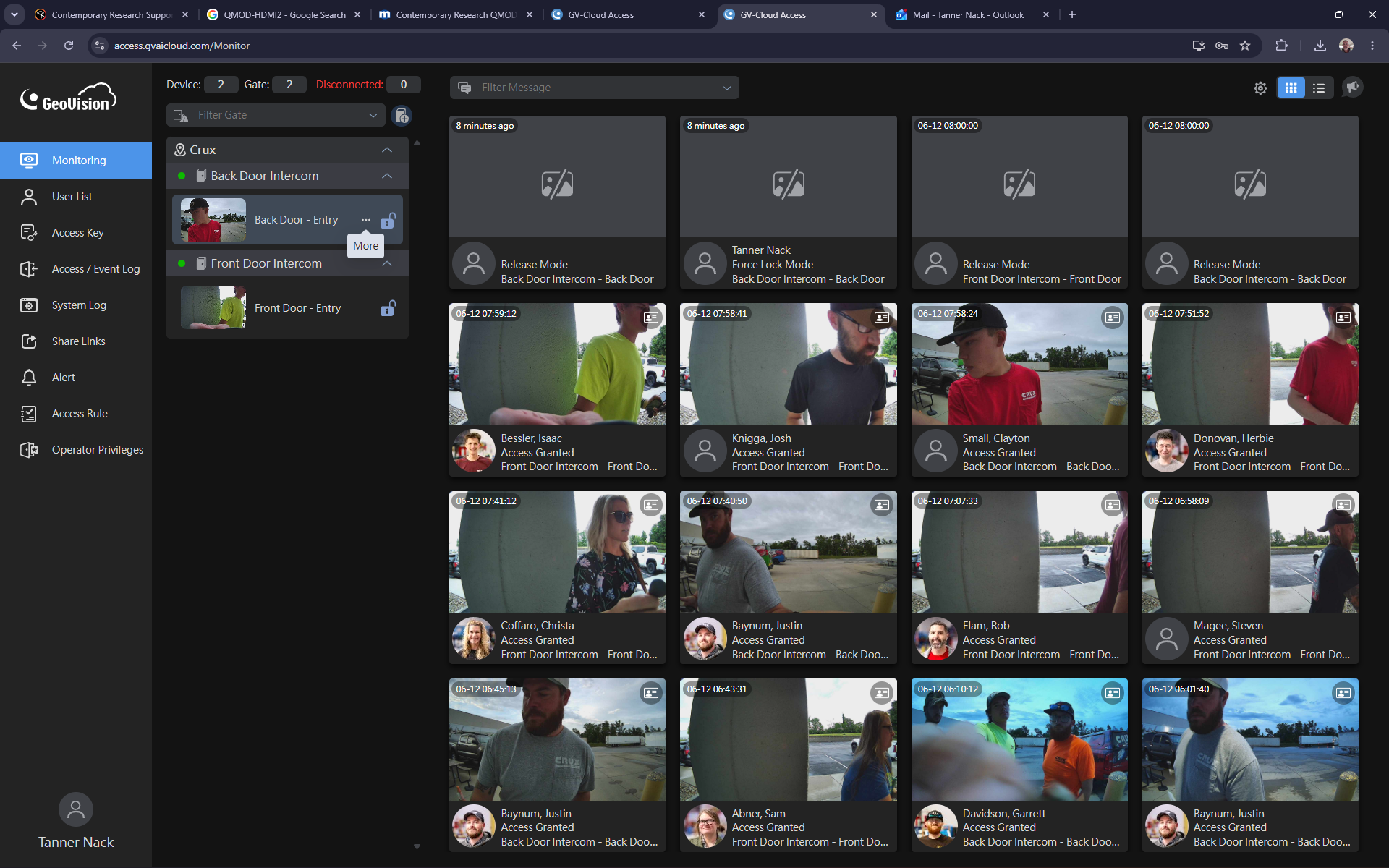
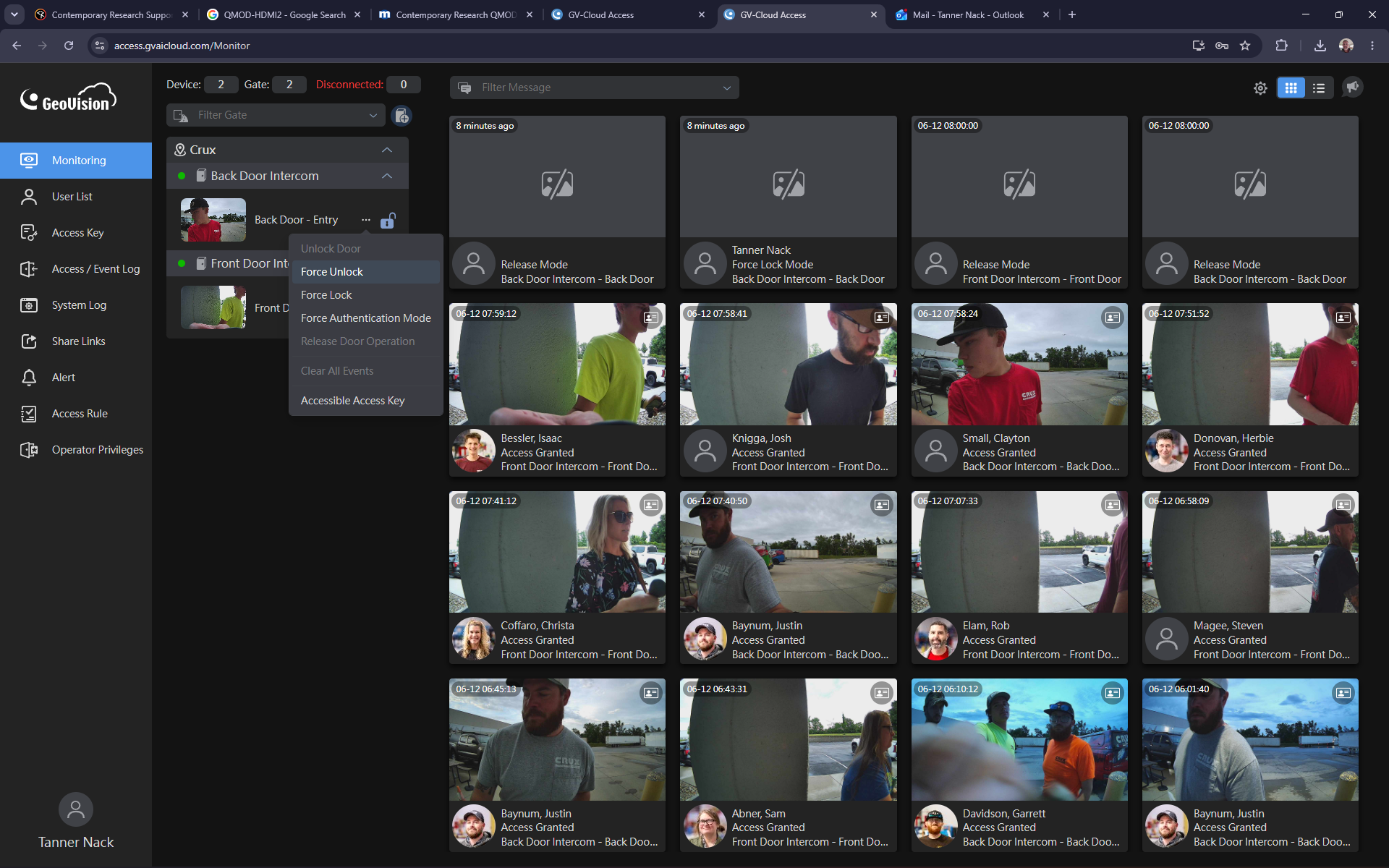
Click the More context menu button on a designated door card.
Step #17: Click the More context menu button on a designated door card.
18
Click Force Unlock (or Force Lock) to attempt a manual override.
Step #18: Click Force Unlock (or Force Lock) to attempt a manual override.
19
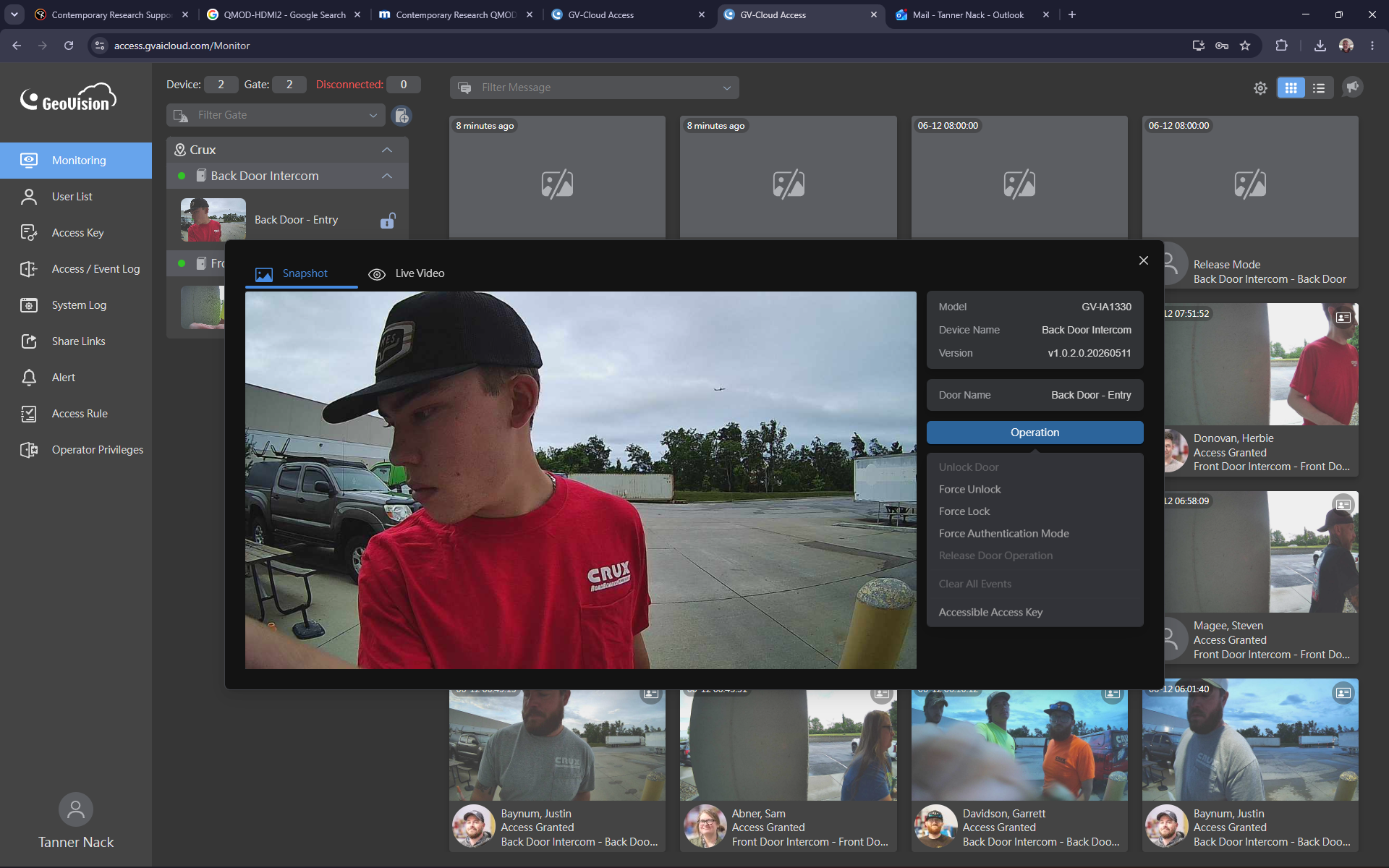
Alternatively, open the camera snapshot window for the door and click Operation.
Step #19: Alternatively, open the camera snapshot window for the door and click Operation.
20
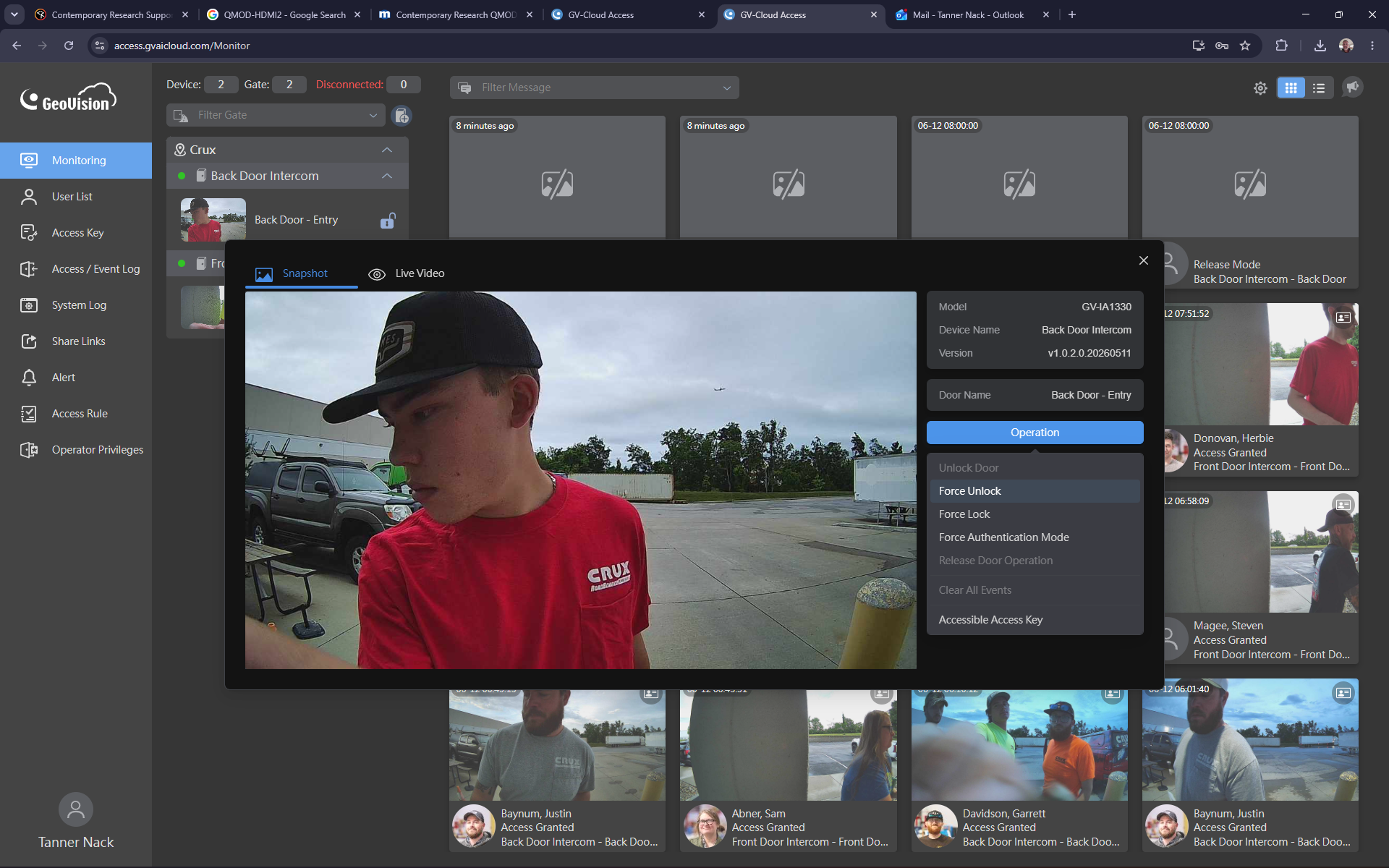
Click Force Unlock from the dropdown menu.
Step #20: Click Force Unlock from the dropdown menu.

Q: How do I temporarily disable an operator's access without deleting their account?

A: Navigate to the Operator Privileges menu and uncheck all of their assigned access rules. Their account profile remains intact, and you can restore their privileges at any time by simply rechecking the boxes.

Q: What happens if a restricted operator tries to unlock a door outside their scheduled hours?

A: The system will automatically block the operation. Any force unlock or force lock commands issued outside of their assigned time window will be ignored and have no effect on the doors.

Term

Definition

Access Rule

A predefined system policy specifying which doors a user can interact with and during what specific hours.

Operator Privileges

The administration menu where managers can assign, modify, or revoke access rights (like Read, Write, and Execute) for specific users.

Force Unlock

A manual override command used to instantly open a secured gate or door directly from the monitoring dashboard.