Create a Student Learning Plan in PowerSchool Admin
Learn how to create, activate, and review a Student Learning Plan (SLP) for a student in the PowerSchool admin portal.
This guide provides step-by-step instructions for creating, activating, and reviewing a Student Learning Plan (SLP) in PowerSchool.
Locate the Student Record
Begin by searching for and selecting the student profile in PowerSchool.
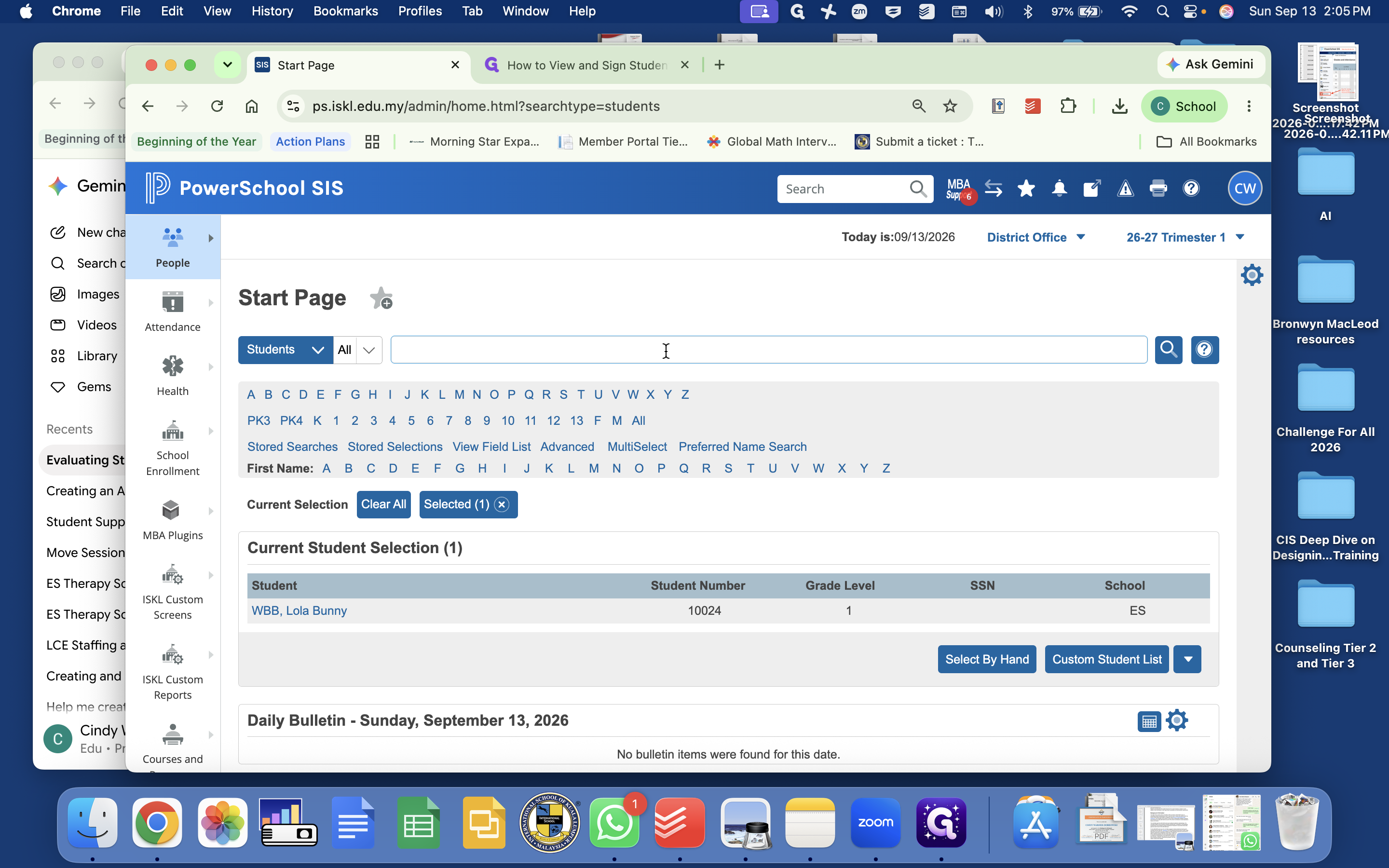
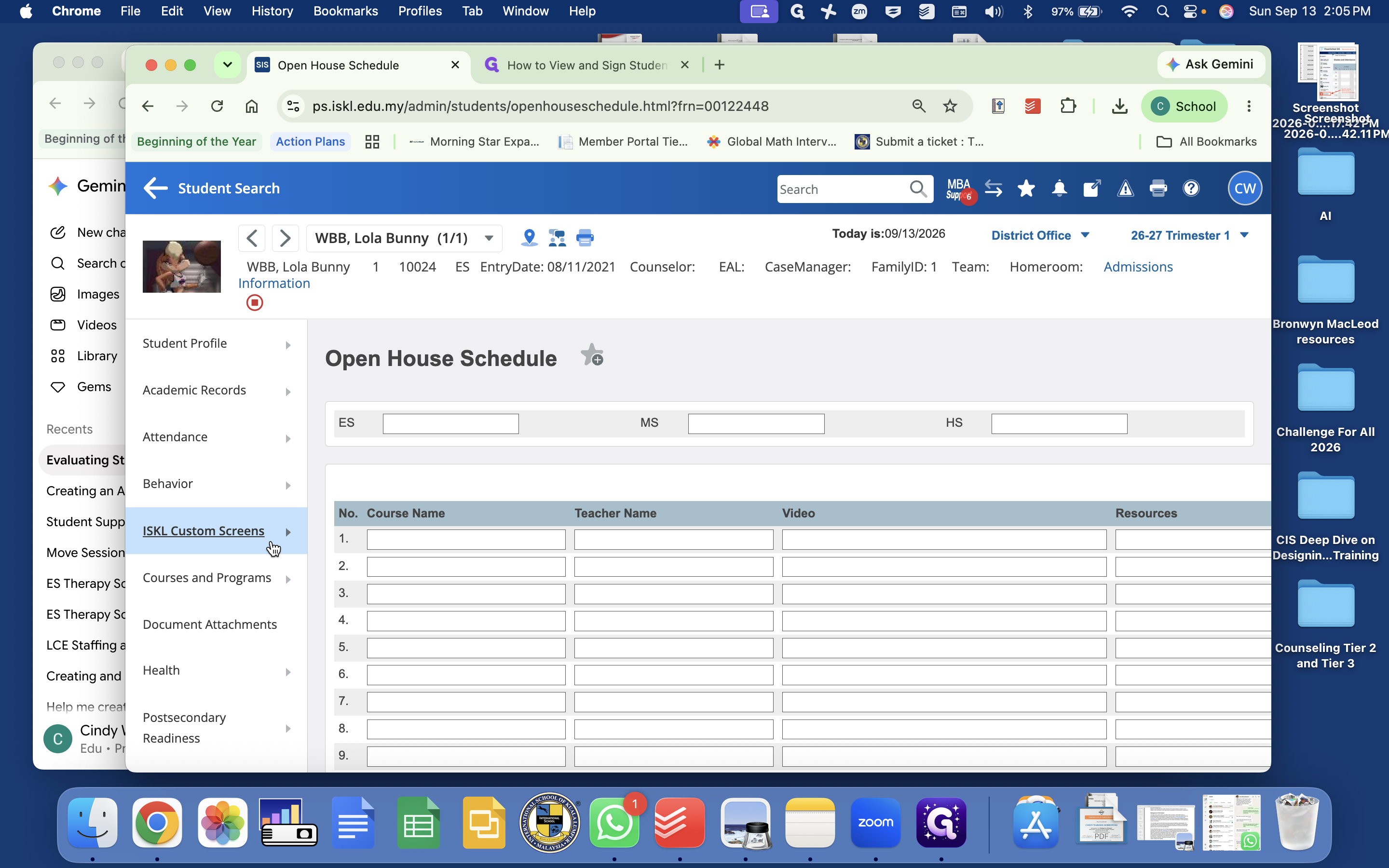
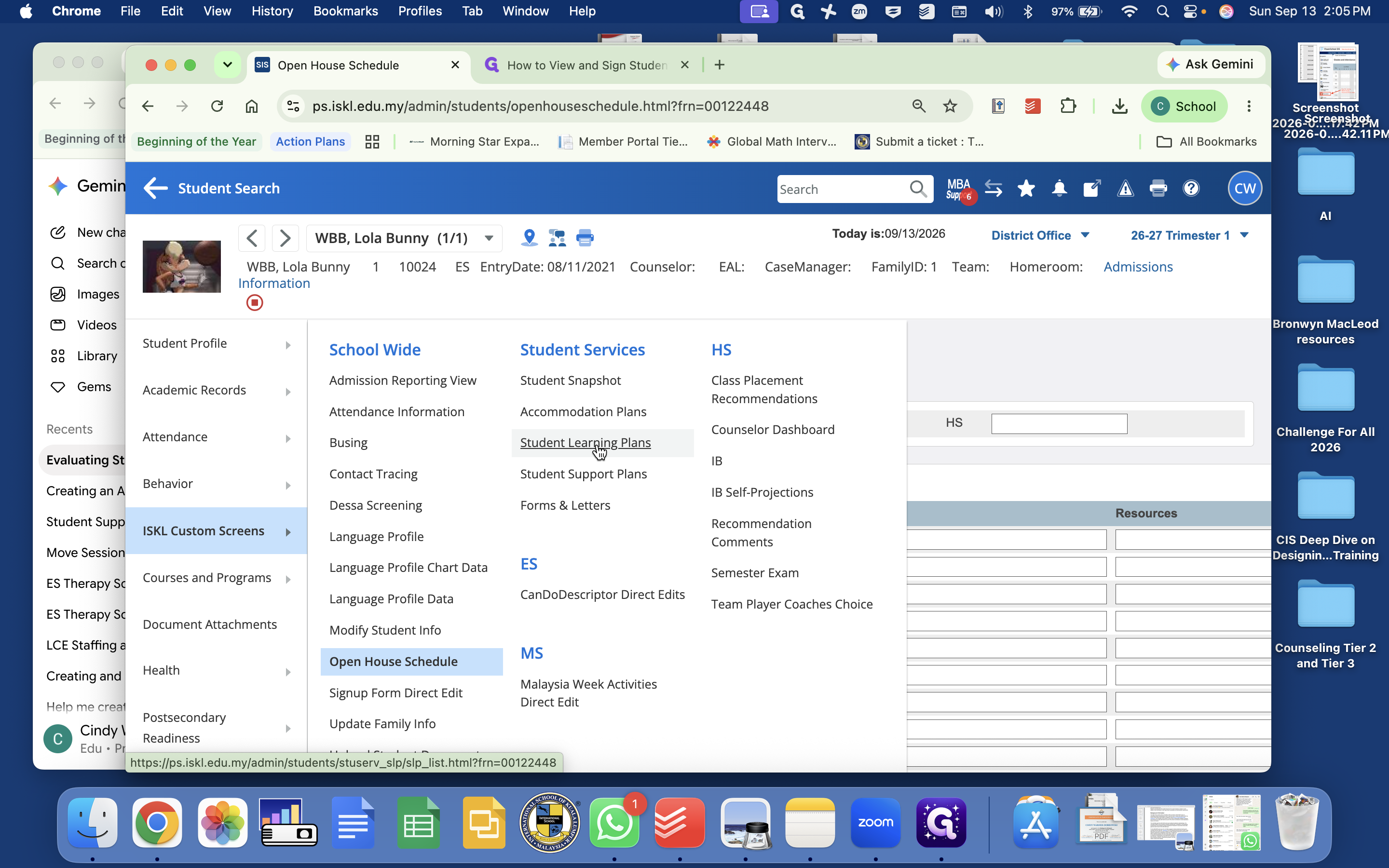
Create a New Student Learning Plan
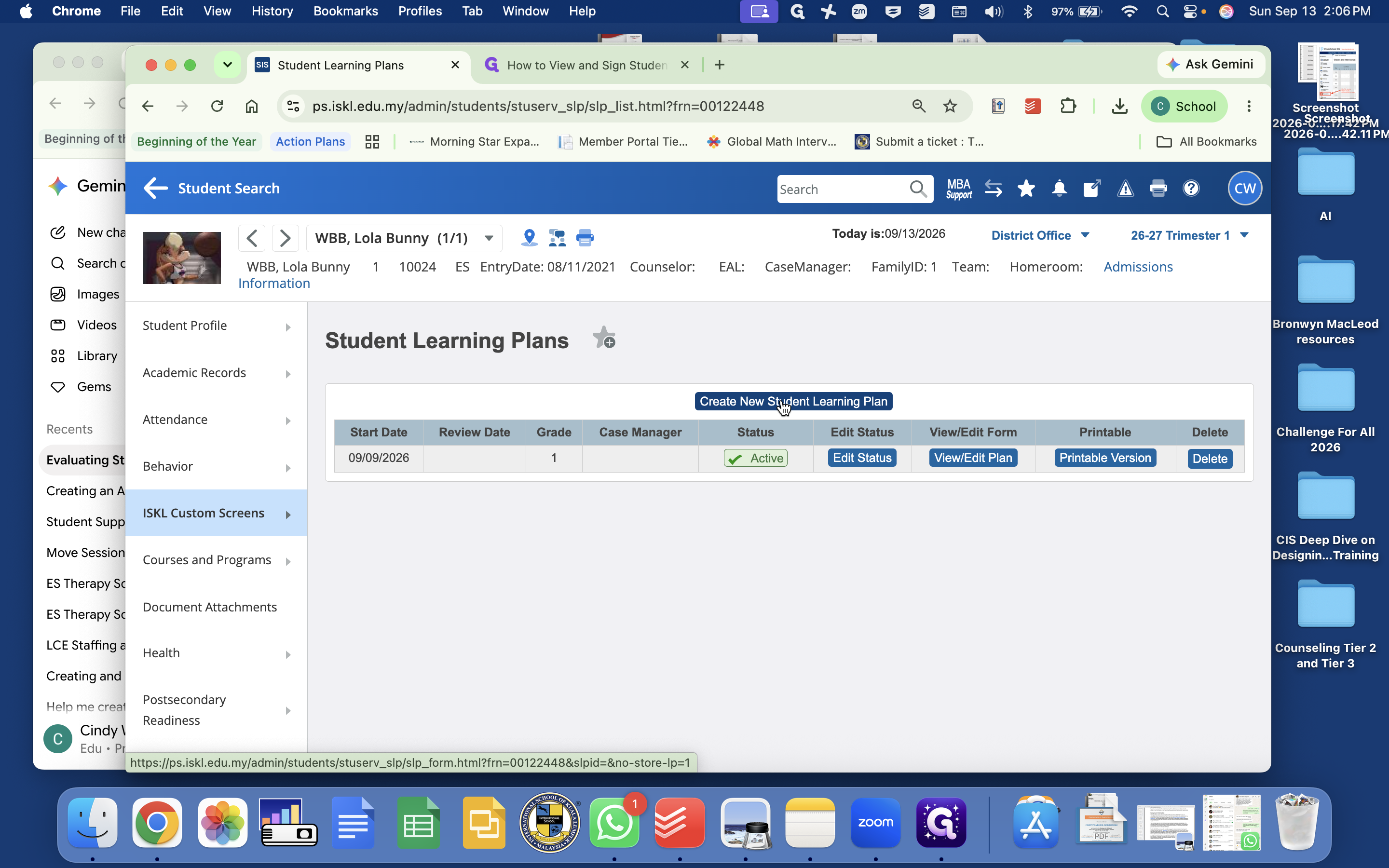
Activate the Plan
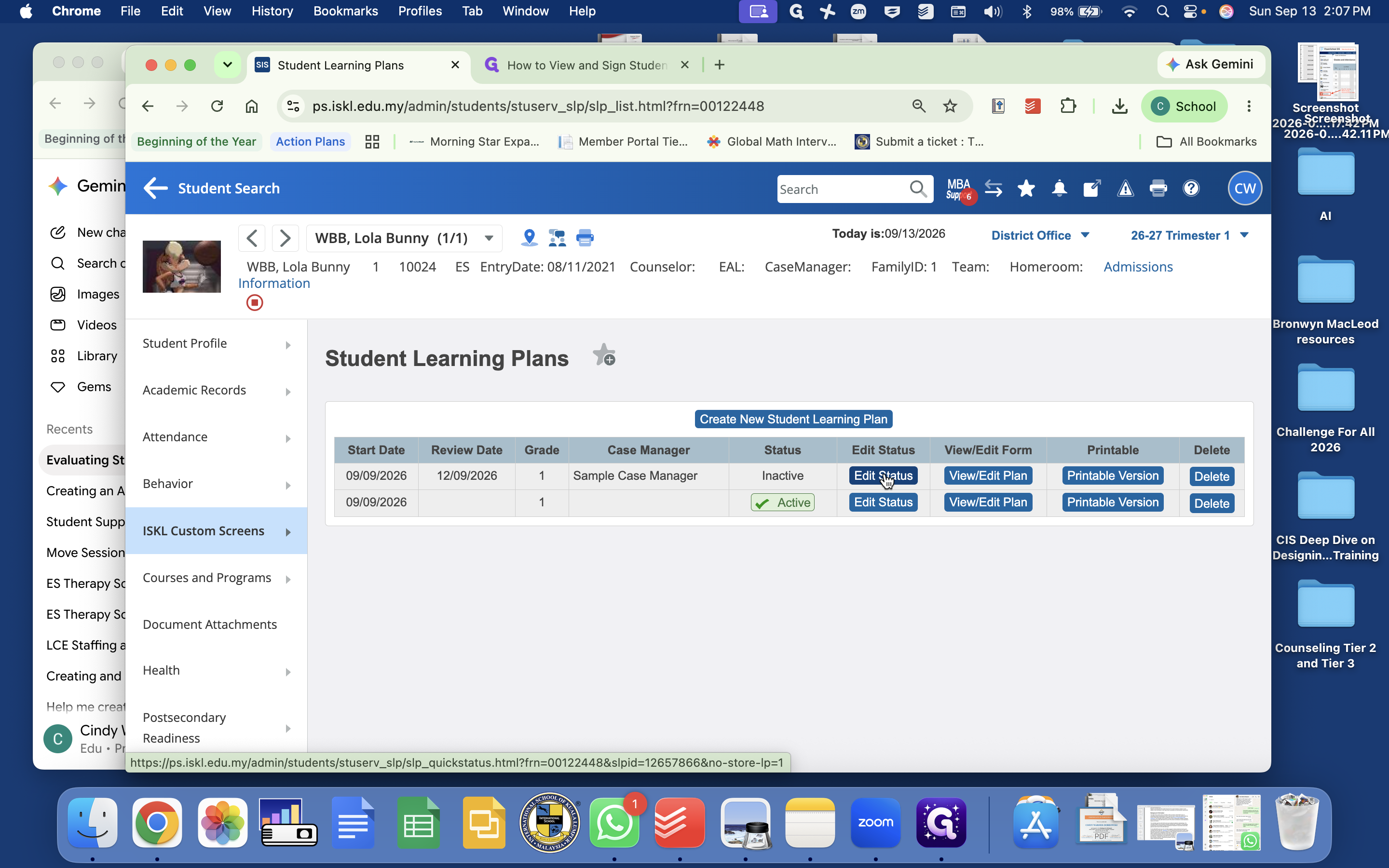
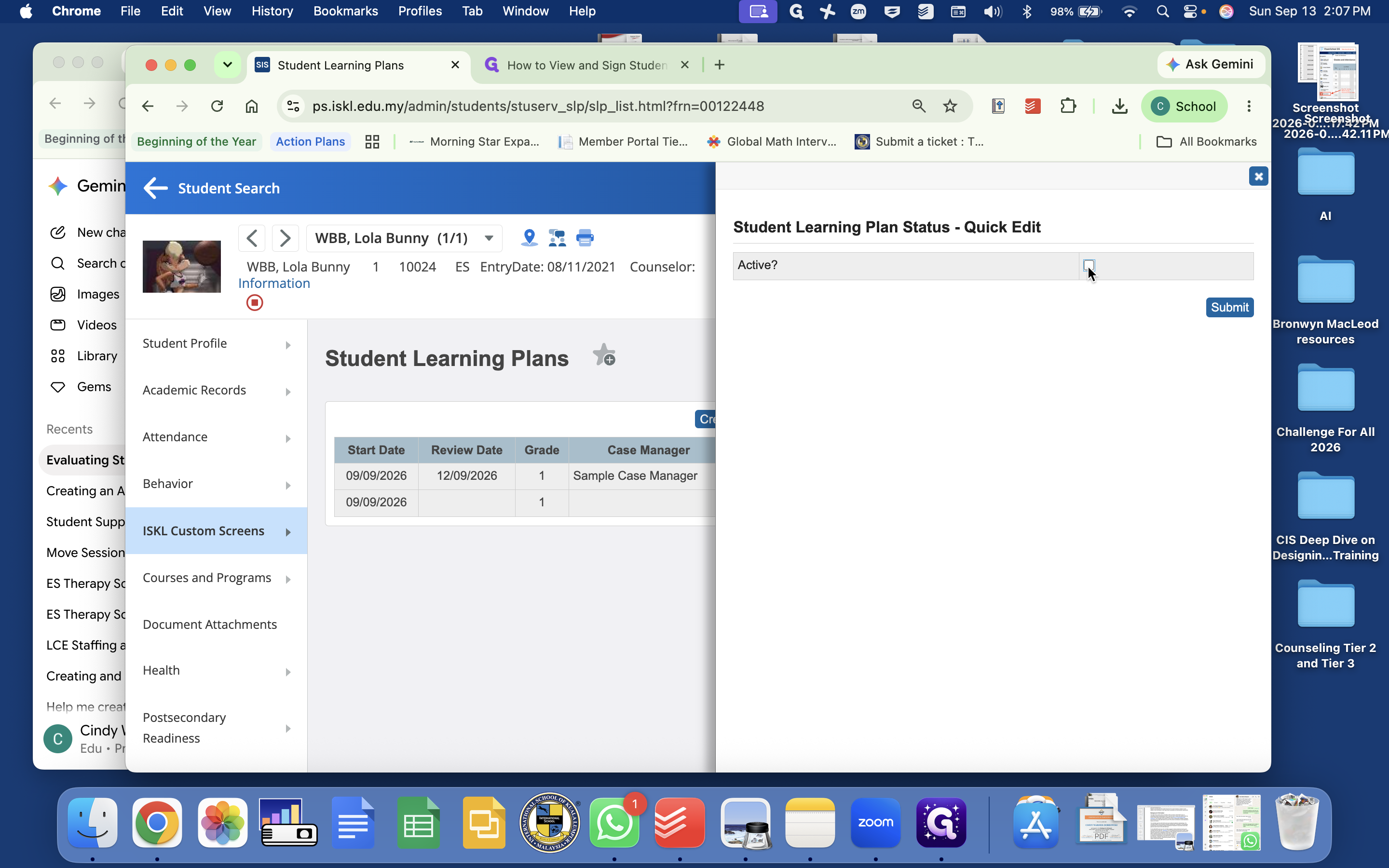
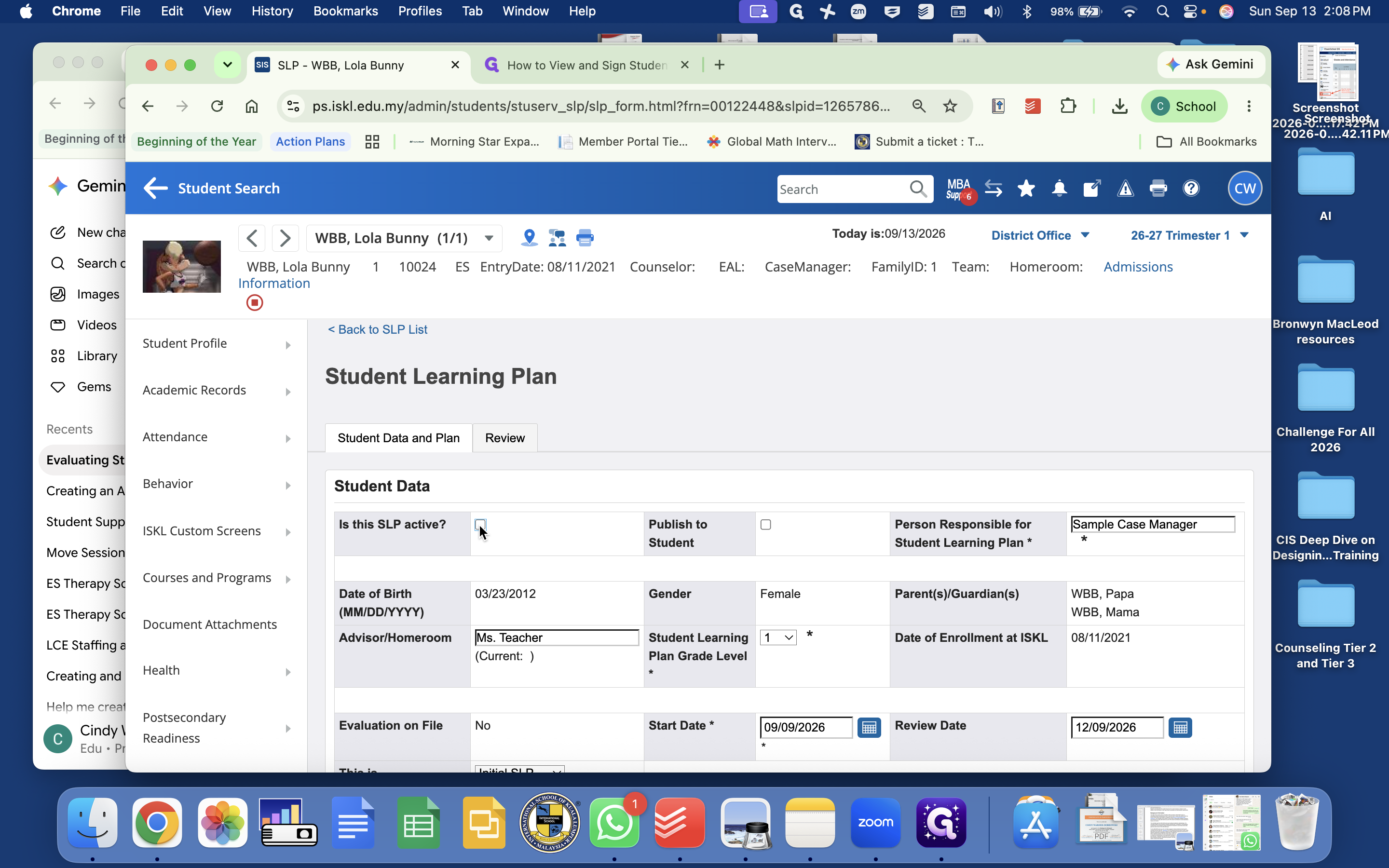
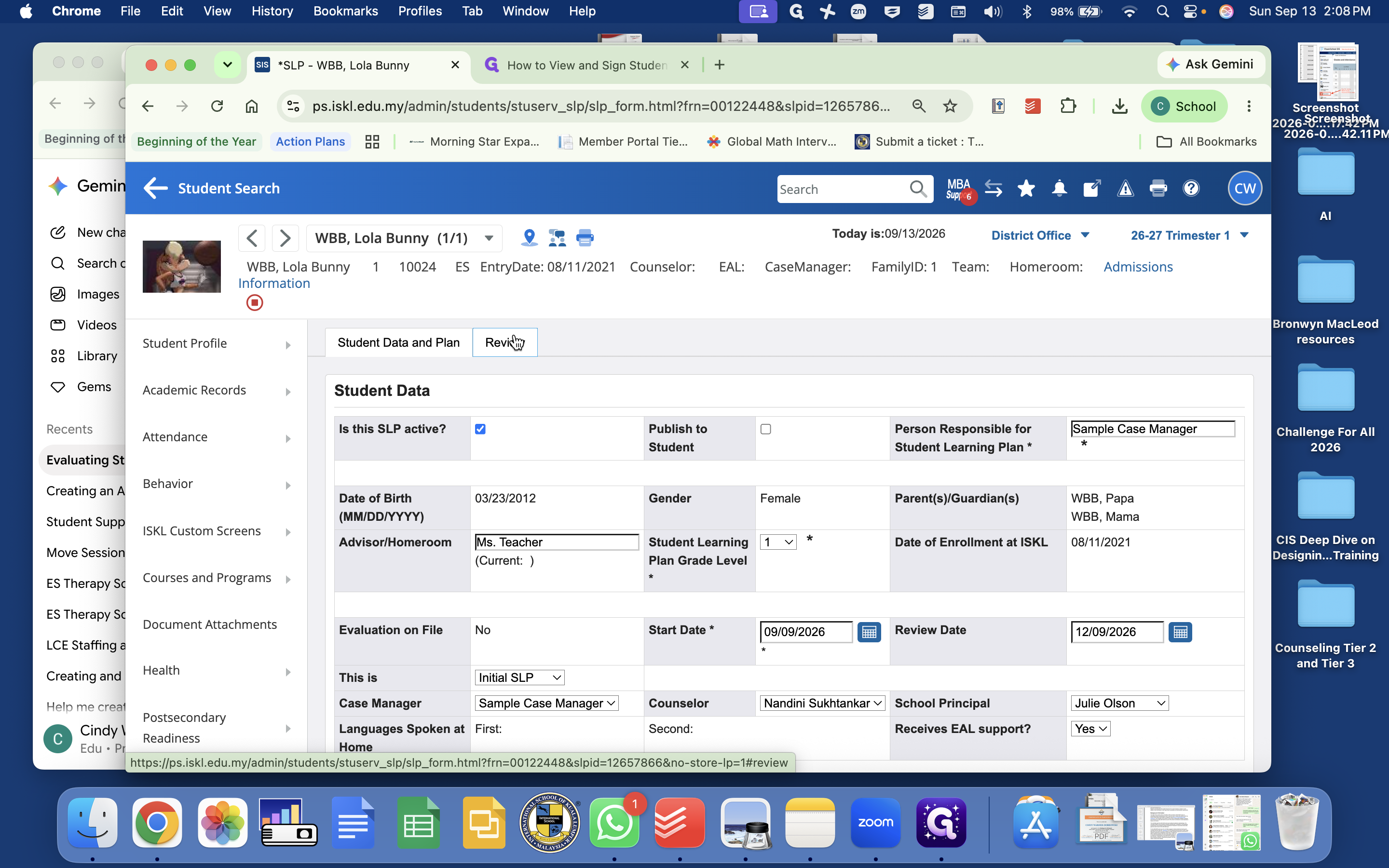
You can activate the plan from the summary table using quick edit, or directly inside the plan form.
Review and Update the Plan
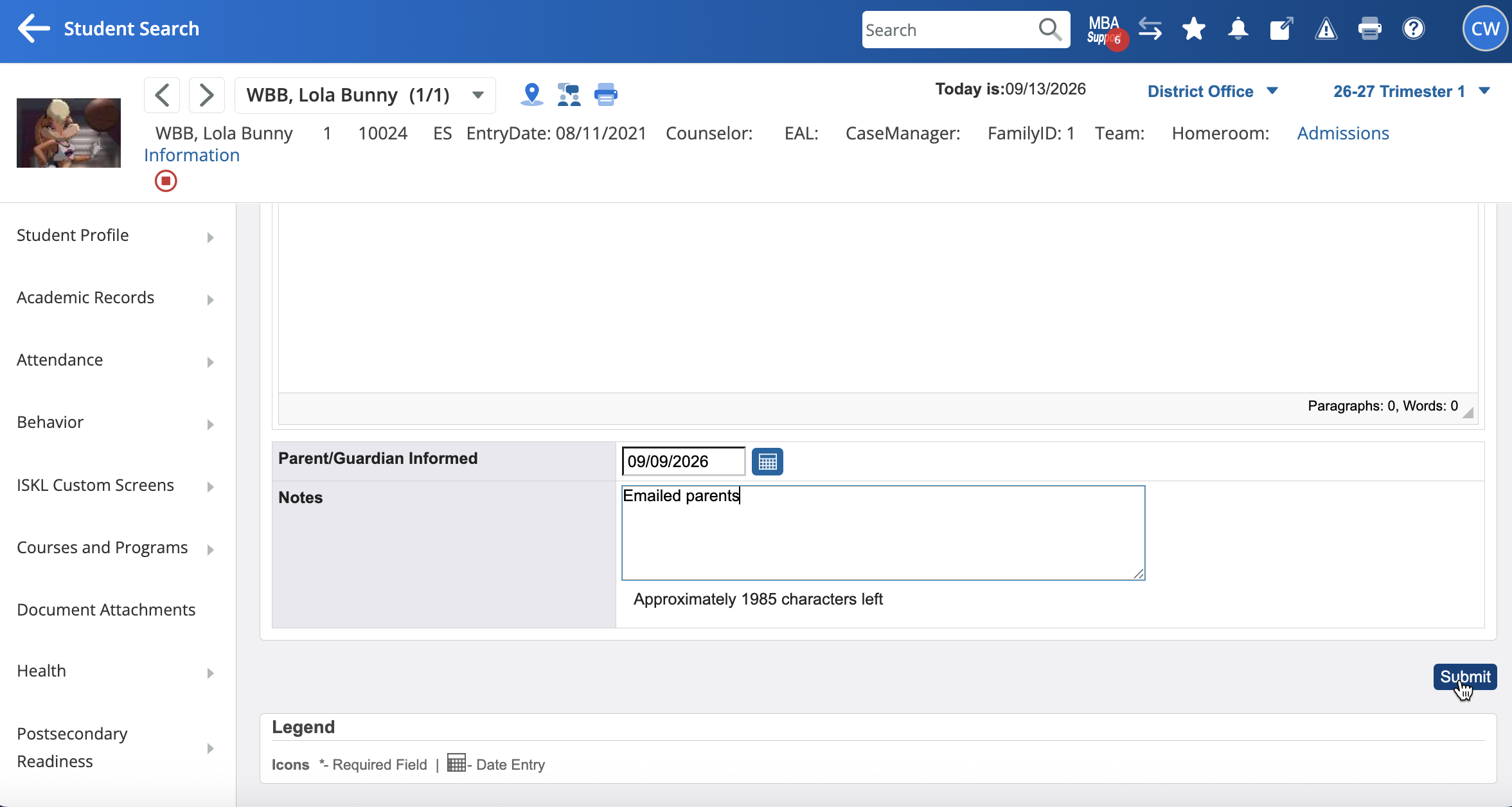
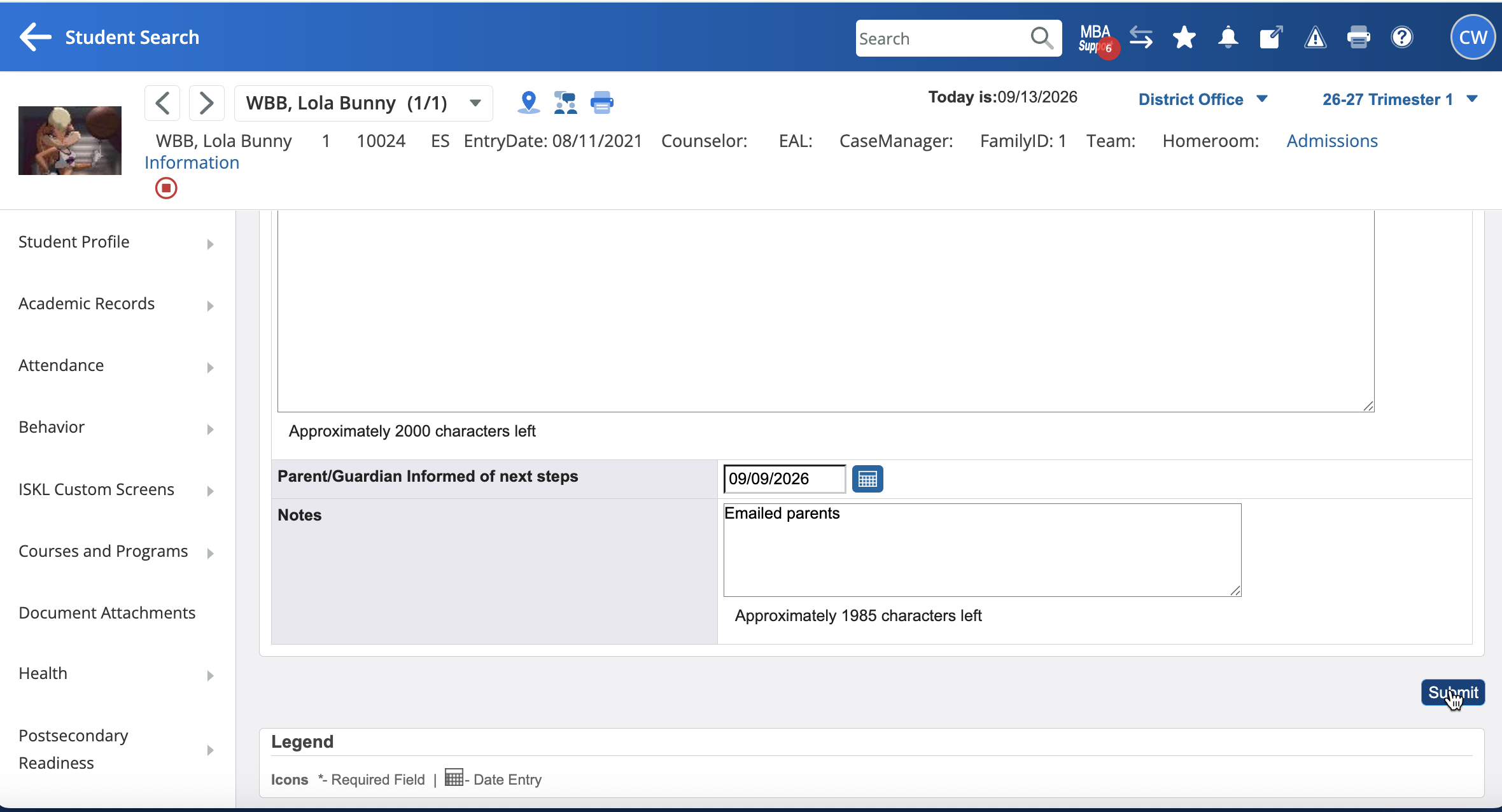
When a plan reaches its scheduled review date, document progress and update parent communications.
Q: How is a Student Learning Plan published to parents?
A: An SLP is published to the parent portal as soon as it is marked active. You can activate a plan by checking the Active? option in the quick edit status menu or checking Is this SLP active? directly inside the plan form.
Q: What steps are required when a Student Learning Plan is up for review?
A: Navigate to the Review tab in the plan form, record your progress updates and next steps, enter the date parents were informed, and click Submit to save the review.