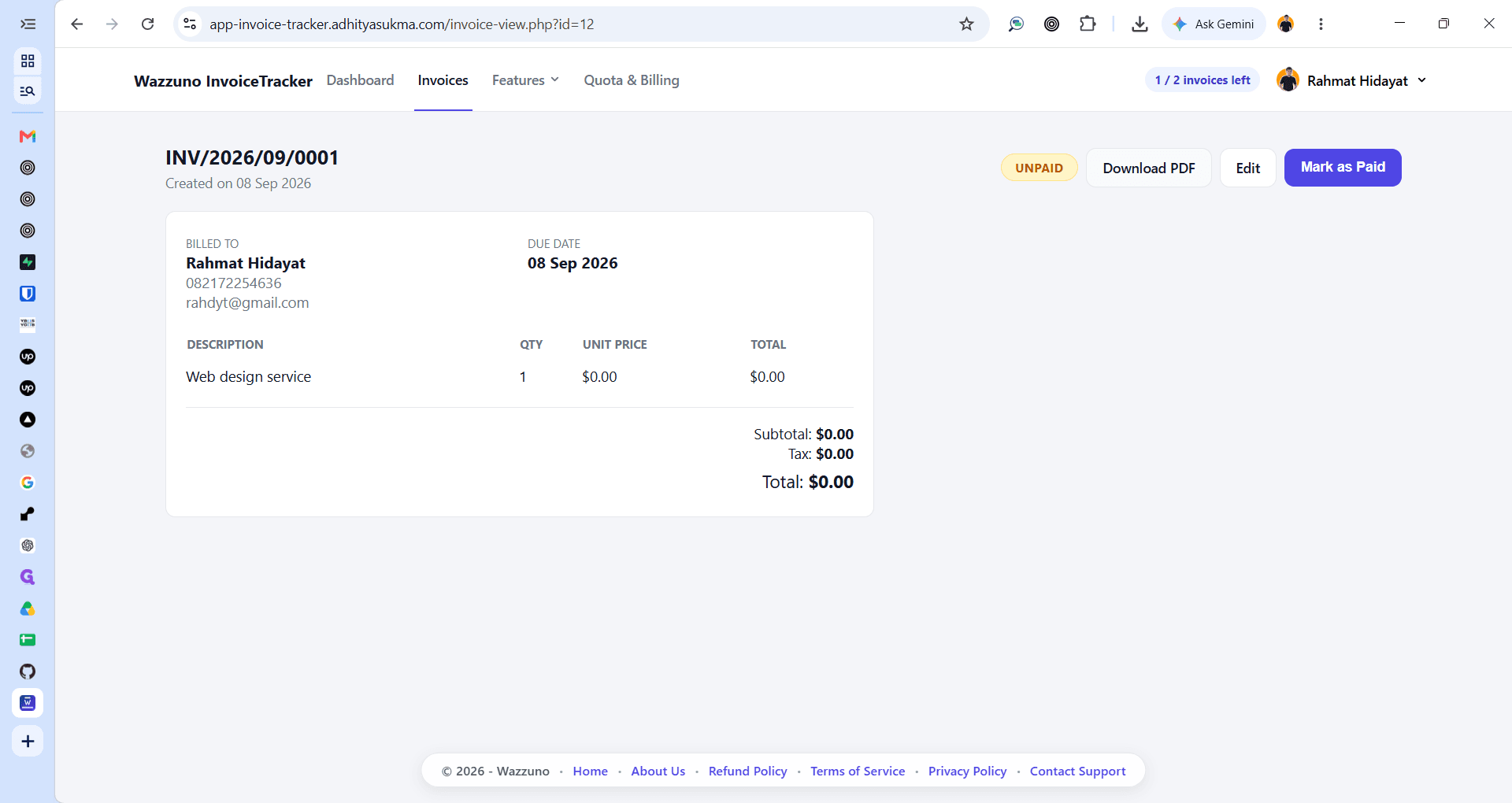
How to Create and Download an Invoice
Step-by-step guide on entering client details, adding line items, saving an invoice, and exporting it as a PDF.
By Rahmat Hidayat
Learn how to create a new invoice with client details and line items, then save and export it as a PDF document for billing.
This guide applies to billing administrators, account managers, and freelancers issuing invoices to clients.
Enter Client Details
Start by providing the recipient's contact and billing information on the new invoice form.
1
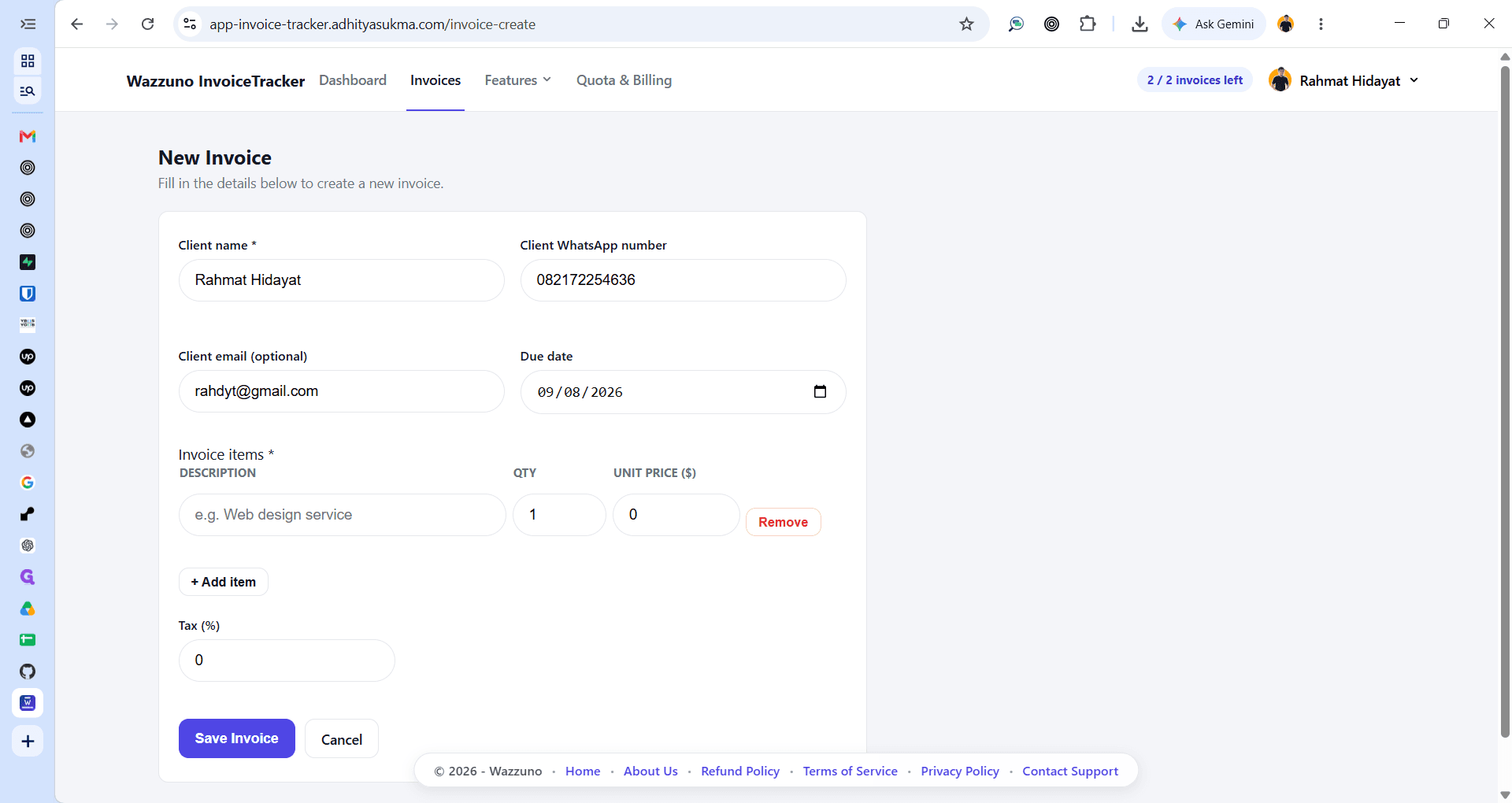
Click the **Client name *** field to enter the client's name.
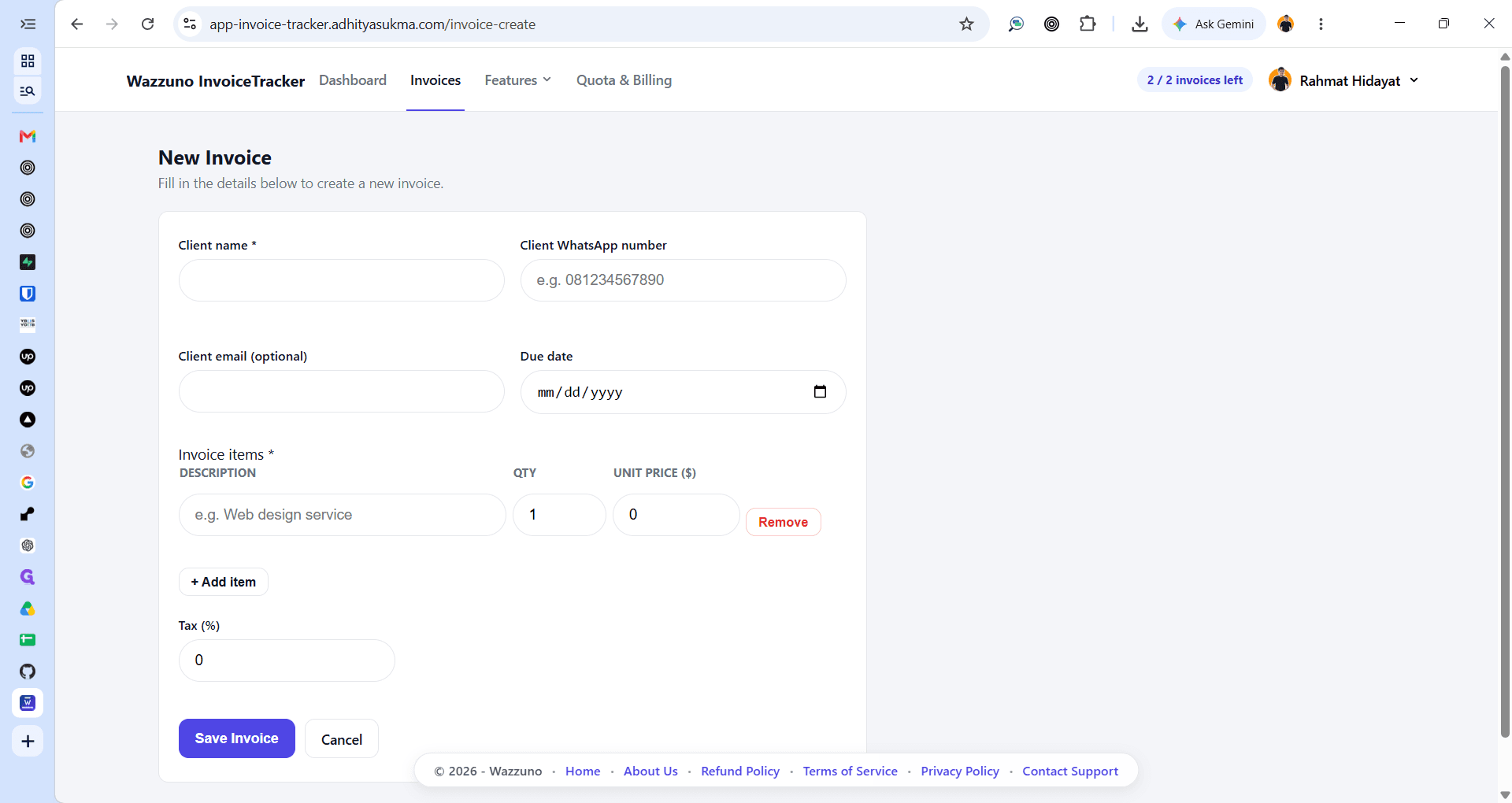
2
Click the Client email (optional) field to add the client's email address.
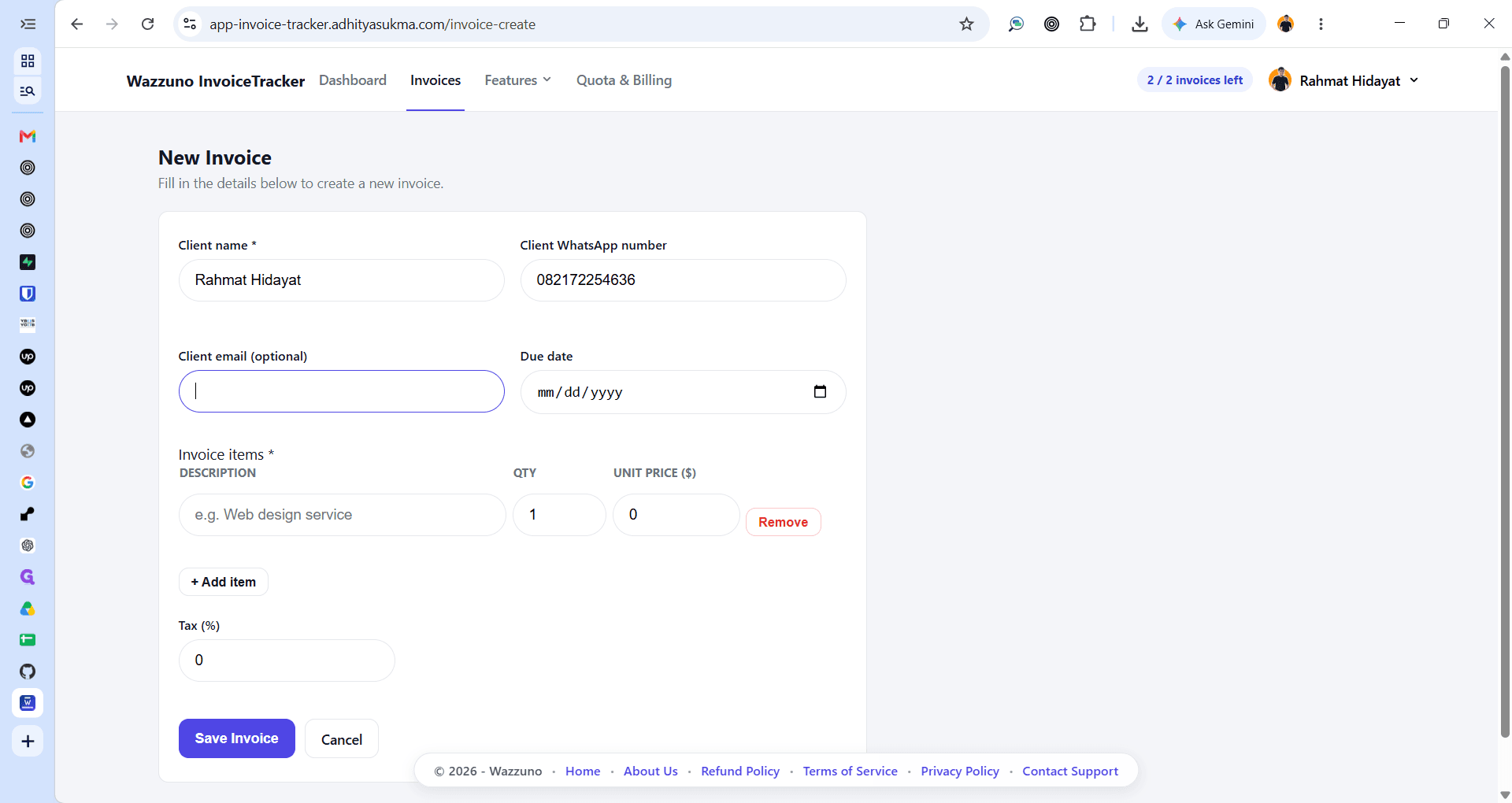
3
Click the calendar picker icon in the Due date field to set a payment deadline.
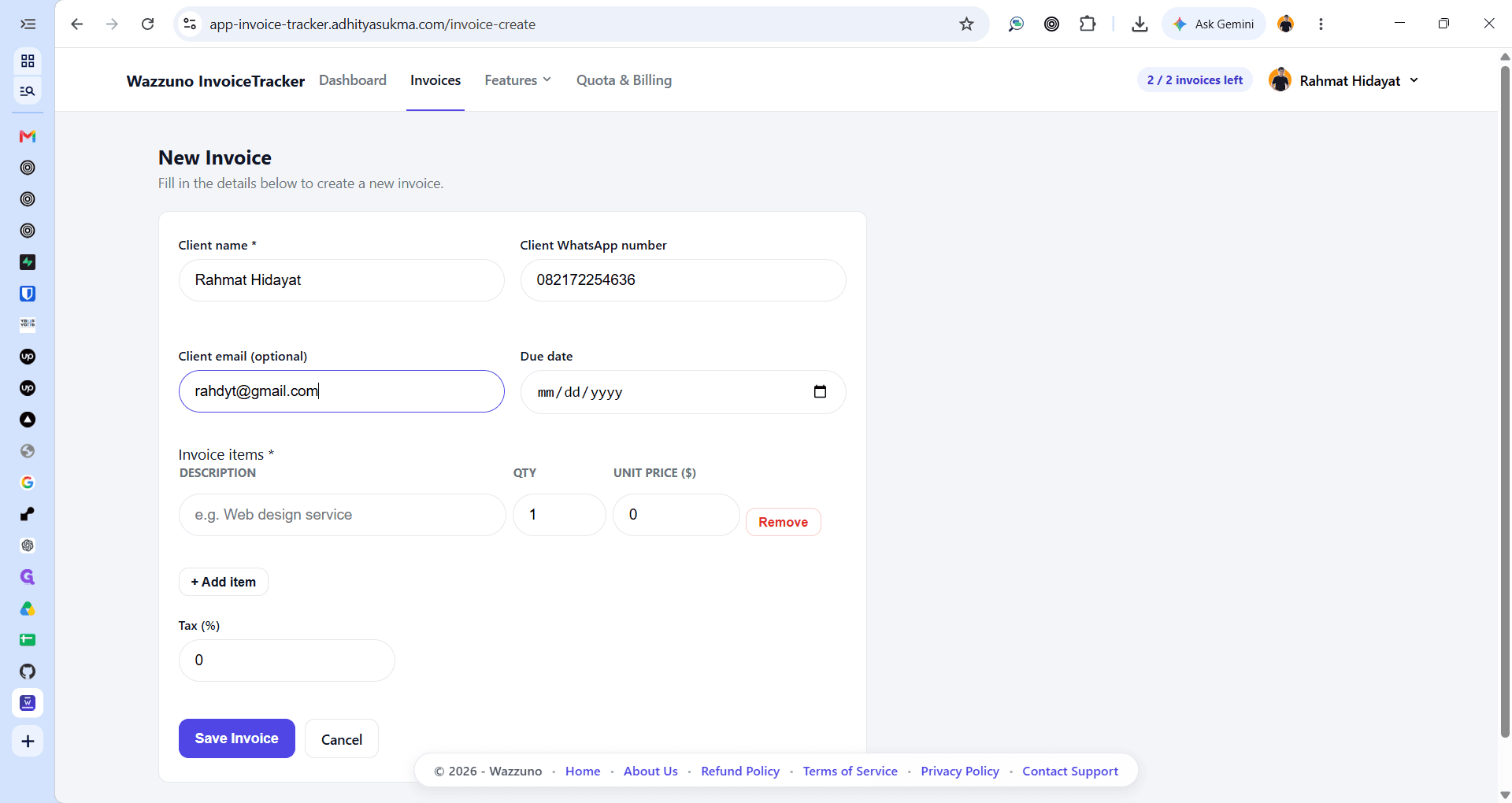
Add Line Items and Save
Specify the services or products being billed before finalizing the invoice.
4
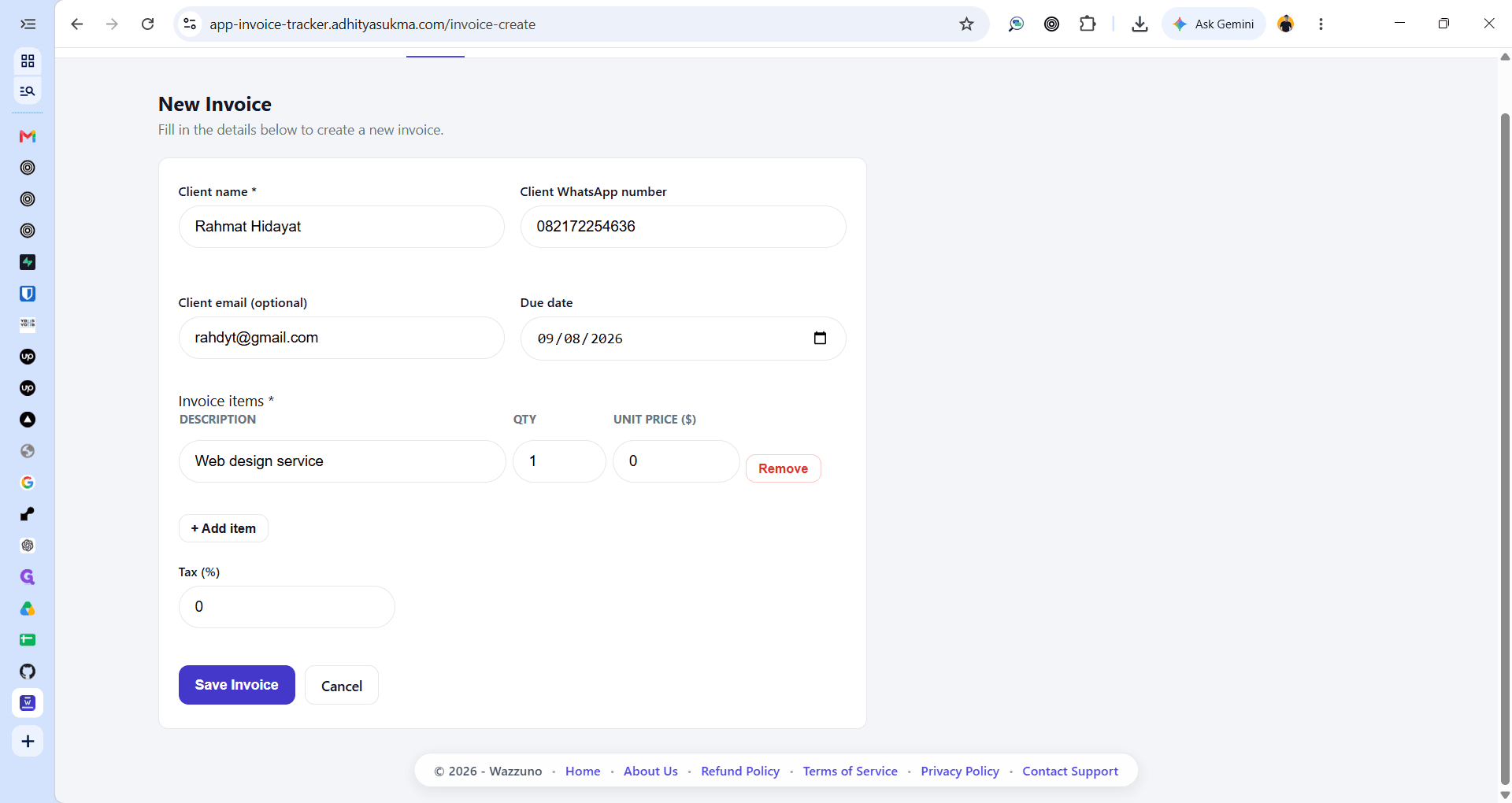
Click the DESCRIPTION field under the Invoice items section to enter item details.
5
Click Save Invoice to save the invoice details.
6
Click Download PDF to export a copy of the saved invoice.