How to Create and Approve Timesheets

Learn how to create timesheets, punch in employees, log task hours, and approve timesheets for accurate project and payroll tracking.

By Ludi Cortinas

This guide walks you through the process of creating, managing, and approving timesheets. Completing these steps ensures that employee hours and tasks are logged accurately for payroll and project tracking.

This workflow is primarily for foremen, supervisors, or payroll administrators. It should be used daily or weekly to punch crews in and out, allocate time to specific job sites, and finalize timesheet approvals.

Creating a New Timesheet
1
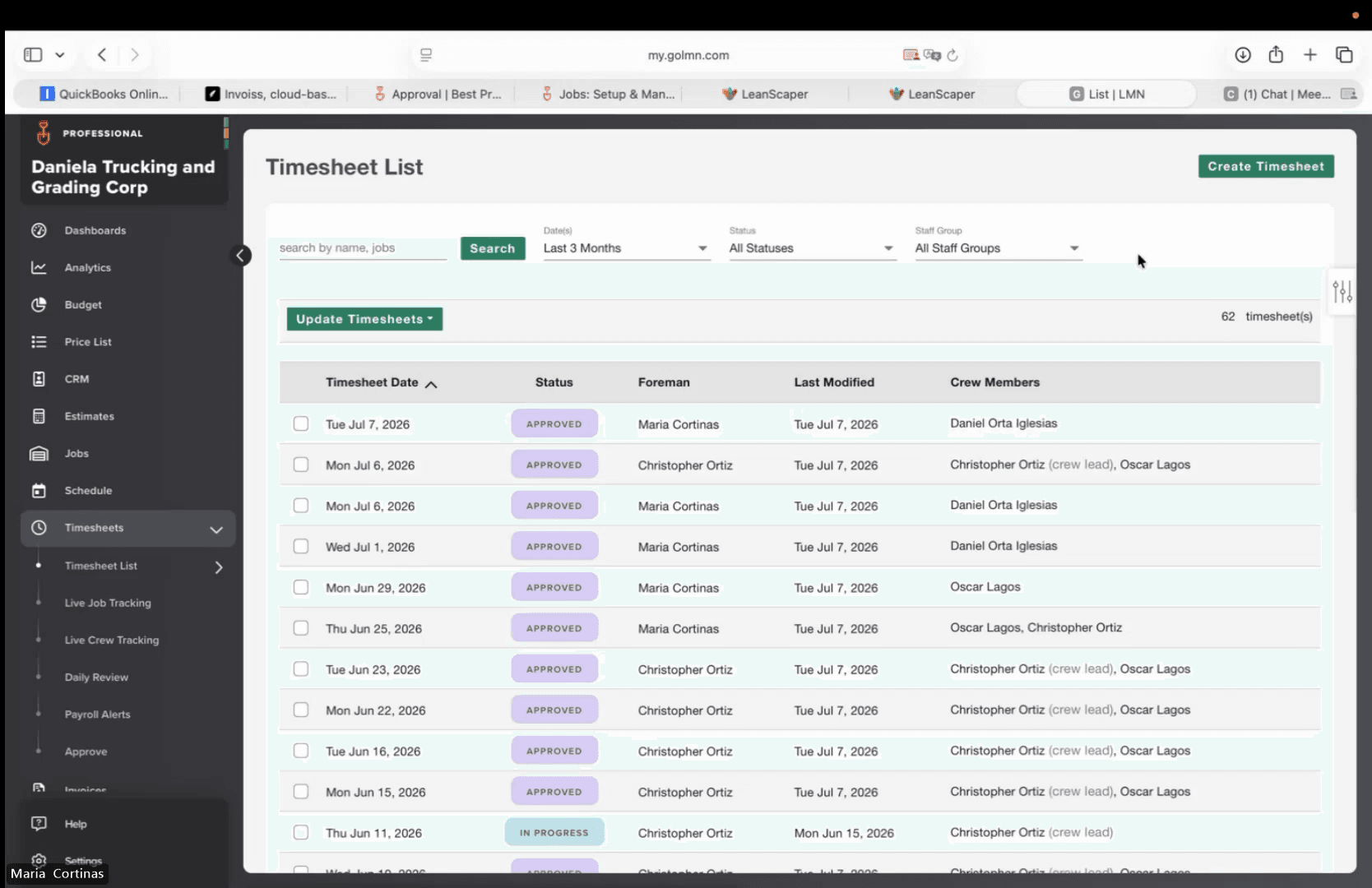
Click Timesheet List in the left-hand navigation sidebar.
Step #1: Click Timesheet List in the left-hand navigation sidebar.
2
Click Create Timesheet in the top right corner.
Step #2: Click Create Timesheet in the top right corner.
3
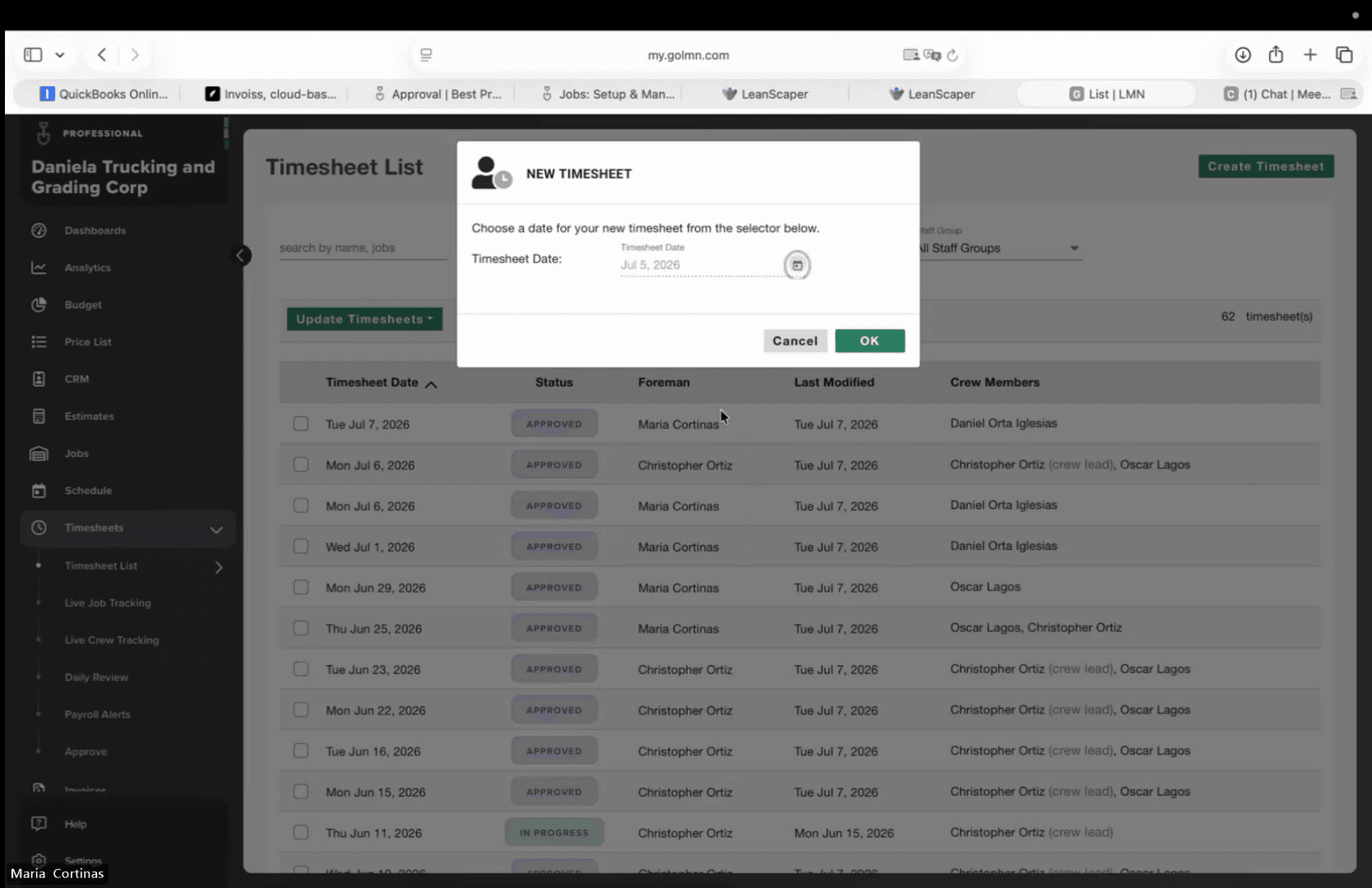
Confirm the date in the New Timesheet modal and click OK.
Step #3: Confirm the date in the New Timesheet modal and click OK.

Punching In Employees

4
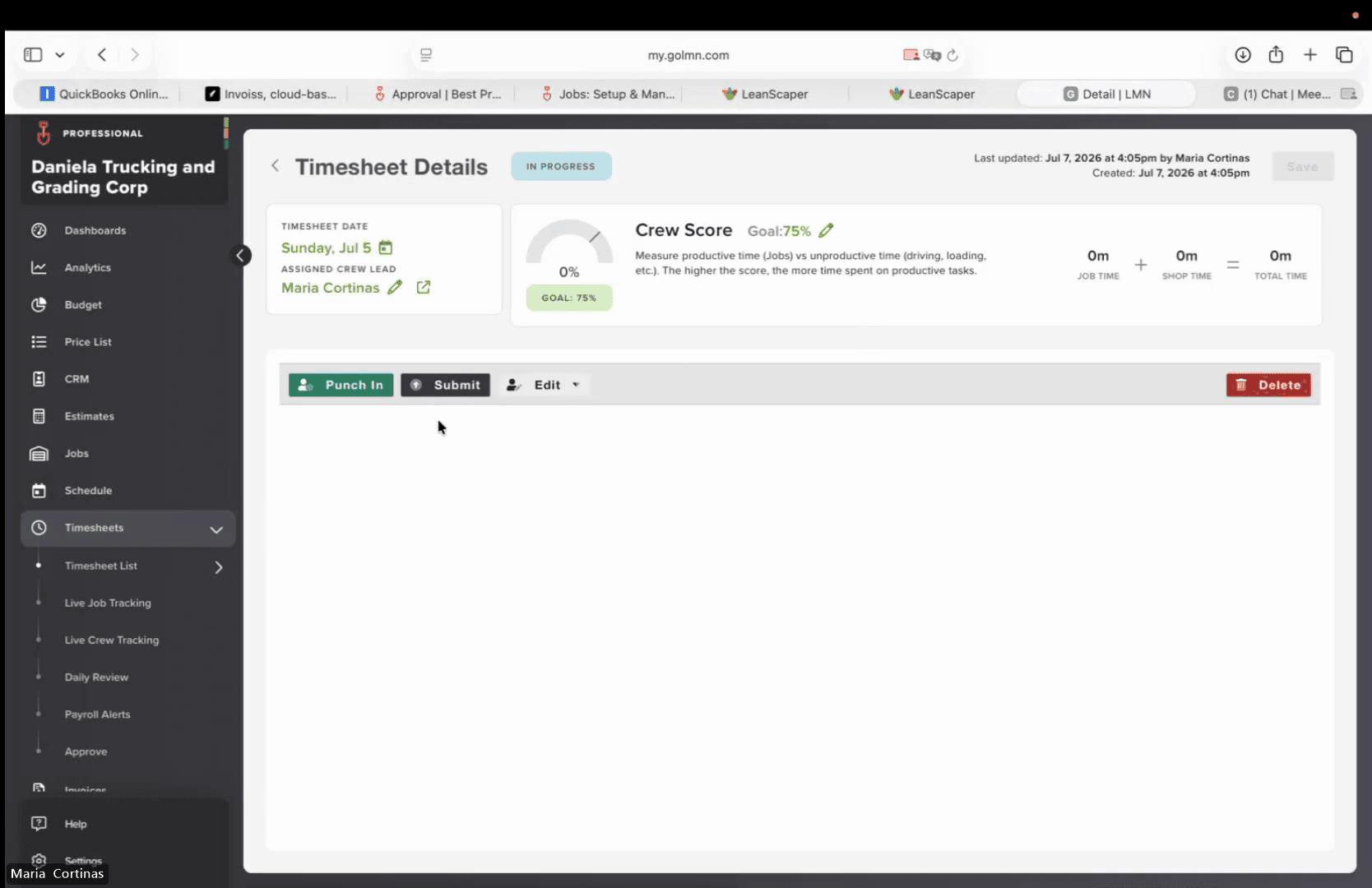
On the Timesheet Details page, click Punch In.
Step #4: On the Timesheet Details page, click Punch In.
5
Enter your four-digit PIN to authorize the entry.
6
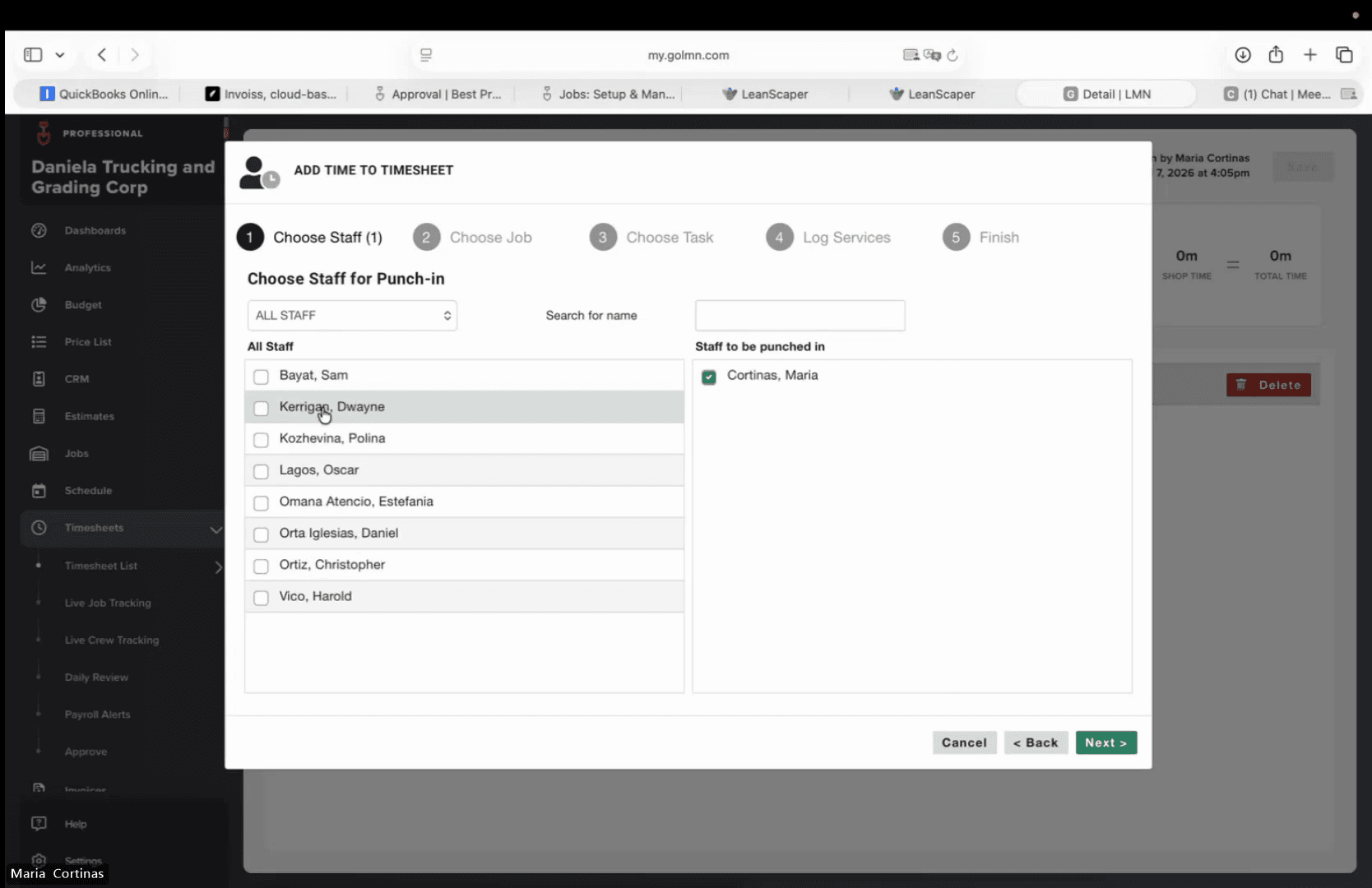
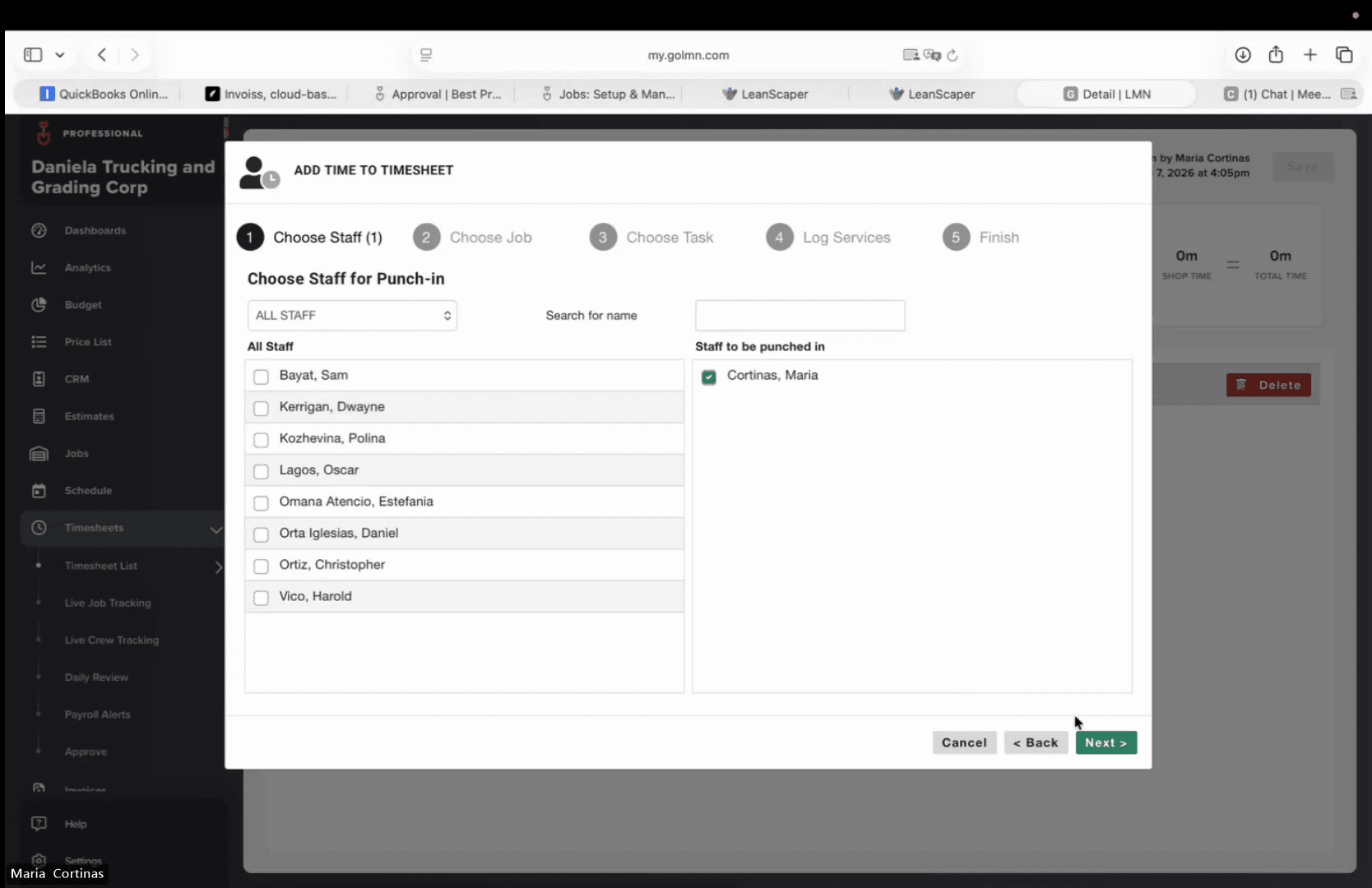
Select the checkbox next to the employee you want to add to the timesheet.
Step #6: Select the checkbox next to the employee you want to add to the timesheet.
7
Click Next to proceed to job selection.
Step #7: Click Next to proceed to job selection.

Logging Time and Tasks

8
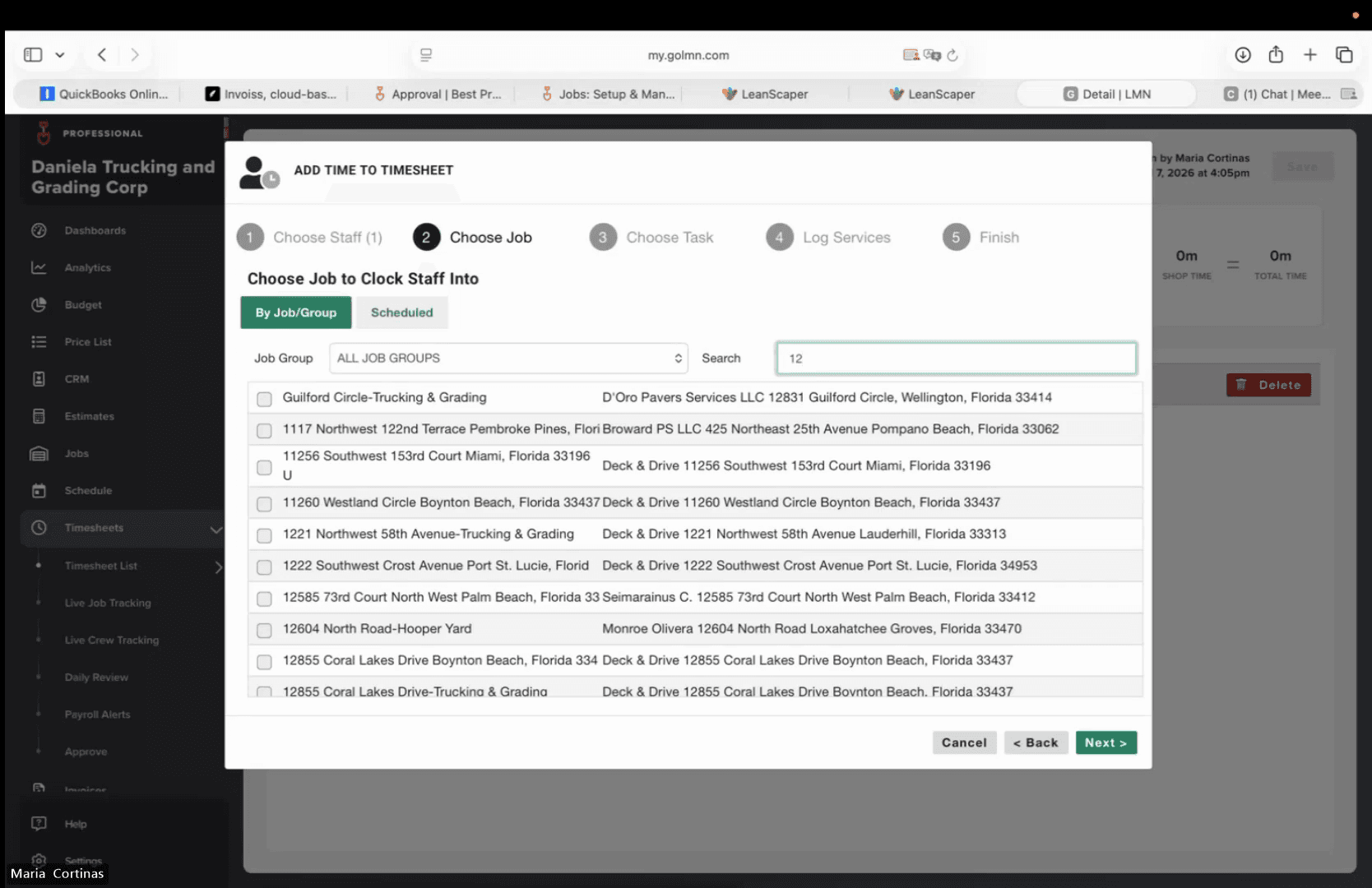
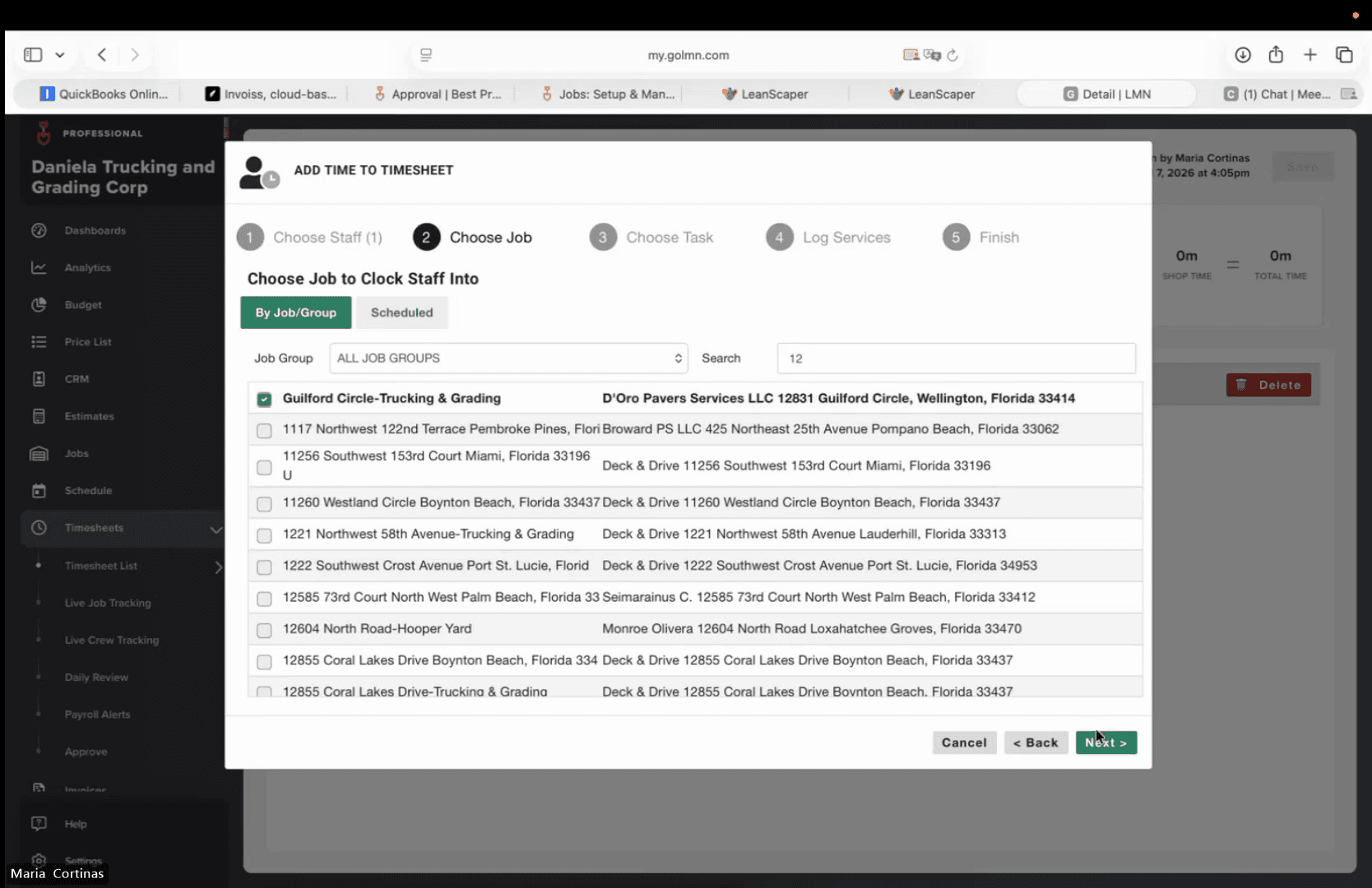
Select the appropriate job site from the available list.
Step #8: Select the appropriate job site from the available list.
9
Click Next.
Step #9: Click Next.
10
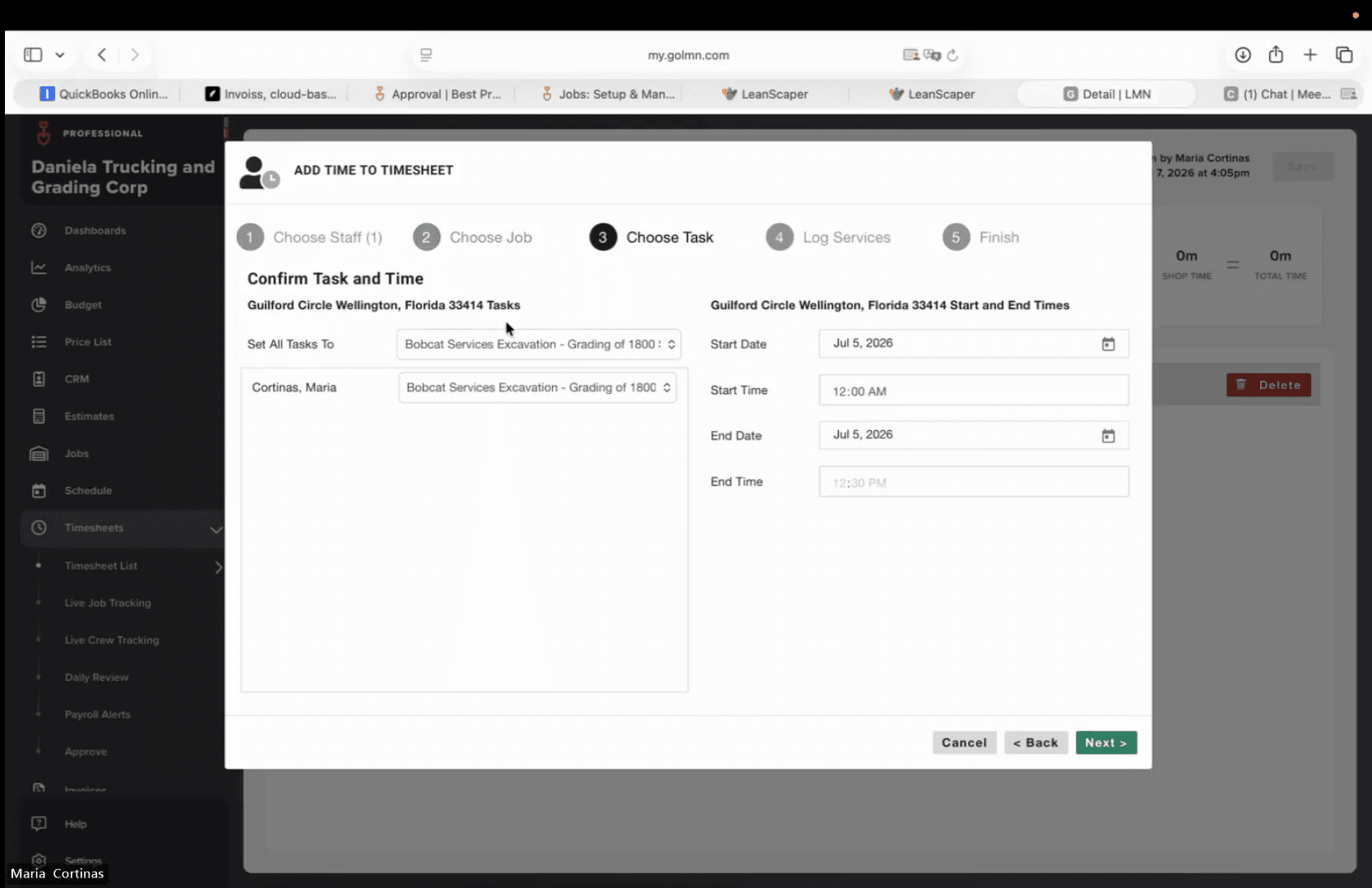
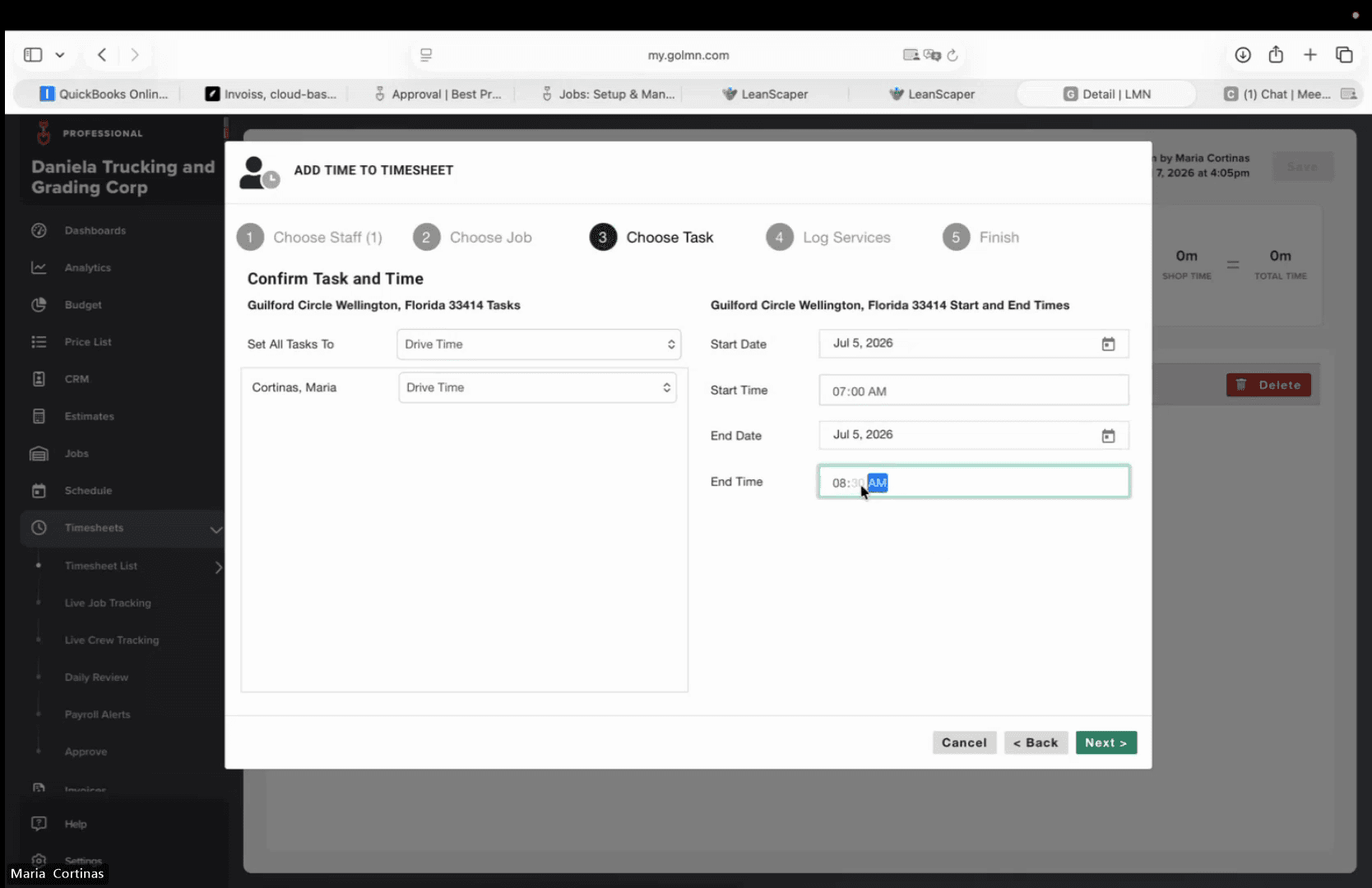
Select the specific task being performed from the dropdown menu.
Step #10: Select the specific task being performed from the dropdown menu.
11
Enter the Start Time for the task.
12
Enter the End Time for the task.
13
Click Next.
Step #13: Click Next.
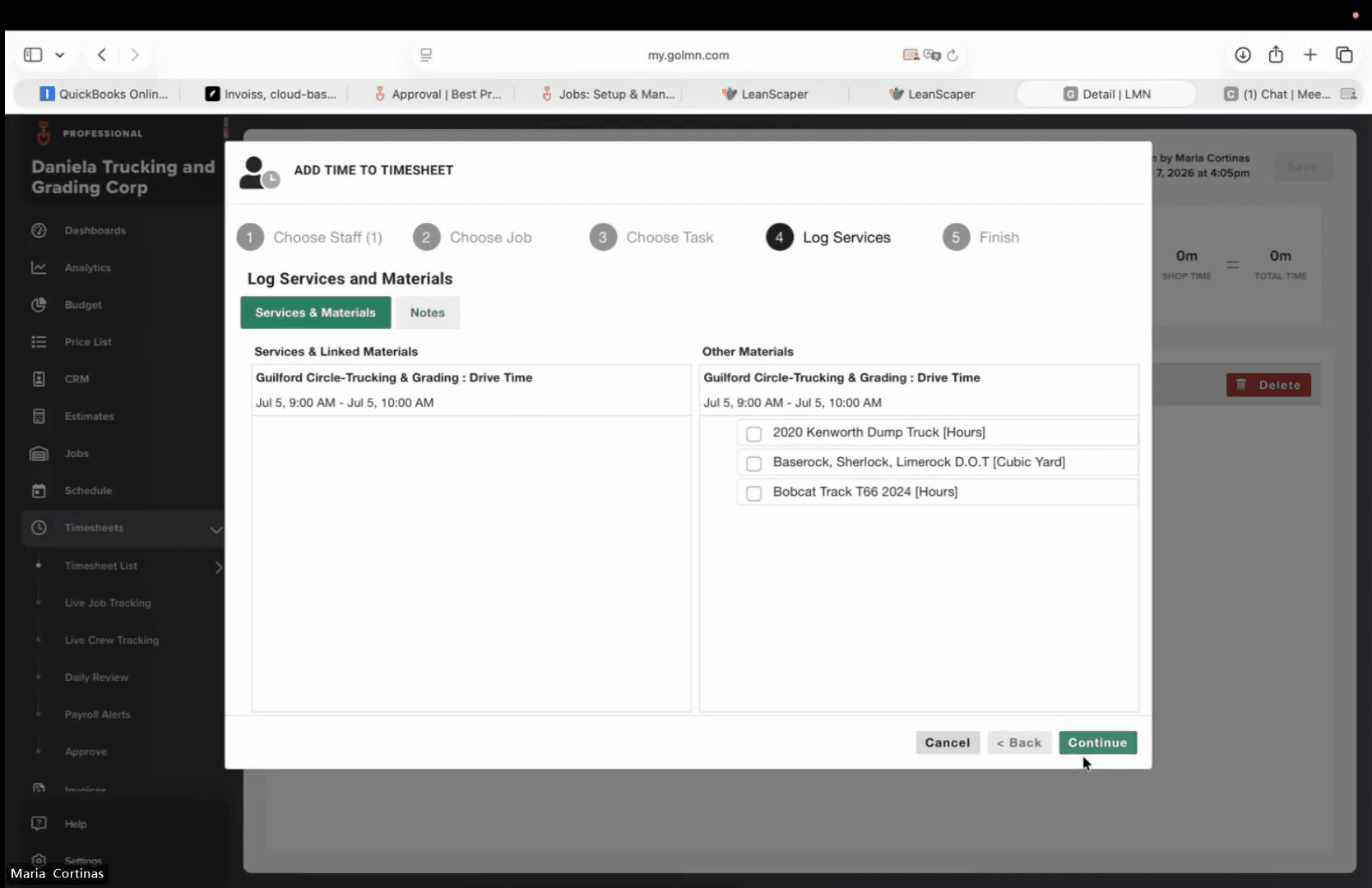
14
Review the Log Services step and click Continue.
Step #14: Review the Log Services step and click Continue.
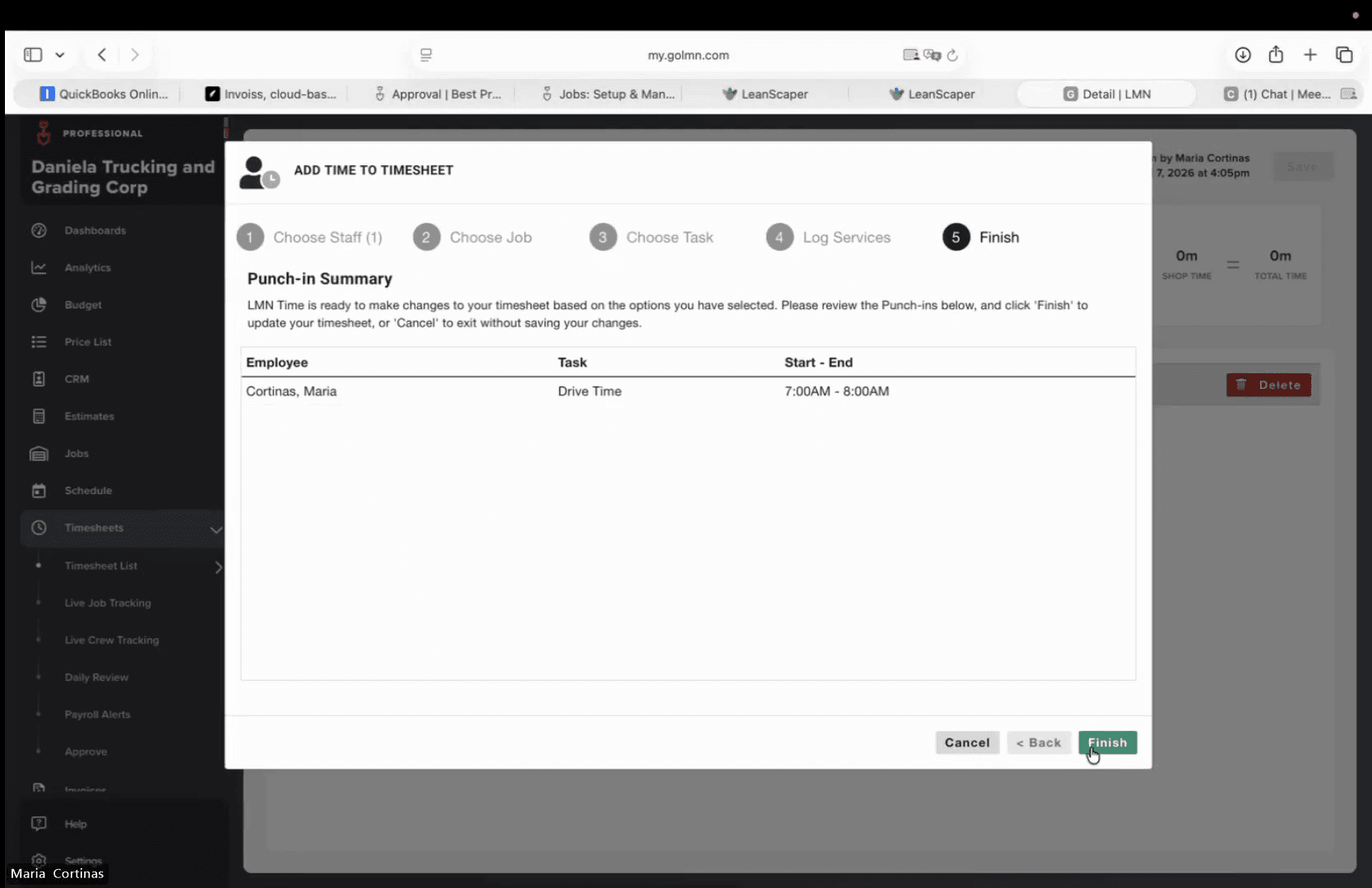
15
On the Punch-in Summary modal, click Finish to save the entry.
Step #15: On the Punch-in Summary modal, click Finish to save the entry.

Reviewing and Approving Timesheets

Depending on the stage of the workflow, a timesheet can hold one of several statuses. Familiarize yourself with these states before finalizing approvals:

Status

Description

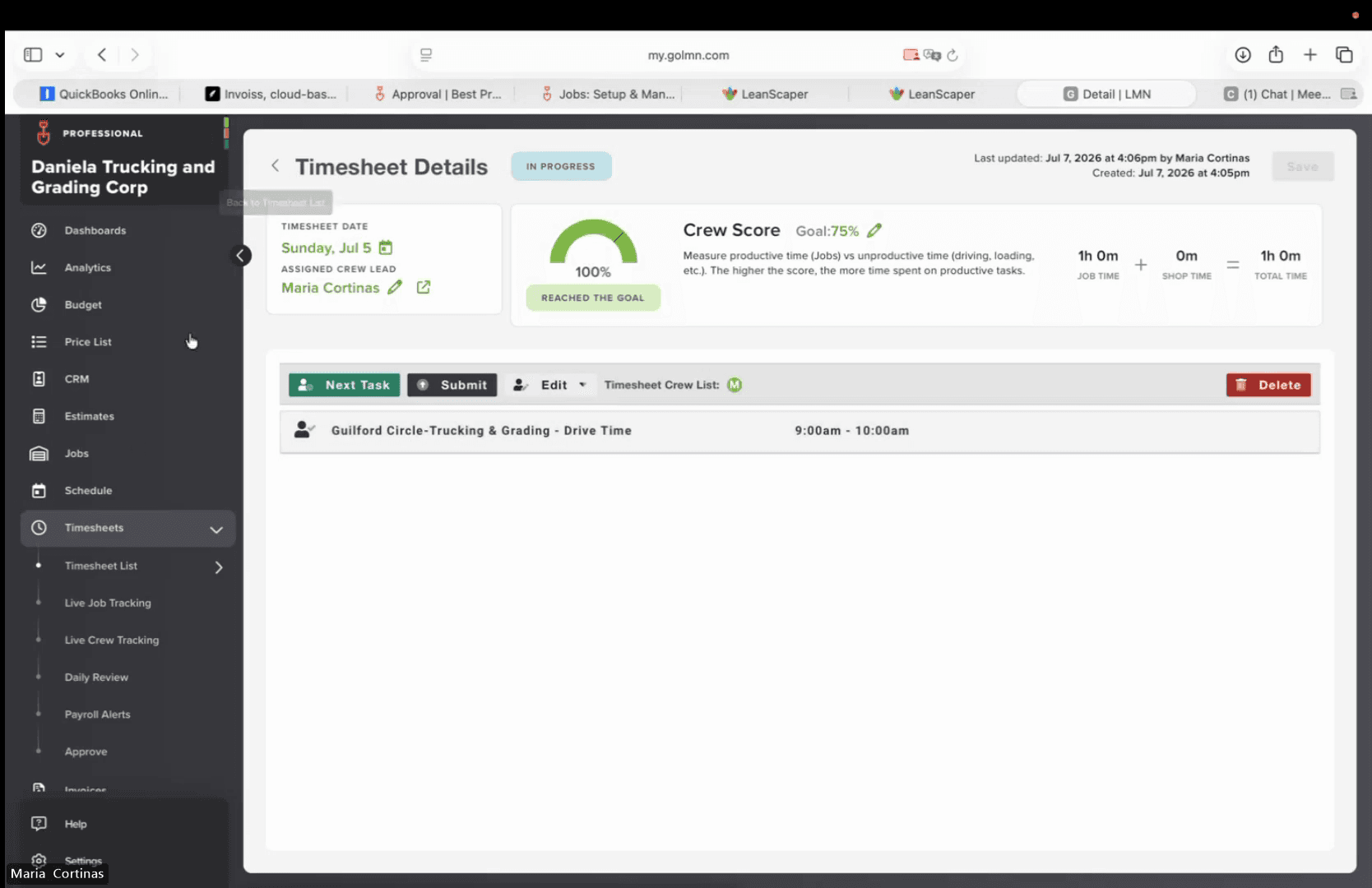
In Progress

The timesheet is actively being logged and hasn't been finalized by the crew.

Submitted

The crew has completed the timesheet and sent it up for review.

Approved

A supervisor or administrator has reviewed and finalized the time entries.

16
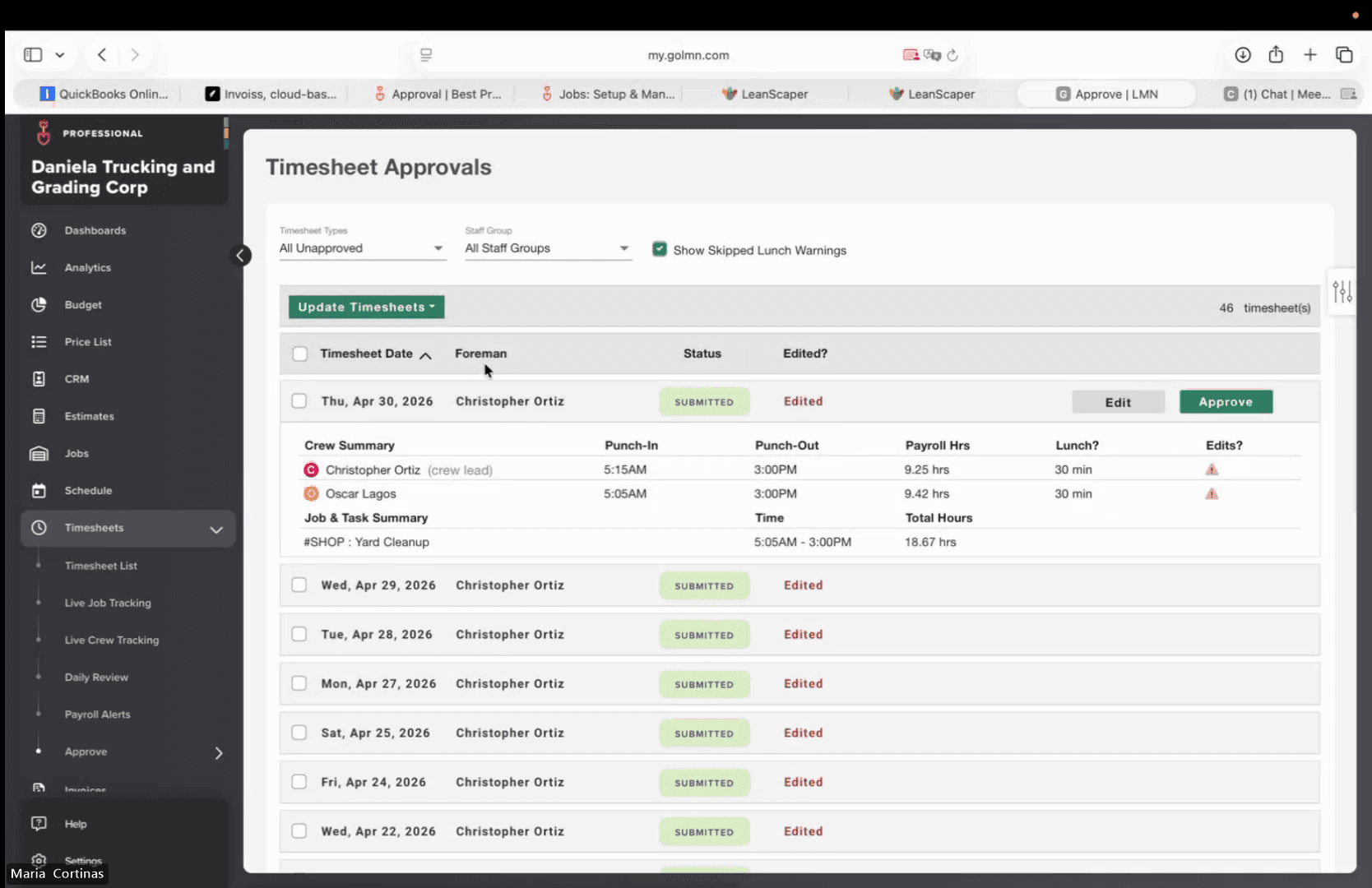
Navigate to the Timesheets module and click Approve.
Step #16: Navigate to the Timesheets module and click Approve.
17
Filter the list by selecting All Unapproved or specifying a date range.
Step #17: Filter the list by selecting All Unapproved or specifying a date range.
18
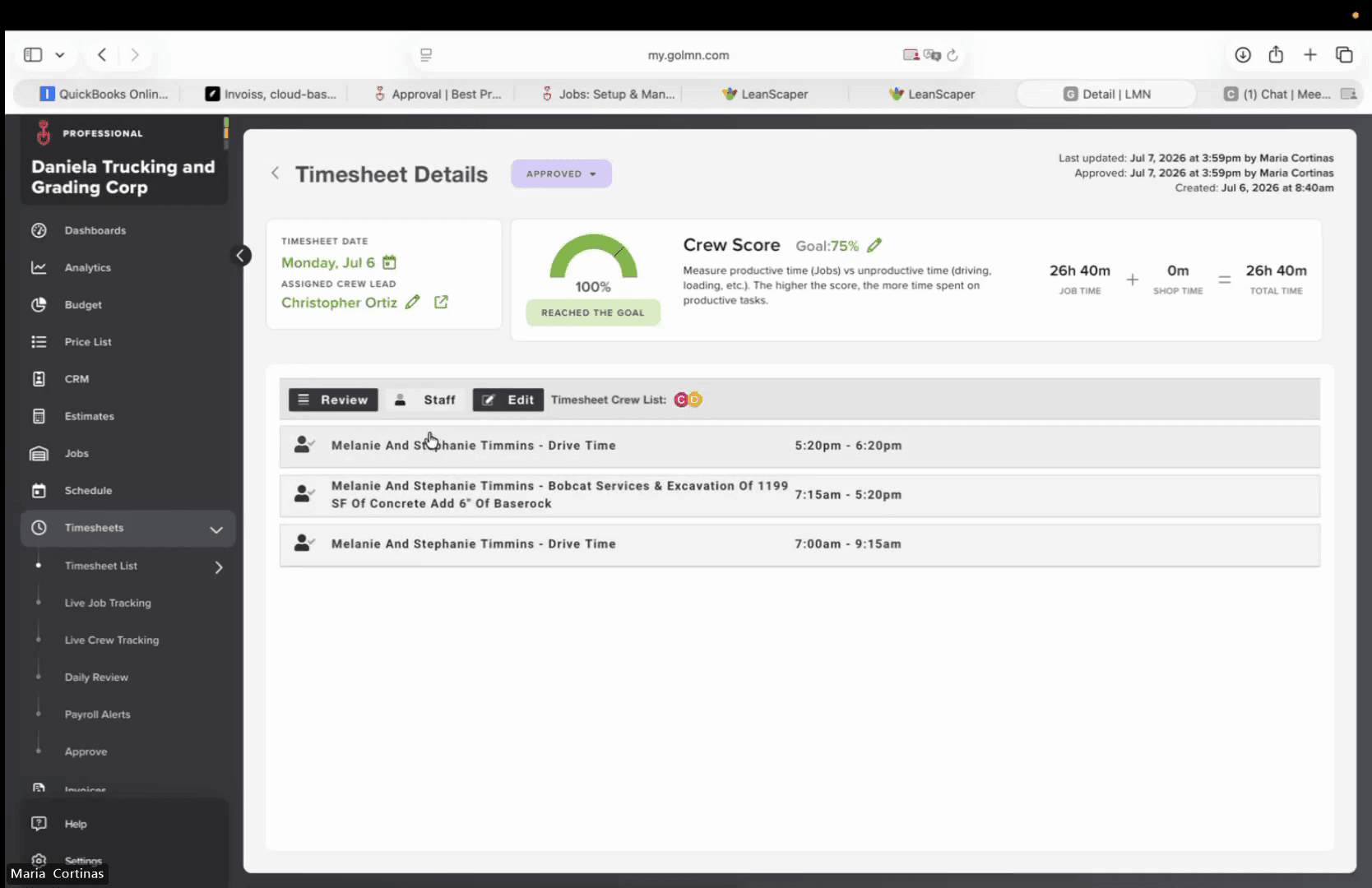
Review the crew list and logged time entries for accuracy.
Step #18: Review the crew list and logged time entries for accuracy.
19
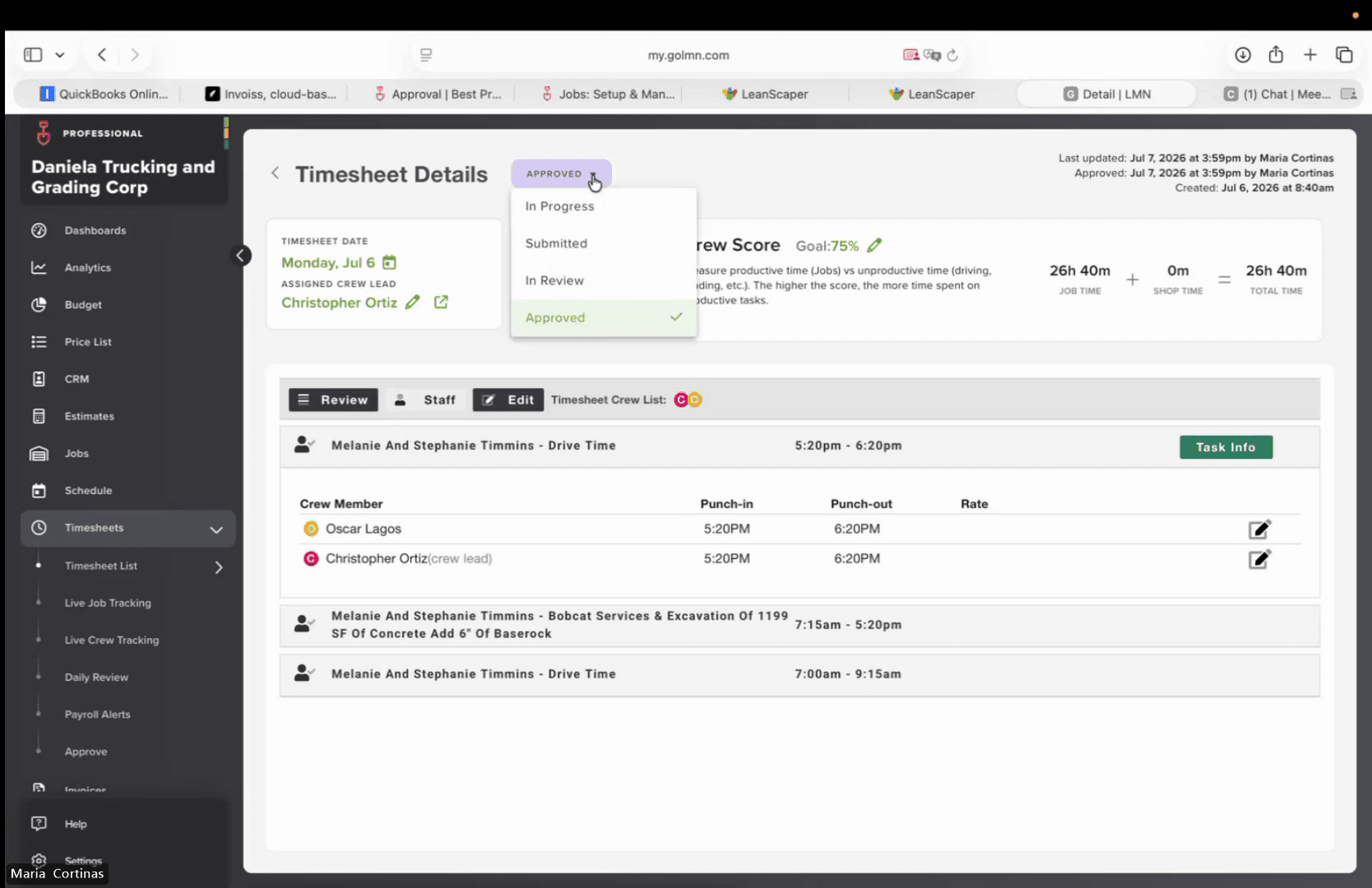
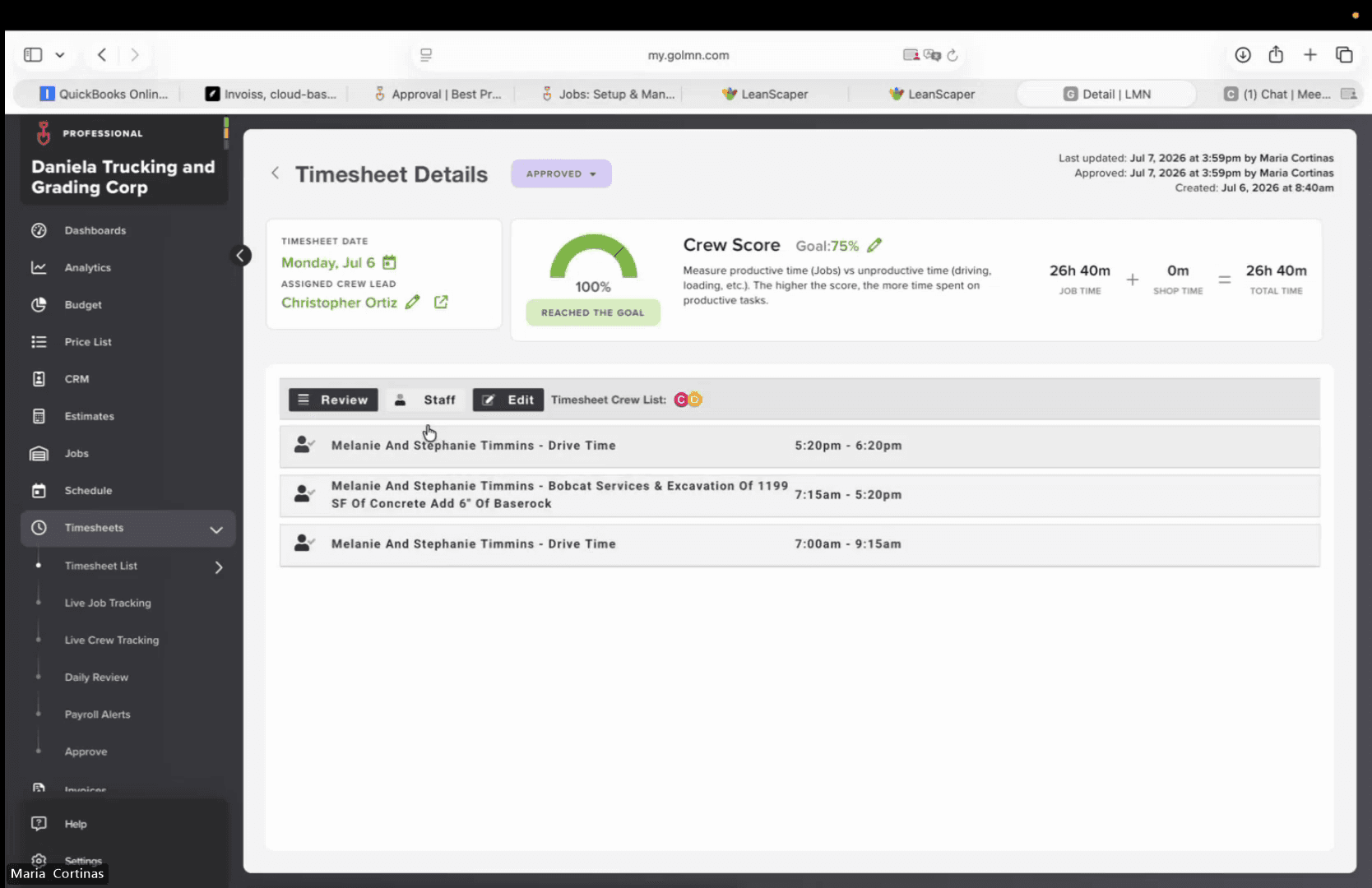
Change the timesheet status by choosing Approved from the dropdown menu.
Step #19: Change the timesheet status by choosing Approved from the dropdown menu.
20
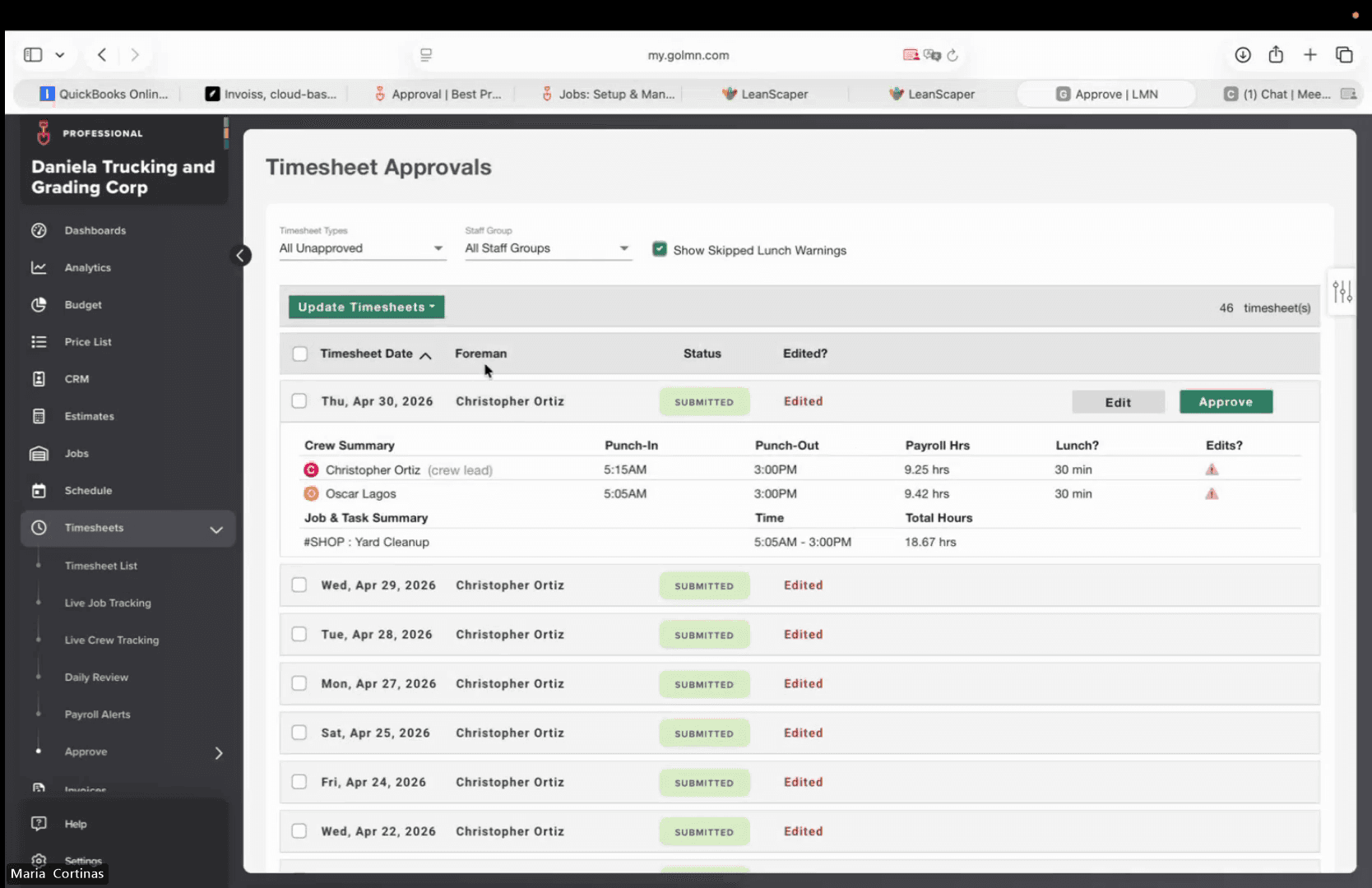
Click Update Timesheets to apply your changes.
Step #20: Click Update Timesheets to apply your changes.

Q: Why am I getting a validation error when setting the end time?

A: This typically happens if you attempt to enter a pending end time for a task that was started on a previous day. Ensure your start and end times reflect the correct shift date to avoid this block.

Q: Can I edit a timesheet after it has been approved?

A: Yes. You can click the "Edit Timesheet" button to revert an approved timesheet back to "In Progress" status, which allows you to make necessary adjustments to the time or tasks.

Term

Definition

Punch In

The action of recording the start time for an employee's daily shift.

Log Services

A step in the timesheet workflow where specific equipment usage or service details are recorded alongside operational hours.

Timesheet Module

The central dashboard where daily or weekly time entries are created, managed, and submitted.

How to Create and Approve Timesheets