How to Create and Assign Tasks in Zoho CRM
Learn how to create tasks, set due dates, and assign them to team members in Zoho CRM using the client's profile or the Kanban pipeline.
This guide shows you how to create and assign tasks in Zoho CRM to effectively communicate actions, such as billable cancellations or account closures, to other teams like Finance.
This applies to team members managing client referrals who need to delegate actions or provide status updates to other departments within Zoho CRM.
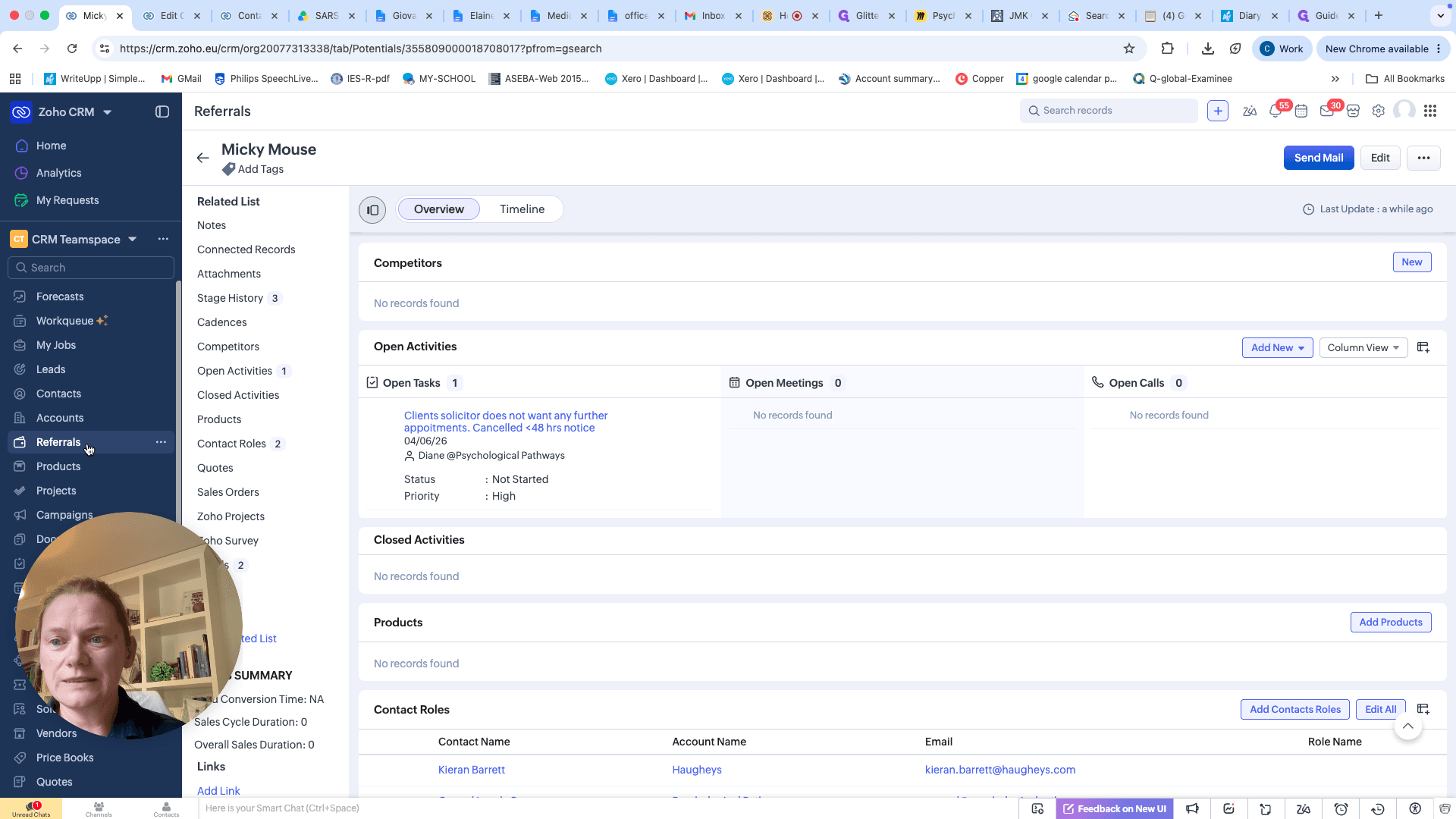
Method 1: Creating a Task from the Client Record
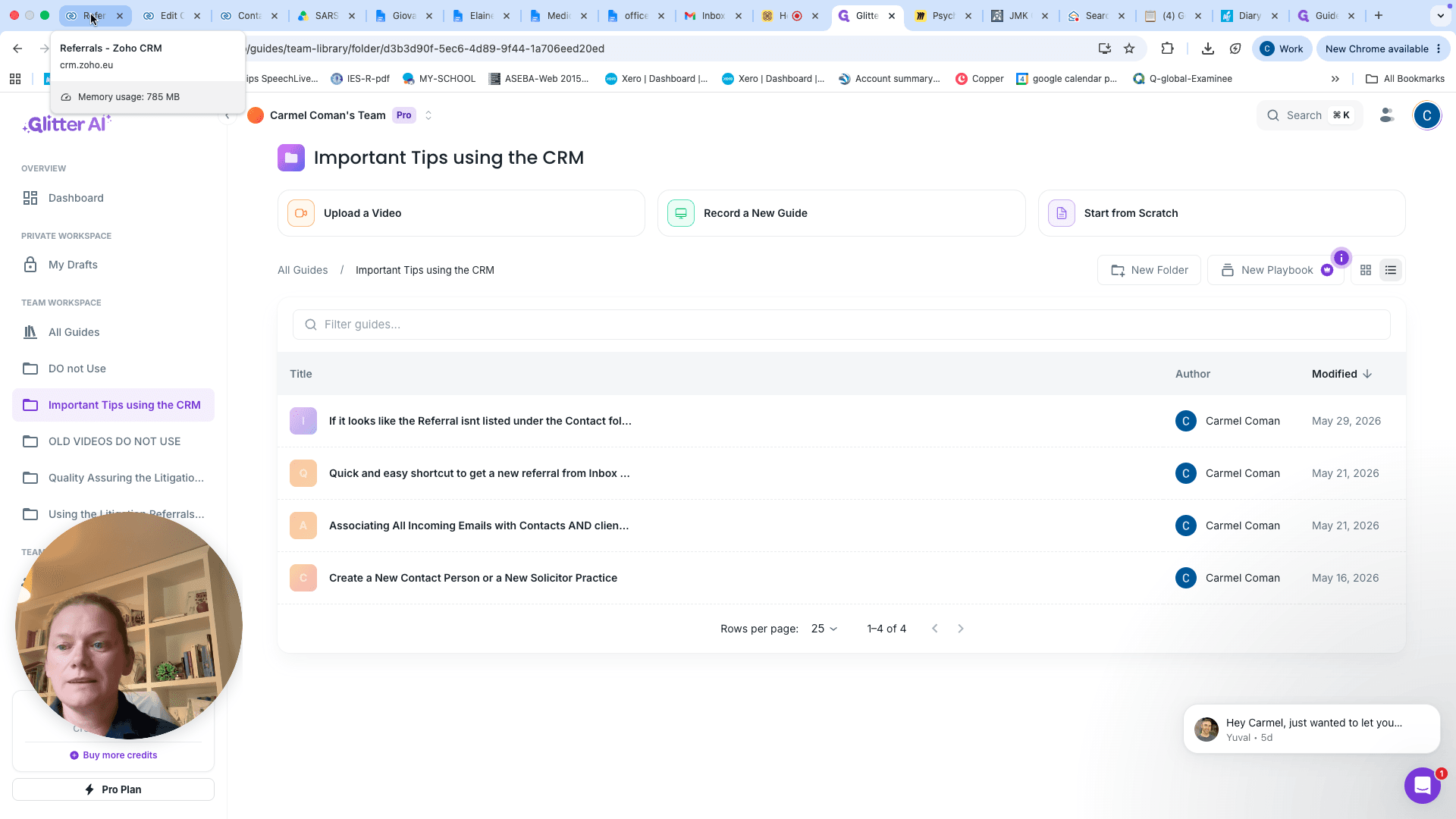
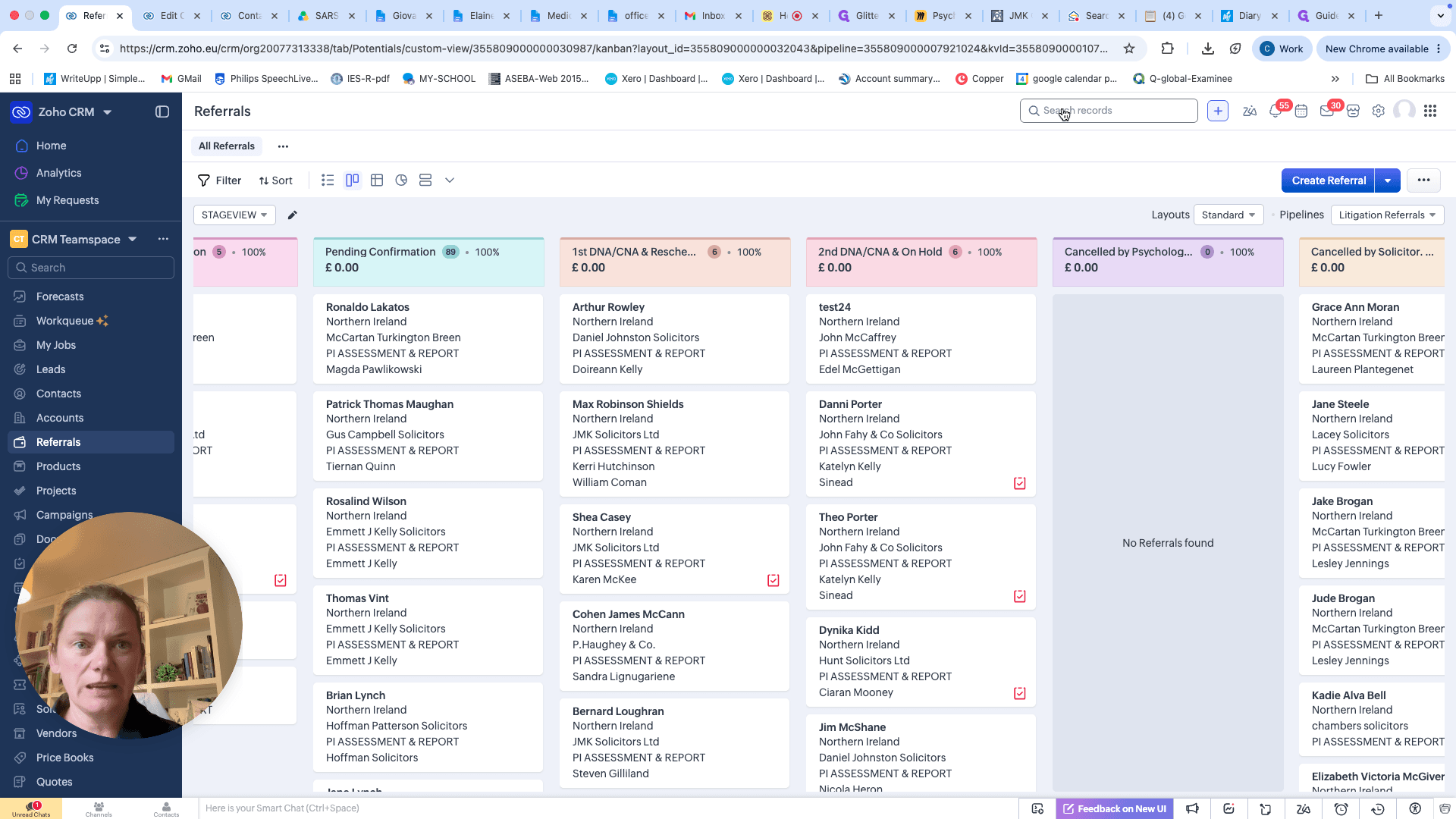
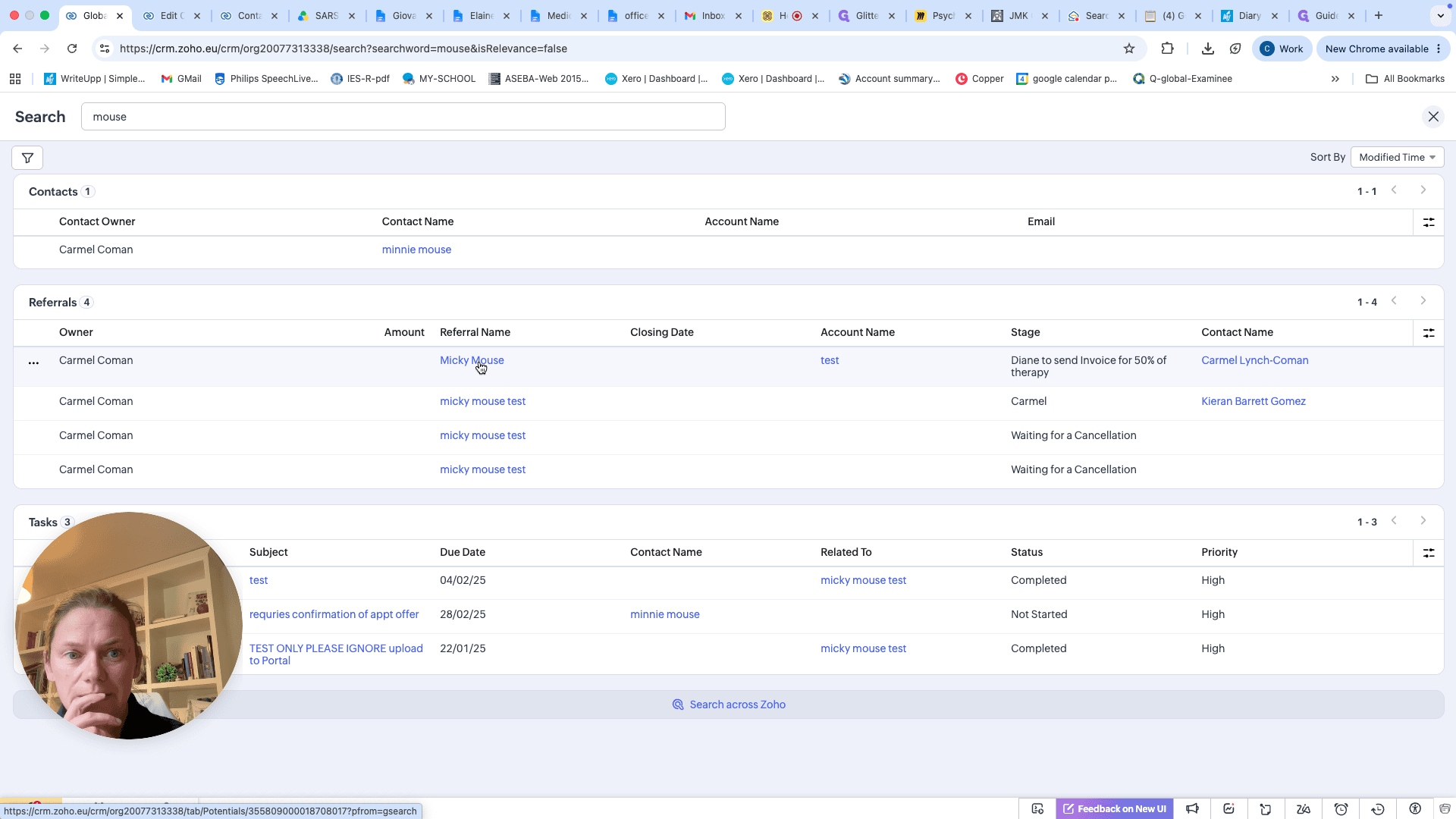
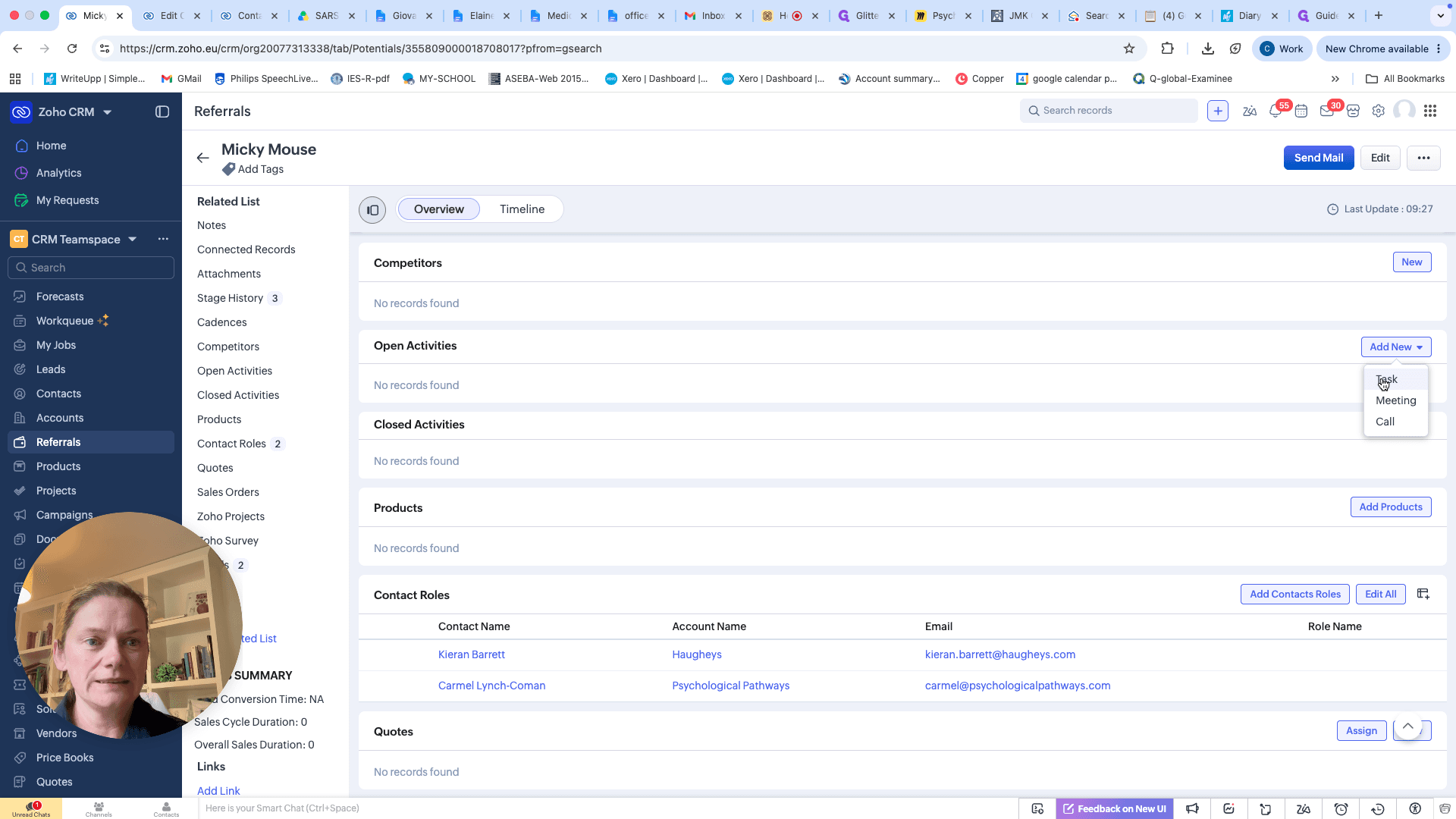
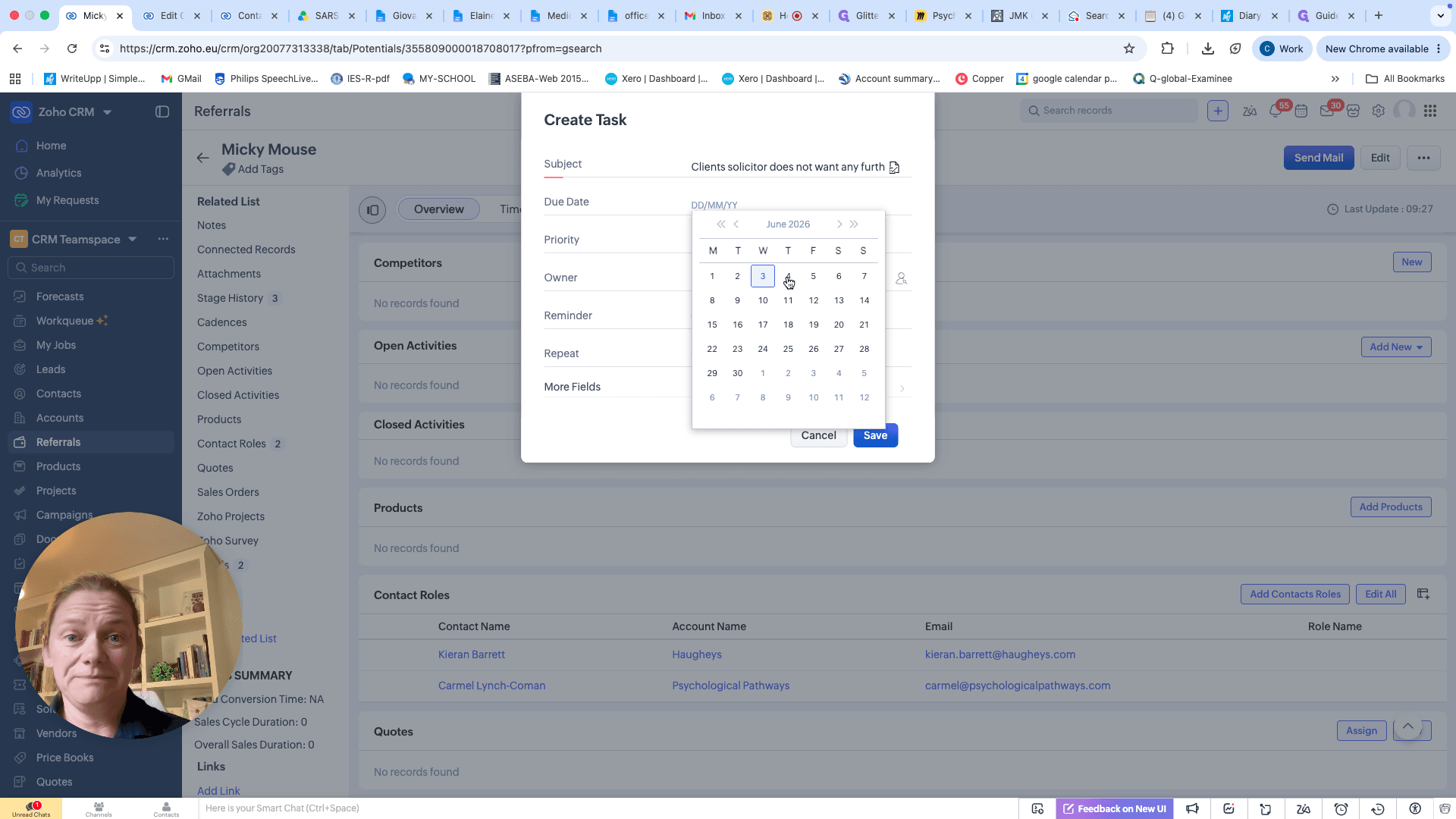
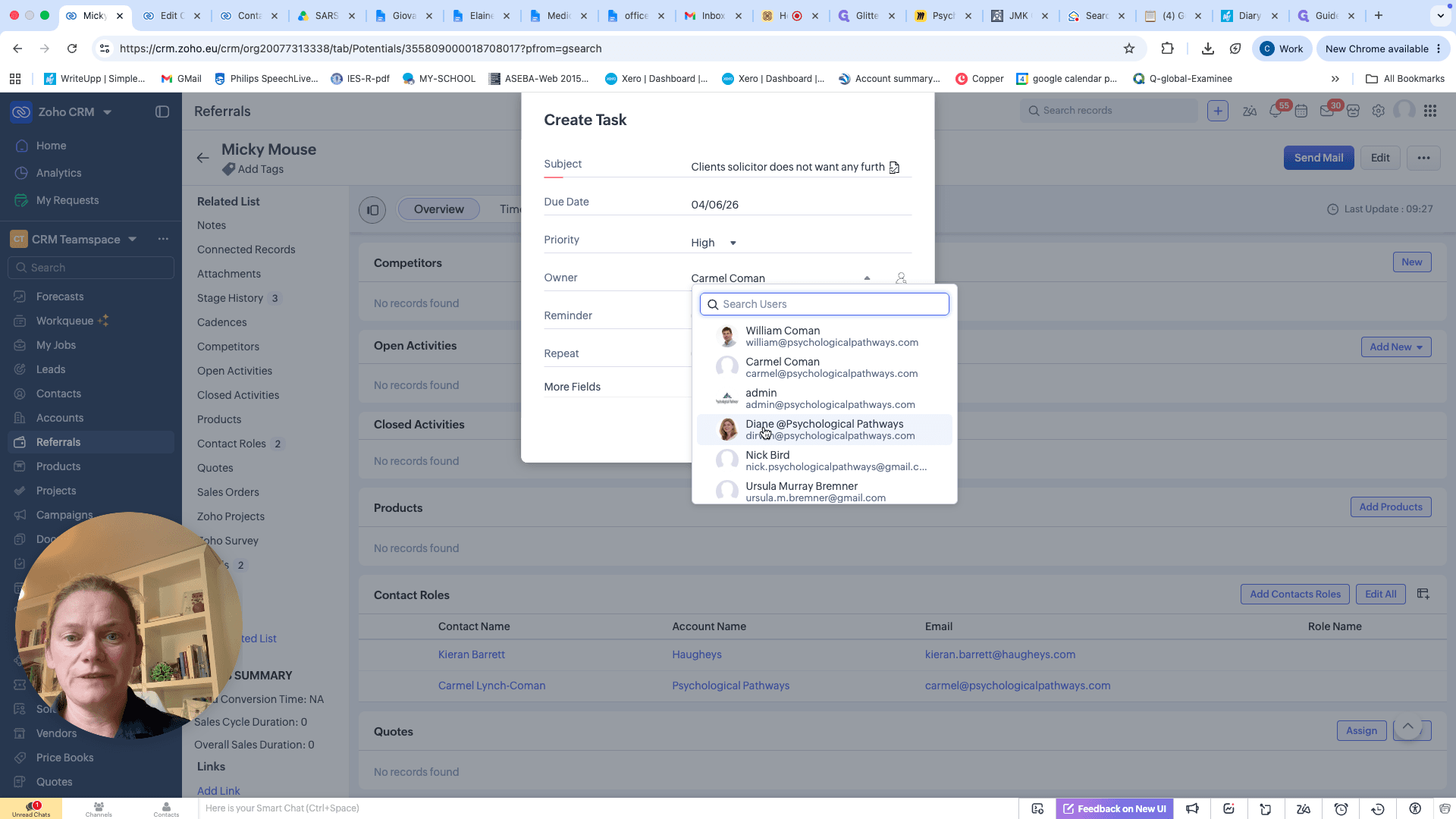
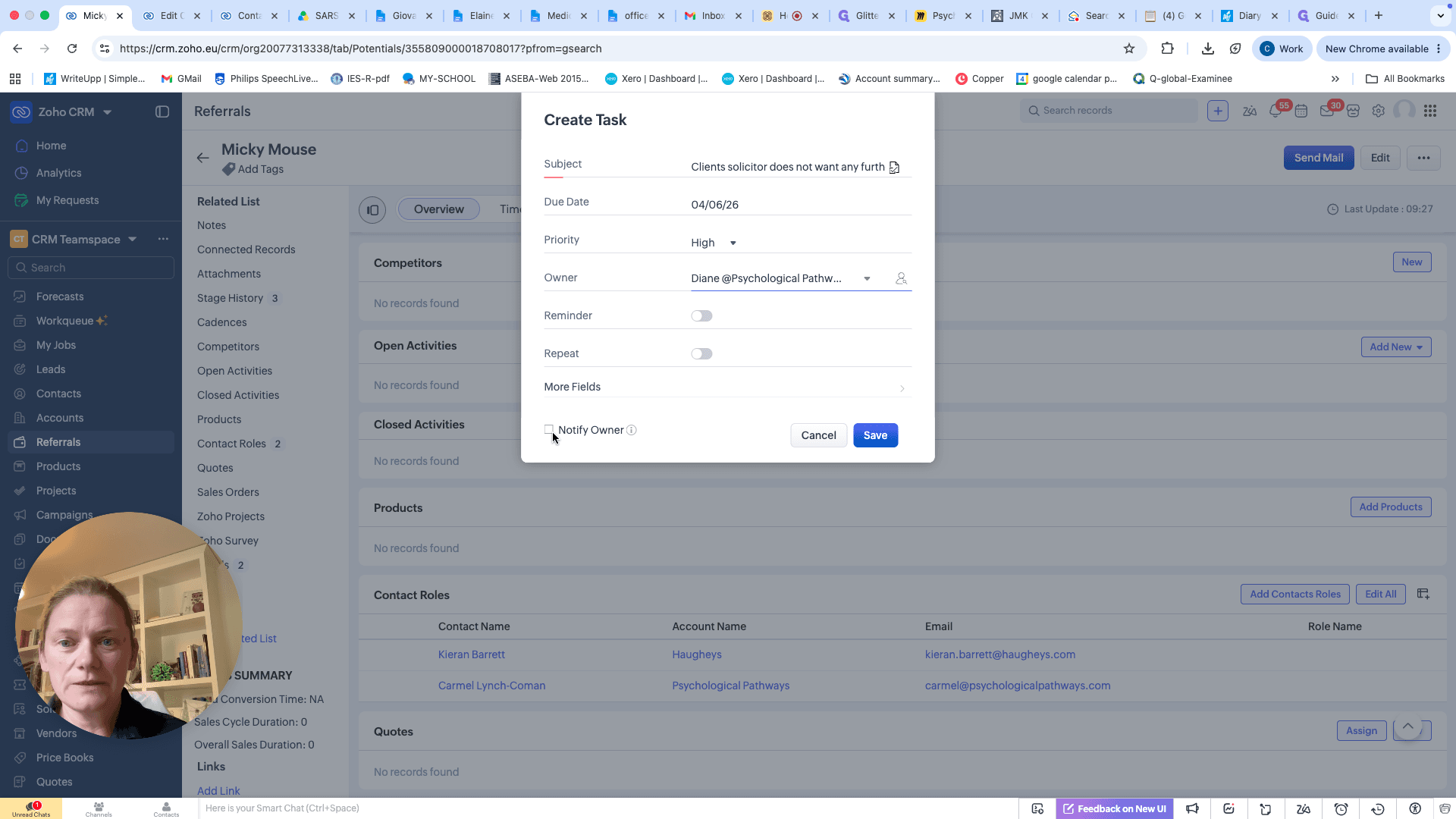
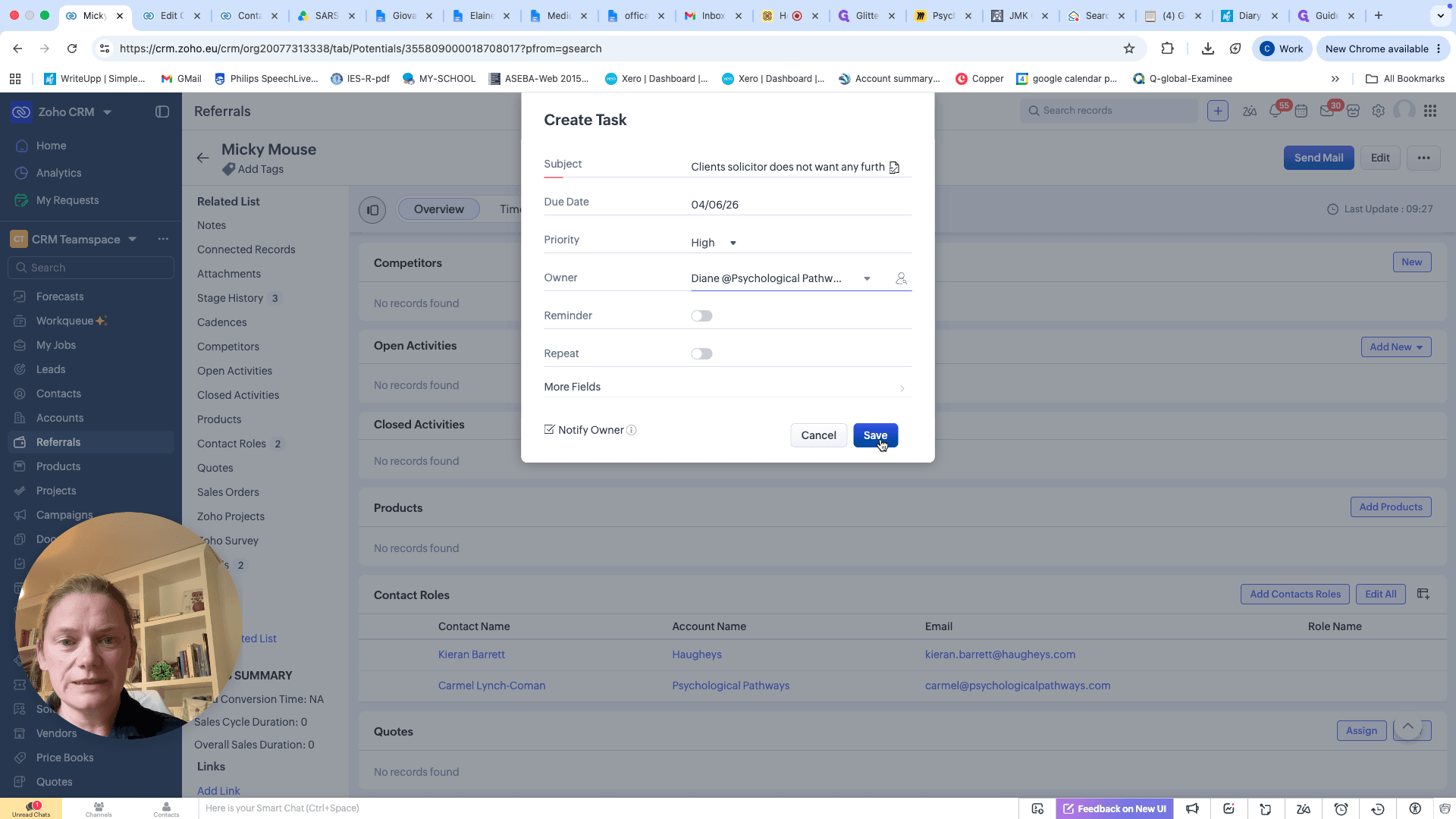
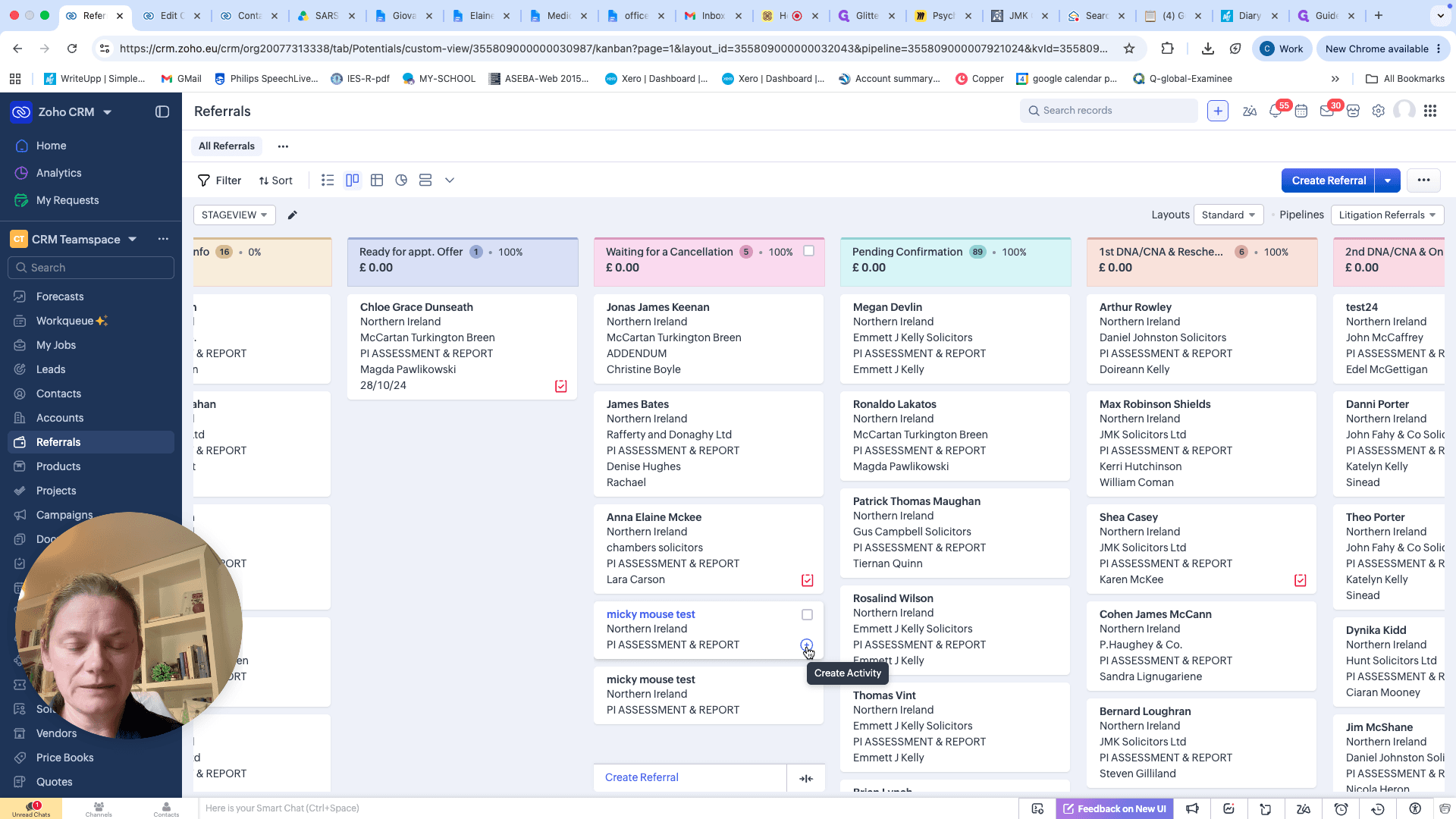
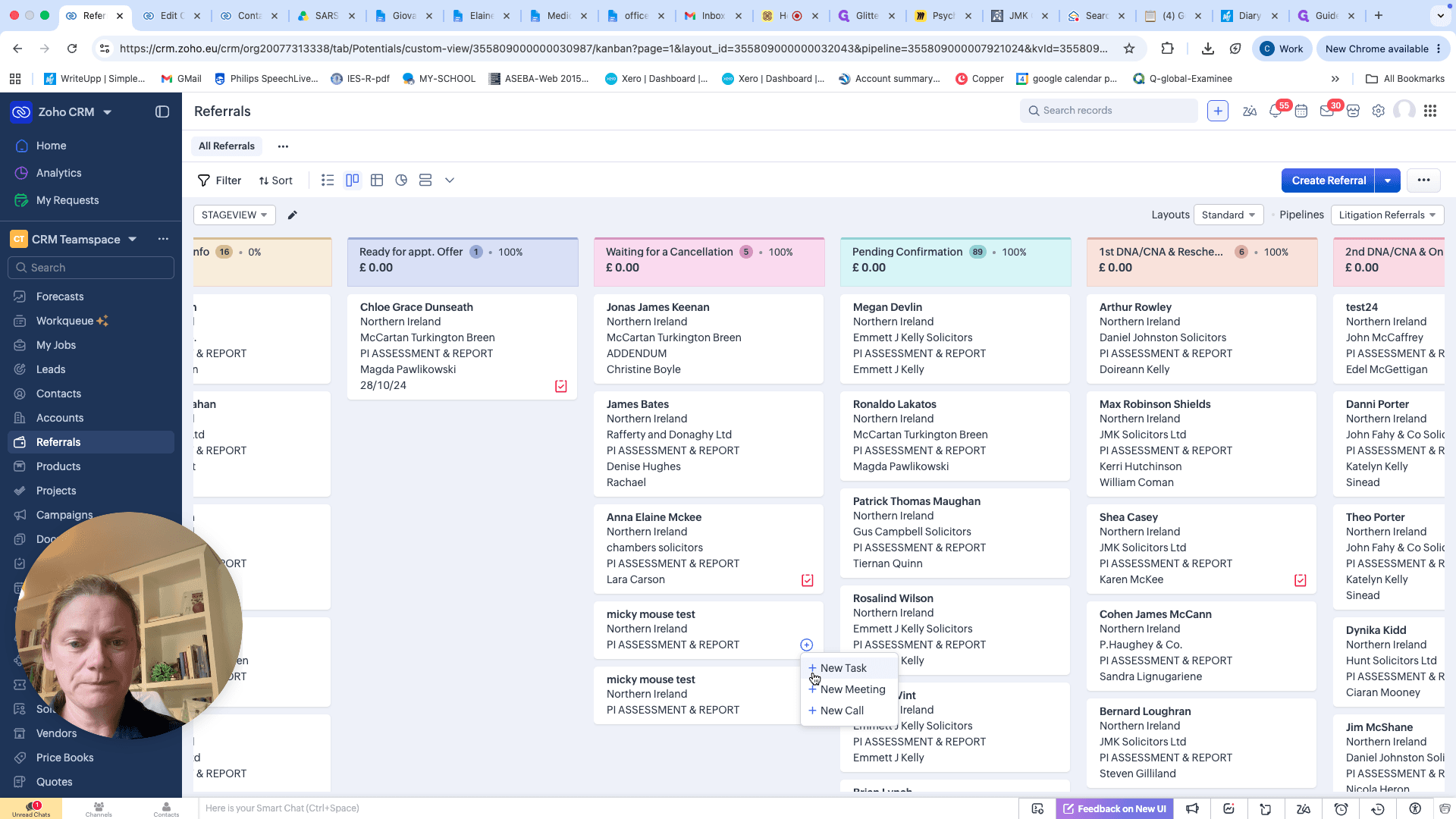
Method 2: Creating a Task from the Kanban Pipeline
Q: Why should I use the "Notify Owner" checkbox when assigning a task?
A: Checking this box sends an immediate email alert to the assigned team member. This is crucial for communicating urgent updates, such as when a cancellation is billable or when a client's status changes to closed/lost.
Q: Can I create a task without opening the client's full profile?
A: Yes. You can create a task directly from the pipeline view by clicking the "Create Activity" icon on the client's referral card.
Term | Definition |
|---|---|
Closed/Lost | A pipeline stage indicating that a client or deal will not be moving forward and requires no further appointments. |
Billable Cancellation | A scheduled appointment that was canceled without sufficient notice (e.g., under 48 hours), requiring the client to still be charged. |
Open Activities | A section within a CRM record that tracks pending tasks, events, and calls associated with that specific client. |